# Easytools — full documentation
> Complete English documentation for Easytools (easy.tools): selling digital products with Easycart, building pages, email campaigns, testimonials, compliance, and account management. Curated index: https://www.easy.tools/llms.txt
## Registering on Easytools
Category: sell-your-products / get-started-with-easycart
URL: https://www.easy.tools/docs/registering-on-easytools
## Testing tools without registration
If you want to test our tools without creating an account, you can. Here are the links to test the tools without registration:
- [Easycart](https://app.easycart.pl/creator/products/new)
- [Easyplayer](https://app.easy.tools/player/project-create)
- [Easylove](https://app.easy.tools/love/project-create)
- [Easylegal](https://app.easy.tools/legal/project-create)
[Easypage](https://www.easy.tools/websites) and [Easymail](https://www.easy.tools/campaigns) are available in the Creator Portal once you have an account.
After testing a tool, you can create an account to save your progress. If you exit without saving, you will lose your changes.
> Note: our older tools - Easyfaq, Easyoffer, Easytimer, Easycookie and Easycoffee - are no longer part of the platform we develop. If you still use them, see [Legacy tools](/docs-category/legacy-tools).
## Registering a new account
To fully use Easytools, you need to create an account. One account gives access to all features - buying and selling with Easycart, and using all Easytools. The methods for creating an account and the information we present may depend on the user path.
### Customer path
We automatically create an account during any purchase with a new email address. If the customer uses an email already registered, they will receive a message to log in. They can ignore this message and continue their purchase without logging in. The purchase will still link to the same account. We aim to keep the purchase process simple and don’t distract the customer, even if they can’t access their email to log in with a magic link.
We cannot disable the creation of customer accounts during purchases. These accounts are necessary for managing transactions and providing features like subscription cancellation.
### Creator path
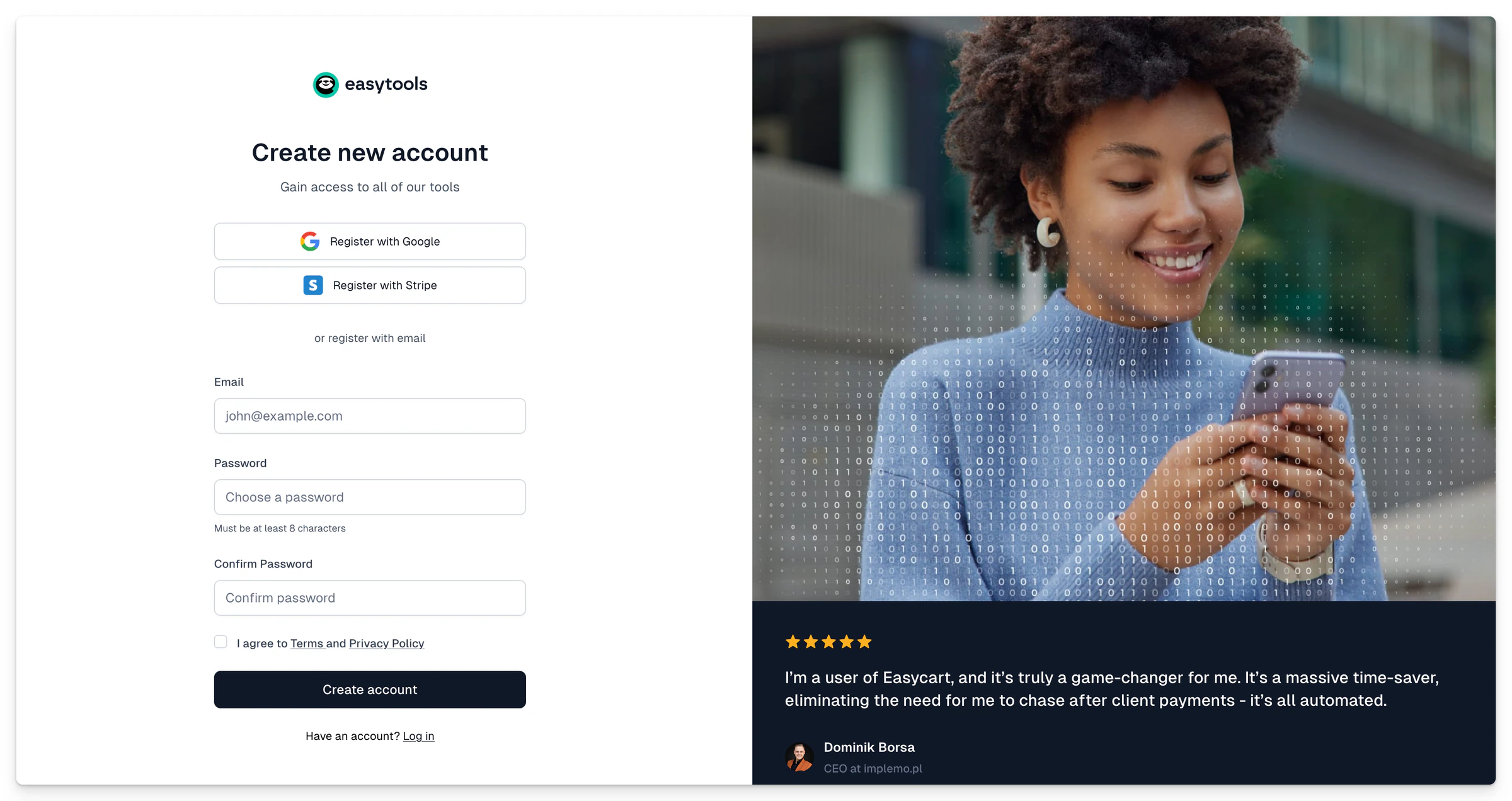
Creators can set up an Easytools account in a few different ways:
- Standard registration by clicking the [Register](https://id.easy.tools/register?callback=easycart&redirect=%2Fcreator) button on our site.
- Registering with the option to import products from Stripe if you already have a Stripe account and want to use your products on Easycart. [Start this registration here](https://cart.easy.tools/creator/import). Learn more about this process
If you already have an account, you can also import products from Stripe through the setup guide on the Creator Portal homepage, in the **Create or import products** step.
Creator registration is not available in some countries, because selling on Easytools requires Stripe. [See the countries where you cannot register](/docs/countries-where-you-cannot-register).
## Creating an account with Stripe or Google
You can create an account using Stripe or Google, and in the future, other providers, including social media platforms.
Creating an account through Stripe won't automatically connect it to your Stripe store. You'll be prompted to do this in the next steps. Find more information about [connecting your Stripe account here](/docs/connect-your-stripe-account).
## Login and password reset
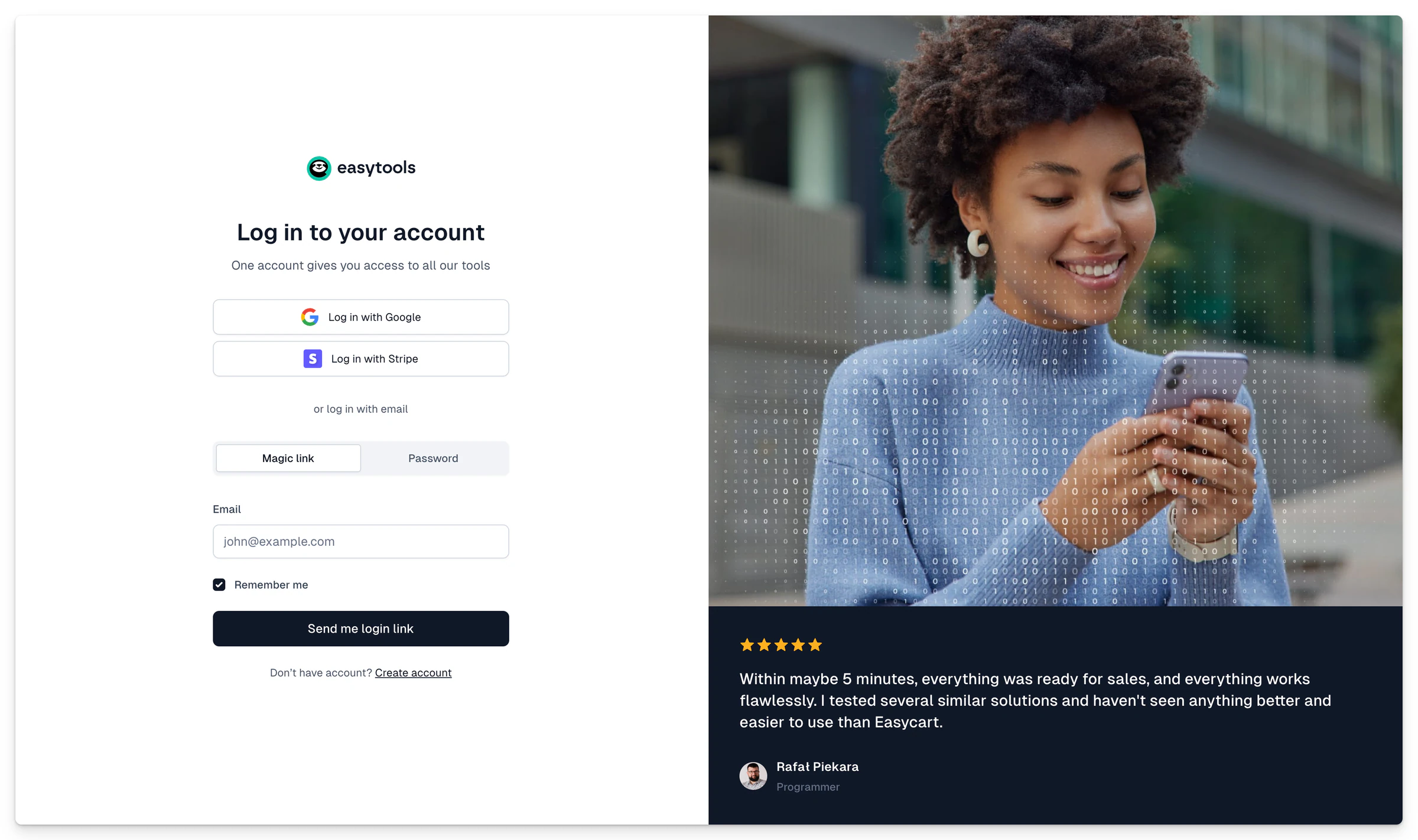
Logging in usually happens in a specific context and redirects you to the right section. For example, customers logging in from a purchase confirmation email will go straight to the products section. [Here is the login page for creators](https://id.easy.tools/?callback=easycart&redirect=/creator). If you copy an address in Easytools and it's available to someone else who isn't logged in, clicking the link and logging in will automatically redirect them.
Users can log into their accounts:
- Using Stripe or Google
- Using email - either with a password or a magic link we send to their inbox
We recognize the unique email address and allow logging into the account with that address, regardless of the chosen method if it's assigned to it.
You can reset your password on the login page by selecting the **Forgot Password** option.
## Quick account setup
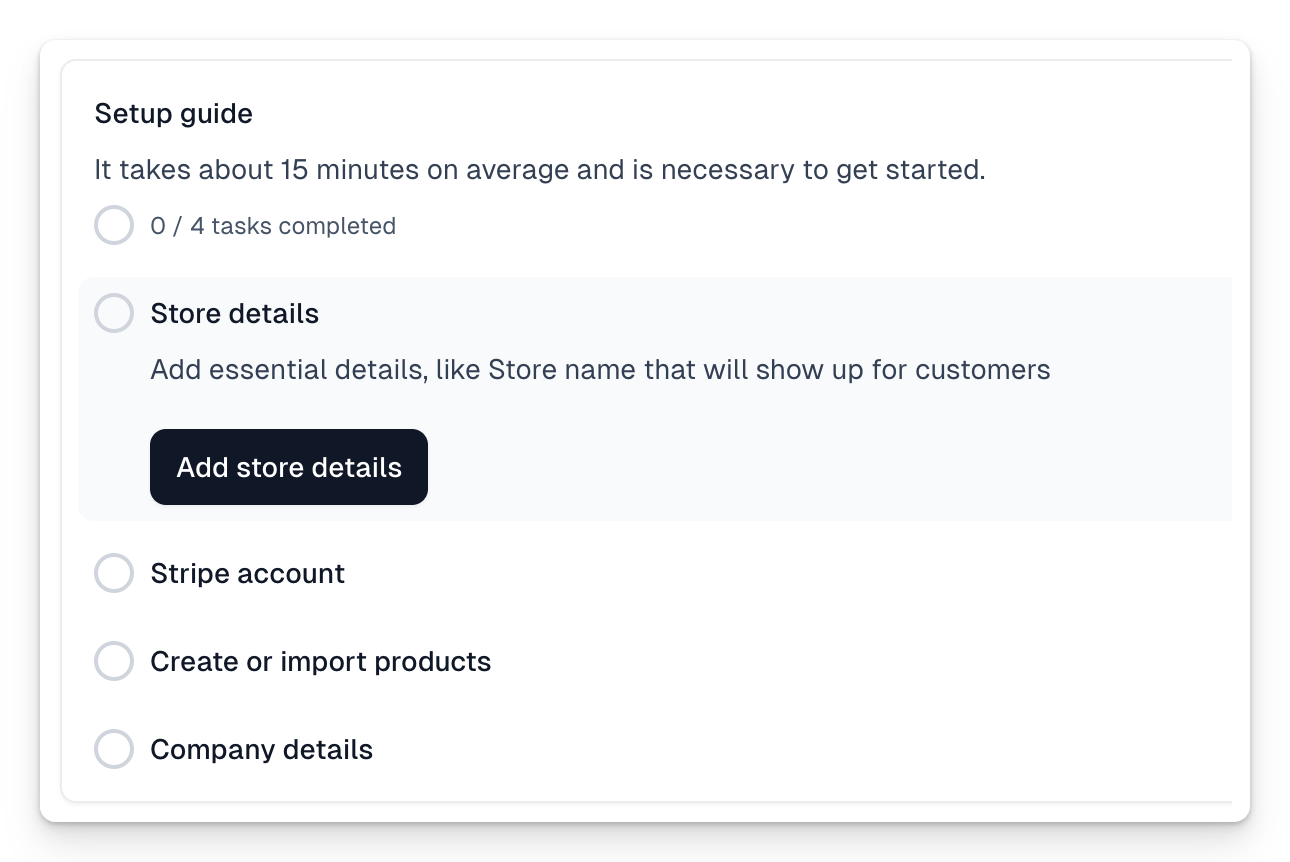
After registration, you'll find a setup guide on the Creator Portal homepage, consisting of a few simple steps.
- **Store Details** - fill in the necessary data that will be visible to buyers in the Customer Portal
- **Stripe Account** - connect your Stripe account, which is necessary for selling products. Learn more about connecting the account [here](/docs/connect-your-stripe-account)
- **Creating or Importing Products** - create your first product or import existing products from Stripe
- **Company Details** - your company data, which we will use for generating regulations and invoices
- **Billing and Taxes** - important data that helps us calculate taxes in the cart, including international sales, and correctly configure invoicing.
After completing the quick setup, you're all set to start selling 🎉
---
## Countries where you cannot register
Category: sell-your-products / get-started-with-easycart
URL: https://www.easy.tools/docs/countries-where-you-cannot-register
Easytools uses Stripe as its only payment processor. If Stripe cannot pay you in your country, you cannot sell with Easytools. That is why we do not offer creator registration in the countries listed below.
This applies to **creator** accounts - people who sell with Easycart. Customers from these countries can still buy from creators who are registered elsewhere.
> Note: Stripe decides where it can operate. We follow that coverage so you do not end up with an account you cannot connect to Stripe. The list can change as Stripe [expands to more countries](https://stripe.com/global).
## Countries currently unavailable for creator registration
You cannot register as a creator if you are based in:
- Afghanistan
- Algeria
- Angola
- Bahrain
- Bangladesh
- Benin
- Botswana
- Burkina Faso
- Burundi
- Cameroon
- Central African Republic
- Chad
- Congo (Brazzaville)
- Congo (Kinshasa)
- Côte d'Ivoire
- Djibouti
- Egypt
- Equatorial Guinea
- Eritrea
- Ethiopia
- Fiji
- Gabon
- Gambia
- Ghana
- Guinea
- Guinea-Bissau
- Haiti
- India
- Indonesia
- Iran
- Iraq
- Jordan
- Kenya
- Lesotho
- Liberia
- Libya
- Madagascar
- Malawi
- Malaysia
- Mali
- Mauritania
- Mauritius
- Morocco
- Mozambique
- Namibia
- Nepal
- Niger
- Nigeria
- Oman
- Pakistan
- Papua New Guinea
- Philippines
- Rwanda
- Sao Tome and Principe
- Saudi Arabia
- Senegal
- Serbia
- Seychelles
- Sierra Leone
- Somalia
- South Africa
- South Sudan
- Sri Lanka
- Sudan
- Togo
- Tunisia
- Turkey
- Uganda
- United Arab Emirates
- Venezuela
- Vietnam
- Yemen
- Zambia
- Zimbabwe
If your country is not on this list, you can [register on Easytools](/docs/registering-on-easytools) and [connect your Stripe account](/docs/connect-your-stripe-account).
---
## Connect your Stripe account
Category: sell-your-products / get-started-with-easycart
URL: https://www.easy.tools/docs/connect-your-stripe-account
Connecting a Stripe account is essential for using Easycart. You don't need to do this if you only use our other tools. A Stripe account allows payment processing.
If you don't have a Stripe account yet, you can create one during the Easycart connection process.
## Connecting your Stripe account
There are three different ways to connect your Stripe account, all leading to the same result:
- For new accounts, it is part of the onboarding process available on the **Home page** in the **Creator Portal**:
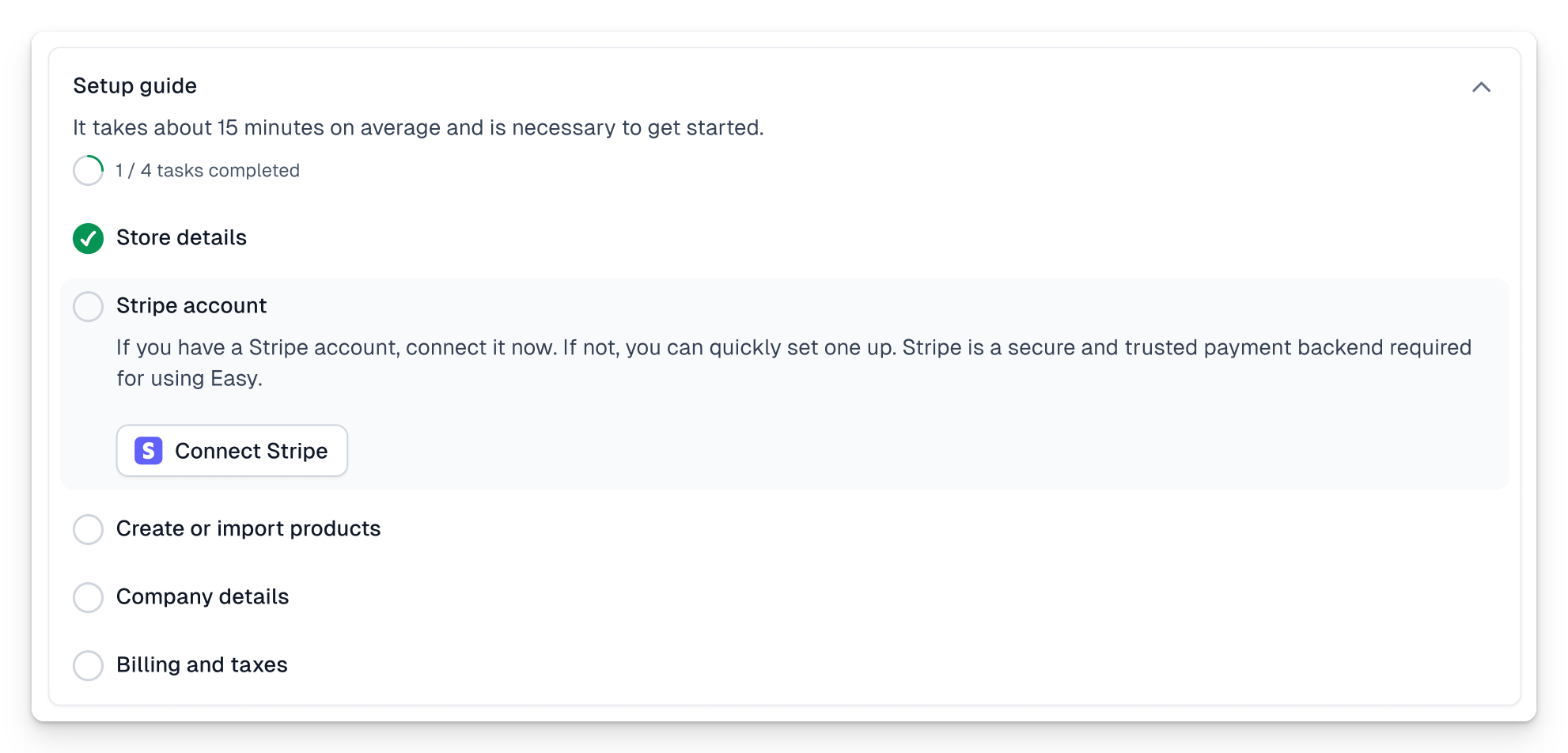
- When publishing your first product (by clicking the Publish button). If your account is not yet connected, we will prompt you to do so and guide you through the necessary steps.
- When going through the optional process of importing products from Stripe. You can [**initiate it here**](https://cart.easy.tools/creator/import).
## Next steps for connecting your Stripe account
You will be redirected to Stripe to either connect or create a new account (it's the same process; if you don't have an account yet, you can create one and connect it immediately).
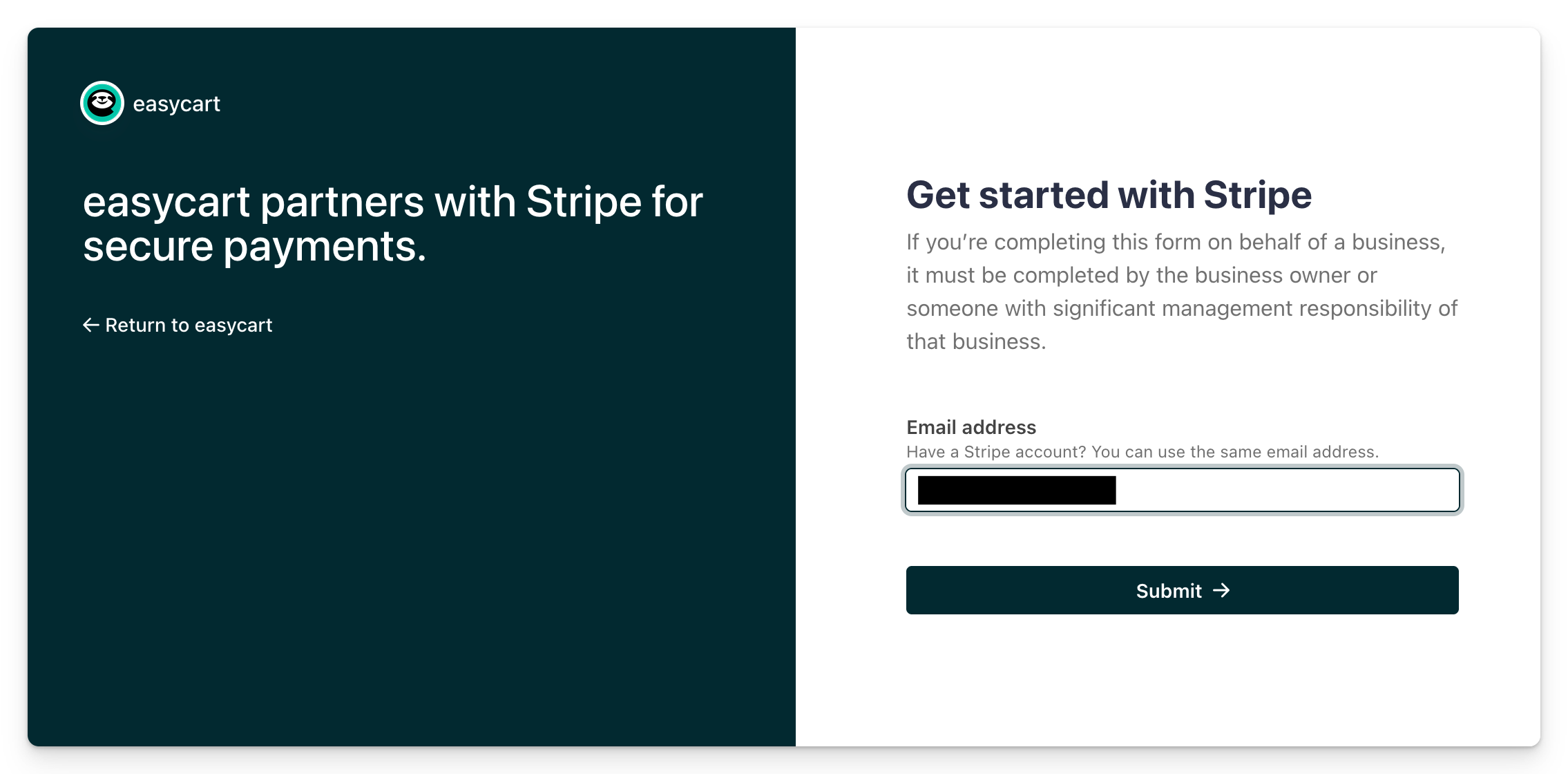
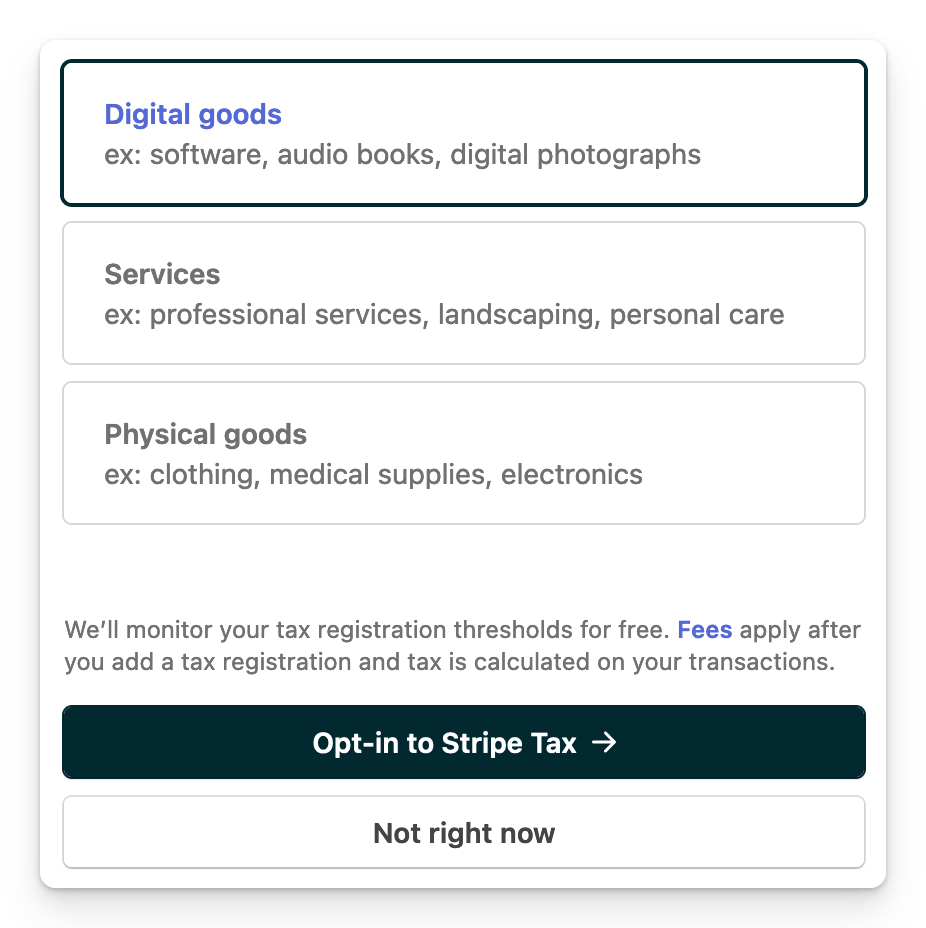
Stripe will guide you through adding a new business. You can also register as an individual. In the next step, Stripe will ask what you plan to sell. Likely, you'll choose digital products (even if unsure now), then select **Not right now** for Stripe Tax.
Once your account is successfully created or connected, you'll return to Easycart to create or import products. Congrats, your account is now set up, but we recommend following the next steps in the setup guide. You can now proceed to [create a new product](/docs/create-your-first-product) or import Stripe products.
## Importing products from Stripe
If you wish to import existing products from your Stripe account, you can do it in two ways:
- From the setup guide on the homepage

- If you don't have an Easytools account yet, [use the dedicated creator](https://cart.easy.tools/creator/import)
The import creator will guide you through the necessary steps. Existing products on your Stripe account will be copied to Easycart without changes. No modifications will be made to your Stripe account, so no worries! The import process may take a few minutes, so refresh the [products page](https://assets.easy.tools/media/images/6610200a3811b820656fdd9d/66d8253ddbda858967810416_nIeHsTRTmqfBbndN8QtU.png) after a while. They should appear there.
### Initial Stripe account setup
Right after connecting or creating your account, log in to the Stripe interface and ensure the account is correctly configured.
1. Check your account settings in the [Account Settings](https://dashboard.stripe.com/settings/account) tab. Ensure the address is correct.
2. Fill in details, especially the website and links to privacy policy and terms in the [Public Details](https://dashboard.stripe.com/settings/update/public/support-details) section. This is crucial as some payment operators may refuse transactions without proper data. You can generate legal documents using [Easylegal](https://www.easy.tools/legal). [Click here to generate documents](https://id.easy.tools/?callback=easycart&redirect=/creator/legals?new=1).
3. Ensure payouts are set to the correct account in [this tab](https://dashboard.stripe.com/settings/payouts). Stripe charges additional fees for currency conversion. It's more cost-effective to receive payouts in the same currency you sell products. Check [this table](https://docs.stripe.com/payouts/alternative-currencies) and try to choose an option where payouts are free (FREE). Below, you'll find information on payout frequency. Initially, it's every 7 days or manually. After processing a sufficient number of transactions, Stripe will enable payouts every 3 days and later - daily.
4. Finally, go to [this tab](https://dashboard.stripe.com/settings/billing/automatic) and ensure all customer messages are disabled. Why disable messages? All transactional messages will be handled and sent by Easycart. You'll also find an important option here for subscription sales. If you sell subscriptions, you can set when renewal notifications are sent in this place. This option, **Upcoming renewal events**, is set to 3 days by default. You can change it or disable these messages entirely in the product settings on Easycart.
### Main benefits of Stripe
- **Largest payment infrastructure -** Stripe is the **global leader in online payment processing**, providing solutions to millions of businesses like Booking, Shopify, and Salesforce.
- **Focus on conversions and UX -** Stripe's API offers **far more capabilities** for us, as EasyCart creators, in terms of providing features to clients than Polish operators.
- **Data security and compliance -** Payment providers often face **legal, compliance, and security issues**. Stripe ensures the highest level of compliance.
- **All customers are yours! -** Easycart acts as an overlay on your Stripe account. This means **all customers, payment methods, purchases, and subscriptions remain on your account!** If you decide Easycart isn't for you, you can use Stripe natively or switch to one of hundreds of other solutions!
- **Scale globally with ease -** Stripe supports payments worldwide, offering support for 135+ payment methods and currencies, optimized in 35+ countries. Now you can easily scale your products, and sales and statistics are in one place.
- [Security and compliance](https://stripe.com/docs/security/stripe#ssl) - Highest security level, using AES-256 for card data encryption, meeting standards like PSD2 (SCA), PCI DSS Level 1, SSAE18/SOC 1 and 2.
## Popular questions and answers:
### Why do we use Stripe?
Easytools uses Stripe for payment processing. Stripe is one of the best payment systems globally. Easycart provides a highly converting interface and post-transaction support.
Benefits of using Stripe include:
- Quick setup
- High sales conversions
- Global transaction support
To use Easycart, you need a Stripe account. It's a simple and pleasant process, guided step by step. Besides Easytools fees, you incur Stripe's fees, including their commissions and other charges.
### Why are Stripe's fees high?
At first glance, Stripe's fees seem high. However, this comes with high-quality services. In practice, businesses switching to Stripe earn more despite higher fees. Why? Stripe supports many payment methods, has no unnecessary redirects, and operates reliably with a high SLA. Even with a 1% lower fee, if your operator has monthly technical breaks, you lose due to transaction processing downtime. Stripe also offers a friendlier onboarding process, requiring fewer documents, and the account is ready for the first sale in minutes. Stripe also allows fee reduction, usually for accounts with over $50k monthly turnover. [Here is Stripe's fee and commission table](https://stripe.com/en-pl/pricing).
### Can you connect another payment operator?
Currently, Stripe is the only available payment processor in Easytools. We plan to expand options to more providers in the future. We're working on creating a Payment balancer, allowing you to switch to another provider without negative impacts on users, helping save on fees or in case of technical issues or payment shutdowns. [Learn more here.](/docs/payment-balancer)
### What data does Stripe require?
To start using payments in Easytools, you need a Stripe account. The process is simple and quick, done during the account connection step. Stripe requires your business data; you can also register as an individual. The entire process takes only a few minutes. Once you have a Stripe account and start processing payments, Stripe will conduct a KYC procedure, asking for documents. This is a safe process and necessary for selling but not required from the start.
### Who can create a Stripe account?
You can create an account as a business or an individual. During the KYC process, Stripe will require your personal documents, but this doesn't happen immediately. It's a safe and proven procedure.
Easytools also does not offer creator registration in countries where Stripe cannot be used. [See the countries where you cannot register](/docs/countries-where-you-cannot-register).
### Are there any restrictions on selling through Stripe?
Like any operator, Stripe has a list of restricted products. [You can check it here](https://stripe.com/en-pl/legal/restricted-businesses).
---
## Create your first product
Category: sell-your-products / get-started-with-easycart
URL: https://www.easy.tools/docs/create-your-first-product
You can create your first product from scratch or import existing products from Stripe if you already have them.
Start the product import process from the Setup guide or during [registration through this link](https://cart.easy.tools/creator/import).
## Create your product
1\. You can always add a new product [using this link](https://app.easycart.pl/creator/products/new) or by going to **Store → Products** and clicking **+New product** in the upper right corner. From any panel location, you can also select **+New → New product**.
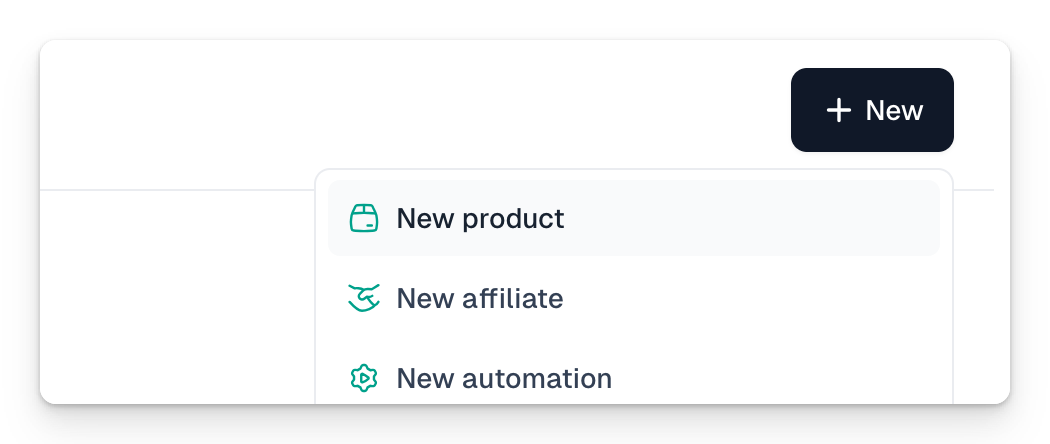
2\. Fill in the basic product information in the creator. You don't need to fill in all the details. The essential data are:
- Product name
- Currency and main price along with its type
- Whether the price includes tax
3\. However, I recommend setting at least a few additional fields:
- Description
- Product image
4\. After completing these basic steps, your product can already be saved. Click **Save** in the lower left corner, and your product will automatically save as a draft.
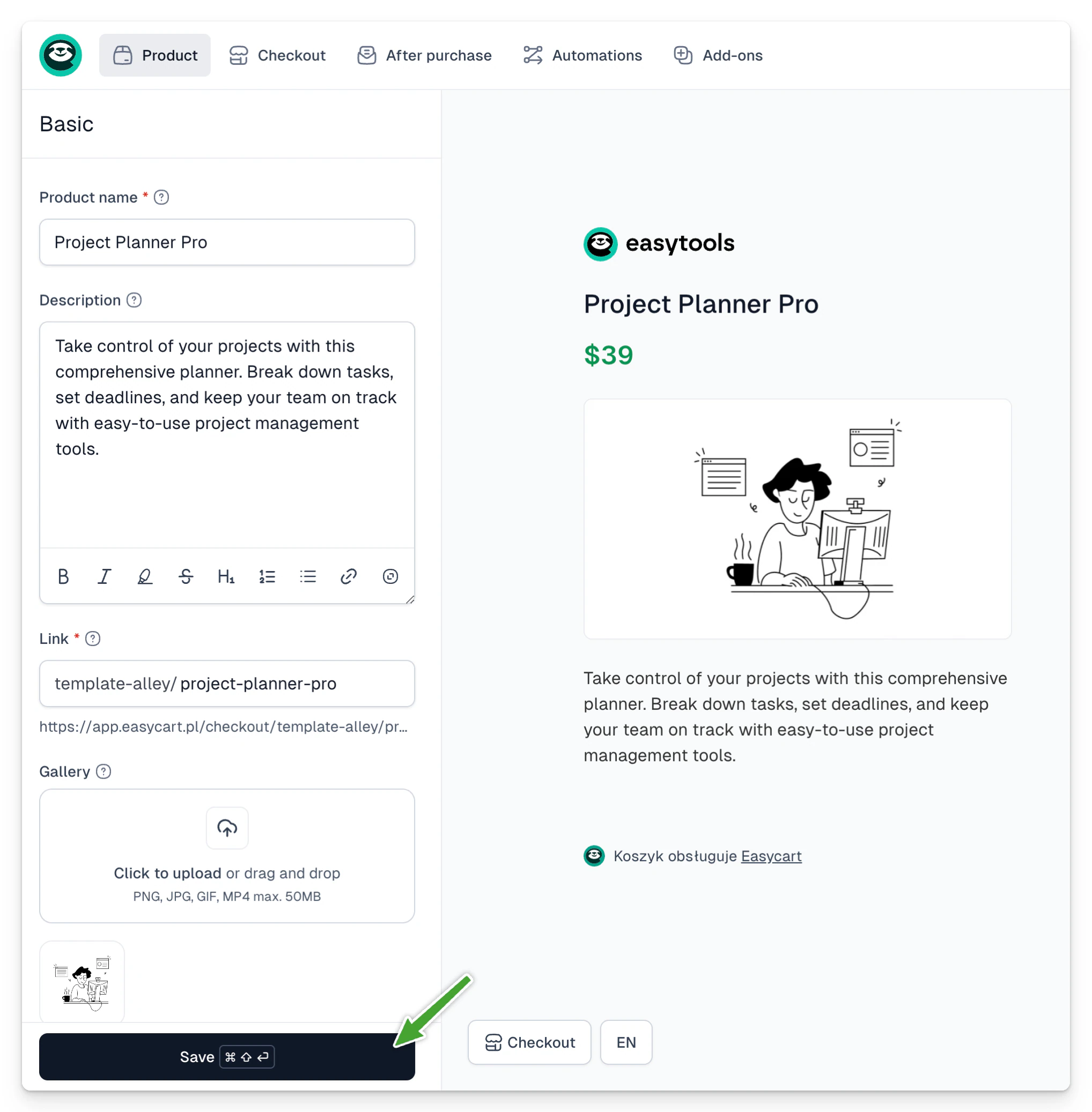
5\. If you want to change the logo, hover over it and click the blue pencil icon on the right side, which will take you to the appropriate field. You can also hide the logo using the appropriate option.
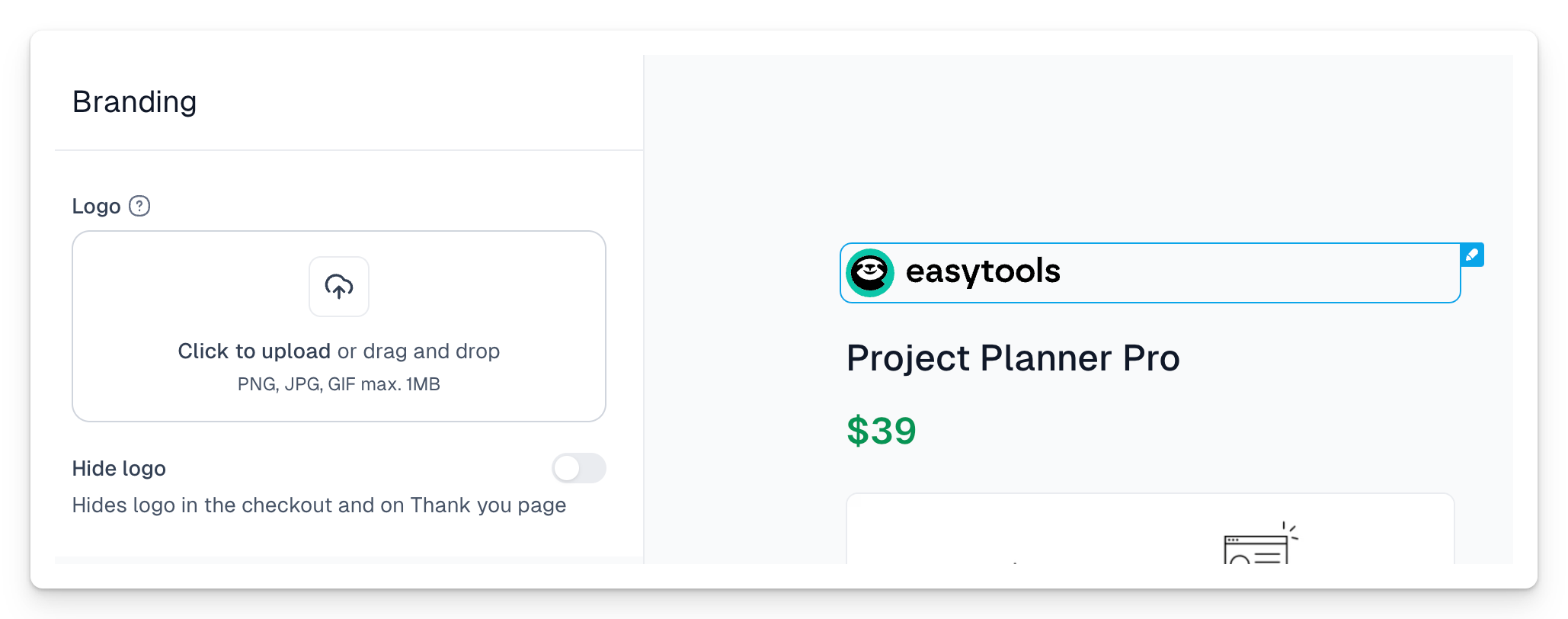
6\. Go to the **Checkout → Terms and Returns** section and add links to the terms and privacy policy. You can also generate these documents using the Easylegal tool. [Learn more here](/docs/privacy-policy-and-terms).
> You can also set the logo (and terms) globally in the [Store settings → Branding tab](https://app.easycart.pl/creator/store-settings/branding). This way, you'll add a logo that will appear by default in every newly created checkout.
7\. Click the **Publish** button in the upper right corner to publish the created checkout project.
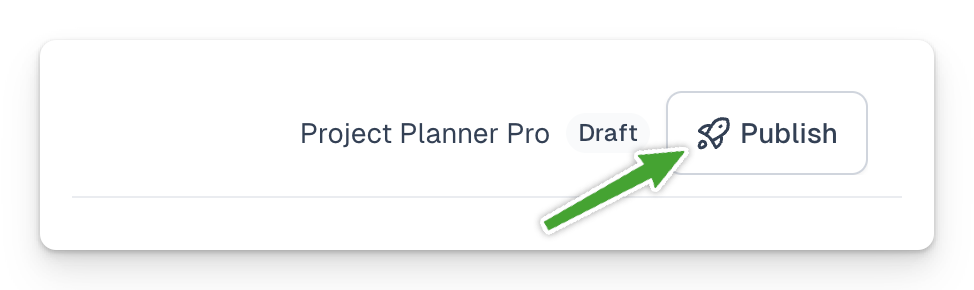
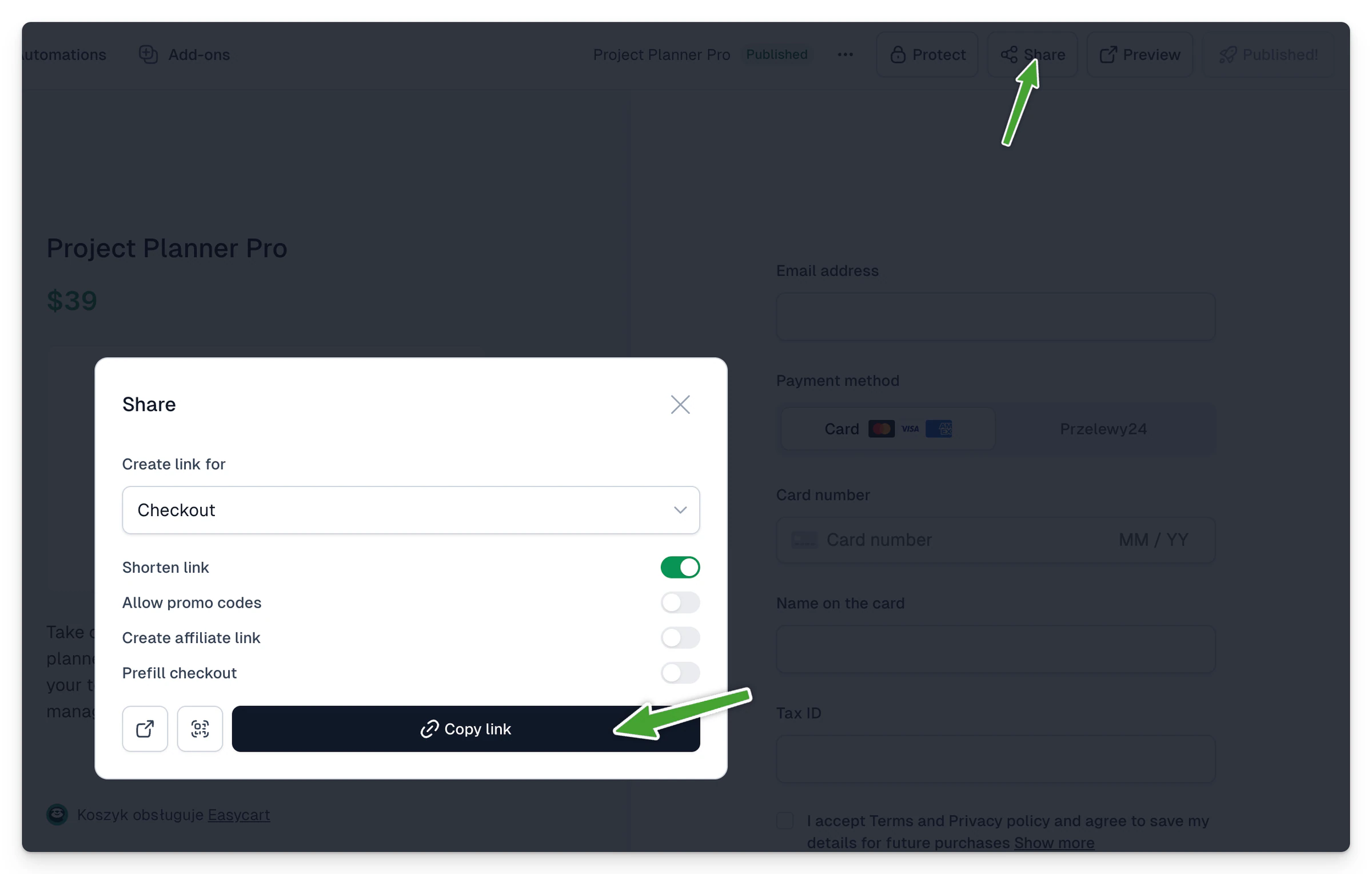
Congratulations 🎉 Your first project is ready. You can preview your checkout or share it with buyers. To do this, use the **Share** menu next to the **Publish** button. From this menu, you can now copy the checkout link. You can also quickly preview the checkout by selecting the **Preview** button.
## What options are most worth setting?
Easycart has many options you can set for your products. First and foremost - experiment! Most options will be visible in the preview, so the configuration is very intuitive. You can't break anything! Even if you change an option by accident, you don't have to save changes when exiting a specific tab. So, go ahead!
Here are our most commonly set options:
### More price variants
Think of variants as simply different versions of your product with different prices. For example, one variant might be an e-book, and another, an e-book with an hour of consultations.
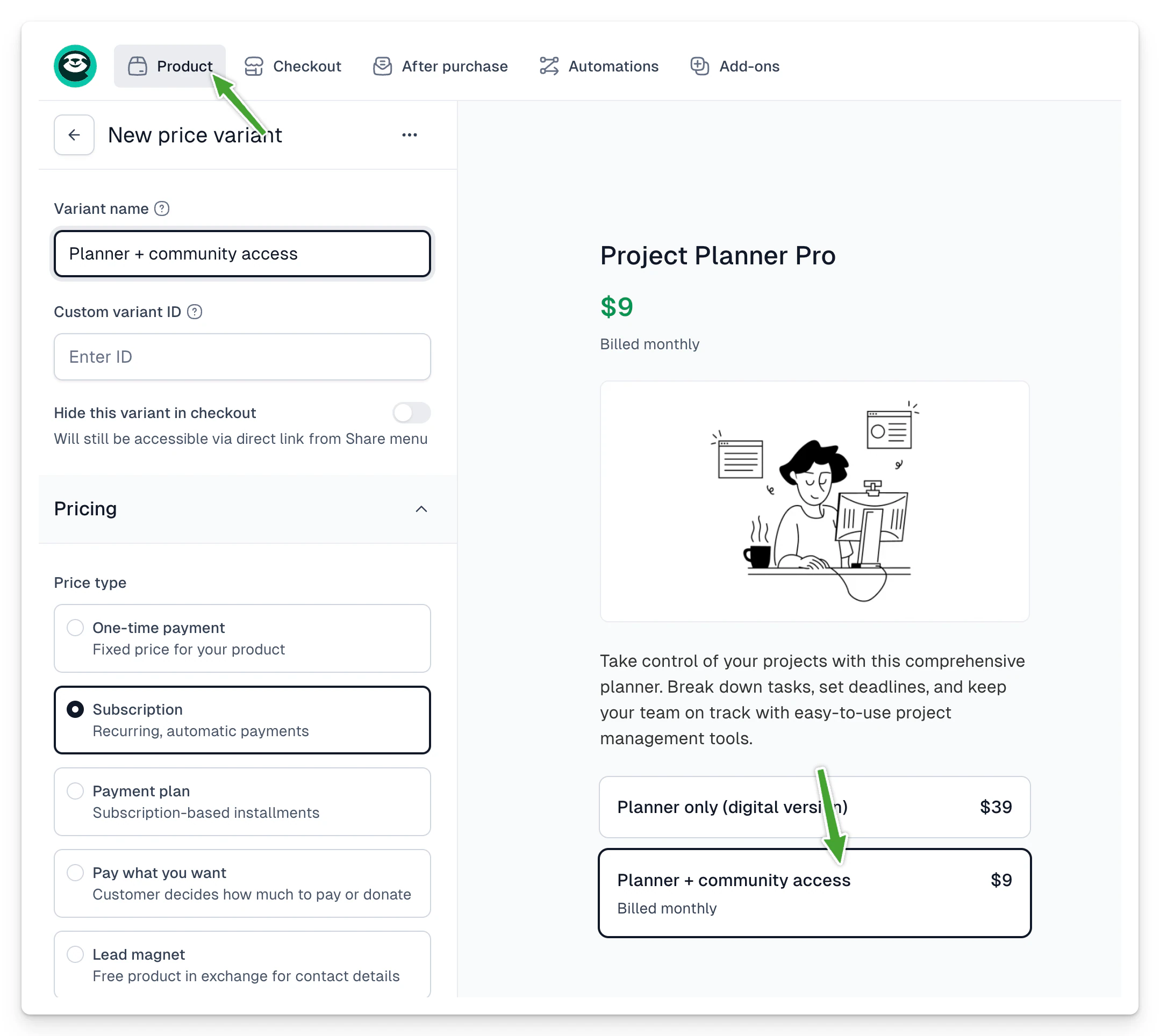
Within each variant, you can also choose the appropriate price type. This means one variant might be available as a one-time payment, and another as a subscription. You can combine all this in one checkout! How to add a new price variant? It's very easy:
1. Select **Product → Price variants** from the main menu
2. Click **+Add variant**
3. Click on the added variant to edit it
4. Change the name from “Variant 2” to something more intuitive for the user
5. Choose the appropriate price options and type
6. Click **Save** and return to the previous price variant to add a name; it will look better in the checkout.
> You don't have to fill in all the options! Only a few are mandatory. You can also override some general settings from this variant. For example, you can override the availability of the variant and limit it to a specific date.
>
> Imagine you're selling conference tickets. "Early bird" tickets will be one variant with an overridden availability date. Another variant - "regular" tickets - will also have an overridden date, and their sale will start after the "early bird" pool expires. This way, only the appropriate ticket types will be visible in the checkout at a given moment.
> You can also override form fields. For example, only one price might require an address - say, when it includes both a digital product and a hoodie you'll send by mail.
### Post-purchase options - thank you page and email
It's also worth customizing post-purchase options, such as the thank you page and email.
Easycart will send transactional messages for you.
This means you don't have to worry about sending purchase confirmations, payment reminders, and more. We'll handle that for you. However, you can customize the content of these messages and decide which ones should be sent.
1. Go to **After purchase → Thank you page** and customize the **Page header** and **Page content**.
2. You can also copy the same or similar information to the post-purchase email. Go to **After purchase → Customer notifications** to customize the messages.
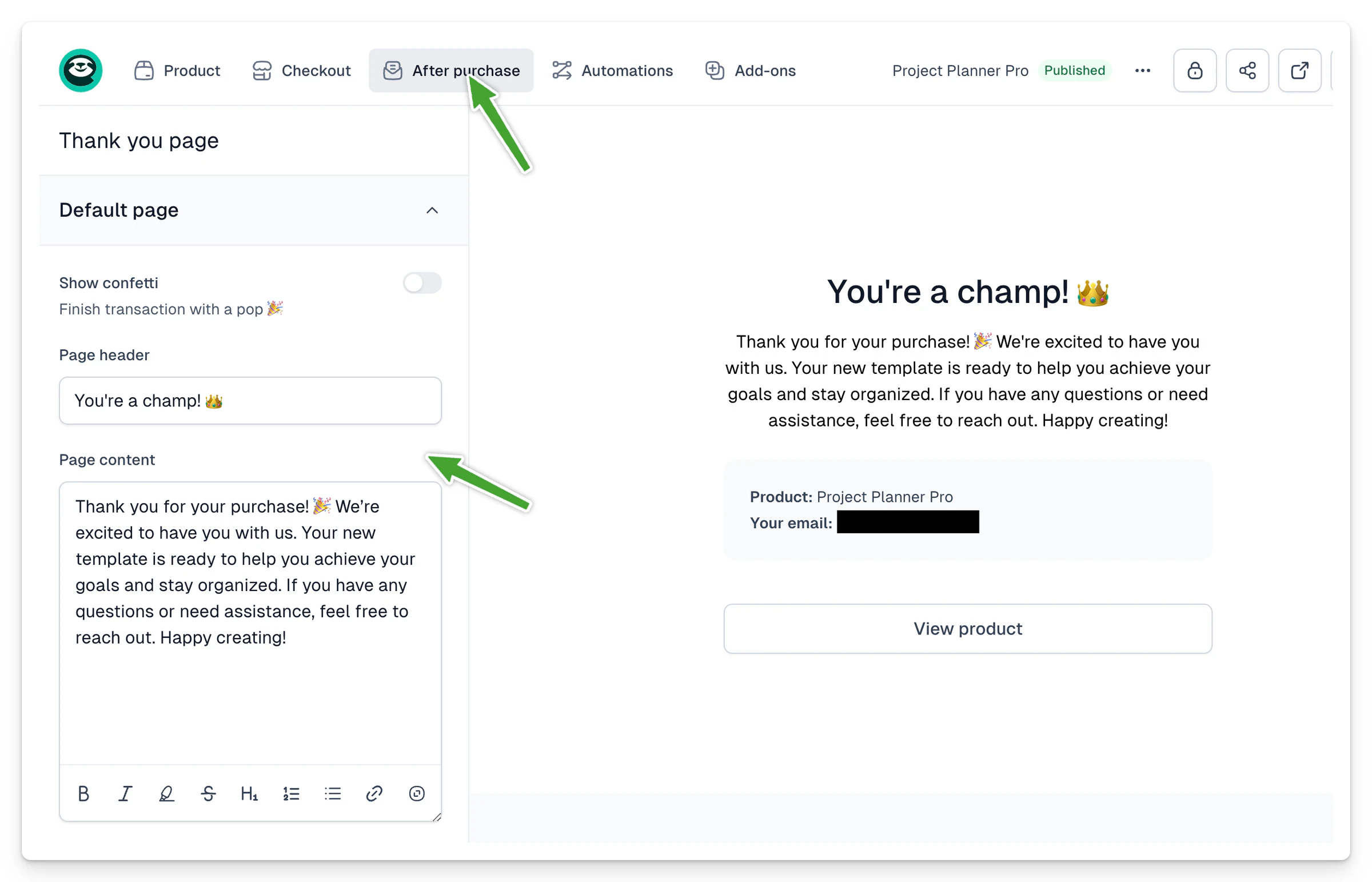
Customizing these messages will make purchases more personal. This is especially important if accessing your product requires any actions. In such a case, we recommend adding instructions here on how to get the product. Of course, you can also use our mechanisms by adding digital files, QR codes, or creating a video player to make access as easy as possible.
## Access to products with Easytools
Remember, Easytools allows you to share, host, and even secure your digital files. The simplest scenario involves attaching a single file, such as a PDF or a .zip file with various files, to the product. You can do this in the **Product → Basic settings** tab. The attached file will be automatically shared with the buyer. [Learn more here](/docs/digital-downloads).
If you need to attach an entire course or more files, use Easyplayer - right after purchase, without unnecessary steps and logging in, we'll redirect customers to your content. [Learn more here.
](/docs/sell-access-to-video-courses-and-infoproducts)
You can also secure your pages from access by people who haven't bought your product (or don't have an active subscription). Just add a small script to the page, and we'll handle user authentication and check if they can view your page content. [Learn more about Login Wall here](/docs/gated-content-login-wall).
## Analytics as easy as 1, 2, 3
Another popular feature creators use is enabling analytics in the checkout. In a few minutes, you'll start tracking on popular platforms like Google, TikTok, or LinkedIn. Just place the tracking codes in the **Add-ons → Analytics** tab in the checkout.
Like logos or terms, you can also enable tracking codes globally for all newly created checkouts in the Store settings tab.
If you want to learn more about how analytics work and how to configure and track them, [check this guide](/docs/setting-up-analytics).
## Recover abandoned carts with one click
We also recommend enabling cart recovery. You can do this globally for all newly created checkouts in the [Recovery](https://app.easycart.pl/creator/sessions/recovery) tab. You can also override this individually for a specific checkout using the **Add-ons → Cart recovery** menu. Carts we recover have very low conversion chances, and our unique mechanism means we have saved customer data from previous purchases through Easycart.
This means we can take actions to recover the cart often even if someone just visited your page and didn't fill in any fields! We charge a 10% commission for transactions recovered this way.[](/docs/enabling-recovery)
[Learn more about cart recovery here](/docs/enabling-recovery).
---
## Set up invoicing & taxes
Category: sell-your-products / get-started-with-easycart
URL: https://www.easy.tools/docs/set-up-invoicing-taxes
We strongly advise you to set up your tax and billing settings before you launch any sales via Easycart. This way, you can ensure that all the taxes are calculated correctly and everyone who needs it will get their invoice.
There are only three simple steps you need to follow to set up billing and taxes for your sales:
1. [Choose a tax and billing solution](/docs/tax-and-billing-solution)
2. [Set up the local sales tax rate](/docs/local-sales-taxation)
3. [Enable and set up international sales (optional)](/docs/international-sales-taxation)
> Note: After you finish your setup, make sure to save your settings by clicking **Save** in the bottom right corner.
---
## Test your product
Category: sell-your-products / get-started-with-easycart
URL: https://www.easy.tools/docs/test-your-product
You can test how your product purchases work in several ways:
1. Buying your own product and issuing a refund
2. Using a zero price link
3. Using a promo code
4. Configuring a test product
Let’s look at each method:
## Purchase and refund
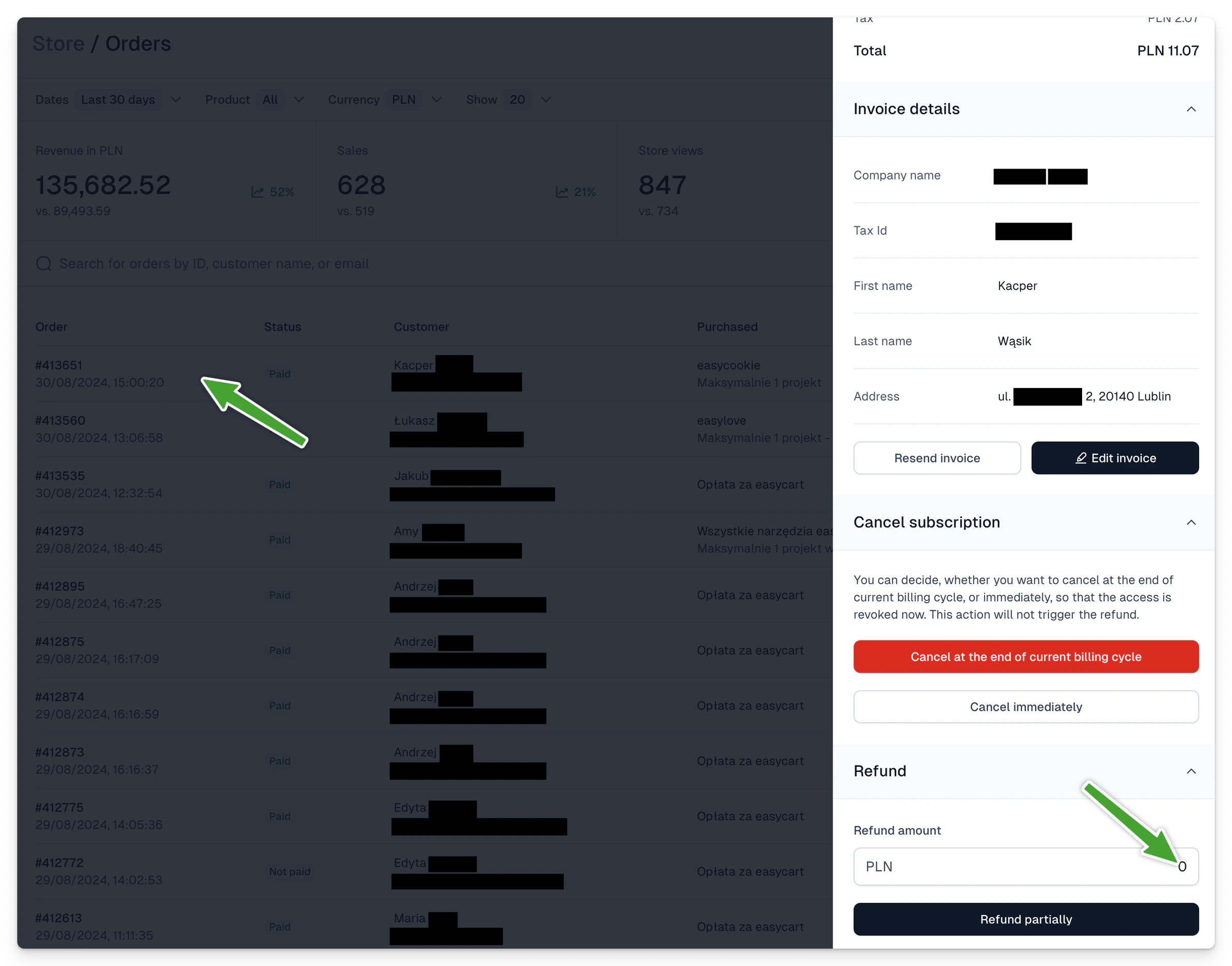
Sometimes you might want to test the full purchase path, including payment methods and all notifications, and ensure the correct amount is charged. In such a case, you can purchase your published product. However, you can also go through a similar process by configuring a test product.
After such a purchase, go to the **Orders** tab, then click on the order placed. In its details, you can issue a refund:
## Zero price link
This is the simplest way to get a product without paying for it, making it useful for tests. This way, you don’t need to issue refunds for test payments.
> Note! This method only works for products with a one-time payment price type.
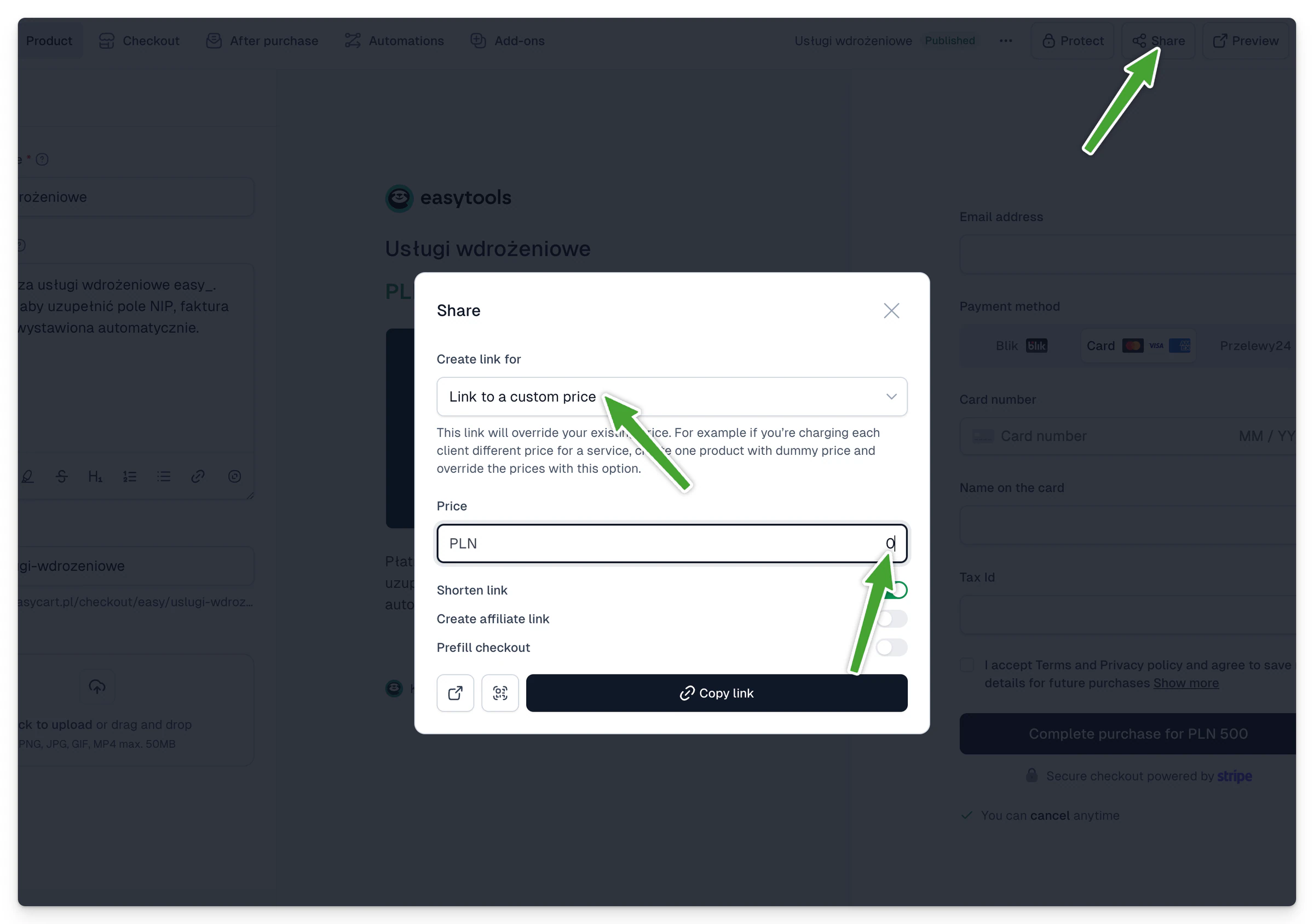
1. While editing the product, select the **Share** menu.
2. Choose **Link to a custom price** from the list.
3. Enter a price of 0 and select **Copy link**.
> You can also use this method to assign products to specific customers on their behalf. Just fill in the checkout with their details, and they will receive your product.
## Using a promo code
Unlike a zero price link, a promo code can be used for both one-time purchases and subscriptions. This way, you can reduce the price by 100% and easily make a test purchase. To do this:
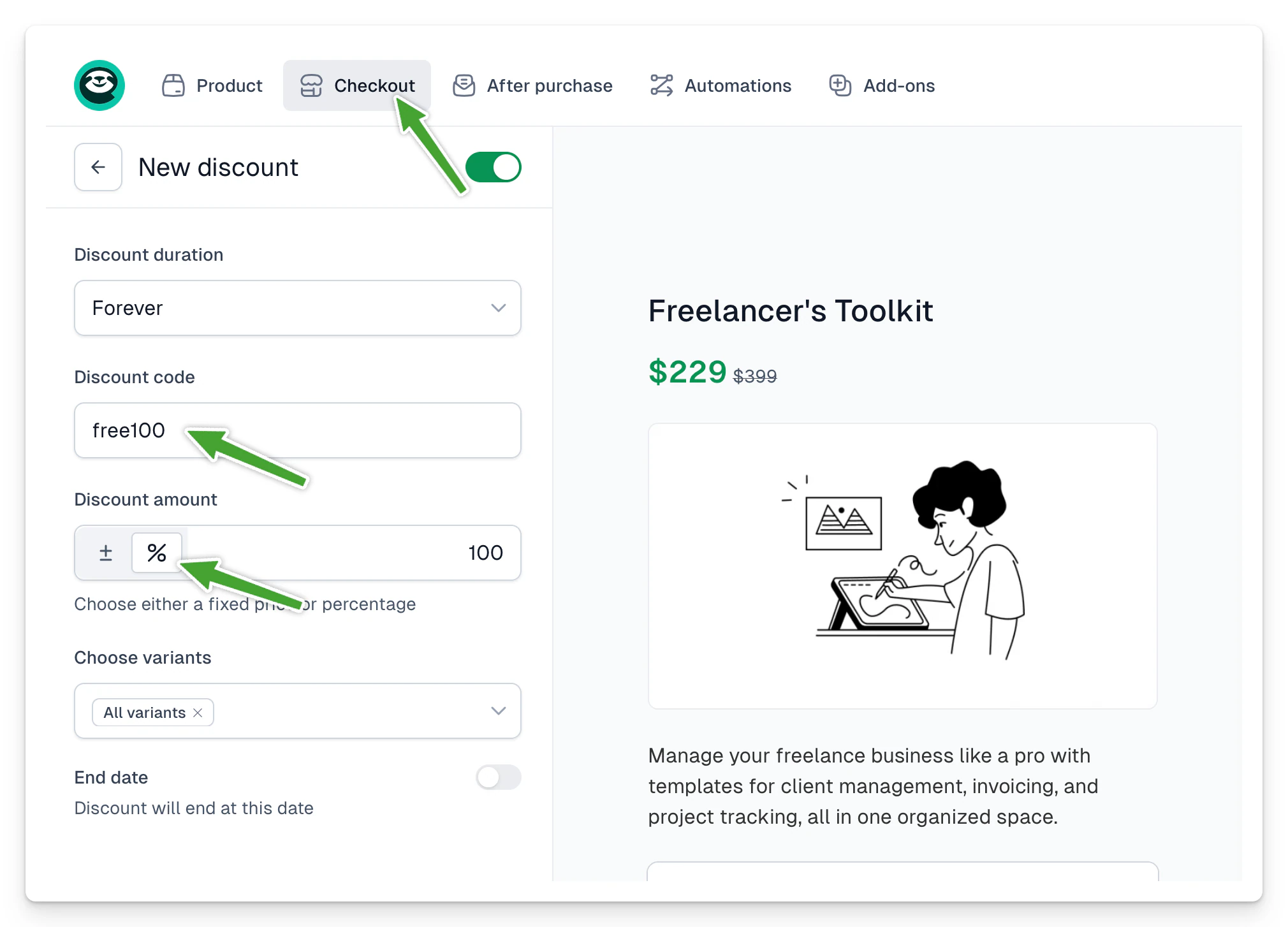
1. In the product editing section, go to **Checkout → Discounts**.
2. Select **+New discount**.
3. Enter a name, validity, then switch to **%** value and select 100%.
4. Apply to selected or all variants.
5. Select **Save**.
Now you can purchase the product using a -100% code. To do this:
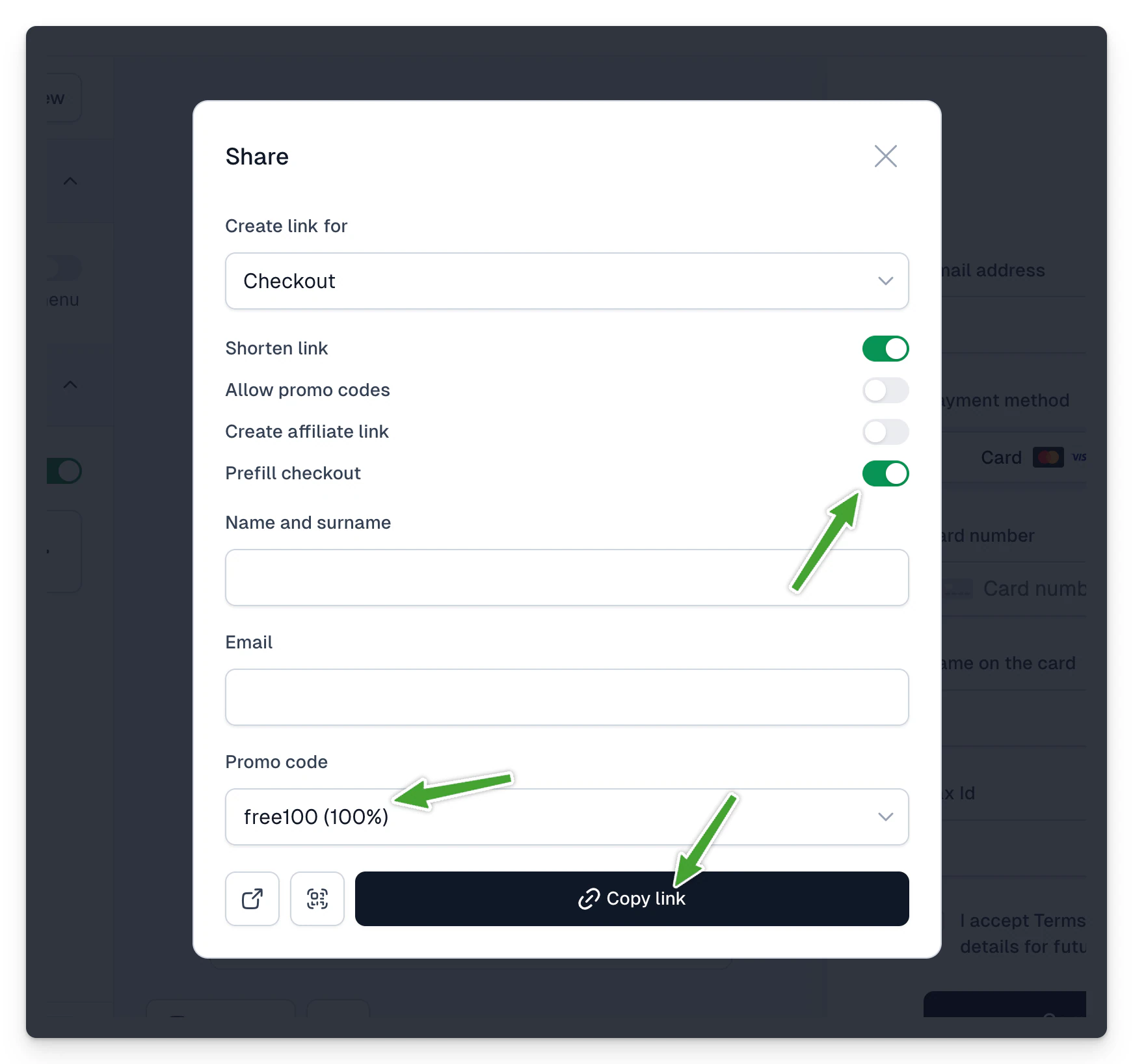
1. Publish the product and select the **Share** menu.
2. Choose **Prefill checkout**, select **Promo code**, and click **Copy link**.
3. You can now open this link in a new tab and make the purchase 🎉.
## Creating a test product
1\. Add a product in the Easycart panel and publish it.
2\. Click the **...** in the upper right corner (the product must be published).
3\. Then select **Duplicate to test mode**.
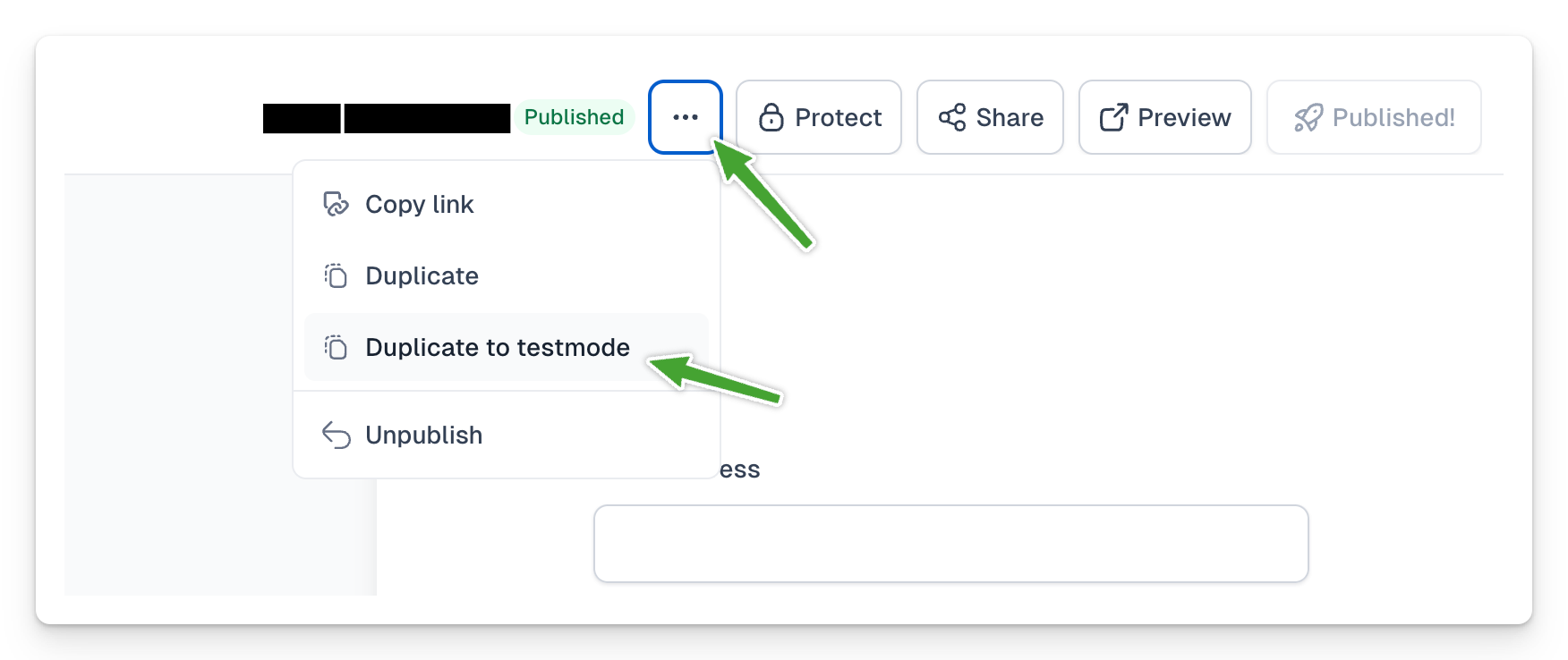
4\. If your account is not yet connected to a Stripe test mode account, Easycart will guide you through the necessary steps.
5\. The panel will show the product marked with a **Test** flag.
### How to use test products?
- **Public** products are available on the app.easy.tools domain.
- **Test** products are available on the [sandbox.easy.tools](https://sandbox.easy.tools/) domain, marked with a test flag, and the top menu is light yellow.
Now you can open the preview of the test product and conduct a transaction. Payments in test mode will not be charged (including Apple Pay). You can also use test cards with any 3-digit CVC and a future expiration date:
- Without 3D Secure: 4242 4242 4242 4242
- With 3D Secure: 4000 0027 6000 3184
After making a purchase, to see the purchased products in the **Customer portal**, log in to the [Sandbox portal](https://sandbox.easy.tools/).
Login with the email address you used for the purchase.
- Password: **sandboxpw**
For test transactions, email notifications are not sent.
---
## Product launch checklist
Category: sell-your-products / get-started-with-easycart
URL: https://www.easy.tools/docs/product-launch-checklist
Before launching your first product, make sure your Stripe account and Easycart product are properly configured.
Here's a quick checklist to consider:
## Website (if you have one)
- Purchase links are correctly integrated
- Privacy policy and terms are available
- Footer is properly configured
- There is an **About us** section
- Cookie notification is present (important if selling to EU countries)
> These elements are often considered during payment operator verification, so it's worth having them in order. You can generate the privacy policy, terms, footer and the **About us** section in a few clicks using [Easylegal](https://www.easy.tools/legal). For the cookie notification, use your cookie consent tool.
## Stripe account settings
- Account is active with no verification messages [here](https://dashboard.stripe.com/settings/account)
- [Business information](https://dashboard.stripe.com/settings/account) is completed
- Public details, including links to privacy policy and terms, are completed [here](https://dashboard.stripe.com/settings/update/public/support-details)
- Transactional messages are disabled on Stripe (also [Send finalized invoices and credit notes to customers](https://dashboard.stripe.com/settings/billing/automatic))
- You have [added a bank account](https://dashboard.stripe.com/settings/payouts) for payouts and set (usually) automatic payouts
- If you want to use invoicing through Stripe, ensure you [enable and configure Stripe Tax](https://dashboard.stripe.com/tax). Alternatively, use our [Easybilling](/docs/set-up-invoicing-taxes) services.
> If using Stripe Tax, email invoicing should still be disabled on Stripe. We will send your invoice and make it available in the **Customer portal** through Easycart communication.
## Easycart settings
- Account is connected to Stripe (otherwise, you can't publish the product)
- Checkout is published and not in test mode
- Links to privacy policy and terms are added in **Checkout → Legal and refunds**
- The number of refund days is set in the same place (typically 14 days in the EU)
> Not offering refunds? Set the return period to 0 days, but also ensure that in the **Product → Price Variants** menu, for each price in the **Payment Form** section, you assign the **Additional Consent** field. In its content, you might write something like: "I agree to the immediate commencement of the service/access to digital content and understand that this waives my right to withdraw from the contract."
- If you sell a digital product to be attached by us, ensure it is added in **Product → Basic settings**, or for the appropriate price variant
- If you provide products yourself, ensure that in **After purchase → Customer notifications**, **Thank you page**, **Customer portal**, you add clear instructions for the buyer on how to access the product
> This is very important! Customers often contact us because they don't know how to access the purchased product. It must be very frustrating for them, so make sure you have this covered at every customer touchpoint.
- If you want to use **Analytics**, add tracking codes in **Add-ons → Analytics**
- We recommend enabling abandoned cart recovery in **Add-ons → Checkout recovery**
- If you want to create a scenario that, for example, syncs purchases to Airtable or adds customers to a mailing list after purchase, use [Automations](/docs/set-up-basic-automations)
- Ensure your information is filled in [Store settings](https://app.easycart.pl/creator/store-settings/my-store)
- Ensure you understand how invoices are issued in the [Invoicing and taxes](https://app.easycart.pl/creator/store-settings/invoicing) section
Good luck and high results! 🎉
---
## Set up basic automations
Category: sell-your-products / get-started-with-easycart
URL: https://www.easy.tools/docs/set-up-basic-automations
Boost efficiency with simple automations. Automate repetitive tasks and focus on growing your business. Get started now!
---
## Getting paid
Category: sell-your-products / fees-and-payment-methods
URL: https://www.easy.tools/docs/getting-paid
As Easytools, we do not handle your funds at all. Payments for your digital products go directly to your Stripe account, which you control. This means there is absolutely no risk associated with using Easycart. All customers are yours, and payments are secure in your Stripe account, making it easy for you to switch to other solutions if you choose. Even the card addition form on the checkout page is directly embedded from Stripe to ensure we do not handle any sensitive data.
Therefore, your payouts and funds are entirely managed by the payment provider, in this case, Stripe. You can find and [adjust the payout schedule and settings here](https://dashboard.stripe.com/settings/payouts).
## Multiple currencies
Make sure to add the appropriate bank account linked to your primary currency. Stripe allows you to hold balances in different currencies and pay them out to different accounts, for example, EUR to one account and USD to another. In this way, receiving payments in these currencies accumulates the balance without any conversion.
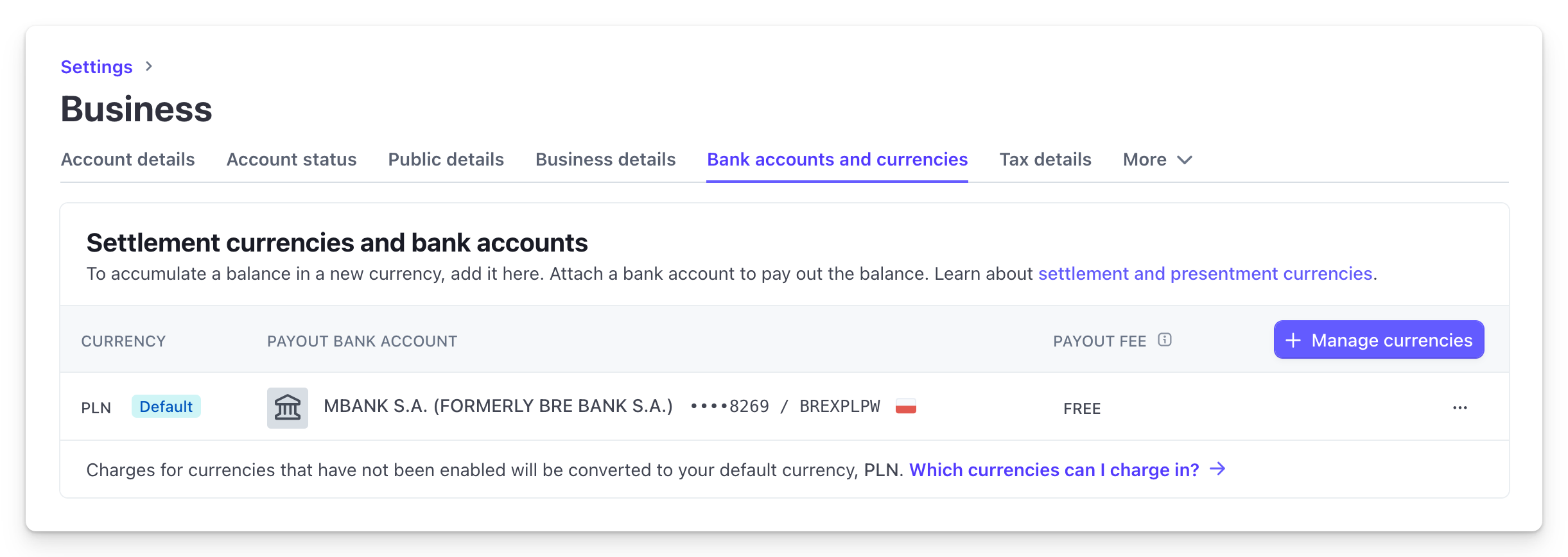
If you do not add the currency in which you receive payments, it will automatically convert to your primary currency. This will occur at the rate you can view [on this page](https://dashboard.stripe.com/currency_conversion).
Is it worth setting up different currency accounts and assigning them to various currencies on Stripe, or is it better to leave one primary currency for payouts and let the rest be converted by Stripe's rate? It depends. Generally, payouts in your primary currency are free. However, payouts in other currencies may incur an additional fee, usually 1%.
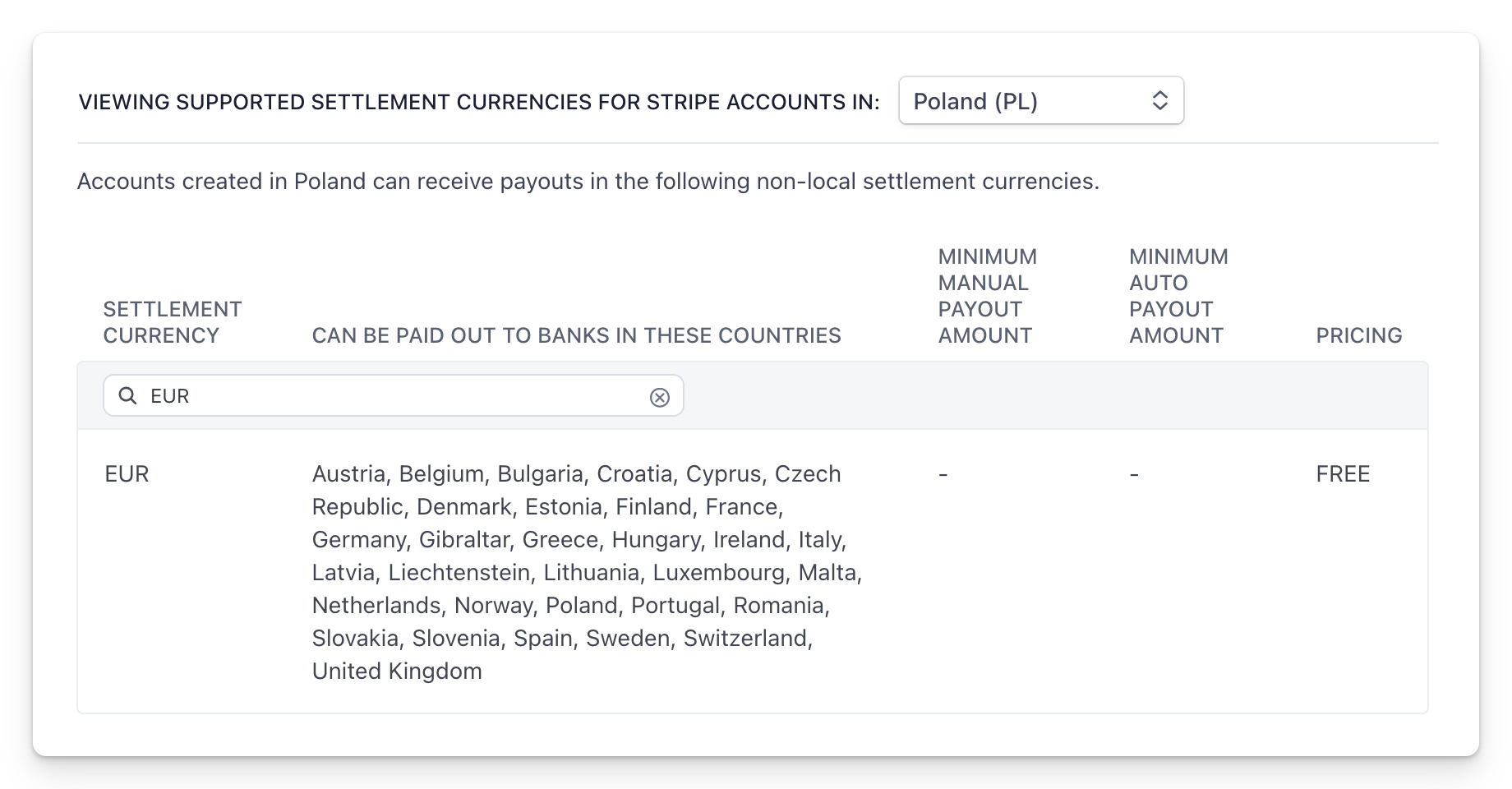
You can review the fee table [here](https://docs.stripe.com/payouts/alternative-currencies), adjusting it to your registration country. It might be more cost-effective to keep one currency on the account and allow Stripe to convert other currencies, rather than paying an additional 1% for payouts in that extra currency.
For some countries, such as those in the European Union, payouts in some alternative currencies (e.g., EUR, outside the national currency) are also free.
## Payouts
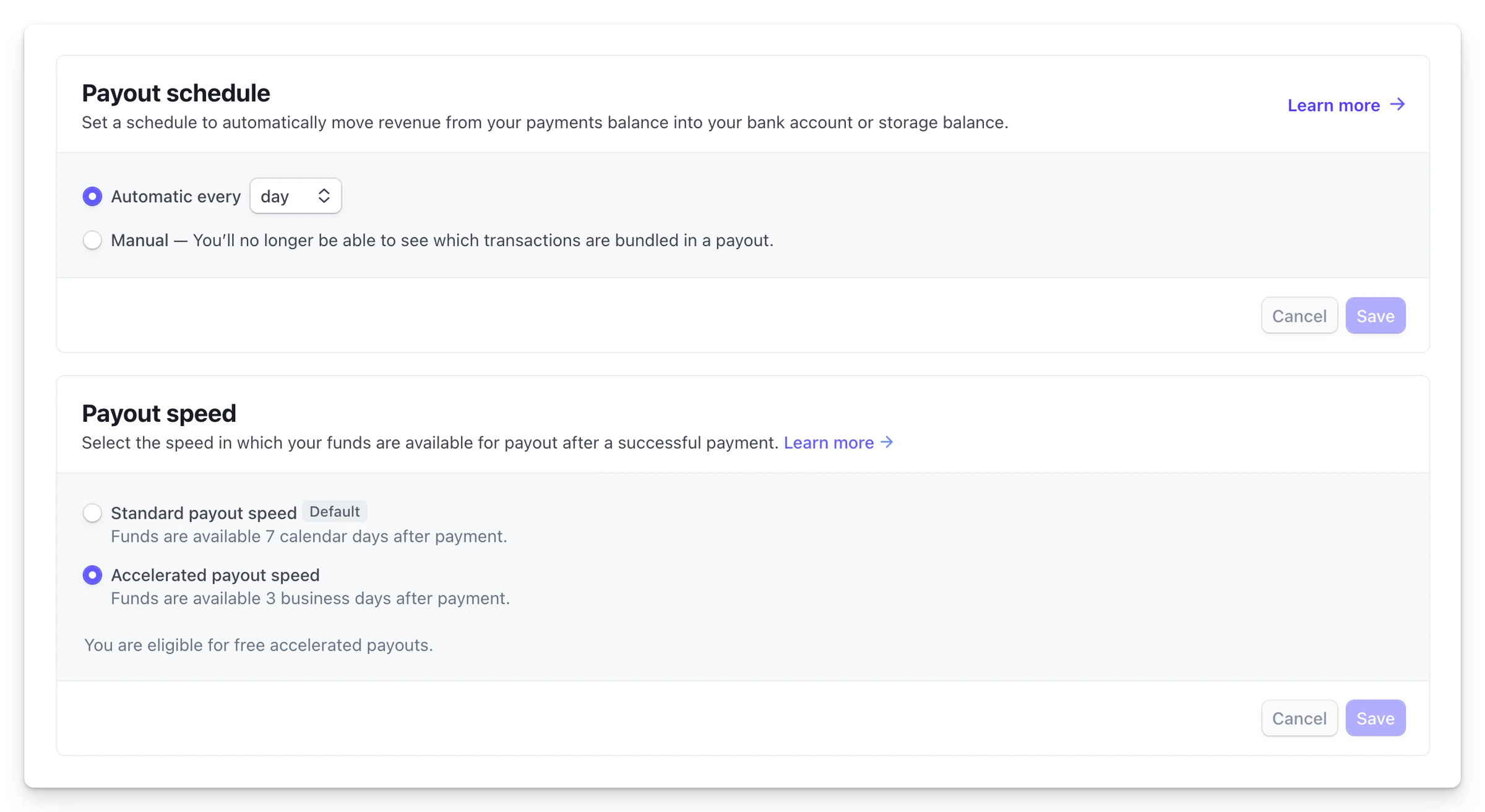
You can manage payouts [in the same tab](https://dashboard.stripe.com/settings/payouts). If you set up a new account, Stripe payouts will initially be received on a 7-day schedule. However, after processing a sufficient number of transactions, this time will reduce to 3 days and then to 1 day. Additionally, you can adjust the payout speed, and after some time, the 3-day option and instant payouts on demand (with an additional fee) will be available to you.
---
## Different currencies
Category: sell-your-products / fees-and-payment-methods
URL: https://www.easy.tools/docs/different-currencies
With Easytools, you can sell in any of the 135+ currencies [supported by Stripe](https://docs.stripe.com/currencies#currency-presentment-and-settlement). Each product can only have one assigned currency. Currently, we do not support dynamic currency switching based on the buyer's country for a single product.
When selling in different currencies to customers from various countries, ensure that taxes are correctly calculated in the checkout based on the customer's location and your tax jurisdictions. Make sure you have enabled foreign sales tax support, especially tax calculation at checkout, provided by Easybilling. You can read more about taxes and their settings [here](/docs/set-up-invoicing-taxes).
The balance on Stripe, which you accumulate from payments in different currencies, will either be converted to your primary currency and paid out to your main account or remain in the currency paid by customers if you have added it to your [Stripe payout settings](https://dashboard.stripe.com/settings/payouts) and linked it to the respective payout account.

To sell the same product in different currencies, duplicate the product and choose a different currency and price for the clone. Then, link the appropriate currencies separately on your sales pages.
## Advanced: Switch links to products (and currencies) depending on the visitor's country
You can also use a script to detect the visitor's country and switch the checkout link to the appropriate currency. You can use the **Intl** API to get the user's country code based on their location and update the links accordingly.
Here is a basic JavaScript script to do this, which you need to add to the `` section of your page within tags ``.
```javascript
// Function to determine user's country
function getUserCountry() {
const locale = navigator.language || navigator.userLanguage;
const countryCode = locale.split('-').pop();
// Extracts the country code from the locale
return countryCode.toUpperCase();
}
// Function to update the links based on the country code
function updateLinksForCountry() {
const countryCode = getUserCountry();
const links = document.querySelectorAll('.localized-link');
// Assume links have this class
links.forEach(link => {
const baseUrl = link.dataset.baseUrl;
// The base URL without the country code
const newUrl = `${baseUrl}/${countryCode}123`;
link.href = newUrl;
});
}
// When the document is ready, update the links
document.addEventListener('DOMContentLoaded', function () {
updateLinksForCountry();
});
```
Next, in your HTML code, ensure your links are set up with the **data-base-url** attribute and the **localized-link** class:
`Click hereAnother link `
- For a user from the UK, the link will be updated to **https://easl.ink/GB123**
- For a user from Spain, it will be updated to **https://easl.ink/ES123**
This script dynamically updates the links based on the user's location, making it easier to serve region-specific links.
### How it works?
#### Function getUserCountry
This function fetches the user's location using **navigator.language** or **navigator.userLanguage**. It then extracts the country code from the locale (e.g., from "en-GB" it extracts "GB").
#### Function updateLinksForCountry
This function selects all elements with the class **.localized-link**. For each link, it creates a new URL by adding the country code to the base URL stored in the link's **data-base-url** attribute. Finally, it updates each link's href attribute with the new URL.
#### DOMContentLoaded event
The script waits until the HTML document is fully loaded before running the function **updateLinksForCountry**
---
## Supported payment methods
Category: sell-your-products / fees-and-payment-methods
URL: https://www.easy.tools/docs/supported-payment-methods
## Supported payment methods
Within Easycart, various payment methods are supported, and we continuously add new ones. Currently supported payment methods include:
Methods available out of the box:
- Cards
- Google Pay
- Apple Pay
- Blik
- Przelewy 24 (all quick transfers in Poland)
- PayPo
- Klarna
- iDEAL (quick transfers in Netherlands)
- EPS (quick transfers in Austria)
- Bancontact (quick transfers in Belgium)
> You don't need to register anywhere to use specific payment methods. They are handled within your Stripe account. No additional agreements are required.
Depending on the payment method, your pages may undergo additional verification. If an operator deems that they do not meet their standards, they may deactivate a specific payment method on your account. In such cases, contact Stripe support to find out the reason for the block.
Payment methods are most often blocked because your site does not meet basic compliance standards.
Ensure the following:
- A properly formatted footer containing address details, a link to the privacy policy, and terms
- An "About us" page with company address details
- Information about product prices on the pricing page
You can ensure compliance and generate the necessary documents using [Easylegal](https://www.easy.tools/legal).
> Generally, Easycart will display and select the preferred payment method for the customer, based on their country or previous preferences and checkout currency. However, you can choose which methods you want to display in your cart. To learn how to do this, [check here](/docs/adding-payment-methods-to-your-cart).
---
## Deferred payments and installments
Category: sell-your-products / fees-and-payment-methods
URL: https://www.easy.tools/docs/deferred-payments-installments
Installments and deferred payments are available through:
- Subscription-based installments
- External providers, like PayPo
## Subscription-based installments
This is a clever, simple method that allows collecting payments in several tranches based on a subscription. We've added a special option that automatically cancels the subscription after a specific number of cycles. For example, if your product costs 1200 and you want to split it into 3 monthly installments, you can use the following price settings:
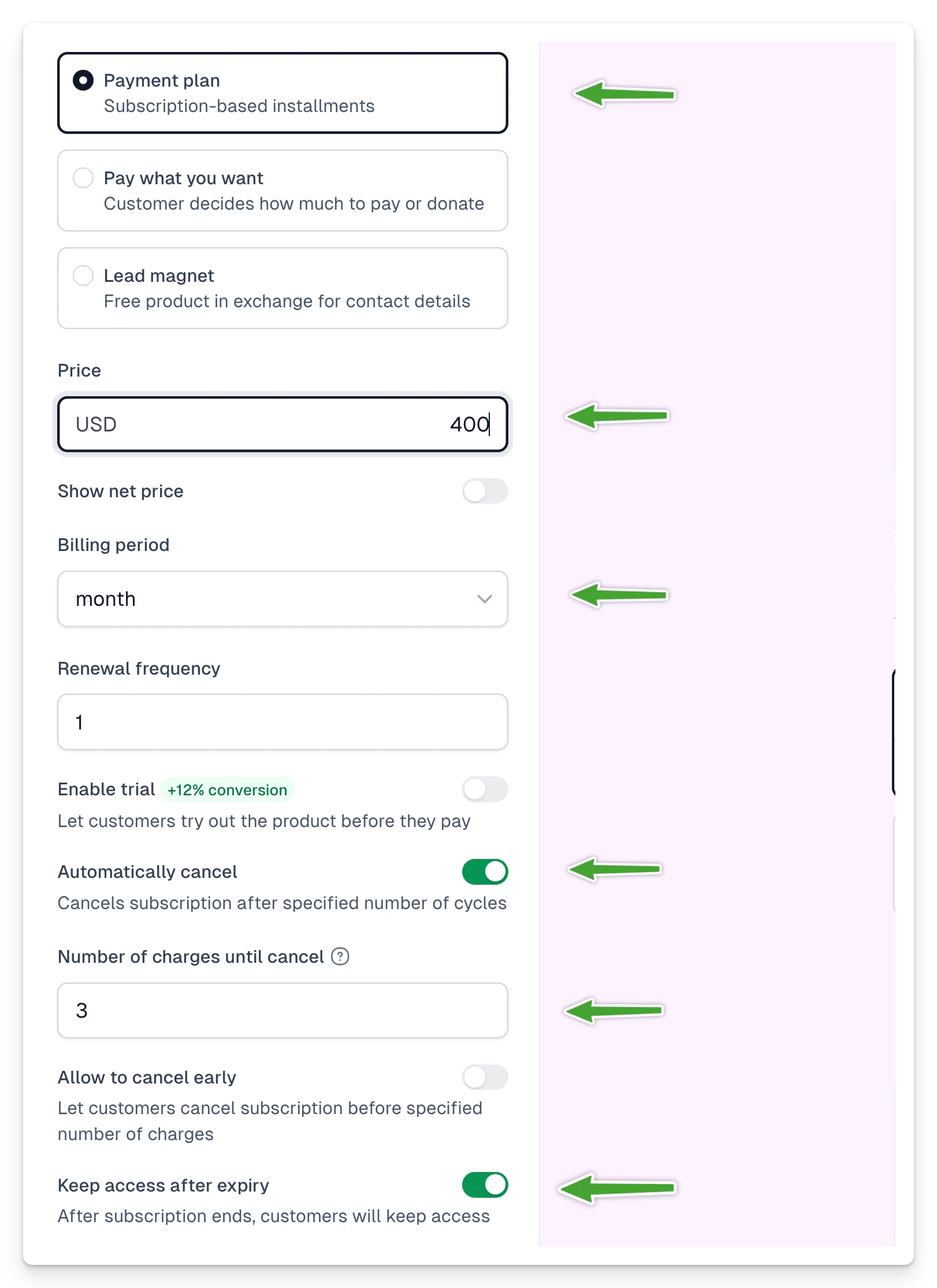
All these settings are important because this way:
- The first installment will be collected immediately upon payment
- Subsequent ones are collected according to the subscription renewal (here every 1 month)
- The subscription will be automatically cancelled after 3 cycles (1 payment immediately and 2 additional after subsequent months)
- Access to the product will be maintained after the subscription expires
- It's not possible to cancel the subscription early
Remember that the number of cycles to cancel that you enter is the total number of installments for this specific amount, including the first payment. So if you want to collect 10,000 in 10 installments of 1000 each, enter 10 here.
## How is this different from installments offered by providers like Klarna or PayPo?
Primarily, you don't receive the full amount upfront, and you have to monitor whether the installments are being paid. The option that prevents subscription cancellation helps with this, but in practice, you can't rule out the possibility that someone might use a one-time card, and subsequent payments can't be collected.
On the other hand, there are also many benefits - such installments are much cheaper and don't require customers to go through a KYC process, which involves taking out a loan and often requires, for example, uploading a photo of a document. There are also situations where customers receive a negative decision on granting installments.
## How to simulate deferred payment in a similar way?
You can do this by starting a trial period, for example for 30 days, on such a subscription. Then, set automatic cancellation of the subscription after one cycle. This way, the customer pays nothing upfront, and after 30 days the full amount is collected, and the subscription automatically cancels, so no further amounts will be collected. The inability to cancel early and maintaining access after subscription expiration should be enabled.
---
## Enable recurring BLIK (BLIK cykliczny)
Category: sell-your-products / fees-and-payment-methods
URL: https://www.easy.tools/docs/enable-recurring-blik
Recurring BLIK lets customers pay for subscriptions with BLIK without entering a code at every renewal. The method is available for customers paying in PLN.
## Where to enable it
1. Go to **Store** → **Store settings** → **Payments**.
2. In the **Payment methods** section, find **BLIK cykliczny**.
3. Switch on the toggle next to **BLIK cykliczny**. The status changes to **Active**.

## Where customers will see it
- Recurring BLIK starts automatically in products with a subscription price variant and in products with a **Payment plans** price variant (installments based on a subscription).
- It is not shown in products with a **One-time payment** price. Regular BLIK works there.
> Important: Recurring BLIK is available only for customers paying in PLN.
---
## Understanding Stripe fees
Category: sell-your-products / fees-and-payment-methods
URL: https://www.easy.tools/docs/understanding-stripe-fees
Stripe processes your customer's payment and charges a fee for each successful transaction. This fee is separate from Easytools fees.
## The most important rule
Stripe fees depend first on the country where **your Stripe account is registered**. The customer's location, card type, payment method, and currency can then change the final fee.
There is no single worldwide Stripe rate and no single rate for all European countries. The examples below use Stripe's standard pricing for the United States, the United Kingdom, and selected euro-area countries. We checked them on 27 August 2026.
## United States accounts
For a Stripe account registered in the United States:
- **US card:** 2.9% + $0.30
- **International card:** 4.4% + $0.30 in total, including the 1.5% international-card surcharge
- **Currency conversion:** another 1% if conversion is required
- **ACH Direct Debit:** 0.8%, capped at $5.00
### Example for a $100 sale
1. The percentage part is 2.9% of $100, which is $2.90.
2. Stripe adds the fixed $0.30 fee.
3. The total Stripe fee is $3.20.
4. $96.80 remains in your Stripe balance before the Easytools fee, taxes, and other possible costs.
## United Kingdom accounts
For a Stripe account registered in the United Kingdom and settled in GBP:
- **Standard UK card:** 1.5% + 20p
- **Premium UK card:** 2.8% + 20p
- **European Economic Area card:** 2.5% + 20p
- **Other international card:** 3.15% + 20p
- **Currency conversion:** another 2% if conversion is required
For a £100 sale paid with a standard UK card, the Stripe fee is £1.70 and £98.30 remains before other costs.
## European accounts
Stripe prices European accounts by country. Under the current standard pricing for accounts registered in Spain, France, or Germany and settled in EUR:
- **Standard European Economic Area card:** 1.5% + €0.25
- **Premium European Economic Area card:** 2.8% + €0.25
- **UK card:** 2.5% + €0.25
- **Other international card:** 3.15% + €0.25
- **Currency conversion:** another 2% if conversion is required
For a €100 sale paid with a standard European Economic Area card, the Stripe fee is €1.75 and €98.25 remains before other costs.
> These European examples do not cover every country. Always open the Stripe pricing page for the country where your account is registered.
## Who pays the Stripe fee?
The customer normally pays the price shown at checkout. Stripe deducts its fee from the amount that reaches you as the seller. The customer does not see a separate “Stripe fee” unless you include payment processing costs in your product price yourself.
The Stripe fee and the Easytools fee are separate. Your Easytools fee depends on your plan and is not included in the rates above.
## When can the cost be higher?
Extra costs may apply when:
- a customer uses an international card or currency conversion is required,
- you use optional Stripe products,
- you request an Instant Payout,
- a customer disputes a payment.
These charges also depend on the account country:
- **United States:** a received dispute costs $15 and a manual response costs another $15. Instant Payouts cost 1.5%, with a minimum fee of $0.50.
- **United Kingdom:** a received dispute costs £20 and a manual response costs another £20. Instant Payouts cost 1%, with a minimum fee of 40p.
- **Spain, France, and Germany:** a received dispute costs €20 and a manual response costs another €20. Instant Payouts cost 1%, with a minimum fee of €0.50.
Stripe returns the manual-response fee if you win the dispute. It does not return it if you lose.
## How to check the fee for a specific sale
1. Sign in to the Stripe Dashboard.
2. Open **Payments** and select the payment.
3. Open its balance transaction details.
4. Check the gross amount, Stripe fee, and net amount.
See the latest rates on Stripe's official pricing pages for the [United States](https://stripe.com/us/pricing), [United Kingdom](https://stripe.com/gb/pricing), [Spain](https://stripe.com/es/pricing), [France](https://stripe.com/fr/pricing), and [Germany](https://stripe.com/de/pricing).
> Stripe can change its rates. If you have custom pricing, check the pricing assigned directly to your account instead of the standard rates above.
---
## Payment balancer
Category: sell-your-products / fees-and-payment-methods
URL: https://www.easy.tools/docs/payment-balancer
Optimize payments with Payment balancer. Ensure smooth transactions by distributing across payment providers.
---
## Tax and billing setup
Category: sell-your-products / billing-and-taxes
URL: https://www.easy.tools/docs/tax-and-billing-solution
Easytools gives you the freedom to choose the tax and billing solution that works best for your business. To set up your billing solution:
1. Go to **Store → Store settings** in your main dashboard.
2. Open the **Invoicing & Taxes** tab.
3. Choose your preferred solution by selecting it from the list.
Here’s the list of currently available options.
## Tax and billing solutions
| Feature | Easybilling | Stripe Tax | Integration | None |
| --- | --- | --- | --- | --- |
| Country management | ✅ | ✅ | ✅ | ✅ |
| Tax calculation in checkout | Full | Full | Full | Flat rate only |
| European tax ID validation | VIES | Stripe-native | VIES | VIES |
| Invoices | Issued by Easybilling | Issued by Stripe | Handled by 3rd-party app | Manual |
| Invoice experience | Great (thank you page, email, portal) | Basic (portal only) | OK (for some integrations) | Manual |
| Refunds & data change requests | Handled via customer portal | Manual | Manual | Manual |
| Customer support | Full support | None | None | None |
| Threshold monitoring | ✅ | ✅ | ✅ | ❌ |
| Auto-disabling countries | ✅ | ❌ | ✅ | ❌ |
| Tax reports | Generated by Easybilling | Generated by Stripe | Handled by 3rd-party app | Basic reports only |
| Cost | $0.5 per transaction | 0.7% per transaction | $0.3 per international transaction | Free |
### No tax calculation and invoicing
- Cost: Free
With this option, you are responsible for issuing and delivering invoices.
Easytools will:
1. Add a flat, declared tax to invoices.
2. Validate tax ID at checkout.
3. Issue a simple order confirmation for your customers.
4. Prepare basic sales reports.
### Easybilling
- Cost: $0.50 per transaction
Easybilling is our dedicated solution that will handle all your billing needs:
1. Advanced tax calculation based on product type and customer location.
2. Issuing and delivering invoices on your behalf.
3. Great invoice experience - invoices will be available on the Thank You page, in purchase confirmation, and in the Customer Portal.
4. Refunds and data change requests.
5. Full billing support, e.g., replying to your customers' inquiries.
6. Advanced tax reports that you can use to pay taxes.
### Stripe Tax
- Cost: 0.7% per transaction
Stripe feature for managing taxes and invoicing. To use it, you need to first enable it in your Stripe account. Here’s how it will work with Easytools:
1. We use Stripe Tax to calculate and display taxes during checkout.
2. Stripe generates invoices for your sales.
3. Your customers can access invoices via the Thank You page and in the Customer Portal.
4. You need to manually handle refund and data change requests.
5. Stripe will generate tax reports for you.
> **Important:** You have two ways of how your invoices will be issued and delivered to your customers. You can just rely on Stripe or choose another provider for handling it:In this scenario, Stripe will still issue invoices (that’s a requirement for using Stripe Tax), but we won’t send them to your customers or link them to their customer portal. Instead, we will provide your client with an invoice issued by your chosen provider.
### Third-party integration
- Cost:
- Free for domestic transactions with a flat tax rate.
- $0.30 per transaction for global tax calculation.
> Note: For domestic payments, we will use the tax amount you declared, and it's free. If you enable international sales, we need to calculate taxes depending on customer location, and therefore you will be charged.
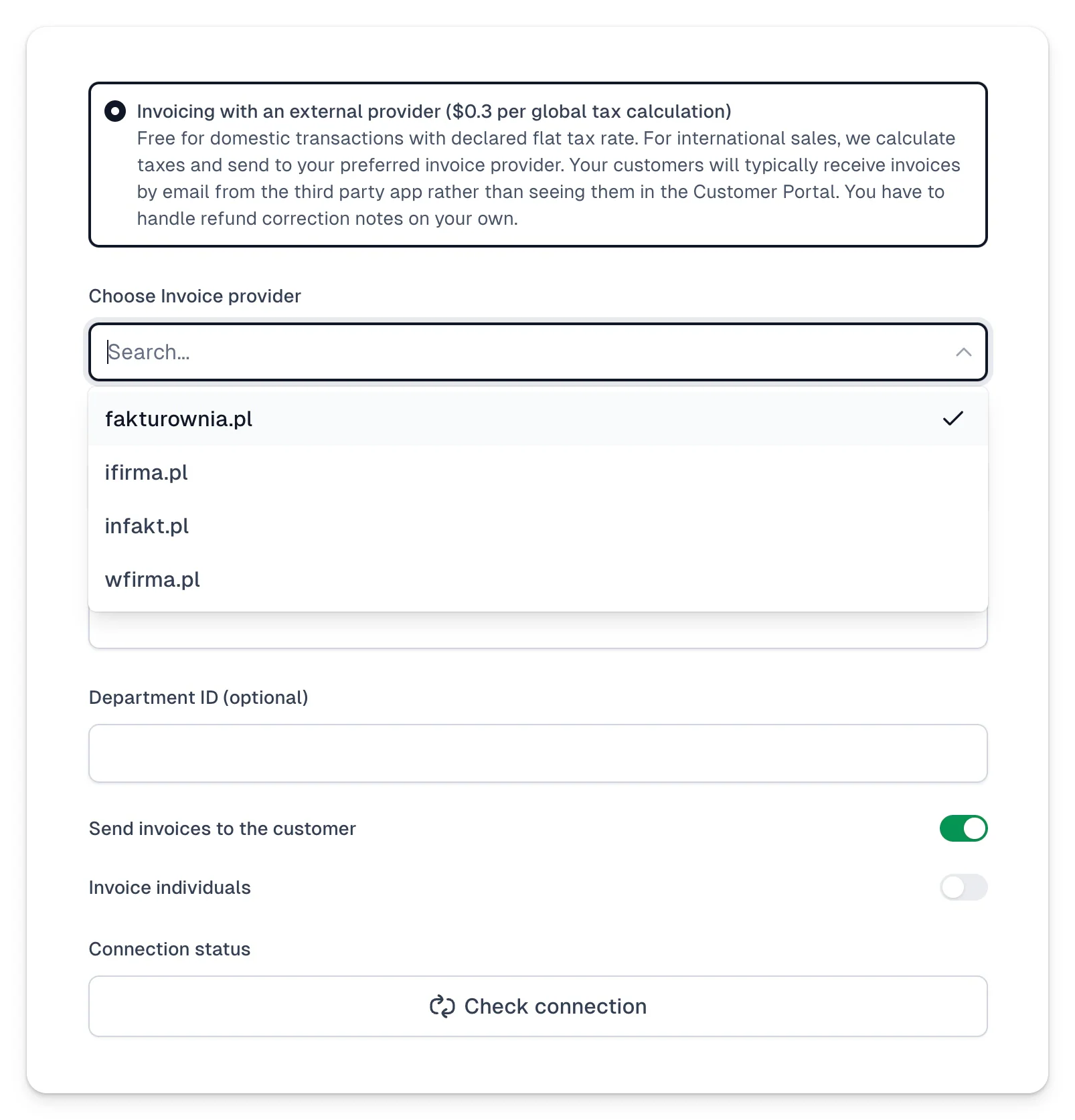
You can also use third-party invoicing software that we integrate with. The list of currently supported providers includes:
- fakturownia
- ifirma
- infakt
- wfirma
After you choose your invoice provider, you will need to establish a connection. Here’s how:
1. Choose an invoice provider from the list.
2. Provide your email address or account name (if required).
3. Add API key(s).
4. Choose if you want to send invoices to the customer.
5. Choose if you want to invoice individuals.
6. Click **Connect**.
Once you've chosen your billing solution, it's time to [set up your local tax settings](/docs/local-sales-taxation).
---
## Local sales taxation
Category: sell-your-products / billing-and-taxes
URL: https://www.easy.tools/docs/local-sales-taxation
## Defining domestic tax rate
The Domestic sales tax rate (VAT, IVA, GST, sales tax) is the sales tax rate you normally charge when selling products in the country where your business is registered.
To enable tax calculation and invoicing for your local sales, you first need to set up your local sales tax details. Here’s how you can do it:
1. Go to **Store → Store settings** in your main dashboard.
2. Open the **Invoicing & Taxes** tab.
3. Scroll down to the **Local sales tax rate** section.
4. Choose your **Domestic sales tax rate** from the list.
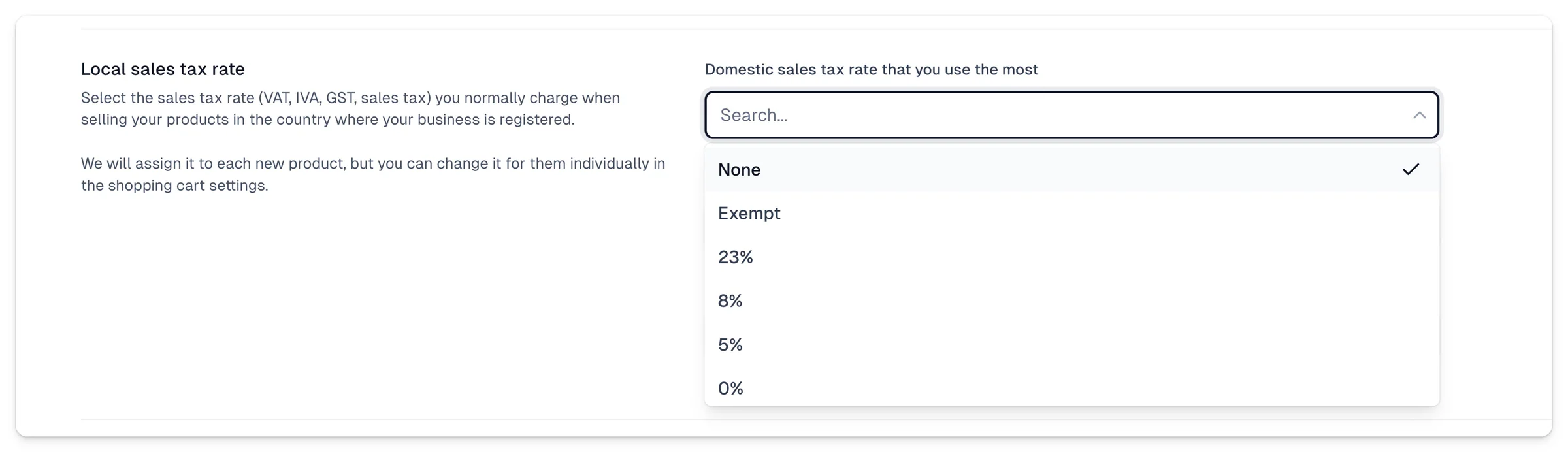
Here are the available options:
- None
- Exempt
- 23%
- 8%
- 5%
- 0%
If you choose to manage your billing via Stripe Tax or a third-party provider, we will ask you to also provide:
- **Flat rate (optional)**.
- **GTU code (optional)** - Only applicable to certain countries - it can help us identify the tax rates applicable to different items under the Goods and Services Tax (GST) framework.
> Note: We will assign these settings to all products you create, but you can later override local tax settings in your checkout to adjust it for each product individually.
If you plan to sell your products outside your country, the next step is to [set up your international sales tax settings](/docs/international-sales-taxation).
---
## International sales taxation
Category: sell-your-products / billing-and-taxes
URL: https://www.easy.tools/docs/international-sales-taxation
## Enabling international sales
If you plan to sell your products internationally (outside the country where your business is registered), you first need to enable this option and then fill in your tax details. Here’s how:
1. Go to **Store → Store settings** in your main dashboard.
2. Open the **Invoicing & Taxes** tab.
3. Scroll down to the **International sales** section.
4. Toggle on the option **Enable international sales**.

After doing so, we will ask you to choose our **General tax category**:
- Software as a Service
- Digital Books
- Self-Study Online Courses
- Instructor-Led Online Courses
- Digital Goods
- Professional Services
- Nontaxable Services
- Physical Goods
- None of the Above
> Note: We will use this setting for more accurate tax calculation in certain jurisdictions.
> **Important:** We will assign these settings to all products you create, but you can later override the general tax category in your checkout to adjust it for each product individually.
You can also enable or disable countries you sell to in order to better control your tax obligations.
## Managing tax obligations
### Registered jurisdictions

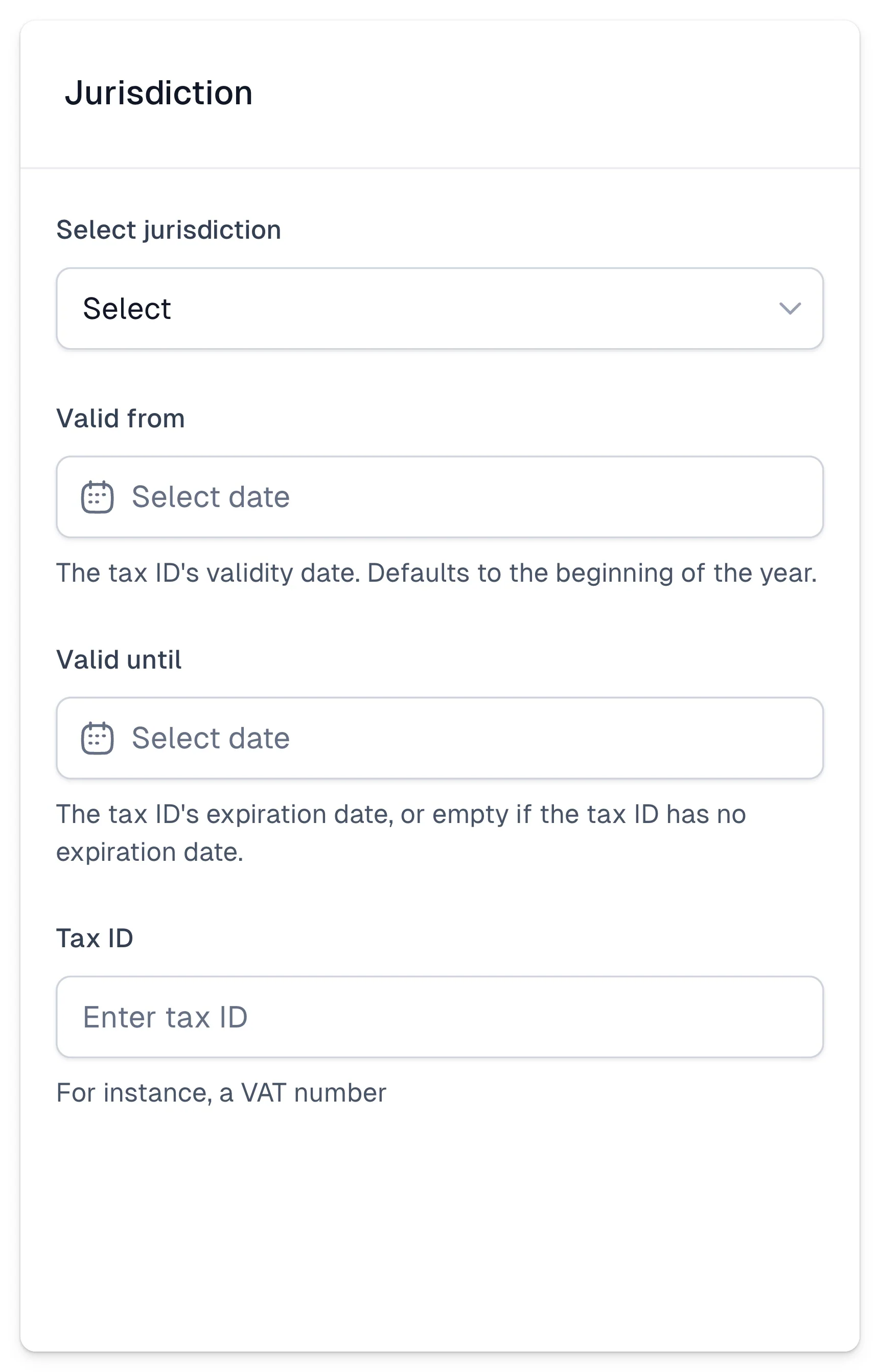
For more accurate monitoring of your international tax obligation, we encourage you to set up all jurisdictions, where your business is registered to sales tax (your home country and any countries where you registered after passing the thresholds). Here's how you can do it:
1. Go to **Registered jurisdictions** section.
2. Click **\+ Add another jurisdiction**.
3. In the modal on your left, **Select jurisdiction** from the list
4. Select tax ID's validity and expiration date by setting **Valid from** and **Valid until**.
5. Provide your **Tax ID**.
6. Click **Save**.
## Country management
For international sales, there are several options that help you better manage your tax obligations. To manage your sales thresholds:
1. Go to **Store → Store settings** in your main dashboard.
2. Open the **Invoicing & Taxes** tab.
3. Make sure the option **Enable international sales** is active.
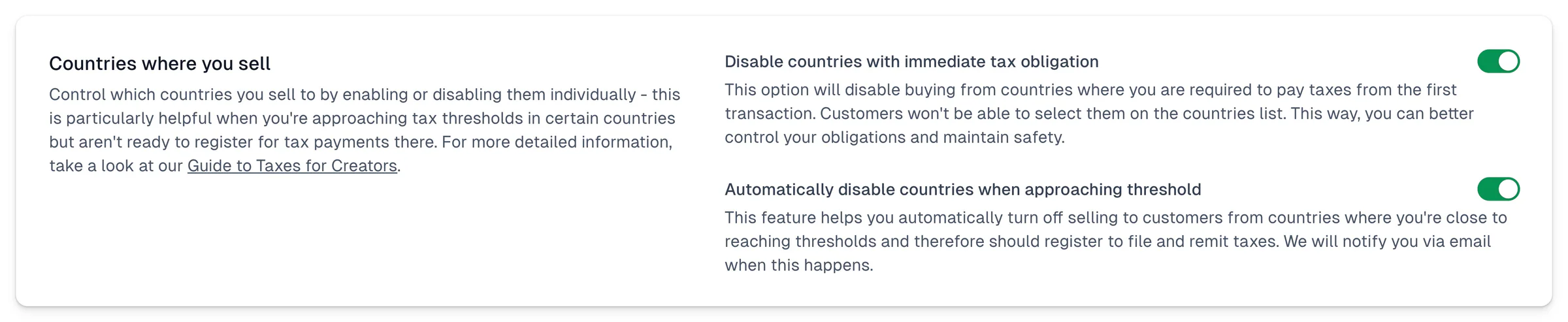
4. Scroll down to the **Countries where you sell** section.
### Disable countries with immediate tax obligation
This option will disable purchases from countries where you are required to pay taxes from the first transaction. Customers won't be able to select them on the countries list in the checkout.
To use this option, simply toggle it on.
### Automatically disable countries when approaching threshold
Your sales to a certain country or jurisdiction will be automatically turned off when you get close to reaching the tax threshold. We will notify you via email when this happens.
> Note: After reaching a threshold in a certain country or jurisdiction, you are immediately obliged to register to file and remit taxes.
### Enable sales and monitor thresholds
You can also use the country and jurisdiction list to enable or disable sales to certain locations and monitor in real time what your current threshold level is. Simply choose a country from the list and toggle the Enable Sales option on or off.
You can also use a search bar to find a specific location.
---
## Tax settings in checkout
Category: sell-your-products / billing-and-taxes
URL: https://www.easy.tools/docs/tax-settings-in-checkout
You can set up tax details for a specific product or override the global tax settings you established earlier right in your checkout. Here’s how to do it:
1. Go to [**Store → Products**](https://cart.easy.tools/creator/products).
2. Choose a product from a list or [create a new product](/docs/create-your-first-product) by clicking **\+ New product**.
3. Then, in your checkout configurator, go to **Product → Price variants**.
After selecting the variant you want to edit tax details for, you'll see a menu on the left. The tax settings are located just below the **Price** field.
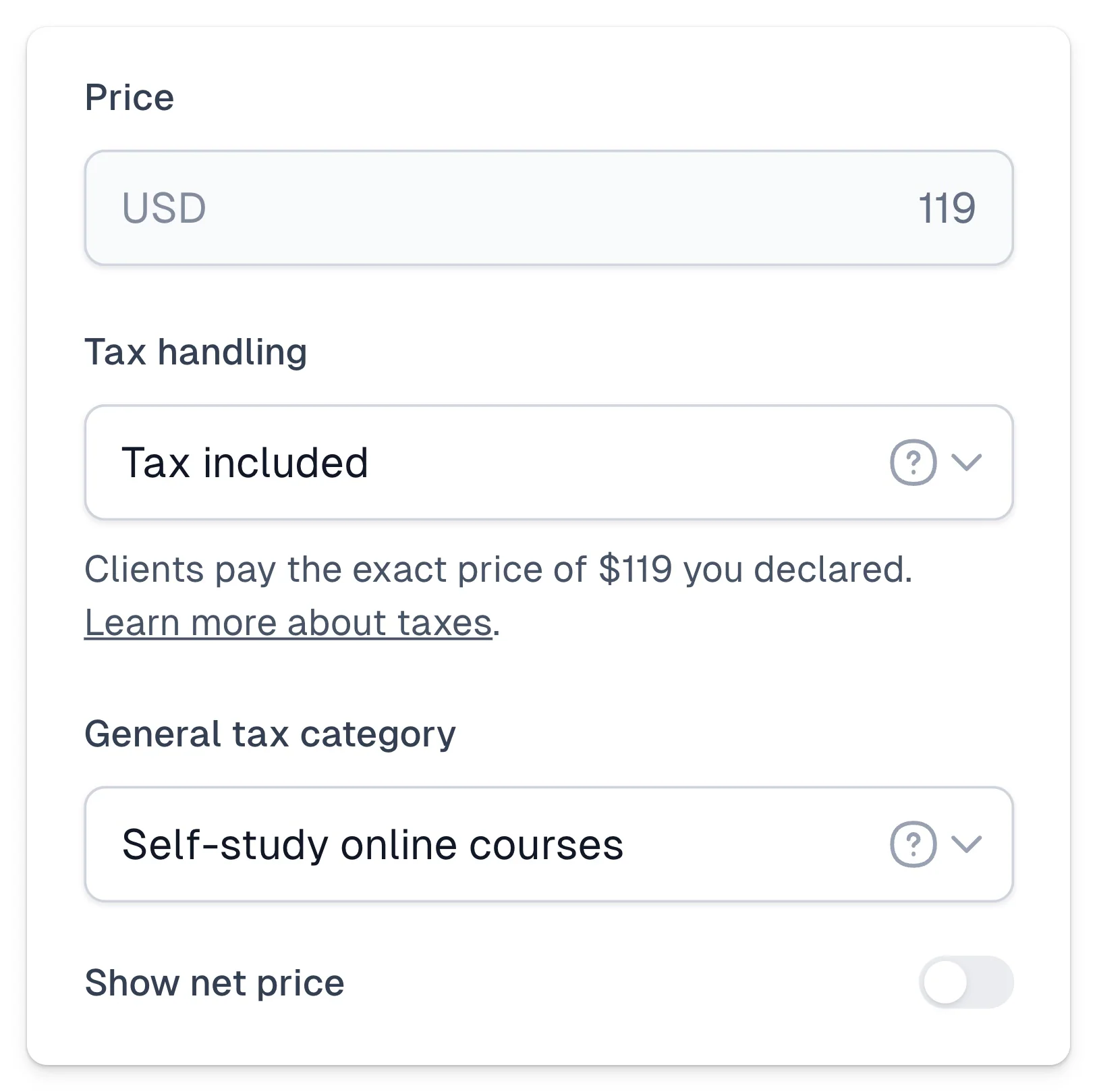
### Tax handling
There are two ways you can display and handle taxes in your checkout:
- **Tax excluded** - We will calculate the tax amount based on your tax settings and customer location and add additional tax to your product price.
- **Tax included** - We will charge customers the exact set price.
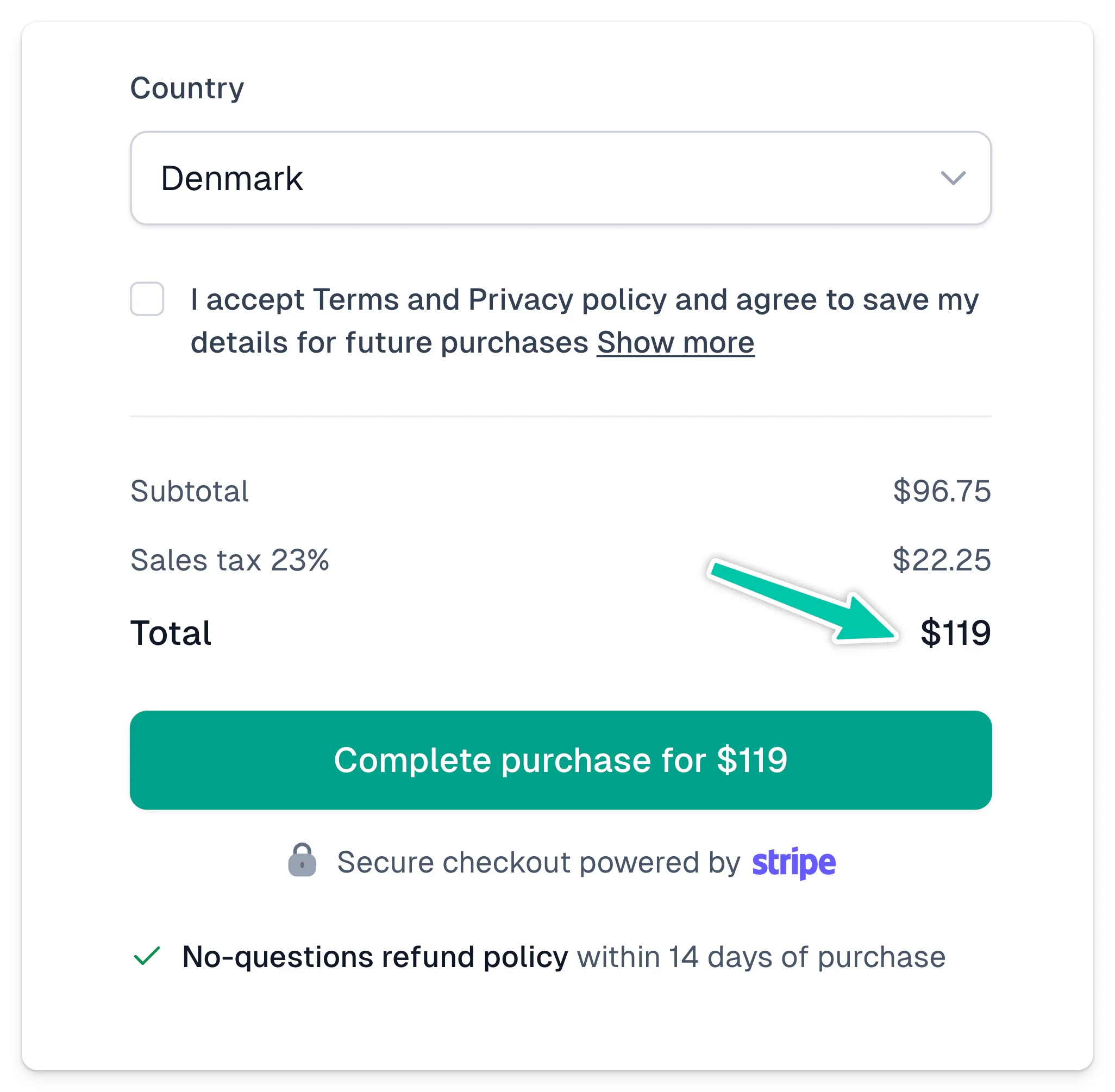
If you set your price at $119 with **tax excluded**, your customer will pay $119 plus tax.
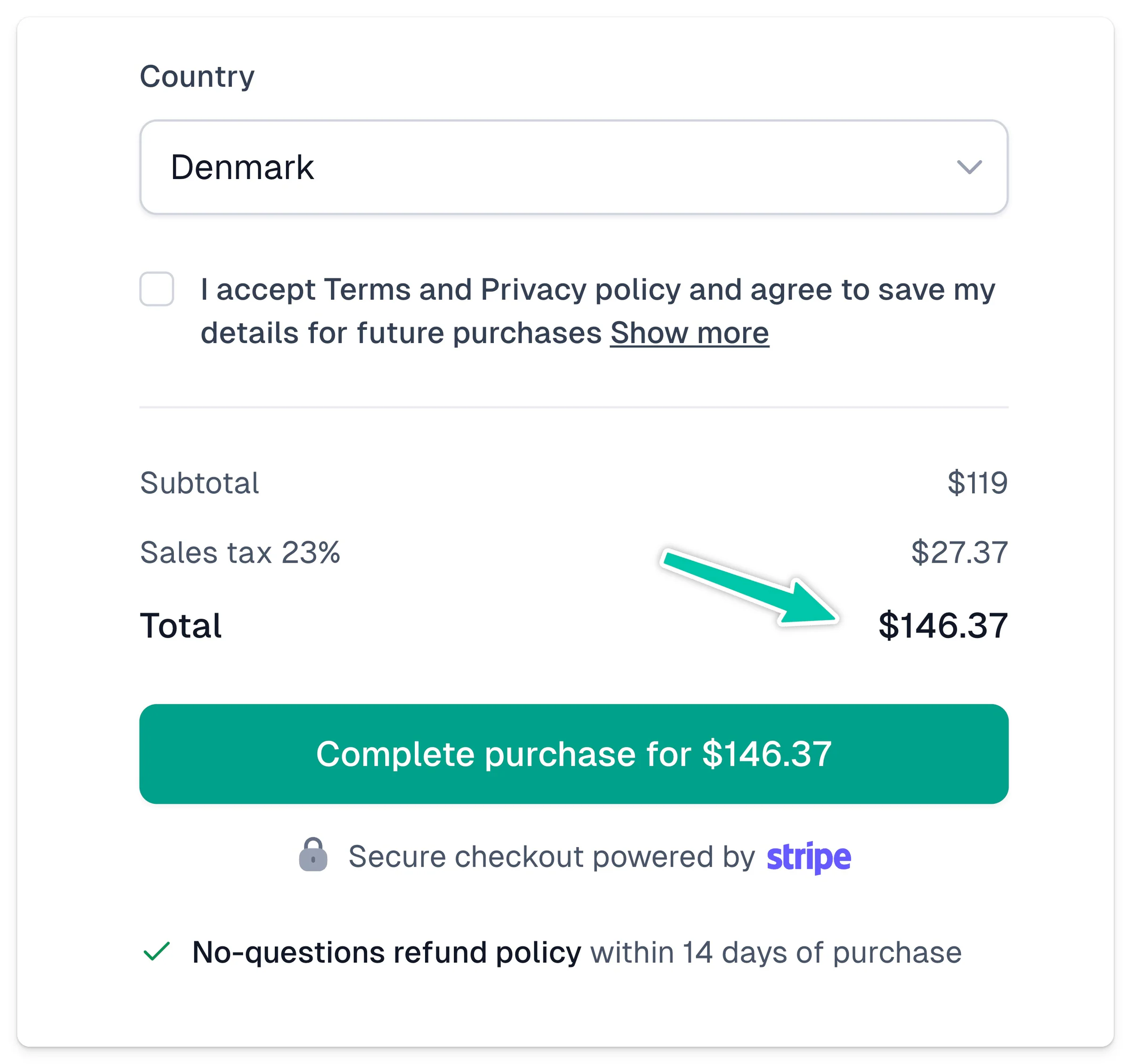
If you choose **tax included**, your client will pay $89, but your earnings will be reduced by the tax amount.
### General tax category
You can also assign your **General tax category** here in your checkout - we will use it for more accurate sales calculation. Just select your product type from the list:
- Software as a Service
- Digital Books
- Self-Study Online Courses
- Instructor-Led Online Courses
- Digital Goods
- Professional Services
- Nontaxable Services
- Physical Goods
- None of the Above
Important: If you set up your **General tax category** in your checkout, it will override your [global tax settings](https://cart.easy.tools/creator/store-settings/taxes). This allows you to assign different settings to different product types.
---
## Migrating from other tools
Category: sell-your-products / migrating-from-other-tools
URL: https://www.easy.tools/docs/migrating-from-other-tools
At Easytools, our goal is to provide essential tools for creators in one package with a single, low fee. This means many tools you currently use can gradually be replaced by the new tools we create.
We enable migration from various tools - where possible, you can transfer automatically; in other cases, we assist you. We have numerous ready-made scripts for data migration that can help you move to Easytools. Just reach out to us!
## Examples of tools Easytools replaces
**Payments**
- Gumroad
- Paddle
- Lemon Squeezy
- Thrivecart
- Snipcart
- PayPal
- Stripe Checkout (no-code checkout offered by Stripe, not to be confused with the payment processing service we also use)
**Digital product delivery (e.g., courses)**
- Teachable
- Kajabi
- Podia
**Donations**
- Buy Me a Coffee
**Legal compliance**
- Cookiebot
- OneTrust
- CookieYes
**Collecting feedback**
- Testimonial.to
- Senja
And many more!
## If you use Stripe
The primary tool in our ecosystem is the checkout - Easycart. It operates based on your Stripe account. This means if you already use Stripe, it's a very simple process. Easycart will not overwrite or modify any of your data on Stripe, so you can try it without any consequences, even alongside your existing solution.
This way, you can test Easytools' functionality or run parallel sales campaigns using our tool to compare it with your existing solution, or sell the same products faster and simpler using links (e.g., on social media, in Instagram bios, etc.).
To see how Easycart can work for you, follow these steps:
1. [Start the Stripe account connection wizard](https://cart.easy.tools/creator/import)
2. Import your products safely during this process
## If you use Lemon Squeezy, Gumroad, Snipcart, or Thrivecart
Reach out to us, and we'll help you transfer existing customers and import them into Stripe, including active subscriptions if possible. Email us at [hello@easy.tools](mailto:hello@easy.tools) and tell us which tool you use, what products you sell, and how many customers you have.
You can check out [comparison pages](https://www.easy.tools/alternatives/alternatives) with popular payment tools for creators to see when Easycart is the best choice.
## If you use other tools
We aim to gradually make our ecosystem more complete, offering creators an all-in-one solution that is accessible and easy to use. We've noticed that many tools specializing in one thing become overly expensive as they develop new features, causing creators to pay for features they don't need.
In the future, we will introduce other tools supporting customer service, email marketing, building sales pages, and more - all very simple, with no overcomplication, offering essential functionalities focused on conversions and practical sales approaches.
Please review our tool pages to see what they offer and check comparisons with other tools.
Let us know if you want to switch from another tool. We can provide assistance and instructions or even perform most tasks for you. Tell us which tool you want to replace and what project you are running at [hello@easy.tools](mailto:hello@easy.tools).
Discover how it can be easier!
---
## Migrating from Stripe Checkout
Category: sell-your-products / migrating-from-other-tools
URL: https://www.easy.tools/docs/migrating-from-stripe-checkout
## Migrating from Stripe Checkout
If your payments have been processed using Stripe Checkout, you can easily start using Easycart. Since Easycart acts as an overlay on your Stripe account, you can use both solutions simultaneously or switch between them as needed.
Compared to Stripe Checkout, Easycart offers many more features. You can read about the advantages of using Easycart over Stripe Checkout [here](https://www.easy.tools/alternatives/easycart-vs-stripe-checkout).
Since all your data is already on your Stripe account when using Stripe Checkout - this includes customers, subscriptions, coupons, and transactions - you can easily connect all this information to your Easytools account.
The entire process only requires connecting your Stripe account to Easycart, which we have detailed [in this article](/docs/connect-your-stripe-account). Alternative methods include:
- Creating an account and connecting it to Stripe [from this link](https://cart.easy.tools/creator/import)
- If you already have an account, selecting the option to connect to Stripe from the Setup guide and then choosing the option to import products from Stripe

That's it!
Your account will be connected, and products imported. The solution you currently use will continue to work alongside the products now available on Easycart. To use the products on Easycart, simply go to their editing page and select **Share → Copy link**.
On your website, you can now replace the Stripe Checkout links with those leading to products created on Easycart.
---
## Migrating from Gumroad
Category: sell-your-products / migrating-from-other-tools
URL: https://www.easy.tools/docs/migrating-from-gumroad
## Migrating from Gumroad
Unlike Easycart, which is based on Stripe and allows you to easily switch to another tool while keeping all your data safe on your Stripe account, Gumroad is a closed system that doesn't offer conveniences for those looking to migrate to another platform.
However, we can assist you in this process as much as possible. This includes importing your customer list from Gumroad to Easytools and assigning them your products.
To do this, follow these steps:
1. [Create an account on Easytools](https://id.easy.tools/?callback=easycart&redirect=/creator)
2. [Click this link to create a new product](https://app.easycart.pl/creator/products/new), or go to **Store → Products** and select **+New product**. You can copy the data from your Gumroad product.
3\. If you have more products, repeat this process for the others.
4\. Configure your product and click **Publish** (alternatively, [find more information about configuring a product here](/docs/create-your-first-product))
5\. On Gumroad, go to the **Sales** tab and export all sales. Ensure you select the entire period during which you've been selling.
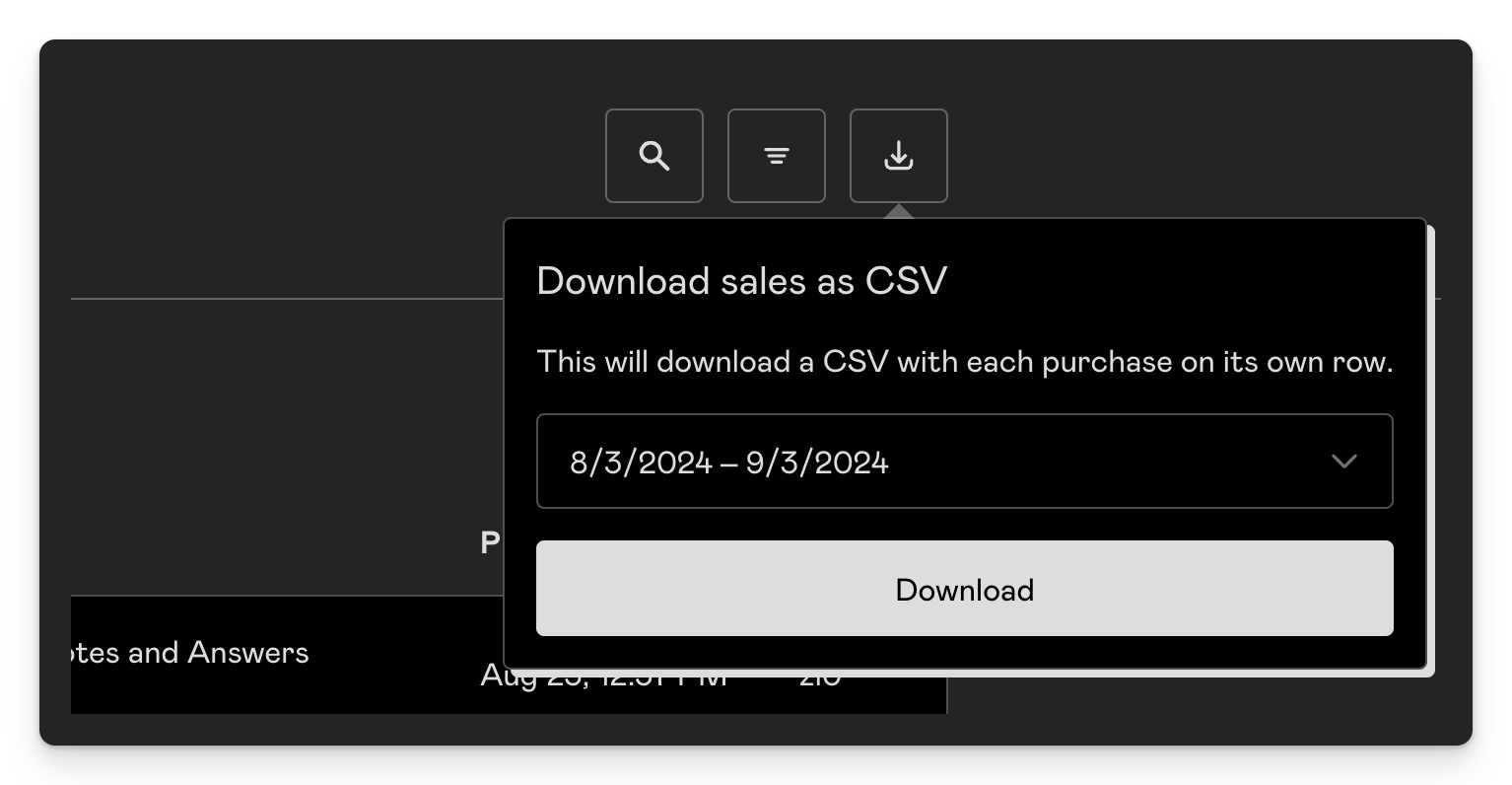
6\. Send us the CSV file via email to [hello@easy.tools](mailto:hello@easy.tools), and we will handle importing the customers and assigning them the appropriate products.
Since we cannot automatically transfer your promo codes, workflows, or other options available on Gumroad, make sure to recreate them within Easycart or inform us in the email which elements are crucial for you to transfer. We will do our best to help!
---
## Migrating from Lemon Squeezy
Category: sell-your-products / migrating-from-other-tools
URL: https://www.easy.tools/docs/migrating-from-lemon-squeezy
## Migrating from Lemon Squeezy
Unlike Easycart, which is based on Stripe and allows you to easily switch to another tool while keeping all your data safe on your Stripe account, Lemon Squeezy is a closed system that doesn't offer conveniences for those looking to migrate to another platform.
However, we can assist you in this process as much as possible. This includes importing your customer list from Lemon Squeezy to Easytools and assigning them your products.
To do this, follow these steps:
1. [Create an account on Easytools](https://id.easy.tools/?callback=easycart&redirect=/creator)
2. [Click this link to create a new product](https://app.easycart.pl/creator/products/new), or go to **Store → Products** and select **+New product**. You can copy the data from your Lemon Squeezy product.
3. If you have more products, repeat this process for the others.
4. Configure your product and click **Publish** (alternatively, [find more information about configuring a product here](/docs/create-your-first-product))
5. On Lemon Squeezy, go to the **Customers** tab and export all customers to a CSV file. Ensure you select the entire period during which you've been selling.
6. Similarly, go to the **Orders** tab and export the entire sales history to a CSV file.
7. Send us the mentioned CSV files via email to [hello@easy.tools](mailto:hello@easy.tools), and we will handle importing the customers and assigning them the appropriate products.
Since we cannot automatically transfer your promo codes, emails, or other options available on Lemon Squeezy, make sure to recreate them within Easycart or inform us in the email which elements are crucial for you to transfer. We will do our best to help!
---
## Migrating from Paddle
Category: sell-your-products / migrating-from-other-tools
URL: https://www.easy.tools/docs/migrating-from-paddle
## Migrating from Paddle
Unlike Easycart, which is based on Stripe and allows you to easily switch to another tool while keeping all your data safe on your Stripe account, Paddle is a closed system that doesn't offer conveniences for those looking to migrate to another platform.
However, we can assist you in this process as much as possible. This includes importing your customer list from Paddle to Easytools and assigning them your products.
To do this, follow these steps:
1. [Create an account on Easytools](https://id.easy.tools/?callback=easycart&redirect=/creator)
2. [Click this link to create a new product](https://app.easycart.pl/creator/products/new), or go to **Store → Products** and select **+New product**. You can copy the data from your Paddle product.
3\. If you have more products, repeat this process for the others.
4\. Configure your product and click **Publish** (alternatively, [find more information about configuring a product here](/docs/create-your-first-product)).
5\. On Paddle, go to the **Reports** tab and generate a report for **Audience**, then download the report file once generated.
6\. Similarly, generate a report for **Transactions**, covering the entire sales history (All Time) and leaving all options on **All**, then select **Export Report**.
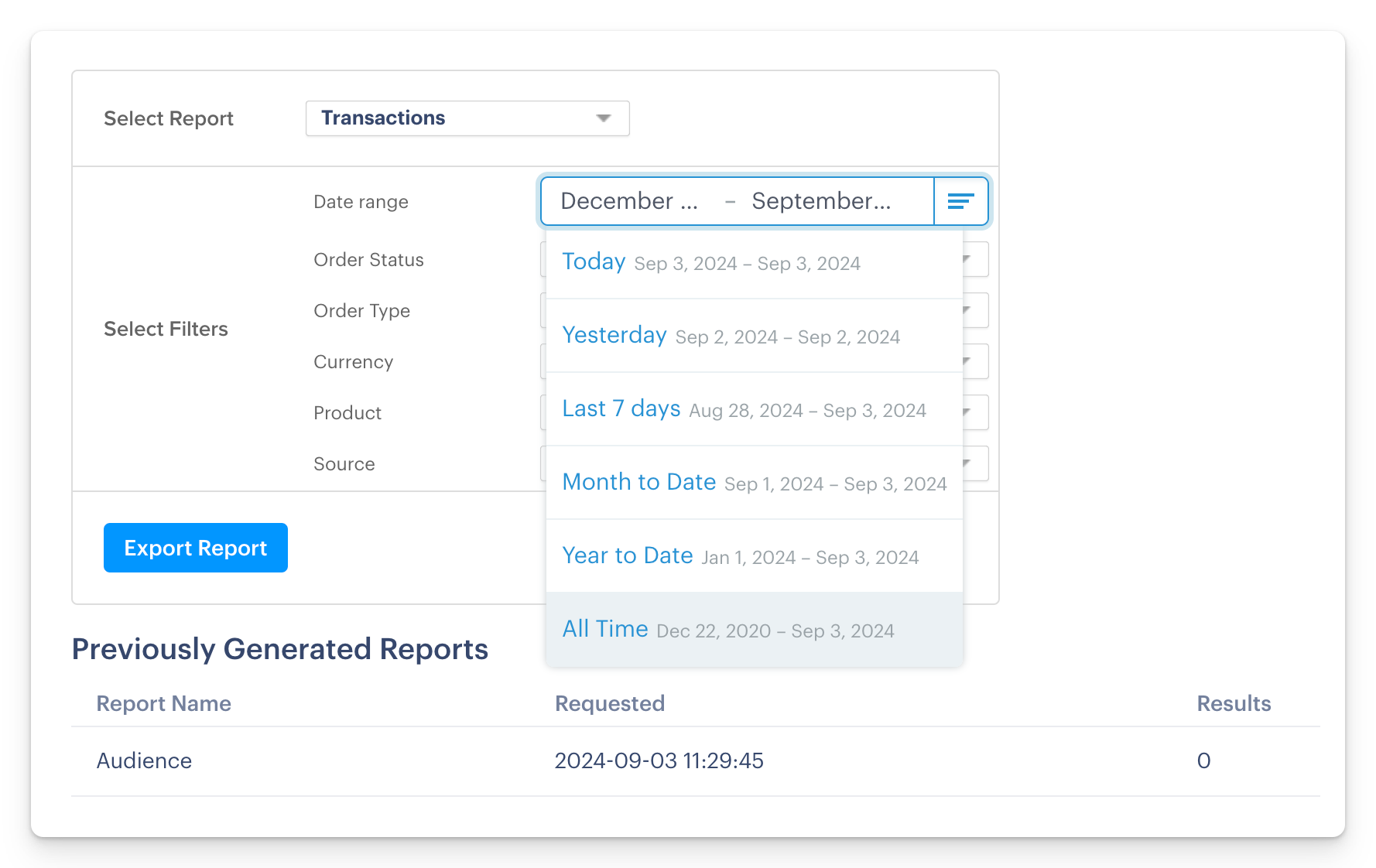
7\. Send us the downloaded files via email to [hello@easy.tools](mailto:hello@easy.tools), and we will handle importing the customers and assigning them the appropriate products.
Since we cannot automatically transfer your promo codes, emails, or other options available on Paddle, make sure to recreate them within Easycart or inform us in the email which elements are crucial for you to transfer. We will do our best to help!
---
## Importing customers
Category: sell-your-products / migrating-from-other-tools
URL: https://www.easy.tools/docs/importing-customers
Streamline operations by Importing customers. Easily migrate your existing customer base to Easytools.
---
## Order bumps
Category: sell-your-products / checkout
URL: https://www.easy.tools/docs/order-bumps
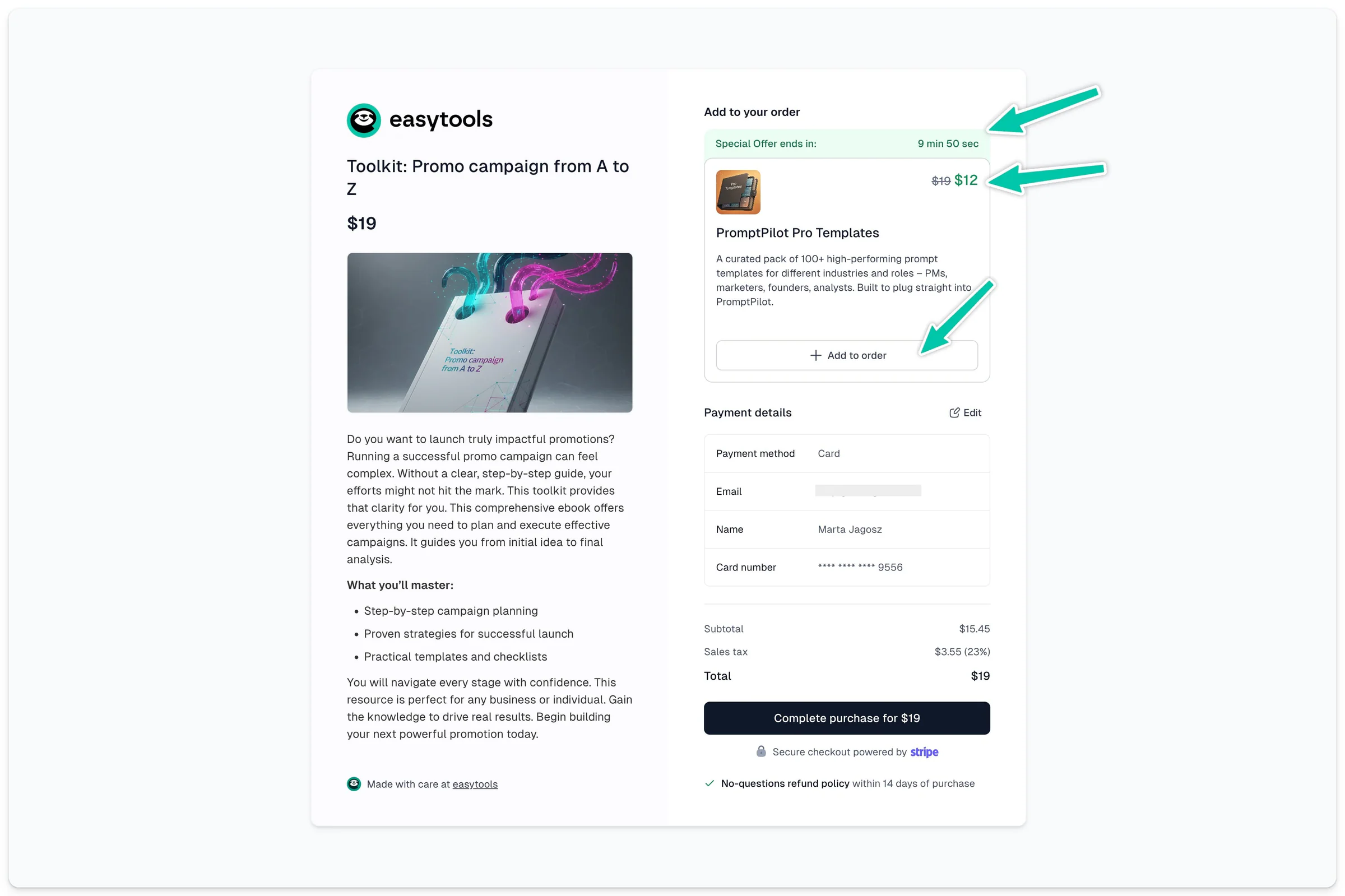
Easytools allows you to offer complementary products (order bumps) directly in the cart - even before the purchase is finalized.
Simply choose the product you want to promote, and we will automatically display it to the customer at the right moment when they are making their purchase decision.
## Creating an Order Bump offer
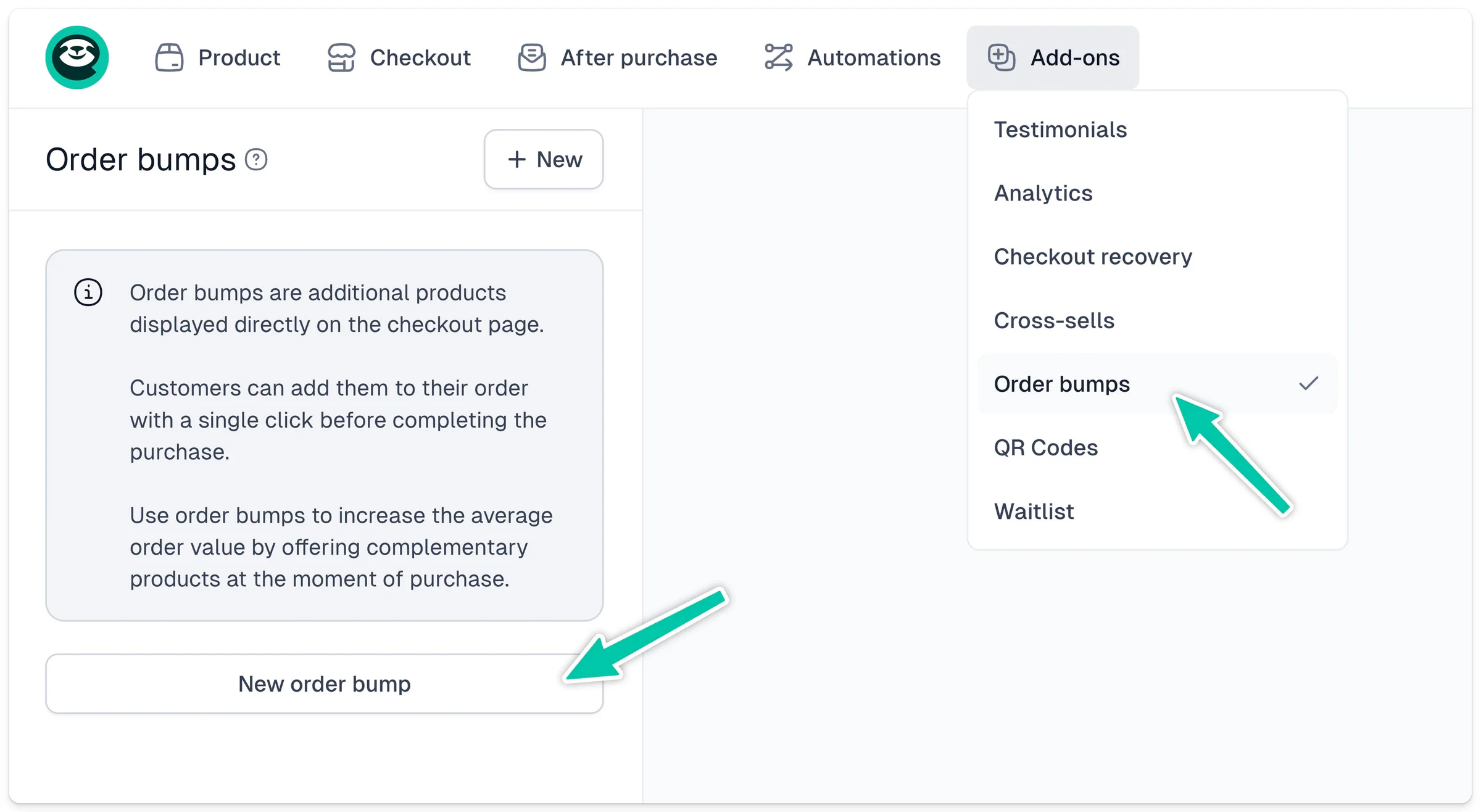
To add a cross-sell offer, open the cart configurator and select **Add-ons → Order bumps** from the top menu. Then click **\+ Add**.
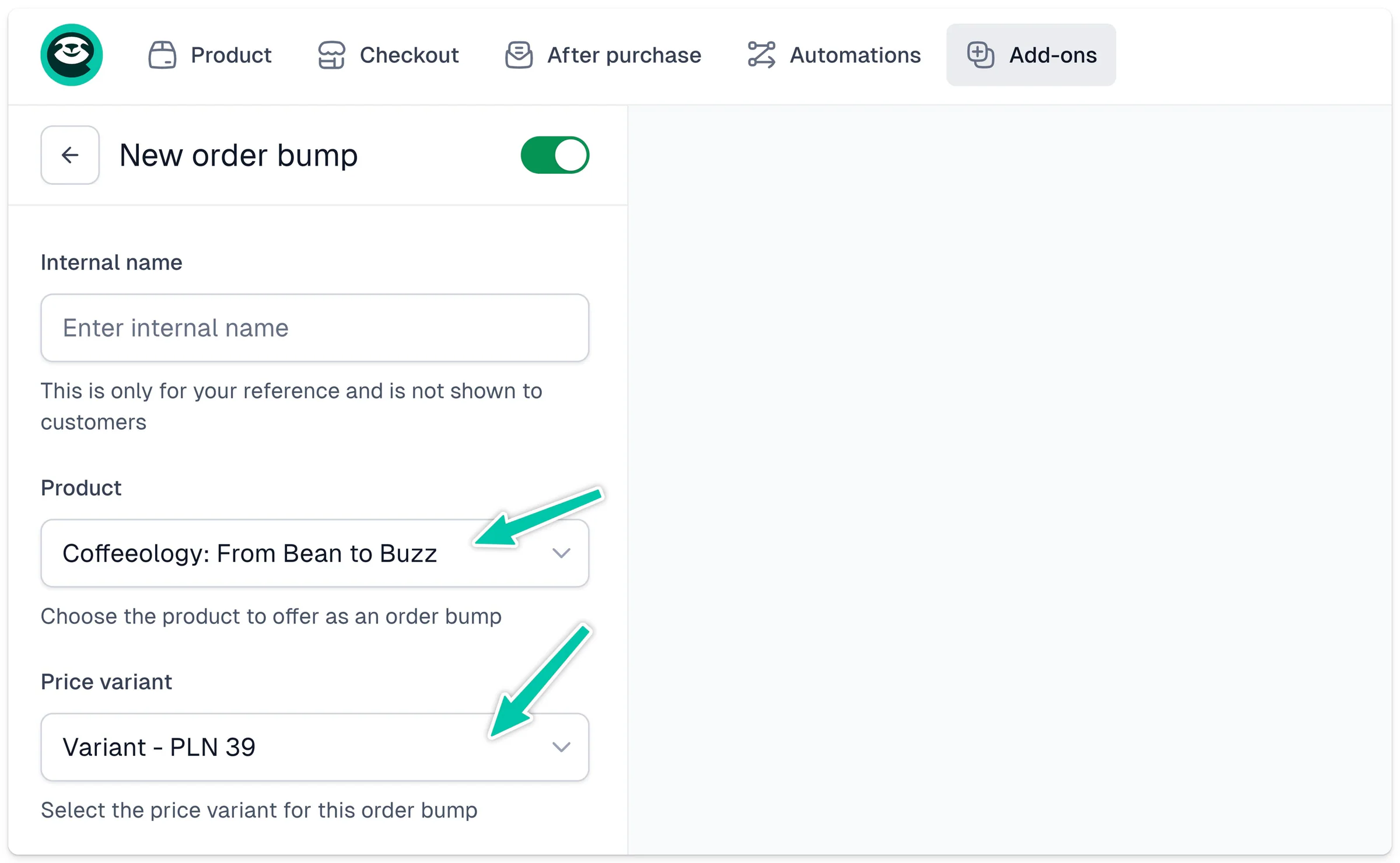
Next, choose the product and pricing variant you want to add to the cart.
The next steps are:
1. Select the offer display type. You can choose a version with a larger thumbnail, a compact version, or a version with a countdown timer.
2. Edit the texts. You can override the product title and description.
3. Set a custom price. The original price will be crossed out.
Finally, confirm your changes by clicking **Save** and publish the cart.
> Add as many Order Bumps as you like. Each bump has to be in the same currency as your main product, and it must be a one-time purchase (not a subscription).
---
## Link to selected variant
Category: sell-your-products / checkout
URL: https://www.easy.tools/docs/preselecting-variants
You can share a link to a selected price in several ways:
## Link with a specific variant pre-selected
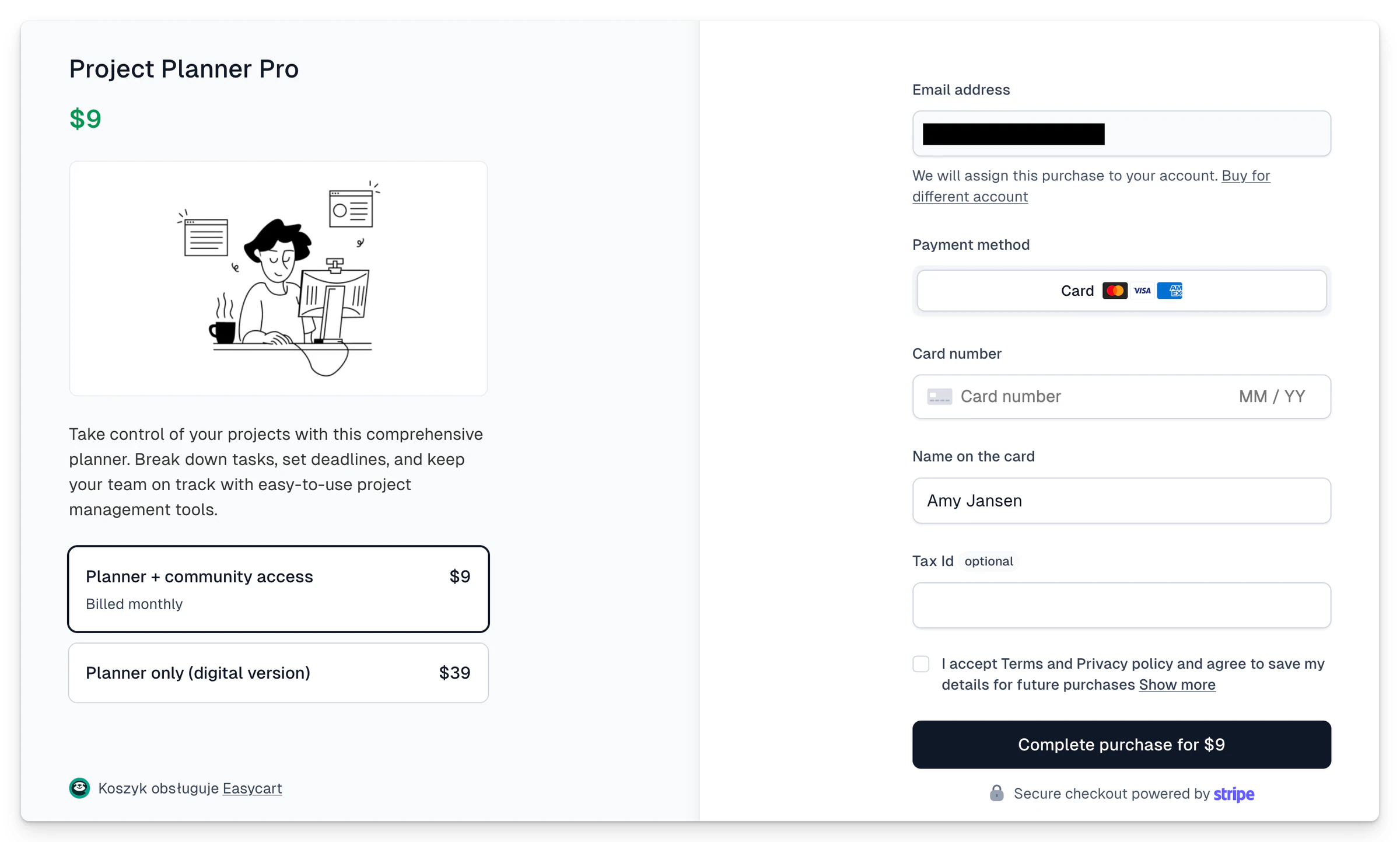
If you want a specific price variant to be selected, but other variants to remain visible, simply add a special parameter ?**selected-plan=price\_123** at the end of the cart link.
For example:
`CHECKOUT-LINK/PRODUCT?selected-plan=price_1MezsuL3MseKe0T3TK5cOoDv`
If you don't know where to get the id, [look here](/docs/where-to-find-stripe-id).
With this feature, all available variants will appear on the cart page, but the one you specified in the link will be automatically selected.
## Link to a specific, single variant
If you want this to be the only variant visible in the cart, with all others hidden, you can:
Use the Share button in the top right corner and select only that specific variant from the list, then copy the link, or
Create the link yourself using the appropriate parameter
To do this, simply add the parameter **?selected-plan=price\_123** at the end of the cart link.
For example:
`CHECKOUT-LINK/PRODUCT?selected-plan=price_1MezsuL3MseKe0T3TK5cOoDv`
If you don't know where to get the id, [look here](/docs/where-to-find-stripe-id).
This way, you'll redirect the user to the page of that specific variant, and other available variants won't be visible at all.
---
## Sharing checkout links
Category: sell-your-products / checkout
URL: https://www.easy.tools/docs/sharing-checkout-links
## Sharing links in checkout configurator
To share a checkout link, you first need to publish it. After clicking the **Publish** button in the upper right corner, options including the **Share** button will appear next to it:
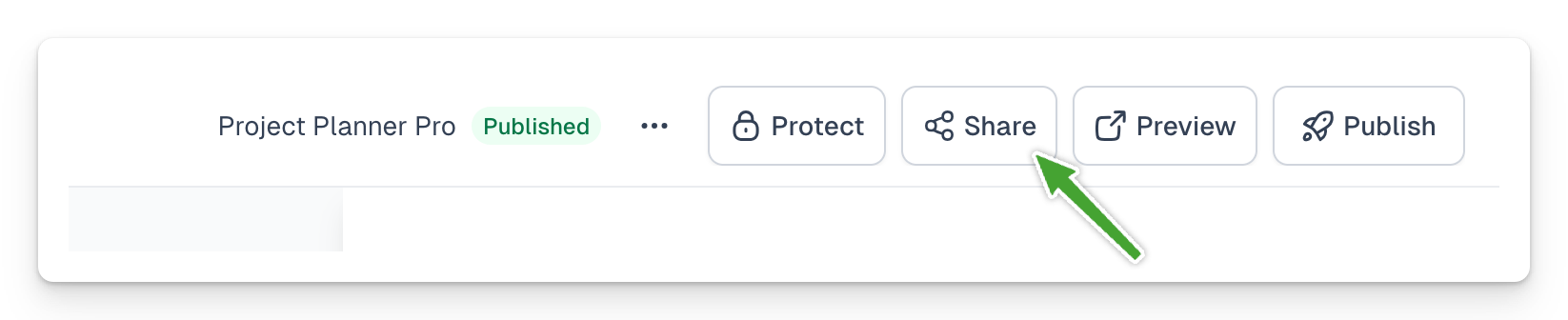
After selecting the **Share** button, you can set the appropriate options for the link you generate.
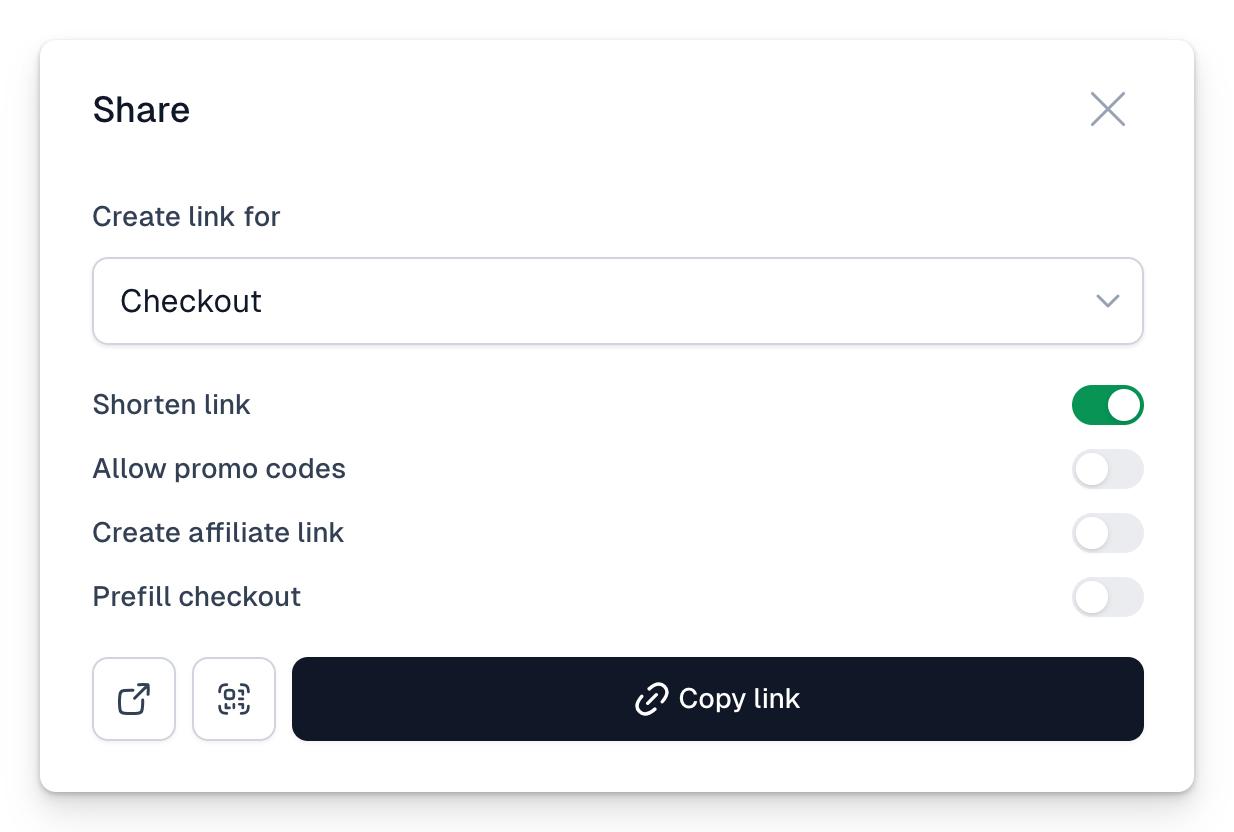
The options are available in this order:
- Choose whether you are generating a link for the entire checkout (all variants will be displayed) or just for a specific price variant. In the latter case, other variants will be hidden in the checkout.
- For products with a one-time price, you can also select the **Link to a custom price** option, allowing you to create a specific price for this product. Only with this particular link will that price apply. For example, to test a purchase, you can set the price to 0, or if you want to reduce the price for someone without a promo code, you can do so. Other users will never see this price; it will only be available through the specific link.
- The default **Shorten link** option generates a short link that is easy to share.
- The **Allow promo codes** option will display a field in the checkout where a promo code can be entered. If unchecked, using a promo code will not be possible.
- The **Create affiliate link** option allows you to generate a link with an affiliate tag, helping you track sales made by partners. This way, you can easily prepare a specific link for a partner with the product and other options and send it to them for distribution.
- The **Prefill checkout** option lets you automatically fill in fields in the checkout, such as customer data, allowing the customer to complete the transaction faster. You can also apply a promo code directly to the checkout this way.
Finally, simply choose the **Copy link** option, and it will be copied to the clipboard. You can paste it anywhere using Cmd (Ctrl) + V. You can also use the icons on the left to generate a QR code that will be copied to the clipboard or preview the link.
You can use the QR code on a presentation slide, for example, so that people scanning it are taken directly to the checkout.
## Creating links manually
Although you can click through the shared links and their options in the sharing window, you can also create links manually using various parameters. It's very simple. Just add a specific parameter to the end of the link, for example, **?promo=1** to display the checkout with a field for entering a promo code. Below is a list of available options this way.
Remember one important thing. When creating a link, the first parameter you add should always be preceded by a ? sign, but subsequent parameters in the same link are always preceded by an & sign. For example: [**link.com?param\_1=1¶m\_2=2**](http://link.com?param_1=1¶m_2=2)"
You can find methods for creating appropriate links this way in separate help materials.
---
## Add payment methods to your cart
Category: sell-your-products / checkout
URL: https://www.easy.tools/docs/adding-payment-methods-to-your-cart
## Adding payment methods to your cart
By default, your cart will feature payments by card. To add more payment methods, simply:
1. Go to **Store** → **Settings**
2. Open the **Payments** tab
3. In the **Payment methods** section toggle the methods you want to display
4. Rearrange the methods as you like, by clicking them and dragging them up or down on the list
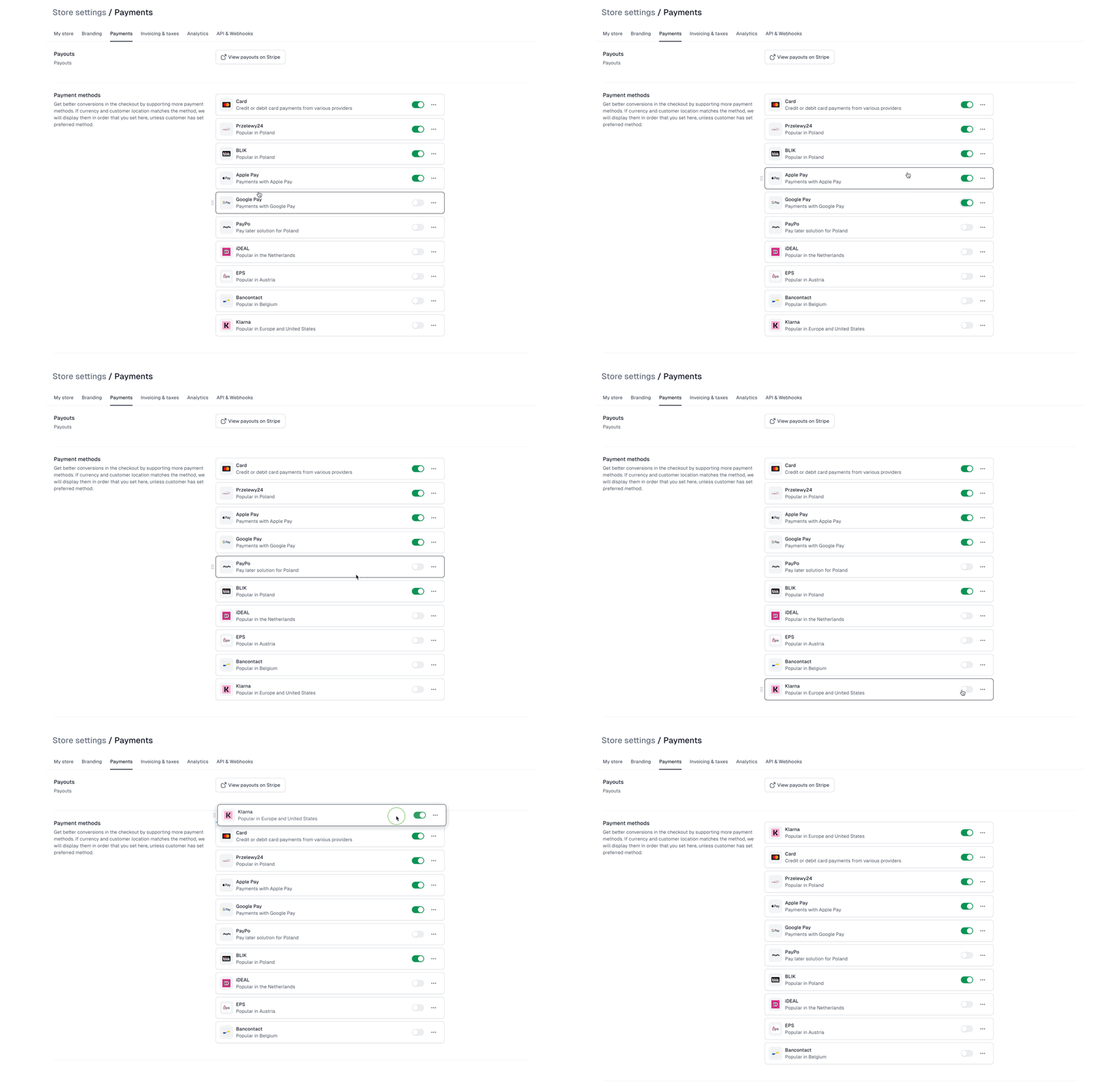
Check the list of payment methods we currently support, by [clicking here.](/docs/supported-payment-methods)
## How are payment methods displayed
- For local payment methods specific to certain locations, Easycart uses an automated location mechanism based on:
- Your customers’ location (IP)
- Currency in your checkout
- For digital wallets, Apple Pay will be available when your customer uses Safari as their browser, while Google Pay will be available for Chrome users.
> This means that if you want to add iDEAL to your checkout to satisfy your Dutch customers, the checkout currency must be set to EUR, and their IP address must indicate that they are located in the Netherlands.
---
## Link to selected payment method
Category: sell-your-products / checkout
URL: https://www.easy.tools/docs/preselecting-payment-methods
## Create a link to selected payment method
You can direct the user to the checkout with a specific payment method selected. Other payment methods will also appear in the checkout, but the chosen method will be preselected.
The parameter you need to use in the link to select the payment method is **?paymentMethod=METHOD**, where METHOD can be replaced by:
- blik
- applePay
- p24
- card
---
## Purchasing multiple items
Category: sell-your-products / checkout
URL: https://www.easy.tools/docs/purchasing-multiple-items
## Purchasing multiple items
Easycart allows the purchase of multiple units of a single product. You can enable this option for the entire product or for a specific price.
To enable the purchase of multiple units for all price variants:
1. Go to **Product** → **Basic**
2. Enable the **Allow buying multiple items** option
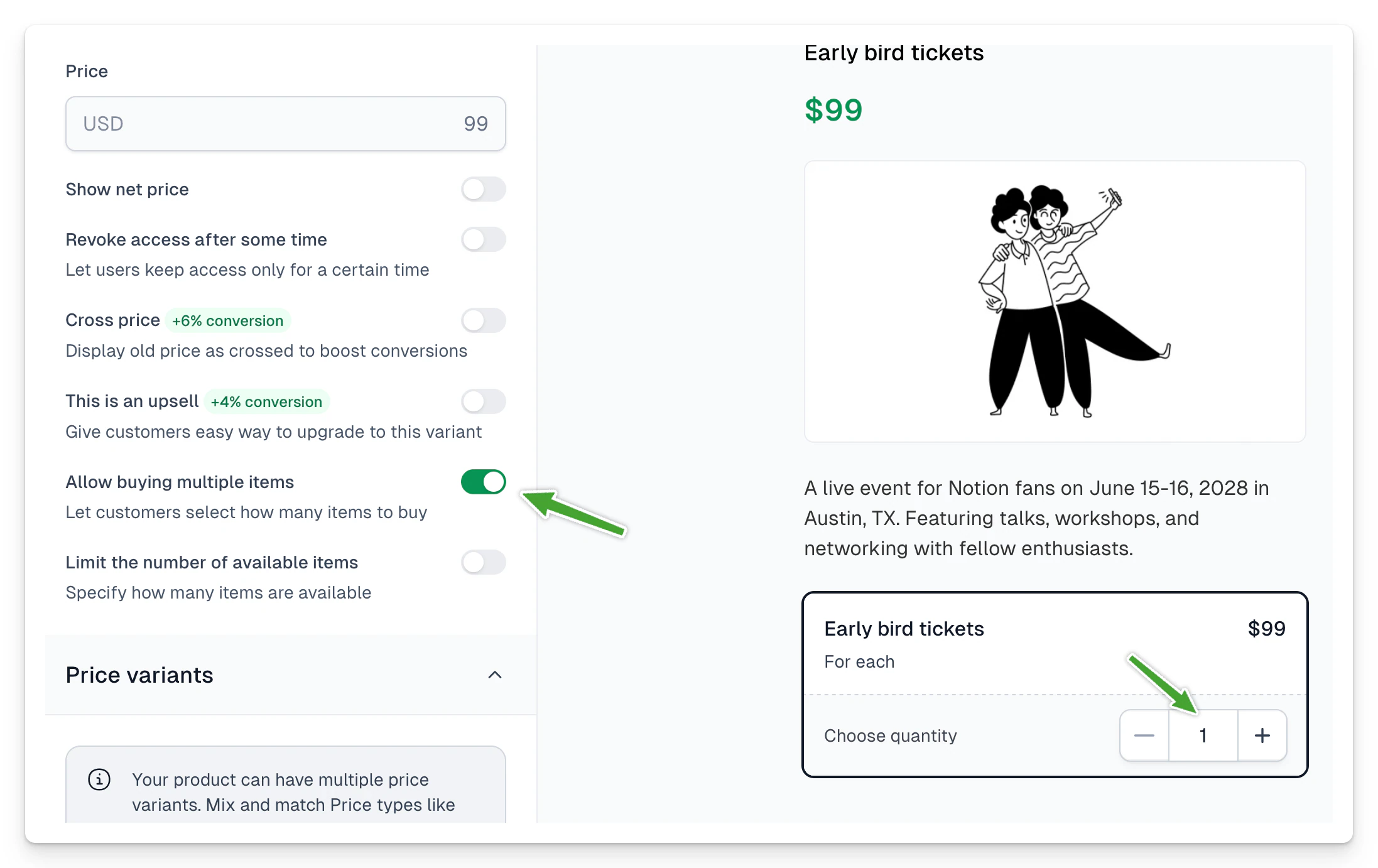
You can override these settings individually for each price variant. Instead of the above setting, navigate to each price through **Product** → **Price variants** and find the same **Allow buying multiple items** option in the settings for each price.
---
## Custom domain
Category: sell-your-products / checkout
URL: https://www.easy.tools/docs/custom-domain
You can easily add custom domain to Easytools, so that all your Checkouts are accessible within your domain name.
The process of adding a domain name requires some changes in your domain registrar, so make sure you can modify DNS records.
In order to add your custom domain, navigate to Store [Settings → Custom domain](https://cart.easy.tools/creator/store-settings/domain) and add your domain name and click **Save** in the bottom right corner.
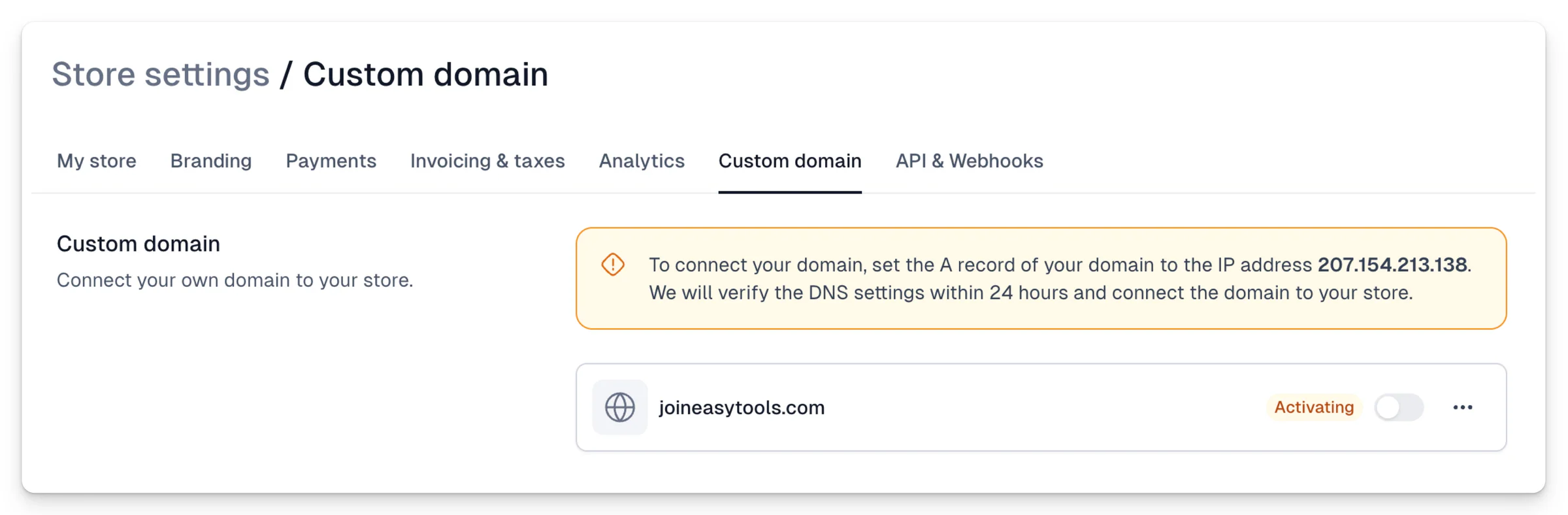
The domain is now in the **Activating** state and we'll start checking if the DNS setttings are correct. You need to redirect the domain to our IP given in the alert window, using **A** record.
Once your settings are correct, domain will switch to Active state. If this fails, you'll get email with the notification that the domain has to be added again.
Please, allow for at least few hours for the domain to fully propagate, if you keep checking the domain, the DNS can be cached within your computer or network and still display the old page. You can [check the status of your DNS redirect here](https://toolbox.googleapps.com/apps/dig/#A/). Just put your domain name and if A record points to our IP, you're good to go. But you might still have to wait for our servers to index and your cache to refresh, so be patient.
What happens after you successfully add the domain?
- All of the Checkouts will be accessible using your domain (old links will remain active and redirect to the new ones)
- The domain itself will point to your default Storefront, that you can [further modify here.](https://cart.easy.tools/creator/storefront)
If you're using Easypage, those domains are separate and will remain intact.
---
## Different languages
Category: sell-your-products / checkout
URL: https://www.easy.tools/docs/different-languages
The Easytools Panel interface for creators is available in different languages. To change the panel interface, click on the arrows in the bottom left corner and select the appropriate language from the menu.
The language selected in the Creator Portal will also be the default language in which new projects are created, for example, carts in Easycart. If you have the creator interface in English, carts will also be created in English by default.
If you want to preview how the cart will look in another language, you can do so by switching the view options when creating it.
The cart in a different language will be displayed automatically if we detect a supported customer browser language. If this language is not supported, we will display the cart in English by default.
> You can also force the cart to display in a specific language, for example English, by adding the parameter ?lang=en to it, or Polish, ?lang=pl, etc.
---
## Prefilling checkout fields
Category: sell-your-products / checkout
URL: https://www.easy.tools/docs/prefilling-checkout-fields
You can pre-fill customer data in the cart to shorten their path to finalizing the transaction when sending a purchase link to a specific customer. You can do this in two ways:
## Filling in data using the Share menu
If you select the Share button, and then the **Fill fields** option in the window, you can enter customer data that will be pre-filled in the cart after sharing this link.
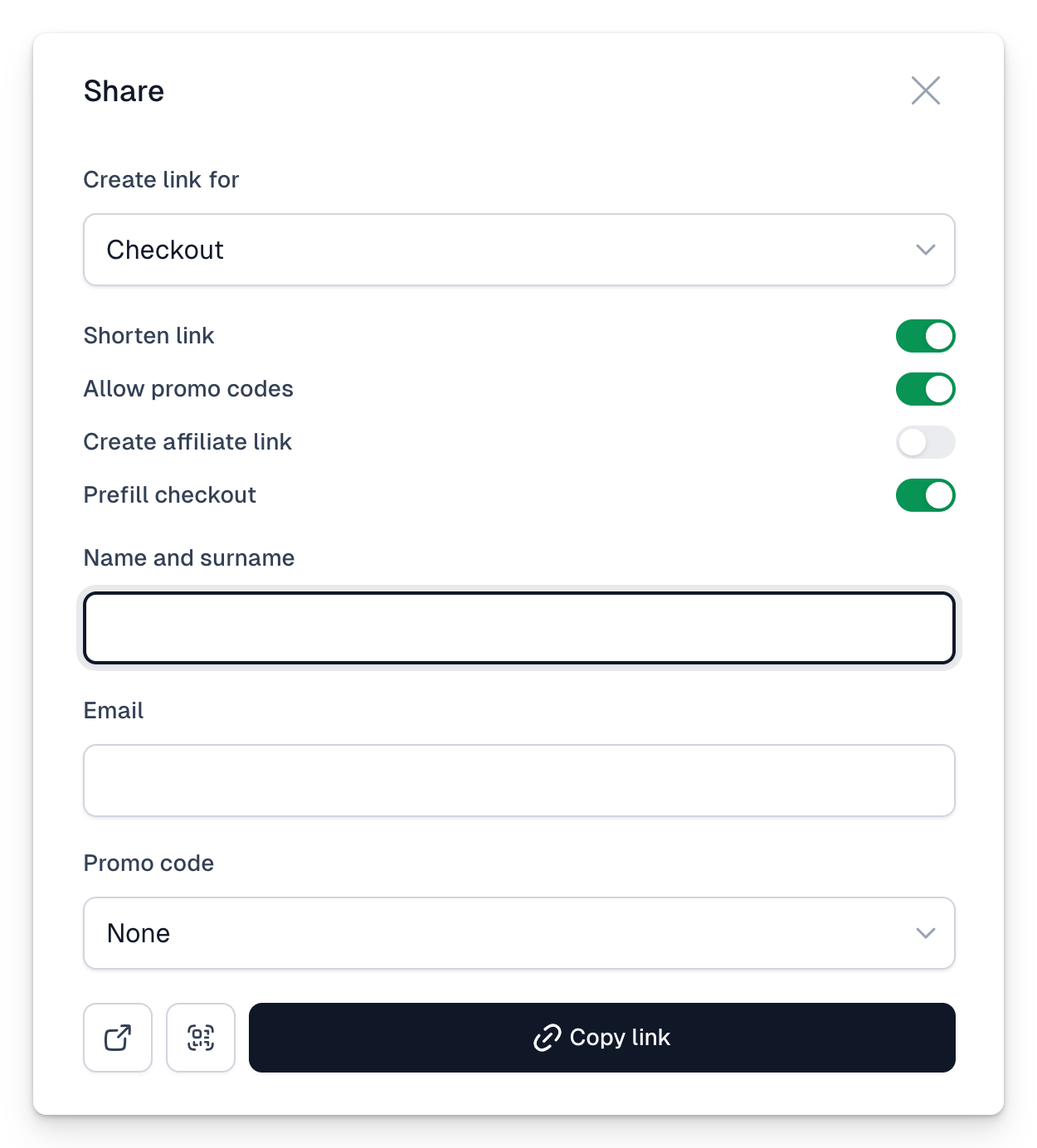
## Manually filling customer data in the link
You can create an individual cart link for each customer by adding their data (name and email address) to the URL.
To do this, add the parameter **?name=First** [**Last&email=john@doe.com**](mailto:Last&email=john@doe.com) at the end of the link
You can also add a space using the **%20** character in the address:
**?name=John%20Doe&email=john@doe.com**
When accessing the link, the customer won't need to fill in this data in the cart; it will be automatically populated.
### Additional parameters you can use
There are several other interesting parameters that allow you to fill in fields in the cart. These are:
- **phone**
- **address**
- **post\_code**
- **city**
- **nip**
- **delegate** (**true** or **1** if the **Purchase for someone else** option is active in the cart and should be checked, anything else will be treated as false)
- **quantity** (number of items to be automatically added to the cart, if the variant allows purchasing multiple units)
---
## Checkout link with promo code field
Category: sell-your-products / checkout
URL: https://www.easy.tools/docs/link-with-prefilled-promo-code
By default, Easycart doesn't display a field for entering a discount code, as it reduces conversion. Customers who see such a field often leave the cart to search for a code, which frequently results in unfinished transactions. Adding such a field to the cart also makes customers doubt whether they're getting the lowest price.
Fortunately, we have several mechanisms that allow displaying a field for entering a code.
## Generating a link from the Share menu
- You can use the Share menu and then check the option Show discount code field
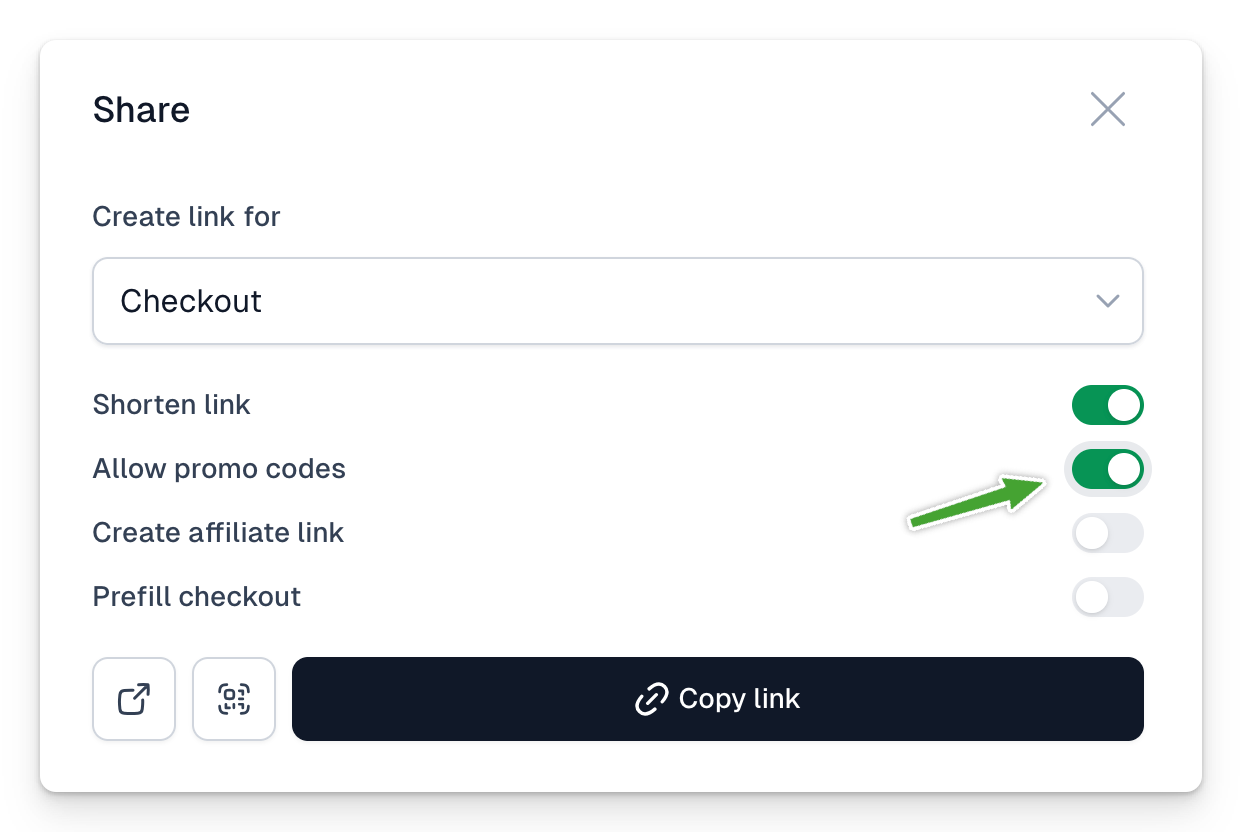
- Alternatively, you can immediately fill this field with a specific code by selecting the Fill fields option and then indicating the appropriate code
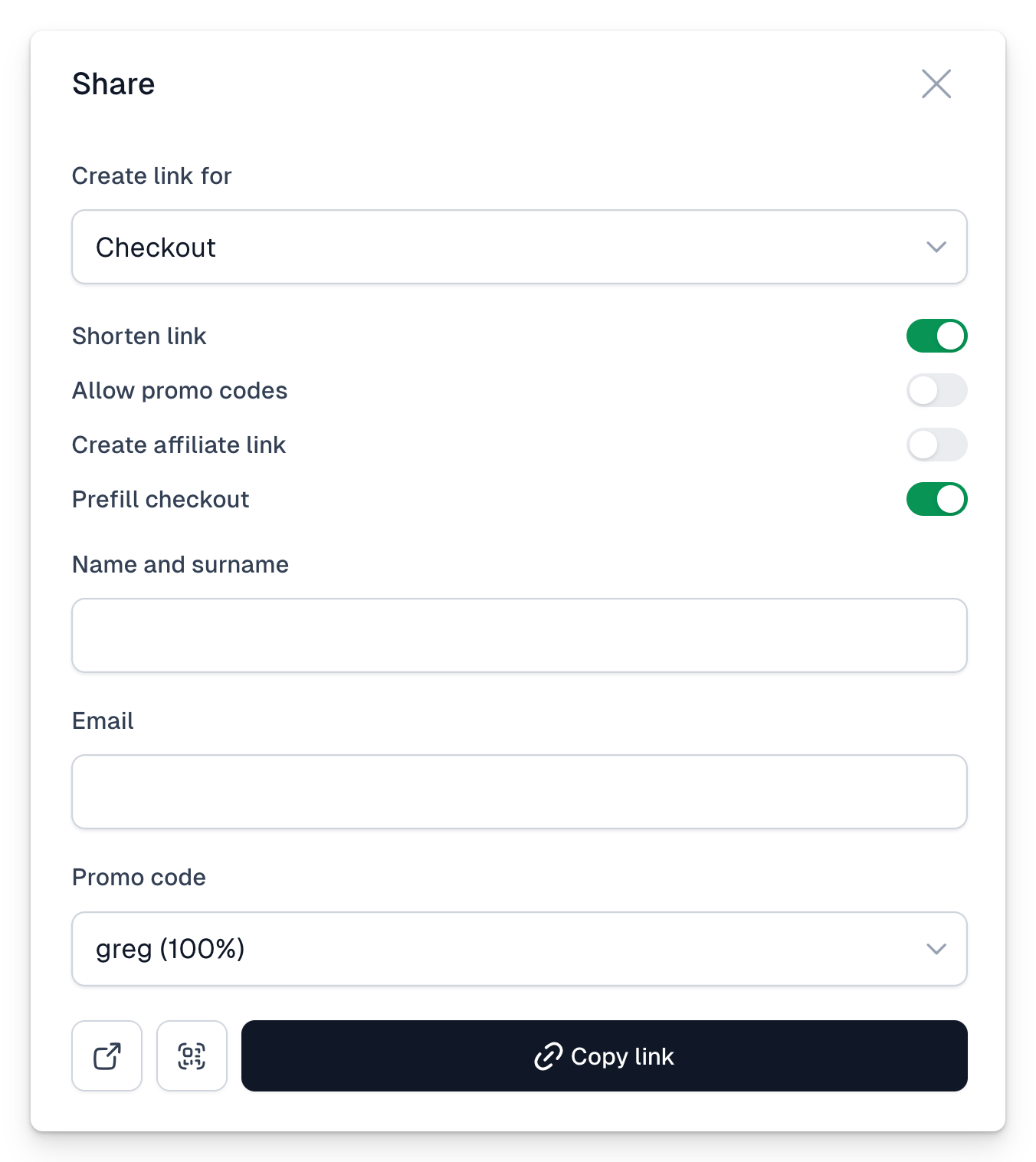
## Manually creating a link with a promotional code field
You just need to use the **?promo** parameter added to the link. If you add only this parameter at the end of the link, an additional field for entering a discount code will appear in the cart. An example of such a link is:
[`https://app.easycart.pl/easy20/checkout/template-alley/project-planner-pro?promo`](https://app.easycart.pl/easy20/checkout/template-alley/project-planner-pro?promo)
However, you can go a step further and immediately fill this field with a specific code. In this case, pass the specific discount code you want to use in the parameter, for example **?promo=promo\_code\_name**. The link might look like this:
[`https://app.easycart.pl/easy20/checkout/template-alley/project-planner-pro?promo=100off`](https://app.easycart.pl/easy20/checkout/template-alley/project-planner-pro?promo=100off)
This way, it will be automatically applied to the cart, and the user won't have to enter the code. This is a good way to conduct an email campaign, instead of providing the code, as it makes it easier for users to use it without having to copy and risk unnecessary mistakes.
---
## Adding custom form fields
Category: sell-your-products / checkout
URL: https://www.easy.tools/docs/adding-custom-form-fields
## Adding fields to the entire checkout
You can add other custom fields to the cart. Predefined fields are available in the **Cart** → **Form Fields** menu. You can enable and disable specific fields there. After enabling them, you can click on a given field to edit it.
## Modifying fields for each price
Fields can also be overwritten in a specific price variant. By going to the **Product** → **Price Variants** menu, you can access the Form Fields section, where you can manage them:
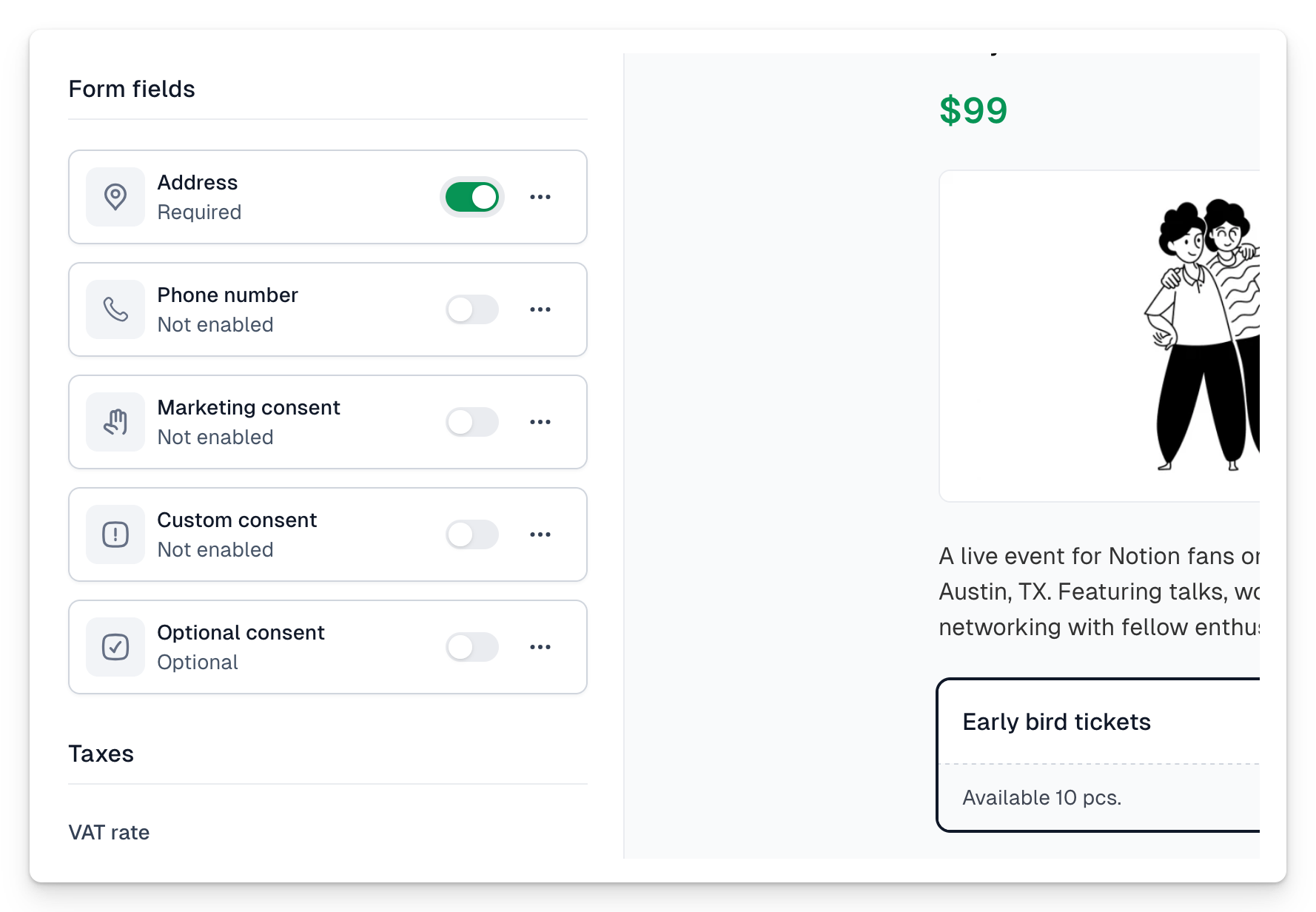
## Adding Custom Fields
In addition to predefined form fields, you can also define your own custom fields:
1. Click the **+Add Custom Field** button.
2. Select one of the available field types.
3. Fill in the field label and name.
4. Optionally, provide a placeholder.
5. Choose whether the field is required (check the **Required** flag) or optional (leave the flag unchecked).
### Available Field Types
- Text
- Long Text
- Checkbox
- Integer
- Decimal
- Dropdown
- Date
- Date and Time
---
## Limited quantities
Category: sell-your-products / checkout
URL: https://www.easy.tools/docs/limited-quantities
## Setting available product quantity
Within Easycart, you can easily set a limit on the available quantity of a product. This way, you can sell a specific number of tickets or limit purchases at a lower price to the first 100 sold products, and so on.
To do this:
1. Go to the product editing panel.
2. Navigate to **Product** → **Basic**.
3. Enable the **Limit the number of available items** option.
4. Specify the number of units available for purchase.
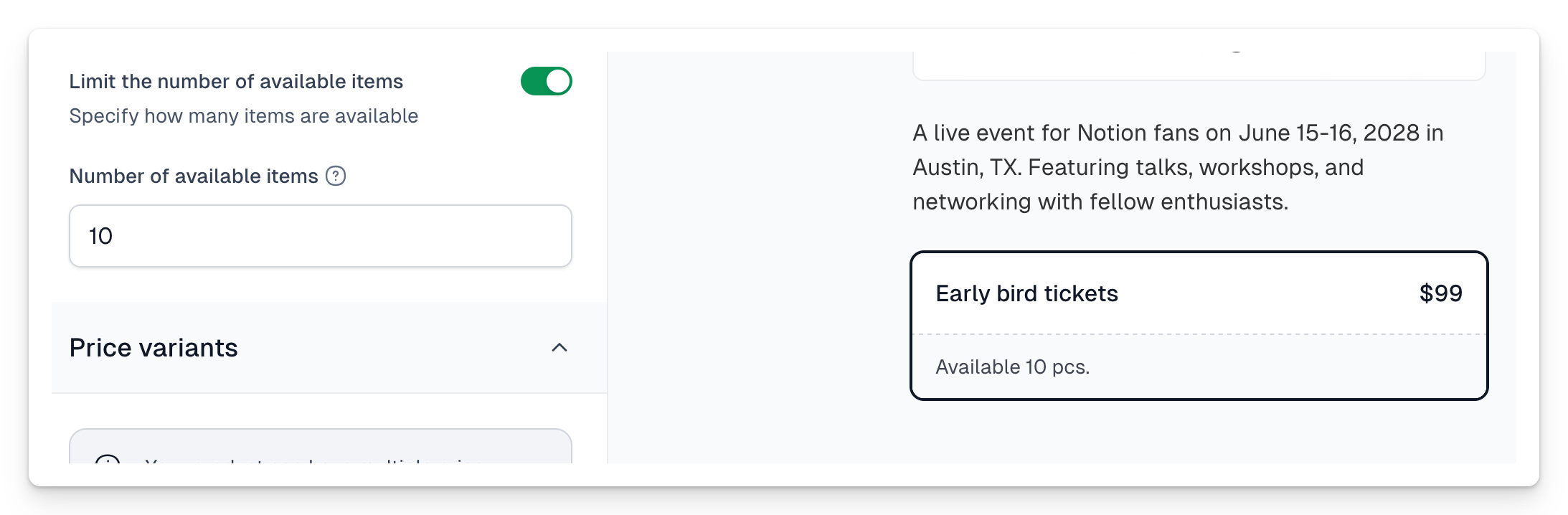
This feature will display the number of available units for purchase. It can work independently or in conjunction with the ability to buy multiple units of a product.
Once the limit is reached, the specific price will automatically be hidden in the checkout.
---
## Customising footer
Category: sell-your-products / checkout
URL: https://www.easy.tools/docs/customising-footer
## Customising footer
You can add your own information to the footer displayed in the checkout or hide it entirely. To do this:
1. Go to **Checkout** → **Style**
2. Navigate to the **Footer text** field in the **Footer** section and make the necessary changes
3. If you remove the content from this field, the footer will no longer display
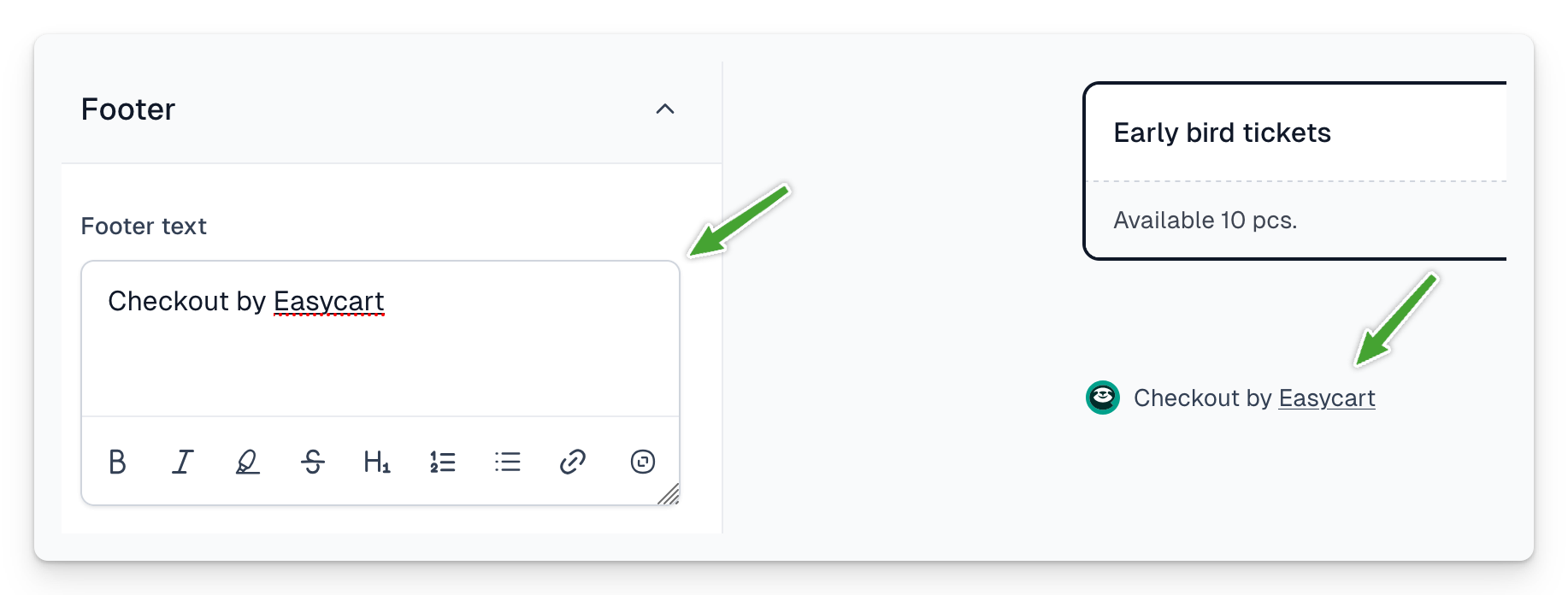
---
## Styling with custom CSS
Category: sell-your-products / checkout
URL: https://www.easy.tools/docs/styling-with-custom-css
## Styling your checkout with custom CSS
You can override the CSS of the checkout with your own styles, allowing you to modify its appearance - colors, fonts, and even the layout. This is a more advanced feature for those familiar with web development.
However, use this feature cautiously, as the checkout displays in various configurations, often unseen in preview mode. Thoroughly test any changes made this way.
1. Go to **Checkout** → **Style**
2. Modify the **Custom CSS** field in the **Advanced** section
In this field, enter the CSS rules you want to override, for example:
`.c-product, .c-product__desc, .c-product__interval, .c-product__base-value, .c-heading-4 { color: #FFF; } `
---
## Where to find Stripe product id
Category: sell-your-products / checkout
URL: https://www.easy.tools/docs/where-to-find-stripe-id
## Product Identifier
The Stripe product identifier, which starts with **price\_**, can be obtained from your Stripe dashboard, in the [products tab](https://space.eduweb.pl/files/misc/sHjJkrfWMOOhcRfFdEEf.png), by going to the details of a specific product. You'll find it on the right side, in the Details section:
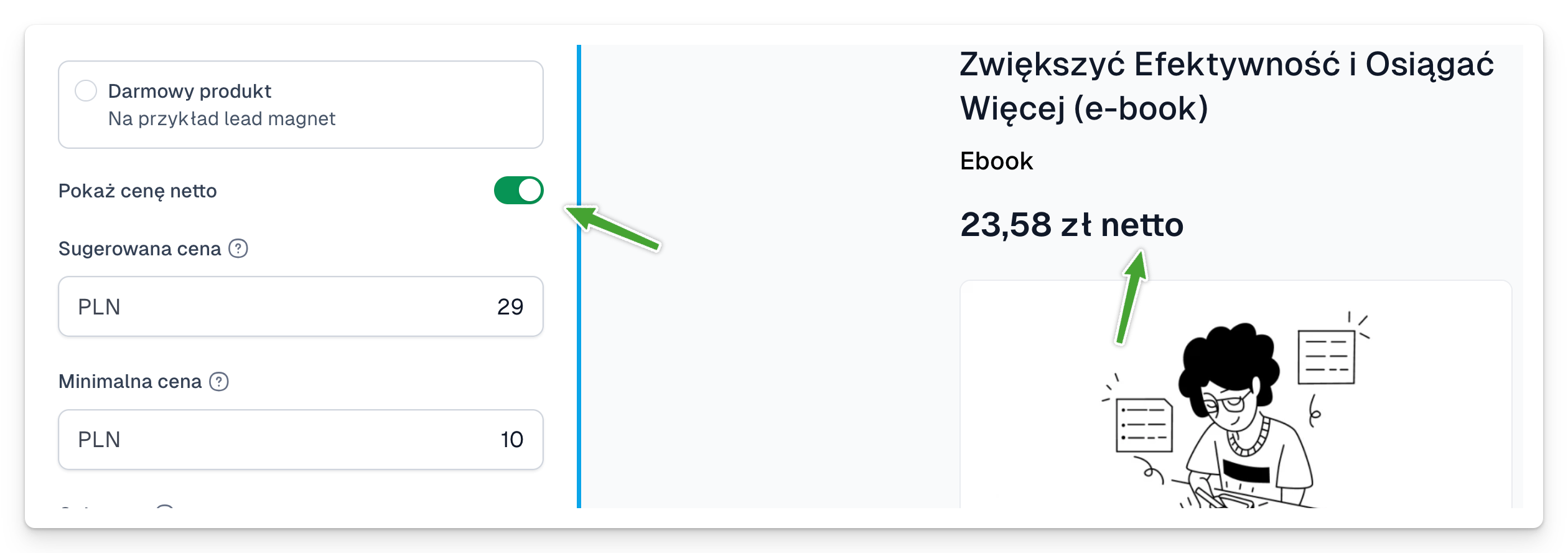
## Price Identifier
In the same product tab, click on a specific price if you want to obtain its identifier. It will appear in the upper right corner. The price identifier is useful, for example, when you're using dynamic links to your own price with the help of the API.
---
## Investigating failed payments
Category: sell-your-products / checkout
URL: https://www.easy.tools/docs/investigating-failed-payments
Payment failures occur for various reasons, often to prevent fraudulent transactions. The two main categories are:
1\. Declines:
- Issuer bank rejections
- Blocked payments
- Invalid API calls
Declined payments usually come with a code from the issuer bank.
2\. Blocked Payments:
- Preventative measures against potential fraud
- Detected by Stripe Radar or custom Radar rules
Blocked payments help avoid disputes.
If you want to see the reason of failed payment, navigate to [this Stripe page](https://dashboard.stripe.com/payments?status%5B0%5D=failed). Once you hover over failed attempt, you will be able to reveal the details:
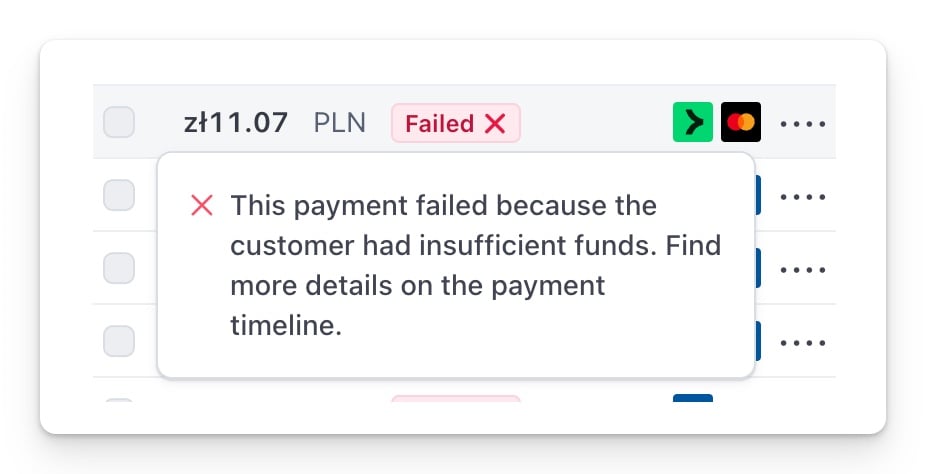
Please remember, that Easycart has some mechanisms to fixed failed payments including: support in the checkout after few fails, notifications preventing expired credit cards or automatic retries after subscription fails to renew.
You can read more about each of the reasons on Stripe:
1. [Payments declined by card issuers](https://stripe.com/docs/declines#issuer-declines)
2. [Blocked payments](https://stripe.com/docs/declines#blocked-payments)
3. [Invalid API calls](https://stripe.com/docs/declines#invalid-api-calls)
---
## Failed renewals recovery
Category: sell-your-products / checkout
URL: https://www.easy.tools/docs/failed-renewals-recovery
In the case of subscription renewals, payment errors are a factor reducing conversion - it often happens that there are not enough funds on the card and therefore the transaction is not processed.
As part of Easytools, we have a number of mechanisms that help convert such a transaction:
- When a charge fails, we send an email notification about the error and automatically extend the subscription validity for a specified time. We do this multiple times and suggest a sequence of 1-3-5 days. [The retry schedule and attempt quantity can be set directly in Stripe](https://dashboard.stripe.com/settings/billing/subscriptions):
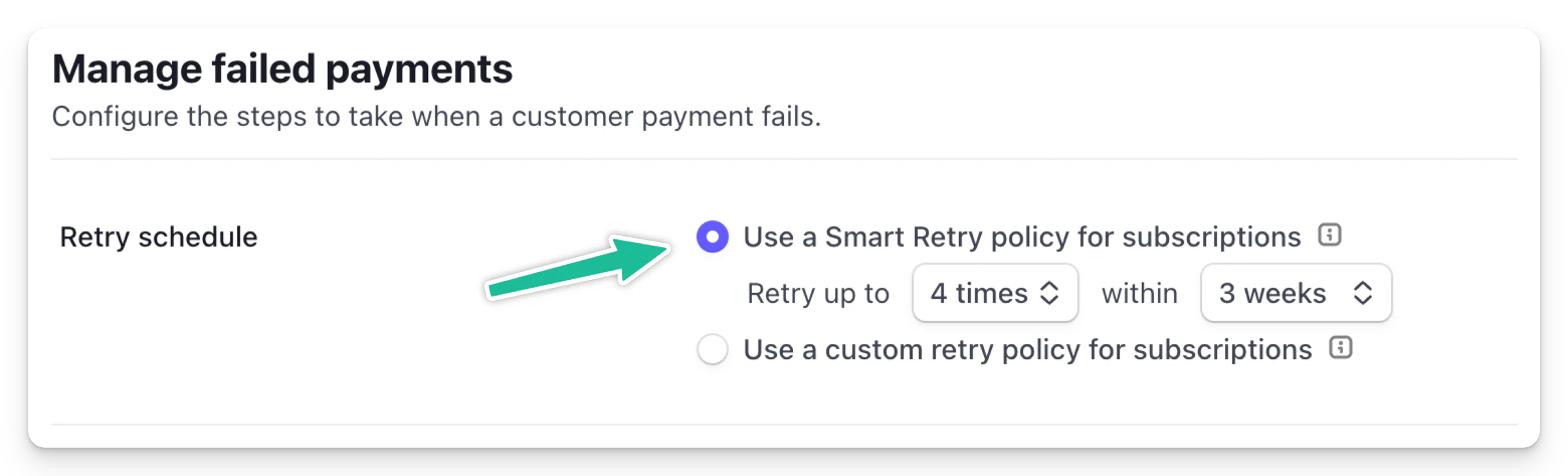
- Once the notification is sent, customer is able to fix the error right away by going to our Customer portal, where they will find additional information as well as a button allowing immediate initiation of the re-charge procedure (e.g., after funding the card)
- In the email, we also send information about when the next charge attempt will occur if the customer doesn’t take action in the panel Additionally, we send notifications about the approaching expiration date of the card.
These notifications are automatic and are not part of the cart recovery process - we don’t charge any commission on them nor do they appear in the session summary.
---
## Hosted checkout
Category: sell-your-products / checkout
URL: https://www.easy.tools/docs/hosted-checkout
Use our link into a sales page with Hosted checkout. Secure, customizable, and ready to boost your conversions.
---
## Checkout overlay
Category: sell-your-products / checkout
URL: https://www.easy.tools/docs/checkout-overlay
Boost sales with Checkout overlay. Seamless, in-page purchasing without redirects for higher conversion rates.
---
## Purchase for someone else
Category: sell-your-products / checkout
URL: https://www.easy.tools/docs/purchase-for-someone-else
Empower gifts and company purchases with Purchase for someone else. Simplify the process and boost sales for special occasions.
---
## Branding and styles
Category: sell-your-products / checkout
URL: https://www.easy.tools/docs/branding-and-styles
Elevate your brand with Branding and styles. Customize your checkout to match your unique identity and boost customer trust.
---
## QR codes
Category: sell-your-products / checkout
URL: https://www.easy.tools/docs/qr-codes
Boost event sales with QR code tickets. Easy to generate, scan, and manage - perfect for seamless entry and tracking.
---
## 1-click purchases
Category: sell-your-products / checkout
URL: https://www.easy.tools/docs/1-click-purchases
Streamline purchases with 1-click purchases. Reduce friction and boost conversions with instant buying options.
---
## Custom code in section
Category: sell-your-products / checkout
URL: https://www.easy.tools/docs/custom-head-code
Enhance functionality with Custom code in section. Add custom scripts to your Easytools pages for advanced features.
---
## List of supported link parameters
Category: sell-your-products / checkout
URL: https://www.easy.tools/docs/link-parameters
Check the list of supported link parameters in Easytools. Customize your links to enable referrals, tracking or access to certain product variant.
---
## Creating price variants
Category: sell-your-products / prices
URL: https://www.easy.tools/docs/creating-price-variants
Price variants allow you to create different purchase options for the same product, such as including add-ons or bundling with another product. For example, if you sell consultations, you can offer variants like a 1-hour consultation, a 10-hour package, or a weekly consultation subscription. These options are variants, and you can give your customers choices to increase conversion and revenue.
## Adding a price variant
Add new price variants in the **Product** → **Price variants** menu. Here, you can also manage existing price variants. Changing their order will adjust how they display in the checkout. Clicking on a specific variant will take you to its edit page.
After creating a price variant, you can modify most of its options. However, you cannot change the price itself or the price type (e.g., from a one-time payment to a subscription) after publishing the product. To make such changes, delete the old variant and add a new one.
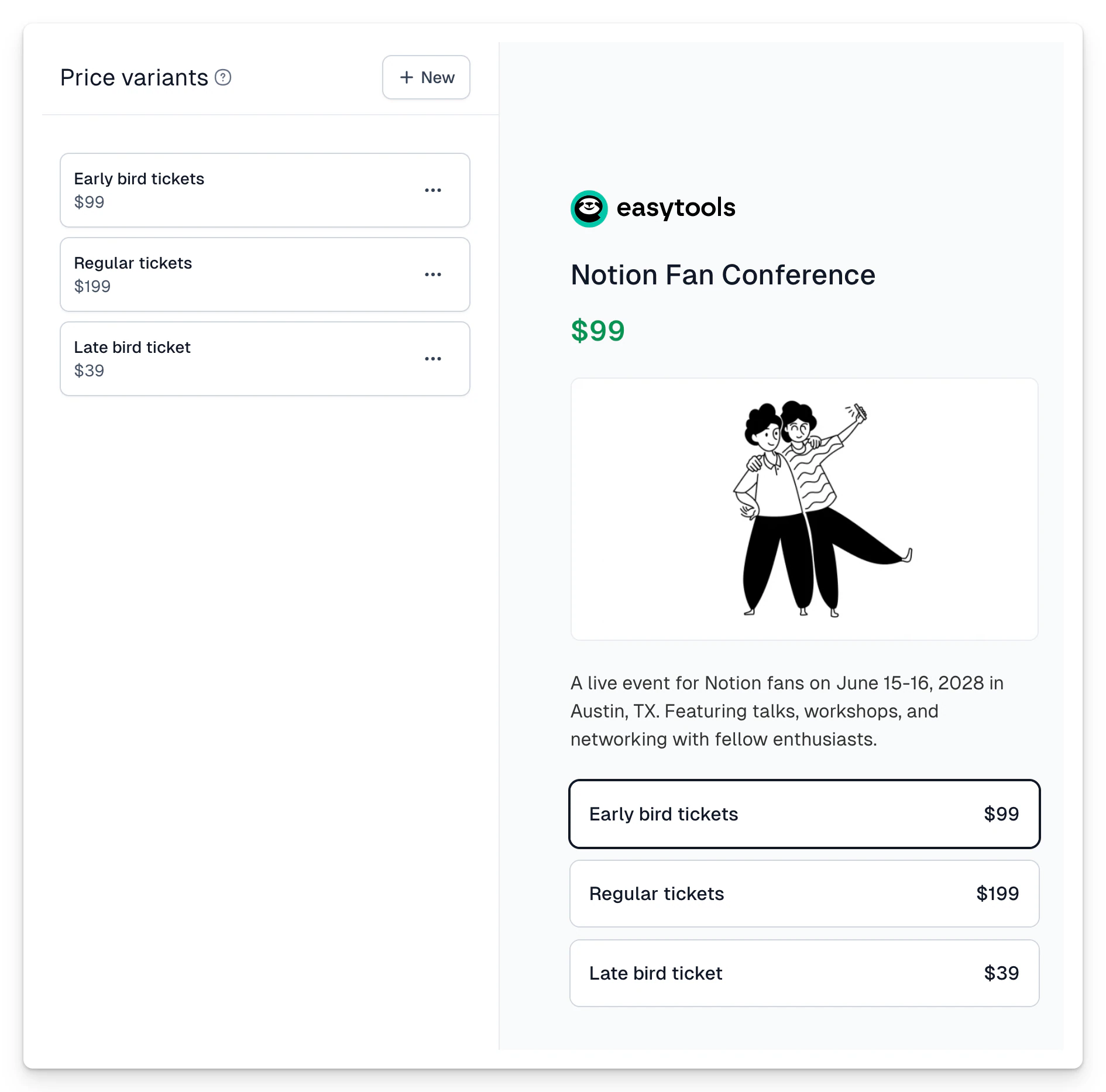
If you add more than one price variant, the checkout view will change, and variants will display on the left side. Remember to name the specific variants to help customers make the right decision.
The price variant name will be added along with the product name in the title and content of the confirmation email and on the invoice.
---
## Hidden variants
Category: sell-your-products / prices
URL: https://www.easy.tools/docs/hidden-variants
## Hiding price variants
You can easily hide a specific price variant in the checkout. This is a popular technique if you want to send a specific price to a closed group of customers but don't want others to see it in the checkout.
In Easycart, you can also generate links to a custom price, but this feature is more often used for testing products, services with changing prices, and typically sellers generate such a link for a single purchase. In contrast, a hidden variant can be sent en masse in an email to selected customers.
To create a hidden price:
1. Create a new price variant in **Product** → **Price variants**
2. Select the **Hide this variant in checkout** option
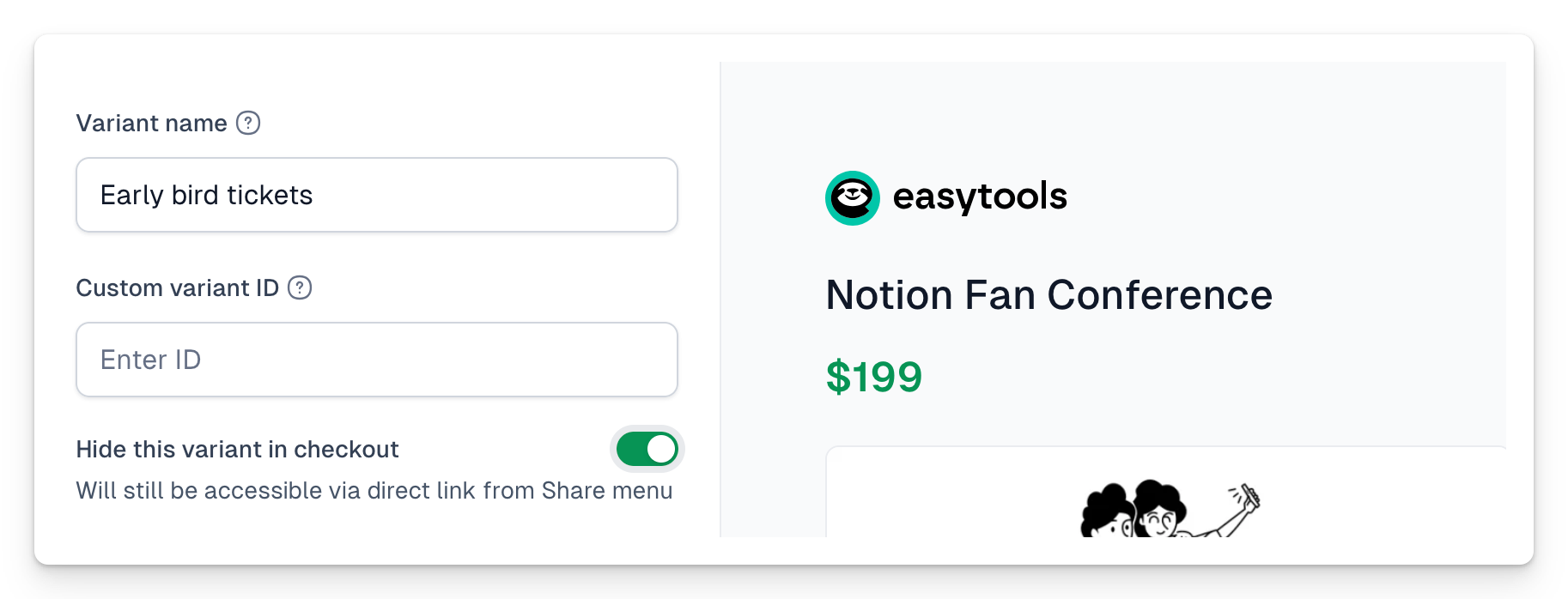
To share a link to this hidden variant:
1. Publish the product
2. Click the **Share** button and select the hidden variant from the dropdown list
3. Copy the prepared link
---
## Custom price
Category: sell-your-products / prices
URL: https://www.easy.tools/docs/custom-price
You can sell the same product for any amount without creating a new price variant - just generate a link with the price you choose. This works well when you charge clients for custom services: you keep one product and send each client a payment link with their individual price.
> Important: custom prices work only with one-time payments. You cannot use them for subscriptions.
## Generate a custom price link manually
1. Open your product and click **Share**.
2. Choose **Link to a custom price**.
3. Enter the price and confirm it.
4. **Copy link** and send it to your customer.
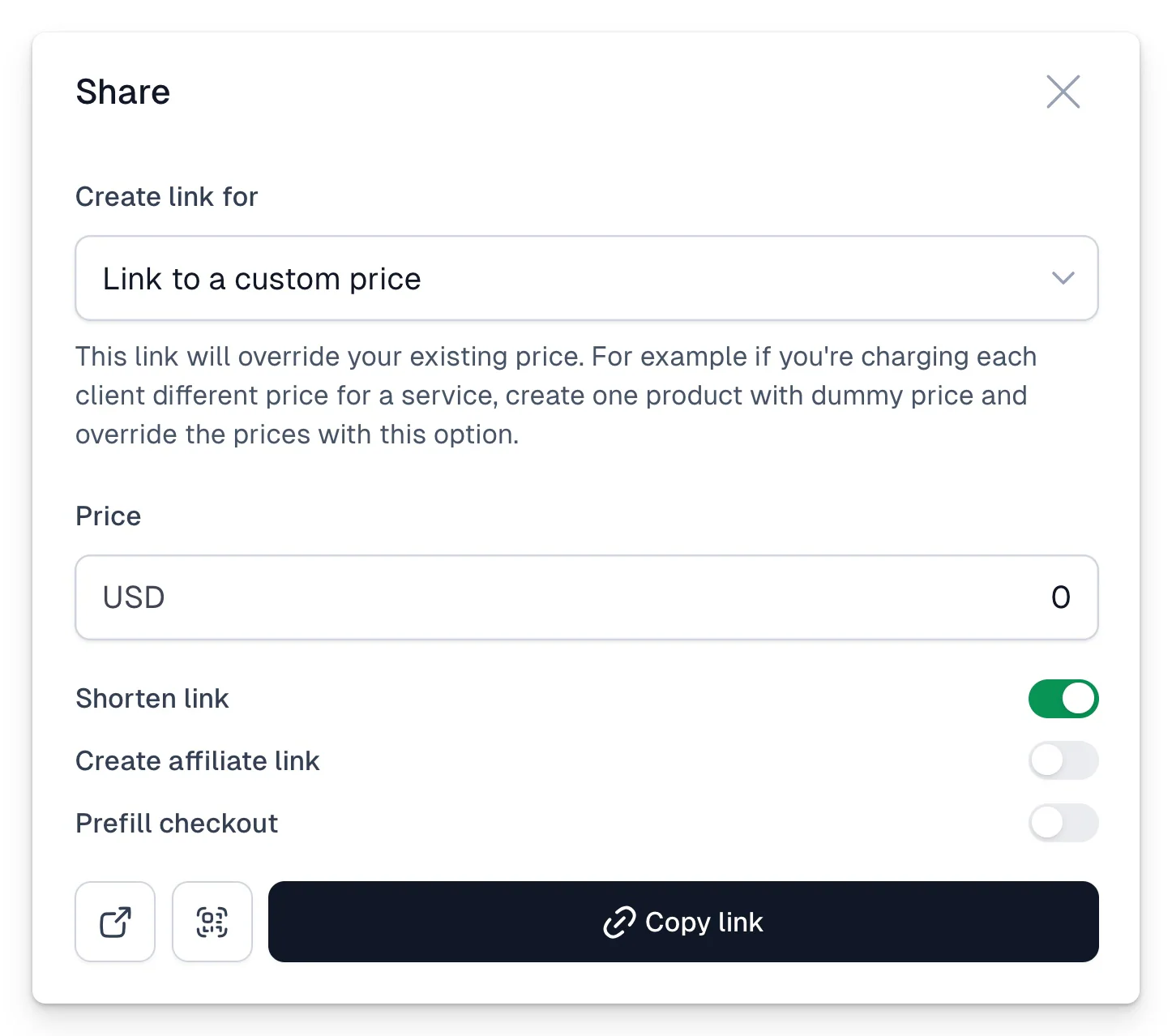
## Generate prices through the API
You can also generate custom prices fully automatically. Send a GET request to:
```
https://cart.easy.tools/api/dynamic-price/STRIPE_PRODUCT_ID/AMOUNT
```
You will need your API token - generate it in **Store settings** → **API and Webhooks**.
Generate prices from your back-end. Generating them in the browser (front-end) is possible, but we don't recommend it for most cases - a clever user could generate any price for themselves. It only makes sense if you deliberately want visitors to set their own amount.
A convenient middle ground is automation - for example a Make scenario that generates the link for you. [The Make blueprint is available for download here](https://www.dropbox.com/scl/fi/5xo7p4jkaf06xfjg4t1dl/generate_dynamic_price.json?rlkey=gqrc99t5knotdmju5he9qayk9&dl=0), and [an example HTML page that sends the request is here](https://www.dropbox.com/scl/fi/ibcyeos7henun5fhpzfer/generate_price.html?rlkey=59rbosyjdsvjq5x4yutk4h3vs&dl=0) (fill in your product ID and API token before using it).
## Link parameters
You can add extra parameters at the end of the generated link:
- `?promo=1` - lets the customer use a promo code at checkout,
- `?net=1` - shows the net price in the checkout.
For example: `https://cart.easy.tools/api/dynamic-price/PRODUCT_ID/AMOUNT?promo=1`
## Related articles
- [Pricing models](/docs/pricing-models)
- [Hidden variants](/docs/hidden-variants)
- [Temporary prices](/docs/temporary-prices)
---
## Pricing models
Category: sell-your-products / prices
URL: https://www.easy.tools/docs/pricing-models
## Pricing models in Easycart
In Easycart, you can choose from predefined price types. Within a single product, you can create multiple price variants, each with a different type. For example, one product can have a variant for selling an ebook for a specific amount as a one-time payment, while another variant allows purchasing the ebook along with a community subscription. This way, you offer customers choices, increasing the chances of sales and conversions!
Easycart offers several price types you can choose from when creating a price variant.
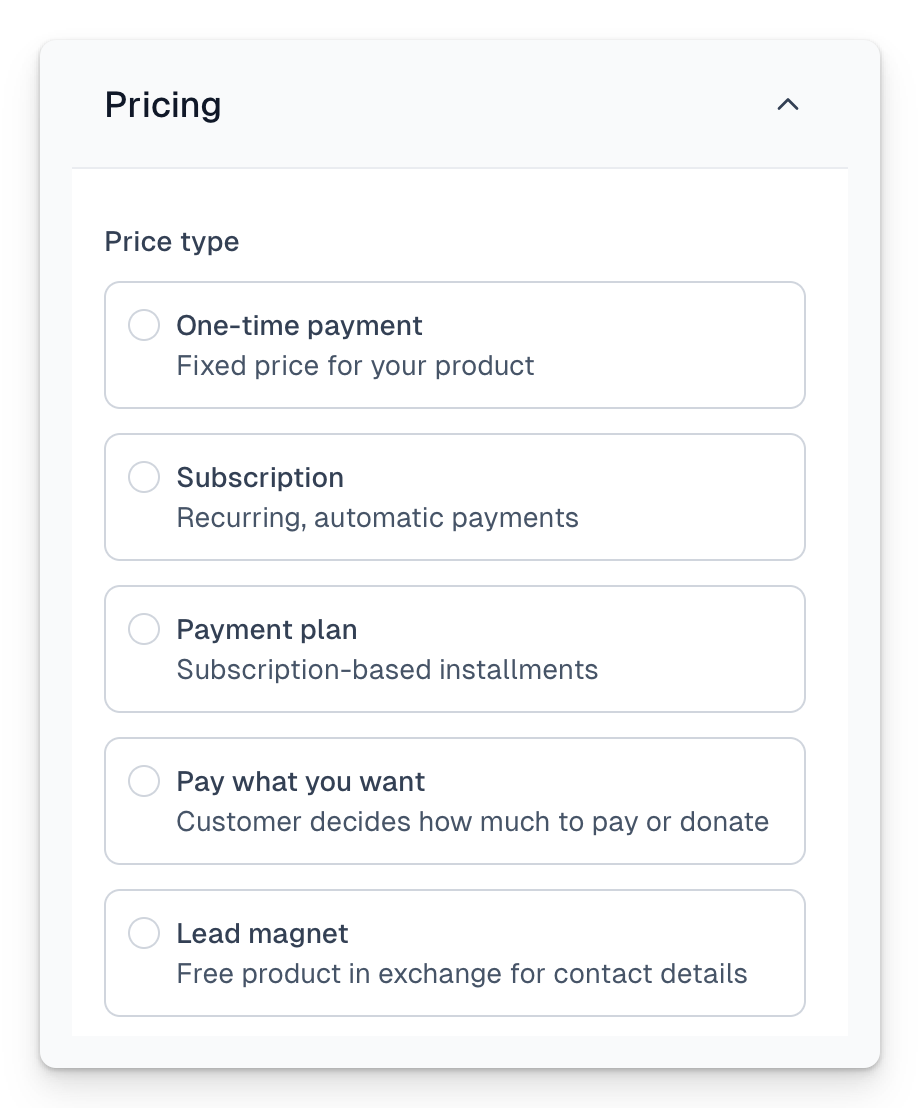
These include:
- **One-time payment** - You set a single, specific price that will be charged at purchase. [Details here](/docs/single-payments).
- **Subscription** - A recurring payment at a selected interval. You can define all its parameters, such as renewal frequency and price. You can also add a free trial period. [Learn more here](/docs/subscriptions).
- **Payment plan** - Allows you to create installment payments as a subscription. [Details here](/docs/fixedterm-subscriptions).
- **Pay what you want** - Allows the customer to choose the price they will pay for the product. [More information here](/docs/pay-what-you-want-pwyw).
- **Lead magnet** - A product like a lead magnet offered for free. [Learn more here](/docs/lead-magnets).
In practice, selecting the price type at the beginning simplifies the configuration of that price in the checkout, as we display only the fields relevant to its setup.
Changing the price type after publishing the product may be limited. For example, you cannot change a one-time product to a subscription and vice versa. In such cases, you need to delete the incorrect price and add a new one.
---
## Single payments
Category: sell-your-products / prices
URL: https://www.easy.tools/docs/single-payments
## Single payments
Single payments are ideal for most digital products that are not offered on a subscription basis. You will likely choose this price type when selling an e-book or a one-time consultation. Single payments have the advantage of often being available with various payment methods, giving the customer the convenience of paying easily.
After the payment is processed, the product is assigned to the Customer portal on Easycart, and we send standard transactional emails. However, a one-time purchase can have several additional options that you can set in the price properties.
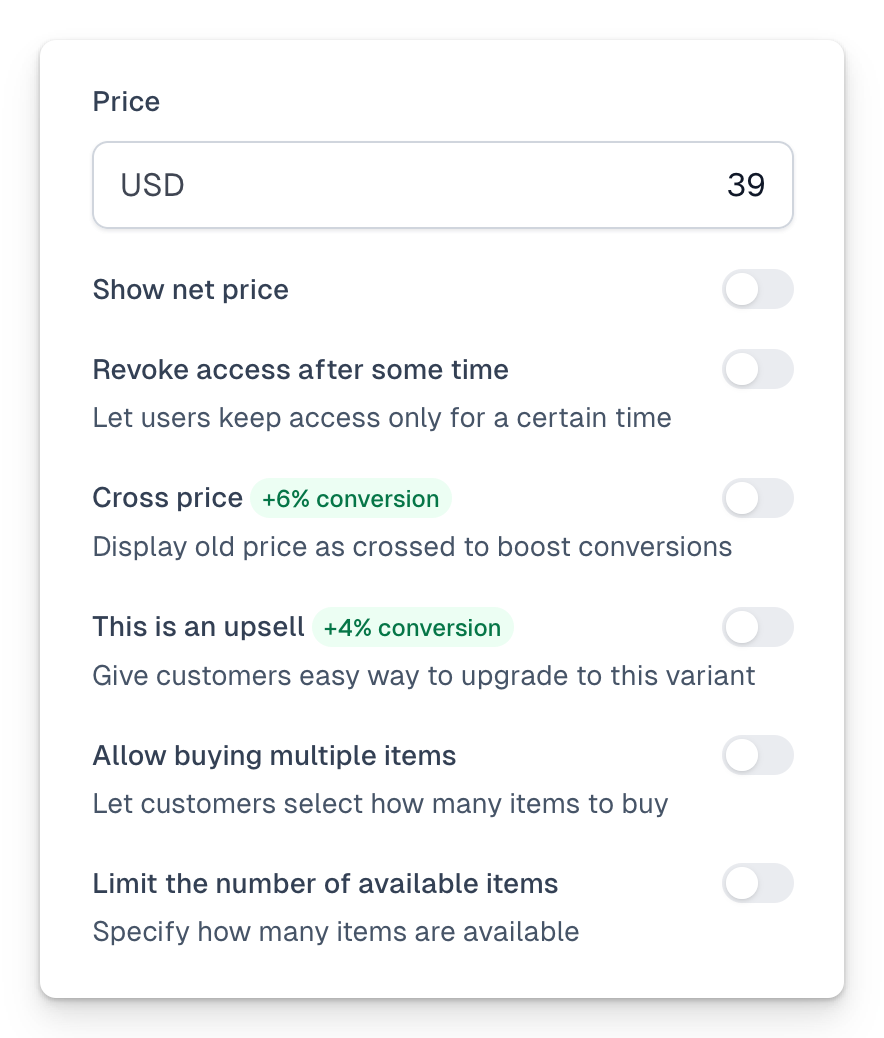
For example, these options include:
- Displaying the net price if most purchases are B2B transactions
- Removing access to the product after a specified period. For instance, you can sell a one-year access to a video course. After this period, the product will disappear from the Customer portal, and our Login Wall feature will prevent the customer from viewing the content
- Strikethrough pricing to highlight an ongoing promotion
- Upsell, allowing you to link to another price so the user can easily upgrade to a higher variant
- Allowing the purchase of multiple units if applicable to your product
- Limiting the number of units, meaning you can specify how many products you can sell. Once the limit is reached, the price will disappear from the checkout
---
## Subscriptions
Category: sell-your-products / prices
URL: https://www.easy.tools/docs/subscriptions
Subscriptions are recurring payments often associated with the SaaS (Software as a Service) model. Many consider them the Holy Grail of payments because they allow automatic billing on a set cycle. However, subscriptions are also a great model for creators who can sell community access or timed access, generating recurring, reliable revenue (MRR). You could say subscriptions are the closest to the "earn while you sleep" model.
In practice, we highly recommend experimenting with different models and adding subscriptions to your products. Continuously providing value and offering updates doesn't have to be free. With this model, you can also sell:
- Newsletters
- Community access
- Software
- Recurring meetings, like masterminds
- Consultations
## Available options for subscriptions
Easycart supports many options that allow you to experiment with recurring payments. Some possibilities include:
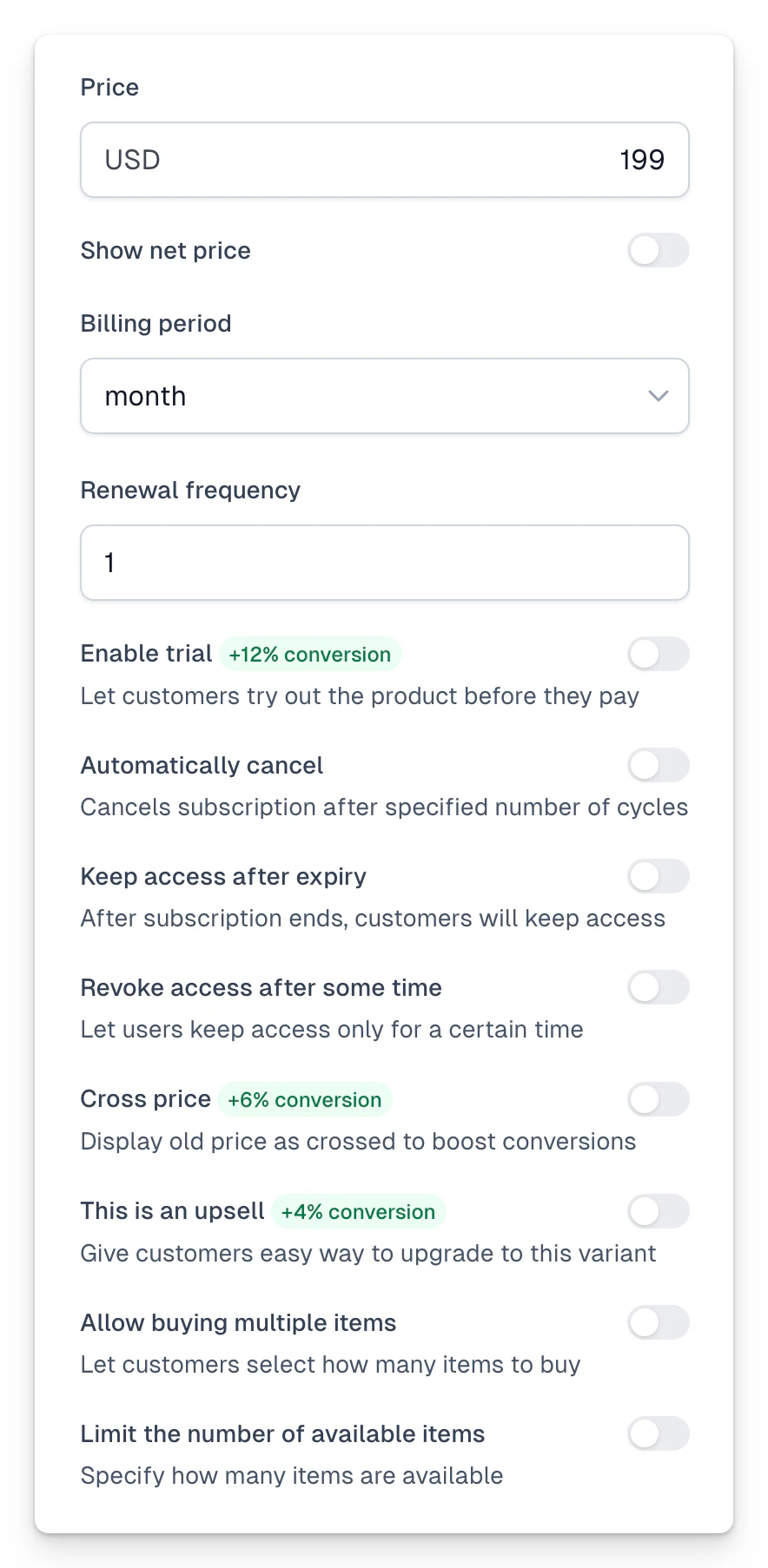
Subscription plan options include:
- Setting renewals to monthly, daily, weekly, or yearly. You can also set the subscription to renew every few cycles, such as every 3 months.
- Enabling a trial period and adjusting its duration.
- Automatically canceling the subscription after a set number of cycles. For example, after 12 monthly payments, the subscription will automatically stop, and no further payments will be taken.
- If you choose automatic cancellation, you can decide whether to maintain access to the product after this period, simulating an installment payment.
- Allowing the purchase of multiple subscriptions at once - this option, combined with the purchase for someone else feature, enables buying corporate subscriptions and then assigning them to employees. The buyer can manage the subscription and its assignments.
Within a single product, you can create different variants - one can be a subscription, another a fixed price. This way, you give customers the option to choose the plan they prefer. If your product is more expensive, some might prefer to pay for it via subscription.
## Email notifications
Easycart handles sending transactional emails, including purchase notifications, upcoming renewal notices, and renewal failure alerts. You can customize which emails are sent and when. Learn more in the [transactional emails section](/docs/transactional-emails).
## Managing subscriptions
In the Creator portal, you can manage subscriptions associated with your orders. Go to **Store** → **Orders**, then click on an order to view its details. In the newly opened tab, you'll find a **Cancel subscription** section, where you can cancel a subscription:
- Immediately, causing the customer to lose access to the product right away.
- At the end of the current cycle, allowing access to the product until the end of the paid billing period.
In both cases, you'll receive detailed information about what will happen before confirming the action. This action does not send a notification to the customer.
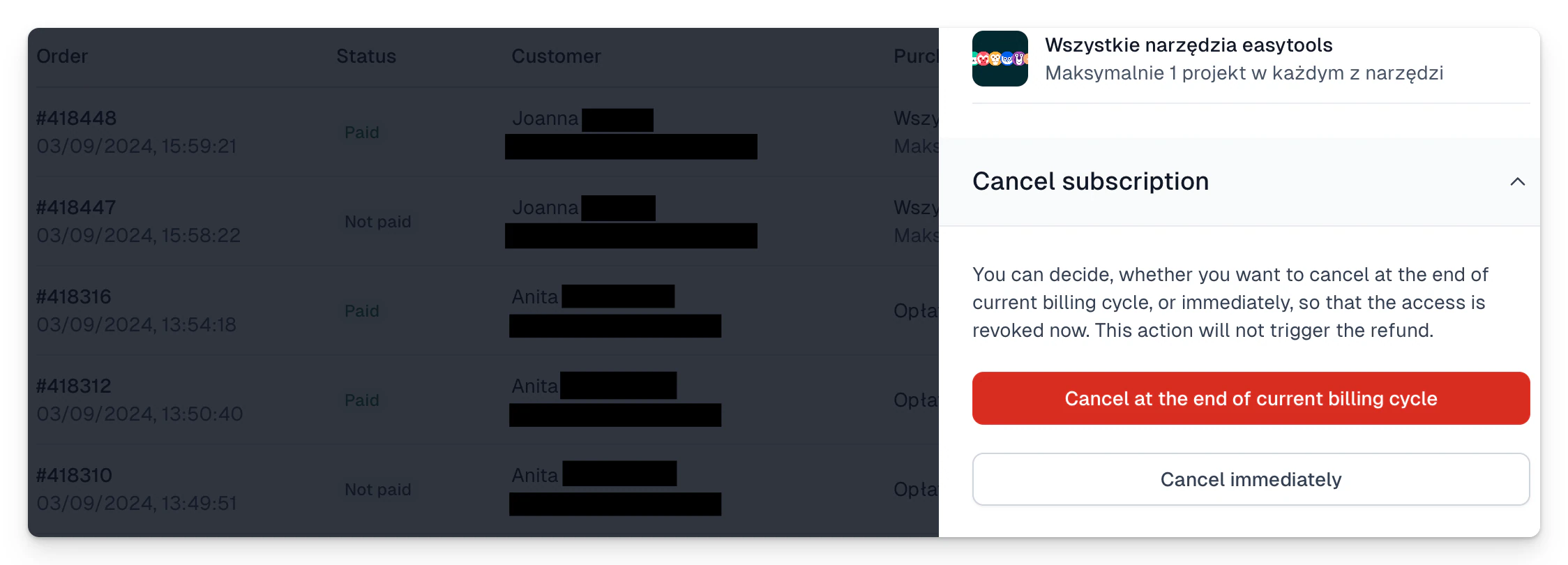
You can also manage subscription details within your Stripe dashboard - enter the customer's email address in the search bar, and you'll easily find their subscription. The Stripe dashboard also provides access to additional options, such as pausing the subscription or making more advanced billing changes.
---
## Free trials
Category: sell-your-products / prices
URL: https://www.easy.tools/docs/free-trials
A free trial lets customers try your subscription product before the first payment. They get access right away, and the first charge happens only when the trial ends - a proven way to lower the entry barrier for new customers.
## How trials work in Easycart
A trial is an option of a subscription price. When you create or edit a subscription variant in **Product** → **Price variants**, you can enable a trial period and set how long it lasts.
During checkout with a trial:
1. The customer provides their payment details as usual, but nothing is charged yet.
2. They get access to the product immediately after completing the checkout.
3. The first payment is taken automatically when the trial period ends.
4. If the customer cancels before the trial ends, they are not charged at all.
The customer can cancel the subscription during the trial in the Customer portal - the same place where they manage all their purchases.
> Important: a trial requires a payment method that supports automatic renewals, so trial checkouts work with card-based payments (cards, Apple Pay, Google Pay) - the same as any subscription.
## When to use a trial
- Subscriptions to communities, memberships and SaaS products, where customers want to look around before paying.
- Launches of new recurring products - a trial converts undecided visitors into subscribers.
## Related articles
- [Subscriptions](/docs/subscriptions)
- [Pricing models](/docs/pricing-models)
---
## Payment plans
Category: sell-your-products / prices
URL: https://www.easy.tools/docs/payment-plans
## Payment plans
As part of different price types, you can choose Subscription-based Installments, which simulate installment purchases. In the case of classic installments, such as those offered by PayPo available within Easycart, there are many limitations. These include amount limits, but also a much more complicated KYC process for customers, often requiring uploading photos of ID cards. Such complicated processes significantly reduce conversion rates.
If you know your customers and trust them, you can simulate installments this way, making the process very simple and identical to starting a subscription. The drawback of this solution is that you don't receive the full amount upfront, but you also take on the responsibility of collecting subsequent payments. In the case of installments, this happens automatically.
After providing card details, the first payment is collected, and subsequent ones are collected according to the established subscription and renewal period.
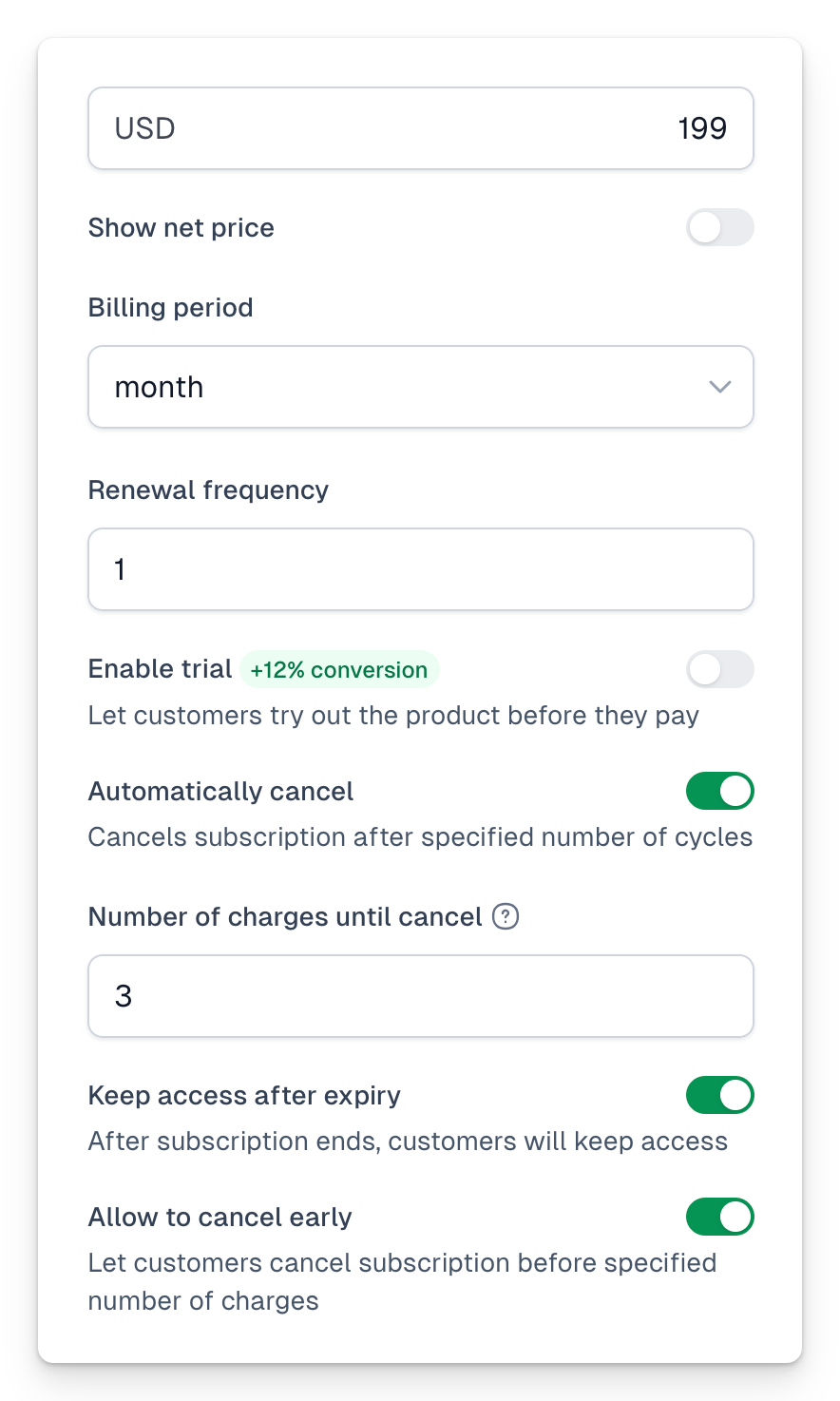
This type of installment requires enabling:
- The **Automatic cancellation** option, because after the declared number of cycles (collected installments), you want to stop further collections
- Additionally, the **Maintain access after expiration** option is usually active in such a situation, which means that after paying off the installments, the customer retains access to the product (it is visible in the Customer Portal and the Login Wall function allows access to the content)
- You can also decide whether you want to give the option to cancel the subscription during its duration. Then the customer will be able to decide to stop paying even in a situation where the number of cycles to cancel has not yet been completed. Generally, to counteract such a scenario, the possibility of early cancellation in the case of installments is disabled.
All necessary information is provided to the customer under the pay button, where, for example, information about the inability to cancel the subscription is displayed.
---
## Pay what you want
Category: sell-your-products / prices
URL: https://www.easy.tools/docs/pay-what-you-want-pwyw
## Pay what you want
You can add an option that allows your customers to set any price they want to pay for a product. This price appears as a variant, meaning you can create a product with just this one variant or one with several other prices and this variant as an additional option. This way, you can let the customer choose one of the predefined options or select a predefined value like a donation, but also leave the option for them to specify any amount they want to contribute.
To enable the "Pay what you want" option, simply select the appropriate price type during its creation:
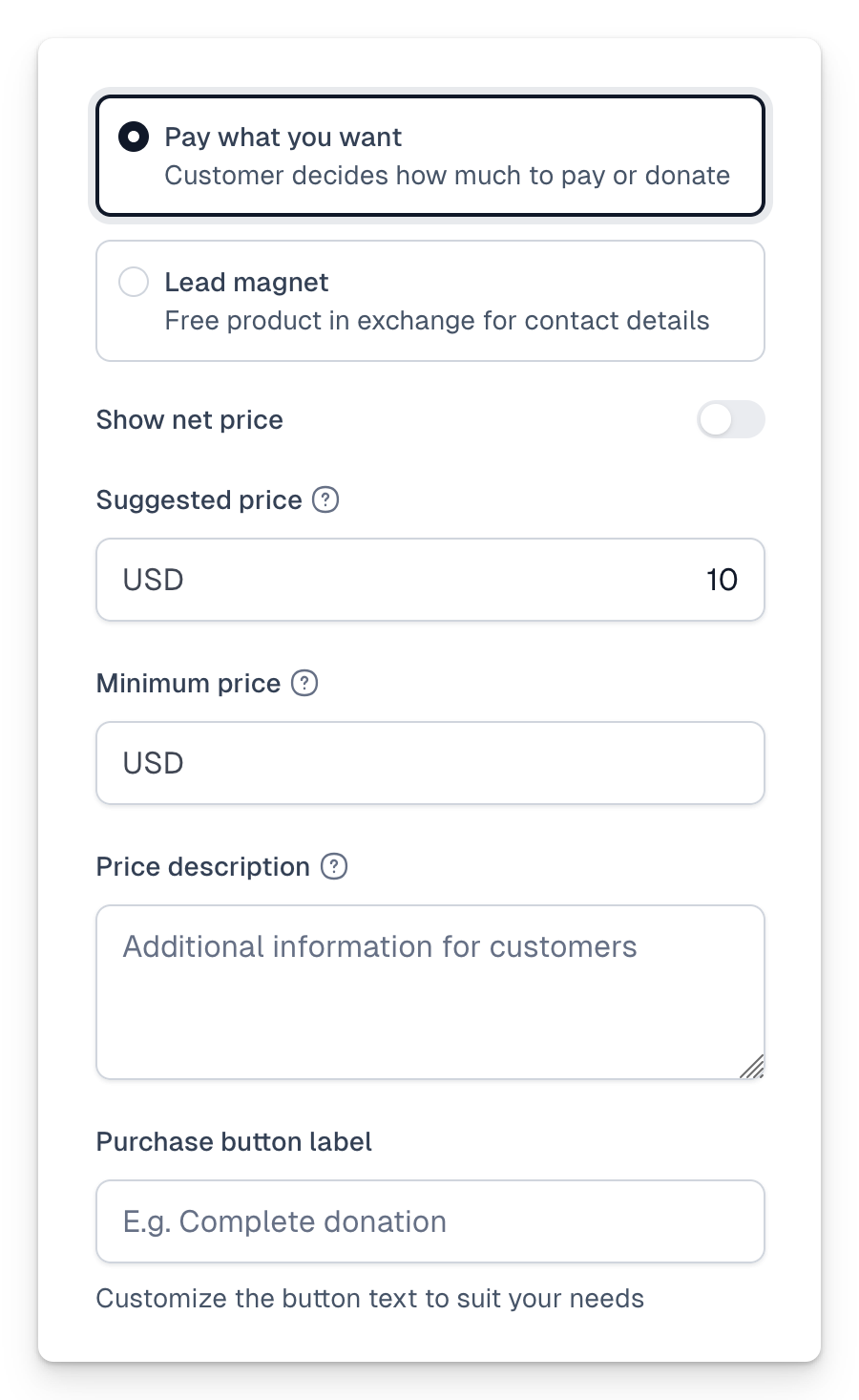
After enabling this option, you can fill in additional settings, including:
- **Suggested price** - Enter a suggested price in this field, which will be automatically filled in the variant. The user can change it. This field is mandatory.
- **Minimum price** - If you want to prevent the product from being paid for less than a specified amount, enter this as the minimum price. If the user enters a price lower than the minimum, they will receive a message:
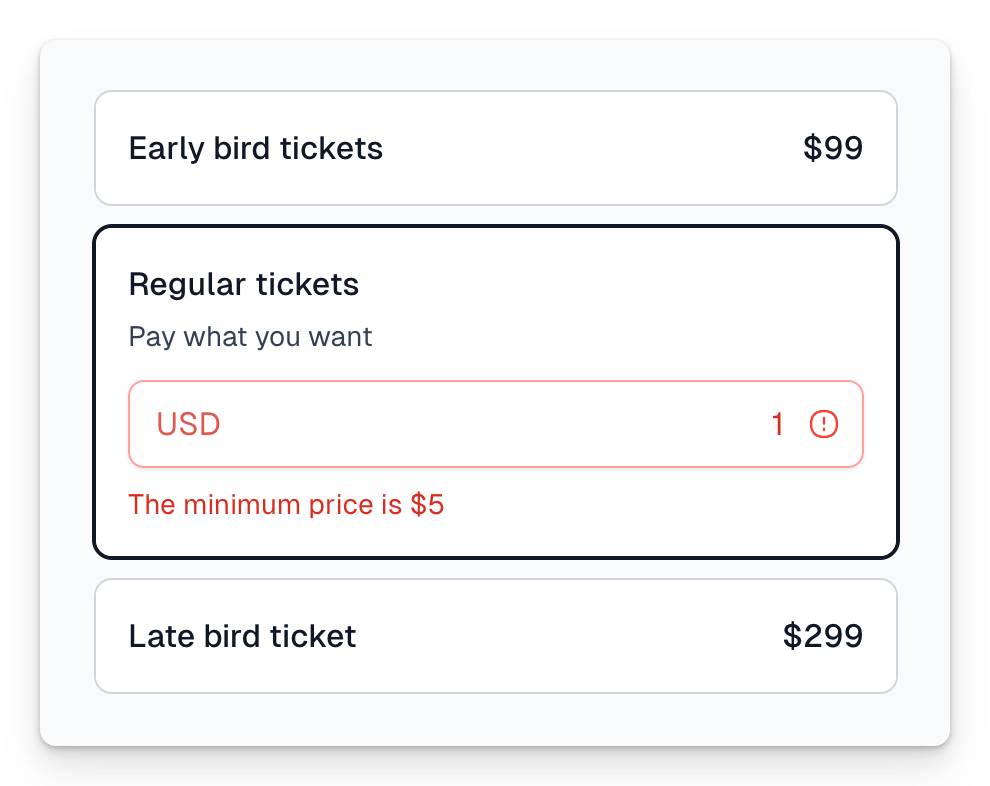
Also, fill in the **Price description** field to add appropriate context and information for the user, which will be displayed on the price tile.
You can also change the purchase button label to better suit your needs, for example, changing it to “Donate” or “Support.”
---
## Lead magnets
Category: sell-your-products / prices
URL: https://www.easy.tools/docs/lead-magnets
A lead magnet is a product you give away for free in exchange for the customer's contact details - for example a sample chapter, a checklist or a mini-course. You grow your email list, and the customer receives the product through the same delivery flow as a paid purchase.
## Create a lead magnet
1. Go to **Product** → **Price variants** and add a new variant.
2. Choose the **Lead magnet** price type.
3. Configure the rest of the product as usual and click **Publish**.
4. Click **Share** and copy the checkout link.
In the checkout, the customer only fills in their contact details - no payment fields appear and no card is required.
## Delivery works like a purchase
A lead magnet is a full product in Easycart, so everything you attach to it works as usual:
- digital downloads are delivered automatically after the "purchase",
- gated content and course access are granted the same way as for paid products,
- the customer sees the product in the Customer portal.
> Important: every person who takes your lead magnet becomes a customer in your store. Combine the lead magnet with **Automations** to add each contact to a mailing list or tag them - that's the whole point of a lead magnet.
## Related articles
- [Pricing models](/docs/pricing-models)
- [Digital downloads](/docs/digital-downloads)
---
## Net price priority
Category: sell-your-products / prices
URL: https://www.easy.tools/docs/netprice-priority
## Net price priority
For B2B sales, it's a good practice to display net prices instead of gross prices.
To do this:
1. Go to the product editing panel.
2. Navigate to **Product → Price variants.**
3. Enable the **Show net price** option.
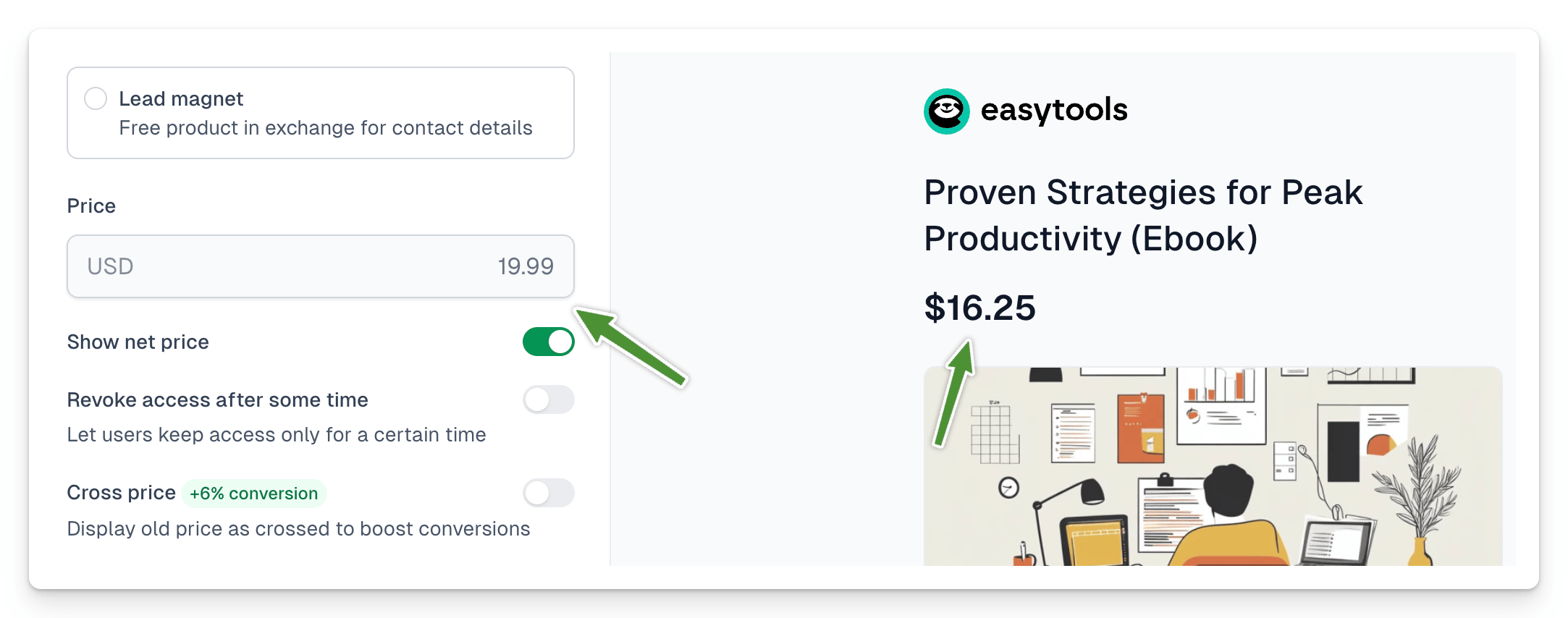
> The net price is calculated automatically based on the tax rate declared within the product. In the same view, scroll down to the Taxes section to ensure the correct rate is selected. You can also set this rate in the [After purchase → Invoices and taxes](https://app.easycart.pl/creator/products/ad31ee07-c8e0-42d7-939c-f07778d2e5f7/price-variants#panel-invoices-taxes) section or globally in the [tax settings](https://app.easycart.pl/creator/store-settings/invoicing).
---
## Temporary prices
Category: sell-your-products / prices
URL: https://www.easy.tools/docs/temporary-prices
You decide when your product can be bought. Set a start and end of availability for the whole checkout or for a single price variant, and optionally show customers a countdown until the offer ends.
If you set a start date, the price stays hidden until that moment. This is useful when you launch a product at a specific time, or when you sell variants that follow one another - for example early-bird tickets first, then regular-priced tickets.
## Set availability for the entire checkout
1. Go to **Product** → **Basic**.
2. Scroll to the **Availability** section.
3. Set the start and/or end of availability by selecting dates and times.
4. If you want to display a countdown, check the **Show countdown timer** option.
5. Click **Save**.
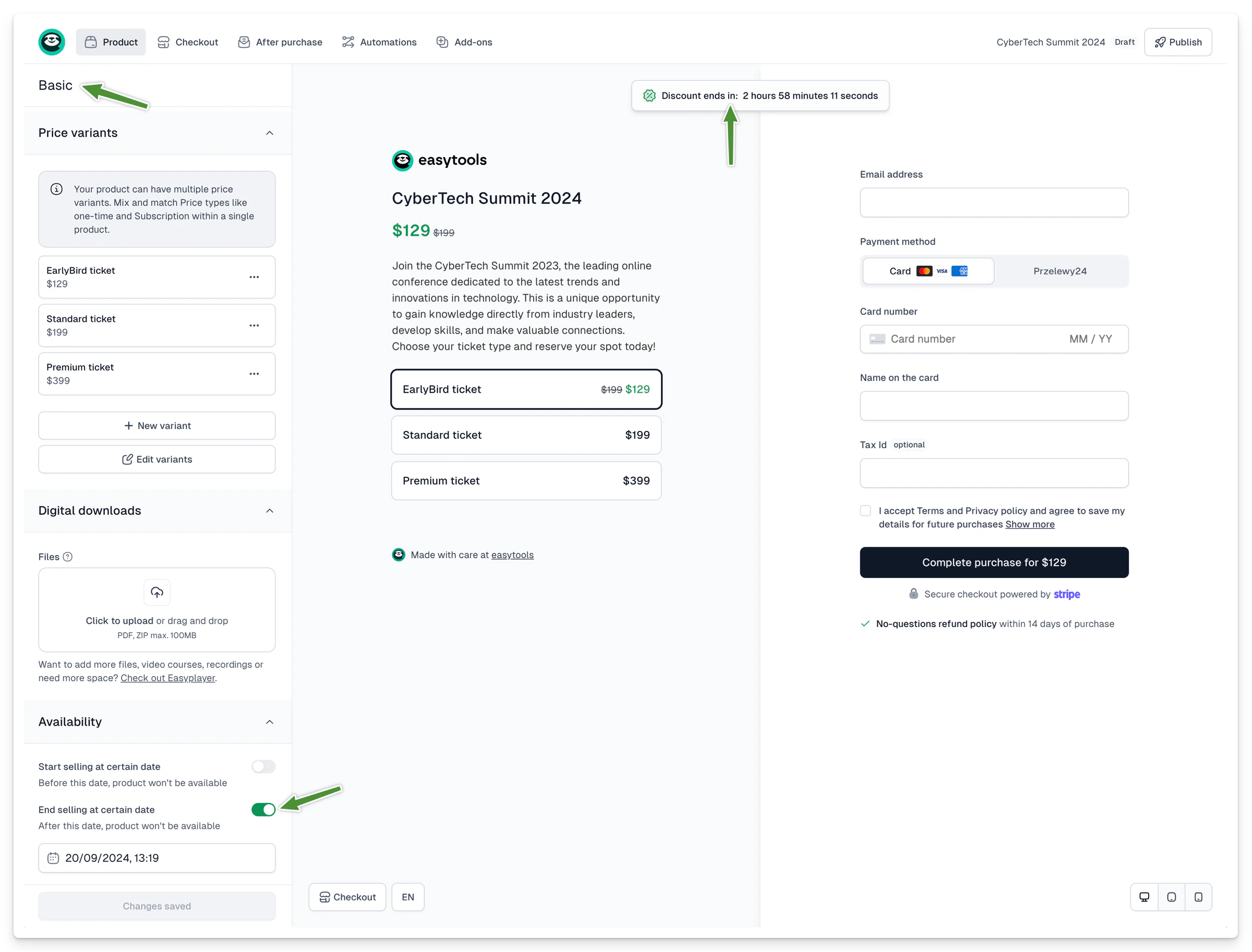
> Important: availability set in the **Basic** tab applies to all price variants of the product.
## Set availability for a single price variant
1. Go to **Product** → **Price variants**.
2. Select the variant you want to limit in time.
3. Scroll to the **Availability** section.
4. Set the start and/or end of availability by selecting dates and times.
5. If you want to display a countdown, check the **Show countdown timer** option.
6. Click **Save**.
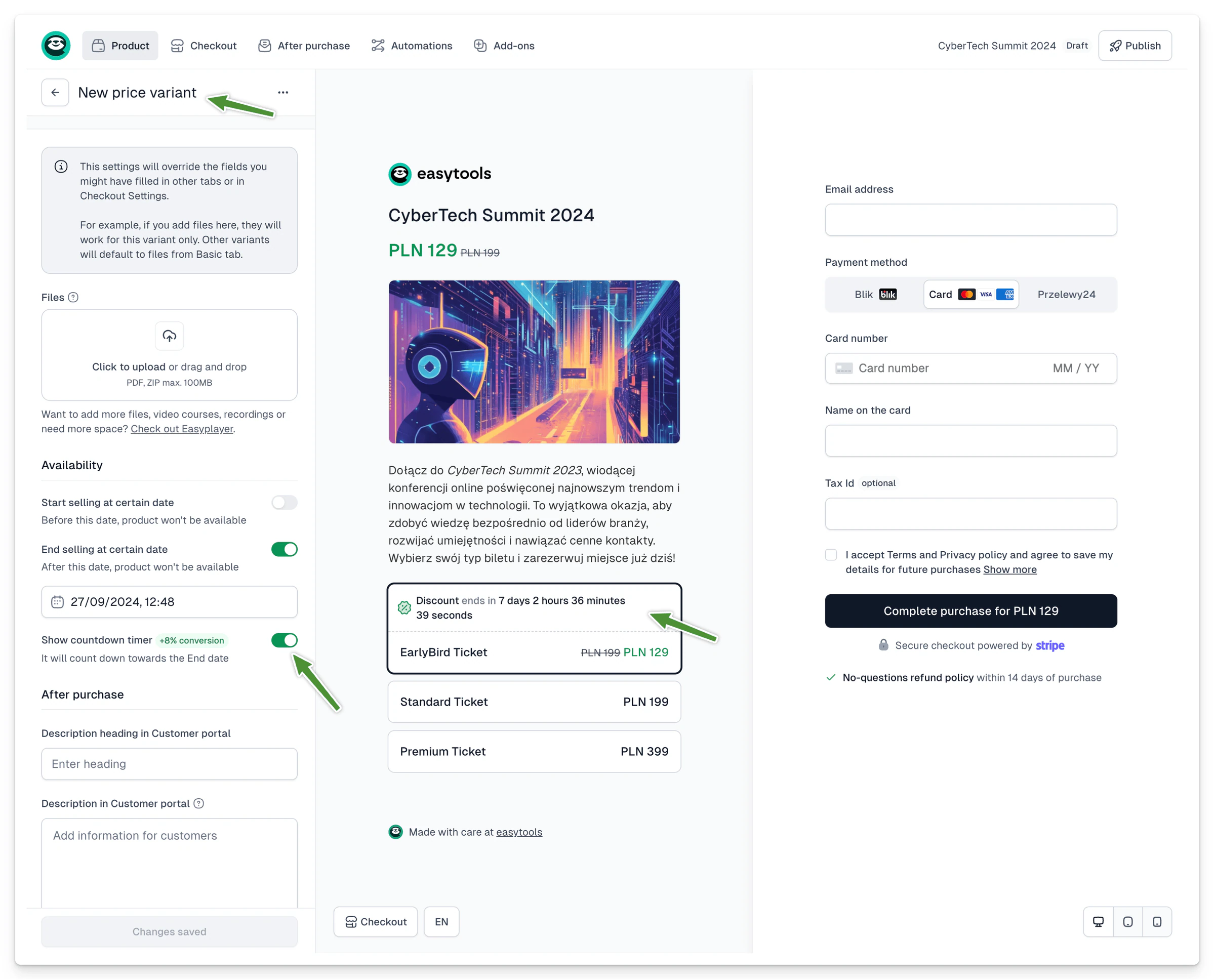
Limiting a promotion in time and showing customers how long the offer lasts increases conversion - on average by around 8%.
## What happens when the offer ends
When the availability period passes, the product or variant automatically disappears from the checkout and from shared links - you don't have to do anything.
If a customer is in the checkout at the exact moment an offer expires:
- if they have the expiring price selected, the page reloads (unless their purchase is already being processed),
- if they have a different price selected, the expired variant simply disappears from the list.
## Related articles
- [Pricing models](/docs/pricing-models)
- [Hidden variants](/docs/hidden-variants)
---
## Build an advanced subscription product with variants
Category: sell-your-products / prices
URL: https://www.easy.tools/docs/advanced-subscription-products
In Easytools you can sell more than one-time products - you can build advanced subscription products with several price variants. This guide shows how to create a subscription, add a free trial, add monthly and yearly plans, and finally turn one variant into an upsell.
## Create a subscription product
1. Go to **Store** → **Products**.
2. Click **+ New product**.
3. Fill in the basics: **Product name**, **Description**, and add an image in the **Gallery** section.
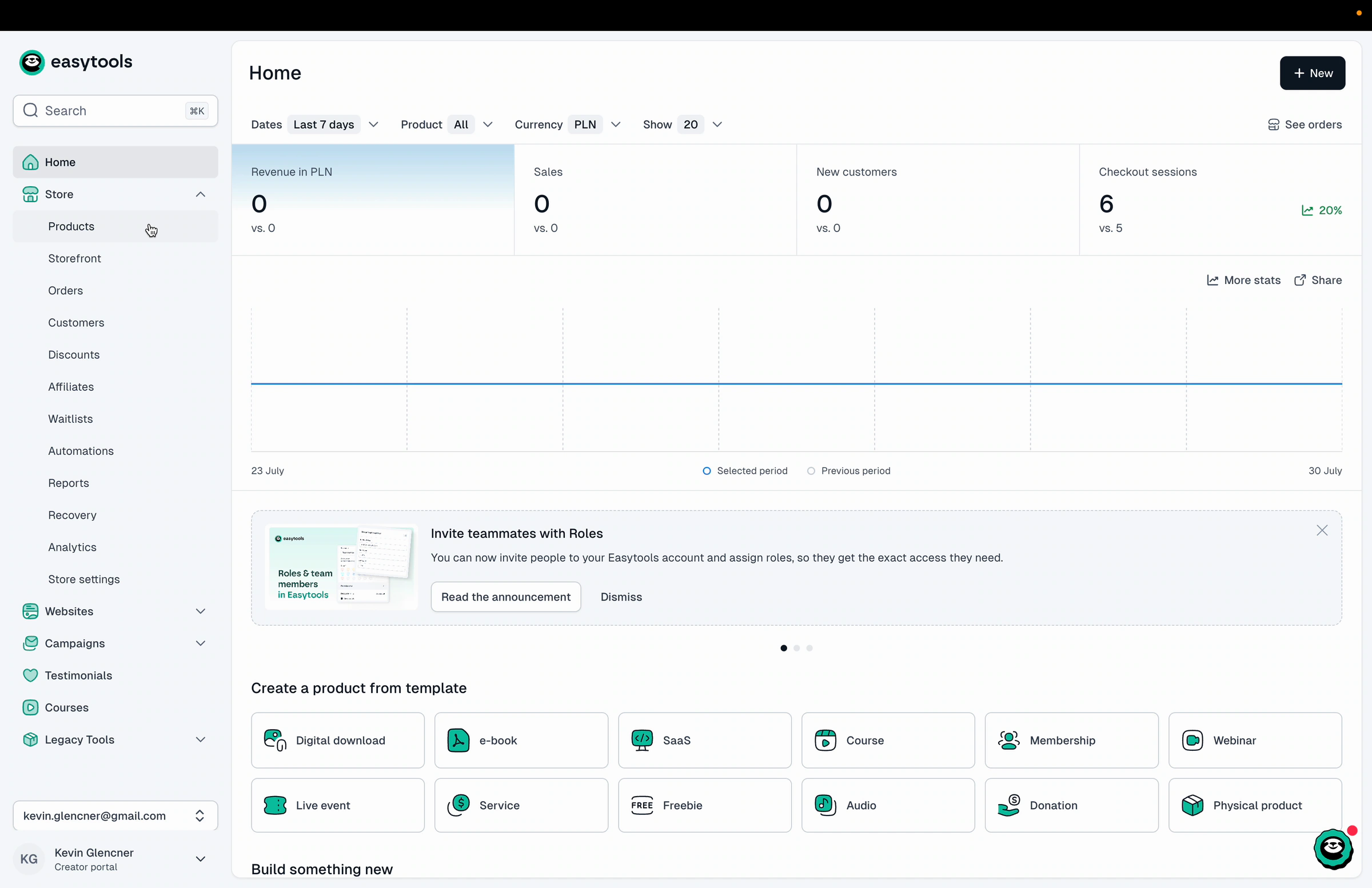
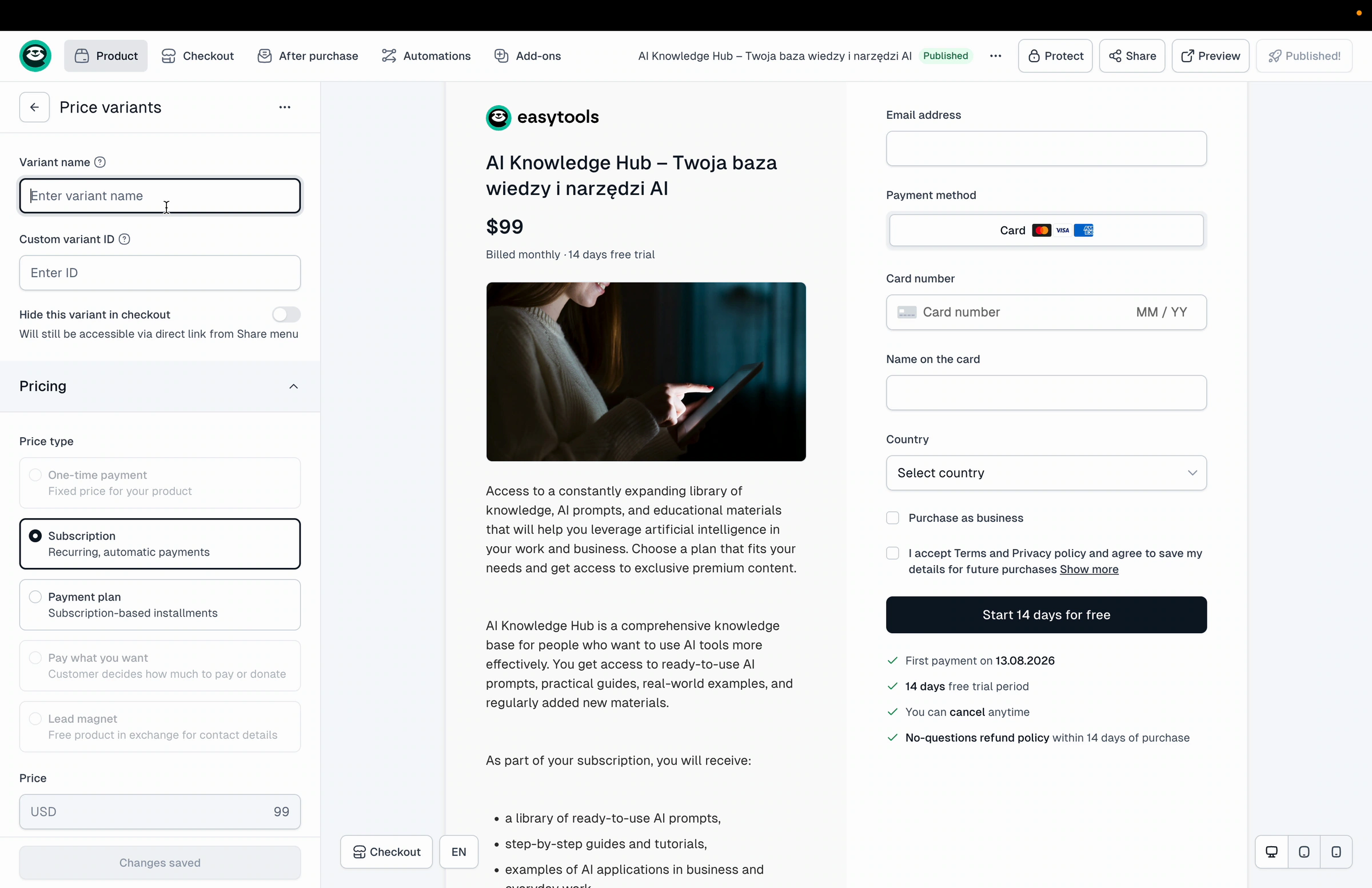
## Set the subscription price
1. Open the **Main price** section and pick your **Currency**.
2. Under **Price type**, choose **Subscription**.
3. Enter the subscription **Price**.
4. By default a subscription renews once a month. You can change this with **Billing period** (day, week, month or year) and **Renewal frequency** - for example, set the period to "month" and the frequency to 2 to bill every second month.
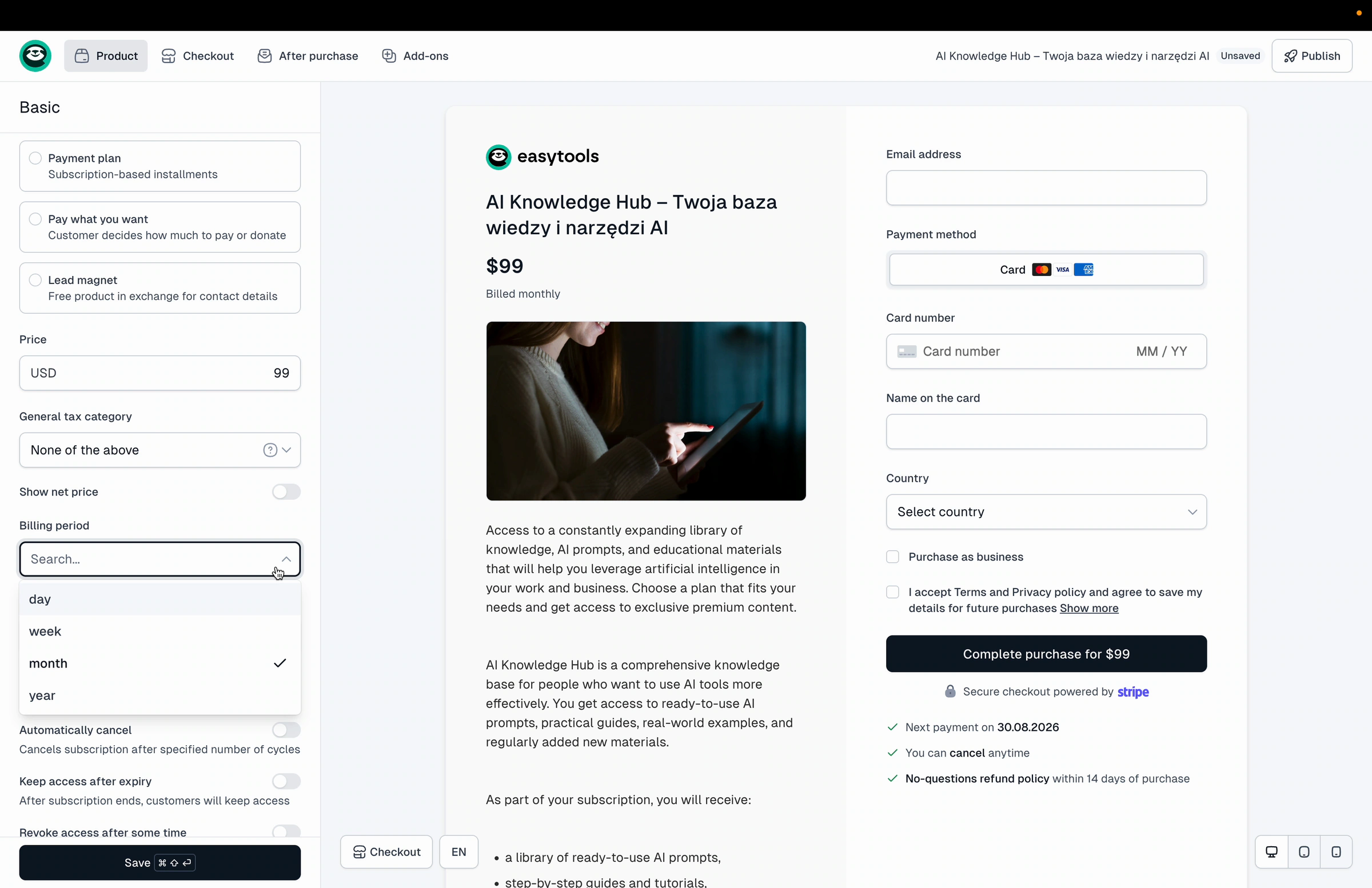
> Note: Leave the billing period on "month" and the frequency on 1 for a classic monthly subscription.
## Add a free trial
1. Turn on the **Enable trial** toggle.
2. In **Number of days in trial**, enter any number of days, for example 14.
During checkout the customer enters their card details right away, but the first payment is only taken after the trial ends - as long as they don't cancel the subscription earlier.
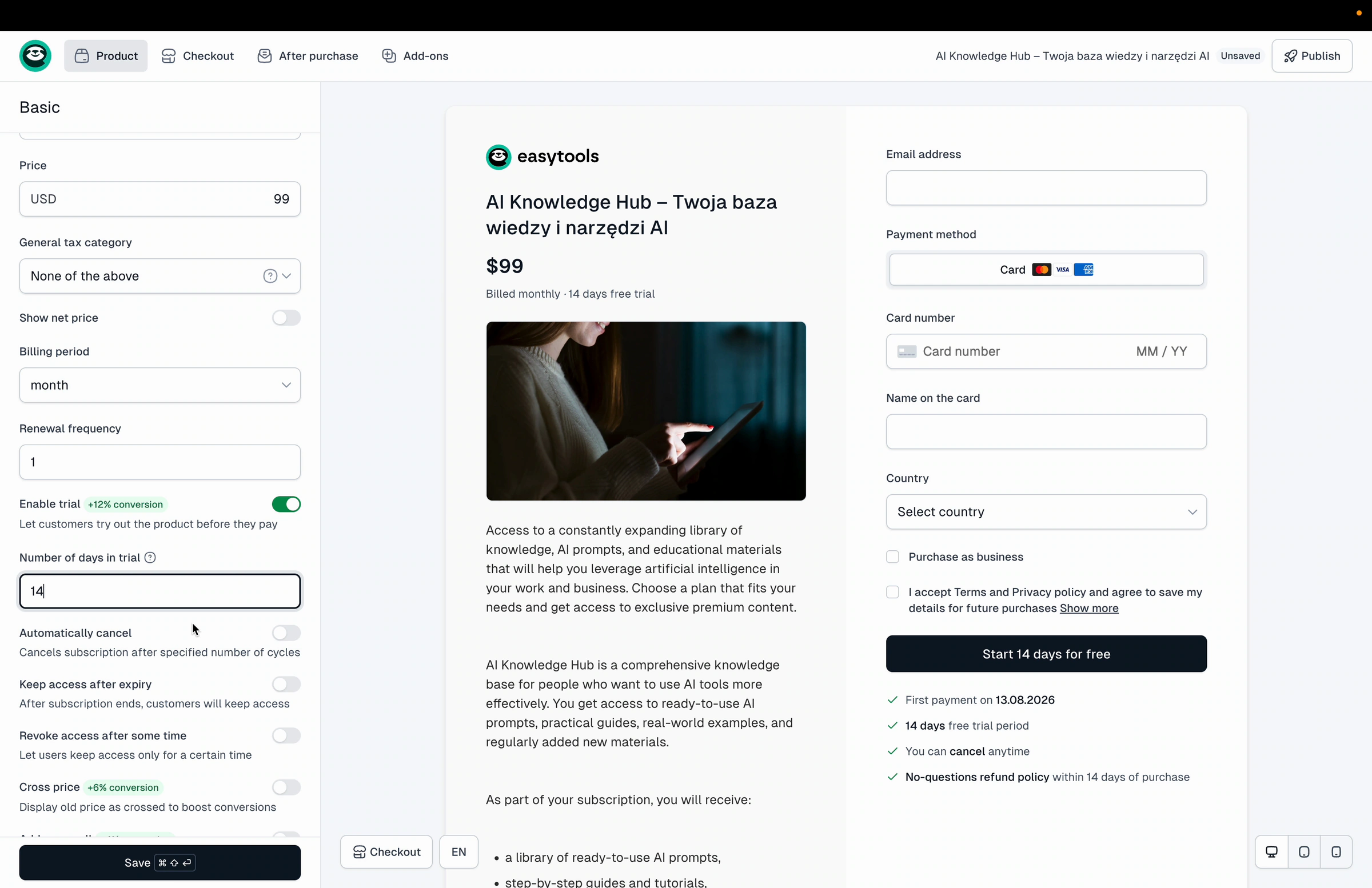
3. Click **Save**, then **Publish**. You have now created your first subscription product with a single variant.
## Add more subscription variants
One product can hold several price variants, so you can offer different plans side by side.
1. In the left panel, open the **Price variants** section.
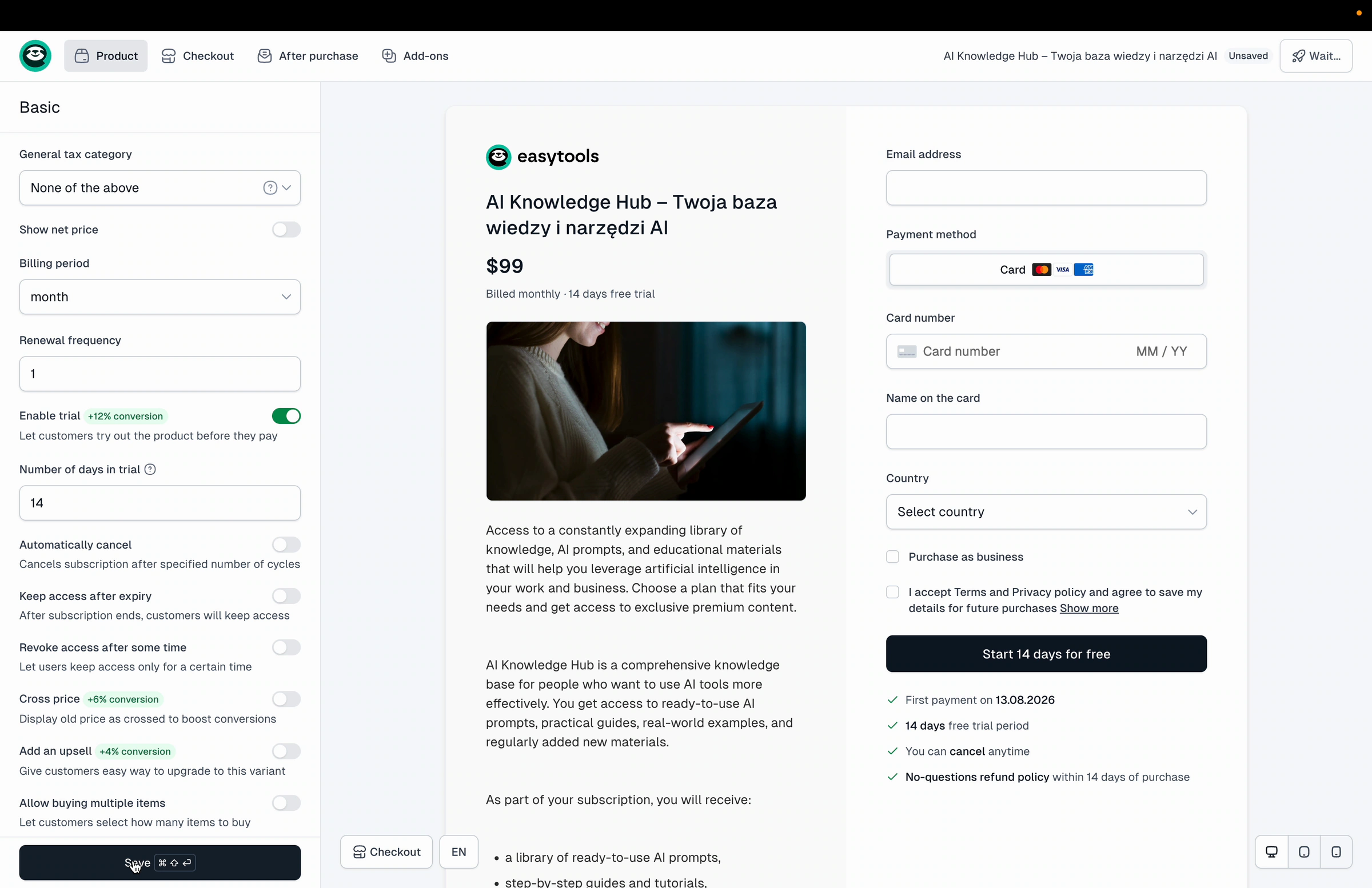
2. Open the variant you already created and give it a clear name, for example "Standard", then click **Save**.
3. Click **+ New variant** to add another one. Enter a name (for example "Premium"), choose **Subscription**, set the **Price**, and add a free trial if you want. Click **Save**, then **Publish**.
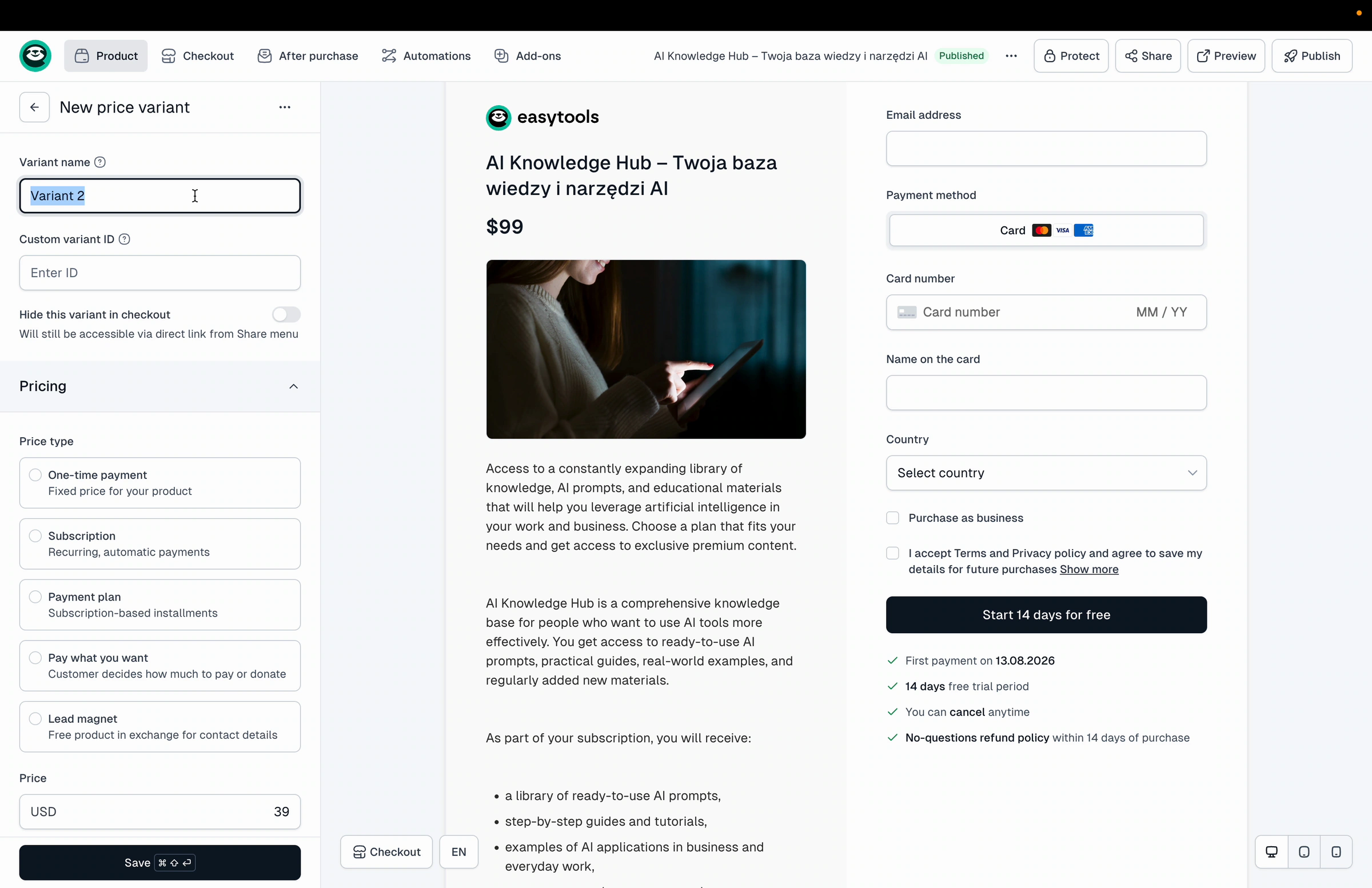
## Add a yearly variant
1. Click **+ New variant** again and name it, for example "Standard yearly".
2. Choose **Subscription** and enter the **Price**.
3. Set **Billing period** to **year**.
4. Leave the free trial as it is, then click **Save** and **Publish**.
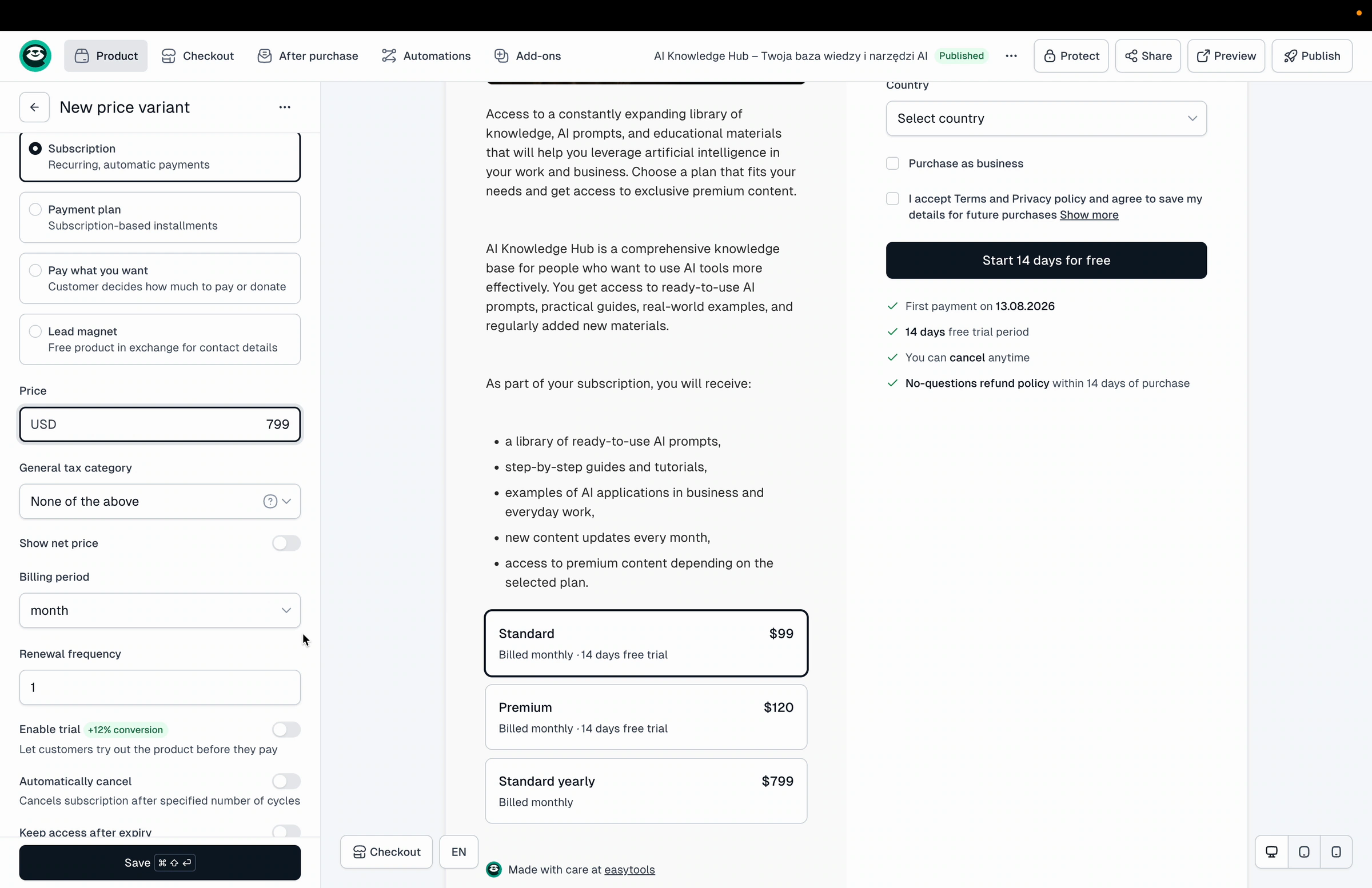
You now have three subscription variants. The same way, you can add a yearly version for the Premium plan too.
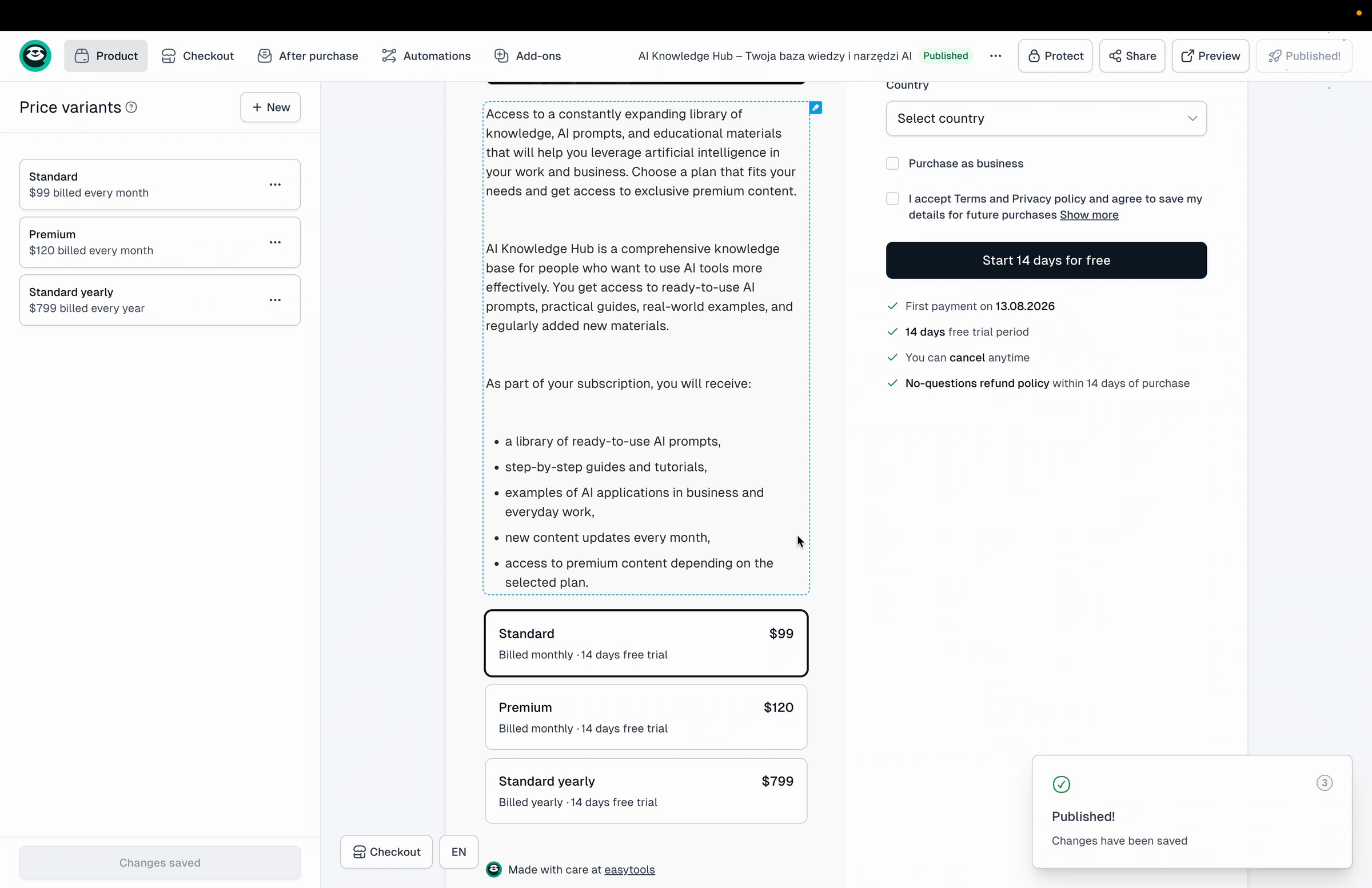
## Turn a variant into an upsell
Instead of showing the yearly plan as a separate option, you can offer it as an upsell on the monthly variant - the customer picks the monthly plan and can then extend it to yearly.
1. Open the "Standard" (monthly) variant for editing.
2. Turn on the **Add an upsell** toggle.
3. In the search field, choose the variant you want to offer, for example "Standard yearly".
4. Add an **Upsell description**.
5. Click **Save**, then **Publish**.
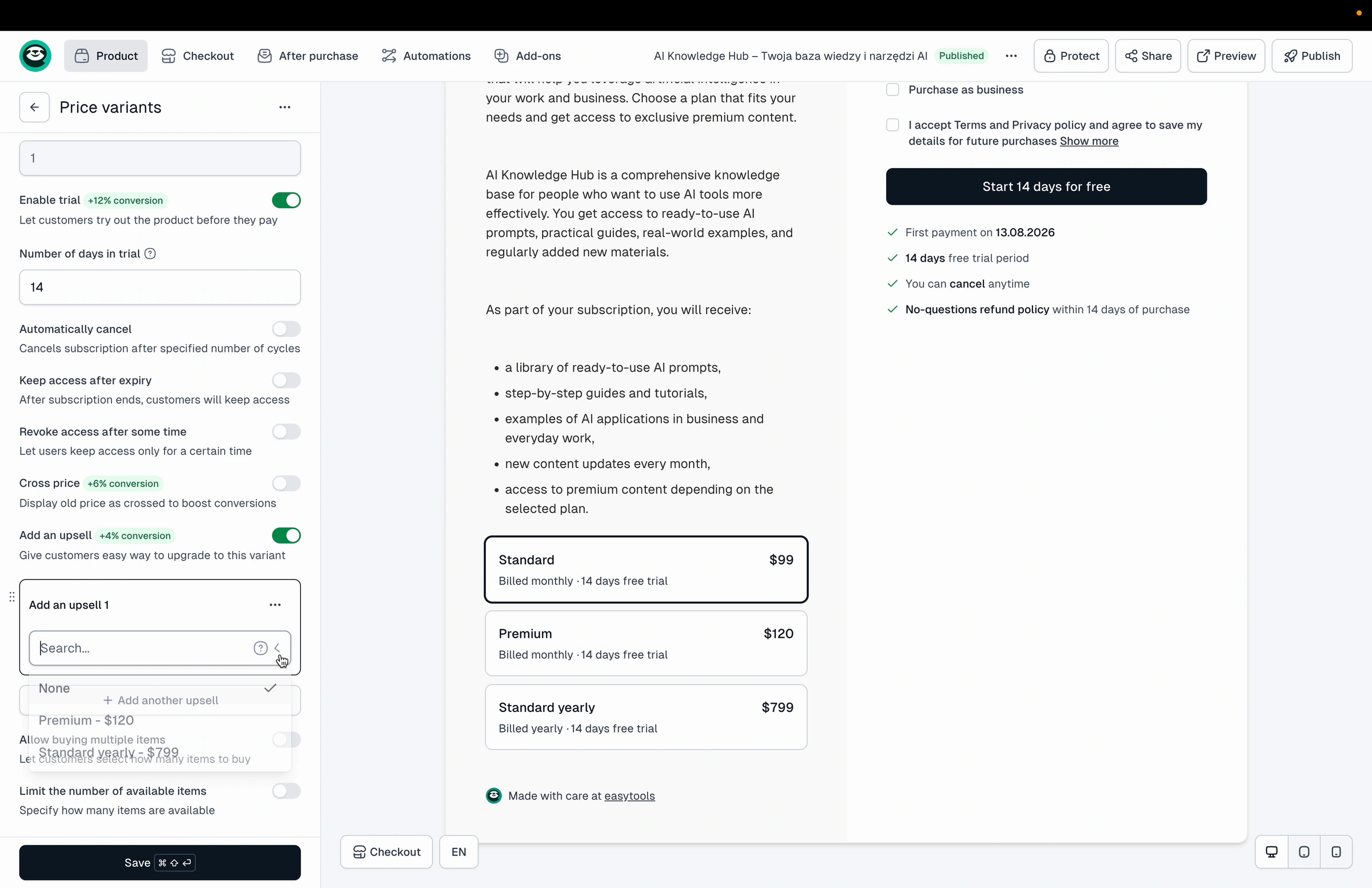
In the checkout the customer now sees the monthly variant with an option to extend it to the yearly plan.
---
Related: [Subscriptions](/docs/subscriptions), [Free trials](/docs/free-trials), [Creating price variants](/docs/creating-price-variants), [Upsells](/docs/upsells).
---
## Fixed term subscriptions
Category: sell-your-products / prices
URL: https://www.easy.tools/docs/fixedterm-subscriptions
Maximize recurring revenue with Fixed term subscriptions. Offer time-limited plans to boost customer lifetime value.
---
## Inclusive and exclusive tax
Category: sell-your-products / prices
URL: https://www.easy.tools/docs/inclusive-and-exclusive-tax
Simplify pricing with Inclusive and exclusive tax. Customize tax display to meet your business needs and local regulations.
---
## Changing default tax rates
Category: sell-your-products / prices
URL: https://www.easy.tools/docs/changing-default-tax-rates
Tailor your pricing strategy by Changing default tax rates. Adapt to different markets and maximize profitability.
---
## Disabling b2b or b2c
Category: sell-your-products / prices
URL: https://www.easy.tools/docs/disabling-b2b-or-b2c
Tailor your checkout with Disabling b2b or b2c. Customize the buying experience for your specific customer base.
---
## Adding GTU Codes
Category: sell-your-products / prices
URL: https://www.easy.tools/docs/adding-gtu-codes
Comply with Polish regulations by Adding GTU Codes. Ensure your invoices meet legal requirements effortlessly.
---
## Custom price IDs
Category: sell-your-products / prices
URL: https://www.easy.tools/docs/custom-price-ids
Optimize pricing strategies with Custom price IDs. Track and analyze different pricing models for maximum profitability.
---
## Descriptions in customer portal
Category: sell-your-products / after-purchase
URL: https://www.easy.tools/docs/descriptions-in-customer-portal
## Descriptions in customer portal
After purchase, your customers will be able to access your product through our customer portal. You can customize how it will display and what content buyers will see, as well as encourage them to make further purchases.
When setting up the checkout, simply go to the ‘After purchase’ section and then select ‘Customer portal,’ where you will see a preview of the portal view.
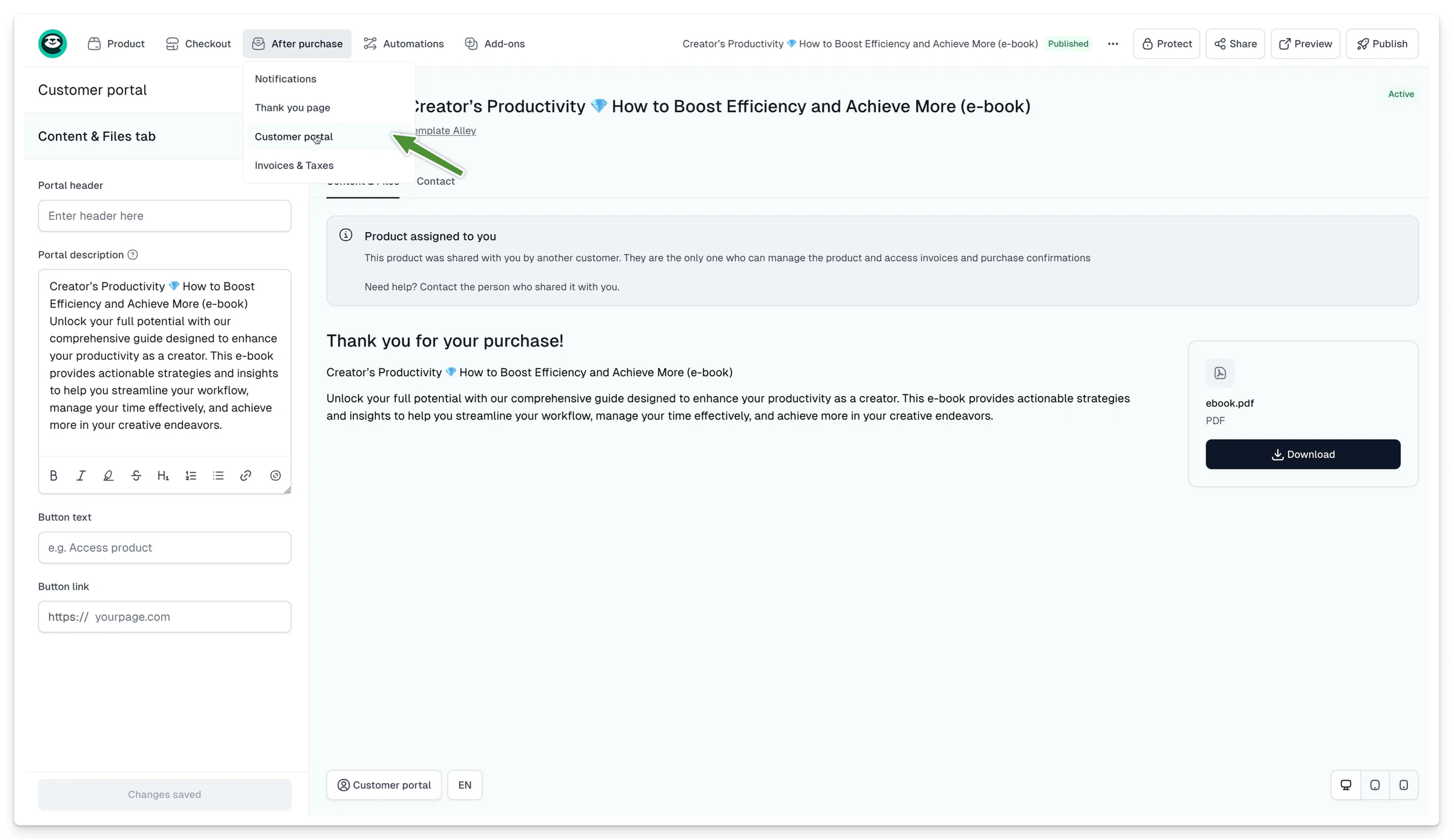
Next, in the ‘Content and files’ tab, you can edit:
- **Portal header** - you can use it, for example, to thank the customer for their purchase.
- **Portal description** - an ideal place to describe the details of product access, especially if it requires any additional actions from the customer.
- **Button text and link** - you can display an additional button that, for example, redirects the customer to your website where they can see your other products.
> **Important:** When creating the description in the customer portal, you can use [markdown syntax](https://docs.github.com/en/get-started/writing-on-github/getting-started-with-writing-and-formatting-on-github/basic-writing-and-formatting-syntax).
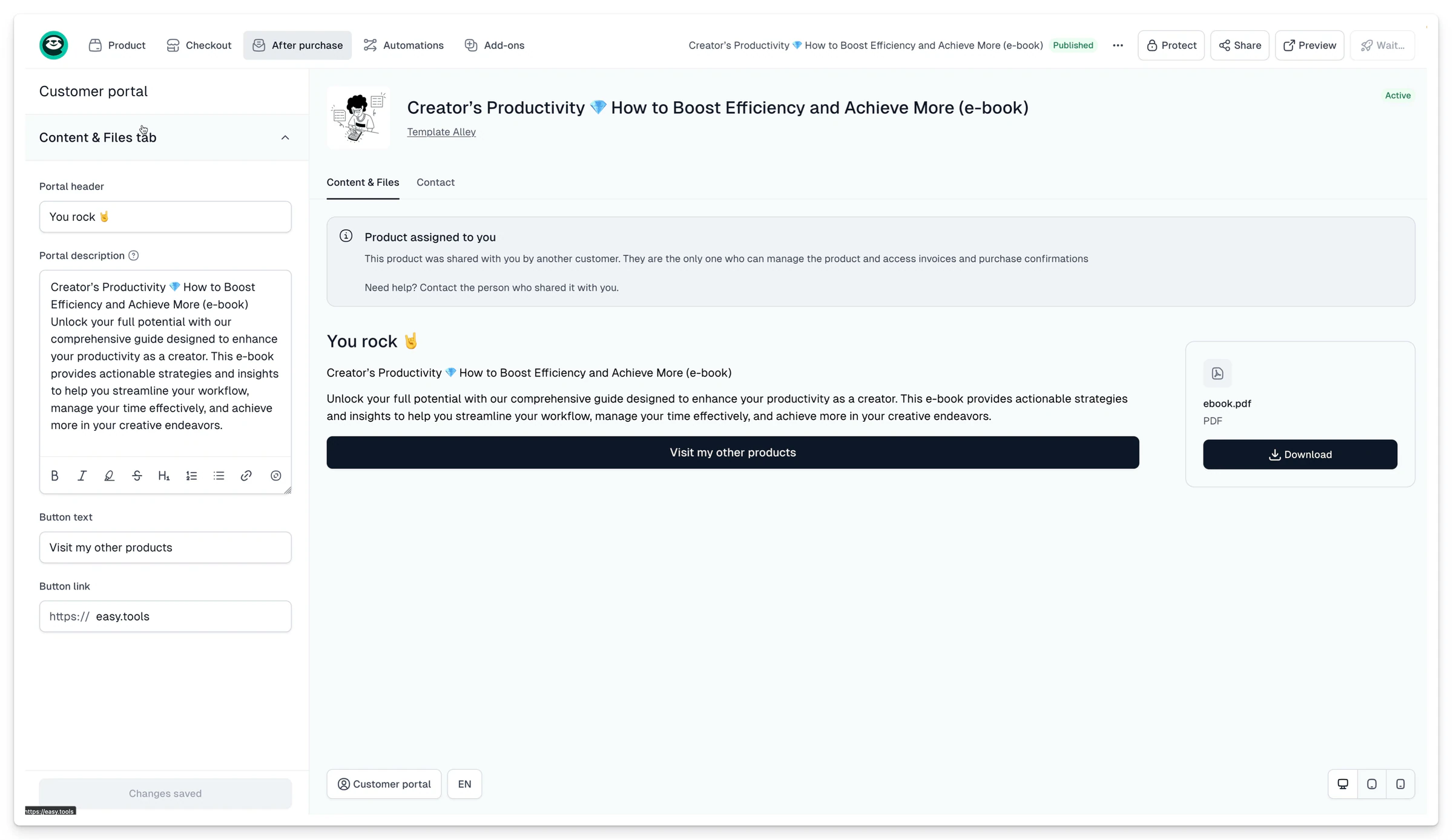
---
## Generate QR codes for event tickets
Category: sell-your-products / after-purchase
URL: https://www.easy.tools/docs/qr-codes-for-event-tickets
If you sell tickets to live events, Easytools can generate a unique QR code for every order. The customer gets the code by email and in their customer portal, and you scan it at the door to check who can come in.
## Turn on QR codes for a product
1. Go to **Store** → **Products** and open the product you sell tickets for.
2. Open the **Add-ons** tab and choose **QR Codes**.
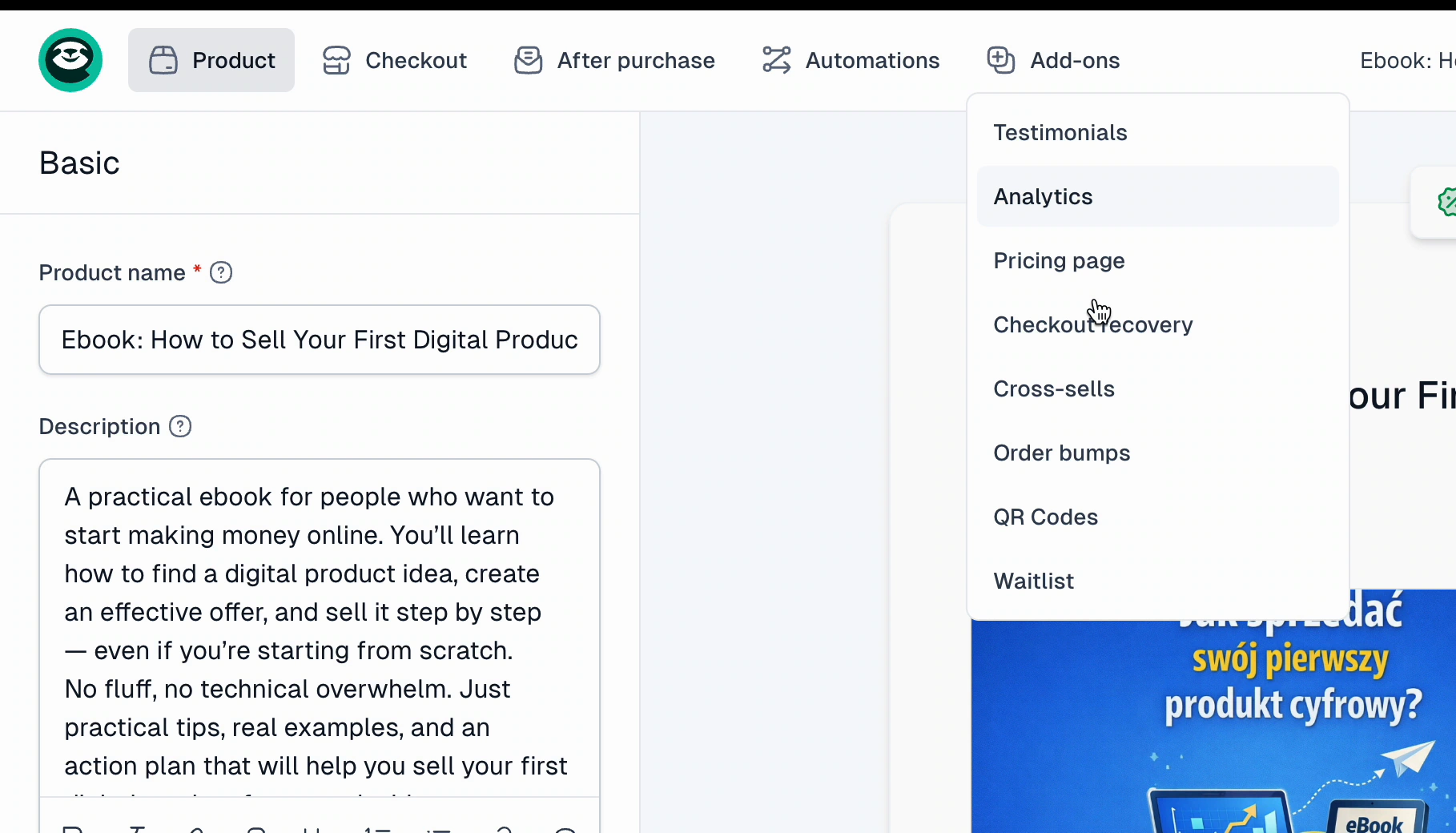
3. Turn on **Enable QR codes**. From now on, each purchase creates a new QR code.
4. Optionally, add a short note in the **Information for customer** field - it shows up in the confirmation email and the customer portal (for example, "Show this code at the reception desk").
5. Click **Save**, then **Publish** so the change goes live.
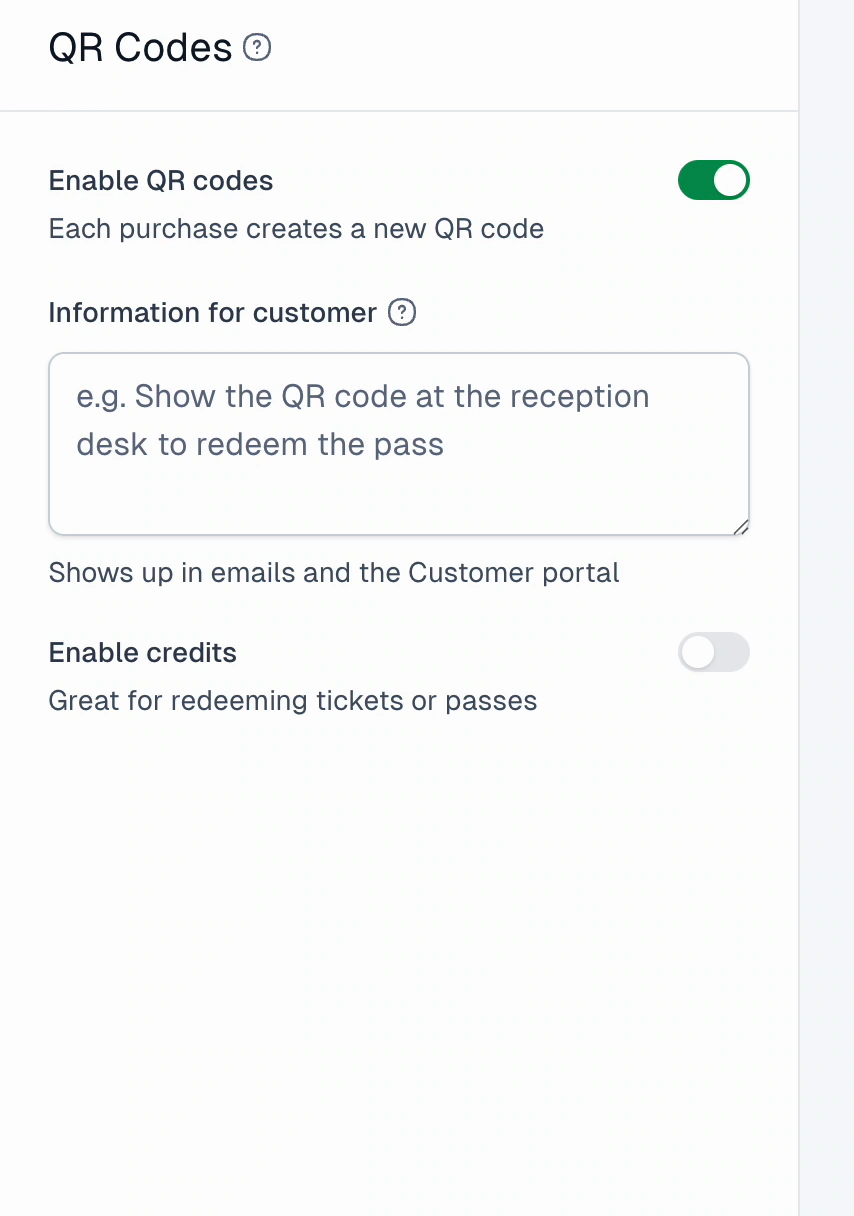
> Important: the QR code is generated automatically after each purchase, sent to the customer by email, and always available in their **Customer portal**.
## Scan codes at the entrance
To check tickets at the door, you need to be logged in to your creator account.
1. In the bottom-left corner, click your account and expand the menu with the arrow.
2. Choose **Scan QR Code**.
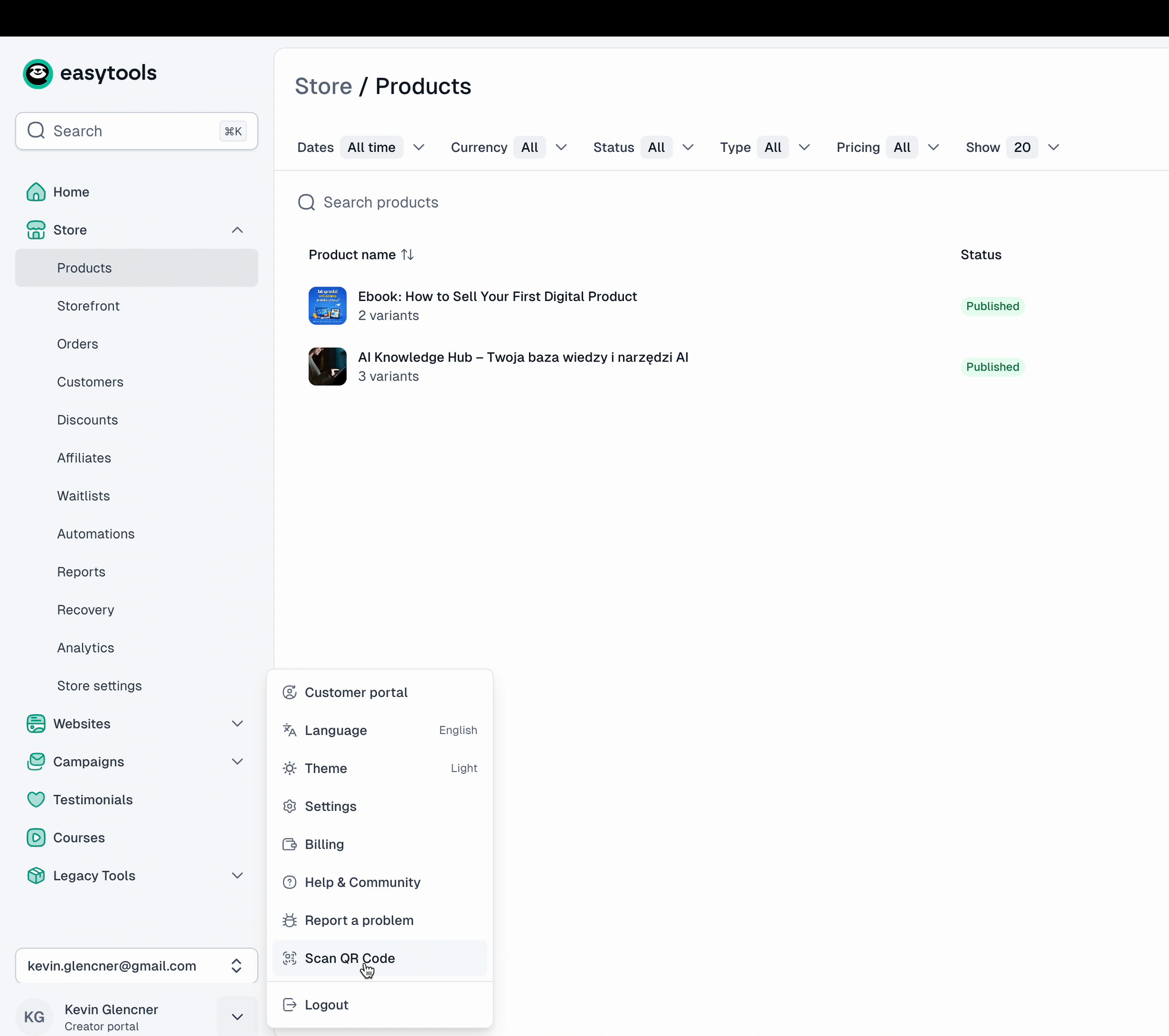
3. Scan a visitor's code to see whether it is still active or has already been used.
4. Open the details to see the customer's data.
> This lets you catch a code that has already been used, so the same ticket can't get two people in.
## Related
- [Email alerts after purchase](/docs/email-alerts-after-purchase)
---
## Thank you pages
Category: sell-your-products / after-purchase
URL: https://www.easy.tools/docs/thank-you-pages
Boost brand loyalty with Thank you pages. Create custom post-purchase experiences to delight your customers.
---
## Transactional emails
Category: sell-your-products / after-purchase
URL: https://www.easy.tools/docs/transactional-emails
Enhance customer communication with Transactional emails. Keep buyers informed and engaged throughout their journey.
---
## Customising emails
Category: sell-your-products / after-purchase
URL: https://www.easy.tools/docs/customising-emails
Personalize your brand with Customising emails. Tailor your message and style to resonate with your audience.
---
## Redirect links and custom params
Category: sell-your-products / after-purchase
URL: https://www.easy.tools/docs/redirect-links-and-custom-params
Optimize conversions with Redirect links and custom params. Guide customers seamlessly through your sales funnel.
---
## Customer portal
Category: sell-your-products / after-purchase
URL: https://www.easy.tools/docs/customer-portal
Empower customers with Customer portal. Offer self-service options for improved satisfaction and reduced support load.
---
## Digital downloads
Category: sell-your-products / digital-downloads
URL: https://www.easy.tools/docs/digital-downloads
Easycart allows you to easily distribute your digital products. Simply add one or more files to your checkout, and we will automatically deliver them to your customers immediately after purchase.
## Adding files
You can assign your file to the entire checkout or to a specific product variant. This means that if you sell multiple product options in one checkout, each customer will receive exactly the files associated with their chosen variant after purchase.
### To assign a file to a product:
1. Open the **Product** tab, then **Basic**
2. Go to the **Digital downloads** section
3. Upload your file(s) in PDF or ZIP format up to 100 MB
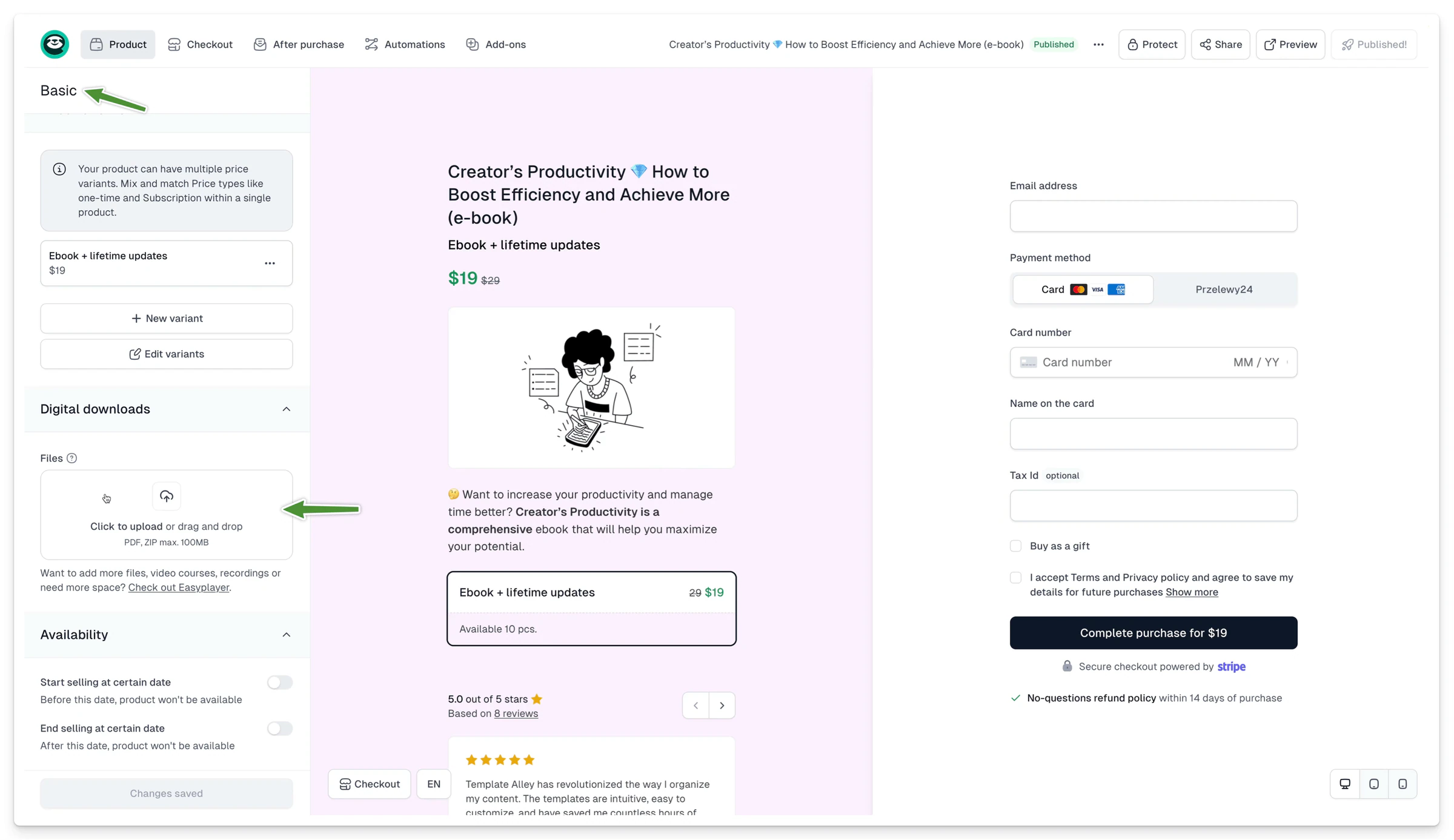
### To assign a file to a variant:
1. Open the **Product** tab, then **Price variants**
2. Select or create the variant to which you want to assign the product
3. Go to the **Override fields** section
4. Upload the files in the chosen format
> If you add a file to a product with more than one variant, we will automatically assign it to each variant. When you override settings for one variant, the others will still use the default assigned file.
## Sharing files
After purchase, customers can access your products:
- On the thank you page, immediately after purchase
- In the confirmation email received after purchase
- In the customer portal, on the product subpage
### Thank you page
After a successful transaction, we will display a thank you page to your customer. You can edit the content displayed, add confetti, and even add your own button, such as a redirect to your website.
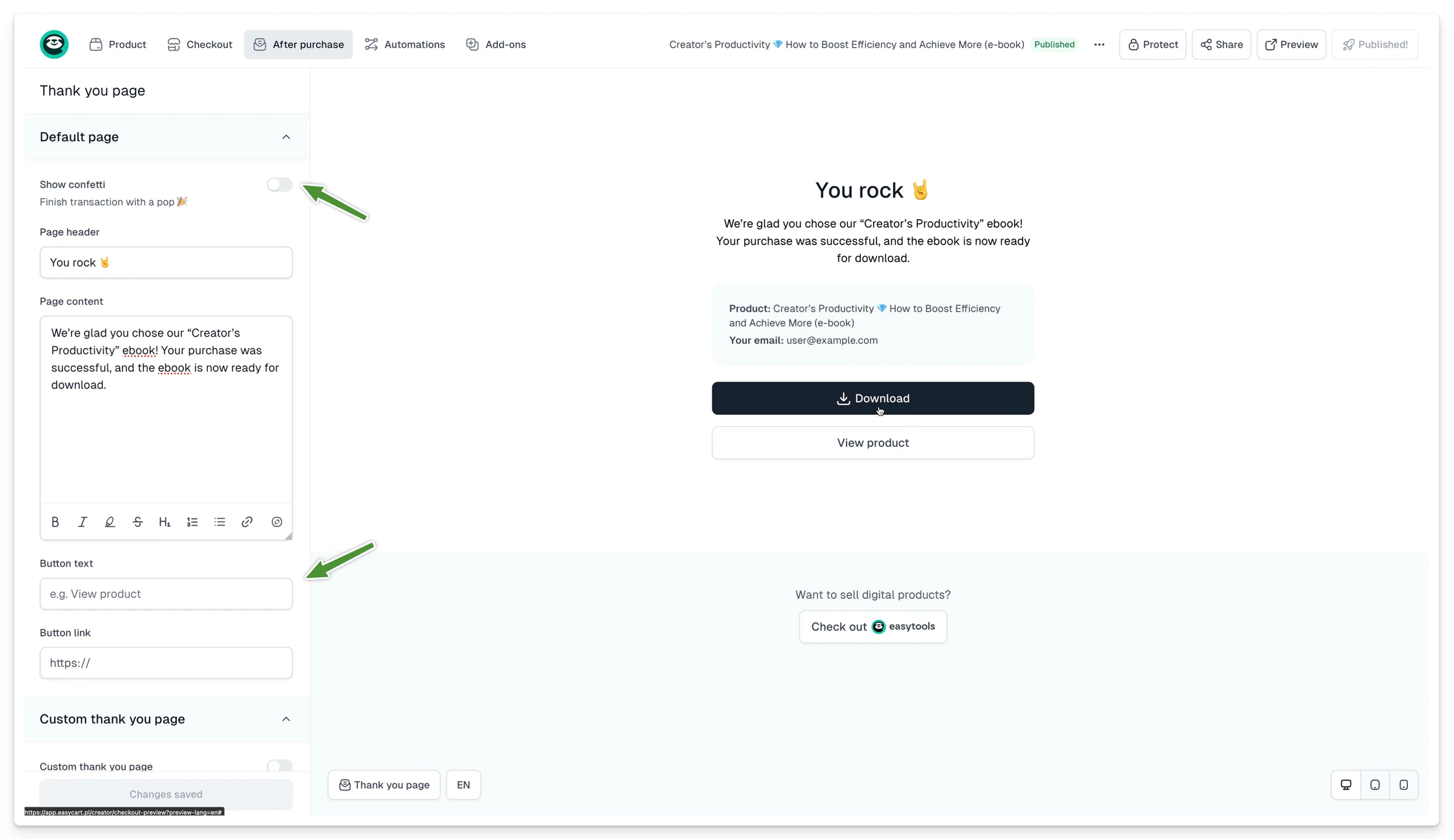
You can also choose the **Custom thank you page** option, add an address to your site, and decide after how much time the automatic redirect to your page will occur. If you set it to 0, we won't display our thank you page at all but will redirect the customer immediately to the address you provided.
Learn more about customizing Thank you pages [here](/docs/thank-you-pages).
### Confirmation email
After purchase, we will also send your customer an email, which, depending on your settings, may include:
- Detailed information about the purchased product, e.g., the duration of the trial period
- The product to download
- An invoice
- A link to change invoice details
- A link to log in to the customer portal
To modify the email content after purchase, go to the **After purchase** tab, then **Notifications**. There you can set the email header and add your own content.
Learn more about transactional emails in Easycart [here.](/docs/transactional-emails)
### Customer portal
Every customer who completes a purchase using Easycart has access to our customer portal, where they can access all purchased products. This allows them to download files, such as PDFs for eBooks, view QR codes assigned to event tickets, and even watch video courses directly from the customer portal.
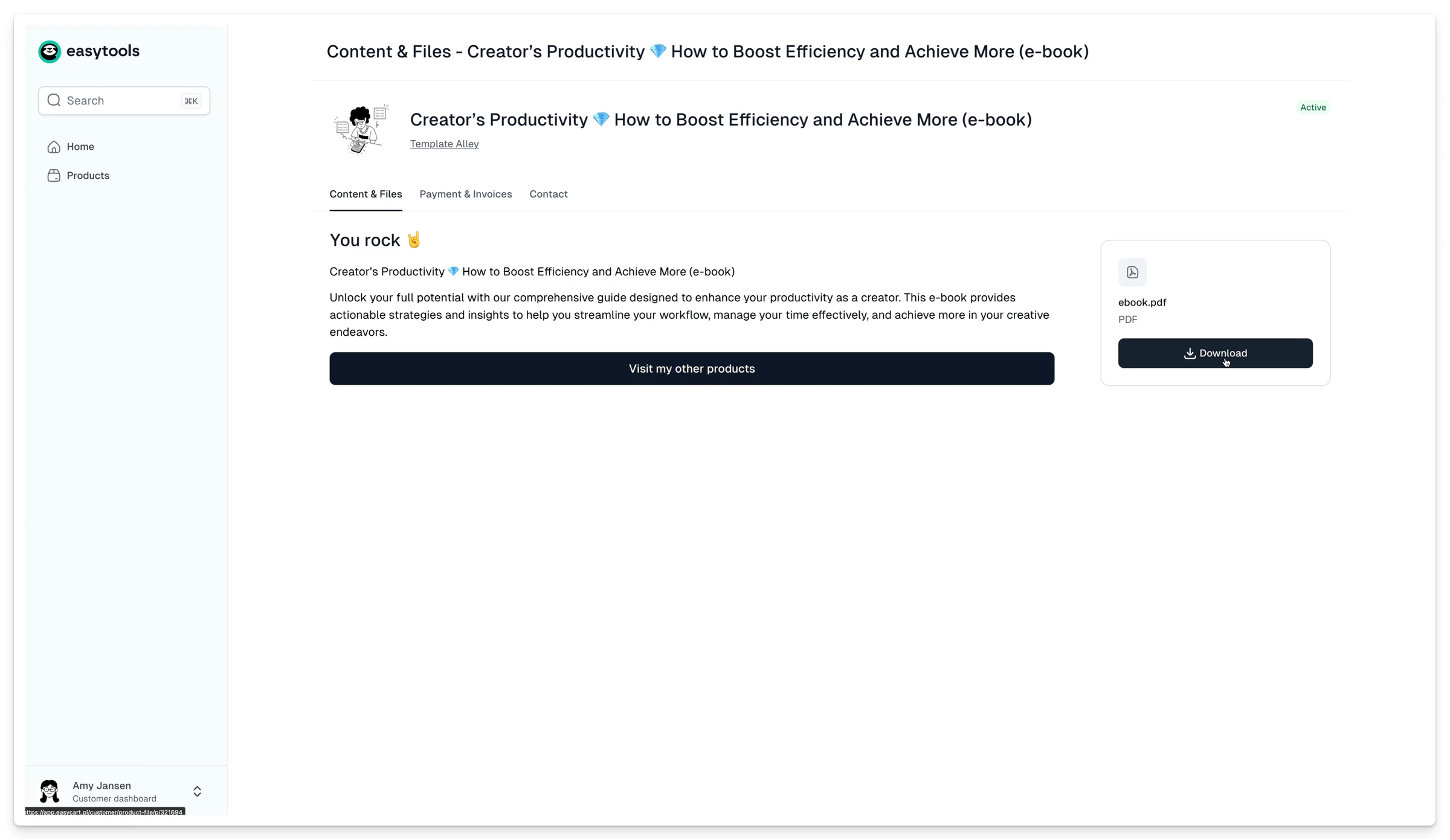
As a seller, you can customize how your product will display in the customer portal and add your own link, for example, directing to your website. Learn more [here](/docs/descriptions-in-customer-portal).
---
## Gated content (Login wall)
Category: sell-your-products / digital-downloads
URL: https://www.easy.tools/docs/gated-content-login-wall
## Protecting your content with login wall
If you want to easily provide your customers with purchased materials (e.g., an online course or e-book), you can use our Login Wall, a feature that blocks access to your page for people who haven’t purchased a selected product or don’t have an active subscription. Configuration takes less than 5 minutes.
Simply add a short code in the section of the page containing the content you want to protect. You can generate the code in the product editing panel. There’s an option to **Protect**.
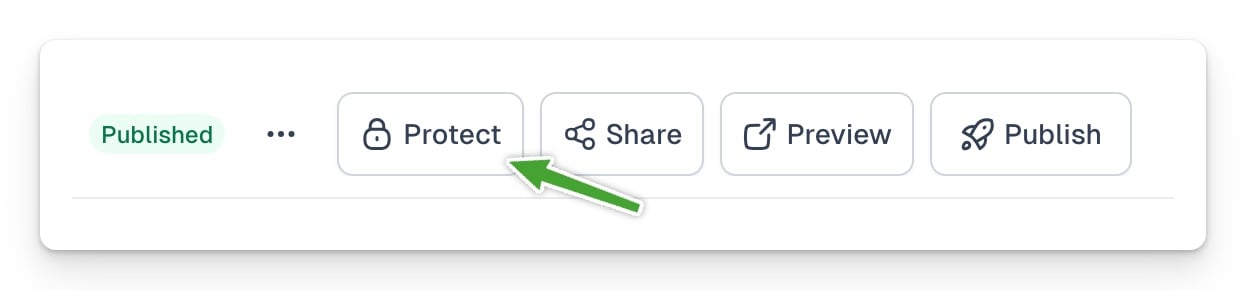
Choose whether you want to protect the entire product or a specific price variant. If you want to secure the entire page (this means everything on your page will not be accessible for non-customers), click on **Secure entire page**, then **Copy code**.
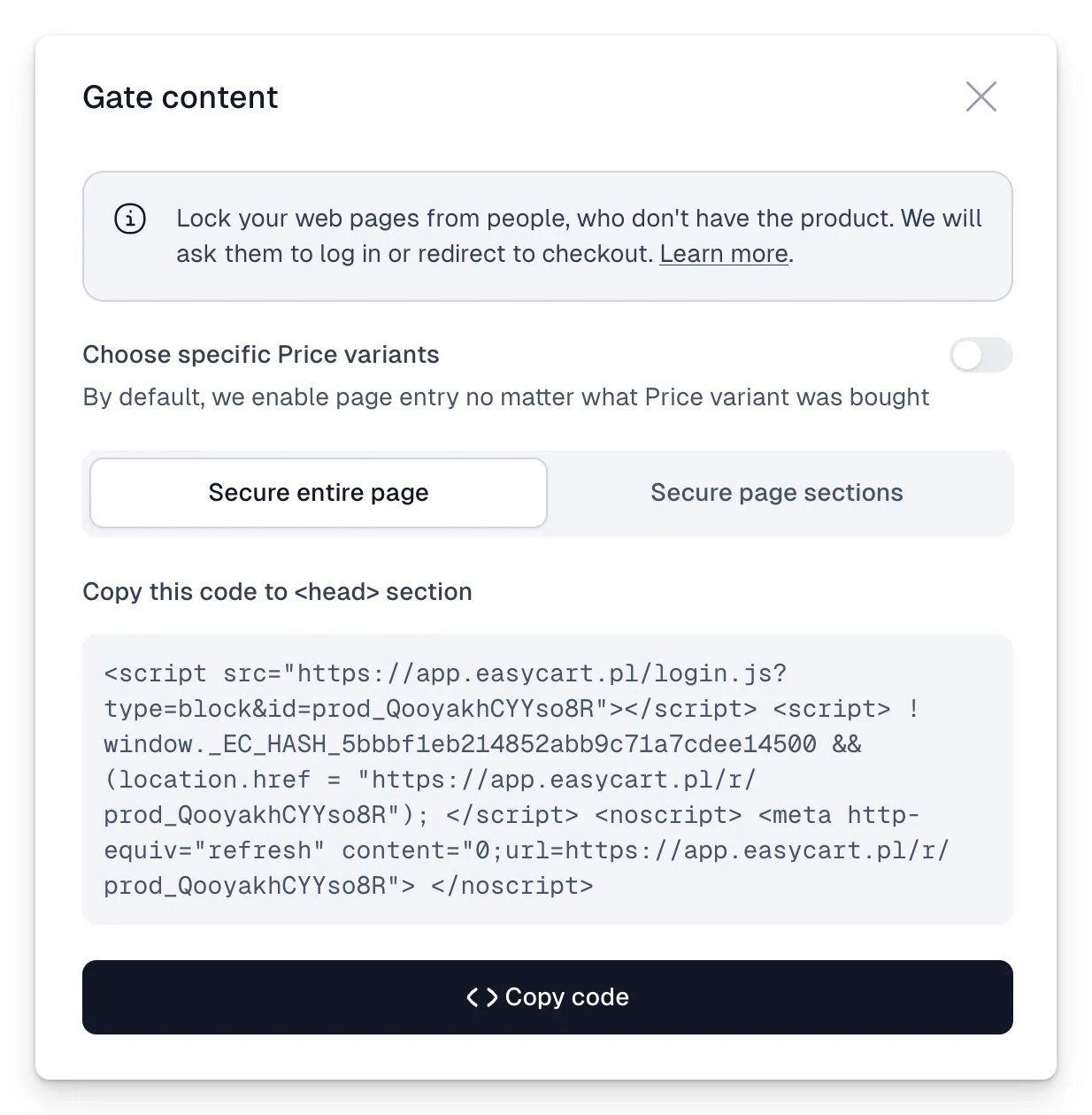
## When to protect a selected price variant and when to protect the product?
When to protect a selected price variant and when to protect the product? It’s up to you! If you want to block access based on owning any variant (price) of a given product, use the entire product. If access should be protected only for people who bought a specific variant (price), select the **Choose specific Price variants** option and then indicate which variants to secure. Then only people who bought that specific price will be able to see the content.
After copying the generated code, your only task is to place it in the section of your website. You can also do this in editors like Webflow, Carrd, Squarespace, Wix, and others.
> You can also creatively use access protection, for example by selling your content on Notion using services like super.so or potion.so, which allow editing the section.
As a result, every person who visits your page is checked for access - if not, we display a login window (branded with your logo), which is actually logging into Easycart.
Generally, however, Easycart customers don’t need to log in because they have our token saved in their browser cache.
The next step is checking if the person has access to a specific product - if not, we redirect them with an appropriate message straight to the purchase page. If yes, we let them onto your page. Of course, this also works for subscriptions, where we additionally verify if the person’s access is still active.
> Since all buyers have accounts created on Easycart, you can use our secure back-end mechanisms to authorize users this way.
Everything happens on your front-end side, which means you can paste such a snippet on the page in any editor like Webflow, Wix, etc. to instantly protect the appropriate content. We admit that this method is not as effective as typical back-end protection on your side, but we’ve made efforts to make breaking it a bit more troublesome than typical front-end based solutions, and in our opinion, it’s a really satisfactory solution.
### Showing or hiding only certain elements on the page for customers
You can also show or hide selected containers or sections on the page. This is an interesting solution when you have one sales page where instead of prices and a “buy” button, for customers who have already bought the product, you want to show a “go to product” button. To do this:
1. Generate the code to embed on the page using the **Secure page sections** option
2. Place the generated code in the `` section of the page
3. For content that should be displayed for people who don’t have the product, add the **data-free** attribute
4. For content that should be displayed for people who have the product, add the **data-paid** attribute
Example in code:
`
Container content
`
You can also add any value, it’s not taken into account, e.g.:
`
Container content
`
It will work this way:
- If the user is not logged in → they will see only free content
- If the user is logged in but doesn’t have access → they will see only free content
- If the user is logged in and has access → they will see only paid content
### Showing or hiding only certain elements on the page for logged-in users
The above script variant with **?type=toggle** can also be used to show or hide elements for users who are currently logged into Easycart, regardless of whether they own any product. This way, you can, for example, show a button with “Go to account” information linked to the panel, or “Log in” which leads to the login page (if the script detects that the user is not logged in). This will also work when you have dozens of products and don’t want to iterate through each to check access. You can show or hide any HTML element this way, using attributes:
- **data-auth** → element visible if the user is logged in
- **data-noauth** → element visible if the user is not logged in
---
## Time limited access
Category: sell-your-products / digital-downloads
URL: https://www.easy.tools/docs/timelimited-access
Create urgency with Time limited access. Boost conversions by offering exclusive, time-sensitive content or deals.
---
## Checkout recovery
Category: sell-your-products / checkout-recovery
URL: https://www.easy.tools/docs/enabling-recovery
Checkout Recovery is a feature that helps bring back customers who otherwise have a very low probability of completing a transaction (around 3%). It’s supported by our consultants and automated notification systems, functioning like a dedicated team that works for you to maximize your revenue. Typically, merchants don’t have the capacity (nor is it practical) to employ someone solely focused on recovering abandoned transactions. With our service, you have such a team at your disposal, operating nearly 24/7. When combined with the Easycart network, which stores customer data, this becomes an effective method to increase your earnings… without any extra effort on your part.
By enabling the checkout recovery service, you agree to the terms outlined in this article, including the commission fee, and consent to contacting customers on your behalf to complete the transaction.
## How to Enable Checkout Recovery?
By default, the service is disabled on your account. You can enable it in two ways - globally, applying to all existing and newly created checkouts, or for specific checkouts only. If you enable the feature globally, individual checkouts cannot be excluded, but their discount parameters can be modified (if you want to enable the service for a few specific checkouts, use the local method outlined below).
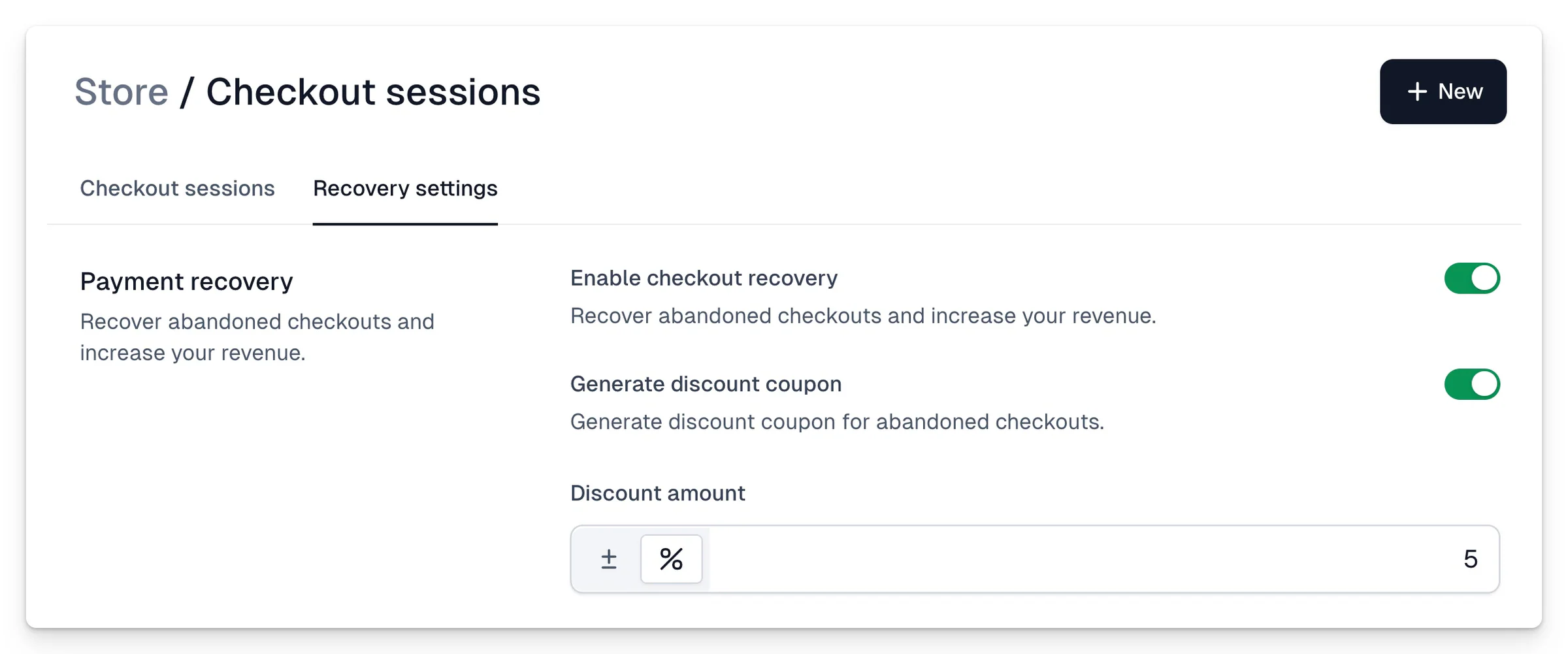
## Enabling Recovery Globally (Recommended)
1. Go to the **Checkout Recovery → Recovery Settings** section, then turn on the **Checkout Recovery** option.
2. Set a small discount that some customers will receive as part of the recovery procedure. A 10% discount is a reasonable value that can help save many checkouts. You can set a flat or percentage-based discount. This step is optional but highly recommended.
3. If you sell subscriptions, the discount will only be applied to the first subscription period. Regular prices will apply in subsequent cycles.
From now on, all your current and newly created checkouts will use the Checkout Recovery service. If needed, you can manage its settings for each product individually. To do this, go to the **Add-ons → Checkout Recovery** section for a specific checkout and adjust the recovery settings.
Summary:
- If you want to enable recovery for all checkouts, set it up globally.
- If you want to modify discount settings for one or a few checkouts, enable the feature globally and then adjust it locally for those selected checkouts.
- If you want to set up recovery for just one or a few specific checkouts, apply it directly to those products without enabling it globally.
- If you want to enable recovery for all checkouts but add discounts to only a few, set it up globally without defining any discounts, and configure them for specific checkouts separately.
## How to Check Recovery Effectiveness?
In the Creator portal, you’ll find a dedicated **Checkout sessions** tab that provides information about all sessions and recovery statistics.
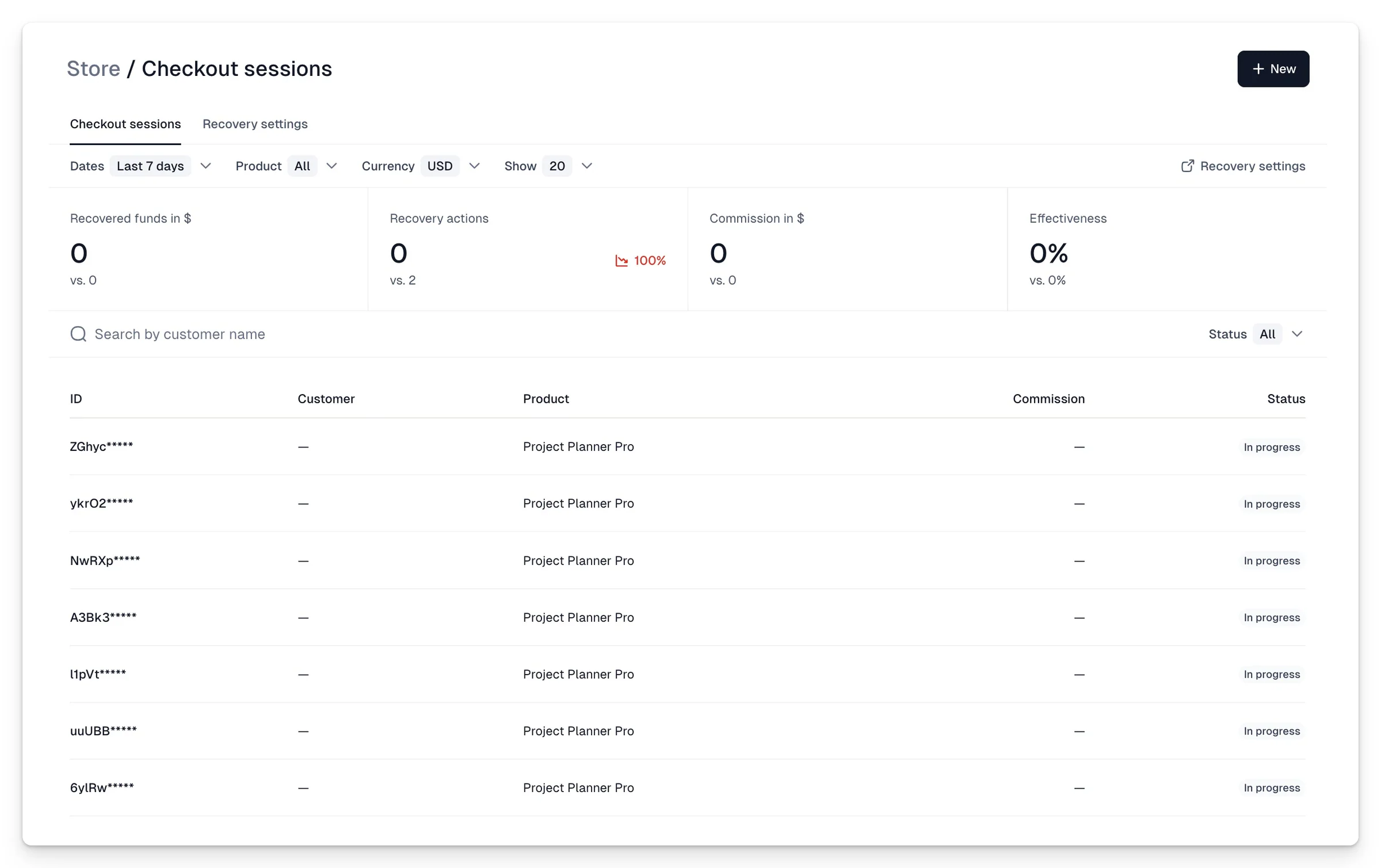
A session is created whenever someone visits a checkout page. If a customer revisits the same checkout from the same device and browser, a new session is not created. We remember their entry for 30 days, and during that time, the session status may change accordingly.
### Session Statuses
- **In Progress (opened):** The customer entered the checkout and might have filled in some details. If they revisit the checkout without using the recovery link (explained later), the status remains _In Progress_.
- **Error:** The session ended with an error, and the customer left. If they return, the status immediately changes back to _In Progress_.
- **Finalized:** The customer completed the purchase without using the recovery process (either they didn’t use the recovery link or completed the purchase independently).
- **Recovering:** The customer used a recovery link, or a recovery action was taken by the team (e.g., a phone call, email).
- **Recovered:** The customer completed the purchase after the session was marked as _Recovering_, i.e., they used the link sent via email or completed the transaction during an intervention by the support team. The sale will be marked as _Recovered_.
- **Help Requested:** When the customer provides their phone number in the checkout after encountering a transaction error.
The **status** is one of the most important pieces of information in the panel, but in addition to it, you’ll find other relevant data in the session records.
Since some customer data may come from the entire Easycart network, it is anonymized.
## What commission is charged on recovered checkouts?
We charge a 10% commission on the recovered amount. This only applies to checkouts that were recovered through our mechanisms. If the customer returns to the checkout from another source, such as a link sent in an email or directly after consultant contact - the transaction will not be considered recovered, and no commission will be charged. You can find information about the commission charged both in the column with the individual session (0, if the sessions end without our intervention) and at the top in the summary.
When the session is in recovery, only if the purchase is made directly from our link, we consider it successfully recovered. The mere fact that we start the process and send notifications does not mean that we charge any commission if, for example, the user visits the checkout again from your site and not from our link. We do not set any cookies upon entry from our link that would extend our chance to recover the checkout. Simply - if someone does not use our link directly or does not complete the transaction through the consultant, we do not charge a commission.
> We charge the commission at the time of the transaction.
## How exactly does it work and which sessions are qualified?
Sessions that we undertake to recover, i.e., have a chance to go into Recovering mode, are two types of sessions:
The first type of session is abandoned carts - which meet the following conditions (all conditions must be met):
- The session was started at least 3 hours ago, but was not completed
- The user left the cart
- We have consent from the user to contact (they must have bought something before and accepted our terms and privacy policy, or check consent in an open session)
Based on our data from over 40,000 processed carts, the conversion rate of such a customer is about 3%. This means that in 97% of cases, such a customer will not buy your product. The cart recovery option thus gives a chance for conversion that would not happen under other conditions.
## Additional motivation - recovery with the help of a discount
One of the best working methods of converting such an undecided customer is to offer them a discount code to finalize the purchase. Usually, even a small discount, e.g., 5-10% is able to convince significantly more customers to buy.
That’s why in the recovery settings you have the option to add an automatic discount that will generate an individual discount code for the customer. The discount will be applied to the cart when the customer enters using the rescue link they receive in an email or see in a campaign. To prevent customers from getting used to this type of discount, they are awarded randomly - not all recovery actions offer the customer a discount, even if it is set. The element of randomness means that customers will not deliberately withhold purchases in order to receive a discount. Of course, an additional safeguard is the fact that only some carts will have the recovery function enabled.
The second situation that triggers recovery is Transaction Errors - in a situation where (again, all conditions must be met):
- The session is currently open (probably the customer is still in the cart)
- The customer made unsuccessful payment attempts - received an error From the pop-up window level (only for carts with recovery enabled) the customer requested phone contact and provided a phone number (or we had it remembered)
This means that the customer is currently in the cart, trying to make a transaction, but is receiving errors. Then, for carts that have the recovery option enabled, there is an option to receive help by phone. The customer fills in their phone number and we call them back immediately, trying to save the transaction.
For a transaction recovered in this way, an additional phone icon and information about recovery by customer service will appear next to its status. In this case, of course, the customer is not offered a discount.
Based on our data from over 40,000 processed carts, currently the conversion rate of such a customer is less than 16%. This means that in 84% of cases, such a customer will not buy your product. The cart recovery option thus gives a chance for conversion that, in other conditions, in most cases would not happen.
An additional advantage of recovery in such a case is the fact of direct, immediate contact with support, which the customer perceives as your customer service. In this way, it builds even greater trust in purchases from you and your company and a greater inclination to make purchases from you in the future.
## What are the actions related to recovery?
Sessions that meet the above conditions (abandoned carts or transaction errors) go into Recovery mode, which means that we try by all methods to make the user finalize the payment. Such methods are primarily:
Email with an attempt to save the cart, containing a rescue link (only a purchase directly from this link will be counted as a successfully rescued cart) Attempt to contact by support - by chat or phone, if there is a good reason for it (by default we don’t call customers) Promotional campaigns (we’re testing this variant, at our expense for some products), where we reach individual people with remarketing in the Google and Facebook network, trying to save the purchase Other methods that are not burdensome for the customer A few additional advantages of the process:
Our support can also accept payment details by phone and process it even when the customer is no longer in the cart If the customer has ever made a transaction and has saved data, at their explicit request, even if they are no longer in the cart, we can process the transaction remotely, without their participation Cart recovery uses the easy network
The great strength of easycart in the context of cart recovery is the fact that our customers have their data, including contact details, remembered in the system. This means that we also have data of people from our entire network in your cart. This brings a number of benefits, such as 1-click purchases, automatic invoice issuance, or transfer of shipping data, even if that person has never bought anything from you. It also helps in cart recovery, because theoretically such a customer doesn’t have to provide any data in your cart, just display it for us to be able to contact them and try to save the transaction (which doesn’t mean we do so in every case - more below).
## Standards of communication with the customer
In no case do we try to aggressively rescue carts. All attempts to rescue them are preceded by an analysis of the customer, their purchasing preferences and communication, and we never choose the most effective method, but the one most tailored to the needs of maintaining high communication standards. In short - we always ask ourselves if by saving the cart we are really helping the customer. If in doubt, we don’t take any action.
The communication we create primarily meets the following standards:
- It is professional but friendly, we treat the customer as a business partner It is never intrusive, aggressive
- The customer’s interest is always more important than the seller’s It always gives a clear possibility to opt out of further communication It is one-time (we don’t remind 10x that the promotion is expiring etc.)
- If in doubt whether it helps the customer, it is not carried out
- We always try to give the customer a benefit from the contact (that’s why small discounts are important) It is randomly supported by satisfaction surveys that allow us to take care of customer satisfaction
- We don’t rescue all transactions - we try to choose those transactions for which recovery will be natural for the customer as well, and we are very careful not to make them feel tracked, even at the cost of rescued transactions.
## What about GDPR?
The cart recovery action is performed on your behalf, but of course from Easycart contact channels (email, phone) and we don’t pretend to be you, the customer always knows by name which Easycart consultant they are talking to. If you disable cart recovery, we won’t take any actions. We contact the customer only after obtaining prior consent (this always means explicit acceptance of the regulations, which describe the service, by clicking a checkbox - it is never implied consent!). This is not a marketing action, but we treat it in the category of transactional support. Recovery occurs at the moment of error or shortly after the user leaves the cart without proper finalization of purchases. Explicit marketing consent is not required for this, and consent resulting from acceptance of our regulations is sufficient.
Please remember that all customers are yours and the easycart network only makes it easier for them to make purchases and only in this context do we contact them. Data security is key for us. We don’t use customer data for any actions that could be contrary to your interest as a seller.
It’s worth understanding that as Easycart, we are primarily interested in a long-term relationship with the customer and seller. Hence, we don’t use any techniques that may give an effect in the short term, but will harm the seller’s reputation in the long term.
## How do discount codes work?
Discount codes are generated individually for each buyer and can be used only once. They are embedded in the link that is sent individually in the message to the buyer and only after using this link directly for purchase, do we treat the transaction as recovered. They are also time-limited (24 hours) to additionally rationalize a quick purchase decision. In the case of single purchases, the purchase amount is automatically reduced when entering from the link, for subscription purchases similarly, however, the code is granted only for the first subscription period. Subsequent payments are collected at the regular price. The customer receives clear information about this. Codes are sent randomly, according to the assumptions below.
## Element of randomness and A/B tests
We focus on finding the best possible way to recover carts, putting the comfort and safety of the customer first. We also want to avoid the effect of customers waiting for a possible discount who have already used recovery before. To this end:
We constantly test, change and optimize notifications in the recovery process to ensure the highest conversion The discount you set in the cart is awarded randomly and not all customers receive it in the recovery process We monitor the behavior of customers who have already received a discount during recovery, if their behavior indicates an attempt to get a discount on subsequent purchases - we exclude them from sending a discount code We monitor unnatural behaviors of user groups in the cart - if many people leave the cart at once (e.g., information about a discount leaked in a sales window)
## What does the message look like and can I customize it?
The email message is the main, least invasive way to recover carts. We are constantly experimenting and A/B testing many different versions of messages in order to learn which ones convert best, but its basic template is very simple and you can, like other messages, customize some of its elements by going to the **After Purchase** → **Notifications** section in the cart.
## Path increasing conversion in renewals
Additionally, in the case of subscription renewals, payment errors are a factor reducing conversion - it often happens that there are not enough funds on the card and therefore the transaction is not processed. As part of easycart, we have a number of mechanisms that help convert such a transaction:
When a charge fails, we send an email notification about the error and automatically extend the subscription validity for a specified time. We do this multiple times and suggest a sequence of 1-3-5 days. The customer is able to fix the error right away by going to our panel, where they will find additional information as well as a button allowing immediate initiation of the re-charge procedure (e.g., after funding the card) In the email, we also send information about when the next charge attempt will occur if the customer doesn’t take action in the panel Additionally, we send notifications about the approaching expiration date of the card. These notifications are automatic and are not part of the cart recovery process - we don’t charge any commission on them nor do they appear in the session summary.
---
## Subscription recovery
Category: sell-your-products / checkout-recovery
URL: https://www.easy.tools/docs/subscription-recovery
Subscription recovery helps retain customers who are about to cancel their subscription. The feature can display different modals in the following order: **Last chance discount, Schedule a call, What you'll miss**, and a short **Survey**, increasing your chances of keeping the subscriber and understanding their reasons for leaving.
## How to enable subscription recovery
You can enable subscription recovery in the global settings of your store. It will apply to all your subscription products. Here's how you can do it:
1. Go to [**Store → Recovery**](https://cart.easy.tools/creator/sessions/recovery)
2. Open the [**Recovery settings**](https://cart.easy.tools/creator/sessions/recovery) tab
3. Choose the modals you want to display by toggling them on
4. Fill in all additional details in modals' settings
5. Toggle the **Recovery survey** to show a survey when canceling
6. Click **Save**.
> You can preview your cancel flow any time by clicking **Preview**.
## "Last - chance discount" modal
Display a special discount that will be applied only to the next billing cycle. This offer will be available to the customer only once.
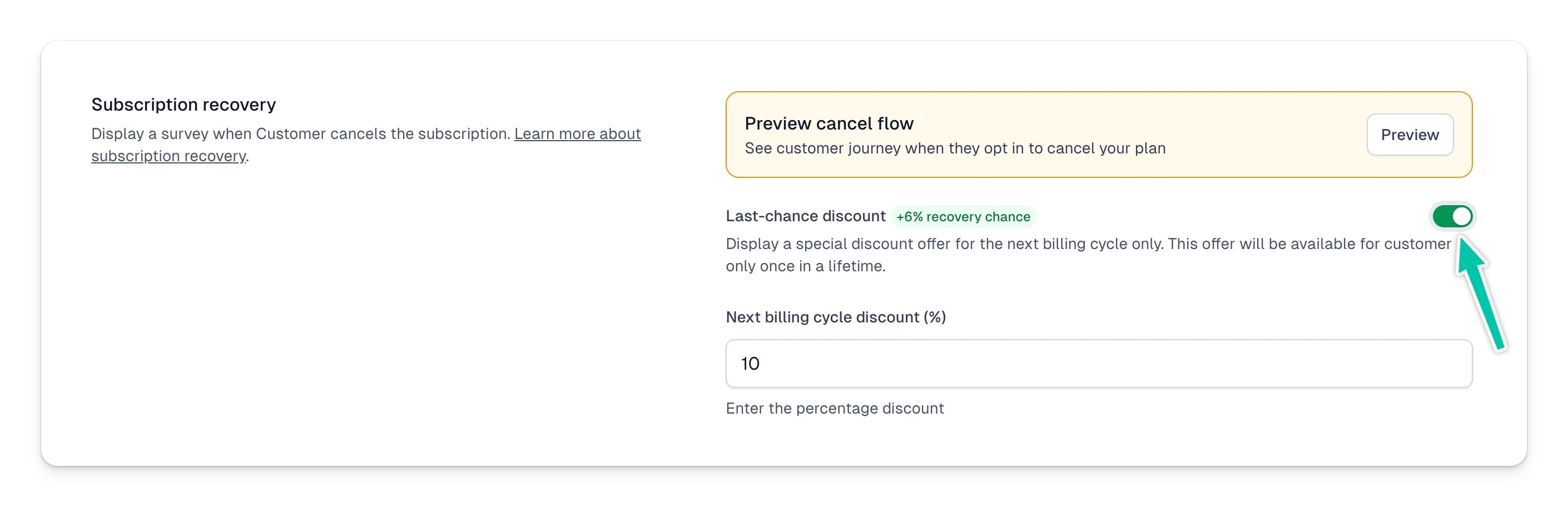
You can set any percentage discount from 1% to 100%. And that's how the discount will be displayed on the modal:
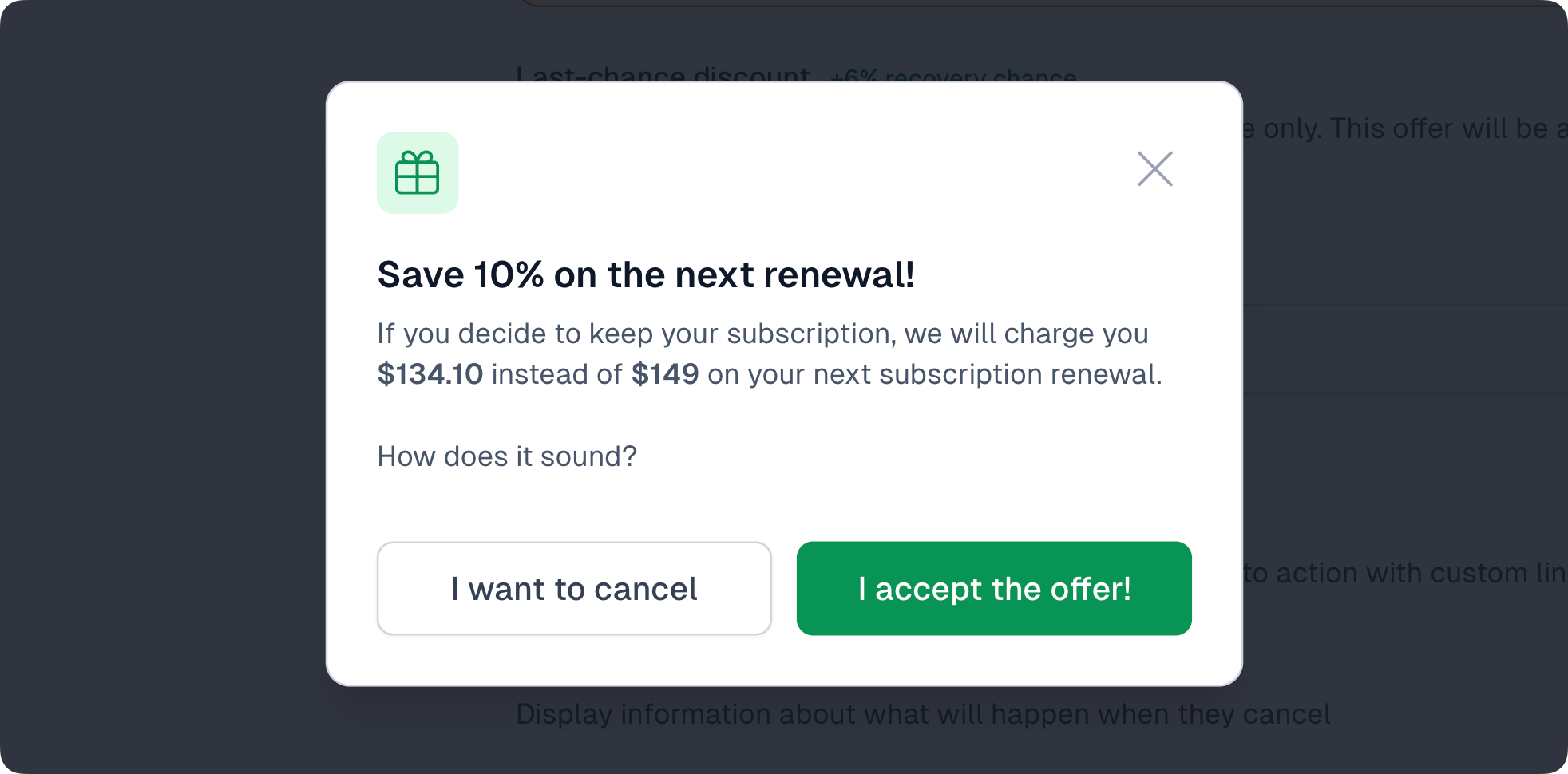
## **“Schedule a call” modal**
Display an option to schedule a call or take another action using a custom link. This modal allows you to provide a link to your calendar so the customer can book a call.
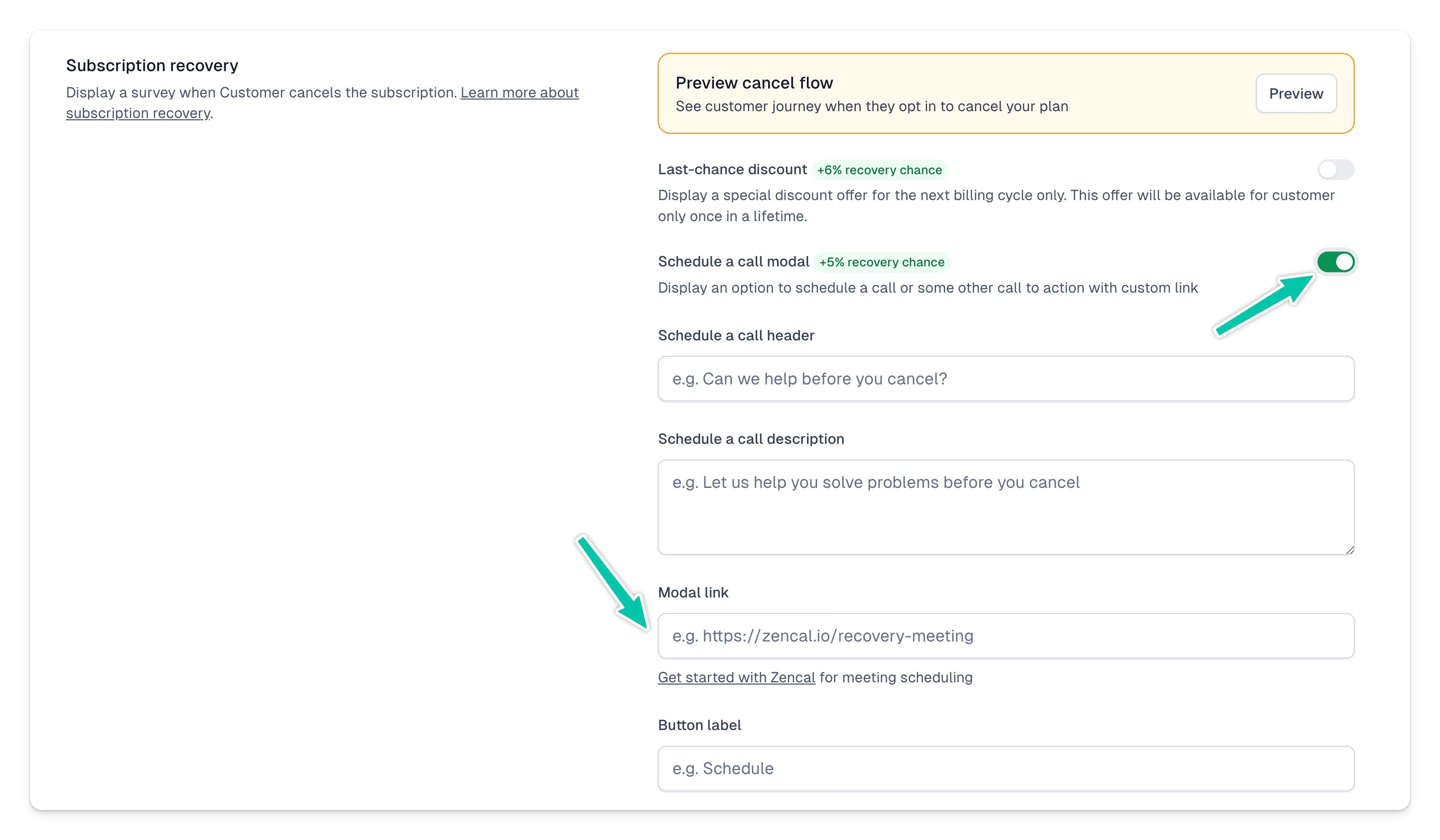
You can customize the content of the modal by setting:
- **Call header** - an attention-grabbing title encouraging the customer to schedule a call.
- **Call description** - a short text explaining the purpose of the call or the benefits for the customer.
- **Link** - the URL where the customer can book a time or access the reservation form.
- **Button Label** - the action button text, e.g., “Schedule a Call,” “Let’s Talk Now,” or “Check Available Slots.”
Example of a completed modal:
## “What you miss” modal
Display a modal showing the customer the benefits they will lose after canceling.
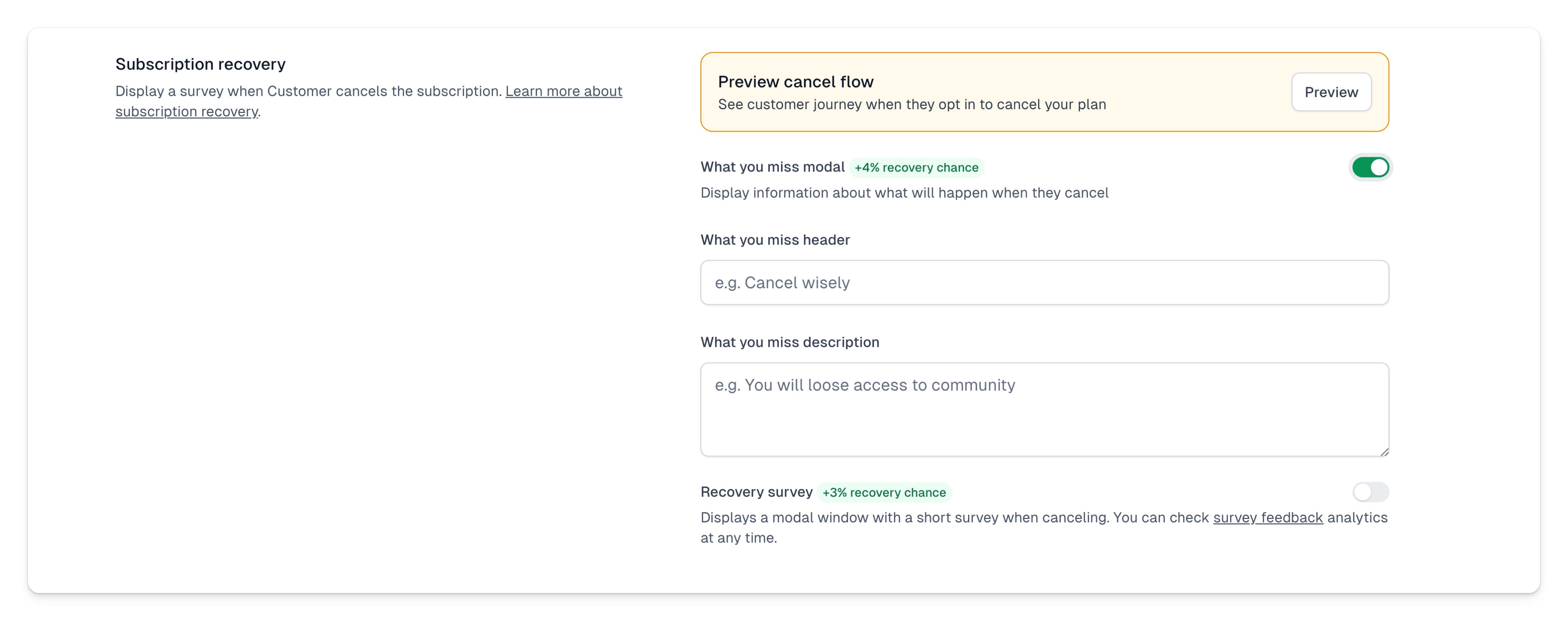
You can customize how the modal will display by setting:
- **What you miss header** - text displayed at the top of the modal, e.g. _“Before you cancel…”_ or _“What you’ll lose after canceling your subscription.”_
- **What you miss description** - additional information or persuasive text encouraging the customer to stay.
And that's how your modal will display:
## Subscription cancellation survey
Additionally, you can enable a cancellation survey to understand why users are canceling, which can increase your chances of session recovery. After enabling the Recovery survey, you'll see default responses for common cancellation reasons. You can also customize the list by:
- Editing or deleting existing responses
- Adding new responses
- Reordering responses by dragging them up or down the list
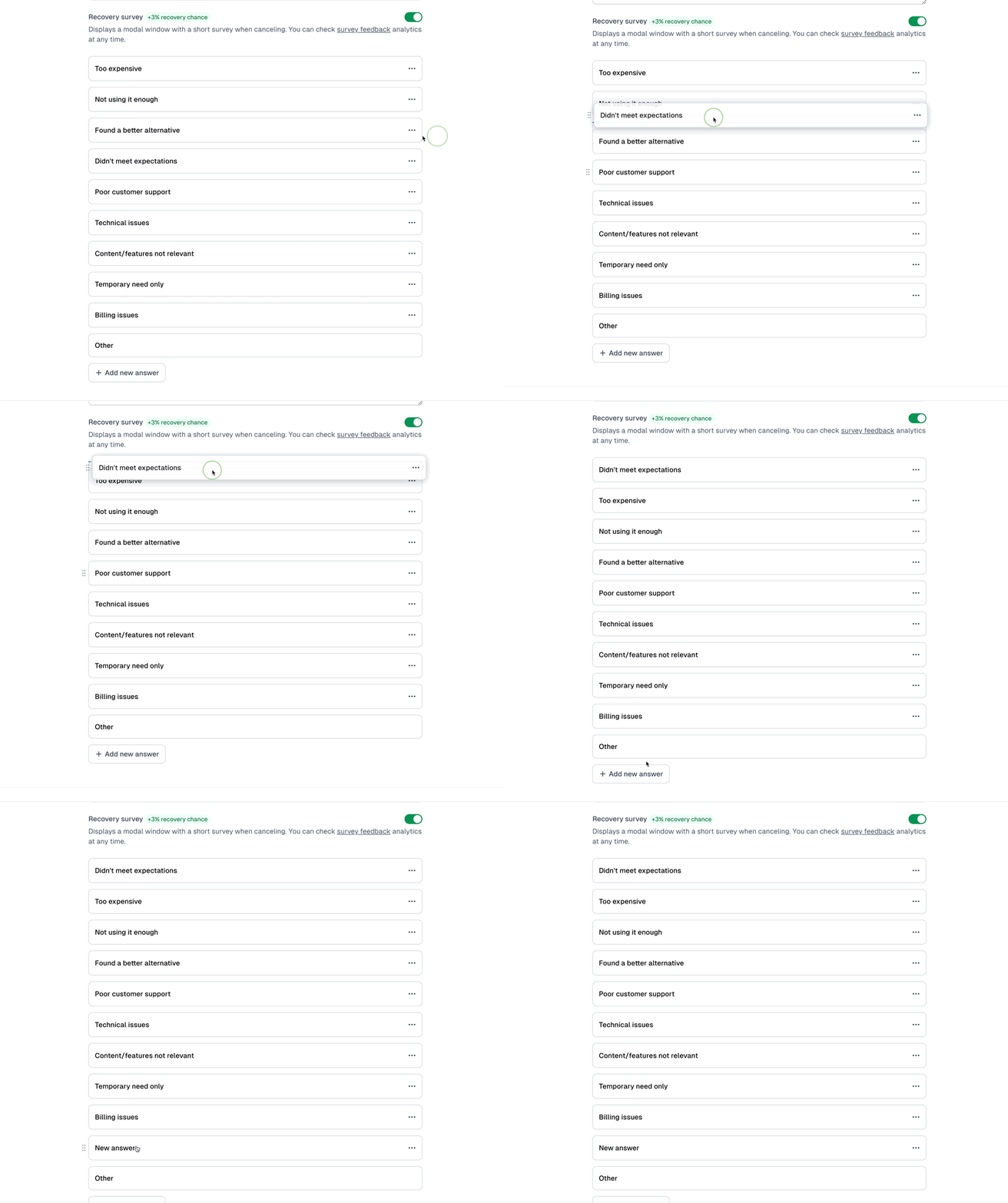
That's how the cancellation survey will display:
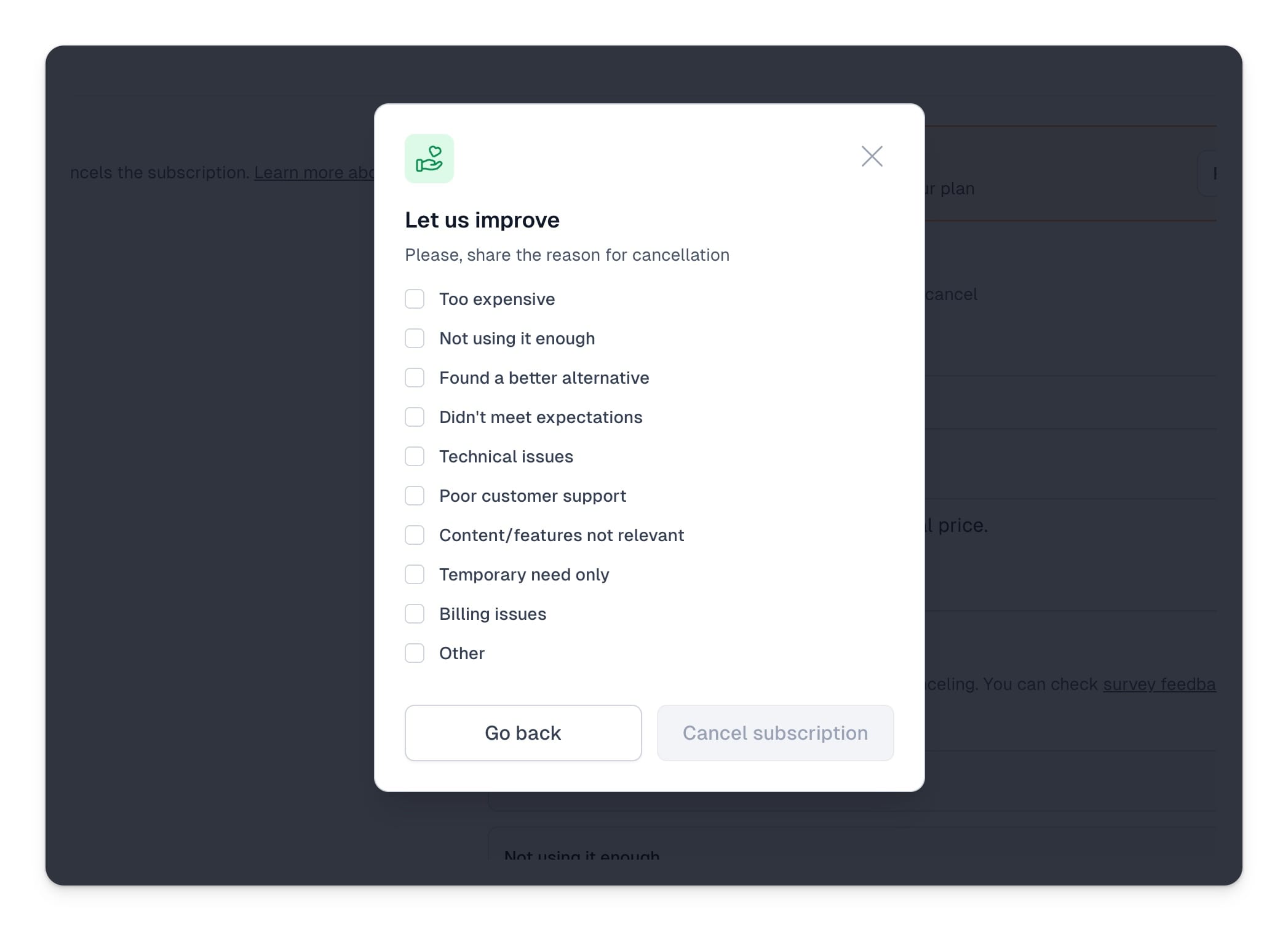
If a customer decides to cancel their subscription despite seeing the your recovery modals and completing the **Cancellation survey**, they'll see the following confirmation modal:
## Recovery surveys
You can view all completed cancellation surveys in the [**Surveys**](https://cart.easy.tools/creator/sessions/surveys) tab. All responses will be aggregated, so you can see how many users selected each option. You can filter the list by data range and product. You can also download a CSV file that will include details of each specific survey:
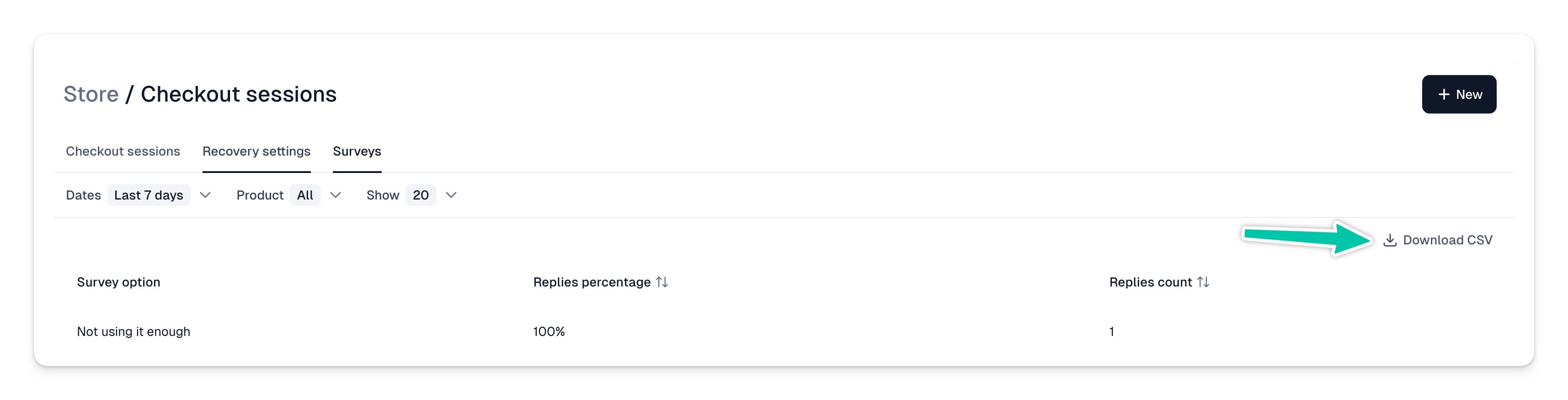
At any time, you can test the subscription recovery process using the **Preview** button.
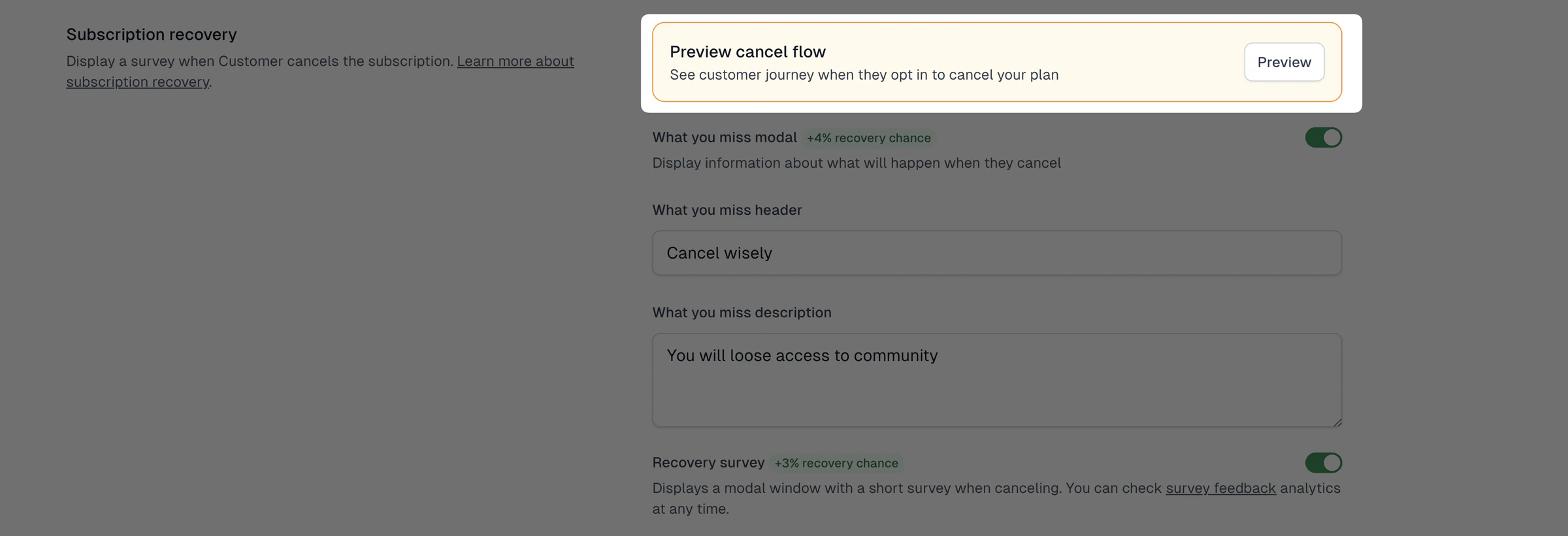
---
## Upsells
Category: sell-your-products / discounts-and-upsells
URL: https://www.easy.tools/docs/upsells
The upsell feature in Easycart allows you to link two product variants and display them in the checkout on a single tile.
This enables users to immediately see another related product variant, such as a longer subscription period.
As a result, you can achieve this product display effect in the checkout:
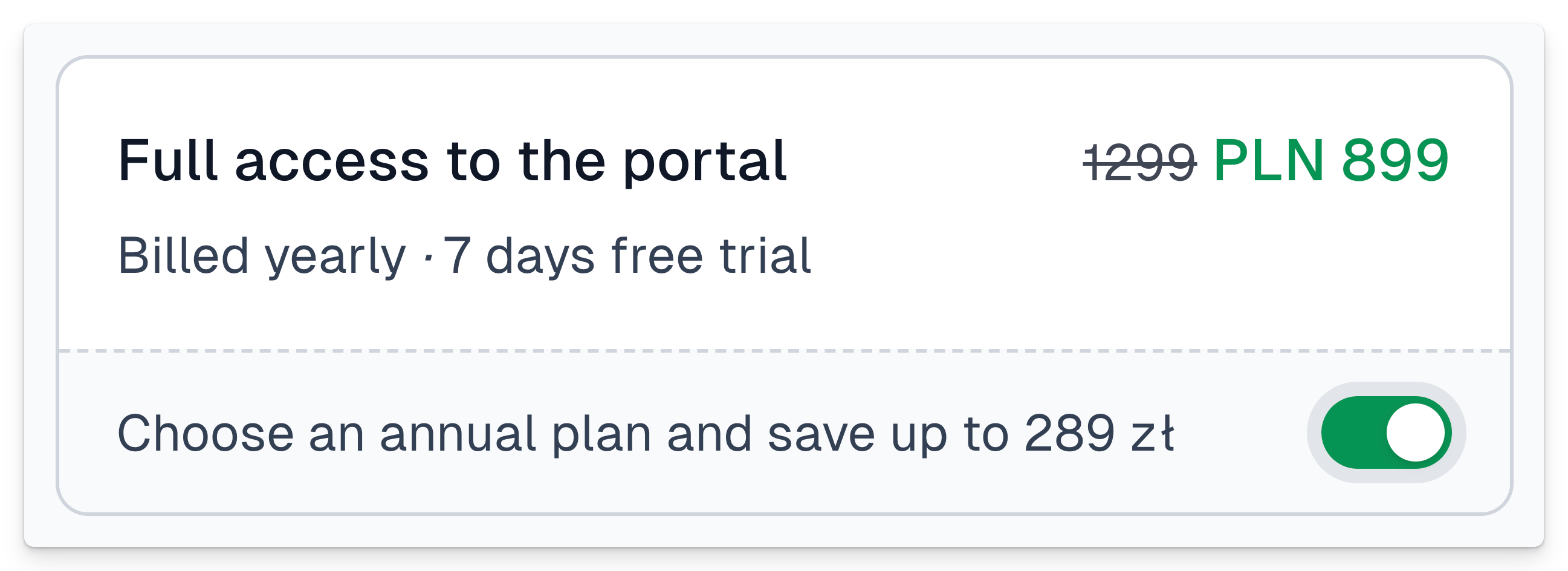
## Configuring upsell variant
To add an upsell option to your checkout:
1. Ensure that at least two different variants are assigned to your product
2. Go to **Product** → **Basic**, then click **This is an upsell**
3. Select the variants you want to link together
4. Add a description in the **Upsell description** section
After selecting the variant to be offered as an upsell, you will see how the linked products will appear in **Preview** mode. Once you publish the checkout, users will be able to select the additional offered variant by clicking the toggle.
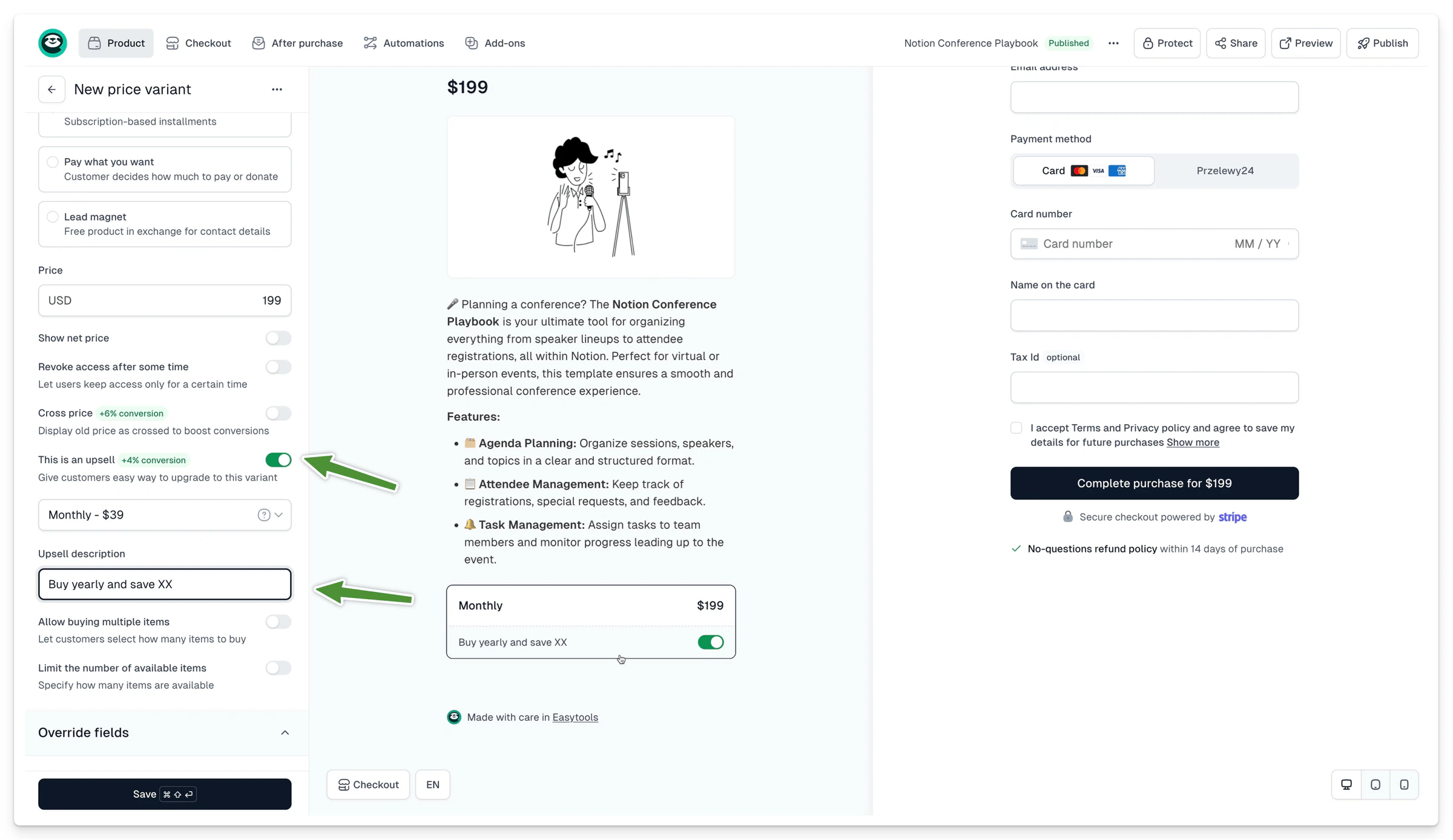
### Multiple upsells
Similarly, you can assign multiple upsells to a single pricing variant by using the **\+ Add Another Upsell** button. To enable this option, you must have at least 3 active pricing variants for the product.
When multiple upsells are configured, the customer can select only one of them. For this reason, upsells should be structured progressively, with each option representing an extended version of the previous one.
Example structure:
- Ebook Standard
- Ebook Standard + Add-ons
- Ebook Standard + Add-ons + Consultation
This approach allows customers to choose the package that best fits their needs while keeping the offer clear and easy to understand.
---
## Cross-sells
Category: sell-your-products / discounts-and-upsells
URL: https://www.easy.tools/docs/cross-sells
Easytools allows you to offer complementary products right after a customer buys - on the Thank You page or in the confirmation email.
Just pick the product you want to promote, and we’ll automatically show it to the customer right after they wrap up their purchase.
Want to build a more advanced funnel? Add multiple cross-sell and down-sell offers and arrange them in a flow using our drag-and-drop editor.
## Creating a cross-sell option
To create a cross-sell option open your cart configurator and from the top menu choose **Add-ons → Cross-sells.** Then click **\+ New.**
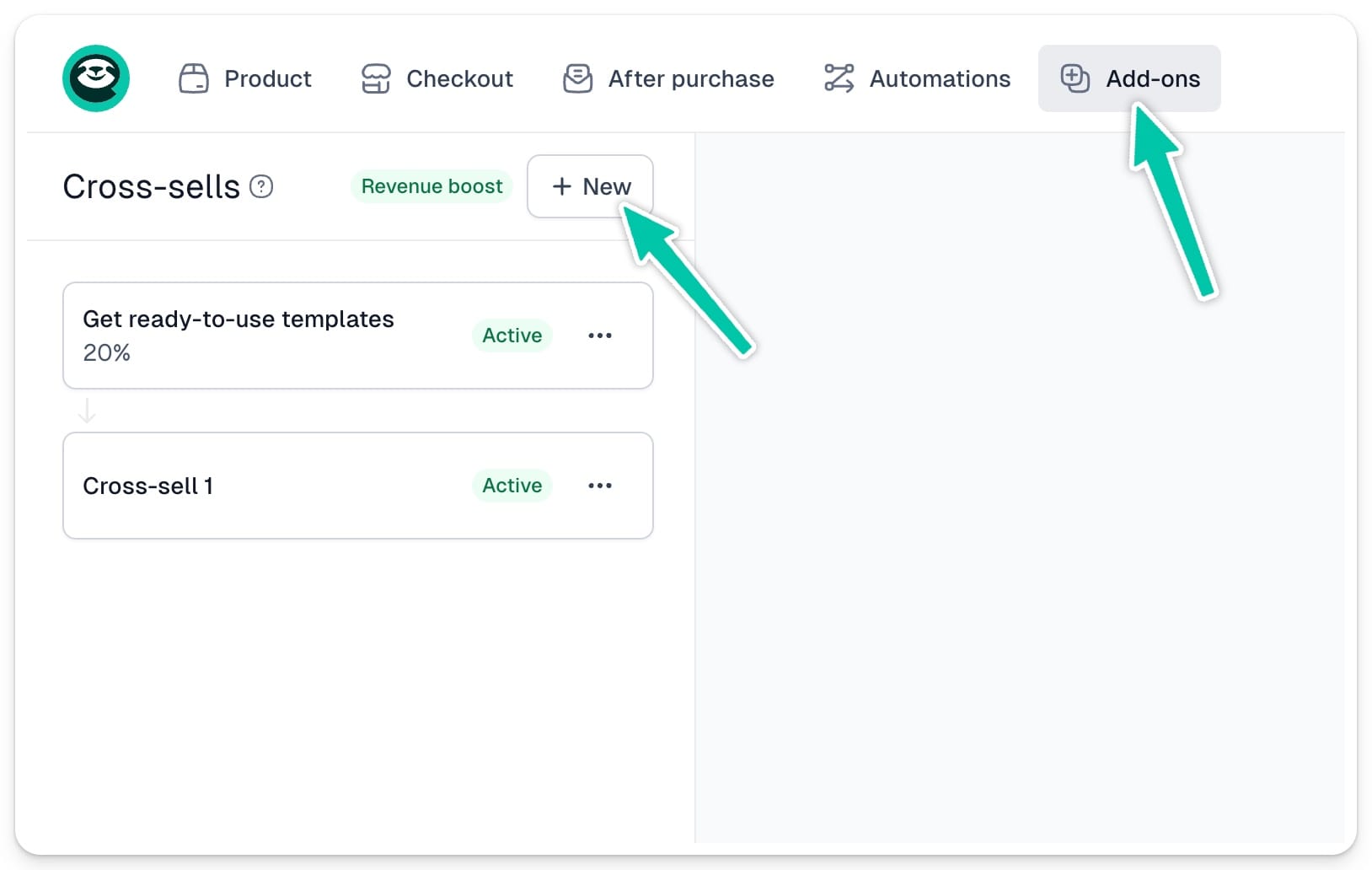
First step is choosing a parent cross-sell. We will later use it to create dependencies between cross-sell and down-sell options.
But let’s start with selecting the **Product to cross-sell** and its **Price variant.**
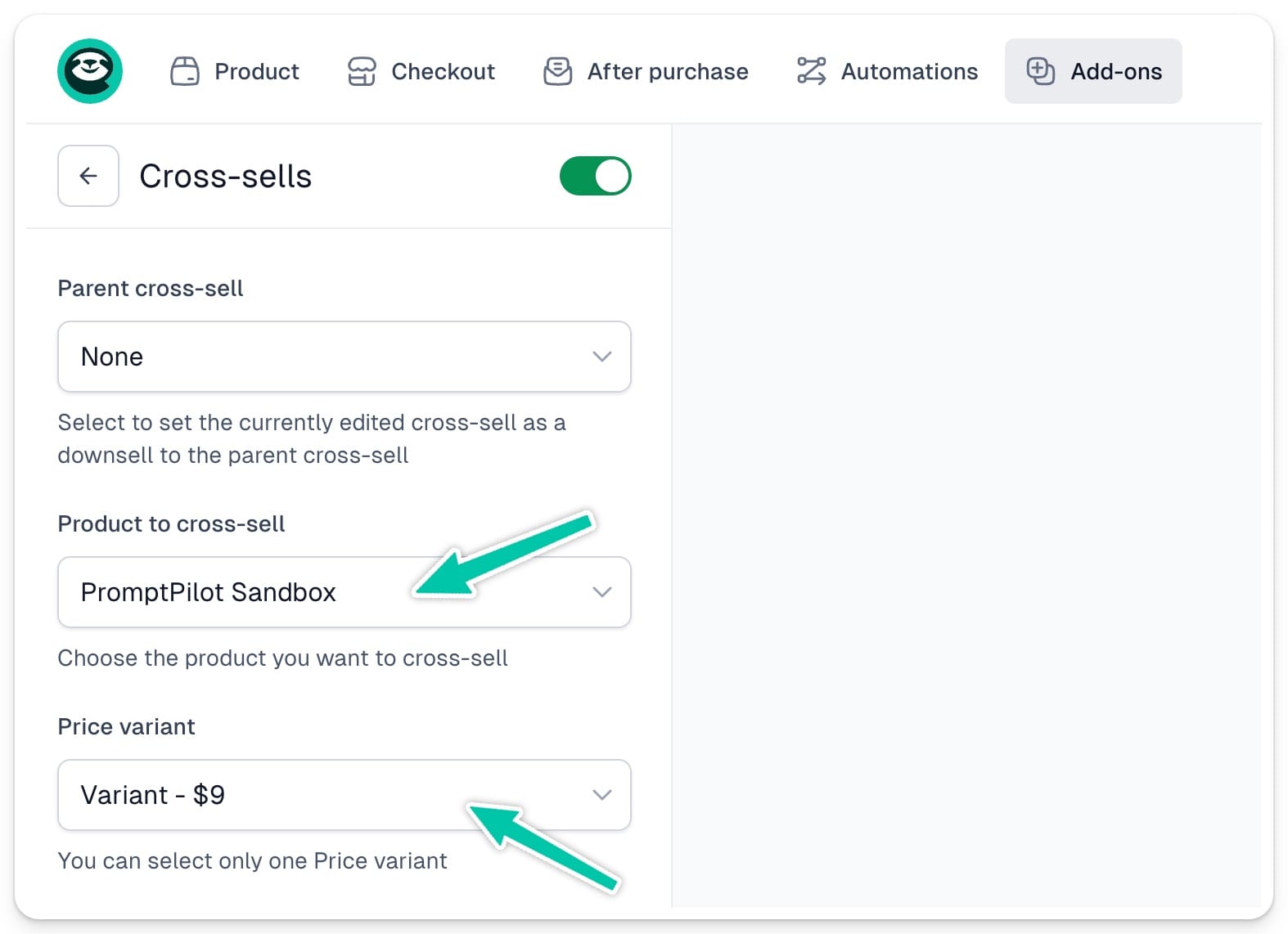
> **Important:** If the product you want to use as a cross-sell has several price variants, you will only be able to choose one of them.
### Editing descriptions
Then you can enter cross-sell offer **Title** and **Main description**. You can also override original product description.
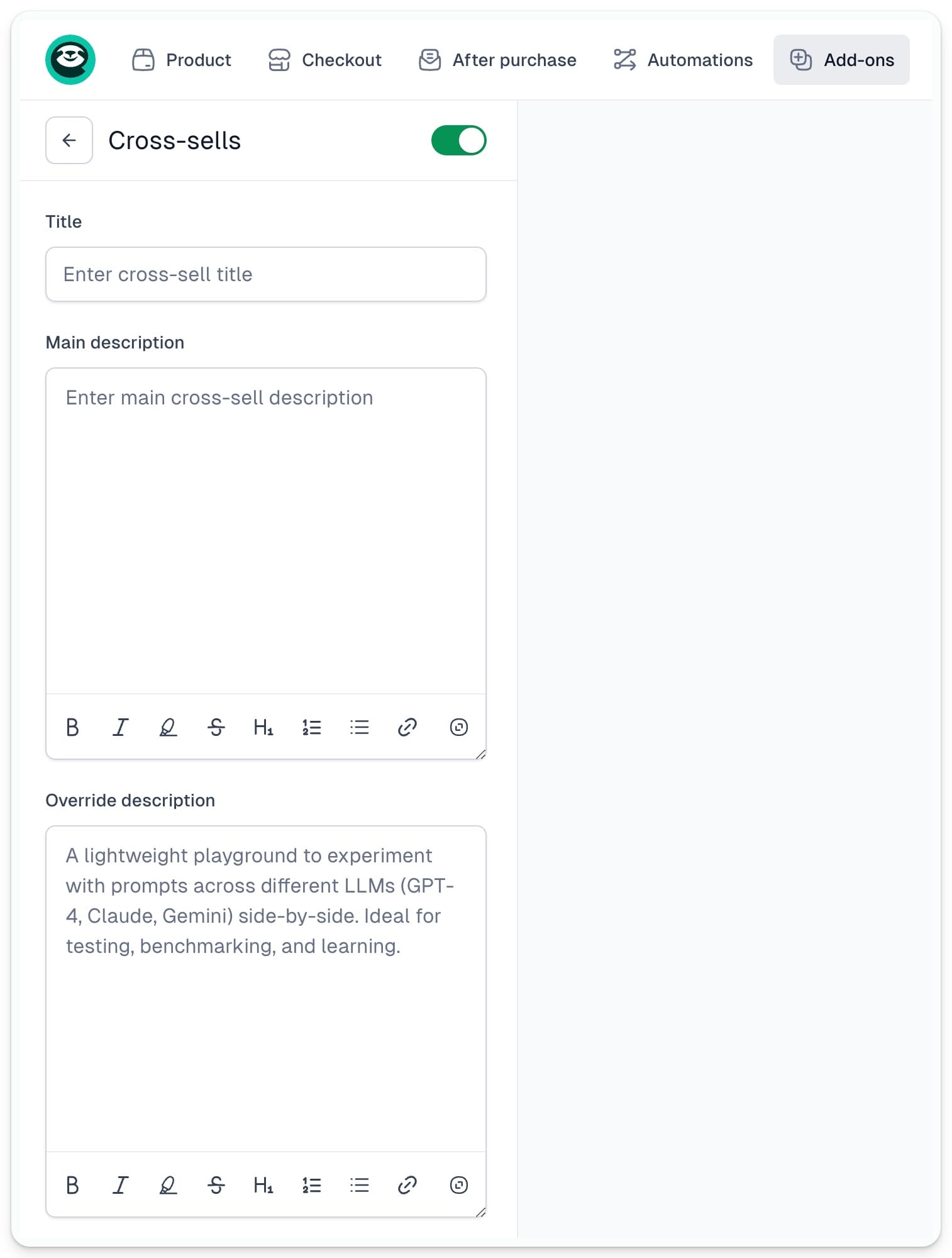
The **Title** and **Main description** will display on top of cross-sell card:
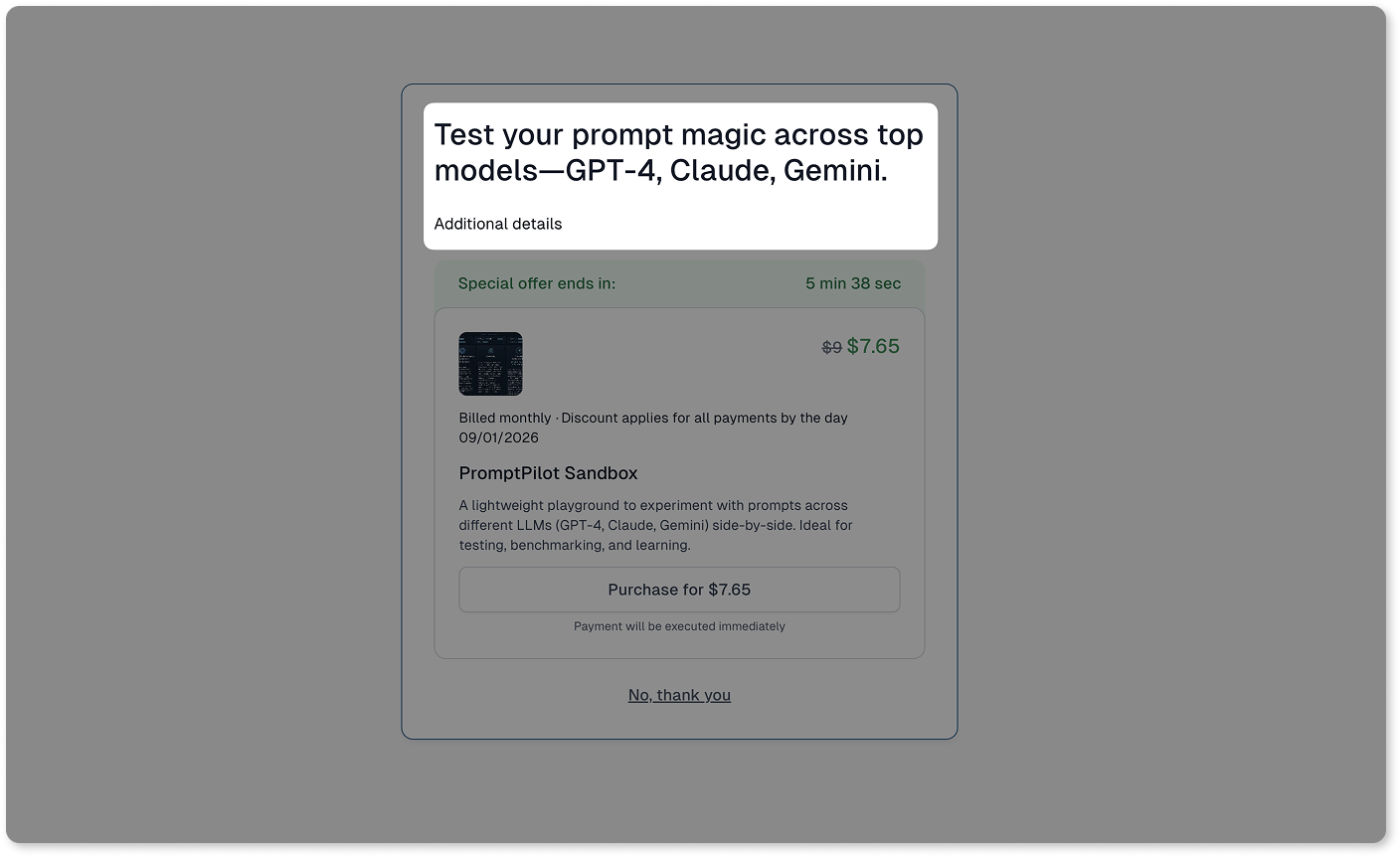
And the product description will appear here:
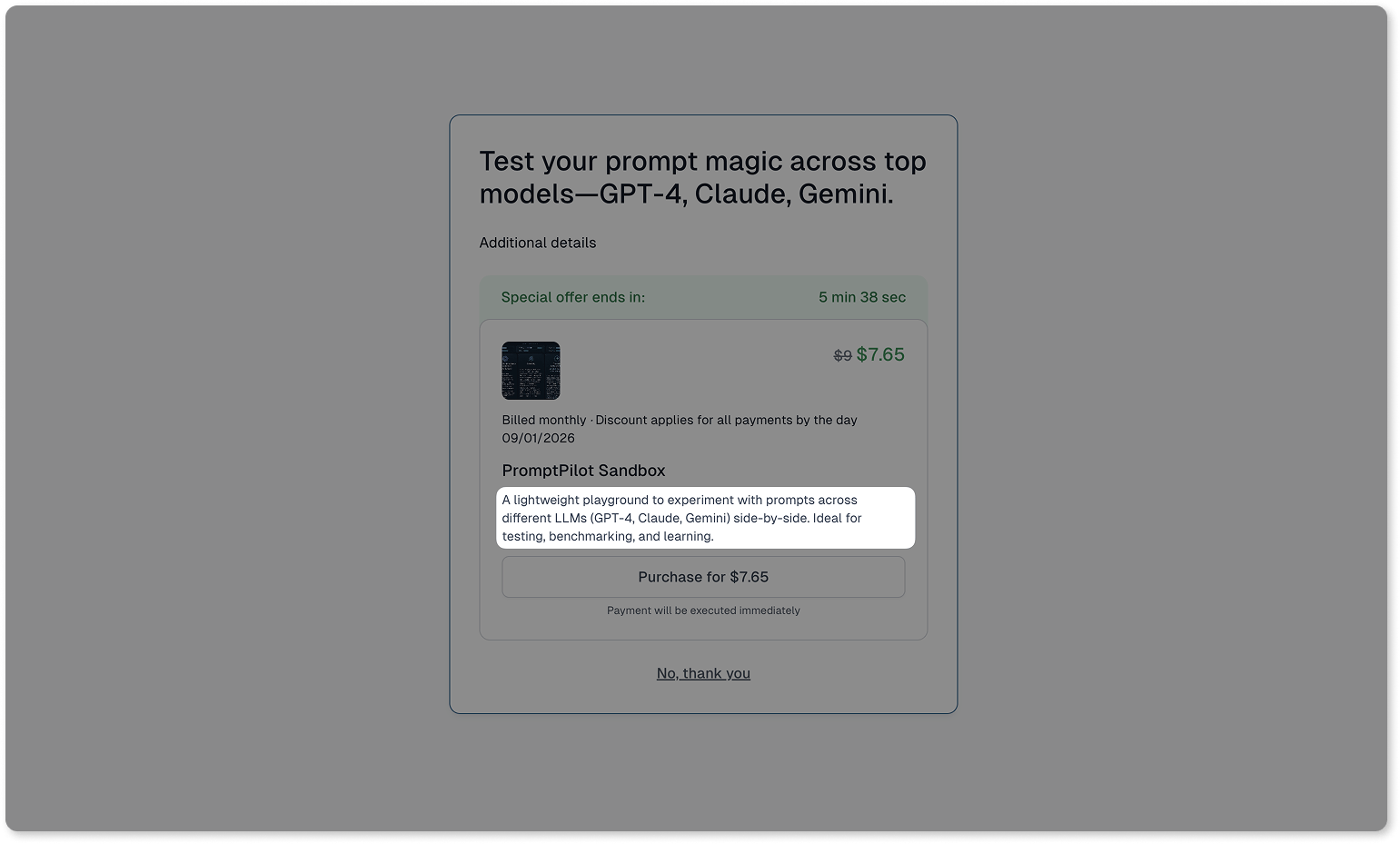
Next, you can change the button text - by default it will display **Purchase for \[product price\]**.
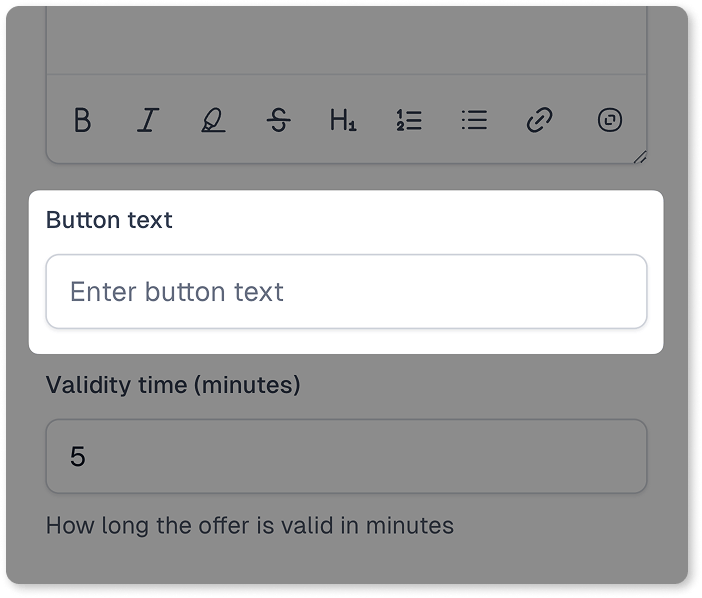
### Setting offer validity
You can then choose for how long after the original purchase, your customer will be able to purchase the cross-sell option. Simply set up the number of minutes for how long the offer will be valid.
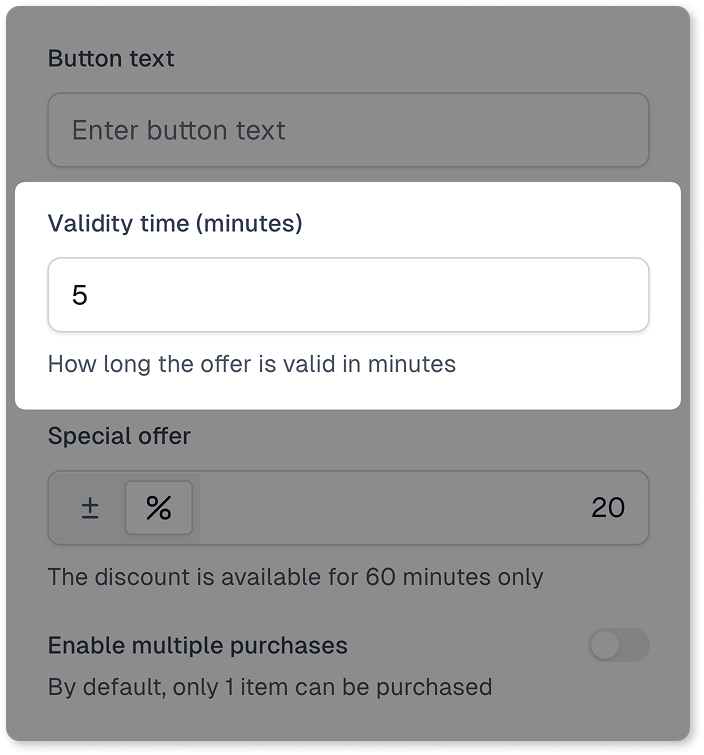
The timer counting down till the end of the offer will automatically display on the cross-sell card:
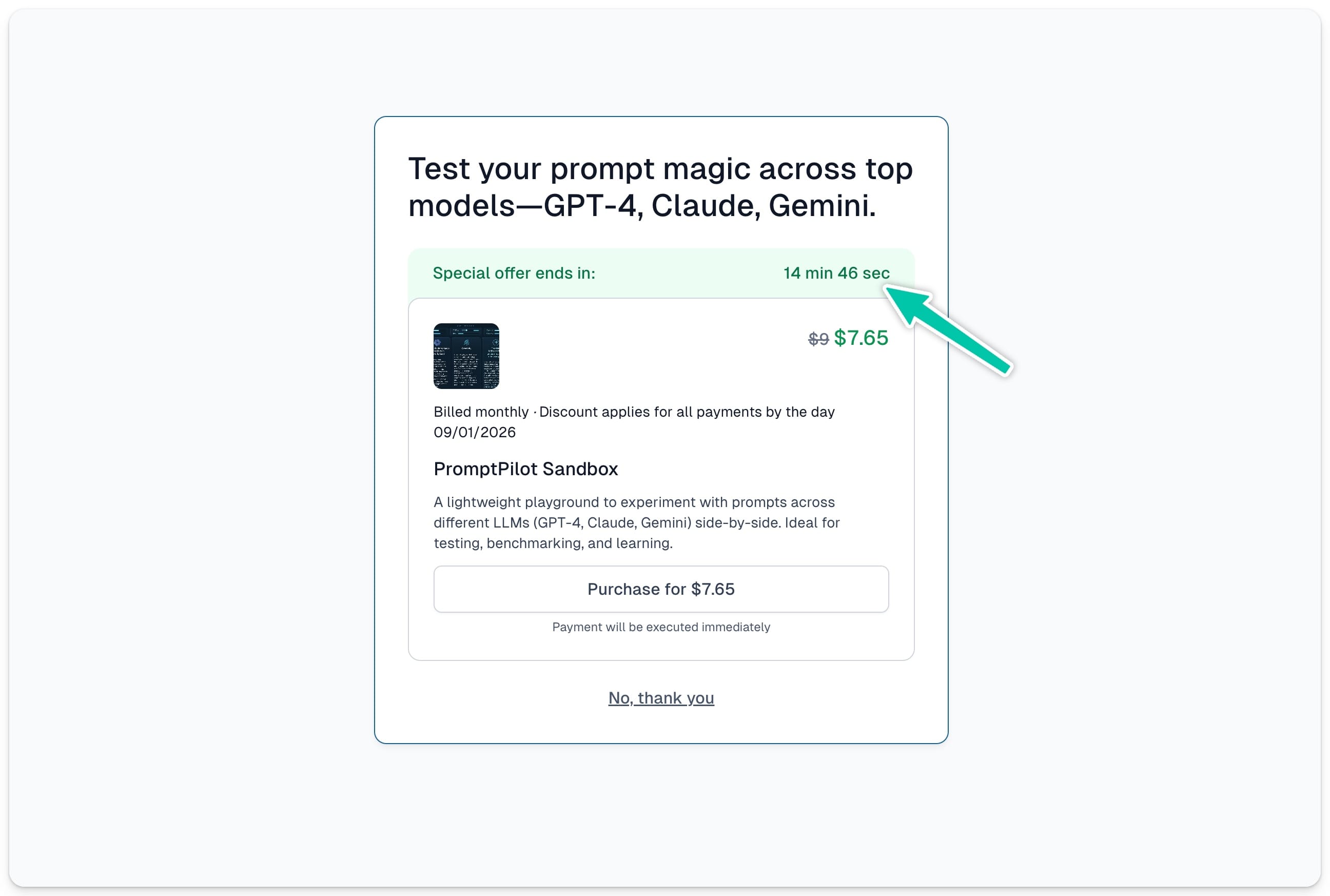
> **Important:** If you use your own Thank You pages, the cross-sell will still work, but the offer will only appear in the confirmation email and will be valid for 60 minutes.
### Adding special offer
Next, you can set up a special offer for your cross-sell to give your customer an extra push to make a purchase.
> Adding a numerical or percentage discount to the cross-sell option significantly increases the conversion rate.
You can choose the flat discount or a percentage off. Then simply enter the value in **Special offer** field. That’s how the discounted cross-sell option will display:
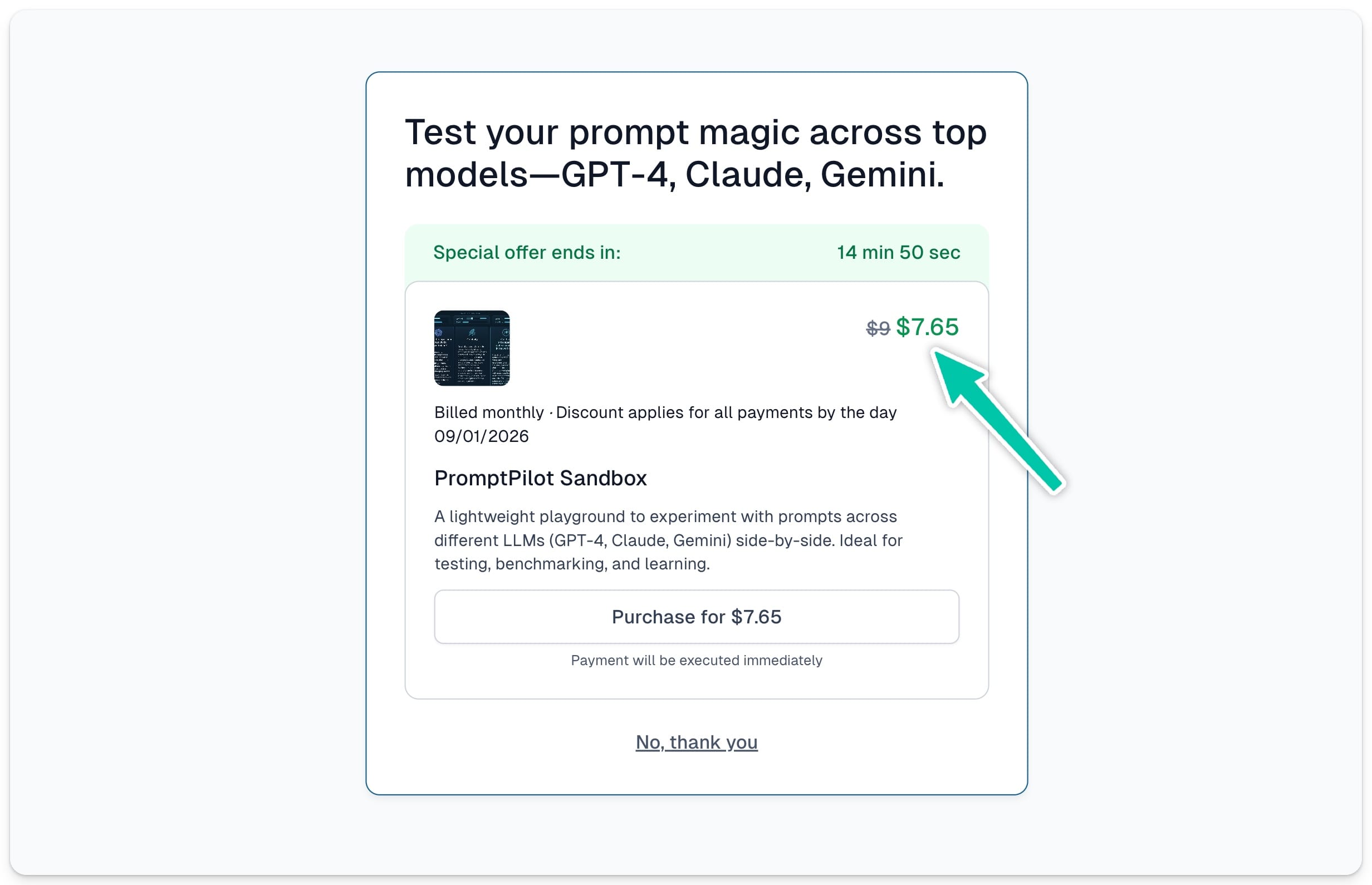
If the cross-sell option is a subscription-based product, you will also need to choose **Discount duration**:
- For the first cycle
- Forever
- For multiple months
When you opt in for **“For multiple months”** option, we will also ask you to set the **Duration in months**:
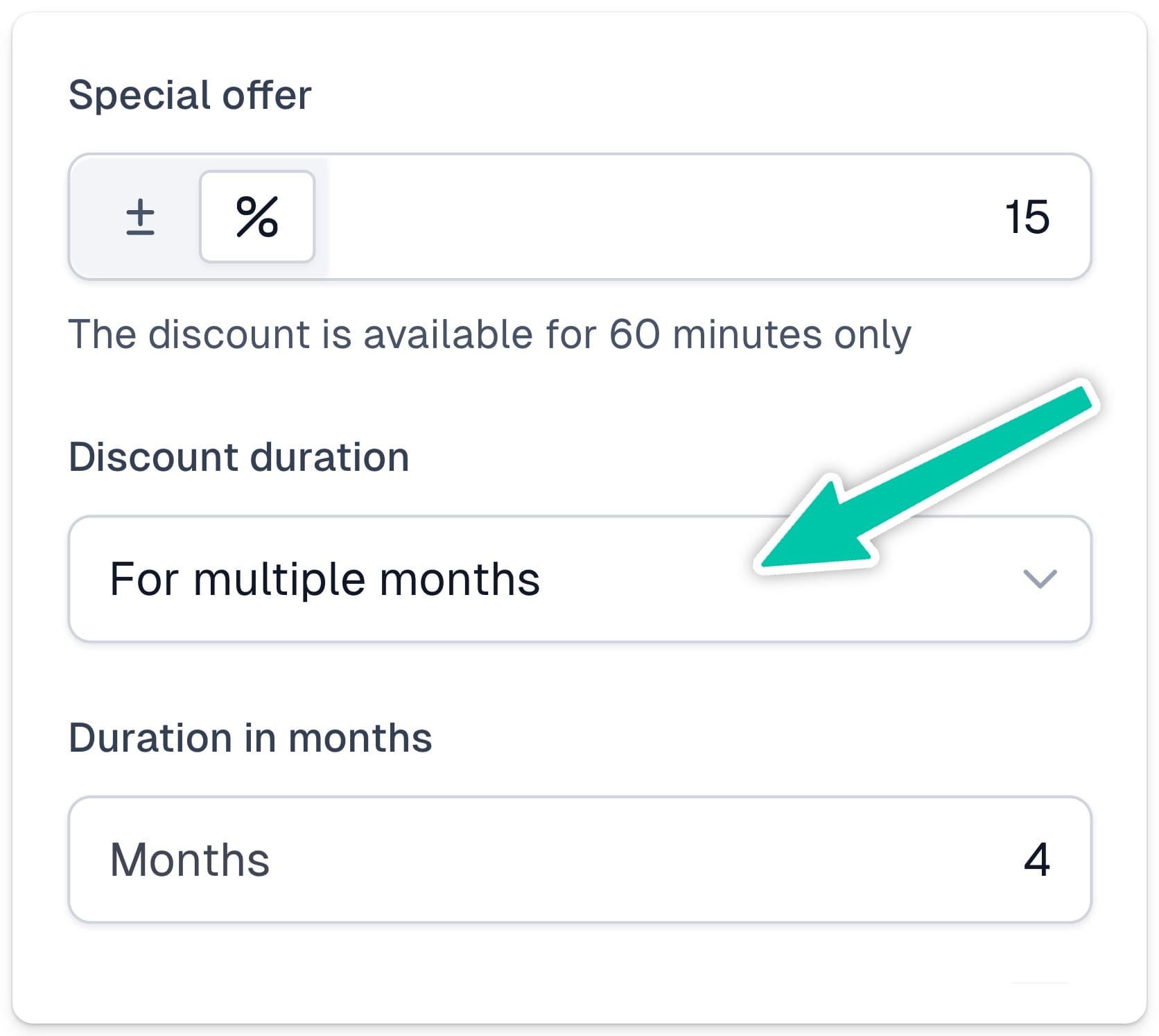
### Enabling multiple purchases
Next, you can choose how many items will be available in your cross-sell offer. By default, each customer is able to purchase 1 item, but you can change that by toggling the option **Enable multiple purchases**.
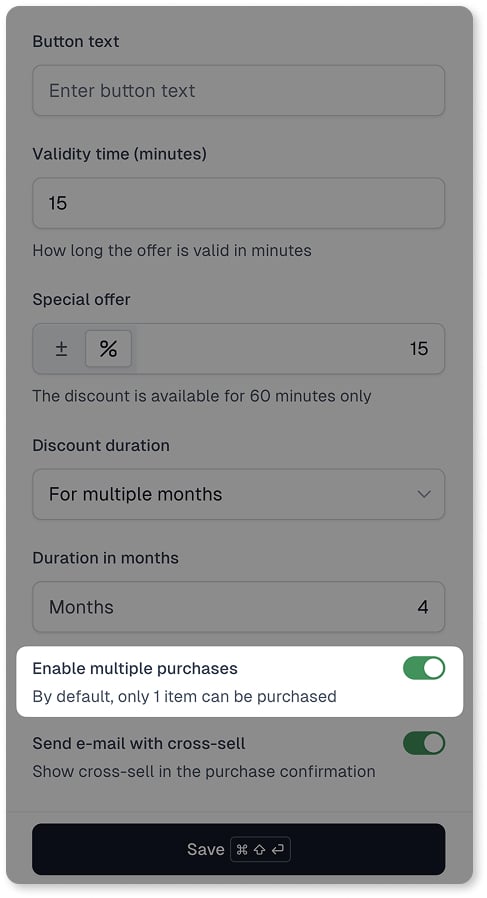
### Sending e-mail with cross-sell
In the last step, you can define whether you also want to send your cross-sell offer to your customer via email. If you toggle the option **Send e-mail with cross-sell** on, we will automatically add your special offer at the bottom of the Purchase confirmation email:
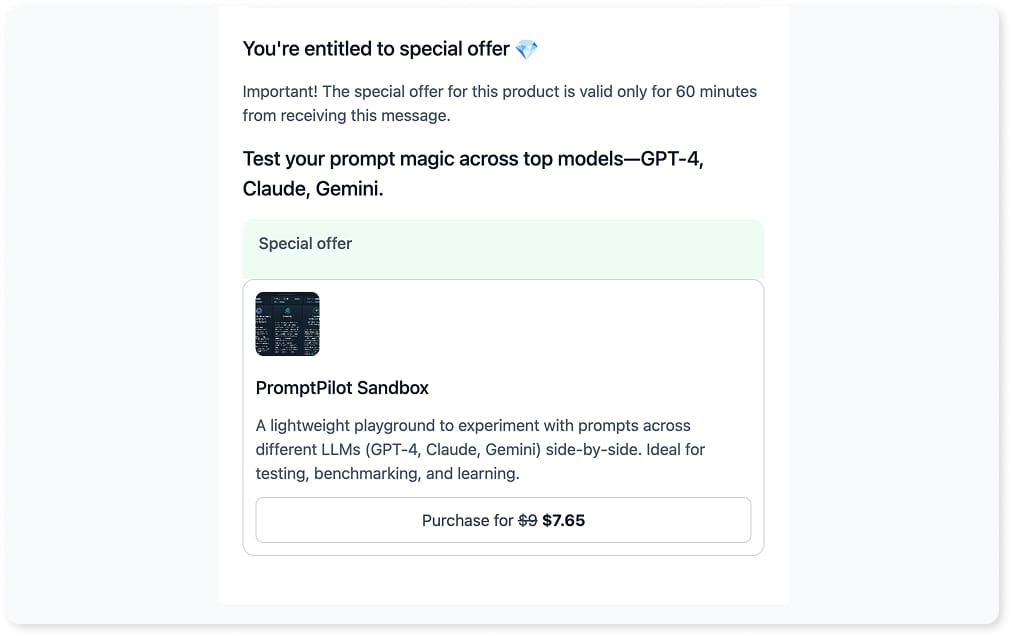
> The cross-sell offer send via email is by default valid for 60 minutes.
## Creating sales funnels
Let’s now build a more advanced funnel with multiple cross-sell and down-sell paths that adapt based on what your customer buys (or doesn’t).
Start by adding all your cross-sell options to the list.
Then, you can structure how offers appear using two methods:
- Drag & drop to nest offers under the right parent
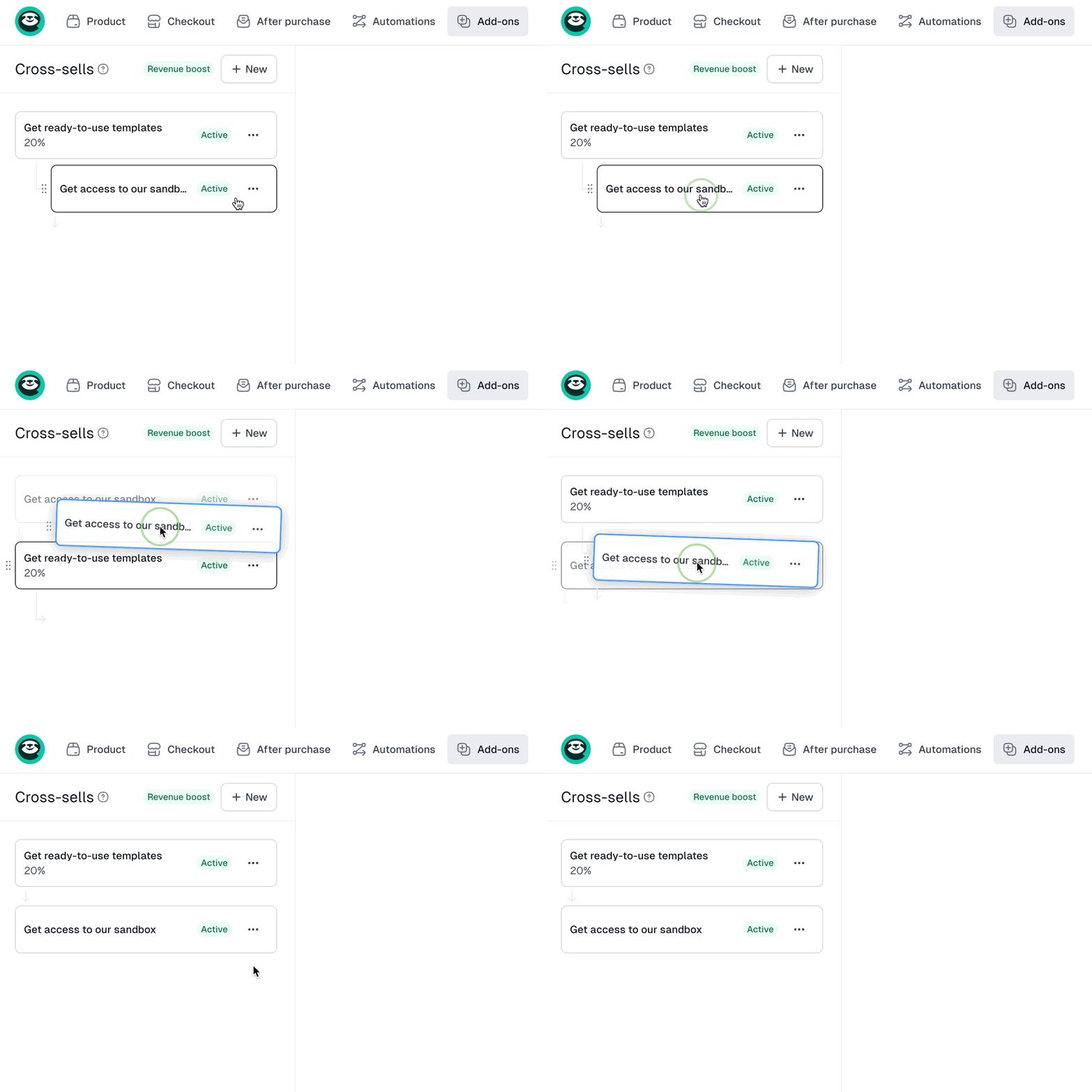
- Select a parent in the cross-sell’s settings
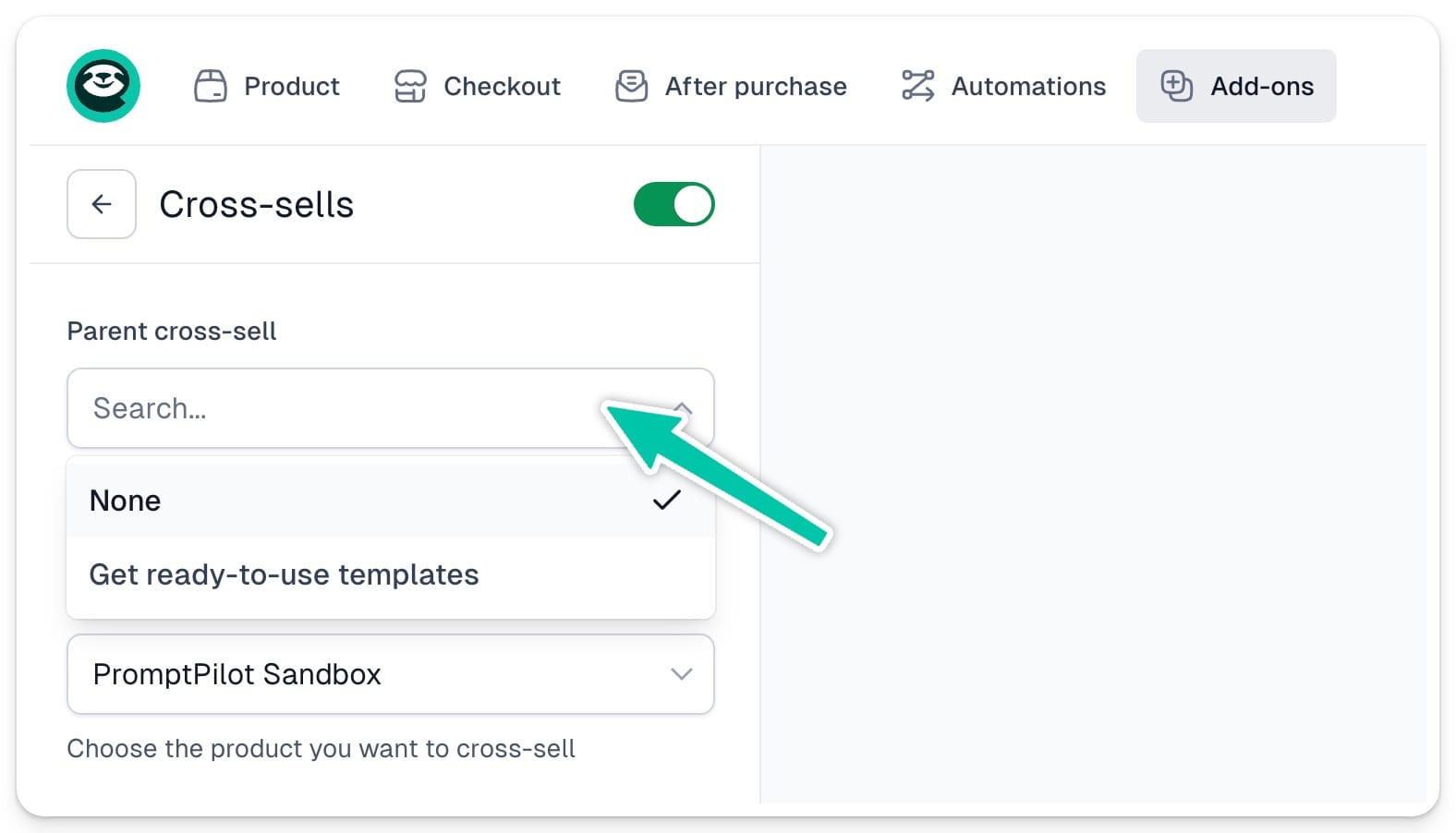
> **Important:** You can nest offers up to 3 levels deep.
### How the funnel logic works (example)
Here’s the sample funnel logic:
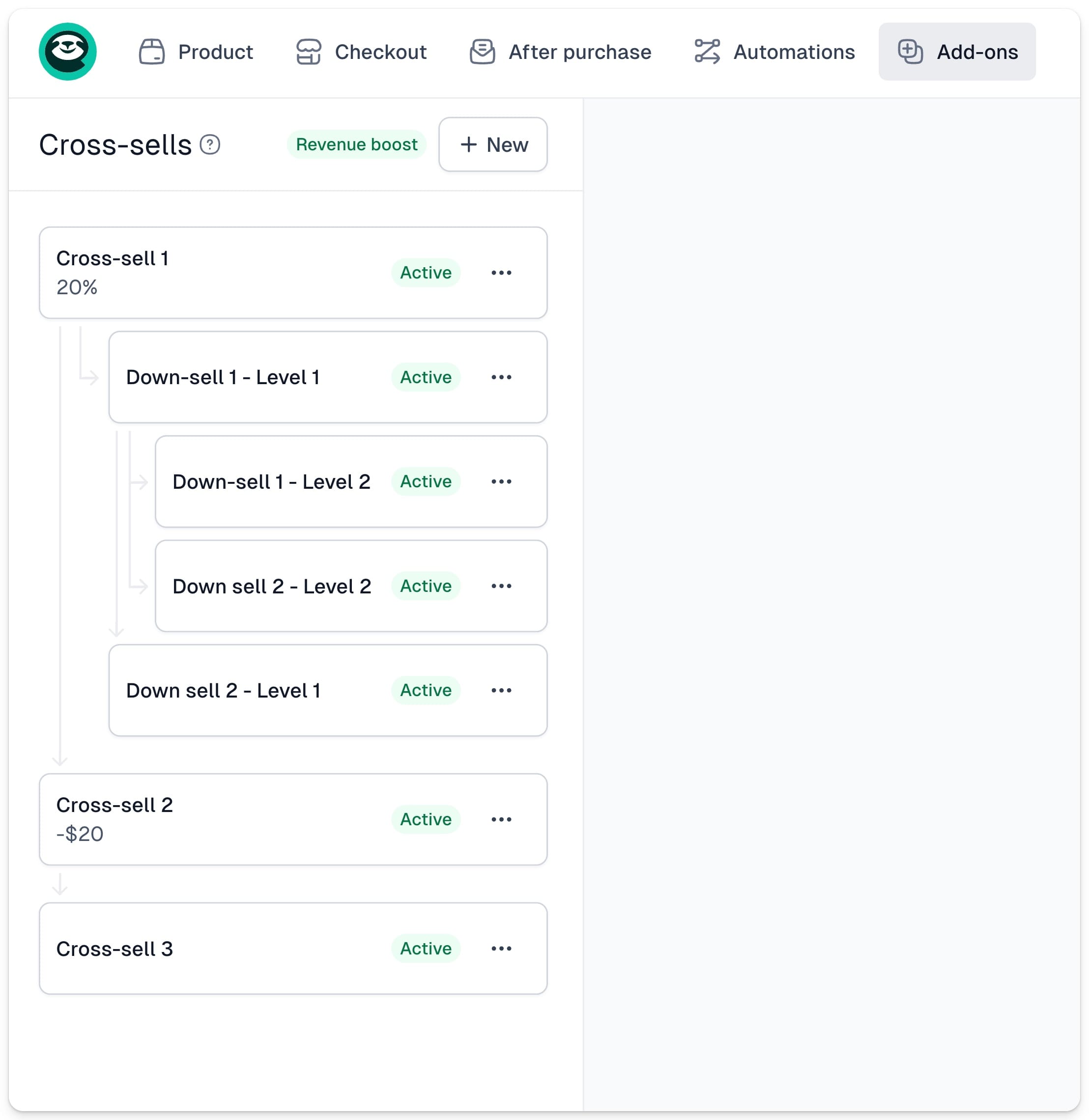
Let’s break down a few scenarios:
- If the customer buys Cross-sell 1
- → They skip all nested down-sells and go straight to Cross-sell 2, then to Cross-sell 3.
- If they skip Cross-sell 1→ They see Down-sell 1 - Level 1.
- If they buy it, they skip the nested down-sells and go to Down-sell 2 - Level 1.
- If they skip it, they see Down-sell 1 - Level 2.
- If they buy that, they move to Down-sell 2 - Level 1 (skipping the other nested offer on Level 2).
- If they skip that too, they see Down-sell 2 - Level 2.
And so on.
For each offer (cross-sell or down-sell), the general logic is:
- **If purchased** → Skip all nested offers. Go to the next one on the same level (or Thank You page if it’s the last).
- **If skipped** → Show the nested offers in the order you set.
> **Important:** If you enable automated emails with cross-sell offers, customers will only be notified about your main (level 1) cross-sells - not the nested ones.
## How does it work for your customers
In Easycart, we show cross-sell offers after purchase - not during checkout. Why? Because adding friction during checkout can hurt conversions.
> According to a Baymard study, 66% of Amazon shoppers who had to go through an additional step with a cross-sell offer before completing the transaction experienced extreme frustration.
So here’s what happens instead:
After confirming their primary purchase, the customer enters your cross-sell funnel and starts seeing offers based on the flow you created.
If they decide to buy a cross-sell, a few scenarios can occur:
- **Instant purchase** - If no extra info is needed, we’ll charge them immediately using the same payment and customer data from their original order.
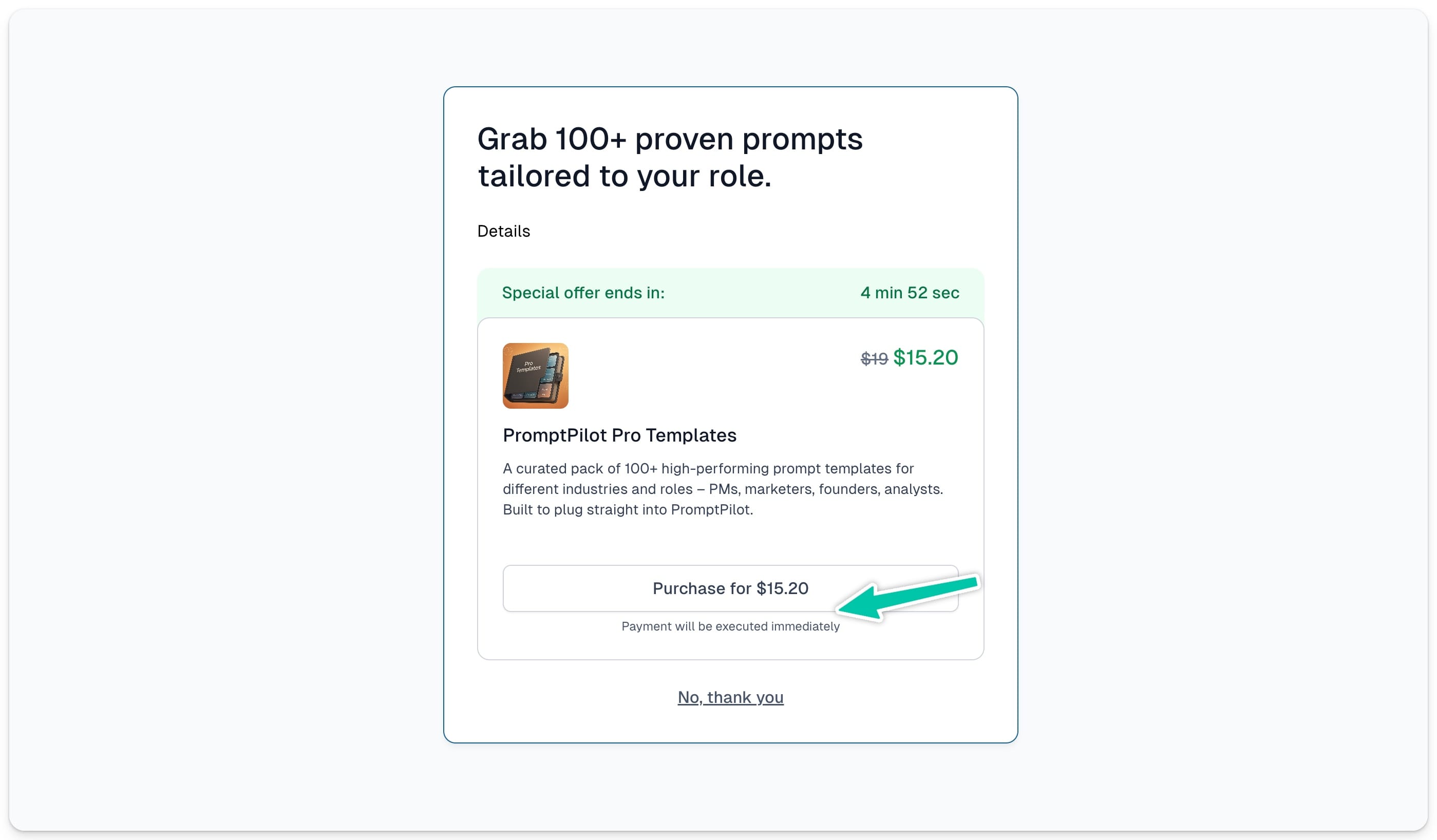
- **Purchase with Apple Pay or Google Pay** - If the customer's account doesn’t have card details assigned, but their browser supports Apple Pay or Google Pay, we will automatically suggest using this method.
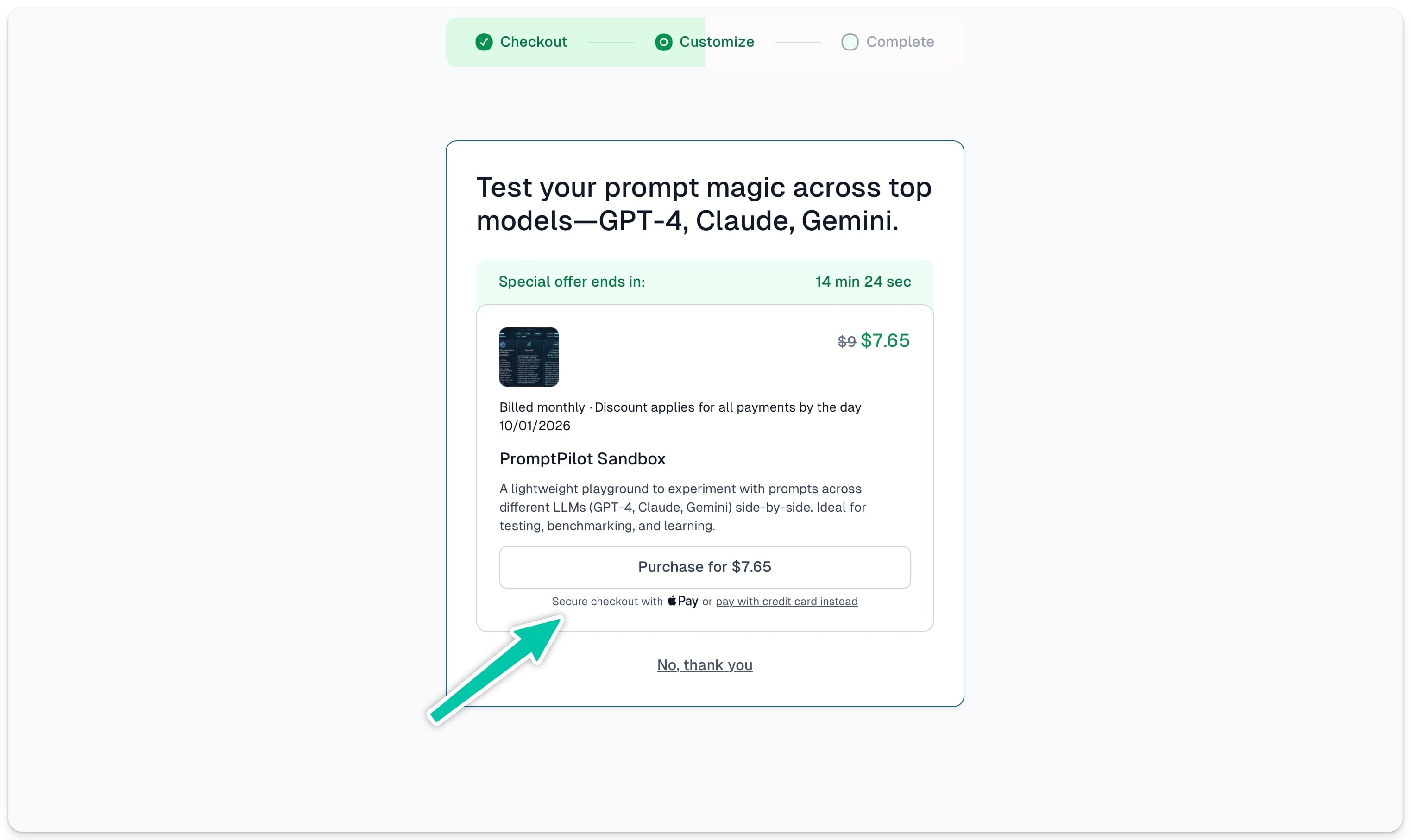
And if they prefer to provide their card information instead, they can do so by clicking **pay with credit card** and entering their card details to complete the purchase.
- **Redirect to checkout** - If the cross-sell requires extra details (like filling out a custom field), they’ll go through a quick checkout step to provide that missing info.
> **Important:** If a customer opens a cross-sell checkout that has a time-limited offer, they won’t be able to complete the purchase once the offer expires - even if the page is still open.
All the purchased product will then be visible on the final Thank You page:
---
## Create a limited-time offer with a countdown
Category: sell-your-products / discounts-and-upsells
URL: https://www.easy.tools/docs/timelimited-offer
A limited-time offer nudges customers to buy now instead of later. In Easytools you build one on a price variant - set a discounted one-time price, cross out the old price, add an end date and show a live countdown right in your checkout.
## Create the discounted price variant
1. Go to **Store** → **Products** and open the product you want to promote.
2. Open the **Product** tab, switch to **Price variants** and click **+New**.
3. Name the variant, keep **Price type** on **One-time payment** and set the promo **Price**.
## Show the price before the discount
1. Turn on **Cross price**.
2. In **Crossed price**, enter the regular price - the one from before the promo.

At checkout the old price shows crossed out next to the new one, so customers see how much they save.
## Set the end date and countdown
1. Scroll down to **Availability**.
2. Turn on **End selling at certain date** and pick the day the promo ends. After that date the price is no longer available.
3. Turn on **Show countdown timer** to display a live timer counting down to the end date.
4. Click **Save**, then **Publish**.

> Tip: A one-week window is a common choice - pick a date about seven days out.
## How it looks in the checkout
When the product has a single price variant, the countdown appears at the very top of the checkout, showing the days, hours and minutes left. The discounted price sits next to the crossed-out old price.
## Create a hidden variant for selected customers
Sometimes you want a special price that only certain people can reach - one that is not visible to everyone in the checkout.
1. Click **+New** to add another price variant.
2. Turn on **Hide this variant in checkout**.
3. Choose the **Price type**, set the **Price**, then **Save** and **Publish**.

## Share the hidden variant's link
1. Click **Share** in the top bar.
2. Under **Create link for**, choose the hidden variant.
3. Click **Copy link** and send it to your customer.

> Important: Only people who have this direct link can reach the hidden price variant.
Want more detail on each part? See [crossed prices](/docs/crossed-prices), [hidden variants](/docs/hidden-variants) and [sharing checkout links](/docs/sharing-checkout-links).
---
## Discounts
Category: sell-your-products / discounts-and-upsells
URL: https://www.easy.tools/docs/discounts
In Easytools, you can add discount codes for your products.To enable this feature:
1. Go to **Product Edit** in the dashboard.
2. Navigate to **Checkout → Discount**, then click the +**New** button.
3. Give the code a name and choose whether the discount will be a fixed amount or a percentage.
4. The discount code is applied to the entire product. Additionally, you can set an expiration date for the code.
5. Make sure to mark the code as **Active** and publish the product.
### Advanced Settings
In the advanced settings, you have three additional options:
1. Limit the number of times a discount code can be used, e.g., 10 uses, after which the code will automatically deactivate.
2. Allow discount codes to be used only by new customers.
3. Set a minimum order amount required to use the discount code.
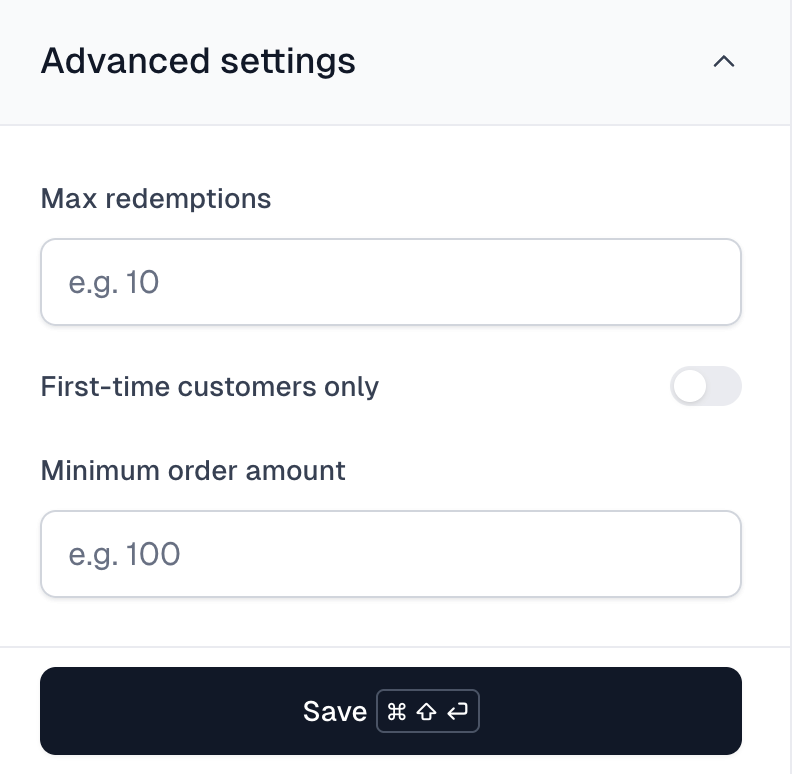
### Creating Global Discount Codes for All Products
In Easytools, you can also create a single code that applies to all products.
To enable this feature:
1. Go to [**Store → Discount Codes**](https://cart.easy.tools/creator/discount-codes).
2. Click the **New discount code** button.
3. Give the code a name.
4. Check the **Discount for All Products** option.
5. Choose whether the discount will be a fixed amount or a percentage.
6. Optionally, you can apply the advanced settings.
7. Save the discount code by clicking **Create**.
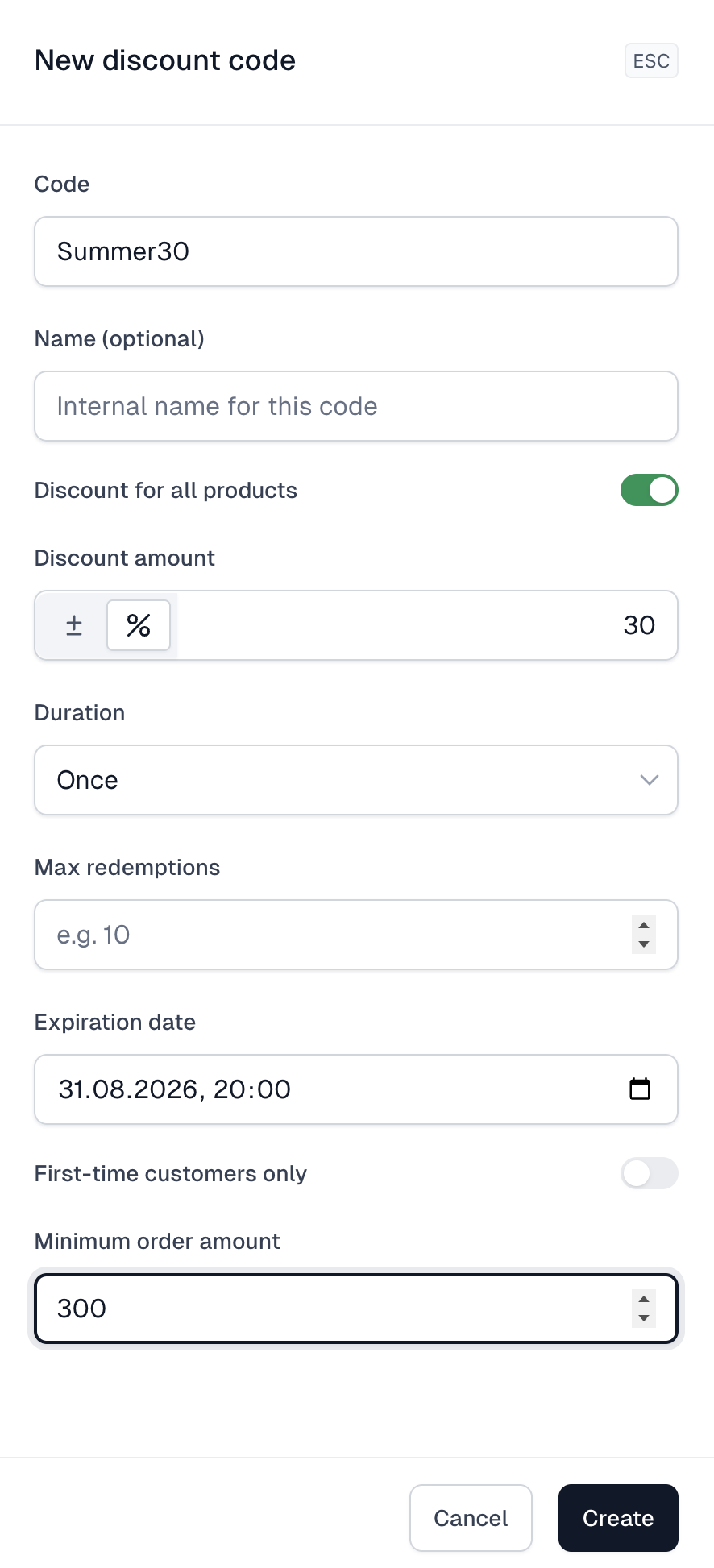
### How to Use Discount Codes in EasyCart
1. In **Checkout → Discount**, you can enable the option **Show discount field in checkout**. A field will appear in the cart where customers can enter the discount code. Once a valid code is entered, the price will be reduced.
2. You can also generate a link with the discount code already applied. Detailed instructions can be found here: [**Link to Cart with Discount Code**](/docs/link-with-prefilled-promo-code).
---
## Crossed prices
Category: sell-your-products / discounts-and-upsells
URL: https://www.easy.tools/docs/crossed-prices
When running a promotion for your product, you can display the old, crossed-out price next to the new one to show customers the value of the discount and encourage them to buy.
### To display a crossed-out price:
1. Open the **Product** tab, then **Basic settings**
2. Select the **Cross out price** option
3. Enter the price we should display as crossed out
4. Click **Save**
> If you offer several product variants, you can display a different crossed-out price for each of them, or choose which variants the discount should apply to.
### To display a crossed-out price for a specific variant:
1. Open the **Product** tab, then **Price variants**
2. Select the variant you want to display a crossed-out price for
3. Select the **Cross out price** option
4. Enter the price we should display as crossed out
5. Click **Save**
> If you offer several product variants and add a crossed-out price in **Basic settings**, we will assign it to the first available product variant. To change the variant the discount is displayed for, open its settings and configure the option as described above.
---
## Featured products
Category: sell-your-products / discounts-and-upsells
URL: https://www.easy.tools/docs/featured-products
Boost conversions with Featured products. Highlight your best offerings to capture customer attention and drive sales.
---
## Privacy policy and terms
Category: sell-your-products / policies-gdpr-taxes
URL: https://www.easy.tools/docs/privacy-policy-and-terms
To operate legally, you need to prepare your Terms and Privacy Policy and make them available to your customers before you start selling. If you already have the documents ready, all you need to do is add them to your checkout.
#### To add document links to your checkout:
1. Go to the **Checkout → Legal and refunds** tab
2. Open the **Terms & Privacy** section
3. In the **Terms link** field, add the URL pointing to your terms
4. In the **Privacy policy link** field, add the URL pointing to your privacy policy
> Important! If your terms and privacy policy are the same for all your products, you can set them globally in your [account settings](https://app.easycart.pl/admin/settings).
If you don't have your Terms and Privacy Policy yet, you can generate and host them using Easylegal.
#### To generate the documents and add them to your checkout:
1. Go to the **Checkout → Legal and refunds** tab
2. Open the **Terms & Privacy** section
3. Select the **Generate Easylegal** option
4. Choose an existing Easylegal project or click **+ Create new terms and policy**
> Important! Your Easylegal document project must have the **Published** status for us to be able to display your documents in the checkout.
If you choose **+ Create new terms and policy**, make sure to review your documents before publishing them. Just click **Edit in Easylegal** and we will take you to Easylegal, where you can freely adjust your documents - for example, specify whether you collect marketing consents - so they match your store.
You can read more about creating and editing documents in Easylegal [here](/docs/generate-privacy-policy-terms).
---
## Custom consents
Category: sell-your-products / policies-gdpr-taxes
URL: https://www.easy.tools/docs/custom-consents
Customize data collection with Custom consents. Meet privacy regulations while gathering essential customer information.
---
## Custom invoice descriptions
Category: sell-your-products / policies-gdpr-taxes
URL: https://www.easy.tools/docs/custom-invoice-descriptions
Clarify transactions with Custom invoice descriptions. Provide detailed, professional billing information for your customers.
---
## Sales and tax reports
Category: sell-your-products / policies-gdpr-taxes
URL: https://www.easy.tools/docs/sales-and-tax-reports
Gain financial insights with Sales and tax reports. Easily track revenue and tax obligations for informed decision-making.
---
## Excluding countries
Category: sell-your-products / policies-gdpr-taxes
URL: https://www.easy.tools/docs/excluding-countries
Tailor your market with Excluding countries. Focus your sales efforts on your target regions for optimal results.
---
## Reports
Category: sell-your-products / policies-gdpr-taxes
URL: https://www.easy.tools/docs/reports
Gain insights with Reports. Analyze your sales data to make informed decisions and optimize your strategy.
---
## Easytools referral programme
Category: sell-your-products / affiliates
URL: https://www.easy.tools/docs/launch-your-affiliates
You can now recommend Easytools and earn. If you know Creators that will benefit from using our checkout and other tools.
Recommending is very simple - you just use your dedicated partner link, and when they register using this link, they will be counted as coming from your referral.
### How to use the links?
Your referral link always contains **?ref=** followed by your unique ID. By default, this link leads to our homepage. Once someone lands on the page from referral, we save cookie for 7 days in his session files. He can browse the page and even leave for up to a week and then come back without your link and we'll still account this as your referred customer.
You can also link any of our pages, not only homepage, as long as the link ends with **?ref=YOUR\_ID**. Examples can be:
- **https://www.easy.tools/cart?ref=YOUR\_ID**
- **https://www.easy.tools/player?ref=YOUR\_ID**
You can also link directly to registration, but in this case, you have to always use this link structure:
**https://cart.easy.tools/register?ref=YOUR\_ID**
Only this exact link structure will work for registration page.
### Rewards
There's two types of rewards that you can get for referring Easy:
- Everyone can get $100 for a successful referral. This is paid out once a creator that registered via your link surpasses $1000 total volume in sales (in any currency).
- Our Partners can get 20% of the fees that we earn on the Creator's sales, for 3 years from his registration. [If you want to become a Partner, please fill in this form](https://airtable.com/appJOdnZqeISAyEhE/pag6ZL6gFpus0enBu/form). We expect a bit more engagement from Partners, like being active in our community, but we also refer them clients that require custom implementation of Easytools. Partner commission is paid quarterly and the first payment is only after your registered Creator surpasses $1000 total volume in sales (in any currency).
### Where to find referrals?
You can always visit [https://cart.easy.tools/customer/partners](https://cart.easy.tools/customer/partners) page to track your referrals and payments.
---
## Defining your partners
Category: sell-your-products / affiliates
URL: https://www.easy.tools/docs/defining-your-partners
You can add affiliate partners to Easytools in two ways:
- Adding a partner in the Affiliates dashboard
- Creating an affiliate link in your checkout
> Note: In both cases, your partner will appear in the Affiliates tab, where you can monitor their performance.
> **Important:** Manually adding the ?ref=partner\_name parameter to the checkout link is no longer supported. You need to define it at the checkout level or in the Affiliates tab. Manually added ref parameters won’t automatically add your partner to the list or track their performance. If you have used manual referral links previously and need past referral data, contact us at hello@easy.tools.
## Adding a partner in the affiliates dashboard
To add a new partner in the Affiliates dashboard:
1. Go to **Store** → **Affiliates**
2. Click **+New affiliate**
3. Fill in the following details:
- Name: Visible only in Creator Portal
- Slug: Part of the link in the ?ref parameter
- Cookie duration: Set validity of cookies
- Commission: Charged per purchase
- Partner email (optional): Enables Referral tab access
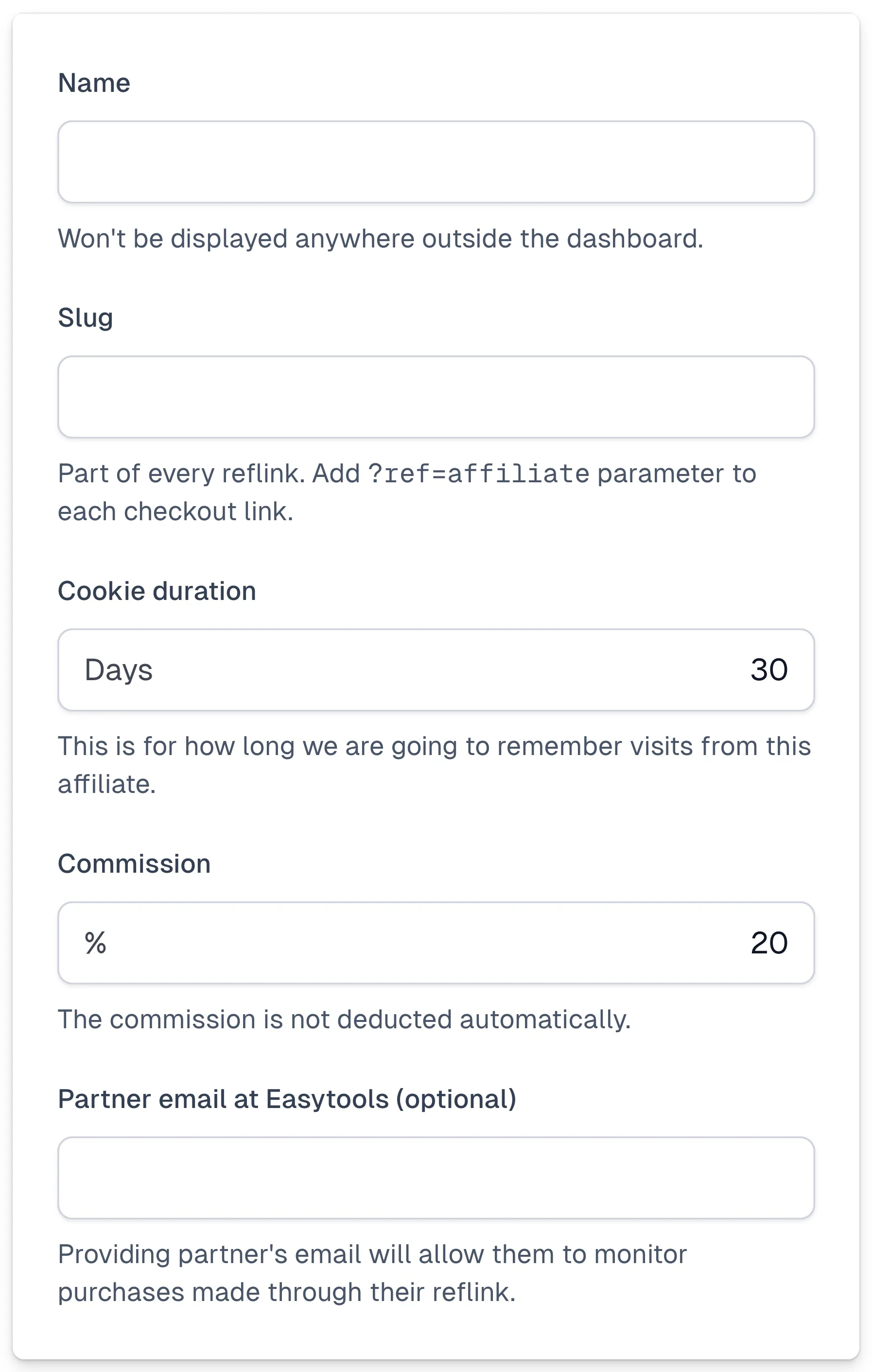
> **Important:** We will not deduct the commission automatically. You will need to handle payouts manually. [Learn more here.](/docs/affiliate-reports-payouts)
> Note: If you set the cookie duration to 0, the purchase must be made directly from the partner’s link to be counted. If set to another value, e.g., 30, we’ll save a cookie from that partner, and later, even without using the link, the purchase will be attributed to the partner within 30 days of the visit with the parameter.
## Creating an affiliate in your checkout
To define affiliates from your checkout:
1. Go to **Store** → **Products**.
2. Create a new product or open an existing one.
3. Click **Share** in the top right corner.
4. Toggle the option **Create affiliate link**.
5. Enter the P**artner name**.
6. Click **Copy link**.
This generates a link like: cart.easy.tools/creator/checkout?ref=partner.
> When you create your link this way, we automatically add your partner to the Affiliates dashboard and assign them the default cookie duration and commission rate. Learn how to edit it in [this article](/docs/managing-affiliates).
---
## Affiliate links
Category: sell-your-products / affiliates
URL: https://www.easy.tools/docs/affiliate-links
Affiliate links allow others to recommend your products and receive compensation. Our affiliation feature is based on the **?ref=partner\_name** parameter, added to the cart link. Always provide your partner with their ref link.
## Generate affiliate links in checkout
To generate an affiliate link from the checkout level:
1. Go to **Store** → **Products**.
2. Create a new product or open an existing one.
3. Click **Share** in the top right corner.
4. Toggle the option **Create affiliate link**.
5. Enter the **Partner name** (new or existing).
6. Click **Copy link**.
> If the partner name is not on your affiliates list, we will add it automatically and you will be able to track their performance in **Affiliates** tab.
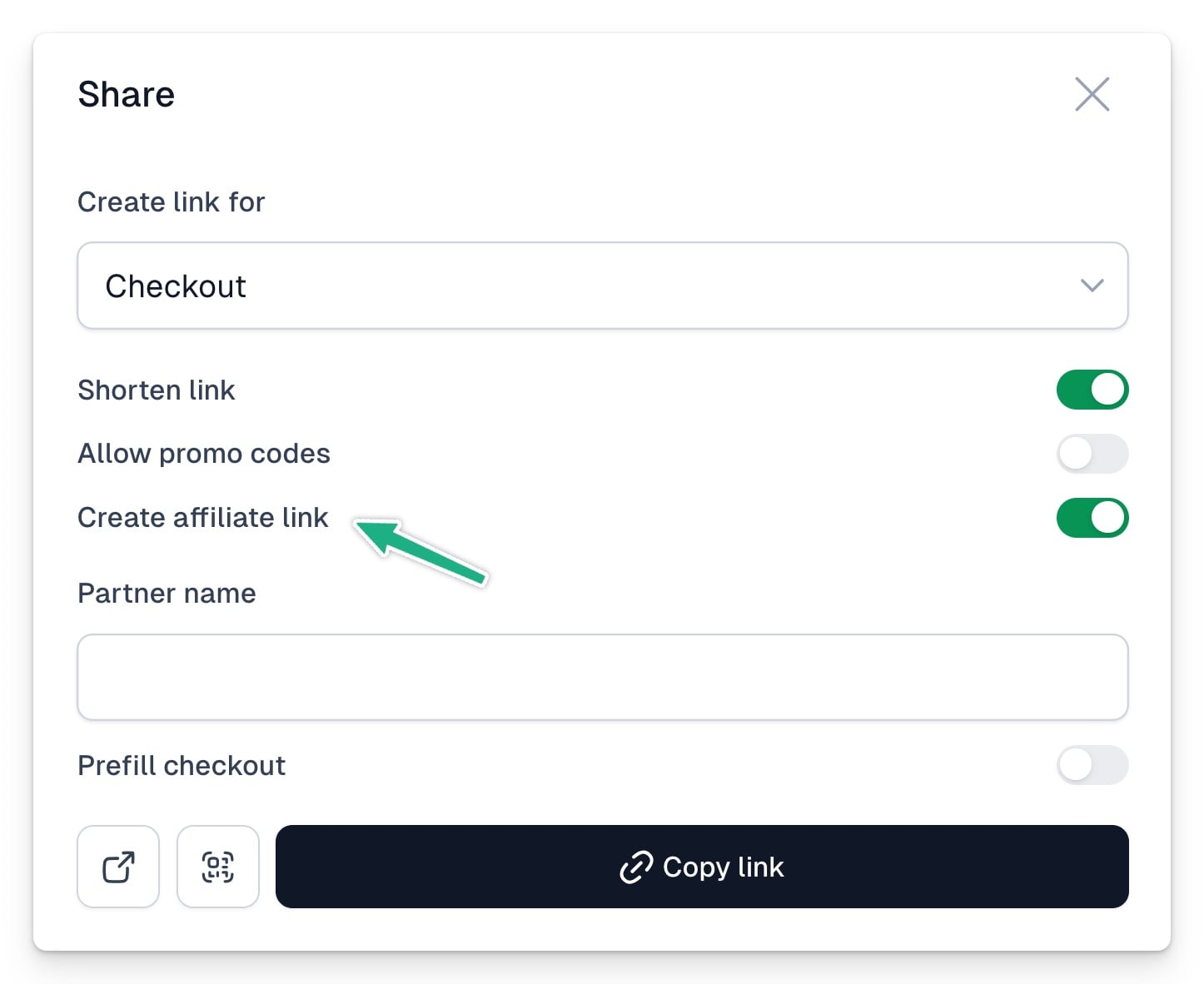
## Generate affiliate links manually
You can manually add the **?ref=partner\_name** parameter to your checkout link, replacing partner\_name with your partner’s slug.
> If adding the ref parameter manually, remember that if there’s more than one parameter in the link, the first one follows the ? sign, but subsequent ones follow the & sign, e.g., cart.easy.tools/creator/checkout?ref=partner or cart.easy.tools/creator/checkout?promo=1&ref=partner.
> Remember, to track the sales performance of new partners, you must first create the partner in the **Affiliates** tab or through the checkout. [Read this post](/docs/defining-your-partners) to see how to do it.
---
## Managing affiliates and partners
Category: sell-your-products / affiliates
URL: https://www.easy.tools/docs/managing-affiliates
This article covers managing affiliates. If you want to learn more on creating affiliate links, [read this document](/docs/affiliate-links).
As a seller, you can monitor your affiliates and partners’ performance in the **Affiliates** tab. It allows you to manage affiliate details, download CSVs with partners’ performance or transactions, and set default commission rates and cookie durations.
## Affiliates tab
The [Affiliates](https://app.easycart.pl/creator/partners) tab lets you track details of your partners’ performance, including total revenue and conversion generated by all partners, as well as details of each individual. You can filter data by date, product, and currency.
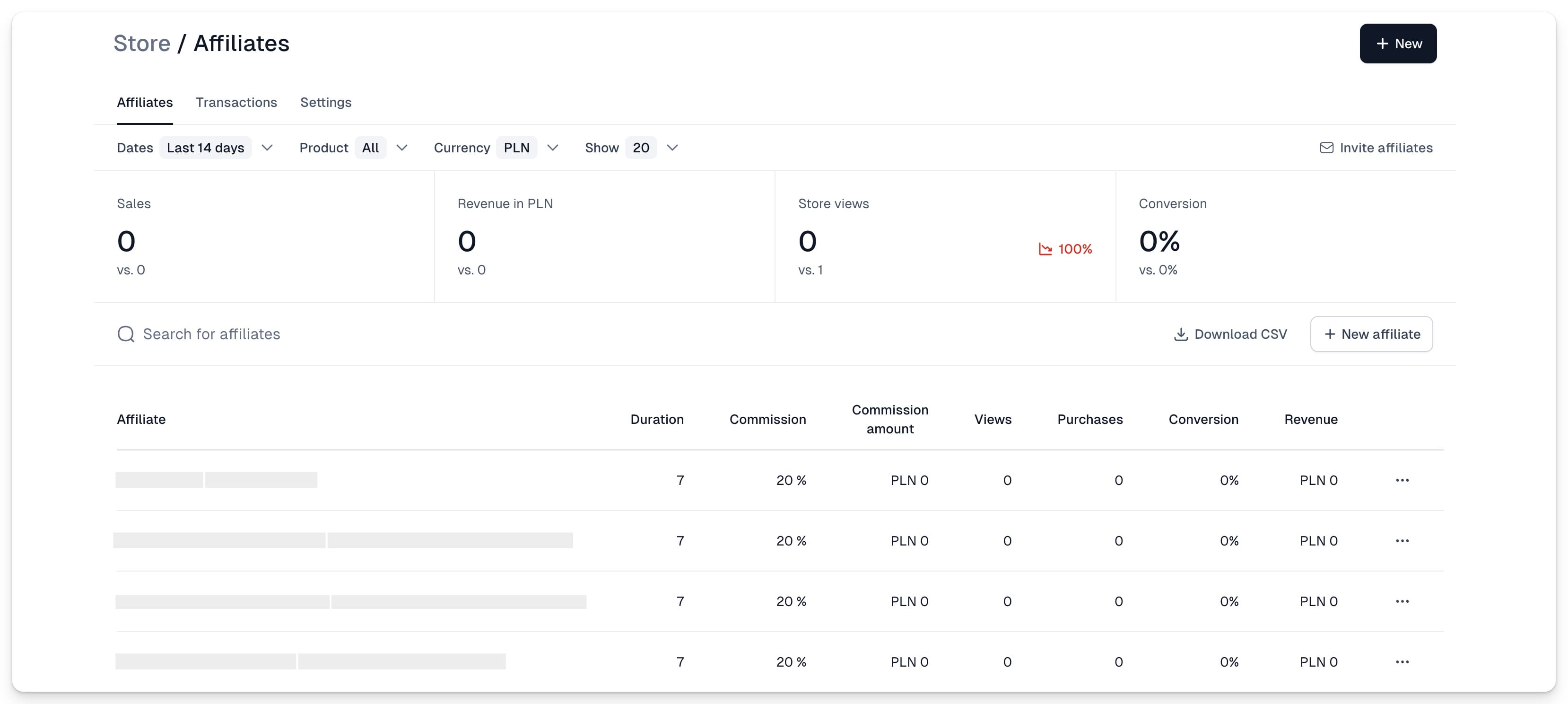
From here, you can also easily add, edit or delete your partners:
- To add a new partner, click **+New Affiliate**.
- To edit an existing partner, click **…** and select **Edit**.
- To delete a partner, click **…** and select **Delete**.
This tab is also where you can:
- Change default commission and cookie duration of each partner.
- Assign partners access to the partner tab where they can track their own performance.
- Download all data in CSV format
## Transactions tab
The Transactions tab tracks each individual purchase generated by your partners, including:
- Transaction ID
- Customer details
- Product
- Partner responsible for the purchase
- Revenue
- Commission rate
- Commission cost
- You can filter data by date, product, currency, or partner, and download it in a CSV file.
> To see details of a specific transaction, click on it to view all details. You can then display specific order details, such as marketing consent.
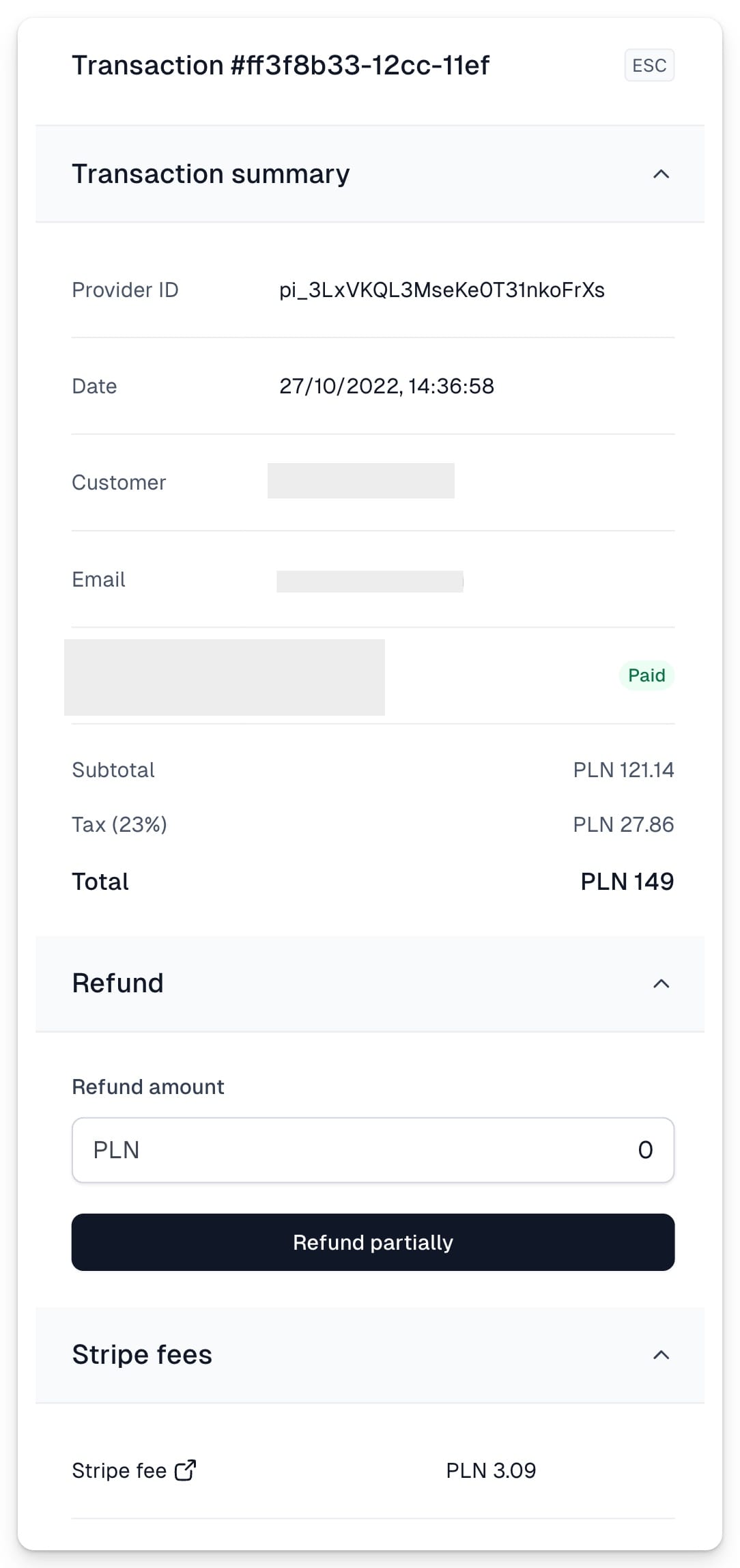
## Settings
In the Settings tab, you can set two parameters: default commission rate and default cookie duration.
> Note: When you define your partner through your checkout, we automatically assign them default commission and cookie settings. If you don’t overwrite them, any changes you make later, like changing the default commission, will apply to all partners assigned with these default settings.
> Changing settings applies retroactively. For example, if you change a partner’s commission from 10% to 20%, we don’t record the moment of change and don’t calculate commissions before and after the change at different rates; the new rate applies to the entire selected time range.
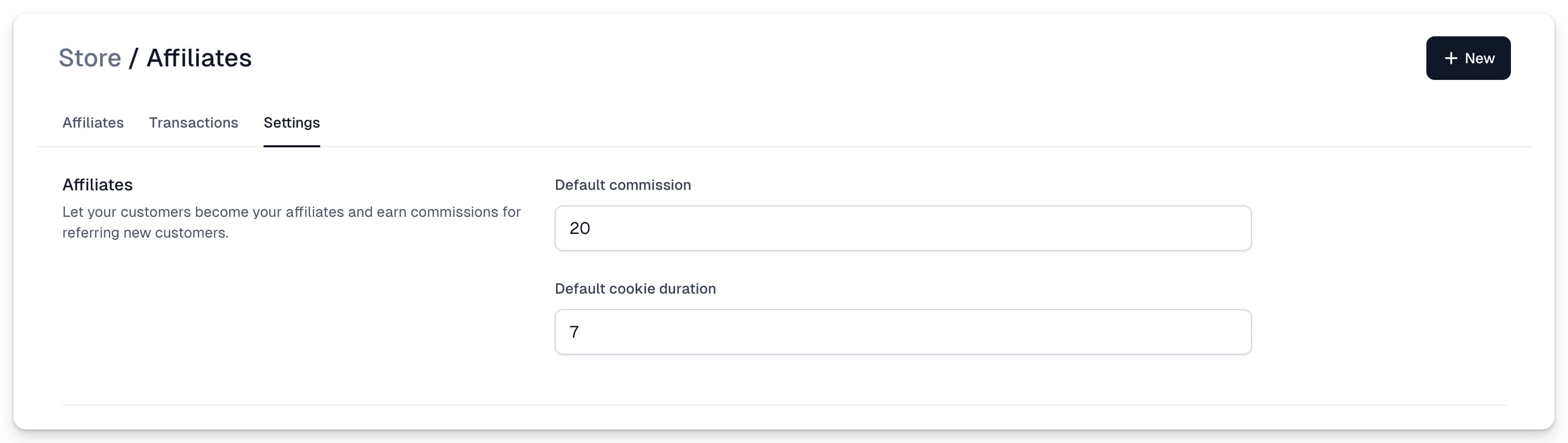
## Counting purchases from landing page transitions
If you have your own sales page, paste the following JavaScript inside script tags before the closing `` tag to pass the ref parameter from your page link to all redirects to the Easycart cart.
```javascript
document.addEventListener("DOMContentLoaded", (function () {
const refInUrl = (window.location.search.match(new RegExp("[?&]ref=([^&]+)")) || [, null])[1];
let ref = null;
if (refInUrl) {
const keepForDays = 7;
if (keepForDays > 0) {
const date = new Date();
date.setTime(date.getTime() + keepForDays * 24 * 60 * 60 * 1000);
document.cookie = "ref=" + refInUrl + "; expires=" + date.toUTCString() + "; path=/";
} else {
document.cookie = "ref=" + refInUrl + "; path=/";
}
ref = refInUrl;
} else {
const refInCookie = (document.cookie.match(new RegExp("(^| )ref=([^;]+)")) || [, null, null])[2];
ref = refInCookie;
}
if (!ref) {
return;
}
document.querySelectorAll('[href*="app.easycart.pl"],[href*="cart.easy.tools"],[href*="easl.ink"]').forEach((function (link) {
const href = link.getAttribute("href");
const sign = href.includes("?") ? "&" : "?";
link.setAttribute("href", href + sign + "ref=" + ref);
}))
}));
```
> Note: The keepForDays variable is set to 7, meaning the script creates a cookie that expires in 7 days. Within this period, if the person browses different pages or returns to your page, the sale will still count towards an affiliate. You can modify this attribution time, which differs from the one set in the Portal, where attribution starts after visiting the checkout. Setting keepForDays = 0 means the affiliate link works only for this session. Once the user closes the browser or page and returns without the ref, it won’t count as an affiliate visit anymore.
## Webhook
Referrals will be included as a property in the webhook we send after a product purchase. You can receive it and assign this purchase in your CRM systems or post-sale automations to the appropriate funnel.
---
## Affiliate reports & payouts
Category: sell-your-products / affiliates
URL: https://www.easy.tools/docs/affiliate-reports-payouts
> Easytools does not automatically settle your commissions. However, you can download reports for a certain time range with all commission amounts for each partner.
## Commission settlement
> Purchase commission is not settled automatically!
Although a split payment mechanism exists, its use is complex and requires Stripe and Easytools account registration for each partner, raising the entry threshold and causing complications. Additionally, commission parameters often change and are set individually, so we leave settlements entirely to the creator. In practice, commission settlement is simple and flexible. After setting the appropriate value for the creator, during the period you arrange with partners, e.g., quarterly, just set the appropriate date filter in the panel to see the amount to be paid out.
After selecting the appropriate date ranges, you can use our tables or choose the Download CSV option to download the settlement and import it into your tools.
## Reporting
You can easily access your affiliate data in the Easytools **Affiliates** dashboard or by downloading them in CSV.
### Overall affiliates results
To learn how your affiliate program is performing:
1. Go to **Store** → **Affiliates**.
2. Open the **Affiliates** tab.
Here, you’ll see all sales generated by your partners, the revenue in a chosen currency, and the average conversion rate.
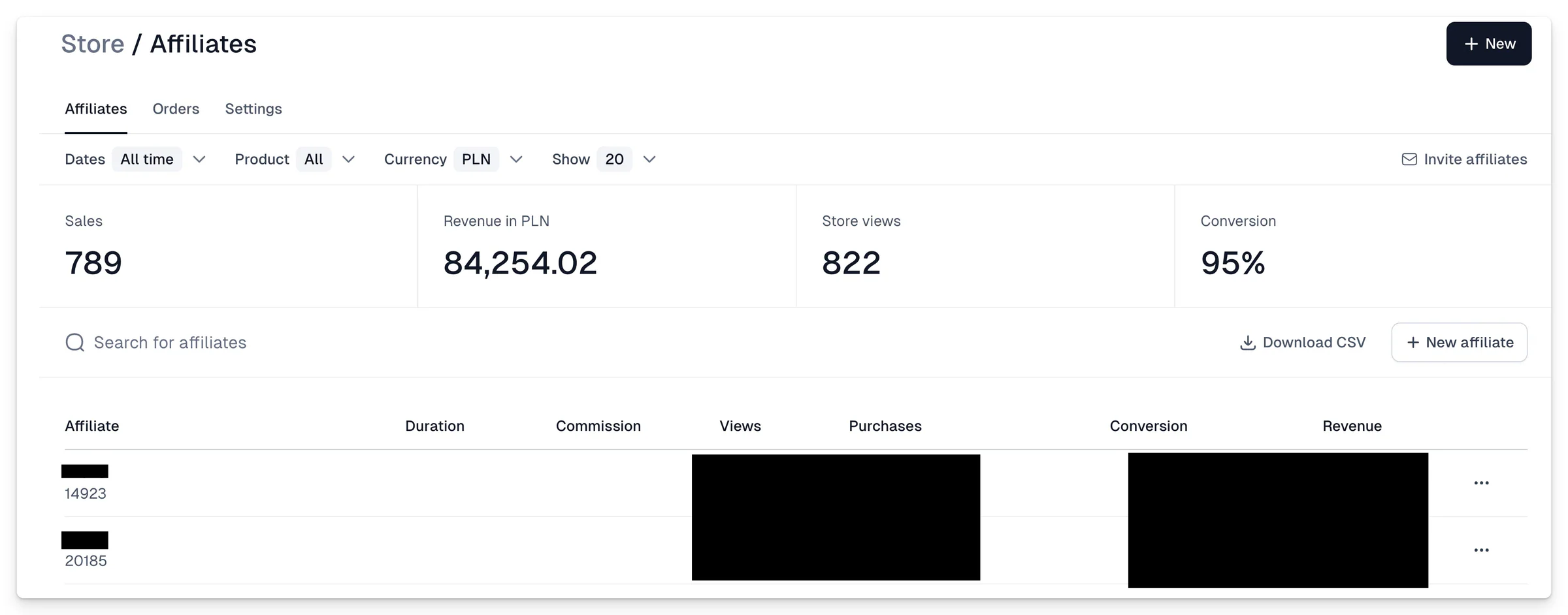
> The high conversion rate on the screen is because almost all partners have 0 set as cookie validity, meaning commission is counted only when the purchase is made immediately.
> The statistics we display at the top also change depending on the selected date filters, allowing you to see how partners perform over time!
### Specific partner’s performance
To learn about a specific partner’s performance:
1. Go to **Store** → **Affiliates**.
2. Open the **Affiliates** tab.
3. Type your partner’s name in the **Search for affiliates** field.
You’ll see results for this specific partner, including:
- Number of sales
- Generated revenue in chosen currency
- Number of store views
- Conversion rate
- Commission amount
You can also filter these results by time frame, specific product, and currency to assess the commission amount you should pay to a particular partner.
> To see the list of specific transactions generated by a specific partner, go to the **Transactions** tab and use the filter in the top right corner
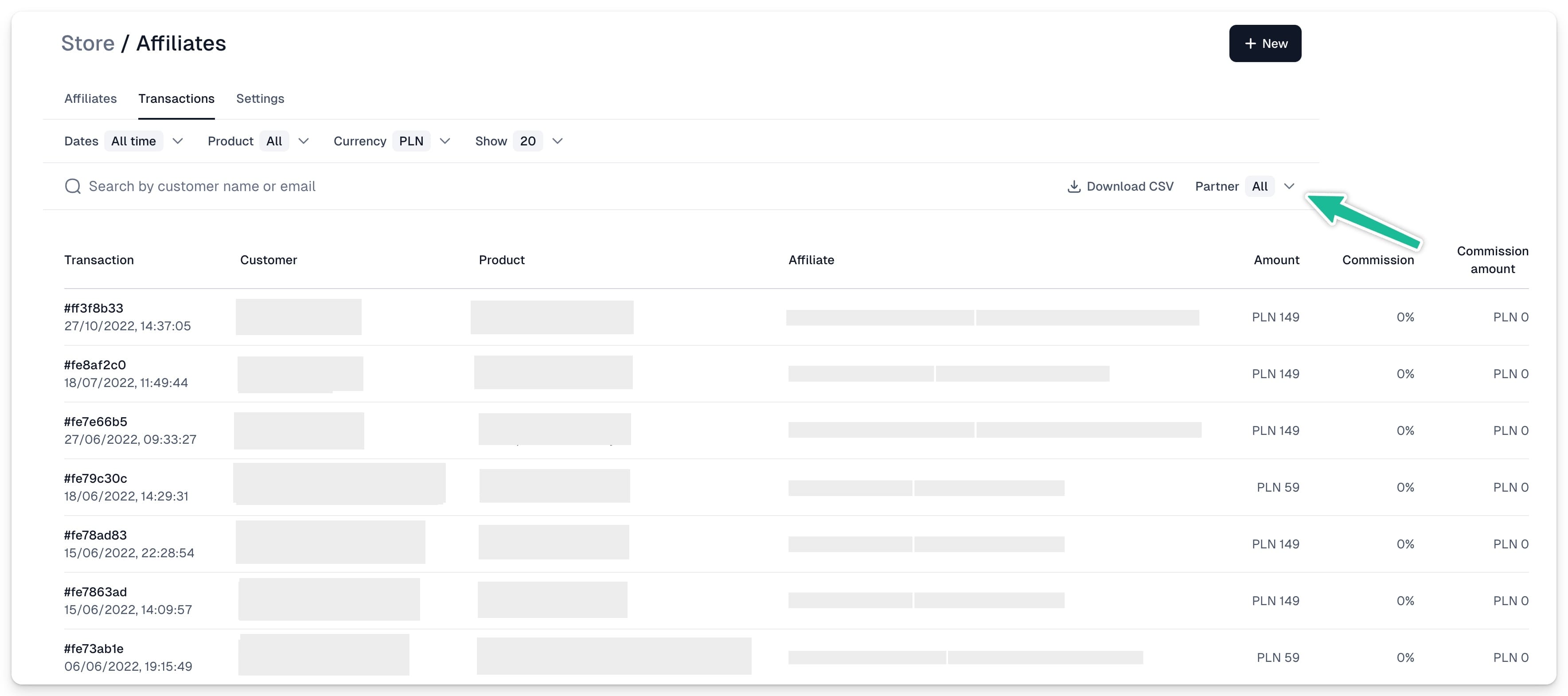
---
## Referral tab for partners
Category: sell-your-products / affiliates
URL: https://www.easy.tools/docs/referral-tab-for-partners
The referral tab is a space dedicated to partners, enabling them to monitor their performance and track sales generated through their ref links.
To use the referral tab:
- Partner needs to have Easytools customer account.
- Seller needs to enable partner access to the referral tab.
## Creating a Partner account
We automatically create a customer account for anyone who makes a purchase using Easycart. However, if your partner hasn’t used Easycart before, they can quickly register using this link.
After registration, they’ll be automatically directed to your customer portal.
> **Important:** The referral tab won’t be available until the affiliate seller adds partner's email address in their affiliate management dashboard.
## For sellers: adding partners to the referral tab
To enable your partners to use the referral tab, edit their details by adding their email address (the one used to create their Easytools account).
Here’s how:
1. Go to **Store** → **Affiliates**.
2. Add a new affiliate by clicking **+New Affiliate**.
3. Or click **…** next to the exisiting affiliate for whom you want to add an email address.
4. Provide the partner’s email in the **Partner email at Easytools (optional)** field.
5. Click **Save**.
> **Important:** After clicking **Save**, you won’t be able to edit the partner’s email, so double-check the address.
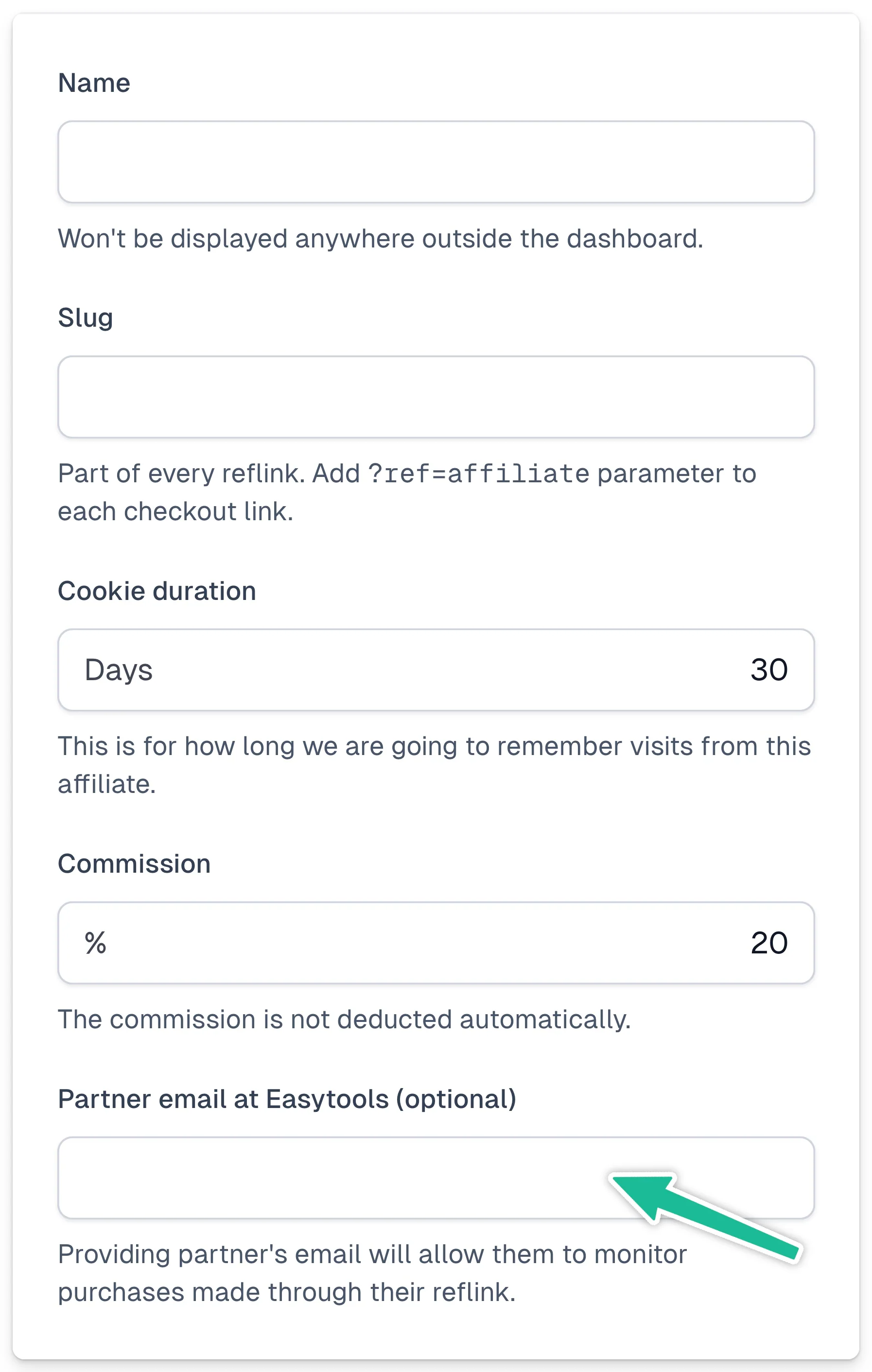
## For partners: accessing the referral tab
As a partner, access the **Referral** tab by logging into your Easytools account. When available, the **Referral** tab will be displayed on the menu on the left.
> **Important:** If your customer account was created during the purchase process using one of our carts, you can find the login details in your email inbox or use a magic link.
### Referral tab: partners list
After logging into the Easytools Customer panel, go to the **Referral** tab, and then to the **Partners list**.
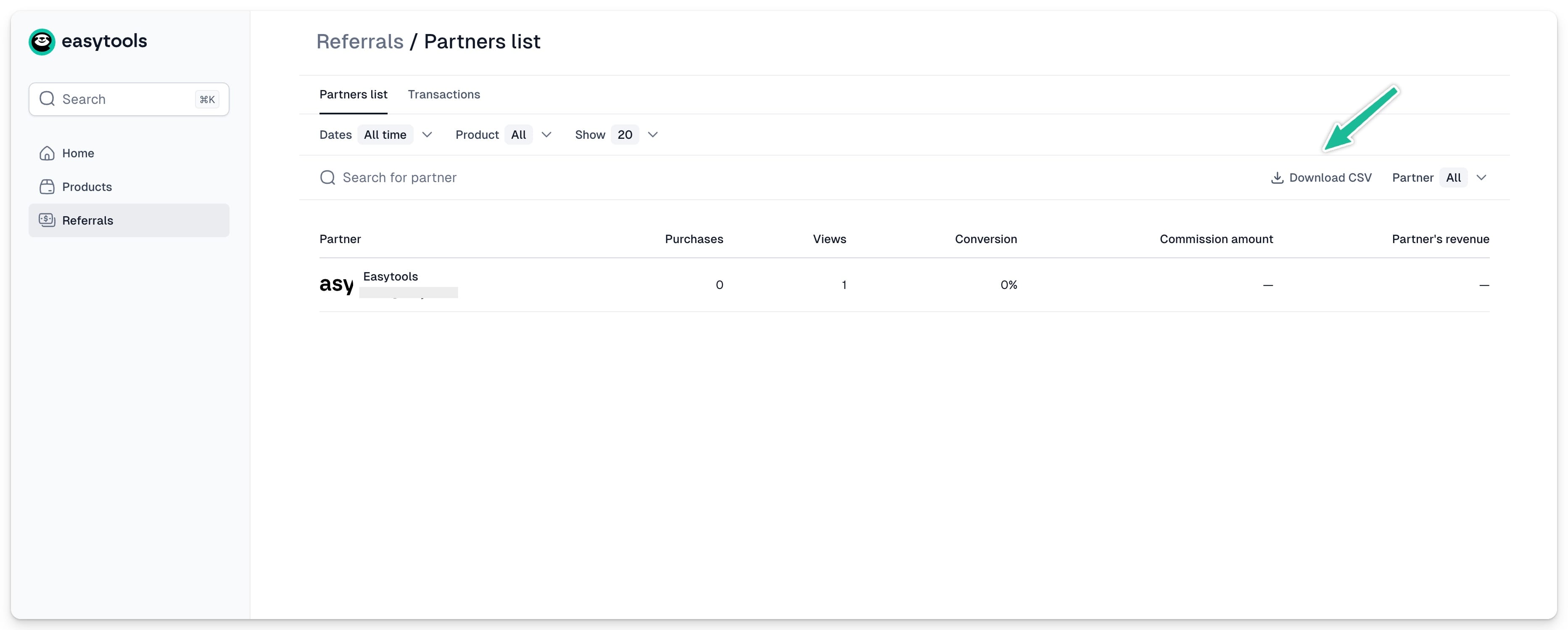
You’ll see all your partners who added you as their affiliate, along with a detailed recap of the number of purchases, conversion, and commission amount for each partnership.
You can also filter the list or search for a specific partner and download the partner list by clicking Download CSV.
### Referral tab: transactions
To see details of each specific transaction generated by your ref link, go to **Referrals** and switch to the **Transactions** tab.
Here, you’ll find details of each partner transaction, including:
- Transaction ID
- Date
- Partner
- Product
- Commission %
- Commission amount to be paid out
You can download a file with all this data by clicking **+Download CSV**.
---
## Reporting and payouts
Category: sell-your-products / affiliates
URL: https://www.easy.tools/docs/reporting-and-payouts
Streamline operations with Reporting and payouts. Automate affiliate compensation for efficient, accurate payments.
---
## Setting up analytics
Category: sell-your-products / analytics-and-ads
URL: https://www.easy.tools/docs/setting-up-analytics
Easytools comes with built-in analytics to track sales and conversions, plus easy integration with your favorite tools via analytics codes. Here’s a quick guide on setting up global analytics settings - and how to override them for specific checkouts.
## Integrated analytics tools
Here's the list of analytics tools you can currently integrate with:
- Facebook (Meta) Analytics
- Google Analytics
- Google Ads
- TikTok Analytics
- LinkedIn Analytics
- Pinterest Analytics
- DataFast
## Global analytics settings
You can set up your analytics globally and automatically apply these settings to all your carts. Here's how you can do it:
1. Go to **Store** → **Store settings**
2. Open the **Analytics** tab
3. Copy and paste your chosen analytics codes
4. Click **Save**
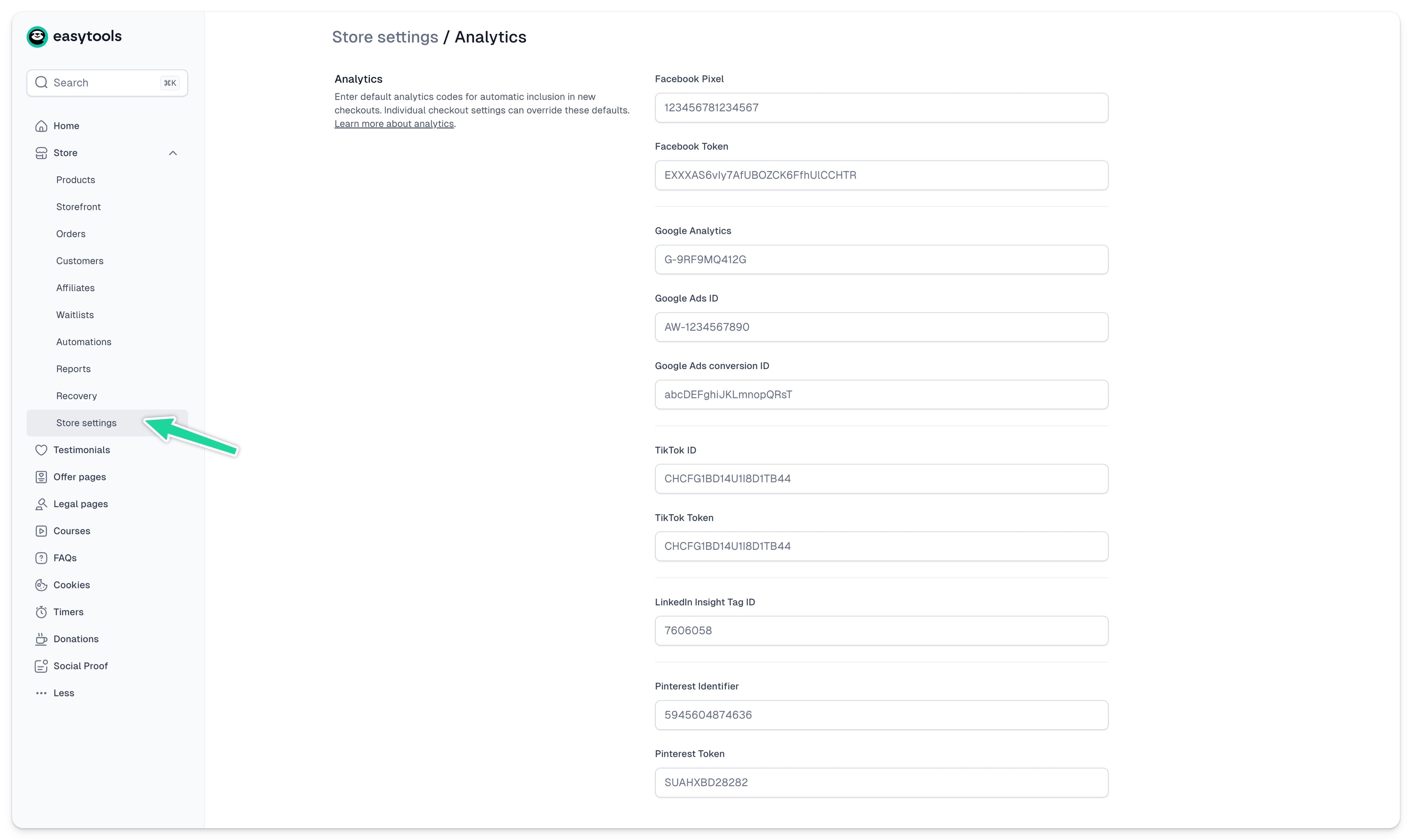
## Individual checkout settings
You can also choose to use different codes for different checkouts - for example, when setting up carts for several customers. To do this, open the product for which you want to override the settings and follow these steps:
1\. In the top menu, choose **Add-ons → Analytics**
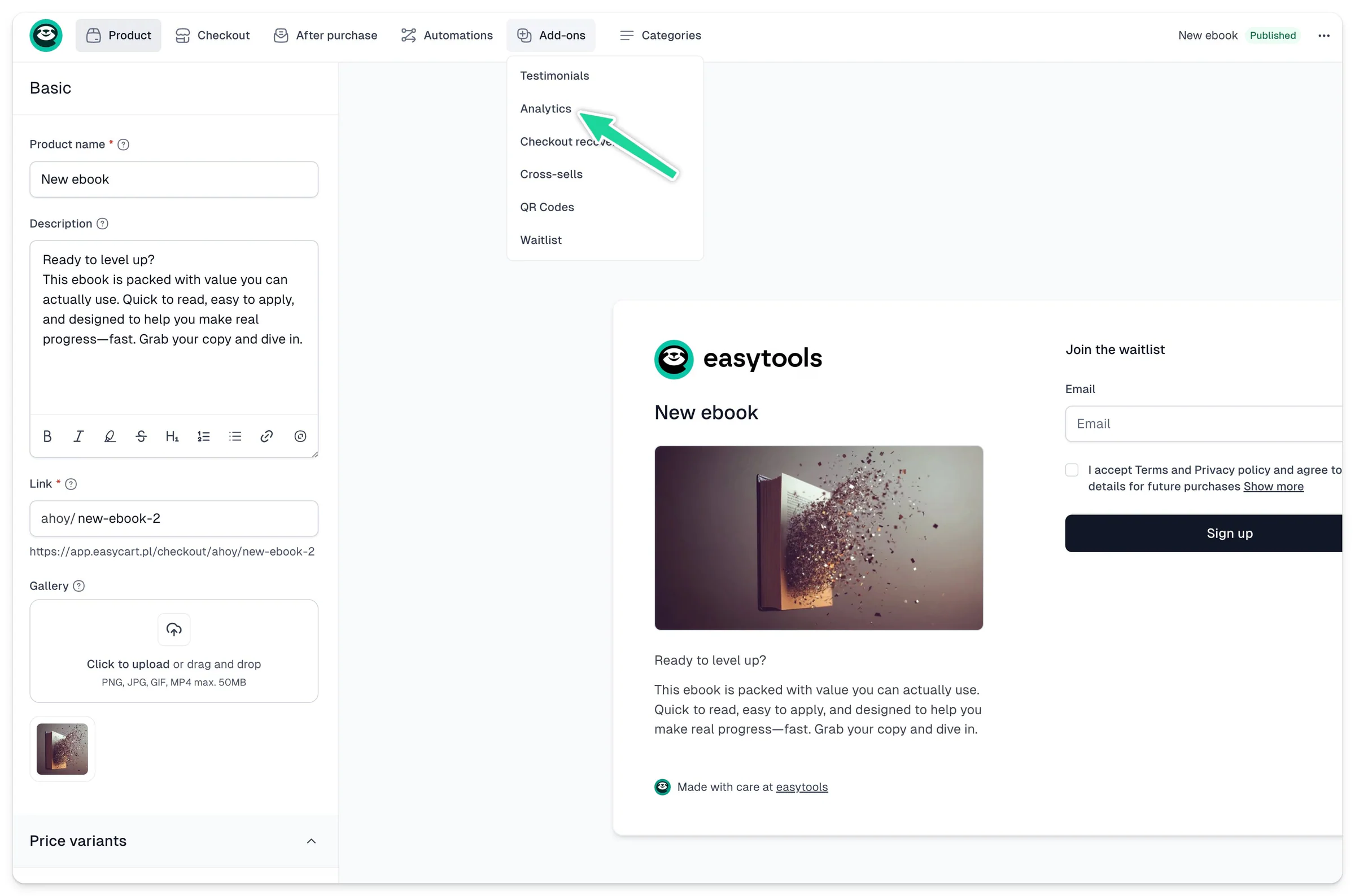
2\. Copy and paste your chosen analytics codes
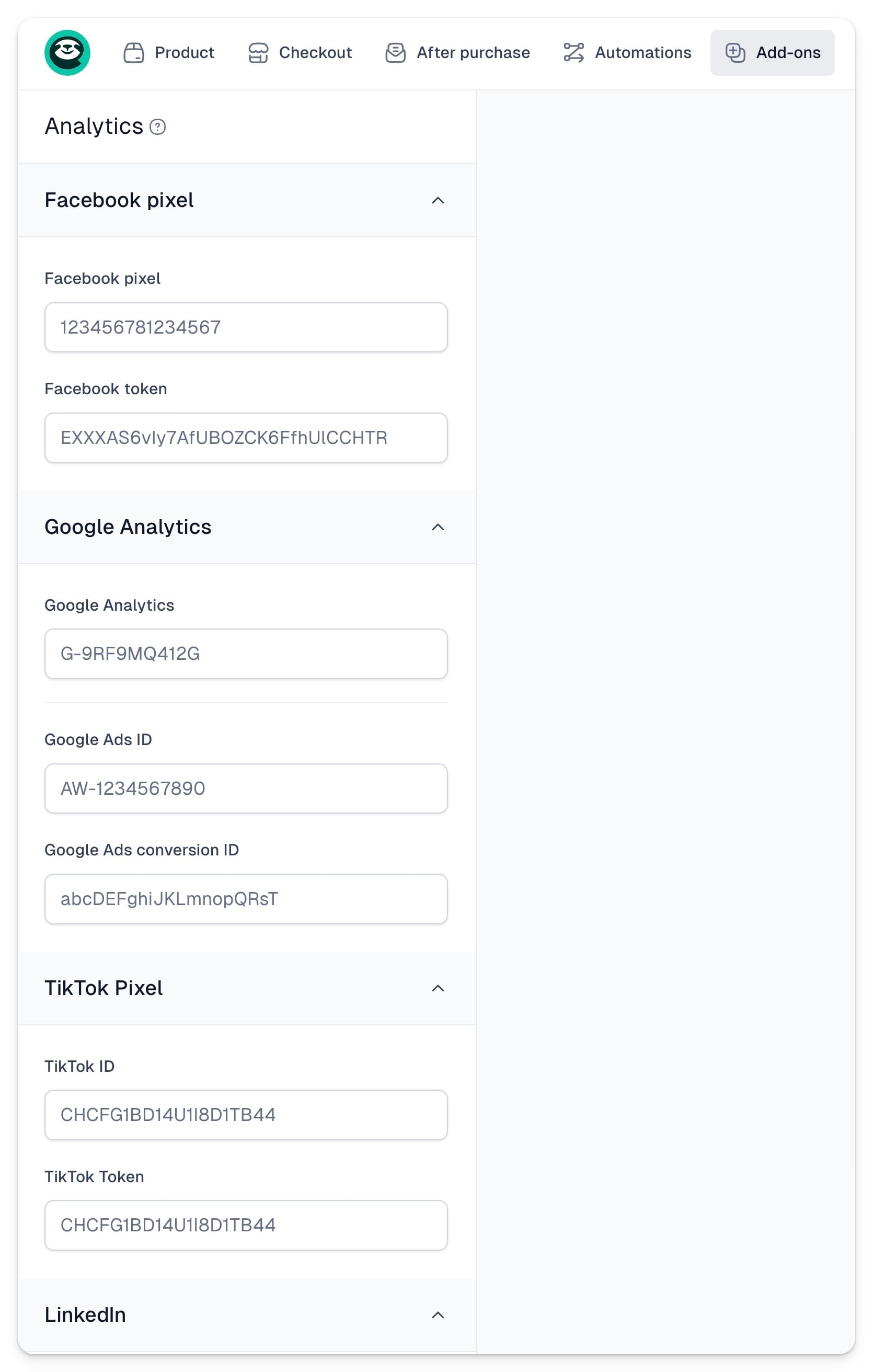
3\. Click **Save.**
4\. Make sure to publish your cart.
This way, even if you set up your analytic codes in global settings, this specific cart will override them and use different codes.
> **Important:** If you start by setting up analytics codes at the cart level, there’s no way to import them automatically to the global settings - you will need to add those codes to each new cart. That’s why, if you’re selling your own products under the same brand, we recommend setting up the global settings.
---
## DataFast integration for analytics
Category: sell-your-products / analytics-and-ads
URL: https://www.easy.tools/docs/datafast-analytics
[DataFast](https://datafa.st/?via=easytools) is a simple, powerful analytics tool by [Marc Lou](https://x.com/marclou). With DataFast, you can discover which marketing channels bring customers so you can grow your business. You can easily connect DataFast with Easytools using a native integration that allows you to:
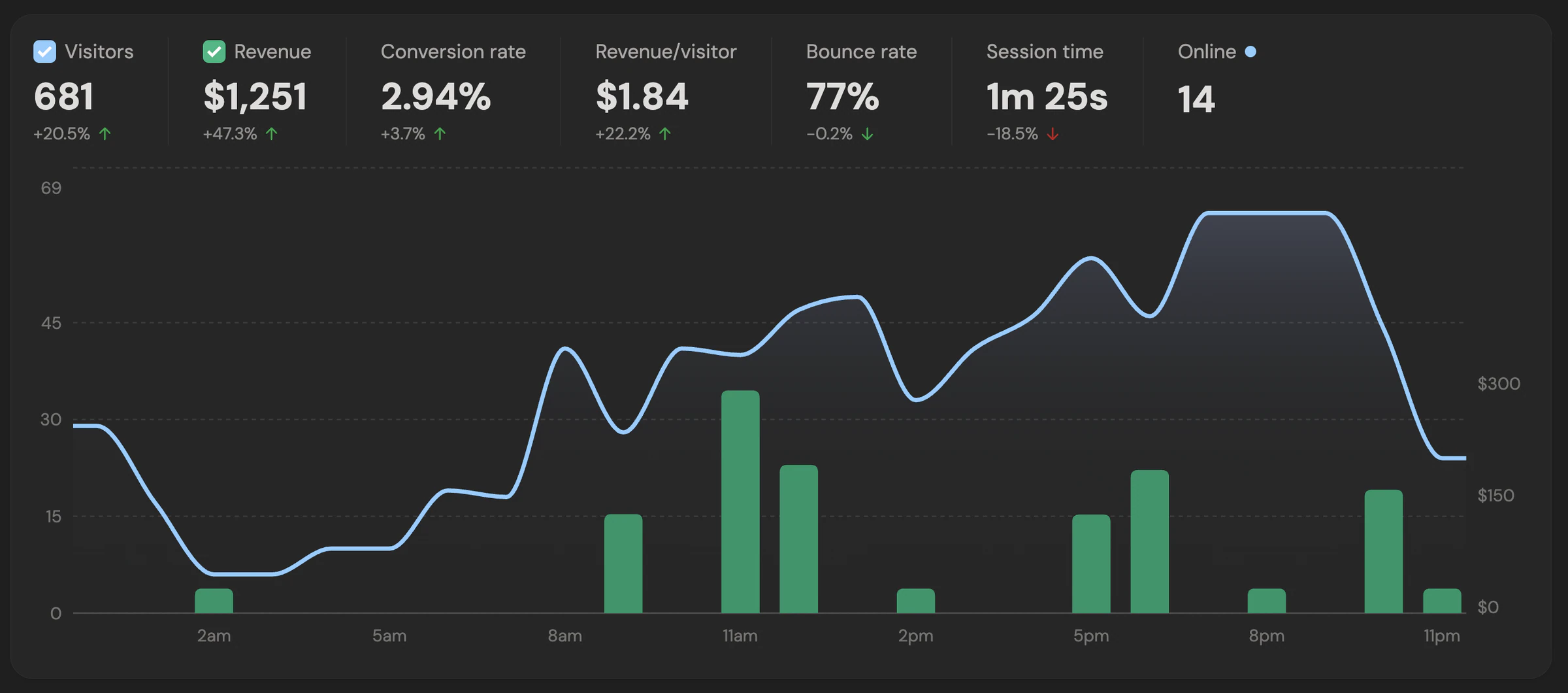
- See your website's analytics
- Bring in revenue metrics from Easytools
- See how much you've earned
- Connect revenue to traffic sources
- See user journeys for popular events
## Connecting Easytools to DataFast
1. First, you need a DataFast account, which you can [create here](https://datafa.st/?via=easytools).
2. Add a new website and provide the URL of your landing page.
3. Go to the next step and install the DataFast script on your page. There is an installation guide available if you need assistance.
For example, if you're using Webflow or Framer, use the custom code section for all pages, and add the script at the end of the **head** tag.
> Tip: Although Easypage has its own simple analytics tool, you can also add the DataFast script there by pasting the code into the custom code section.
4. Next, go to the **Attribute revenue** tab and select the **Easytools** integration.
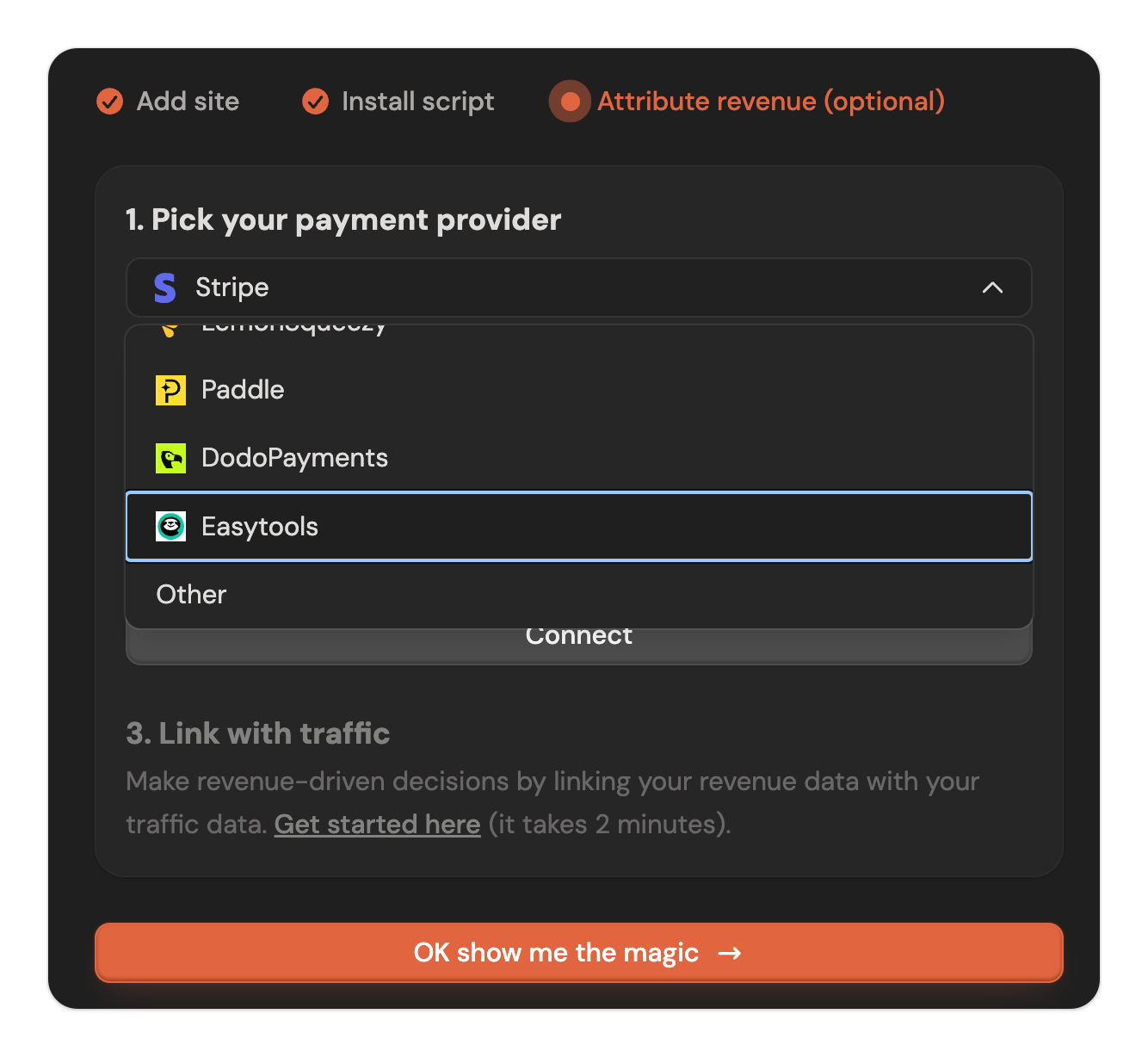
From here, you can copy your **DataFast website ID** and your **domain name**. You will need both values in Easytools, and you can use them in two ways:
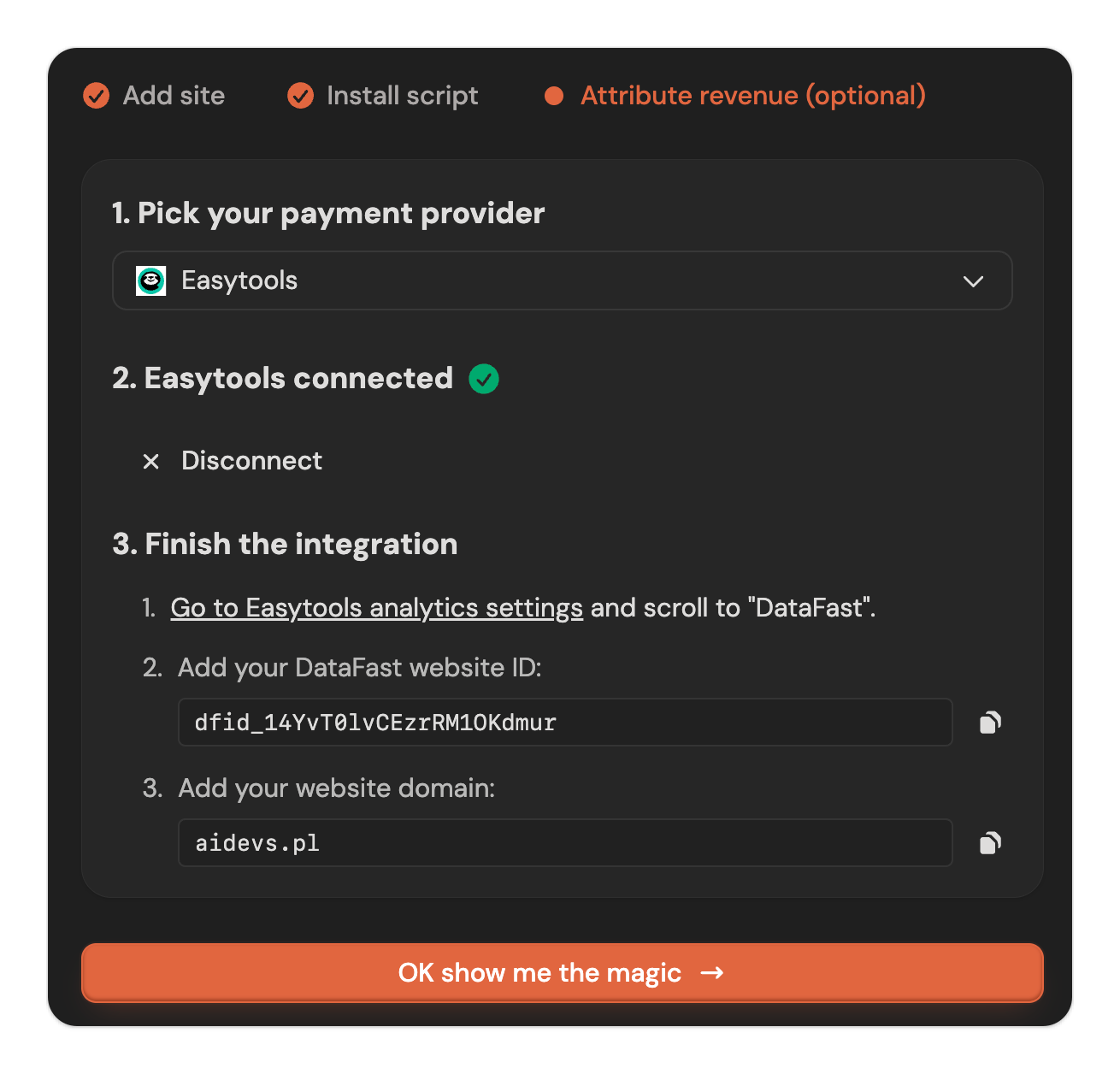
1. **Enable the integration for all products created from now on** - add the details in [general settings](https://cart.easy.tools/creator/store-settings/analytics).
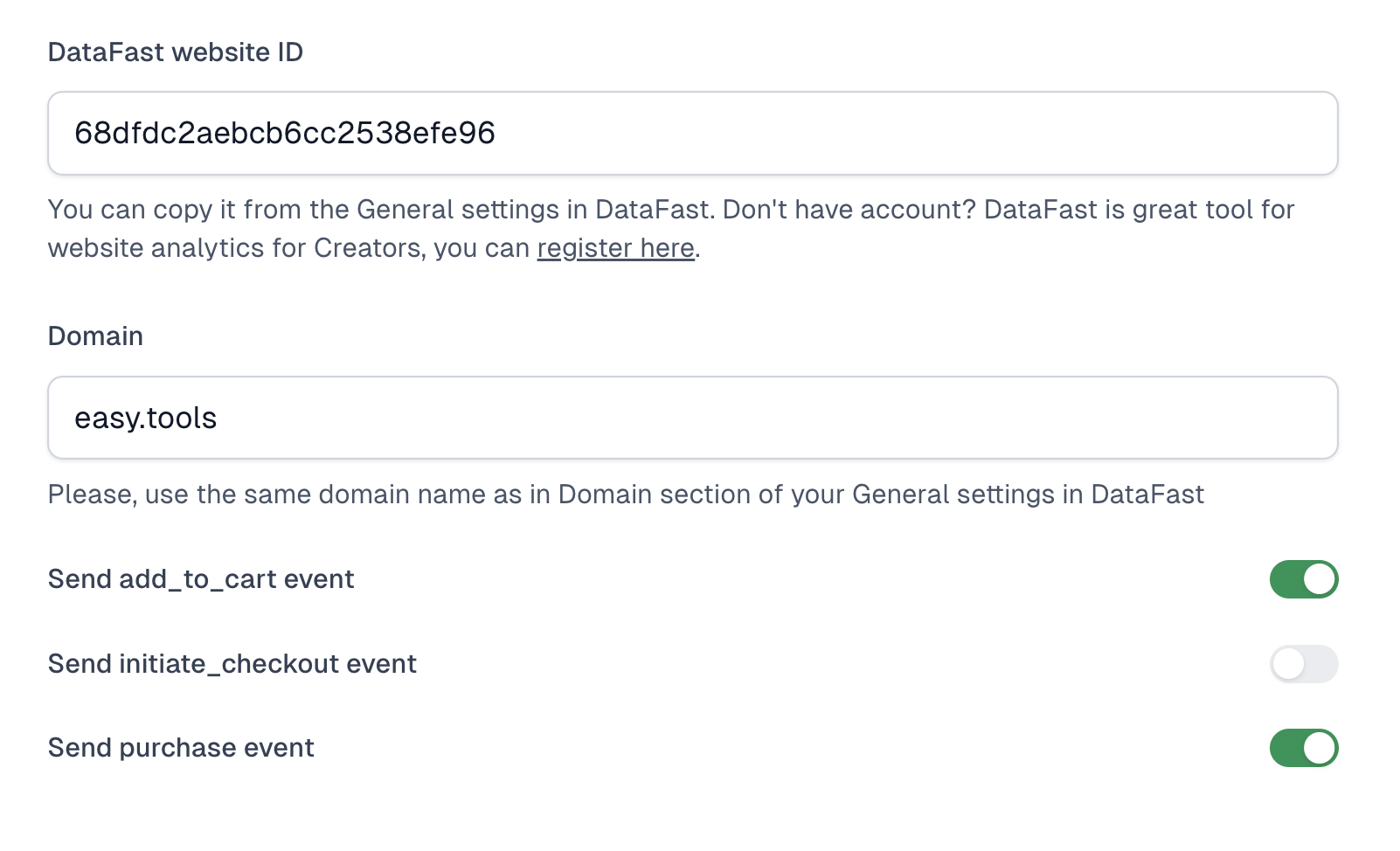
2. **Enable per individual checkout** - go to your product and navigate to **Add ons → Analytics**. Fill in the ID and scroll down to fill in the domain.
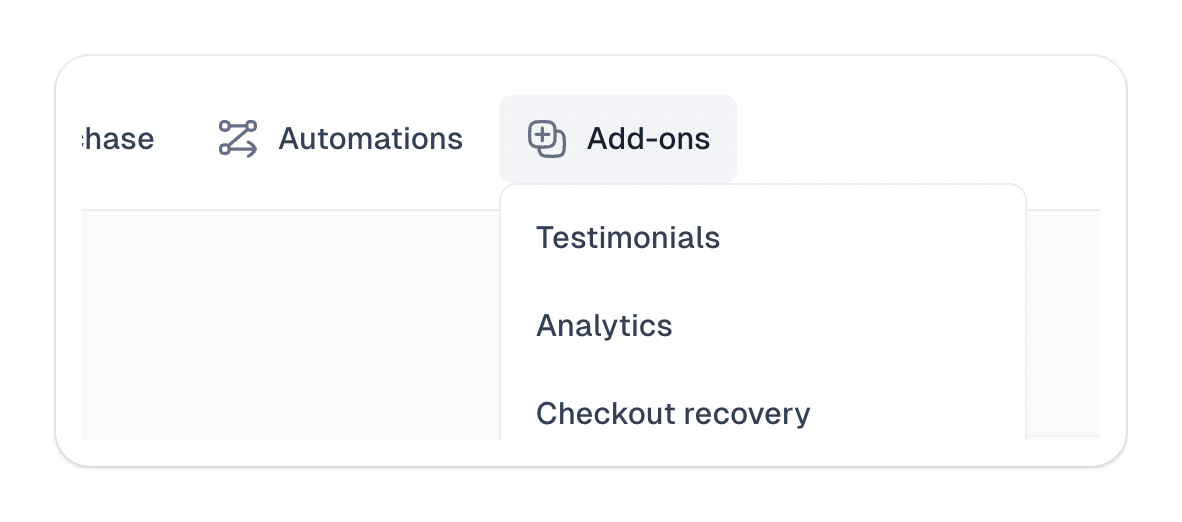
You can also select the events you want to send to DataFast. We suggest either **add_to_cart** or **initiate_checkout** (whichever you prefer), plus the **purchase** event.
## Create a funnel
Shortly after setup, you'll see events being sent by Easytools - registering adds to cart and purchases. If you'd like, you can track additional goals from your page, such as registering for a demo call or filling in a form. To add custom events, [check out this guide](https://datafa.st/docs/custom-goals).
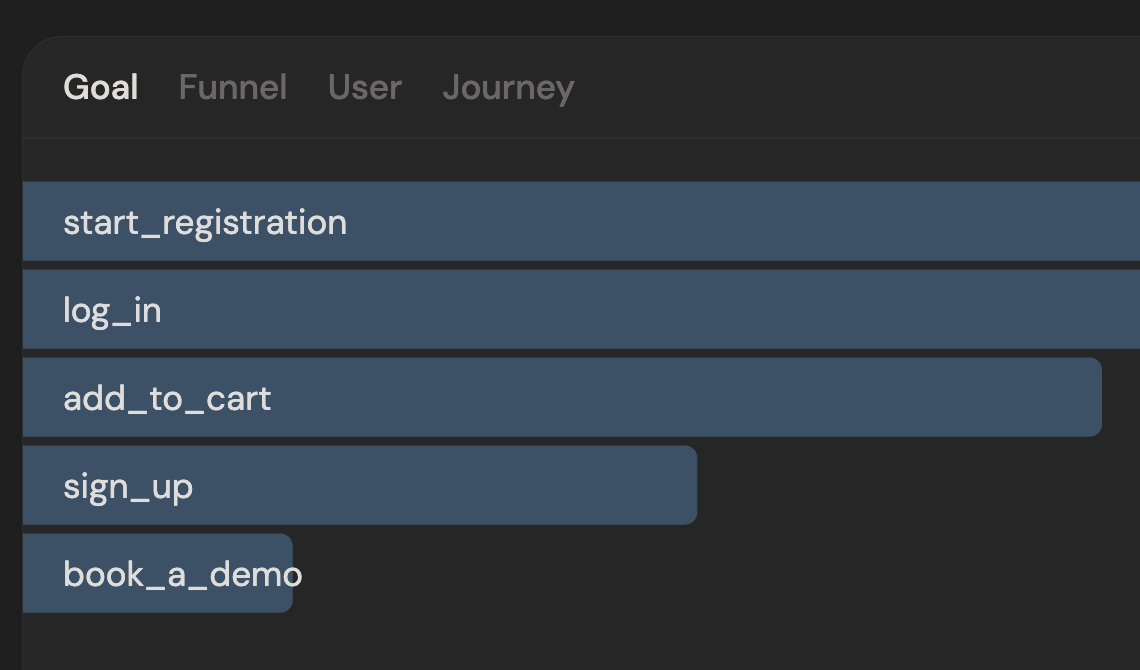
Once you have goals coming from Easytools (or you've configured your own), you can start building funnels by combining different goals and page visits:
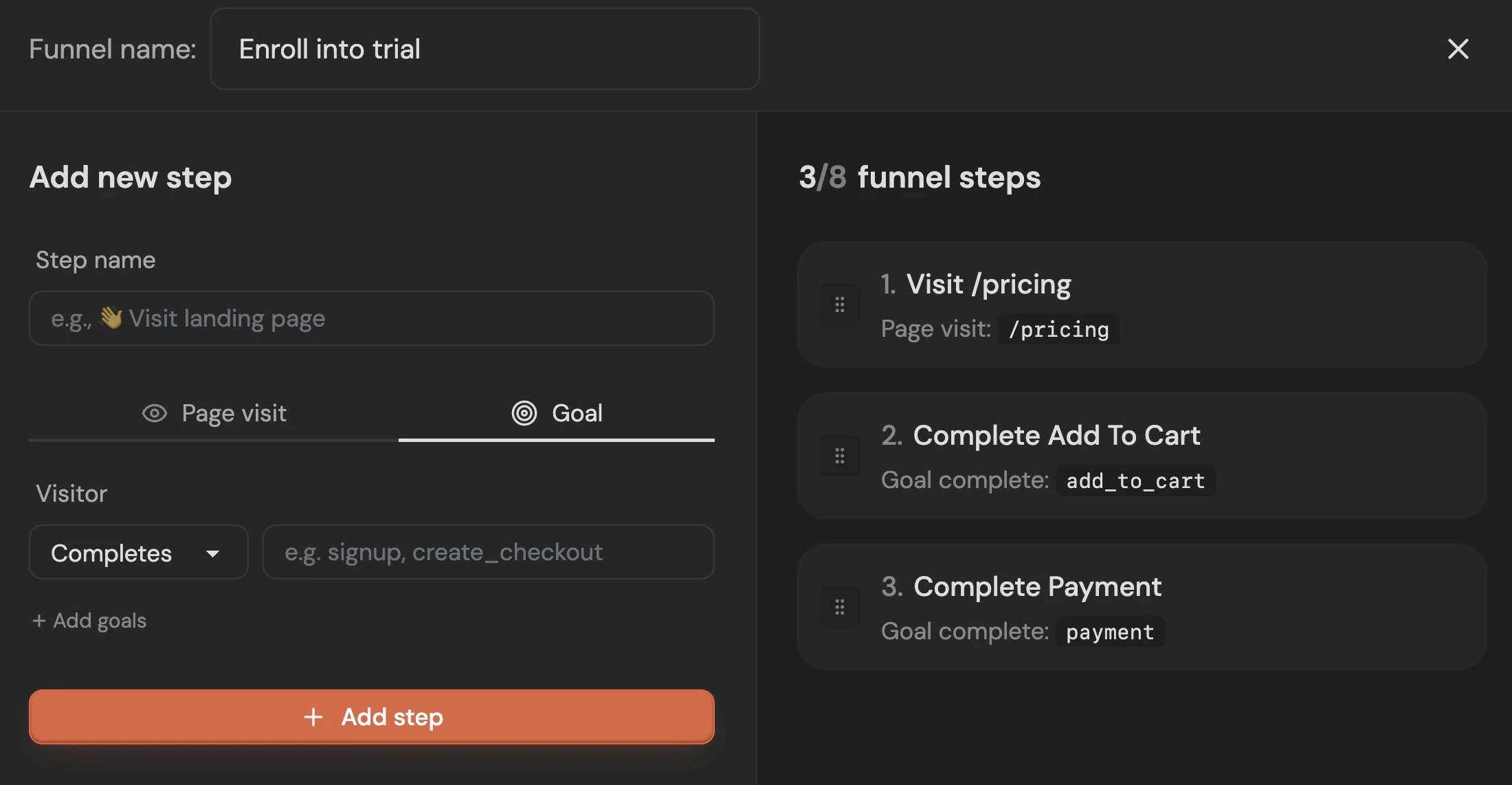
You can also see individual user journeys across your pages:
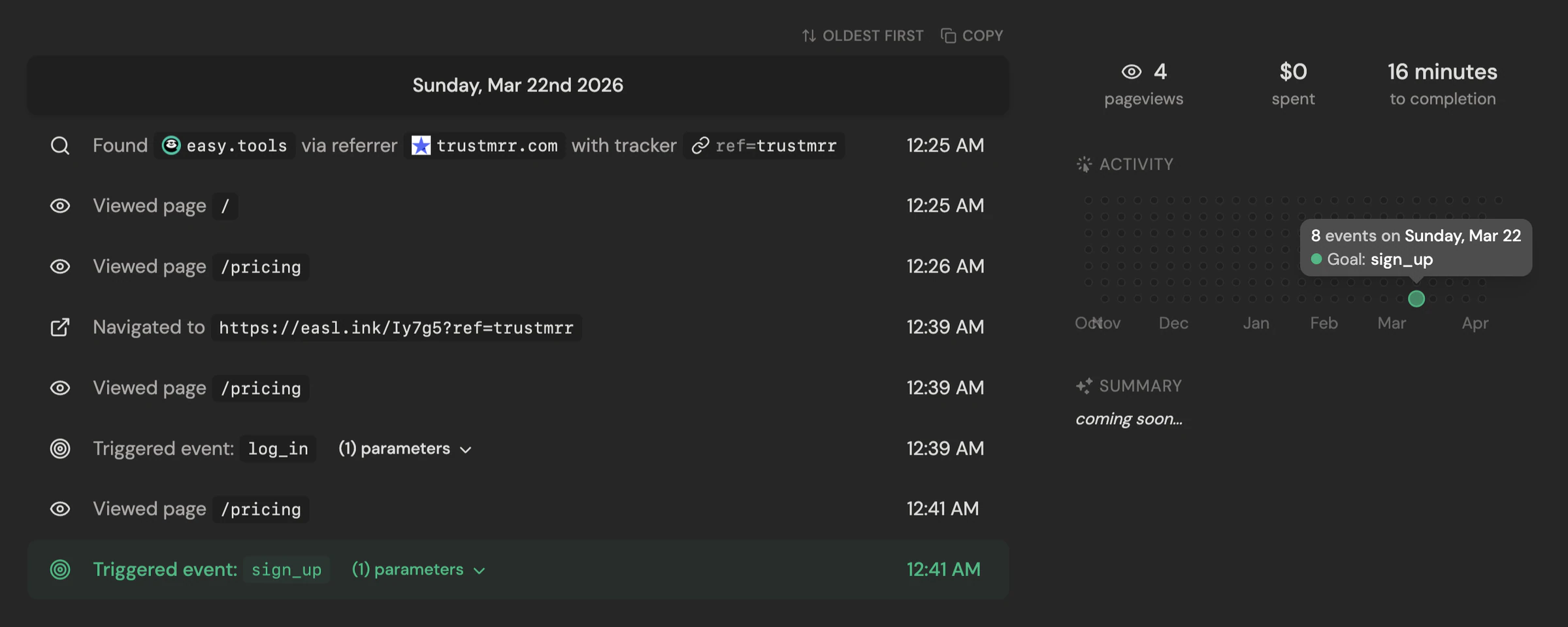
---
## Google Analytics 4
Category: sell-your-products / analytics-and-ads
URL: https://www.easy.tools/docs/google-analytics-4
Track user behavior with Google Analytics 4. Set up advanced analytics to optimize your sales funnel.
---
## Google Ads
Category: sell-your-products / analytics-and-ads
URL: https://www.easy.tools/docs/google-ads
Measure ad performance with Google Ads tracking. Maximize ROI by connecting your campaigns to actual sales.
---
## Facebook (Meta)
Category: sell-your-products / analytics-and-ads
URL: https://www.easy.tools/docs/facebook-meta
Boost social ROI with Facebook (Meta) pixel setup. Track conversions and retarget customers effectively.
---
## TikTok
Category: sell-your-products / analytics-and-ads
URL: https://www.easy.tools/docs/tiktok
Optimize TikTok campaigns with proper tracking. Measure ad performance and increase your short-form video ROI.
---
## Pinterest
Category: sell-your-products / analytics-and-ads
URL: https://www.easy.tools/docs/pinterest
Enhance Pinterest marketing with analytics setup. Track pins to purchases for better visual commerce results.
---
## LinkedIn
Category: sell-your-products / analytics-and-ads
URL: https://www.easy.tools/docs/linkedin
Improve B2B conversions with LinkedIn tracking. Measure professional audience engagement and sales impact.
---
## Enabling waitlist
Category: sell-your-products / waitlist
URL: https://www.easy.tools/docs/enabling-waitlist
In Easycart you can easily collect user details like email addresses and names on a waiting list, while your product is not available. This is a great way to build excitement for an upcoming products and capture emails, and also gather details of people interested in product that is temporary out of stock.
In order to enable waitlist, just go to **Add-ons** → **Waitlist**
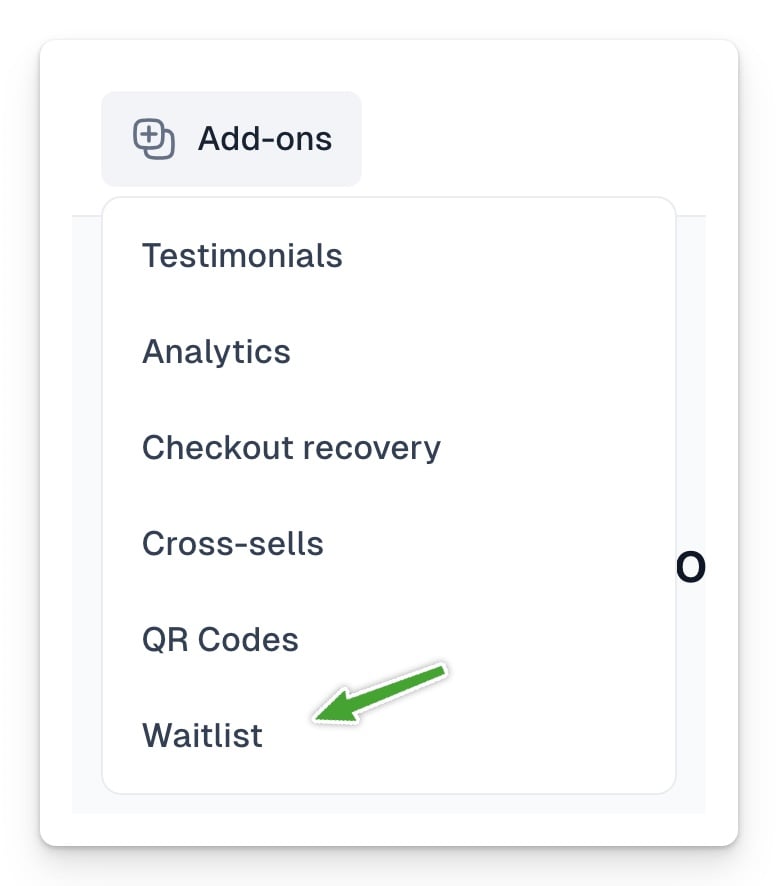
And enable the Waitlist:
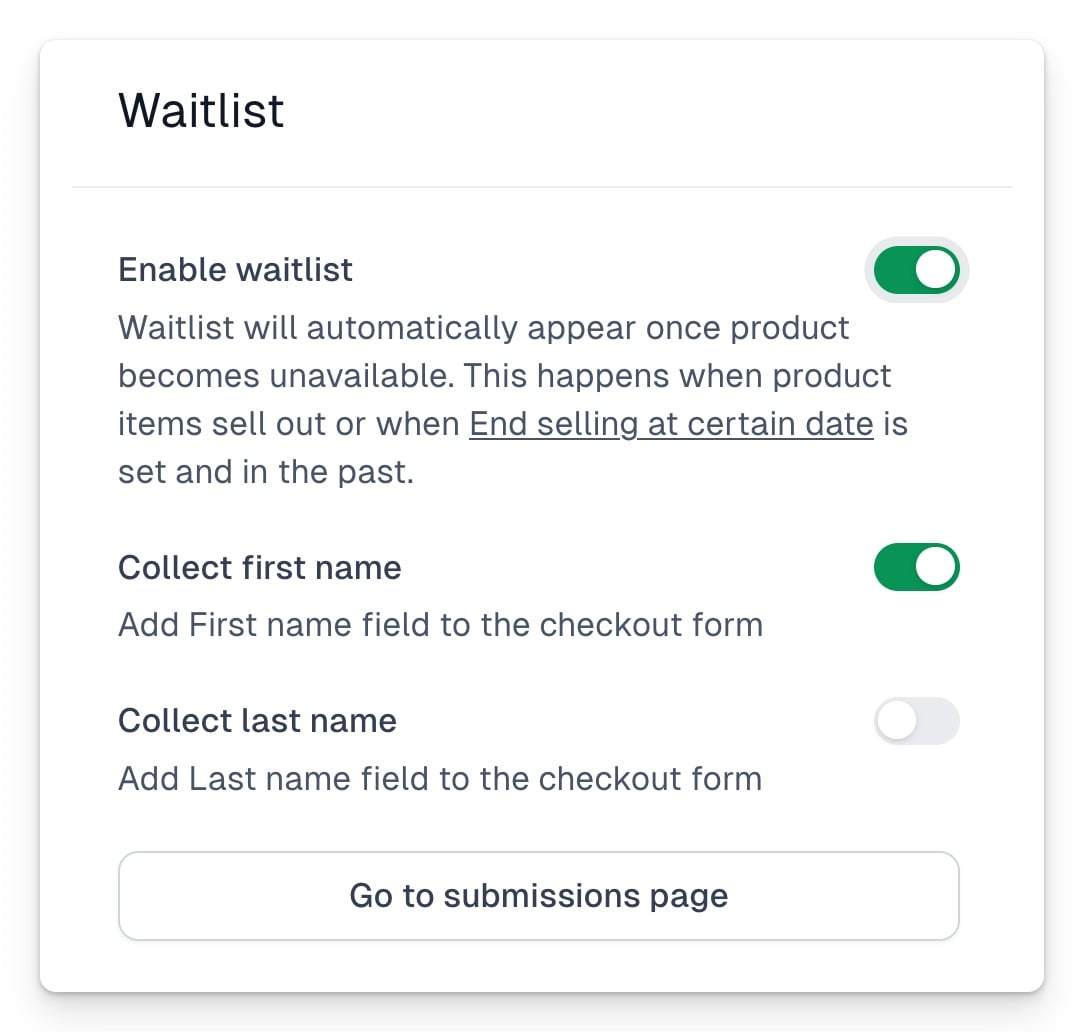
Important! Your product has to be unavailable in order for the waitlist to appear. This happens, when features End / Start selling at certain date cause the whole product to be currently unavailable (Product → Basic menu, or Product → Price variants if you want set those dates for individual variatns separately).
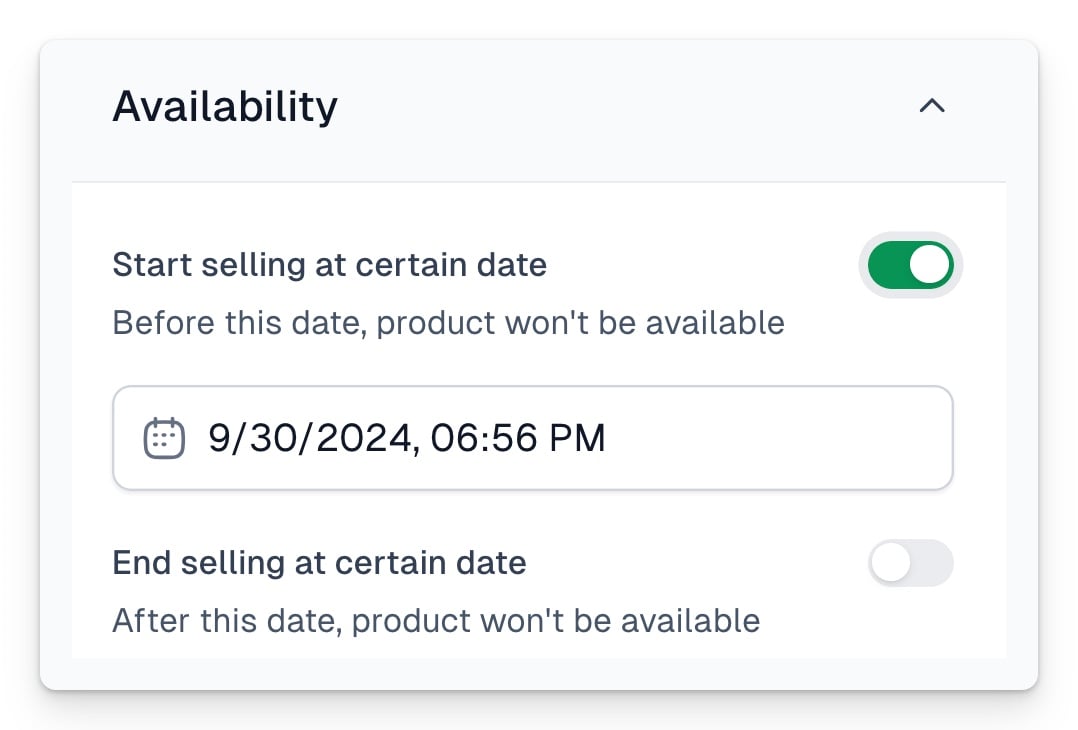
> Changing those dates is also the only way to simulate waitlist in the preview!
Alternatively, waitlist becomes active once your product has limited quantities, and it runs out of stock.
> **Important:** We won’t send any automatic notifications to your waitlist on your behalf. To learn how to manage and nurture your waitlist, check out this article.
---
## Managing waitlist
Category: sell-your-products / waitlist
URL: https://www.easy.tools/docs/managing-waitlist
## Waitlists dashboard
Once you enable waitlist for your product, anyone who enters your checkout will be able to sign up.
To track the signups, and export waitlist data, use the Waitlists dashboard in your Store tab - just go to **Store** → **Waitlists**:
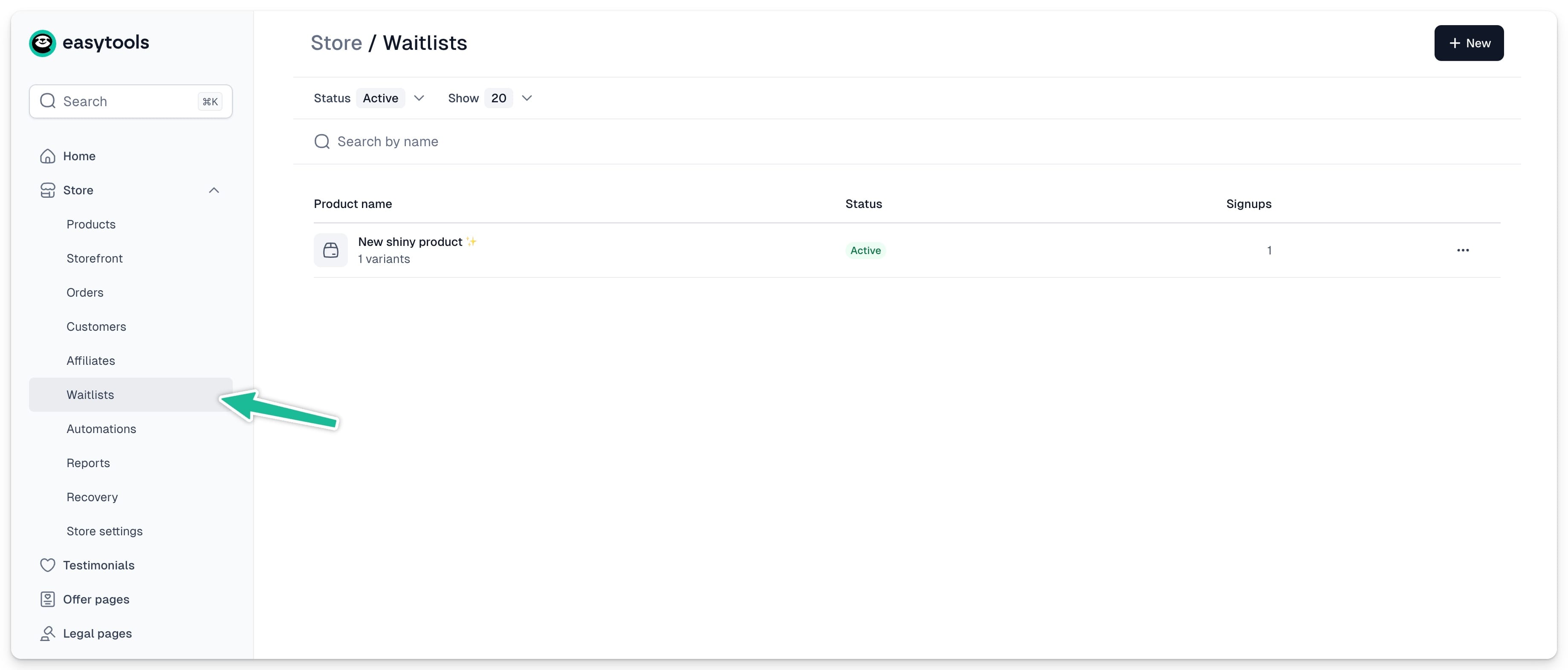
All products with created waitlists will show up here. You can filter them by active or inactive lists. To view signups for a specific waitlist, just click the product name.
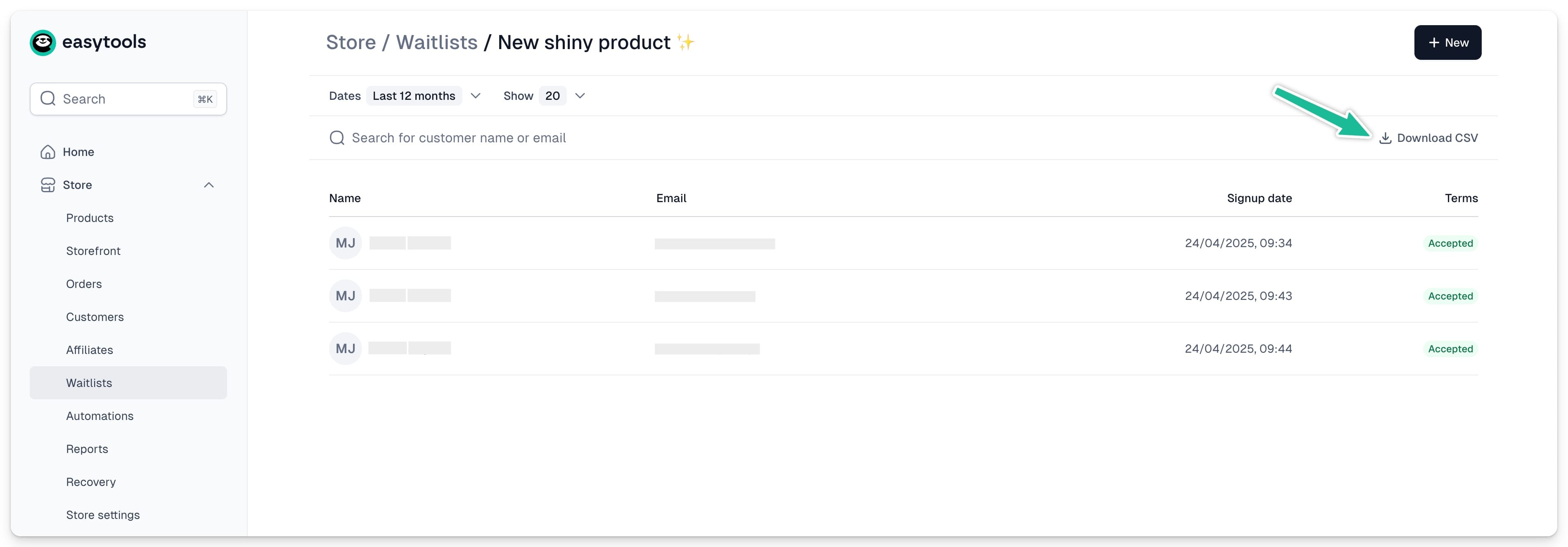
From here, you can:
- Filter the signups by date
- Search for a specific customer or email
- Download CSV with all the signup details
## Using the waitlist
When your product availability changes, the waitlist will automatically show or hide. However, we won’t send notifications to users on your behalf.
To contact users who signed up, you can:
- **Download CSV** and manually import the data into your email marketing tool
- Set up an automation to add users to your email tool as they sign up
### Setting up waitlist automation
To automatically add users who sign up to your email marketing tool, you need to first create a connection with the platform you use, and then set up the automation scenario. Here's how:
1. Go to Store → Automations
2. Open the **Apps** tab
3. Click **+New App**
4. Choose your tool and enter its **API Key**
_(If it’s already connected, skip this step.)_
> To view all the apps that we are integrated with, [check this page](https://www.easy.tools/integrations) or explore our docs.
Now let's create the automation scenario:
1. Go to **Scenarios** tab
2. Click **+New scenario**
3. Set the trigger: **Customer added to waitlist**
4. Select the product
5. Choose your email app from the list
6. Pick the action: add or remove someone from a list
7. Choose the list or group (if no list or group appears, make sure you’ve set one up in your email tool)
8. Click **Save**
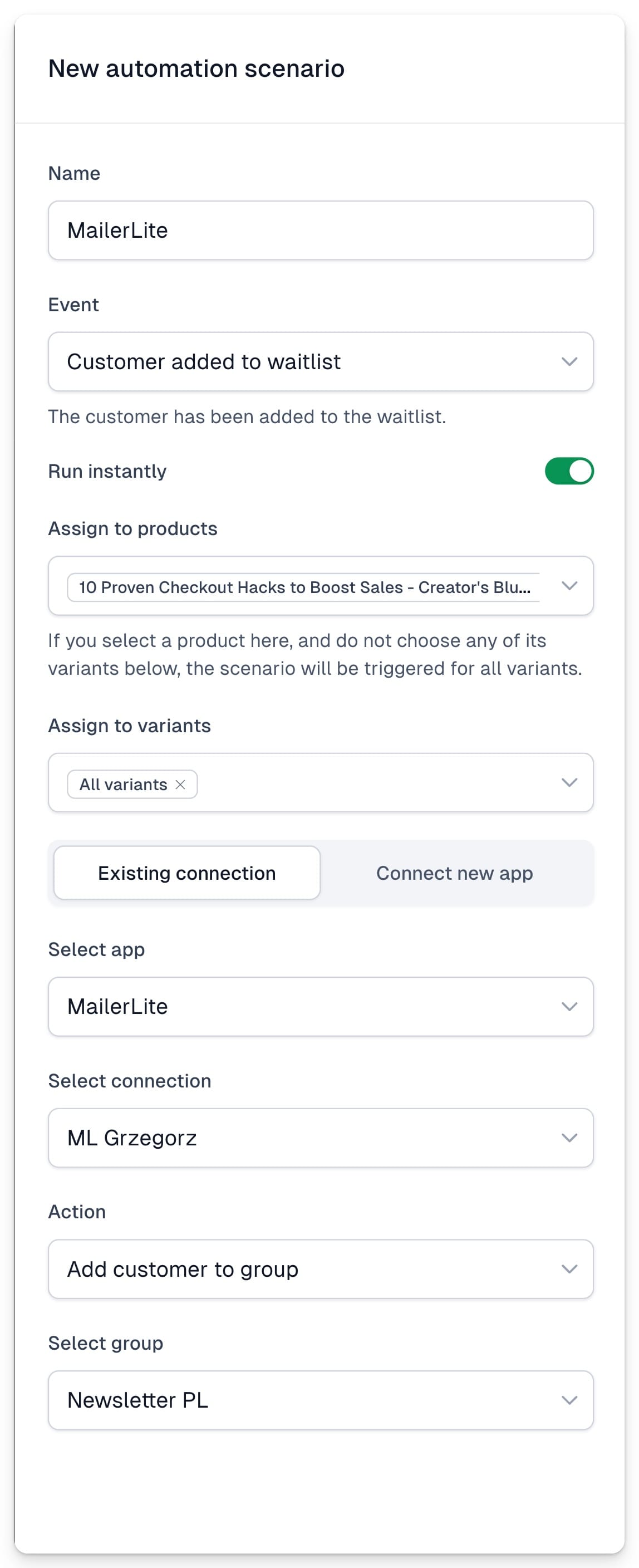
---
## Setting up automations
Category: sell-your-products / automations-and-integrations
URL: https://www.easy.tools/docs/setting-up-automations
Thanks to Automations you can easily connect to your existing apps and flows. In short - first you enable integration with your favorite app, and then you create a scenario where you define what should happen and when.
Examples:
"After purchase, assign the customer to a mailing list"
"3 days after subscription expiration, remove the customer from the community"
And so on...
How to do it? You can add automation from a specific product level, or globally, which is more universal because you can assign the scenario to several products or variants at once!
Both methods differ only in where they're set up. So let's look at how to do it globally.
First, go to the [**Automations → Applications**](https://cart.easy.tools/creator/automations/integrations) tab in the Store. Click on the **+New application** option, give it a name and connect the application from the list. You'll need to paste the API key, instructions will appear after selecting the app.
After filling in the data, make sure the connection is active - click the "Check connection" button before saving changes. If the connection is correct, click the Save button and then go to the [**Scenarios**](https://cart.easy.tools/creator/automations/scenarios) tab.
Next, create a scenario by selecting +New scenario and then choose the appropriate product, variants and options that will allow the automation to be carried out, e.g.
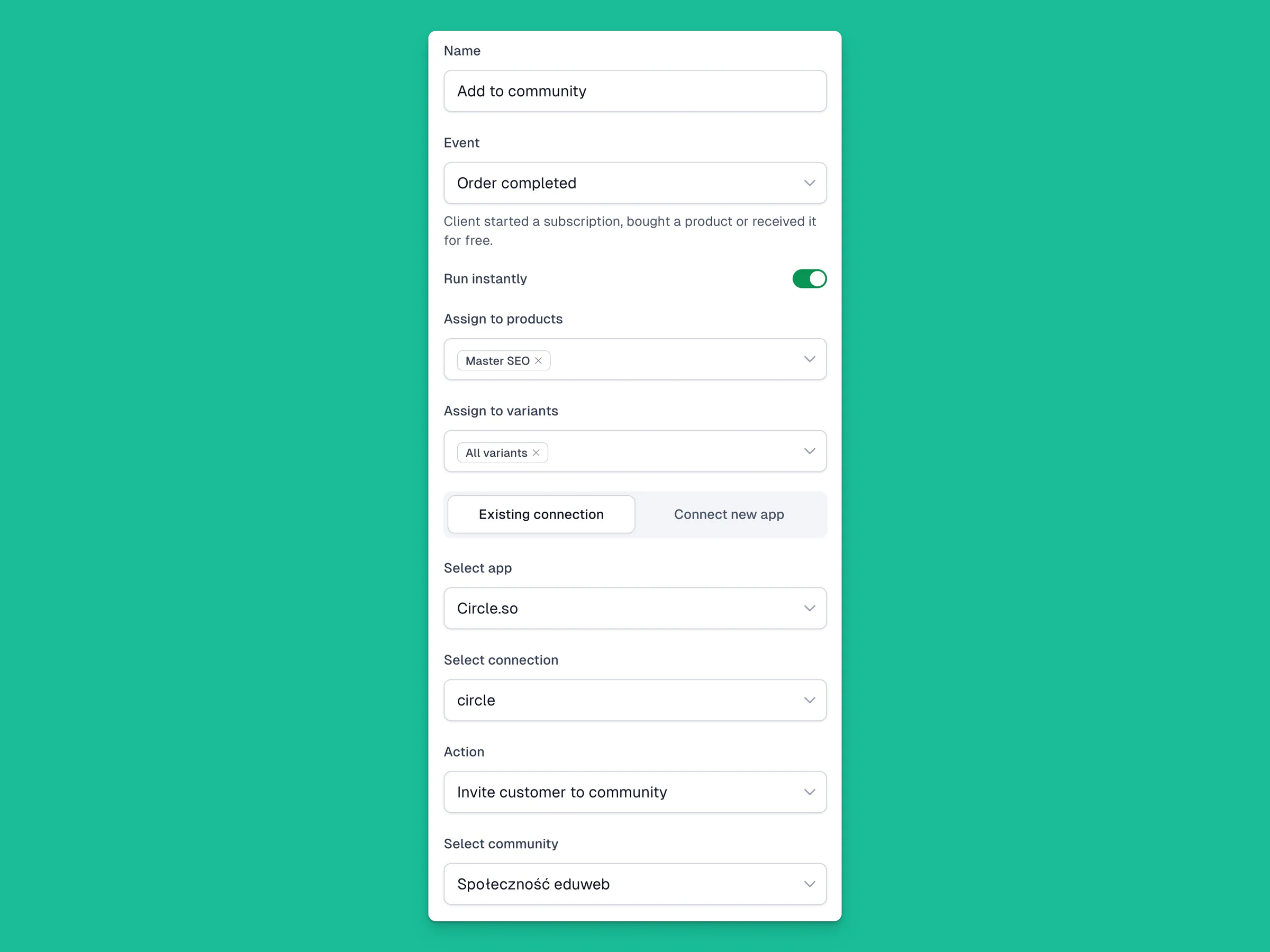
Click Save and... done 🎉
In the Executions tab, you'll find a log of individual executions of such a scenario, where you can see any errors and even retry or cancel the execution.
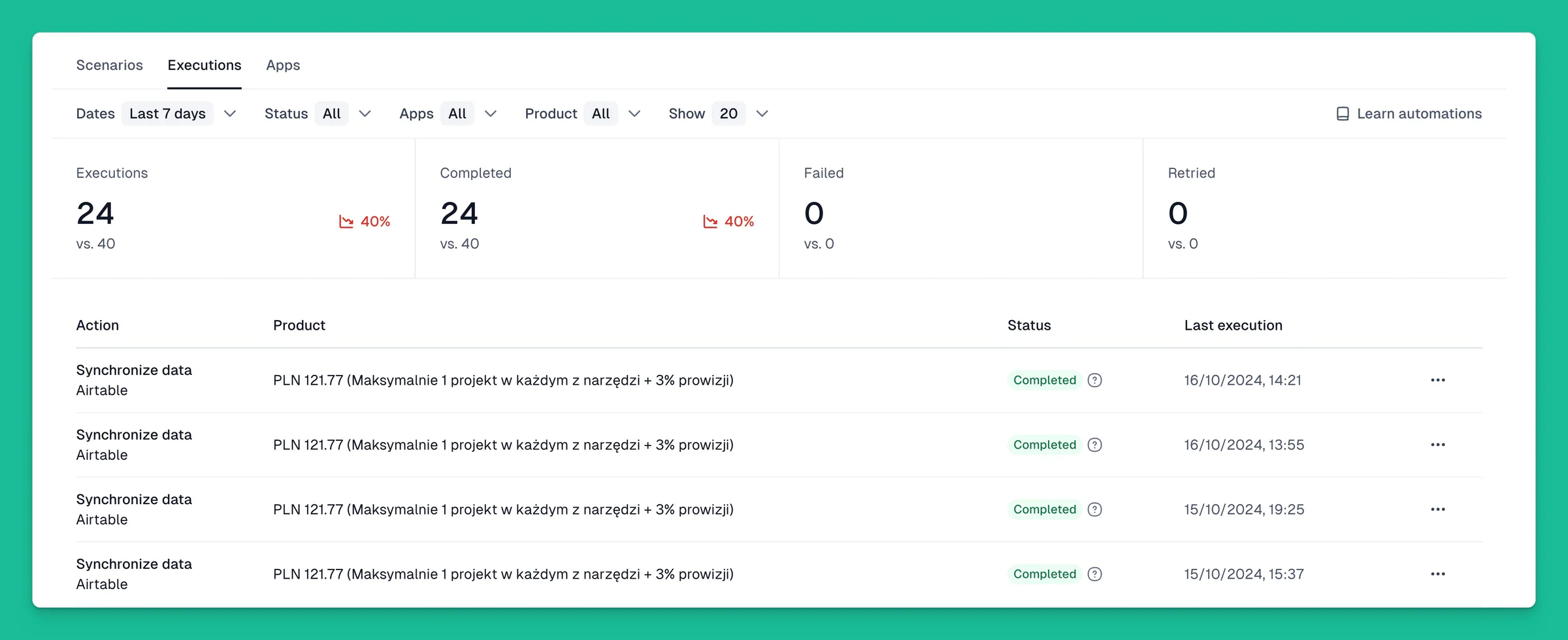
## Receive email notifications after purchase
This way you can also send yourself an email notification after each purchase - just choose the Notification integration and Email Notification as the action.
## Create your own integrations with thousands of tools
And what if your tool isn't on the integration list? No problem! You can use your own automation, which you'll create with the help of Zapier or Make, generating a webhook. You can add a webhook in the general store settings in the API and Webhooks section. If you do this, it will be connected to all newly created products. To do this individually for each product, or to override the general Webhook, go to the [**Automations → Webhook**](https://cart.easy.tools/creator/store-settings/developer) menu in a specific cart.
You can also learn about creating these types of automations from our YouTube and documentation!
By the way, if you want to use Make for this, we have a free month on the Pro plan for you, [which you can unlock here](https://www.make.com/en/register?pc=codeless).
The list of tools to which we already have native integrations is quite long and includes, among others:
- Airtable (where customers and purchases are automatically synchronized)
- CRMs like HubSpot and Pipedrive
- Communities like Circle and Discord
- Email tools like Mailer Lite, Get Response, Mailchimp and others
And many more!
[Check here for the list of native integrations](https://www.easy.tools/integrations)
---
## WordPress
Category: sell-your-products / automations-and-integrations
URL: https://www.easy.tools/docs/wordpress
## Two integration approaches
This tutorial presents two different approaches to integrating WordPress with Easytools:
1. Part 1: Automations approach - Uses Easytools Automations to create WordPress users and Simple Restrict plugin for basic access control.
2. Part 2: Webhooks approach - Uses a custom WordPress plugin that receives webhooks from Easytools for more advanced subscription management.
Choose the approach that best fits your needs. Both videos demonstrate complete workflows from setup to testing.
## Part 1: Automations approach with simple restrict plugin
In this first approach, we use [Easytools Automations](https://cart.easy.tools/creator/automations/scenarios) to automatically create WordPress user accounts when customers purchase your product. We then use the Simple Restrict plugin to control which pages require an active subscription.
### Prerequisites
Before you begin, ensure your WordPress site meets these requirements:
- **SSL Certificate:** Your WordPress site must have an active SSL certificate (URL starts with https://).
- **Permalinks:** Go to **Settings → Permalinks** in WordPress. The structure **cannot** be set to "Plain". Use "Post name" or any custom structure.
- **Administrator access:** You need admin-level access to generate Application Passwords and install plugins.
### Step 1: Generate WordPress application password
Application Passwords allow external services like Easytools to connect to your WordPress site securely without using your main login password.
1. Log in to your WordPress admin dashboard
2. Navigate to **Users → Profile** (or edit your Administrator account)
3. Scroll down to the **Application Passwords** section
4. In the "New Application Password Name" field, enter a name like **Easytools**
5. Click **Add New Application Password**
6. **Important:** Copy the generated password immediately. You won't be able to see it again.
### Step 2: Connect WordPress app in Easytools
Now you'll establish the connection between Easytools and your WordPress site.
1. Log in to your [**Easytools account**](https://cart.easy.tools/register?redirect=https%3A%2F%2Fcart.easy.tools%2Fcreator)
2. From the left sidebar, click **Store** to expand it, then select [**Automations**](https://cart.easy.tools/creator/automations/scenarios)
3. Click the [**Apps**](https://cart.easy.tools/creator/automations/integrations) tab in the top navigation
4. Click **\+ New app** button in the top right corner
5. Fill in the connection form:
- **Connection name:** Enter a descriptive name
- **Select app:** Choose **Wordpress** from the dropdown
- **Platform URL:** Enter your WordPress site URL (must include https://)
- **Username:** Your WordPress admin username
- **Application password:** Paste the application password you copied in Step 1
6. Click **Check connection** to verify, then **Save**
### Step 3: Create automation scenario
Set up an automation that creates a WordPress user account whenever someone purchases your product.
1. In Easytools Automations, go to the [**Scenarios**](https://cart.easy.tools/creator/automations/scenarios) tab
2. Click **\+ New scenario**
3. Configure the scenario:
- **Scenario name:** Give it a descriptive name
- **Send email on failure:** Toggle this ON to get notified if the automation fails
- **Assign to products:** Select the Easytools product that will trigger this automation
- **Assign to variants:** Choose "All variants" or select specific variants
- **Connection:** Select the WordPress connection you created in Step 2
- **Action:** Select **Create user**
4. Click **Save**
### Step 4: Test the purchase flow
Now test the complete flow to ensure users are created correctly in WordPress.
1. Go to your Easytools product page
2. Click the **Checkout** button to preview your checkout page
3. Complete a test purchase by filling in all the necessary details
4. After successful checkout, check your email inbox for a purchase confirmation email from Easytools
### Step 5: Verify user creation in WordPress
Check that the automation successfully created the user account.
1. In Easytools, go to [**Automations → Executions**](https://cart.easy.tools/creator/automations/runs) tab to see execution statistics
2. Click on a recent execution to verify it completed successfully
3. Log in to your WordPress admin panel
4. Go to **Users → All Users**
5. You should see a new user account with **Subscriber** role and the email address used during checkout
### Step 6: Install simple restrict plugin
Now install a plugin to control which pages require user login. We suggest **Simple Restrict** as a lightweight option for basic access control. If you need more advanced features, there are many other membership and access control plugins available in the WordPress repository.
1. In WordPress admin, go to **Plugins → Add New Plugin**
2. Search for **Simple Restrict** (or your preferred access control plugin)
3. Click **Install Now**, then **Activate**
### Step 7: Grant user access permission
Grant the created user the permission to access restricted pages.
1. In WordPress admin, go to **Users → All Users**
2. Click on the user that was created by the automation
3. Scroll down to the **Permissions** section
4. Check the checkbox for **only-logged** - "Allow this user to see pages marked as only-logged"
5. Click **Update User** to save
### Step 8: Configure page permissions
Set up which pages should be restricted to logged-in users only.
1. In WordPress admin, go to **Pages → All Pages**
2. Select the page you want to protect and click **Edit**
3. In the right sidebar, find the **Permissions** panel
4. Check the **only-logged** checkbox to restrict this page to logged-in users
5. Click **Update** to save
### Step 9: Test Access Control
This is the crucial final step - verify that access control works correctly for both logged-in and logged-out users.
#### Scenario 1: Test as logged-out user (should be blocked)
1. Open a new incognito/private browsing window
2. Navigate to the protected page URL
3. You should be:
- Redirected to a login page, OR
- See a message like "Access Denied" or "This content is restricted", OR
- See a blank page or 403 error (depending on plugin settings)
4. This confirms the restriction is working
#### Scenario 2: Test as logged-in subscriber (should see content)
1. In the same incognito window, go to **https://yoursite.com/wp-login.php**
2. Log in using the credentials for the user created via automation:
- **Username:** The username created (e.g., **test123** or email-based)
- **Password:** The user will need to use WordPress password reset if they don't have it
3. After logging in, navigate to the protected page again
4. You should now see the full page content without restrictions
5. At the top of the page, you'll see the WordPress admin bar showing **Howdy, \[username\]**
#### Scenario 3: Test as administrator (full access)
1. Log in as your WordPress administrator account
2. Navigate to the protected page
3. You should see the full content plus the admin toolbar
4. This confirms that different user roles have appropriate access
**Success!** You've now completed Part 1. Users who purchase your product will automatically get WordPress accounts and can access protected content. When their subscription expires, you can configure the automation to delete their WordPress user account.
## Part 2: Webhooks approach with custom plugin
This second approach uses webhooks for real-time communication between Easytools and WordPress. A custom plugin handles subscription events, manages user accounts, sends welcome emails, and provides a bouncer page for non-subscribers.
### Step 1: Configure Webhooks in Easytools
First, you need to set up webhook notifications in your Easytools account.
1. [Log in to Easytools](https://cart.easy.tools/creator/automations/runs)
2. Click on your store name in the left sidebar, then select [**Store settings**](https://cart.easy.tools/creator/store-settings/my-store)
3. In the top tab menu, click [**API & Webhooks**](https://cart.easy.tools/creator/store-settings/developer)
4. You'll see two main sections:
- **Webhook section**
- **Webhook URL:** A text field where you'll paste your WordPress webhook endpoint (you'll get this after installing the plugin)
- Example format: **https://yoursite.com/wp-json/easytools/v1/webhook?api\_token=IgCWvRX**
- **Webhook signing key:** Shows when the key was created (e.g., "Created 16.11.2025, 11:37:04")
- Buttons: **Delete** and **Change key** (with refresh icon)
- If you don't have a signing key yet, you'll see a button to create one
- **API keys section**
- Description: "Create and manage API keys for your Store. You can find API docs here." (with link)
- **\+ New API key** button in the top right
- Section shows "Add a new API key" with instructions for creating API authentication tokens
5. **Important:** Don't fill in the Webhook URL yet - you'll need to install the plugin first
6. If you don't have a webhook signing key, click the button to generate one and **copy it immediately**
### Step 2: Install the Easytools subscription manager plugin
Install the **Easytools subscription manager** plugin that handles webhook events.
1. [Download the plugin file](https://github.com/ChrisRapacz/easytools-subscription-manager/blob/master/easytools-subscription-manager-v1.5.6-wordpress-org-ready.zip)
2. In WordPress admin, go to **Plugins → Add New Plugin**
3. Click **Upload Plugin** and select the ZIP file
4. Click **Install Now**
5. Click **Activate Plugin**
6. After activation, "Easytools" will appear in the left WordPress admin sidebar
### Step 3: Configure plugin settings
Set up the plugin with your Easytools credentials and preferences.
1. In WordPress admin sidebar, click **Easytools**
2. Click **Settings** from the submenu
3. Configure the following sections:Basic Settings:
- **Easytools Checkout URL:** Enter your Easytools product checkout URL
- **Webhook Signing Key:** Paste the signing key from Easytools
- **API Token (Optional):** Optional additional security token
- **Webhook URL:** This displays your WordPress webhook endpoint - you'll copy this to paste into Easytools later
Bouncer Page Settings:
- **Enable Bouncer Page:** Check this to enable
- **Bouncer Page:** Select which page to use as the bouncer page
- **Product URL:** Your Easytools checkout URL
- **Icon Color:** Customize button colors if desired
Access Control:
- **Protect Entire Site:** Optionally protect all pages except selected ones
- **Exclude Pages:** Choose which pages should remain public
4. Click **Save Settings**
### Step 4: Configure welcome email
Customize the email that new subscribers receive with their password setup link.
1. In the Easytools plugin settings (scroll down), find the **Email Configuration** section
2. You'll see a description: "Customize the content of welcome emails sent to new users. Available placeholders: **{username}**, **{site\_name}**, **{login\_url}**"
3. Configure the following fields:
- **Email Subject:** Default is **\[{site\_name}\] Welcome! Set Your Password**
- **Email Heading:** Default shows party emoji and **Welcome to {site\_name}!**
- **Email Message:** Multi-line text area with preferred content
- **Button Text:** Default is **Set Your Password**
4. Below the configuration, you'll see a **Test Email** section:
- Heading: "Test your email configuration"
- Description: "Send a test welcome email to verify your email settings, sender information, and template"
- Enter test email address in the field
- Click **Send test email** button
5. Check your email inbox to verify the welcome email looks correct
### Step 5: Complete webhook connection
Now connect Easytools to your WordPress webhook endpoint.
1. In WordPress plugin settings, find the **Webhook URL** field in Basic Settings
2. Click the green **Show** button to reveal the full URL
3. Click the pink **Copy URL** button to copy it
4. Go back to [Easytools → Store settings → API & Webhooks](https://cart.easy.tools/creator/store-settings/developer)
5. Paste the copied URL into the **Webhook URL** field
6. The URL will include the API token parameter (e.g., ?api\_token=IgCWvRXUx1o45kJfbcem0SbodmQmmT1)
7. Click **Save**
### Step 6: Test Webhook integration
Use the built-in testing tool to verify webhooks are working correctly.
1. In WordPress admin, go to **Easytools → Webhook Testing**
2. You'll see the **Easytools Webhook Testing** page with description: "Test and debug webhook integrations with Easytools payment platform"
3. The page shows three main sections:
- Webhook endpoint:
- **Webhook URL (with API Token):** Displays your endpoint with token masked
- Description: "Use this URL in Easytools → API & Webhooks. The API token provides additional security."
- **Signing Key:** Masked with dots (••••••••••••••••••)
- **API Token:** Masked with dots
- Each has green **Show** and pink **Copy** buttons
- Example payloads:
- **Custom Test Email:** Field to enter test email address
- **Product Assigned:** Section showing "Send test webhook" button
- Shows sample JSON payload preview
- Similar sections for other event types
4. Enter a test email address in the **Custom test email** field
5. Under Product sssigned section, click **Send test webhook**
6. Check for success message and verify the test worked
### Step 7: Monitor webhook logs
View all webhook events received by your WordPress site.
1. In WordPress admin, go to **Easytools → Webhook logs**
2. You'll see a page titled "Monitor and debug webhook communications from Easytools"
3. At the top, there's a **Date range filter:**
- Two date fields: dd.mm.rrrr format
- Text "to" between them
- Blue **Filter** button (with filter icon)
- Pink **Clear** button (with X icon)
4. On the right, there's an **Export:** section:
- Green **Export to CSV** button (with download icon)
- Green **Export to MD** button (with document icon)
5. The main table shows webhook events with green headers:
- **Date:** Timestamp (e.g., "2025-11-16 22:16:18")
- **Event Type:** Shows event names like:
- product\_assigned
- subscription\_created
- product\_access\_expired
- subscription\_deleted
- **Customer Email:** Email address of the customer
- **User ID:** WordPress user ID number (e.g., "46", "45", "44")
- **Status:** All showing green **success** badges
6. Click **Details** on any row to see the full webhook payload and response
### Step 8: View subscriber management
Check active and inactive subscriptions in the subscriber dashboard.
1. In WordPress admin, go to **Easytools → Subscribers**
2. You'll see a description: "View and manage all users with active and inactive subscriptions"
3. The page is divided into two sections with green headers:Active Subscriptions:
- Green checkmark icon with **Active Subscriptions** heading
- Table with columns:
- **User:** WordPress username
- **Email:** User email
- **Subscription Type:** Type of subscription
- **Renewal Date:** Next renewal date
- **Status:** Status badge
- If empty: "No active subscriptions found."
Inactive Accounts:
- Red X icon with **Inactive Accounts** heading
- Description: "Users who previously had a subscription that was cancelled, expired, or is no longer active."
- Table with columns:
- **User:** Username
- **Email:** Email address
- **Last Subscription Type:** Type (e.g., "monthly")
- **Last Renewal Date:** Date (e.g., "2025-11-28 16:14:03")
- **Status:** Red badge showing **Inactive**
### Step 9: Test complete purchase flow
Run an end-to-end test to verify the entire integration.
1. Visit your Easytools product checkout page
2. Complete a test purchase with a real email address
3. After purchase, check your email for the welcome email with subject like "Welcome! Set Your Password"
4. The email should show:
- Purple/blue button with text **"Set your password"**
- Email heading showing the party emoji and welcome message
- Your username
5. Click the button to set up your password
6. Go to **Easytools → Subscribers** in WordPress
7. Verify the user appears in Active Subscriptions
8. Go to **Webhook Logs** and verify events were recorded:
- **product\_assigned** event
- **subscription\_created** event
### Step 10: Test bouncer page and access control
Verify that non-subscribers are redirected to the bouncer page.
1. Open an incognito/private browser window
2. Navigate to a protected page on your WordPress site
3. You should be redirected to the bouncer page
4. The bouncer page should display:
- Your site branding/logo (based on template)
- Message explaining subscription is required
- Button to purchase/subscribe (linking to your Easytools checkout)
5. Now log in as a subscriber user
6. Navigate to the same protected page
7. You should see the full page content - no bouncer page
8. At the top, you'll see logged in as the subscriber user
> **Congratulations!** You've successfully set up the webhooks-based WordPress integration with the custom plugin. This approach provides real-time subscription management, automatic user creation, welcome emails, access control, and comprehensive logging.
---
## WooCommerce
Category: sell-your-products / automations-and-integrations
URL: https://www.easy.tools/docs/woocommerce
## How to connect WooCommerce with Easytools - a step-by-step guide
Watch the tutorial on connecting WooCommerce with Easytools. In this tutorial, we demonstrate how to integrate a WooCommerce store with Easytools to increase sales conversion while managing fulfillment in your existing system.
Thanks to the built-in WooCommerce integration in Easycart, sellers can easily create automation workflows to automatically manage orders completed through Easycart. Currently, we support creating orders in WooCommerce after a purchase is made in Easycart. This allows you to use your existing WooCommerce workflow for handling post-purchase processes - so no changes are needed. This includes options such as issuing invoices, updating stock levels, etc.
However, **subscription products sold this way are not yet supported** - subscription products will not appear in the automation list.
The main goal of the EasyCart checkout is to maximize sales conversion. Using automation allows you to increase product sales while keeping your WooCommerce store and maintaining your existing post-purchase processes already set up in WooCommerce.
> **Critical requirements**
>
> Before you begin, ensure your WooCommerce store meets these two conditions. Without them, the integration will fail:
>
> SSL Certificate: Your WordPress site must have an active SSL certificate - you will confirm it by checking whether your page starts with https:// and is visible as secure.
>
> Permalinks structure: Go to WordPress Settings → Permalinks. The structure cannot be set to "Plain". Set it to "Post name" or any other custom structure.
## 1\. Prepare your WordPress account
To connect safely, you need to generate a specific Application Password in WordPress. Do not use your regular login password.
1. Log in to your WordPress Admin dashboard.
2. Go to **Users → Profile** (or **All Users** and edit the Administrator account).
3. Scroll down to the **Application Passwords** section.
4. In the "New Application Password Name" field, type preferred name i.e. **Easytools**.
5. Click **Add New Application Password**.
6. **Copy the generated password immediately.** You won't be able to see it again after you leave the page.
## 2\. Connect WooCommerce app in Easytools
Once you have your credentials, establish the connection in Easytools.
1. Log in to Easytools and go to **Store → Automations**.
2. Select the **Apps** tab in the top menu.
3. Click **\+ New App** in the top right corner.
4. Enter a connection name (e.g., "My WooCommerce Store") and select **WooCommerce** from the list.
5. **Platform URL:** Enter your store's URL. Remember to include **https://**.
6. **Username:** Enter your WordPress Admin username (the login you use to sign in to WP).
7. **Application Password:** Paste the API Key you generated in step 1.
8. Click **Check Connection**. If successful, save the integration.
## 3\. Set up automation workflow
Now that the app is connected, create a scenario to trigger an order in WooCommerce whenever a sale happens in Easytools.
1. Go to the **Scenarios** tab in Automations.
2. Click **\+ New Scenario**.
3. Name your scenario (e.g., "Product A → Woo Order").
4. **Event:** Select **Order completed**.
5. **Assign to products:** Select the specific Easytools product you are selling.
6. **Select App:** Choose the WooCommerce connection you created in Step 2.
7. **Action:** Select **Create New Order**.
8. **Select Product:** A new field will appear. Search for and select the corresponding product from your WooCommerce inventory.
9. Click **Save**.
Done! When a customer purchases this product via Easytools, a new order will automatically appear in your WooCommerce **Orders** list within seconds, labeled as "Completed" (or your store's default status).
---
## Webflow
Category: sell-your-products / automations-and-integrations
URL: https://www.easy.tools/docs/webflow
In this article, we will look at how to connect Easytools with Webflow in two ways:
1. **Webflow as a landing page** - Your products are on Easytools, and Webflow serves as your main landing page. You can link any button or element on Webflow directly to an Easytools product checkout.
2. **Protected content on Webflow** - Using Login Wall to control who sees what. You can block access to an entire page, or show and hide specific sections on a page depending on whether the visitor is a paying customer.
> Unlike some other platforms, Webflow supports not just full-page protection but also **section-level gating** - showing different content to paying customers and free visitors on the same page. This is covered in Part 2.
Watch the video tutorial covering all topics:
## Part 1: Linking products
When you have products on Easytools and Webflow is your landing page, you can link any button or element on your Webflow site directly to the Easytools checkout for that product.
### 1\. Copy the product link from Easytools
1. In Easytools, go to **Store → Products**.
2. Open the product you want to link to.
3. Click the **Share** icon at the top of the product page.
4. In the Share dialog, click **Copy link**. Optionally enable **Shorten link** to get a shorter URL.
### 2\. Add the link to a Webflow button
1. Open your site in the **Webflow Editor**.
2. Click on the button or element you want to link.
3. In the right panel, open the **Settings** tab.
4. Find the **Link settings** section and paste the copied link into the **URL** field.
5. Enable **Open in new tab** if needed.
6. Click **Publish** in the top right corner to make the changes live.
When users click the button, they will be taken directly to the Easycart checkout for that product.
## Part 2: Login Wall (protected content)
Login Wall allows you to control access to content on your Webflow site. There are two modes:
- **Secure entire page** - Blocks access to the whole page. Non-paying visitors are redirected to the Easytools login/purchase page.
- **Secure page sections** - Shows or hides specific sections on a page depending on the visitor's subscription status. Both paying and non-paying visitors can see the page, but they see different content.
Both modes use a script placed in the **Custom code** field of the Webflow page settings, and a product in Easytools that acts as the access gate.
### 3\. Secure an entire page
**Step 1 - Get the script from Easytools:**
1. In Easytools, go to **Store → Products**.
2. Open the product that should grant access to the protected page.
3. Click the lock icon (**Gate content**) at the top of the product page.
4. Click **Secure entire page**.
5. Click **Copy code**.
**Step 2 - Add the script to the Webflow page settings:**
1. In the Webflow Editor, open the **Pages** panel in the left sidebar.
2. Hover over the page you want to protect and click **Edit page settings** (the gear icon that appears).
3. Scroll down to the **Custom code** section.
4. Paste the script into the **Inside tag** field.
5. Click **Save**.
6. Publish your site for the change to take effect.
Non-paying visitors who try to access the page will be immediately redirected to Easytools, where they can log in or purchase access. Paying customers will see the page without any interruption.
### 4\. Secure page sections
Section-level gating lets you show different content to different visitors on the same page - without blocking access to the page itself. You need to do two things: add the script to the page, then mark each section with the appropriate attribute.
**Step 1 - Get the script from Easytools:**
1. In Easytools, go to **Store → Products**.
2. Open the product that should act as the access gate.
3. Click the lock icon (**Gate content**) at the top of the product page.
4. Click **Secure page sections**.
5. Click **Copy code**.
**Step 2 - Add the script to the Webflow page settings:**
1. In the Webflow Editor, open the **Pages** panel.
2. Hover over the page and click **Edit page settings**.
3. Scroll to **Custom code** and paste the script into the **Inside tag** field.
4. Click **Save**.
**Step 3 - Add attributes to your sections:**
For each section on the page, decide whether it should be visible to paying customers, non-paying visitors, or everyone. Then add the appropriate custom attribute in Webflow:
1. In the Webflow Editor, click on the section you want to gate.
2. In the right panel, open the **Settings** tab.
3. Find the **Custom attributes** section and add a new attribute:
- For content visible **only to paying customers**: Name = **data-paid**, Value = **true**
- For content visible **only to non-paying visitors**: Name = **data-free**, Value = **true**
4. Repeat for each section that should be gated.
5. Publish your site for the changes to take effect.
> Only sections explicitly marked with **data-paid** or **data-free** are affected by the script. Any section without one of these attributes will be visible to all visitors regardless of their subscription status.
### 5\. Testing the Login Wall
To test your Login Wall setup:
1. Make sure your Webflow site is **published** - Login Wall only works on the live site, not in the Webflow Editor preview.
2. To test the **locked-out or free-visitor experience**: open the protected page in an **Incognito / Private window**. For full-page protection you should be redirected; for section gating you should see only the sections marked **data-free**.
3. To test **access as a paying customer**: open the page in a browser where you are logged into Easytools with the product purchased. Full-page protection should grant access; section gating should show sections marked **data-paid**.
---
## Wix
Category: sell-your-products / automations-and-integrations
URL: https://www.easy.tools/docs/wix
In this documentation, we will look at how to connect Easytools with Wix in two ways:
1. **Wix as a landing page** - Your products are on Easytools, and Wix serves as your main landing page. You can link any button or element on Wix directly to an Easytools product checkout.
2. **Protected content on Wix** - Using Login Wall to block access to specific pages so only paying customers can view them.
> Keeping products on Easytools while using Wix as your landing page is a simple and safe setup. All transactions and access control happen on Easytools - Wix just handles the look and feel of your public site.
Watch the video tutorial covering both topics:
## Part 1: Linking products
When you have products on Easytools and Wix is your landing page, you can link any button or element directly to the Easytools checkout for that product.
### 1\. Copy the product link from Easytools
1. In Easytools, go to **Store → Products**.
2. Find the product you want to link to and open it.
3. Click the **Share** button at the top of the product page.
4. In the Share dialog, click **Copy link** - this copies the checkout link to your clipboard.
### 2\. Add the link to a Wix button
1. Open your site in the **Wix Editor**.
2. Click on the button or element you want to link.
3. In the settings panel that appears, click the link icon next to **Links to**.
4. In the dialog that opens, select **Web address**.
5. Paste the link you copied from Easytools.
6. Click **Done**.
7. Click **Publish** in the top right corner to make the changes live.
When users click the button, they will be taken directly to the Easycart checkout for that product.
> Changes in the Wix Editor are not visible to visitors until you click **Publish**. Always publish after making updates.
## Part 2: Login Wall (protected content)
Login Wall allows you to protect specific pages on Wix - only people who have purchased access on Easytools can view them. Visitors without access are automatically redirected to the Easytools page, where they can log in or buy the product.
> **Important:** use Wix Dashboard Custom Code - not the Wix Editor. The Login Wall script from Easytools cannot be added through the Wix website editor (neither as an embed element nor through the Velo developer tools). It must be added via **Custom Code** in the **Wix Dashboard settings**.
Follow the steps below to make sure the script is implemented properly and your page is protected:
### 3\. Copy the Login Wall script from Easytools
1. In Easytools, go to **Store → Products**.
2. Select the product that should grant access to your protected page.
3. Click the lock icon (**Gate content**) at the top of the product page.
4. Click **Secure entire page**.
5. Click **Copy code** to copy the generated script.
> On Wix, **Secure entire page** is the recommended approach. Securing page sections is possible but more complex and can be problematic - sticking with entire-page protection keeps things simple and reliable.
### 4\. Add the script via Wix dashboard custom code
1. Go to your **Wix Dashboard** (manage.wix.com - not the Wix Editor).
2. In the left sidebar, click **Settings**.
3. Scroll down to the **Development & integrations** section and click **Custom code**.
4. Click **\+ Add Custom Code**.
5. Paste the script copied from Easytools into the code field.
6. Give it a name, e.g. **EasyTools Login Wall**.
7. Under **Add Code to Pages**, select **Choose specific pages** and pick the page you want to protect.
8. Under **Place Code in**, select **Head**.
9. Click **Apply**.
The protected page will now redirect any visitor without a valid purchase to the Easytools login/purchase page. Paying customers with an active Easytools session will see the content without any interruption.
> When you create a new page in Wix and immediately try to protect it, that page may not appear in the **Choose specific pages** dropdown in Custom Code settings. This is a Wix behaviour - it can take several minutes for newly created pages to appear on the list. Wait a few minutes and try again.
### 5\. Testing the Login Wall
To test your Login Wall setup:
1. Make sure your Wix site is **published** - Login Wall only works on the live site, not in the Wix Editor preview.
2. To test the **locked-out experience**: open the protected page in an **Incognito / Private window**. You should be immediately redirected to the Easytools page prompting login or purchase.
3. To test **access as a paying customer**: open the protected page in a browser where you are logged into Easytools with the product purchased. The page should load normally with no redirect.
---
## Furgonetka
Category: sell-your-products / automations-and-integrations
URL: https://www.easy.tools/docs/furgonetka
Go to the _Automations_ tab and add a new scenario, select the event _order completed_, then assign the selected product(s) and price variants. Next, choose the existing integration tool _Furgonetka_ and the action _Create Package_. At this point, a form for the package pickup location will appear. Here, enter the company or warehouse details from where the package will be picked up after packing and ordering the courier.
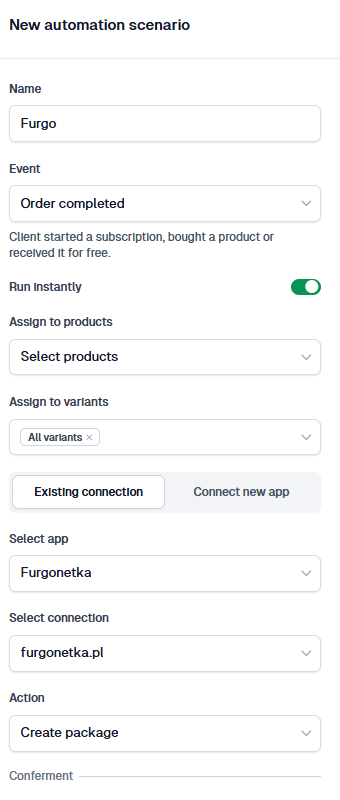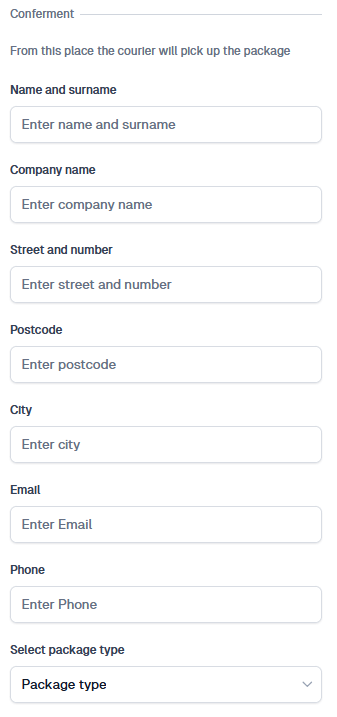
**Configuring Customer Address Details**
Since online products don’t require customer address details, you need to enable the option to require address input, which can be found in the price variant settings. This will add additional address fields in the customer’s cart that they must fill out before completing the transaction.
**Configuring the Carrier, Package Size, and Contents**
To fill in these fields, click on the address fields button, where you’ll select the option _Enable delivery with Furgonetka.pl_. Once these options are enabled and the information is filled out, the customer will see additional address fields and a button to select a parcel locker during checkout.
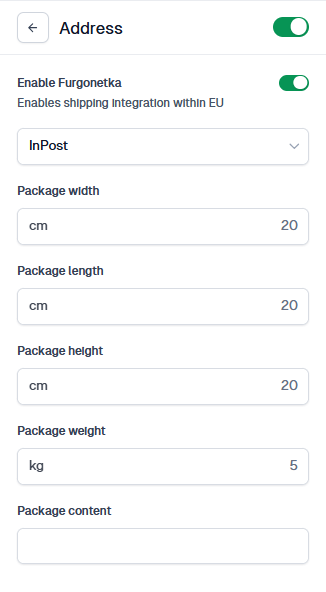
**Important**
When a new package is created through automation, it will appear in the _To be Sent_ view on Furgonetka.pl. It is still necessary to pay for the shipping costs and, if needed, order a courier to pick up the package. After paying for the shipment on the service, Furgonetka will generate the package’s waybill.
Using Easytools and post-sale automation, you can easily send a package to your customer’s address or parcel locker with the Furgonetka integration.
We have prepared a special automation that creates a shipment in the Furgonetka system, so your next steps will simply involve packing, paying for, and sending the package.
## **Setting up the Furgonetka application in your store**
To connect to your Furgonetka account, follow the steps below:
1\. Go to Store → [**Automations**](https://app.easycart.pl/creator/automations/scenarios)
2\. In the top menu, choose [**Applications**](https://app.easycart.pl/creator/automations/integrations)
3\. Click on the **+New Application** option
4\. Assign a **Name**, and select **Furgonetka** from the list of applications.
5\. Click the **Connect with Furgonetka** button and sign in to your account or create a new one.
6\. After you sign in, you’ll see a dashboard where you can authorize the integration with Easycart.
After you click **I agree**, the connection will be ready, and we’ll show a confirmation notification that the integration has been created. When you go back to the Easytools dashboard, you’ll see a new **Furgonetka** integration in your list of connected apps.
Now you can set up scenarios that let you easily ship a package after a successful transaction.
## **Create a package in Furgonetka after purchase**
To automatically send transaction details to **Furgonetka** after a purchase and create the right package, you need to set up an automation scenario. Here’s how:
1\. Go to **Store →** [**Automations**](https://app.easycart.pl/creator/automations/scenarios)
2\. Add a new scenario by clicking **\+ New scenario** in the top-right corner.
3\. Enter a name for your scenario.
4\. Under **Event**, choose **Order completed**.
5\. Enable **Run instantly** if you want the data to be sent immediately after the order is completed.
6\. If you want to send the data to Furgonetka with a delay, disable **Run instantly** and choose when we should run the automation.
7\. In **Assign to products**, select the product(s) you want this automation to run for.
8\. In **Assign to variants**, select the product variant(s).
9\. Check **Existing integration** and choose the right **Furgonetka** integration.
10\. For the action, select **Create package**.
Next, we’ll ask you to fill in the sender details and the pickup address where the courier will collect the package. Don’t forget to choose the **Shipment type** as well.
After you fill in all the details, click **Save** - you’ve just created your automation scenario. Now it’s time to set up your checkout.
## Add address fields to the checkout
Since you’re selling digital products, you don’t usually need to collect your customer’s address, so we don’t show address fields in the checkout by default. To enable shipping, you’ll need to add the required address option to your checkout:
1. In the **Easytools** dashboard, choose the **product** you want to ship.
2. Go to **Product → Price variants** and select the right variant.
3. In the **Form fields** section, choose the additional fields the customer must fill in before completing the purchase.
### Choose the carrier, package size, and contents
Next, you’ll need to choose which carrier you’ll use, and set the package dimensions and contents. Here’s how:
1. Click the **Address** field to open the edit options.
2. Enable **Shipping with Furgonetka**.
3. Choose the carrier and fill in the package details.
4. Click **Save**.
After you publish the checkout, every customer who buys this variant will see additional address fields in the checkout and a button to choose a Paczkomat locker.
> **Important:** With this setup, the automation will create a package in Furgonetka that will appear in the To be shipped view. To finalize it, you still need to pay for the shipment and, if needed, book a courier pickup. Once the shipment is paid for in Furgonetka, it will generate the package shipping label.
---
## Framer
Category: sell-your-products / automations-and-integrations
URL: https://www.easy.tools/docs/framer
## Overview
In this documentation, we will look at how to connect Easytools with Framer in two separate ways:
1. **Framer as a landing page** - Your products are on Easytools, and Framer serves as your main landing page. You can also add additional tools from Easytools like Tickers, testimonials and others.
2. **Protected content on Framer** - Using login wall to have your content on Framer while it's still secured from unauthorized access.
> Using Framer as your landing page with products on Easytools is a very simple and safe solution. You have everything - all products - on Easytools, so no unauthorized access is possible, and you still have Framer as your beautiful main landing page.
This documentation covers only selected tools from Easytools. There are more tools available in your Easytools account. For the full scope, check your Easytools dashboard.
**Adding tools follows a standardized approach:**
- If it's a **script** - go to Framer **Site Settings → Custom Code** and paste it there
- If it's an **iframe/embed** - use the **Embed** element in your Framer page layout
## Part 1: Framer as a landing page
Watch the video tutorial covering linking products, Storefront, widgets, and embeds:
### 1\. Linking individual products
When you have products on Easytools and Framer is your landing page, you can link buttons directly to your product checkout pages.
1. Go to Easytools and navigate to **Store → Products**.
2. Find the product you want to share.
3. Click the **Share** button and select **Copy link to checkout**.
4. In Framer, select your button element.
5. Paste the copied link into the button's link field.
That's it! When users click the button, they will be taken directly to the Easycart checkout for that product.
### 2\. Linking to storefront
If you want to link to an entire page with all your products (your portfolio), you can use the Storefront feature.
1. Go to Easytools and navigate to **Store**.
2. Find the **Storefront** section.
3. You can edit which products are displayed on your Storefront - add or delete them depending on what you need.
4. Copy the Storefront link.
5. In Framer, create a button (e.g., "See our products") and paste the Storefront link.
Users clicking this button will see your entire portfolio of products from Easytools.
### 3\. Adding tickers (social proof)
Tickers display information about recent purchases to your visitors - this is social proof meant to drive engagement and bring more clients.
1. In Easytools, go to **Websites → Social Proof** (Tickers).
2. Configure your ticker settings.
3. Click **Copy code**.
4. In Framer, go to **Site Settings → Custom Code**.
5. Add a new custom code entry (e.g., "Tickers").
6. Paste the ticker script and save.
> You can combine multiple scripts in one Custom Code entry - one after another. Set it to run on **All pages** so the widgets appear everywhere on your site.
### 4\. Embedding testimonials (wall of love)
Testimonials are embedded elements (iframes), not scripts.
1. In Easytools, go to **Websites → Testimonials** (Wall of Love).
2. Customize the testimonials display as you want.
3. Click **Copy embed code**.
4. In Framer, go to the Layers view where you want to add the testimonials.
5. From the **Insert** menu, search for and add an **Embed** element.
6. Select the embed element and make sure you choose **HTML** (not URL).
7. Paste the embed code.
**Remember the difference:**
- **Scripts** (Tickers) - Go to **Site Settings → Custom Code**
- **Embeds** (Testimonials) - Use the **Embed** element in your page layout
## Part 2: Login wall (protected content)
Login Wall allows you to have content on Framer that is protected - only people who bought access on Easytools can see it.
Watch the video tutorial covering Login Wall setup:
### 5\. Setting up login wall in Easytools
1. In Easytools, go to **Store → Products**.
2. Select the product that should grant access to protected content (e.g., "Yoga Fundamentals Video Course").
3. Click the **Gate content** lock icon (on top right, next to other icons).
4. Select **Secure page sections or secure entire page** (in the video tutorial we cover securing sections).
5. Turn on **Create asynchronous script** - this is important because of the way Framer works.
6. Copy the entire generated code.
### 6\. Adding login wall script to Framer
1. In Framer, go to **Site Settings → Custom Code**.
2. Add a new custom code entry.
3. Name it (e.g., "Login Wall").
4. Set placement to **End of **.
5. For the page setting, select only the specific page that should be protected (e.g., "/class").
6. Paste the code from Easytools.
7. Save the settings.
### 7\. Creating custom code file in Framer
You also need to create a custom code file in Framer Assets to enable the code overrides:
1. In Framer, go to **Assets**.
2. Create a **New Code File**.
3. Name it **Easytools\_login\_wall.tsx**.
4. Paste the following code:
```tsx
import type { ComponentType } from "react"
// Function marking element as FREE (visible for everyone)
export function withIDfree(Component: ComponentType): ComponentType {
return (props) => {
return
}
}
// Function marking element as PAID (visible only after purchase)
export function withIDpaid(Component: ComponentType): ComponentType {
return (props) => {
return
}
}
```
Save the file.
### 8\. Applying code overrides
1. Go to your protected page (e.g., "/class").
2. Create two sections/elements:
- One for **free users** (e.g., "Member only area" - shown when NOT logged in)
- One for **paying customers** (e.g., "Congrats, you have access" - shown when logged in)
3. Select the element for paying customers.
4. In the right panel, find **Code Overrides**.
5. From the dropdown, select **Easytools\_login\_wall** (the file you created).
6. Choose **withIDpaid** - this will show this element only to paying customers.
7. Select the element for free users.
8. Apply the **withIDfree** override - this will show this element only to free (non-paying) users.
### 9\. Testing the login wall
To test your login wall setup:
1. Publish your Framer site.
2. As a logged-in paying customer, you should see the "Congrats, you have access" content.
3. Open an **Incognito/Private window** to test as a non-logged-in user.
4. In incognito mode, you should see the "Member only area" content instead.
---
## Squarespace
Category: sell-your-products / automations-and-integrations
URL: https://www.easy.tools/docs/squarespace
## Squarespace integration
In this documentation, we will look at how to connect Easytools with Squarespace in two separate ways:
1. **Squarespace as a landing page** - Your products are on Easytools, and Squarespace serves as your main landing page. You can also add additional tools from Easytools like Buy Me a Coffee, Tickers, pricing sections, testimonials, and others.
2. **Protected content on Squarespace** - Using Login Wall to block access to specific pages so only paying customers can view them.
> **Why use this approach?** Using Squarespace as your landing page with products on Easytools is a simple and safe solution. You have everything - all products - on Easytools, so no unauthorized access is possible, and you still have Squarespace as your main landing page.
> **Squarespace plan requirement** Adding custom code (scripts and Code Injection) requires the **Core plan or higher** in Squarespace (plans: Basic, Core, Advanced). Make sure your plan supports this before following the steps below.
## Adding tools follows a standardized approach
- If it's a script - use Squarespace Code Injection (site-wide or per-page) and paste it in the Header field
- If it's an iframe/embed - add a Code Block directly in your page layout and paste the embed code there
## Part 1: Squarespace as a landing page
Watch the video tutorial covering linking products, scripts, and embeds:
### 1\. Linking individual products
When you have products on Easytools and Squarespace is your landing page, you can link buttons directly to your product checkout pages.
1. Go to Easytools and navigate to **Store → Products**.
2. Find the product you want to share.
3. Click the **Share** button and select **Copy link to checkout**.
4. In Squarespace, edit the button element on your page.
5. Click the link icon, choose **External**, and paste the copied link.
6. Click **Apply** and save.
When users click the button, they will be taken directly to the Easycart checkout for that product.
### 2\. Linking to storefront
If you want to link to an entire page with all your products, you can use the Storefront feature.
1. Go to Easytools and navigate to **Store**.
2. Find the **Storefront** section.
3. Edit which products are displayed - add or remove them as needed.
4. Copy the Storefront link.
5. In Squarespace, create a button (e.g., "See our products") and paste the Storefront link as an external link.
Users clicking this button will see your entire portfolio of products from Easytools.
### 3\. Adding script-based tools
Any Easytools tool that provides a `
```
Modified script:
```html
```
The Easycookie script functions simply. Once consent is given for a specific cookie type, scripts of that type automatically revert to the correct **type=text/javascript**. This effectively triggers them upon consent.
### Asynchronous script execution
A potential issue with such scripts is that they are triggered by a DOM event, e.g., **DOMContentLoaded**. When this event occurs, the scripts might not be available yet, as they are still blocked by Easycookie. The most common example of this asynchronous scenario is the Meta pixel.
In this situation, we recommend integrating the script via GTM. However, if you opt for manual configuration, follow these steps:
- Remove the **noscript** tag.
- Utilize events available from the Consent API with Meta:
fbq('consent', 'revoke'); // Withdraws permission for cookies
fbq('consent', 'grant'); // Grants permission for cookies
Example of unaltered pixel code:
```html
```
Transformed code:
```html
```
This ensures that upon page load, consent for cookies is initially denied. Then, listen for the **easycookieUpdateConsent** event triggered by Easycookie, which sends **e.detail**, and only then grant consent based on the type: **ad**, **aduser**, **adpersonalization**, **analytics**, **personalization**, **security**.
---
## Cookie consents registry
Category: legacy-tools / cookie-notifications-with-easycookie
URL: https://www.easy.tools/docs/cookie-consents-registry
The final step, essential for legal compliance, is to maintain a consent log and allow users to modify or withdraw their consent.
### Consent log
To set up a consent log with Easycookie:
1. Go to the **Data management** tab.
2. In the **Consent list** section, toggle the option to **Create consent list**.
Once you do this, we will begin storing a list of all consents and withdrawals for you. If needed, you can download the current consent log at any time by clicking **Download the list of consents as a CSV file**.
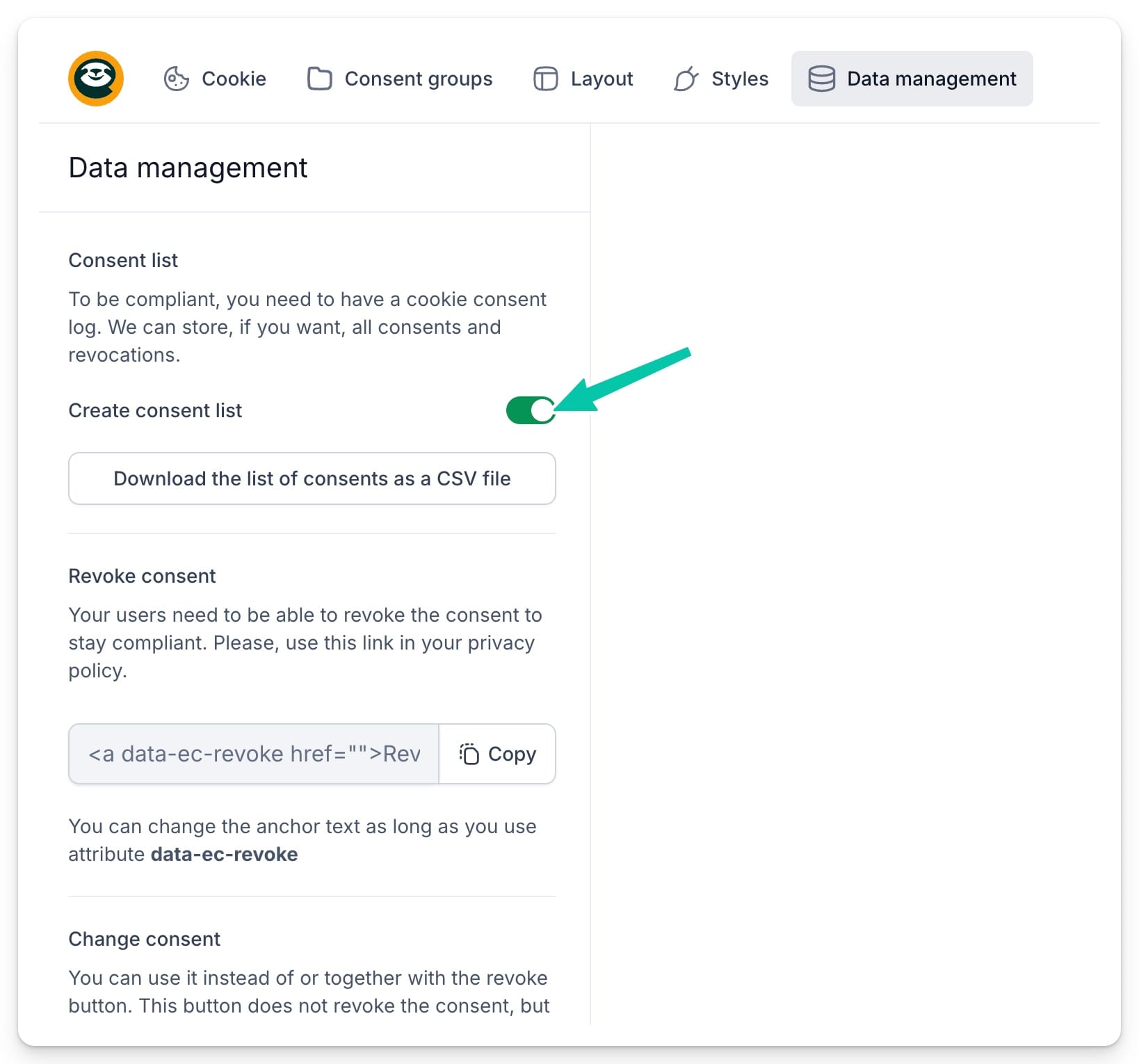
### Modifying consents
Regulations also require that your users can change or withdraw their consents. The best way to enable this is by adding the following links to your privacy policy (these are also available in the Easycookie configurator).
#### Withdrawal of consent
Add this link to your privacy policy:
> Link to withdraw consent
You can change the link text as long as you use the **data-ec-revoke** attribute.
#### Changing consent
Add this link to your privacy policy:
> Link to change consent
This button does not withdraw consent but displays a window with available consent types and their current status, allowing changes to be made. You can change the link text as long as you use the **data-ec-change** attribute.
---
## What is GDPR and other laws
Category: legacy-tools / cookie-notifications-with-easycookie
URL: https://www.easy.tools/docs/what-is-gdpr-and-other-laws
Stay compliant with What is GDPR and other laws. Learn about key data protection regulations affecting your business.
---
## Easycoffee
Category: legacy-tools / donations-with-easycoffee
URL: https://www.easy.tools/docs/easycoffee
Easycoffee is one of our legacy tools. It creates a "buy me a coffee" widget that you embed on your site so your audience can support you with a small payment.
> Important: we no longer develop Easycoffee. A widget you have already published keeps working, but new support payments are set up in **Easycart**.
## What to use instead
Create a product in Easycart with a [pay what you want](/docs/pay-what-you-want-pwyw) price. Your audience picks the amount themselves, and the payment lands in the same place as the rest of your sales - with an invoice, a receipt and the buyer in your customer list.
## If you still use Easycoffee
Your widget stays online and you can manage it in the app at [app.easy.tools/coffee](https://app.easy.tools/coffee/project-create).
---
## How to create and customise donation widget
Category: legacy-tools / donations-with-easycoffee
URL: https://www.easy.tools/docs/how-to-create-and-customise-donation-widget
Create and customise donation widget. Let your true fans buy you a coffee and maximise the potential revenue from the community.
---
## How to embed donation widget on your page
Category: legacy-tools / donations-with-easycoffee
URL: https://www.easy.tools/docs/how-to-embed-donation-widget-on-your-page
Boost donations by How to embed donation widget on your page. Seamlessly integrate giving options into your site.