
Add the domain
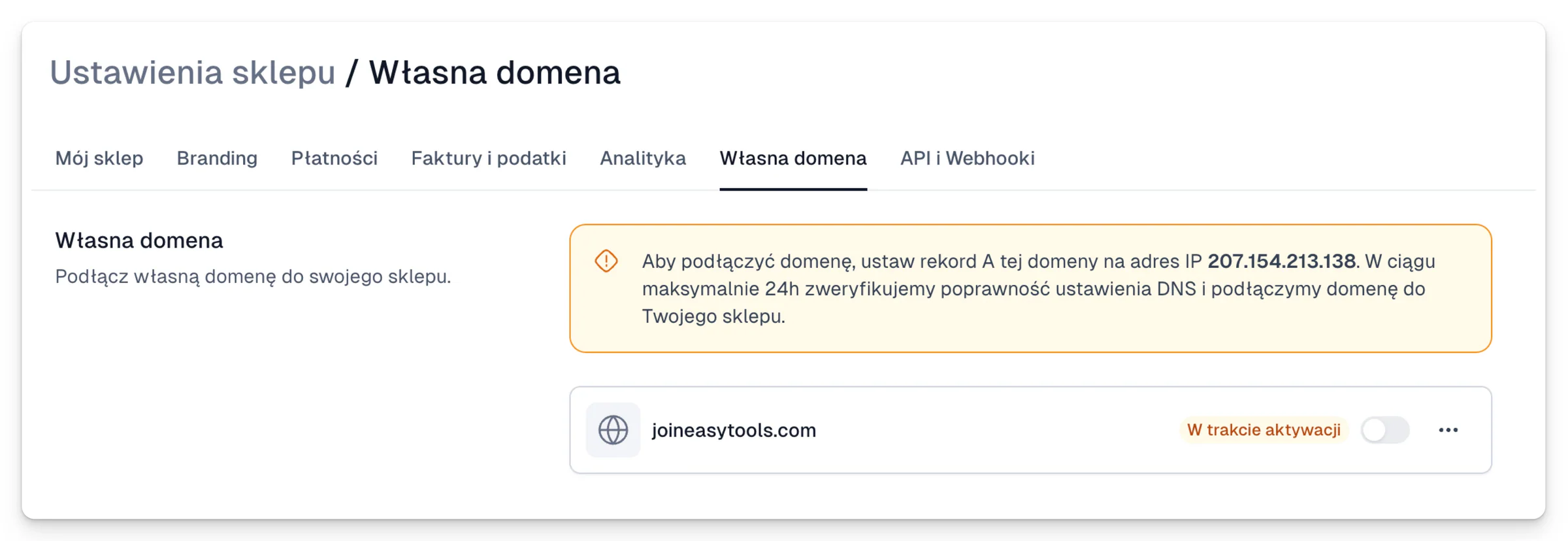
- Open Store → Store settings → Custom domain.
- Enter the domain or subdomain you want to use.
- Click Save.
- Copy the IP address shown in the Easytools message.
- At your domain registrar, create or change the A record so it points at that address.
- Come back to Easytools and wait for the Active status.
Once it is active, all your checkouts are reachable on your domain. Old links keep working and redirect the customer.
DNS propagation usually takes from a few minutes to a few hours. Do not add the domain again during that time. Check first that the A record holds the right value.