
Add a variant
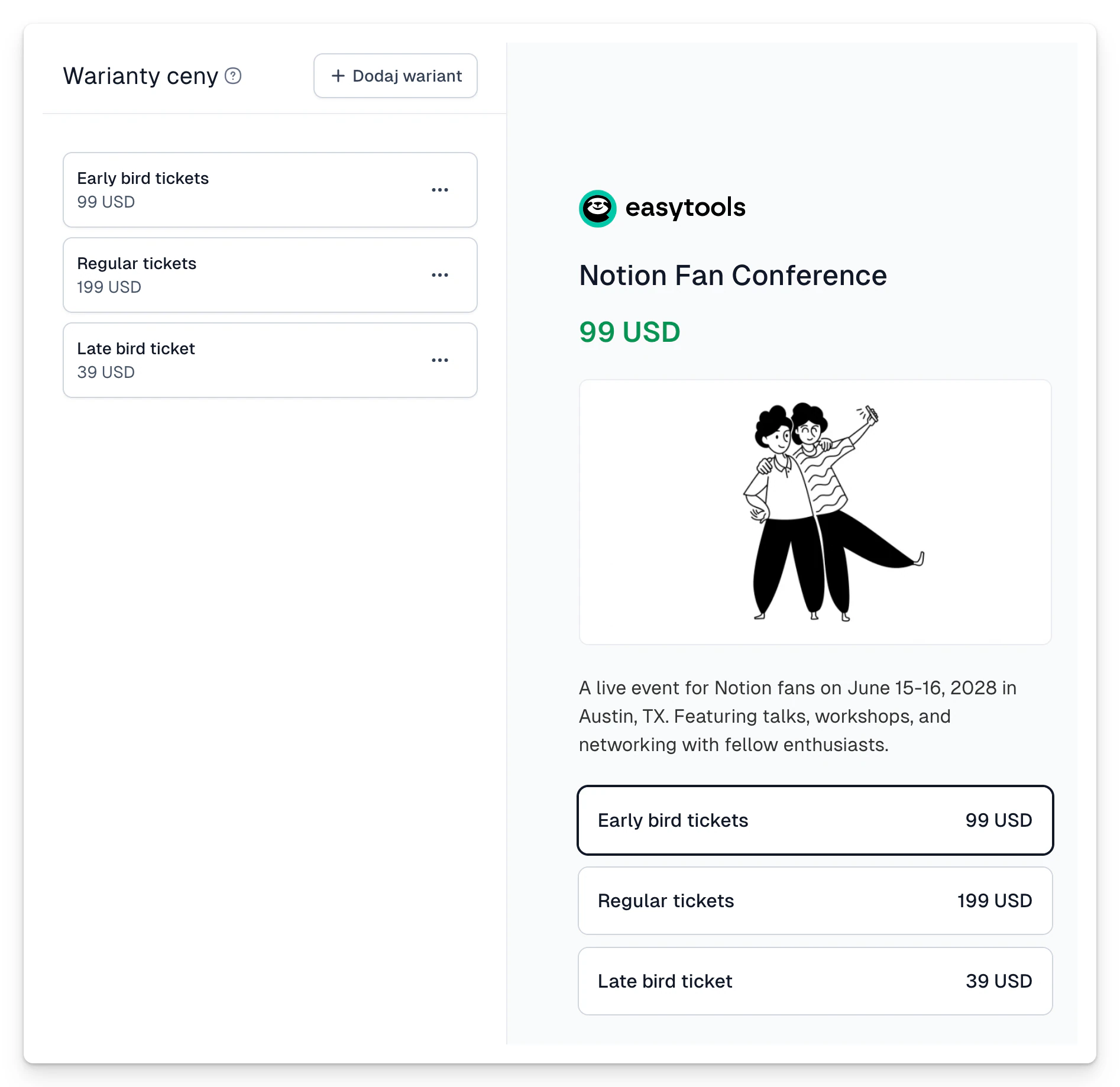
- Open the product and go to Price variants.
- Click Add price variant.
- Pick a model: fixed price, subscription, installments or Pay what you want.
- Set the amount, the currency and the name the customer sees.
- Add a short description of what makes the variants different.
- Save and check the layout in Preview.
Good uses
- a basic and an extended bundle,
- a one-off or a monthly payment,
- a promotional price available for a limited time,
- any amount with a minimum you set.
Variant names should say straight away what the customer gets. Instead of “Option 1” use something like “Ebook” and “Ebook + consultation”.