
Blog
10 best content creator platforms in 2026: Features, pricing, pros, and cons
10 best content creator platforms: 1. Easytools, 2. YouTube, 3. Descript, 4. Sendfox, 5. WordPress, 6. Repurpose.io 7. Buffer, …

Did you know that only 46% of a content creator’s time is spent on creating content?
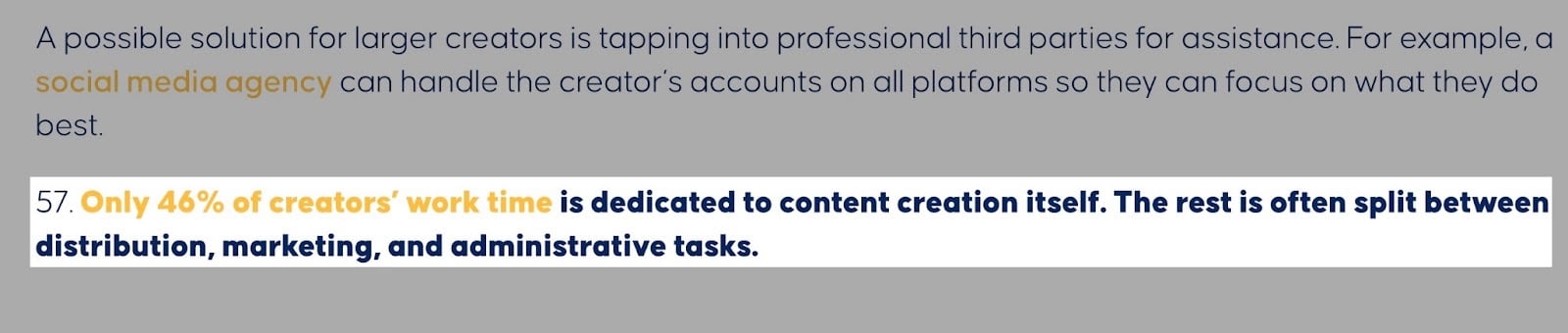
The rest of that time is for tasks like managing emails, designing visuals, scheduling posts, and growing an audience.
These tasks can become overwhelming quickly.
That’s where finding the right content creator platform is a smart move.
These platforms help creators turn their raw ideas into something that their audiences can view, share, and pay for.
You don’t have to be a tech wiz to build an online presence. Content creator platforms do all that work for you.
In this guide, we’ve rounded up the 10 best content creator platforms to help you choose the right one. We’ll break down what each platform does best, key features, pricing, and honest pros and cons.
That way, you can choose which tool actually best fits your workflow.
TL;DR
-
Content creator platforms are software tools or apps that help creators turn their raw ideas into something that their audiences can view, share, and pay for.
-
The best content creator platforms are:
- 1. Easytools
- 2. YouTube
- 3. Descript
- 4. Sendfox
- 5. WordPress
- 6. Repurpose.io
- 7. Buffer
- 8. beehiiv
- 9. Pictory
- 10. Canva
-
You can choose the right content creator platform by evaluating your content creation outcomes, mapping your tools to content creation stages, weighing cost, complexity, and scale, and selecting tools that integrate with other apps.
Best content creator platforms compared
10 best content creator platforms
1. Easytools
📑 Content type: PDFs, courses, memberships, webinars | ⚙️ Key features: Checkout (Easycart), landing pages (Easypage), testimonials (Easylove), checkout recovery, analytics, email capture, marketing campaigns (Easymail) | 🔗 Distribution: Share links, embeds, integrations | 💳 Monetization: Product sales, subscriptions | 🌱 Growth: Email capture, upsells | 💰 Starting fee: $0/month + 5% transaction fee.
This list of the best content creator platforms starts with Easytools.
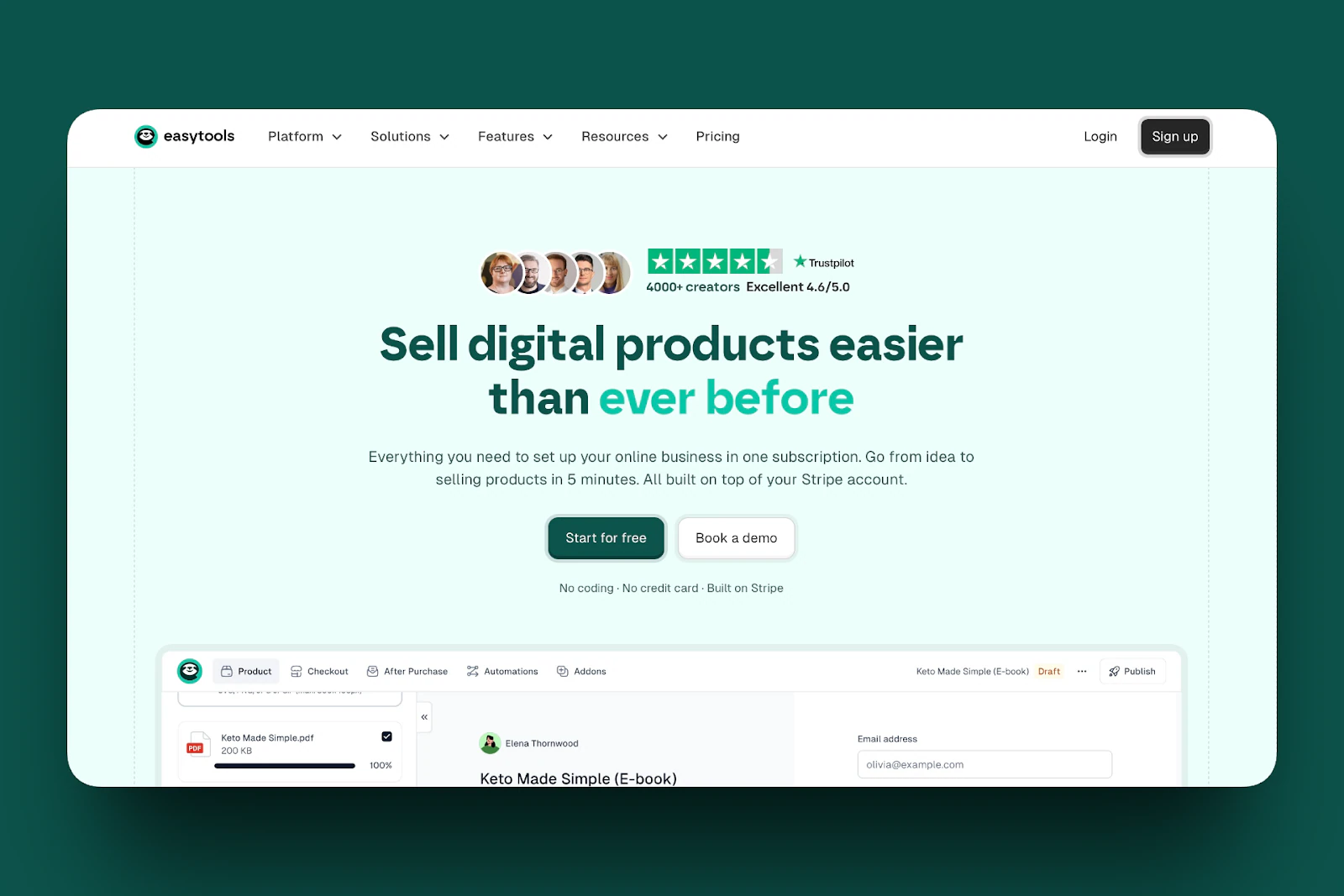
Easytools is an all-in-one, no-code platform that helps you sell and deliver digital products without the stress of managing different tools.
It handles payments through Stripe and supports one-time and recurring purchases. It also handles tasks like checkouts, subscriptions, and global taxes.
What sets Easytools apart is that you can gate content, automate workflows, and collect reviews without a technical setup.
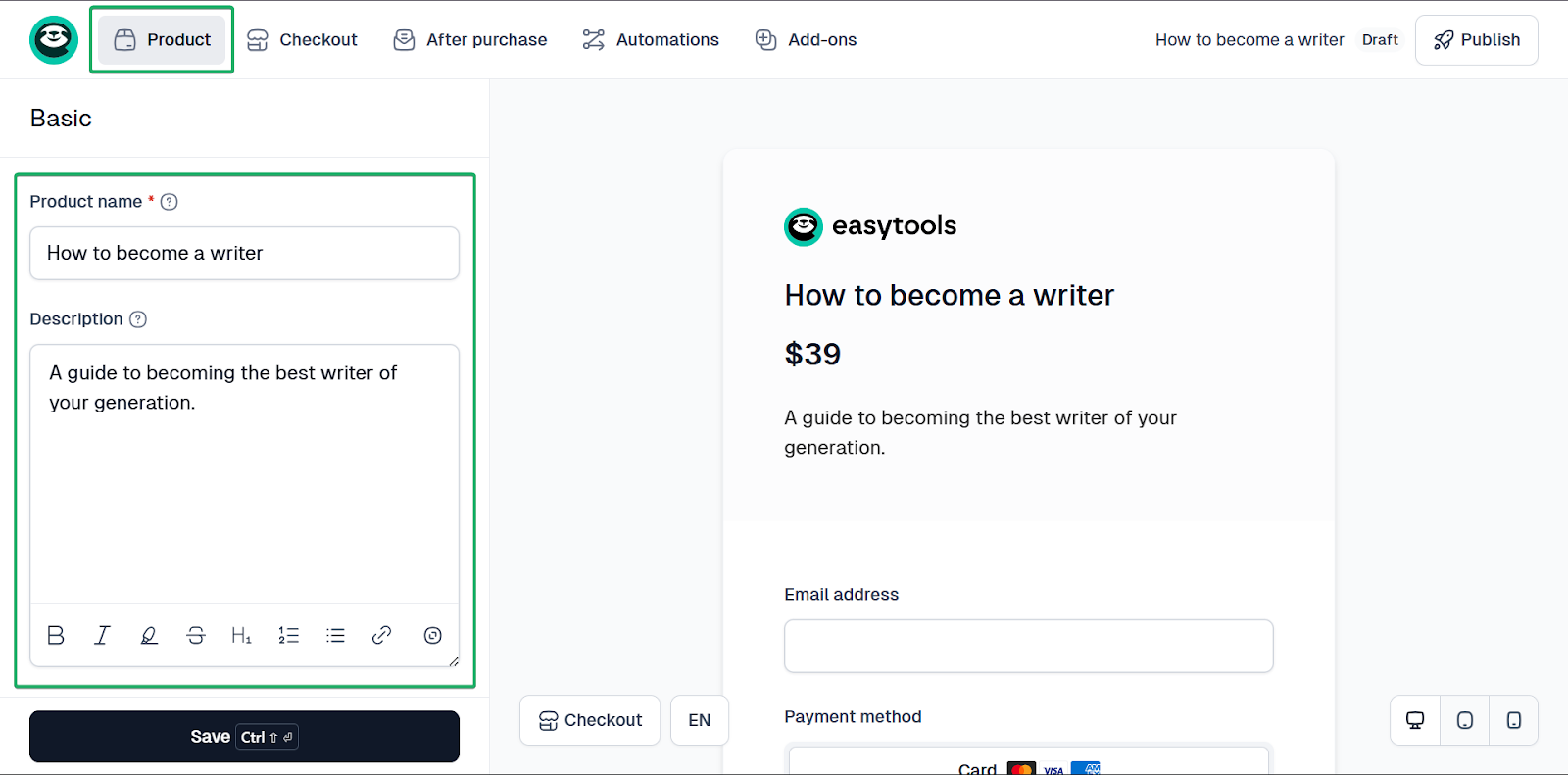
Easytools lets you create and sell digital and gated content products like PDFs, online courses, e-books, templates, and guides.
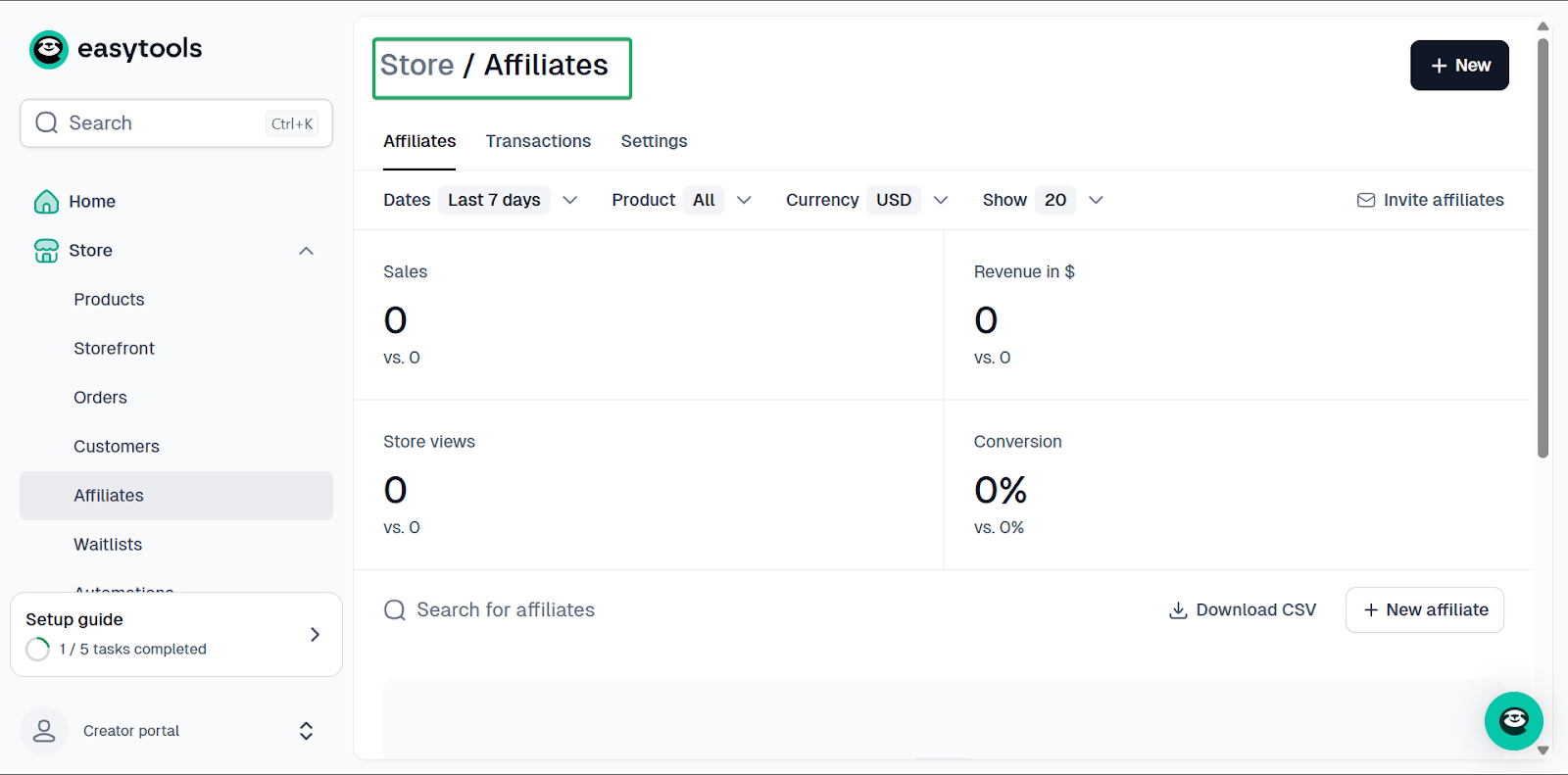
Its affiliates feature lets you build a network of partners that can promote your products and earn commissions.
Finally, Easytools’ automation feature helps creators deliver products, onboard customers, and handle follow-ups without manual work.
Easytools brings all these features together so you can focus more on creating and selling content.
What I loved about Easytools
1. Store
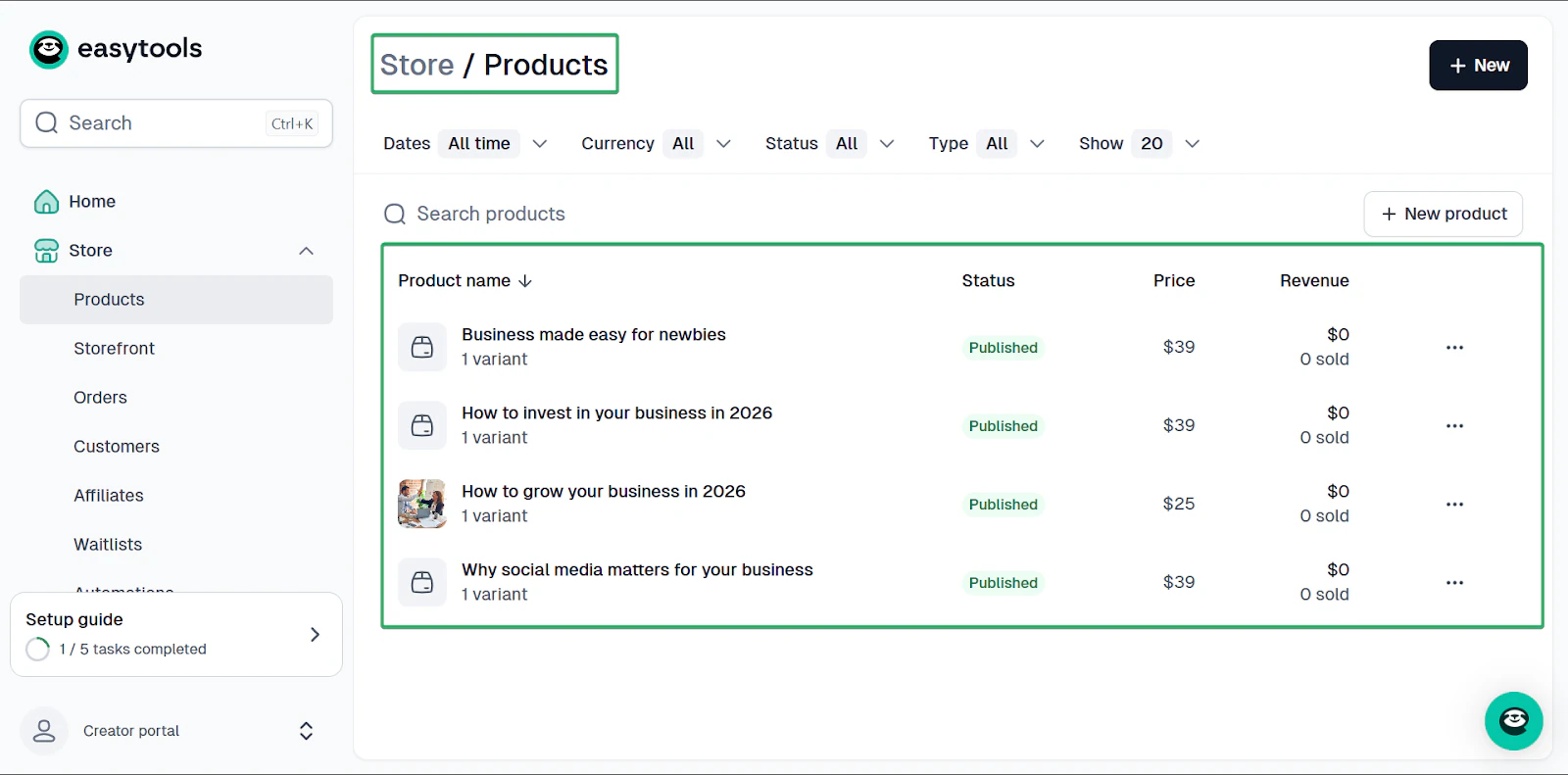
Easytools’ store feature lets you add digital products, create a storefront, and manage orders and customers.
You can also view store analytics, change its settings, set up automations, manage affiliates, and enable checkout recovery.
Let me walk you through how to add digital products on Easytools.
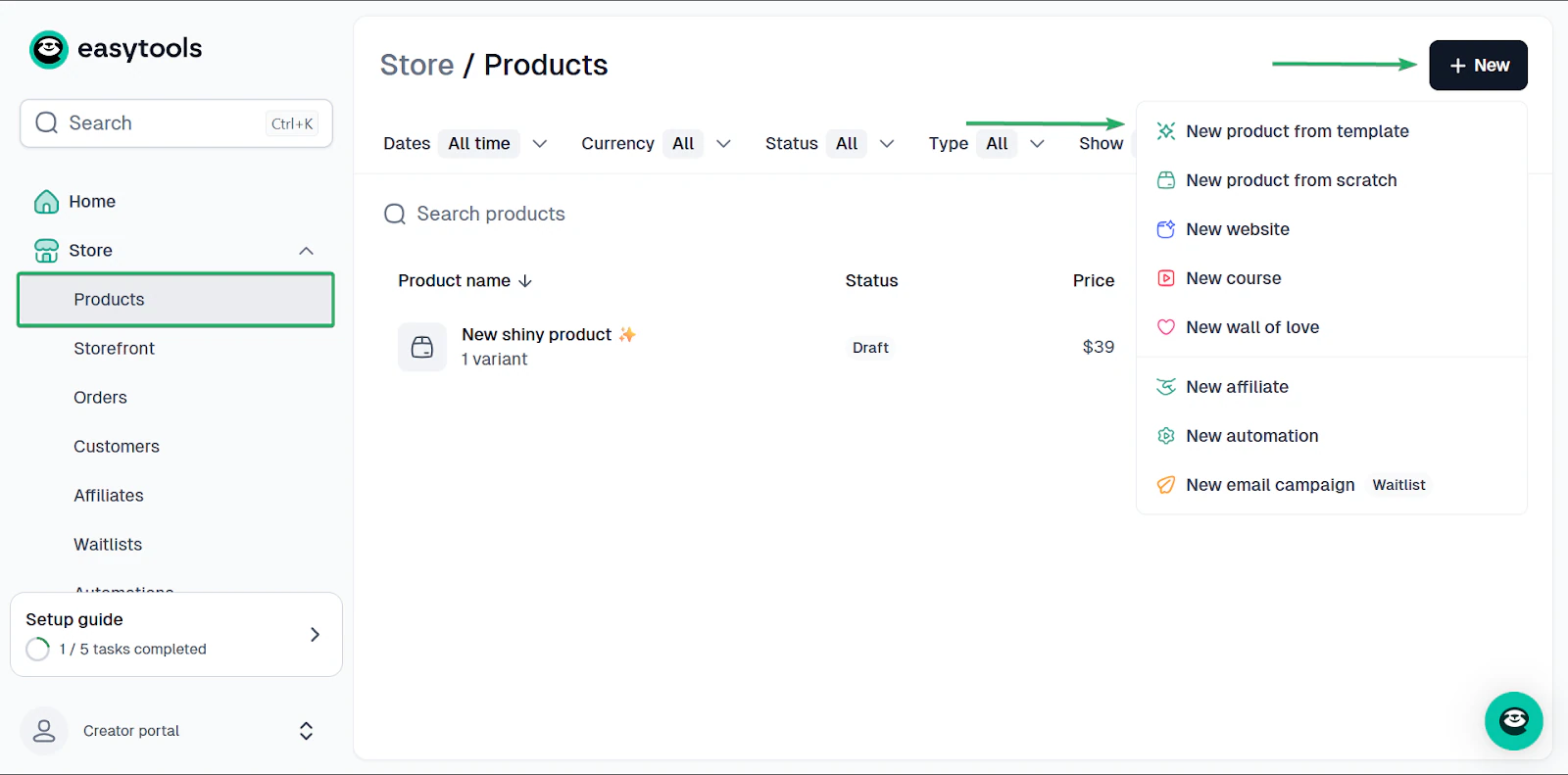
First, select “Store” in the sidebar. Now, head to “Products” and click “+ New” at the top right corner of the window.
You can either create a product from a template or from scratch.
Let’s work with a template.
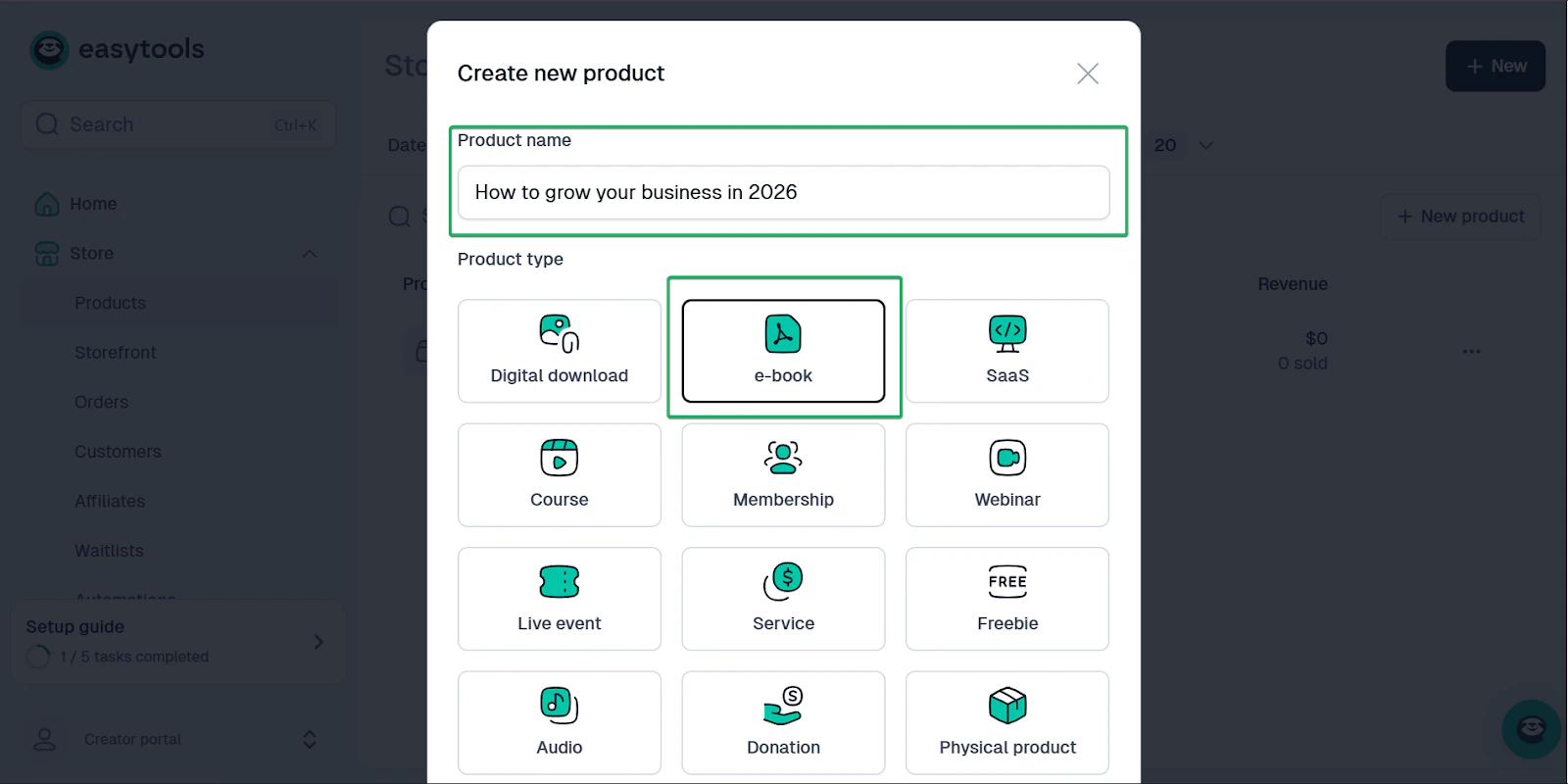
Next, enter the product name and select the product type you want to create.
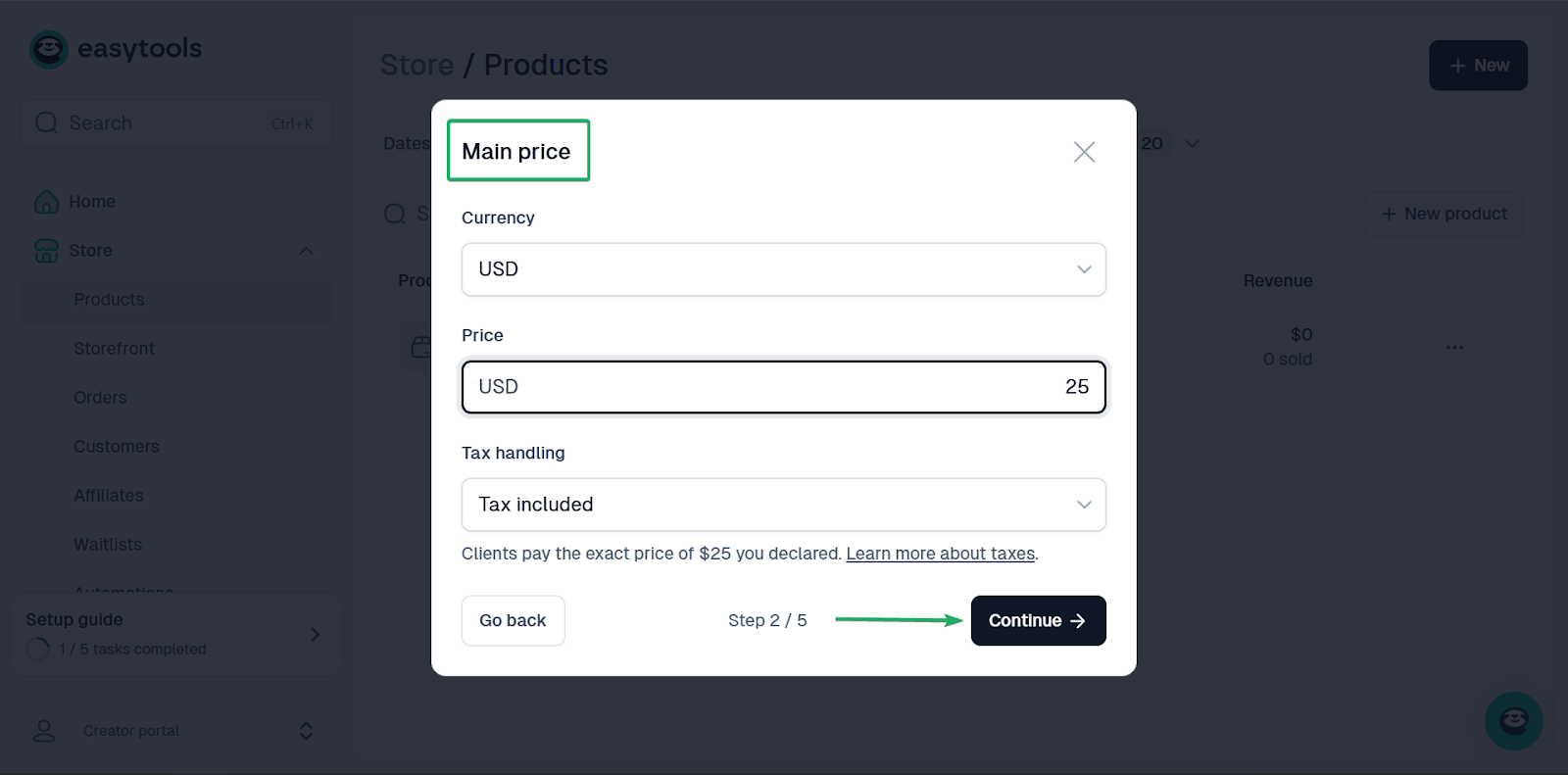
Then, set the price and click “Continue.”
Easytools can automatically generate a product description.
You can also upload a picture of your product. Even better, the tool lets you generate AI photos as well.
Once you’re done, click “Create product.”
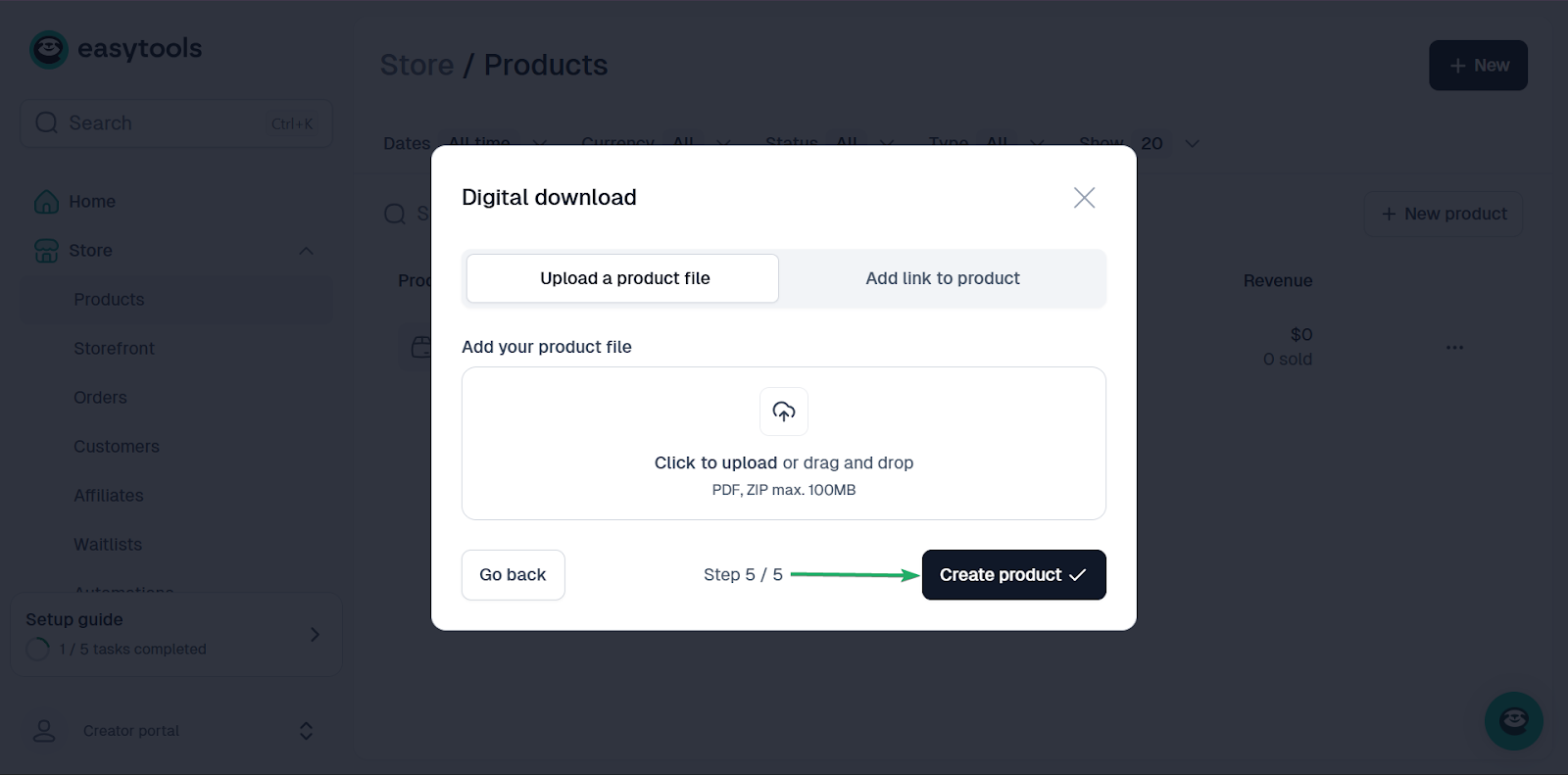
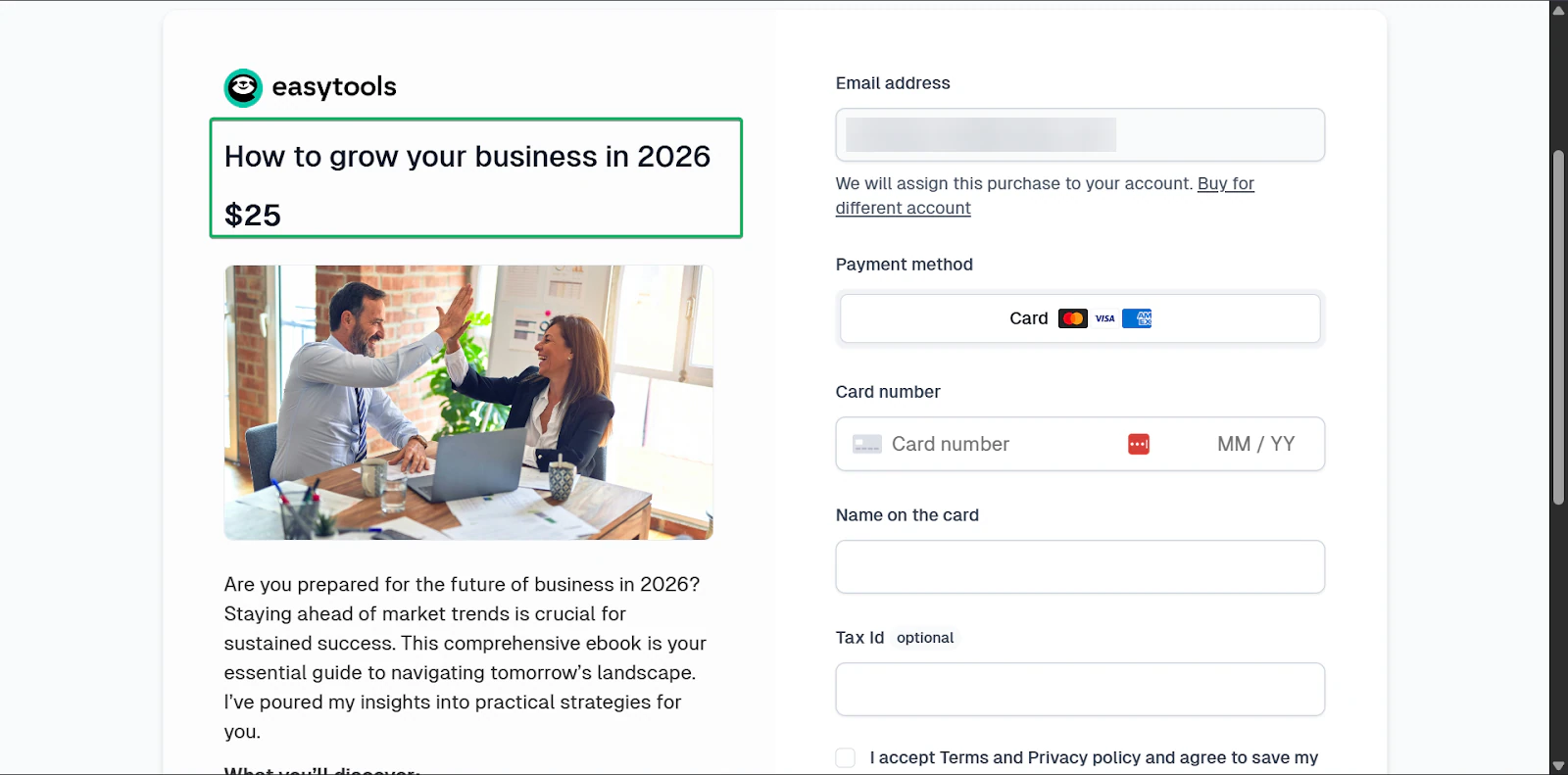
Here’s a final look at how your product page would look once you’re done.
2. Affiliates
On Easytools, affiliates promote your digital products and earn a commission for every sale they make.
Let’s see how this feature works:
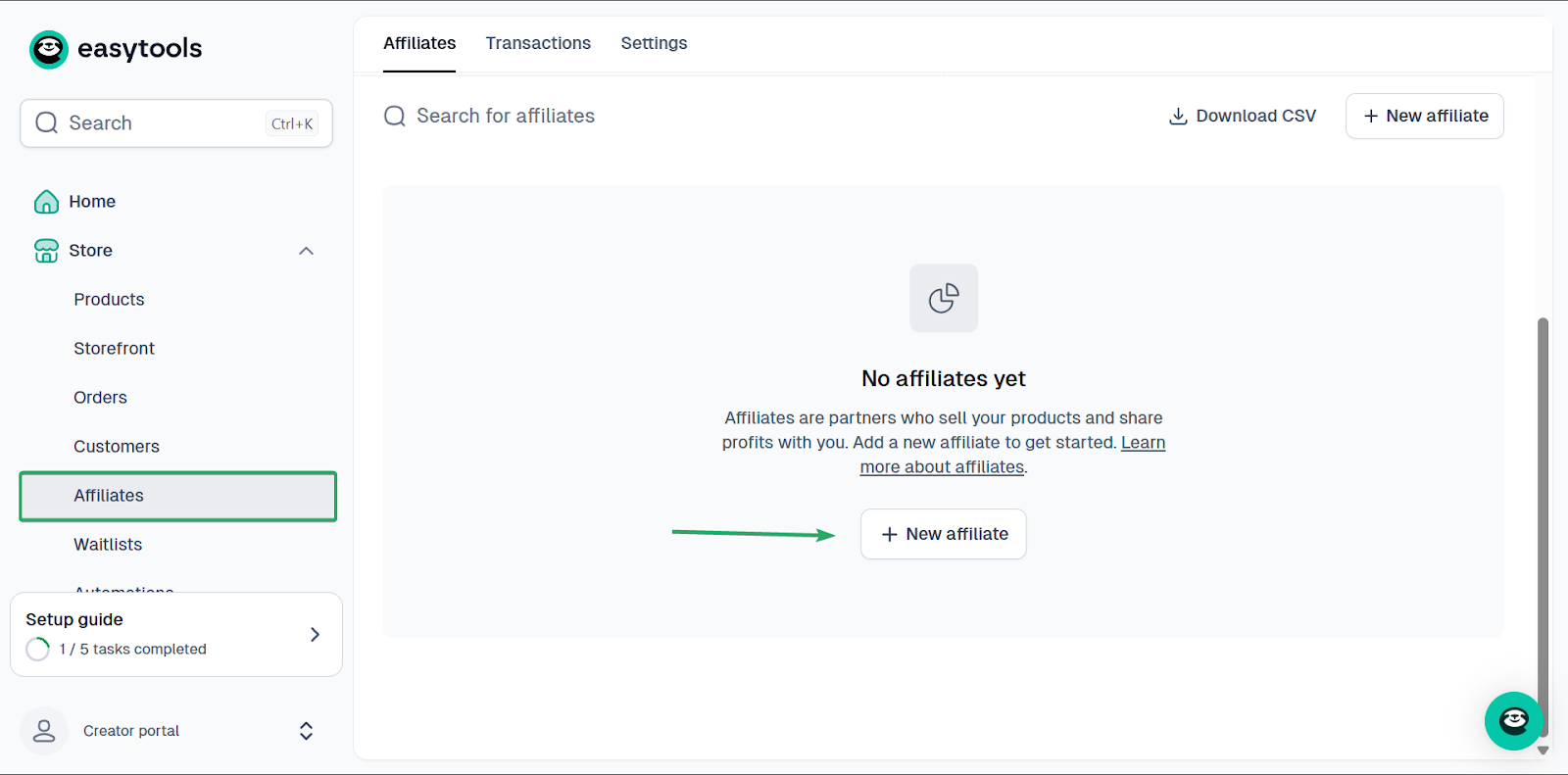
Select “Store.” Then, head to affiliates and click “+ New affiliates.”
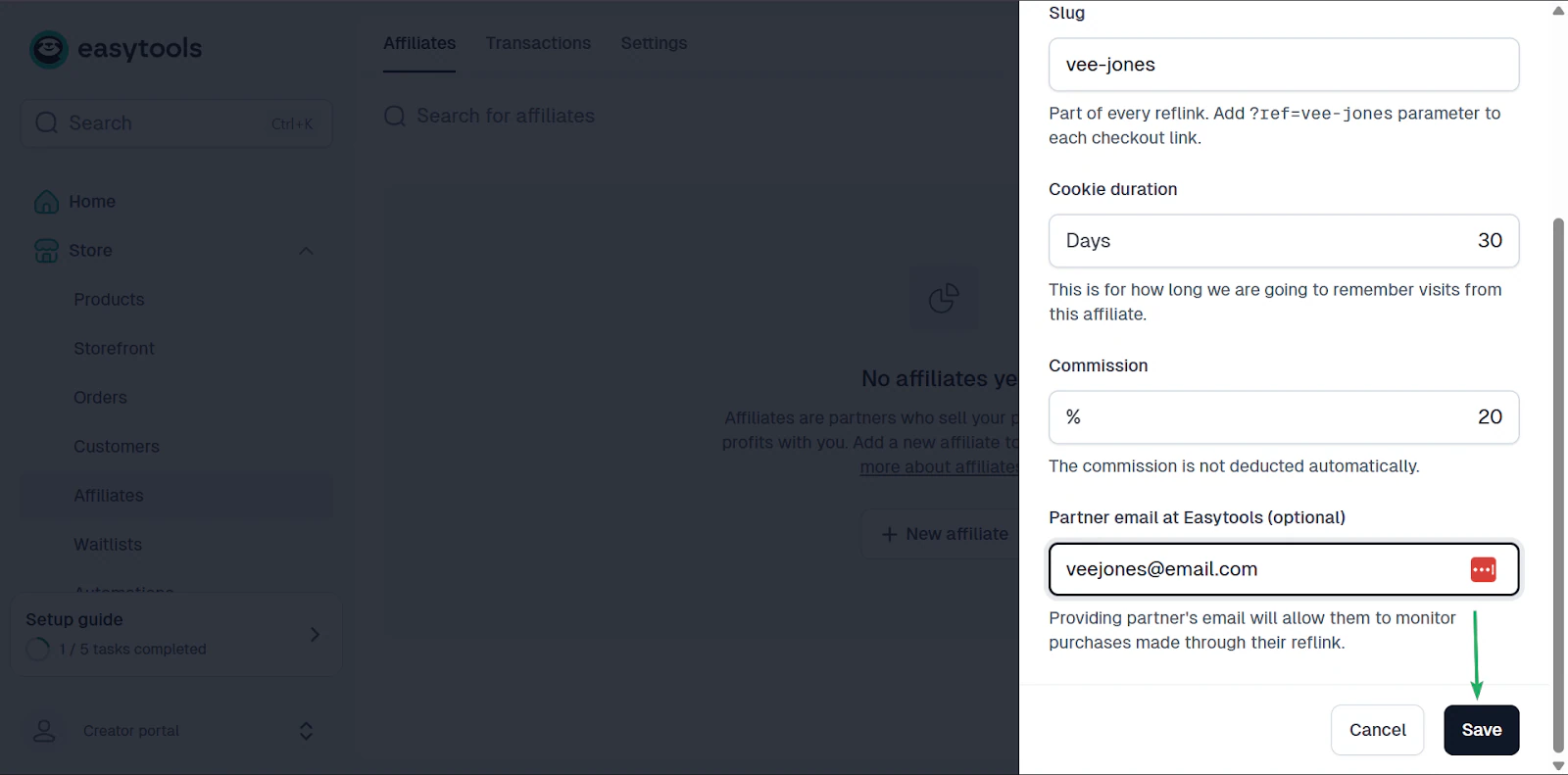
Next, fill out a form for your affiliate.
This includes the name, the unique tracking link (slug), the cookie duration (how long you want to remember web visits from the affiliate), and the email address.
You can also set the commission rate. That’s the percentage the affiliate will make off your product.
Once you’re done, click save.
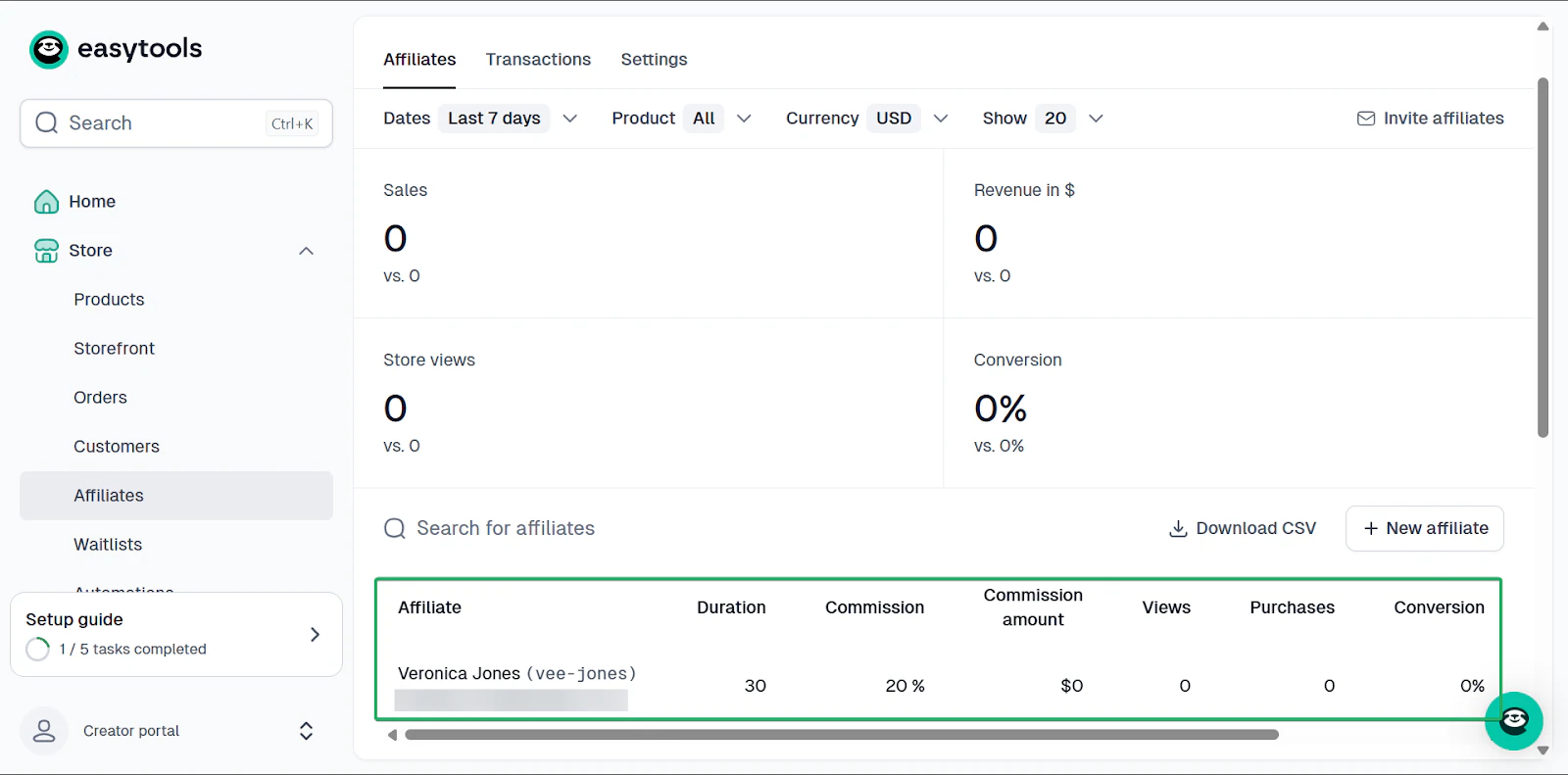
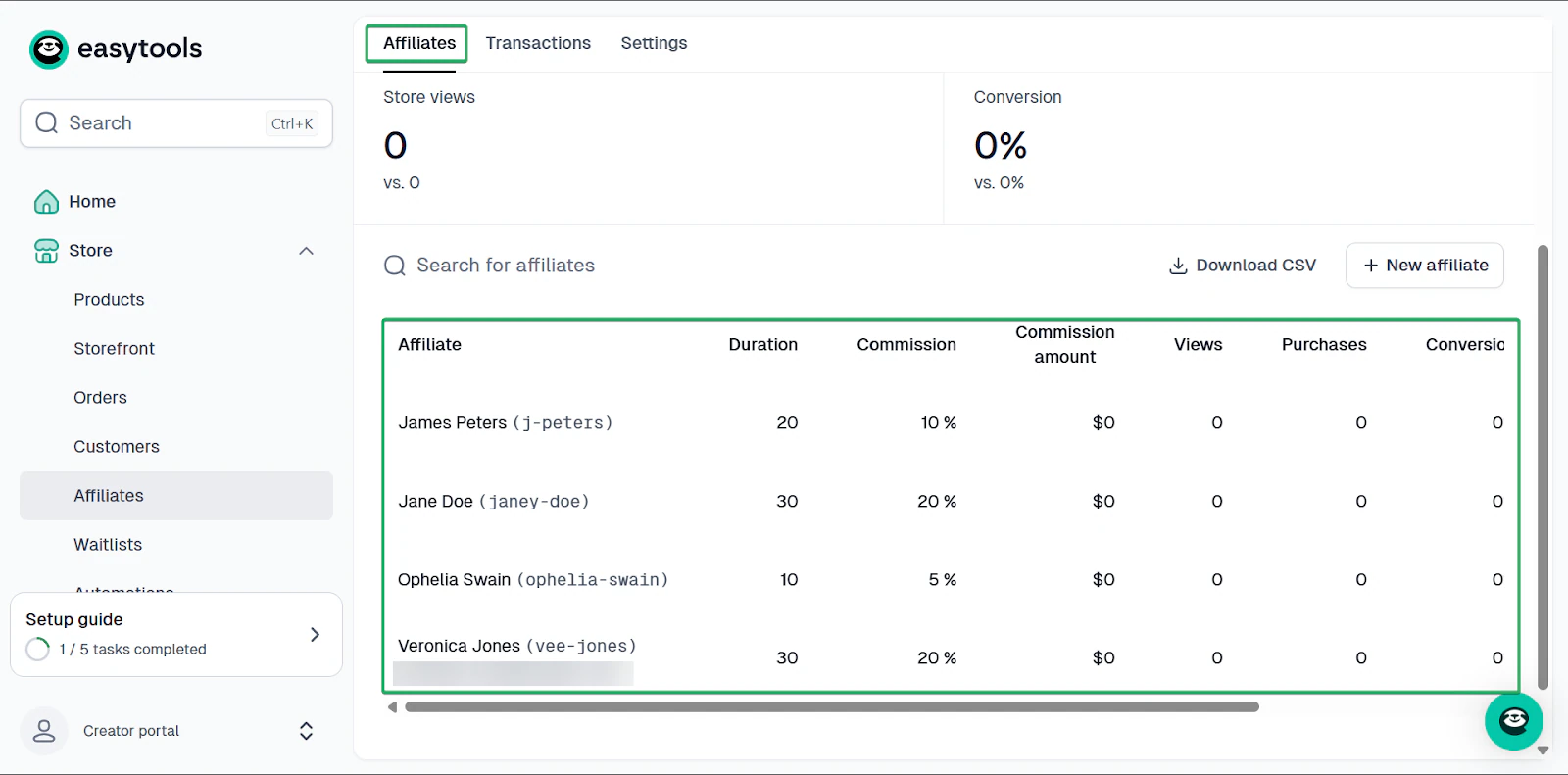
Your newly created affiliate will appear on the affiliates dashboard, where you can track their commissions, views, purchases, and conversions.
3. Automations
Automations is a feature that handles all the administrative aspects of content creation, like email sending and digital product delivery.
This feature reduces manual work so you can focus on creating content.
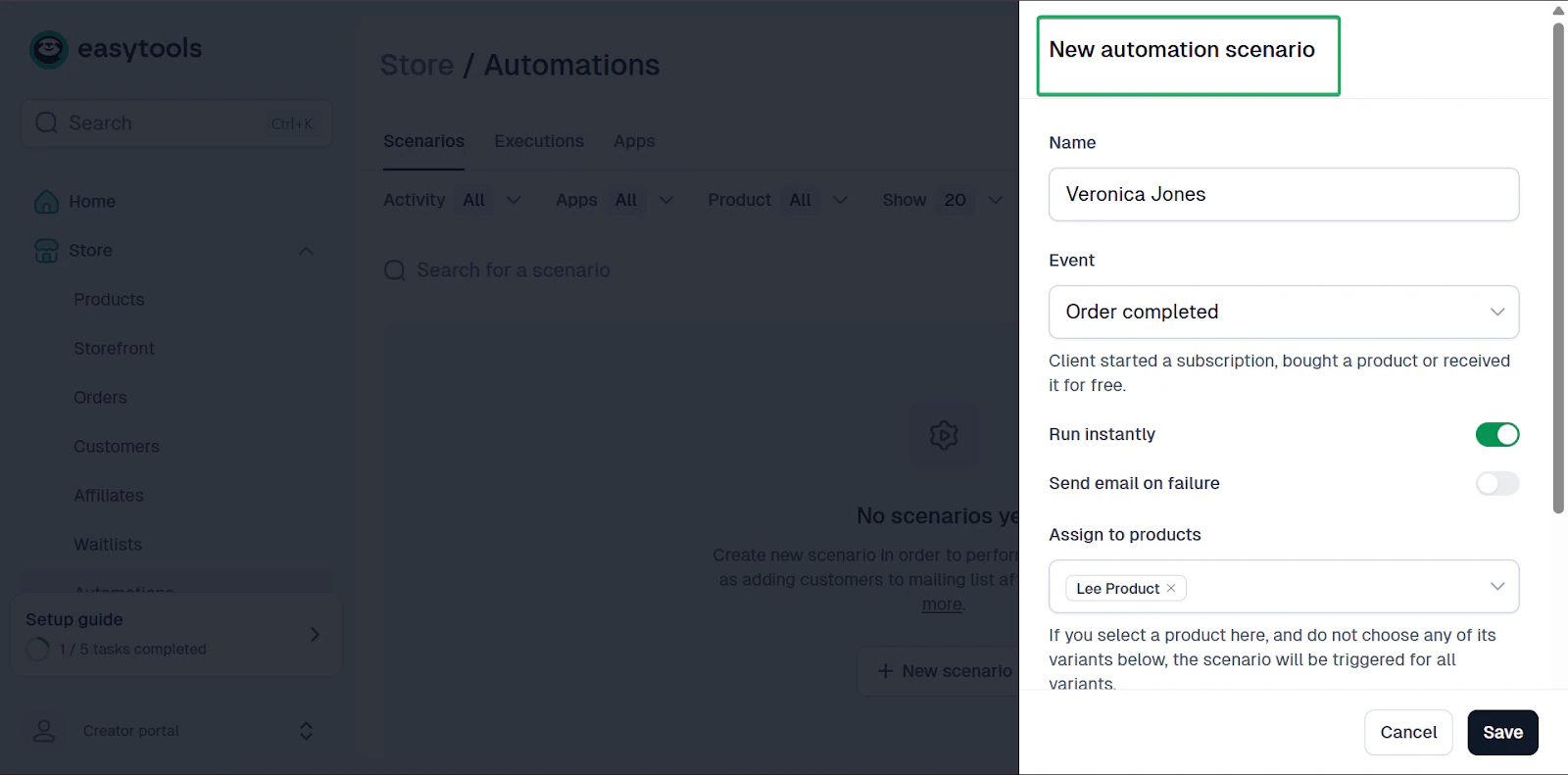
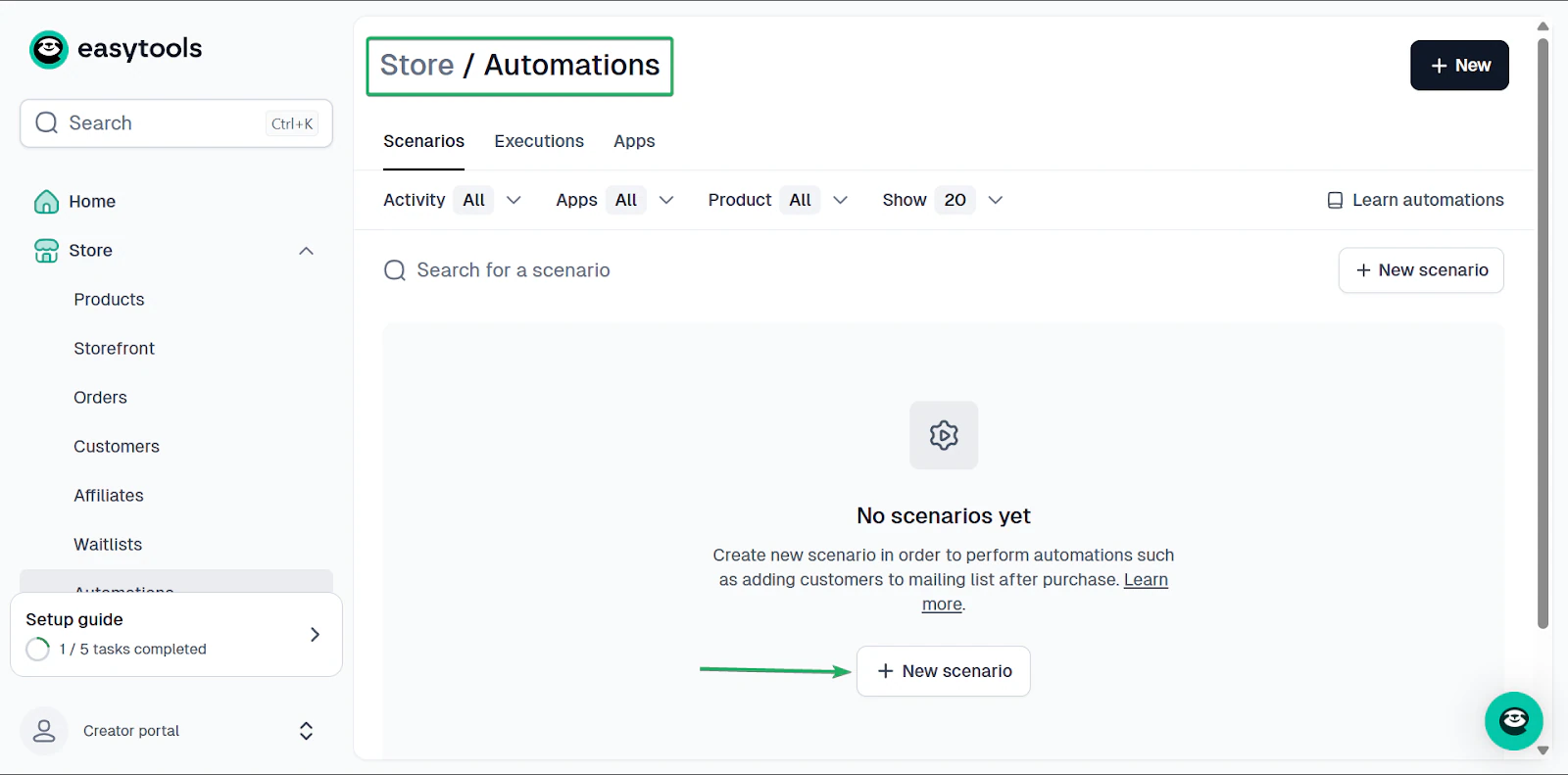
Let’s set up a scenario where Easytool will automatically send an email when a customer buys a product from you.
First, head to automations and click “+ New scenario.”
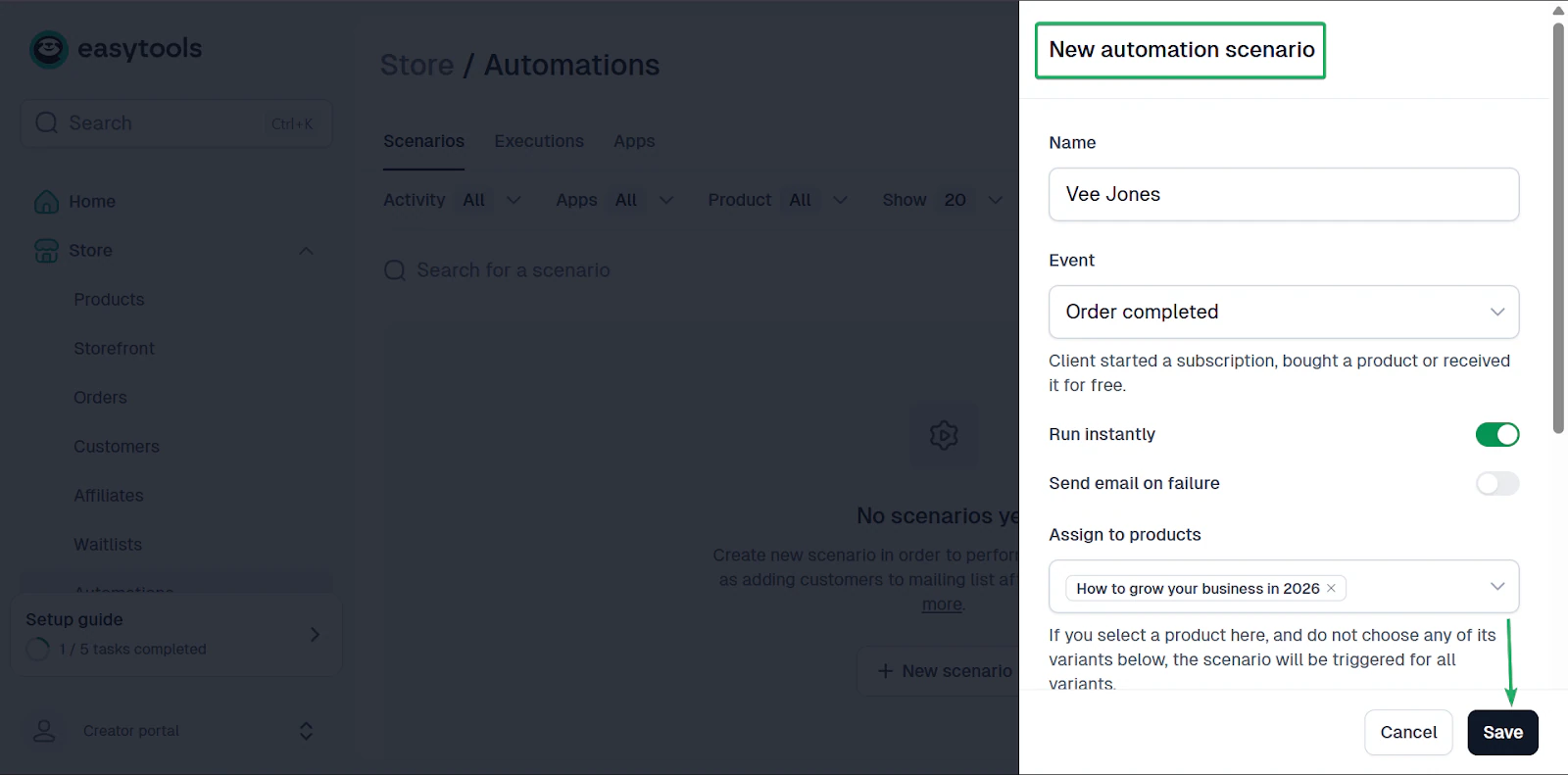
After that, fill out a form. Give it a name, create an event, and assign it to a specific product in your inventory.
Then click “Save.”
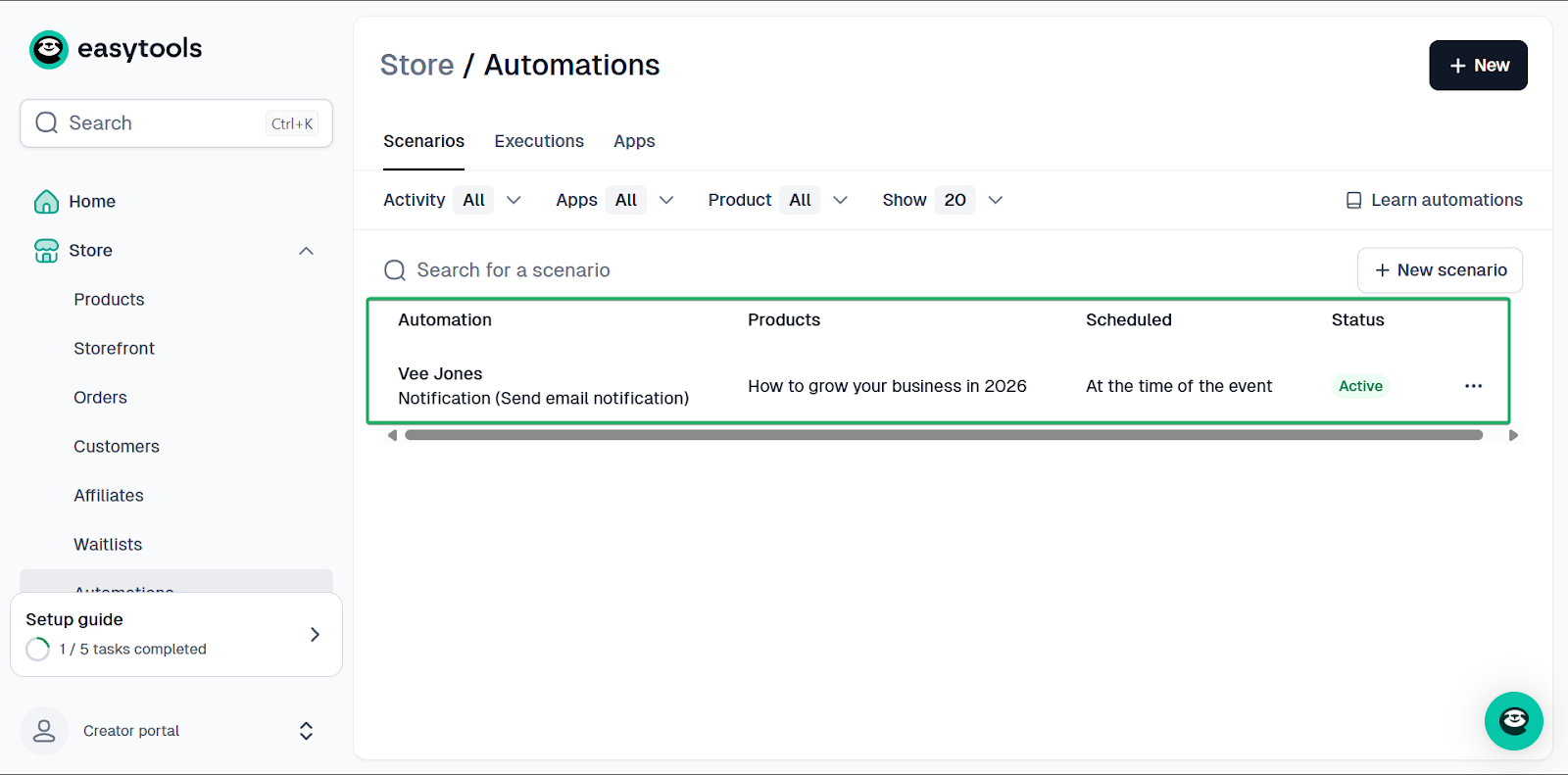
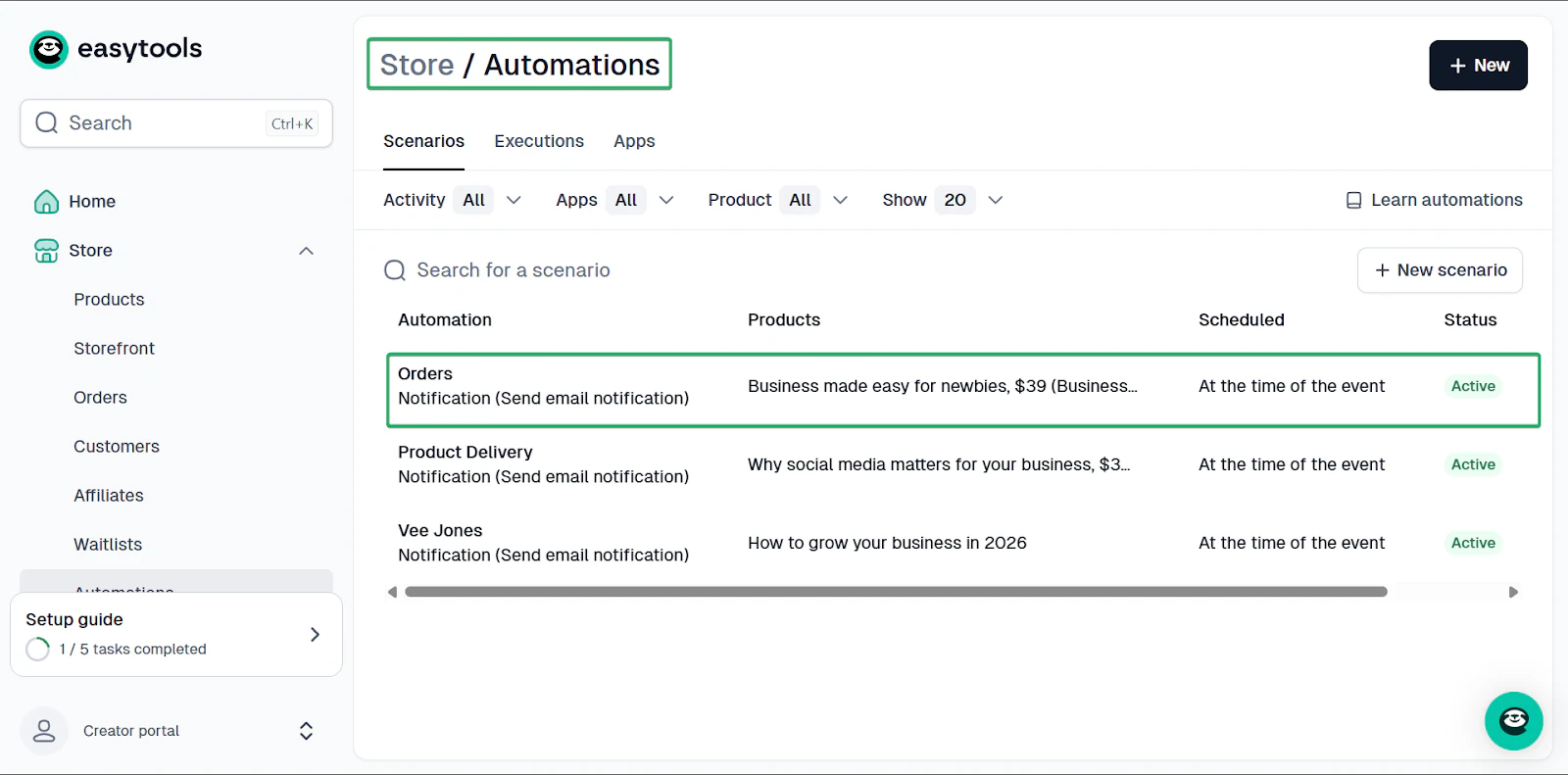
The automation will appear on your dashboard. You can edit the automation, duplicate it, and create more scenarios.
What I loved vs what I struggled with
What I loved 👍
✅ Simple setup, even for first-time users and creators.
✅ All-in-one platform for selling a variety of digital products like webinars, PDFs, guides, and other gated content.
✅ Automations save time and reduce the time spent on administrative tasks.
✅ Connects well with other tools like HubSpot, Zapier, and Mailchimp.
What I struggled with 👎
❌ Website is still in beta mode, but you can still create a perfectly functioning landing page.
Best for
- Creators selling digital products like PDFs, online courses, and memberships without building a full website
Pricing
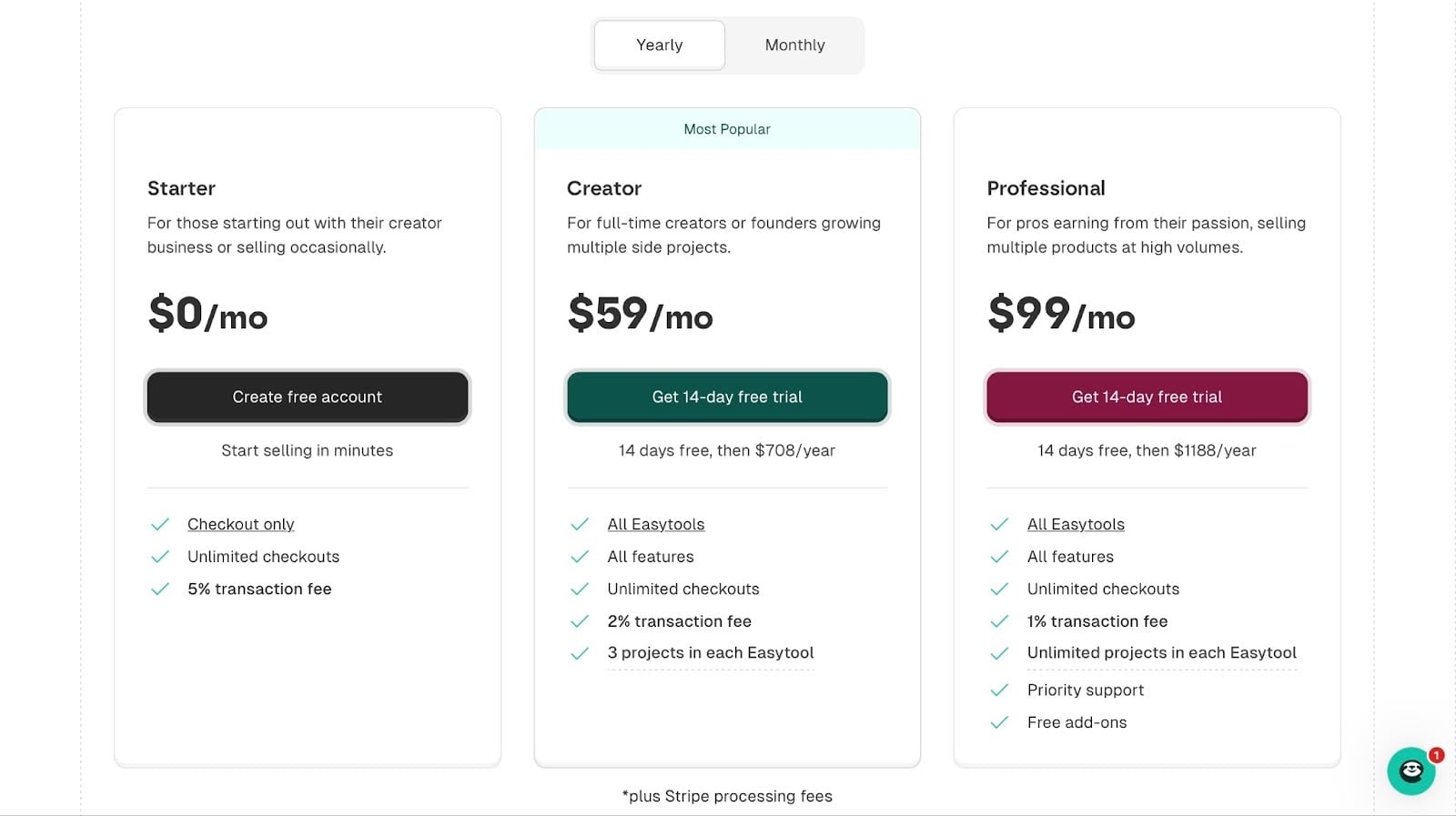
- Starter: $0/month
- Creator: $59/month
- Professional: $99/month
2. YouTube
📑 Content type: Long-form videos, short-form videos (YouTube Shorts) | ⚙️ Key features: Upload videos, create a playlist, posts tab, live stream, podcasts, thumbnails, monetization, add related videos, add clickable links, pin comments, add chapters, add extra channels, A/B testing | 💳 Monetization: Ads, sponsorships, affiliates, memberships| 🌱 Growth: Subscribers, views | 💰 Starting fee: $0/month
YouTube is next on this list of the best content creator platforms.
YouTube is a global online video-sharing platform with over 2.7 billion monthly active users and 100M+ paid subscribers.
Creators can upload, watch, and share videos on any topic, from tutorials and vlogs to music and entertainment.
They can also earn money through ads and sponsorships, especially when they build an audience and monetize their account.
Content creators often pair their YouTube channels with TikTok, LinkedIn, and Instagram Reels to grow their audience.
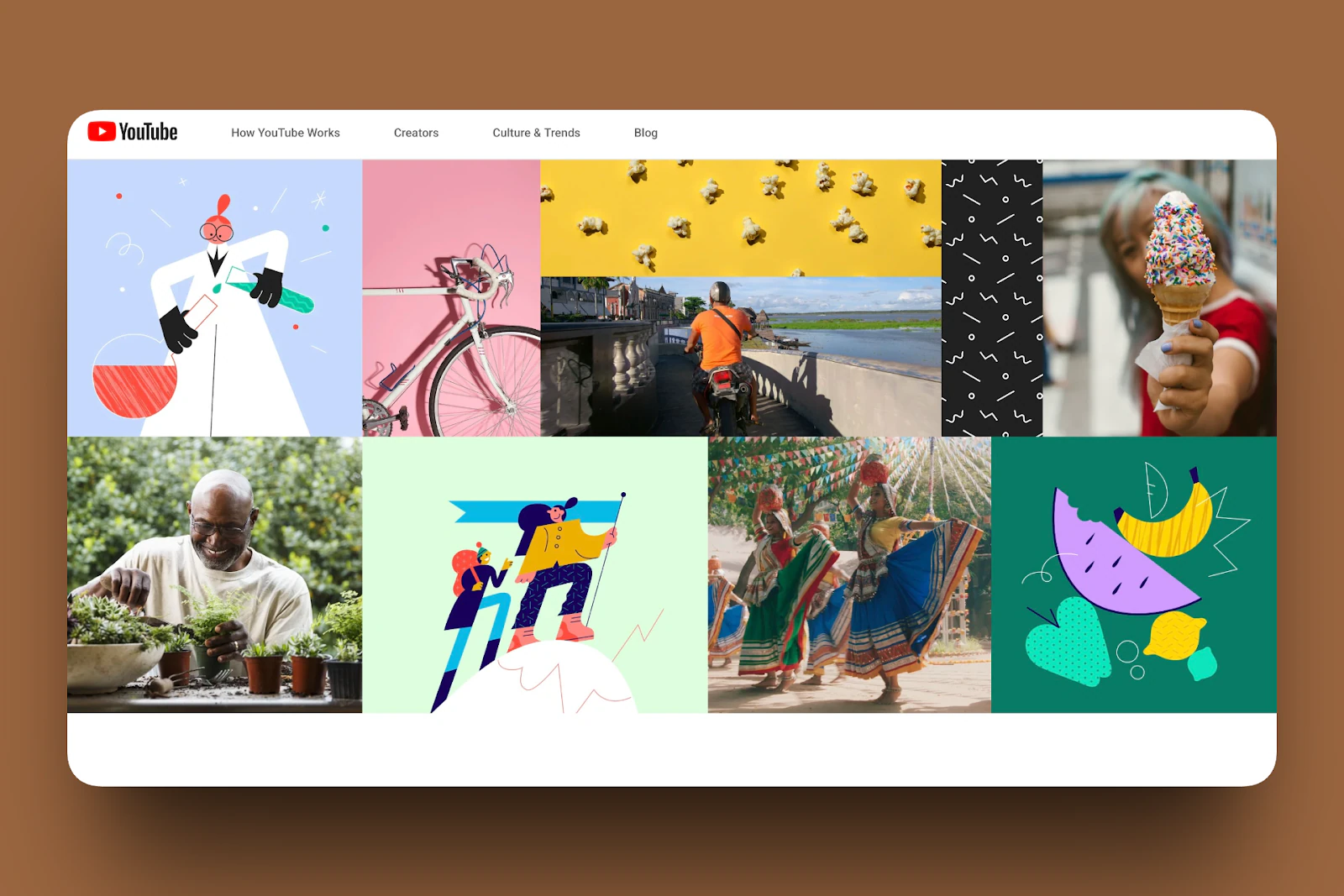
YouTube makes publishing videos a relatively seamless and quick process. You can upload videos from your mobile device or computer and even schedule when to post them.
You can also organize your content into playlists. That makes it easier for your viewers to watch all your related videos in one place.
And finally, you can use community tools like comments and posts to stay connected with your audience.
What I loved about YouTube
1. Create
The create feature lets content creators upload their videos directly to YouTube.
They can add titles and descriptions, customize thumbnails, and optimize videos to reach the right audience.
Let’s see how simple it is to create a video on YouTube:
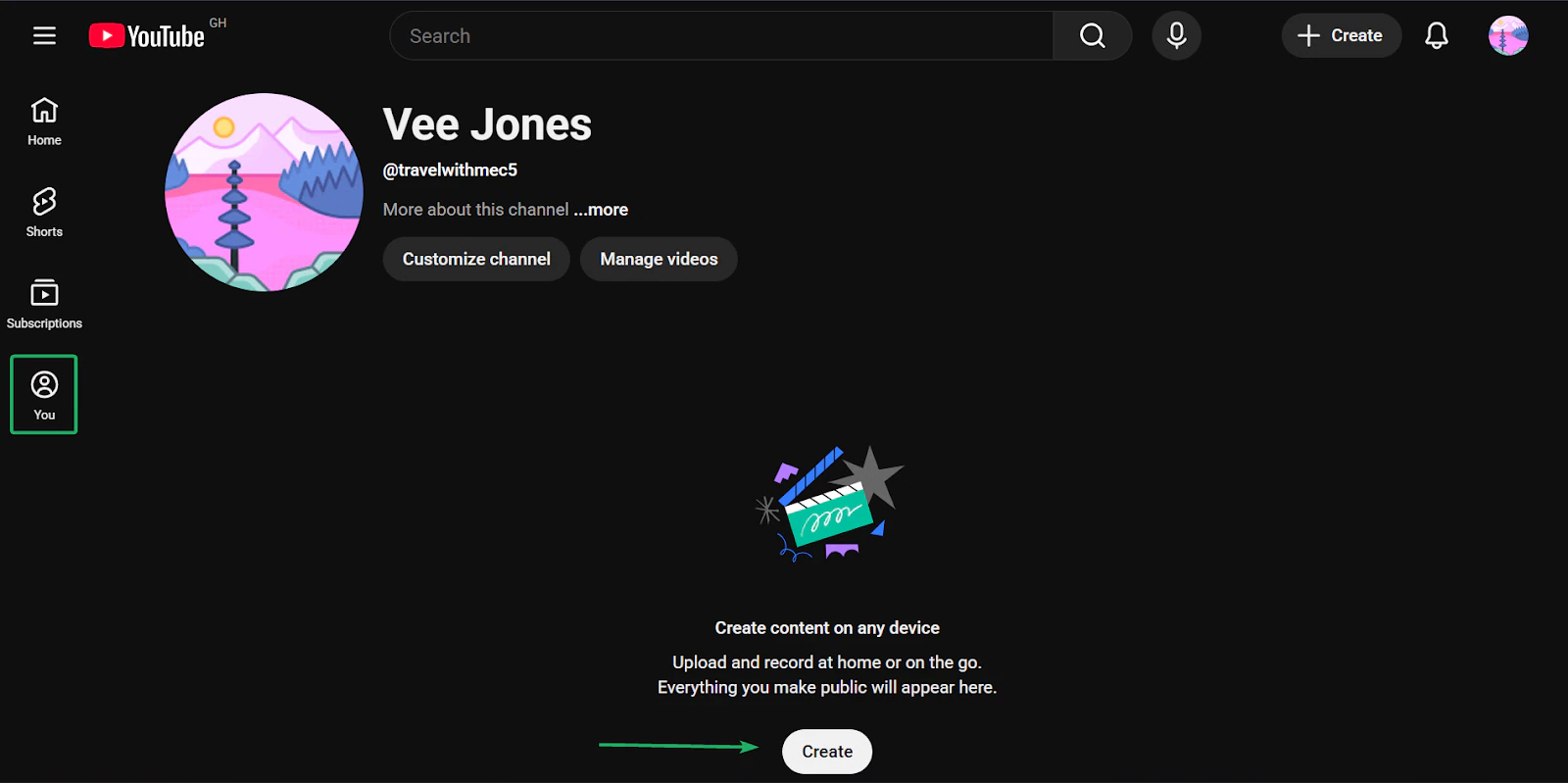
First, head to your channel profile labeled “You” on the sidebar.
Then click “Create.”
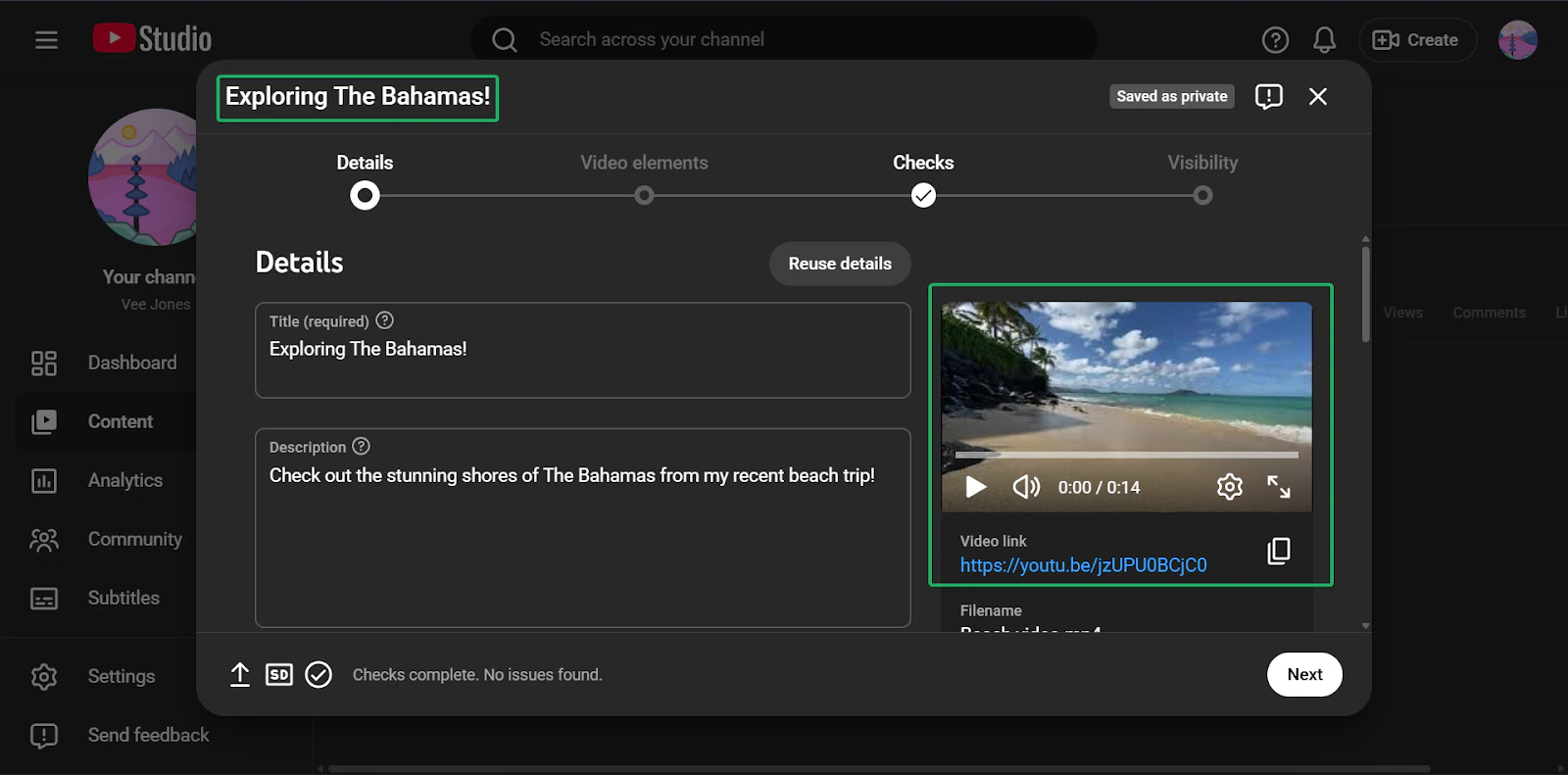
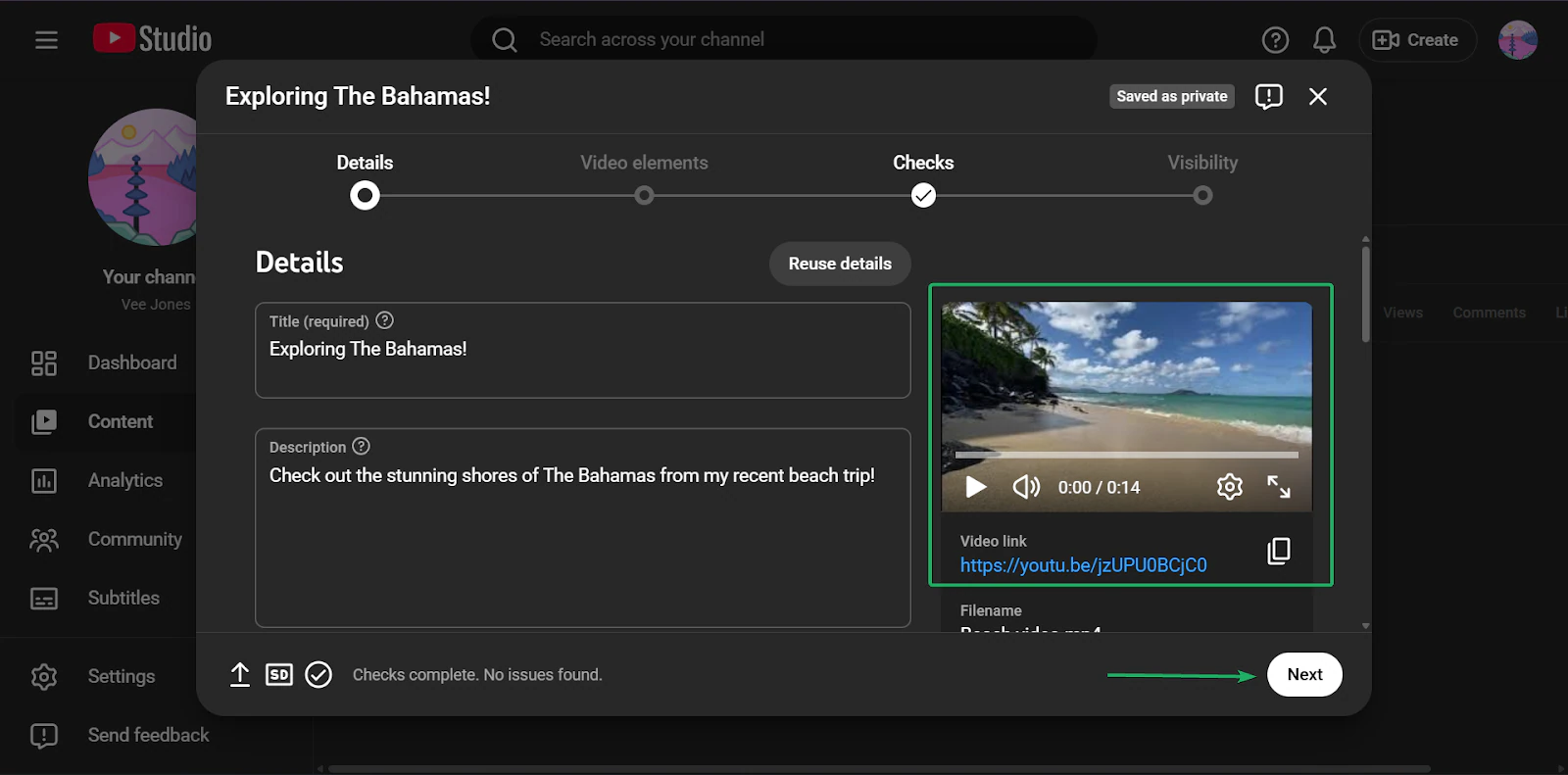
Next, upload the video you want to publish on your channel and enter the details.
That includes the video’s title and a brief description of what it’s about.
Hit “Next” when you’re done.
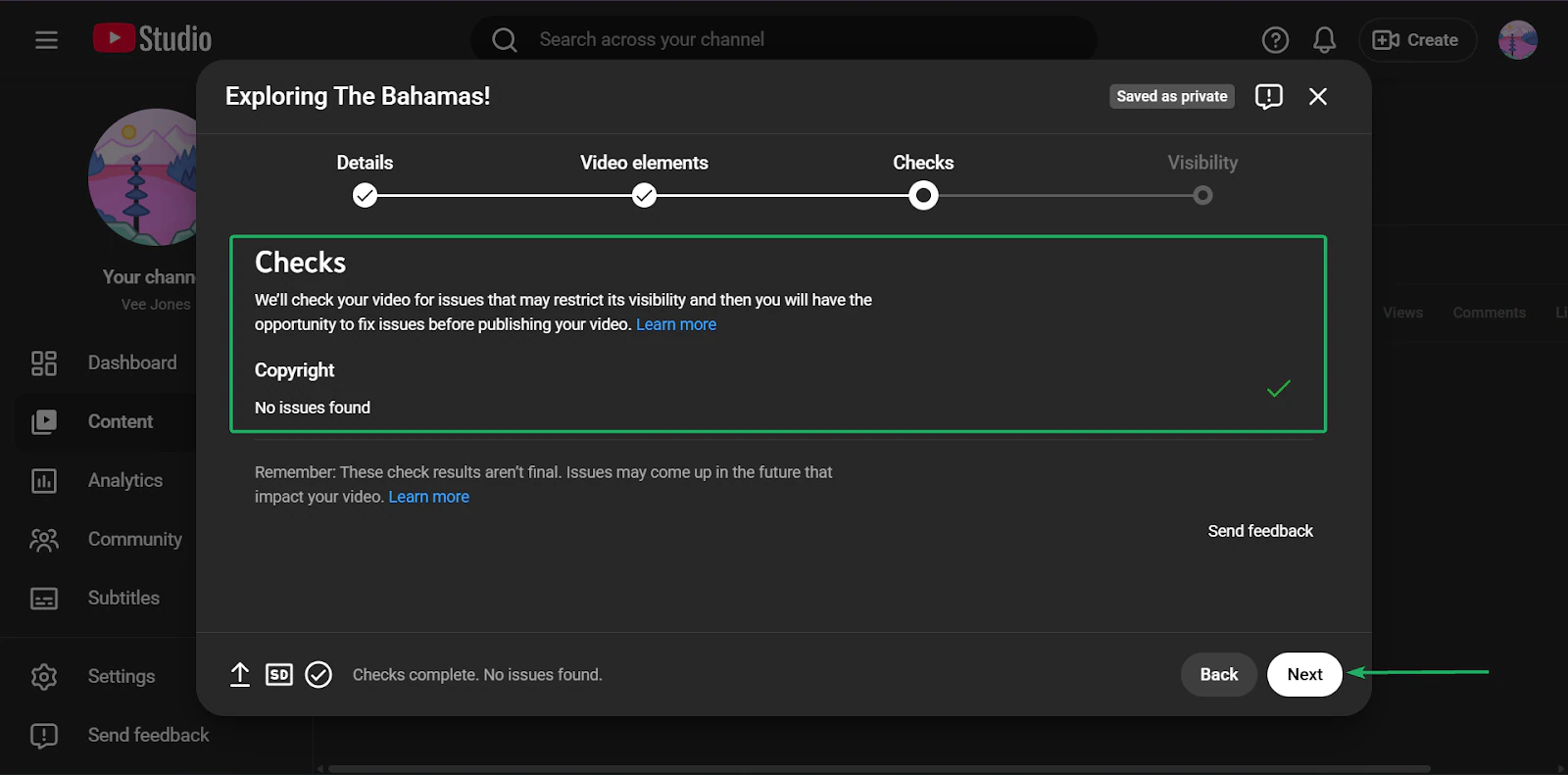
After that, YouTube will check for any copyright issues. These typically happen when creators use content they don’t own or have permission to use.
After YouTube’s checks, you can set how visible you want your content to be. You can make it private or public.
You can also limit who views your content. For example, limiting children or setting age restrictions.
And you can schedule when your content goes live.
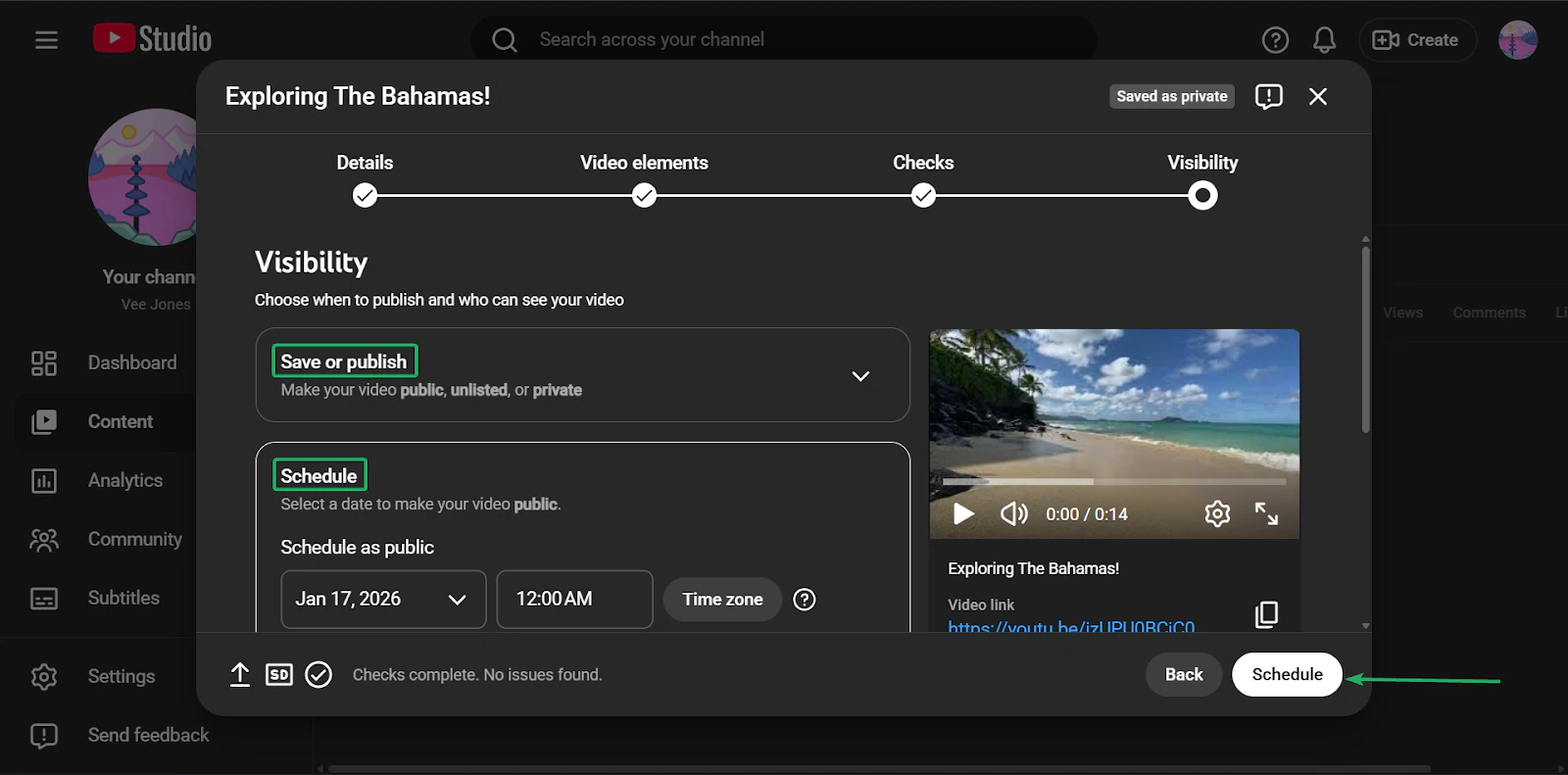
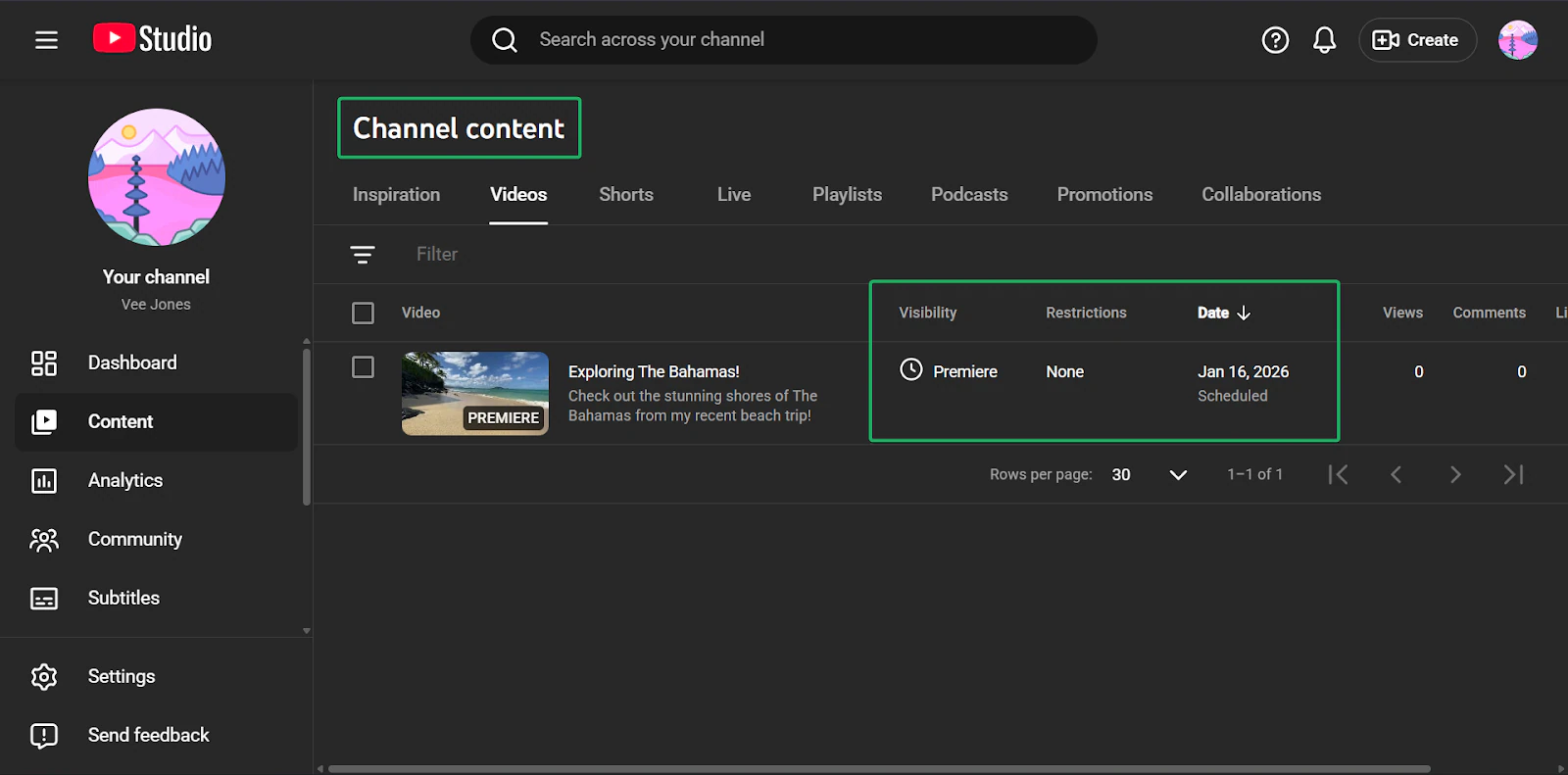
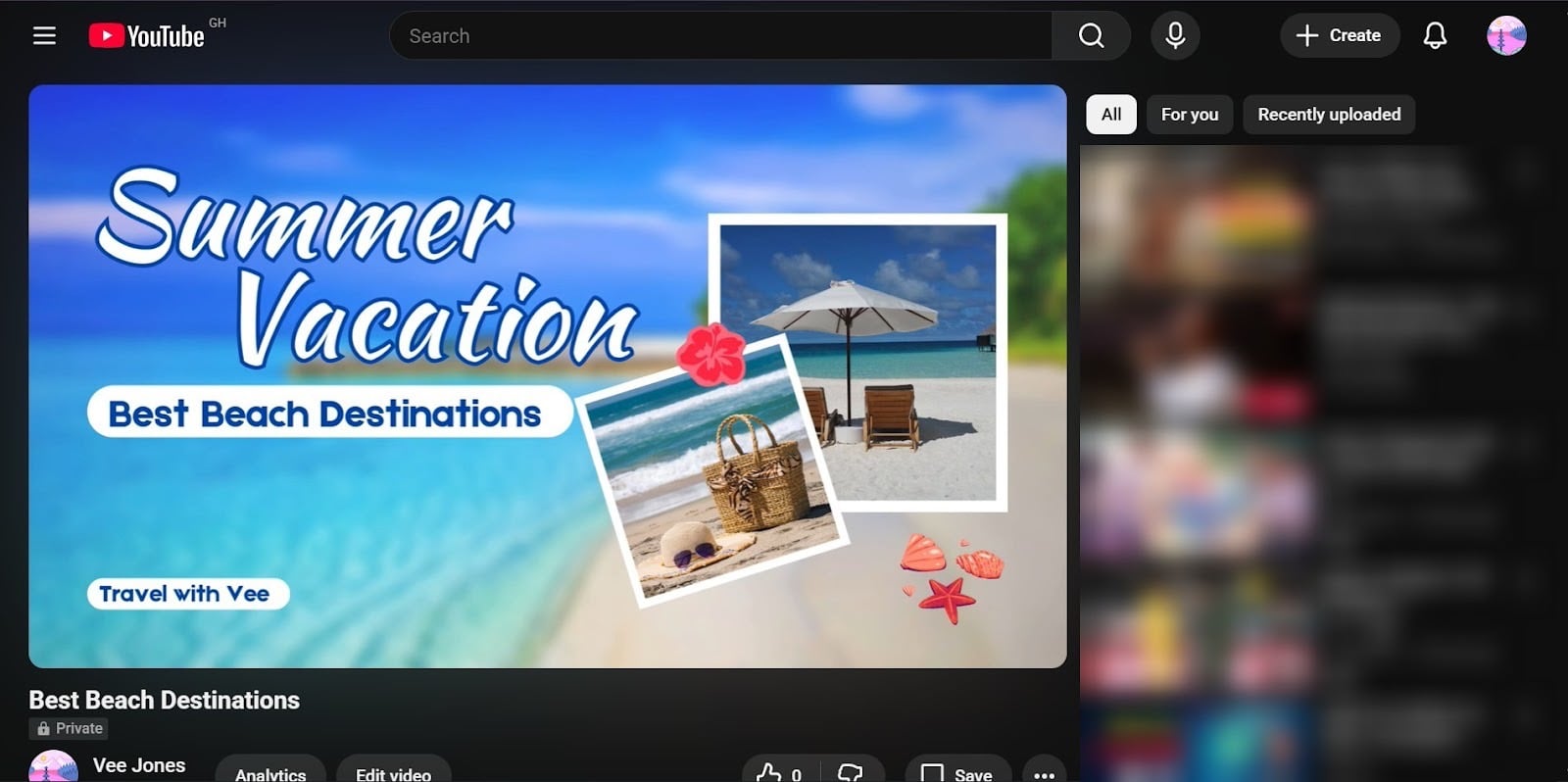
Once you’re done, your content will appear on the “Channel content” dashboard, where you can track how it’s performing.
2. Playlists
The playlists feature helps creators organize their videos into series, making it easier for viewers to watch all their related content in one place.
Let’s walk through how to create a playlist on YouTube:
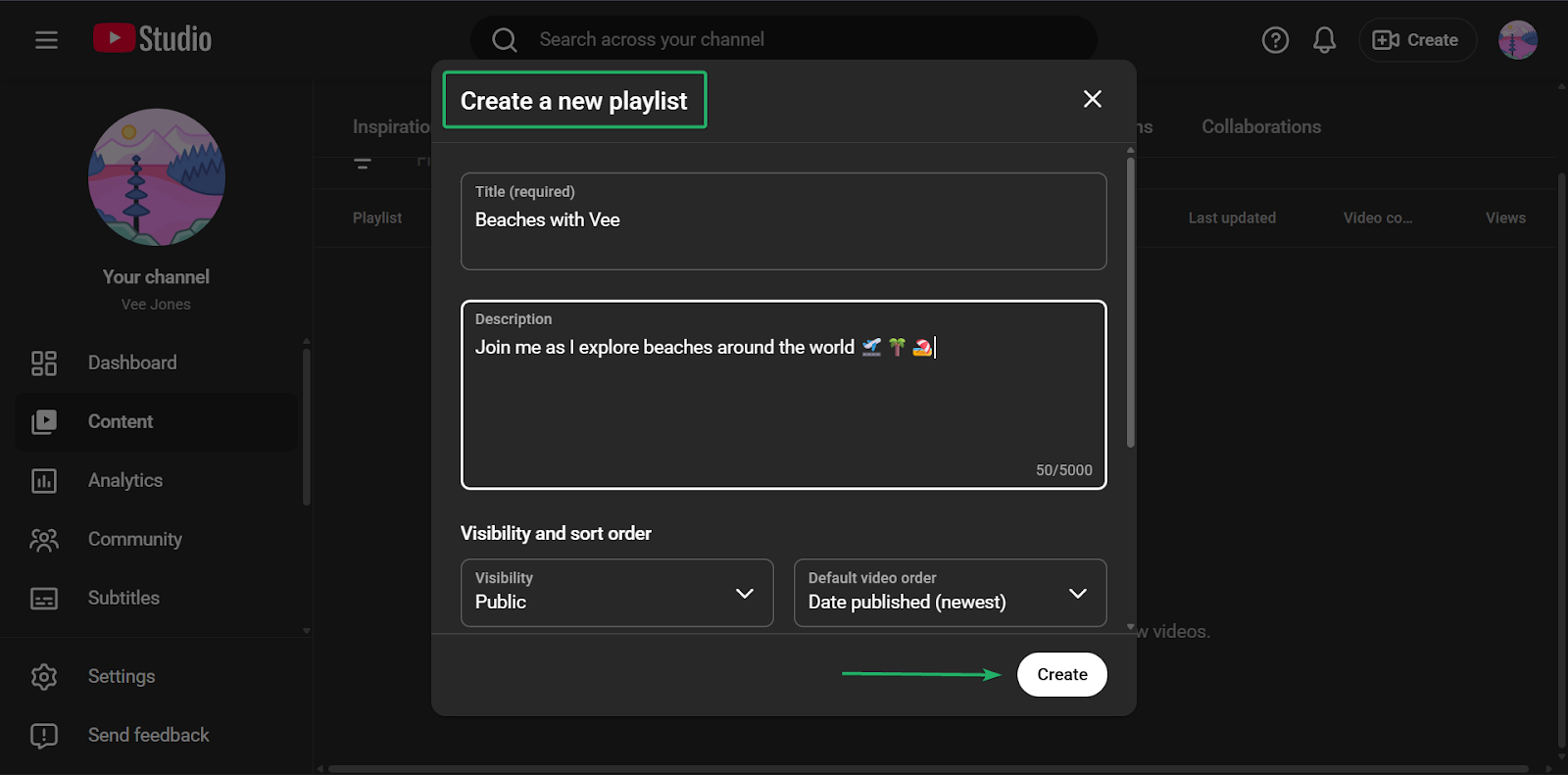
In YouTube Studio, select “Content” in the sidebar and choose “Playlists.” After that, click “New playlist.”
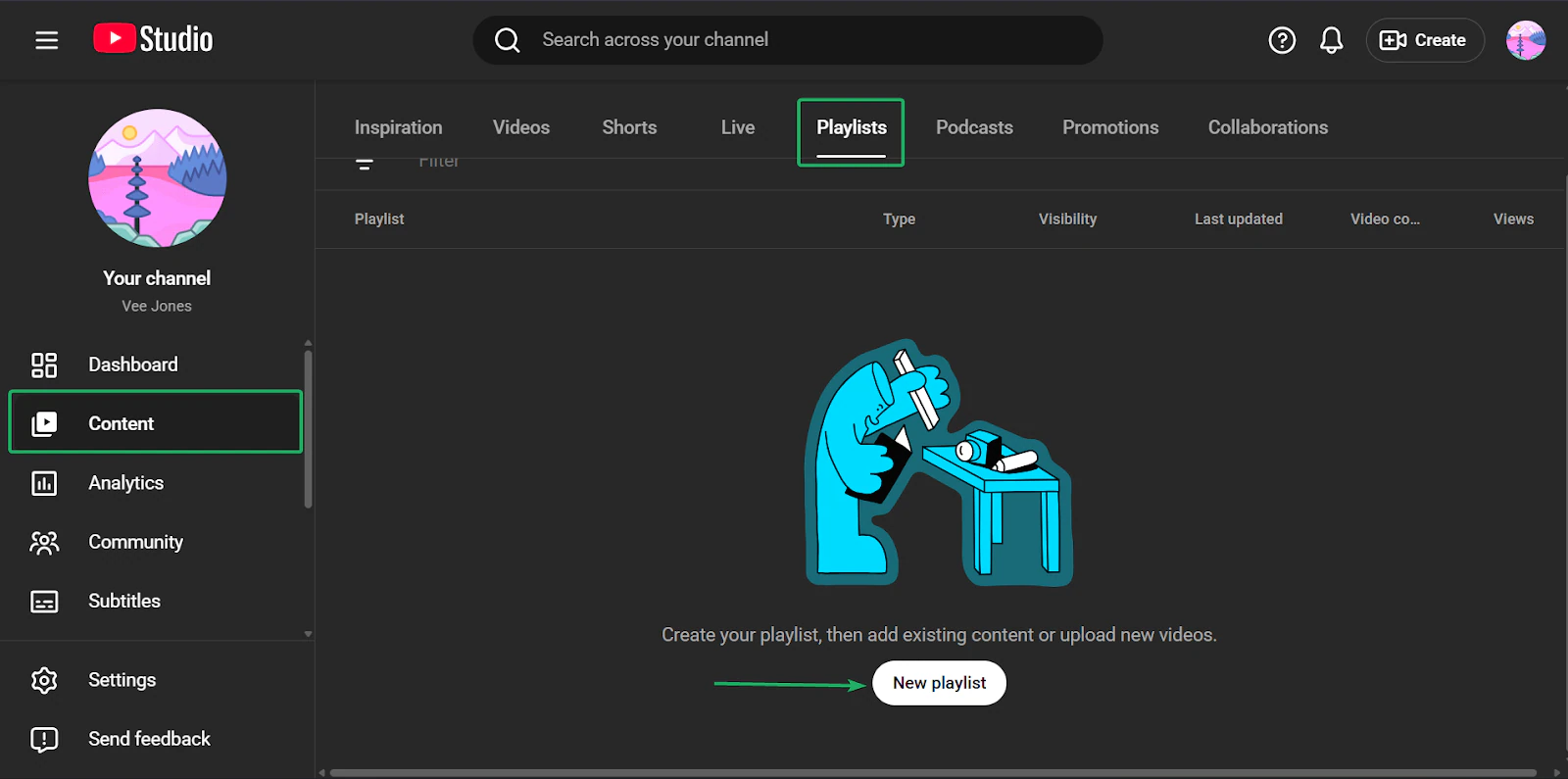
Next, give your playlist a name and description.
You can also choose to make it public or private.
Hit “Create.”
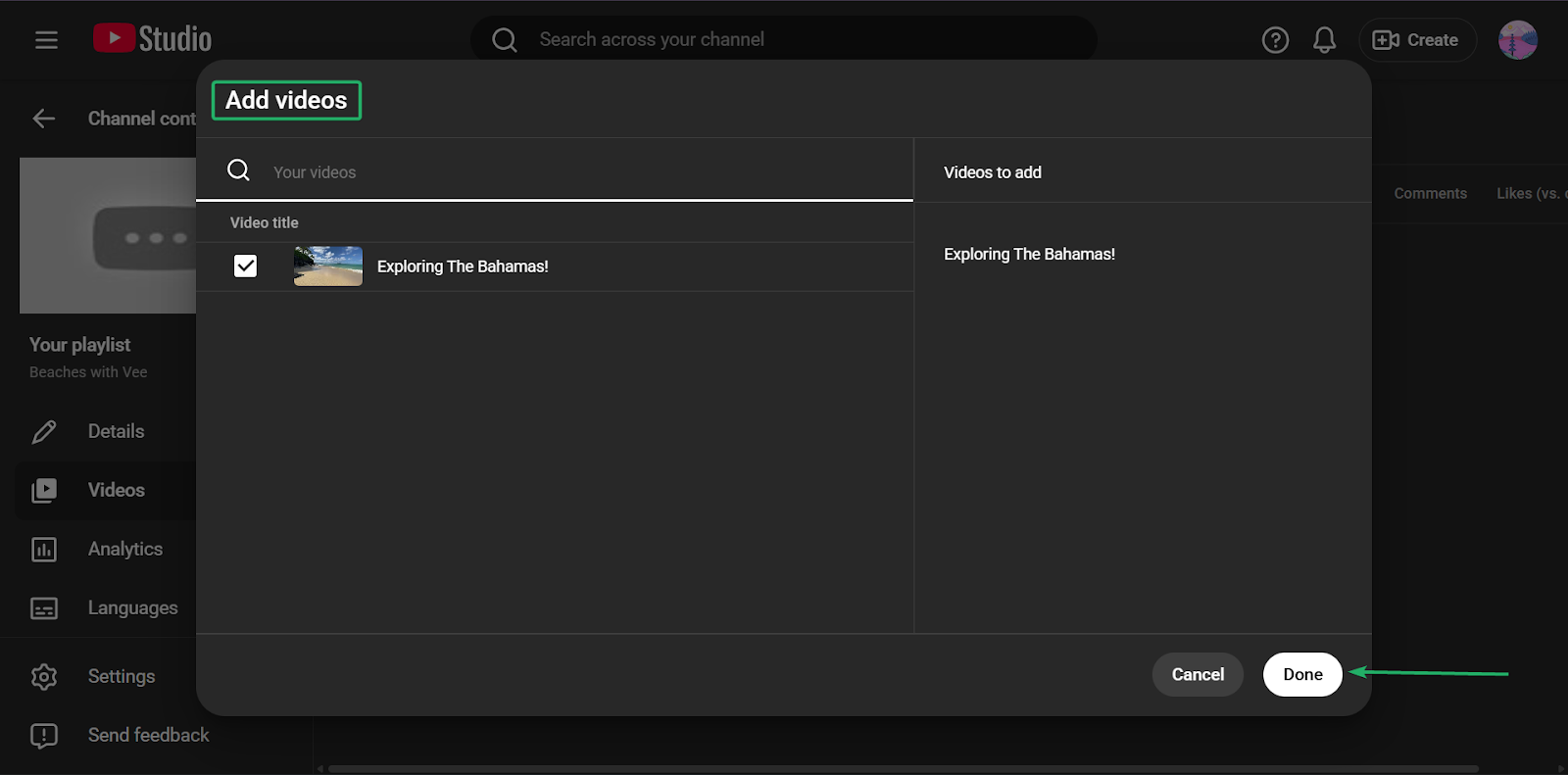
After that, you can start adding your videos to your playlist before clicking “Done.”
3. Community
The community feature helps creators engage with their audience through posts, comments, and live chats.
Let’s see how it works in real time.
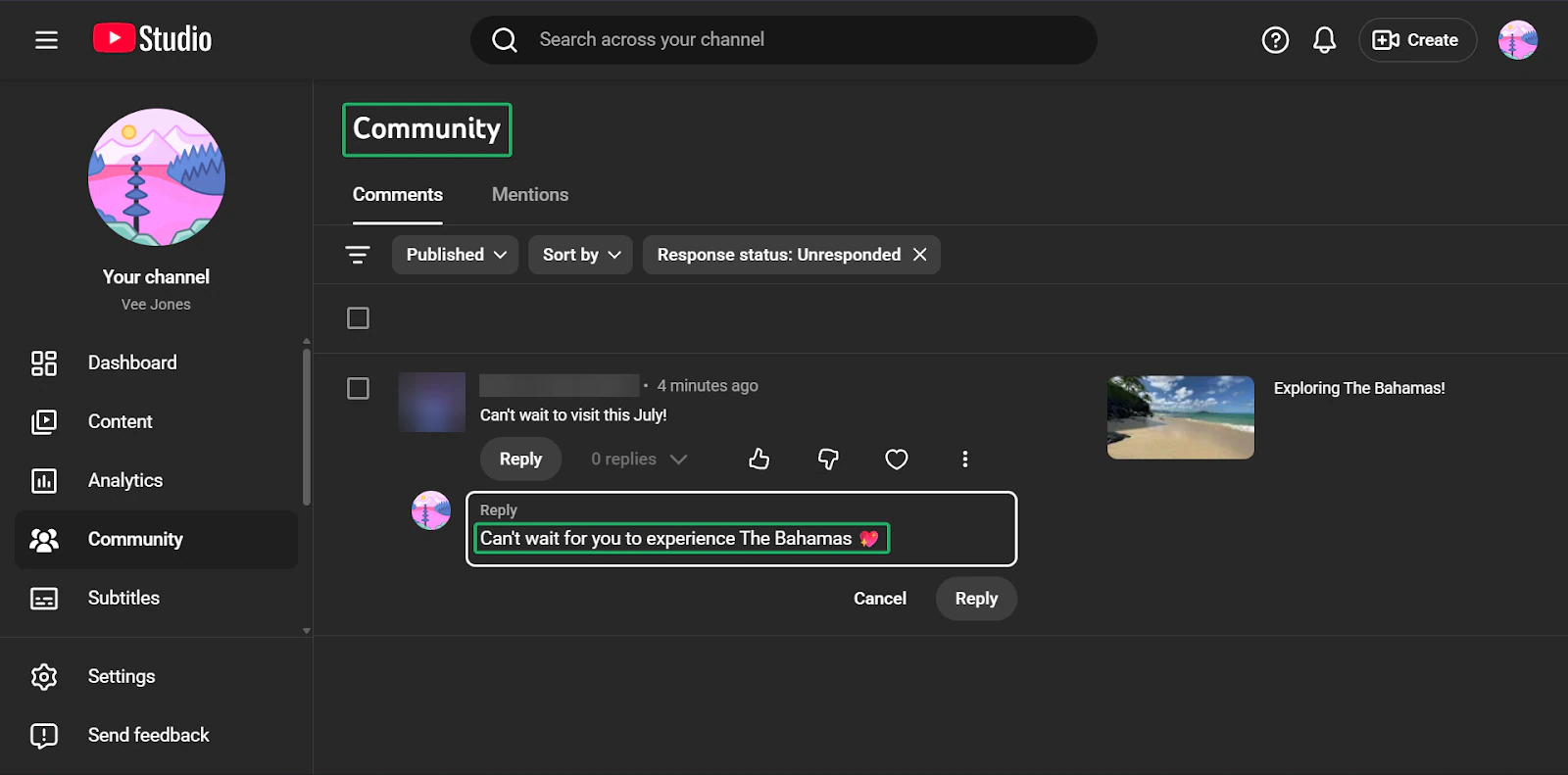
Head to the “Community” tab to track any comments and mentions on any of your uploaded videos.
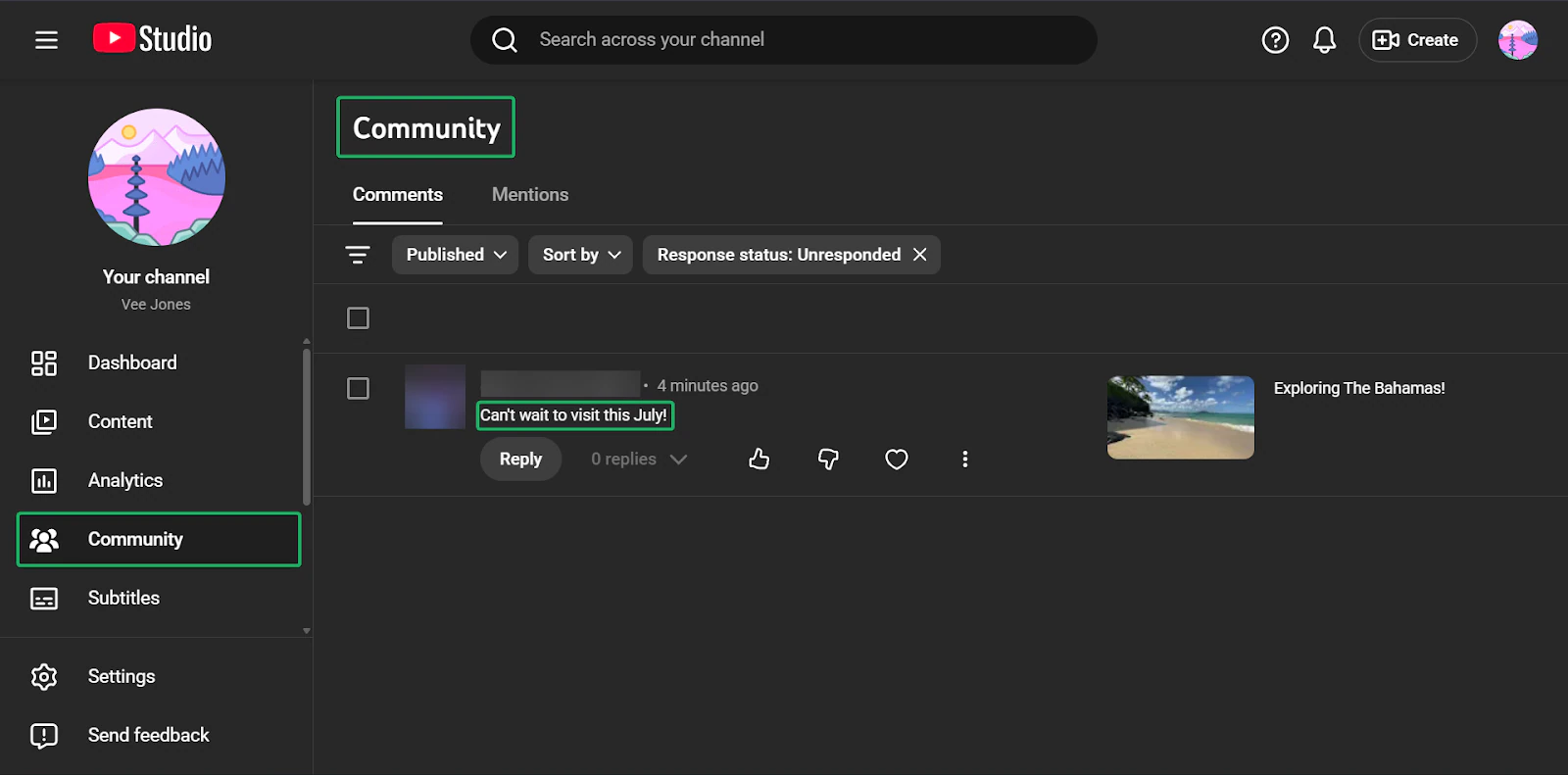
You can like, dislike, love, and reply to your viewers’ comments.
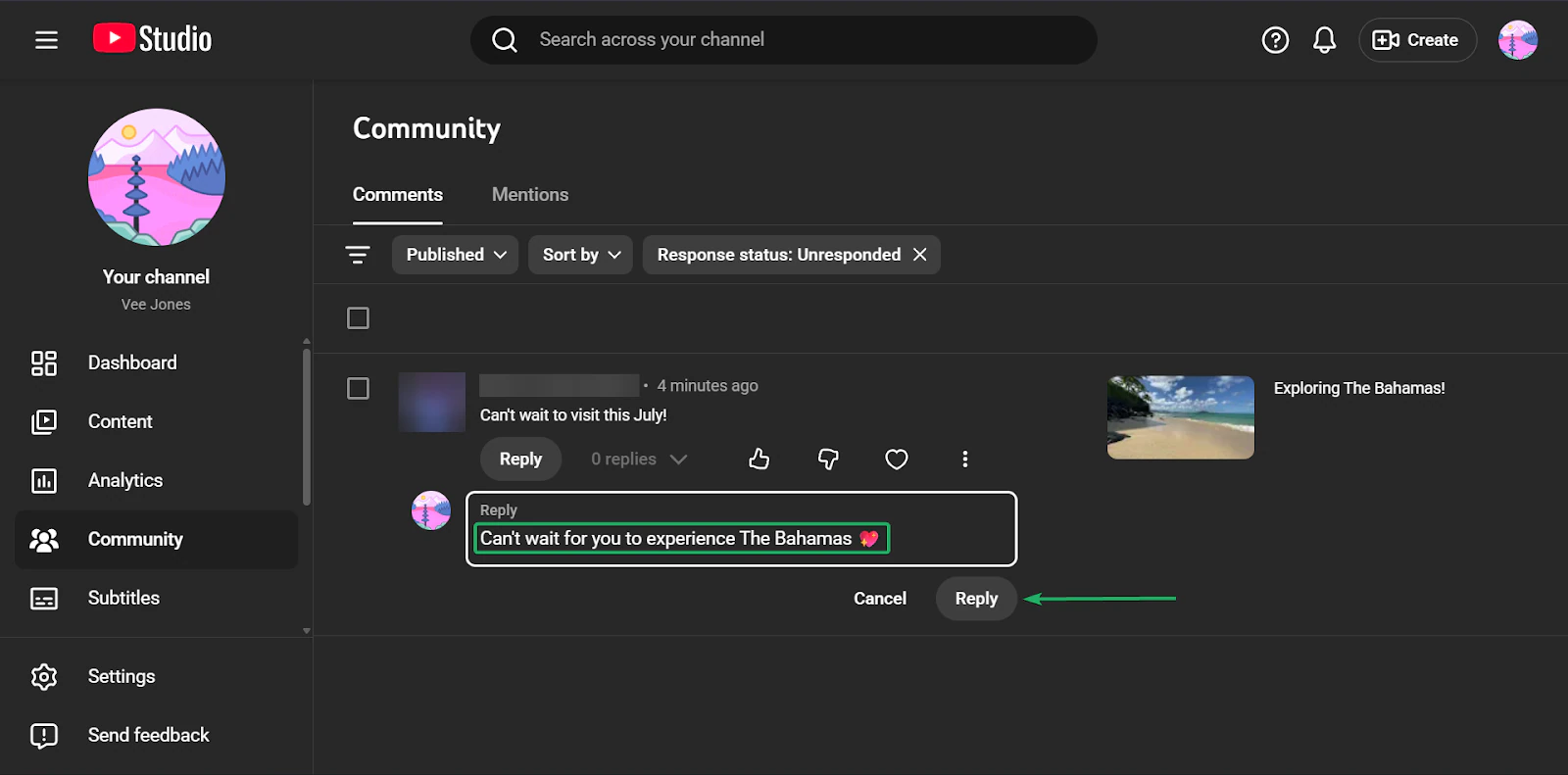
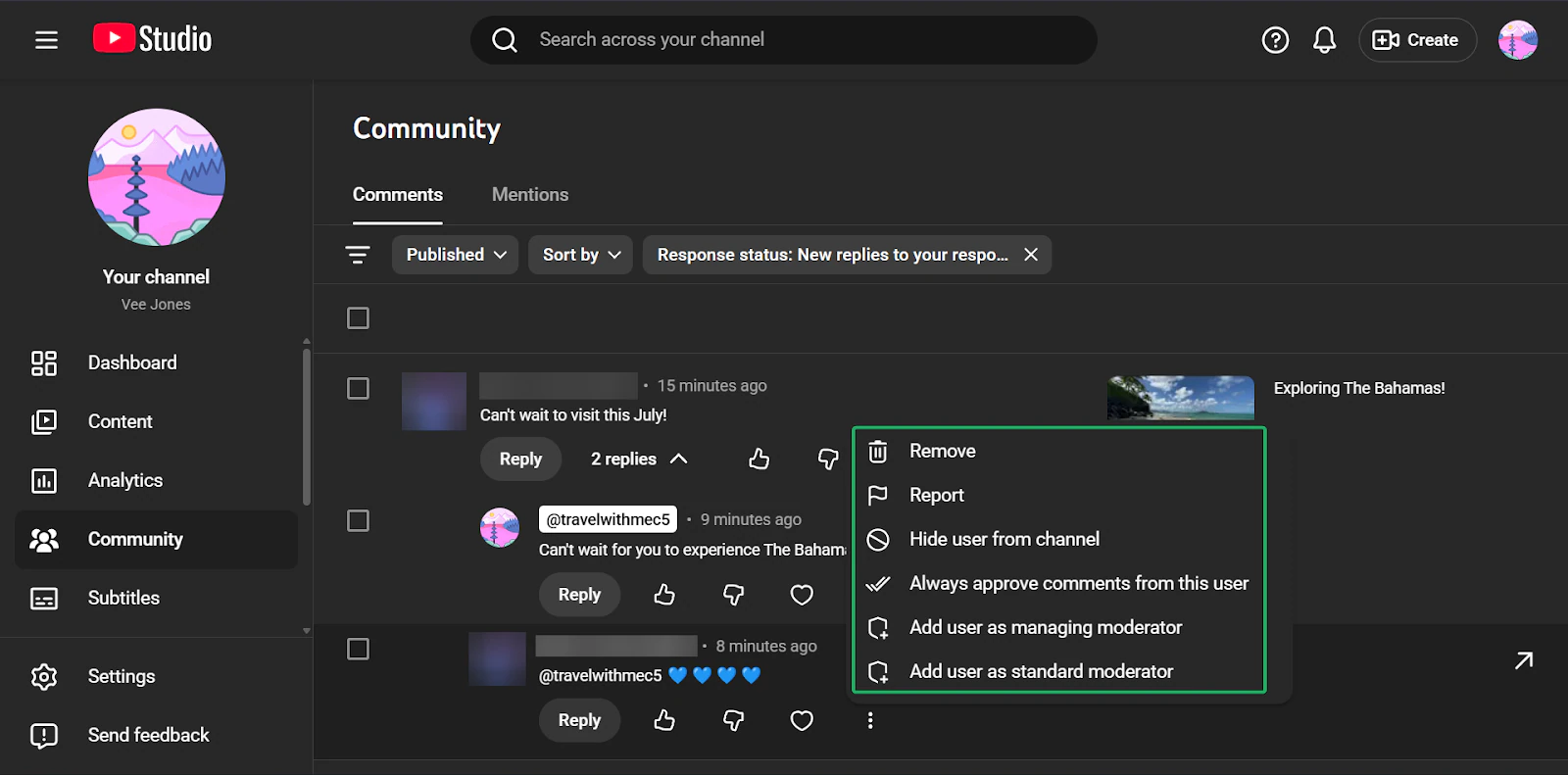
You can also manage comments on your videos by clicking on the kebab menu (⋮) next to the heart icon.
In the pop-up menu, you can delete comments, file a report, or hide your channel from the user.
You can also add the user as a moderator. This means they can also manage comments on your behalf.
What I loved vs what I struggled with
What I loved 👍
✅ YouTube supports both long and short-form videos.
✅ Content can keep getting views long after publishing.
✅ Community tools make it easier for creators to engage with their viewers.
What I struggled with 👎
❌ Very competitive and hard to stand out, especially as more creators join.
❌ Algorithm changes can affect the visibility of your content.
Best for
- Video creators building audiences through long-form and short-form content.
Pricing
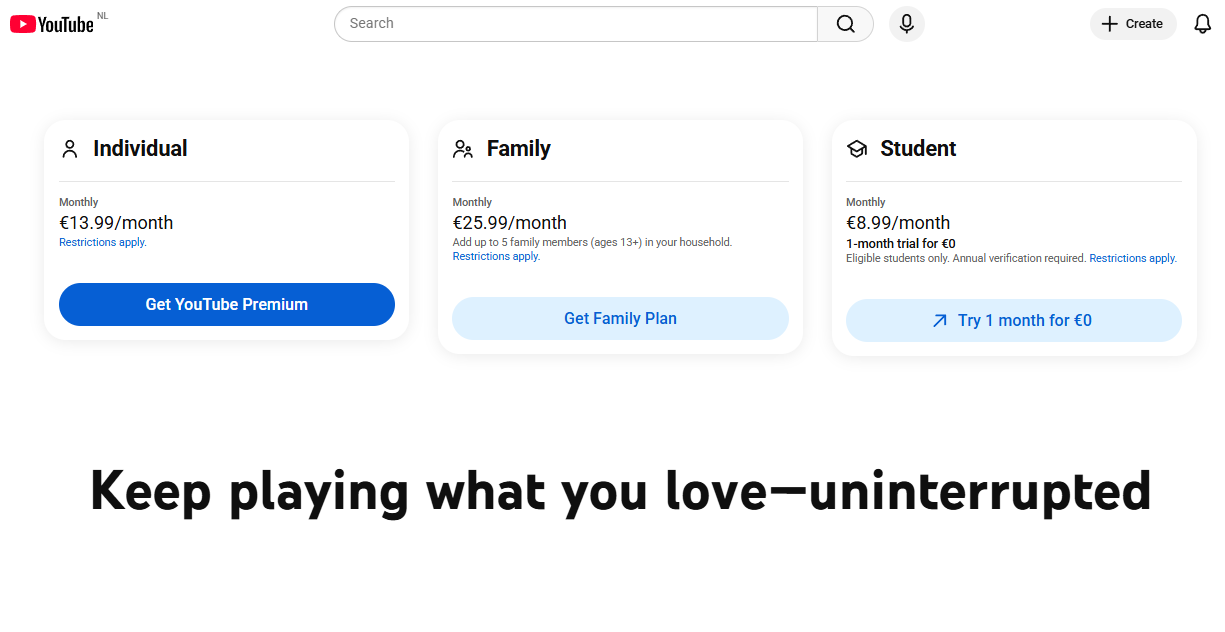
- Individual: €13.99/month
- Family: €25.99/month
- Student: €8.99/month
3. Descript
📑 Content type: Audio and video | ⚙️ Key features: Video editing, podcasting, screen recording, rooms, generate media, captions, transcription, AI speech, templates, AI avatars | 🔗 Distribution: Share links, embeds, integrations | 💳 Monetization: Sell content, affiliates, client work, courses | 🌱 Growth: Productivity | 💰 Starting fee: $0/month
Another tool on our list of the best content creator platforms is Descript.
It’s an AI-powered text-to-audio and video tool that helps content creators edit podcasts and videos as if they were text documents.
For example, you can take out words from a transcript, and Descript will automatically remove them from the audio or video.
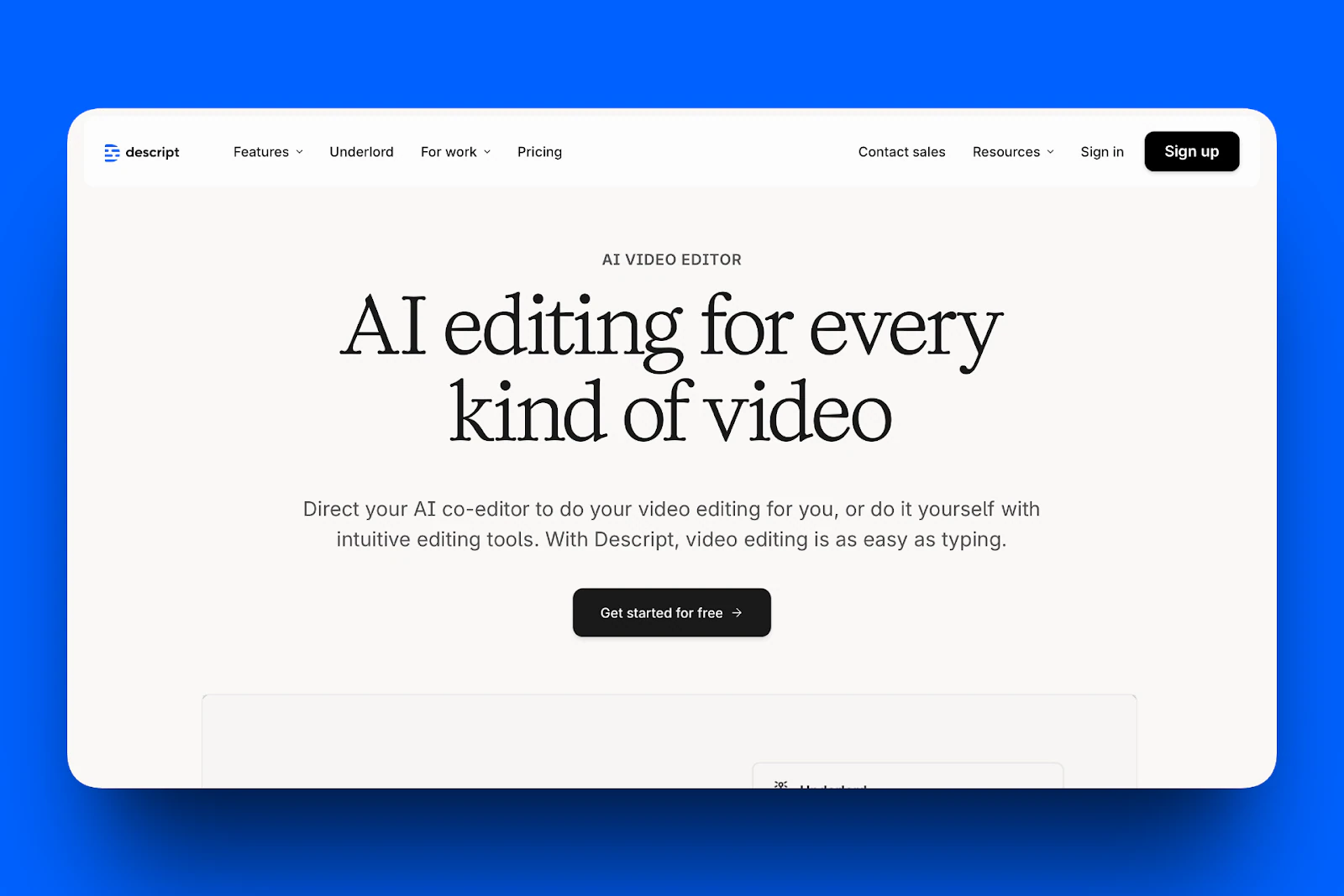
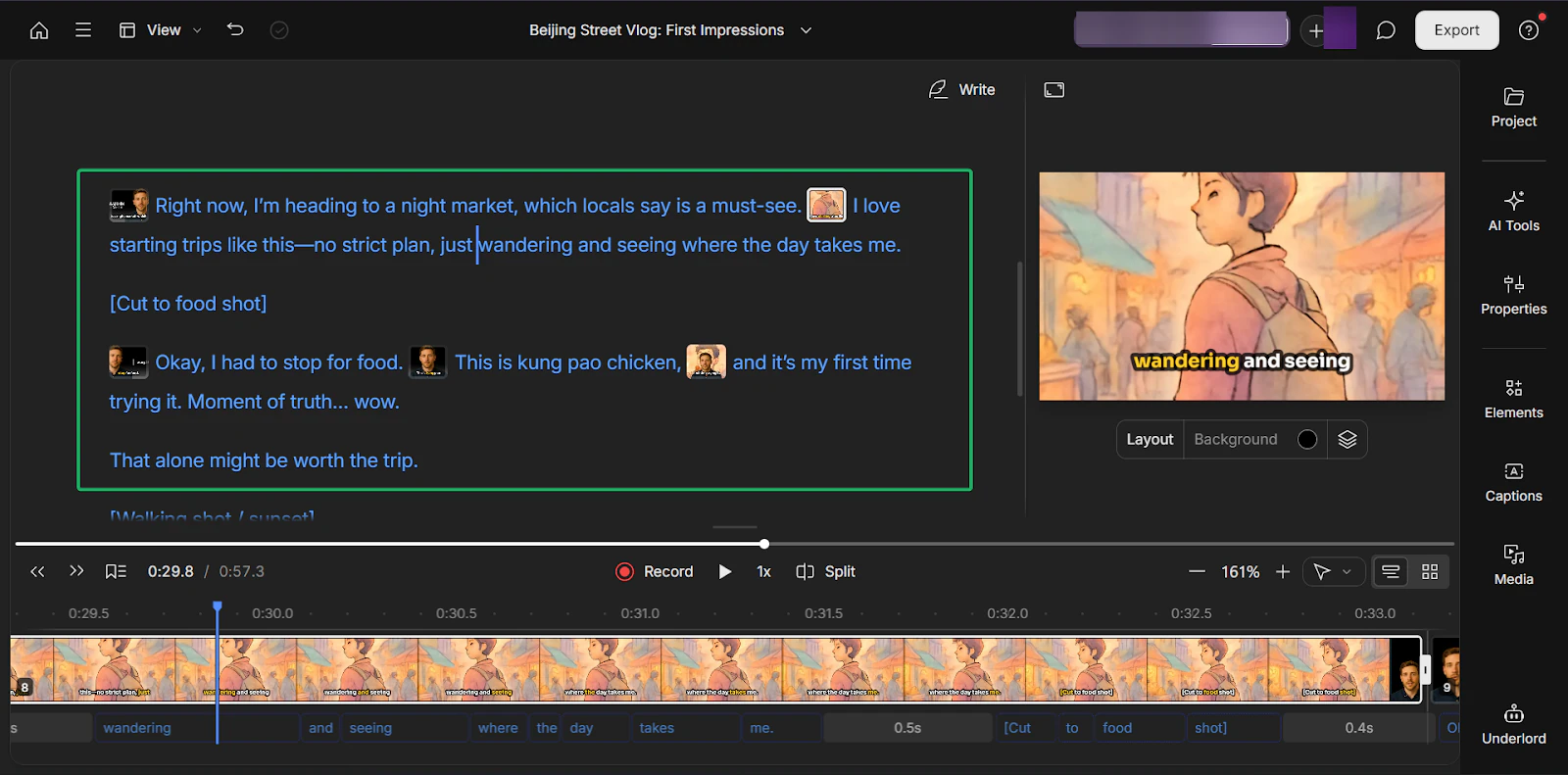
Descript’s AI video maker can automatically create scripts, visuals, and layouts, making content creation as seamless as possible.
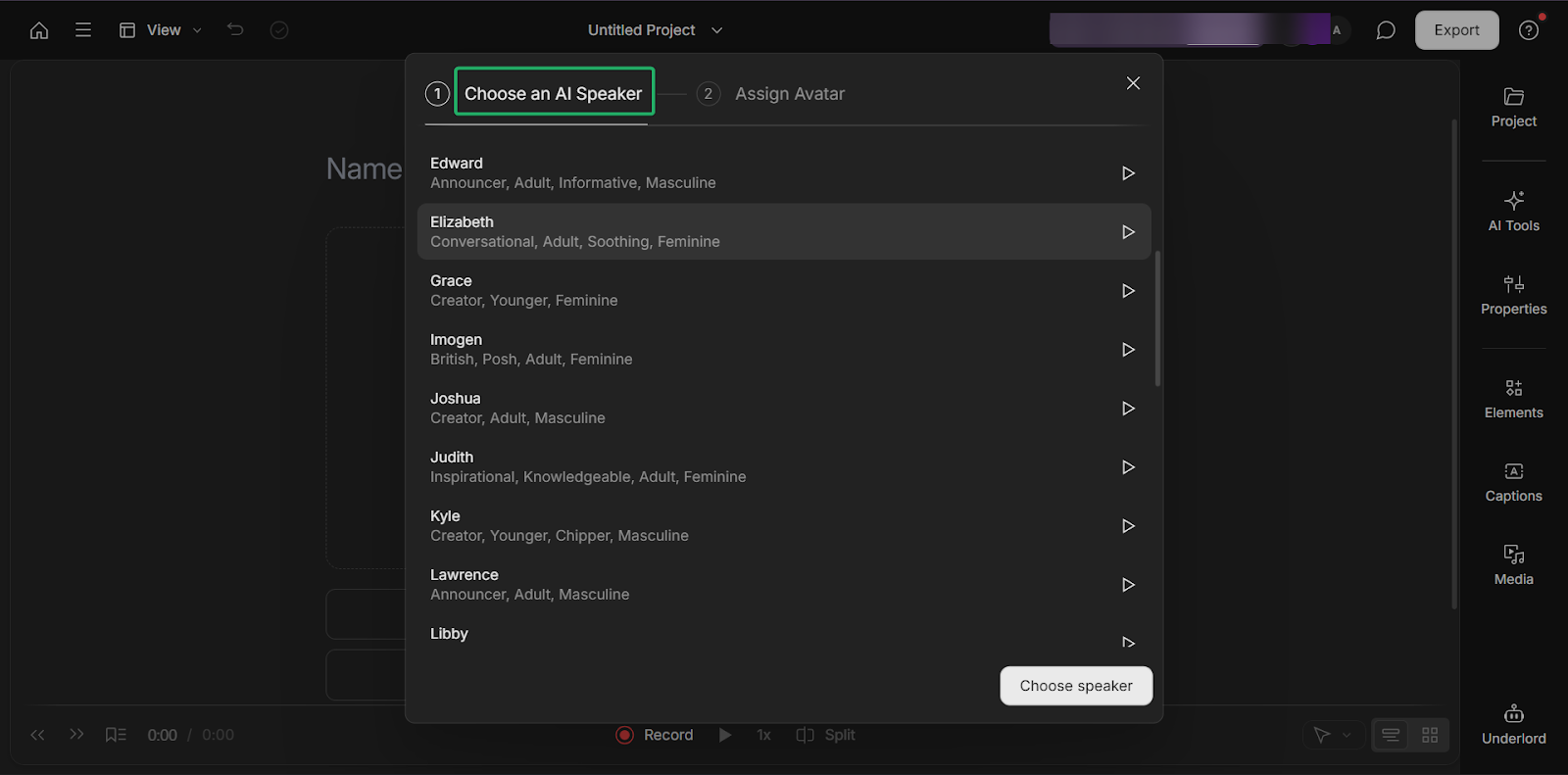
Its AI speaker lets creators generate voiceovers. It’s great for quickly editing podcasts or tutorial videos.
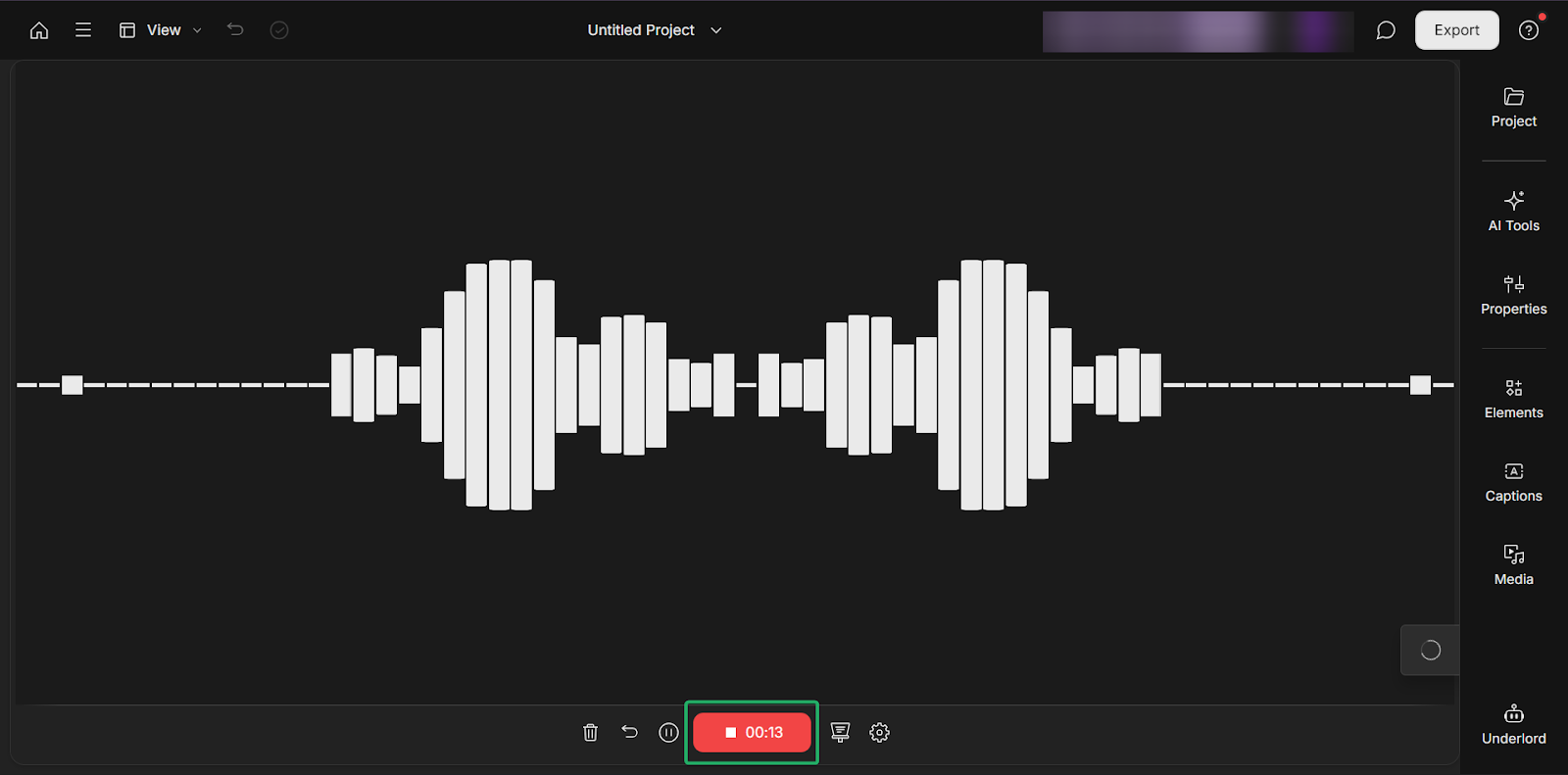
Finally, Descript’s quick recordings feature lets you record audio or video right in the platform.
What I loved about Descript
1. AI video maker
Descript’s AI video maker helps creators seamlessly turn scripts or recordings into videos. It automatically generates visuals, captions, and layouts.
Plus, you can quickly edit videos by adding or deleting text in your script.
Let’s see how it works.
On Descript’s homepage, scroll down to “Popular feature” and click “AI video maker.”
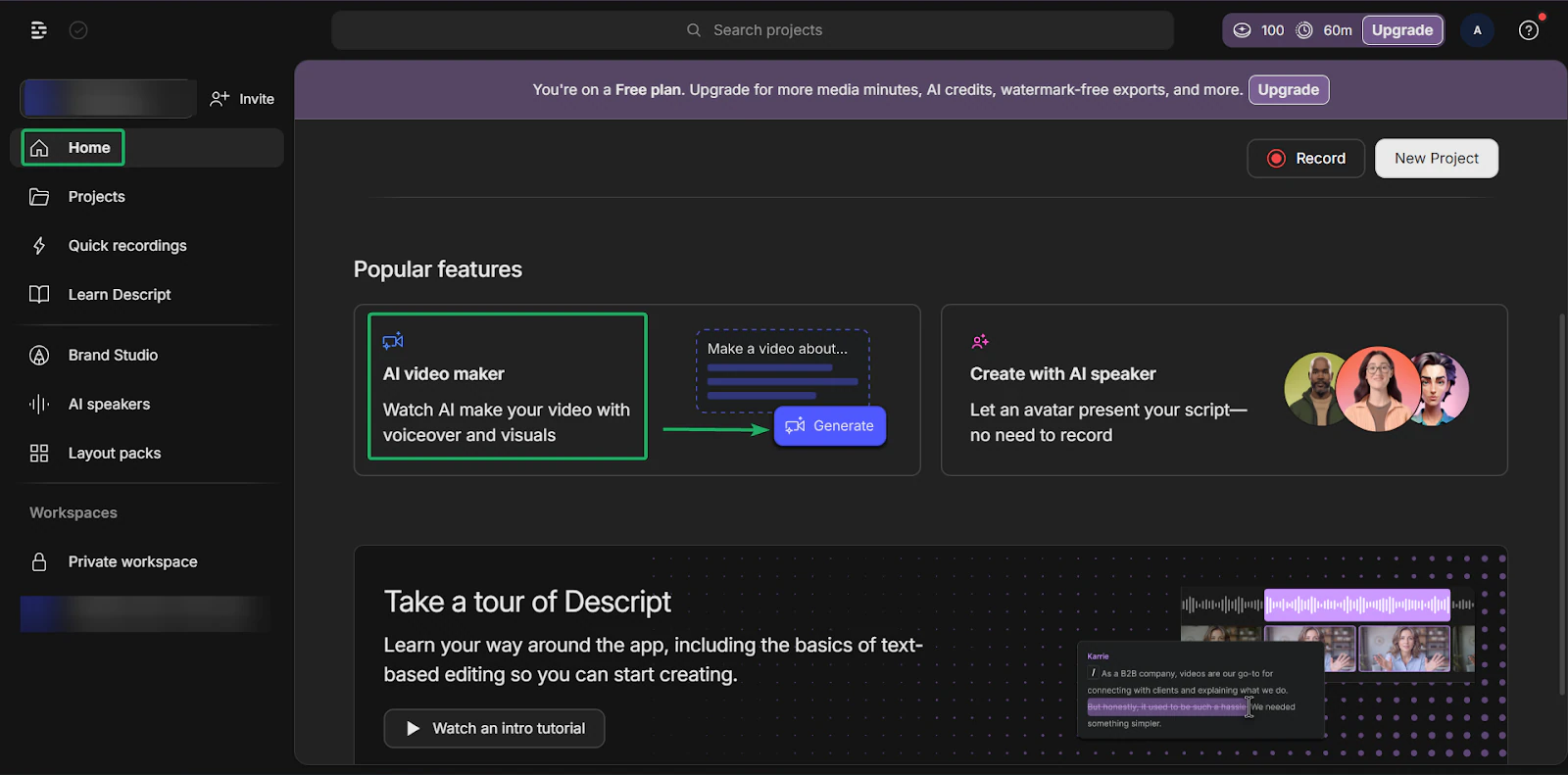
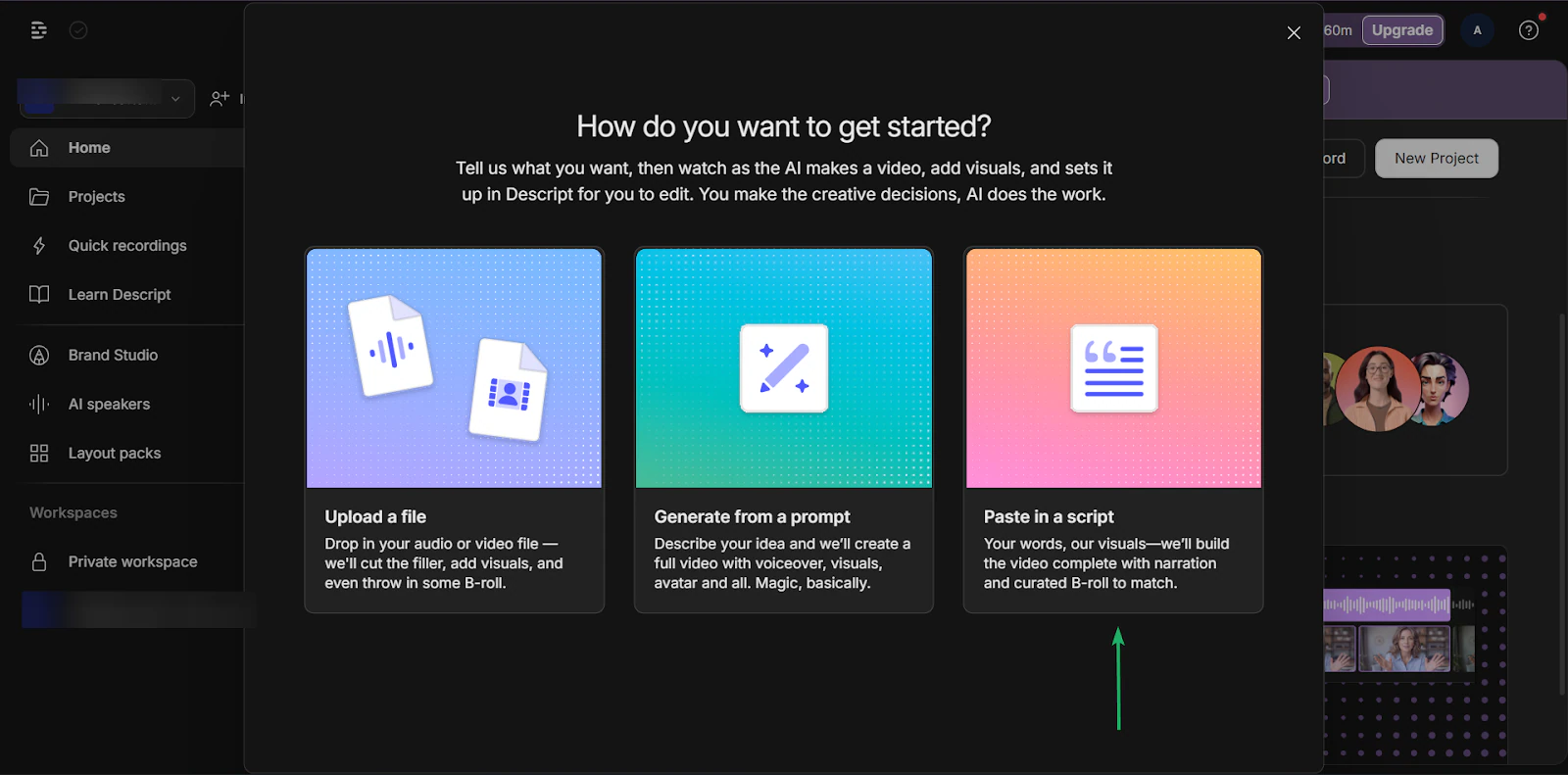
Next, select how you want the AI to create the video. You can upload a video, generate a video from a prompt, or paste a script.
Let’s go with the “Paste in a script” option.
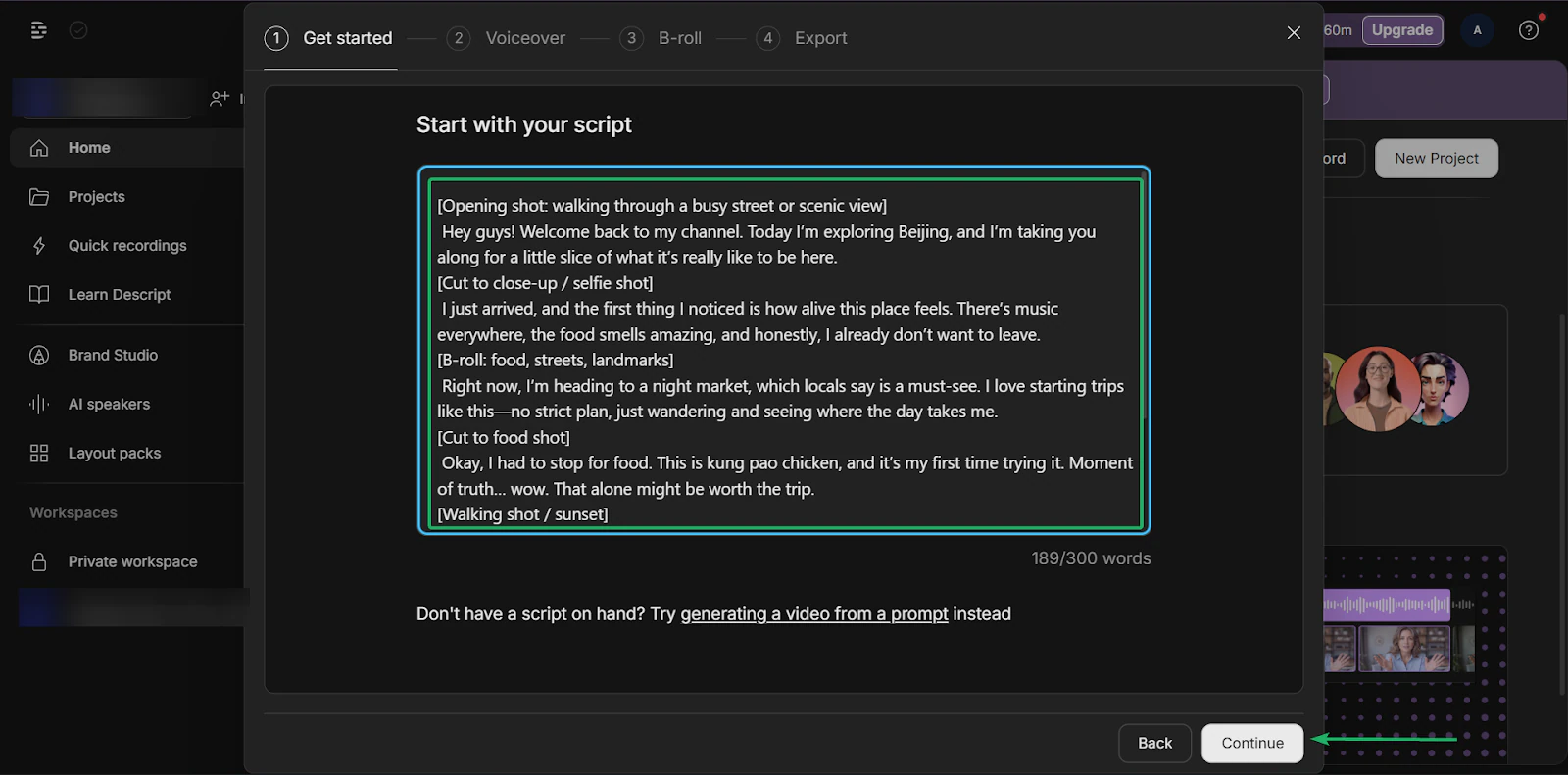
After that, paste a copy of your script.
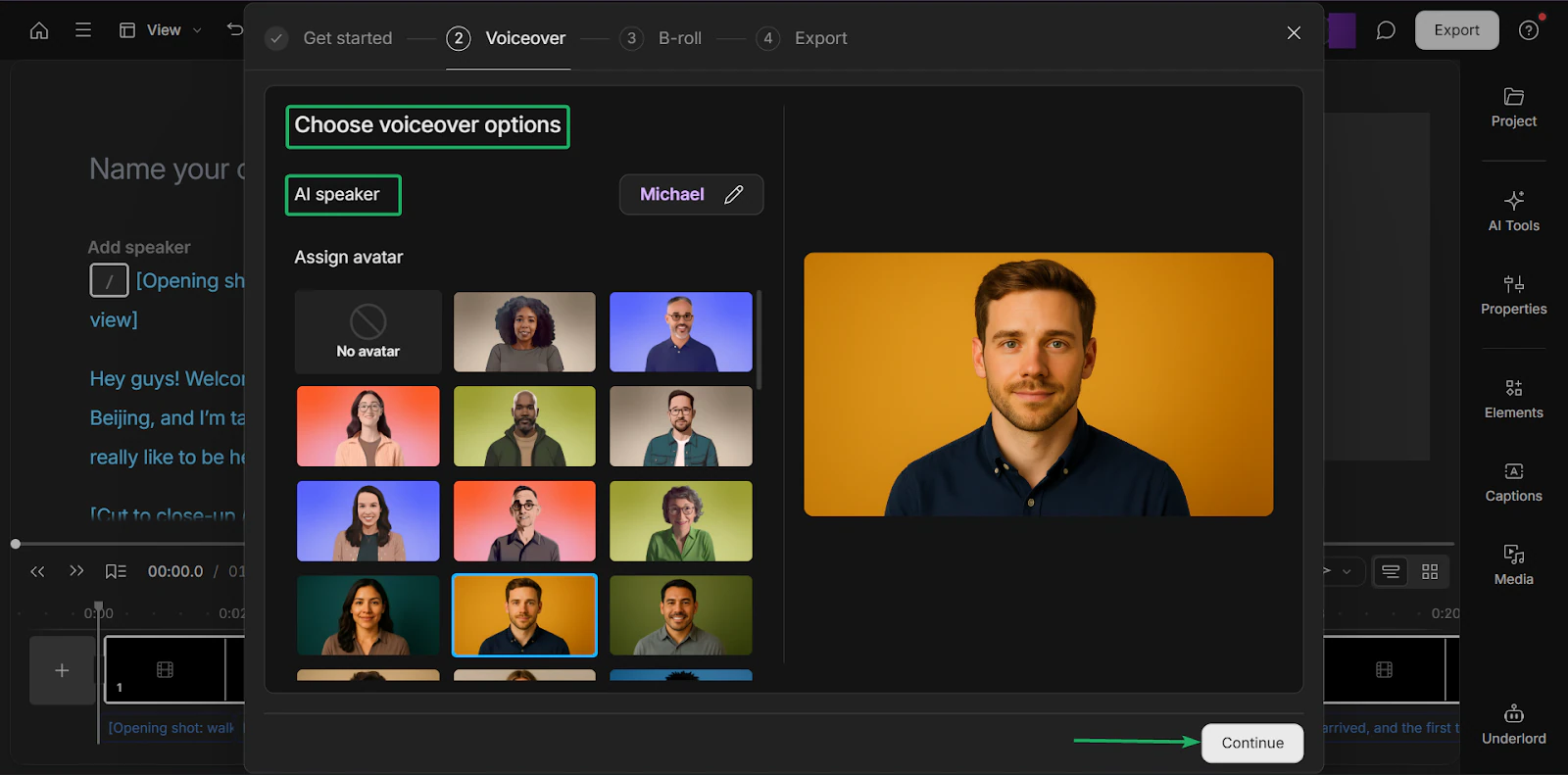
Then, choose your voiceover options before hitting “Continue.”
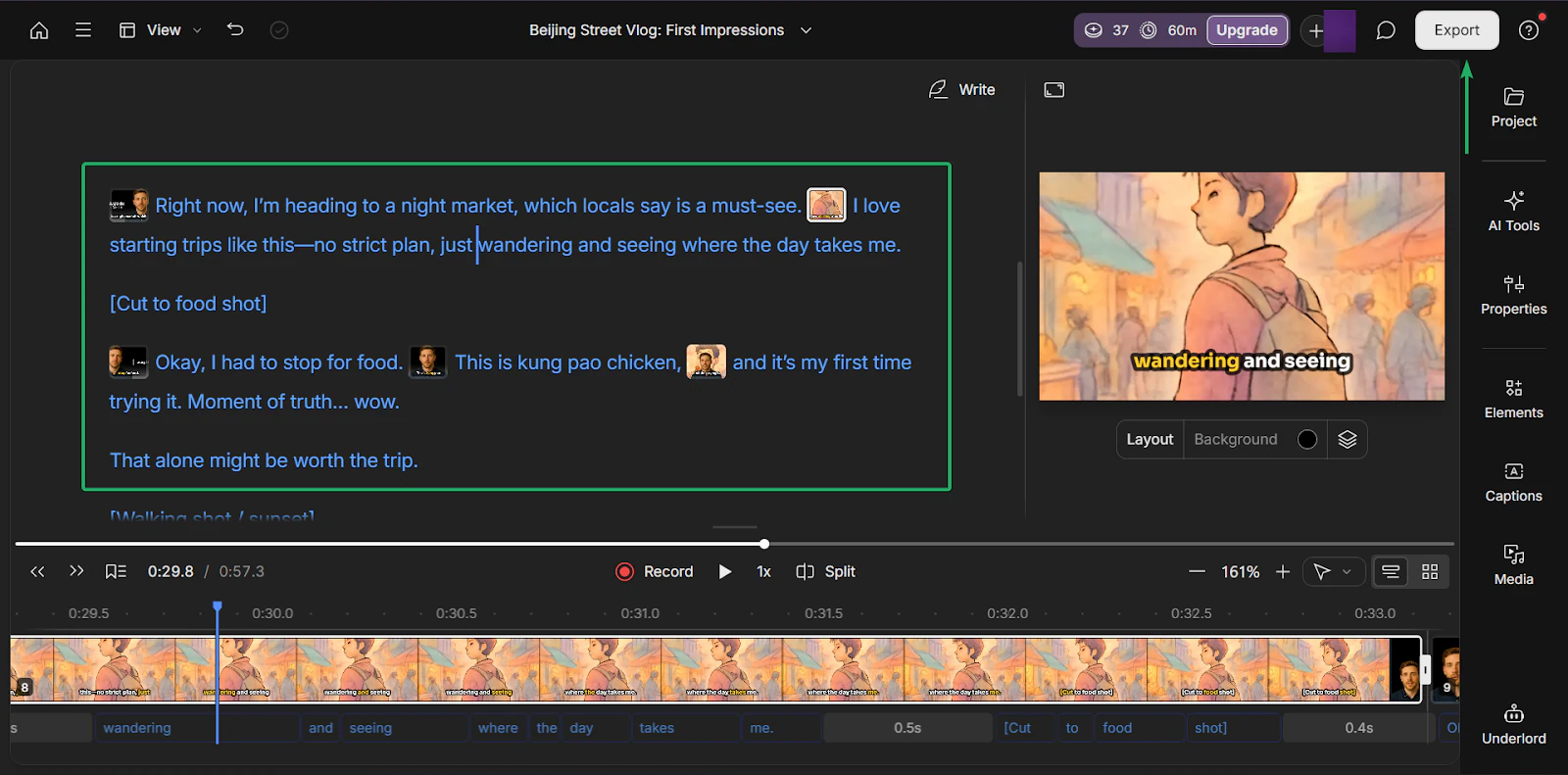
With the video editor, you can tweak parts of your script, and the video will automatically add or delete those sections.
Once you’re done, you can export your video. You can also export just the audio, transcript, and subtitles.
2. AI speaker
Descript’s AI speaker feature lets creators generate voiceovers. It’s great for podcasts, creating explainer videos, or tutorials quickly.
Let’s walk through how to set it up.
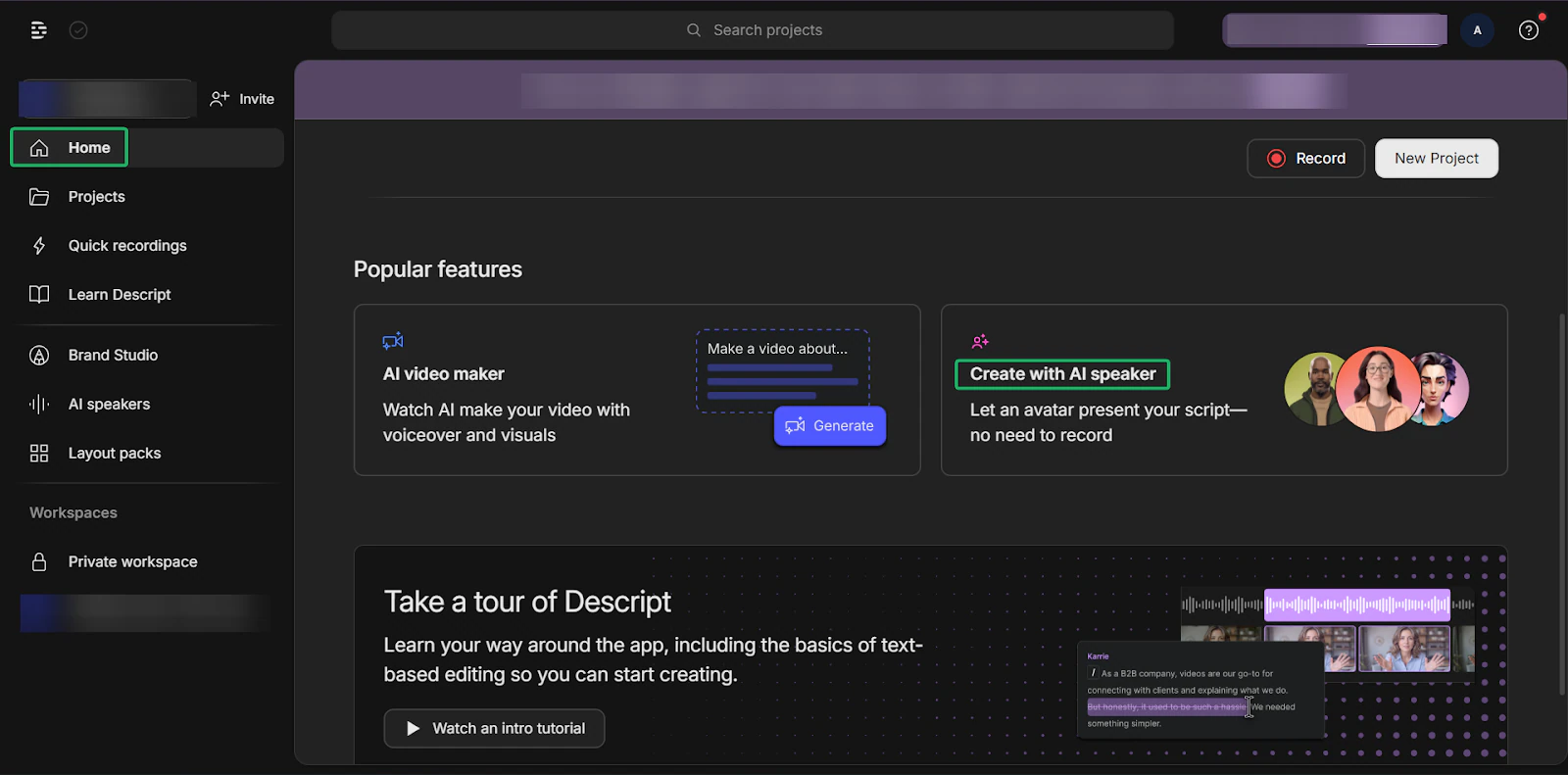
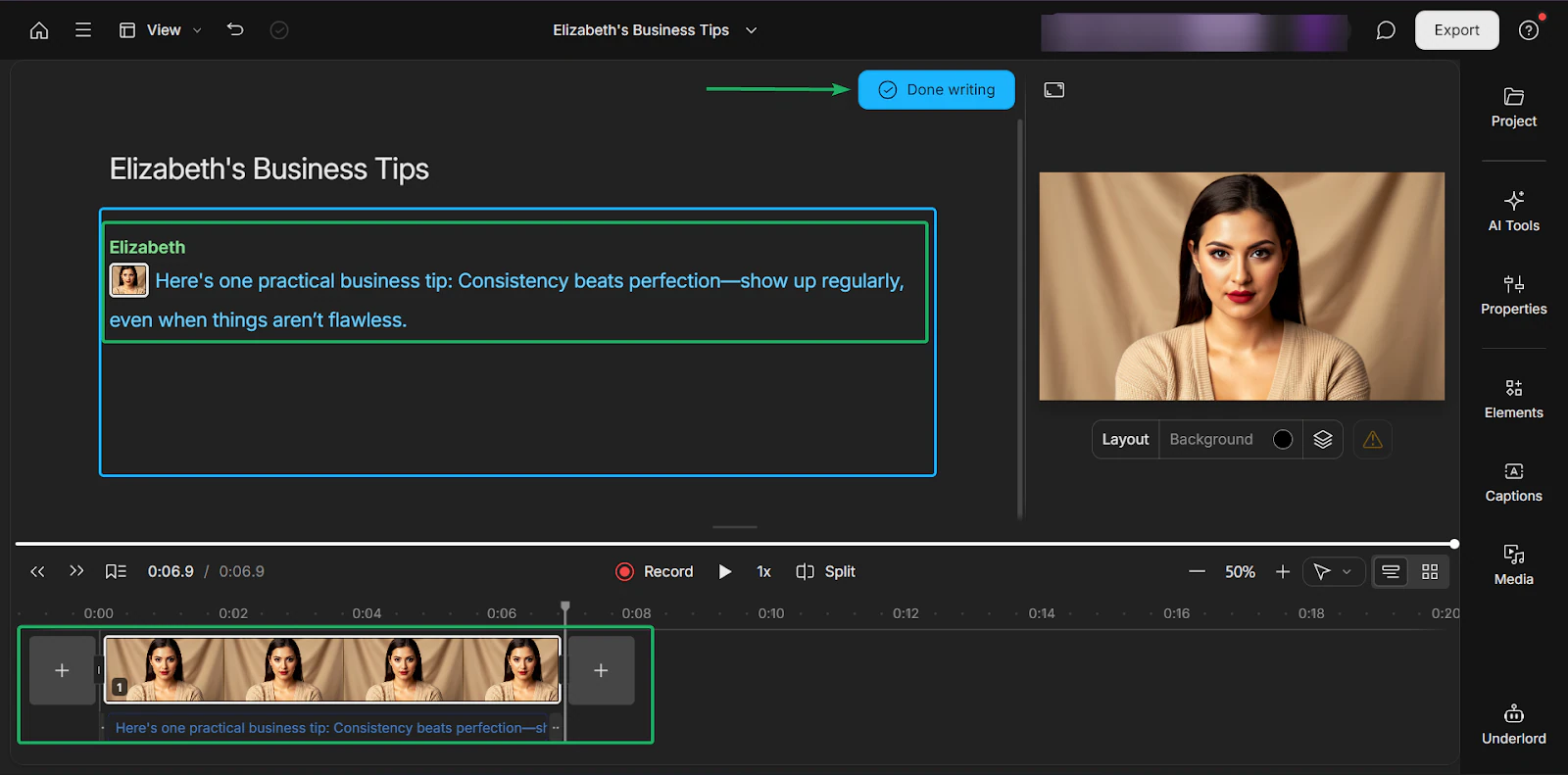
On the home page, select “Create with AI speaker.”
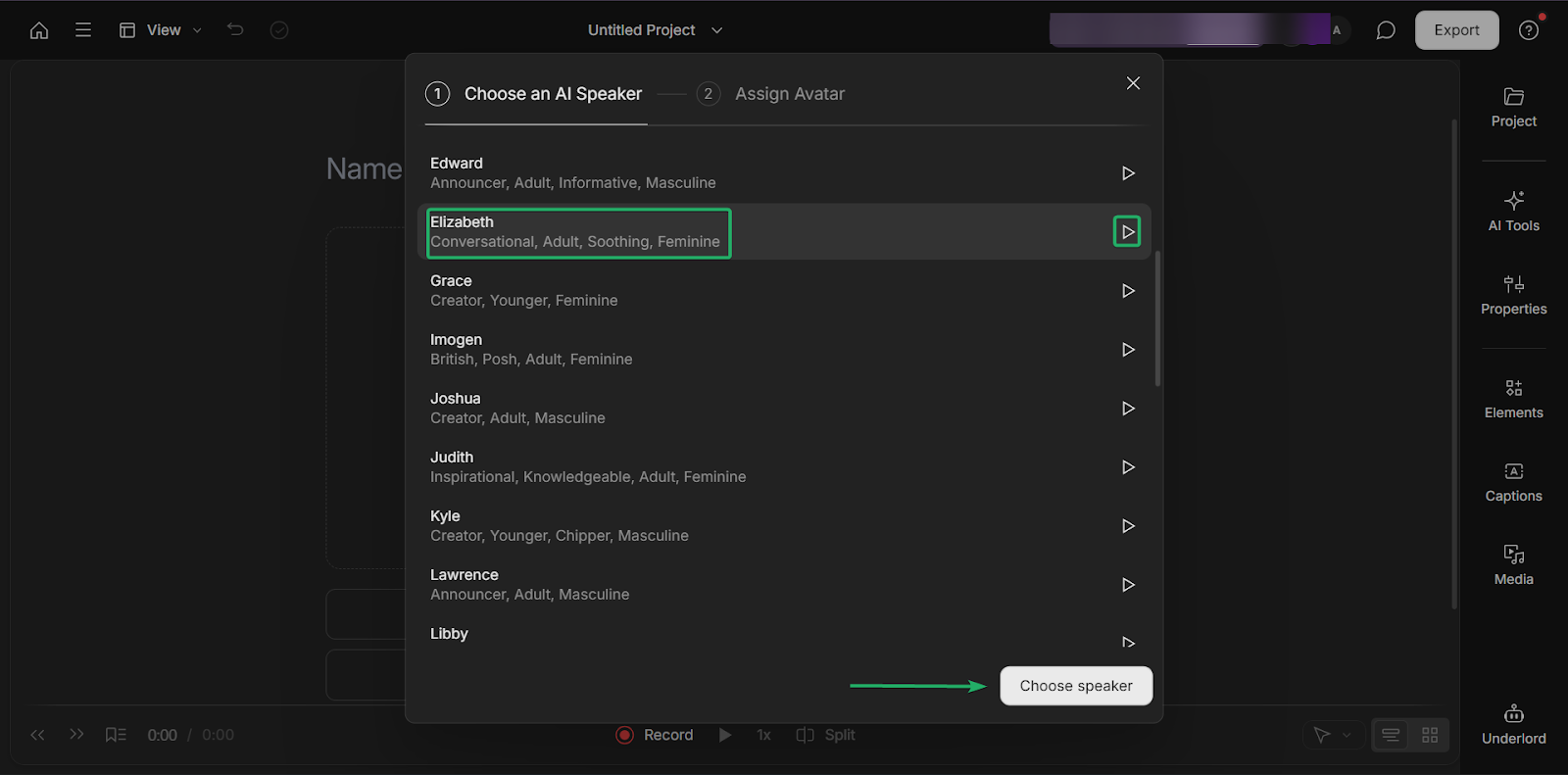
Then, select an AI speaker from a list.
Descript has 20+ speaker options, each with unique characteristics, personalities, and accents.
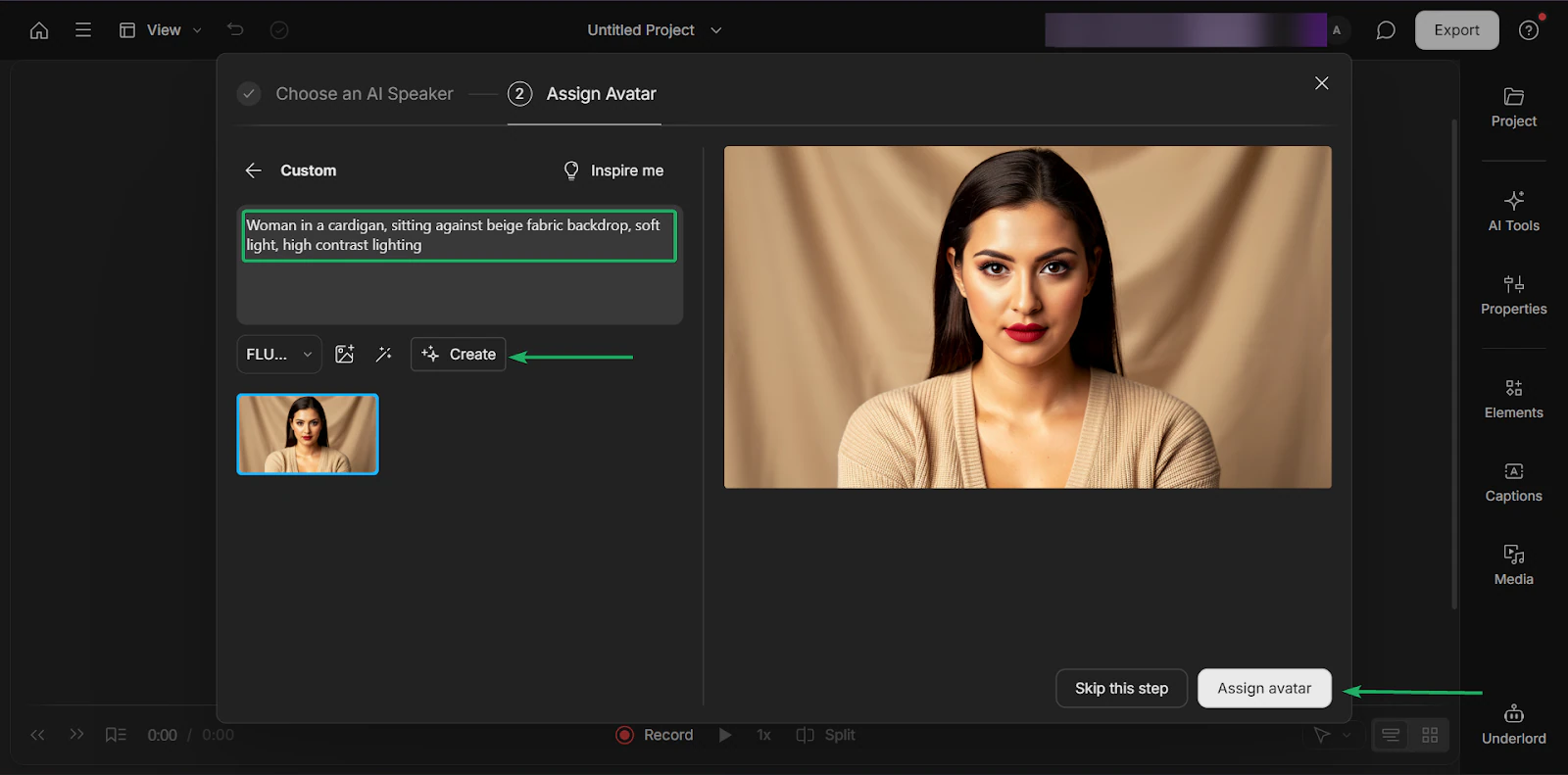
Next, assign an avatar to the AI speaker you chose.
An avatar is simply a character that represents a user. In this case, the AI speaker.
You can describe how you want your speaker to look or use “Inspire me” for help. You can also upload an image.
Now, you can create videos by typing your script.
Once you’re done, click “Done writing,” and your video will be ready for export.
3. Quick recordings
Finally, we have quick recordings.
It’s a feature that lets creators record audio and video content directly inside Descript. It’s good for recording podcast episodes, and you can edit them all in one place.
Let’s check it out.
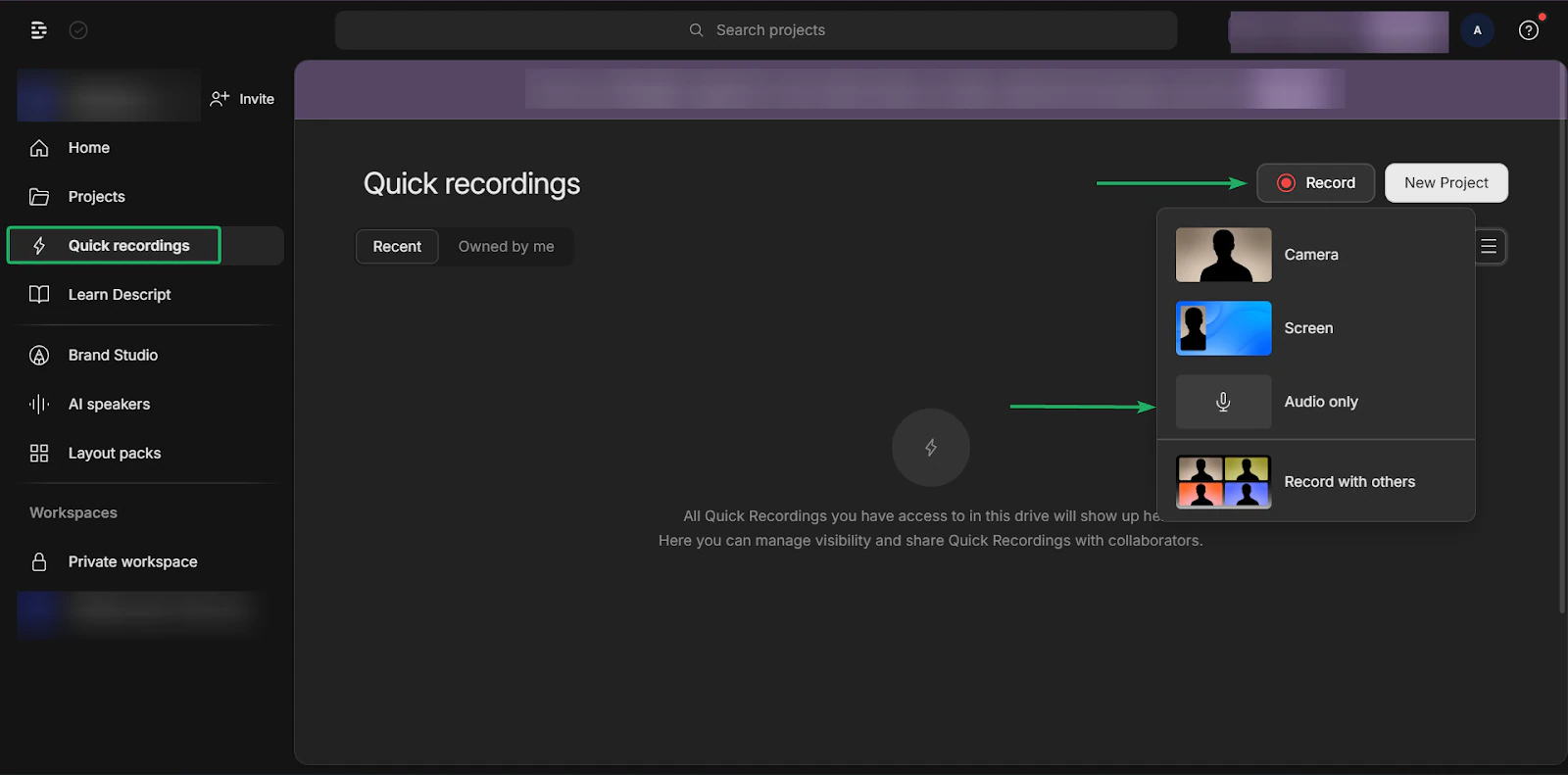
On the sidebar, click “Quick recordings.” Then, click “Record” and select audio only.
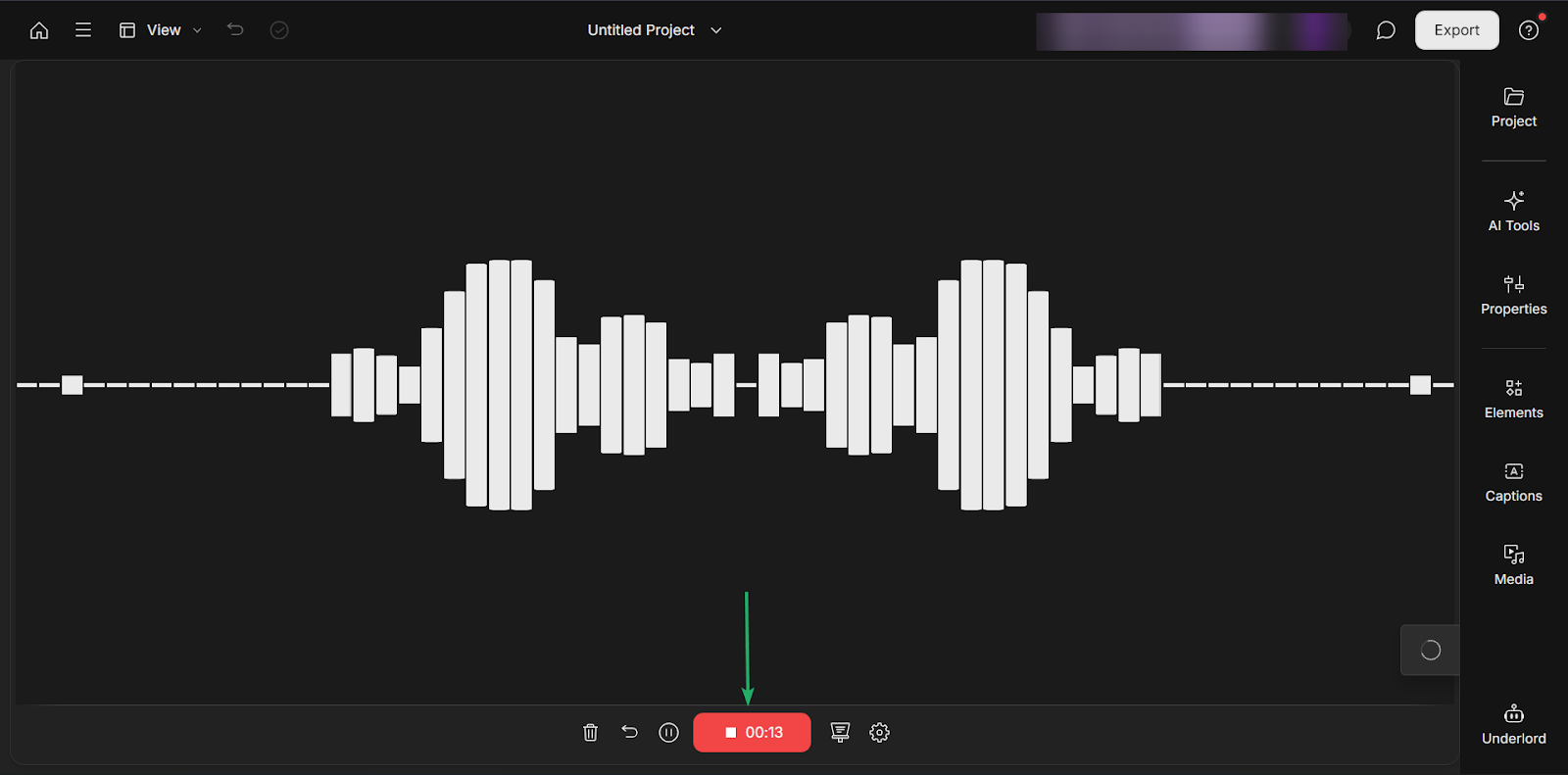
After that, you can start recording your audio.
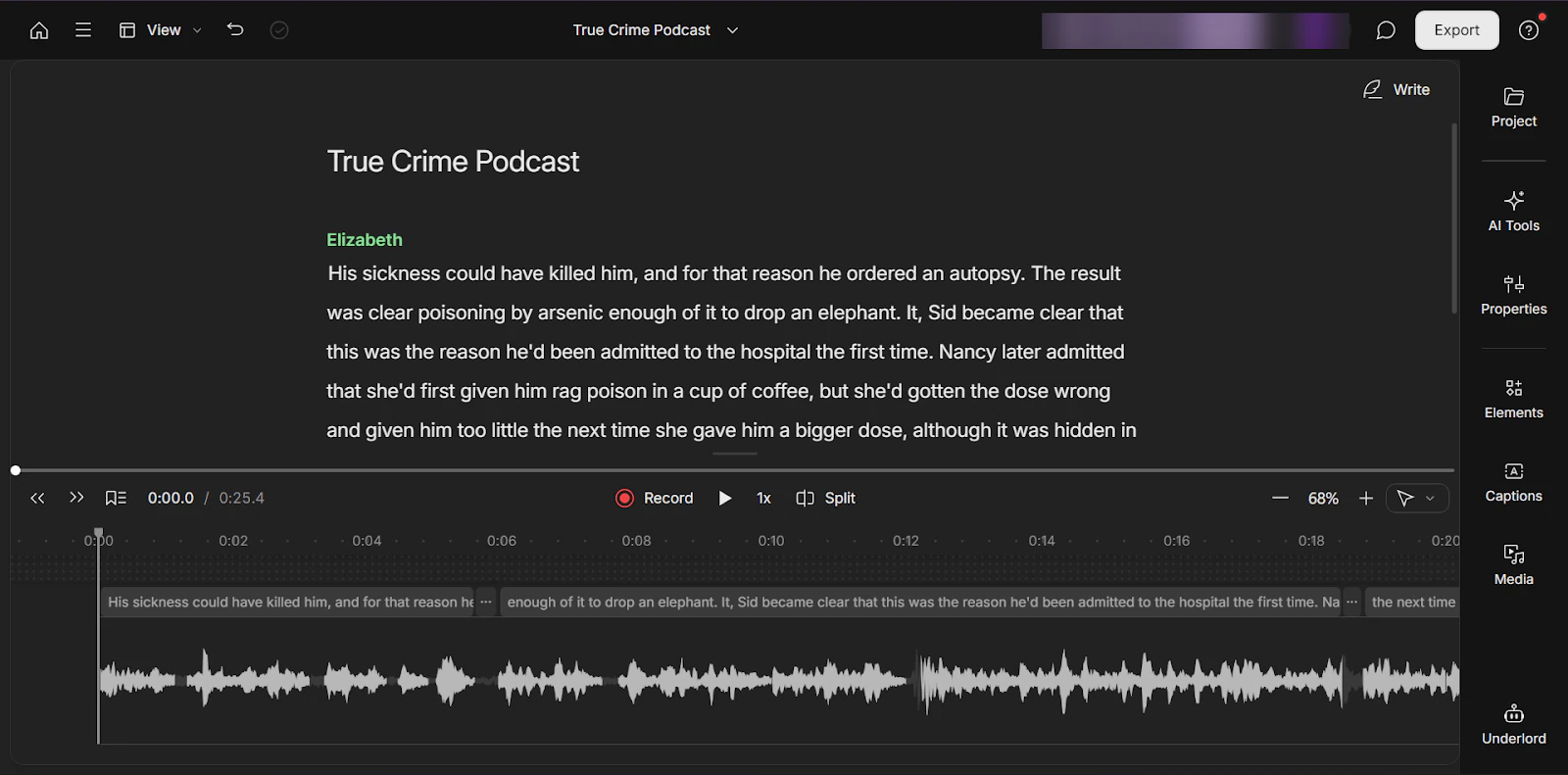
Once you’re done, Descript will transcribe your audio.
You can edit the text, and it will automatically adjust in the recording.
What I loved vs what I struggled with
What I loved 👍
✅ Text-based editing is beginner-friendly.
✅ Tools like AI speaker and AI video maker reduce the time spent editing audio and video content.
✅ You can record and edit in one platform.
What I struggled with 👎
❌ May feel a bit limited and too simple, especially for advanced video and audio editors.
❌ AI-generated content may require some manual tweaking for optimal results.
Best for
- Podcasters and video editors requiring fast, text-based editing instead of complex timelines
Pricing
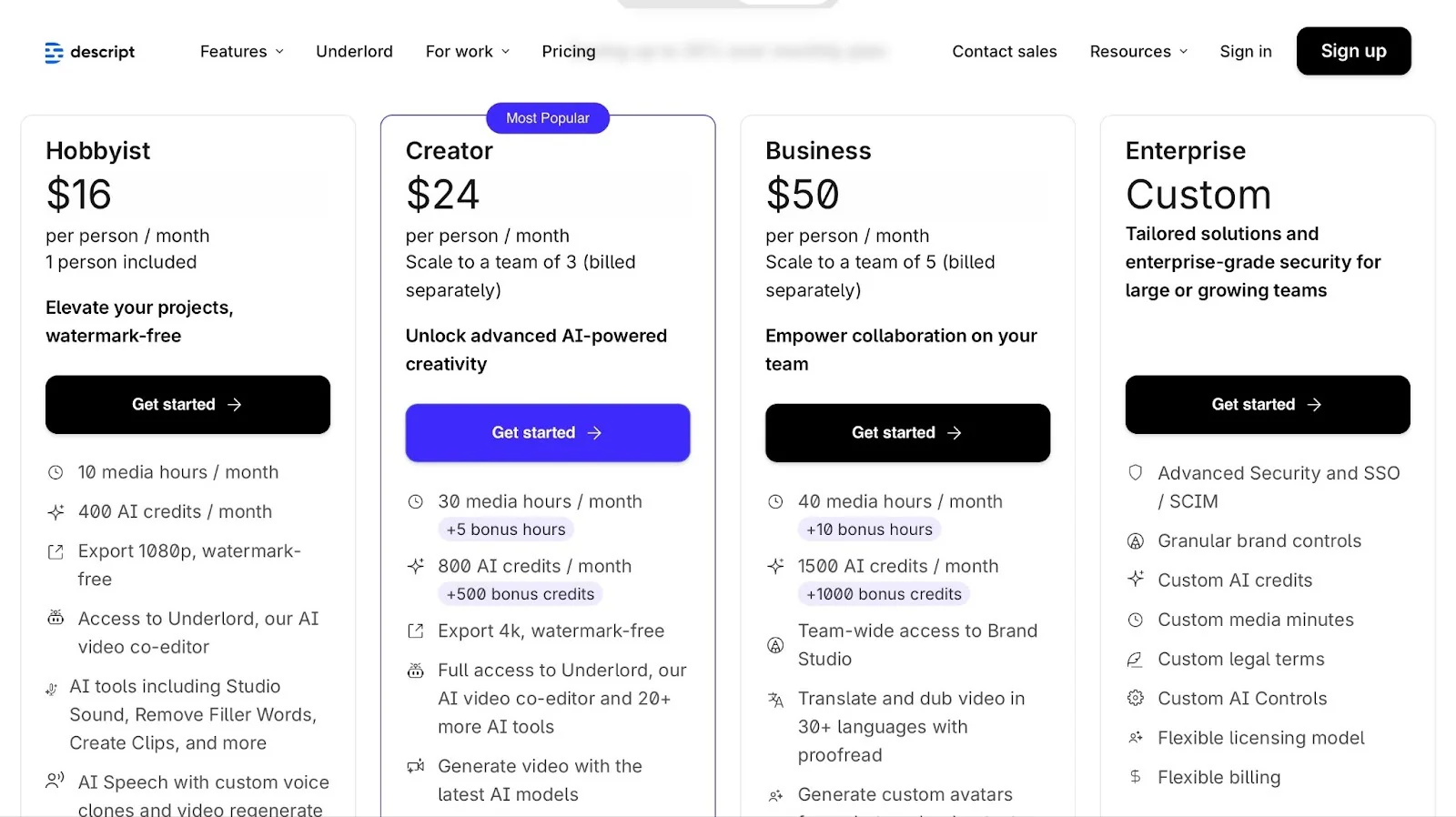
- Free: $0/month
- Hobbyist: $16/month
- Creator: $24/month
- Business: $50/month
- Enterprise: Contact for pricing
4. Sendfox
📑 Content type: Emails, newsletters | ⚙️ Key features: Emails, automations, audience, growth | 🔗 Distribution: Share links, embeds, integrations | 💳 Monetization: Sell products, affiliates, sponsorships | 🌱 Growth: Email capture, newsletter subscriptions | 💰 Starting fee: Free: $0/month + 3,000 sends/month + 1,000 maximum contacts
Next on the list of the best content creator platforms is Sendfox.
It’s built for sending emails and newsletters, setting up simple automations, and growing an audience.
It’s a good choice for bloggers or writers who want to engage their audience without dealing with complex email tools.

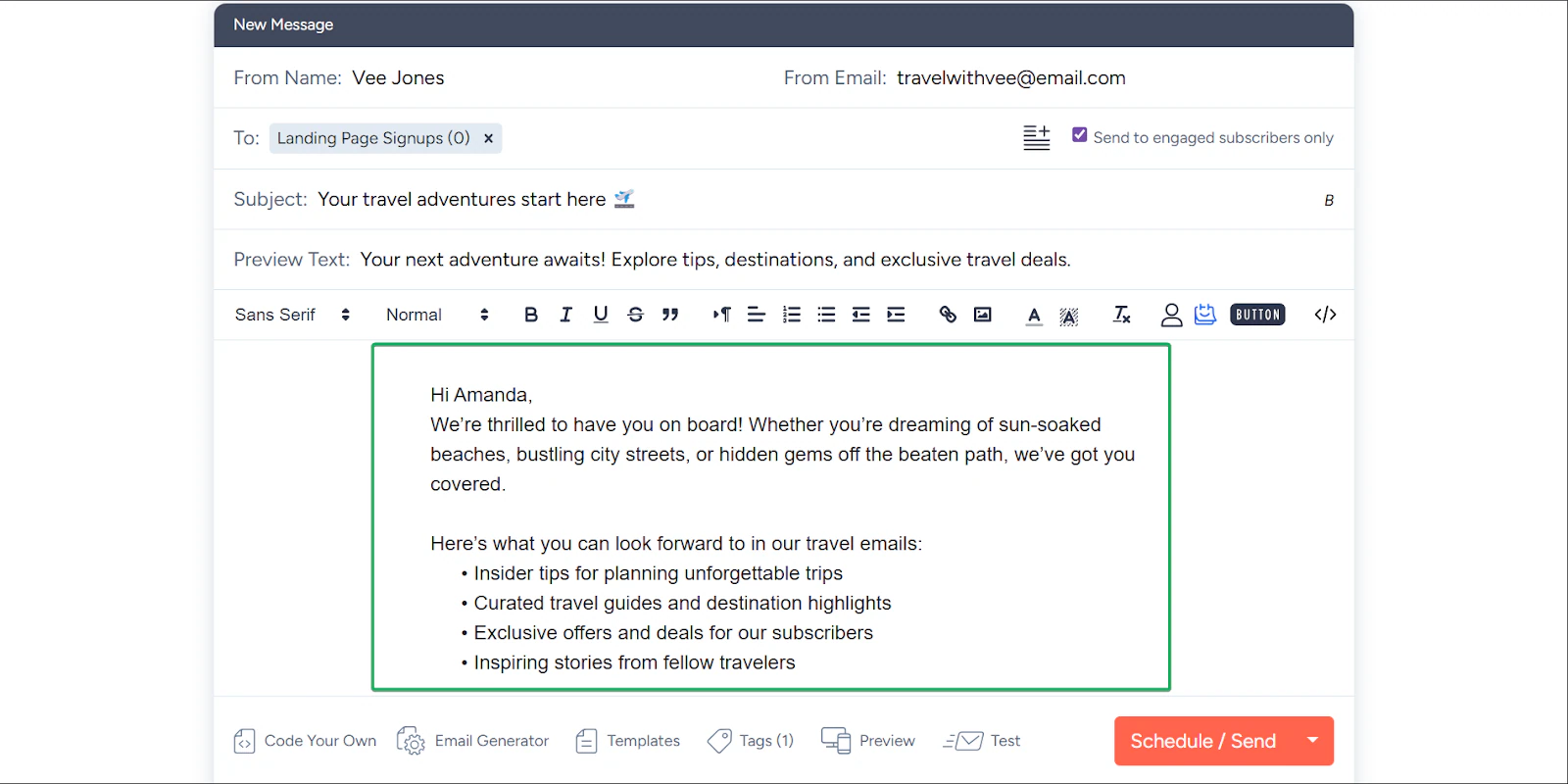
With Sendfox, you can send emails like newsletters or updates.
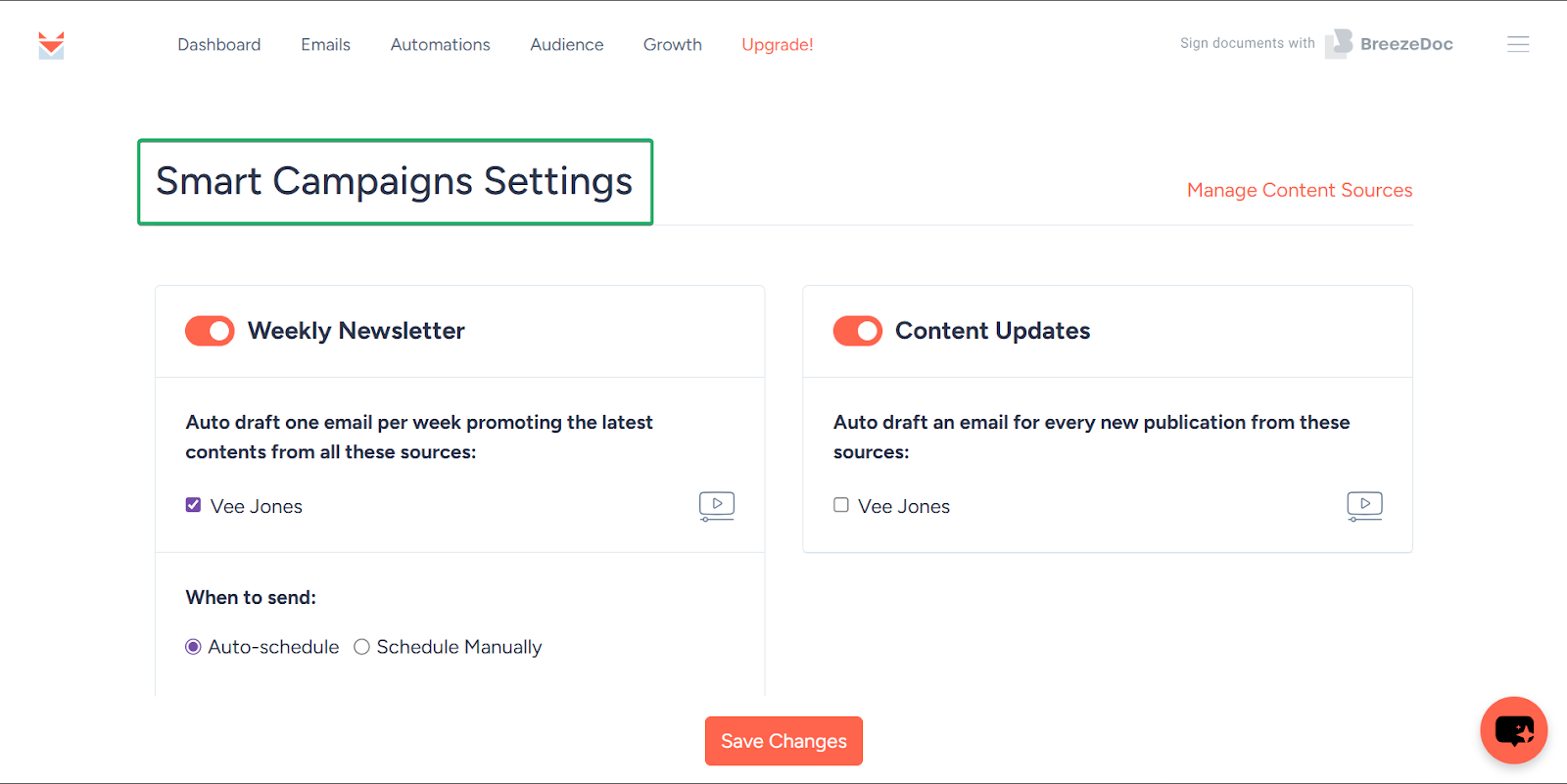
You can also set up smart campaigns to manually or automatically send emails/newsletters to your audience.
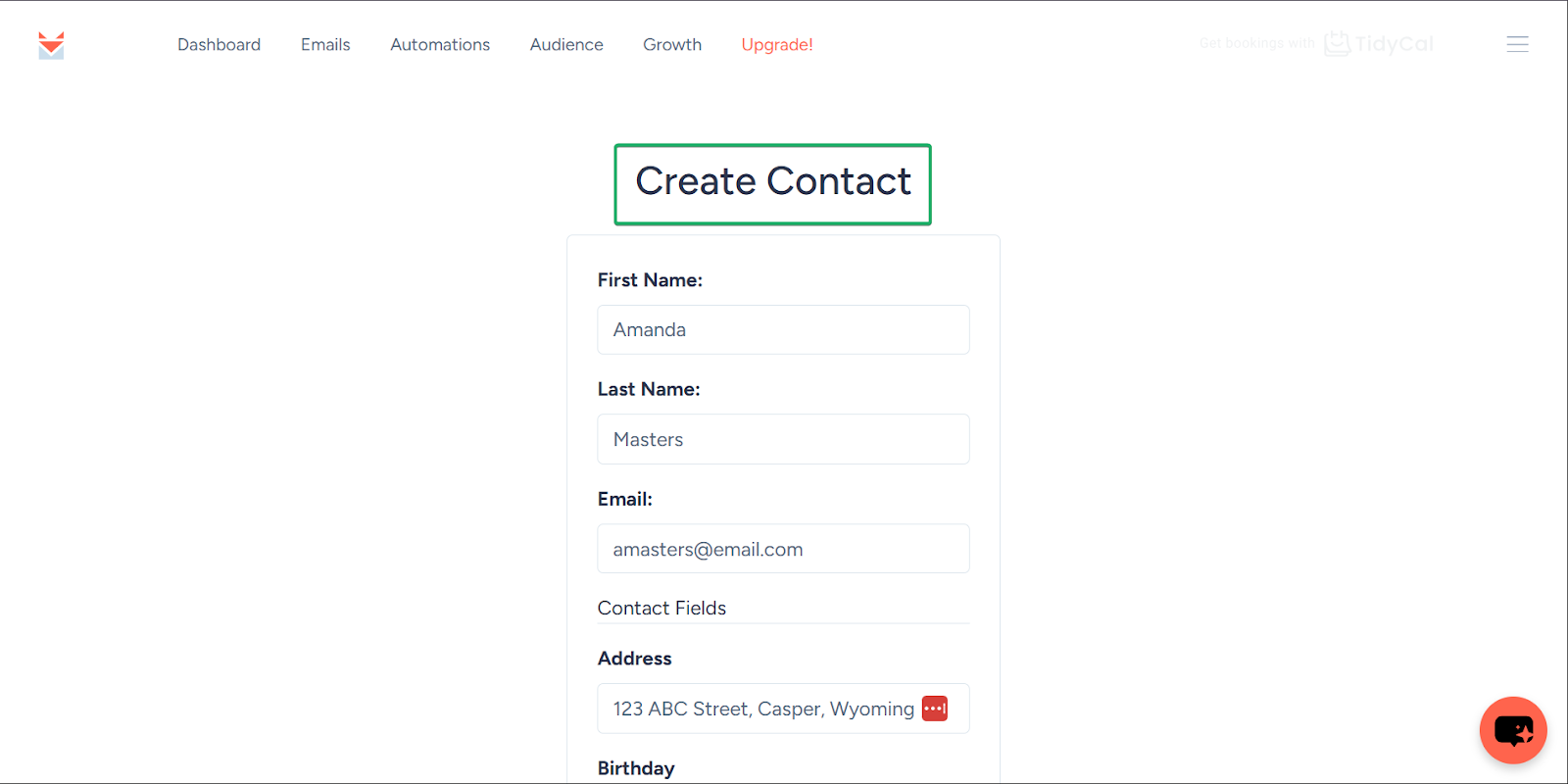
And you can also manage and track how your audience engages with your content in one place.
What I loved about Sendfox
1. Emails
Sendfox’s emails feature lets you write and send emails, newsletters, or announcements to your subscribers.
Let me walk you through how to set up emails on Sendfox:
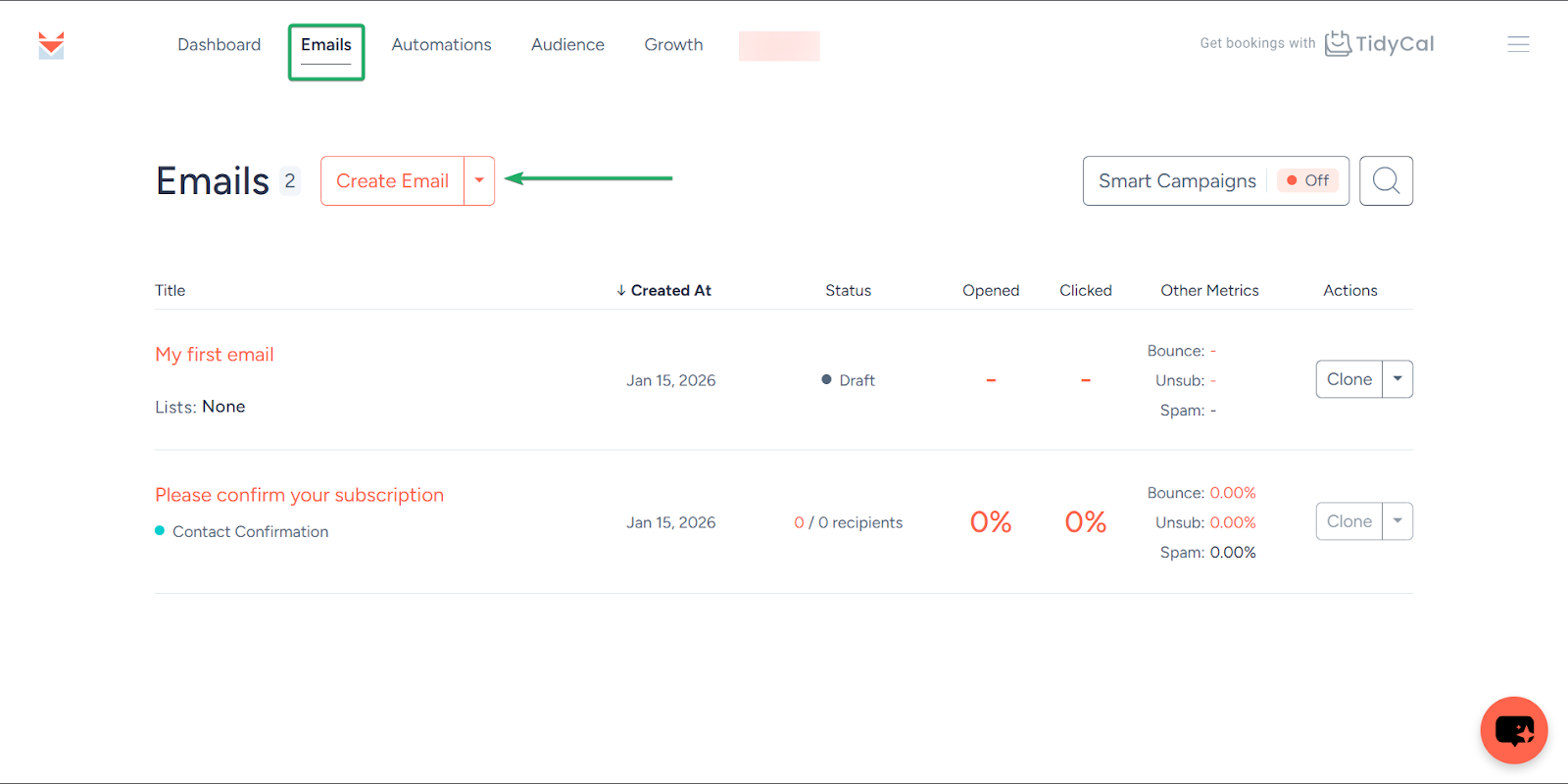
First, head to “Emails” and then click “Create Email.”
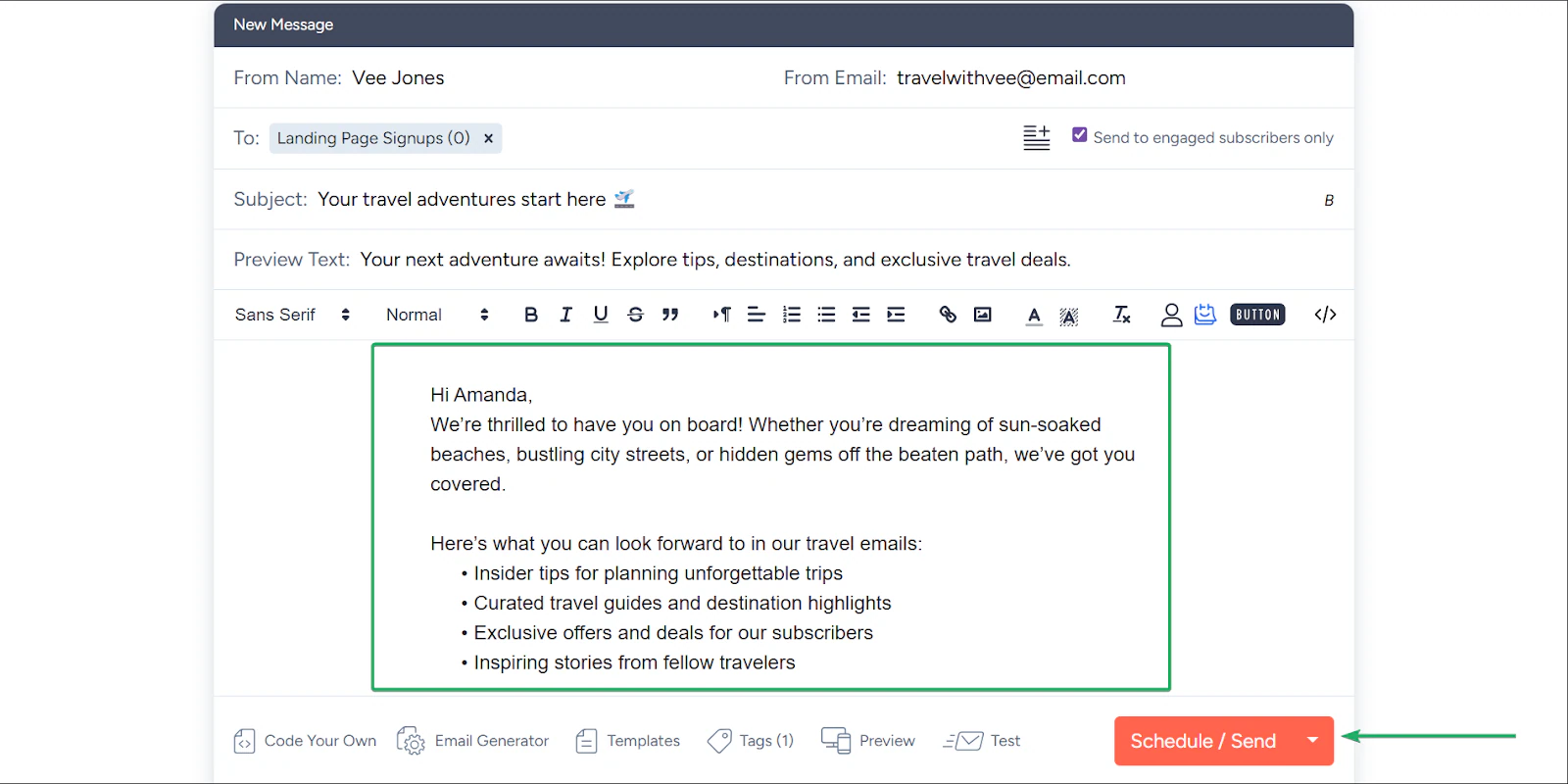
Next, select the group you want to send your emails to, along with the subject and preview text.
The preview text gives your subscriber an idea of what your email is about.
After that, type your email.
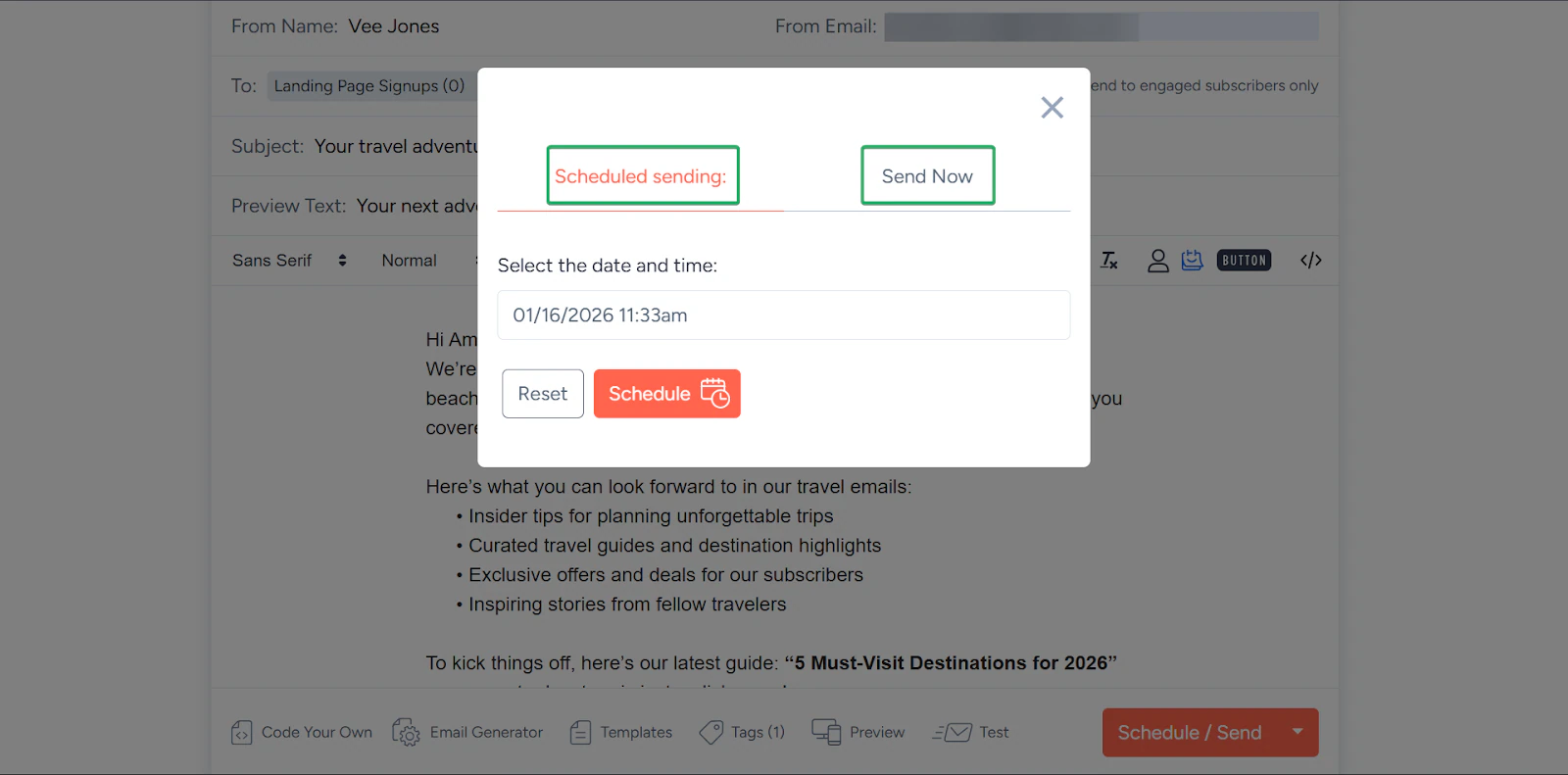
Once you’re done writing, you can choose to either schedule your email or send it immediately.
2. Audience
Up next is the audience feature, where all your subscribers are stored in groups called lists.
That way, you can segment your audience and track how they engage with your emails.
Here’s how it works.
Select “Audience” in the navigation bar and click “Create list.”
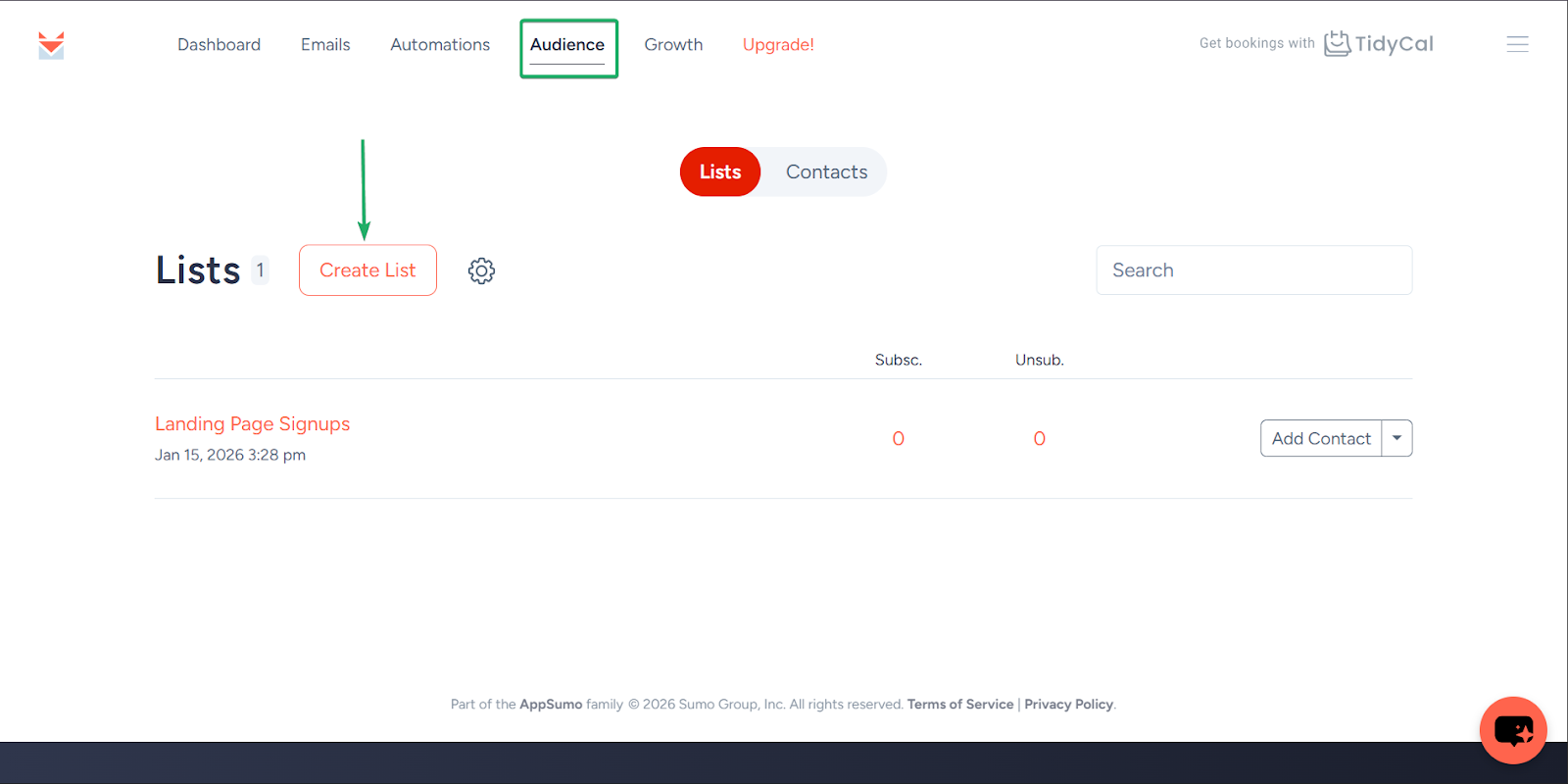
Next, enter the name of the list in the text box and click “Create.”
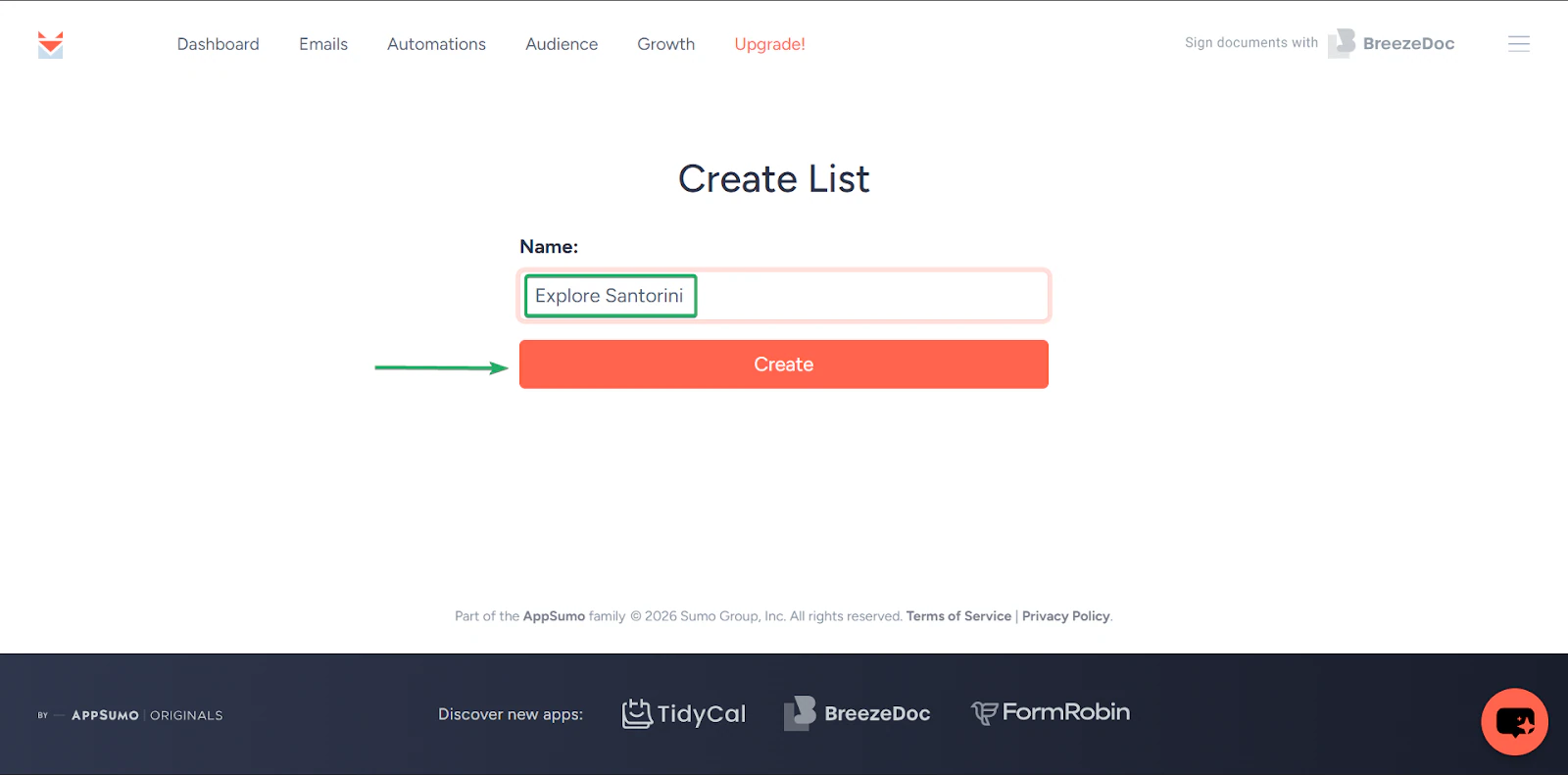
After that, click “Add Contact.” This will allow you to add people to your newly created list.
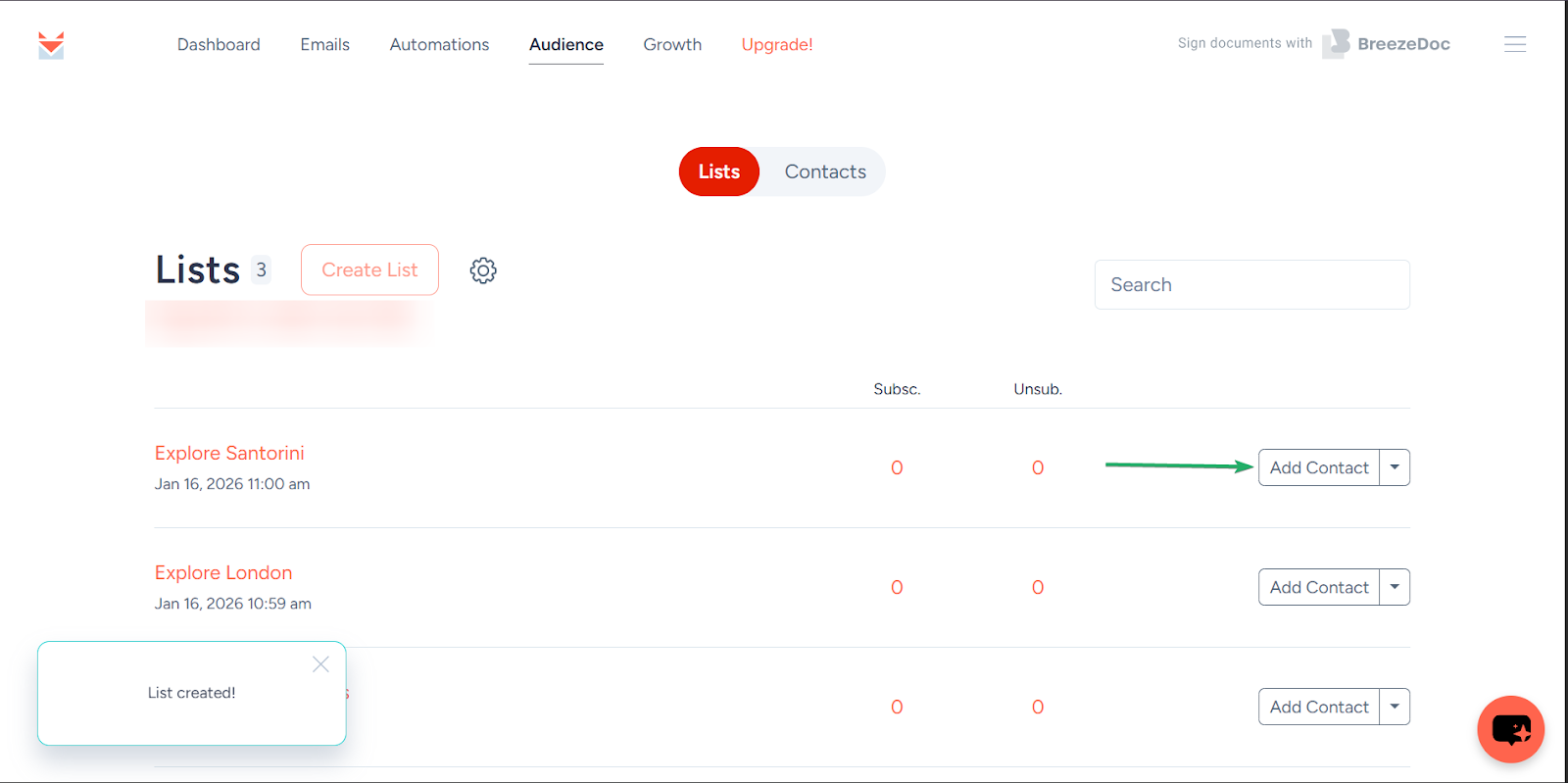
Now, fill out the contact form.
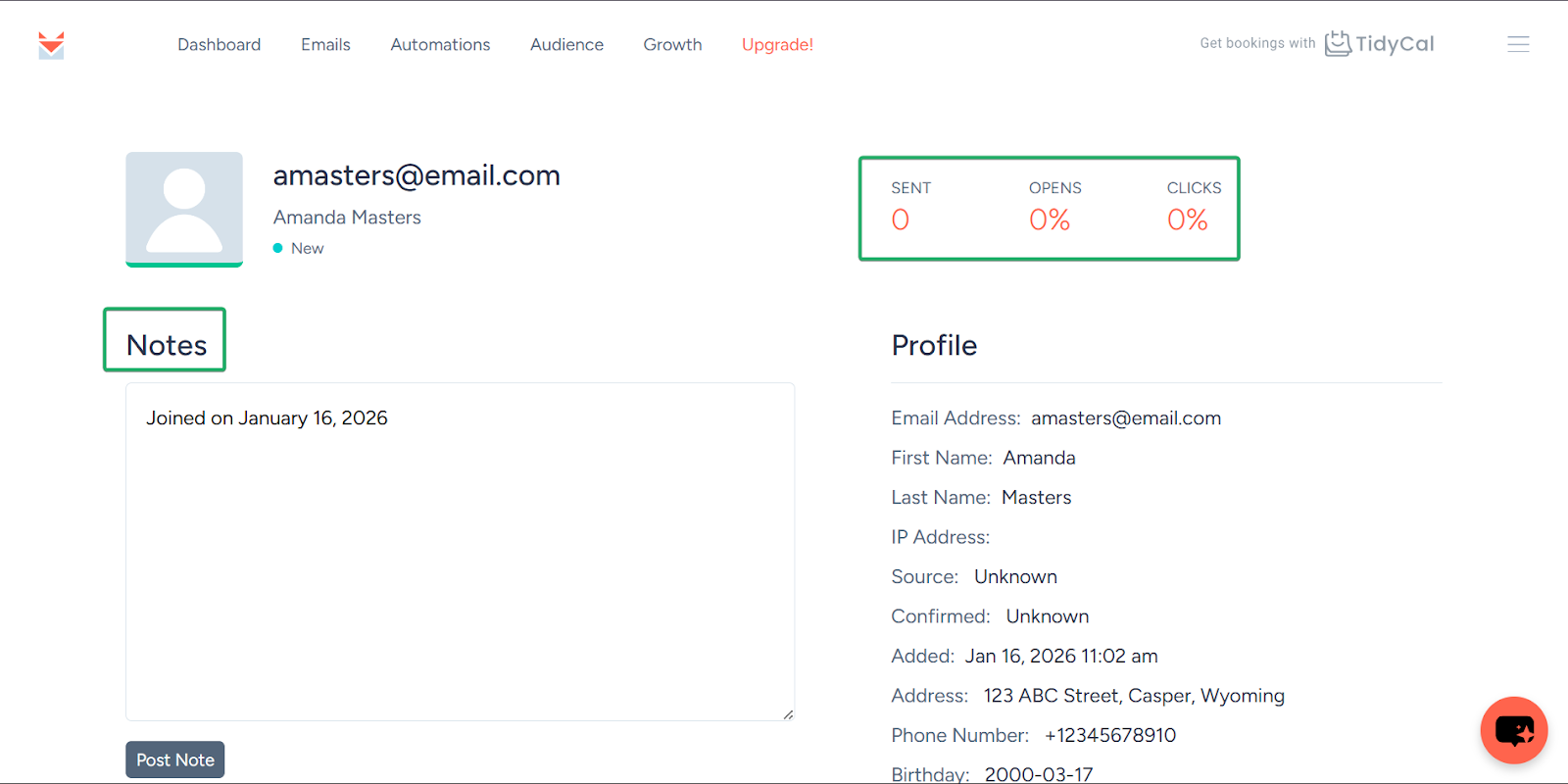
Once you’ve created a contact, you can view their profile. You can also track the number of emails you’ve sent to them and how they interact with your emails.
Apart from that, you can add notes to record important information.
3. Smart campaigns
The smart campaigns feature lets you automate your emails so your subscribers receive the right content at the right time.
Here’s how to get started using it.
Select “Emails” in the navigation bar and click “Smart Campaigns.”
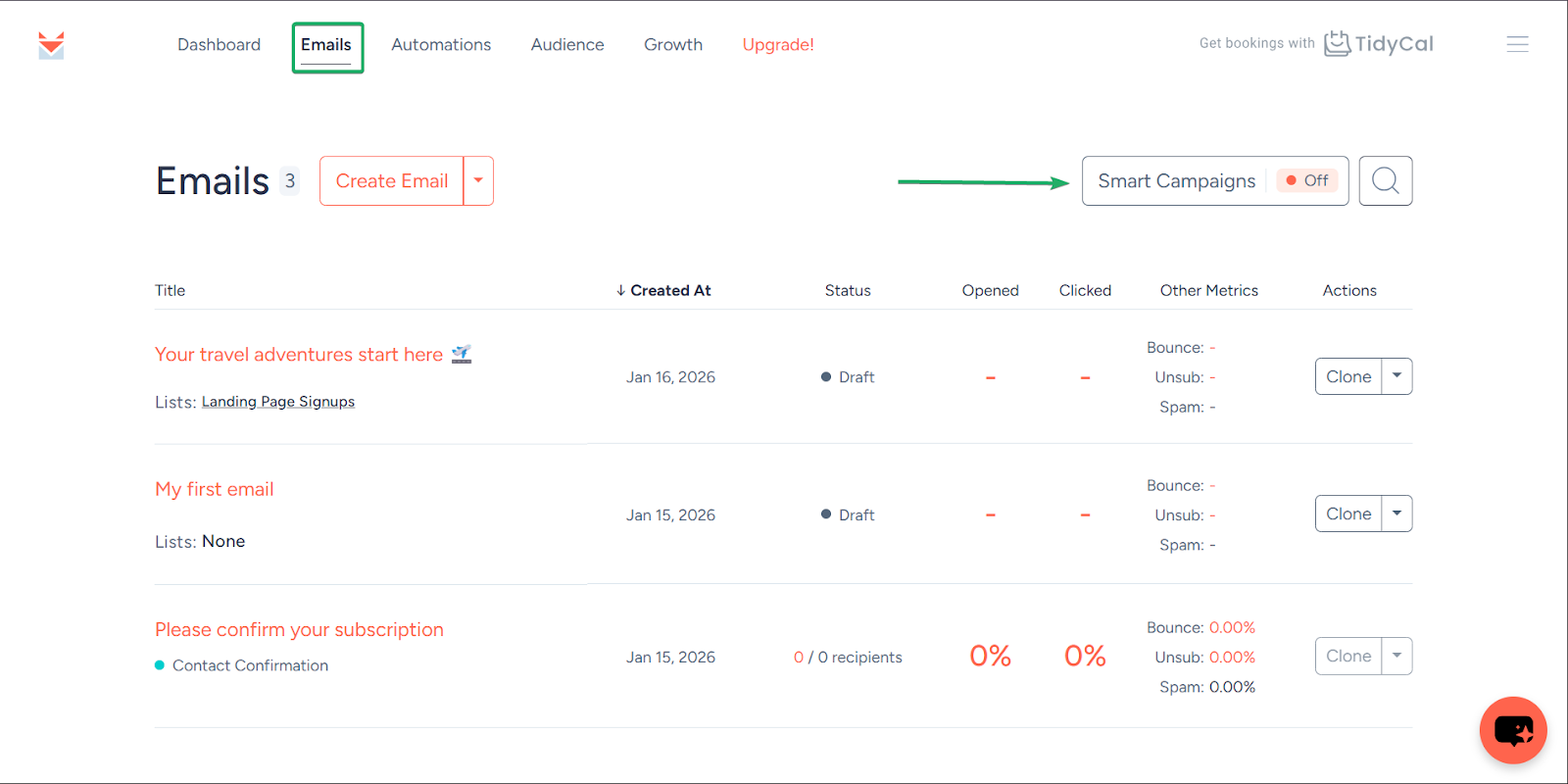
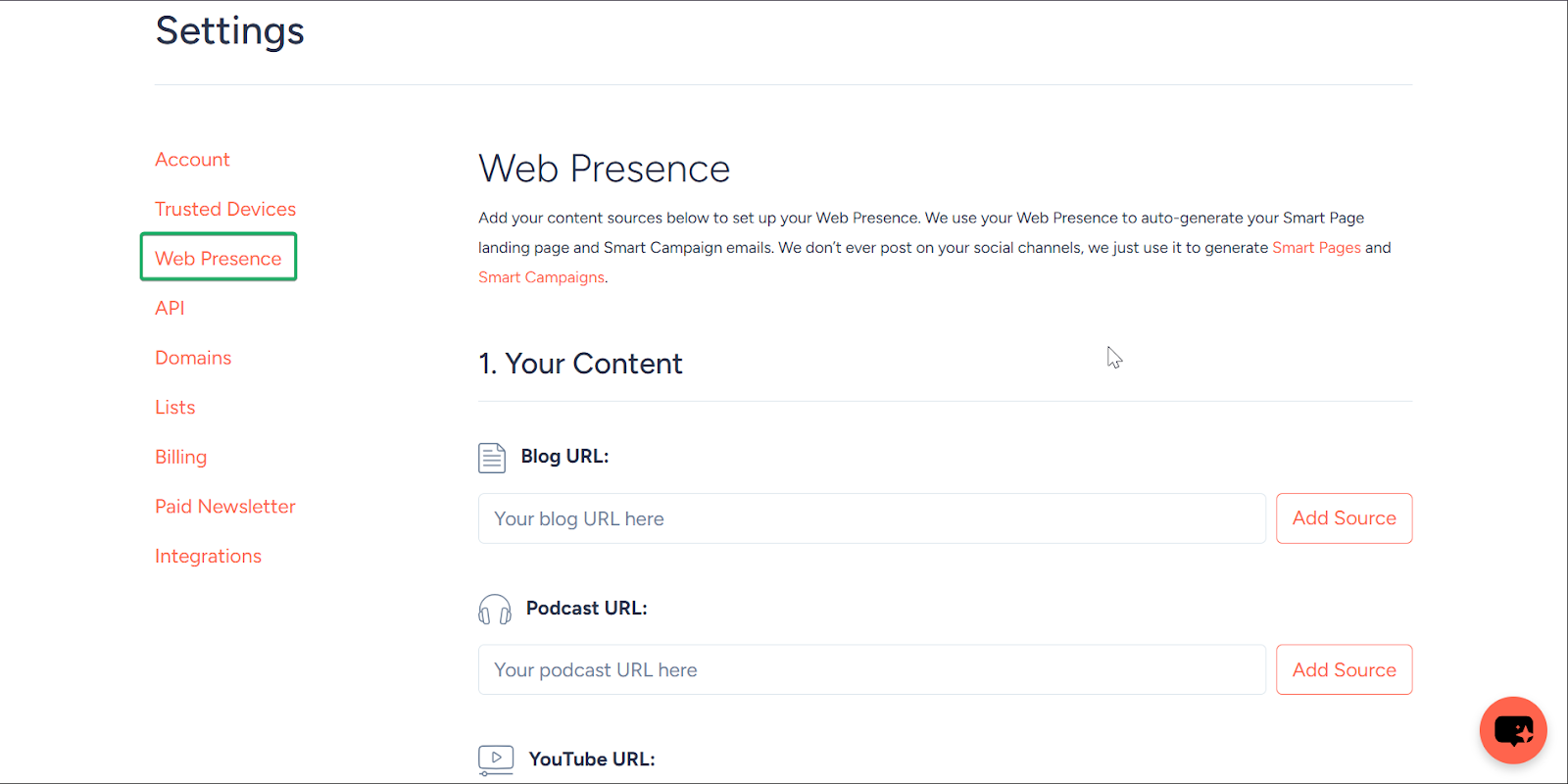
You’ll then be asked to manage your content source and redirected to “Web Presence” under “Settings.”
Here, you can paste URLs to your content and social media pages.
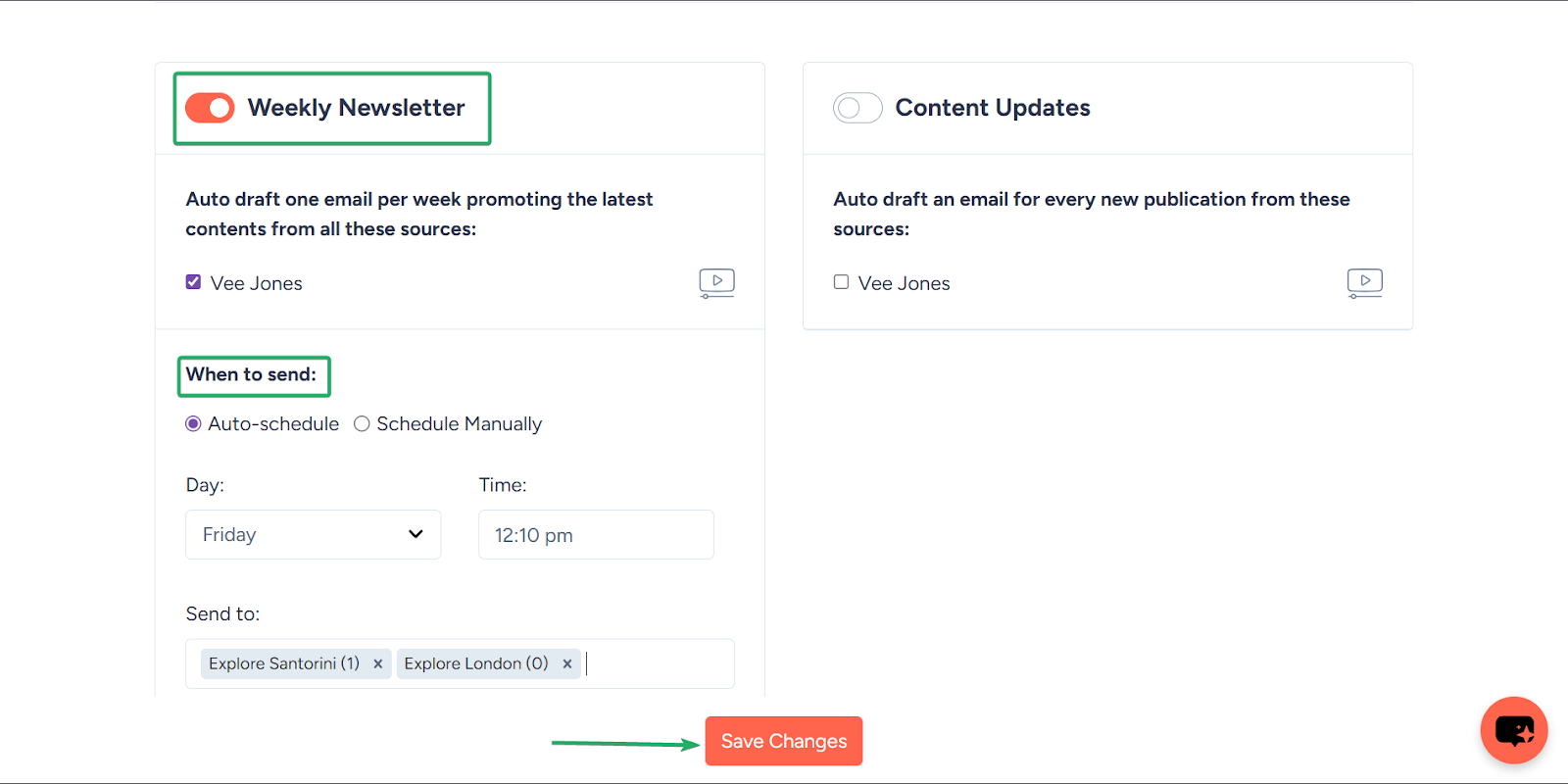
Next, you can automate emails to your subscribers to promote your content from your publishing sources.
You can also choose when to send your messages and which groups to send them to.
Click “Save changes” when you’re done.
What I loved vs what I struggled with
What I loved 👍
✅ Very beginner-friendly and simple to use.
✅ Audience feature helps you grow and manage a loyal subscriber base.
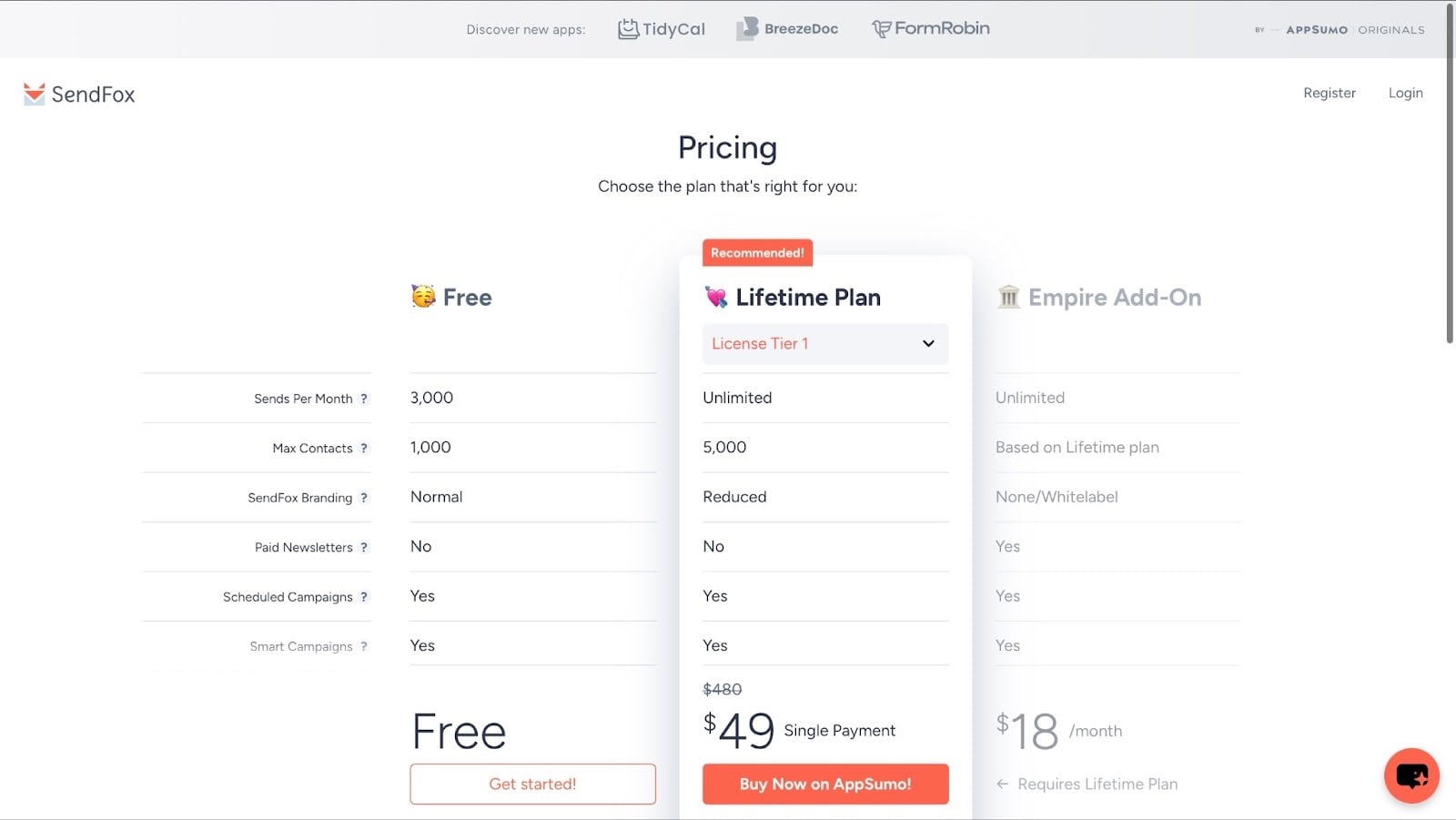
✅ A single payment of $49 for a lifetime plan is affordable compared to larger email marketing tools.
What I struggled with 👎
❌ Limited design and customization options, so it’s not the best choice for heavily visual email campaigns.
Best for
- Newsletter creators wanting to grow an email list and send newsletters without complex email tools
Pricing
- Free: $0/month
- Lifetime Plan: $49 (single payment)
- Empire Add-On: $18/month
5. WordPress
📑 Content type: Blogs, newsletters | ⚙️ Key features: Themes, plugins, comments, SEO, custom domain name, | 🔗 Distribution: Share links, embeds, integrations | 💳 Monetization: Ads, affiliates, memberships, products | 🌱 Growth: Blog and newsletter subscription, followers | 💰 Starting fee: $4/month + 6GB storage
We continue this list of the best content creator platforms with WordPress.
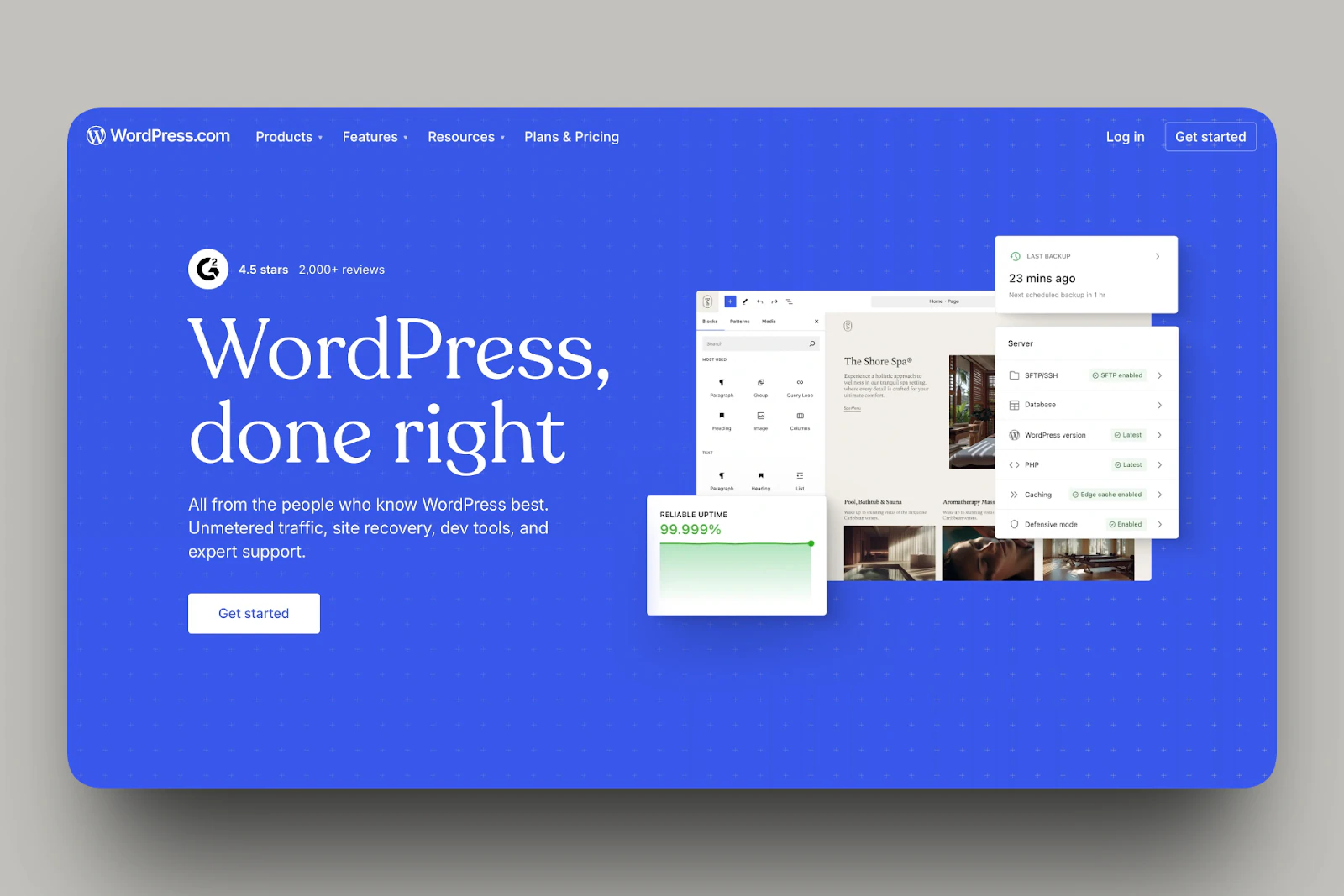
WordPress is an open-source content management system (CMS) that allows you to build and manage websites without writing code.
You can also use it to write, publish, and manage blogs, articles, and long-form content.
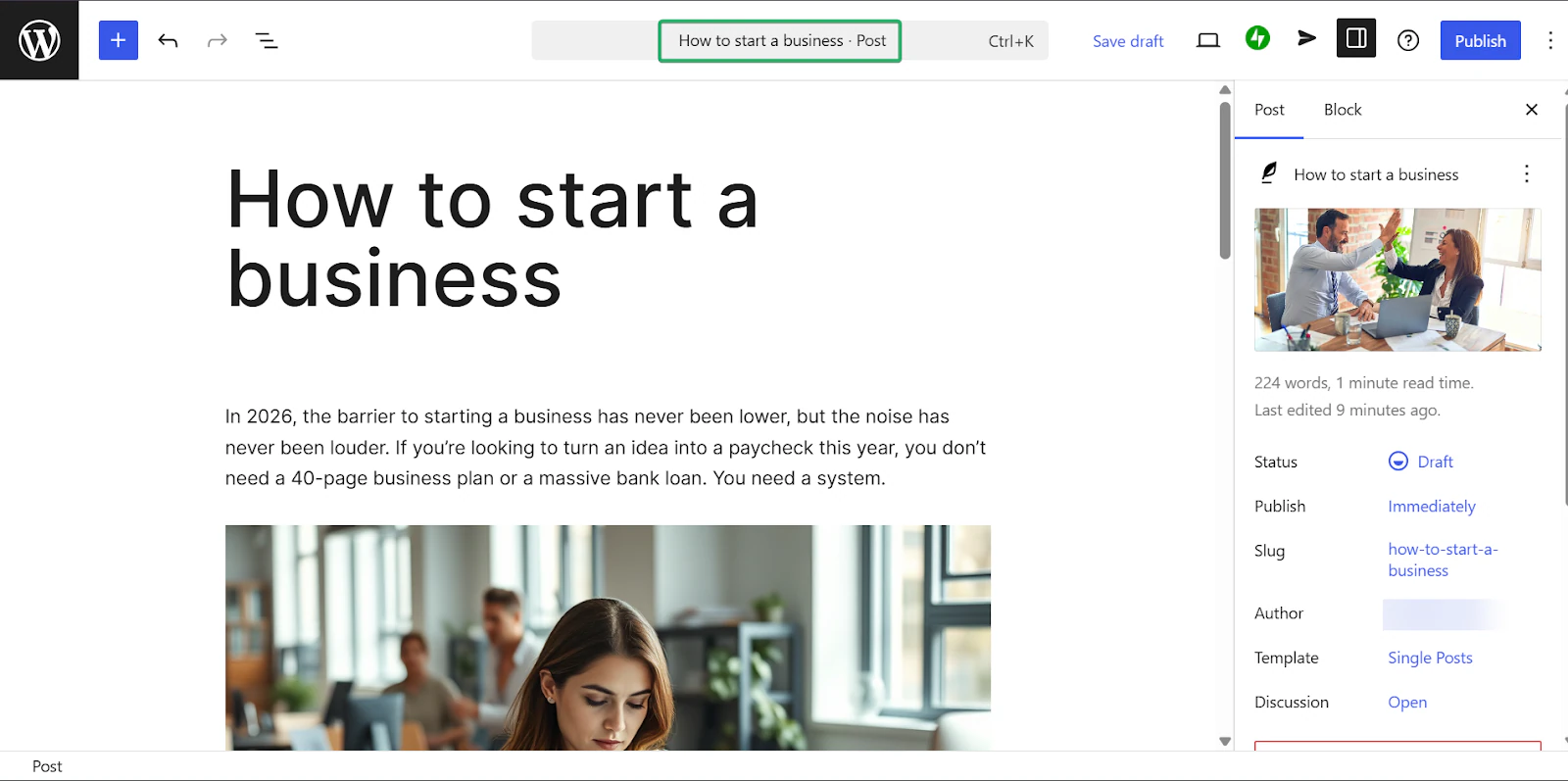
One of its most widely used features is posts. With it, you can write and publish blogs and other written content.
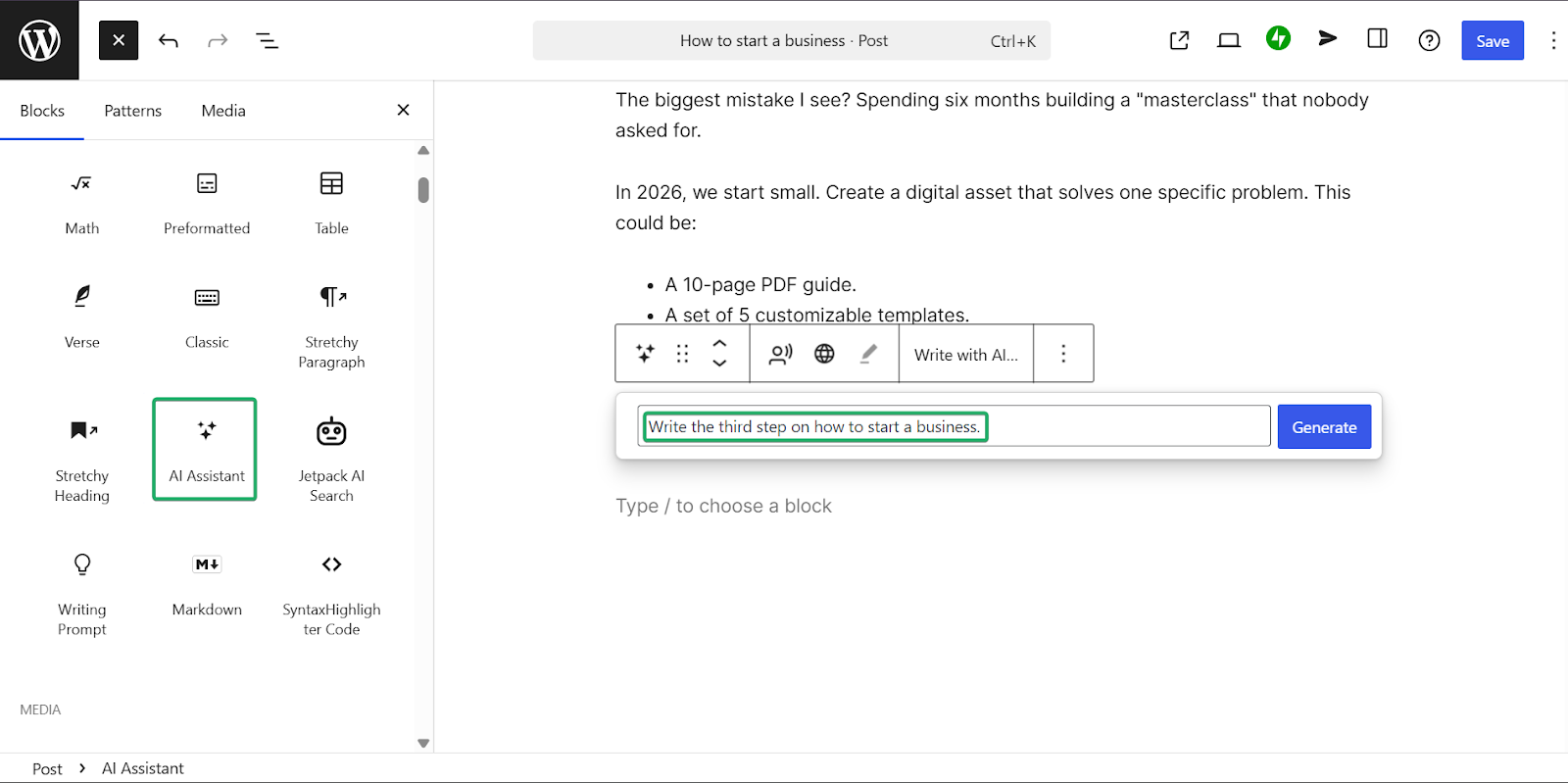
Additionally, its AI assistant feature can help with drafting, editing, or generating ideas. It’s great for those writer’s block moments.
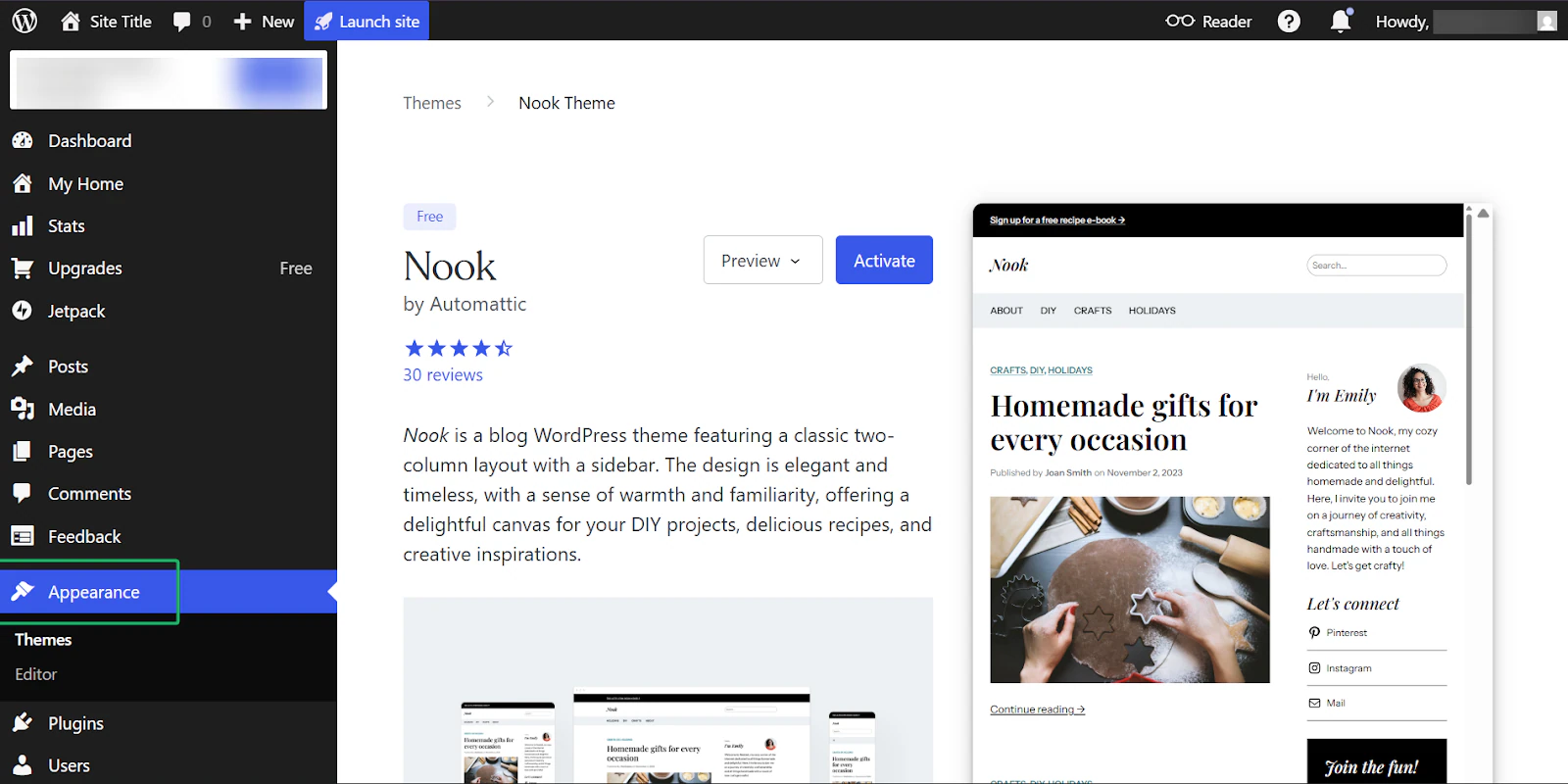
Finally, the themes feature lets you control how your site looks.
What I loved about WordPress
1. Posts
WordPress’ posts feature lets you write, edit, publish, and manage blog posts.
Its editing tool is great for long-form writing and for adding images and embeds across all content types.
Let’s check it out:
On the sidebar, click “Posts” and in the pop-up, select “Add post.”
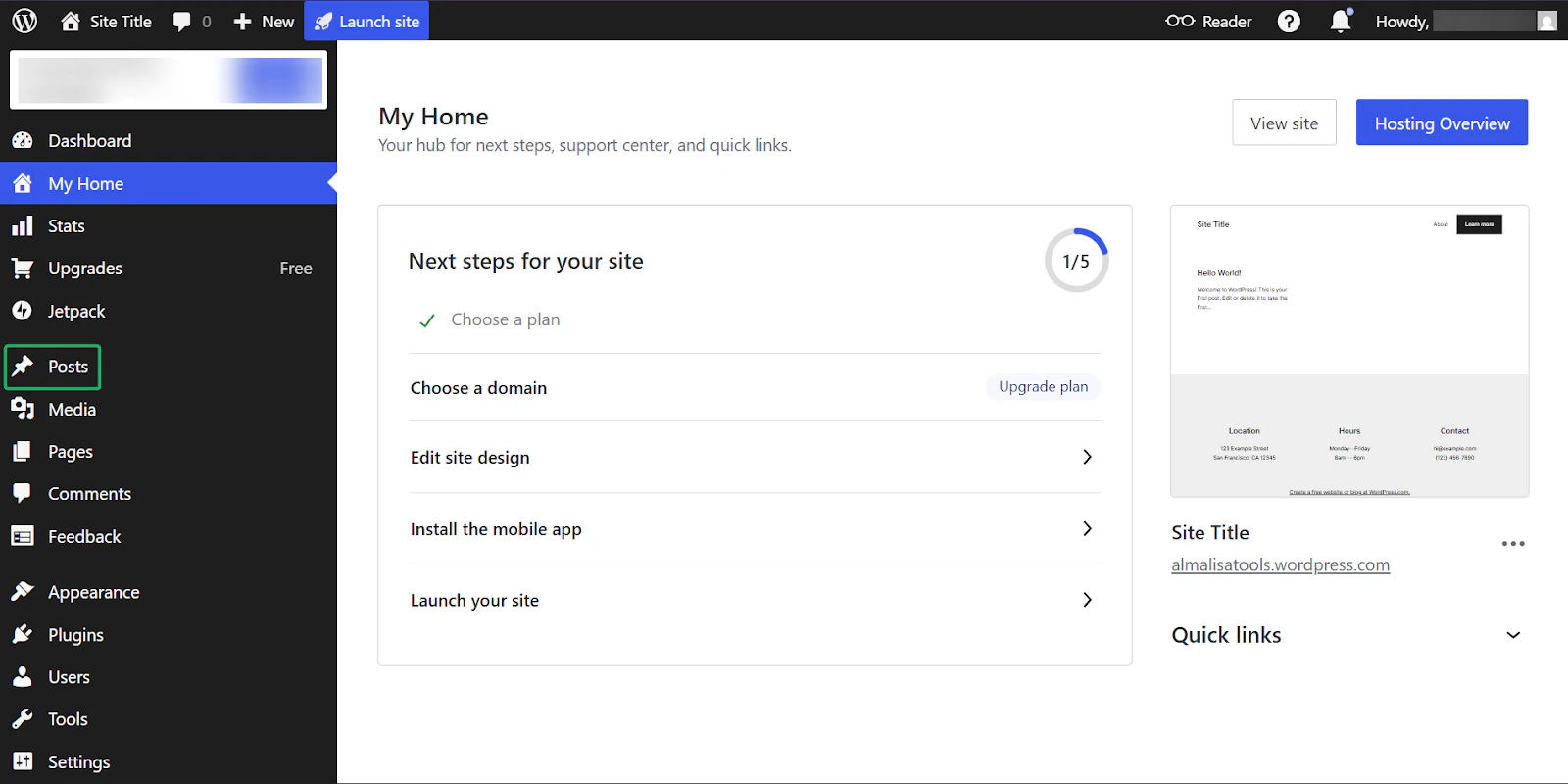
Next, you’ll be redirected to the WordPress editor, where you can start writing your post.
To make things easier, this content creator platform lets you add blocks to structure your posts.
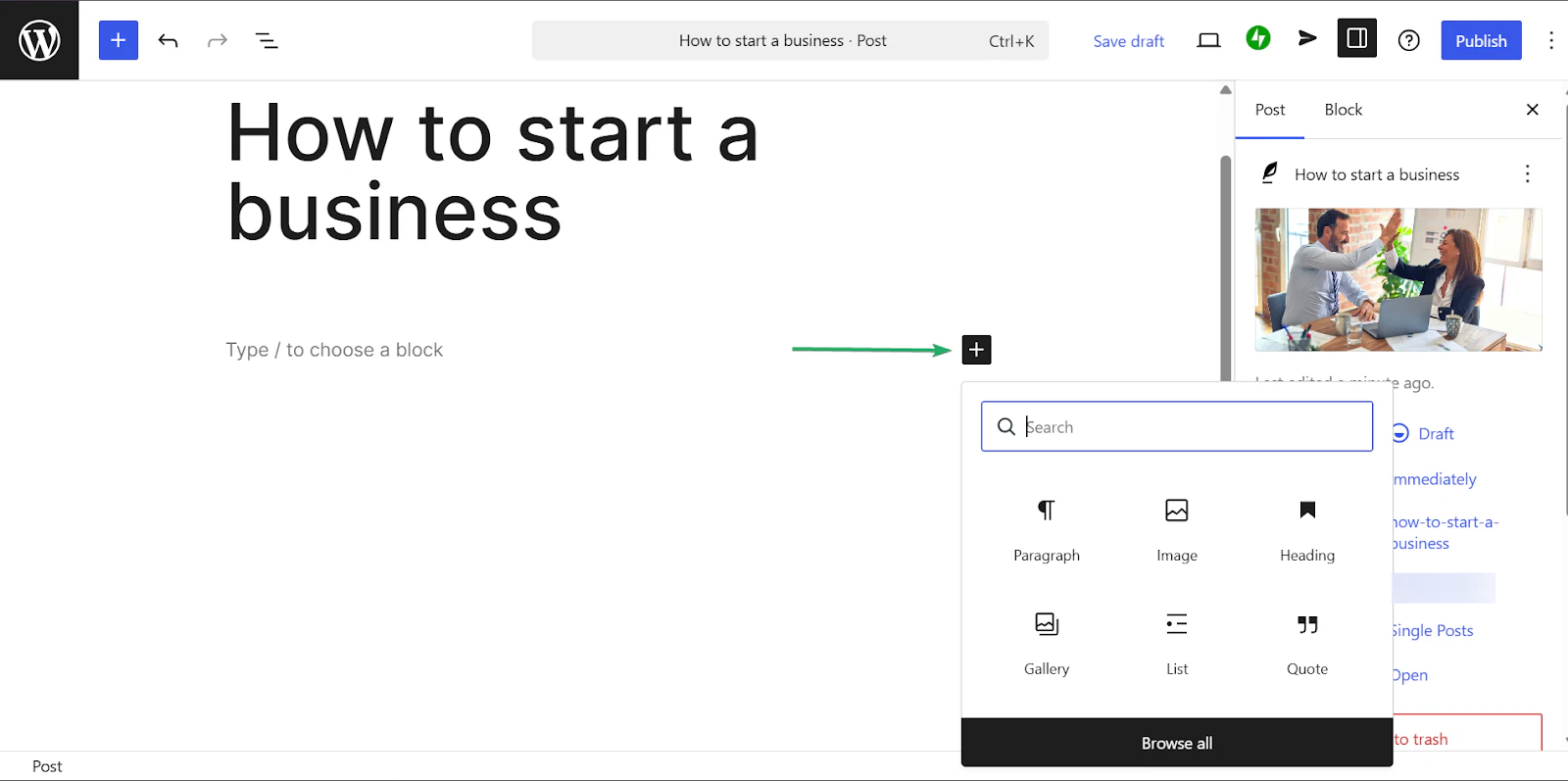
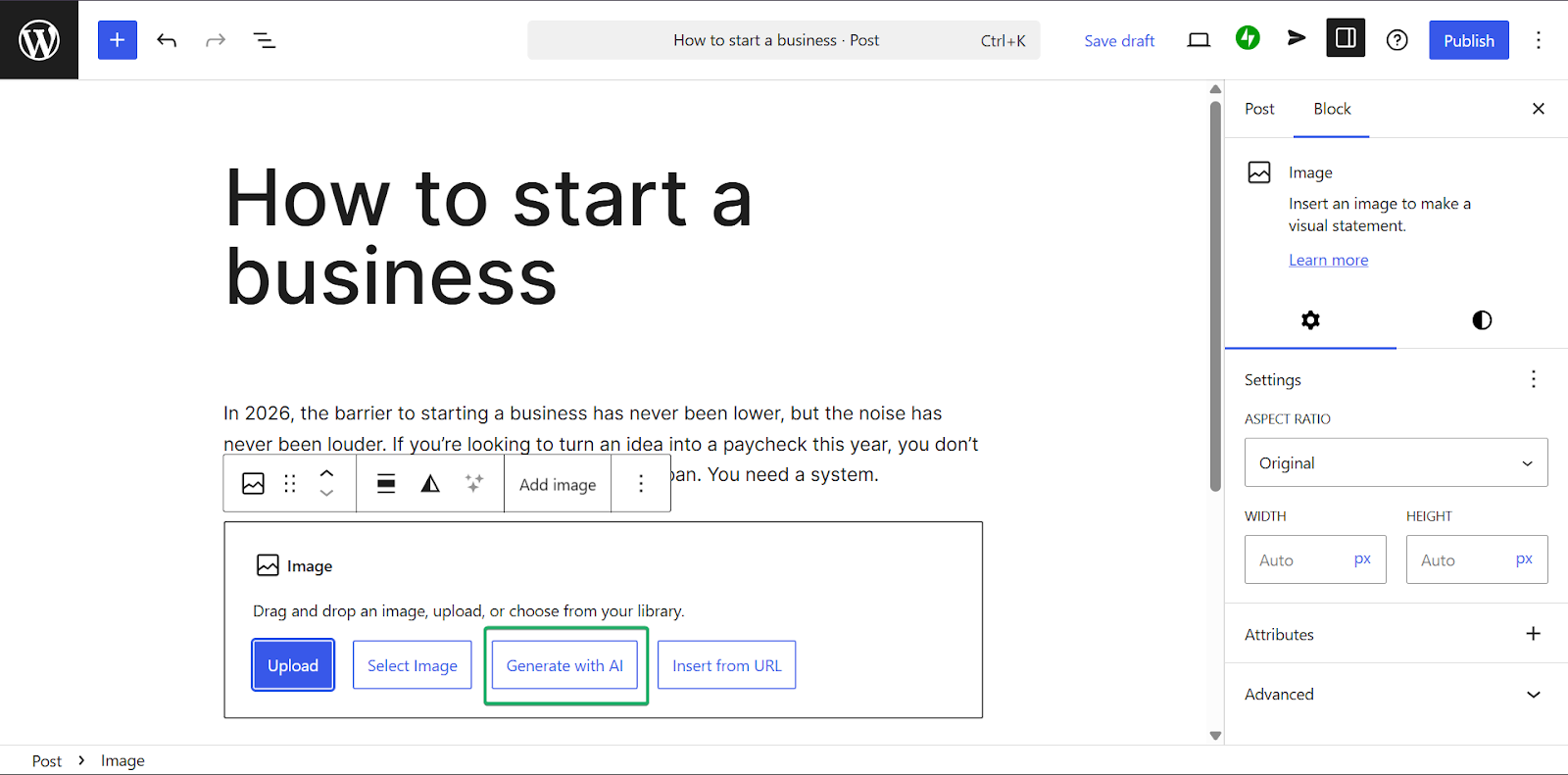
You can also insert images into your posts by uploading, generating with AI, or pasting a URL.
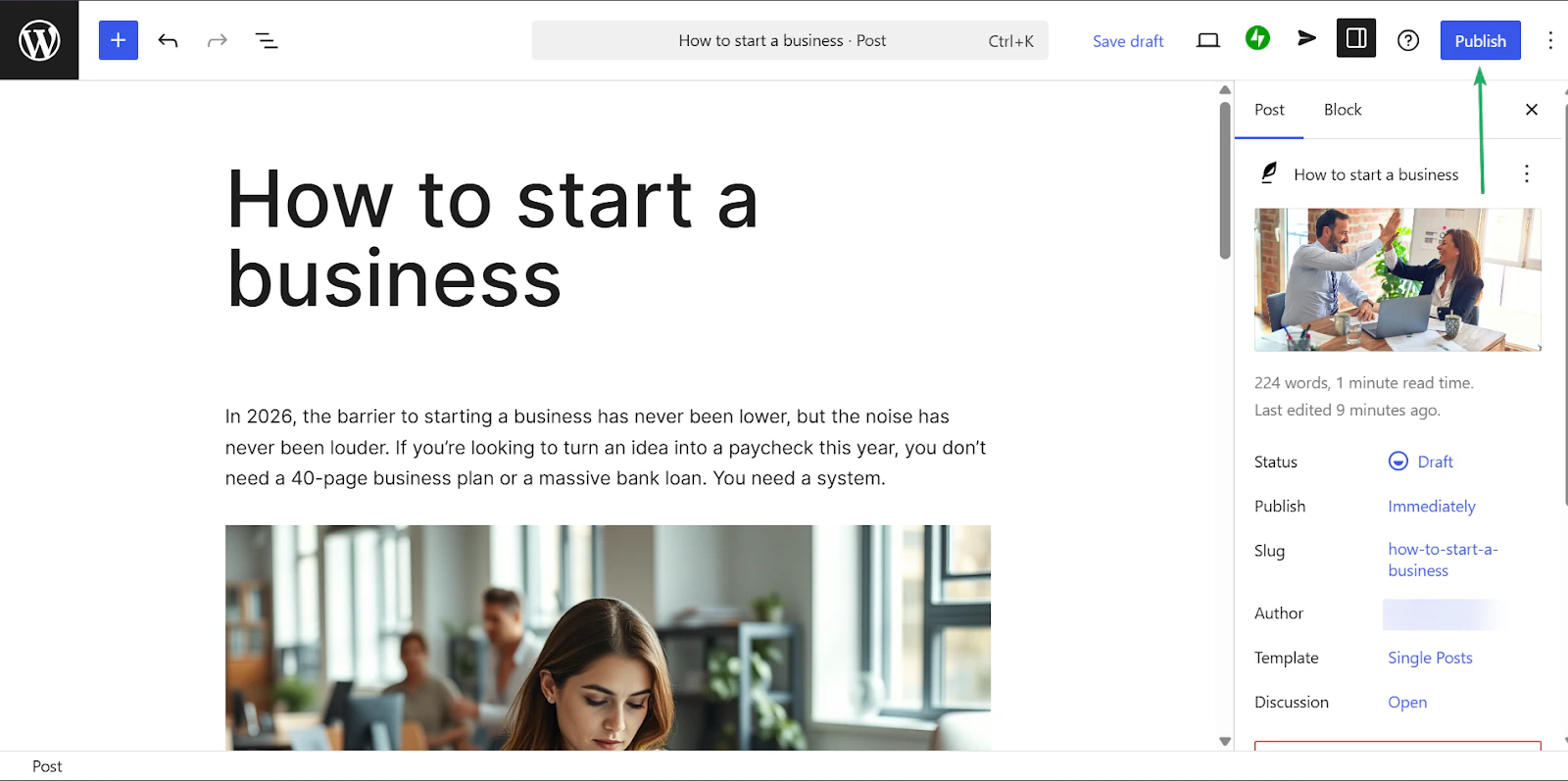
Once you’re done, you can publish your post immediately or schedule it for later.
2. AI assistant
The next feature is Wordpress’ AI assistant, which helps you with content ideas, drafting, and rewriting posts.
It’s useful for creators who want help getting started or speeding up their writing.
Let’s walk through how to use it:
While writing your post, click the “+” to choose a block. Then, select “AI Assistant.”
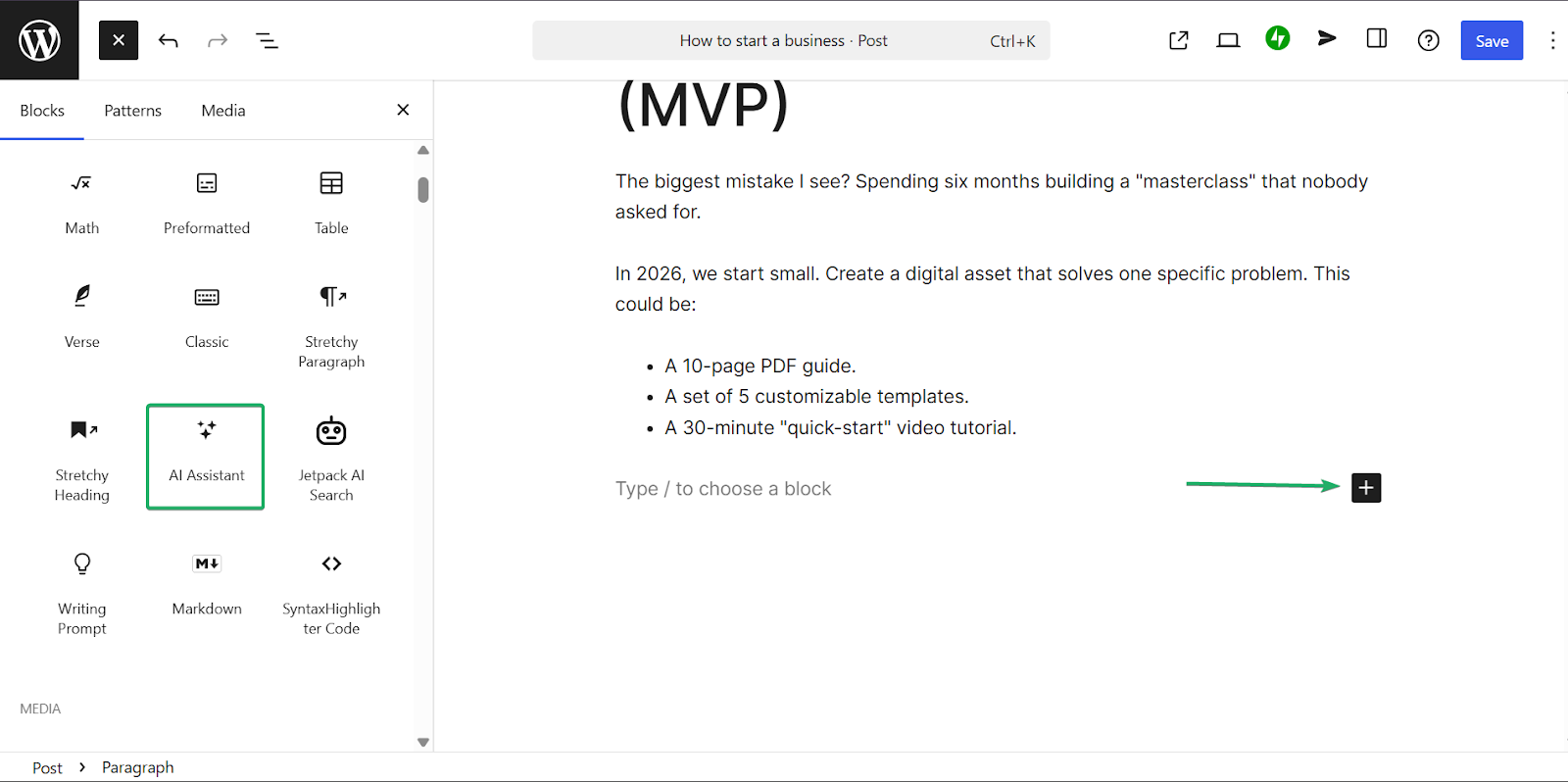
Next, enter a relevant prompt, then click “Generate.”
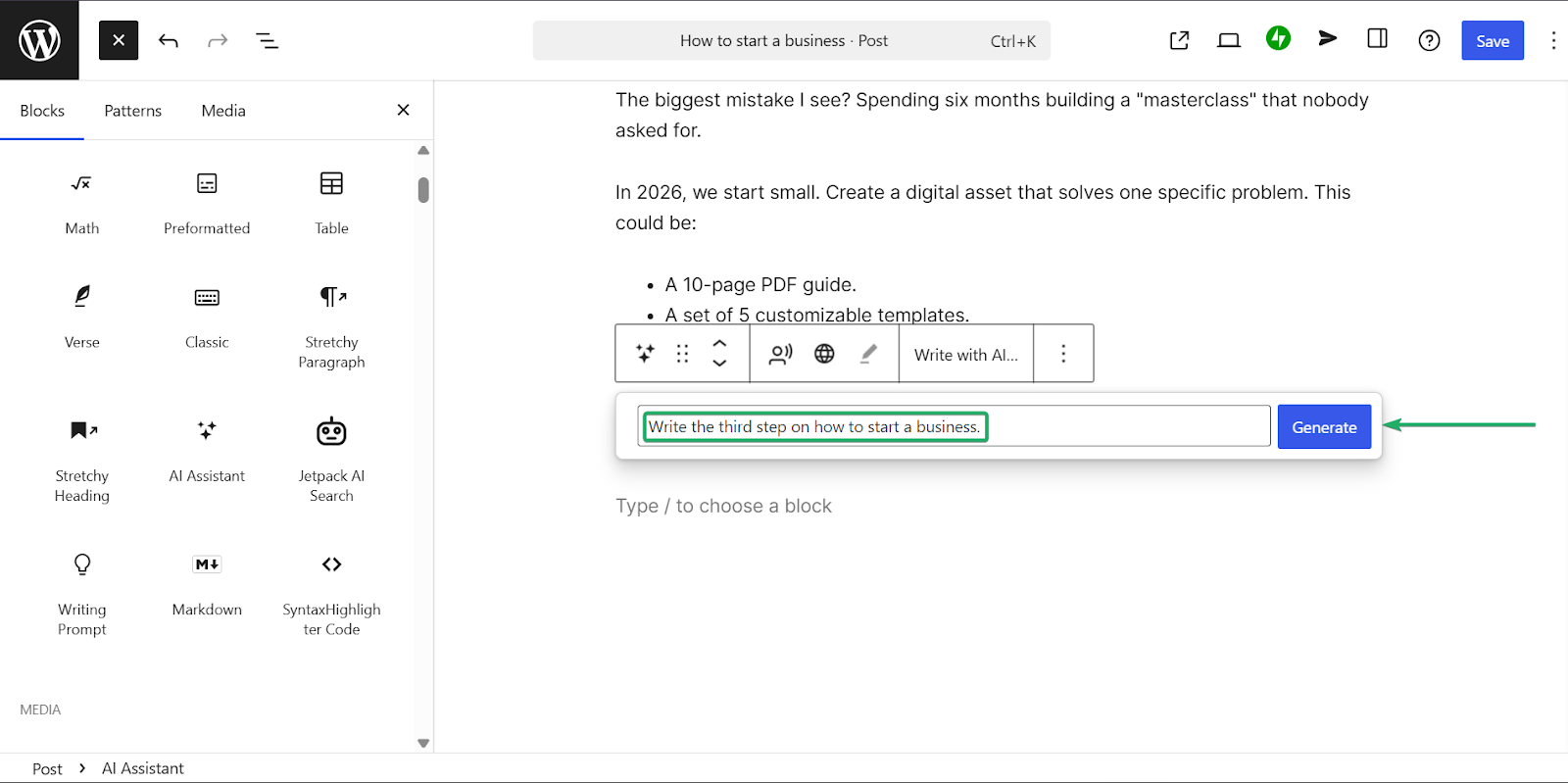
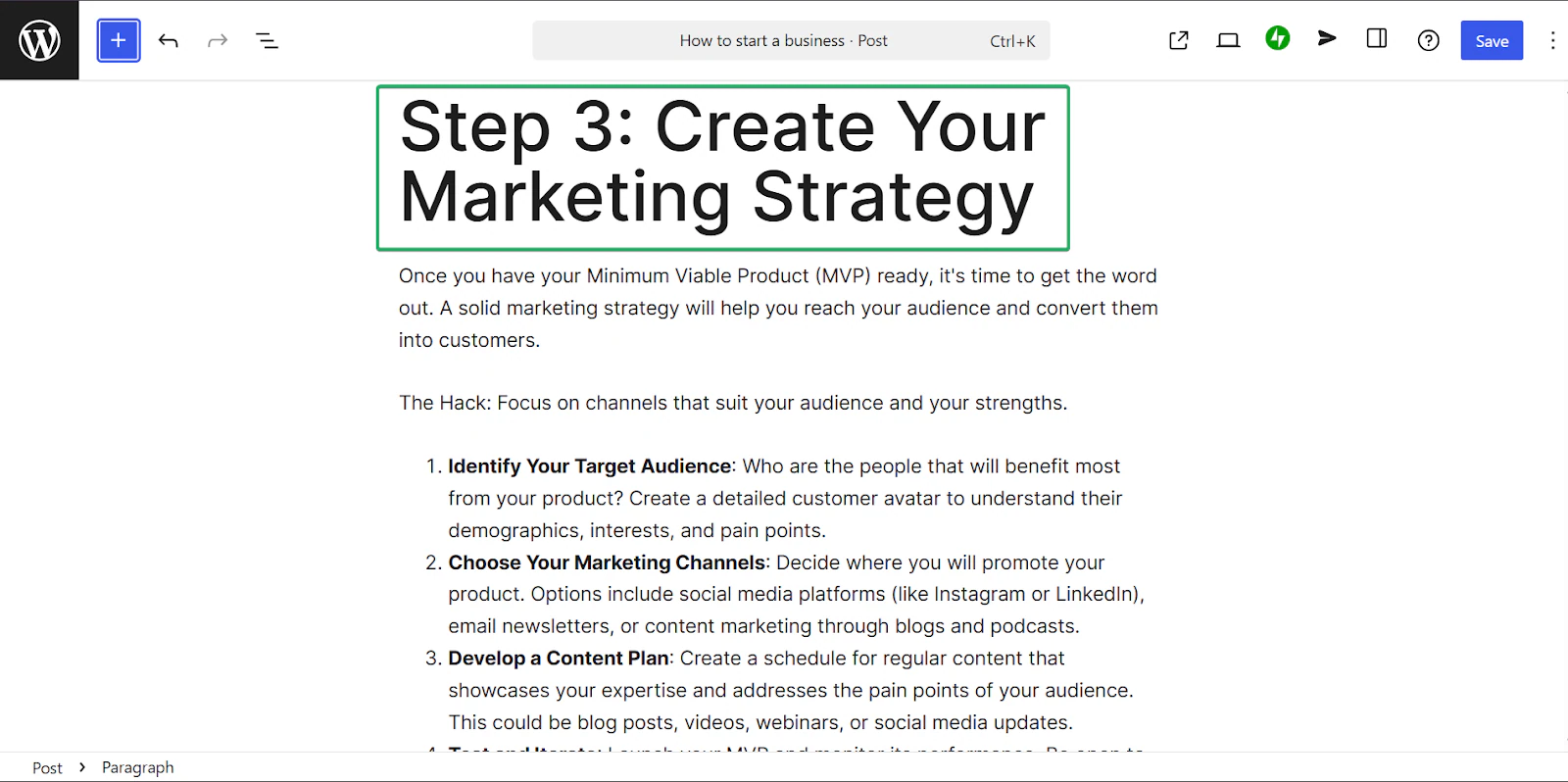
WordPress’s AI assistant will then generate the text for you, which you can maintain or tweak.
3. Themes
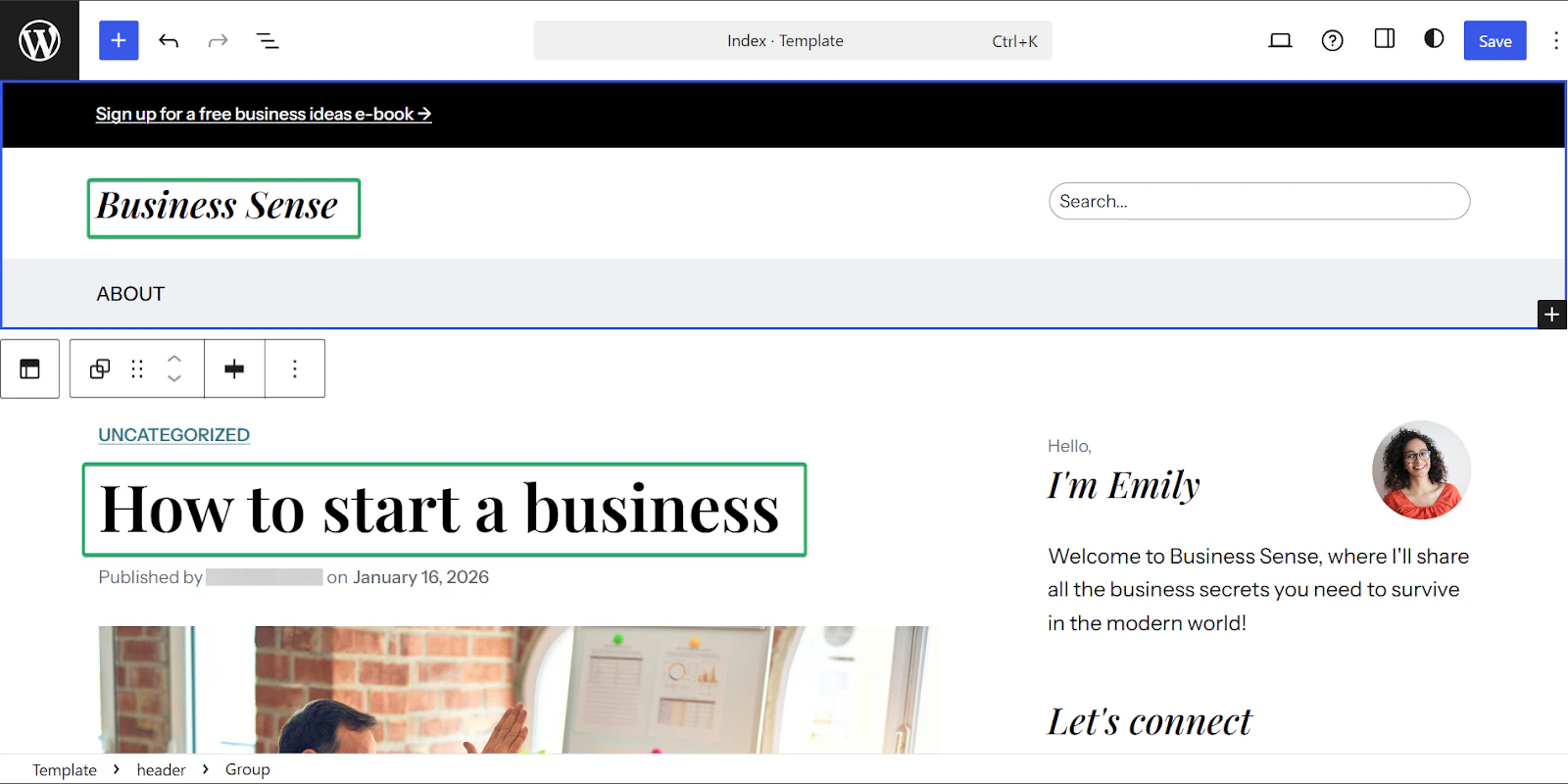
The themes feature gives you full control over how your WordPress site’s layout and design appear.
You can choose from thousands of free and premium themes to match your brand, style, and content goals.
Let’s see how it works:
Head to “Appearance” and select themes.
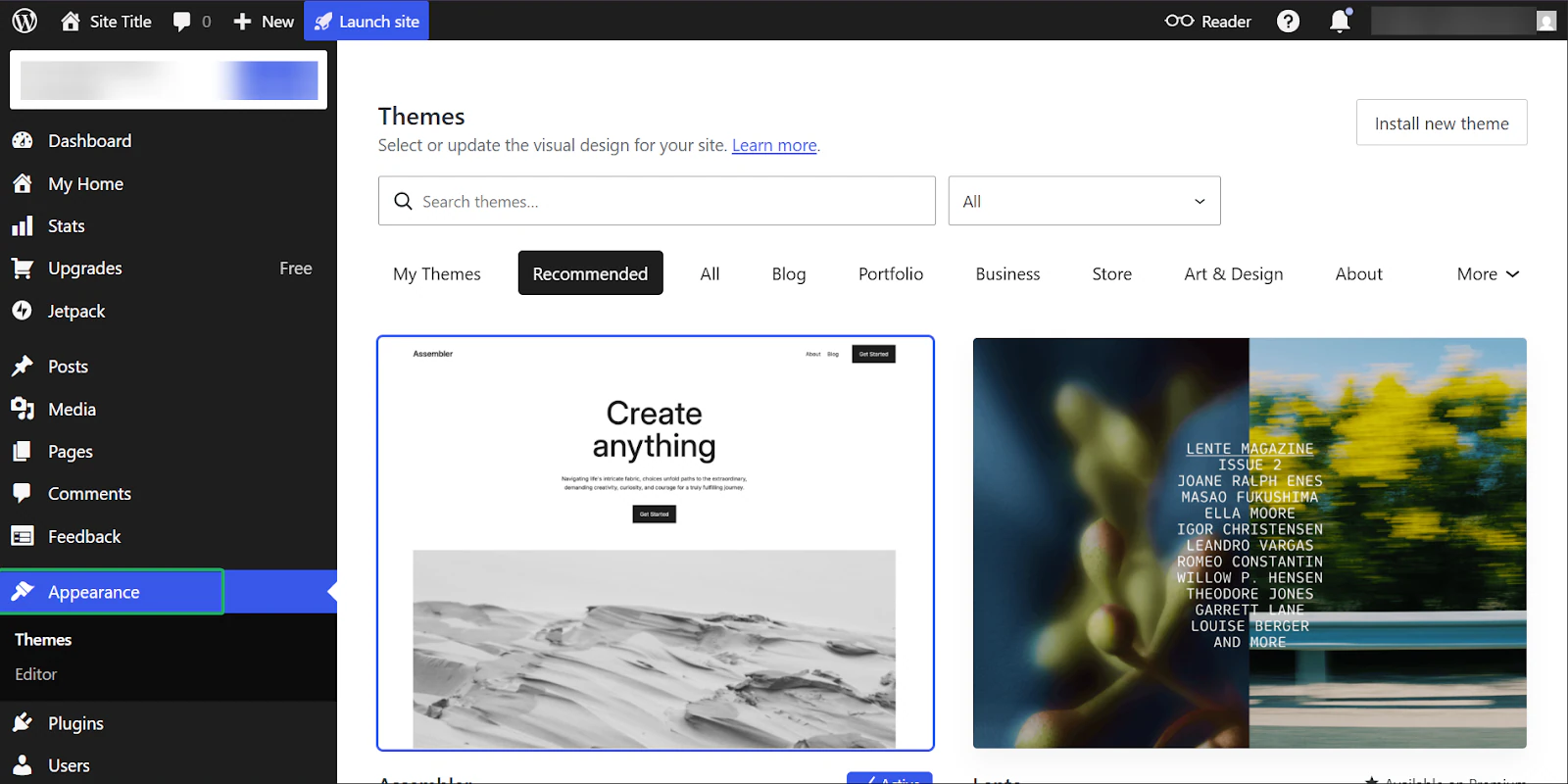
WordPress offers thousands of premium and free themes across multiple categories.
Select a theme that fits your brand.
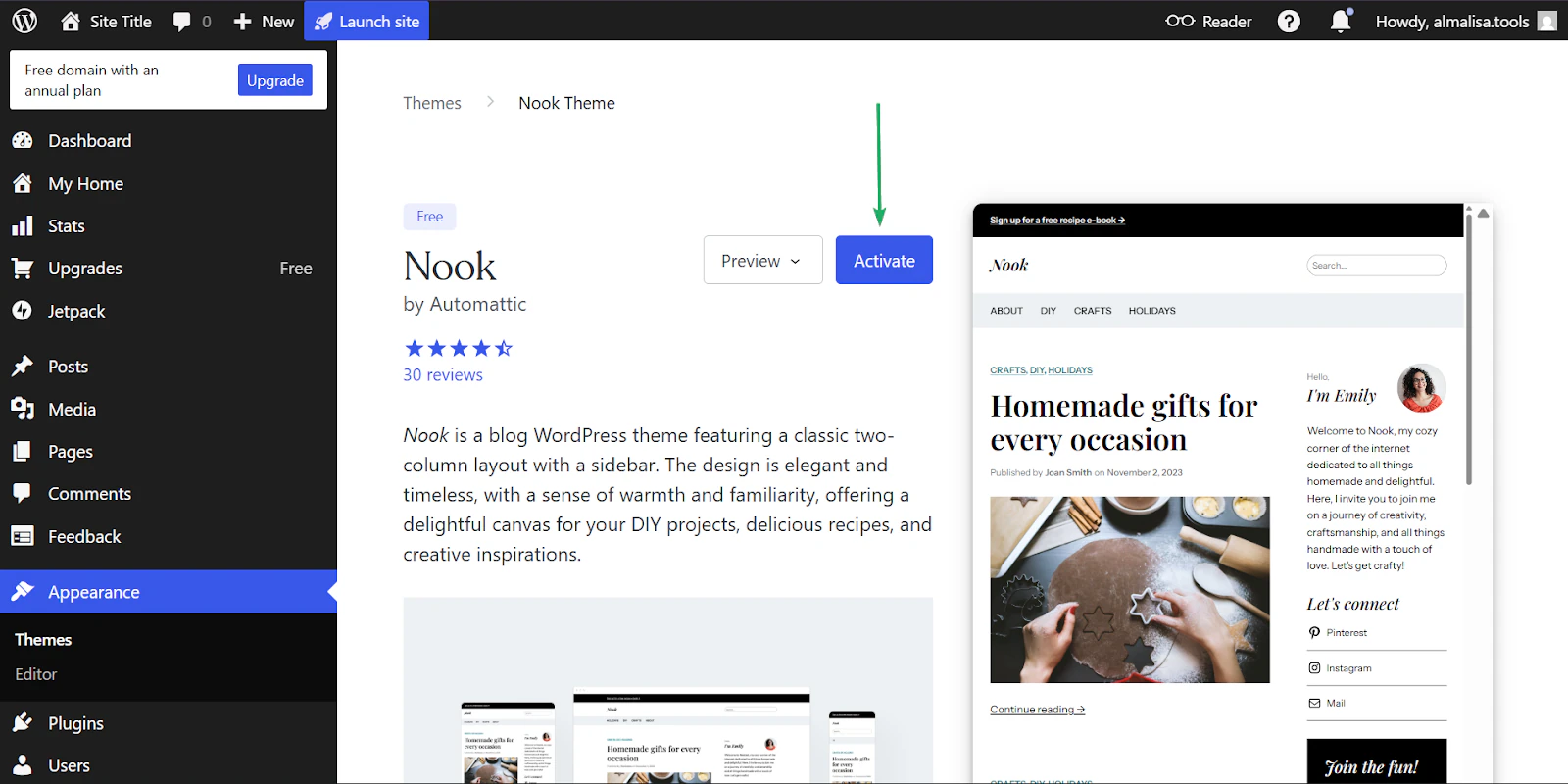
You can edit the layout with your information until it fits your desired look.
What I loved vs what I struggled with
What I loved 👍
✅ You have full ownership and control over your content.
✅ Highly customizable with plugins and themes
✅ Great for long-form writing and blogging.
What I struggled with 👎
❌ The interface can be overwhelming for beginners.
❌ Some plugins and themes cost extra.
Best for
- Writers and businesses building long-term content hubs and monetized blogs
Pricing
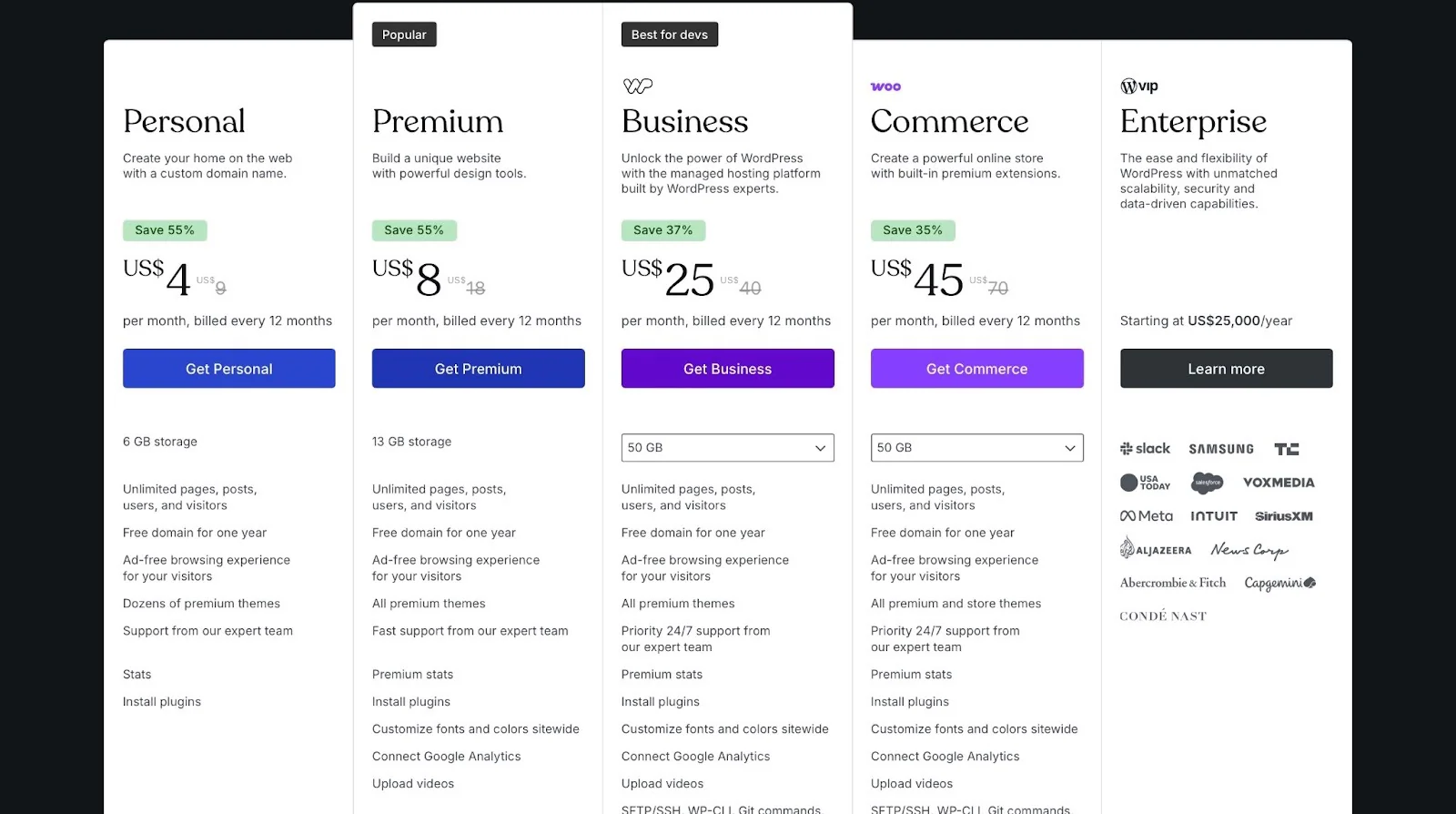
- Personal: $4/month
- Premium: $8/month
- Business: $25/month
- Commerce: $45/month
- Enterprise: Starting at $25,000/year
6. Repurpose.io
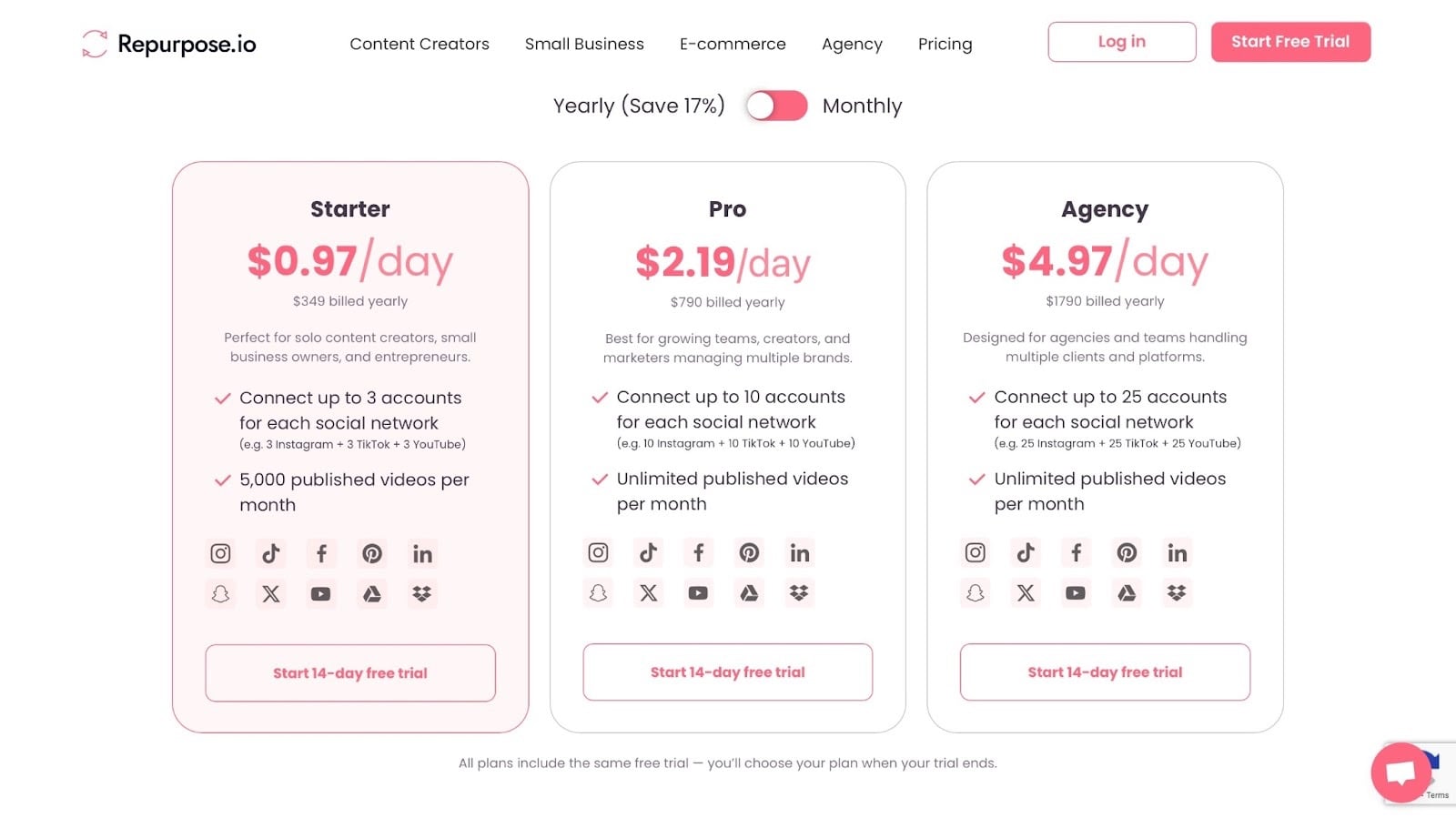
📑 Content type: Video | ⚙️ Key features: Auto-publish, format conversion, scheduling, workflows | 🔗 Distribution: Share links, embeds, integrations | 💳 Monetization: Drive traffic, promote offers, grow audience | 🌱 Growth: Reach, followers | 💰 Starting fee: Starter: $.97/day + 3 accounts for each social network + 5,000 published videos/month
Repurpose.io has its place on this list of the best content creator platforms.
Repurpose.io is a content automation platform that helps creators automatically share their audio and video content across 300+ platforms. It does this by taking your content from one platform and reformatting it for other platforms.
For example, you can take a YouTube video and automatically republish it to other platforms like TikTok.

Creators can set up workflows to automatically publish their content to other platforms without any stress.
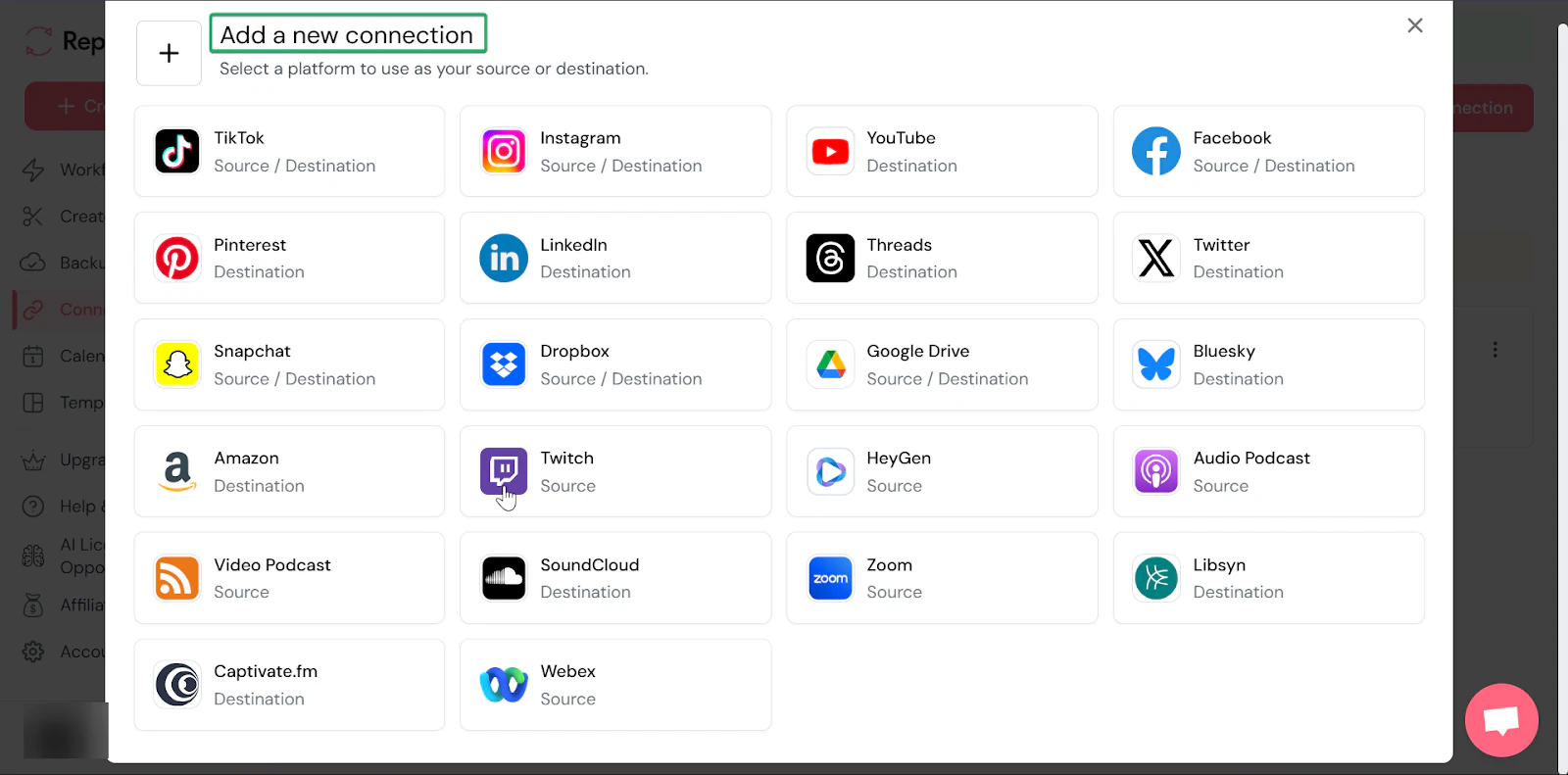
Another good feature is connections. It lets you integrate the platform with other apps and tools, such as Facebook, TikTok, Snapchat, Webex, and Google Drive.
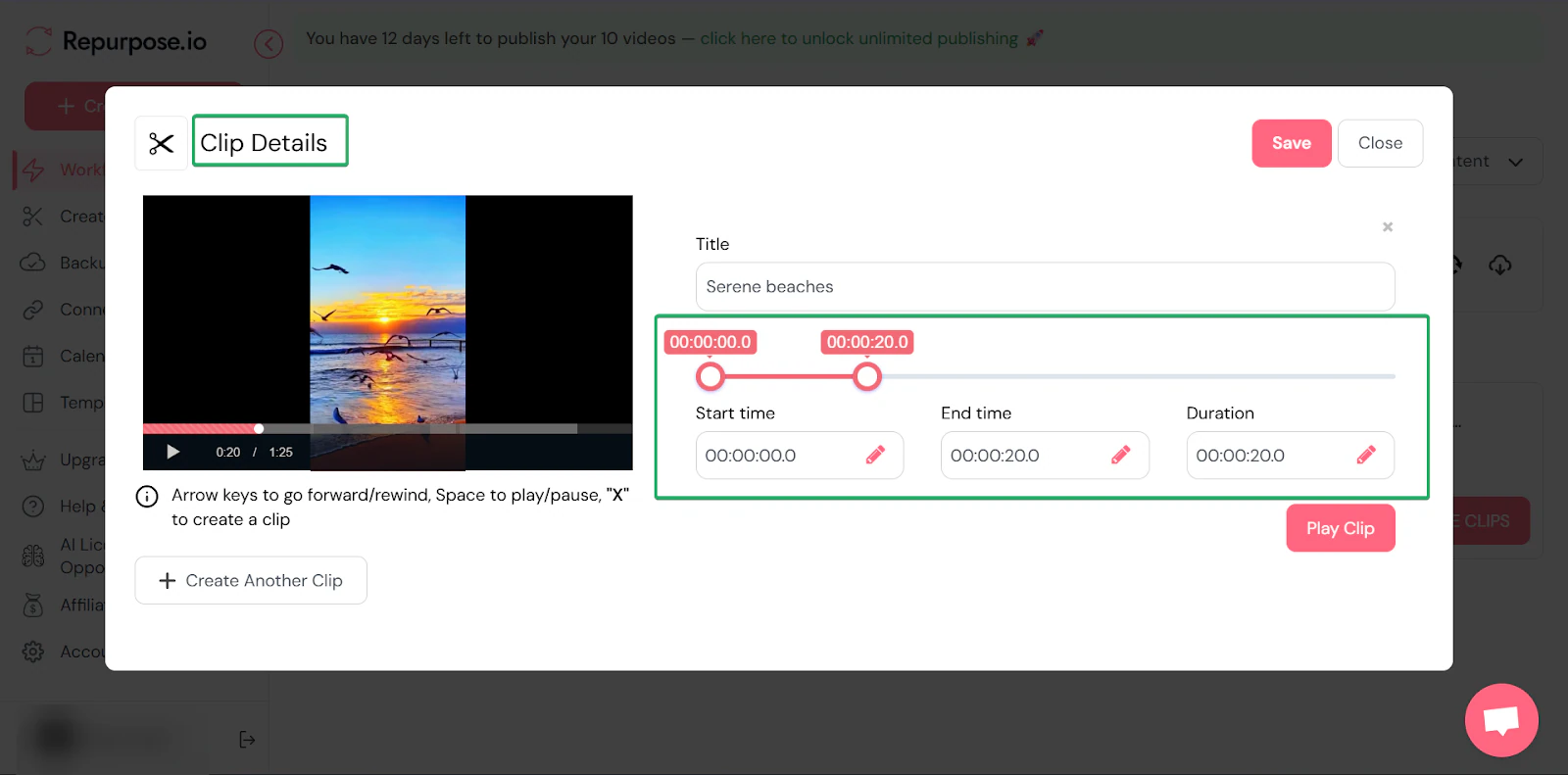
Finally, the create clips feature lets you turn long videos into short, shareable clips. Mostly to share on content creator platforms like TikTok, YouTube Shorts, LinkedIn, and Instagram Reels.
What I loved about Repurpose.io
1. Workflows
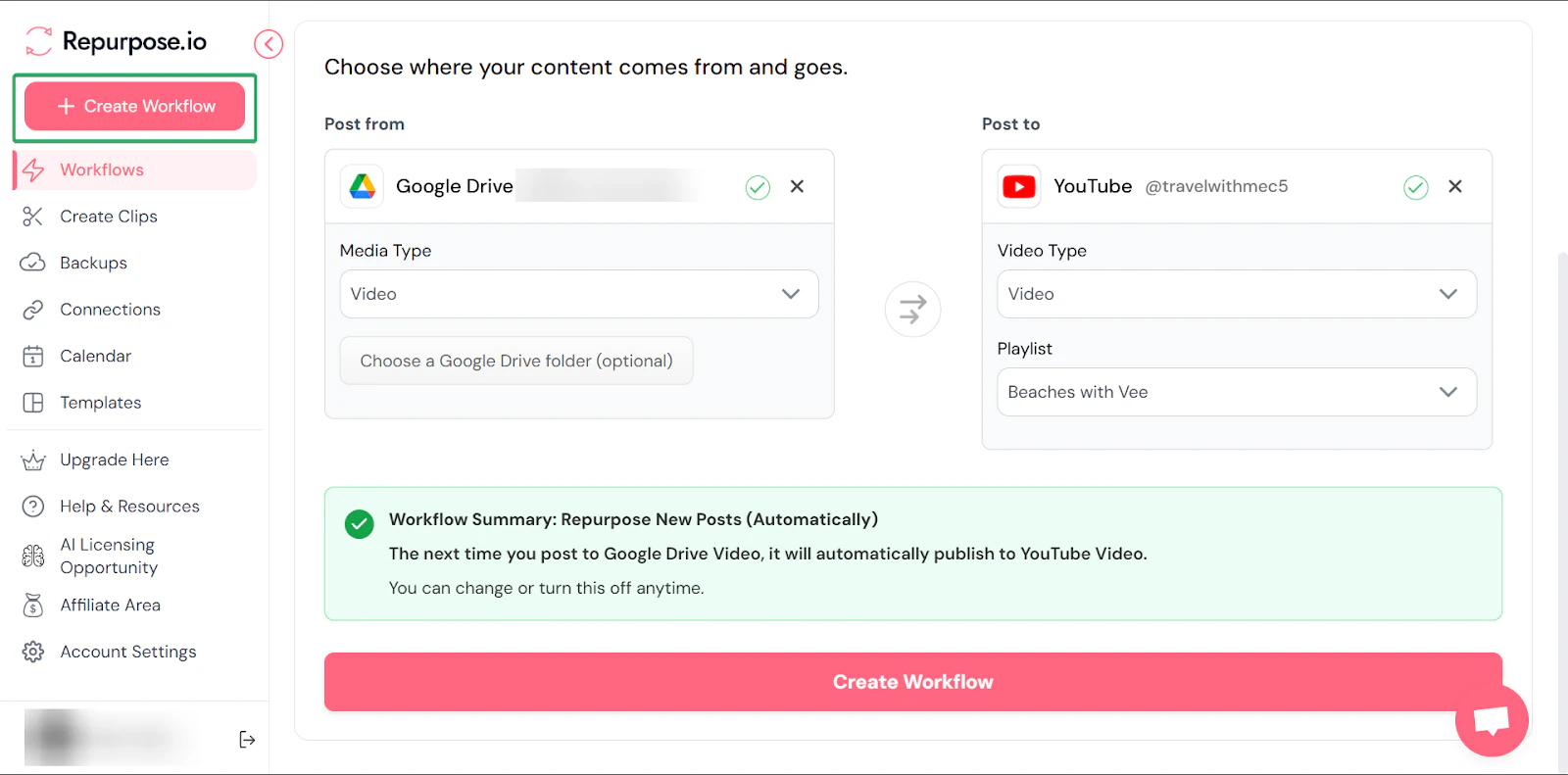
Its workflows feature uses automated rules to decide what happens to your content after you publish it.
For example, when you upload a new video, a workflow can automatically send it to other content creation platforms.
Let’s see how it works:
On the sidebar, click “+ Create Workflow.”
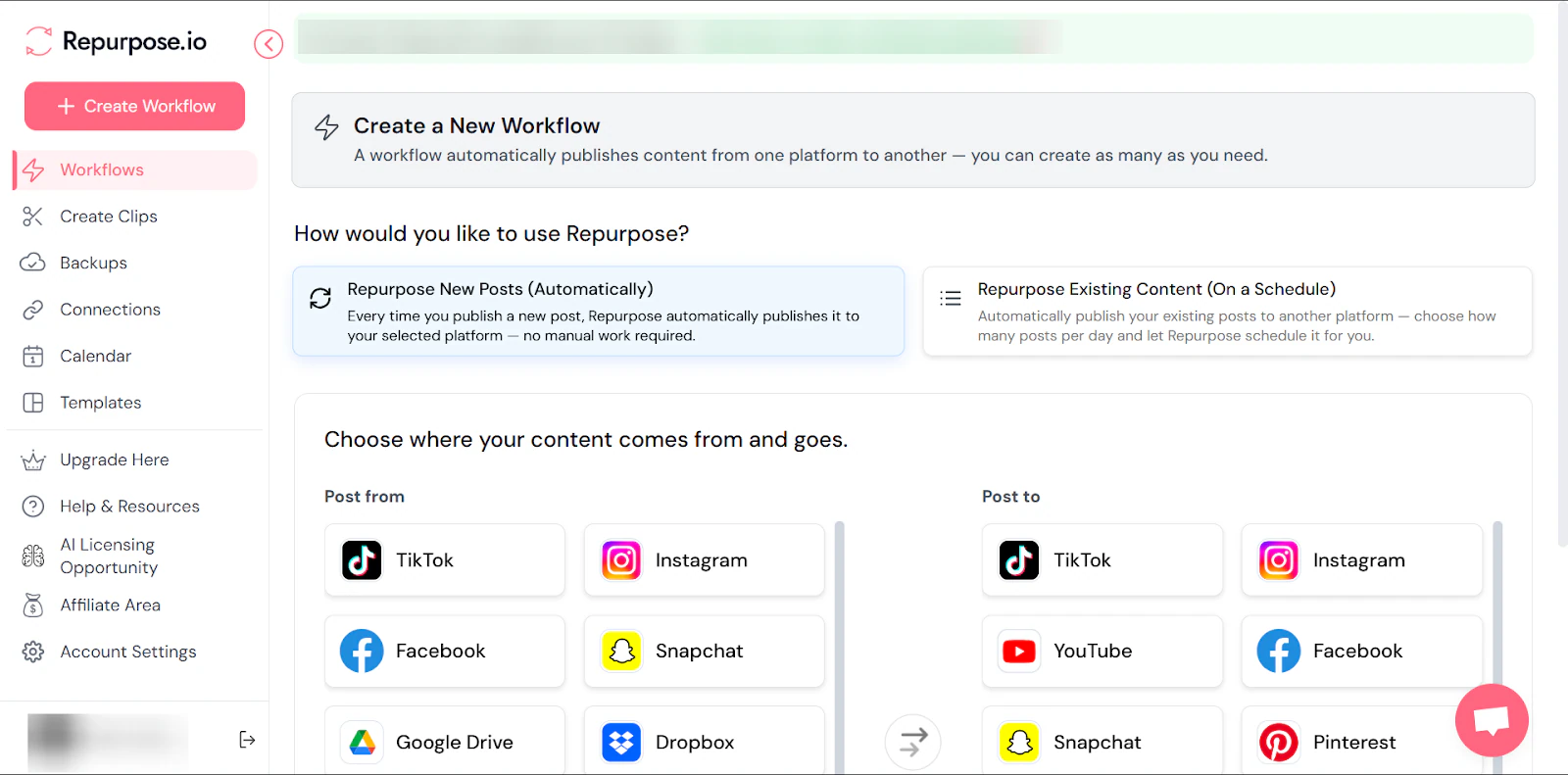
Next, to set up the automation, you need to choose where your content comes from and where it goes. I selected Google Drive as the source and YouTube as the destination.
That means whenever I upload a video to my Google Drive video folder, Repurpose.io will publish it to YouTube.
You can click “Create workflow” once you’re done.
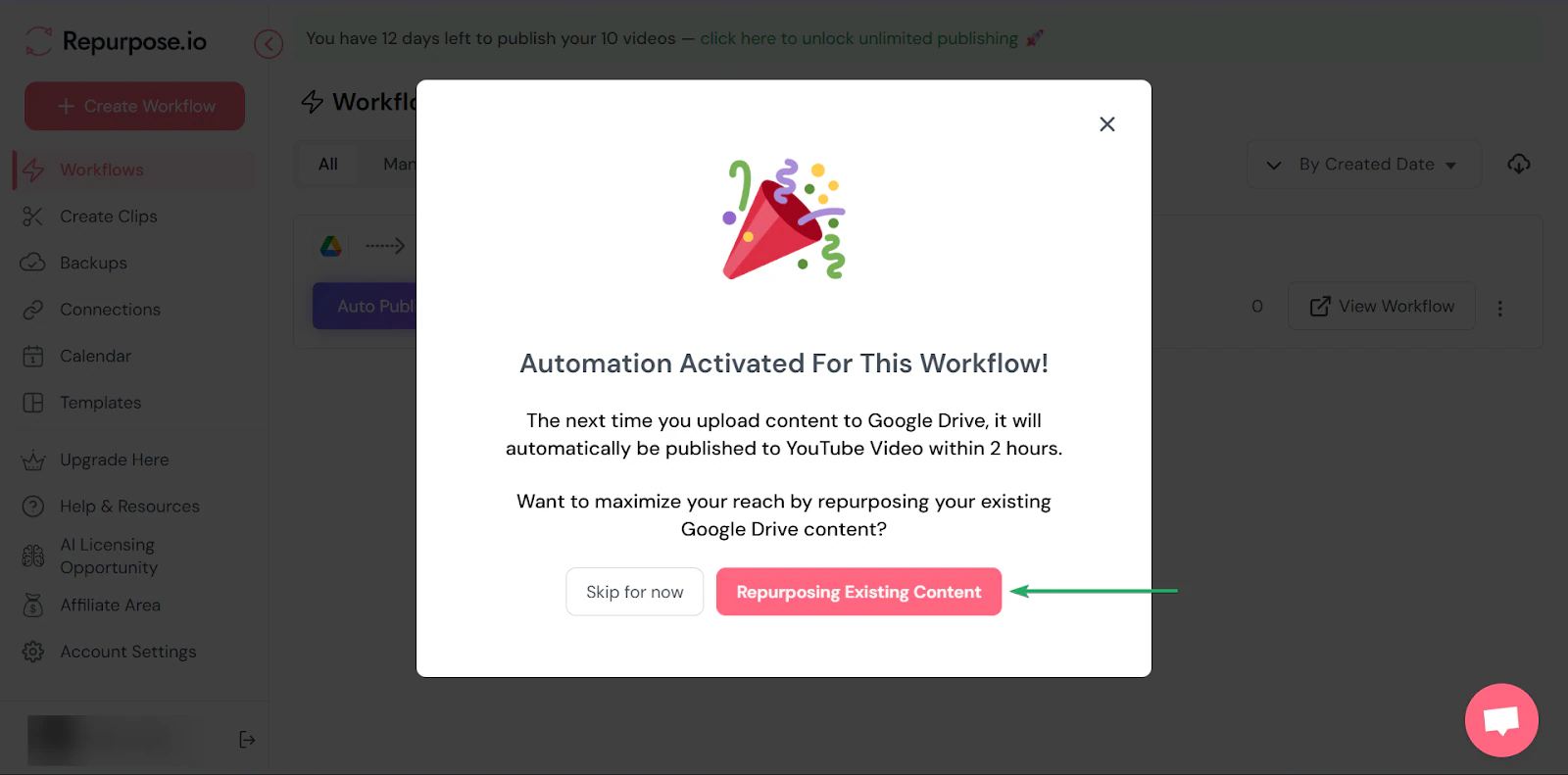
Once automation is activated, repurpose existing content.
You can choose how many times to post in a day, as well as the dates and times.
2. Connections
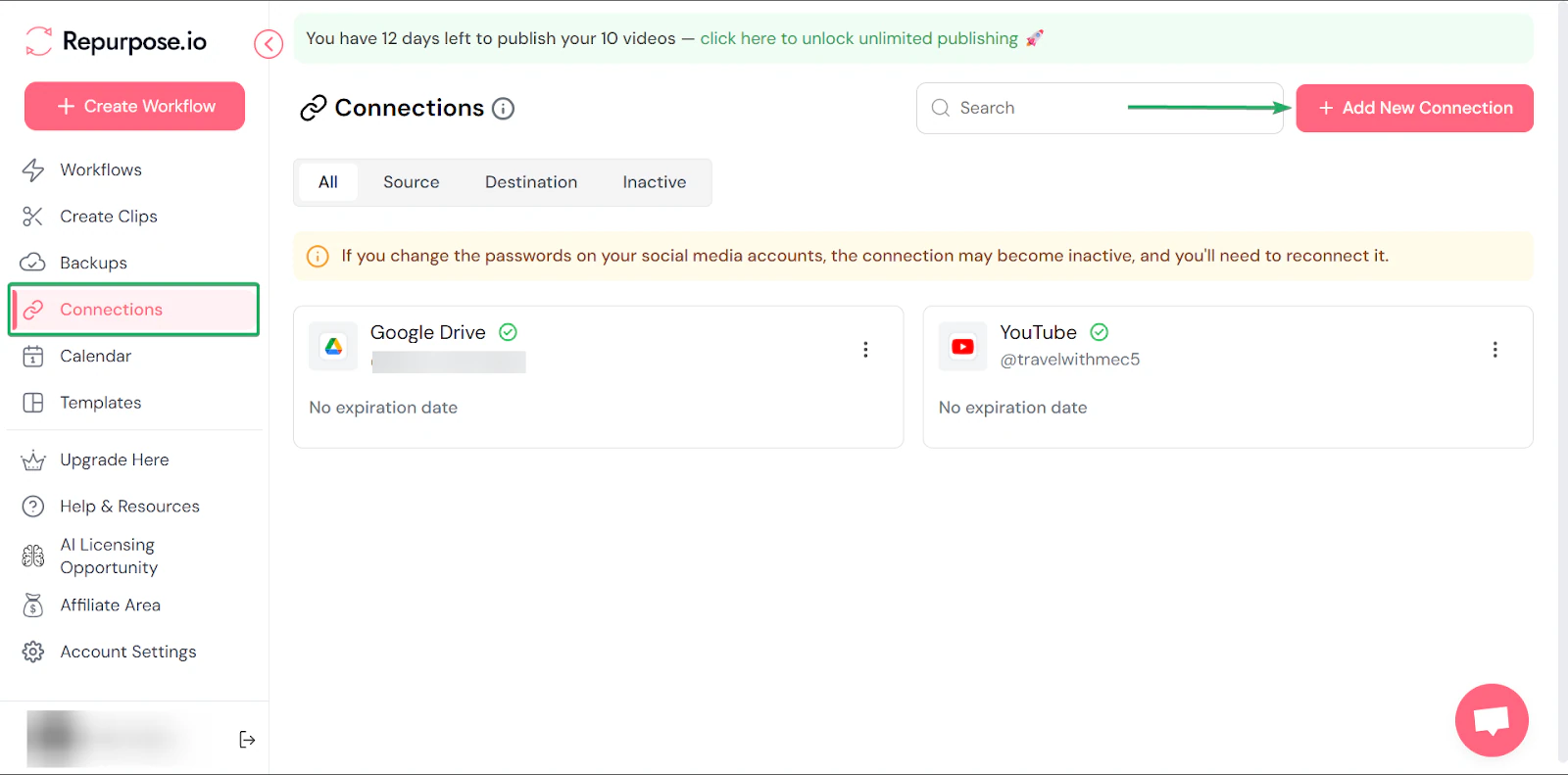
The connections feature lets Repurpose.io integrate with popular platforms. Including YouTube, TikTok, Instagram, Zoom, and cloud storage services such as Google Drive.
Let’s walk through how to connect with these apps:
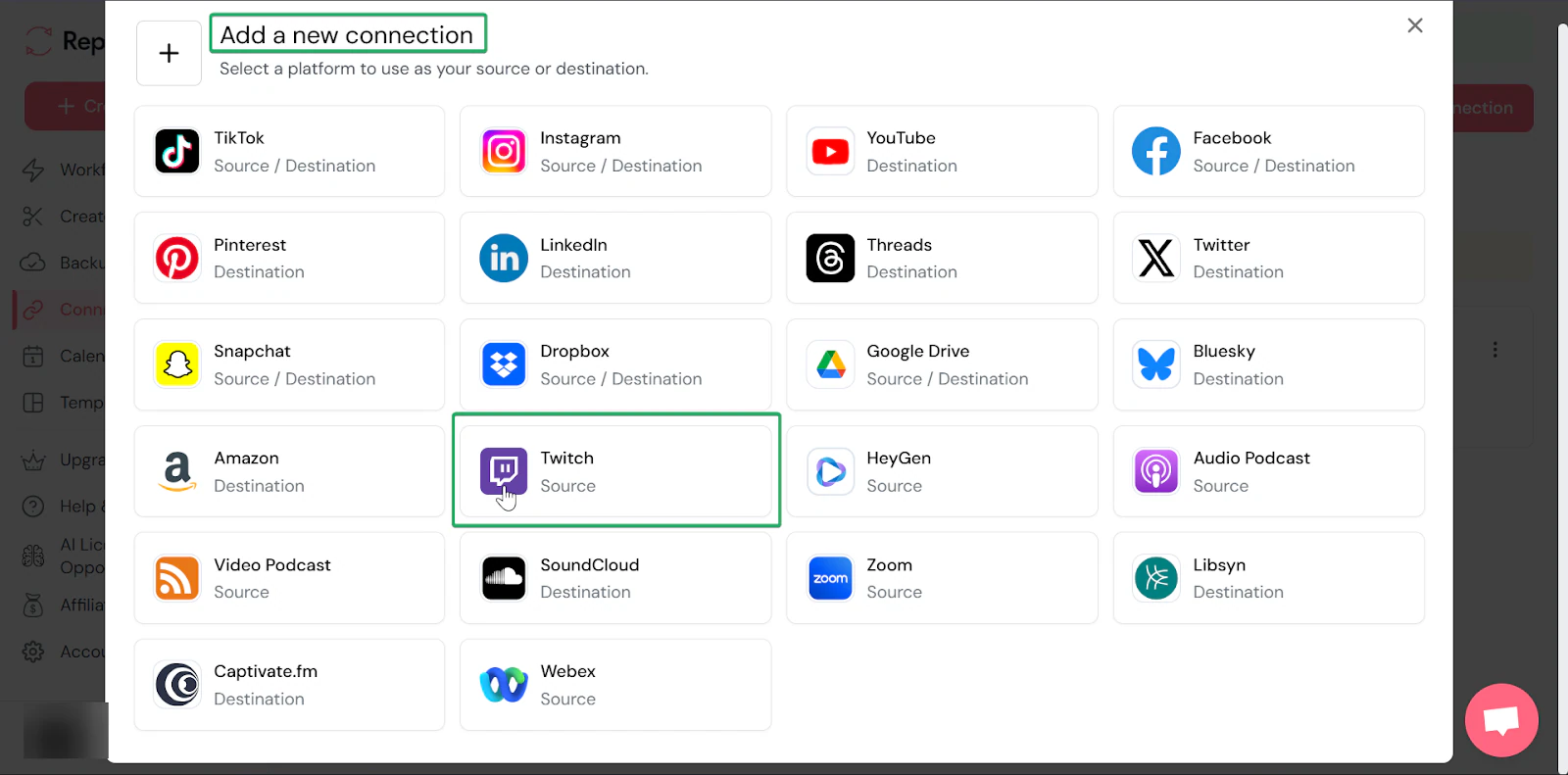
First, head to “Connections” and click “Add New Connection.”
Select the app or tool you want to connect with.
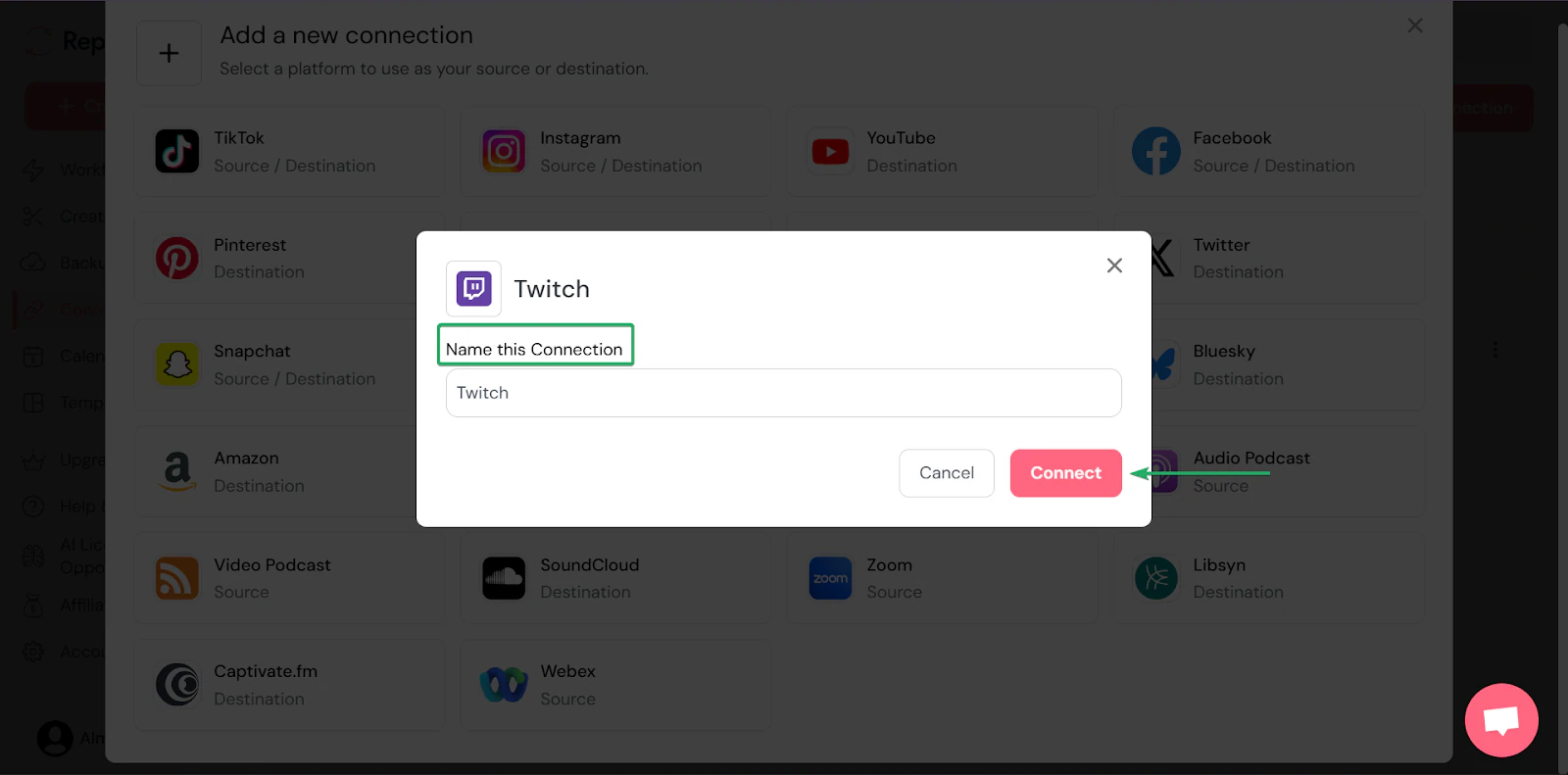
You can give the connection a name.
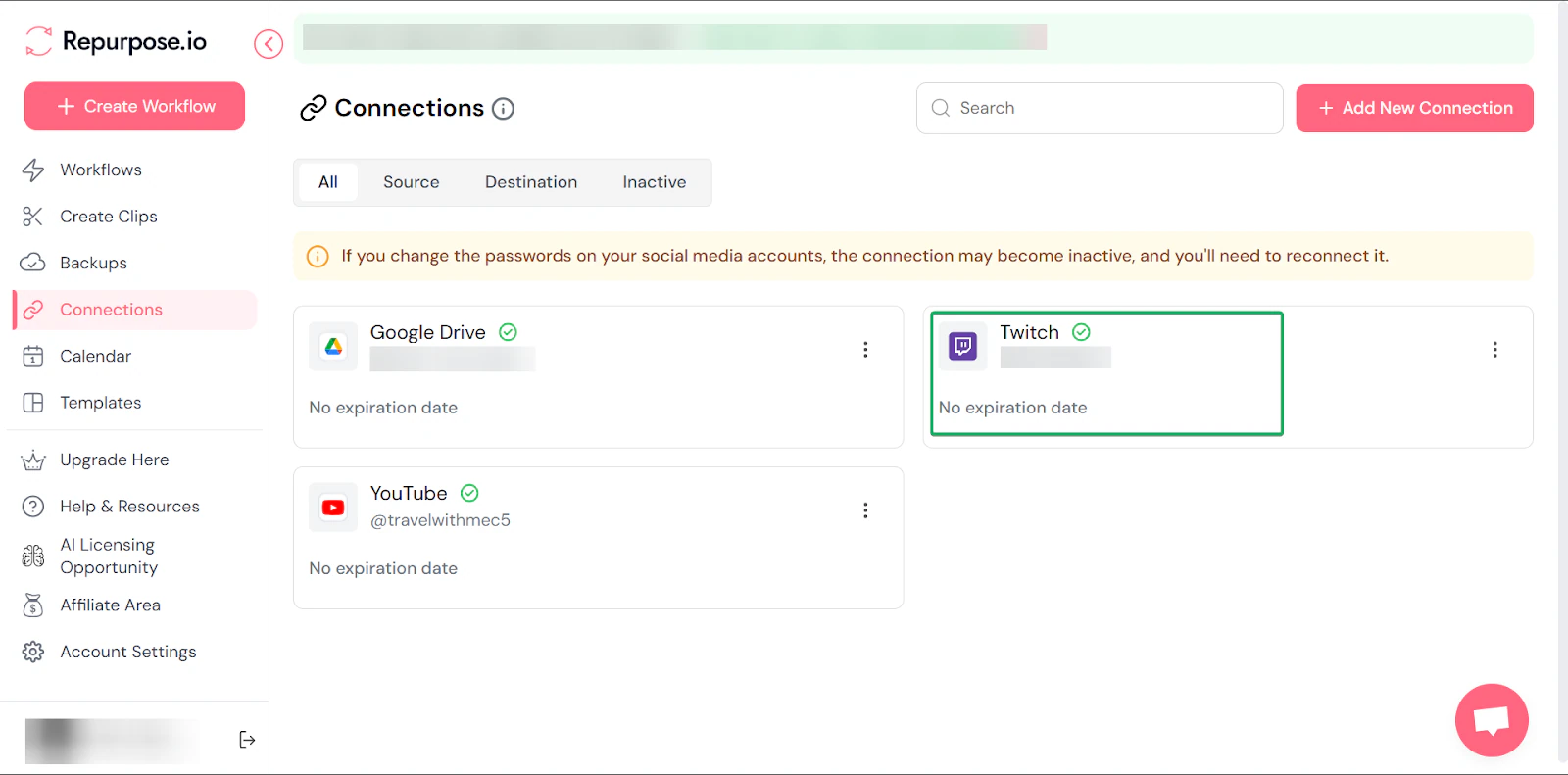
Once you’ve connected and logged into the app, it will appear on your connections dashboard.
3. Create clips
Lastly, I’ll talk about the create clips feature. It helps creators turn long-form content into short video clips.
This is useful for repurposing podcasts, webinars, or YouTube videos into bite-sized content for your socials.
Here’s how it works:
First, go to “Create Clips,” then select your content source and destination.
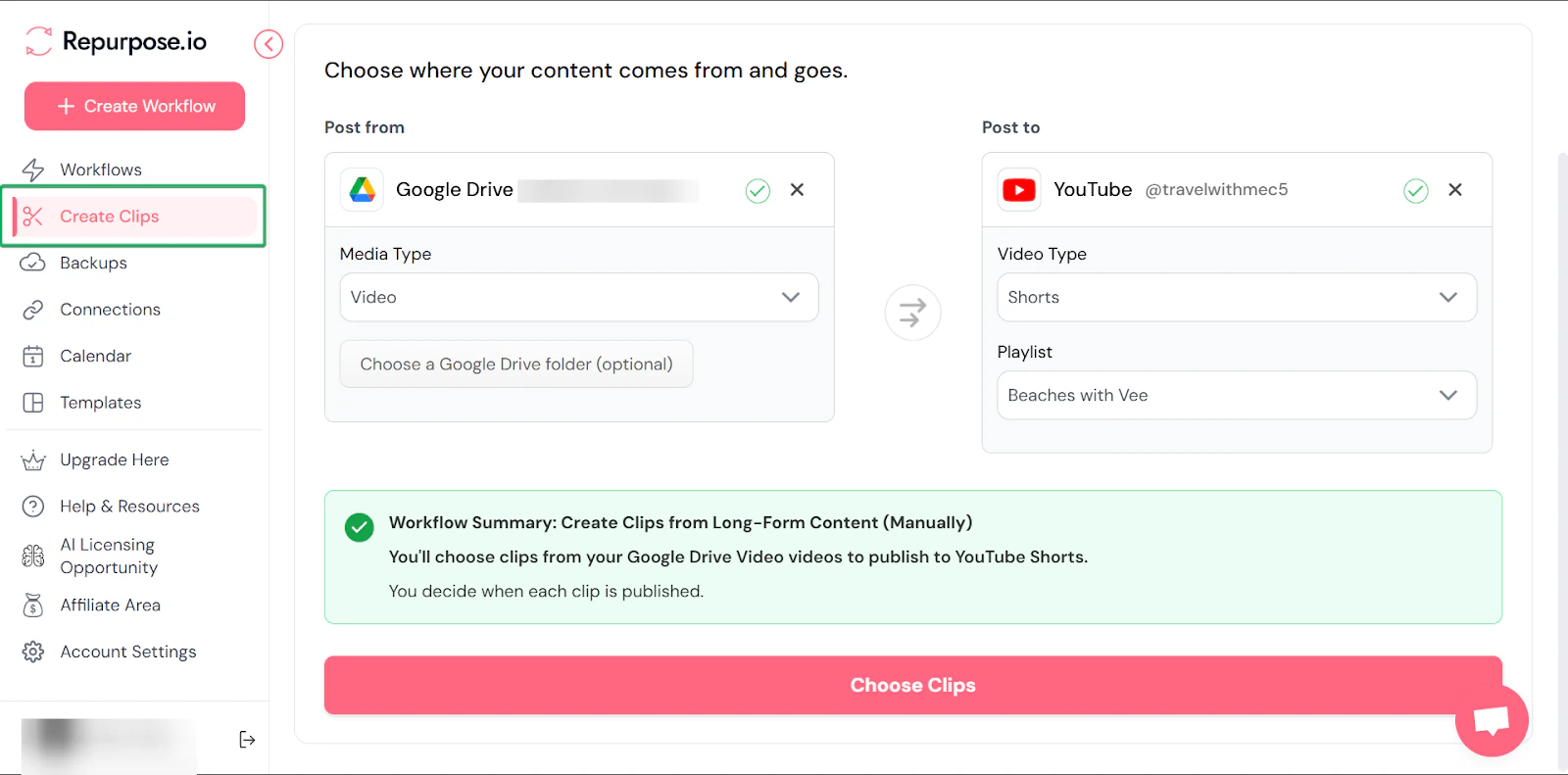
Next, select the video you want to clip and click “Create Clips” at the bottom left of the window.
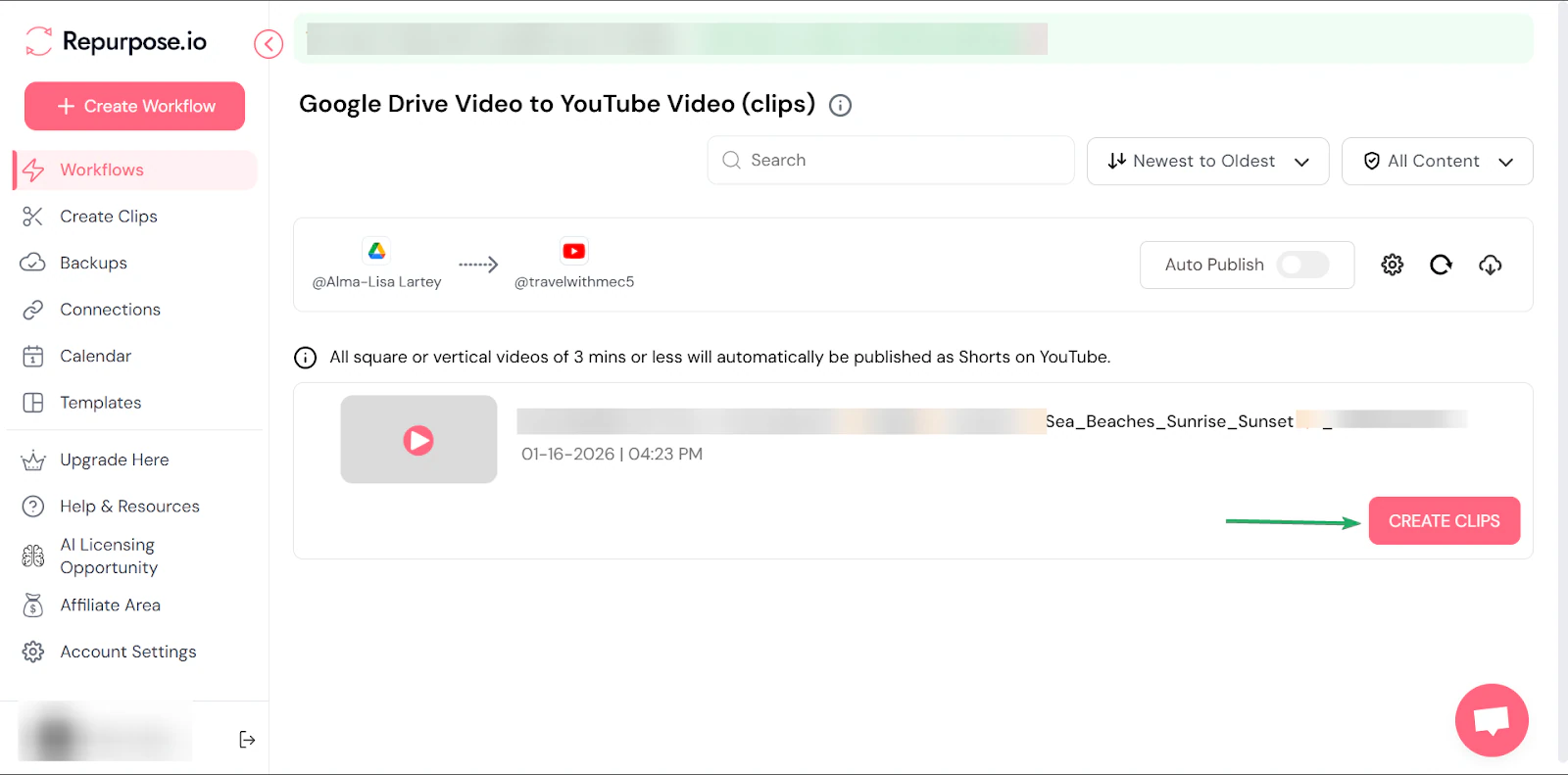
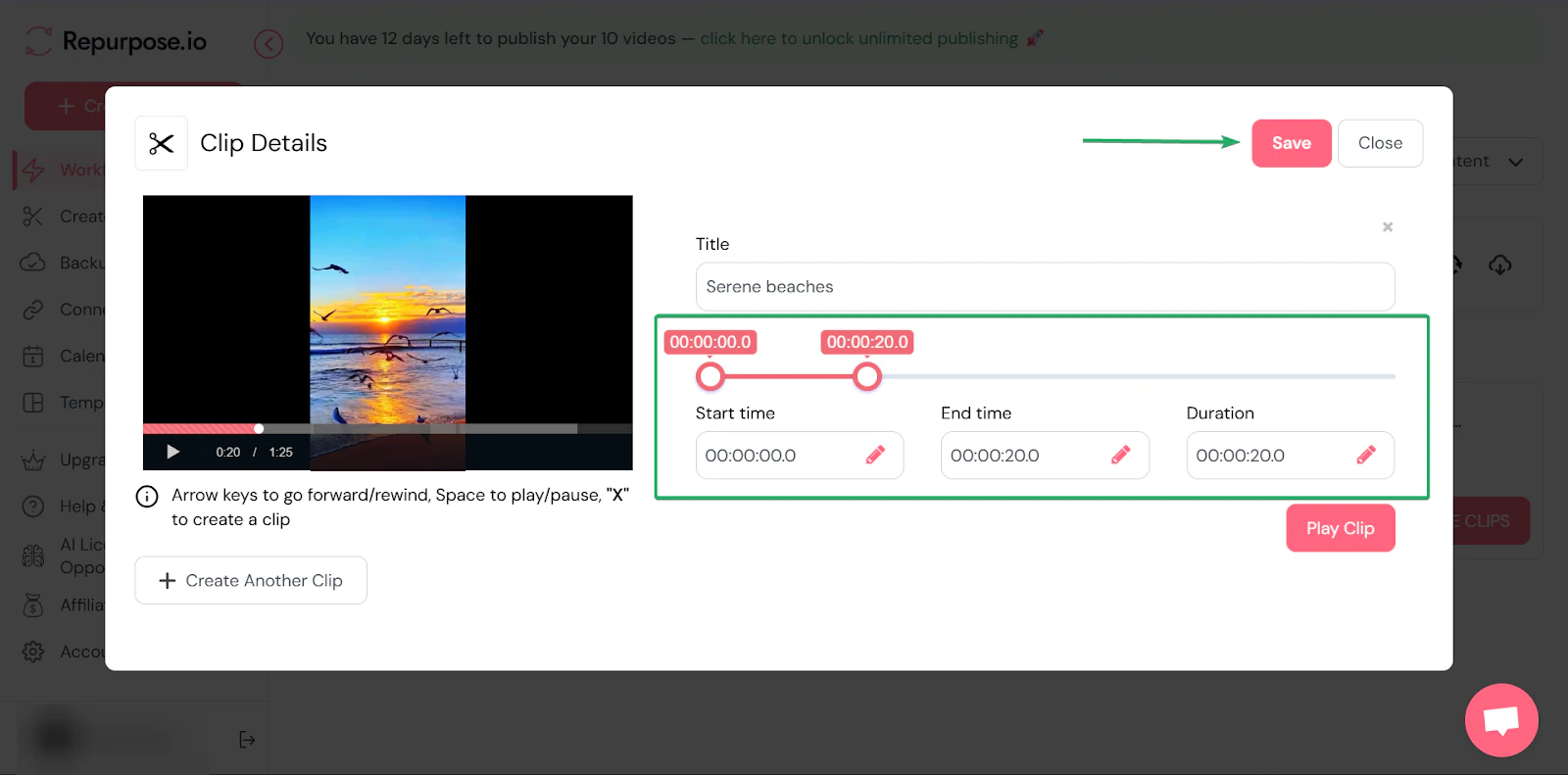
After that, trim your long-form video into shorter clips.
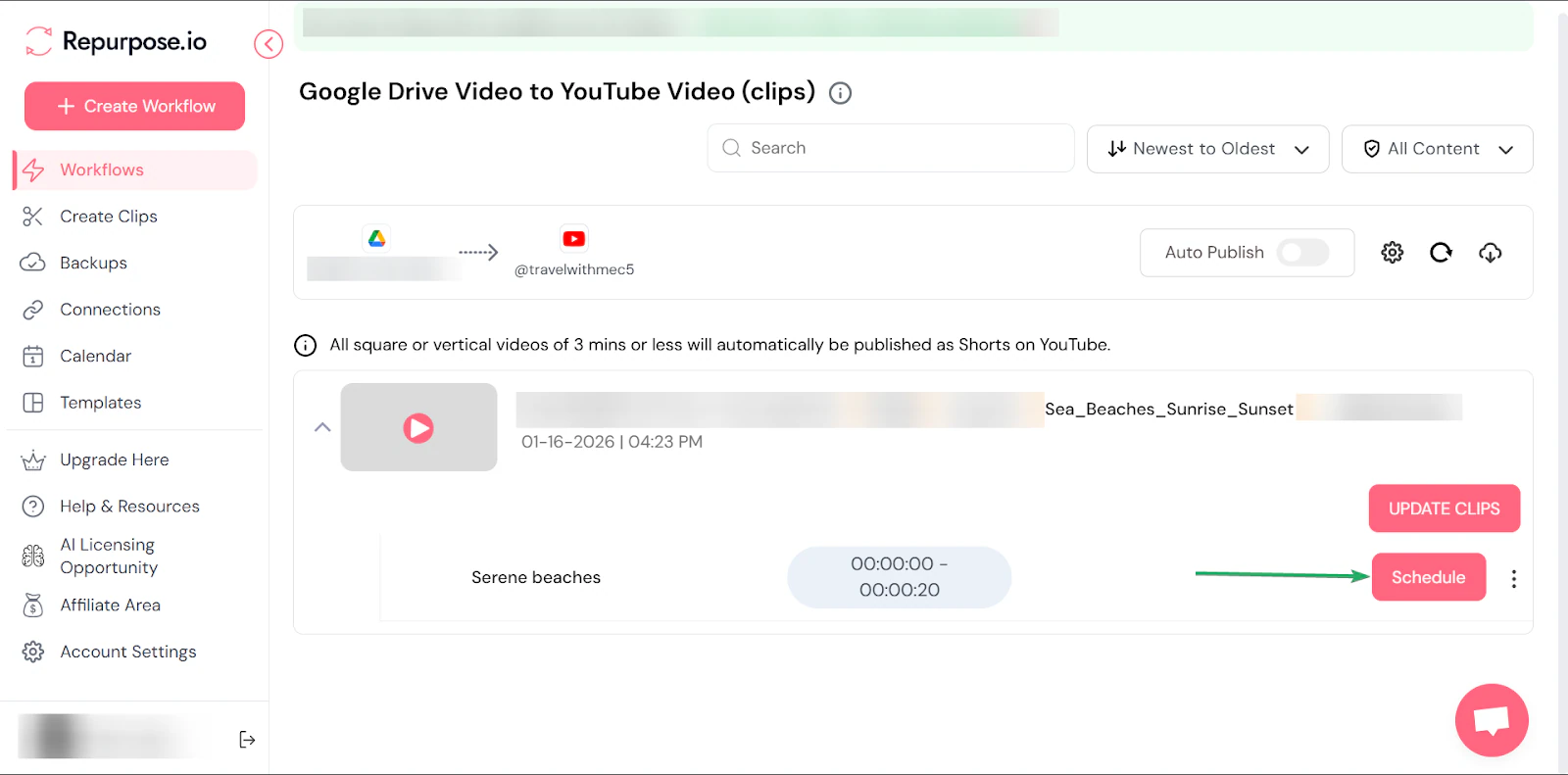
Once that’s done, schedule the post for the short clip.
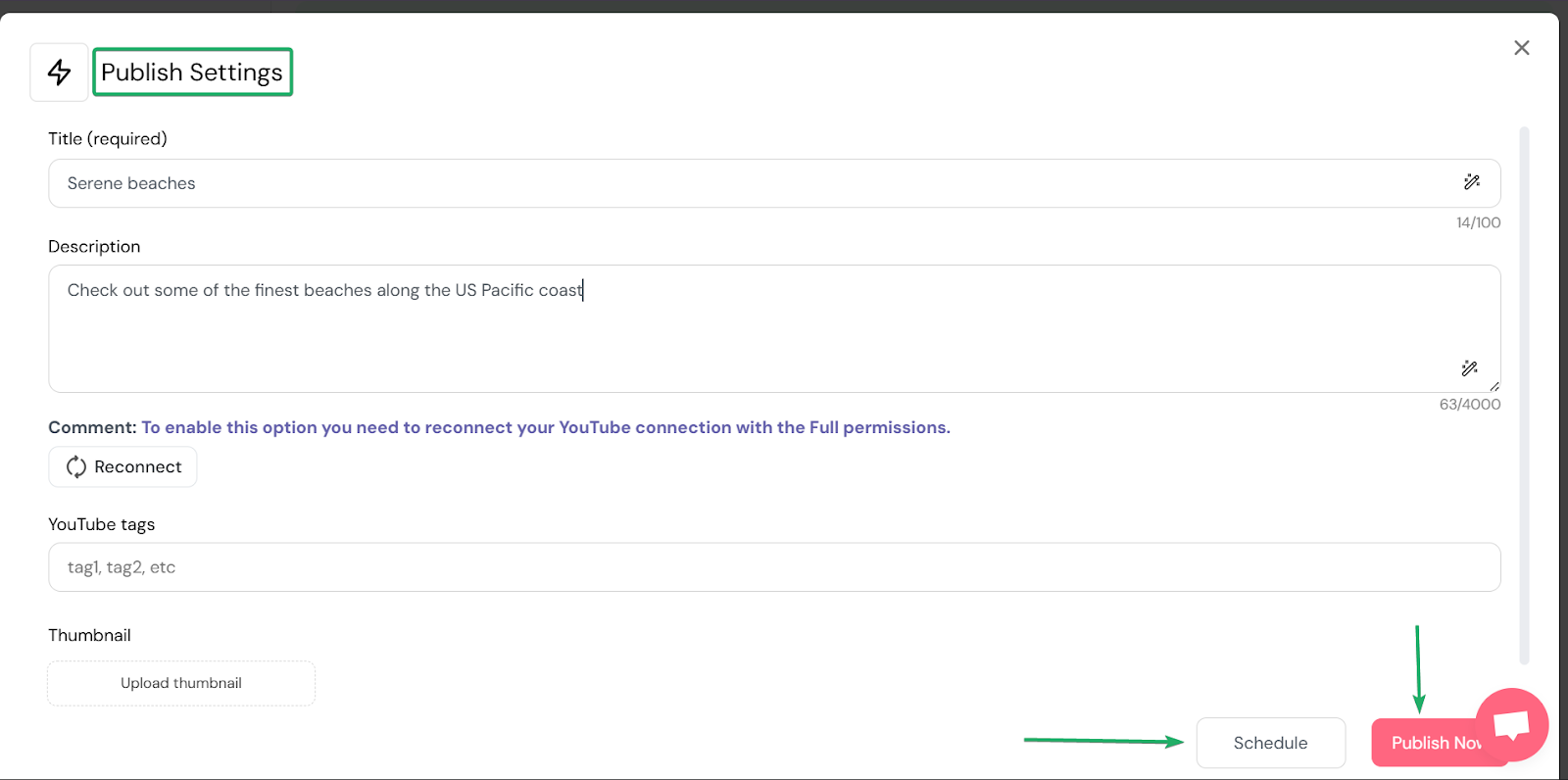
Then, choose to either publish immediately or schedule it for a later date.
What I loved vs what I struggled with
What I loved 👍
✅ Seamlessly automates content distribution across multiple content creation platforms.
✅ Integrates with many major content platforms like YouTube, Facebook, Twitch, Instagram, and more.
✅ Creators can get more reach from existing content because it’s automatically repurposed and posted across many platforms.
What I struggled with 👎
❌ Setting up workflows requires some initial setup.
Best for
- Multi-platform creators posting once and distributing content automatically across many platforms
Pricing
- Starter: $0.97/day
- Pro: $2.19/day
- Agency: $4.97/day
7. Buffer
📑 Content type: Audio, video, image | ⚙️ Key features: Scheduling, analytics, engagement, multi-account support | 🔗 Distribution: Share links, embeds, integrations | 💳 Monetization: Promote products, services, affiliates | 🌱 Growth: Reach, followers | 💰 Starting fee: Free + 3 channels + 10 scheduled posts/channel + 100 ideas
Buffer is among the best content creator platforms.
Buffer is a social media management platform that helps creators plan, create, and schedule posts across multiple social networks.
You can also respond to comments you receive from Threads, LinkedIn, Facebook, and Instagram from a single dashboard.

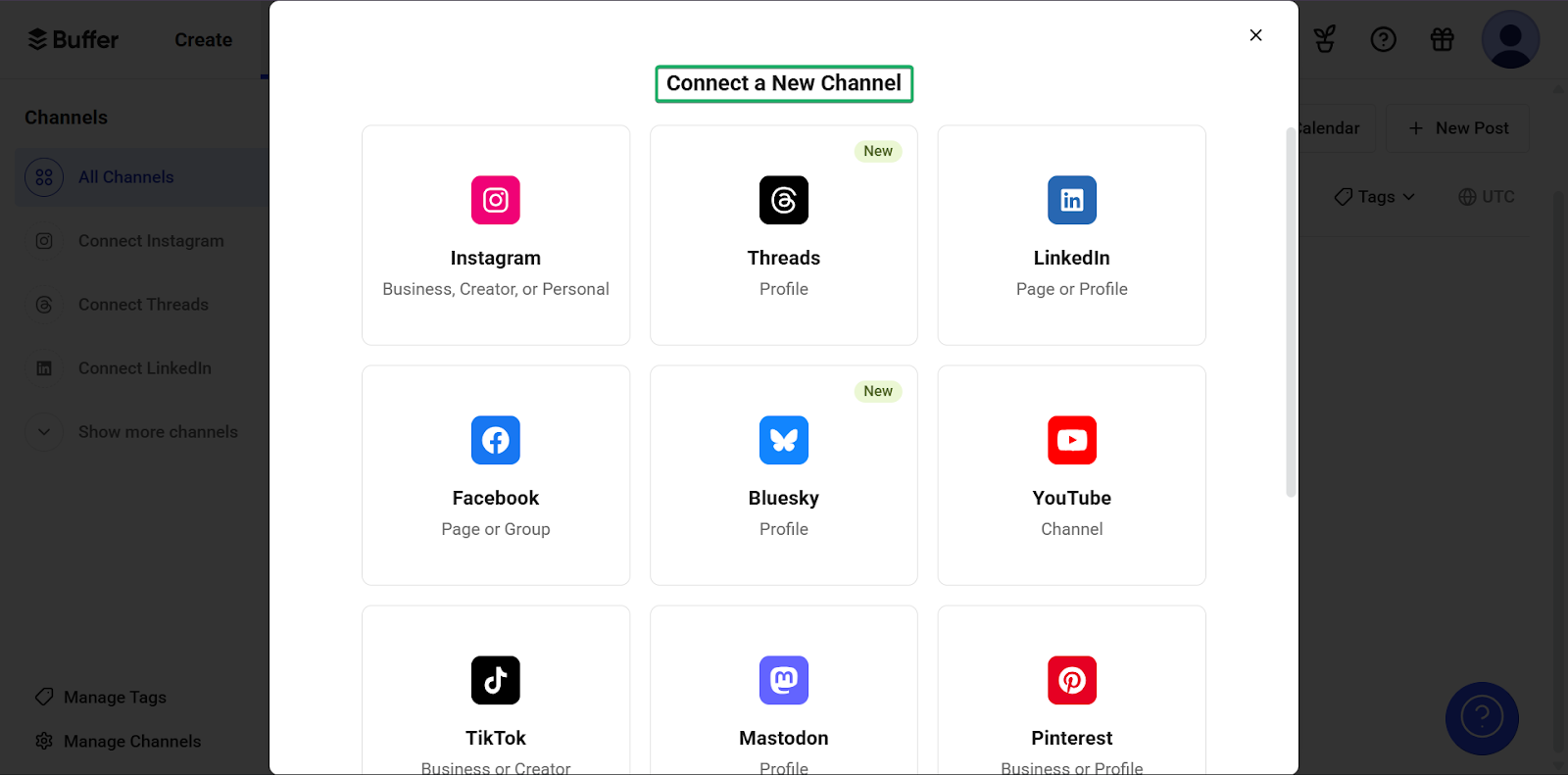
Buffer makes it seamless for creators to connect their social channels to a single dashboard.
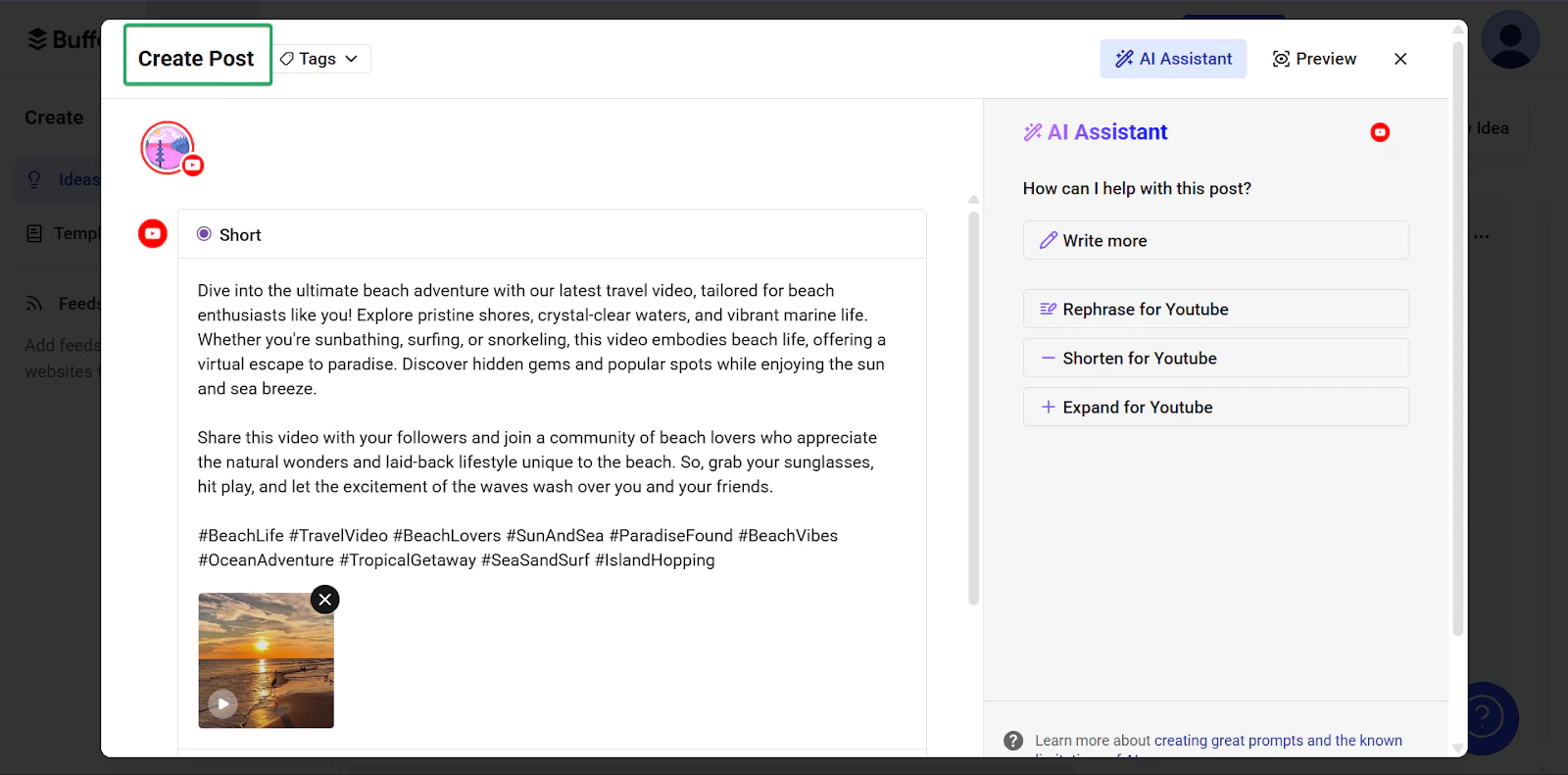
You can also create and schedule posts to share on your connected channels.
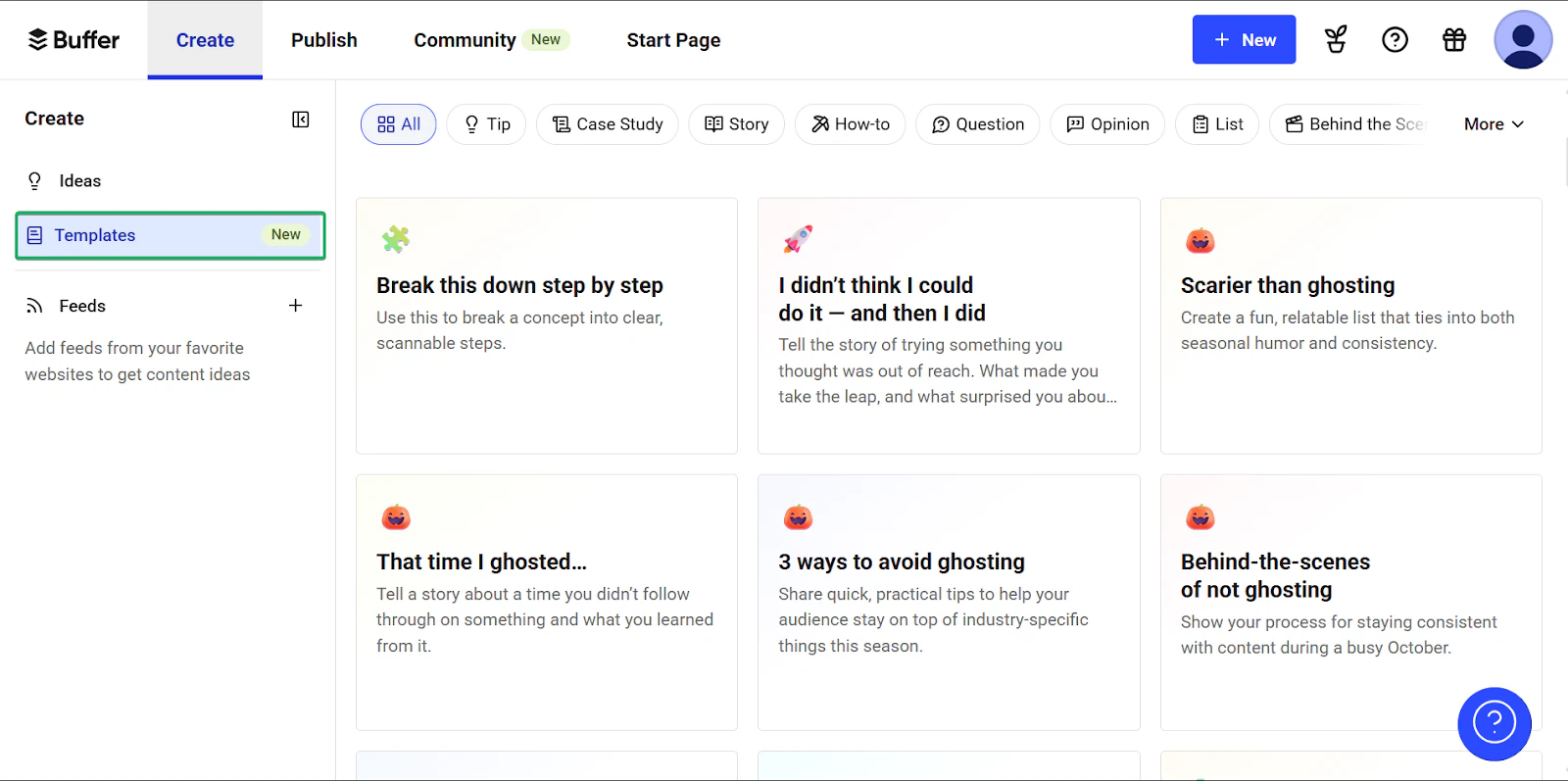
And if you want to create content faster, you can use templates. They’re especially useful for creating recurring content like weekly tips.
What I loved about Buffer
1. Connect a new channel
Connect a new channel is a feature that lets content creators connect multiple social media pages to one dashboard.
It’s quick and seamless, and once connected, you can manage posting across all your channels from a single source.
Let’s walk through how it works:
Under the “Publish” tab, click “Connect a Channel.”
But you can also connect directly to your social channels from the sidebar.
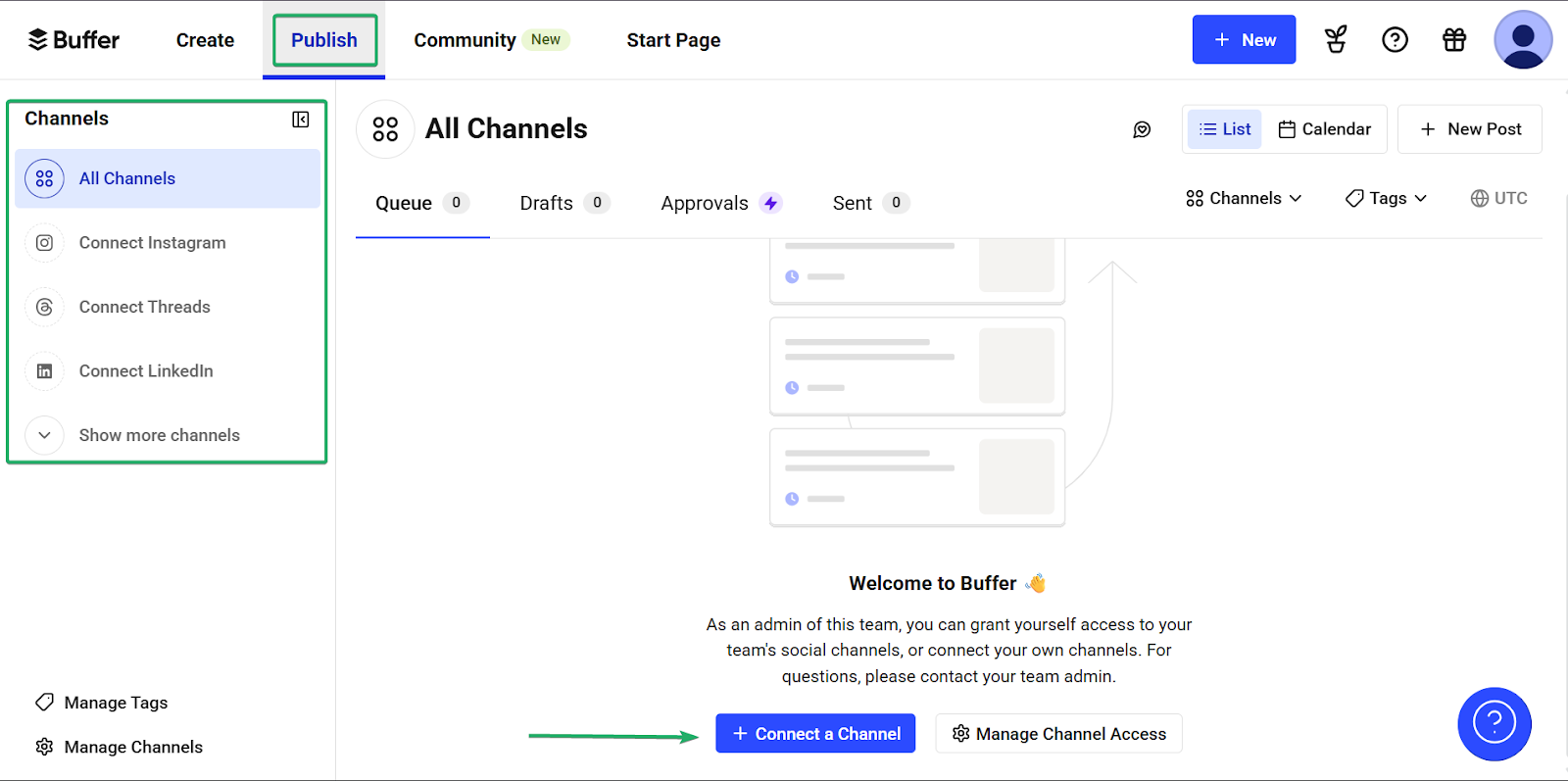
Next, select the channel you want to connect to.
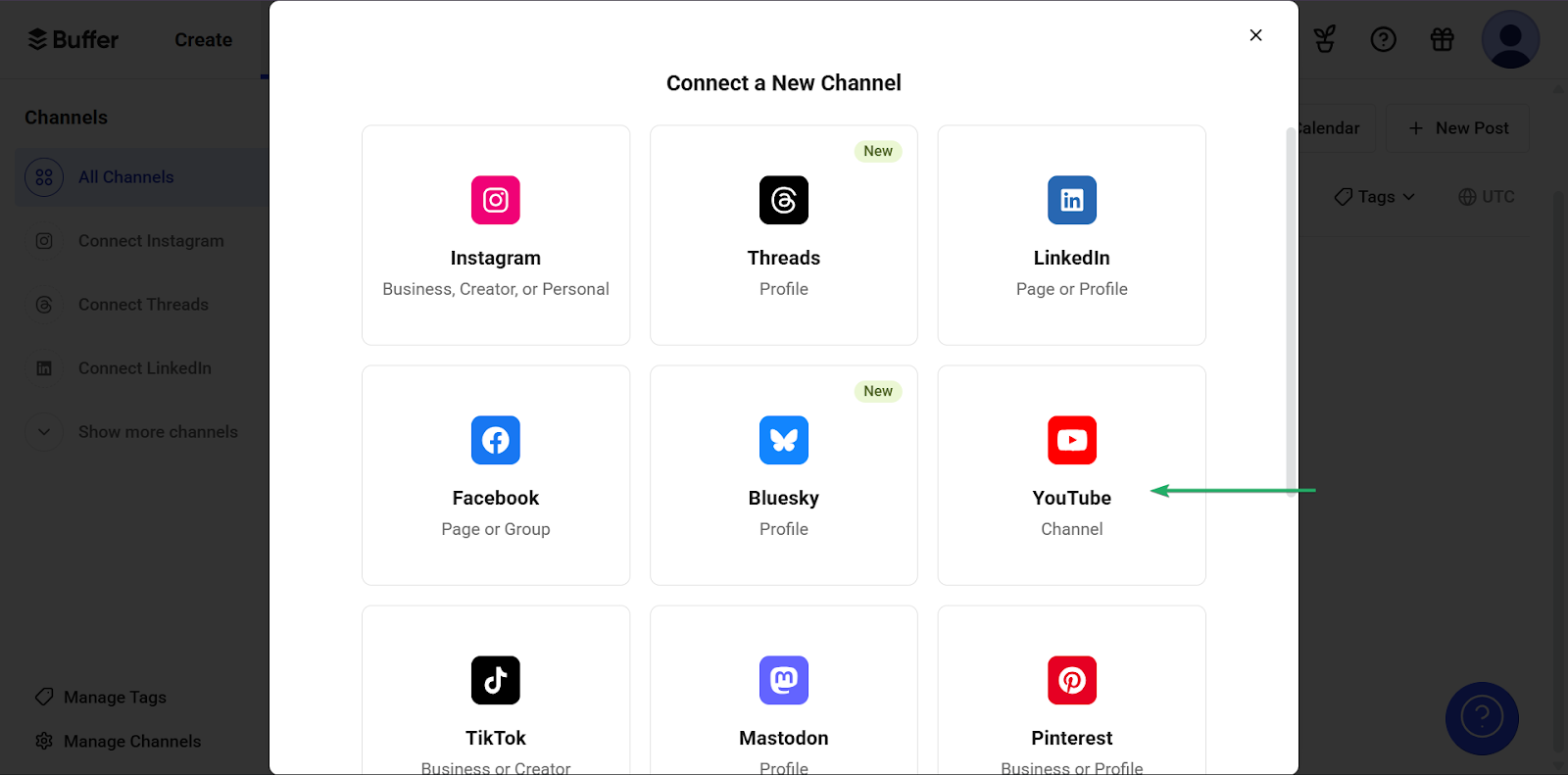
Then, click “Finish Connection.”
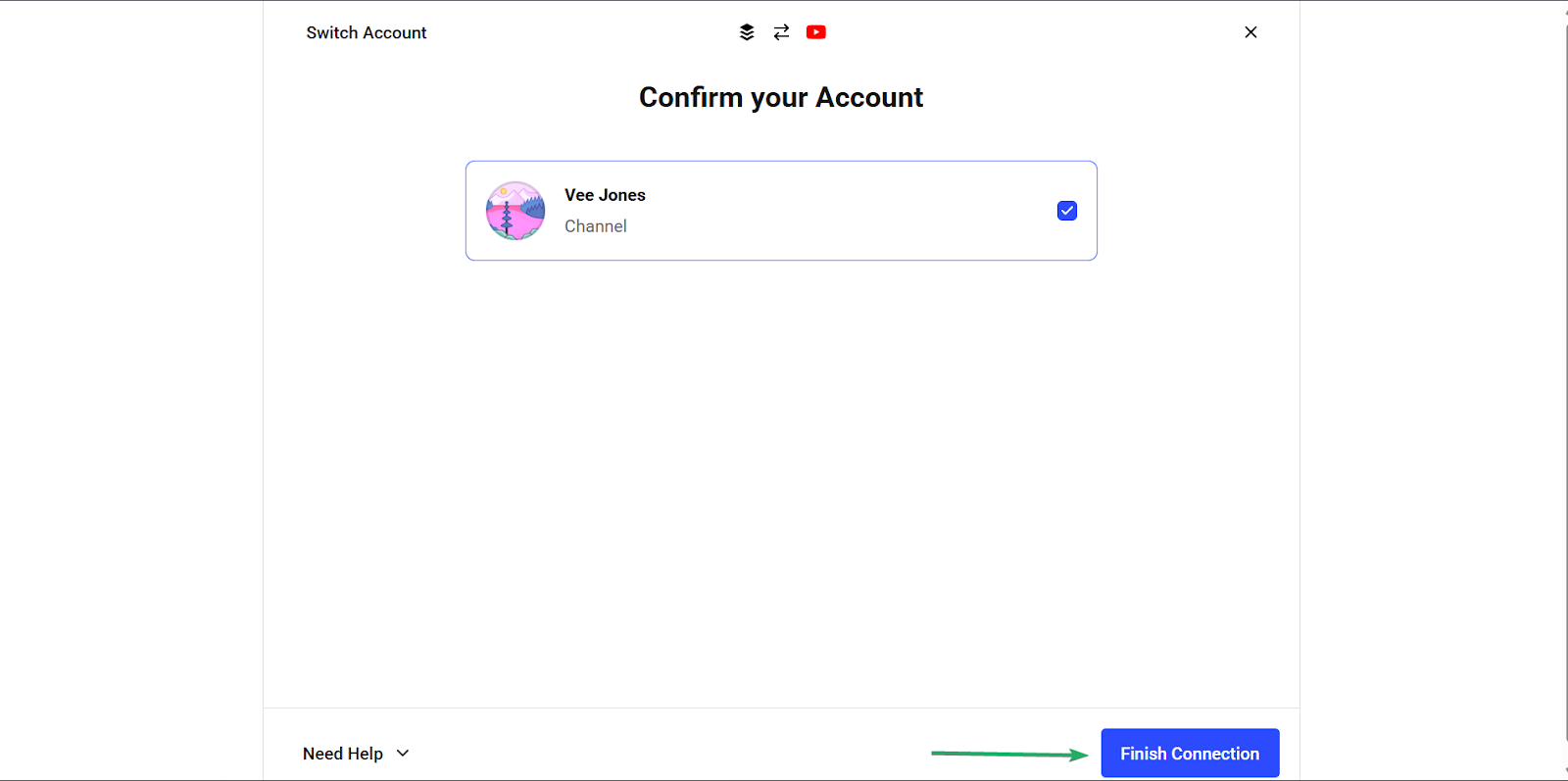
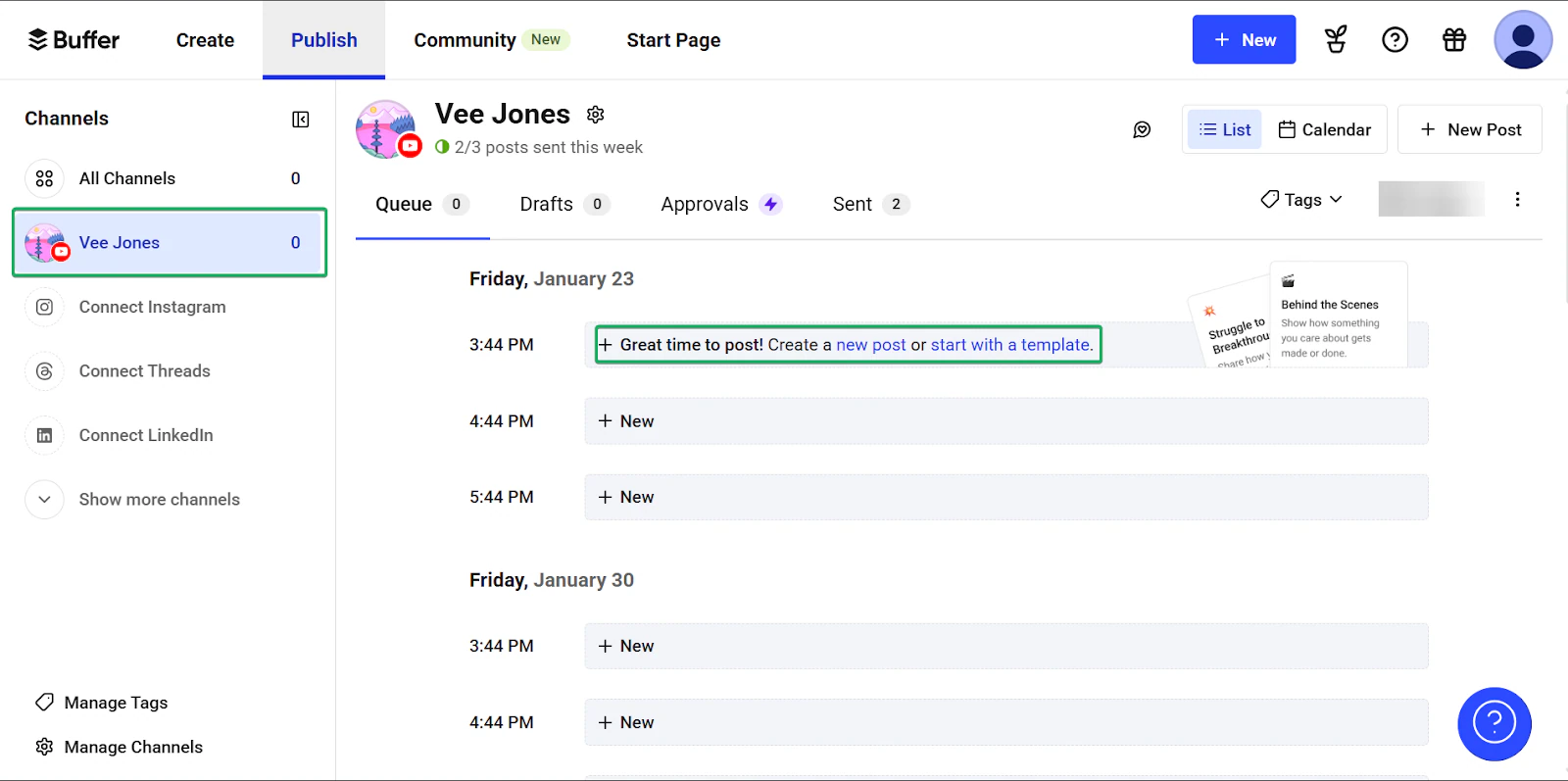
You can set how many times you want to post each week and the exact time of day for each post.
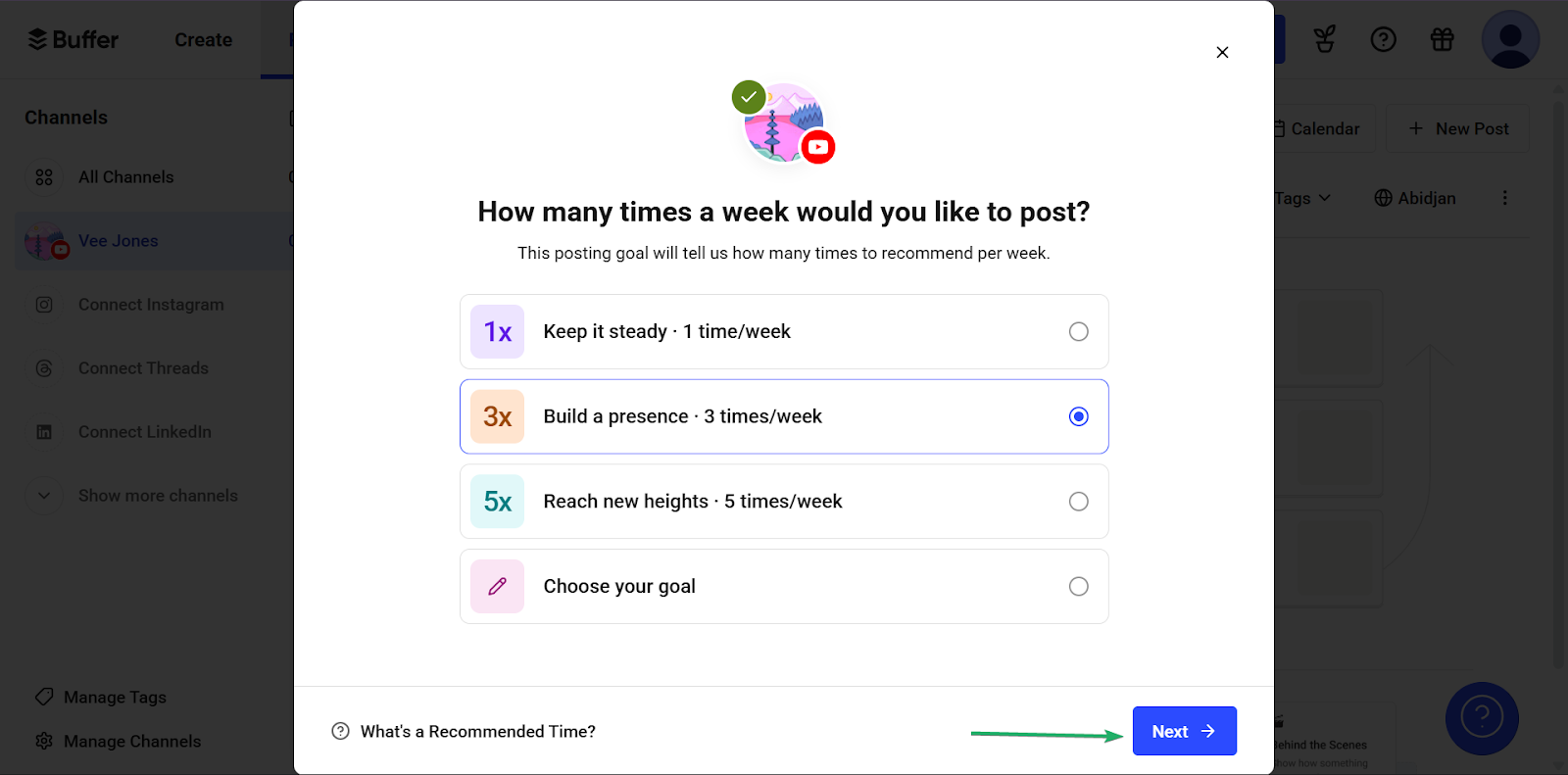
Once you’re connected, you can manage your posting schedule on your dashboard.
2. Post
Up next is Buffer’s post feature. It lets you create and schedule posts for different platforms inside Buffer.
Let’s see how it works:
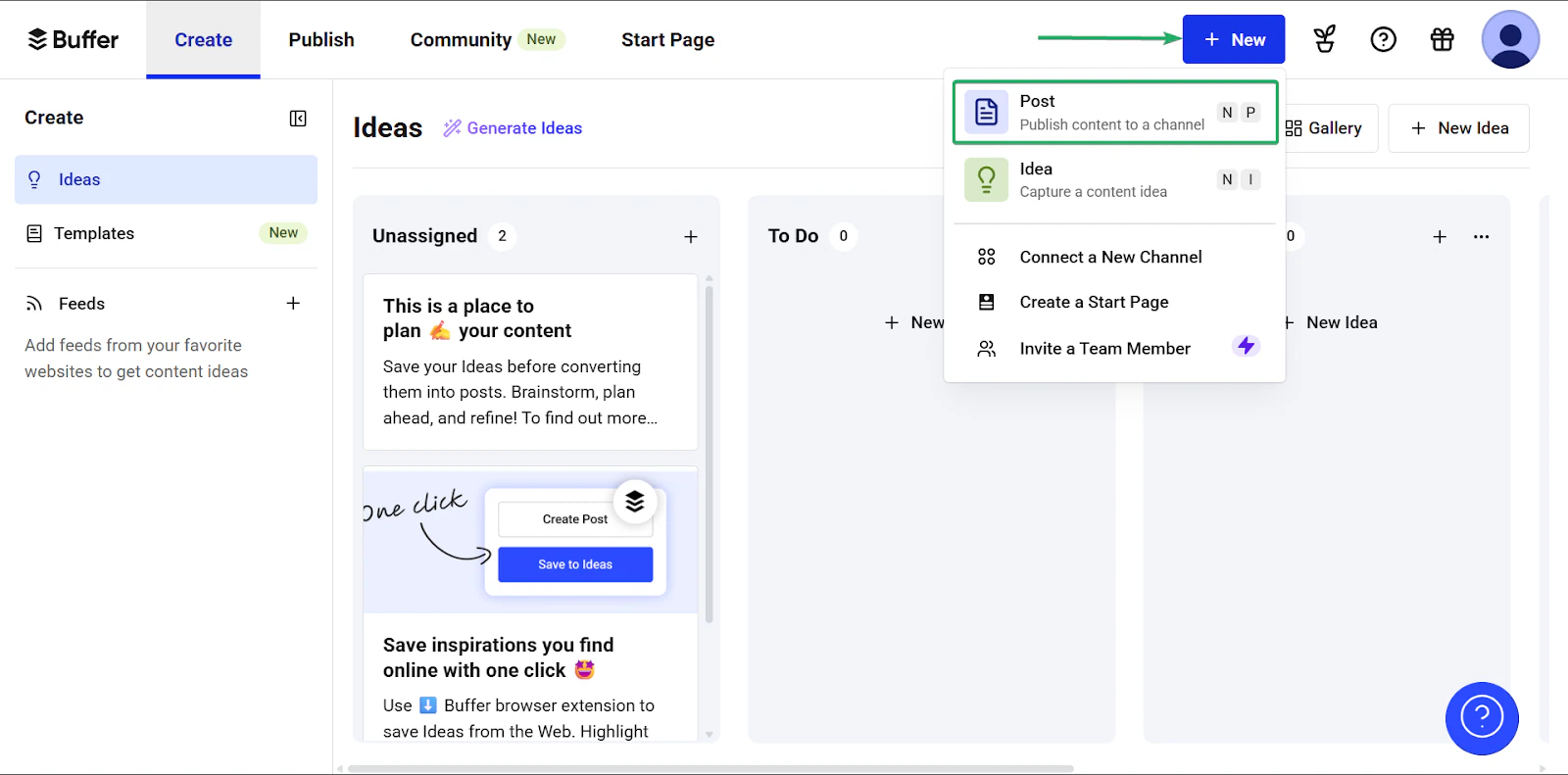
On the homepage, click “+ New” and select post.
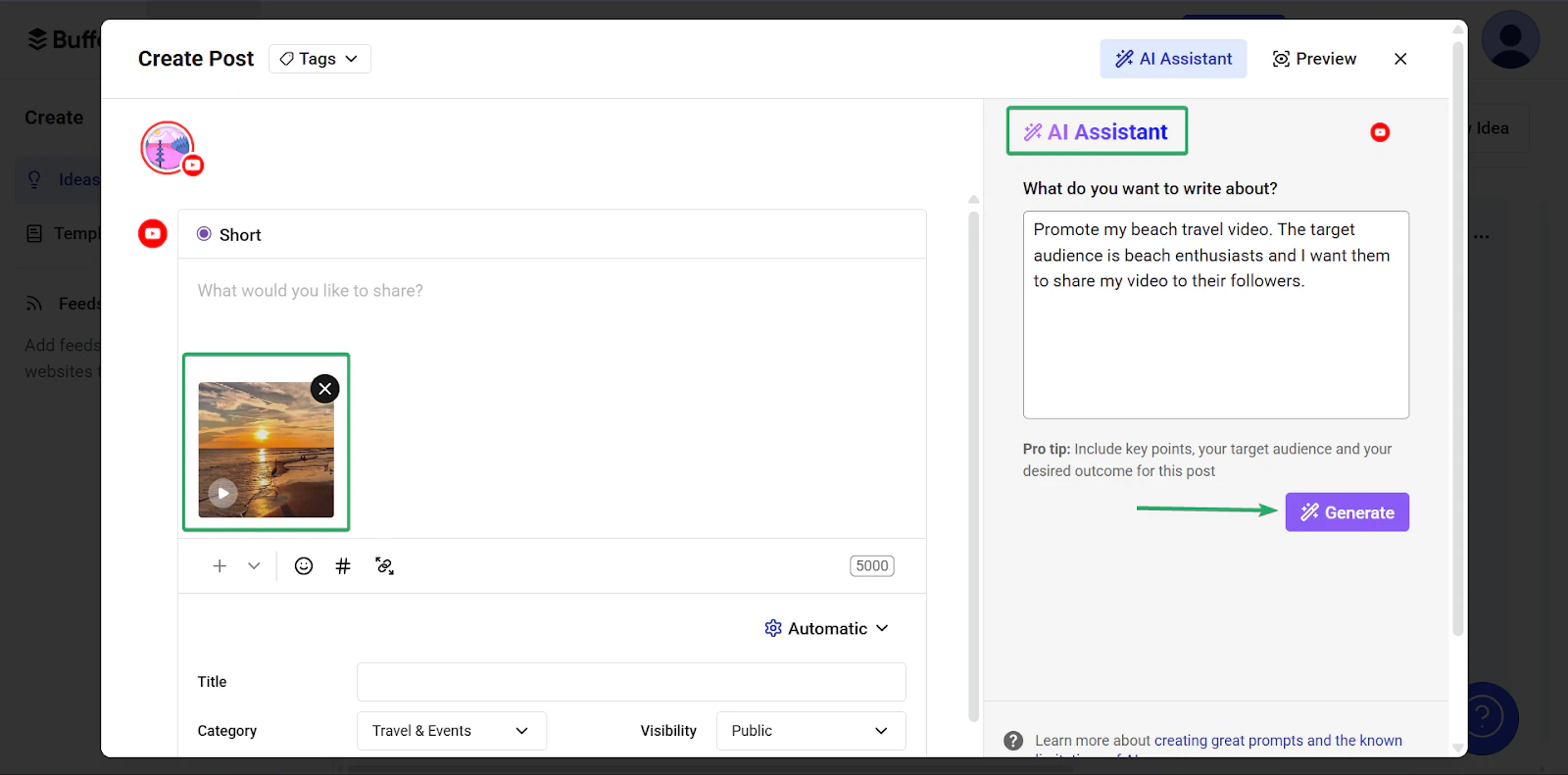
In the editor, you can upload your content and write captions.
You can also use Buffer’s AI assistant to generate captions for you.
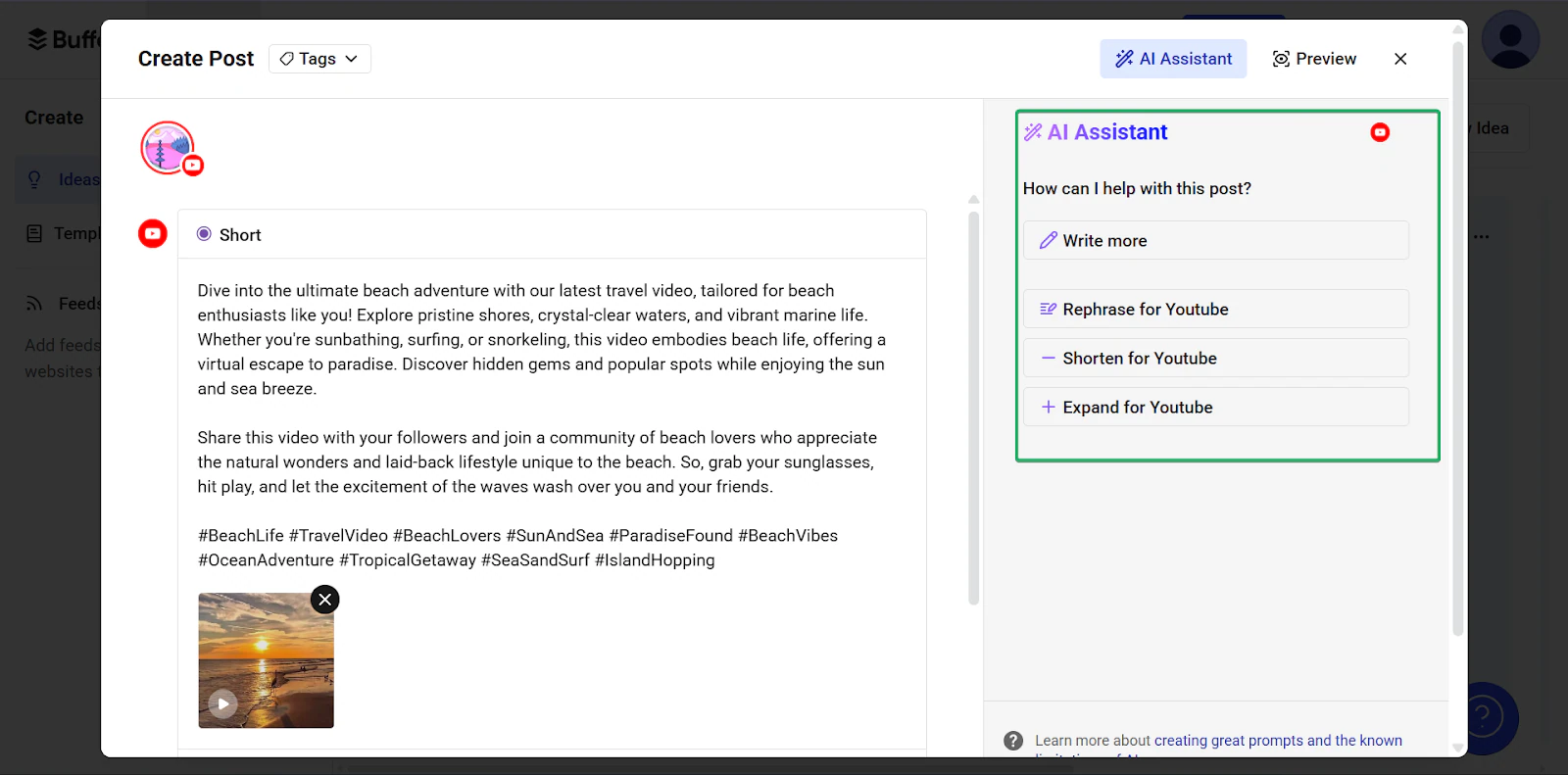
You can edit the caption that the AI assistant creates. You can rephrase, shorten, or expand captions before scheduling your post.
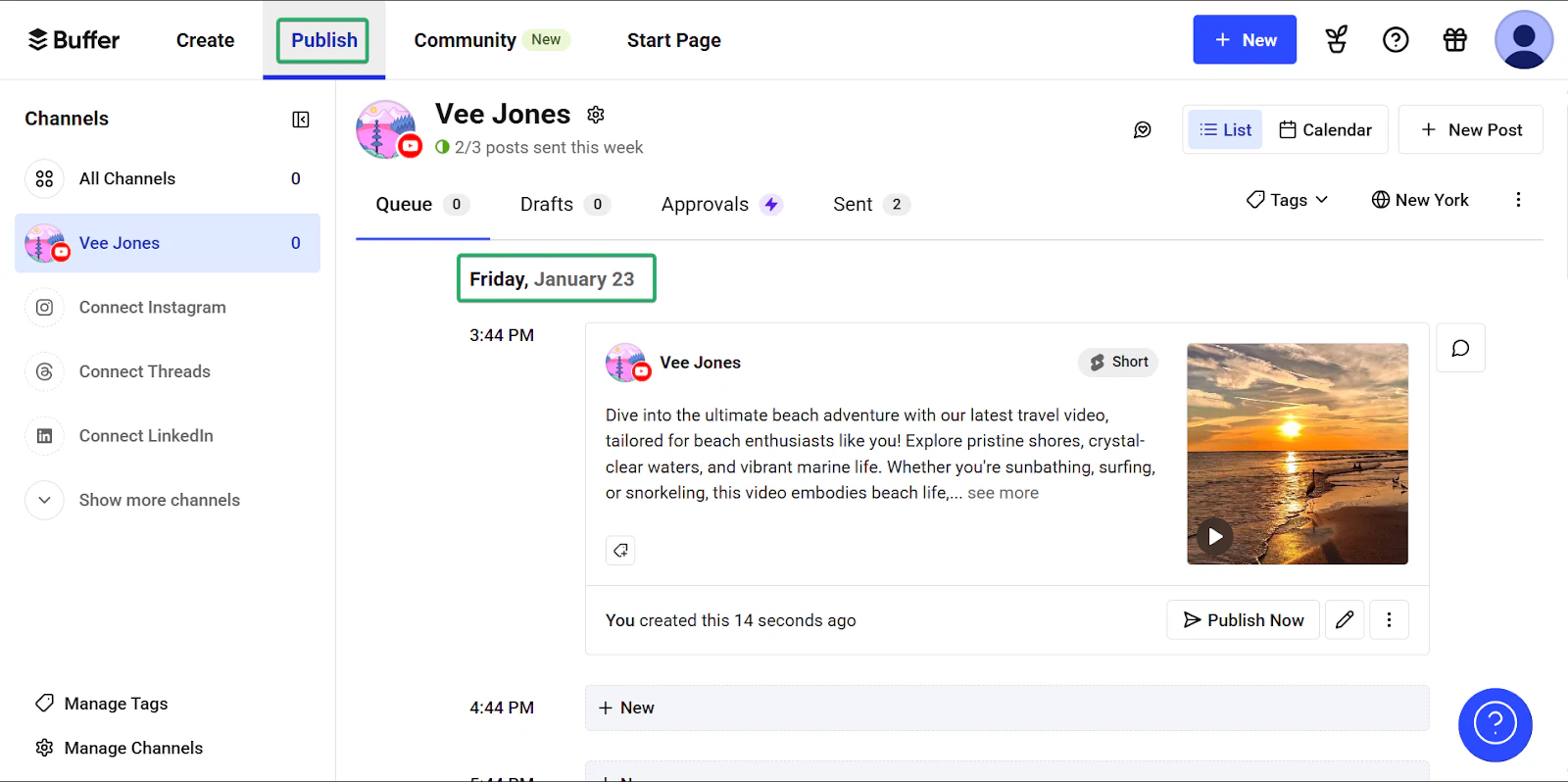
After that, your scheduled post will appear on the post lineup under the “Publish” tab.
3. Templates
Buffer’s templates feature lets creators reuse post structures and captions. It has 80+ templates across categories like how-tos, tips, opinions, and behind-the-scenes.
It’s useful for repetitive content like announcements and weekly tips.
Let’s go through how to use this feature:
Click “Create” in the navigation bar and select “Templates.”
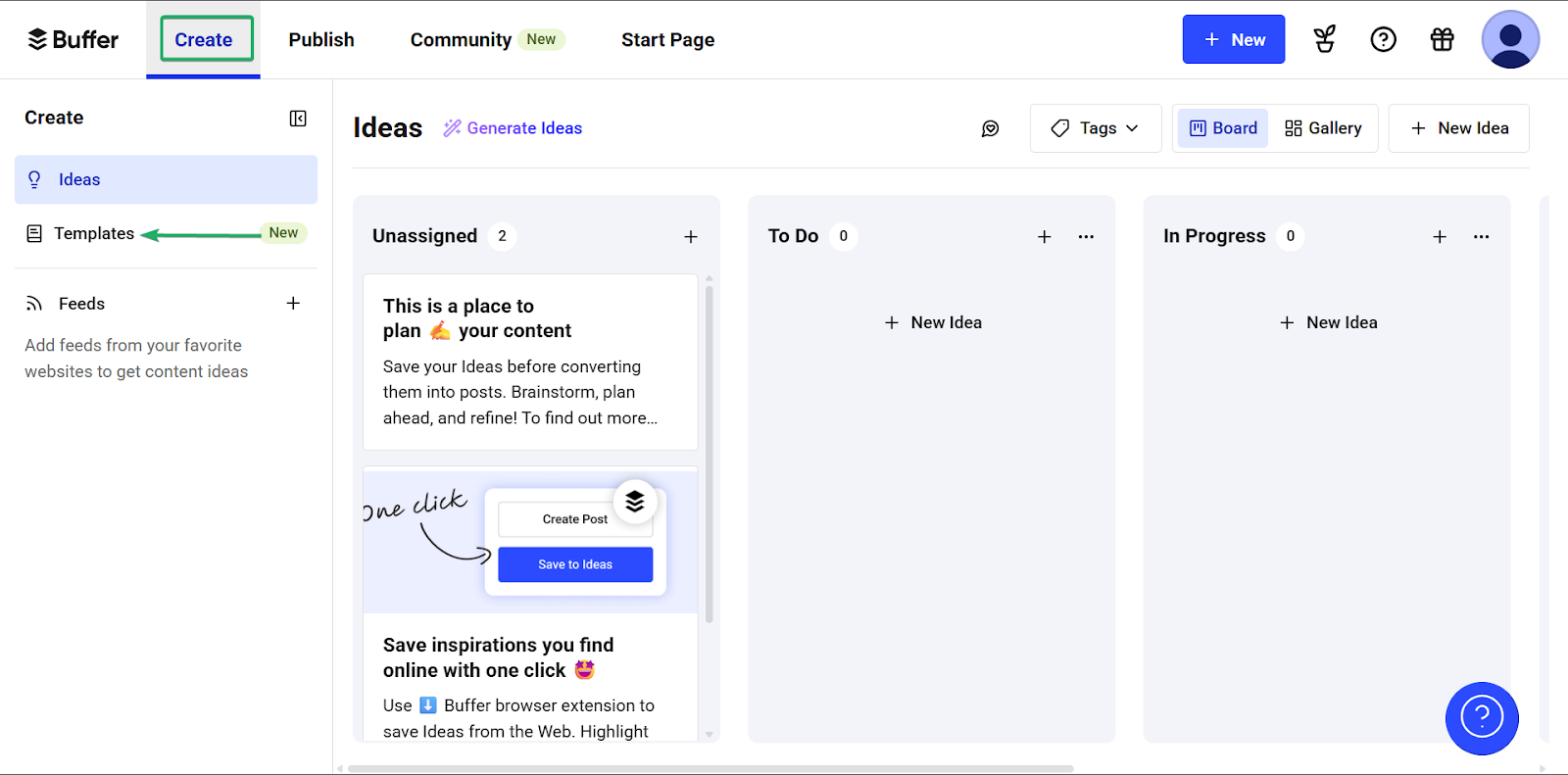
Next, select and use a template.
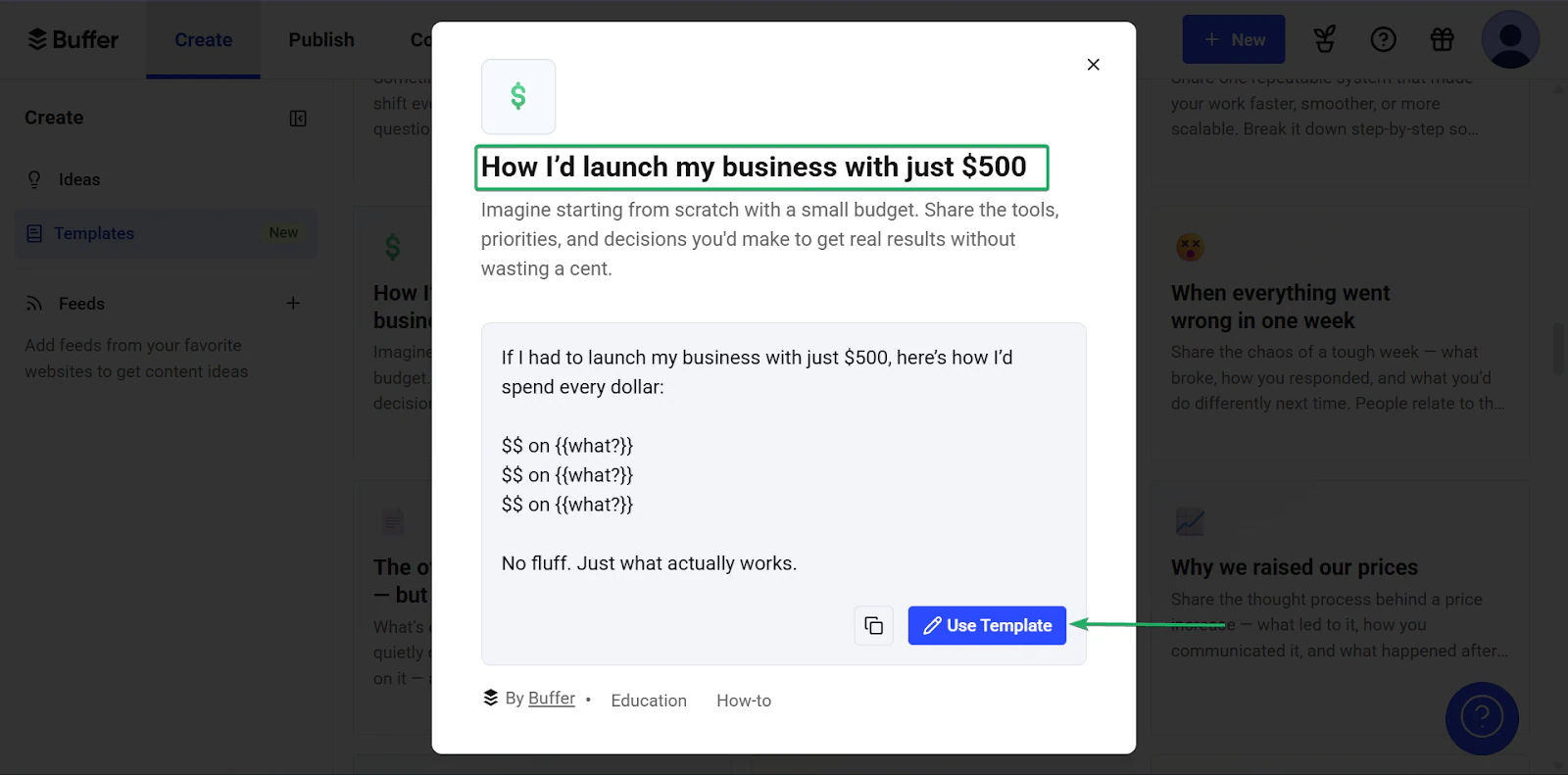
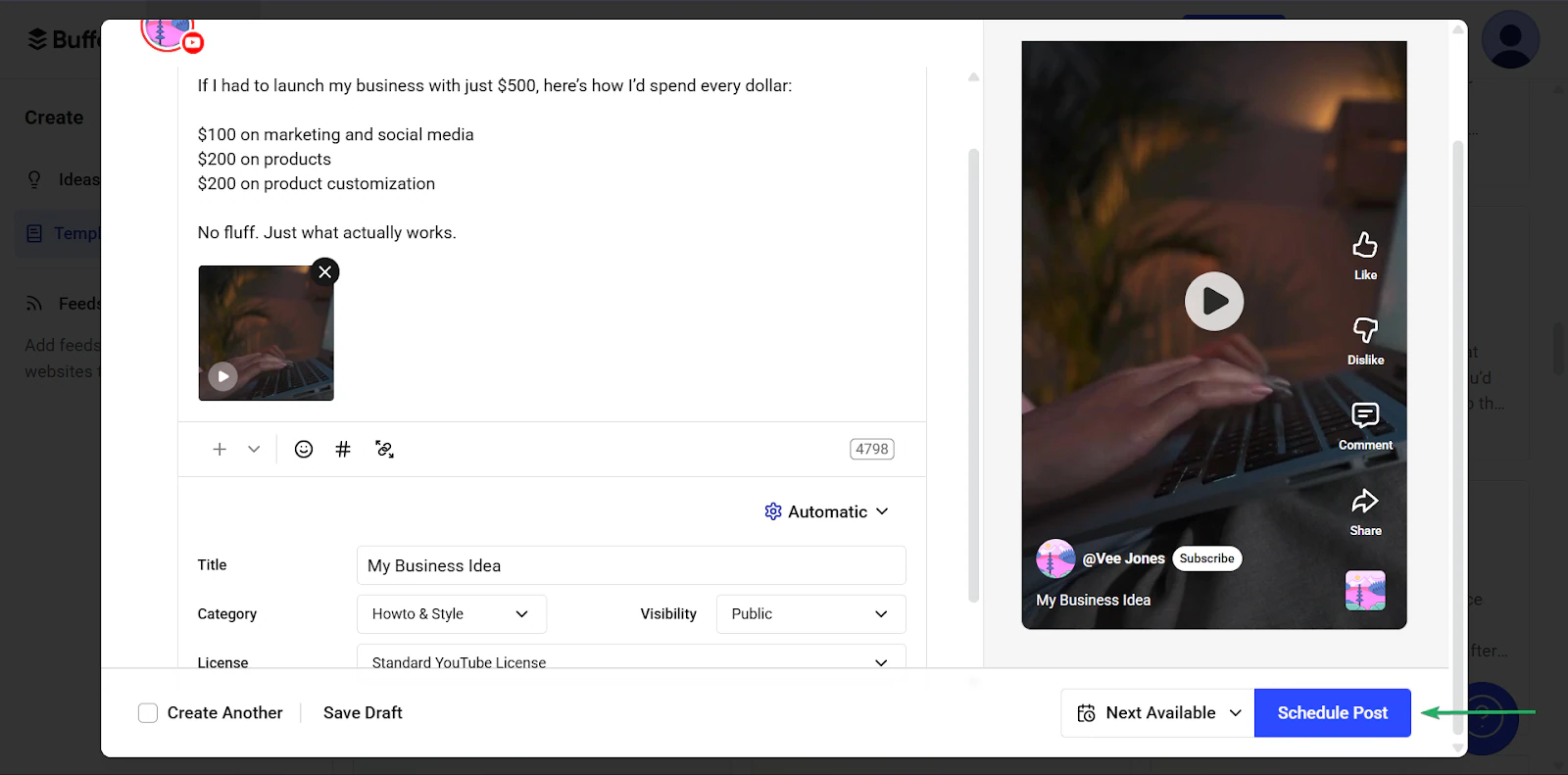
Then, edit the text to fit your brand and content.
Hit “Schedule post” when you’re done.
What I loved vs what I struggled with
What I Loved 👍
✅ Simple to use and very beginner-friendly.
✅ Supports multiple social media platforms.
✅ Templates save time on repetitive posts.
What I struggled with 👎
❌ Can feel unnecessary if you only manage one account
❌ Limited analytics on free plan
Best for
- Social media managers in charge of multiple social accounts needing consistent posting and analytics
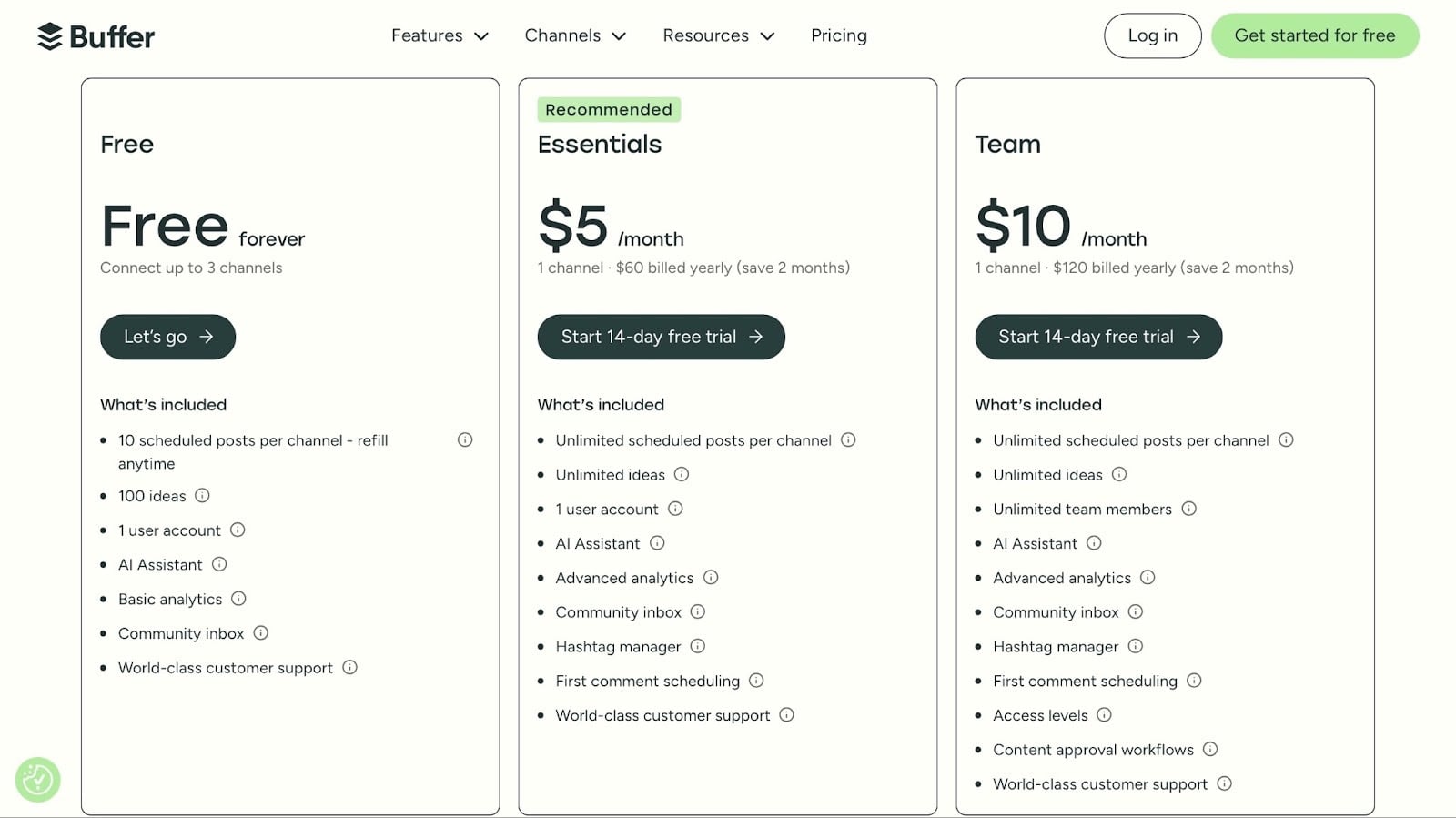
Pricing
- Free: $0/month
- Essentials: $5/month
- Team: $10/month
8. beehiiv
📑 Content type: Newsletters | ⚙️ Key features: Publishing, analytics, referrals, ads, subscriptions | 🔗 Distribution: Share links, embeds, integrations | 💳 Monetization: Paid newsletters, sponsorships, affiliates | 🌱 Growth: Email capture, subscriptions | 💰 Starting fee: Launch: $0/month + up to 2,500 subscribers
We can’t ignore beehiiv when discussing the best content creator platforms.
beehiiv is an all-in-one newsletter platform that helps creators create, manage, and scale email newsletters. It offers built-in monetization options, including paid subscriptions and referral programs.
You can also use beehiiv to build and customize a website.

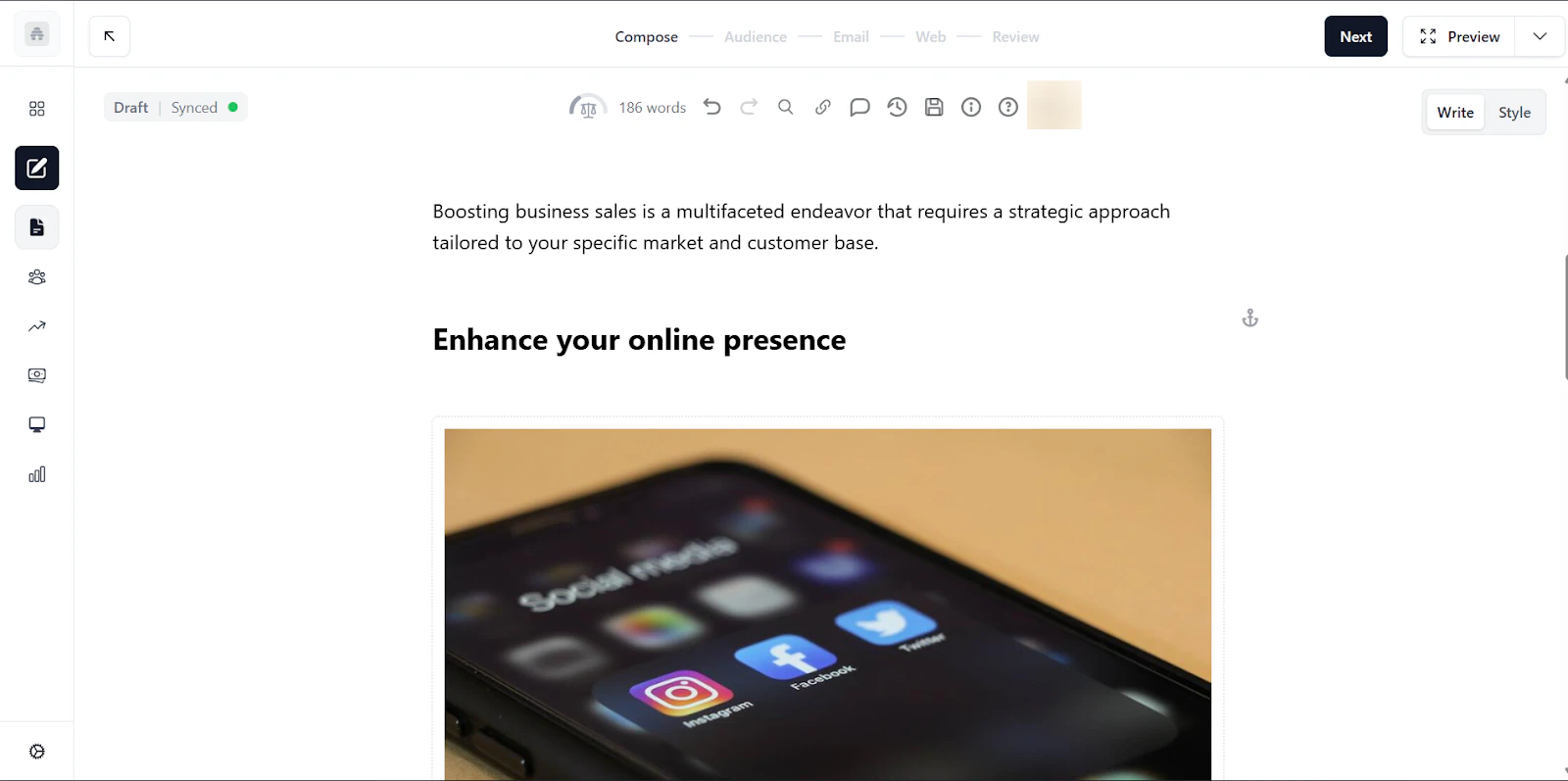
With beehiiv, creators can write and publish newsletter posts thanks to its simple editor.
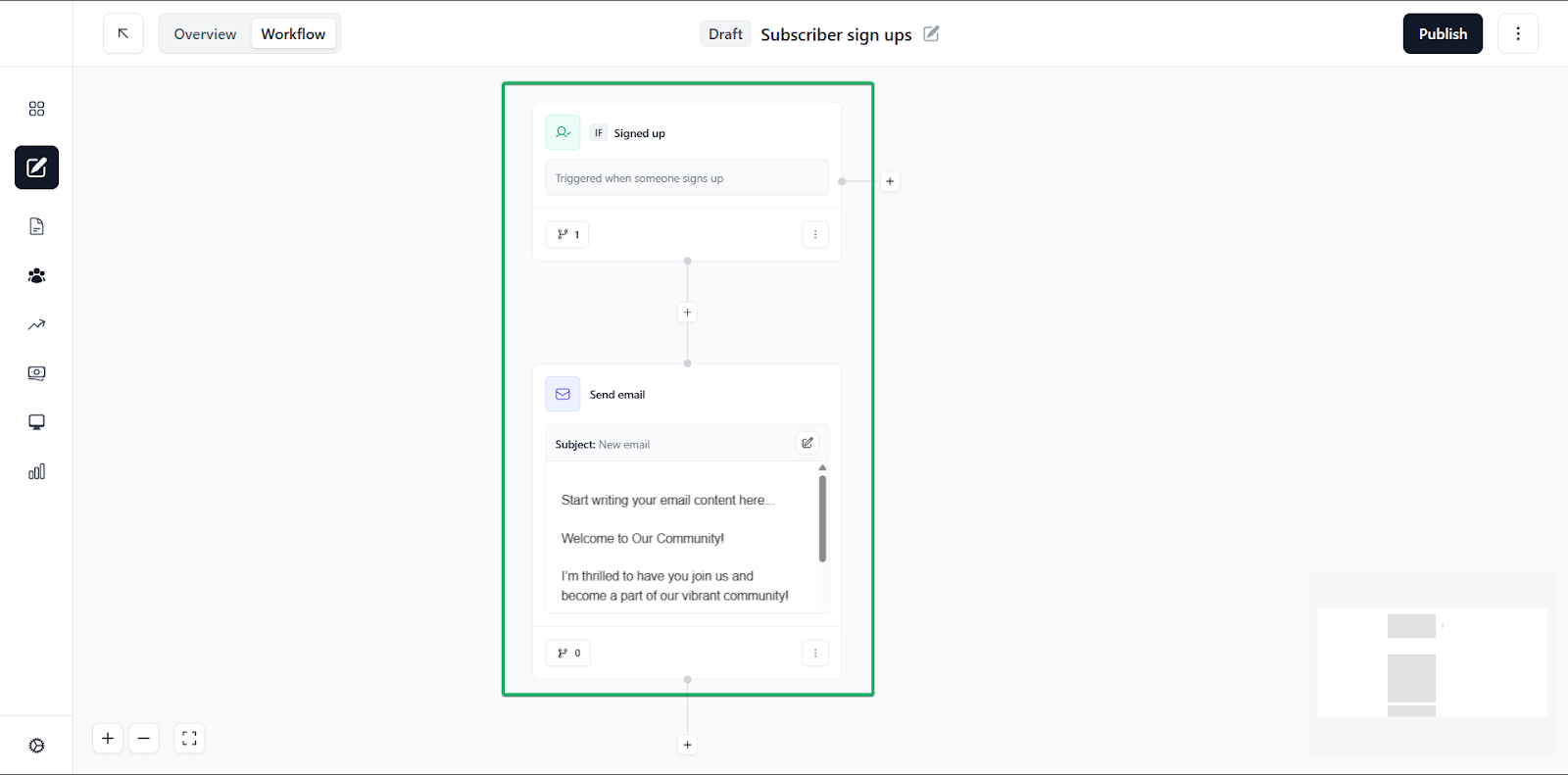
Another good feature of the platform is its automations.
This lets creators sit back while beehiiv handles routine tasks, like sending welcome emails to new subscribers.
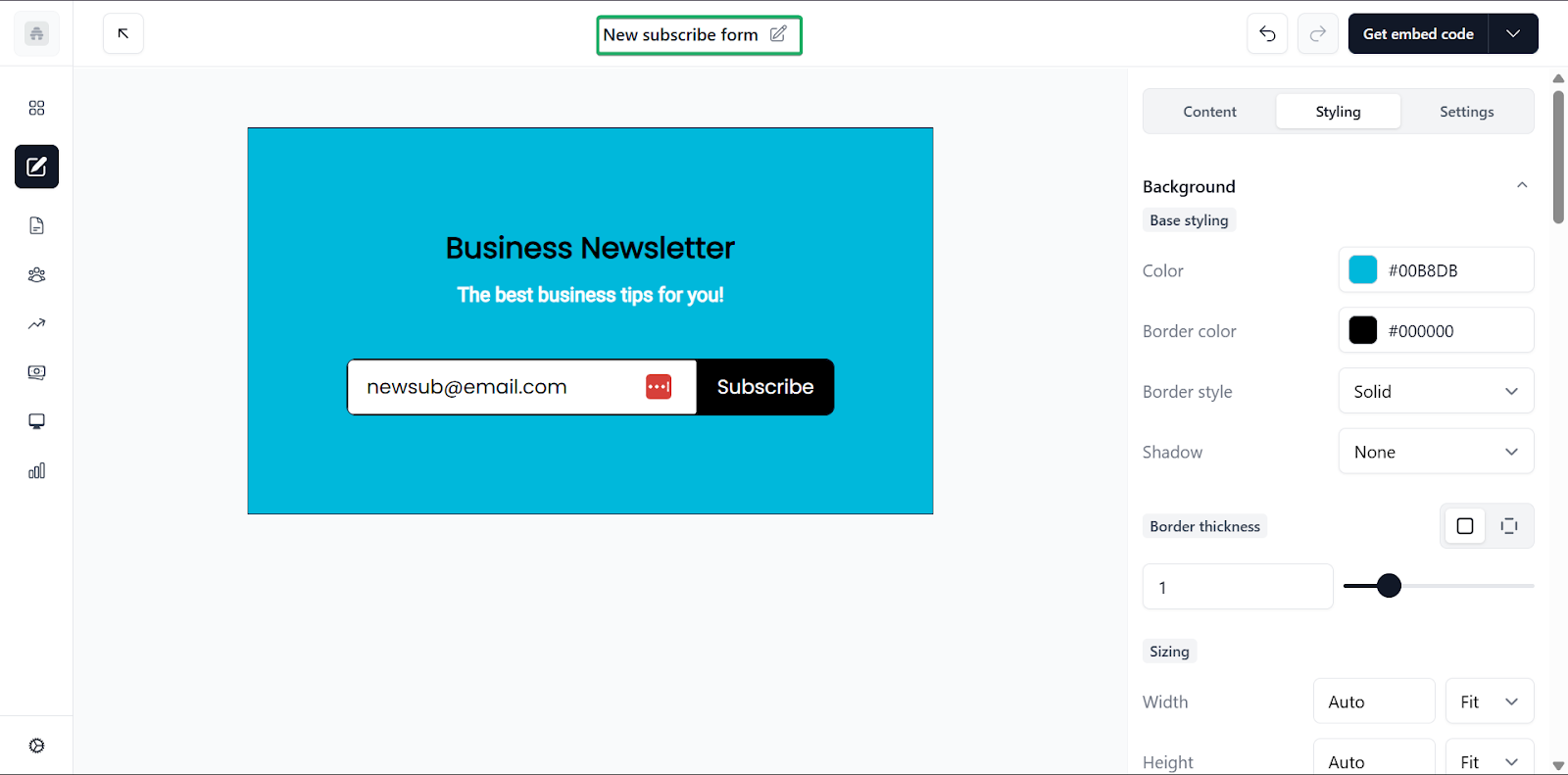
And finally, creators can use subscribe forms to grow their newsletter mailing list.
What I loved about beehiiv
1. Posts
Posts is a feature on beehiiv that lets creators write and publish newsletters. You can send these posts as emails, publish on the web, or even do both.
That gives you a lot of flexibility in how you share your content.
Let’s see how it works.
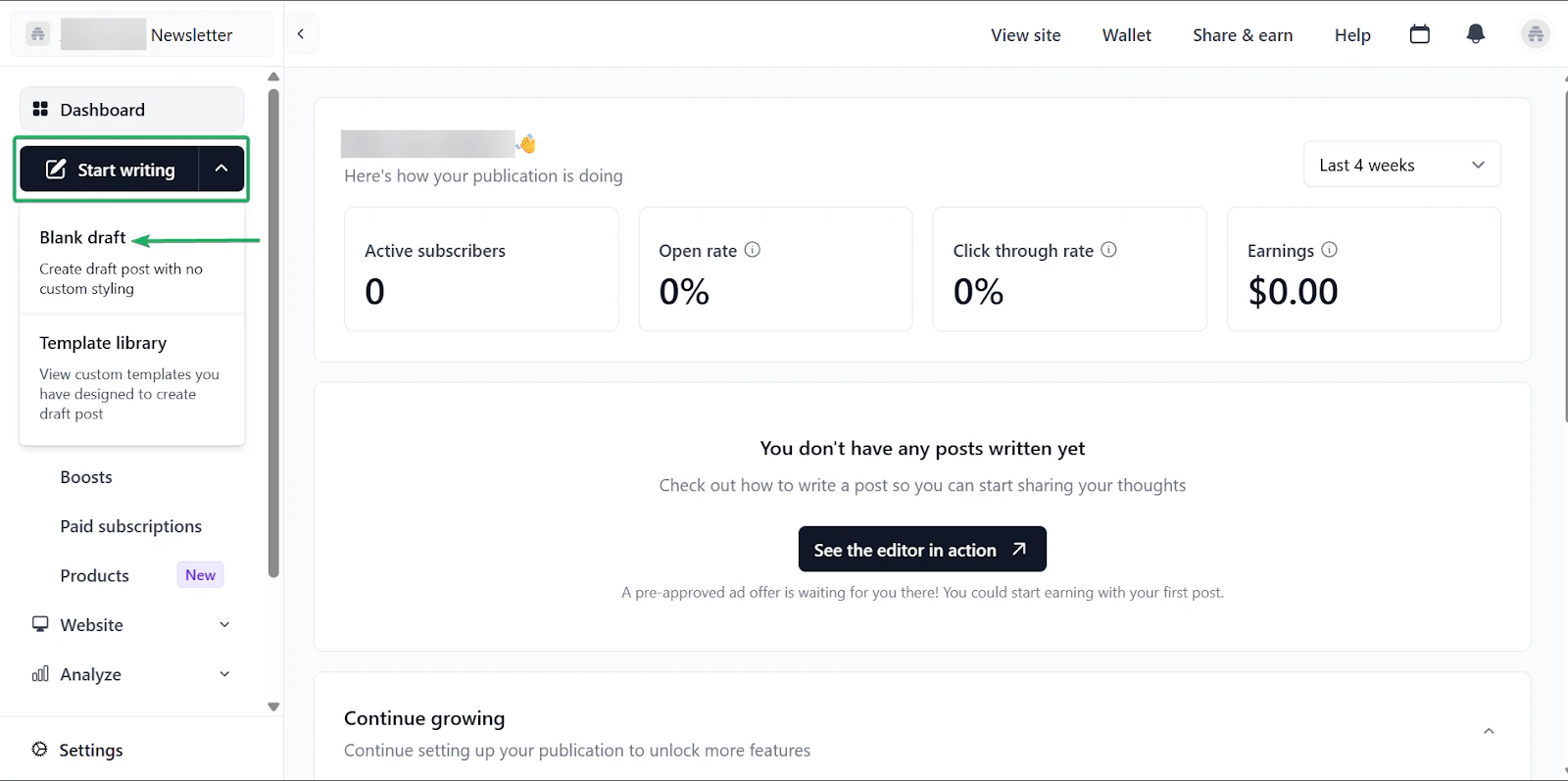
On the homepage, head to “Start writing.” You can choose to write from scratch or select a template.
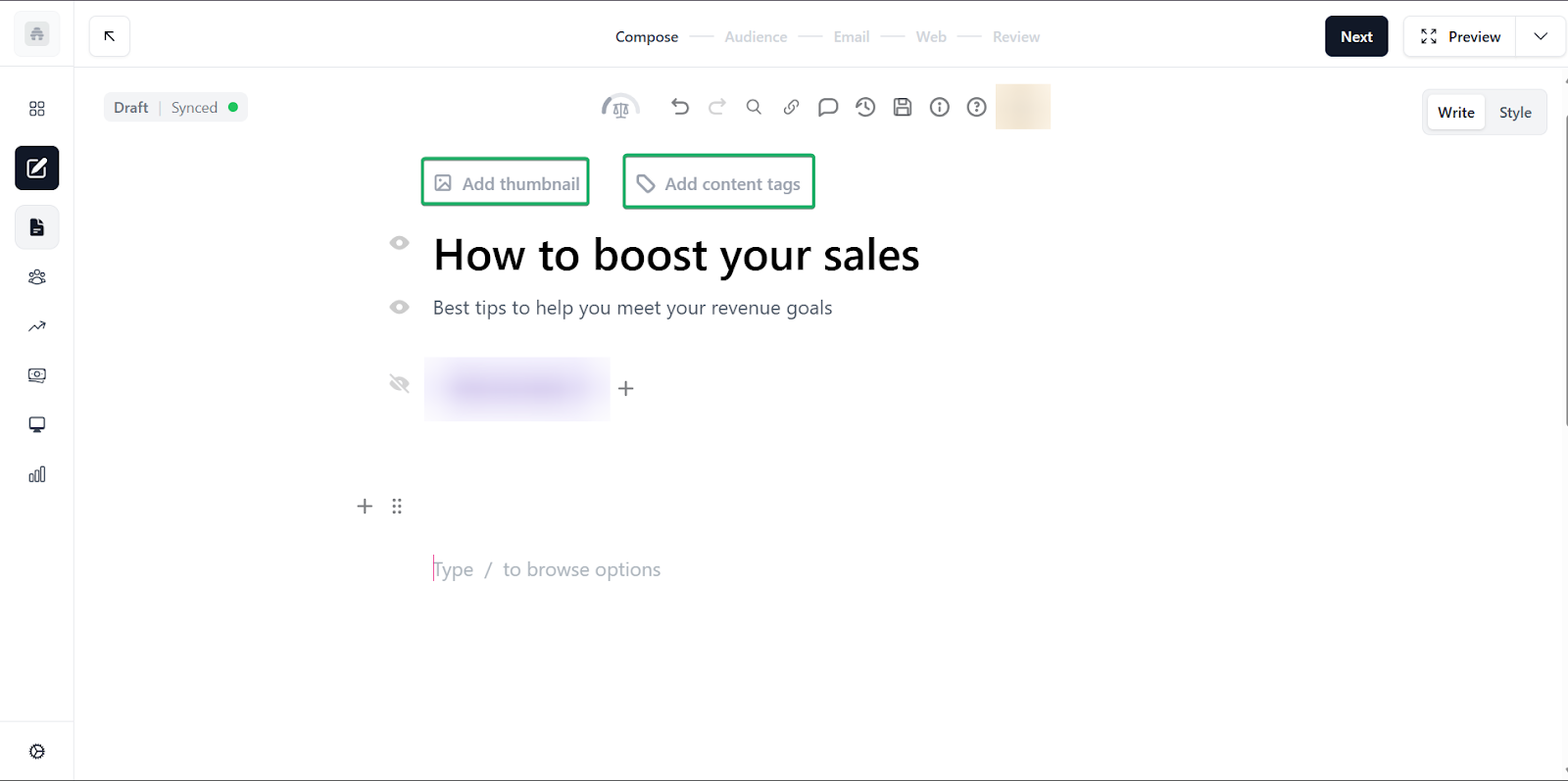
Next, give your newsletter a title and subtitle.
You can also add a thumbnail and content tags.
Content tags help you categorize your newsletter content so it’s easy to find.
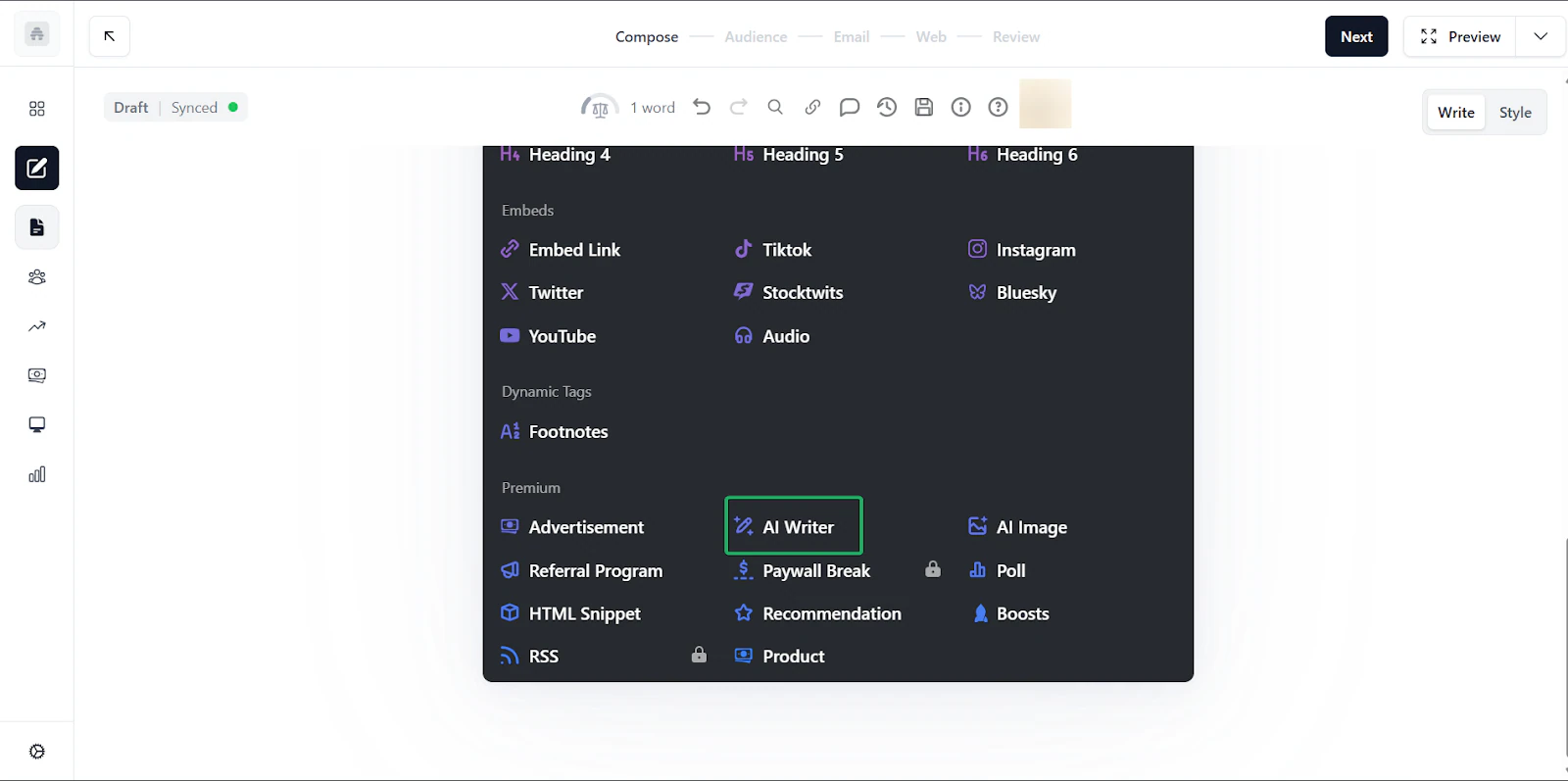
While drafting your newsletter, you have access to a wide range of beehiiv tools to help you create well-structured content.
You can add links, images, and headers, and use beehiiv’s AI writer to generate content.
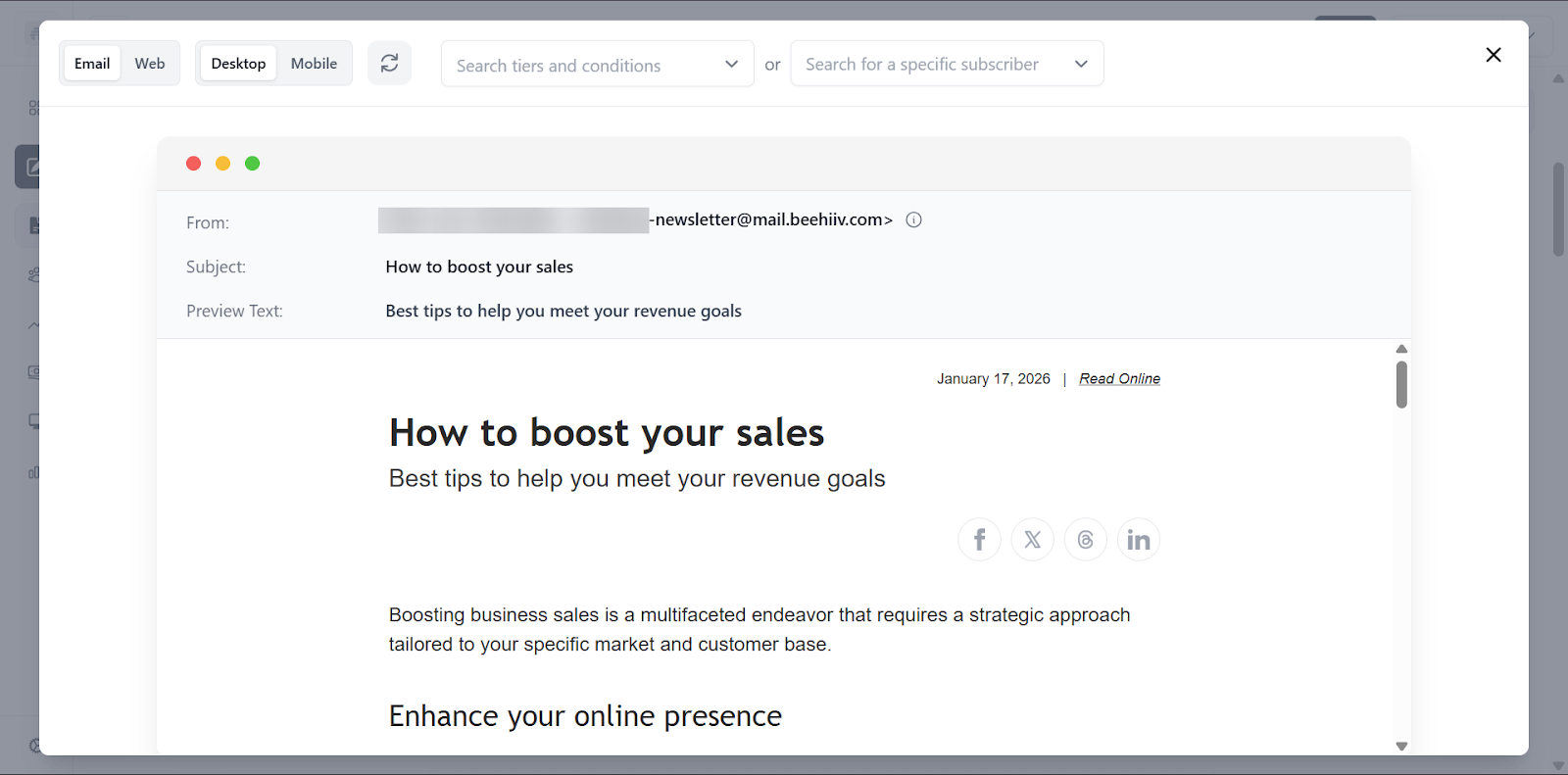
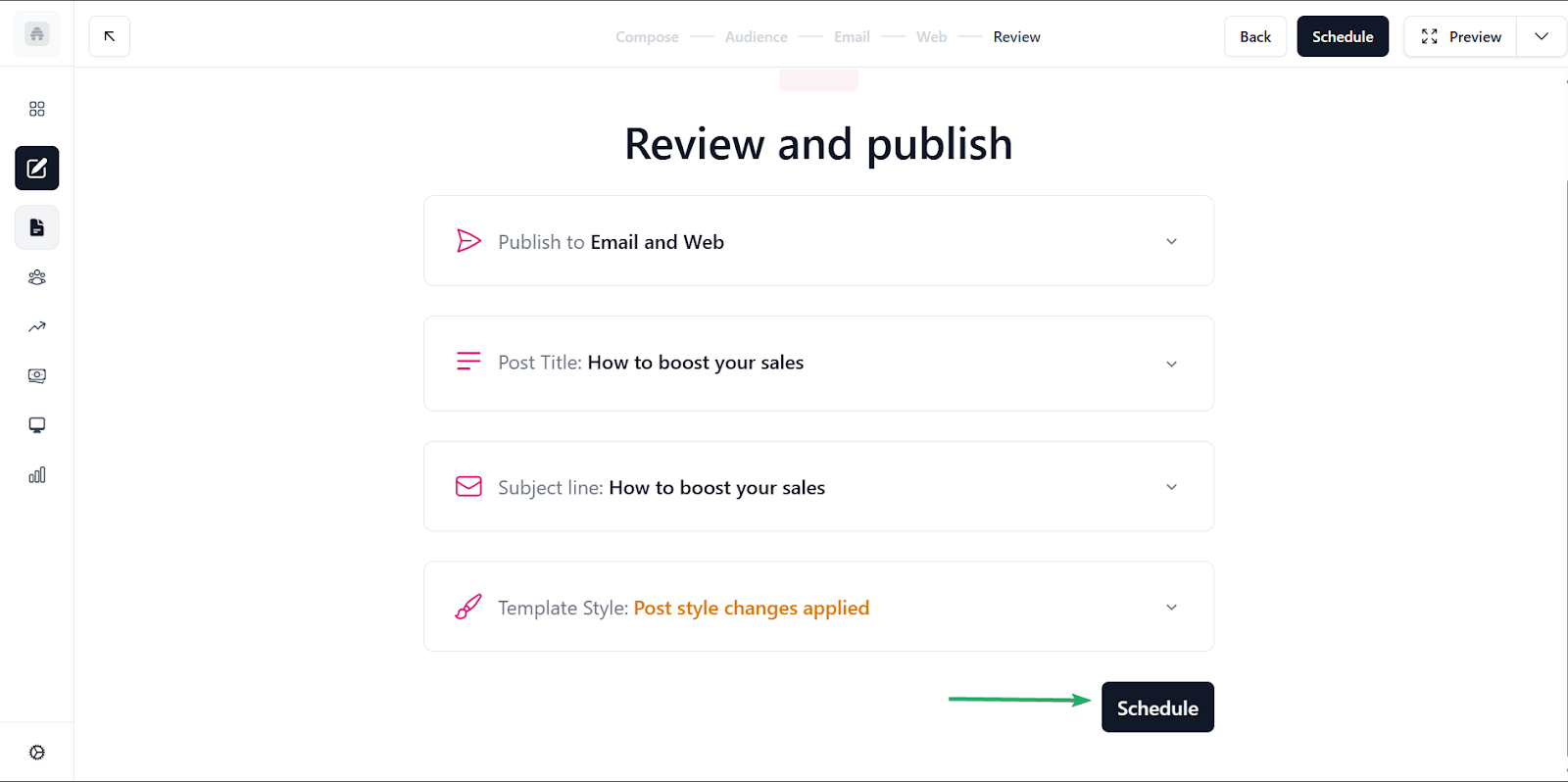
Once you’re done, you can preview your newsletter before posting.
Finally, you can schedule your post or post it immediately.
2. Automations
The automation feature enables content creators to automate routine tasks, like sending emails.
For example, when someone subscribes to your newsletter, beehiiv can automatically send them a welcome email.
Let’s set up an automation on beehiiv.
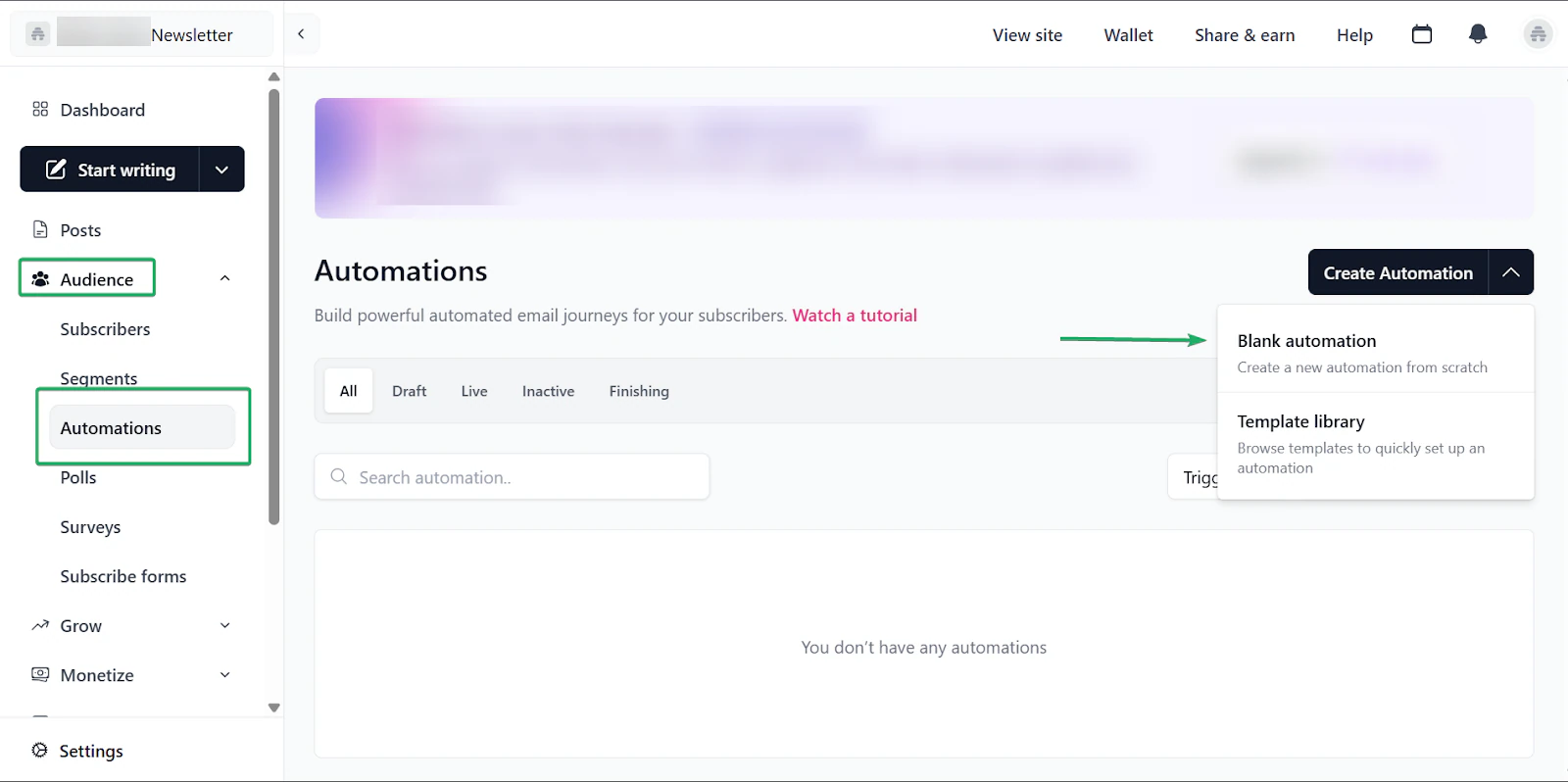
Select “Audience”, choose “Automations,” and click “Create Automation.”
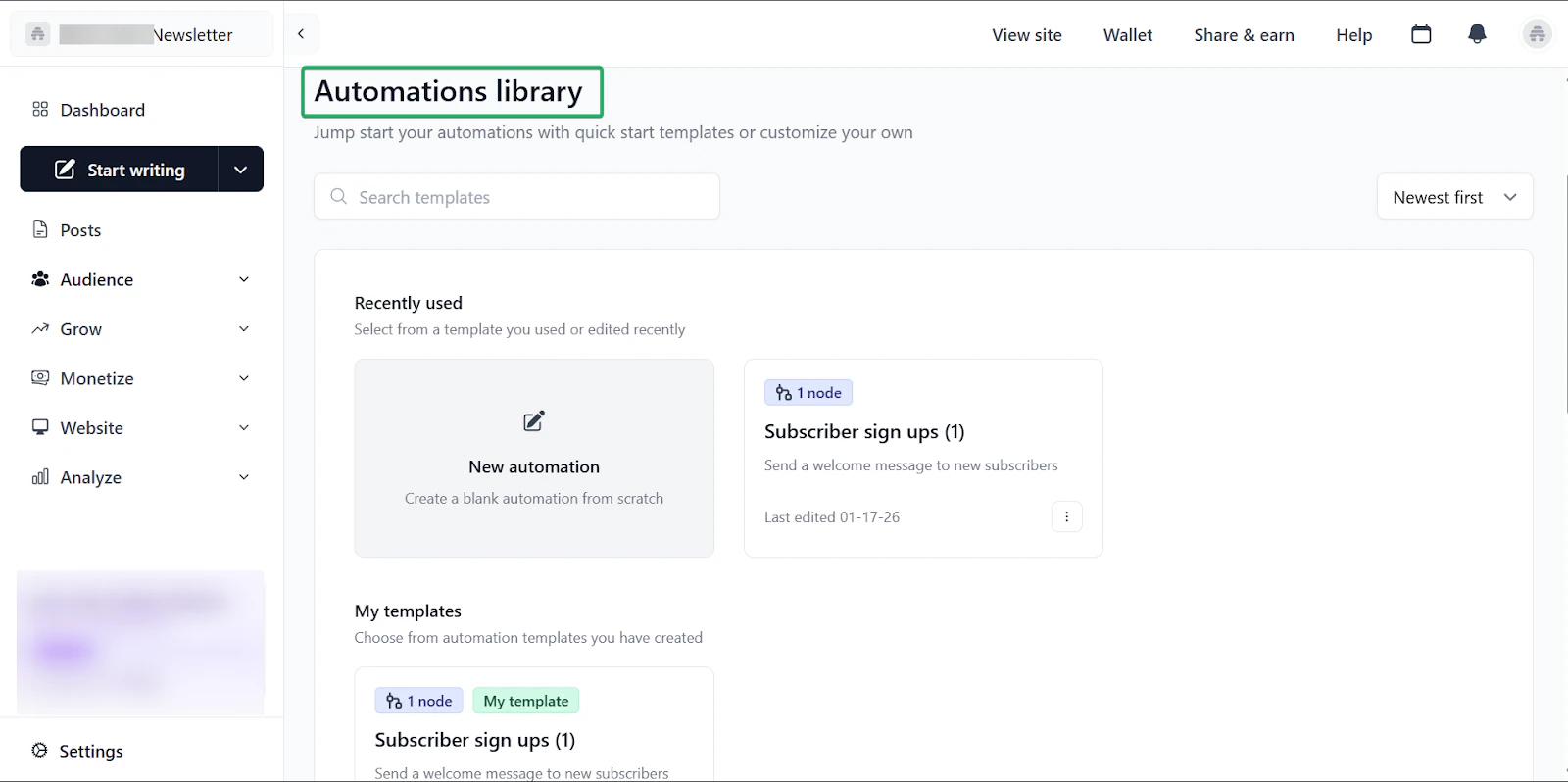
You can create from scratch or select an automation from the template library.
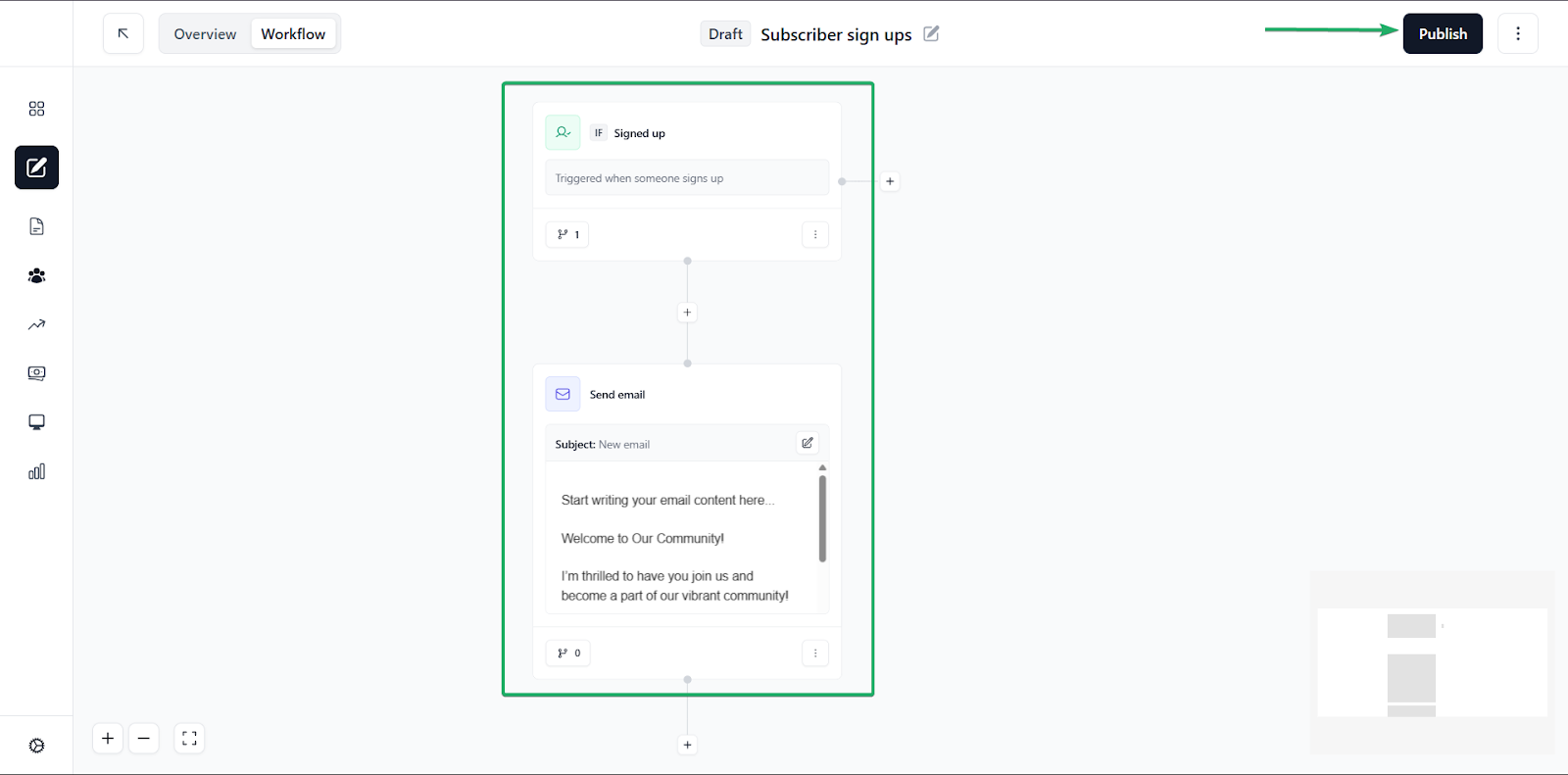
Next, select an action trigger. That’s what starts an automation.
You can also set your condition. Think of it as the result of the action.
For example, “if a person subscribes to my newsletter, they will receive a welcome email.”
When you hit “Publish”, your automation will go live and appear in your library.
You can also save it as a template.
3. Subscribe forms
beehiiv provides creators with built-in subscribe forms that can be embedded on websites or shared as links.
It’s a great way to grow your audience.
Let’s see how it works.
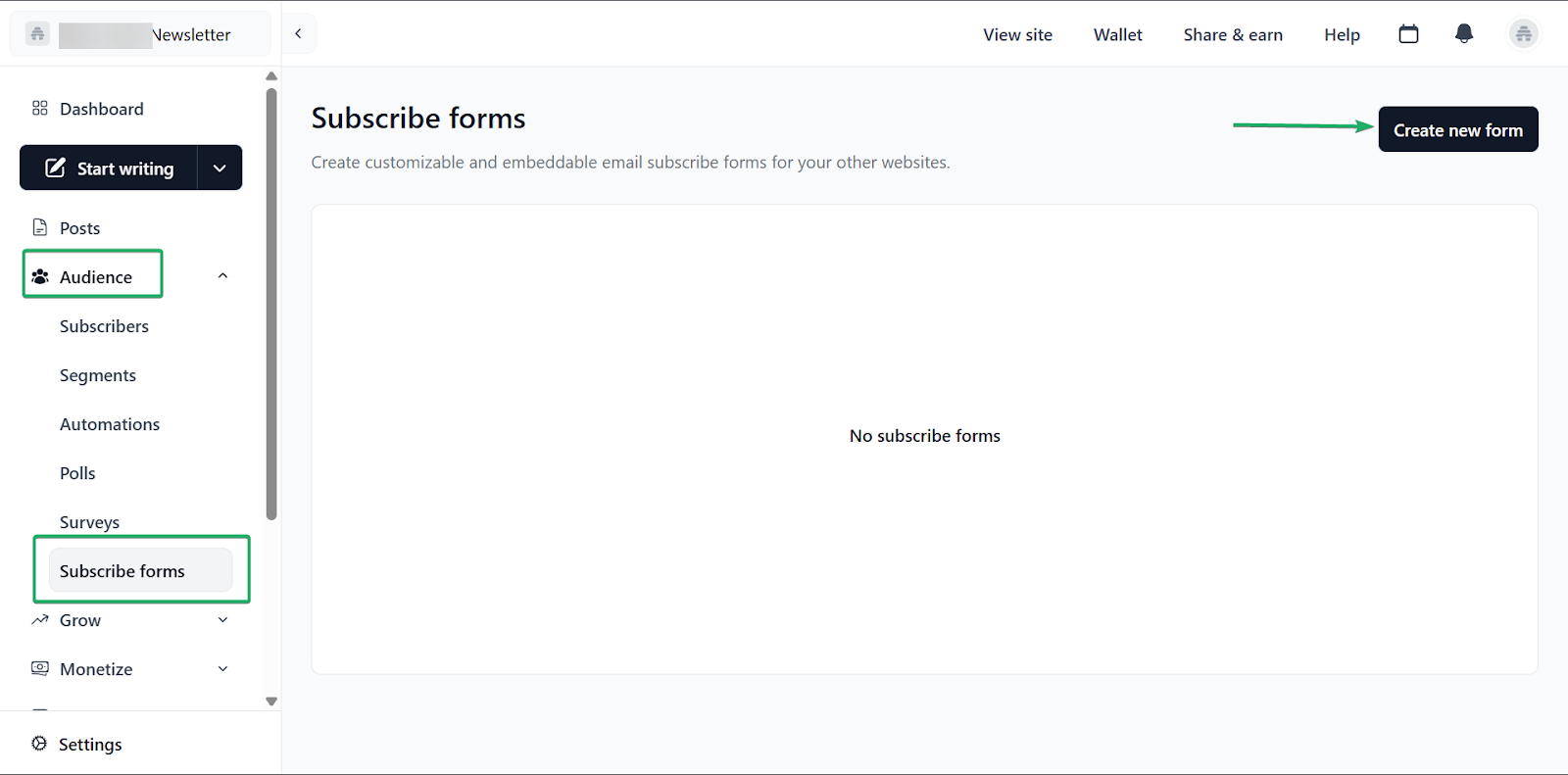
Select “Audience,” and choose “Subscribe forms.” After that, click “Create new form.”
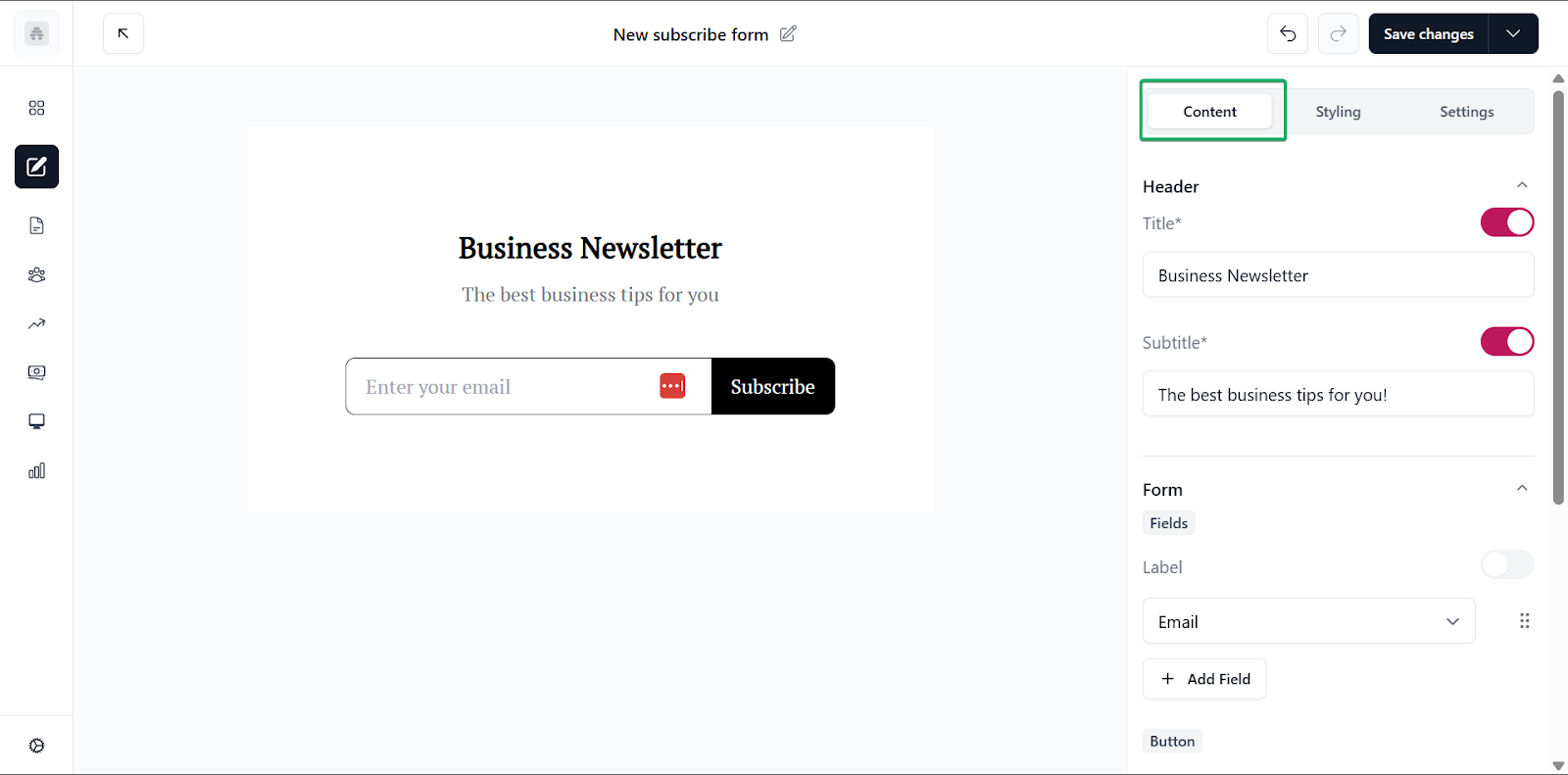
You can edit the form’s content by giving it a title and a subtitle.
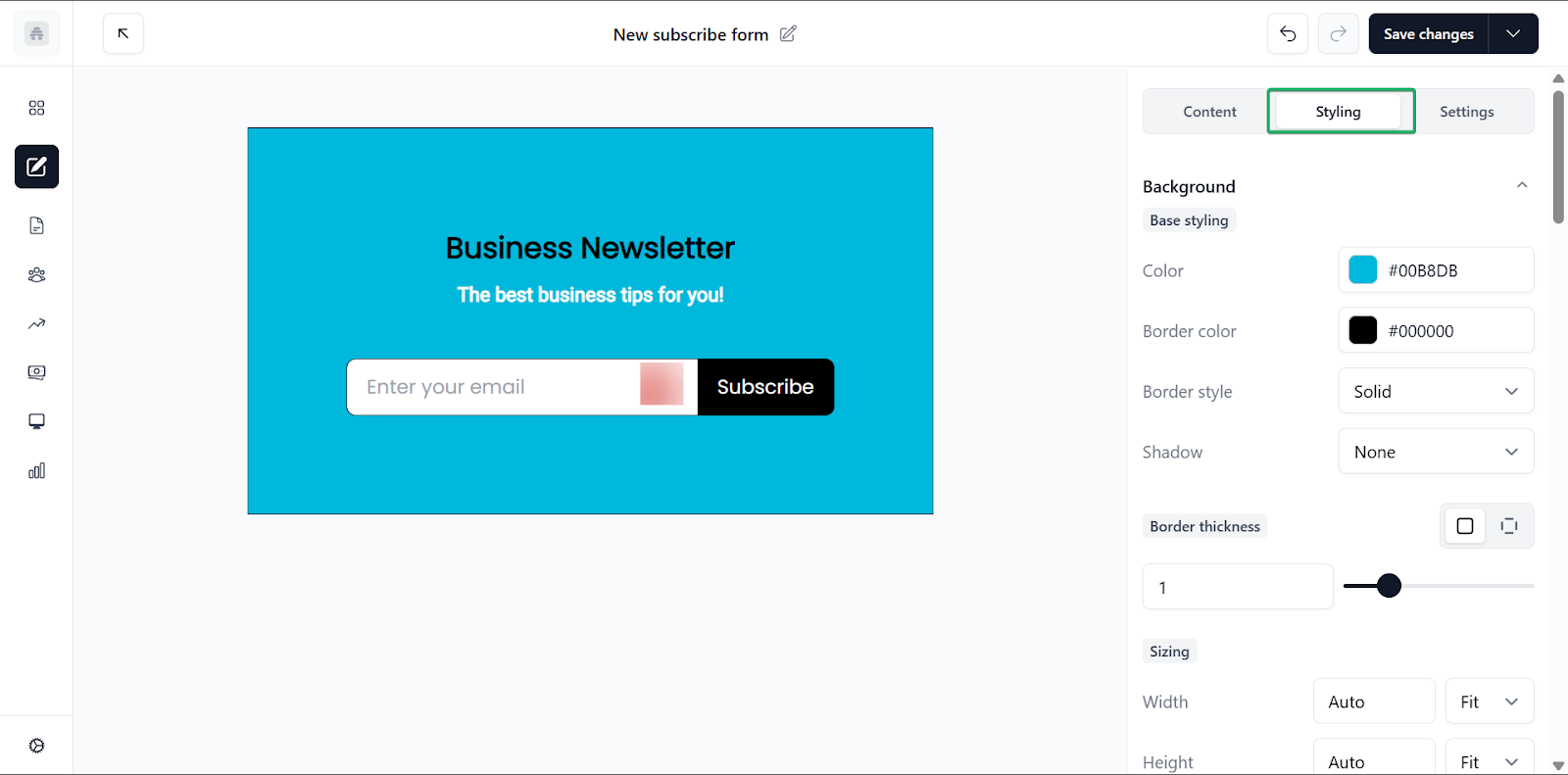
You can also edit the styling to match your brand before saving the changes.
Once you’re done editing, you can embed the form into your website or share it as a link.
What I loved vs what I struggled with
What I loved 👍
✅ Provides newsletter creators with a wide selection of writing tools.
✅ The automations feature helps writers save time with routine tasks.
✅ Designed specifically for newsletter creators, making it a good fit for those planning long-term newsletters.
What I struggled with 👎
❌ Higher pricing compared to other tools like WordPress.
❌ Focuses mainly on newsletters and not other content formats.
Best for
- Newsletter creators and businesses scaling audience growth and monetization through email content
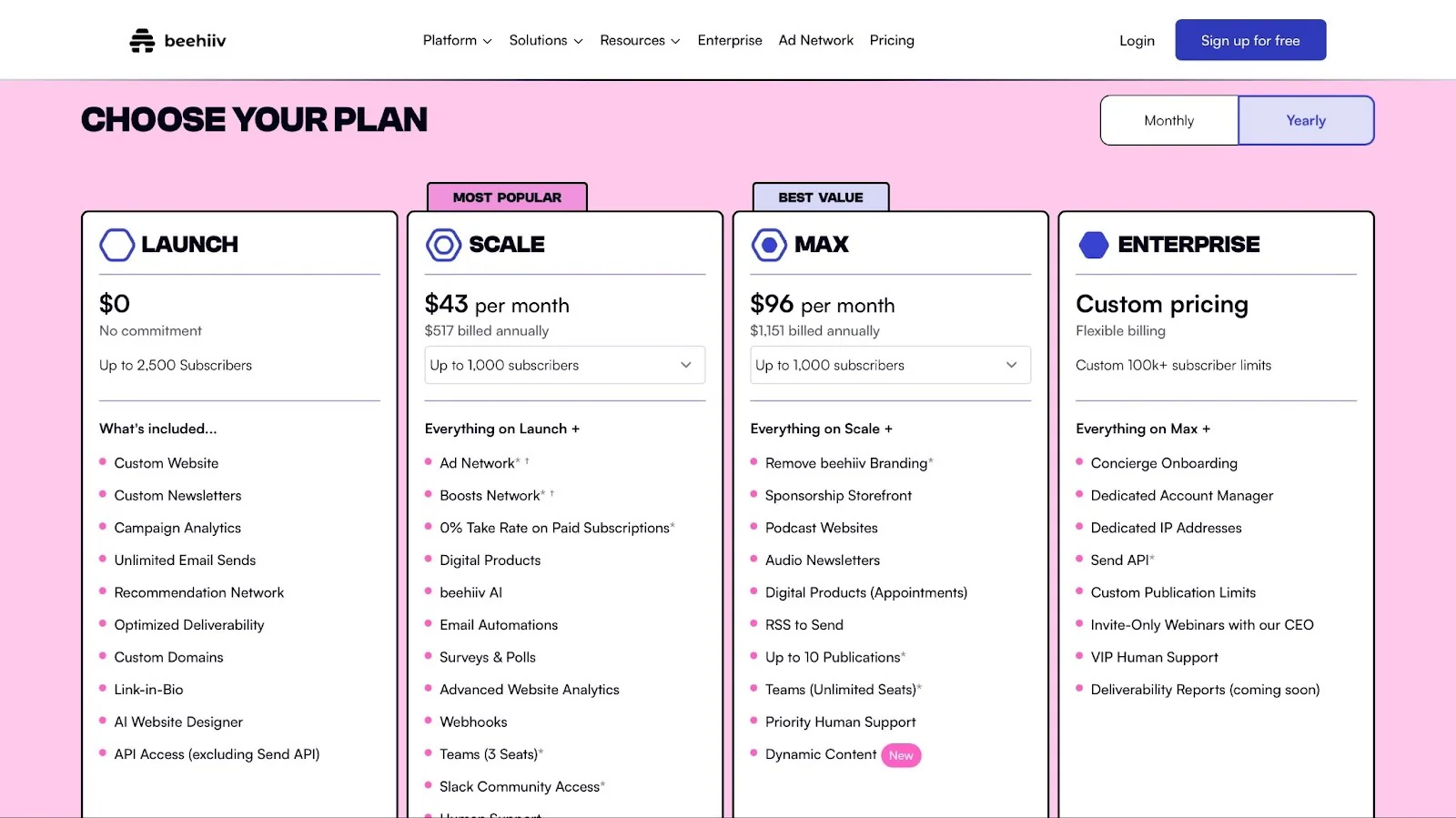
Pricing
- Launch: $0/month
- Scale: $43/month
- Max: $96/month
- Enterprise: Contact for pricing
9. Pictory
📑 Content type: AI videos| ⚙️ Key features: Script-to-video, captions, stock media, branding | 🔗 Distribution: Share links, embeds, integrations | 💳 Monetization: Sell videos, promote offers, social growth | 🌱 Growth: Views, followers | 💰 Starting fee: Starter: $25/month + 1 user + 200 video mins + 5GB storage + 1 brand kit
Continuing our roundup of the best content creator platforms, we have Pictory.
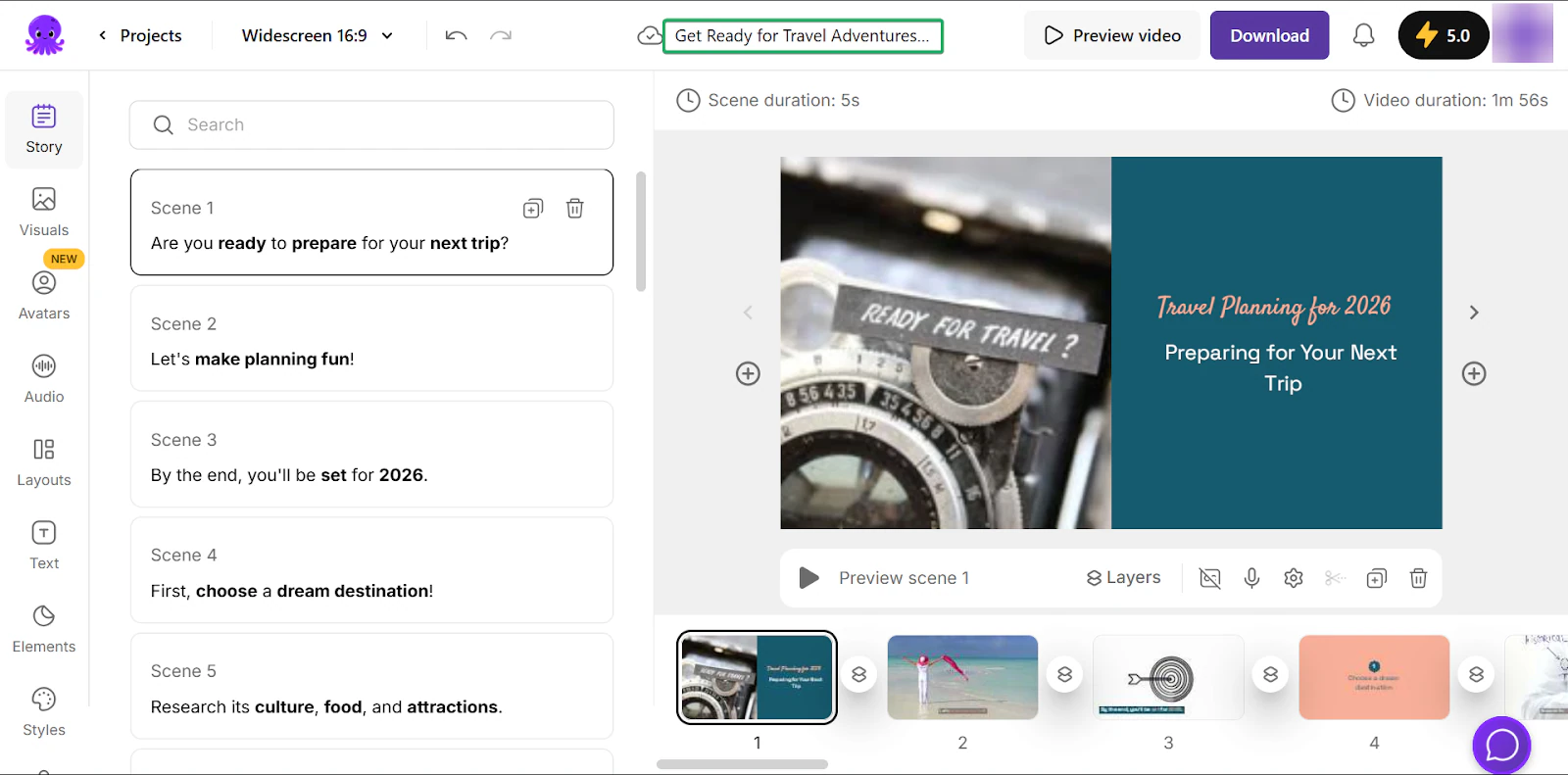
Pictory is an AI-powered video tool that helps content creators generate videos from a variety of sources, like text, PowerPoint, audio, URLs, images, and more.
It also has an AI script generator you can use to turn ideas into video scripts.

One of its most popular features is video creation. This feature lets you create videos from text, images, audio, and PowerPoint files.
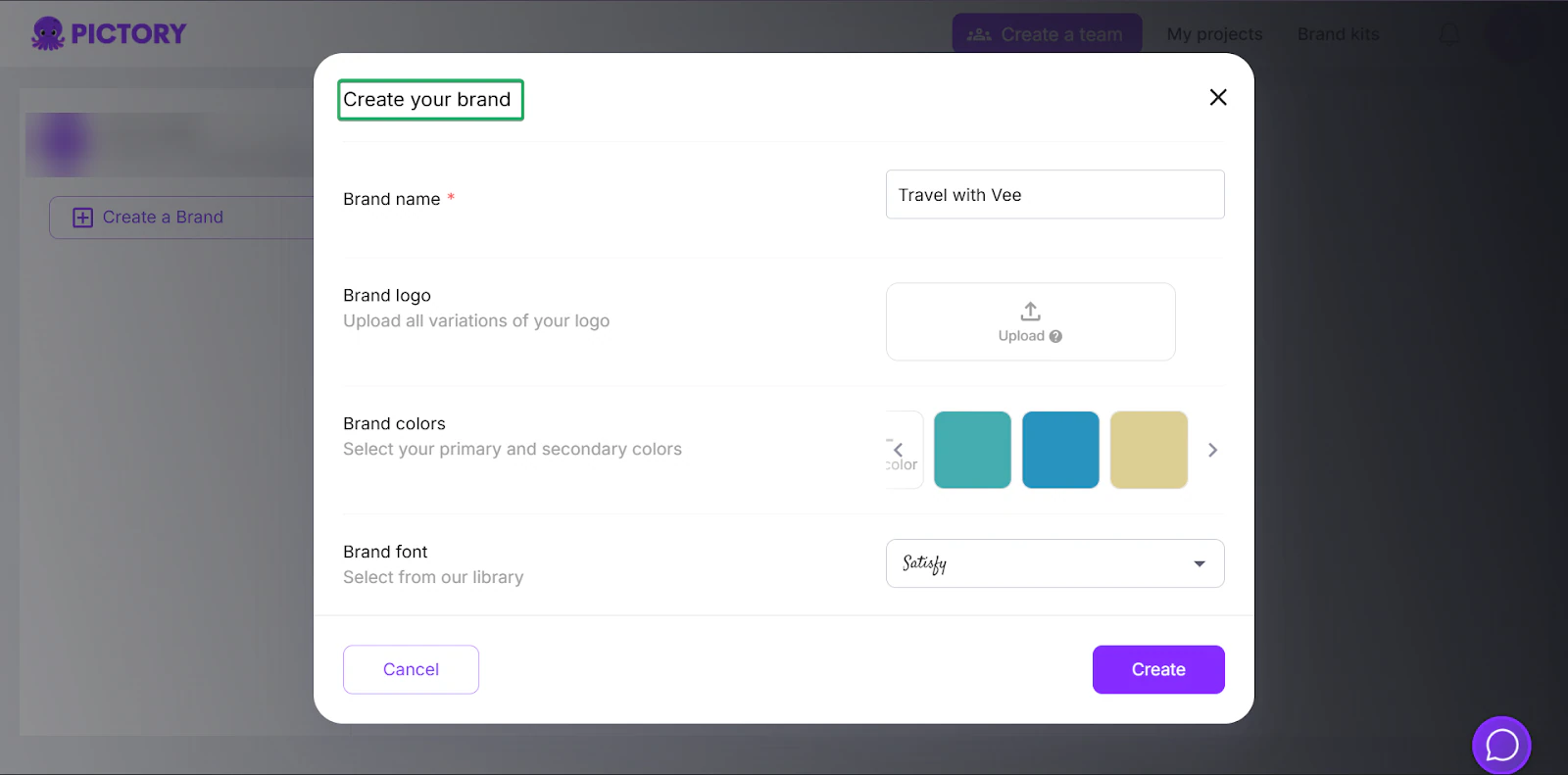
Up next is brand kits, which helps you keep your content consistent. You can save your logo, brand colors, and fonts so every video matches your brand.
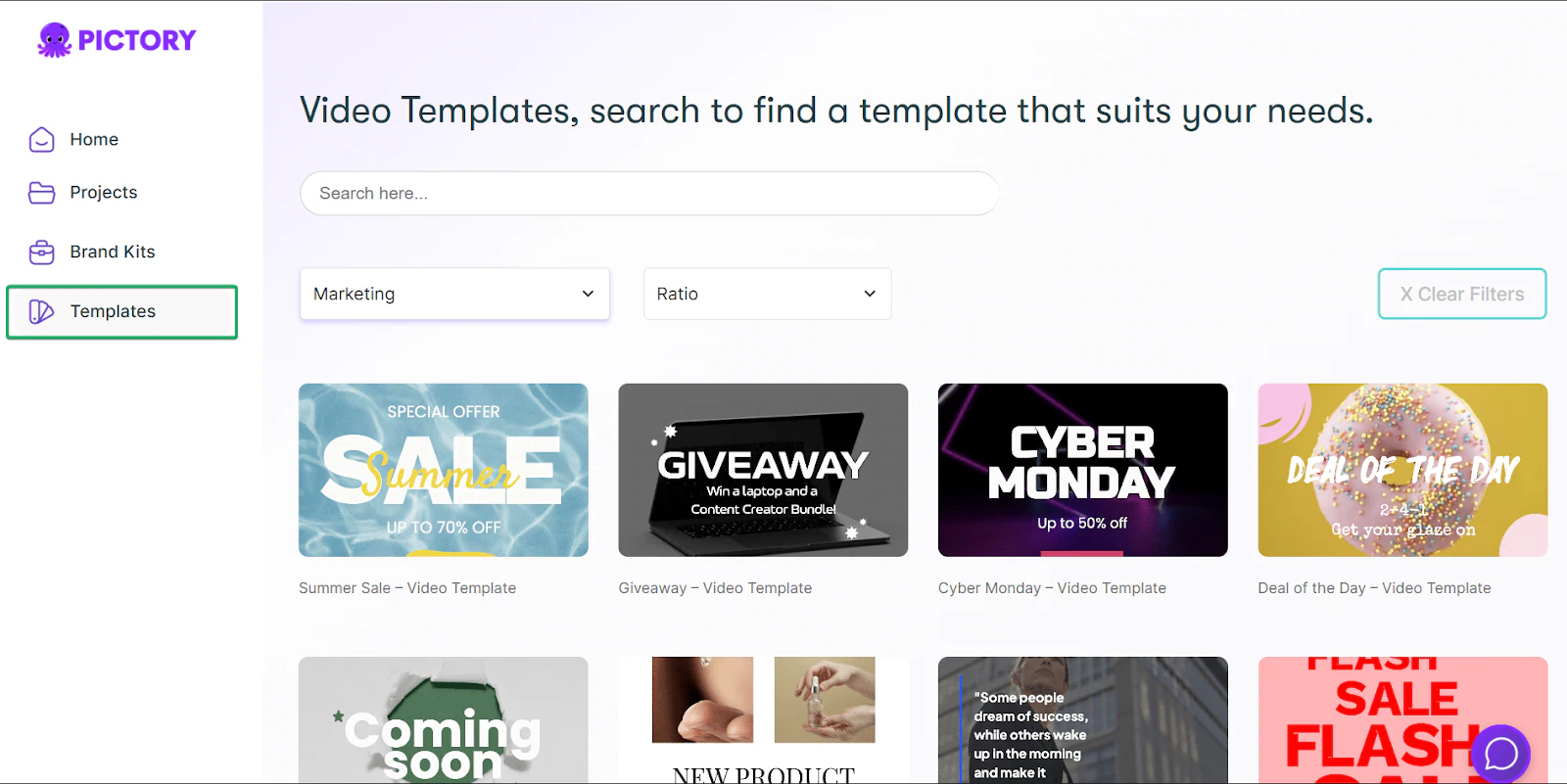
It also has a templates feature, which gives you pre-designed video layouts you can quickly edit and personalize.
What I loved about Pictory
1. Video creation
Pictory’s video creation feature lets you quickly create videos.
You can generate videos from a variety of sources, including text, URLs, summaries, AI, audio, images, and even PowerPoint documents.
Let’s check out how it works.
On the homepage, select how you want to create your video.
Let’s go with text-to-video.
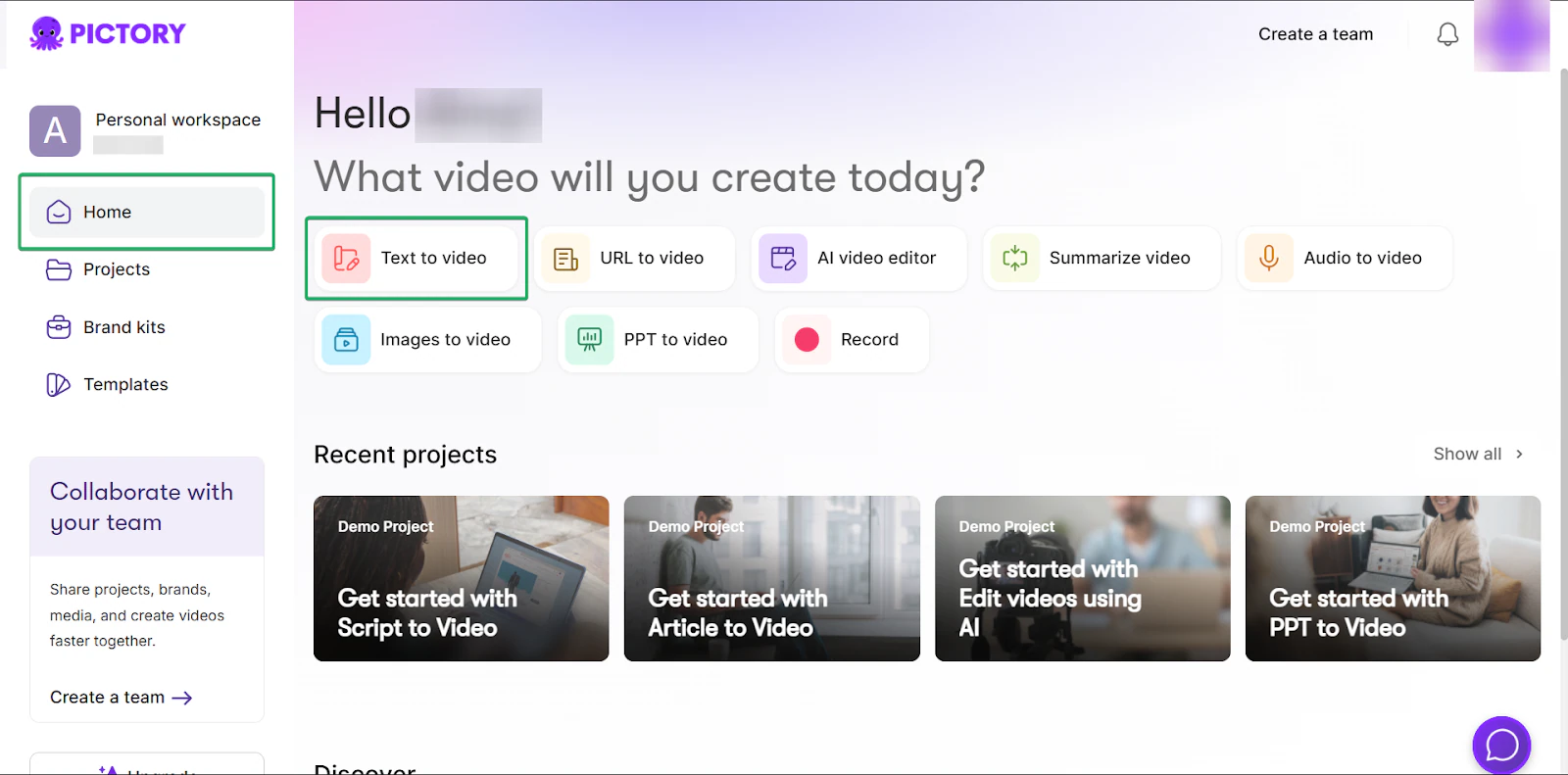
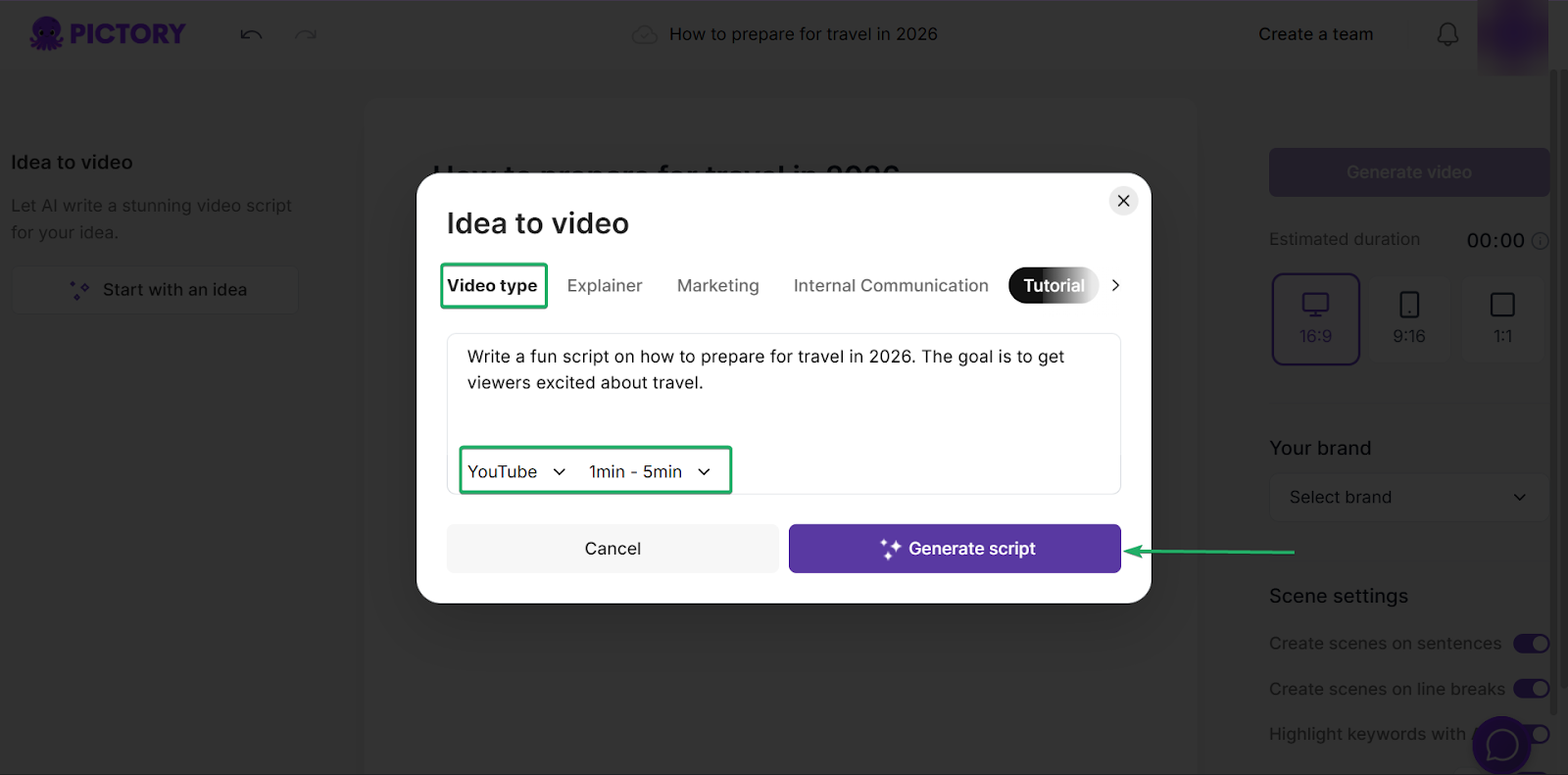
Next, you start writing the script. You can copy and paste, or use Pictory’s AI assistant (Pickford) to write a script for you.
With Pickford, you can also choose the type of video you’re making. There are different types, like tutorials, explainers, and marketing videos.
You can also choose where to post your video and its duration.
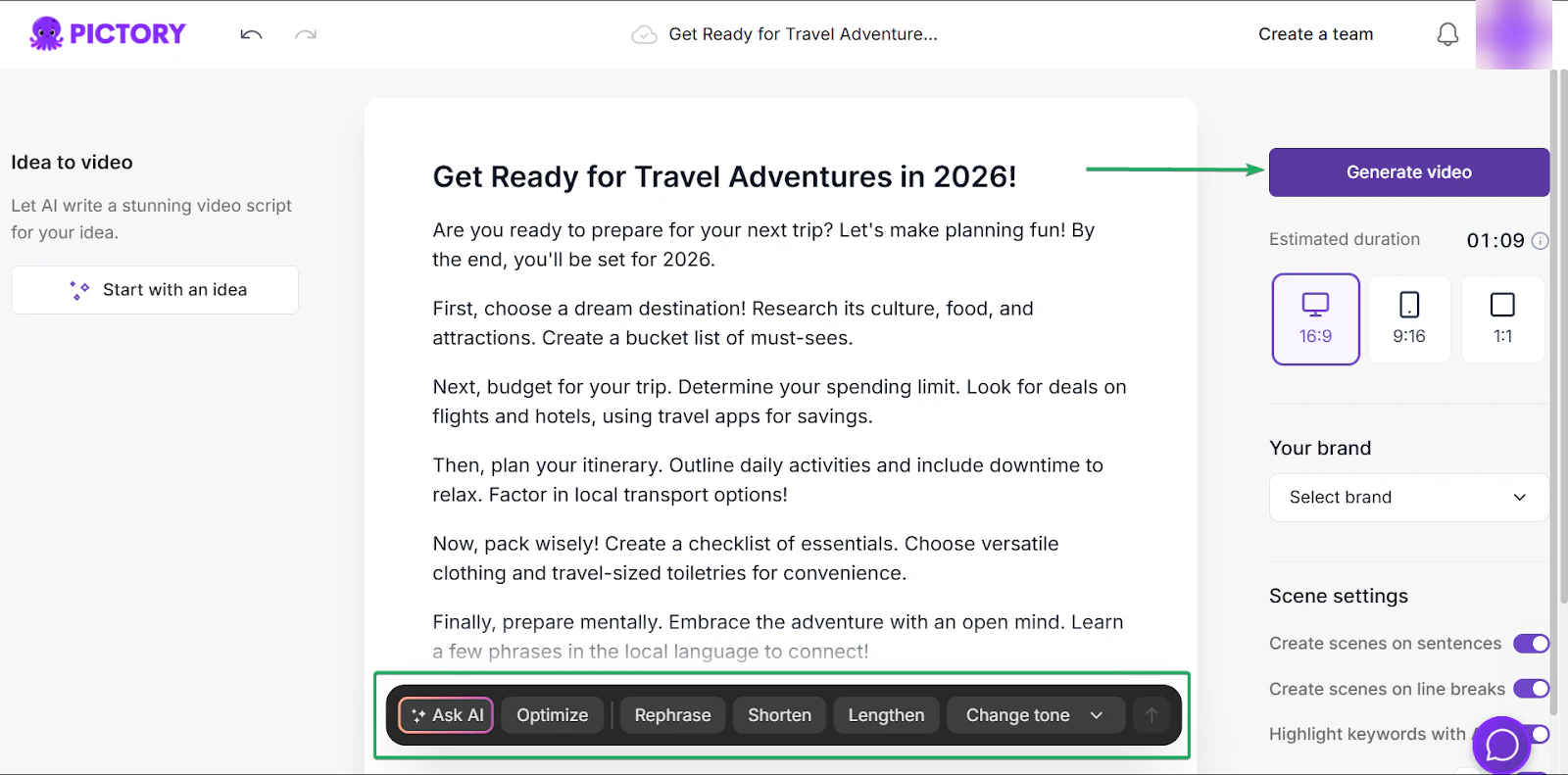
After that, you can edit the script by rephrasing parts, shortening or lengthening it, and even changing the tone.
Once you’re done, click “Generate video.”
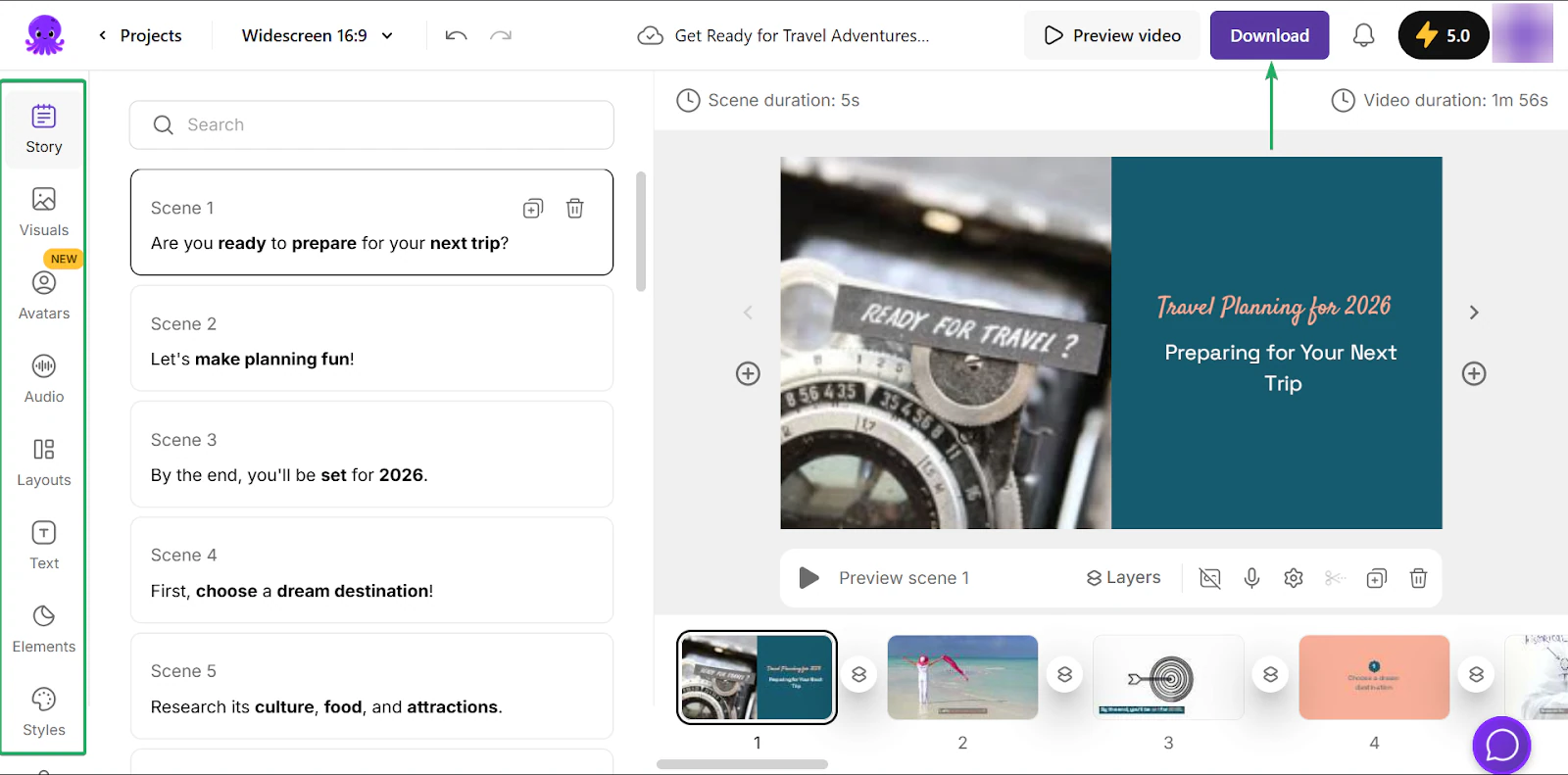
After editing your video, click “Download.”
2. Brand kits
The brand kits feature helps keep your content consistent. You can upload your logo, brand colors, and font so every video you create matches your brand.
Plus, you wouldn’t have to set it up every time.
Let’s see how it works.
First, go to brand kits on the homepage and click “Create a Brand.”
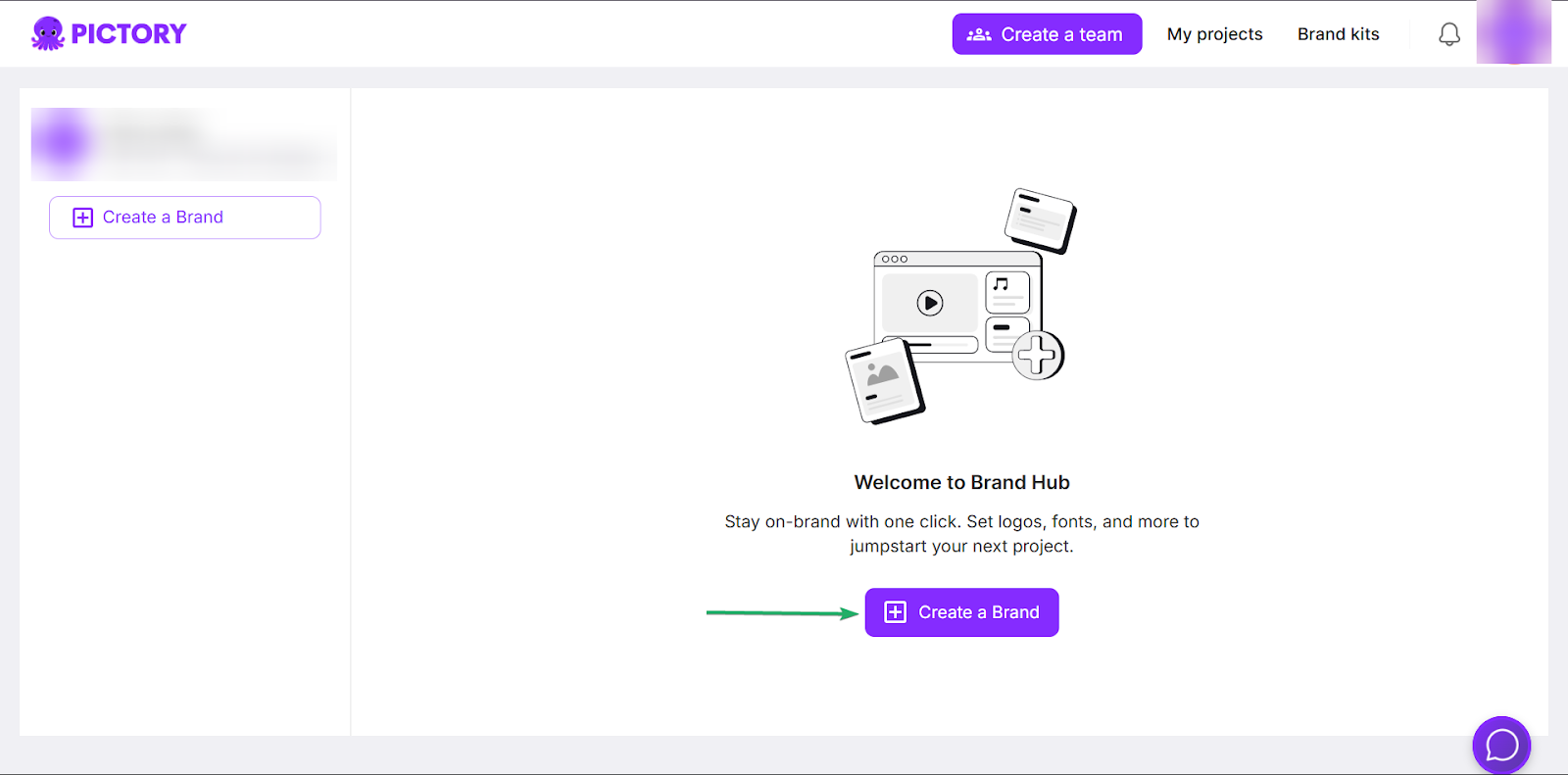
Next, upload your brand assets.
These include your brand name, colors, font, and logo variations.
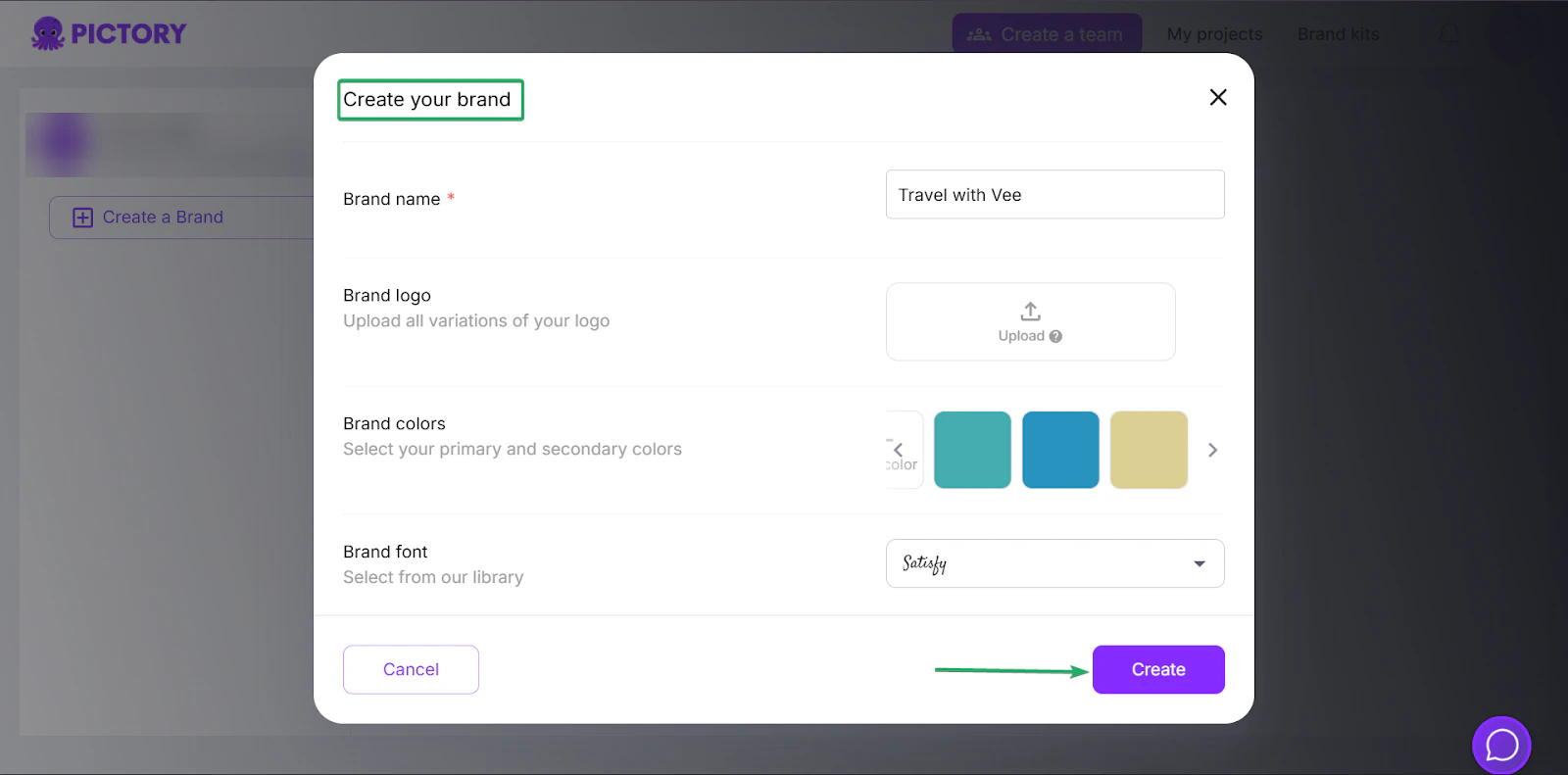
After hitting “Create”, you can add more brand assets.
You can add more visuals and audio, like intro/outro videos and background music.
You can also add AI voices and avatars.
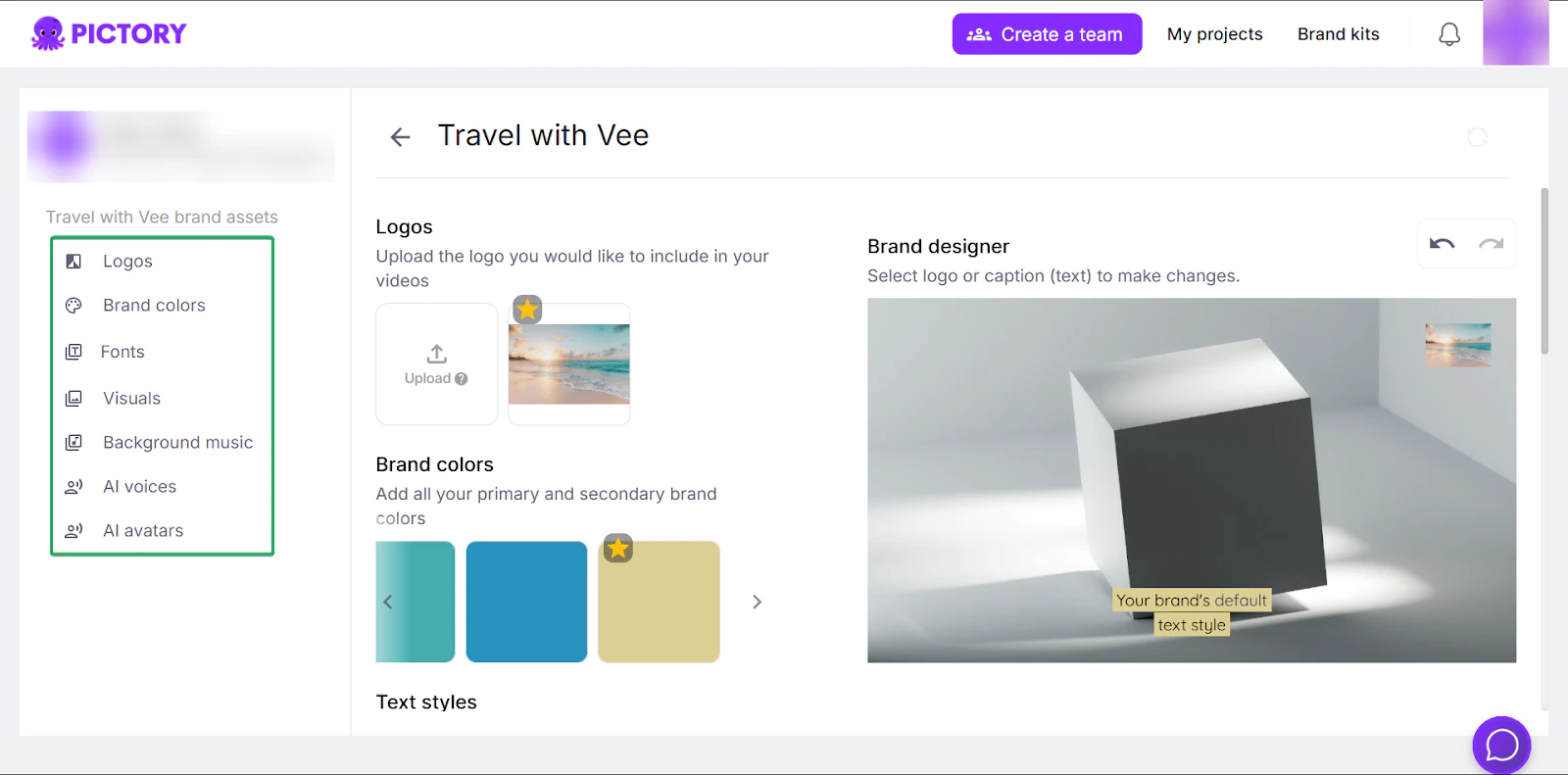
3. Templates
Pictory’s templates feature offers 80+ pre-designed video layouts you can quickly customize to fit your brand.
You can simply swap your text and visuals, which is great if you want to quickly set up a post.
Let me walk you through how it works:
Head to templates on the homepage.
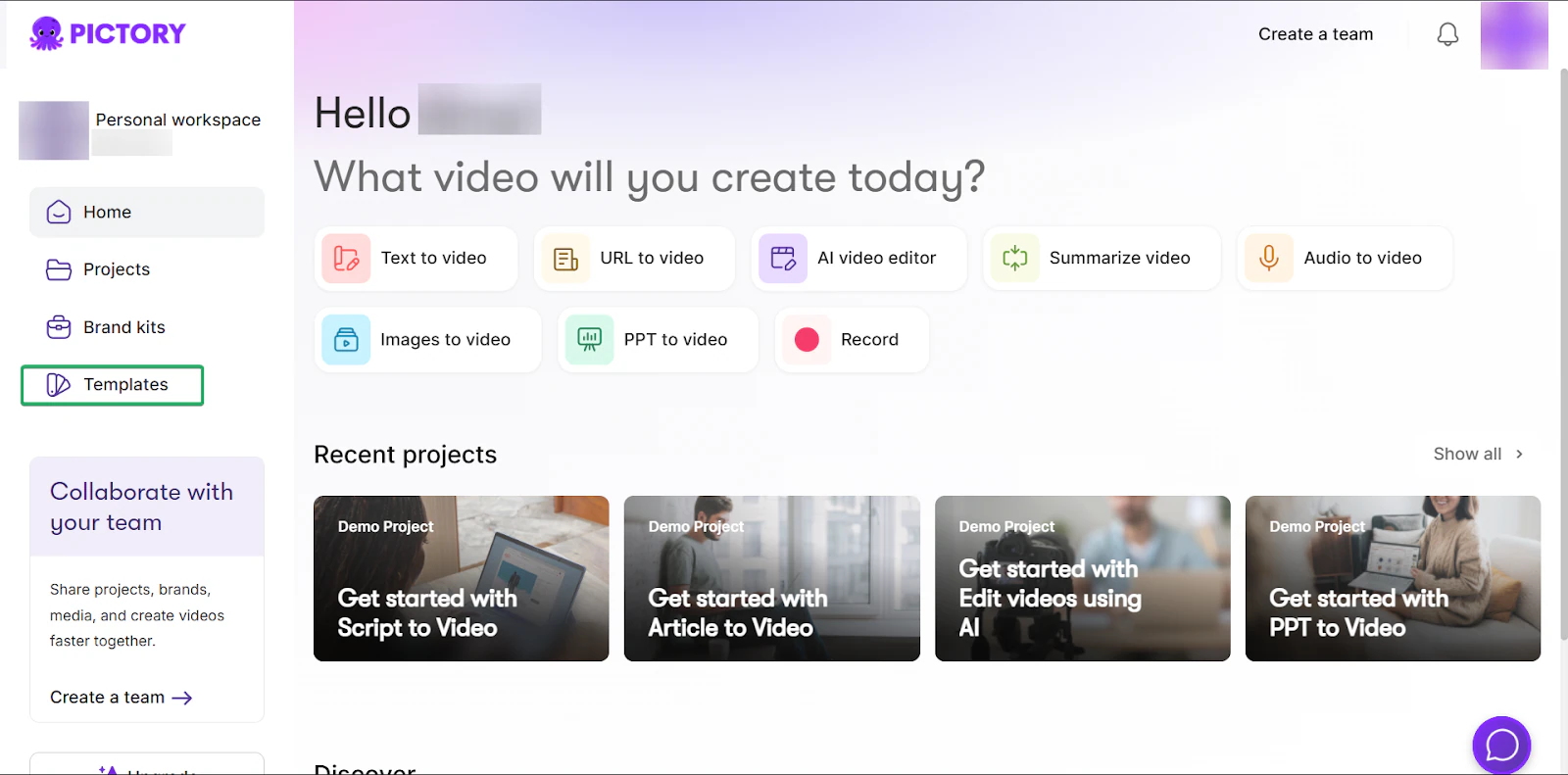
Next, you can choose templates from 9 categories, including business, marketing, and reviews.
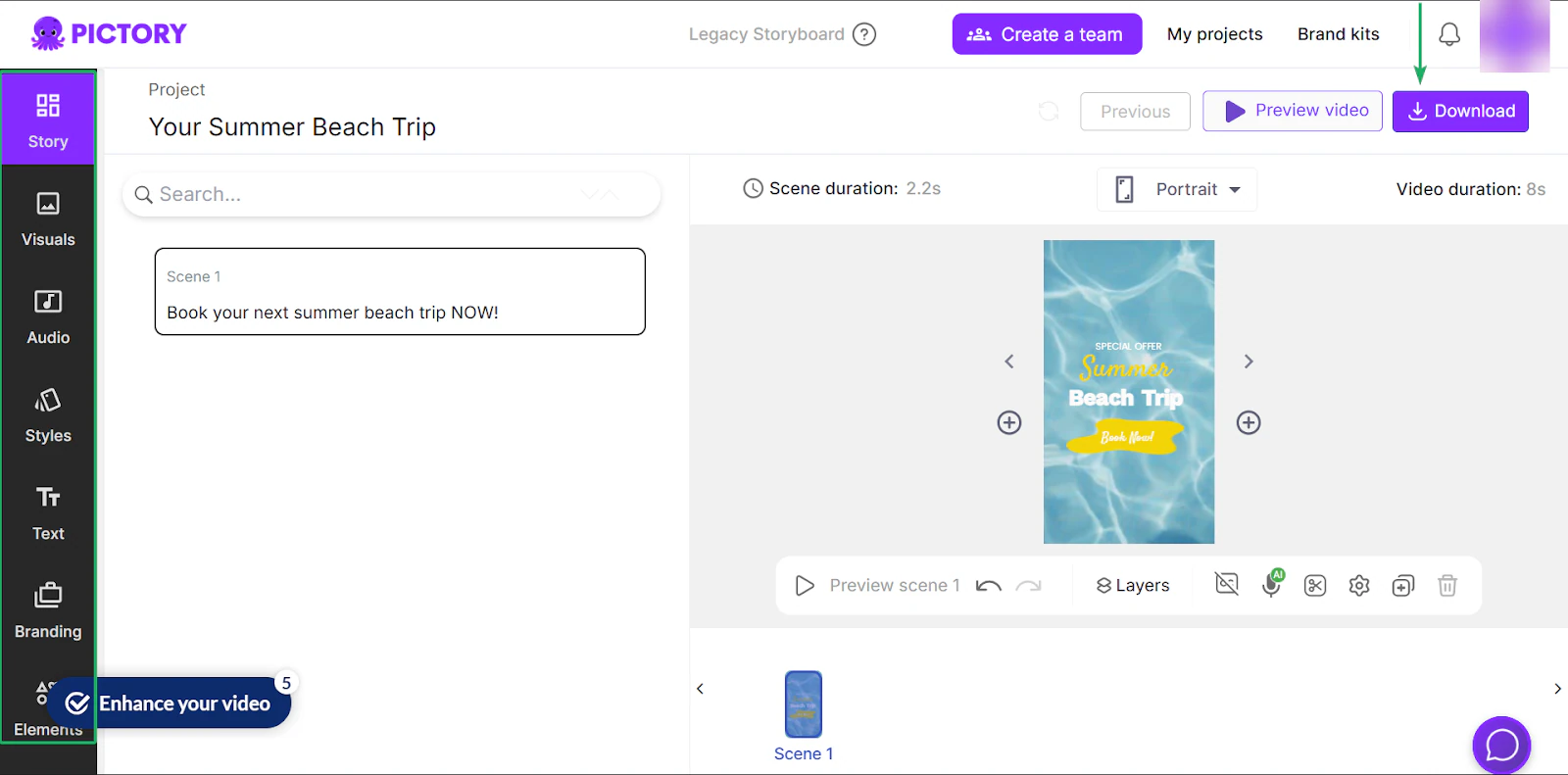
You can also choose the video dimension. For example, if it’s a YouTube short, it’s best to choose a 9:16 ratio dimension (portrait).
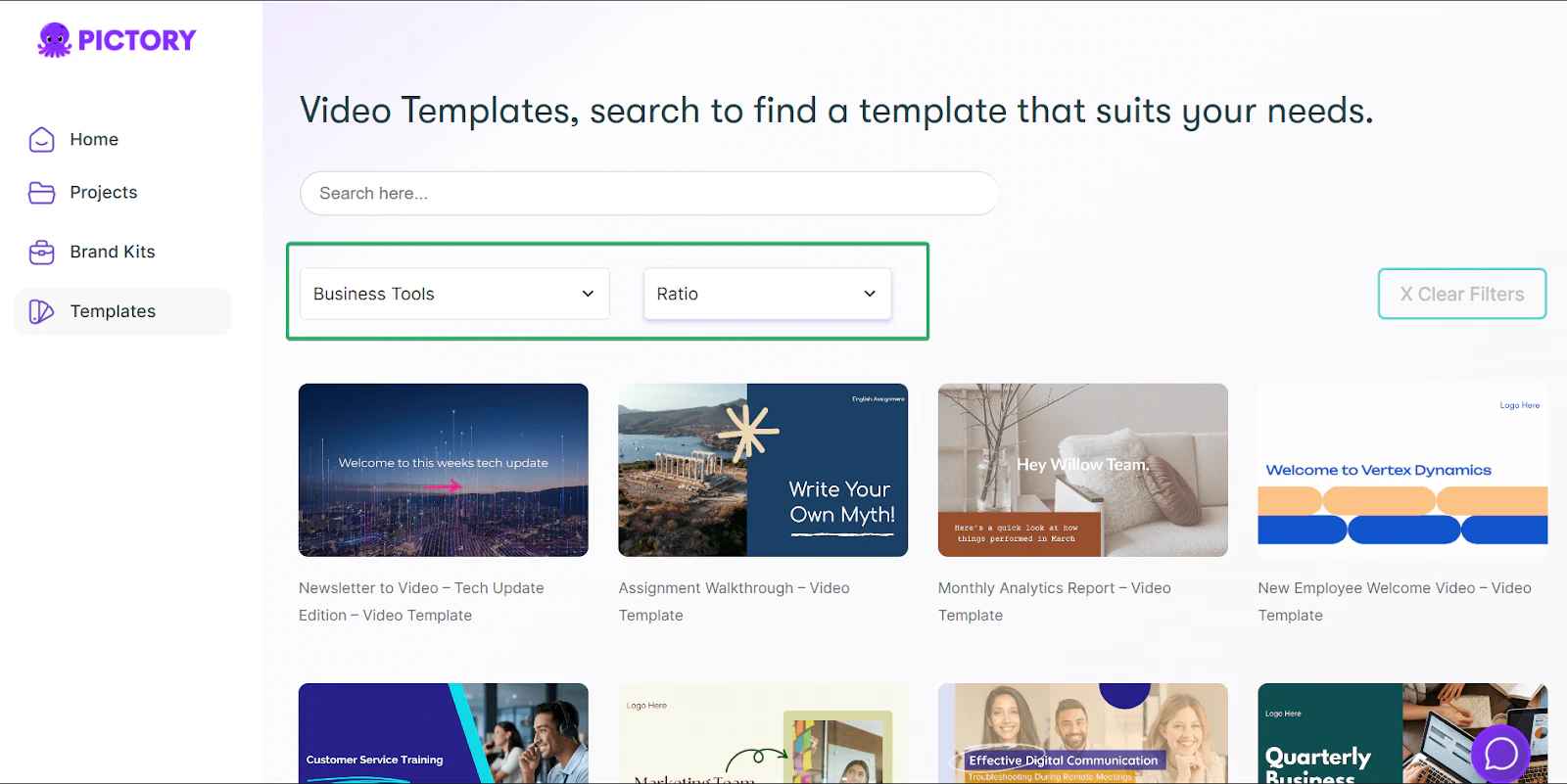
After that, you can edit the template to fit your brand and then “Download” the video.
What I loved vs what I struggled with
What I loved 👍
✅ A good choice for beginners getting started with video editing.
✅ Has multiple sources for video creation, including text, summary, AI, PPT, URLs, audio, and images.
✅ Great for branded, repeatable content.
What I struggled with 👎
❌ Best suited for short, simple videos rather than complex edits.
❌ Videos need to be downloaded before posting, which means no direct posting to social media channels and extra manual work.
Best for
- Video marketers and creators converting articles and scripts into short marketing videos quickly
Pricing
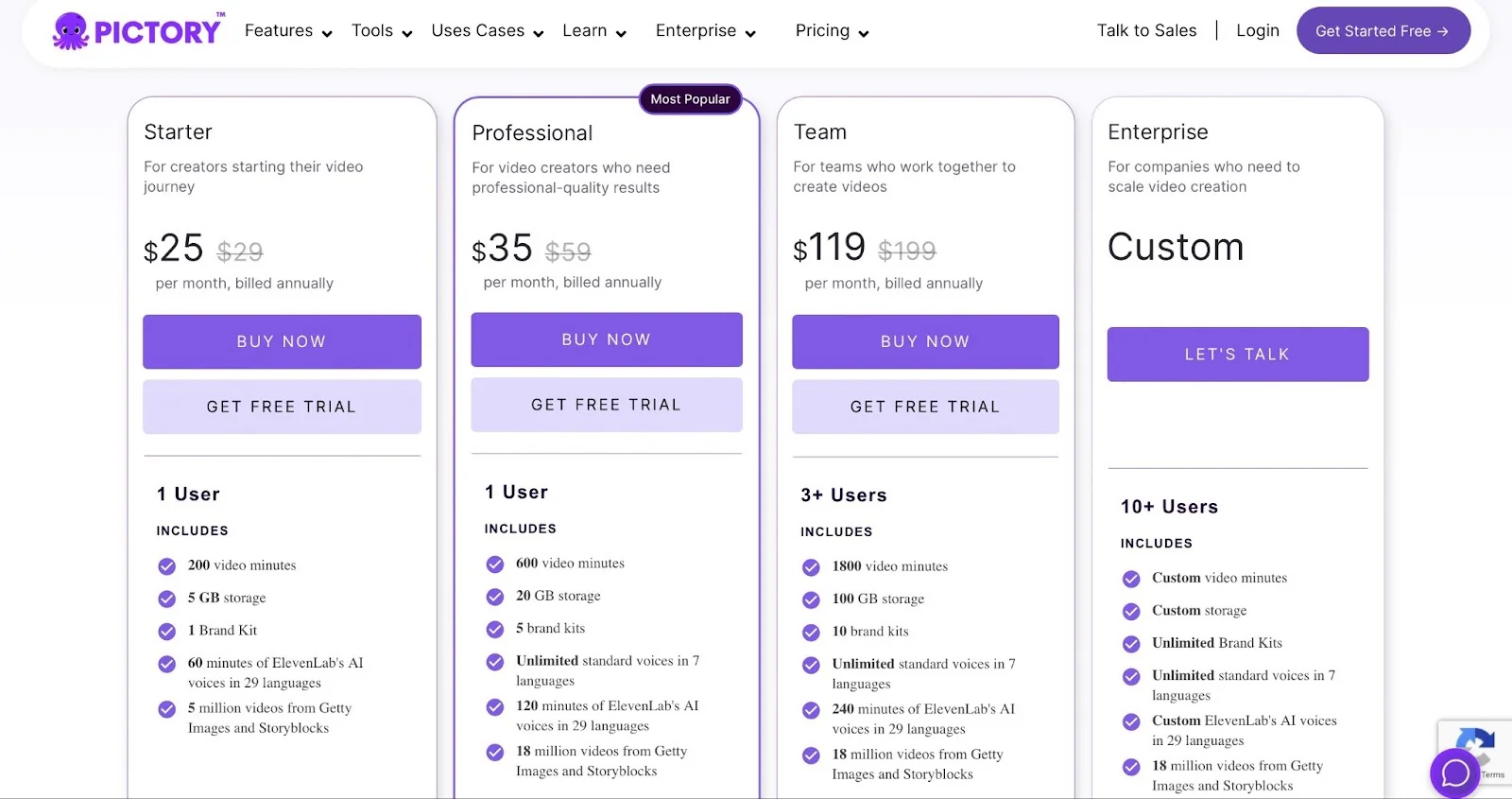
- Starter: $25/month
- Professional: $35/month
- Team: $119/month
- Enterprise: Contact for pricing
10. Canva
📑 Content type: Graphics | ⚙️ Key features: Templates, drag-and-drop editor, brand kits, exports| 🔗 Distribution: Share links, embeds, integrations | 💳 Monetization: Sell designs, promote content, client work| 🌱 Growth: Upsells | 💰 Starting fee: Free: $0/month + 1,000+ design types + 1.6M+ templates + 4.7M+ media content + 5GB cloud storage
Our selection of the best content creator platforms wouldn’t be complete without Canva.
Canva is a web-based graphic design tool that helps creators create visuals for their content. These include social media posts, blog posts, presentations, and more.
It offers millions of pre-designed templates and lets you use AI to generate slides and images, or to edit existing content.

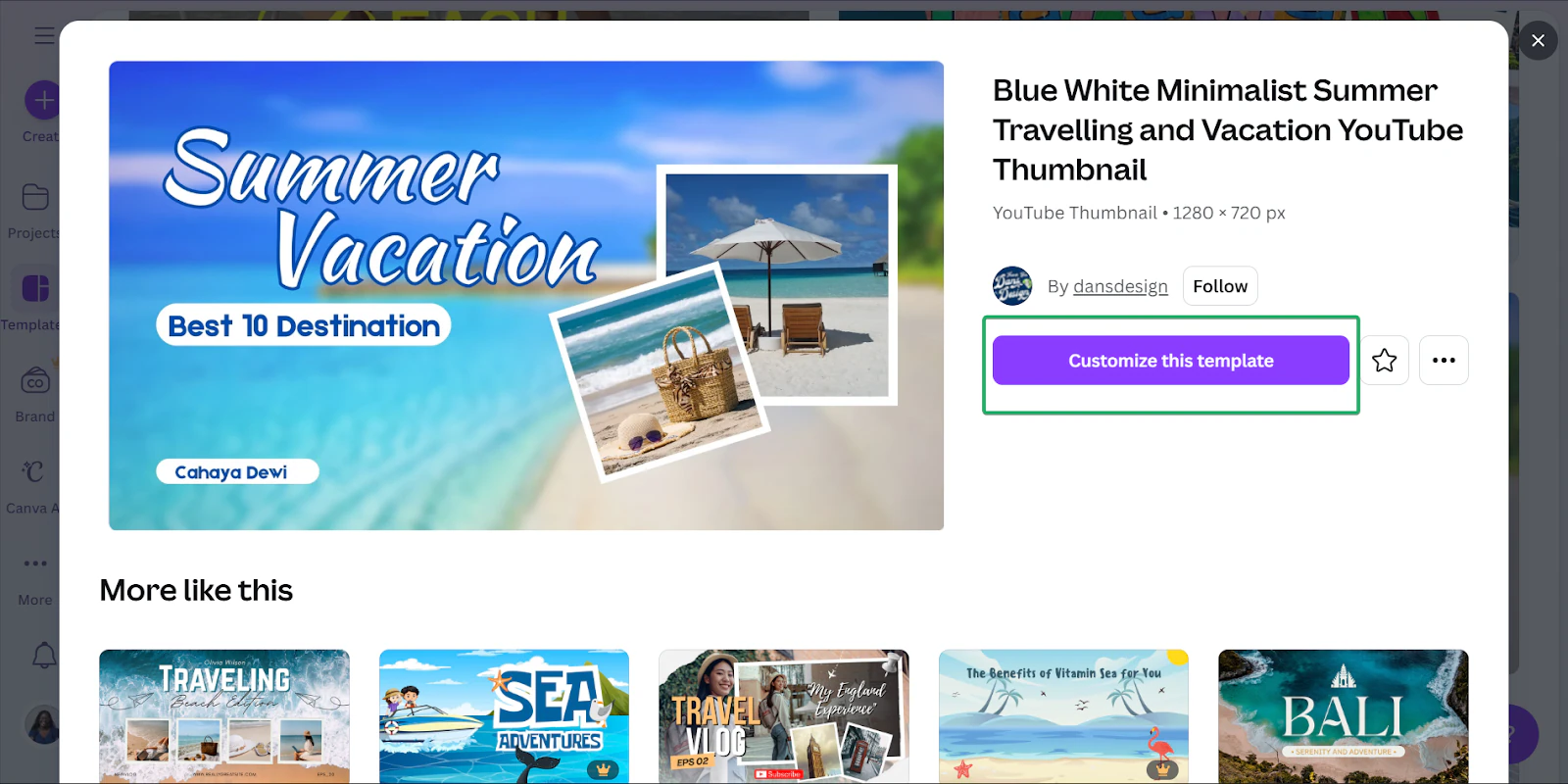
One of its key features is templates. Canva offers 3.6M+ free and premium templates for creators across different categories.
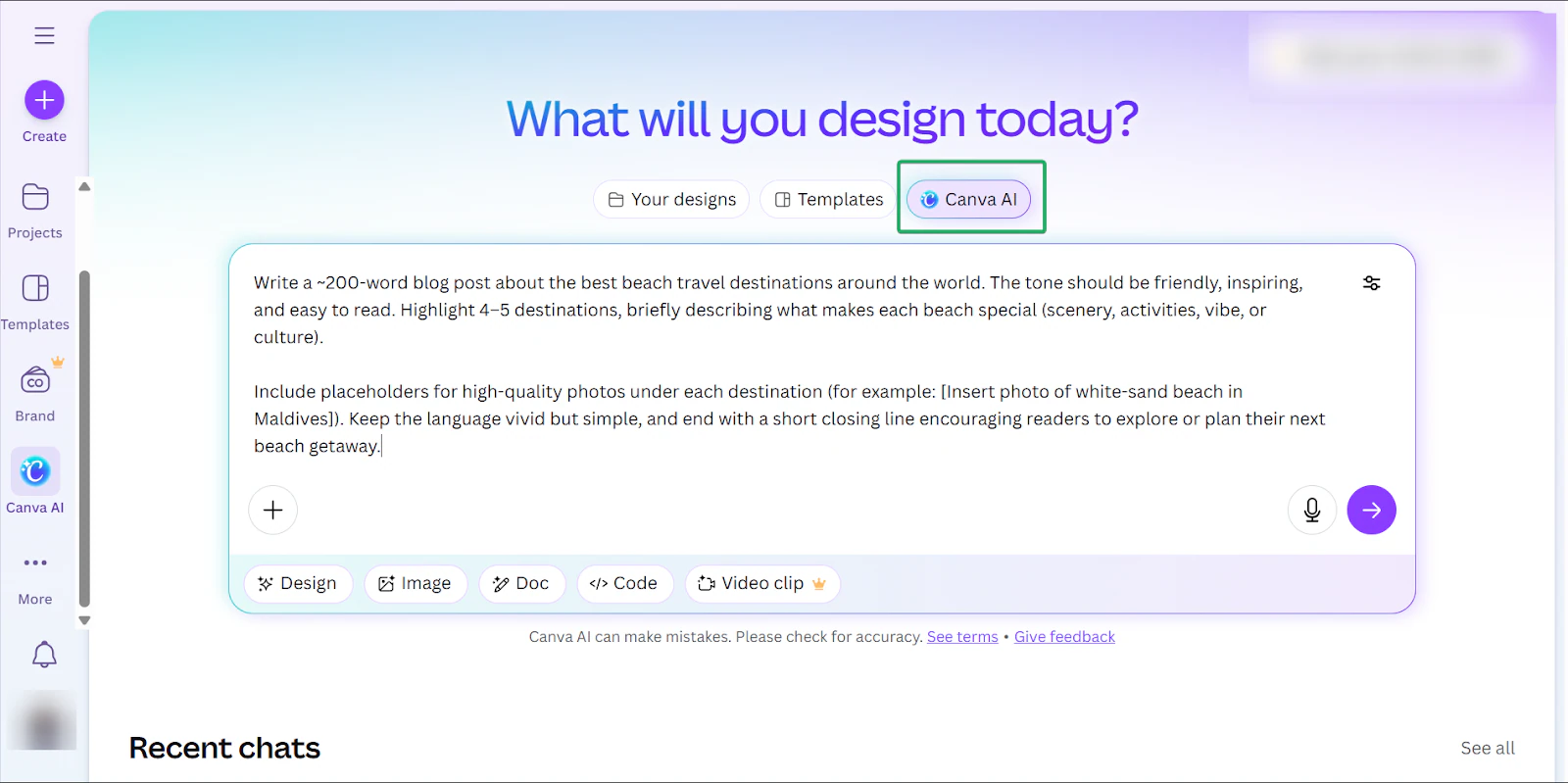
Up next is canva AI, which creators can use to generate designs, texts, images, and videos.
Finally, apps is a marketplace where you can connect with thousands of tools and post content directly from Canva to them.
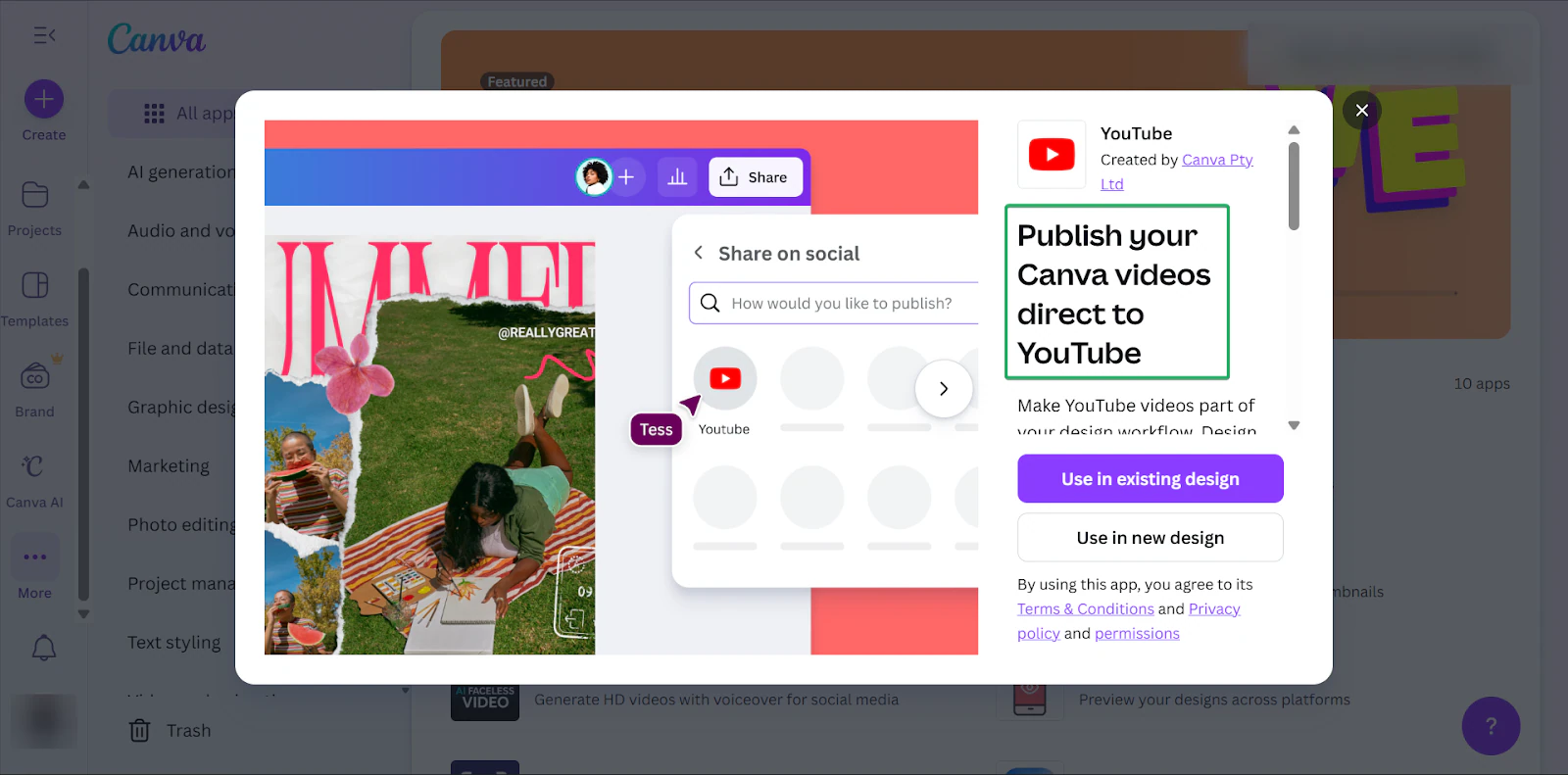
What I loved about Canva
1. Templates
Canva’s templates feature gives you 1.6M to 3.6M+ ready-made design layouts for social media posts, newsletters, pitch decks, e-books, and more.
All you have to do is select a design and customize the template, and you’re good to go.
Here’s how it works.
First, click “Templates” in the sidebar.
To make it simpler, you can use the search bar to find what you’re specifically looking for.
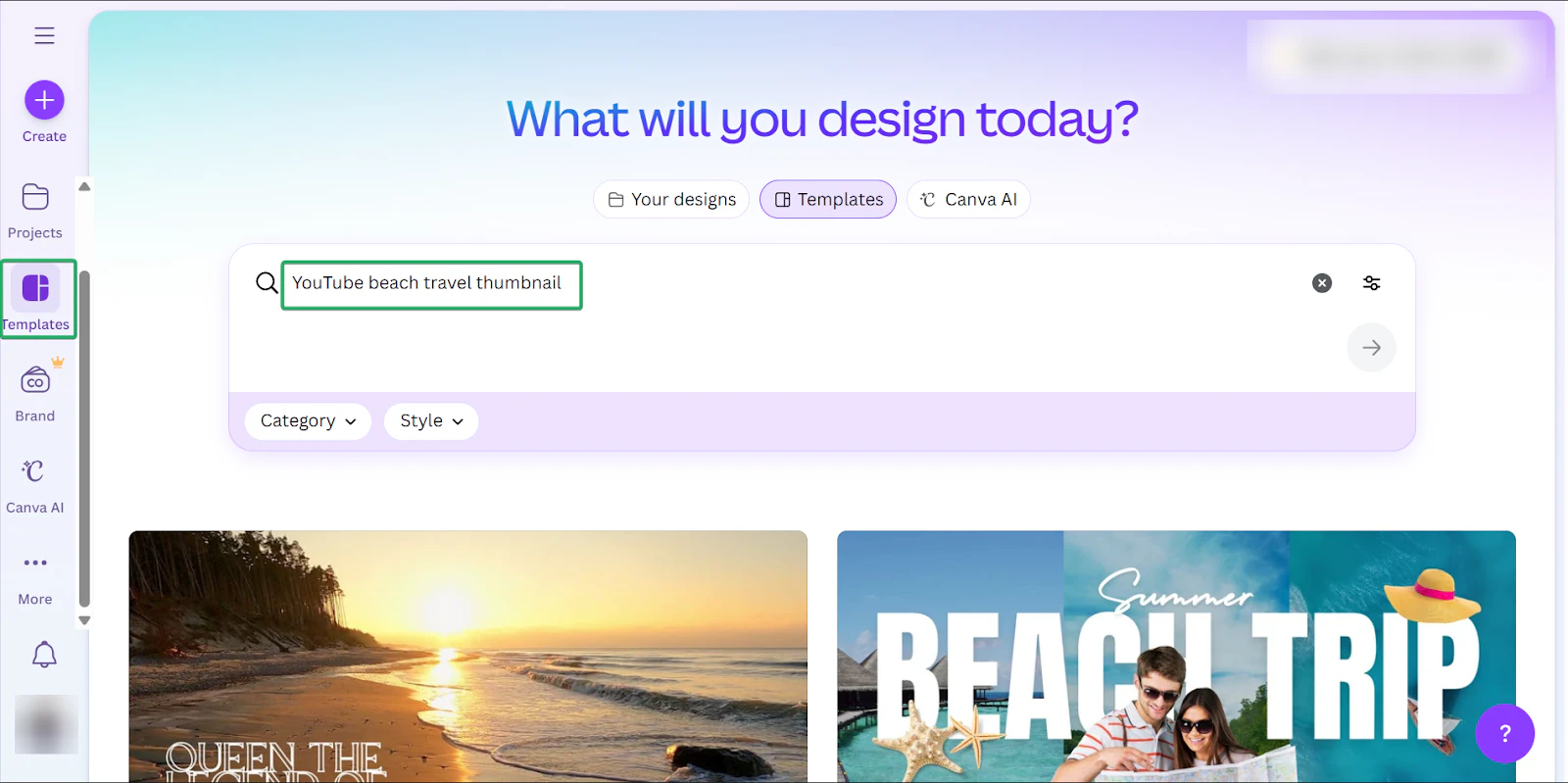
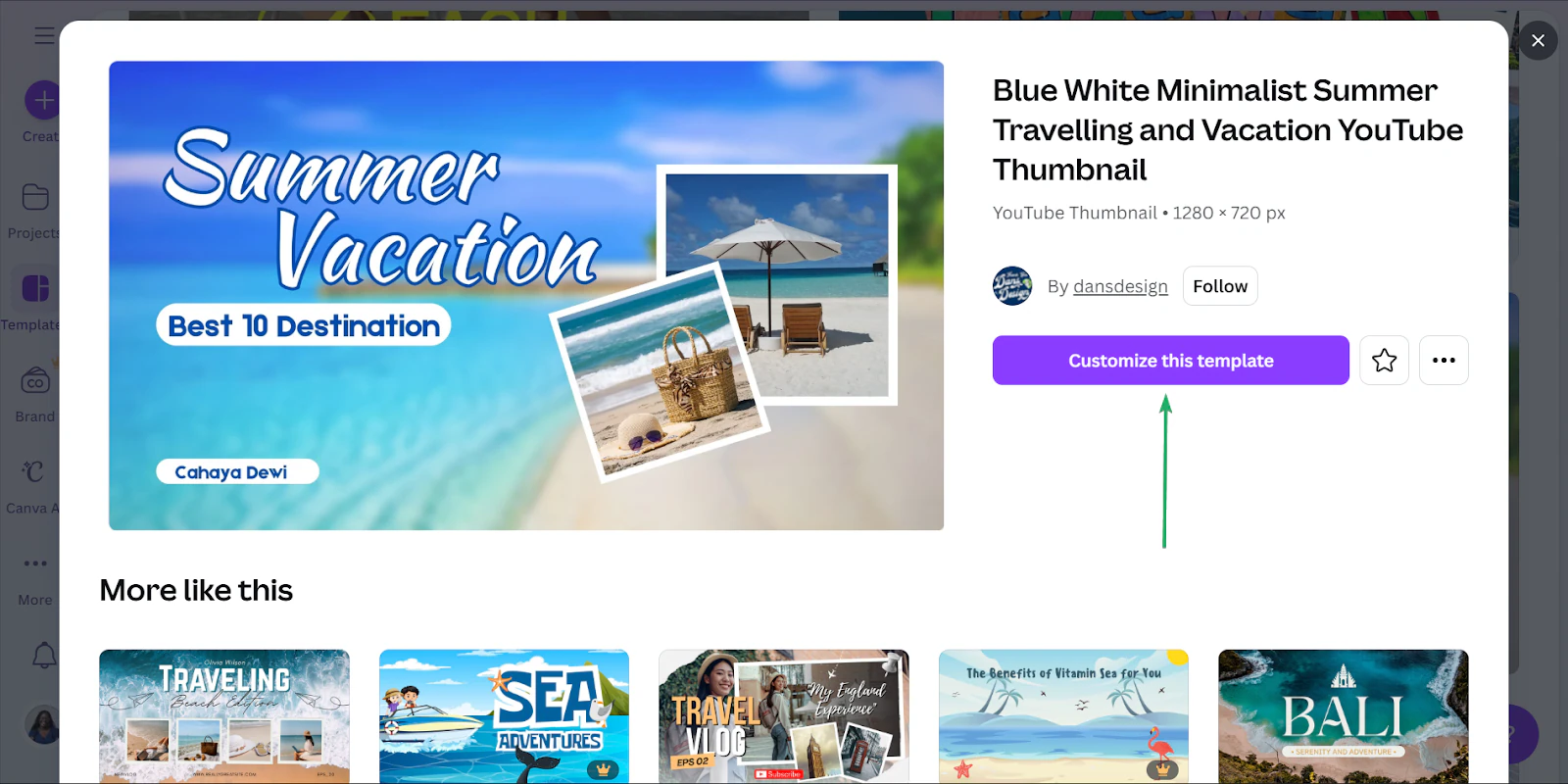
Once you’ve selected your template, click “Customize this template.”
After that, you can edit the template.
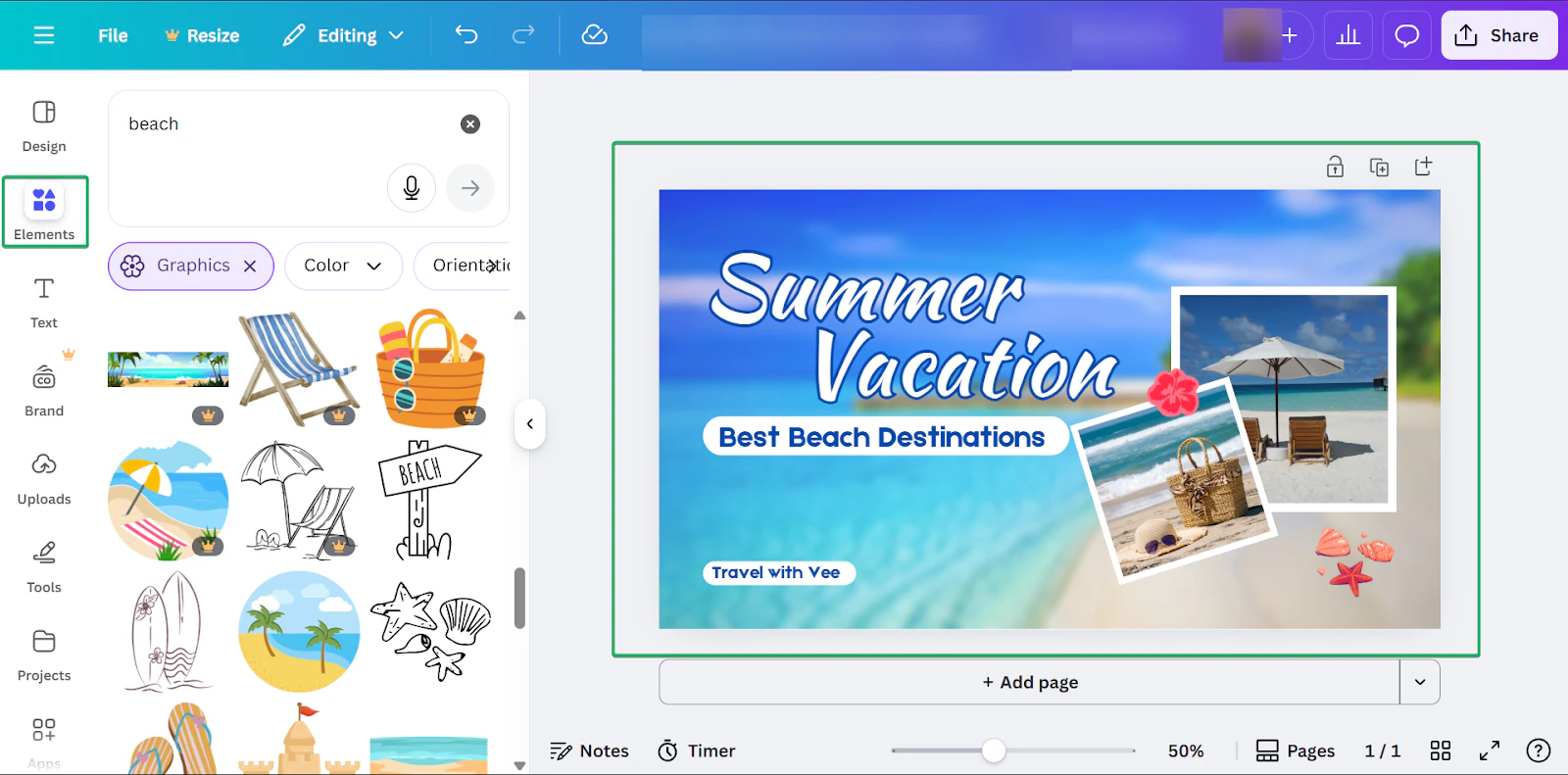
Once you’re done, you can download your content or post it directly to the channel you want.
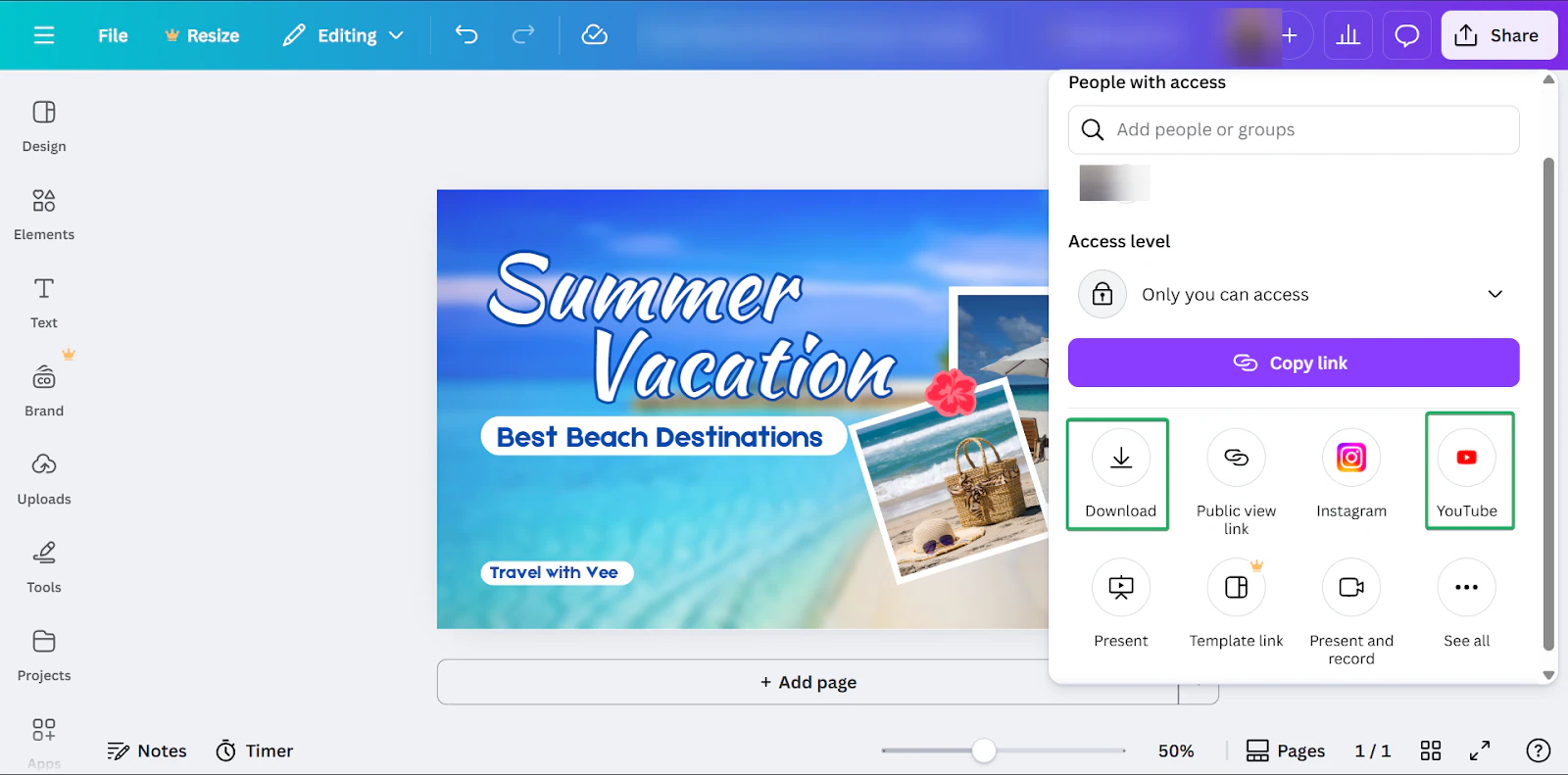
2. Canva AI
Canva AI is a feature that lets you speed up your content creation by generating designs, images, videos, and text.
You describe what you want, and canva AI creates a starting point for you to edit.
Let’s create a blog post with this tool.
First, click “Canva AI” from the sidebar and enter your prompt.
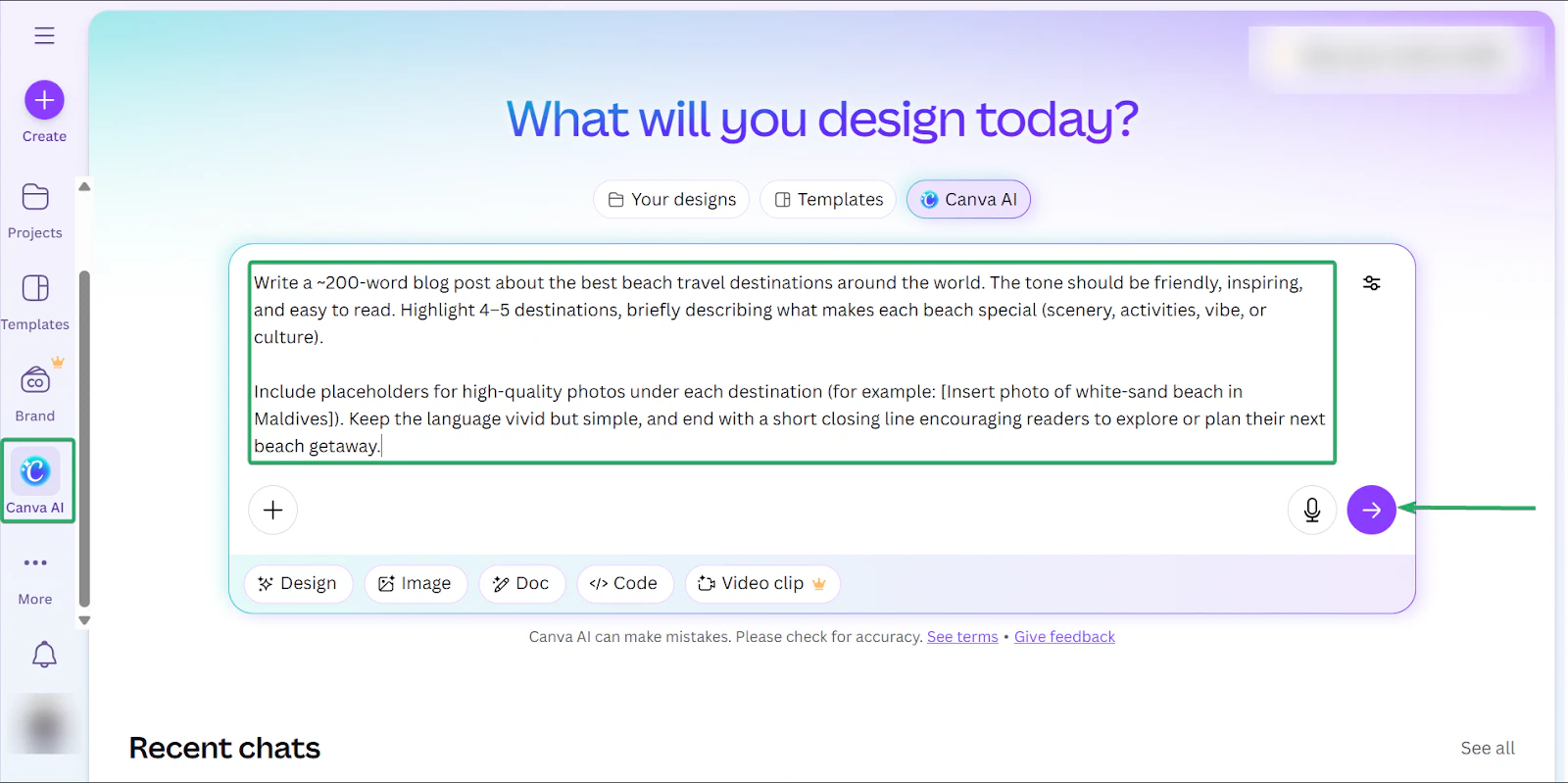
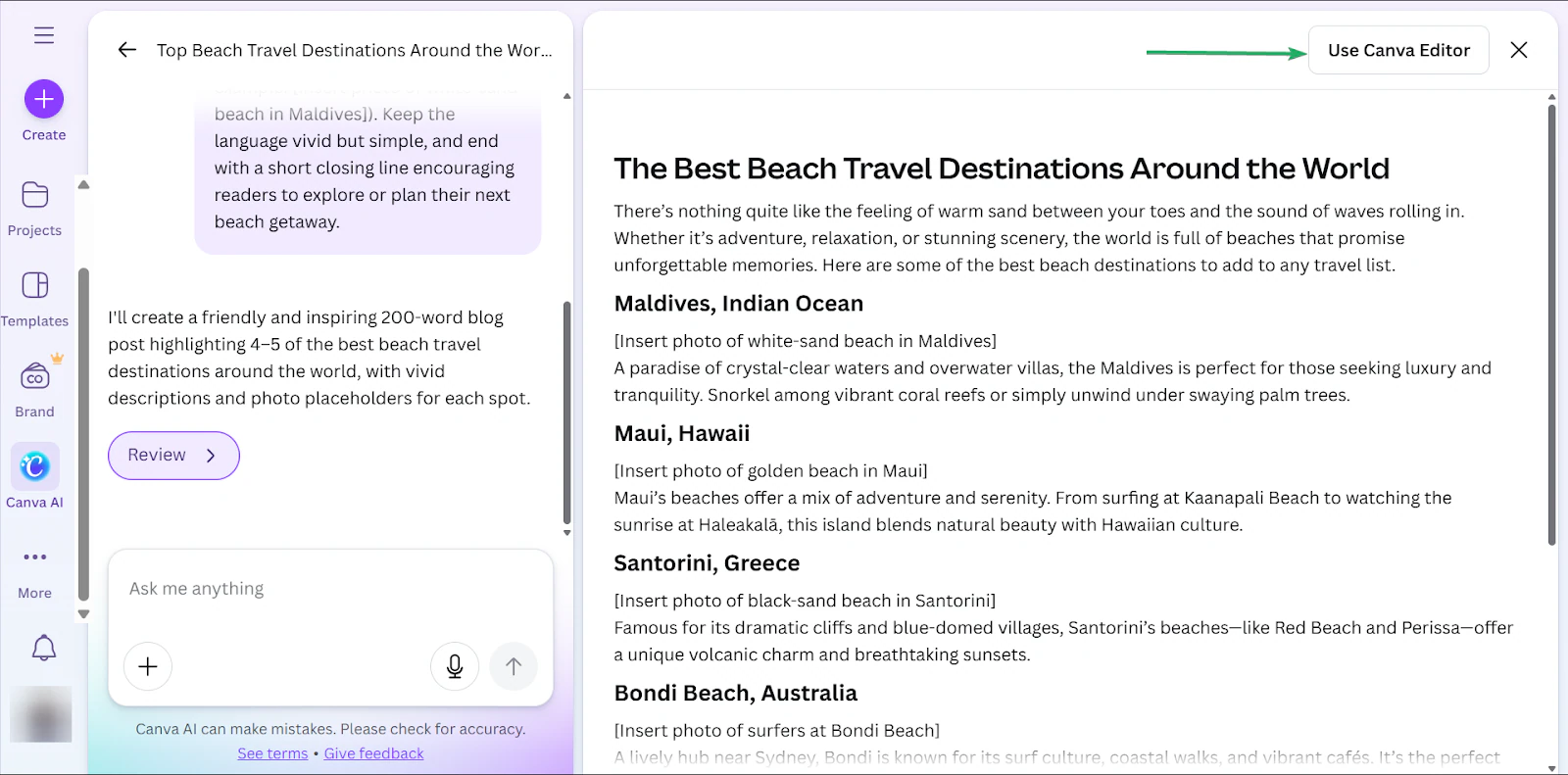
Then, review the content it generates.
You can also edit further using canva editor.
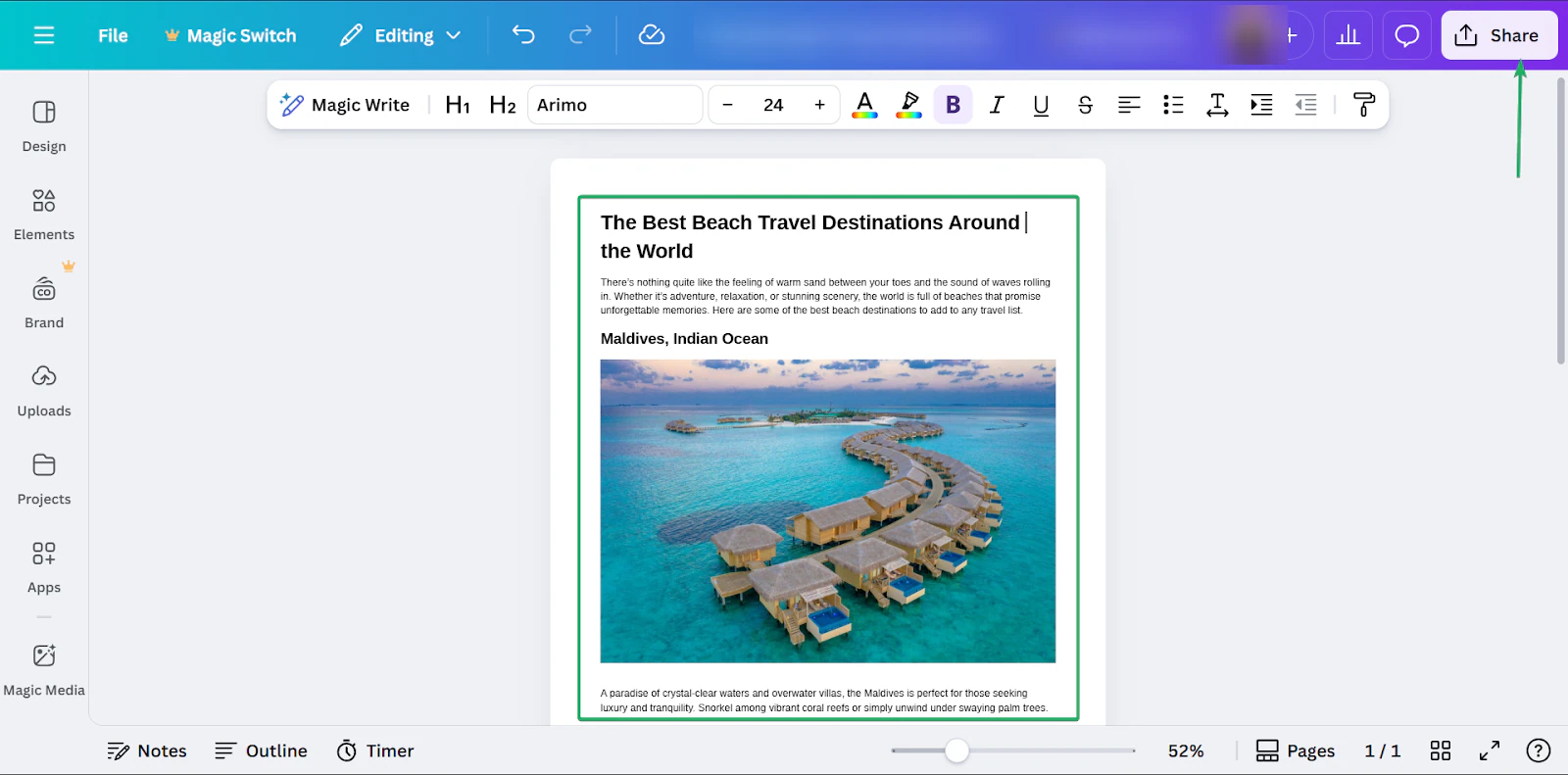
While you’re in Canva’s editing window, you can add media, including images, videos, and other graphics.
3. Apps
Canva’s apps feature is a marketplace that lets you connect with tools like social media channels, schedulers, stock photo libraries, and video editors.
Let me walk you through.
First, click “More” and select apps.
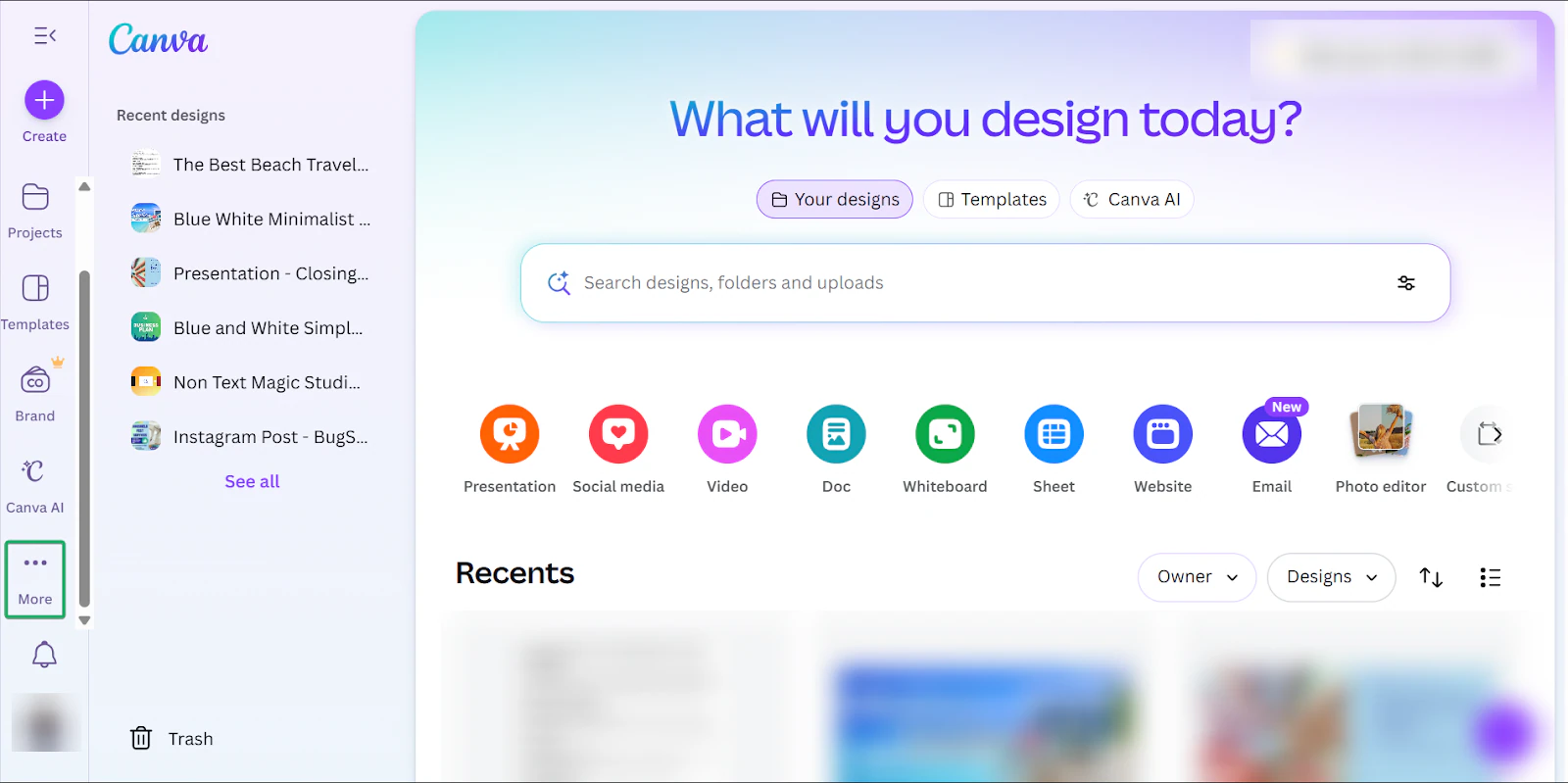
Canva has thousands of apps you can connect with across categories like marketing, communication, and graphic design.
You can also use the search function to find what you’re looking for.
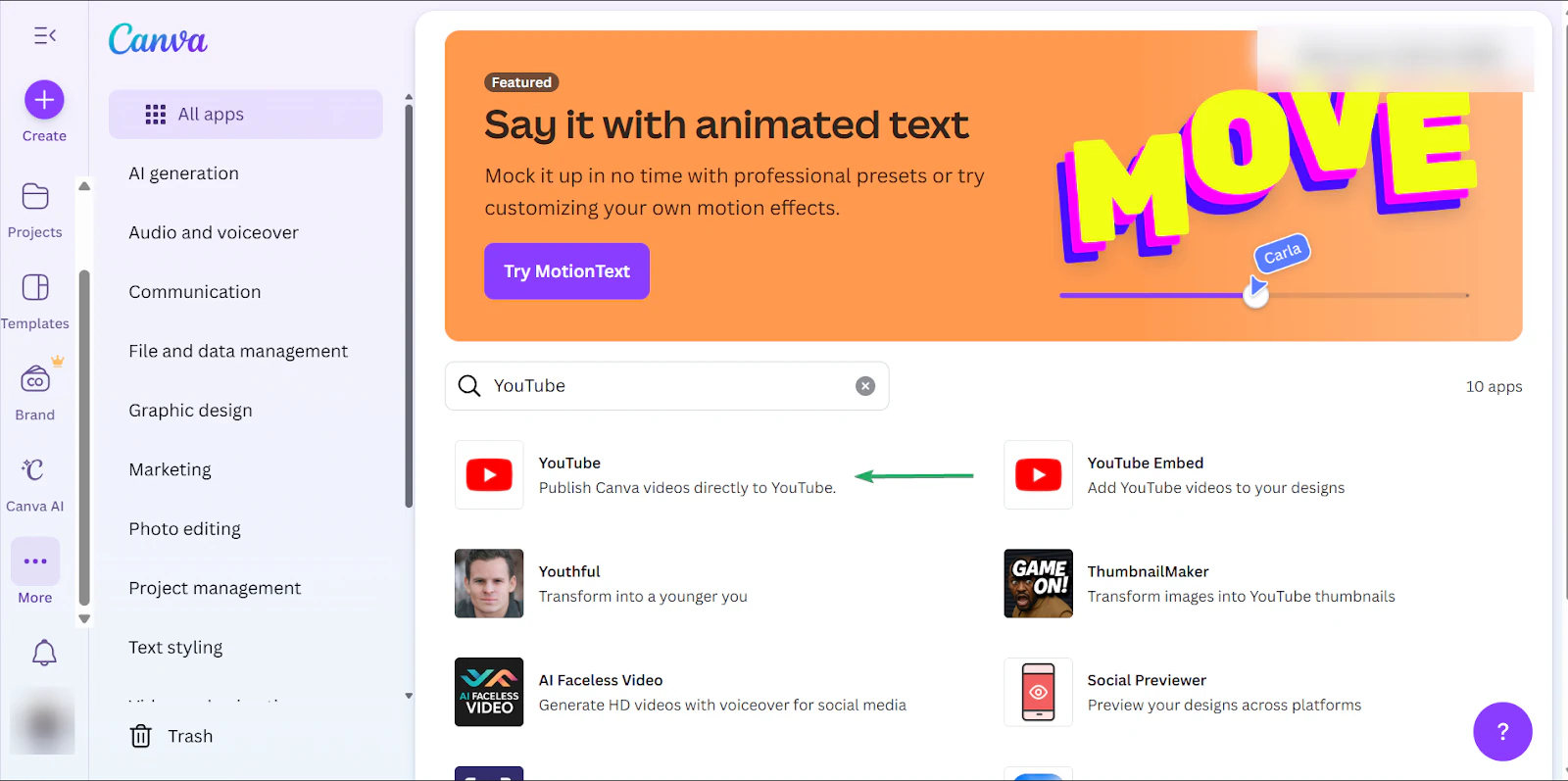
Next, connect the app to Canva.
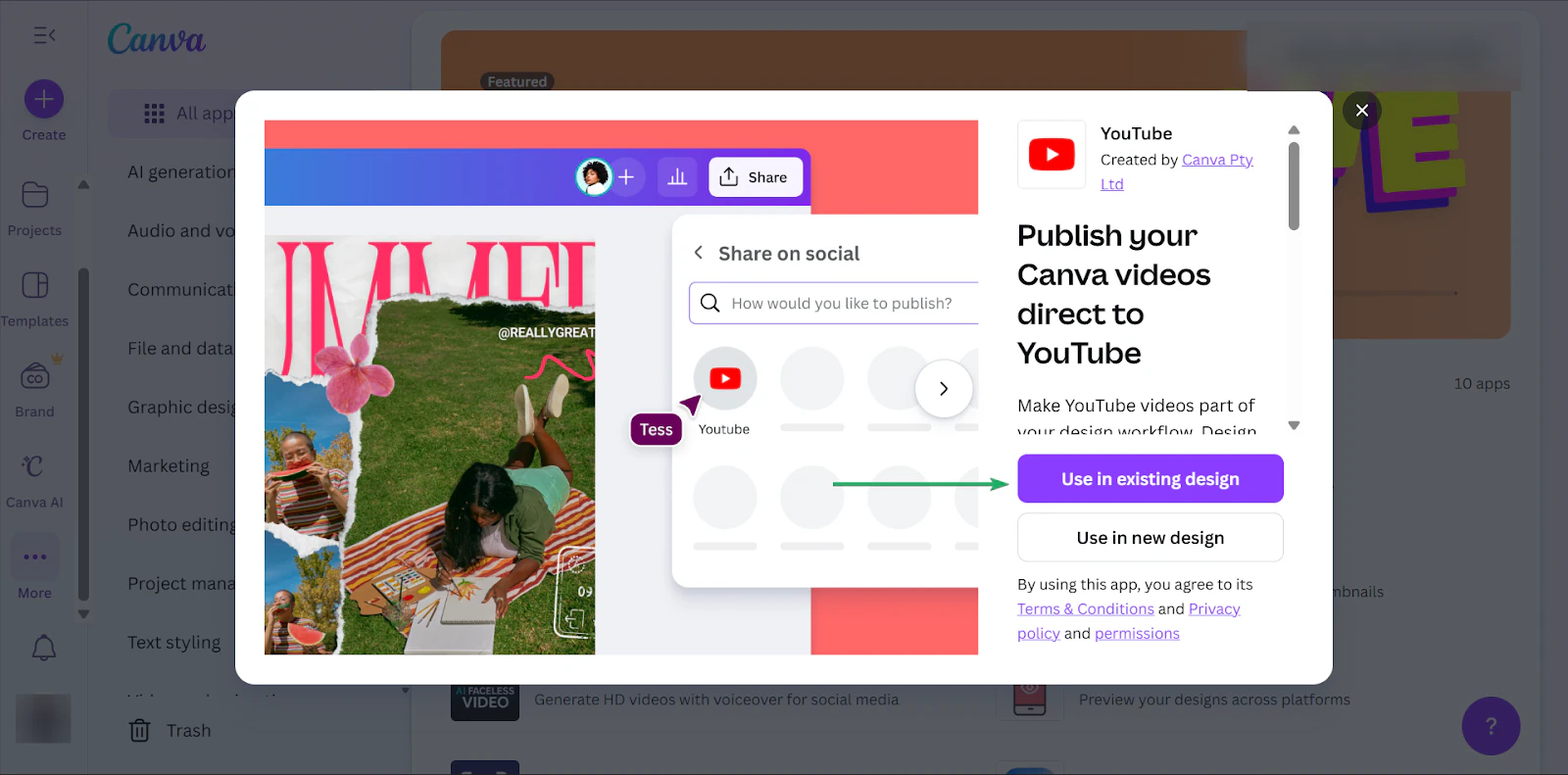
After that, give your content a title and a brief description.
Canva lets you preview how your content will look.
Click “Publish now” to post directly to the app.
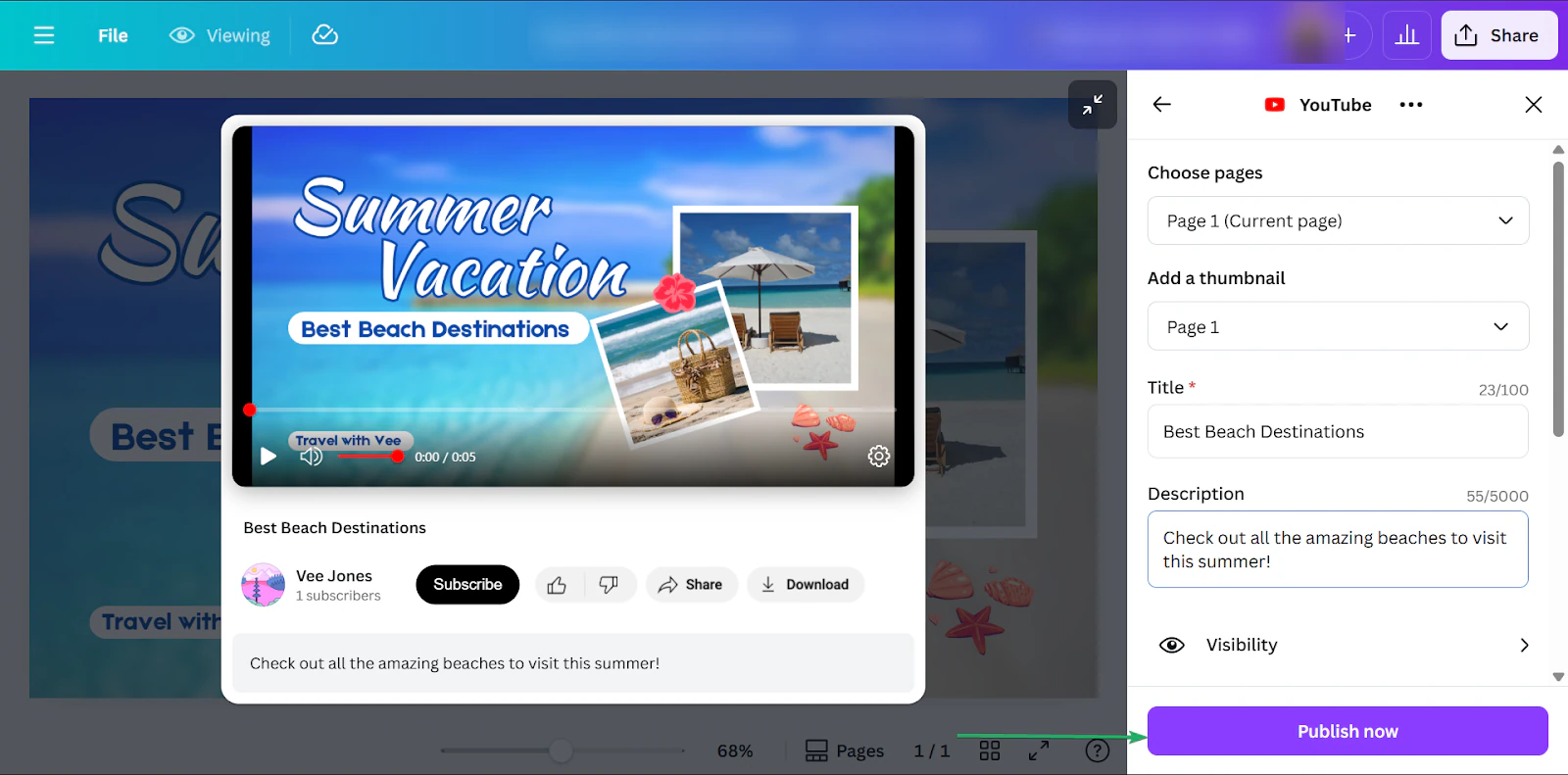
Once it’s uploaded, your content will appear in the selected app.
What I loved vs what I struggled with
What I loved 👍
✅ Extremely beginner-friendly with a drag-and-drop tool that helps non-designers create professional-looking graphics.
✅ Massive template library with millions of free and premium templates.
✅ Integrates with thousands of apps and tools, making it easier to share content from a single source.
What I struggled with 👎
❌ Most templates and other useful assets are locked behind paid plans.
❌ Designs can start to look repetitive if many creators use the same templates.
Best for
- Visual creators producing visual content for social posts, presentations, and marketing assets.
Pricing
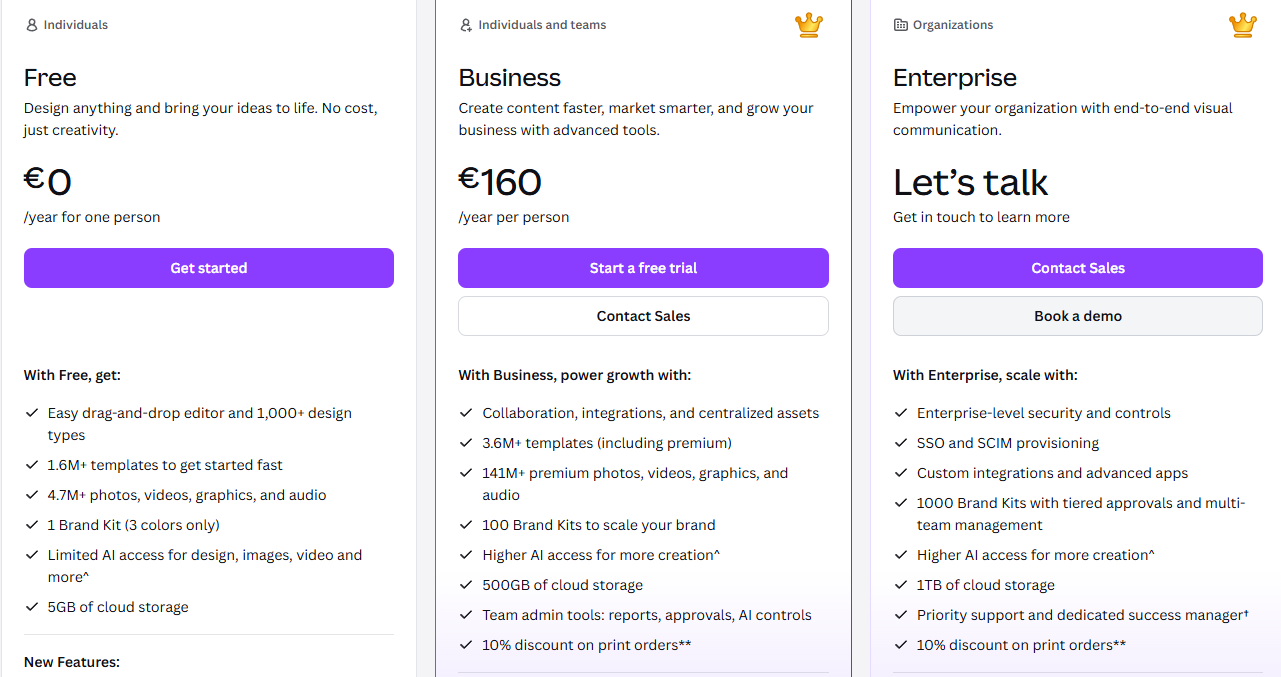
Business
- Free: €0.00/month
- Business: €160/month
- Enterprise: Contact for pricing
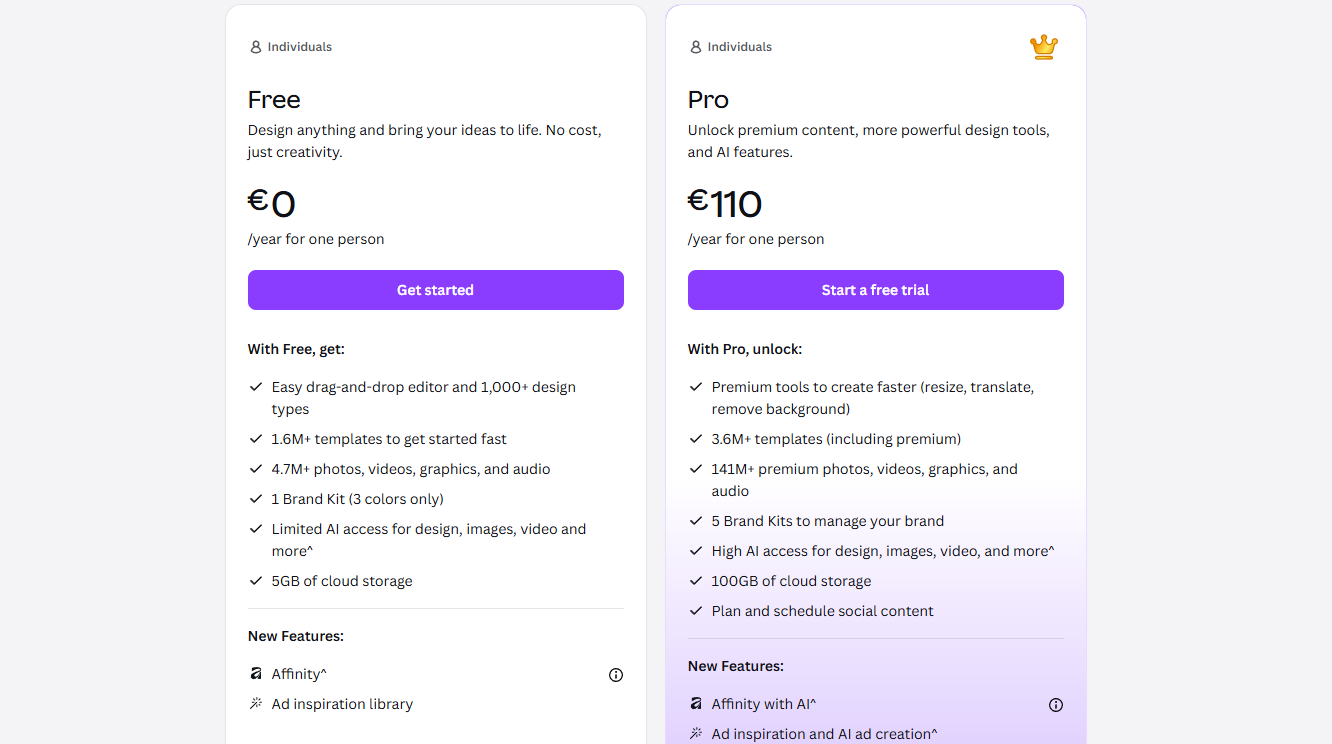
Pro
- Free: €0/month
- Pro: €110/month
Other top platforms for content creators
I tried other platforms for content creators that also deserve to be mentioned in this article:
1. Patreon - Best for membership-based monetization and recurring income from followers
2. Ko-fi - Best for accepting donations and small digital product sales
3. Feedly - Best for content research and keeping up with industry trends
4. BuzzSumo - Best for discovering high-performing content ideas and trending topics
5. TubeBuddy - Best for YouTube channel optimization
6. Jasper.ai - Best for AI-assisted writing
7. RunwayML - Best for advanced AI video editing
8. Gumroad - Best for selling digital products like e-books and templates
9. Substack - Best for publishing and monetizing newsletters and written content
10. Twitch - Best for live streaming and real-time audience engagement
11. Podbean - Best for podcast hosting and monetization
12. MixKit - Best for free stock videos, music, and sound effects
13. TikTok - Best for short-form video content
14. Kajabi - Best for all-in-one courses and digital products
15. Podia - Best for creators selling courses, downloads, and memberships
With these 15 tools, plus the 10 I mentioned earlier, you have everything you need to start creating, growing, and monetizing your audience.
Now, let’s check out how to choose the best content creator platform.
How to choose the right content creator platforms
To choose the right content creator platforms, you should:
- Start with the outcome or results you want
- Map tools to stages like creation, distribution, and more
- Consider the platform’s cost, complexity, and its ability to scale
- Check the content creator platforms’ integration between tools
Now, let’s talk about each factor in detail.
1. Start with the outcome you want
Before choosing a content creator platform, you must have an idea of what your goals are.
Are you trying to sell digital products, grow a following, build a newsletter, or turn your content into income?
When you start with an outcome, you can choose platforms that naturally support your goal right from your first day of posting.
For example, if your main goal is monetization, there are different content creator platforms that can help you get there. Each has its own unique spin.
On some content creator platforms like Easytools, you can sell digital products, like webinars, PDFs, online courses, and e-books.
You can also run an affiliate program where people sell your products and earn commissions.
And even automate simple tasks, like sending emails when customers take an action, like placing an order.
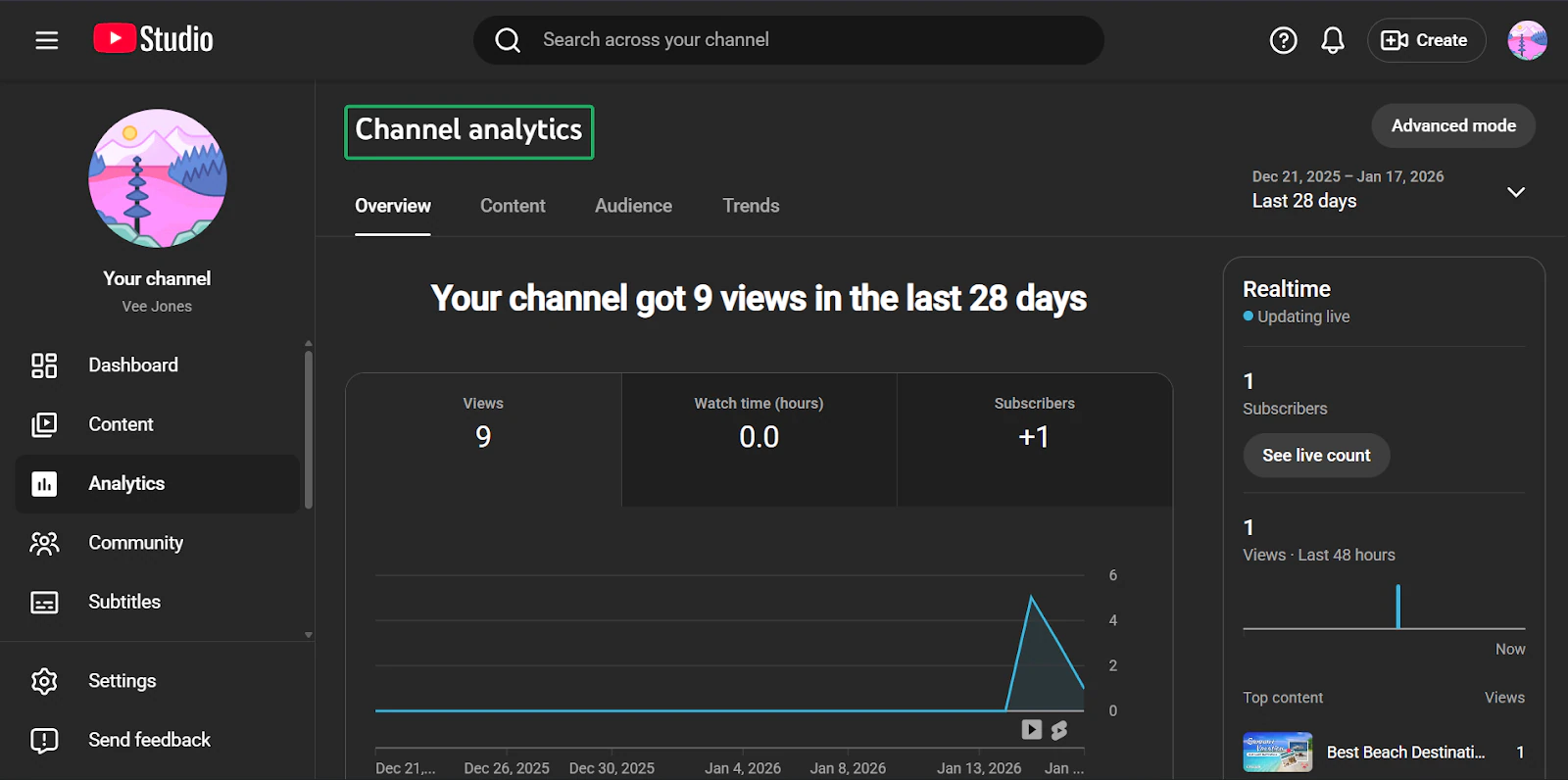
Compare this to content creator platforms like YouTube or WordPress.
While both are great platforms, monetization often comes later, as they focus on content creation and distribution first.
So, if your goal is to turn content into a business, choosing a platform that aligns with your strategy can save you time.
2. Map tools to stages
You should also map tools to stages when choosing the right content creator platform.
The four main stages creators move through are:
1. Creation: designing, writing, editing, and automating content
2. Distribution: publishing, scheduling, and helping people discover your content
3. Conversion: turning attention into following, email signups, or sales
4. Retention: keeping people engaged through subscriptions or communities
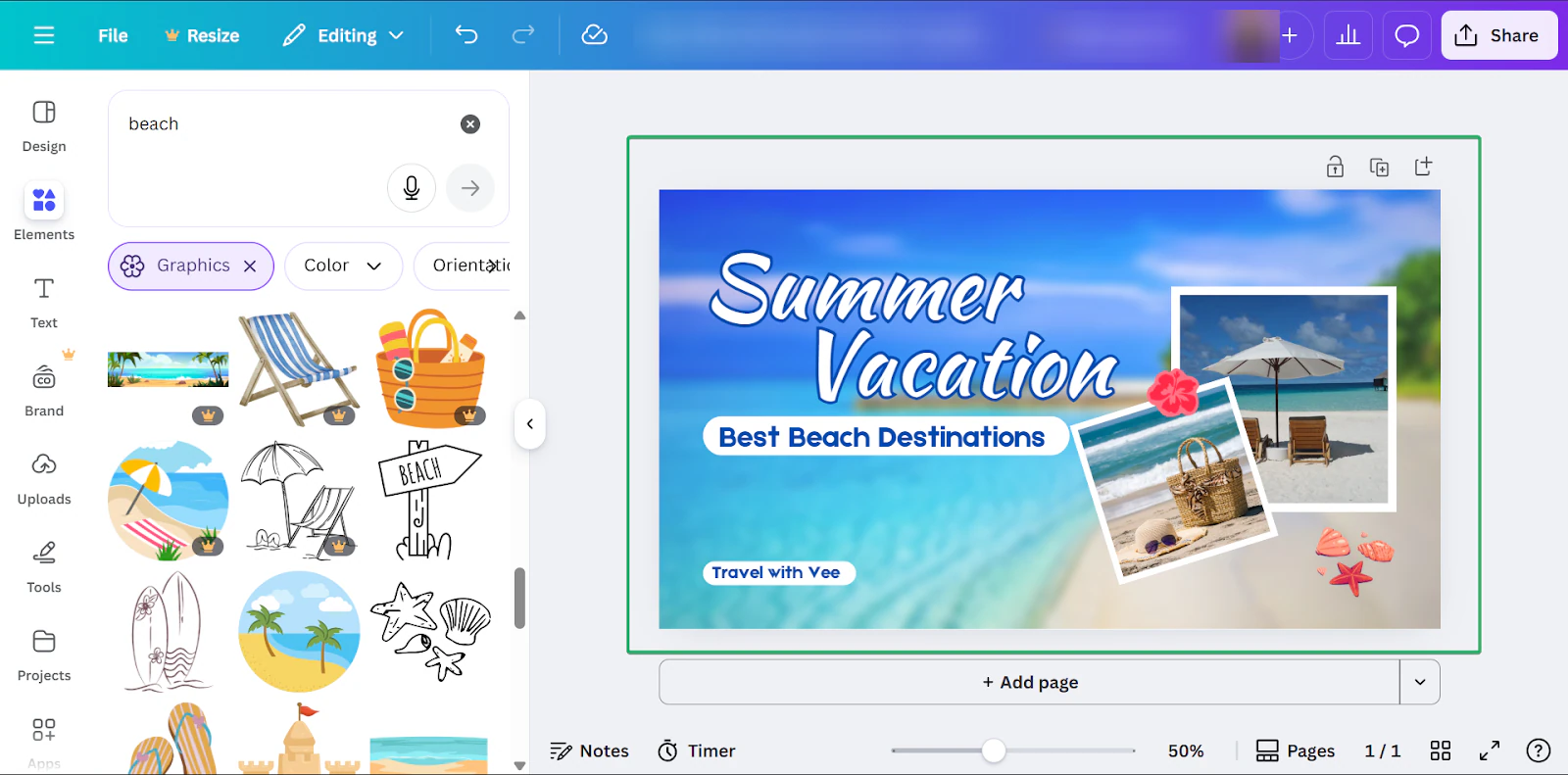
For example, platforms like Canva and Descript are great options for the creation stage. Canva helps with visuals and branding, while Descript lets you quickly create audiovisual content.
YouTube and Buffer are great choices for distribution, helping creators publish and schedule content across channels.
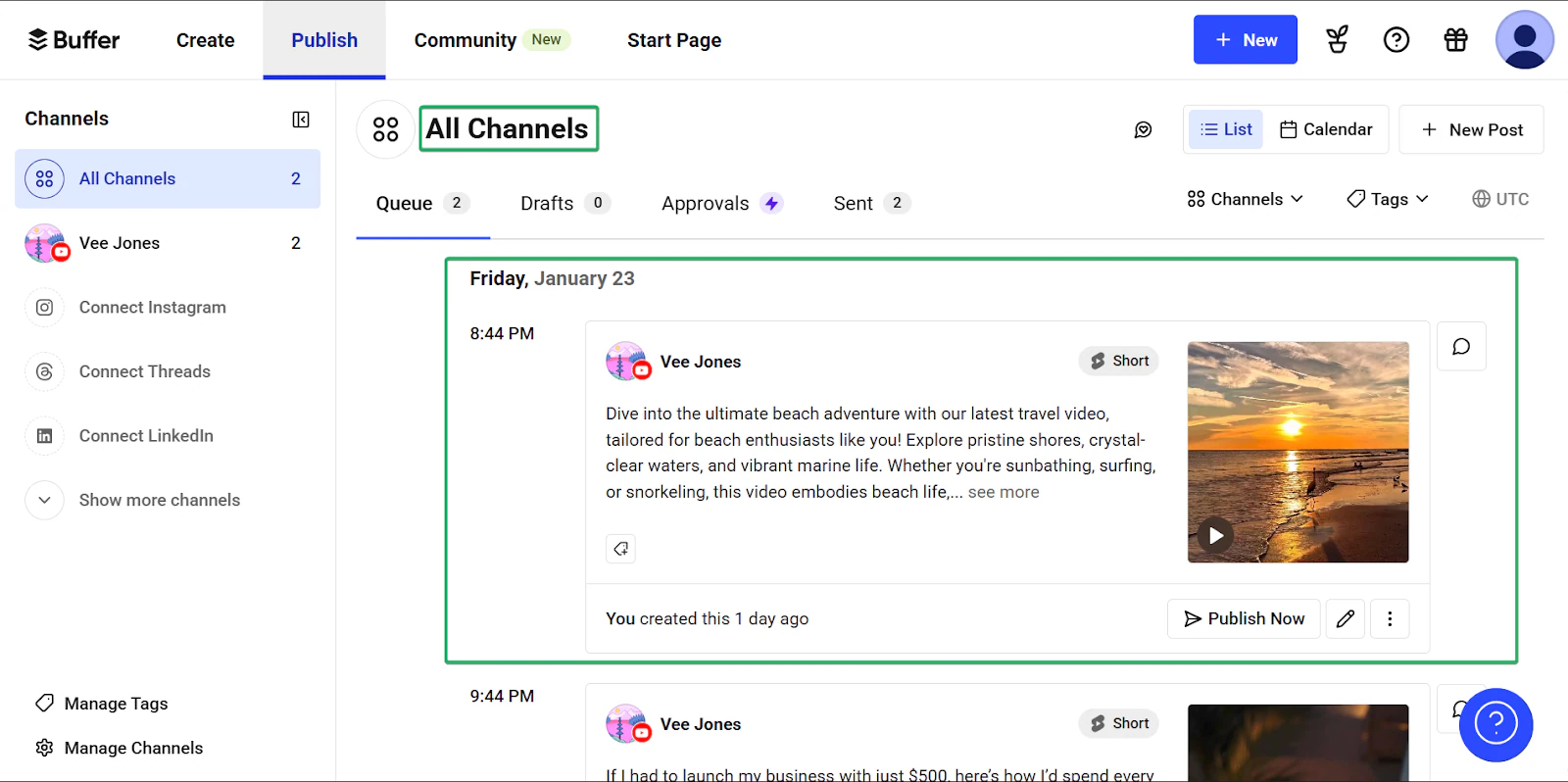
But at the conversion stage, creators start to feel friction with their tools.
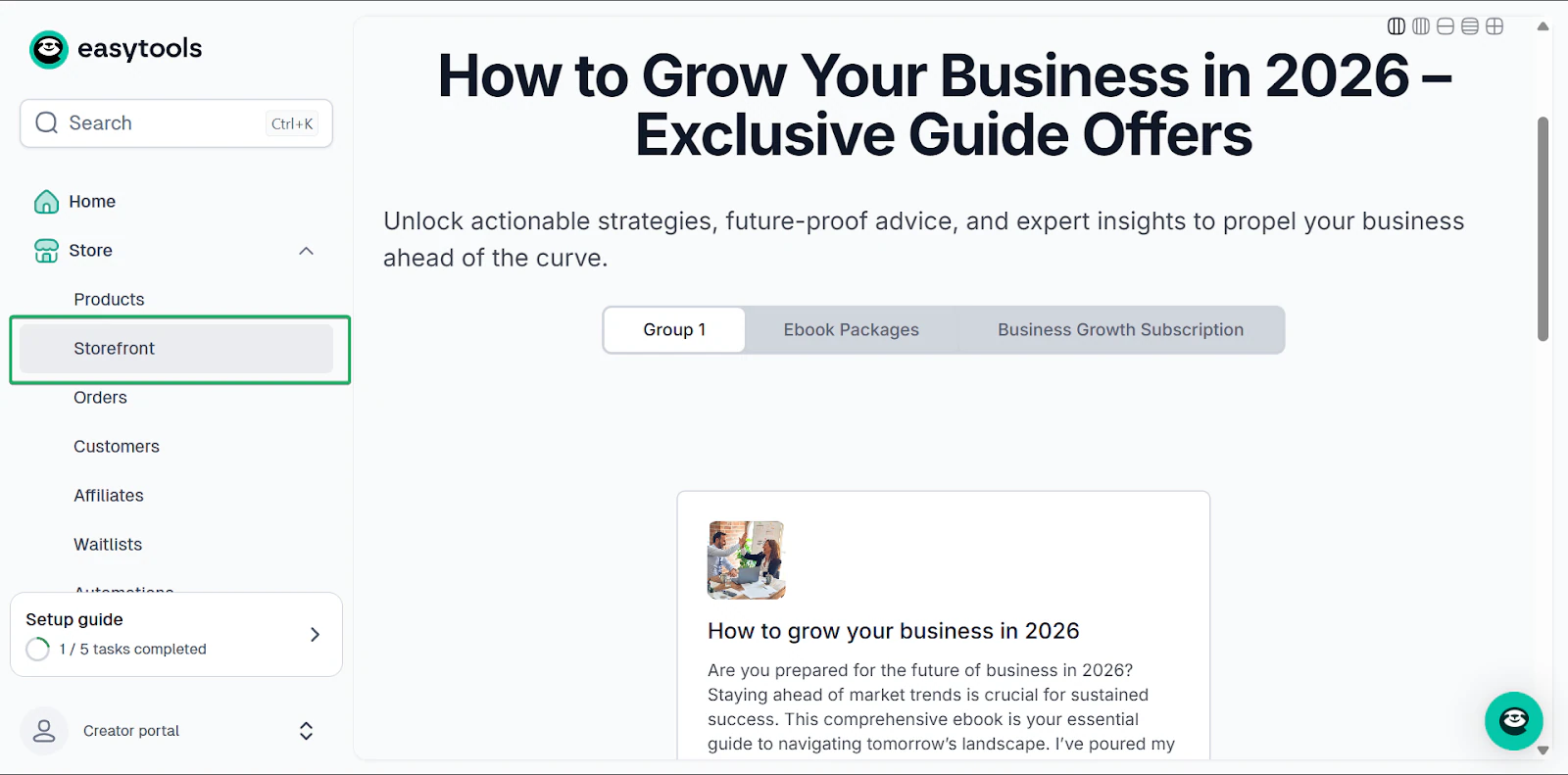
Most publishing platforms aren’t always designed to sell products, for example.
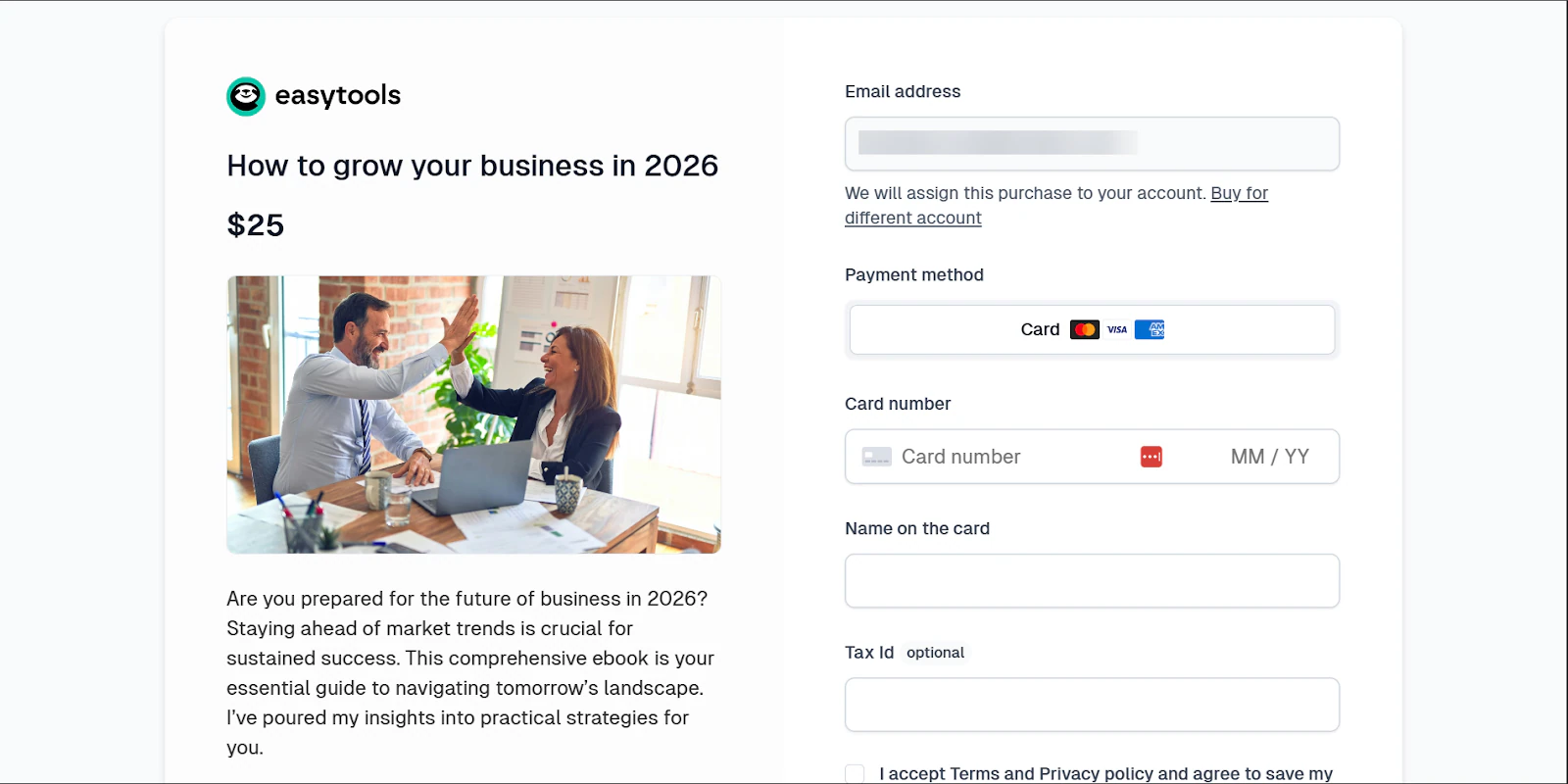
With Easytools, you can create simple storefronts and sell your digital content all in one place.
Finally, there’s retention, which is basically how you keep your audience engaged after they first engage with you.
Tools like beehiiv and Sendfox help creators stay in touch through newsletters and emails.
Easytools complements this through repeat purchases and affiliate programs that keep audiences coming back.
All I’m saying is every content creator’s workflow goes through stages. And when you think about it, not all platforms are designed to help you grow.
So, instead of asking which tool does everything, it’ll be smarter to assess which content creation platform best fits where you’re at.
And matching content creator platforms to your stage will also help you choose a tool that grows with your audience.
3. Consider cost, complexity, and scale
The platform’s cost, complexity, and scalability are also worth considering when choosing the right platform.
After all, as your creator business grows, so should your tools.
You need to focus not only on affordability but also on whether that affordable tool still makes sense as your business expands.
This is where three things matter:
- Free vs paid trade-offs
- Tool overlap and redundancy
- What starts to break as you grow
Here’s what I mean.
1. Free vs paid trade-offs
Many content creator platforms, like YouTube, Canva, and WordPress, are free or low-cost at the start.
You can create without paying upfront, which is great when you’re new to content creation.
But free plans often come with limits. You have access to fewer features, branding restrictions, and even tool integrations.
Once you start earning, costs begin to appear elsewhere.
For example, if you want to sell on WordPress, you will need to pay for hosting, premium themes, e-commerce plugins, and maintenance.
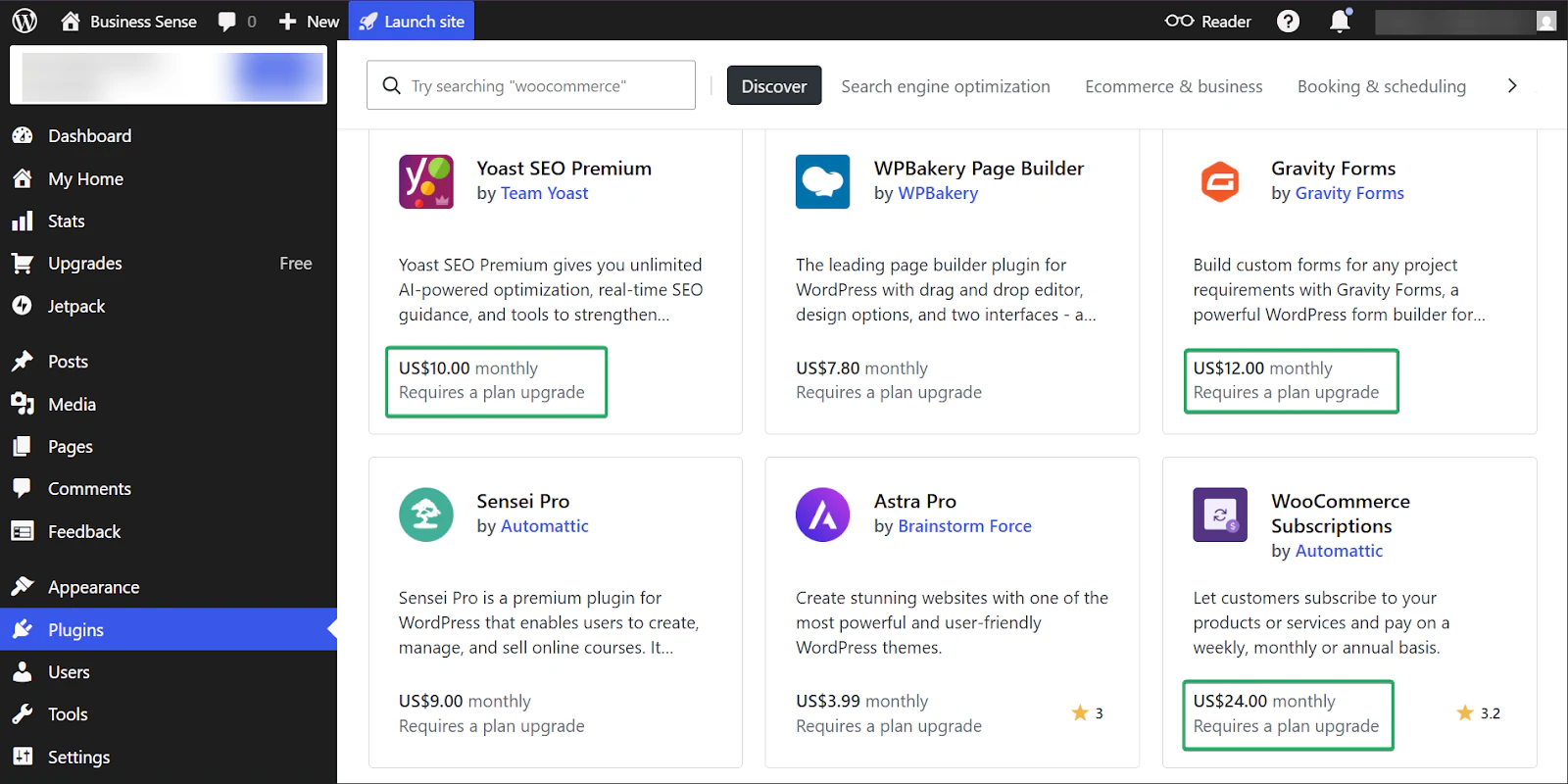
So while WordPress’s pricing might seem relatively affordable at $4, $8, and $25 per month for its Personal, Premium, and Business tiers, you’ll end up paying more for these extra services.
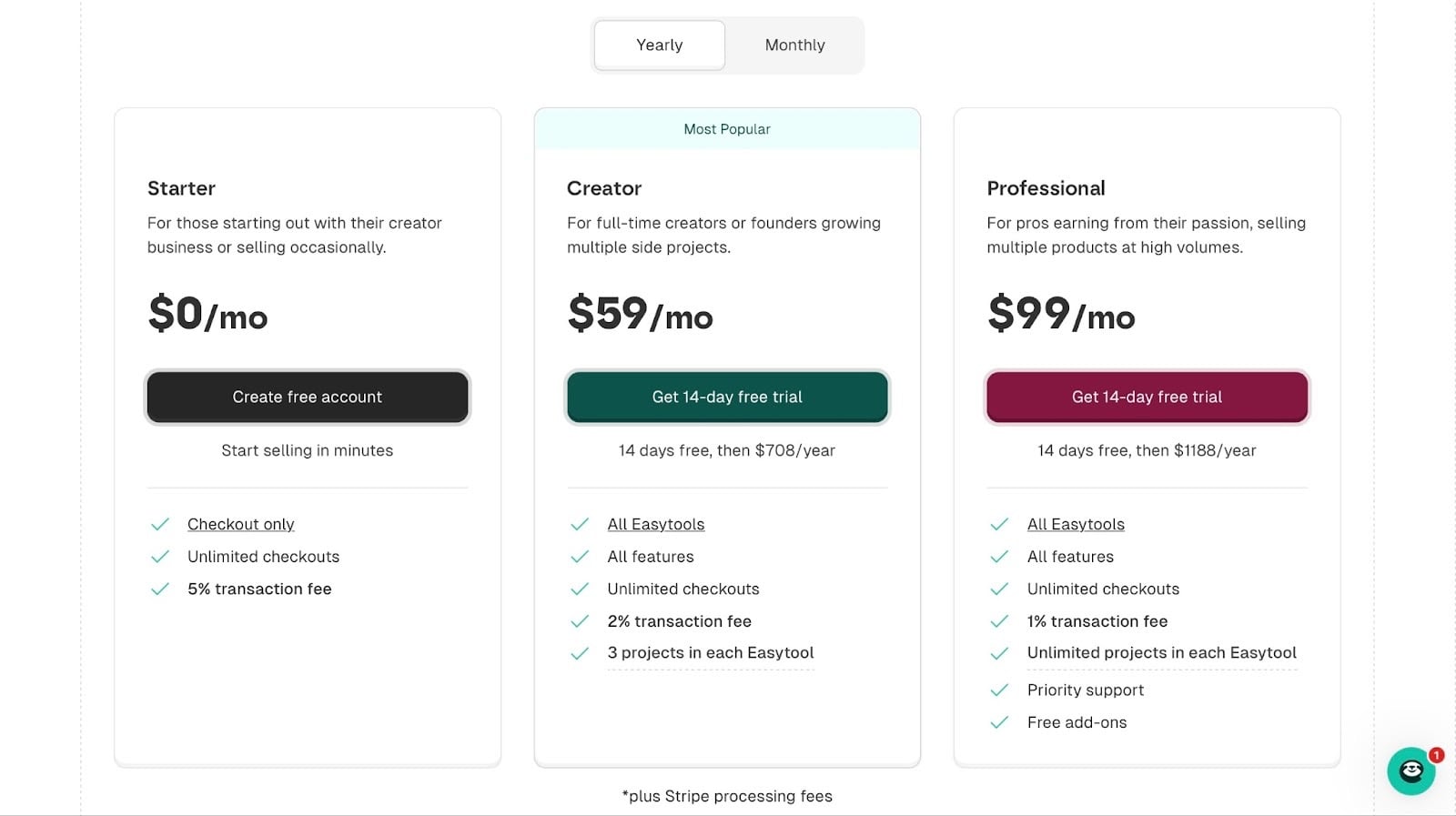
On the other hand, Easytools groups all of its features into a single paid platform.
2. Tool overlap and redundancy
As your content creation grows, it’s normal to end up with a wide variety of tools.
For example, platforms like Sendfox are great for sending emails, but they aren’t built for monetization. So, creators would often add another platform just to handle that part.
When this happens, you’ll end up paying for multiple tools whose features you don’t fully use.
You’ll also end up managing dashboards and wasting time figuring out which tool does what.
So what you really need is a content creator platform that reduces overlap and redundancy by bringing all these features together in one place.
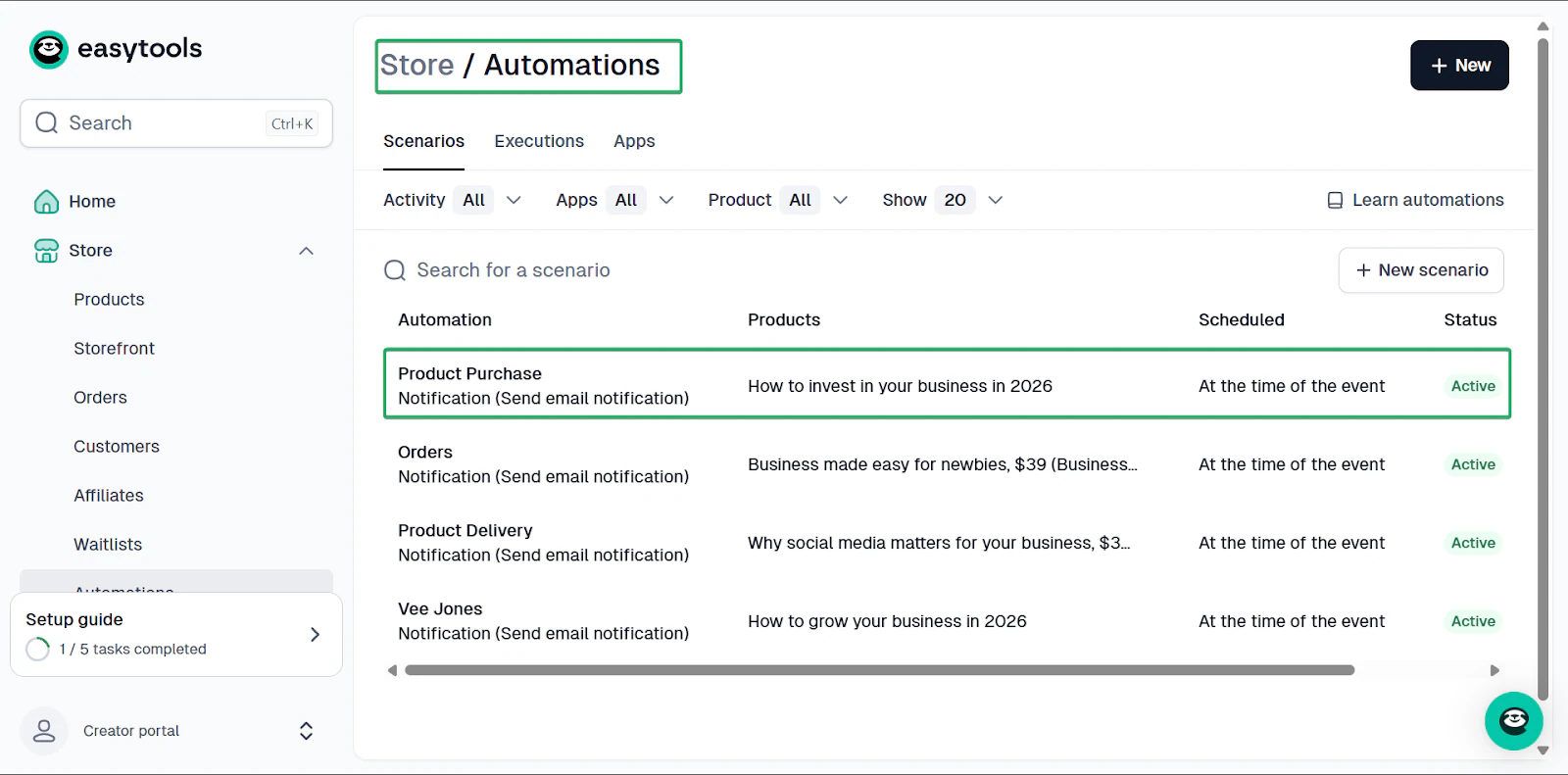
For example, with Easytools, you can continue selling products and sending emails to your customers without switching tools.
Even better, you can automate confirmation emails for each purchase.
3. What breaks when you grow?
As your audience and sales grow, you’ll quickly notice some of your tools struggling.
For example, your free plans will no longer work, so you will need to upgrade. Or you’ll notice that many tools are starting to clash.
Content creator platforms like YouTube still let you publish content easily, but turning that into earnings often needs extra work and costs.
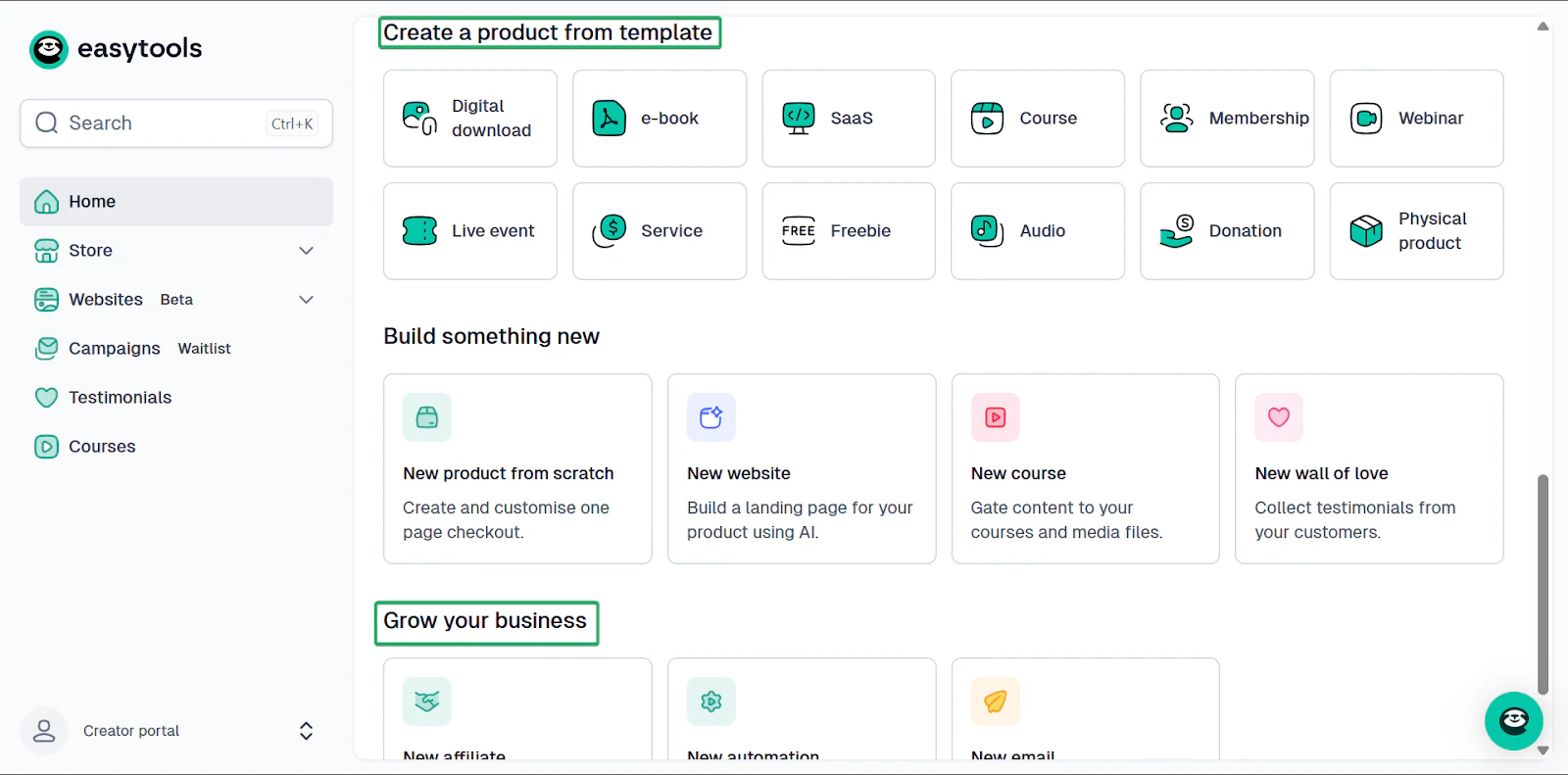
On the other hand, with Easytools, you can create and sell all your digital content, manage customers and affiliates, and generate revenue without extra setup.
4. Integrations with other tools
Finally, you have to consider the integrations between content creator platforms and other tools.
Trust me, even the best tools can’t do everything.
Imagine creating a video on Descript, designing a thumbnail in Canva, and then trying to schedule everything on Buffer.
If these tools don’t integrate, you’ll need to manually upload your content to each platform and repeat the process each time.
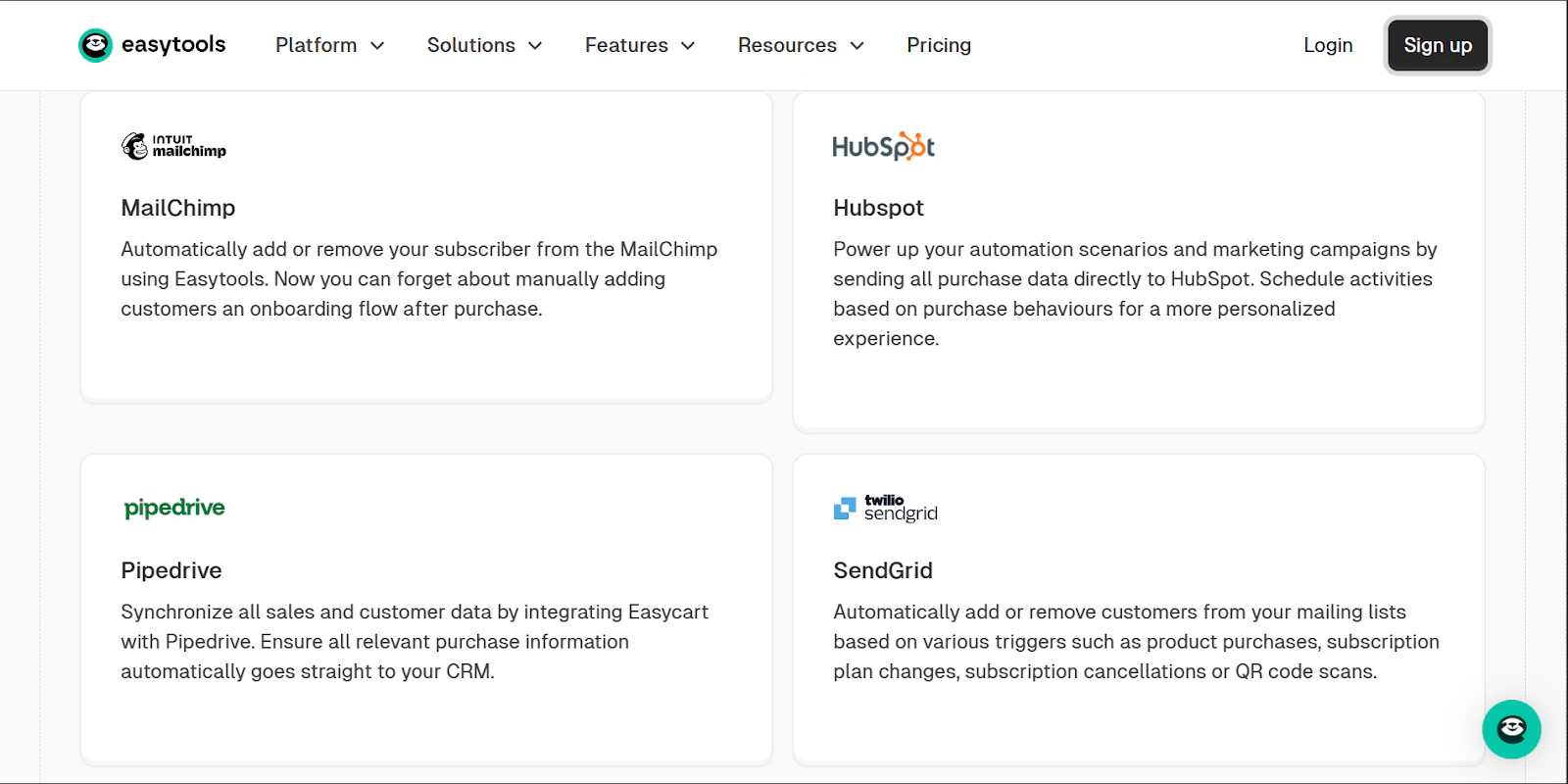
With Easytools, you can connect with tools like Mailchimp, Pipedrive, WordPress, Zencal, and more.
So without leaving Easytools, you can:
- Add customers and subscribers to your email list automatically
- Send newsletters and product updates to both customers and leads
- Follow up with prospects automatically
- Connect your creator store to your blog
- Automate meeting scheduling between you and your customers
- Automate payments before meeting sessions
Choose the best content creator platform
In this article, I took you through 10 of the best content creator platforms, starting with Easytools.
Easytools stands out for its unique approach to creating, selling, and marketing digital content all in one place.
I also shared 15 honorable mentions for tools like Patreon, TikTok, TubeBuddy, and Ko-fi, which are effective for audience growth, short-form video, and content research.
Finally, I covered factors to consider when choosing the right content creator platforms.
I said you should have a goal, map tools to your creator stage, consider cost and scale, and look for integrations that keep your workflow smooth.
For creators who want to create, sell, and scale to the best of their ability, Easytools leads the pack, while the other platforms offer support.