Selling online
The 20 best Ko-fi alternatives we recommend in 2026! Features, pros, and cons
Looking for a Ko-fi alternative? We compared the 20 best platforms for accepting tips, selling digital products, and running memberships, with their key features, fees, pros, cons, and who each one is best for.

If you’re going to monetize content creation, it has to be the whole nine yards. You’ve got to go beyond tips.
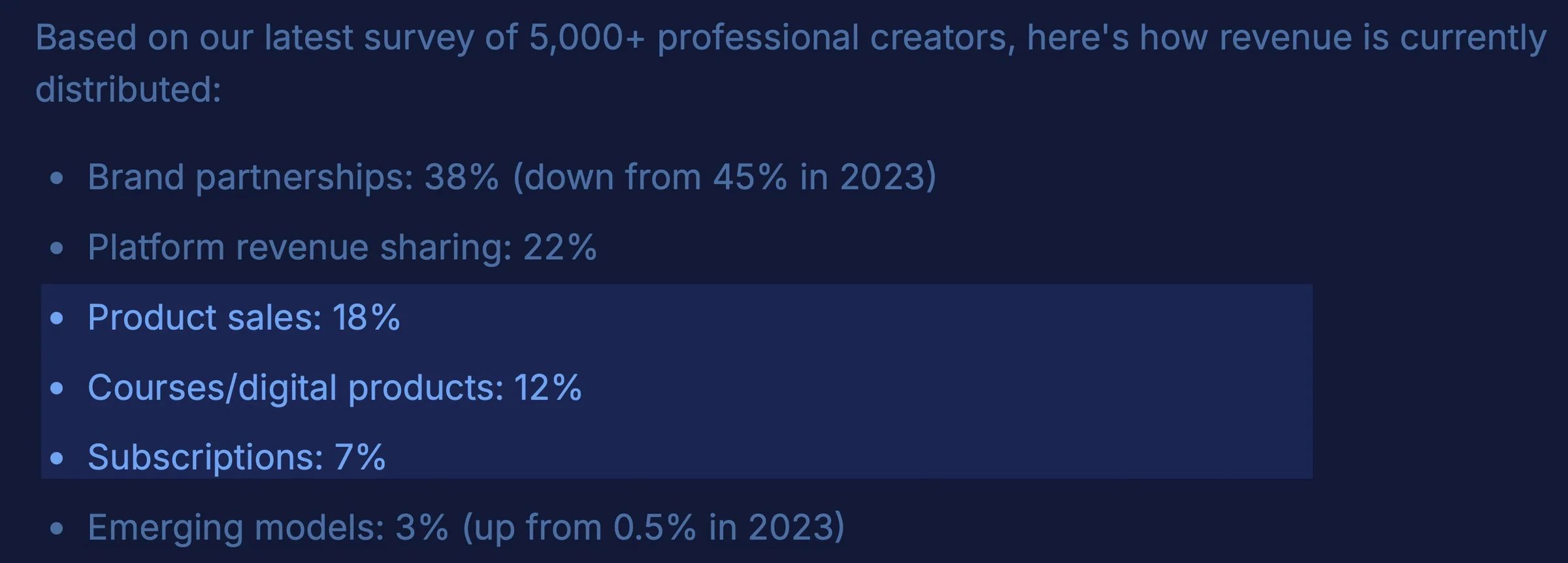
Donations typically contribute very little to your total earnings. According to a survey of 5,000+ professional creators, product sales, digital products, and subscriptions can account for 37% of your revenue.
Ko-fi alternatives can let you accept donations and still create, market, and sell digital products and services. But that’s only if you know the best platforms on the market.
So in this guide, I’ll walk you through the best Ko-fi alternatives and help you choose the one that’s right for your own online business. Keep reading.
TL;DR
-
The best 20 Ko-fi alternatives are:
- Easytools
- Buy Me a Coffee
- Patreon
- Big Cartel
- Payhip
- Fourthwall
- Gumroad
- Sellfy
- Beacons
- Podia
- Stan Store
- The Leap
- Substack
- Lemon Squeezy
- Memberful
- Teachable
- Kajabi
- Shopify
- Liberapay
- Ghost
-
To choose the right Ko-fi alternative, you should
- Choose based on how you make money
- Consider the fees
- Think about where your business is going
- Look at customer experience
How we selected these Ko-fi alternatives
Here’s how my team and I selected the Ko-fi alternatives on our list:
- We picked Ko-fi alternatives that are easy to use and require little to no upfront investment, so creators who are just starting out can use them.
- We also looked beyond the traditional tip-jar model. We wanted platforms that let you sell digital products, offer memberships, and make money in other ways.
- We selected platforms that support donations in different ways, including through product checkouts, websites, newsletters, and dedicated donation pages.
- Finally, we chose platforms that make it easy for creators to share their donation links and pages, and for supporters to leave tips without going through a complicated process.
Best Ko-fi alternatives compared
| Platform | Key features | What you can sell | Promotion channels | Donation support | Starting plan | Best for |
|---|---|---|---|---|---|---|
| Easytools | Customizable 1-page checkout, landing pages, website builder, email marketing, courses, subscriptions, upsells, cross-sells, order bumps, analytics, testimonials, automations, affiliate management, AI tools (MCP, AI edits, etc) | Digital products (e-books, PDFs, templates, planners, checklists, SaaS), courses, subscriptions, memberships, services, live events (tickets), webinars, physical products | Creator page, multi-page website, newsletters (email campaigns), social media (TikTok, Facebook, Telegram, X, Instagram, LinkedIn, YouTube), checkout links, embedded checkout | Pay-what-you-want checkout and customizable support buttons (Buy Me a Coffee-style widget) | Starter: $29/month + 3% transaction fee + unlimited checkouts, customers, and campaigns + 2,500 marketing contacts | Creators who want selling, checkout, and marketing tools in one place |
| Buy Me a Coffee | Tipping page, memberships, supporter-only posts, digital shop, commissions, supporter messaging, email updates, analytics, funding goals | One-time tips, recurring memberships, digital downloads (e-books, templates, artwork, files), exclusive content, services, commissions | Public supporter page, creator shop, membership page, email updates, social media bio links, direct support links, embedded support buttons | Dedicated one-time tipping page with customizable contribution amounts | Free: $0/month + 5% platform fee | Creators who want to accept tips, sell products, and offer memberships |
| Patreon | Membership tiers, exclusive posts, community chats, polls, livestreams, digital shop, collections, analytics, audience discovery, discounts | Paid memberships, digital downloads, exclusive videos, podcasts, audio, artwork, paid posts, content collections | Patreon creator page, Patreon app and discovery feed, community chats, email notifications, social media links, direct membership and shop links | Recurring support through paid memberships rather than a dedicated one-time tip jar | Free + 10% platform fee | Creators who want recurring income through memberships and exclusive content |
| Big Cartel | Online store builder, customizable themes, digital downloads, print-on-demand integrations, inventory management, discounts, shipping tools, analytics, third-party integrations | Physical products (art prints, clothing, accessories, crafts), digital downloads, print-on-demand merchandise, recurring support | Branded online shop, custom domain, product links, Instagram Shopping, Facebook Shops, Google Shopping, social media, print-on-demand integrations | Recurring monthly donations on eligible paid plans | Gold: $0/month + 5 product listings | Artists and small creators who want a simple store for physical and digital products |
| Payhip | Store builder, blog, courses, memberships, coaching, bundles, coupons, affiliates, referrals, cross-selling, analytics, email marketing integrations, Payhip marketplace | Digital downloads (e-books, PDFs, templates, planners, software), physical products, courses, memberships, coaching, bundles, subscriptions | Branded storefront, Payhip marketplace, blog, product links, embedded buy buttons, social media, third-party email campaigns | Pay-what-you-want pricing, including $0+ products and minimum-price contributions | Free Forever: $0/month + 5% transaction fee + unlimited products | Creators and small business owners who want to sell products, courses, and memberships online |
| Fourthwall | Website builder, print-on-demand catalog, product designer, digital products, memberships, subscriber posts, donation checkout, discounts, analytics, social integrations, fulfillment | Print-on-demand merchandise (shirts, hoodies, mugs, accessories), physical products, digital downloads, memberships, donations | Branded website, product pages, checkout, YouTube, TikTok, Instagram, Spotify, Twitch gifting, social media links | Built-in checkout donations with customizable suggested amounts and display settings | Free: $0/month + 5% transaction fee on digital products and memberships | Creators who want to sell branded merchandise, digital products, and memberships |
| Gumroad | Product pages, checkout, digital file delivery, memberships, subscriptions, pay-what-you-want pricing, email broadcasts, automated workflows, affiliates, discount codes, analytics, license keys, Gumroad discover | E-books, PDFs, templates, planners, checklists, software, plugins, digital artwork, music, videos, online courses, memberships, subscriptions, physical products | Gumroad storefront, Gumroad Discover marketplace, product links, embedded buttons, email broadcasts, social media (Instagram, TikTok, YouTube, Facebook, X, LinkedIn), existing websites | Pay-what-you-want pricing, including $0+ products for voluntary contributions | Free: 10% + $0.50 or 30% per direct sale depending on how the buyer discovered the item | Creators who want to sell digital products without building a full website |
| Sellfy | Customizable online store, digital downloads, print-on-demand, subscriptions, email marketing, discount codes, upselling, abandoned-cart recovery, affiliate marketing, analytics, pay-what-you-want pricing | E-books, PDFs, templates, planners, music, videos, digital artwork, software, subscriptions, physical products, print-on-demand clothing, mugs, accessories | Branded storefront, custom domain, product links, embedded products, email campaigns, social media (Instagram, TikTok, YouTube, Facebook, Pinterest), existing websites | Pay-what-you-want pricing for products, allowing customers to pay above the minimum price | Starter: $39/month + 0% transaction fees | Creators who want to sell digital products and print-on-demand merchandise from their own store |
| Beacons | Link-in-bio builder, creator store, website builder, digital downloads, courses, memberships, email marketing, AI tools, Instagram DM automation, affiliate links, media kit, appointments, analytics, order bumps, discounts | Digital downloads (e-books, PDFs, templates, guides, music), courses, memberships, appointments, coaching, affiliate commissions, brand partnerships, donations | Link-in-bio page, creator store, website, email campaigns, Instagram auto-DMs, social media (Instagram, TikTok, YouTube, Facebook, X), affiliate links, product checkout links | Donation support through creator monetization tools | Free: $0/month + 9% seller fee on digital products and store sales | Social media creators who want to sell products and services through a link-in-bio store |
| The Leap | Link-in-bio storefront, digital product builder, landing pages, mini-courses, quizzes, lead magnets, email broadcasts, automated email flows, contact management, calendar booking, upsells, discount codes, analytics | E-books, PDFs, templates, guides, checklists, mini-courses, challenges, tutorials, coaching, consulting, bookings, digital services | Link-in-bio store, product landing pages, email campaigns, social media (Instagram, TikTok, YouTube, Facebook, X, LinkedIn), direct product links | No dedicated donation or tipping feature confirmed | Free: $0/month + 3 live products + 500 contacts | Creators who want to sell digital products and services directly from social media |
Best Ko-fi alternatives
1. Easytools
- Personal rating: ⭐️⭐️⭐️⭐️ 4.9/5 - It’s a no-code platform designed to help you market, sell, and accept support without hassle.
- Ease of use: ⭐️⭐️⭐️⭐️ 4.9/5 - Very intuitive - You can set up a checkout with the PWYW option in minutes, and customers have to click on only one button to support you.
- AI capabilities: Answers questions instantly with Chilly (AI agent). Also has an MCP server that lets you use AI assistants like Claude to manage your products, revenue, and subscriptions using everyday language. Uses AI to help you build websites, create images, write copy, run email campaigns, recommend course lessons, and even make edits to your website.
- Monetization options: Donations, affiliates, cross-sells, order bumps, price variants, e-books, online courses, services, live events (tickets), webinars, SaaS, PDFs, templates (Notion and Canva, and more), digital downloads, and more.
- Free trial: Yes - 14-day free trial on all its plans.
- Starting plan: Starter - $29/month + 3% transaction fee + unlimited checkouts, customers, and campaigns
First on our list of the best Ko-fi alternatives is Easytools.
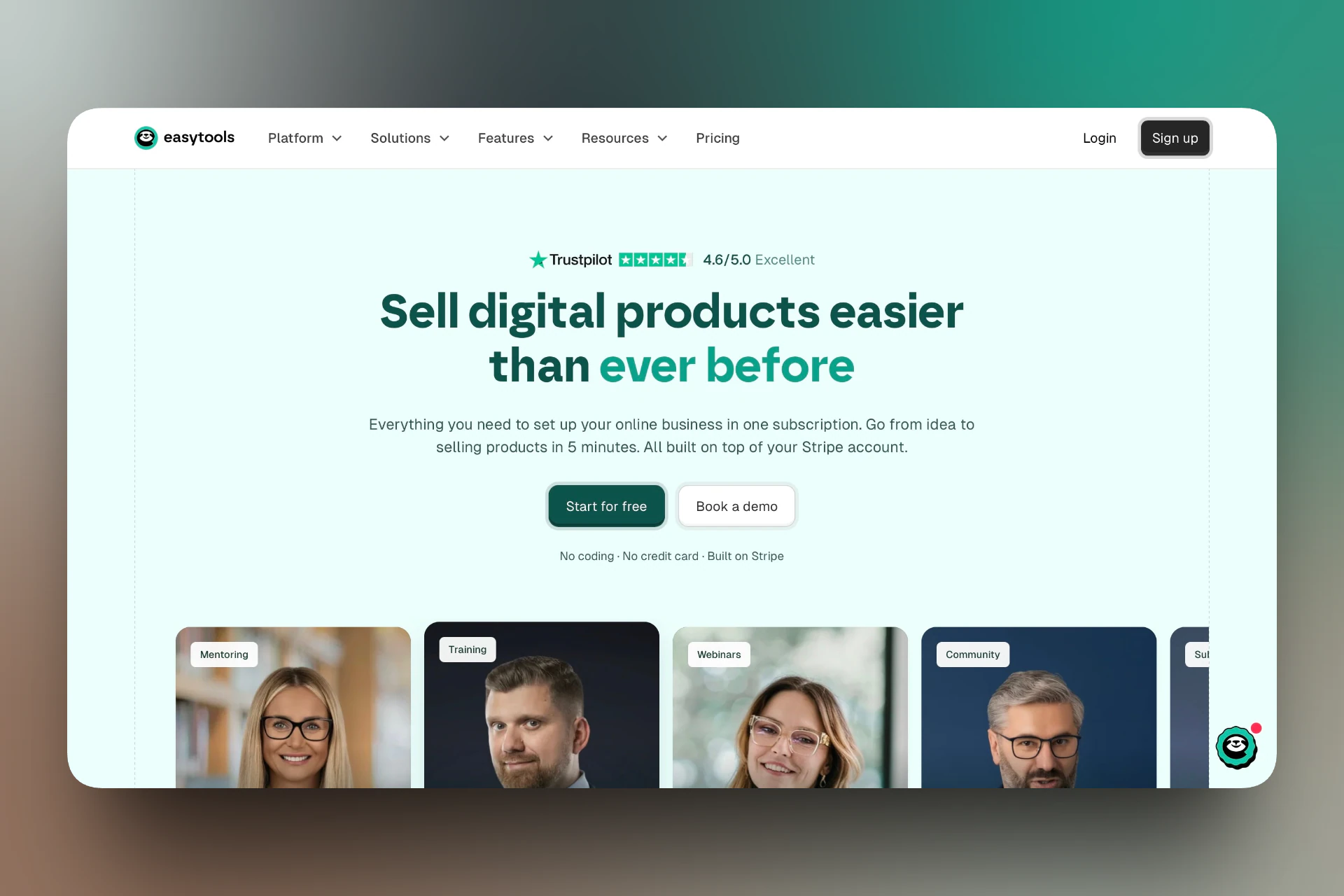
Easytools is an all-in-one platform for selling and marketing digital products, accepting donations, and growing your online business.
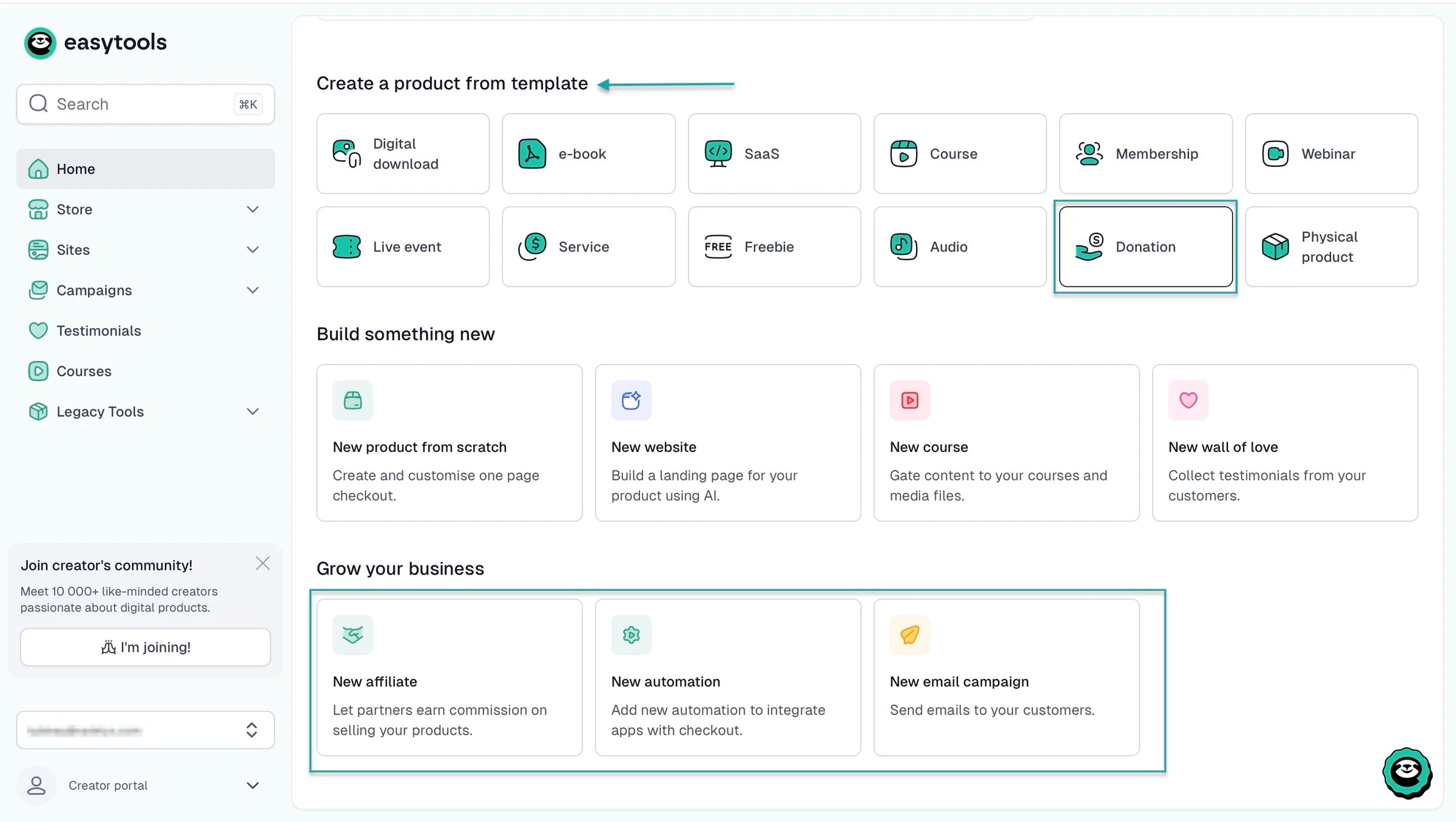
You can create a checkout just to accept donations. You can then copy the checkout link and share it anywhere online.
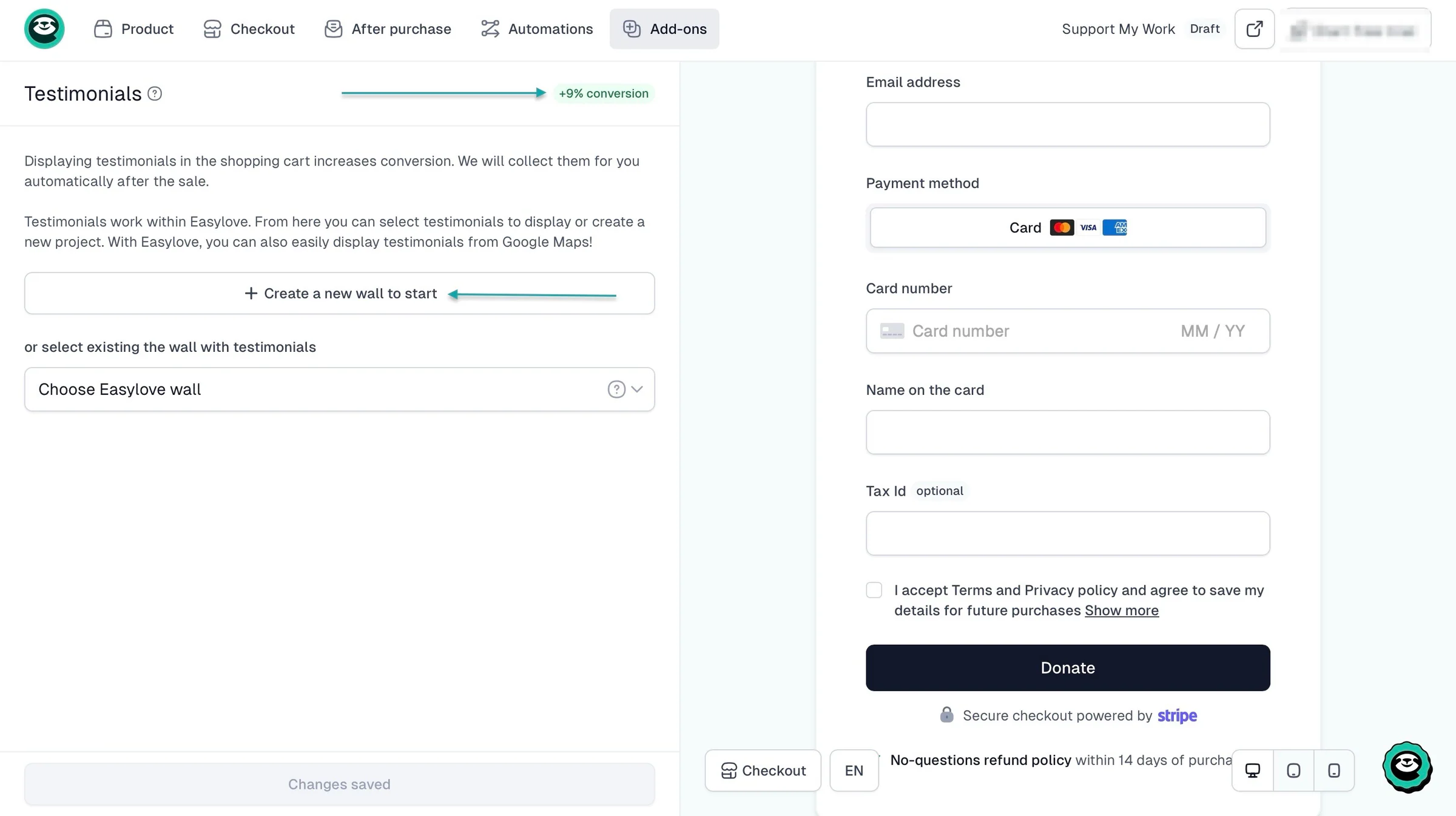
You can also add upsells and order bumps to sell other products. On those products, you can add cross-sells, countdown timers, price variants, and discounts to your checkout to sell more.
You can also add testimonials for social proof so that potential customers trust you and your product or service enough to make the purchase.
If you want a link-in-bio and a storefront to showcase your brand, products, and links to your social media instead of a traditional tip jar, Easytools lets you do that. You can even add a contact form or a newsletter sign-up form to build your email list.

While you’re growing your email list, Easytools lets you keep an active relationship with your customers through email newsletters. Without code, you can set up email automation that lets you send targeted emails to customers based on their actions and keep them engaged after they buy.
What I loved about Easytools
1. Store
Easytools’ store lets you sell and market digital downloads, e-books, SaaS, courses, subscriptions (memberships), webinars, services, and physical products.
You can accept donations too. Here’s how.
Right from the home dashboard, scroll down and click “Donation” under “Create a product from template.”
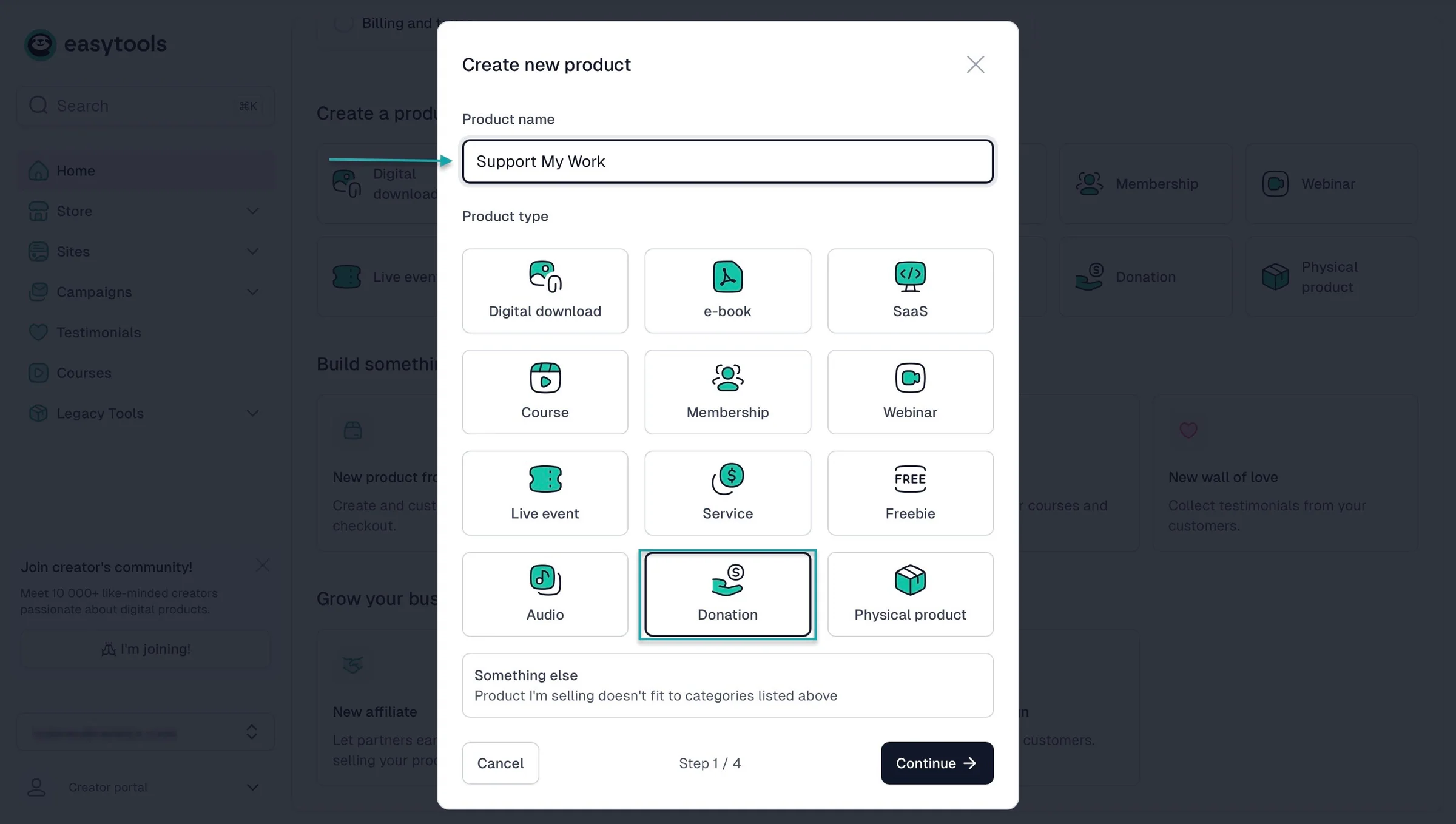
In the pop-up window, enter your product name and select “Donation” again. Then click “Continue” to move on to the next step.
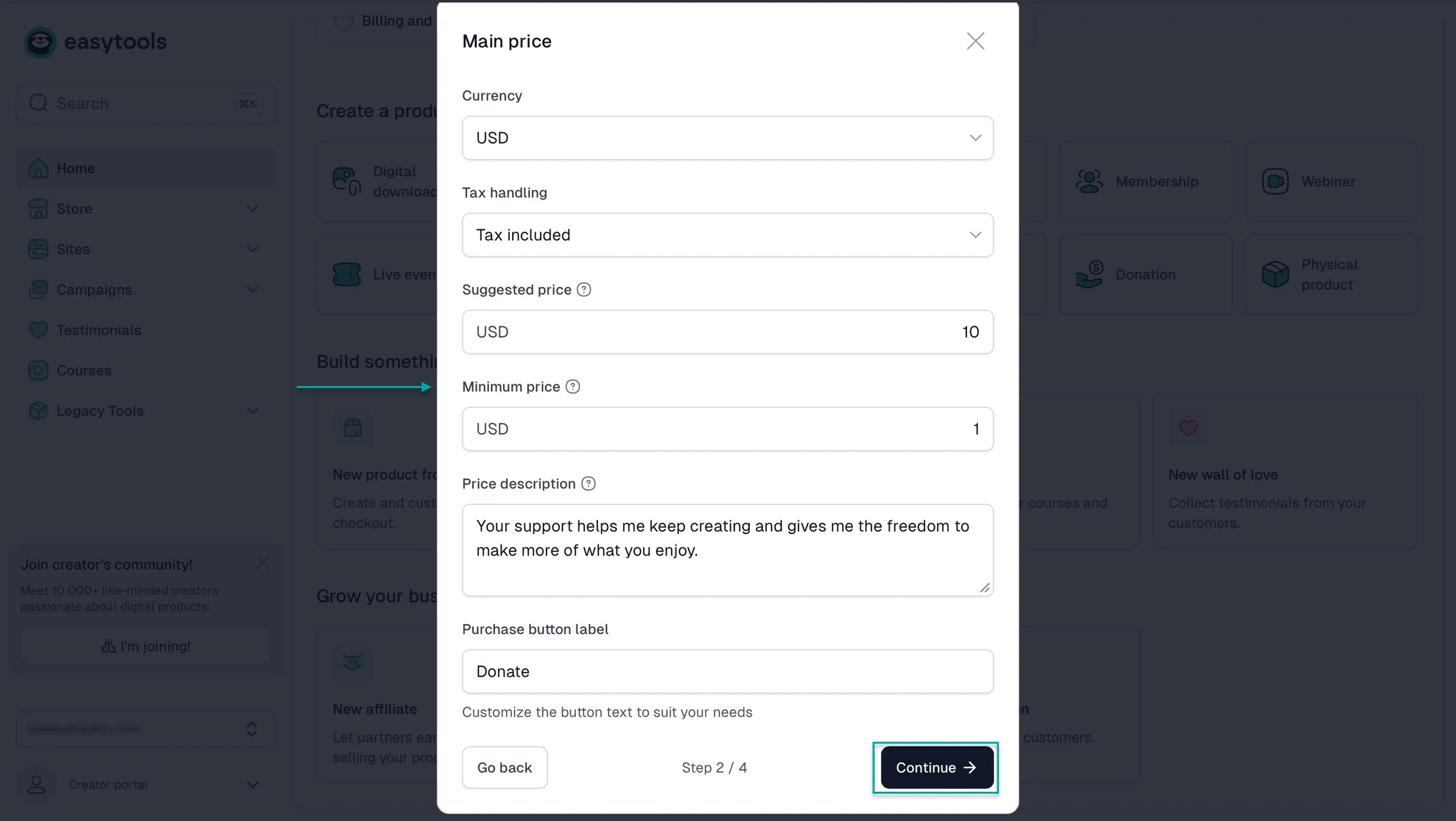
Next, select your preferred currency and choose how you want to handle taxes.
You can set a suggested price, which gives customers an amount to pay by default while still letting them enter a lower amount if they want.
You can also set a minimum price so customers can’t pay below a certain amount. If they try, Easytools will let them know they need to pay at least that much.
There’s also a price description where you can explain why people should support you or contribute to your cause or product. It gives you a chance to tell them what their money helps you create, support, or accomplish.
Once you’ve filled everything out, customize the purchase button and continue with the setup.
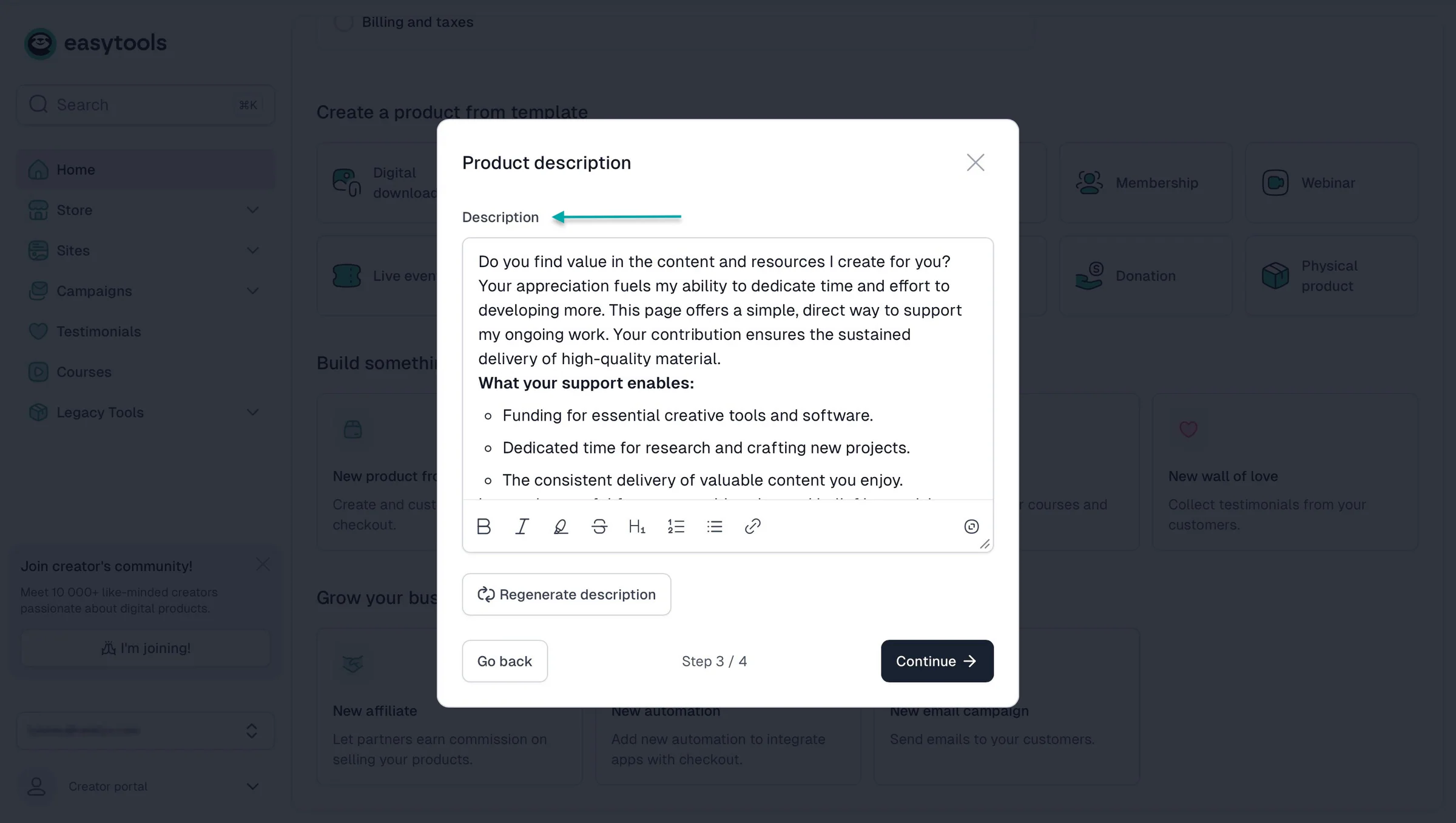
In the next pop-up window, click “Generate description” to use AI to write the product description for you. Then continue with the setup.
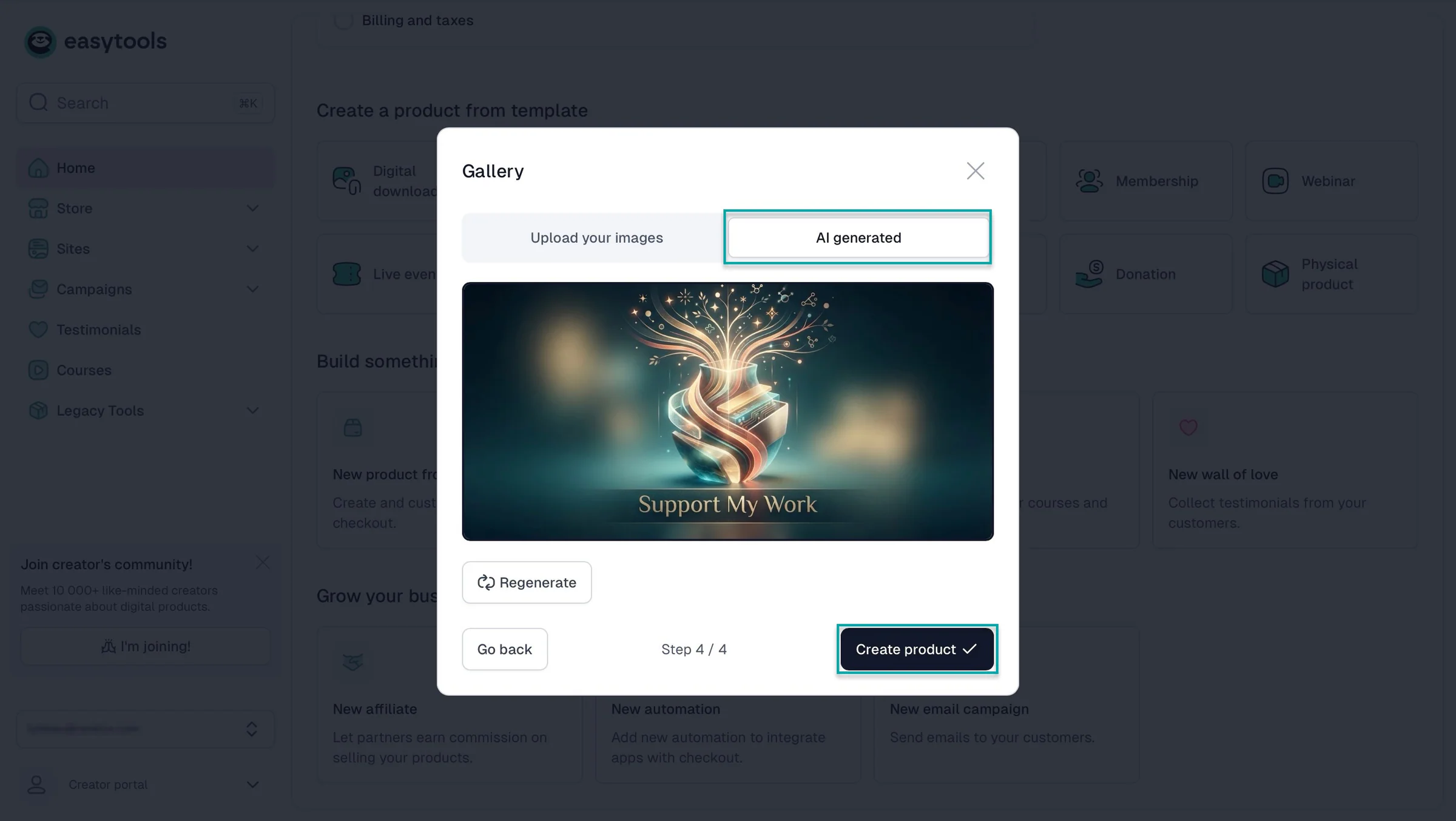
Next, select “AI-generated” and choose “Generate image” to create a picture for your product. Once you’re happy with everything, click “Create product.”
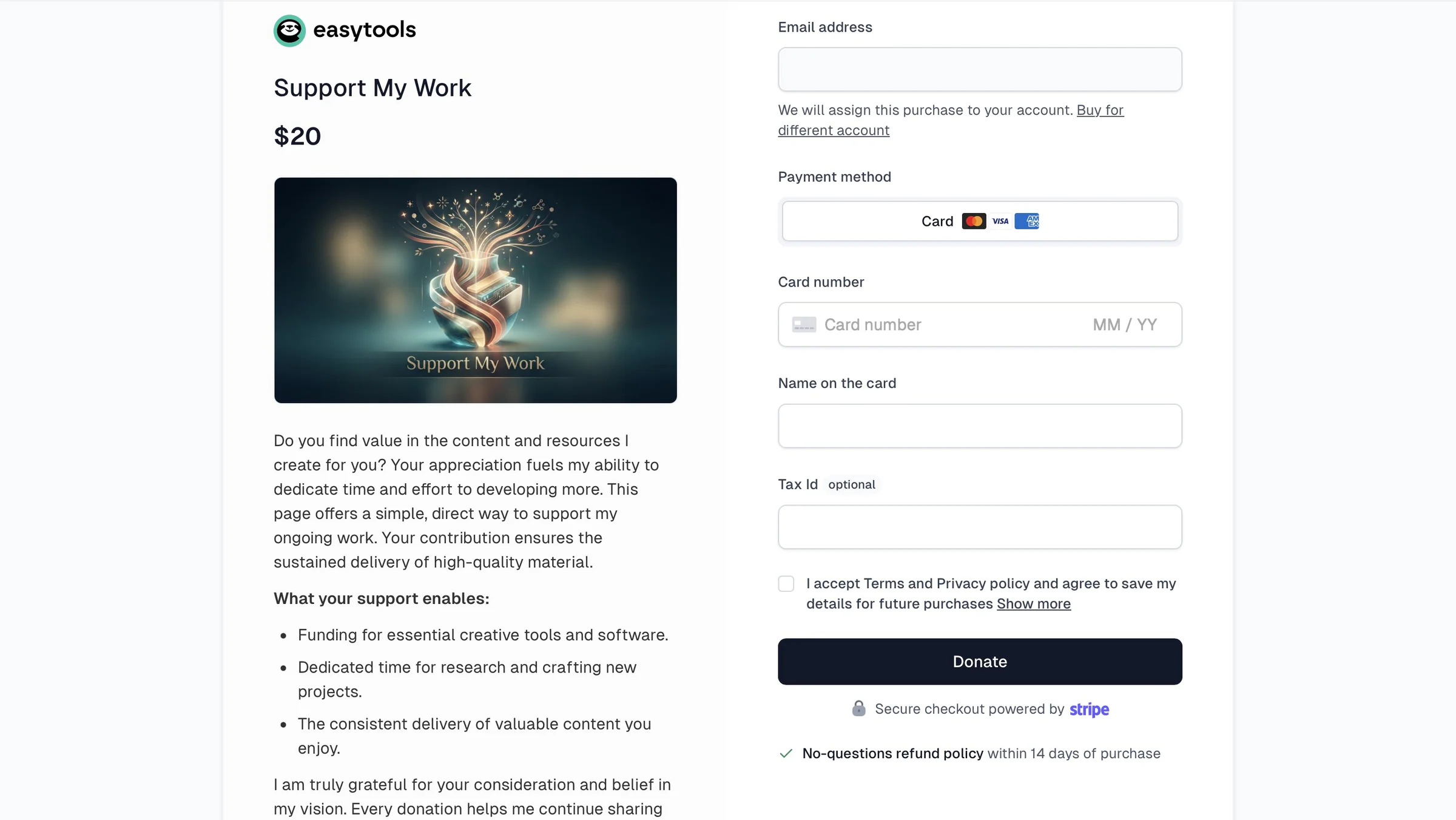
Easytools will create your product. And this is what the checkout page will look like.
2. Creator page
Your creator page lets you showcase your brand, social media links, products (like the donation checkout we just created), a newsletter signup form, and more.
Let’s set all of that up in a few simple steps. Start by selecting “Sites” in the sidebar. Then click “Creator page.”
Now select “+ New creator page,” enter the name, and click “Create.”
In the new window, select the header icon in the sidebar. Then add your image or business logo.
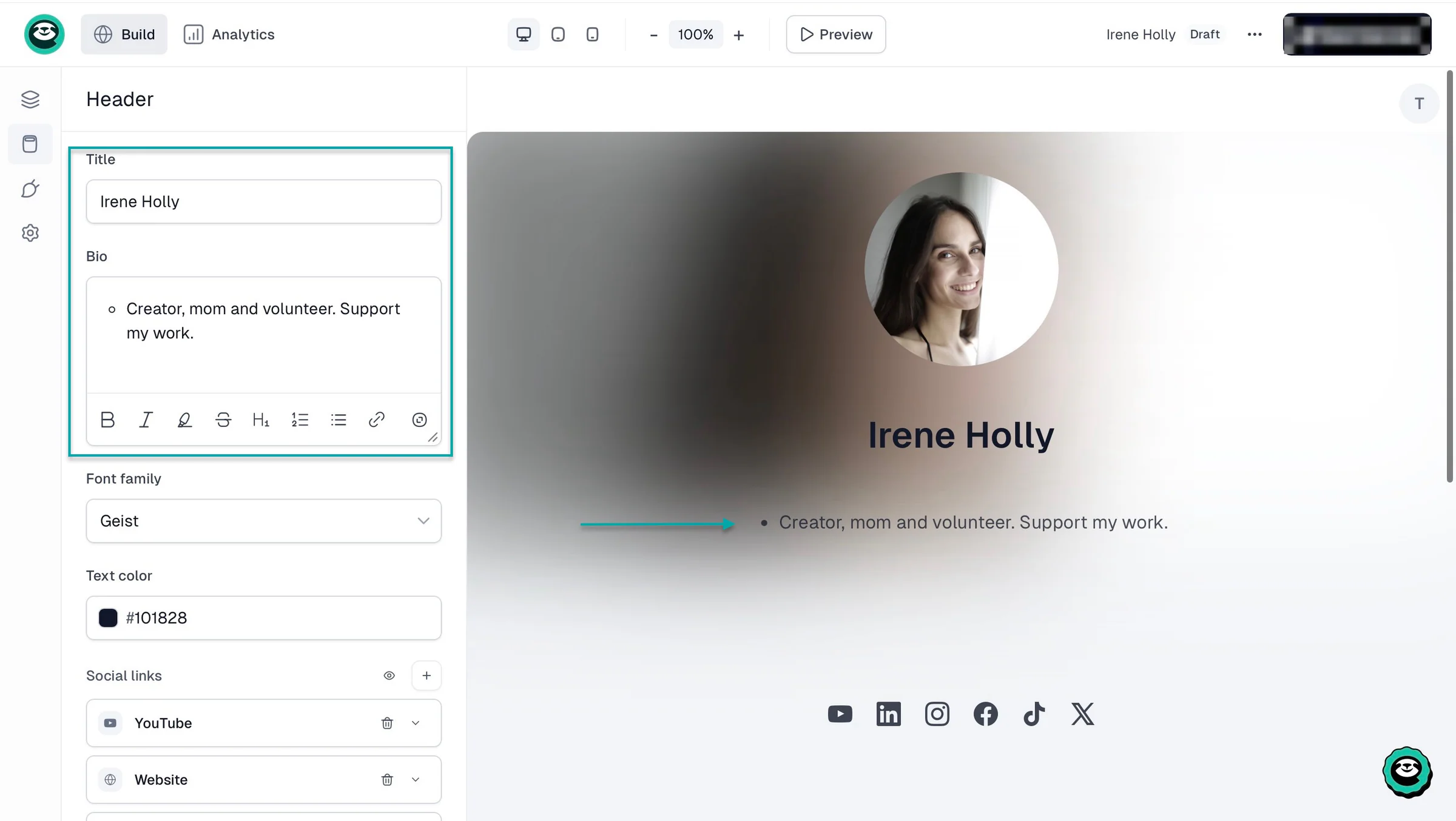
After that, scroll down to add your title and bio.
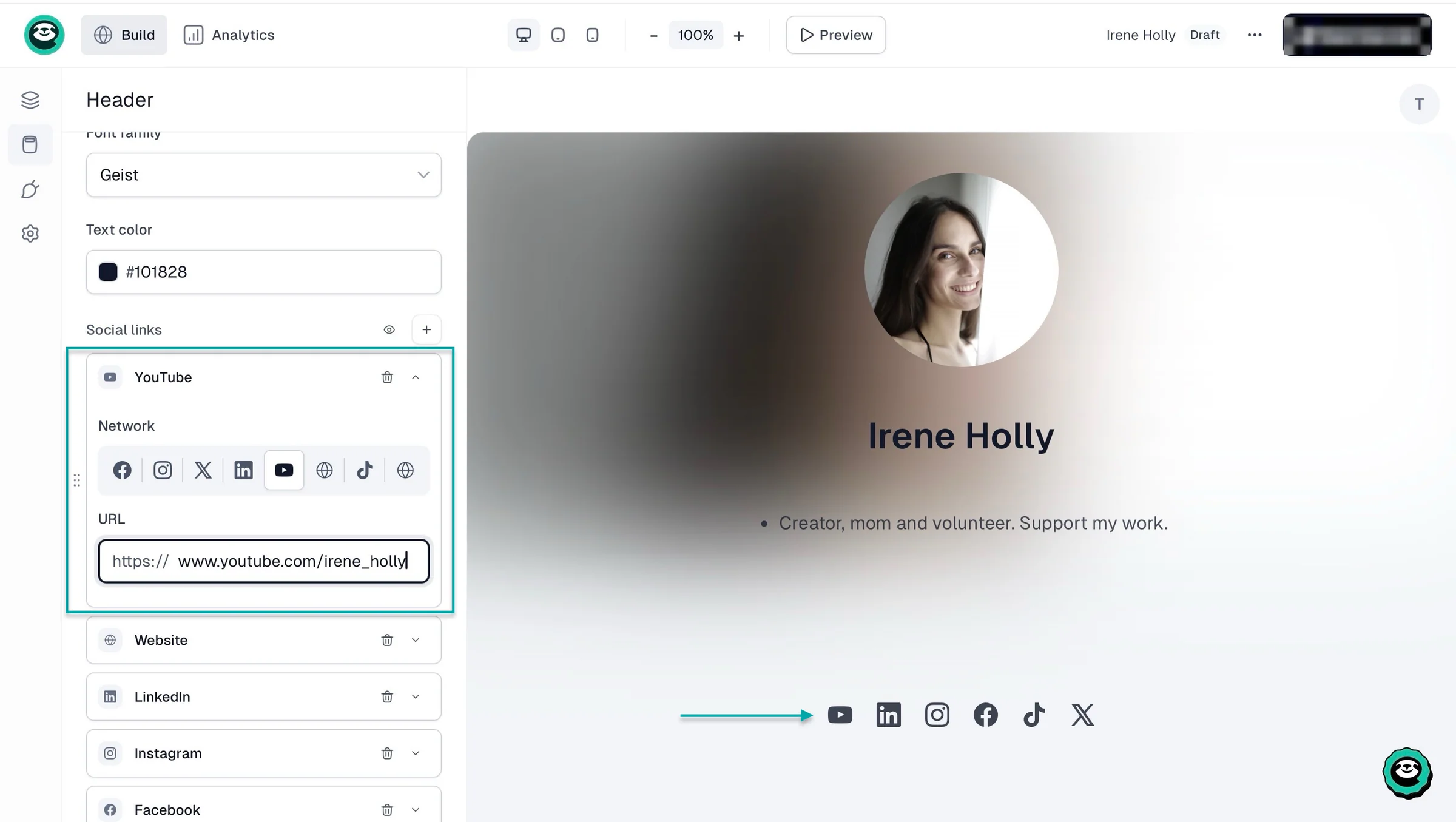
Next, add your social media links. Click on any of the options and paste the URL.
The next thing to add is your products and a newsletter sign-up form. Let’s start with the form.
Click the “+” inside any of the boxes under your social media icons.
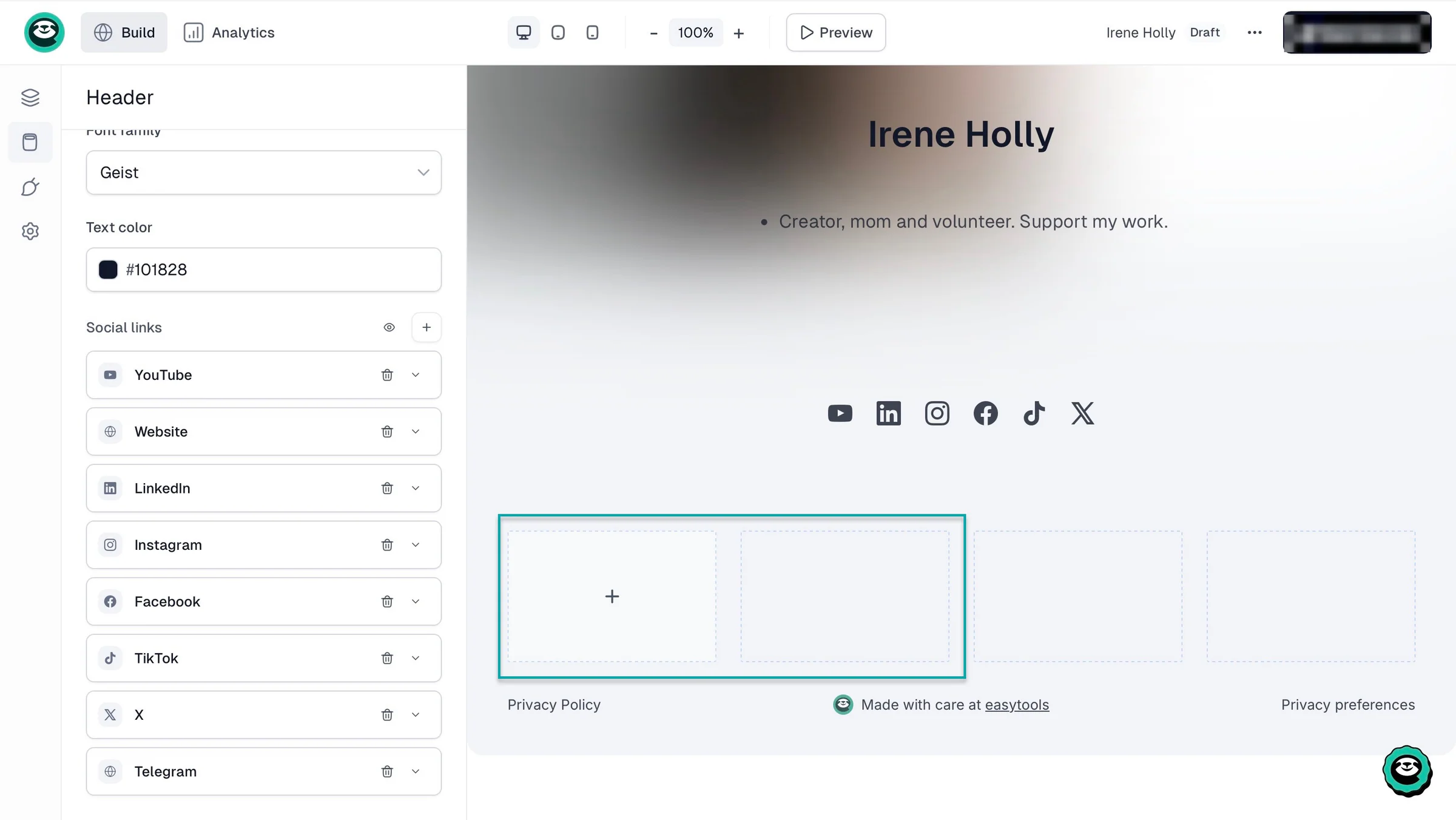
In the pop-up window, choose “Forms & Signups” and click “Newsletter signup.”
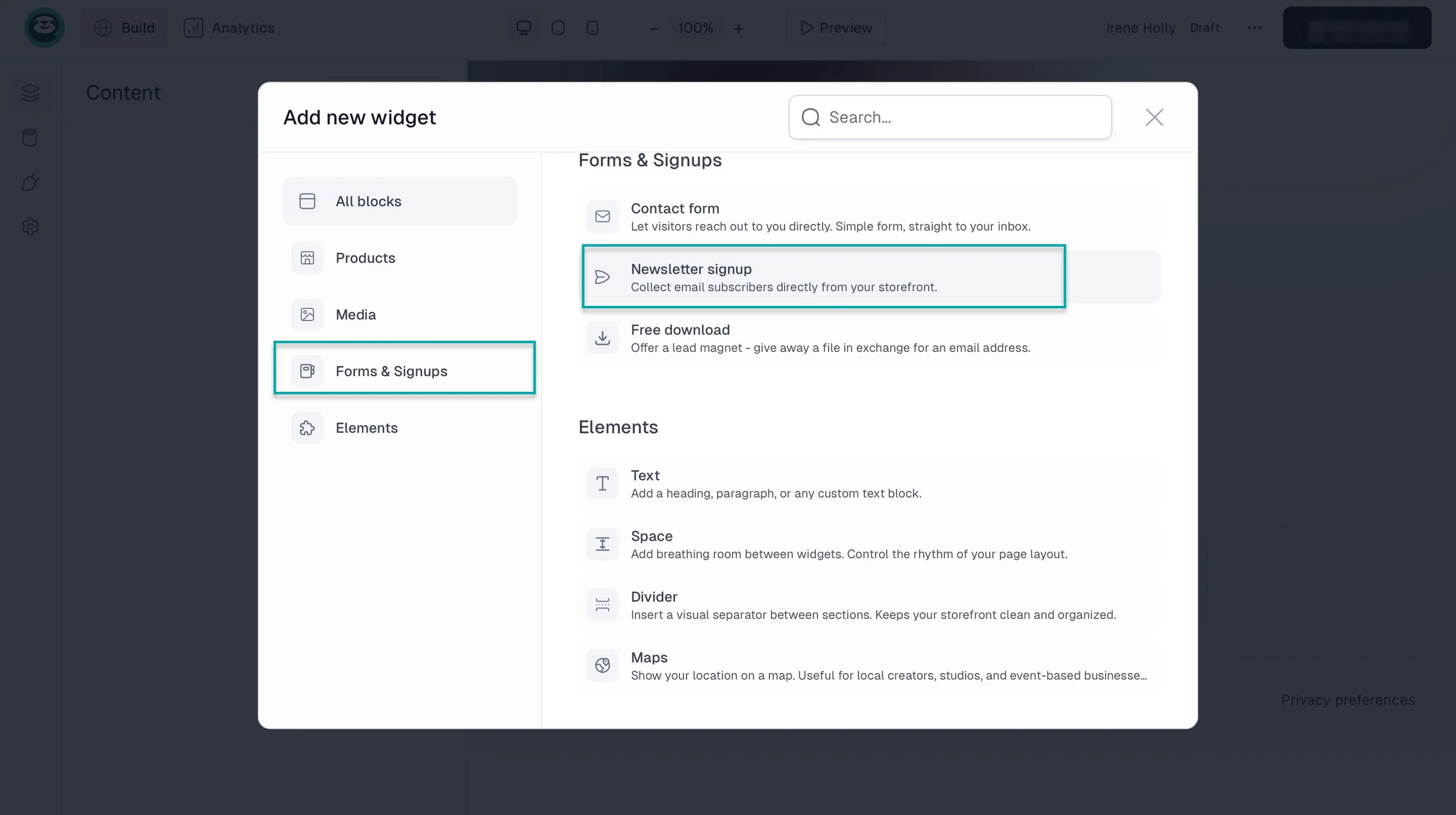
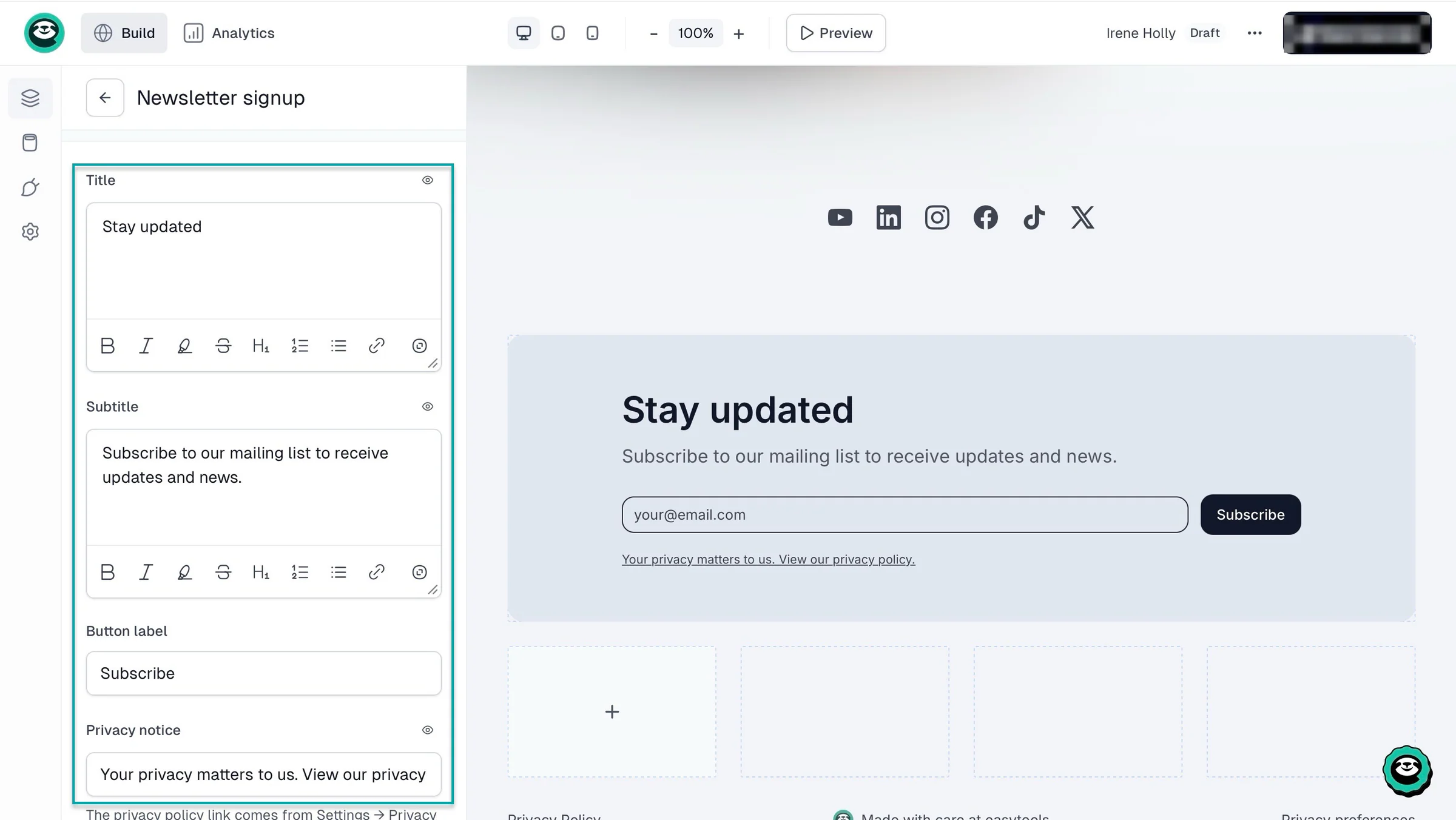
Then choose your preferred layout and click “Add widget.” You can now see the newsletter signup form on your creator page.
Easytools also lets you customize the form to match your brand.
3. Campaigns
On Easytools, a donation doesn’t have to end with a thank-you note.
Every person who supports you lands in your contacts, and with Campaigns you can stay in touch with them long after they’ve bought you that coffee.
Here’s how that works in practice.
You can filter your contacts by whether someone has supported you and when they did it. So instead of emailing your whole list, you can write only to people who chipped in last month, or to the ones who backed you a year ago and haven’t heard from you since.
That’s a good moment to send them a free lead magnet, early access to something new, or a paid product they’re likely to care about.
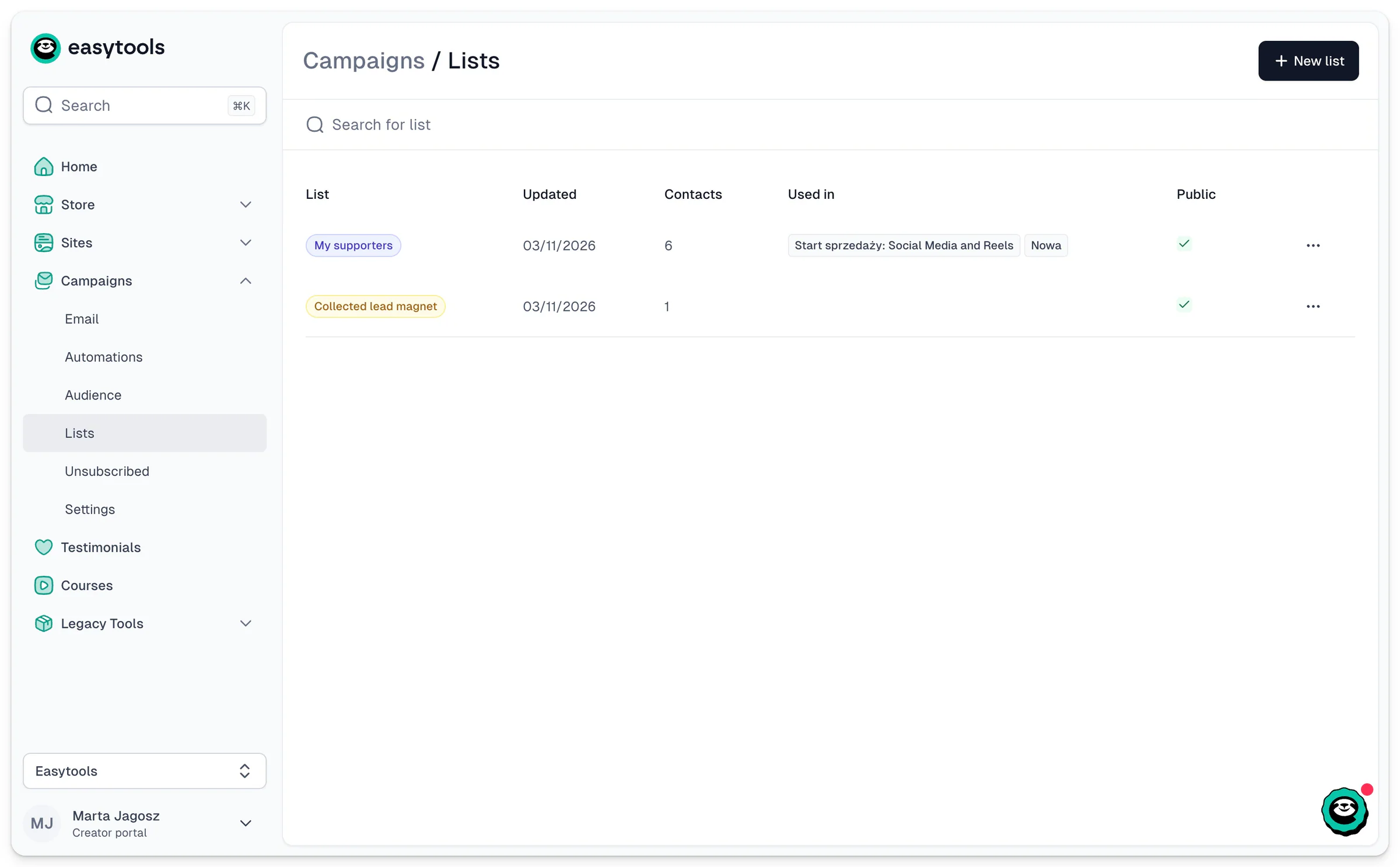
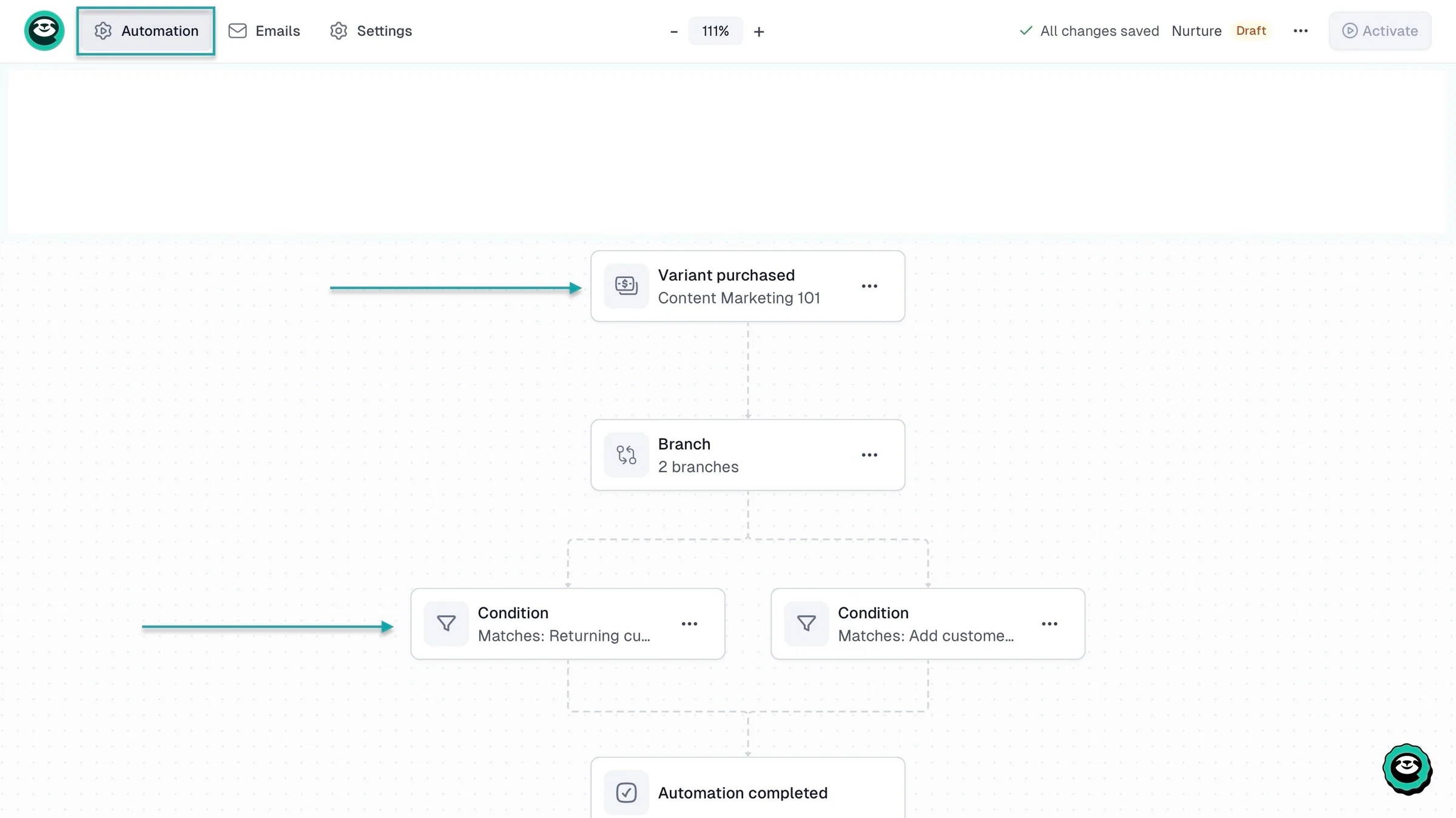
You can also set up simple automations.
For example, every time someone supports you, Easytools can send them a personalized thank-you email automatically, so nobody slips through the cracks on a busy day.
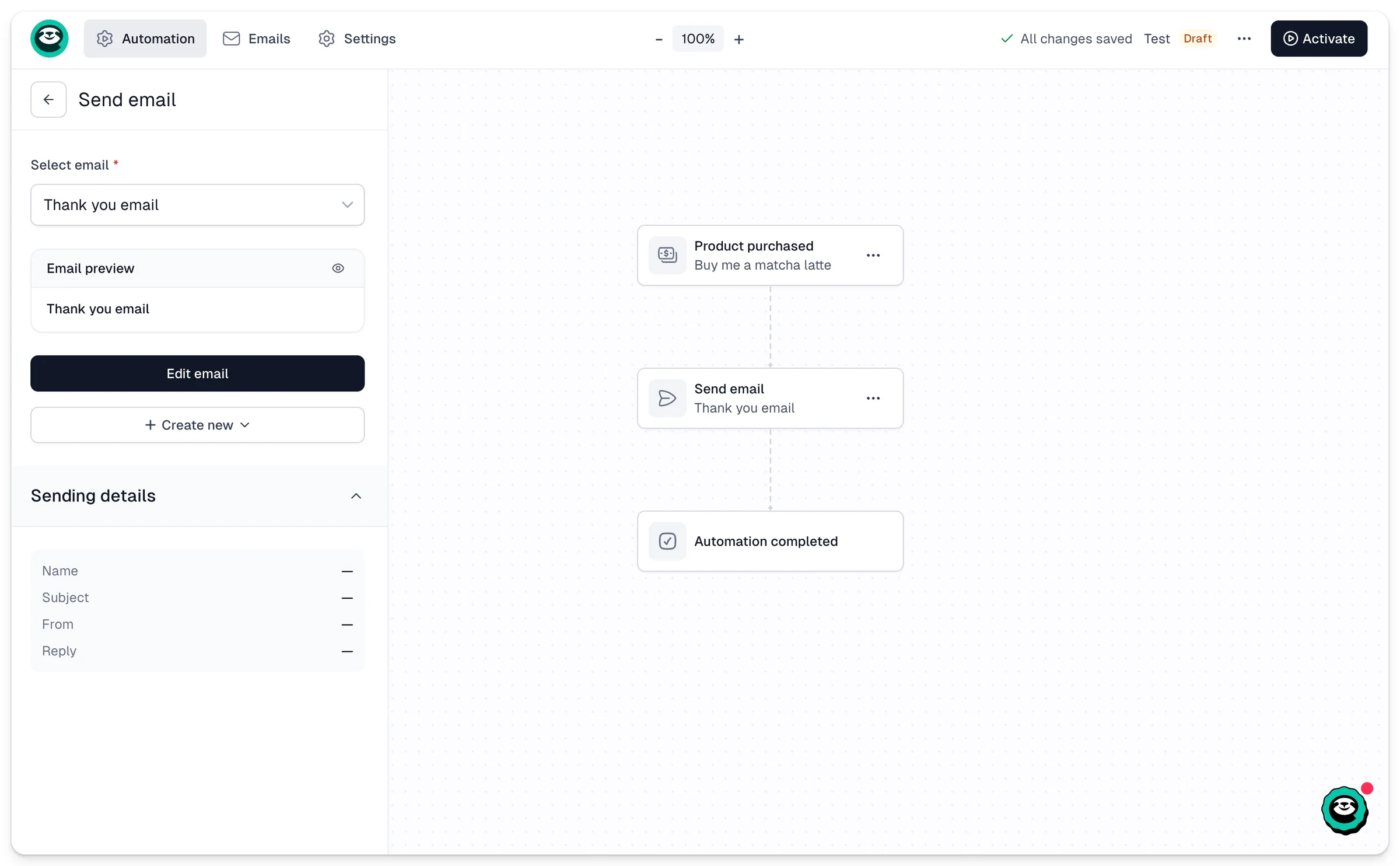
This way, a one-time tip becomes the start of a relationship with people who already like what you do.
What I liked vs what I didn’t like
What I loved 👍
✅ Let’s accept tips through its checkout and add donation widgets to products, which means you can share them on your creator page, newsletter, and landing page.
✅ You can set both a suggested and a minimum price so customers can choose what they want to contribute, while still giving you some control over the amount.
✅ Both your creator page and donation widget can be customized to match your brand, so they don’t look like something you randomly slapped onto your website.
✅ Unlike Ko-fi alternatives like Buy Me a Coffee, Easytools doesn’t hold on to your tips and donations, so you get the money directly instead of waiting for the platform to pay you.
What I didn’t like 👎
❌ You can only have 2 people on your team with Easytools’ Starter plan, but you can create unlimited checkouts and run unlimited marketing campaigns.
Best for
- Creators and online businesses that want more tools for creating, selling, marketing digital products and services, and accepting donations.
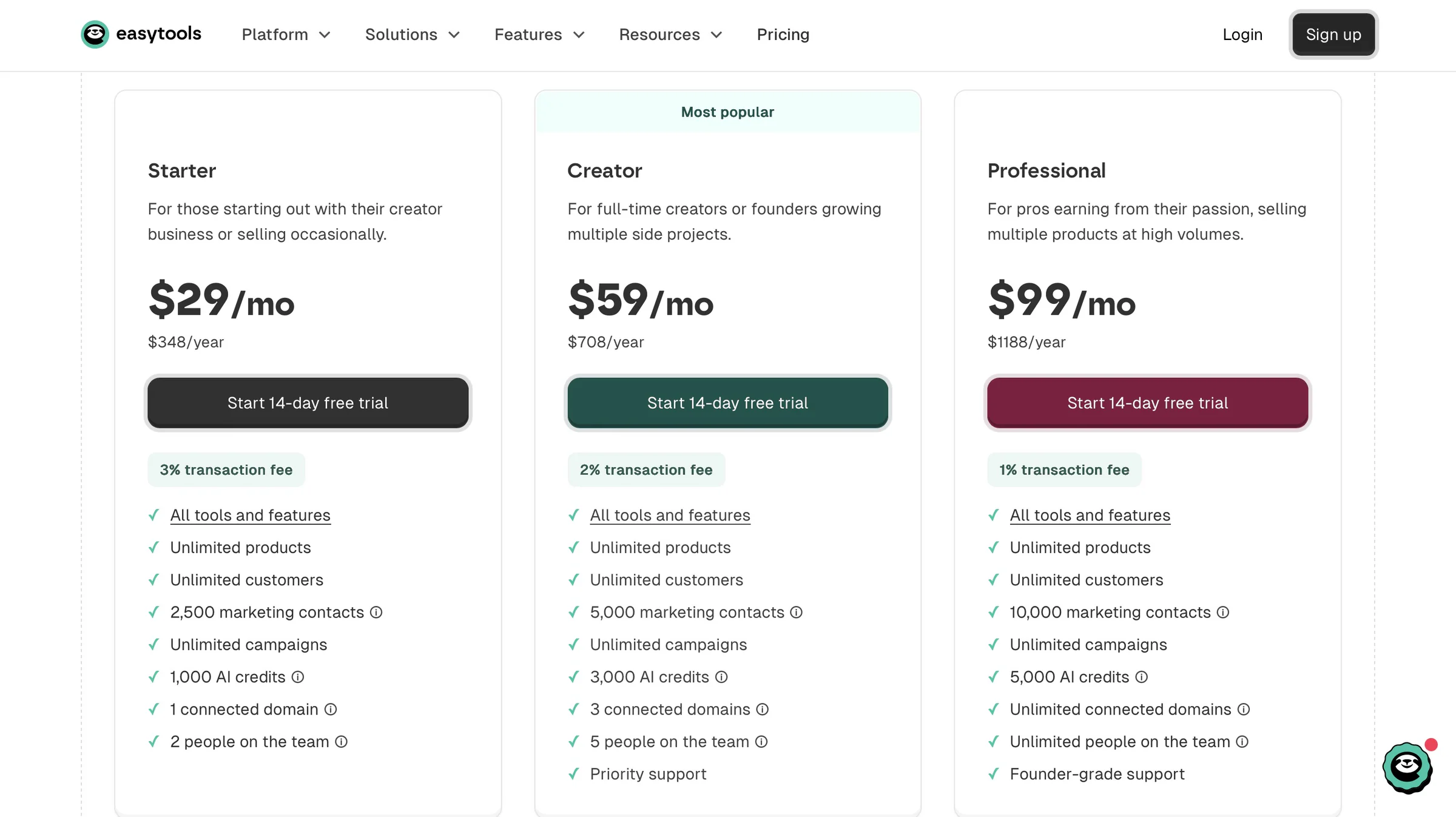
Pricing
- Starter: $29/month
- Creator: $59/month
- Professional: $99/month
2. Buy Me a Coffee
- Personal rating: ⭐️⭐️⭐️⭐️ 4.6/5 - It’s a simple way to accept tips and sell digital products and memberships.
- Ease of use: ⭐️⭐️⭐️⭐️ 4.8/5 - Very easy to use: You can access most features in a few clicks.
- AI capabilities: Supports MCP, so you can connect your account to an AI assistant and access information about your supporters, purchases, memberships, and earnings.
- Monetization options: One-time tips, memberships, digital and physical products, paid content, services, and commissions.
- Free trial: N/A - It’s free to use, and you pay a 5% transaction fee on all tips, donations, memberships, and shop sales.
- Starting plan: Free - $0/month
Buy Me a Coffee is the next item on our list of the best Ko-fi alternatives. It’s a tip jar platform that lets creators accept one-time or monthly support from their audience.
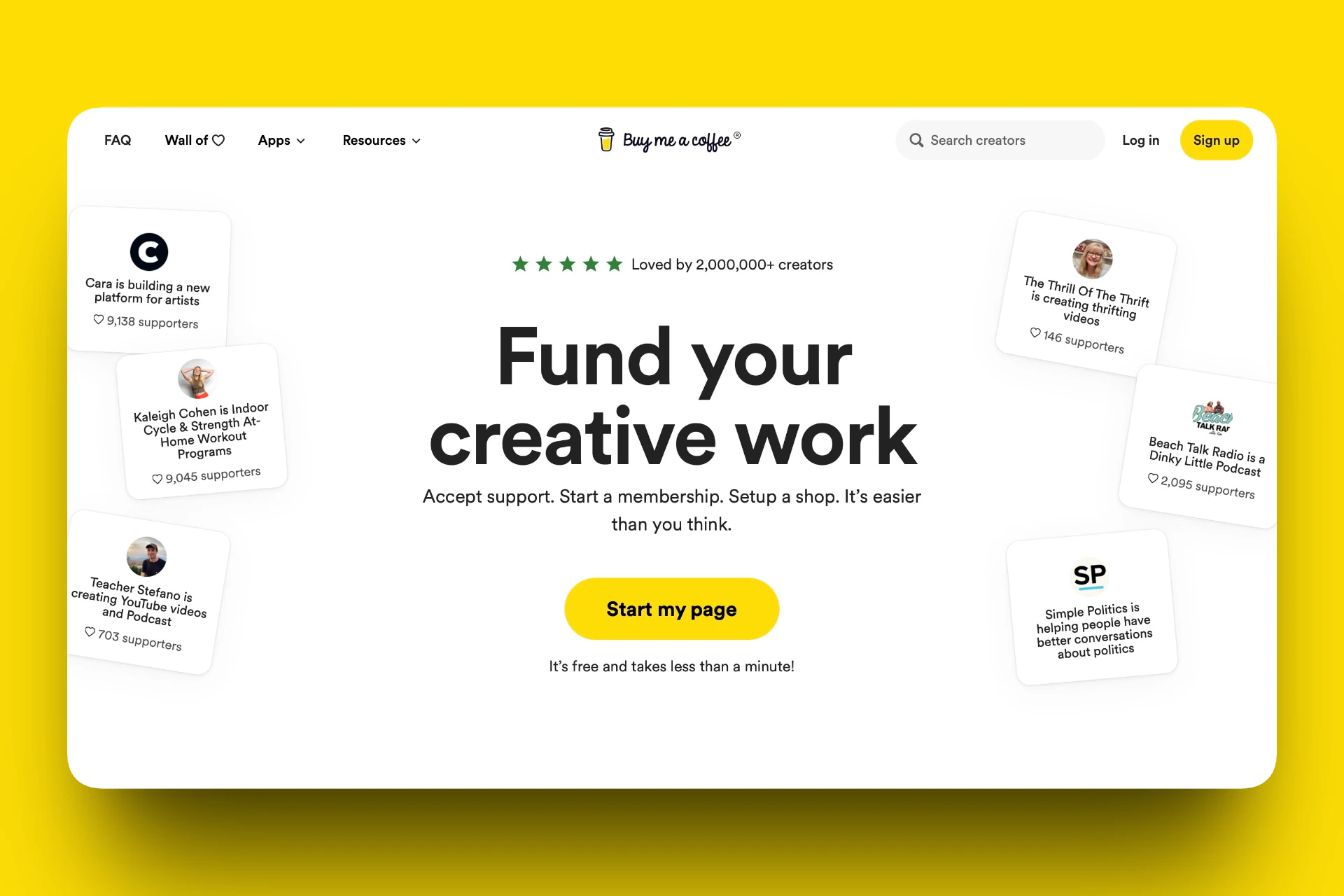
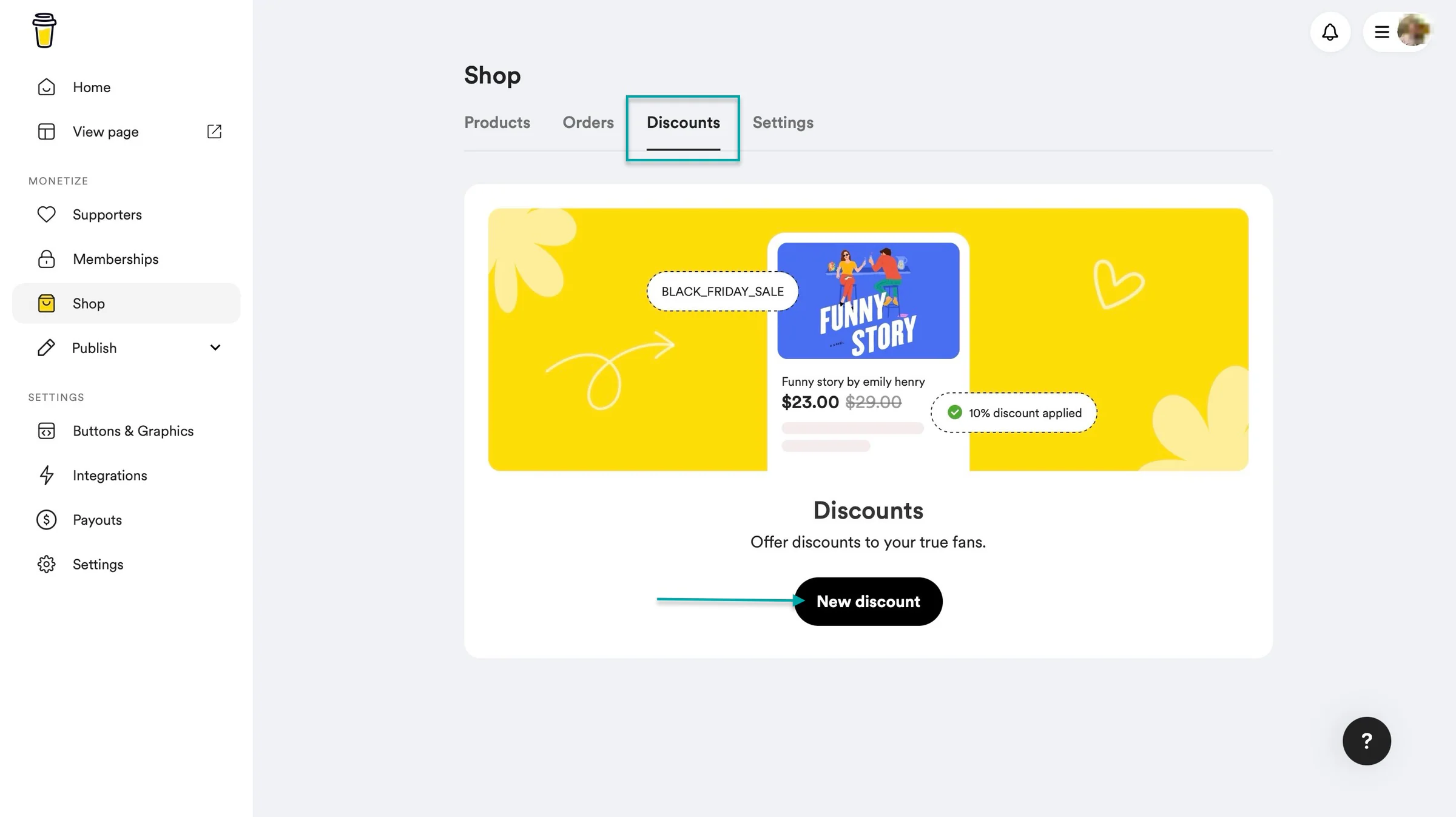
Like Easytools, you can sell digital and physical products on Buy Me a Coffee, so you can earn revenue from more than just tips. You can even keep track of the orders you receive.
To sell more, you can offer discounts.
This Ko-fi alternative also lets you publish blog posts. Besides that, you can add photo albums and audio files and create polls.
You can put all of this behind a paywall, so people can only access it after they support you. That can also give your supporters another reason to keep supporting you.
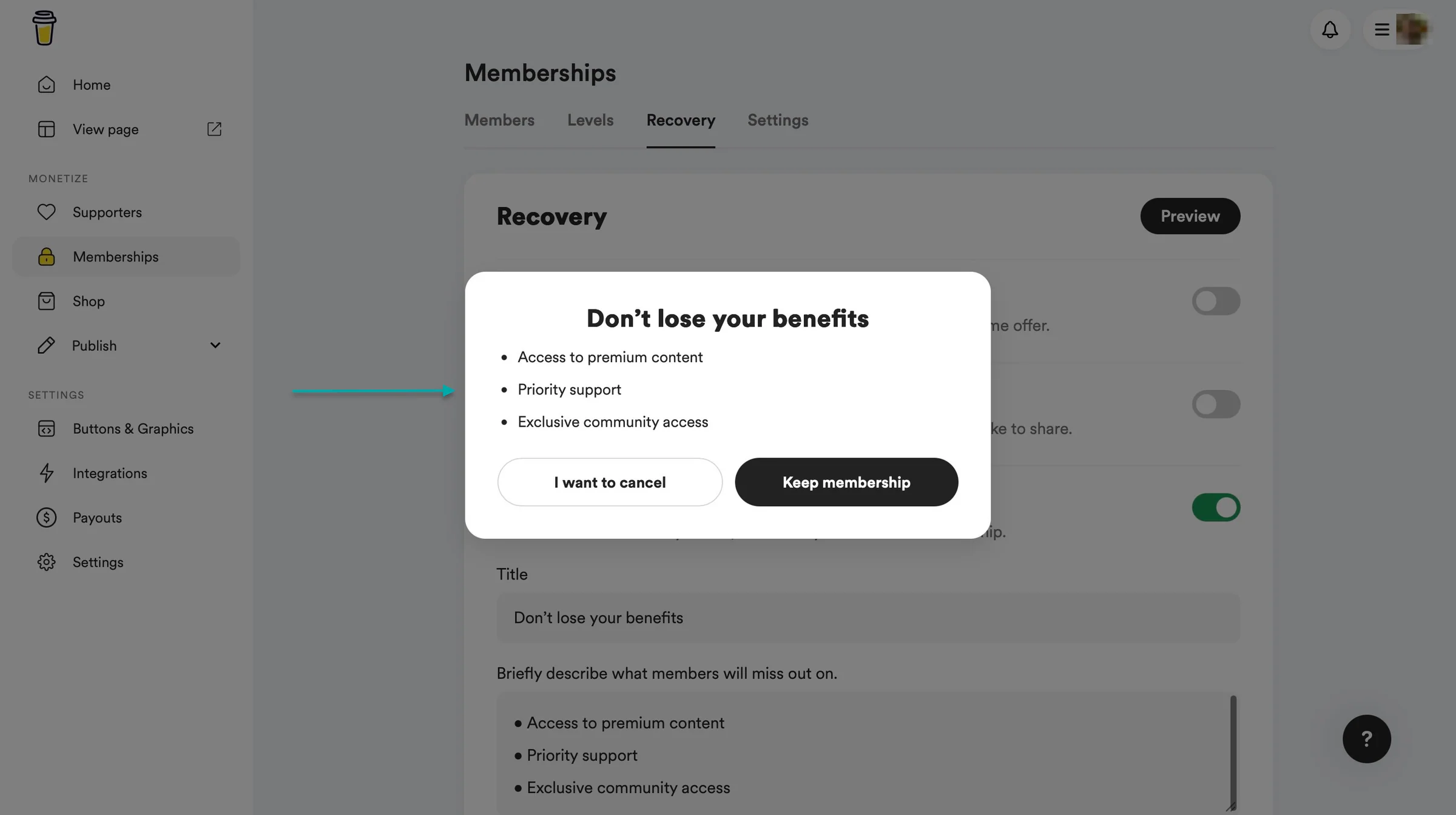
You can also sell memberships and subscriptions on Buy Me a Coffee. And, like Easytools’ checkout abandonment recovery, the platform gives people who want to cancel their subscriptions reasons to stay.
What I loved about Buy Me a Coffee
1. Shop
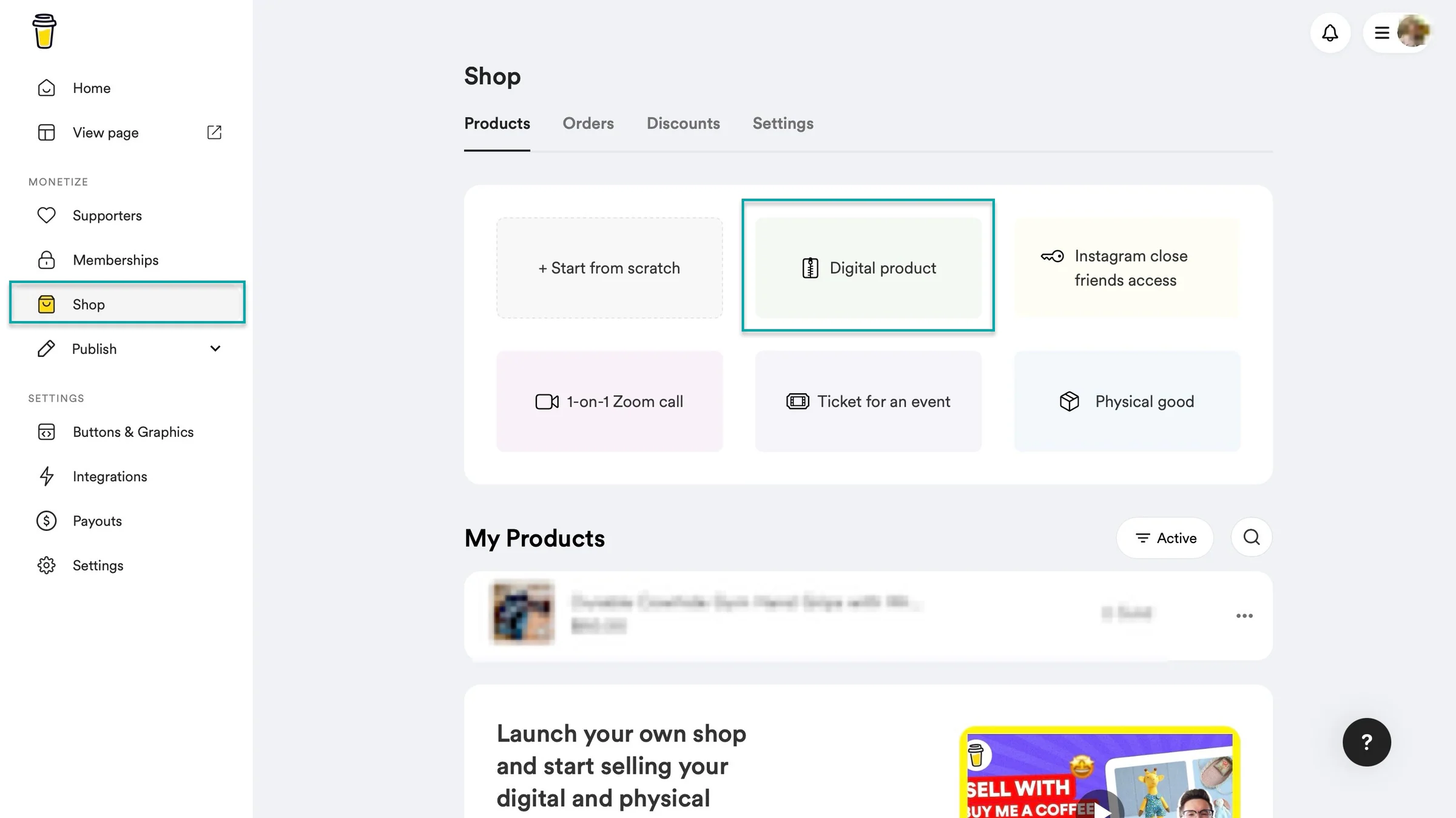
Its shop feature lets you sell digital products, physical goods, event tickets, 1-on-1 video calls, and Instagram Close Friends access. Here’s how to sell digital products.
First, click “Shop” in the sidebar and select “Digital product.”
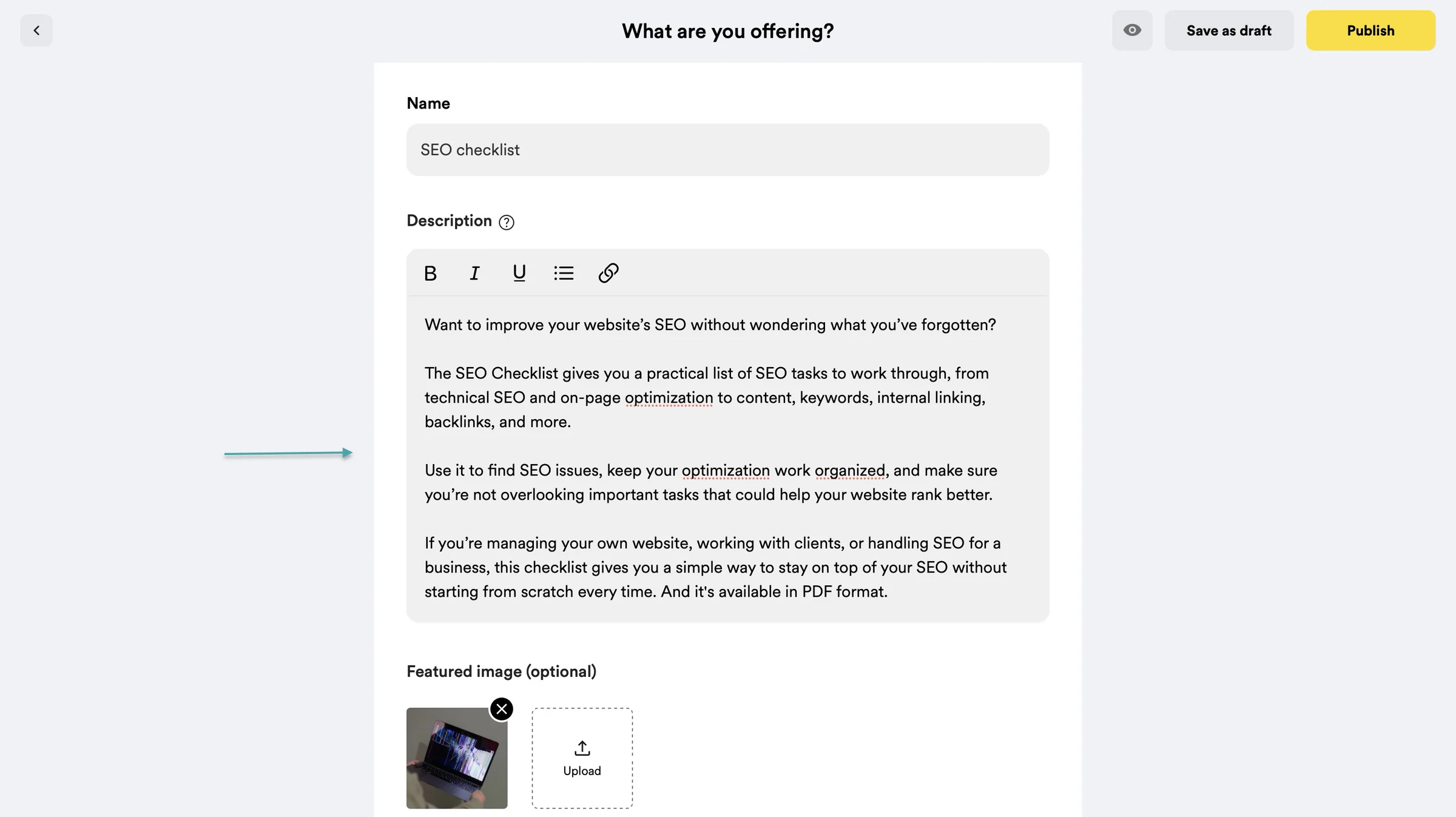
In the edit window, add the product name, description, and featured image.
Next, add the price, choose what happens after the customer pays for the product, upload your file(s), add categories, and tick the disclaimer box.
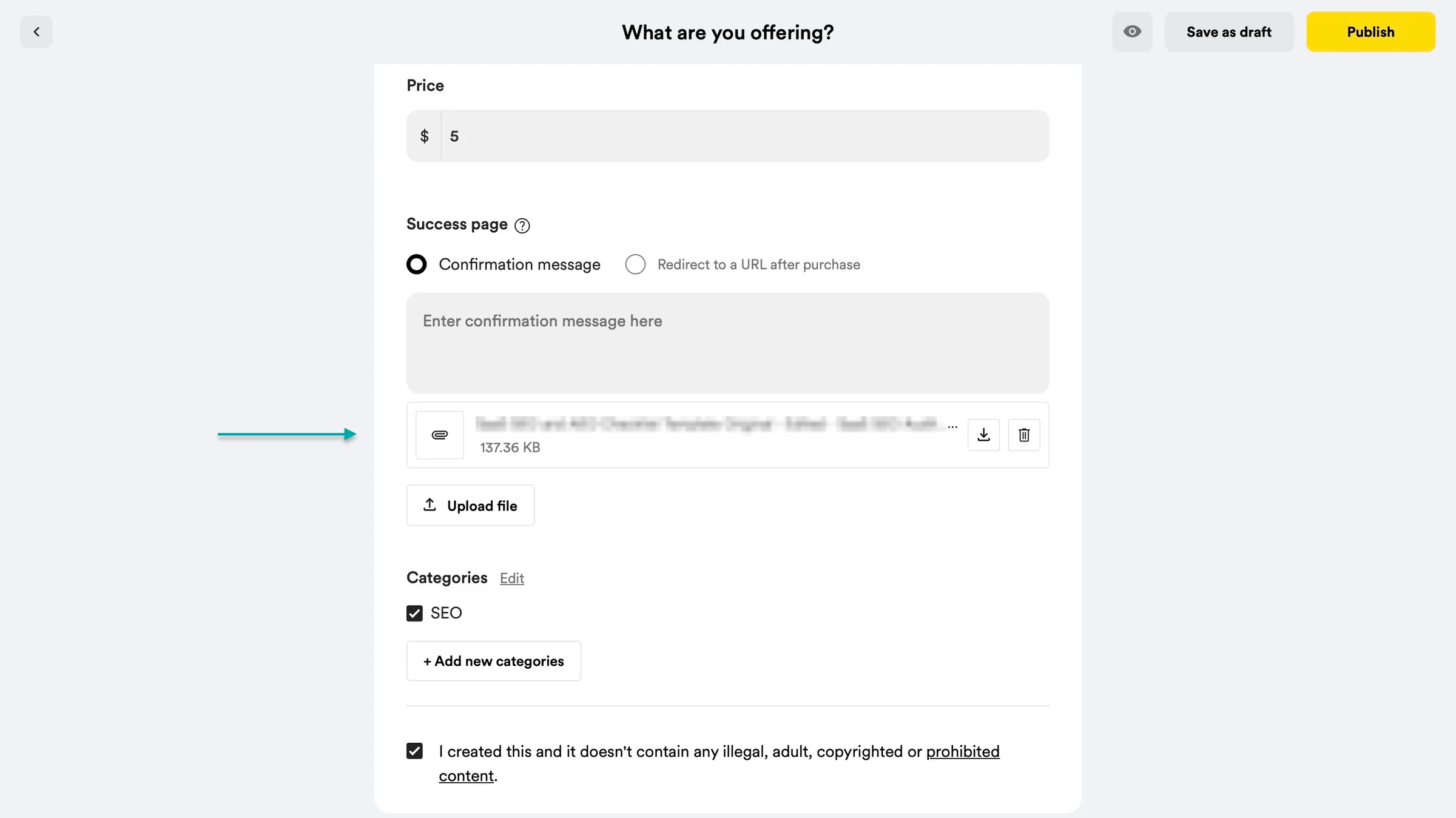
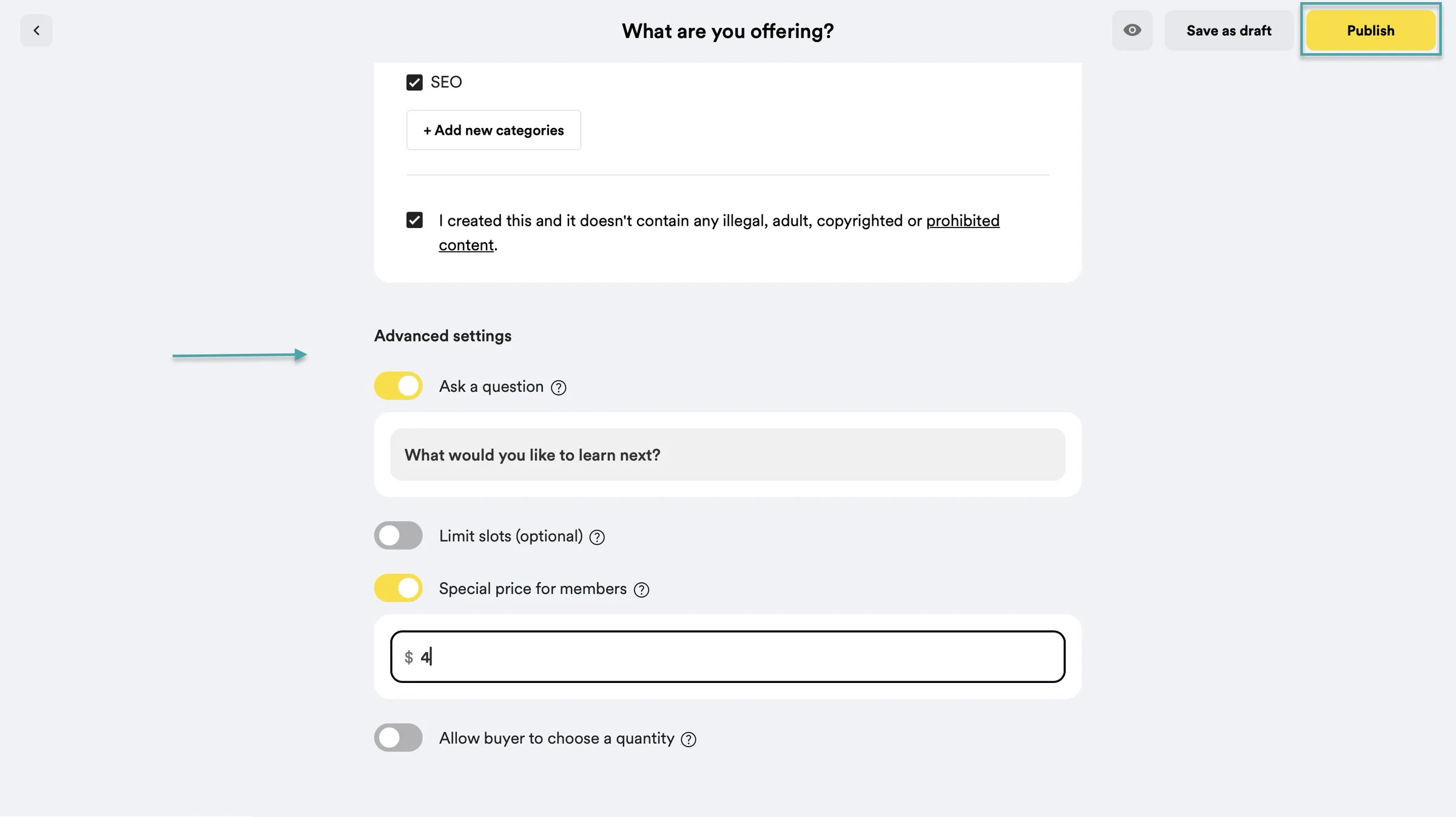
Buy Me a Coffee also lets you leave a question for your buyers. You can limit how many copies you sell, offer members a discounted price to attract new ones, and more.
Once you’ve completed the form, click “Publish.”
Buy Me a Coffee will list your digital product. You can share its URL on your website, Facebook, X (formerly Twitter), and other social media platforms to attract more buyers.

2. Posts
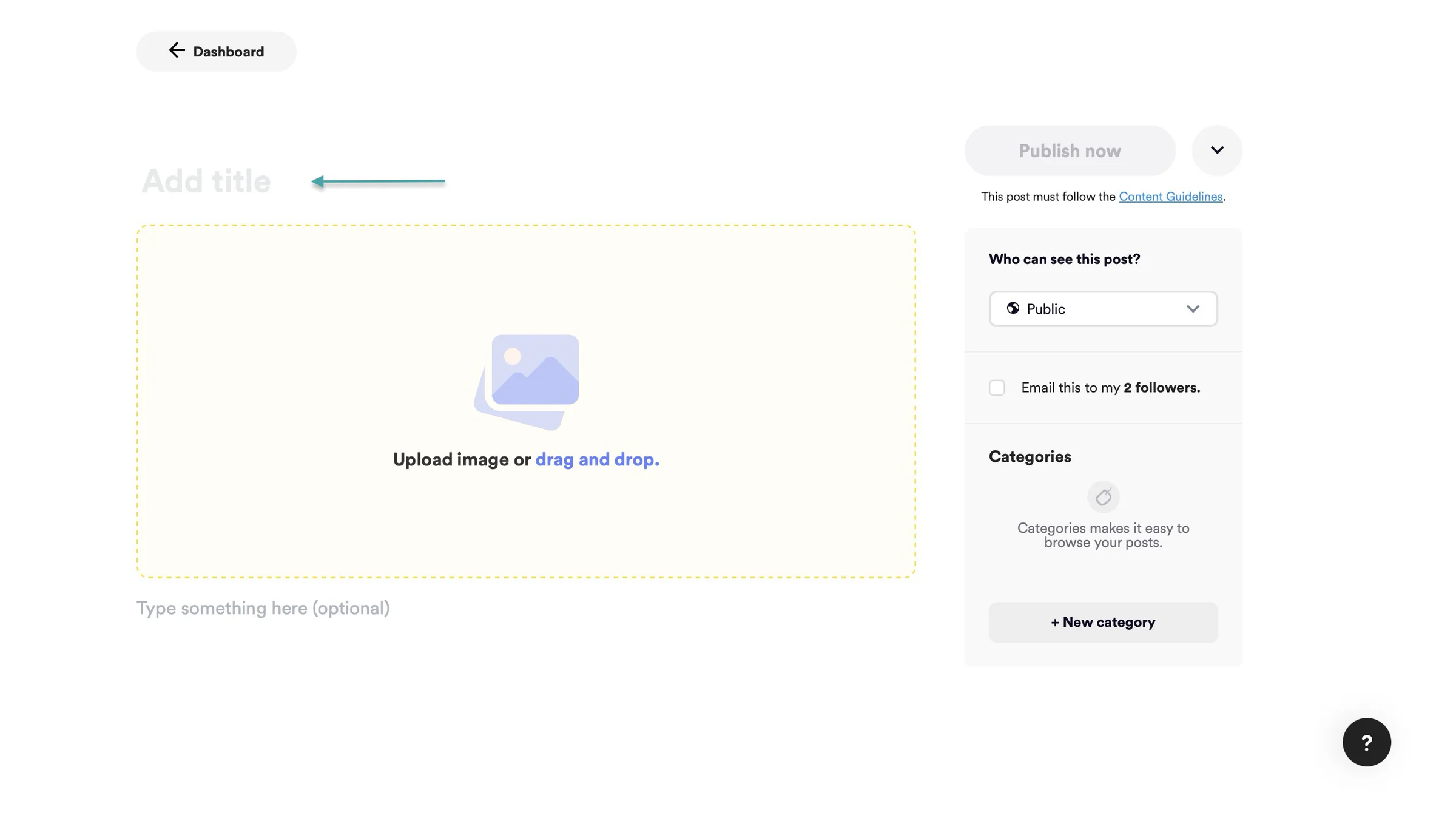
The posts feature lets you publish blog posts, share images and audio files, and create polls for your audience. Let’s add a blog post.
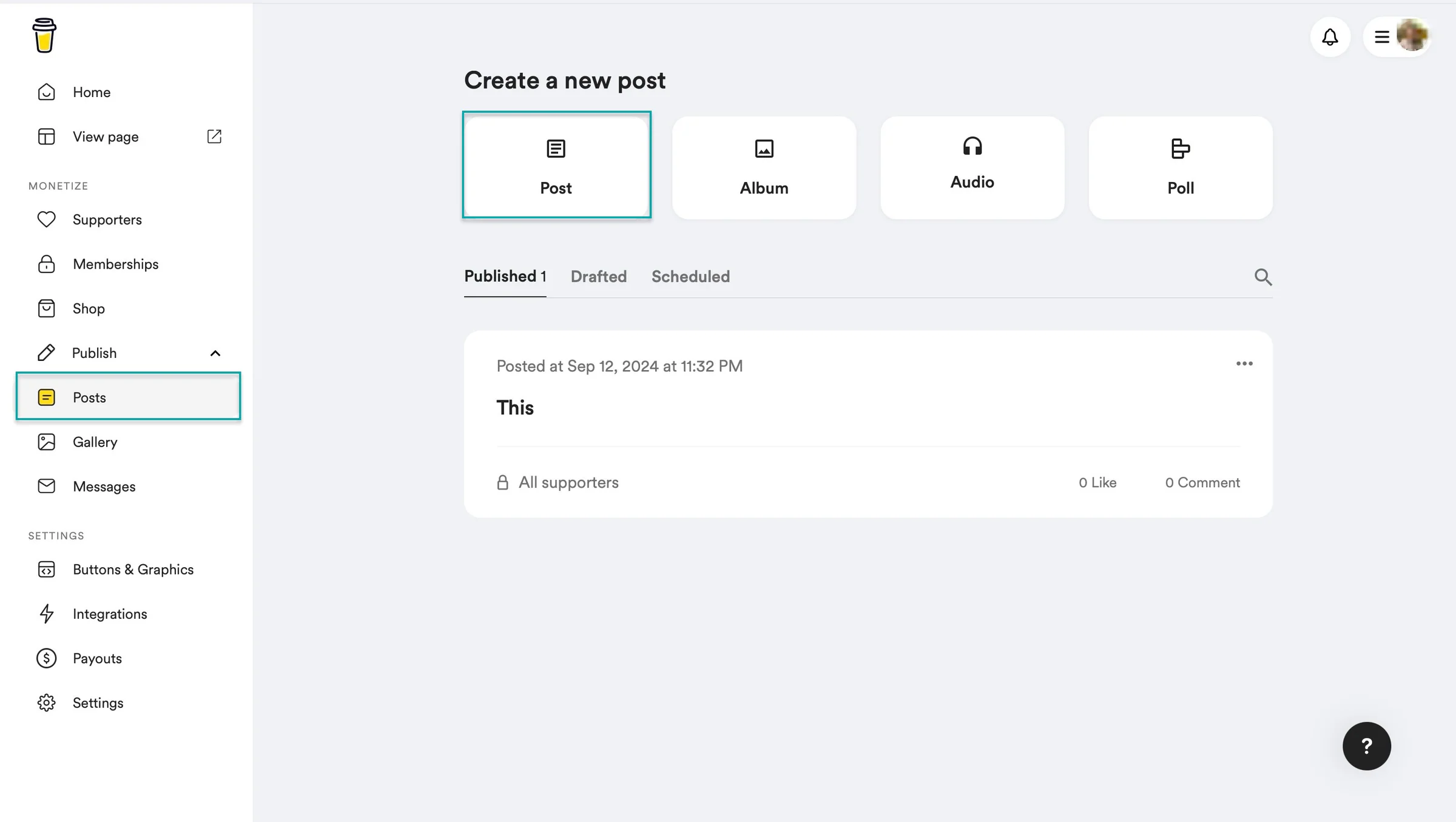
Click “Publish” in the sidebar and select “Posts.” Then, right under “Create a new post,” select “Post.”
In the editor, enter your title and start writing. Like most text editors, you can add headings, hyperlinks, images, and more.
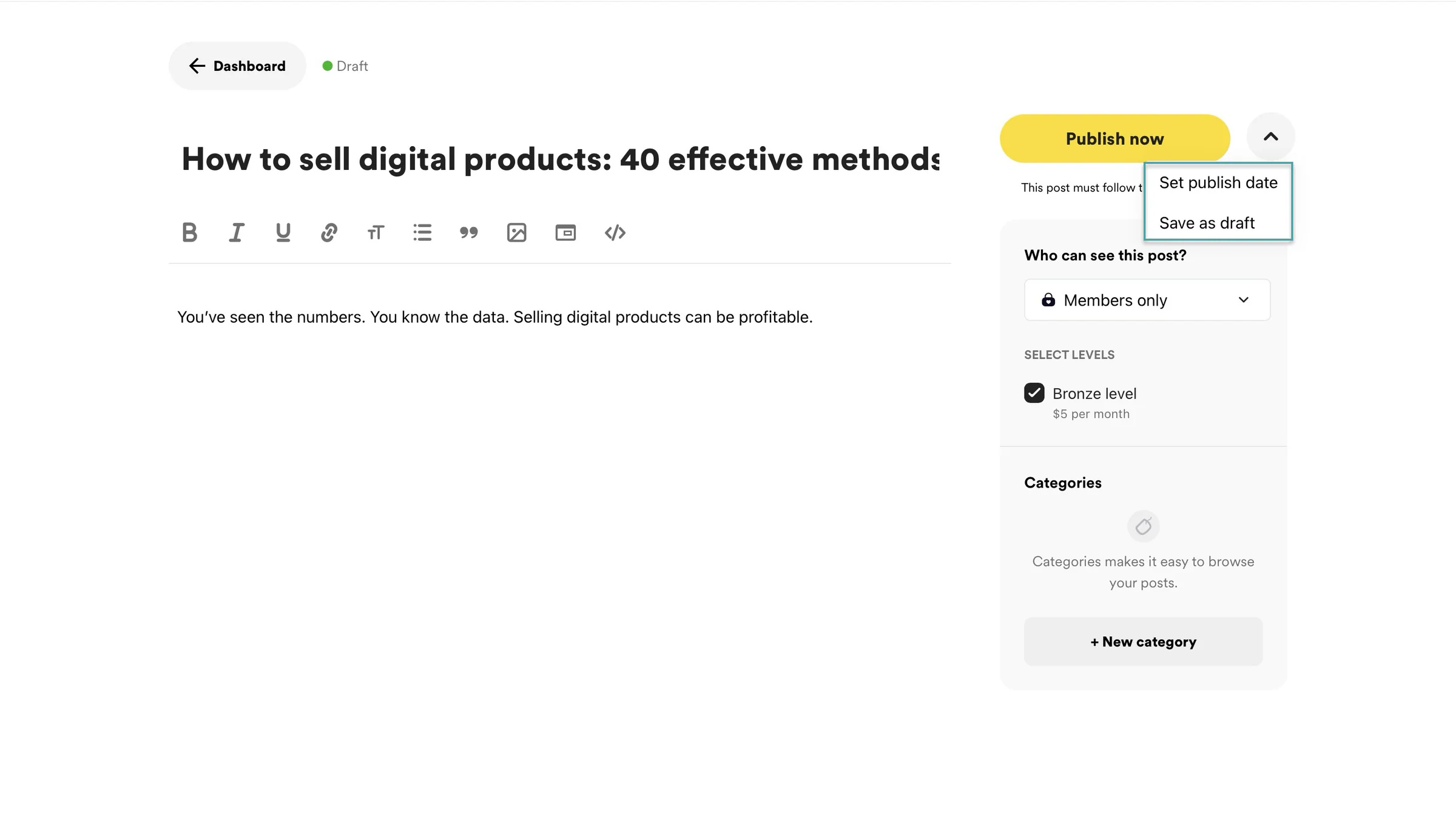
You can also choose who can see the post. It can be visible to everyone or limited to your followers, members, or supporters.
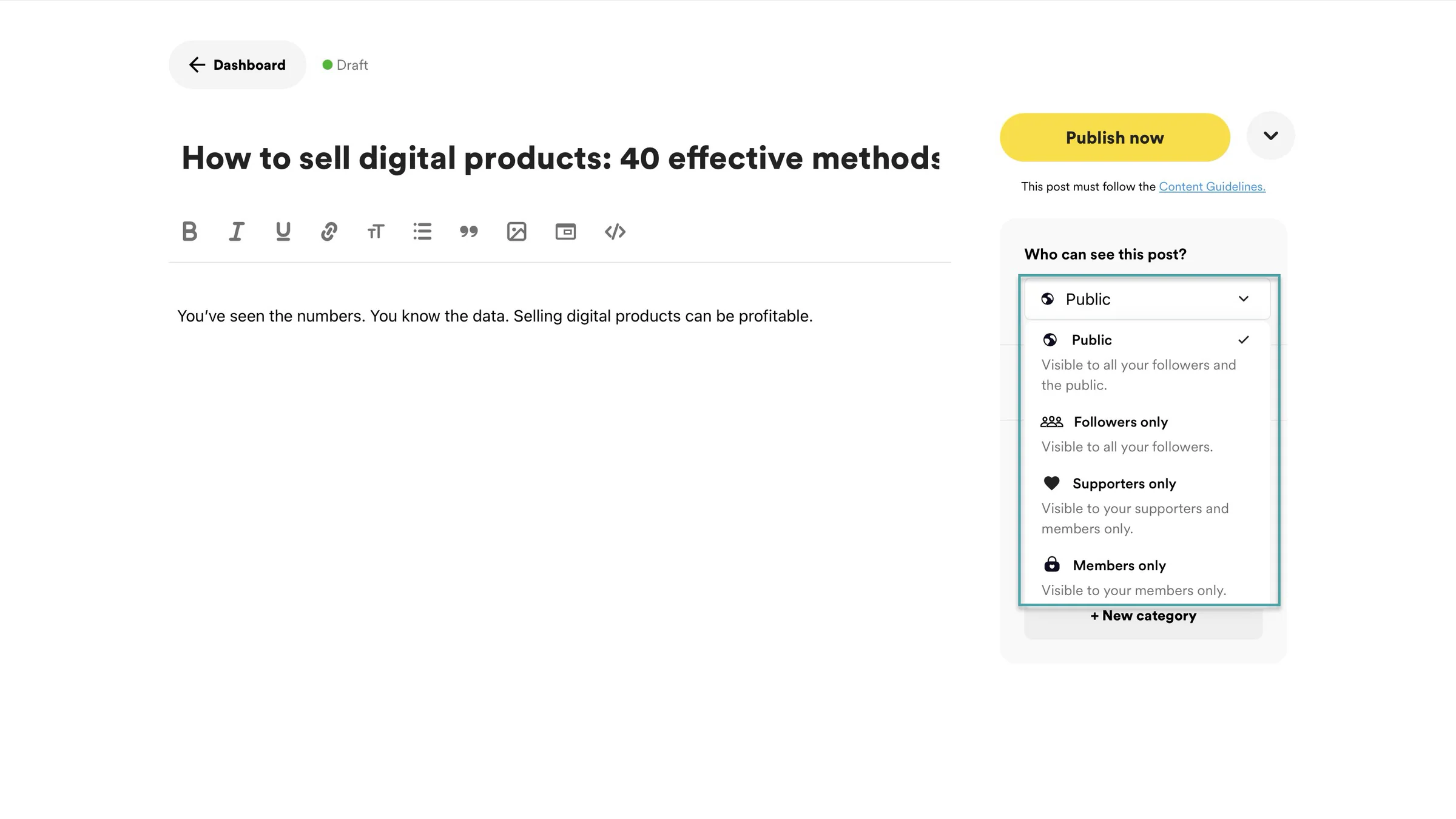
You can even email the post to your followers, members, and supporters when you publish it. You can publish it immediately, schedule it for later, or save it as a draft and come back to it later.
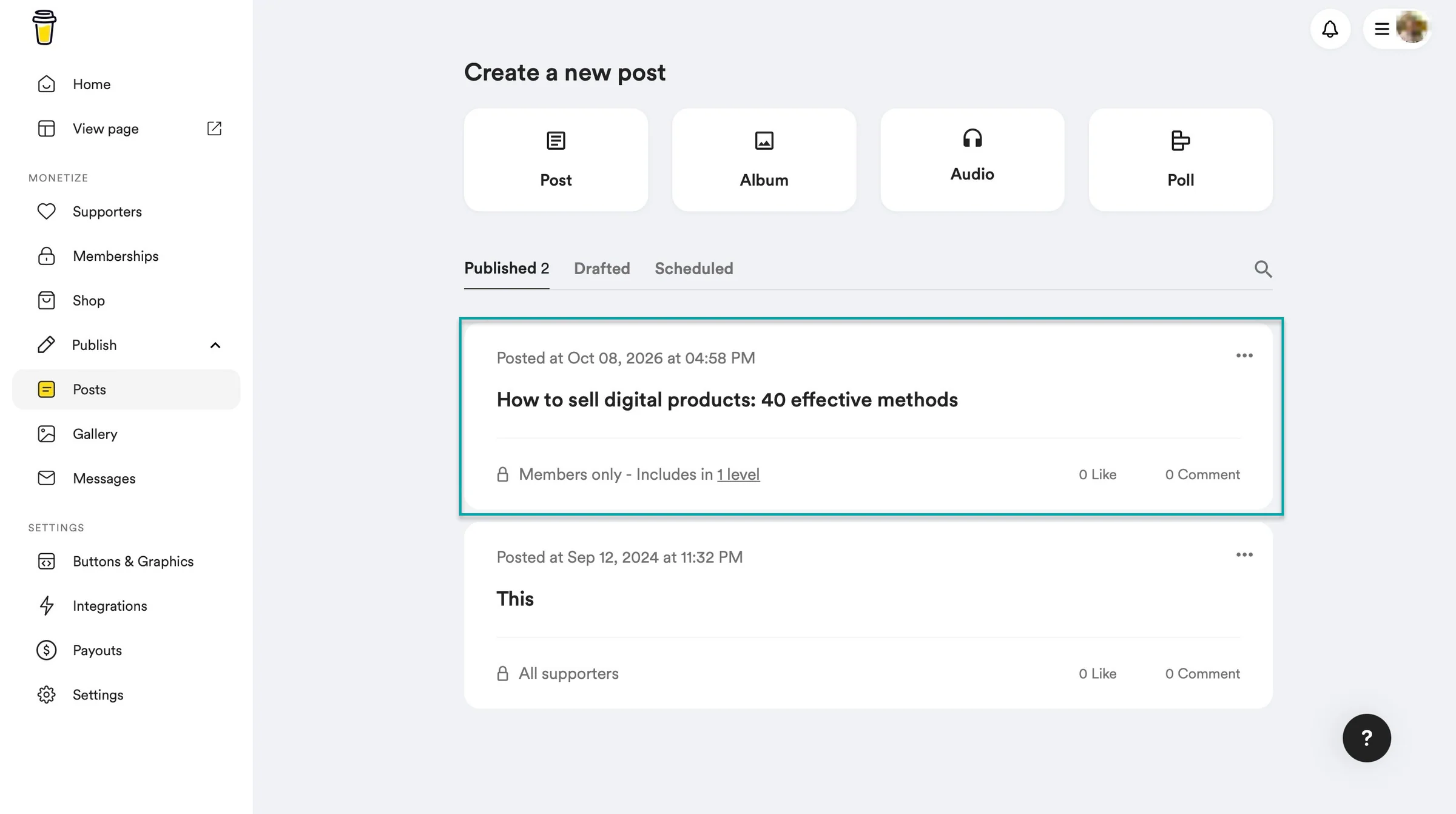
Once you hit “Publish,” Buy Me a Coffee will display the post alongside the others.
3. Memberships
Like Easytools, Buy Me a Coffee integrates with Discord and Zapier. This means you can sell memberships or subscriptions that give people access to your Discord community.
You can also use Zapier to connect Buy Me a Coffee to membership-hosting platforms and sell access to your community to your members.
Here’s how to sell memberships on the platform.
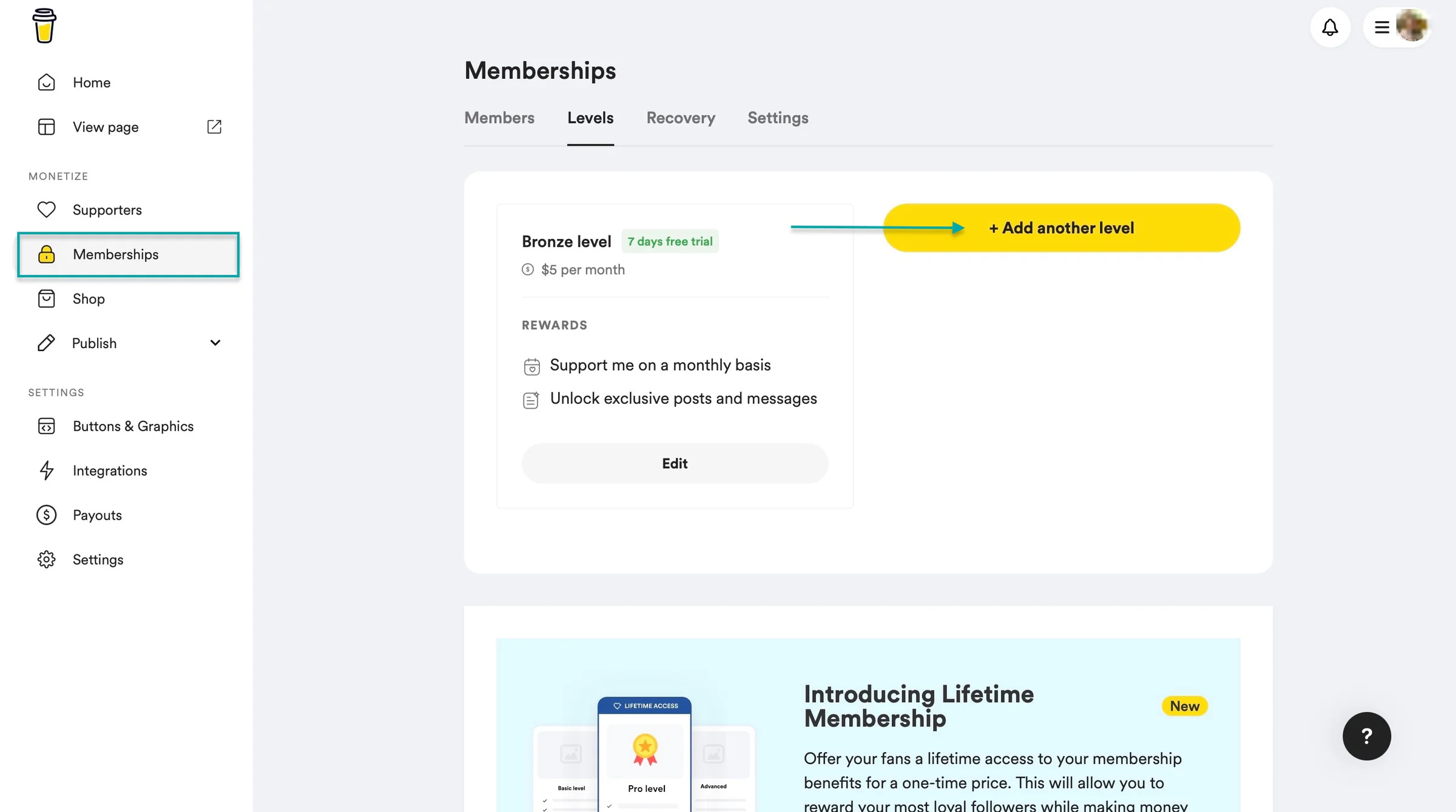
First, select “Memberships” in the sidebar and click “Levels.”
As you can see, I’ve already created a membership level. Let’s add another one. Click “+ Add another level.”
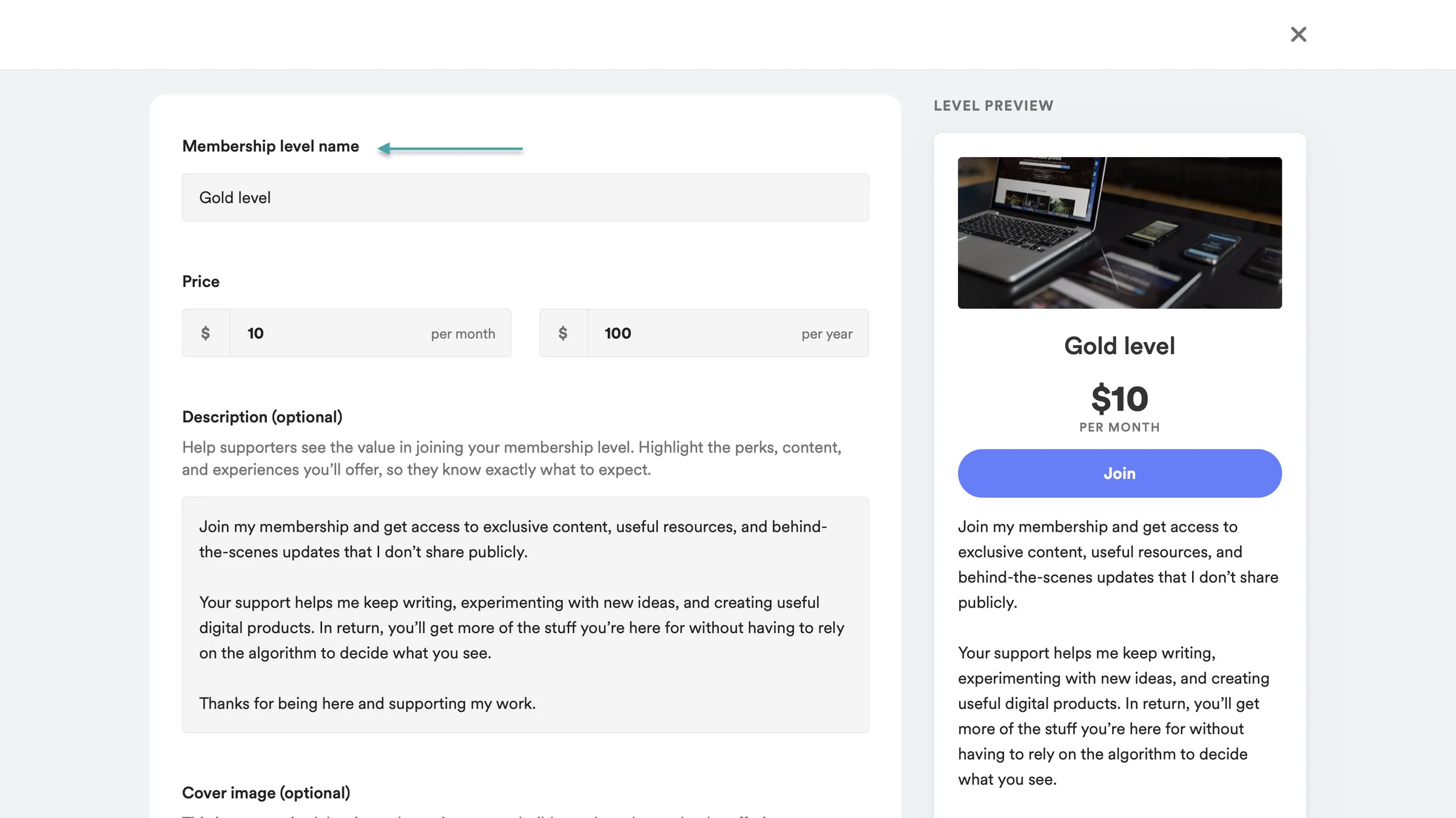
In the new window, add the membership level name and price. Then add a description and cover image.
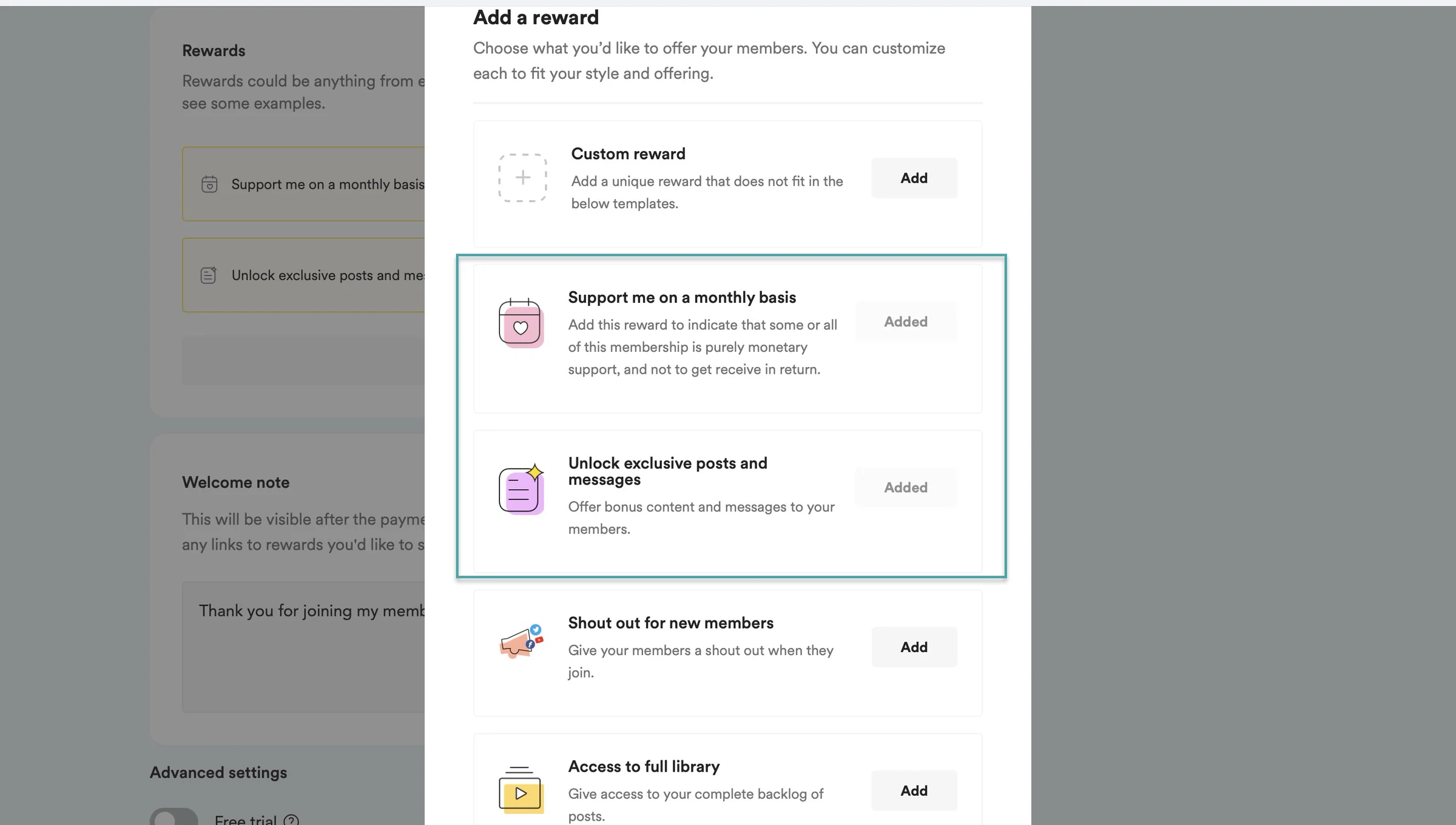
Scroll down and click “+ Add a reward.” Choose what you want to offer from the available options.
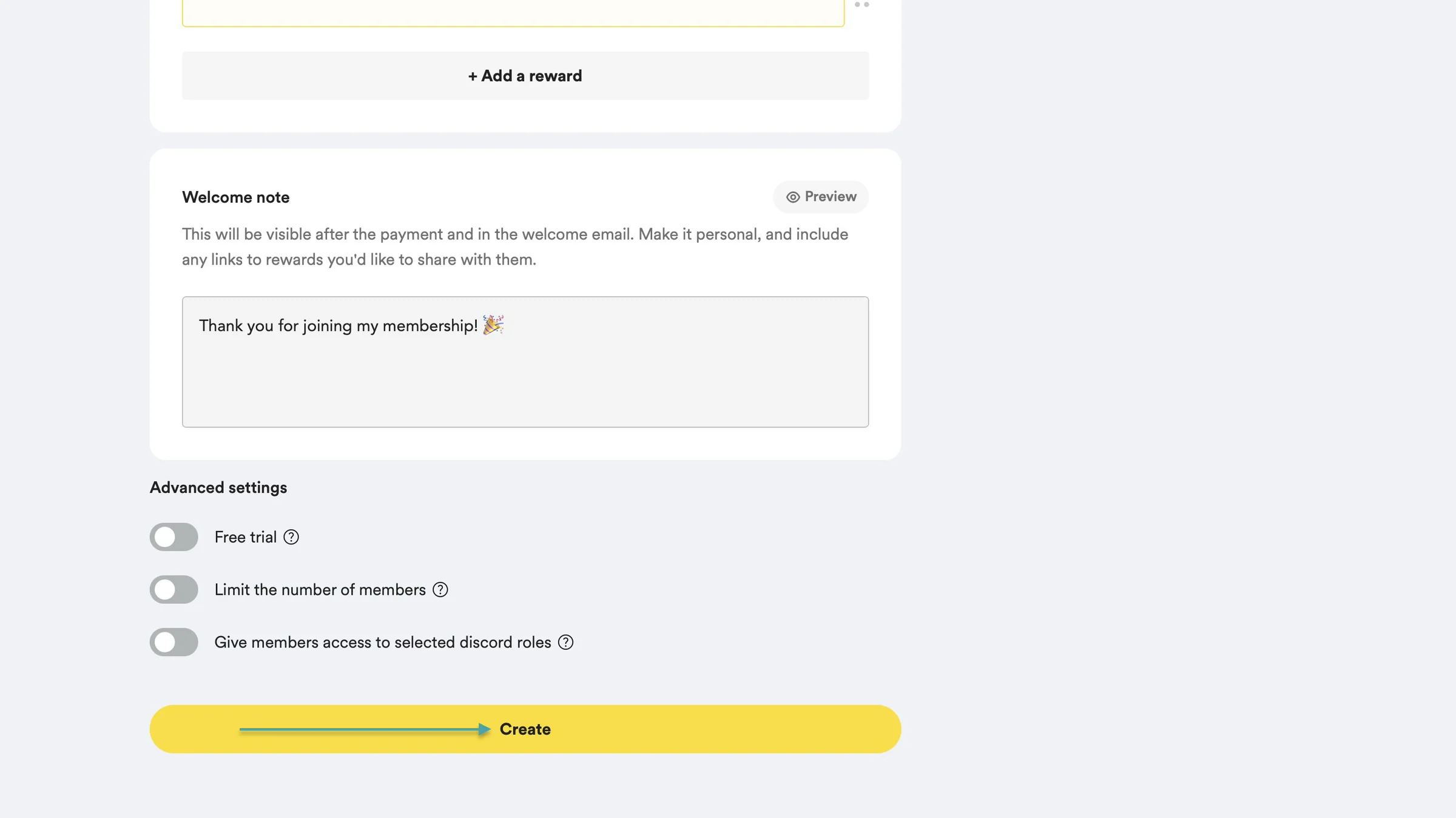
Next, add a welcome note. You can also offer a free trial period and limit the number of members who can join.
If you offer members access to your Discord community, you can assign roles to them.
Once you’re done, click “Create.”
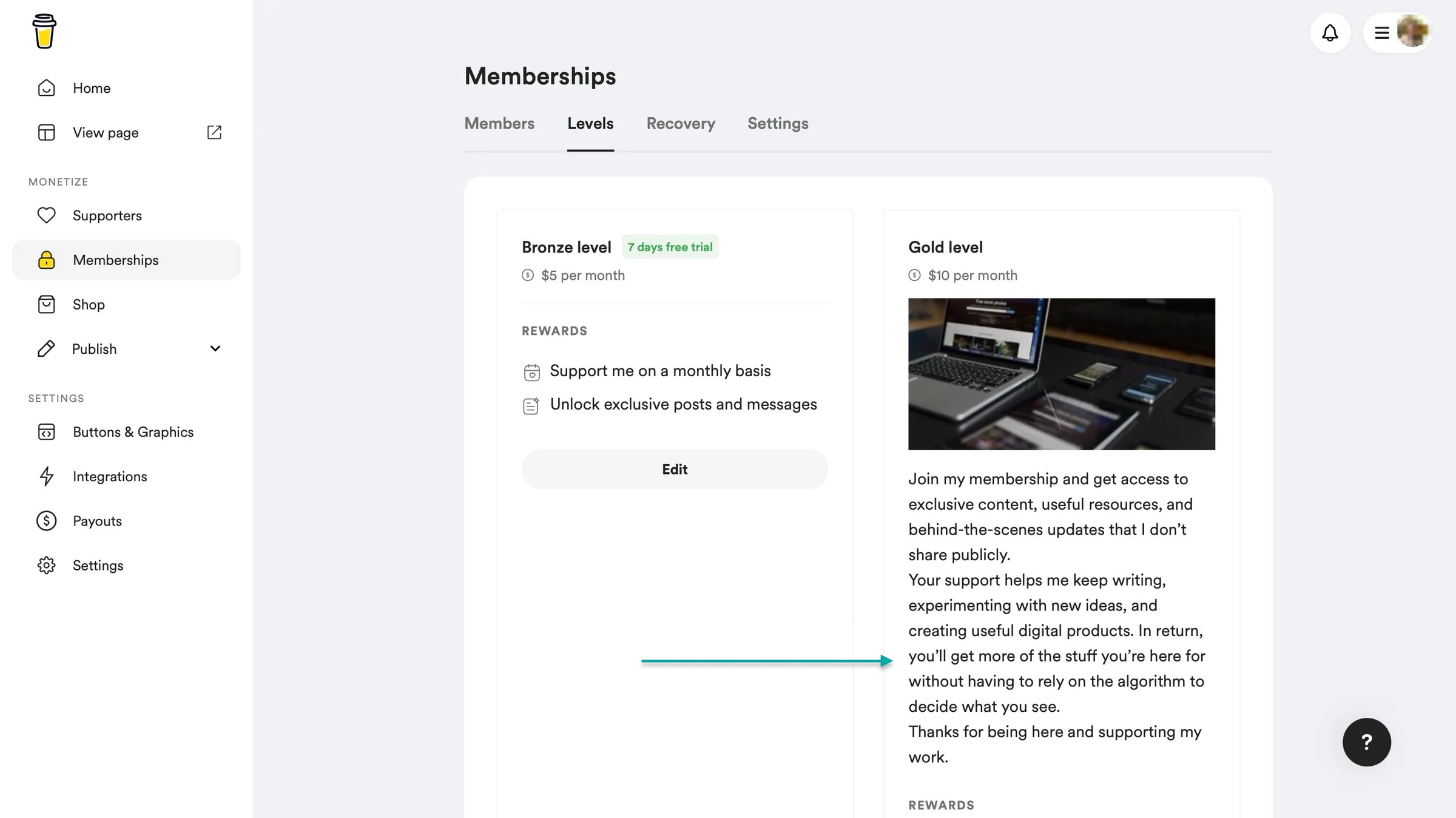
Buy Me a Coffee will list your new membership level.
What I liked vs what I didn’t like
What I loved 👍
✅ Even though it’s traditionally a tip-jar platform, it still lets you monetize through products and memberships, so you can increase your revenue.
✅ It has a simple interface, so you can set up your page and start selling very quickly.
✅ You can enable localized currencies so your supporters can pay in their local currency, so it’s easier for people outside the United States to know exactly how much they’re paying.
What I didn’t like 👎
❌ Payouts can take 1 to 5 days for your money to settle in your bank account, which can be frustrating if you need quick access to your earnings.
Best for
- Creators who want a cost-effective and simple way to accept tips, sell products, and offer memberships to their audience.
Pricing
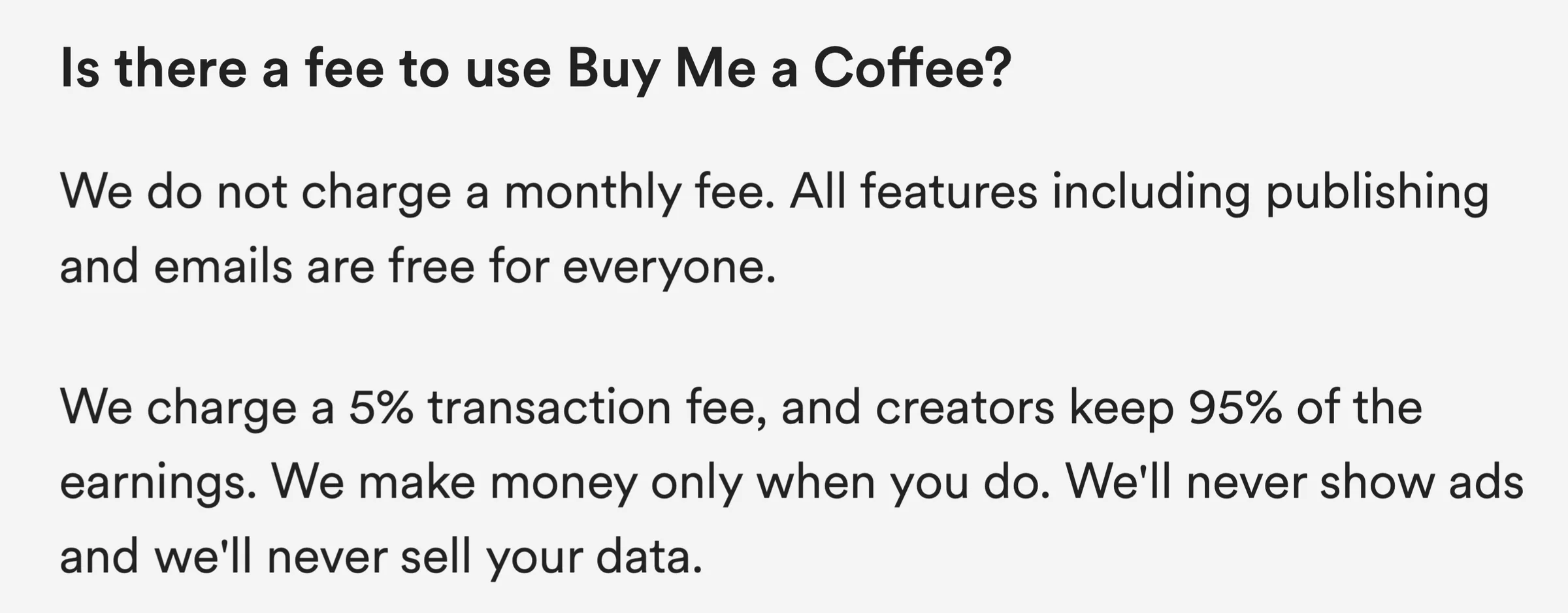
- Free: $0/month + 5% transaction fees
3. Patreon
- Personal rating: ⭐️⭐️⭐️⭐️ 4.7/5 - The feed can recommend your public posts to people who are likely to enjoy your content, bringing you potential paying members.
- Ease of use: ⭐️⭐️⭐️⭐️ 4/5 - Labels its features clearly, so you can find your way around without much confusion.
- AI capabilities: Uses AI-powered Autopilot to handle promotions for you, like encouraging free members to upgrade, sending upgrade emails, and convincing members not to cancel.
- Monetization options: Paid memberships, gift memberships, one-time digital product sales, paid posts, videos, audio content, livestreams, and selling collections of exclusive content.
- Free trial: N/A - It’s free.
- Starting plan: Free - $0/month + 10% transaction fees
Patreon is also on our list of the best Ko-fi alternatives.
It’s a platform where you can make money from your audience by selling digital products, offering paid memberships, and sharing exclusive content.
It also gives fans a way to search and discover creators (and topics) they might want to support.

Patreon lets you publish an online shop where you can sell posts, videos, audio files, and other digital products. You can also co-author public posts with other creators.
You can sell a collection of posts as a bundle, too, so you can package related content together and charge for it.
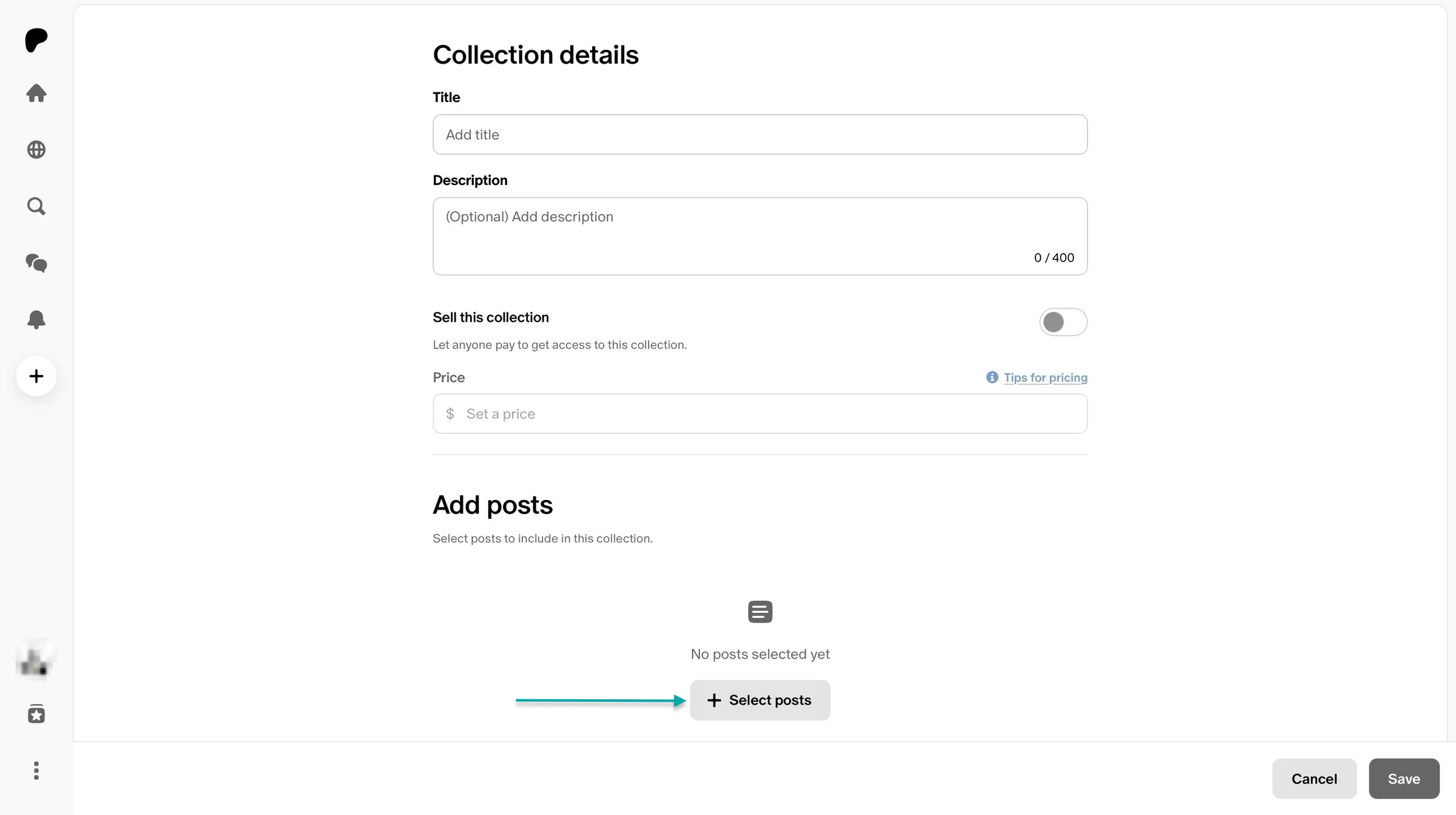
You can also livestream on this Ko-fi alternative to interact with your audience. You can make a stream exclusive to paid members only.
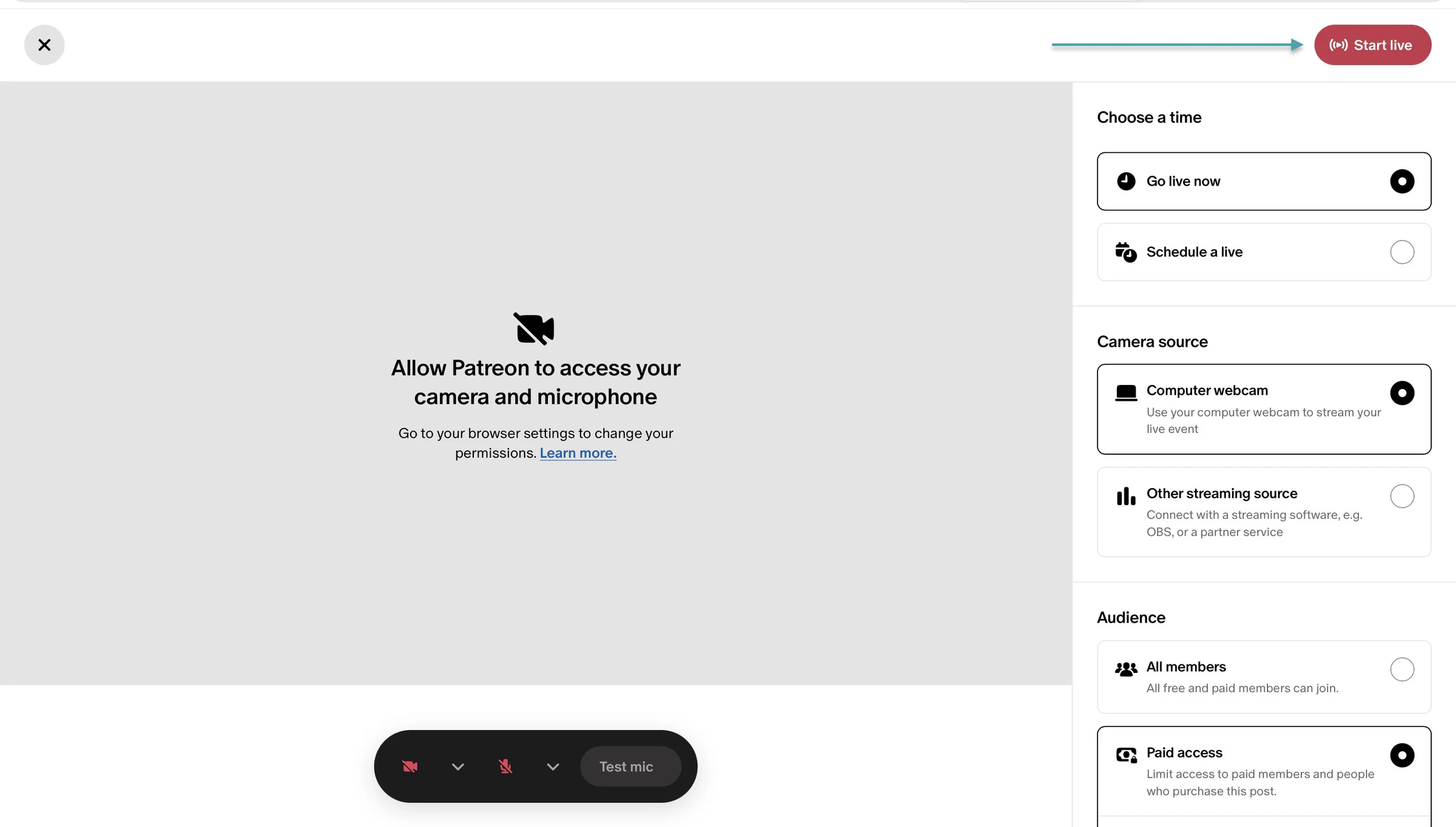
The platform also lets you build paid membership tiers. Memberships can become a recurring source of income once you get them off the ground.
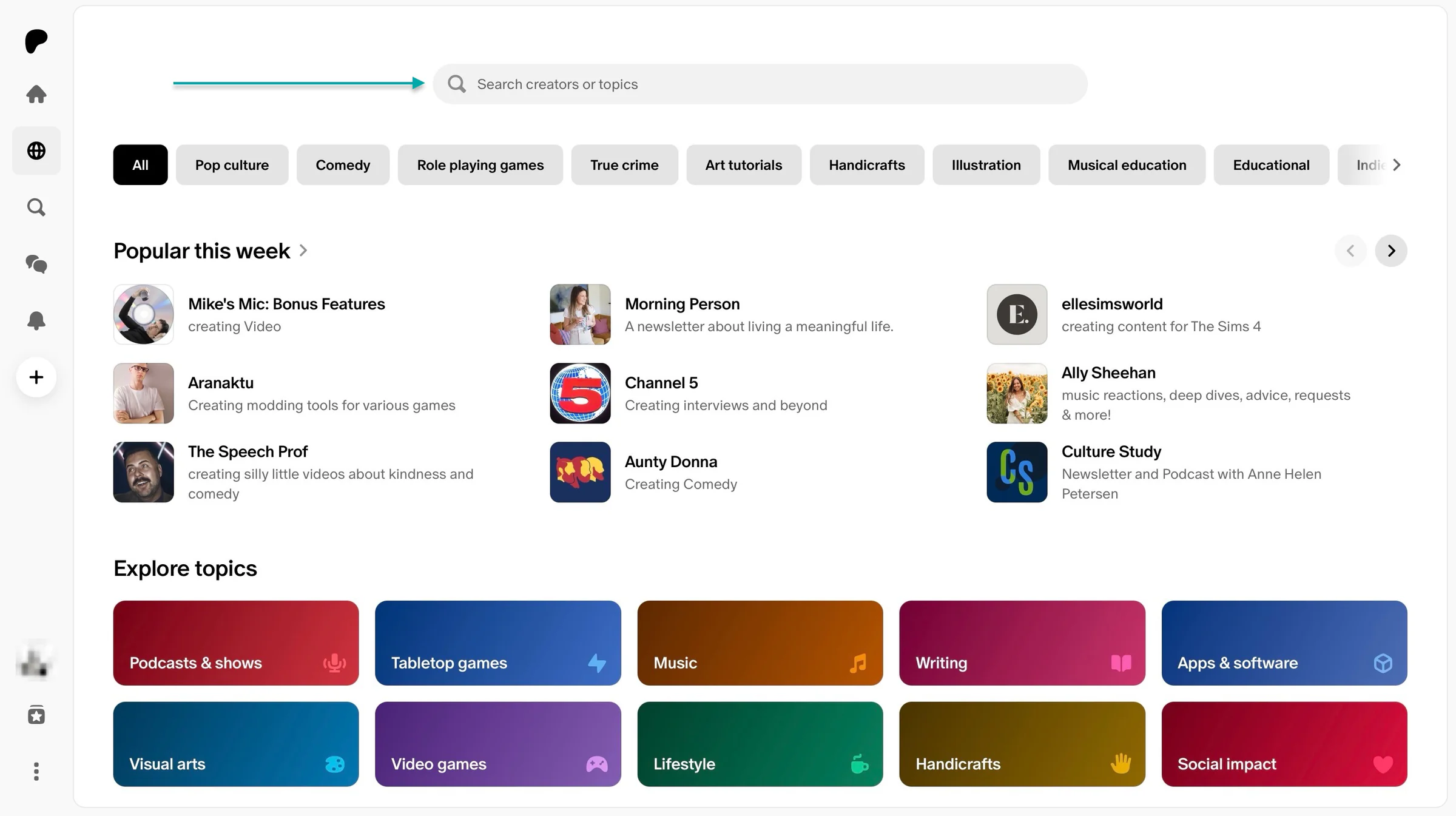
Patreon also lets fans search for creators and topics. Along with sharing your page on social media, this gives new audiences another way to find you.
What I loved about Patreon
1. Shop
Like I’ve already said, Patreon’s shop feature lets you sell posts, video and audio files, and physical and digital products.
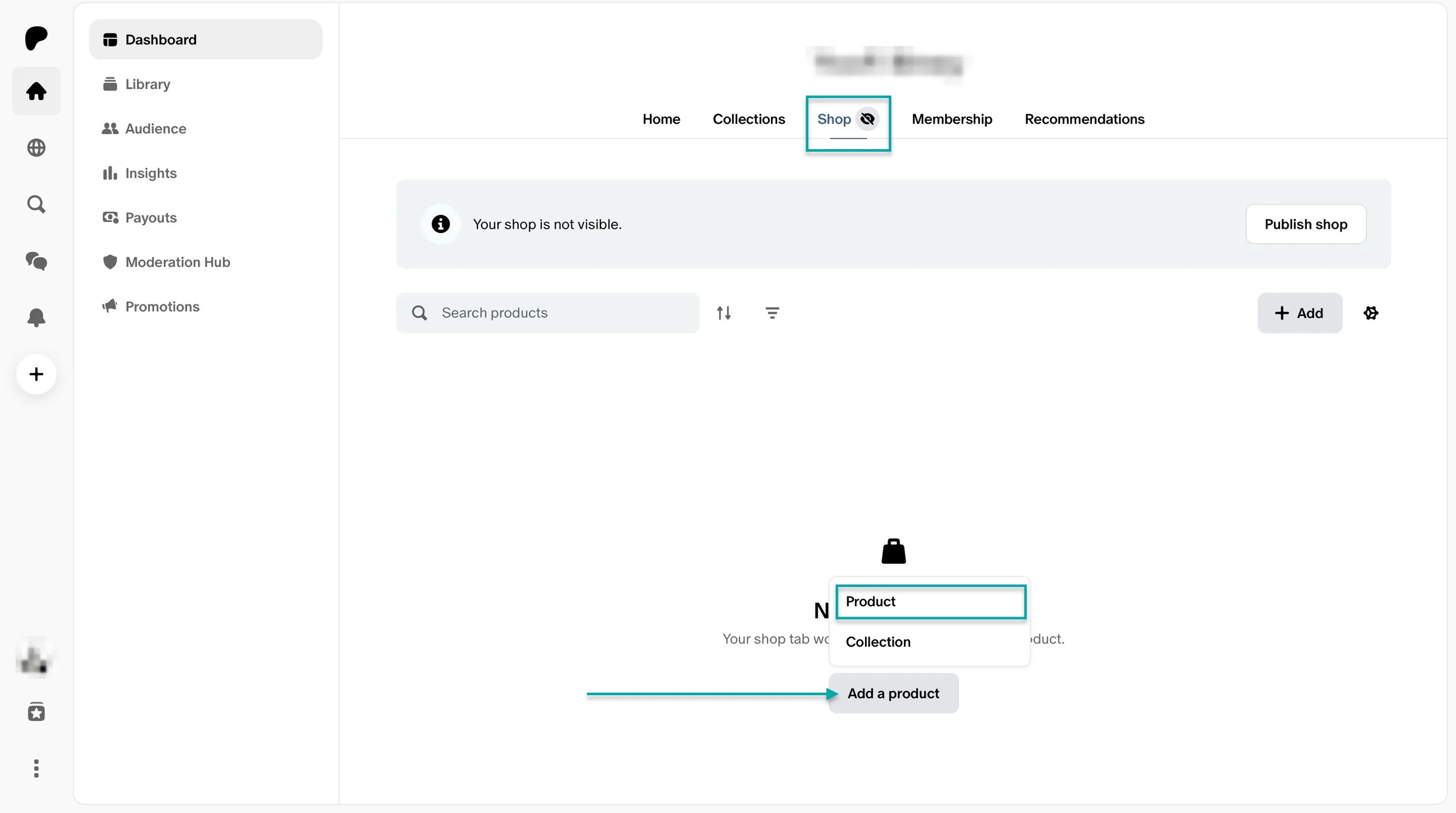
To add a post, first click “Shop” right from the dashboard. Your shop will remain unpolished if you haven’t added any products.
In the new window, click “Add a product” and then select “Product.”
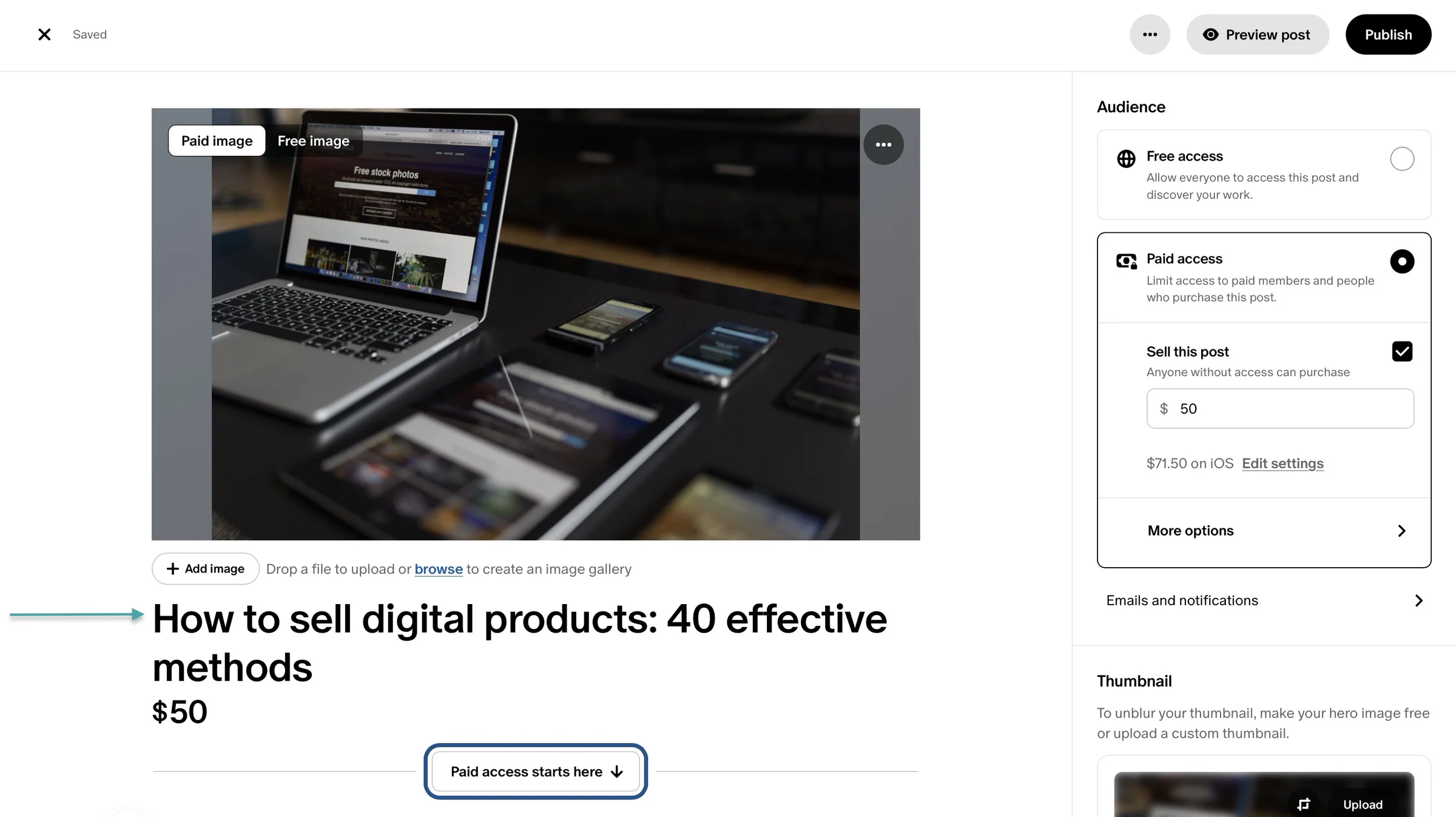
Next, add the title of the post, the price, an image, a thumbnail, and more. You can even choose where paid access starts on your post.
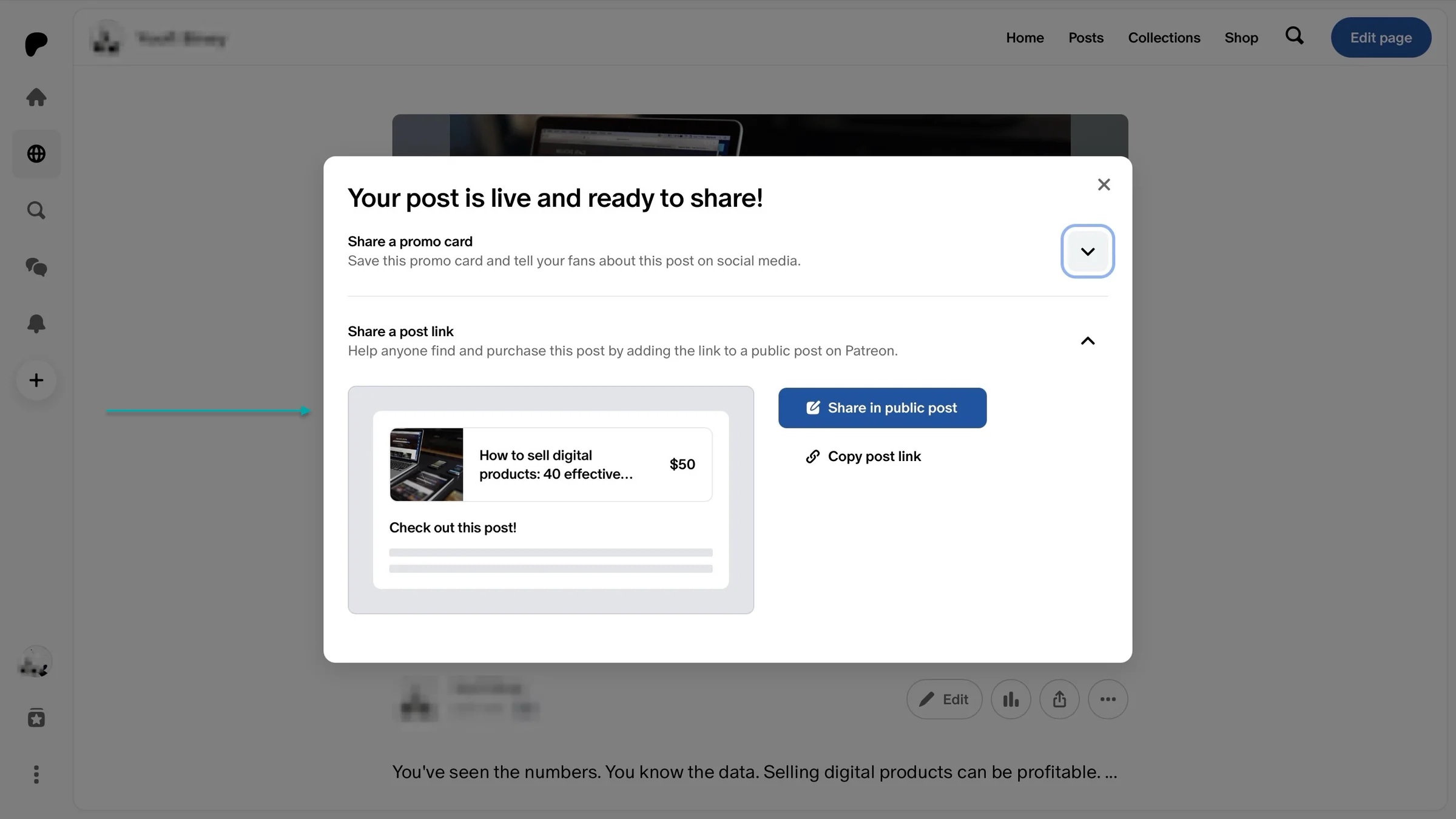
Once you’ve created the post, you can preview it and publish it. Like Easytools, Patreon lets you copy your product’s URL and share it online.
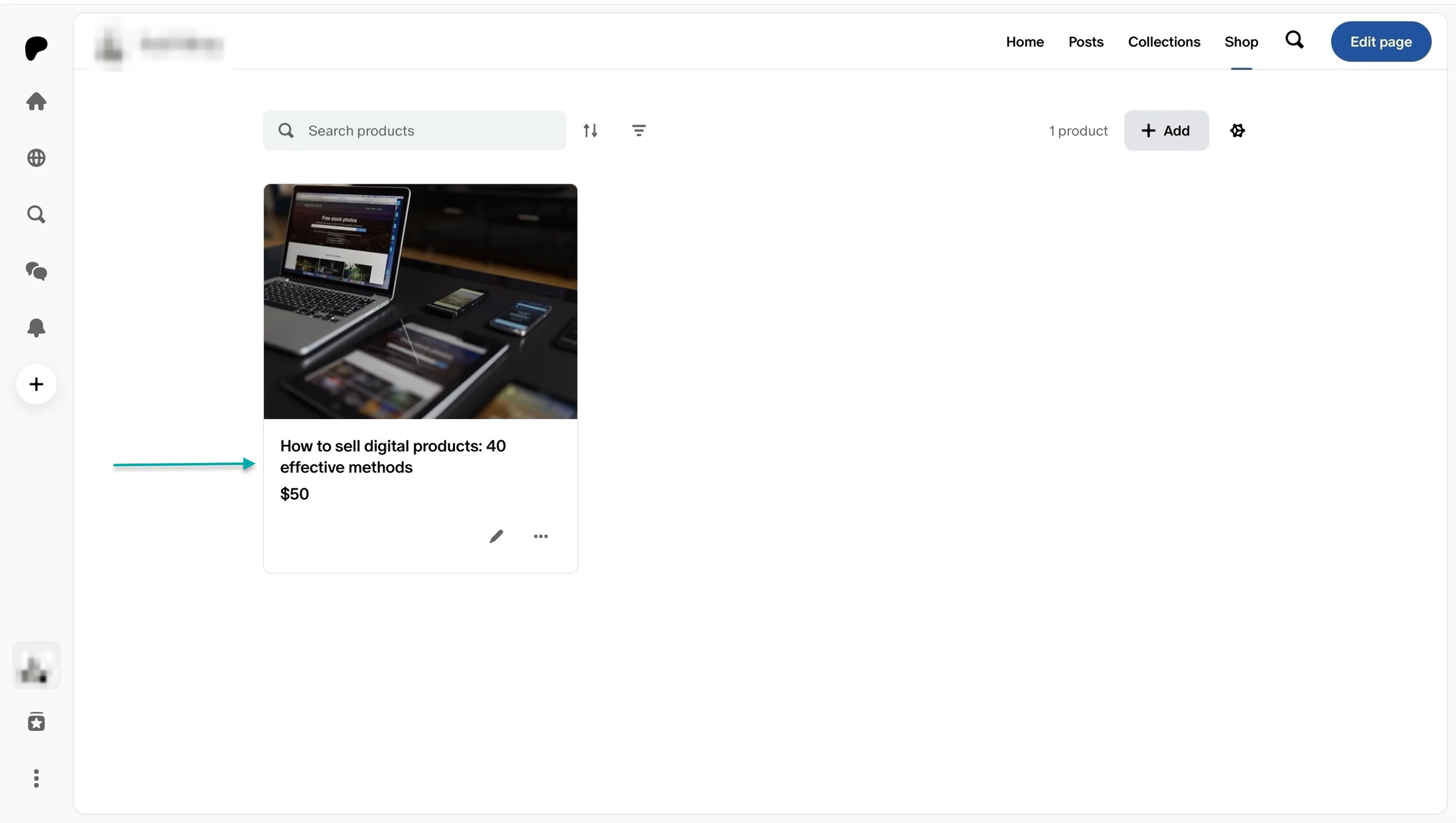
And Patreon will also display it on your published online shop.
2. Membership
This Patreon feature lets you sell memberships and subscriptions. It’s another way to get financial support from your audience.
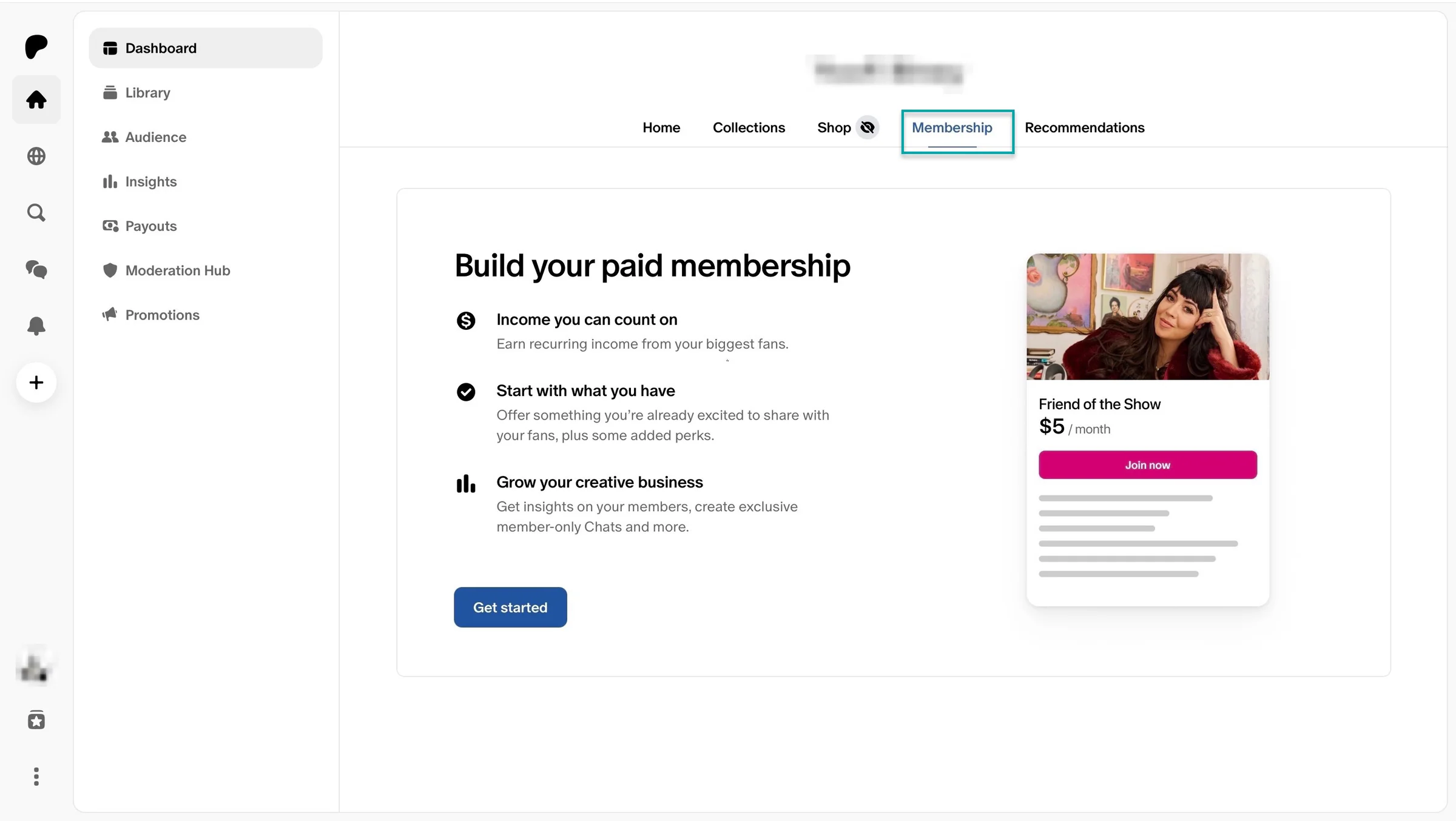
Here’s how to create your first membership tier on Patreon. Start by clicking on the “Membership” tab on your dashboard.
After that, click “Get started.”
Now, enter the name of your tier, set the price, add its description, and a cover image.
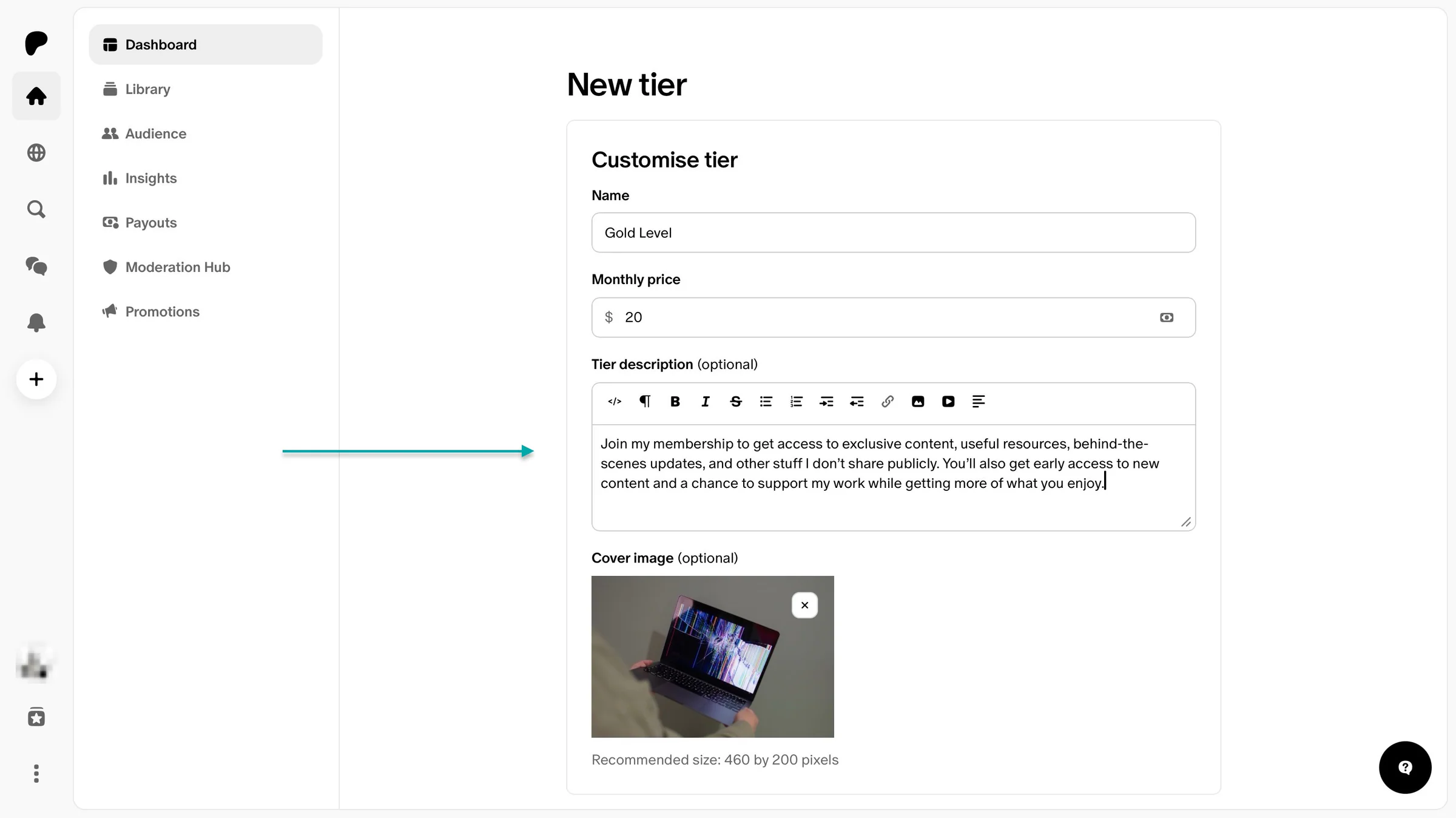
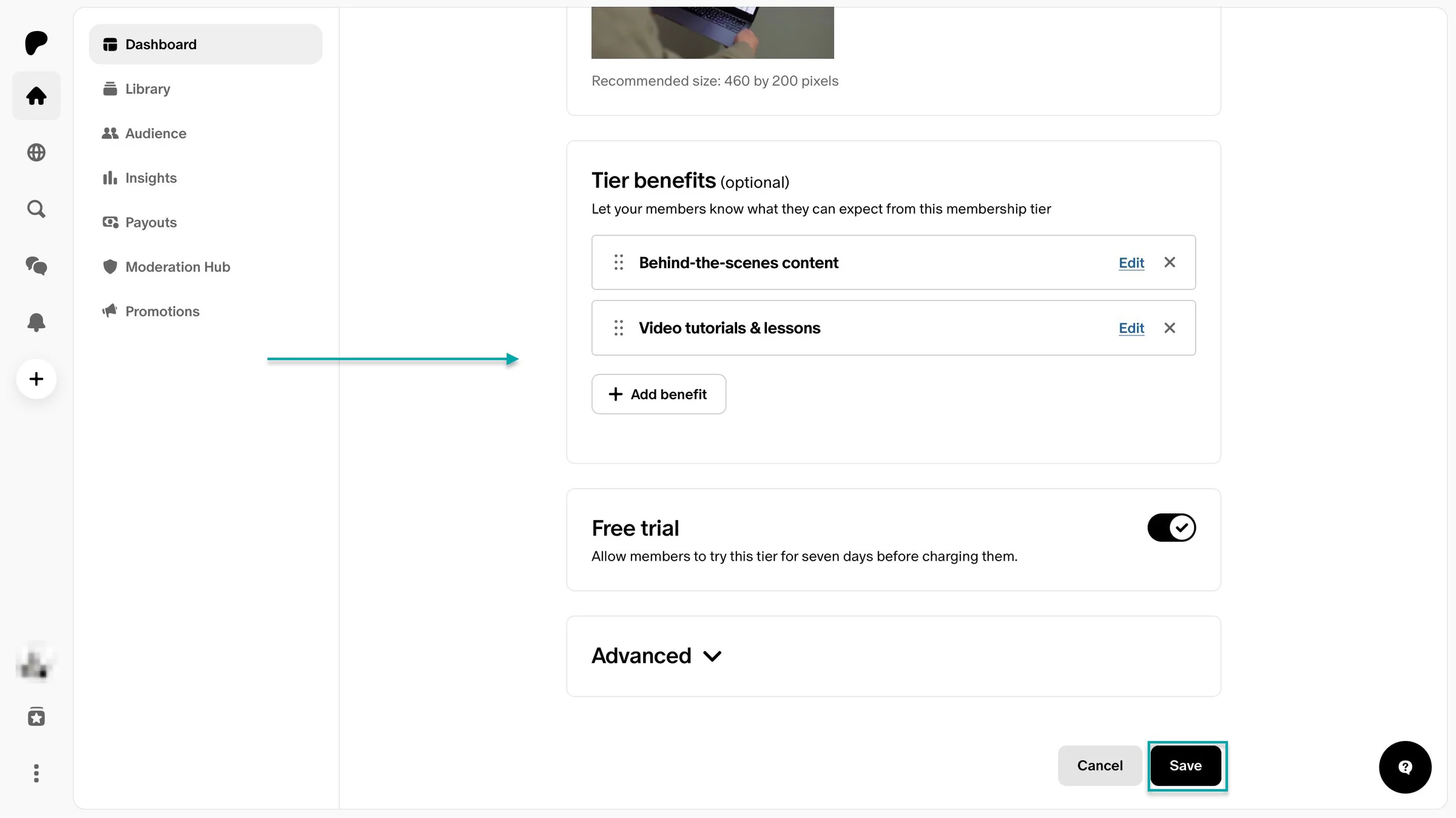
Next, scroll down and click “+ Add benefit” to add perks. Add as many benefits as you can offer.
Toggle the switch to offer a free trial so potential members commit only after testing your membership. Click “Advanced” for extra tier settings, Discord access, and sales tax.
Once you’ve ticked the right boxes and added the extra information, hit “Save.”
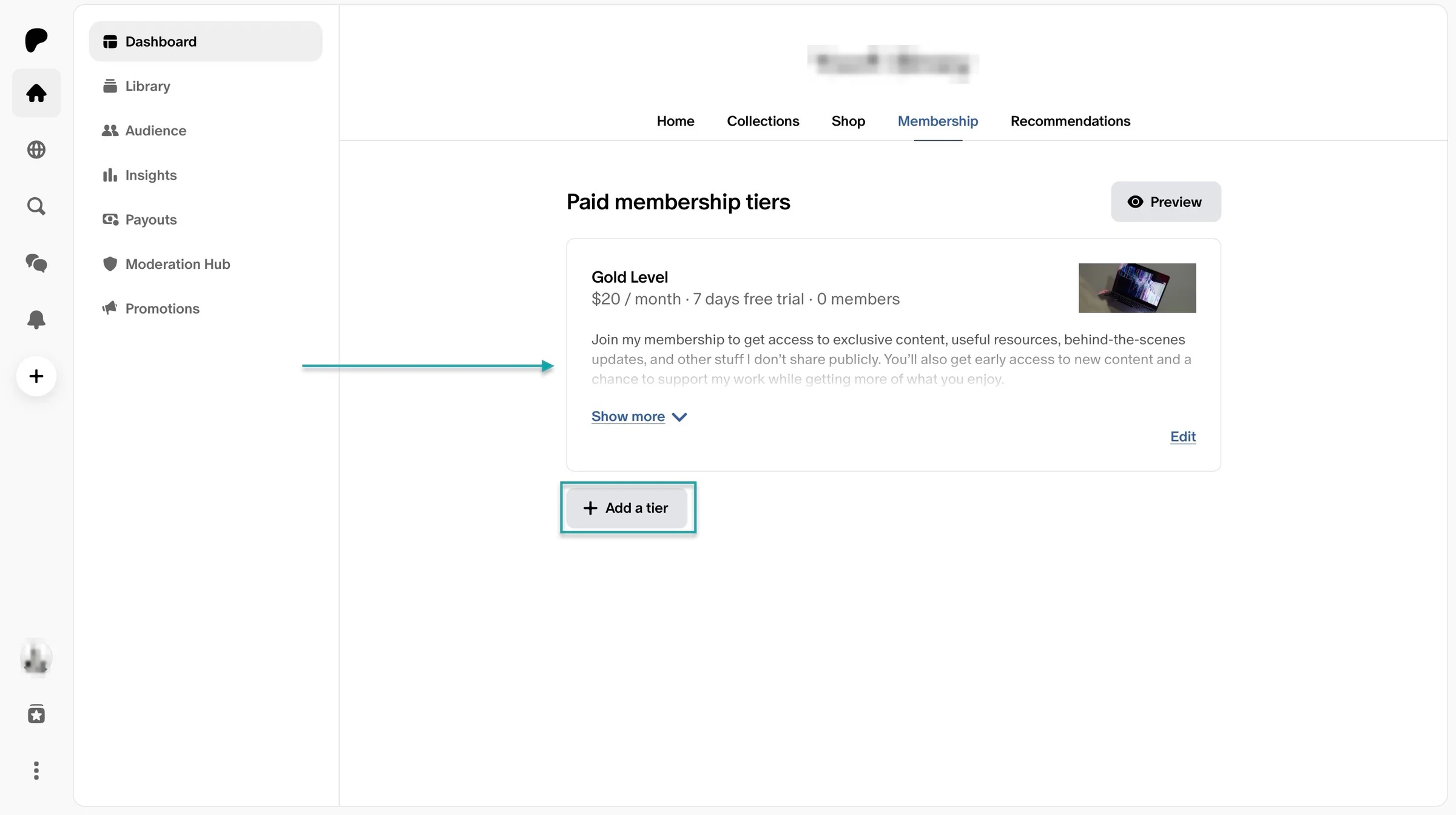
Patreon will display your membership offer. Click “+ Add a tier” when you want to offer another.
3. Feed
The feed feature is like Patreon’s marketplace for creators and topics. And it has a dedicated search box if you want to search for a particular creator or topic.
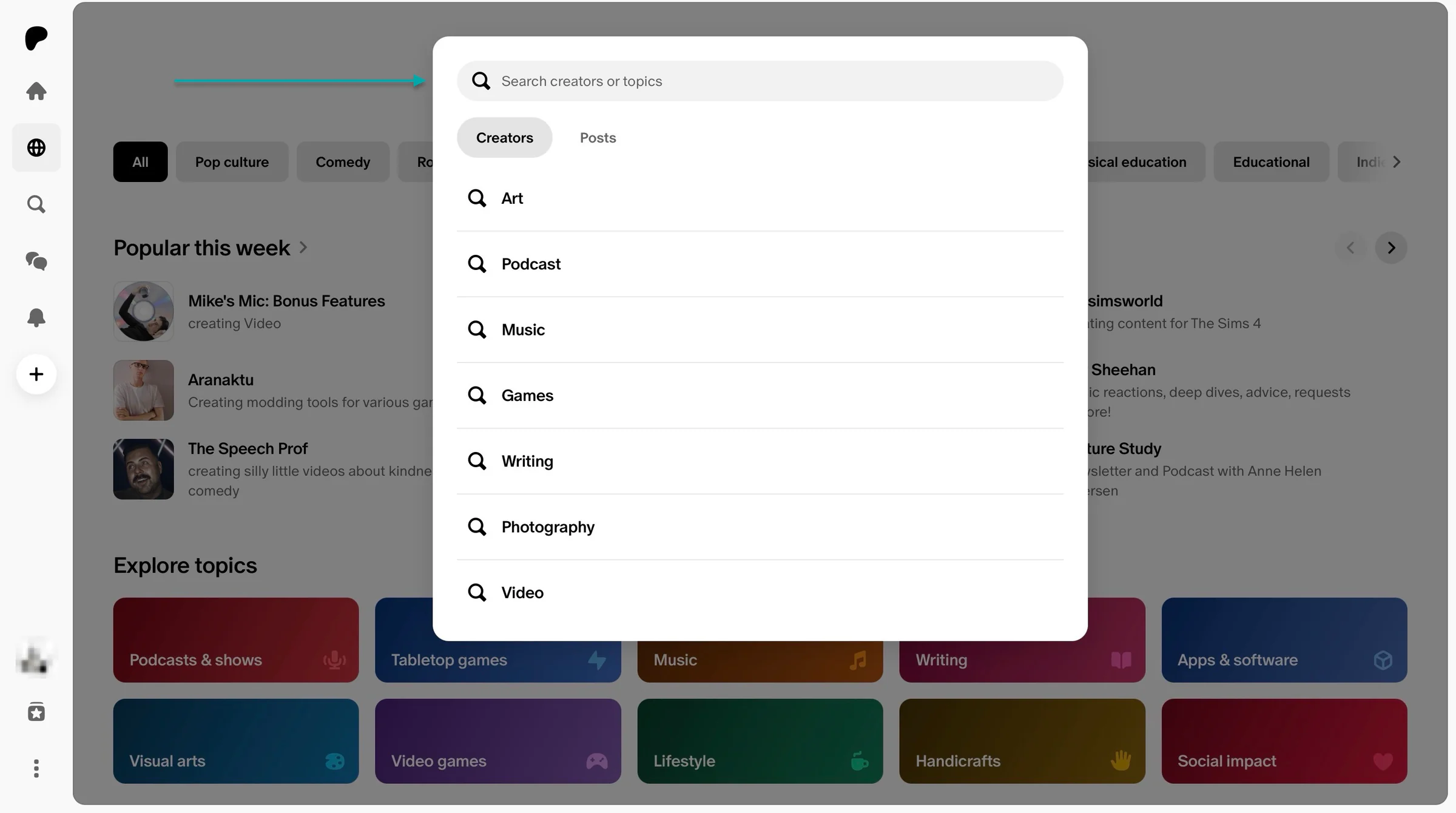
It also displays top creators in specific niches. Like pop culture and role-playing games.
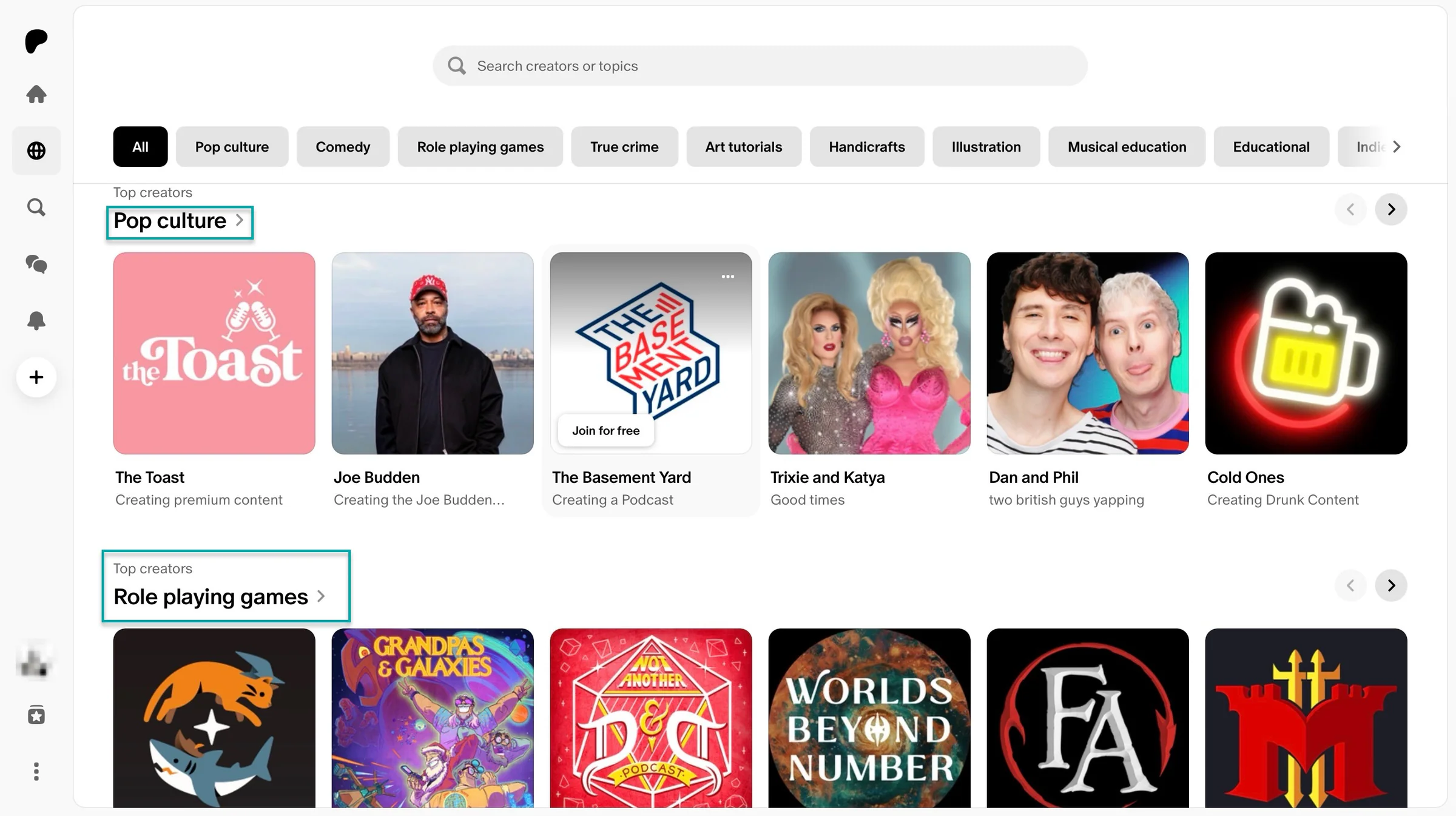
And members can click “Join for free” right from the feed after they discover you.
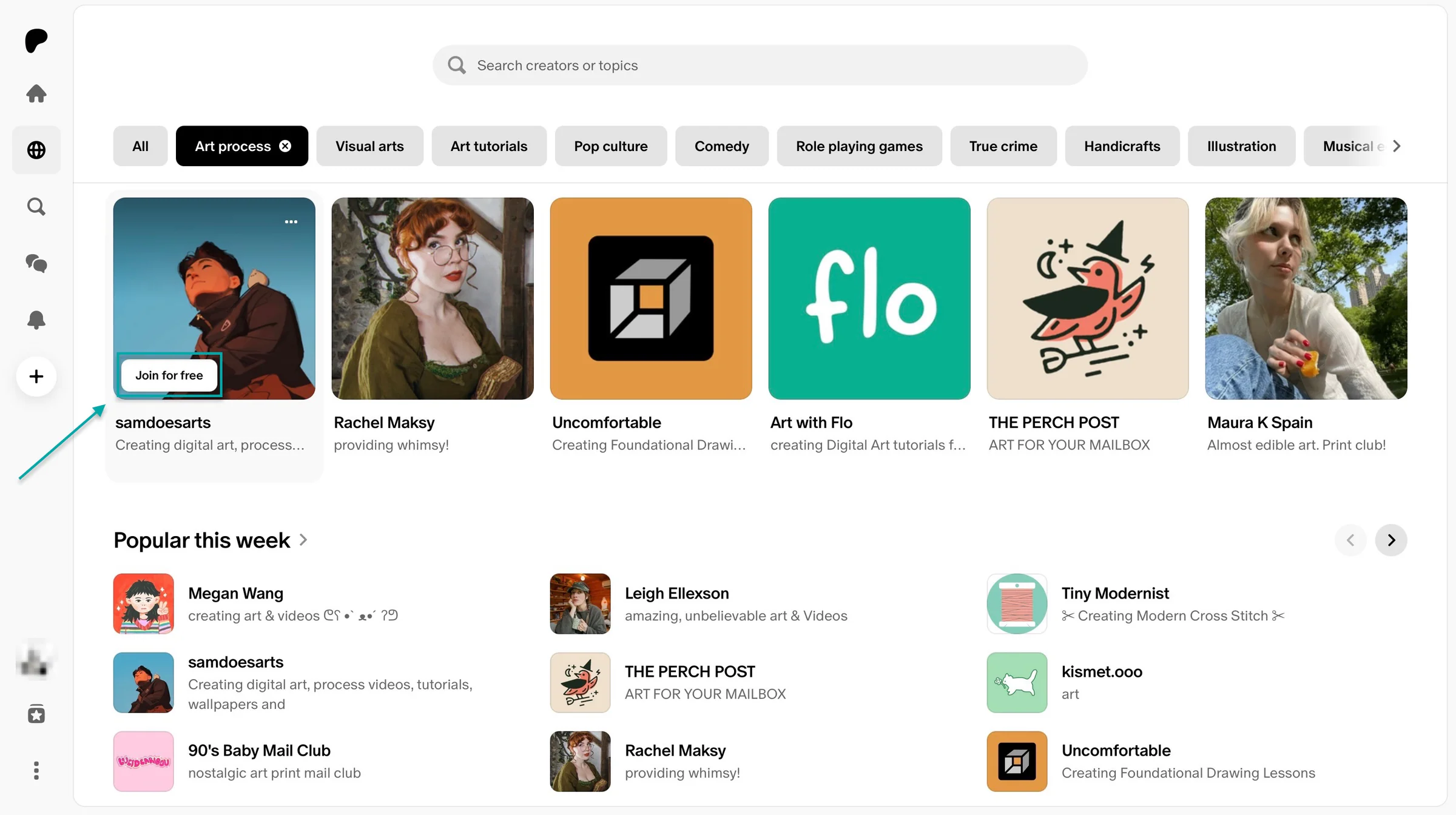
It’s a great feature to help you find more audiences right on Patreon.
What I liked vs what I didn’t like
What I loved 👍
✅ Has a feed feature that helps fans discover you, so you have another way to reach new audiences without relying entirely on social media.
✅ Lets you sell products and memberships besides accepting gifts, so you can earn money in different ways instead of relying on one income stream.
✅ Like Easytools, Patreon gives you control over your audience, so you can build relationships with your fans and keep them engaged.
What I didn’t like 👎
❌ Patreon’s 10% platform fee can eat into your earnings, especially when you start making more money from your content.
Best for
- Creators who want to earn recurring income through memberships, exclusive content, and digital product sales.
Pricing
- Free: $0/month + 10% transaction fees
4. Big Cartel
- Personal rating: ⭐️⭐️⭐️⭐️ 4.1/5 - Helps you find products to dropship through its DSers integration, which lets you browse products from AliExpress and Temu.
- Ease of use: ⭐️⭐️⭐️⭐️ 4/5 - It’s easy to use, and it also has resources to guide you through your setup.
- AI capabilities: Doesn’t have built-in AI capabilities, but you can integrate with third-party tools like Whippy AI, Ayudo AI, and more for automated customer support.
- Monetization options: Physical products, digital downloads, print-on-demand products, services, donations, and memberships/monthly subscriptions.
- Free trial: Yes - 7-day free trial
- Starting plan: Platinum: $12/month + 0% transaction fees
Another important platform on our list of the best Ko-fi alternatives is Big Cartel.
It’s an e-commerce platform that lets you set up an online store to sell physical products, digital downloads, and print-on-demand items.
With Big Cartel, you don’t need to build a shop from scratch and you can accept monthly donations.
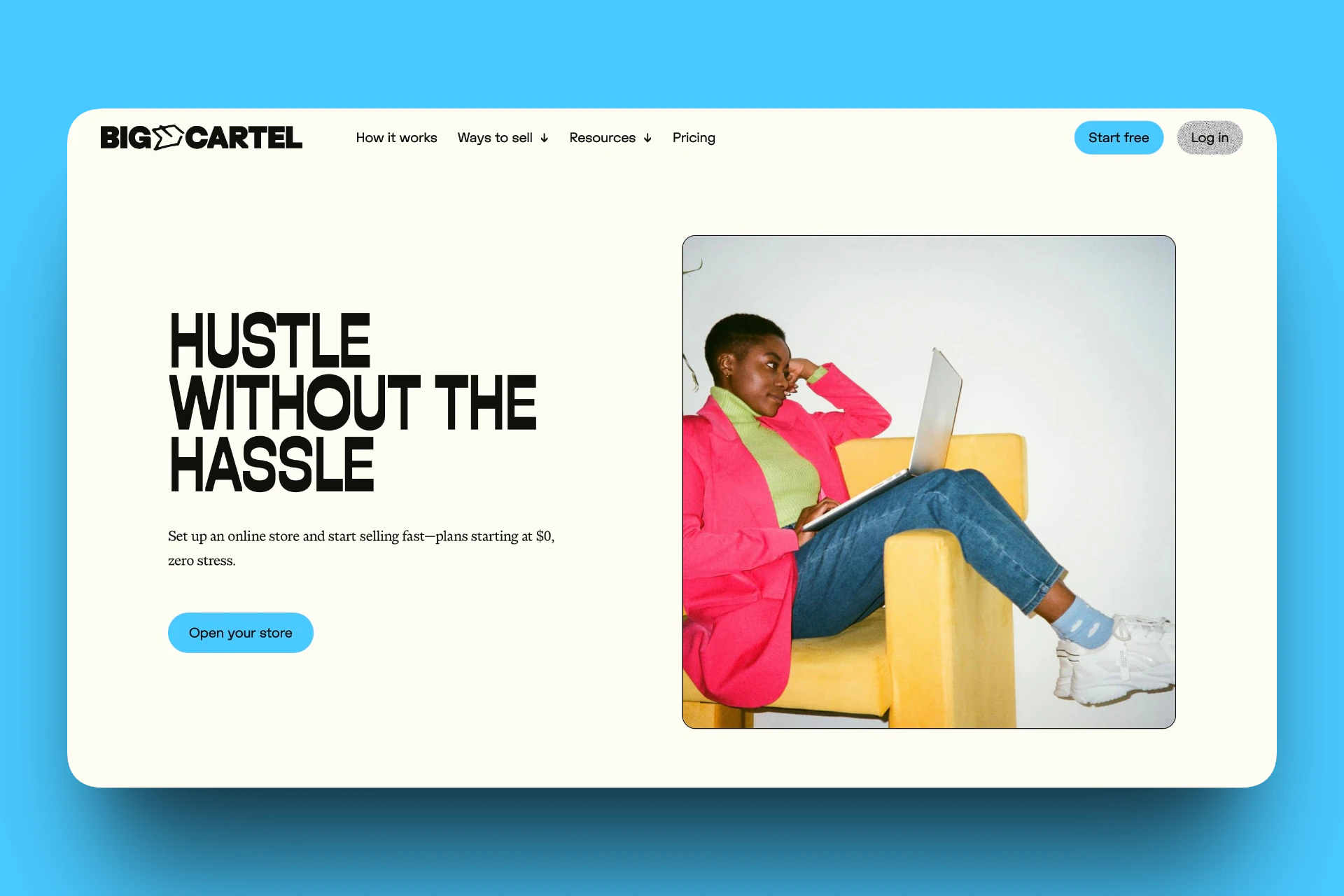
You can sell digital products like PDFs, presets, and other downloads on Big Cartel. You can also sell print-on-demand (POD) products.
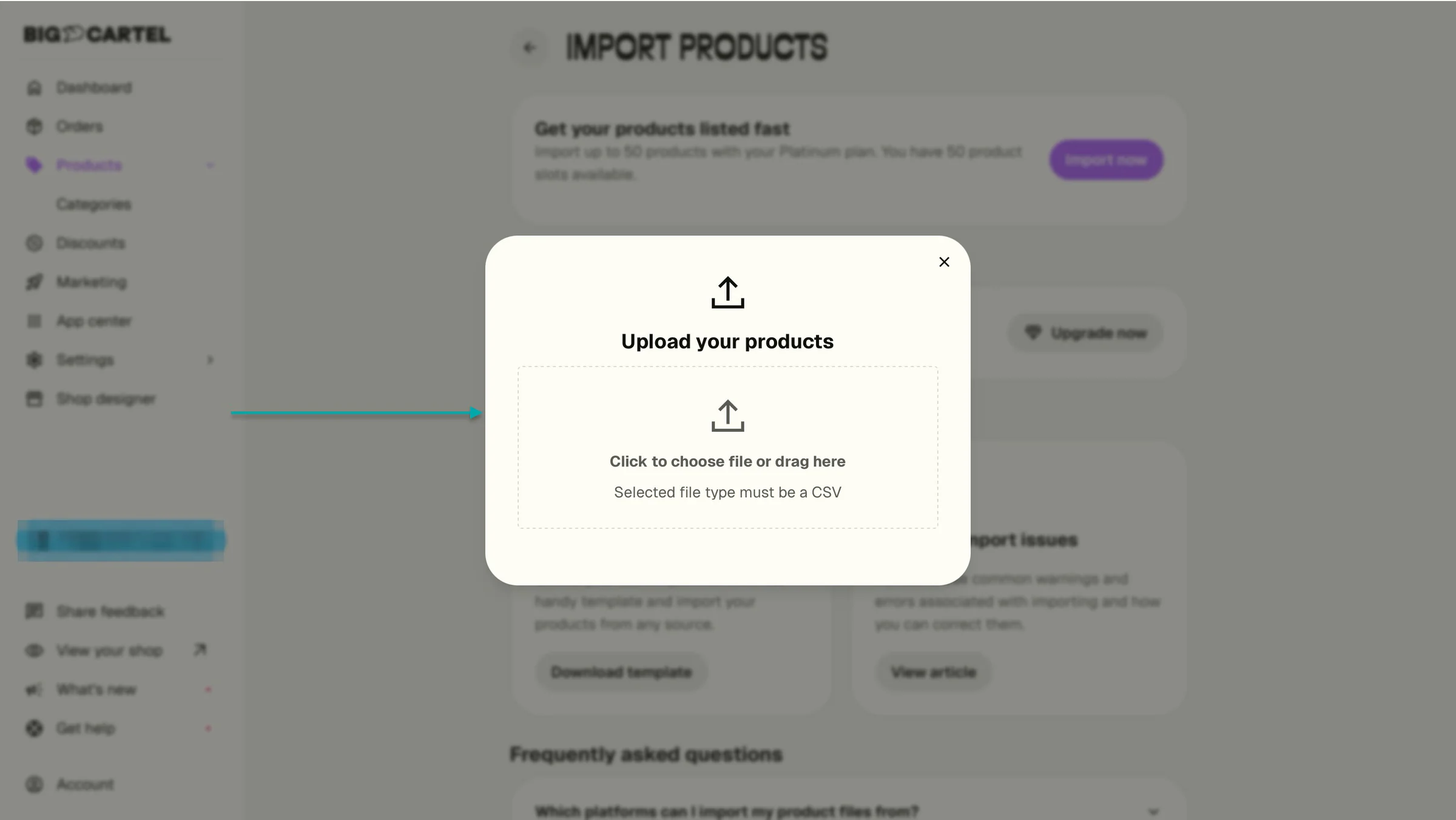
And if you’re moving from another platform, you can transfer product information using a CSV file instead of adding everything from scratch.
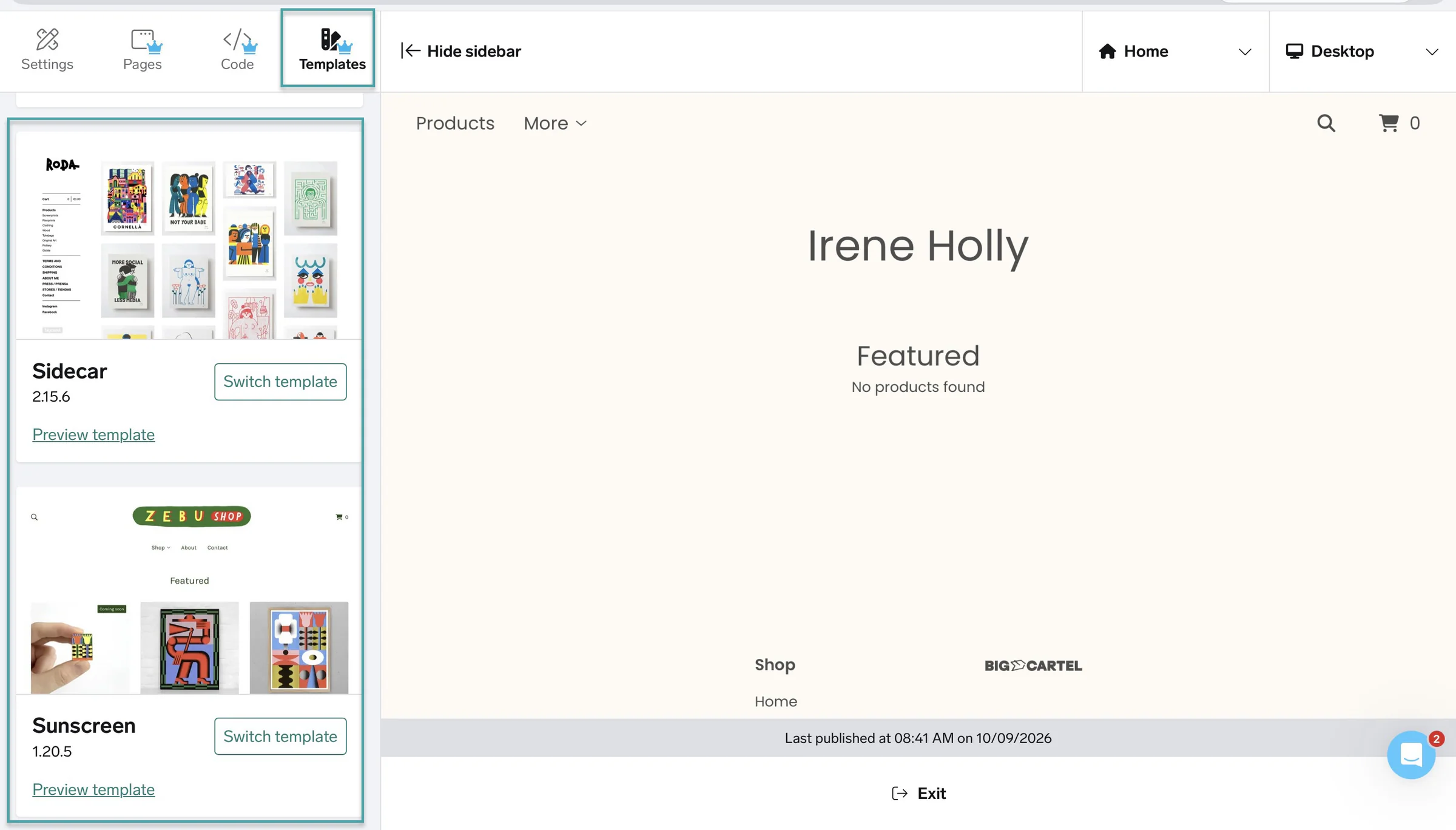
You can build a customized online shop on Big Cartel, too. The platform gives you templates to choose from, so you don’t have to build your store from scratch.
This makes it easier to get your shop up and running without spending ages designing everything yourself.
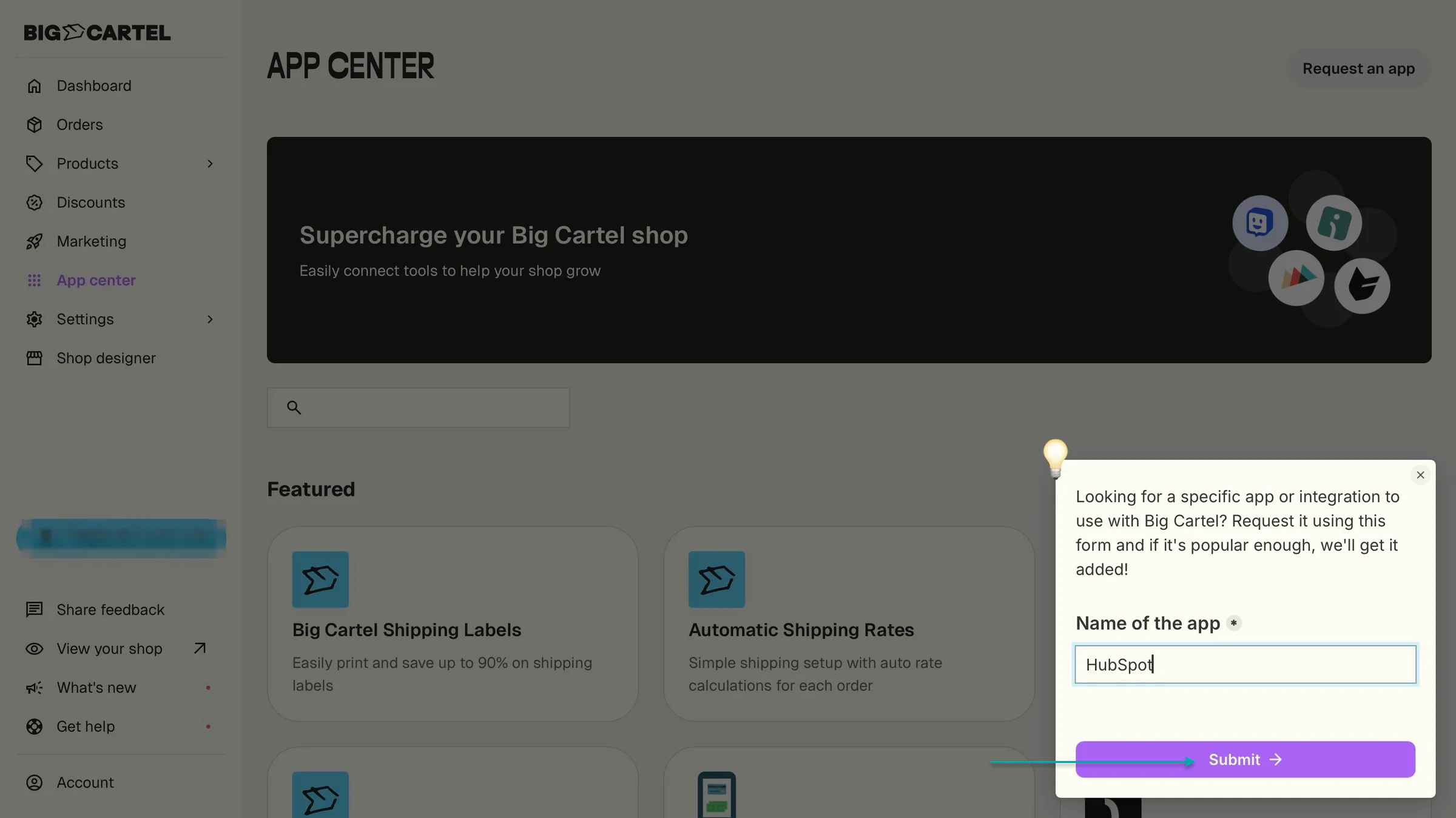
You can also connect third-party apps to Big Cartel. Think Google Shopping, Facebook Shops, Instagram Shopping, Printful, TikTok Pixel, Printify, ShipStation, Zapier, and more. These integrations can help you promote your products, handle orders, and automate some of your work.
If there’s a tool you want to use that isn’t on the platform’s app list, you can request it.
What I loved about Big Cartel
1. Products
Like most Ko-fi alternatives, Big Cartel lets you sell digital downloads and more through its “Products” feature. Here’s how to sell your first digital product on the platform.
Select “Products” in the sidebar and click “Add” under the “Add a product” option.
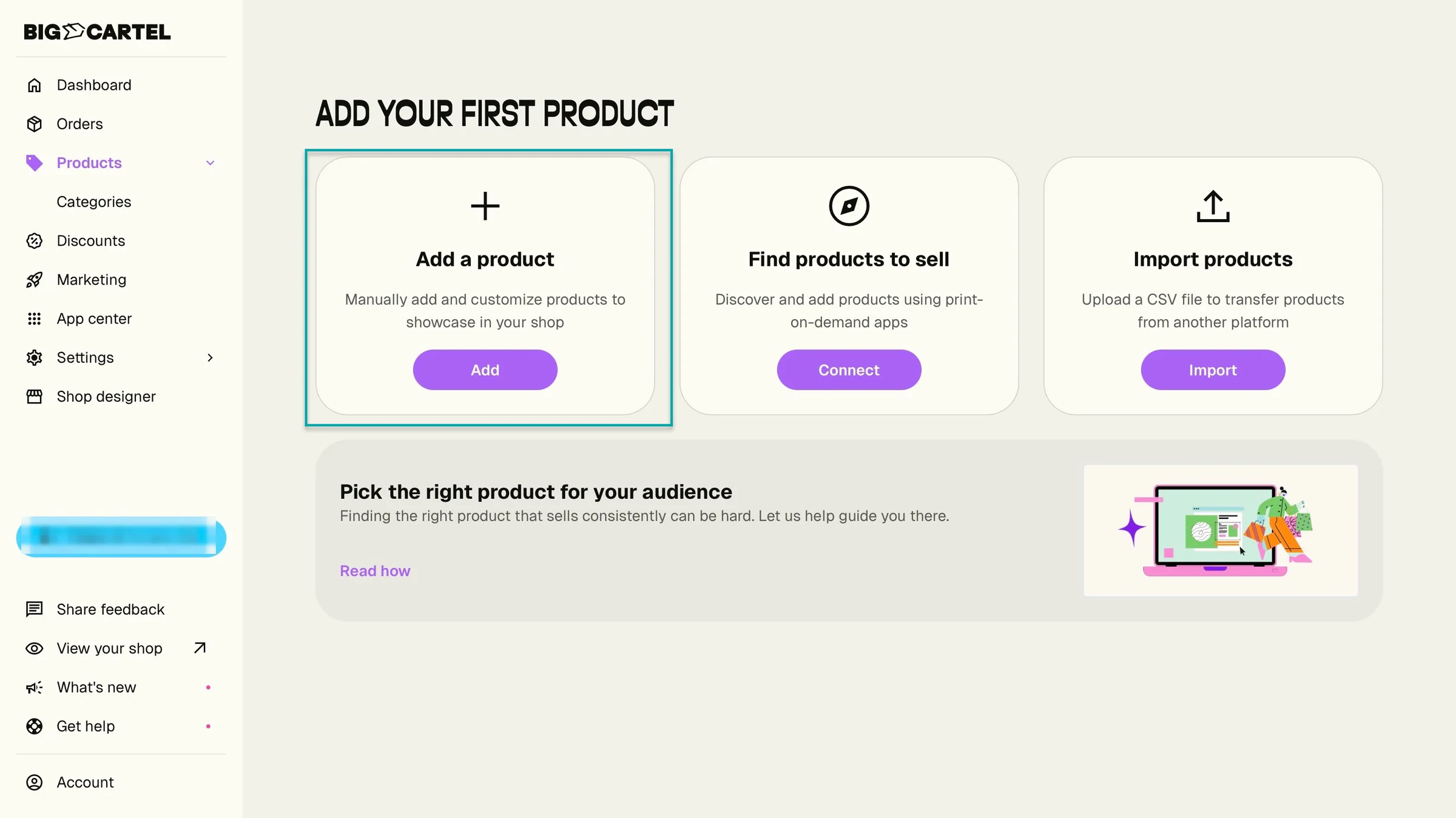
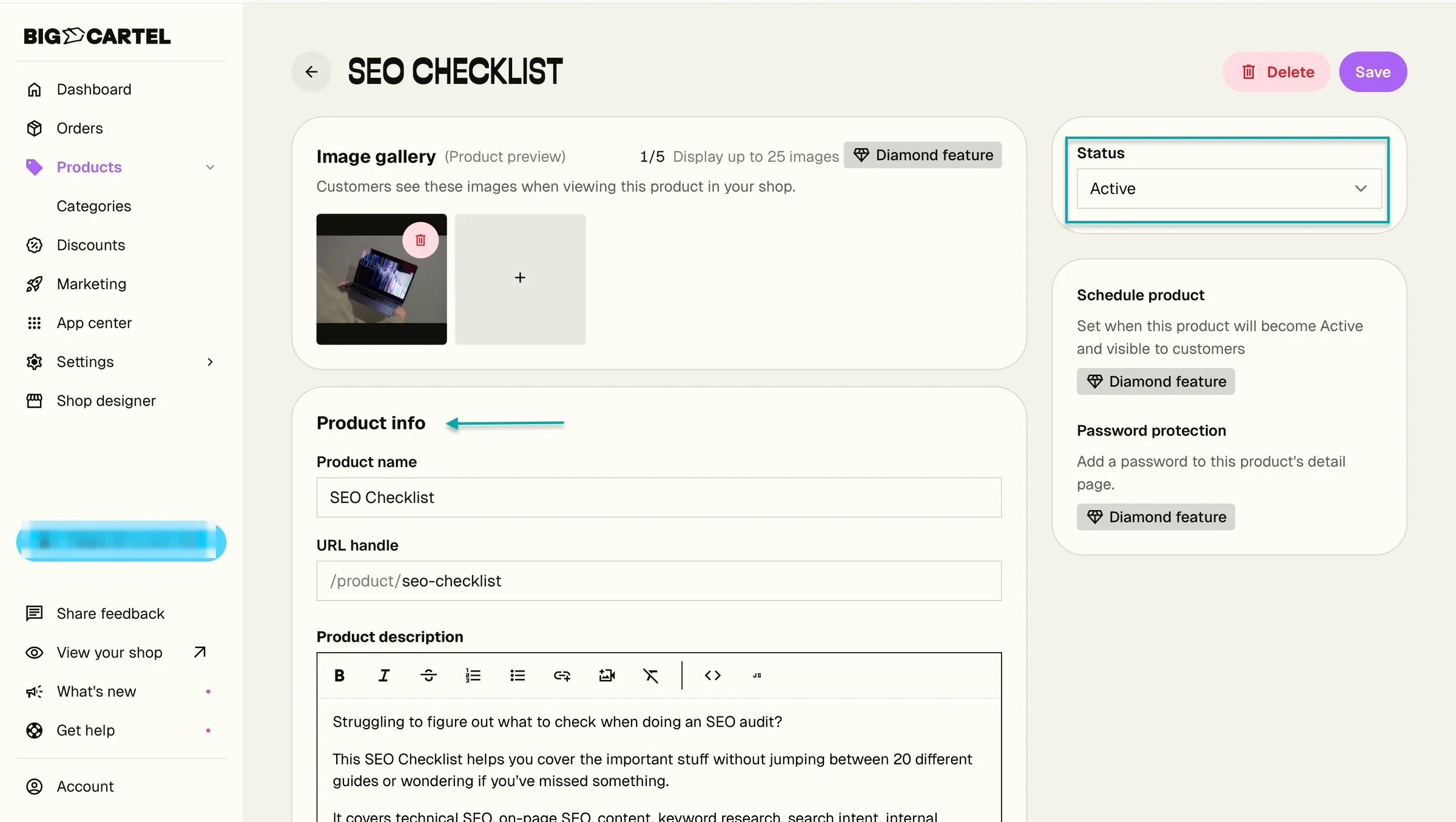
Choose “Digital Product” in the pop-up window. In the new window, add your product images and details, including the name and description.
Don’t forget to change the status to “Active” so customers can buy it.
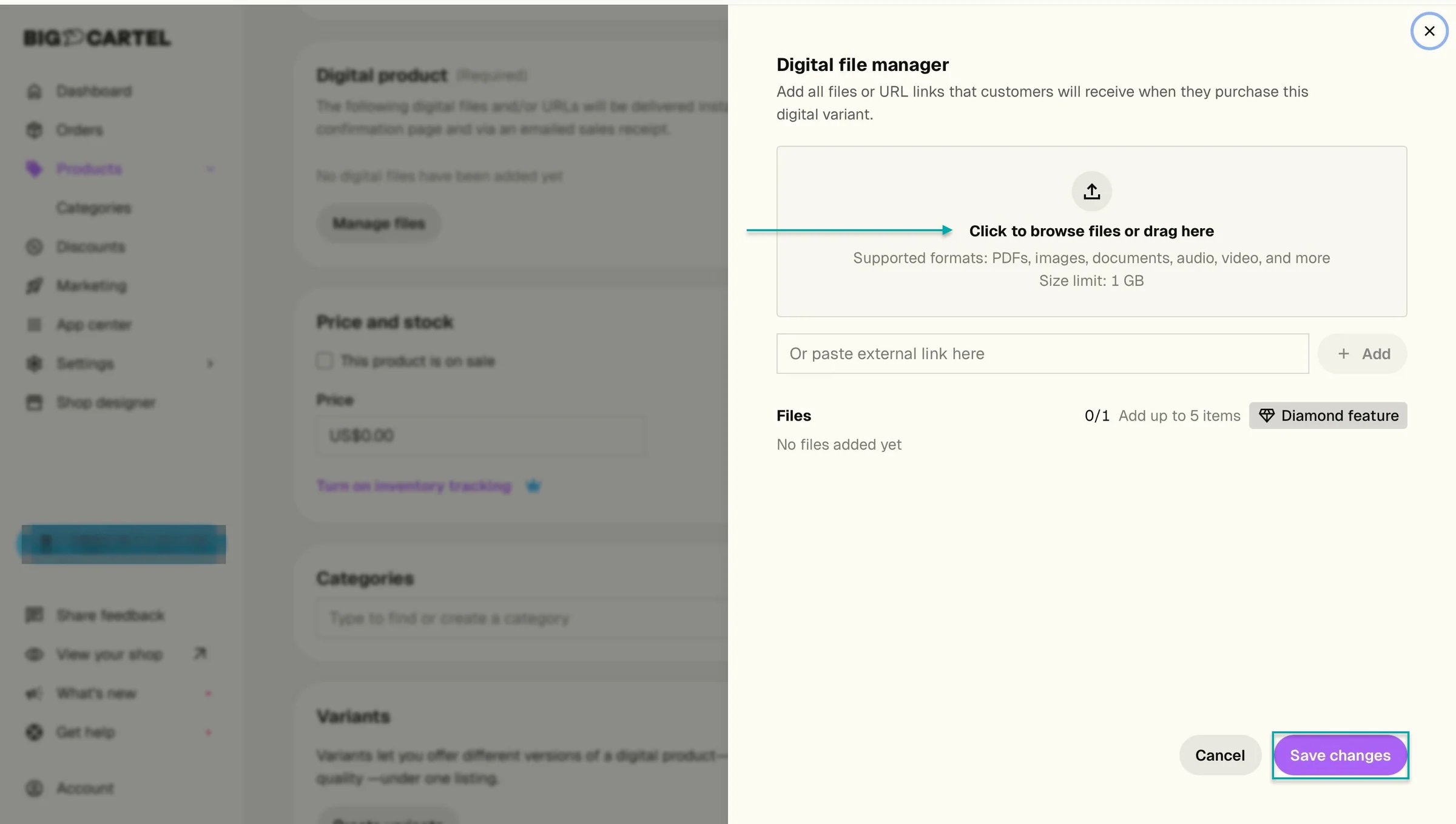
Click “Manage file” to upload the digital product from your device. You can also paste an external link if your file is hosted elsewhere. Once you’re done, click “Save changes.”
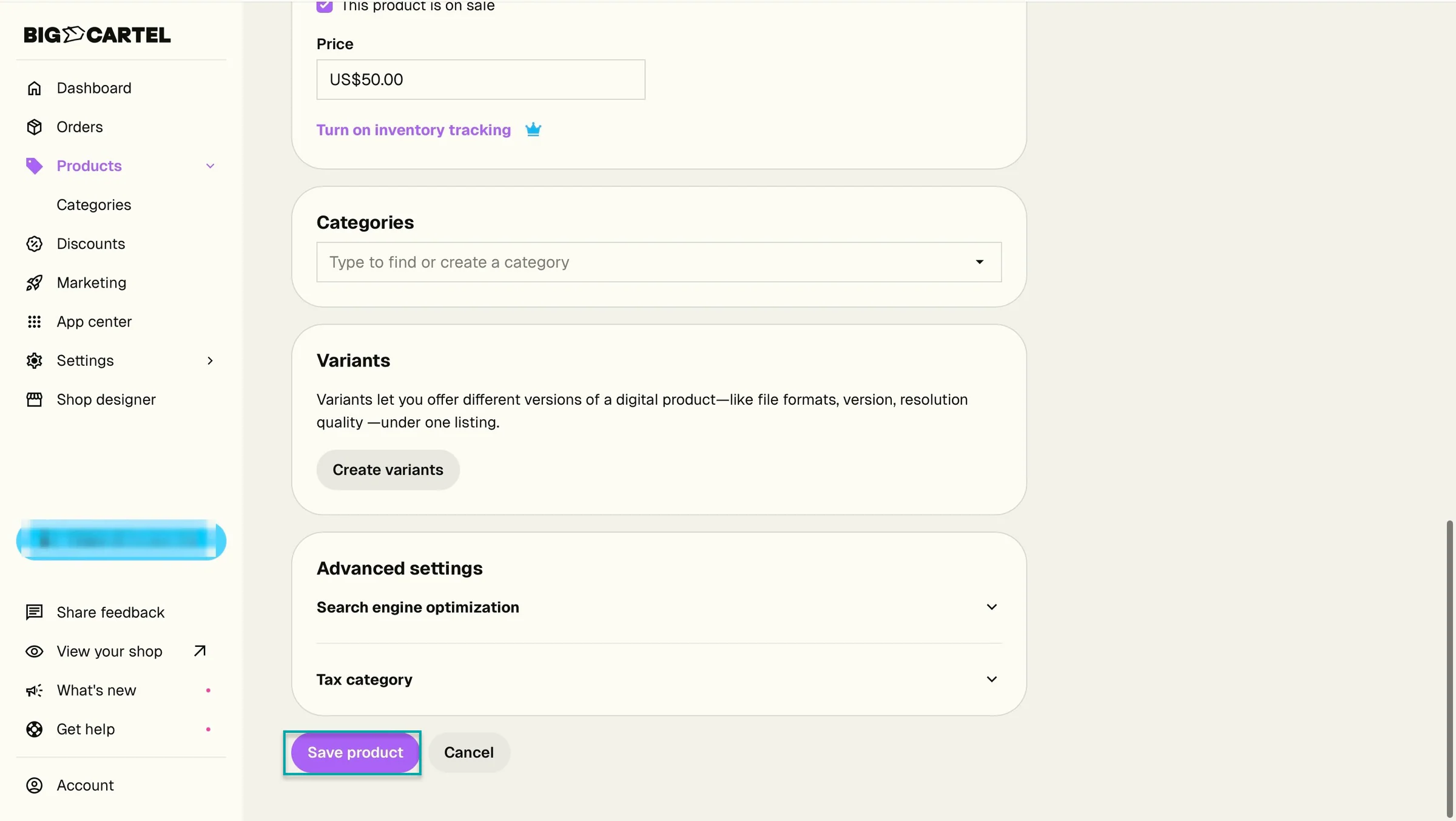
Next, set your price and inventory, choose your product categories and variants, and fill out the Search Engine Optimization (SEO) and tax fields under “Advanced settings.”
Finally, click “Save product.”
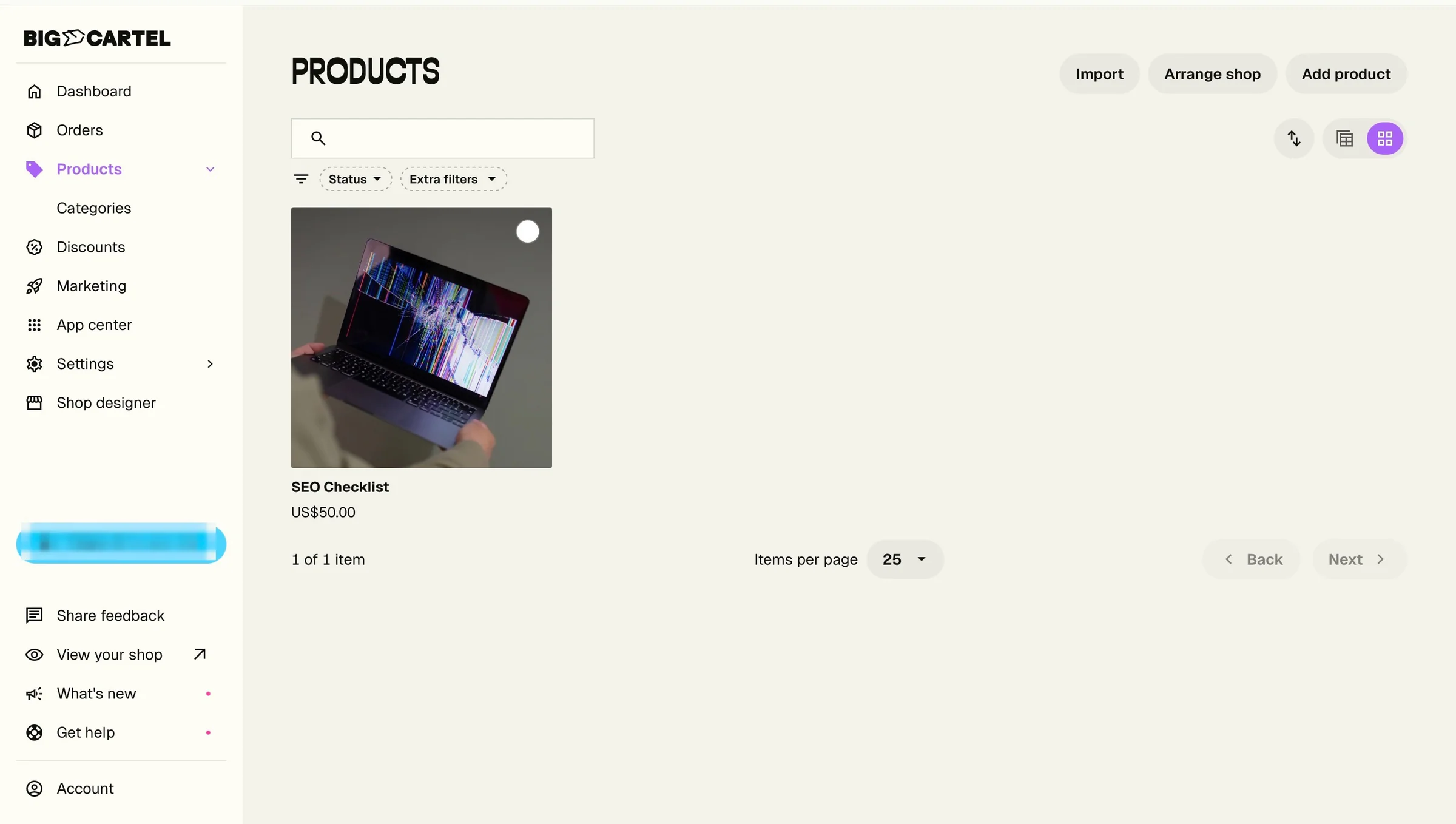
Your digital product should now appear in your Big Cartel store, ready for customers to buy.
2. Shop
Now that you’ve put your first product up for sale, one way to market it is through a storefront or online shop. Big Cartel lets you create one using its “Shop” feature.
To customize your shop to match your brand, click “Shop designer” in the sidebar.
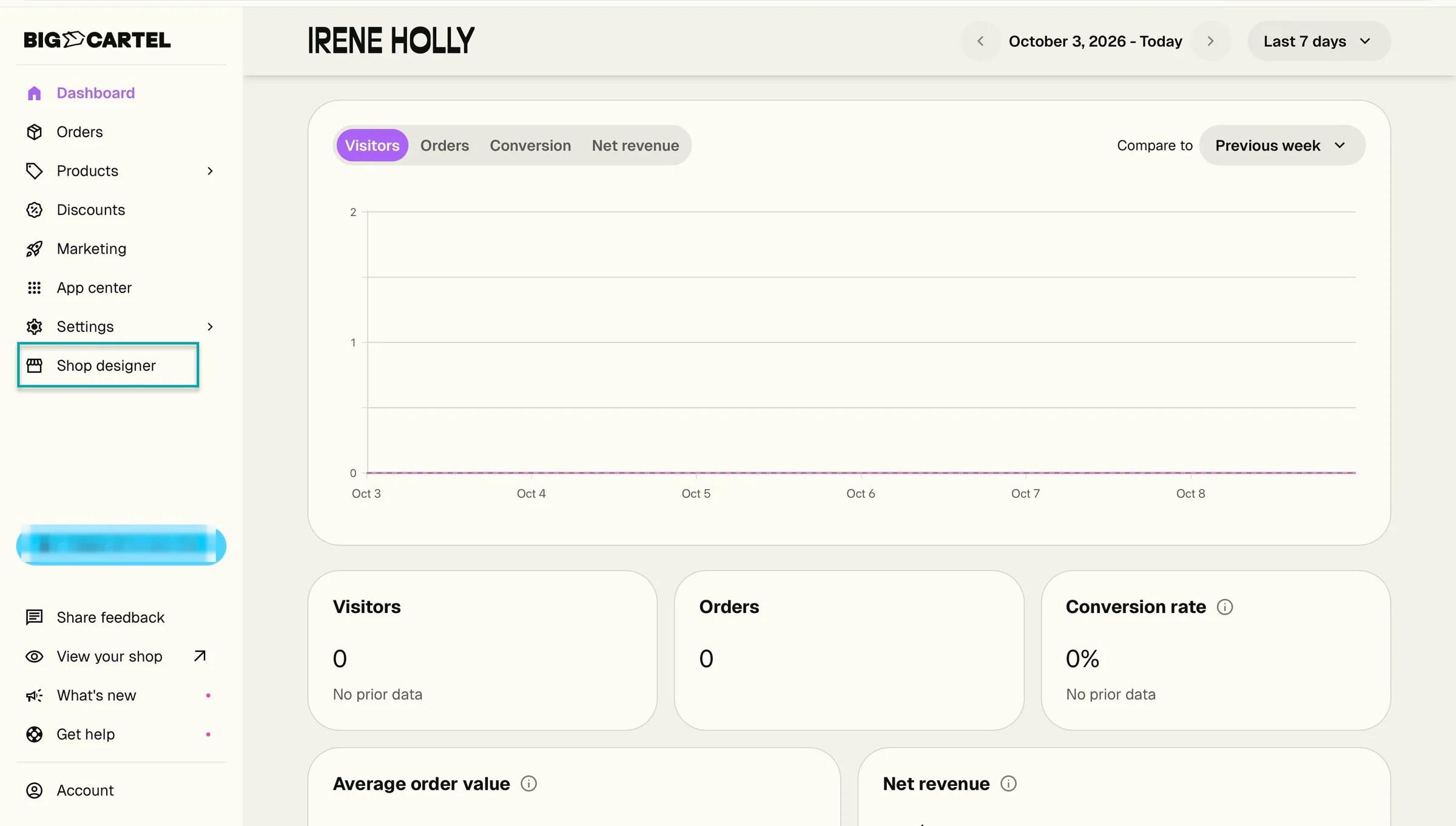
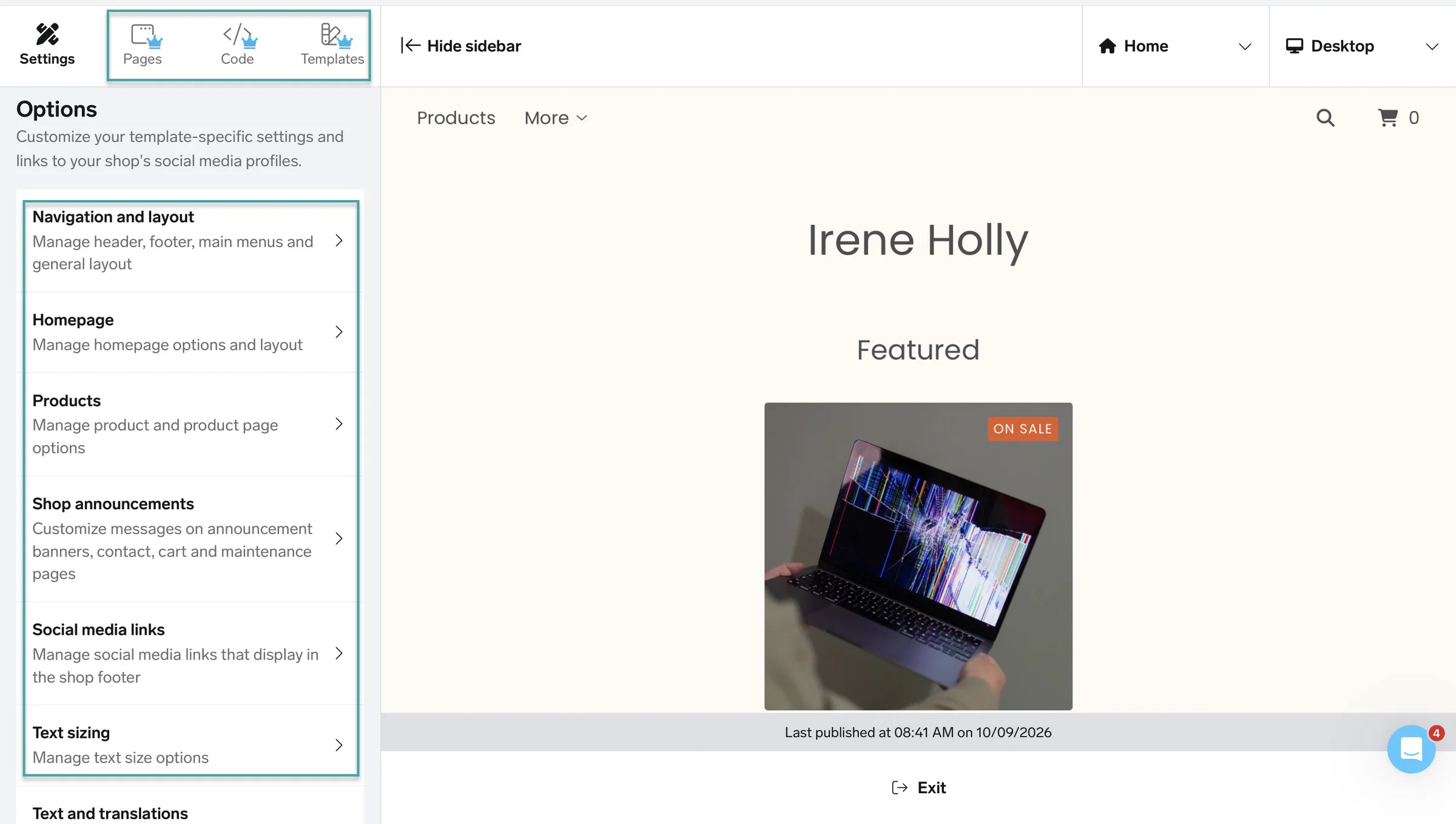
In the shop editor, you can add new pages (like an FAQ or About Us page), add code for apps and integrations, and choose a different template. You can also customize the fonts, navigation, layouts, and more.
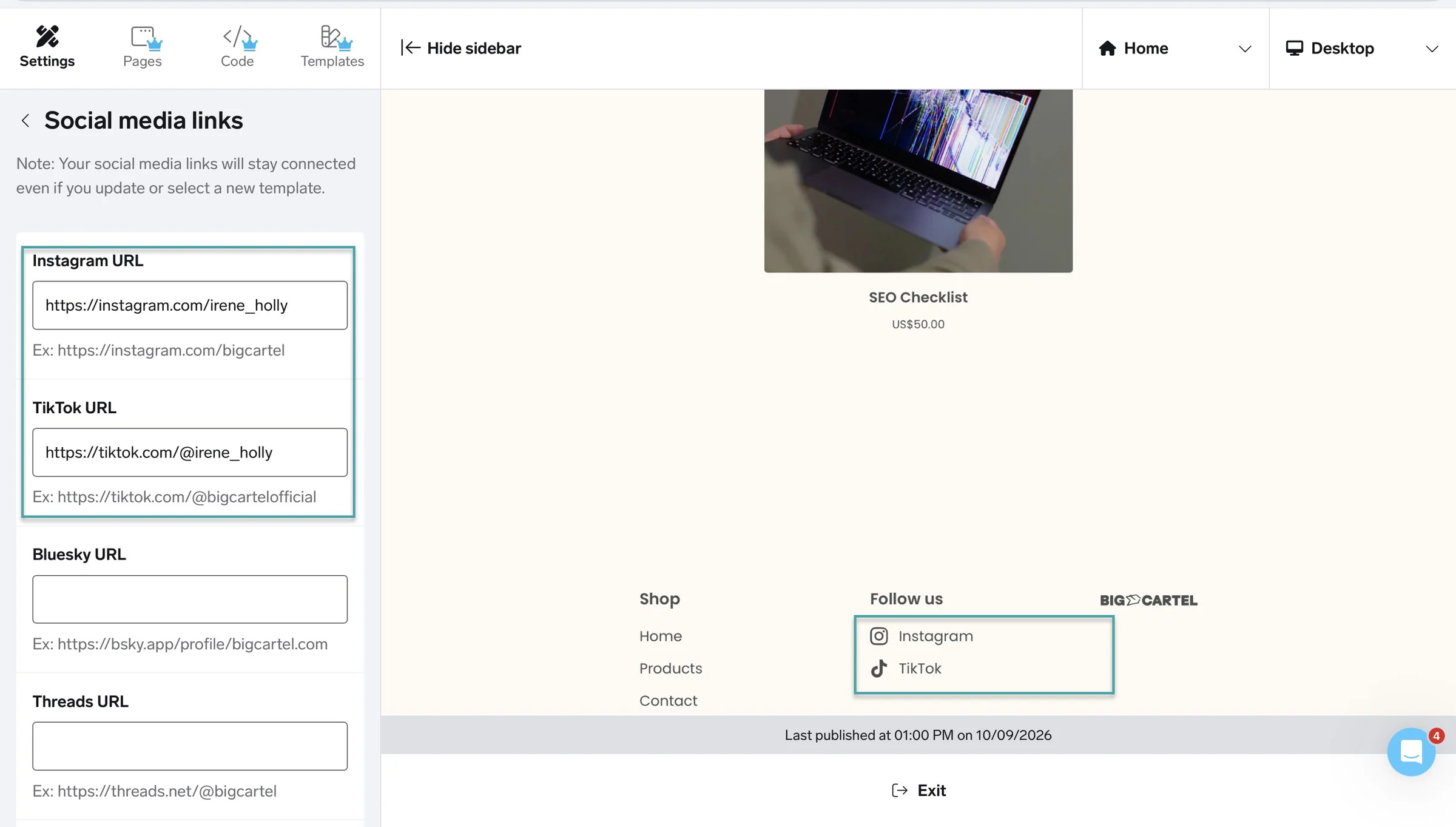
Most importantly, you can add links to your social media accounts so visitors can find you on other platforms.
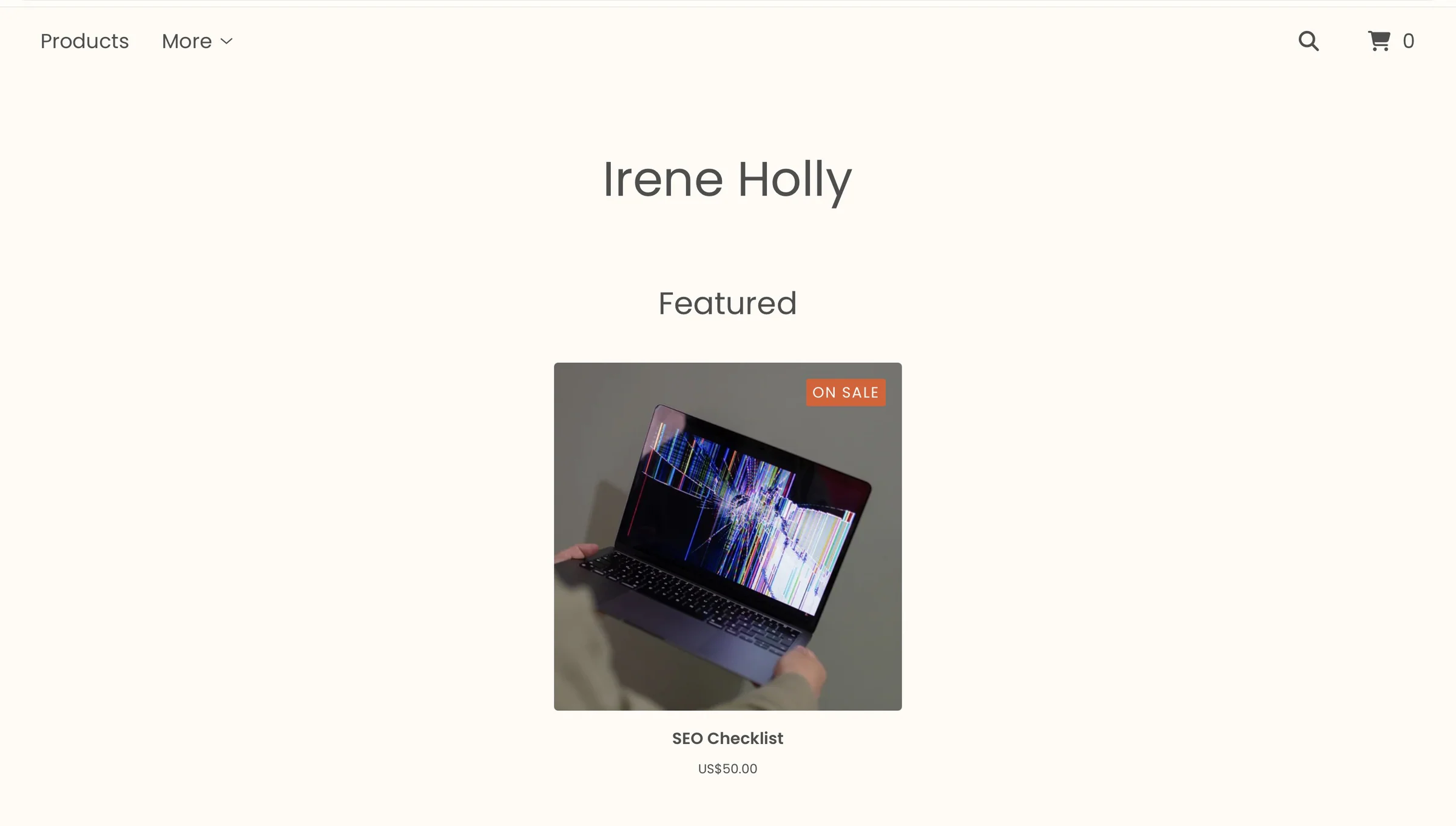
Once you’ve made all the changes you want, publish them and click “Exit” at the bottom of the shop designer. Here’s what your finished shop will look like.
3. App center
Big Cartel lets you connect with third-party tools, so you can manage different parts of your business without constantly switching between platforms.
You can connect your store with tools like Big Cartel Shipping Labels, Printful, Printify, Omnisend, and more.
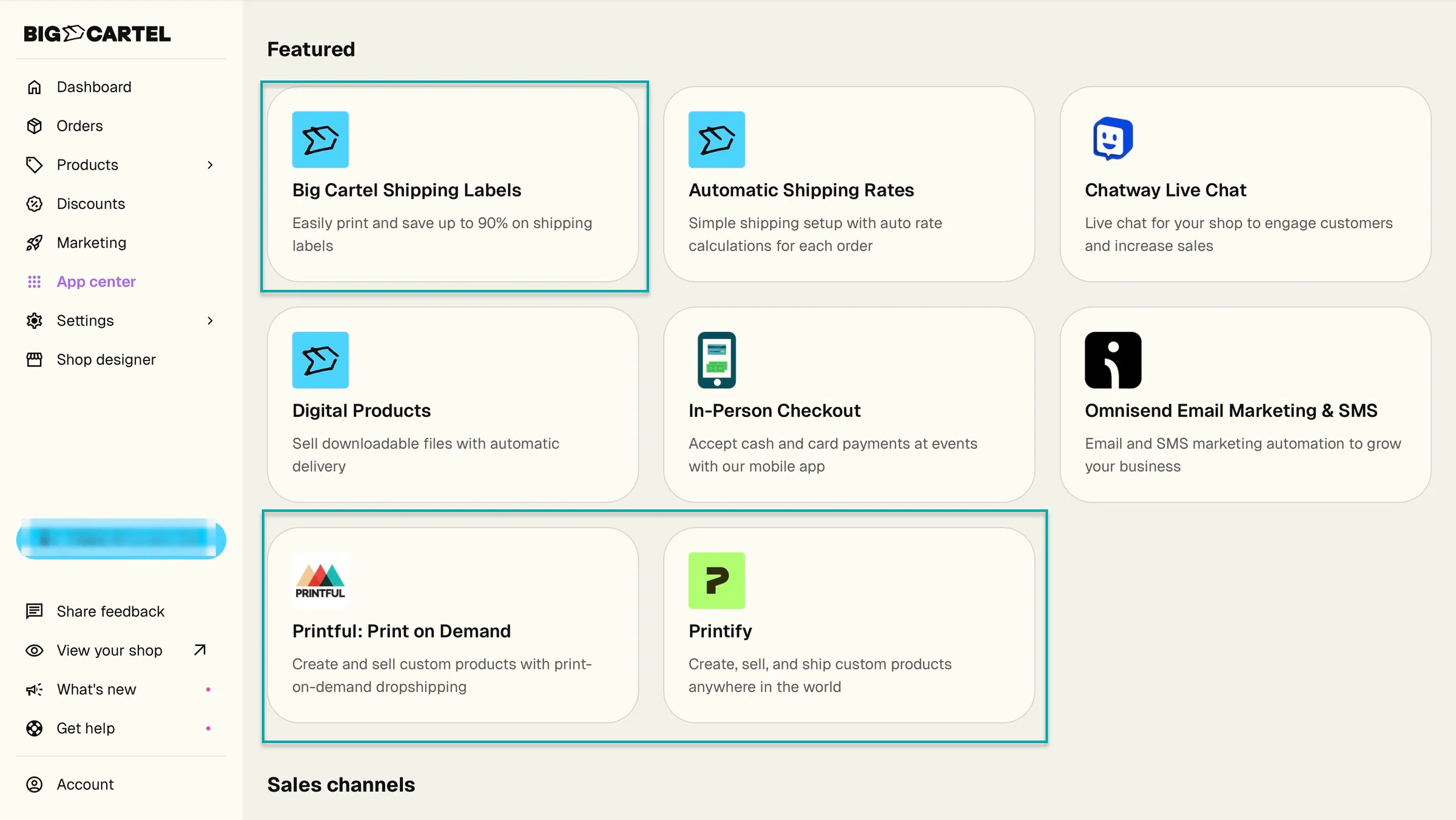
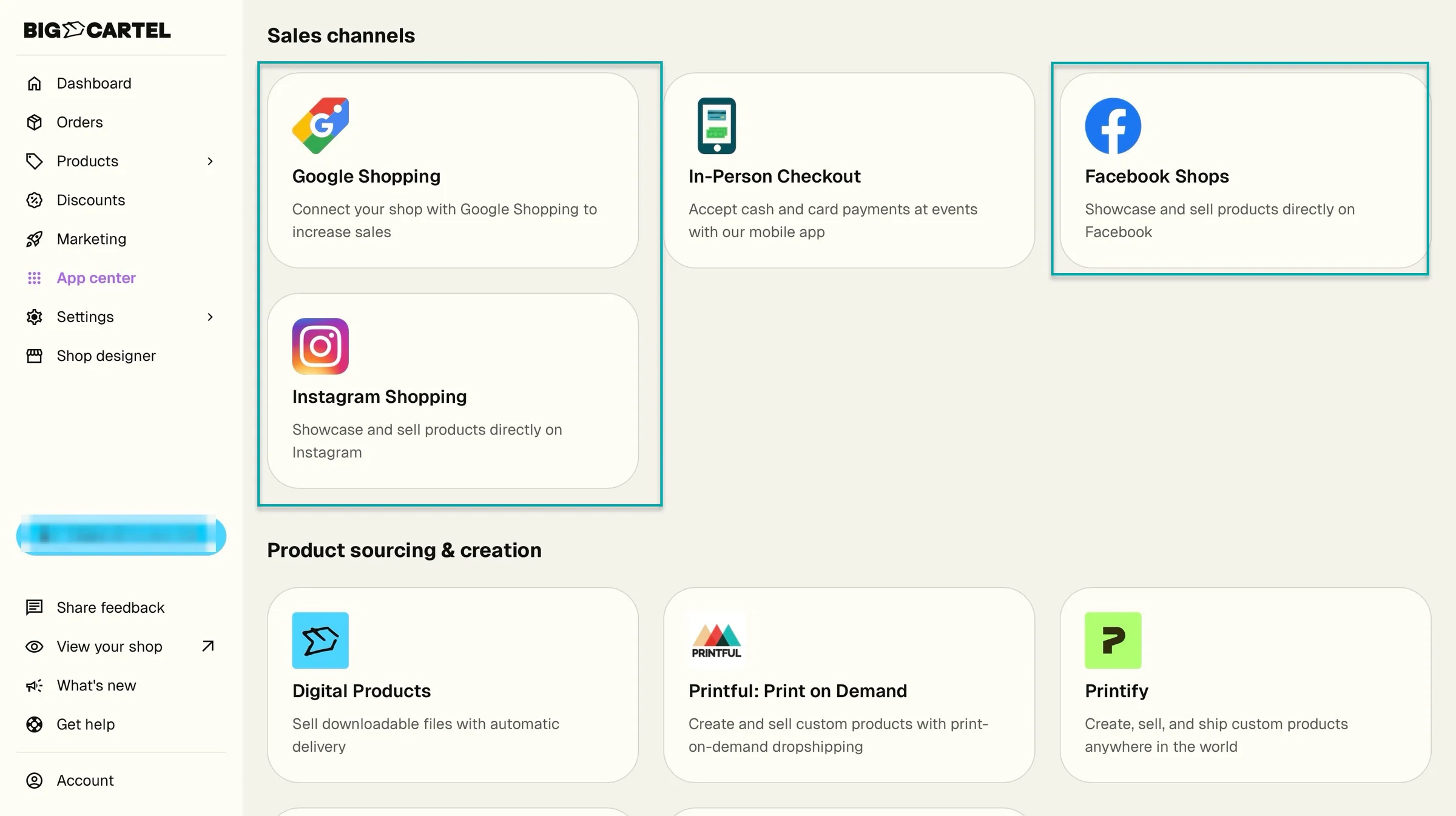
There are also sales channels you can connect to, like Google Shopping, Facebook Shops, and Instagram Shopping. These integrations help you showcase your products and reach customers on other platforms.
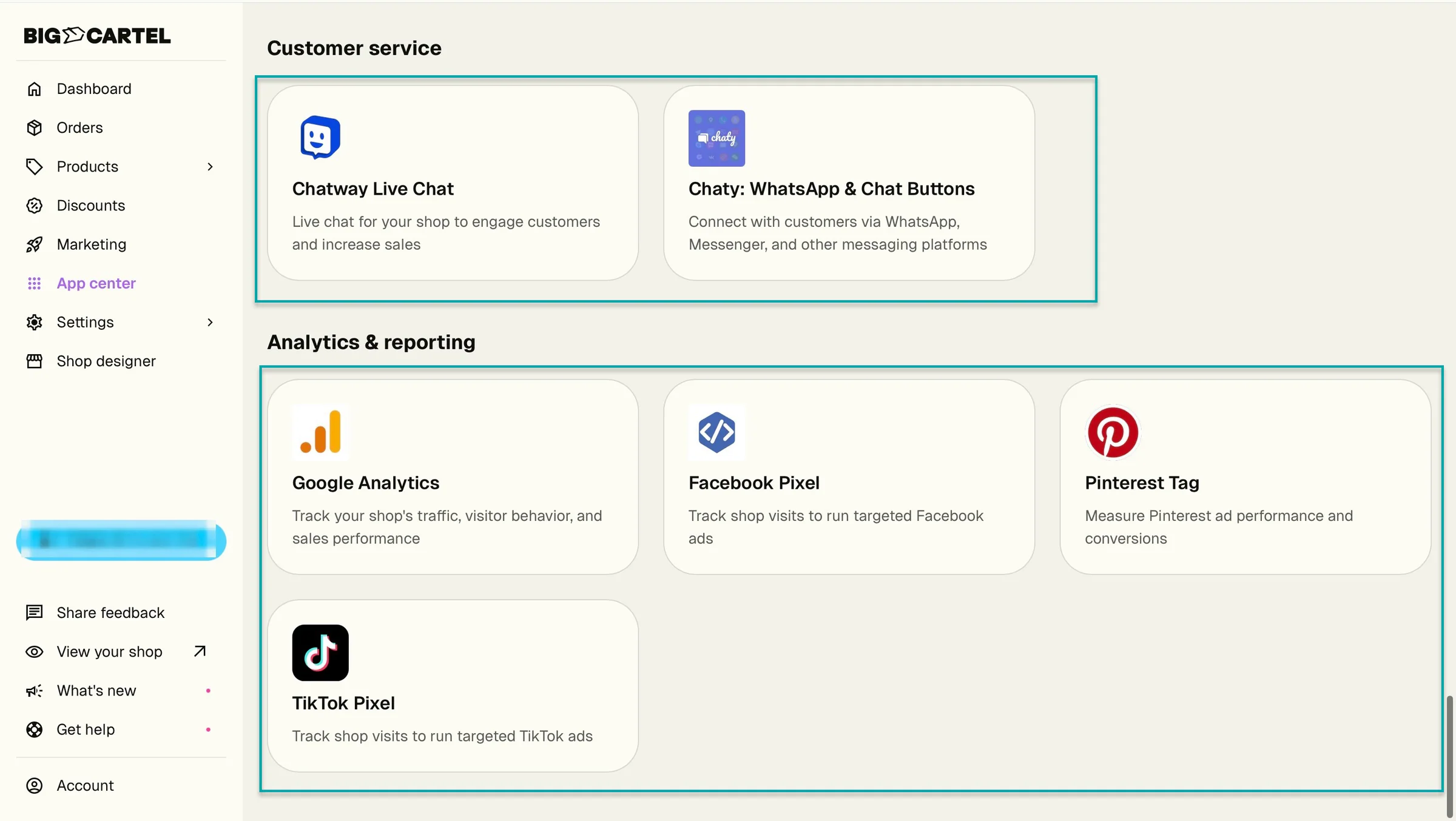
For shipping, analytics, customer support, and automation, you can integrate Big Cartel with tools like Pirate Ship, Google Analytics, Facebook Pixel, Pinterest Tag, Chaty, Zapier, and more.
What I liked vs what I didn’t like
What I loved 👍
✅ Guides you through setup and offers help resources you can read whenever you need more information, so you don’t have to figure everything out on your own.
✅ Has an AI shield that you can turn on to block AI training bots from Google, Meta, Anthropic, and OpenAI, and shopping assistants like Amazon Buy For Me, so you have more control over how AI tools access your shop’s content.
✅ Lets you sell print-on-demand (POD) products, so you can start selling without buying inventory upfront or handling the printing yourself.
What I didn’t like 👎
❌ Unlike Easytools, it has no built-in marketing tools, so you’ll pay to use third-party apps like Mailchimp and Zapier to handle email marketing and automations.
❌ You can only enable donation mode on its paid plans, so you’ll need to upgrade before you can accept recurring monthly support.
Best for
- Artists and creators who want a simple online store to sell physical products, digital downloads, and print-on-demand items.
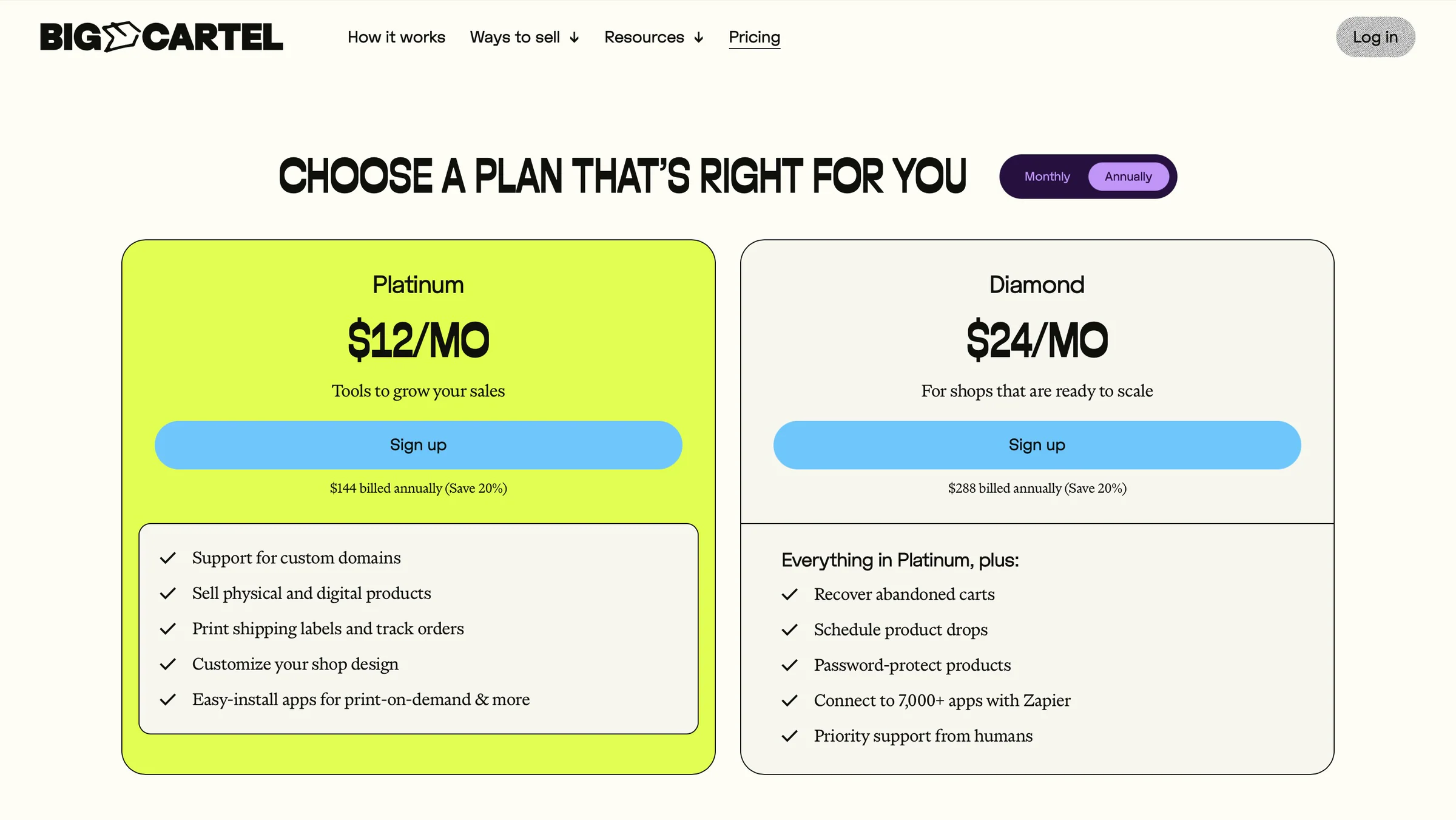
Pricing
- Gold: $0/month
- Platinum: $12/month
- Diamond: $24/month
5. Payhip
- Personal rating: ⭐️⭐️⭐️⭐️ 4.1/5 - Has a “pay as you want” feature that lets you accept tips and donations
- Ease of use: ⭐️⭐️⭐️⭐️ 4/5 - It’s easy to use, but some important settings are tucked away in menus, so finding them can take a bit of digging.
- AI capabilities: None - You can use third-party integrations like Zapier to build your own AI workflows.
- Monetization options: Digital and physical products, online courses, memberships, subscriptions, coaching services, product bundles, donations, and software
- Free trial: N/A - Offers a free plan
- Starting plan: Free Forever - $0/month + 5% transaction fees
Payhip also makes it to our list of the best Ko-fi alternatives.
It’s an e-commerce platform that lets you sell digital and physical products, build an online store, and reach customers through its marketplace.
You can also market your products using built-in marketing tools and third-party email marketing integrations.
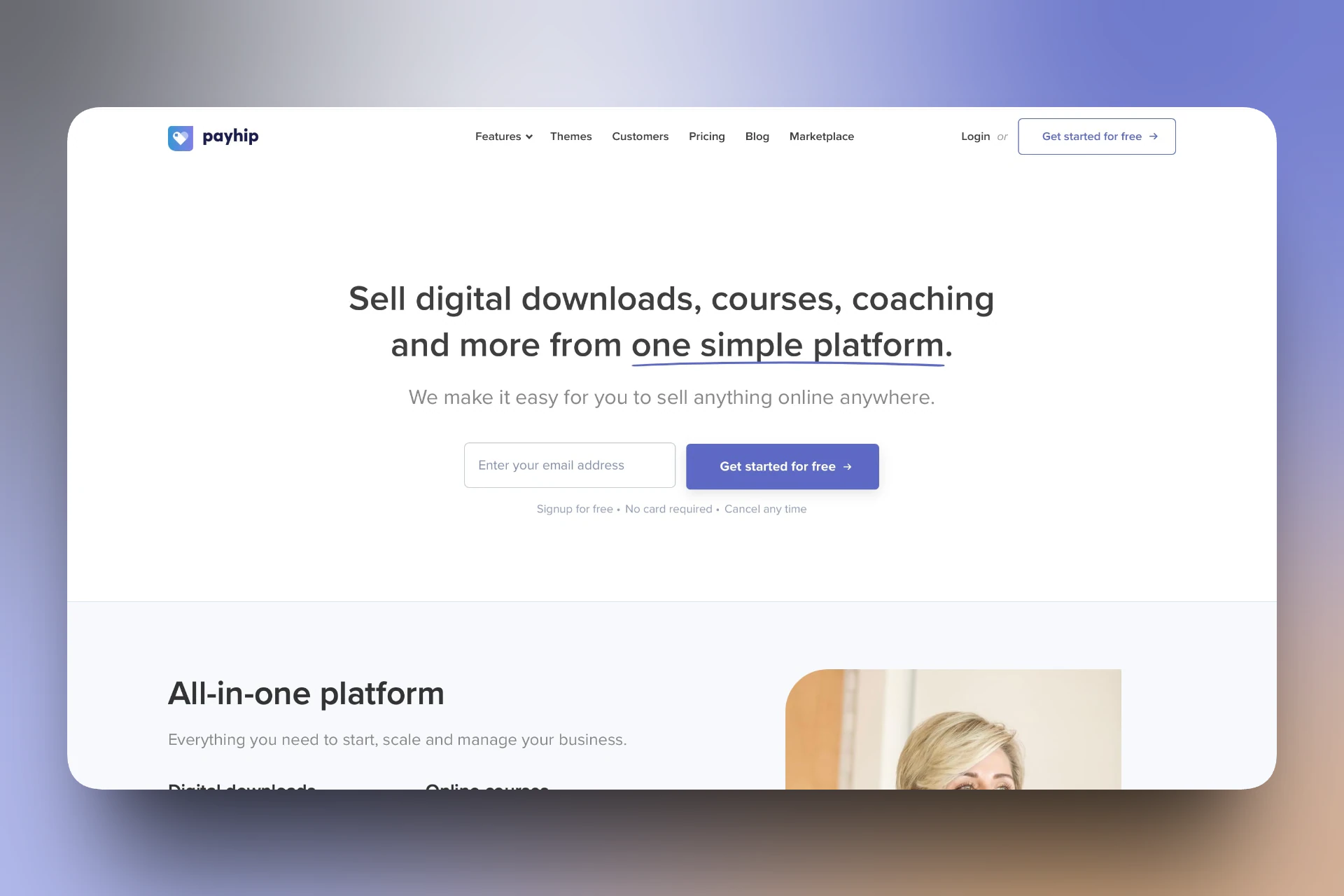
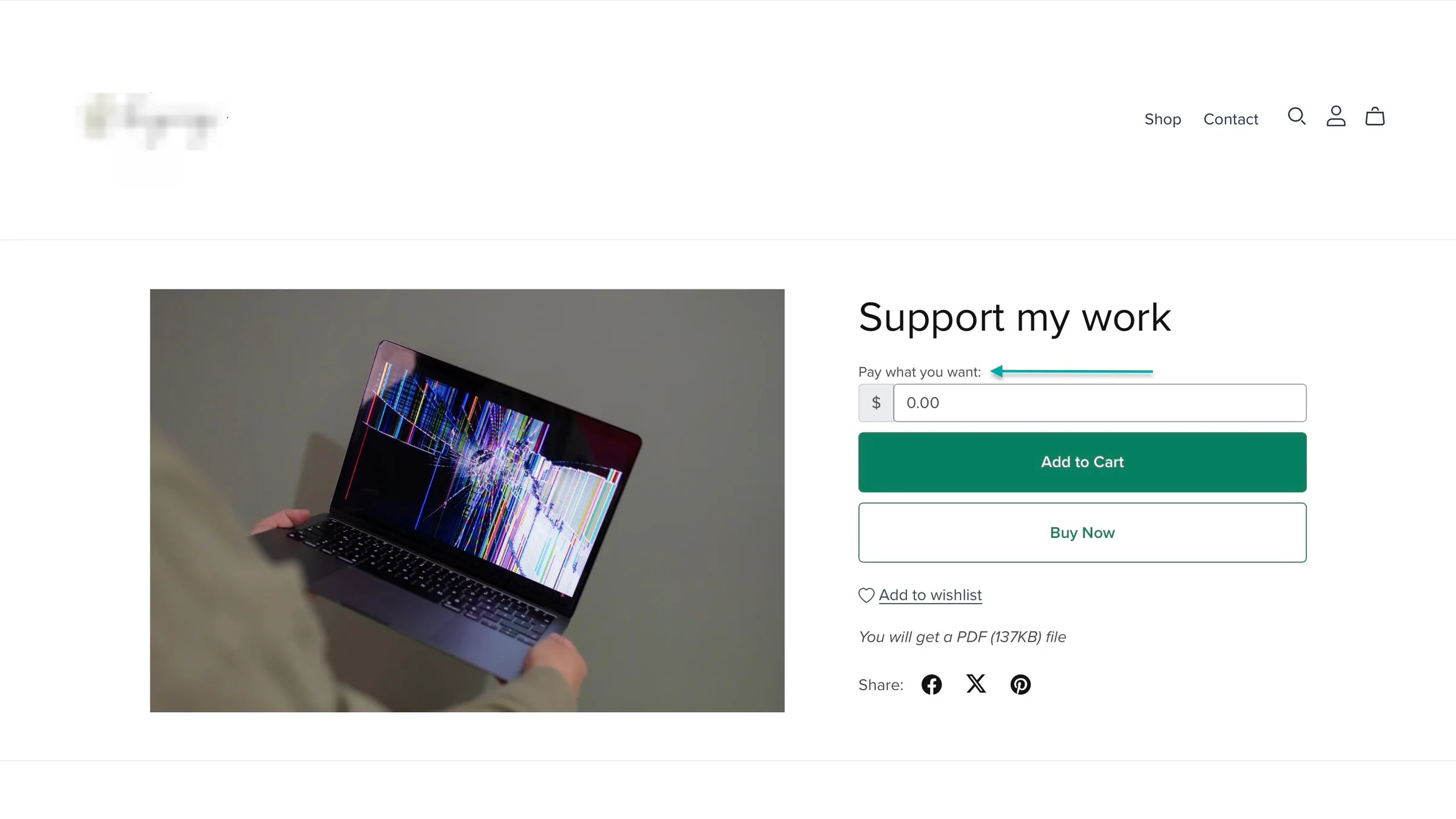
Payhip lets you sell digital and physical products, memberships, online courses, bundles, and coaching services. You can also set your prices to “pay what you want” (PWYW) to accept donation-like payments from customers.
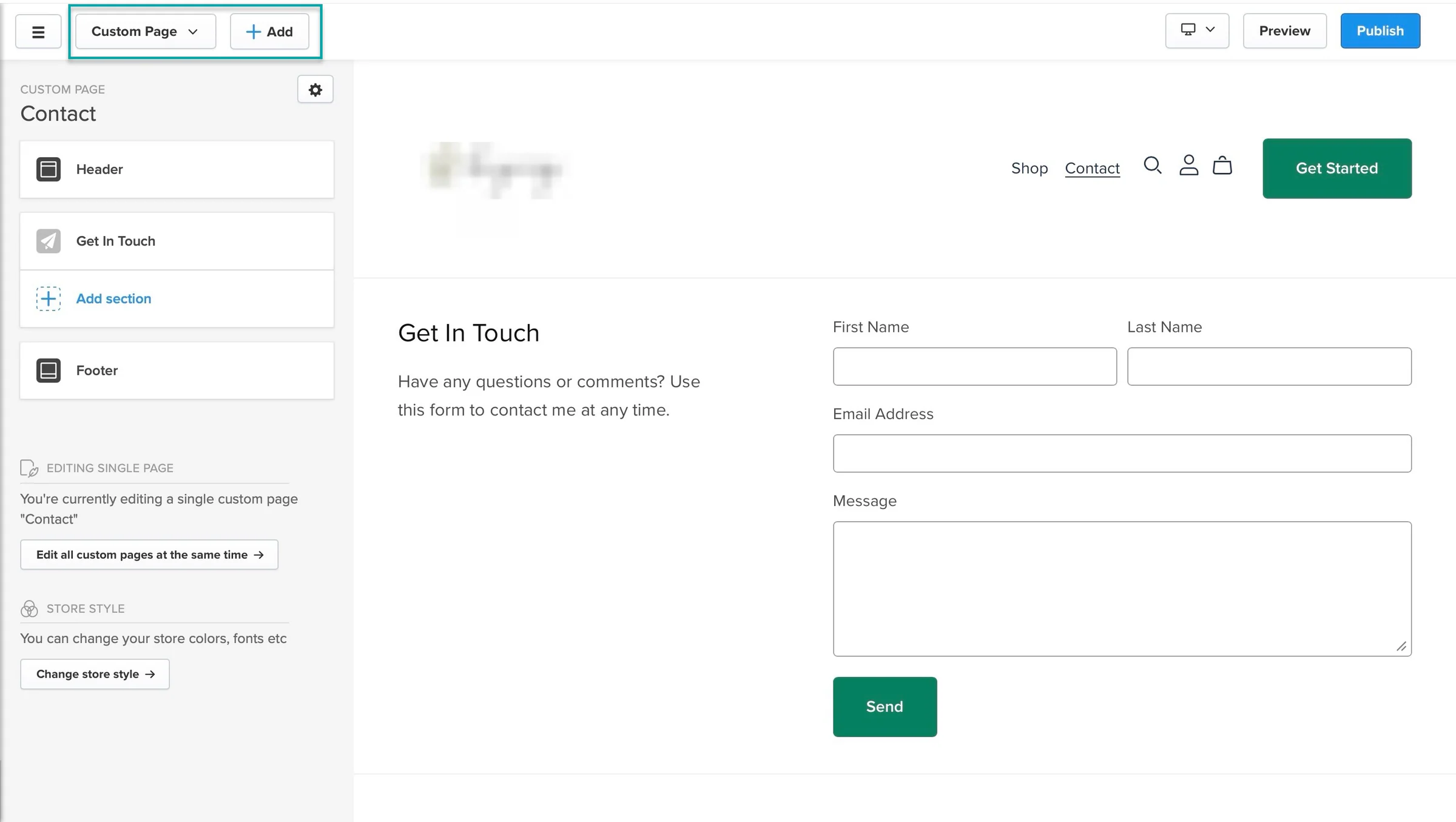
Like most Ko-fi alternatives on our list, Payhip lets you build a customizable online store. You can add an About Us page, blog posts, and custom pages, like a contact page.
You can display your products in your store, too. And with a contact form, visitors can reach out to you directly and share their information.
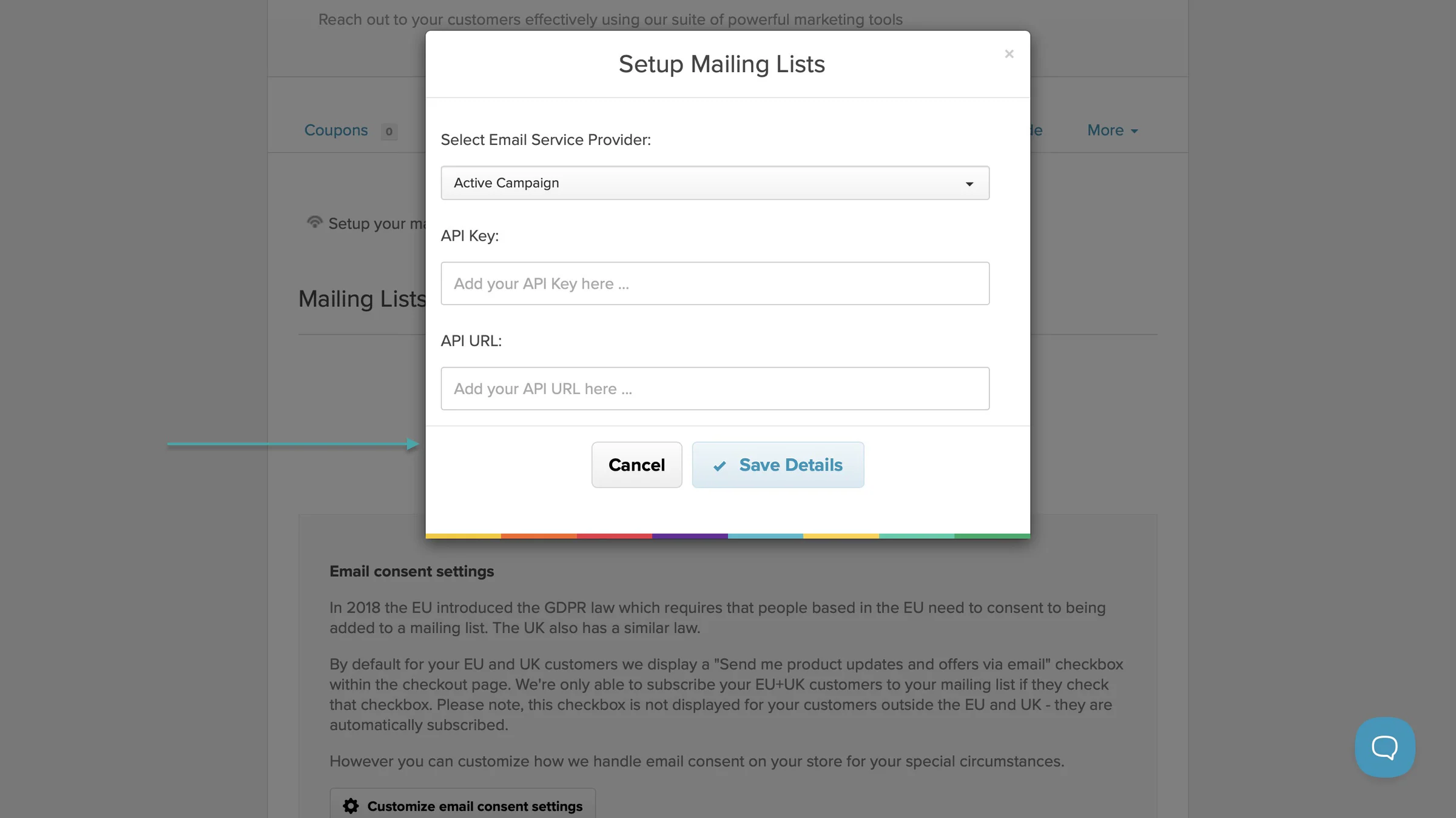
Speaking of staying in touch with customers, Payhip lets you build a mailing list and connect third-party email marketing tools like MailerLite, ActiveCampaign, and more to manage your campaigns.
Payhip also provides visitor analytics, so you can see which countries your visitors come from and check your store’s conversion rate.
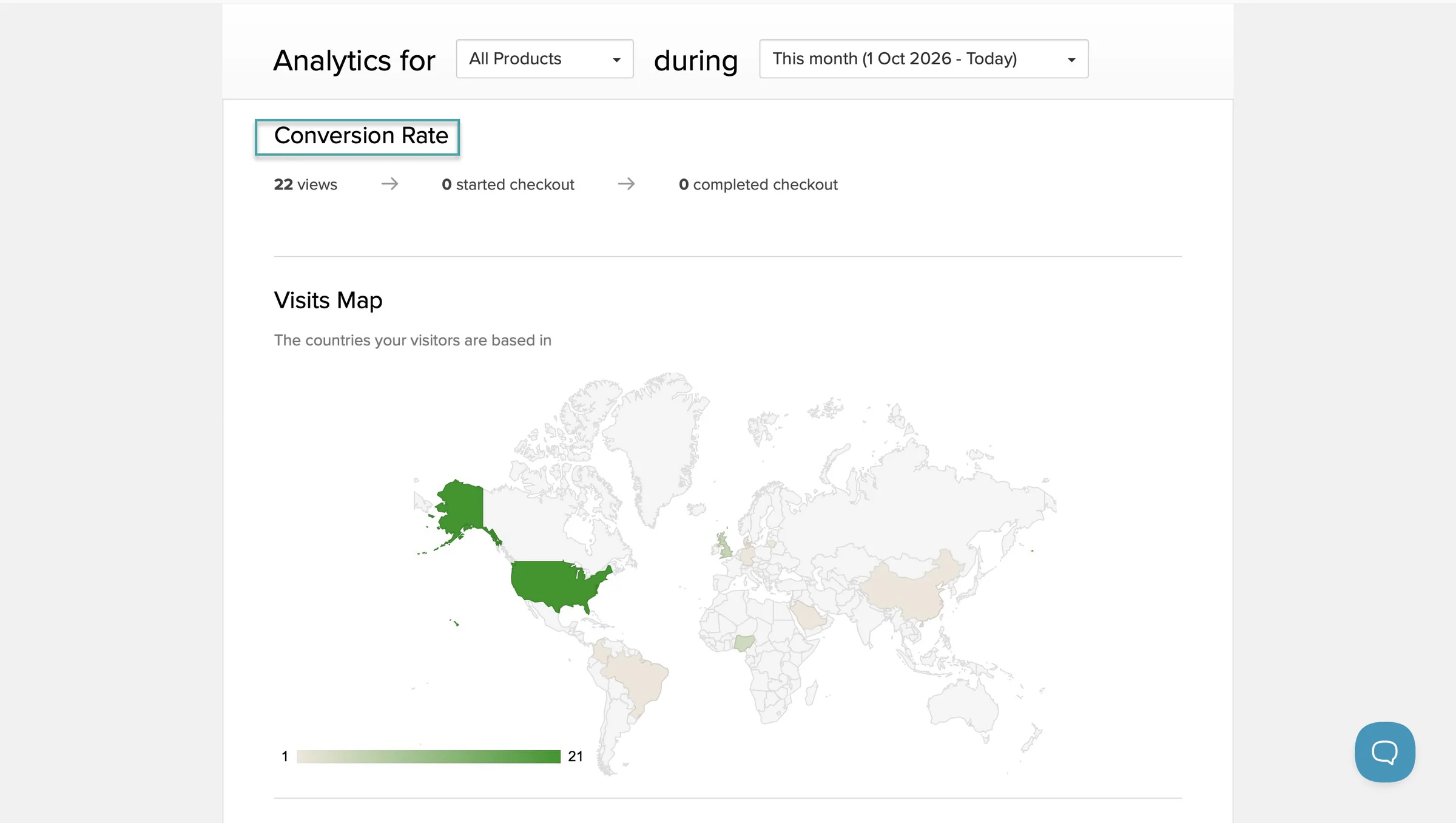
What I loved about Payhip
1. Products
Like I’ve already said, Payhip lets you sell digital and physical products, but you can accept donations too. Here’s how.
Select the “Products” tab and click “+ Add new product.”
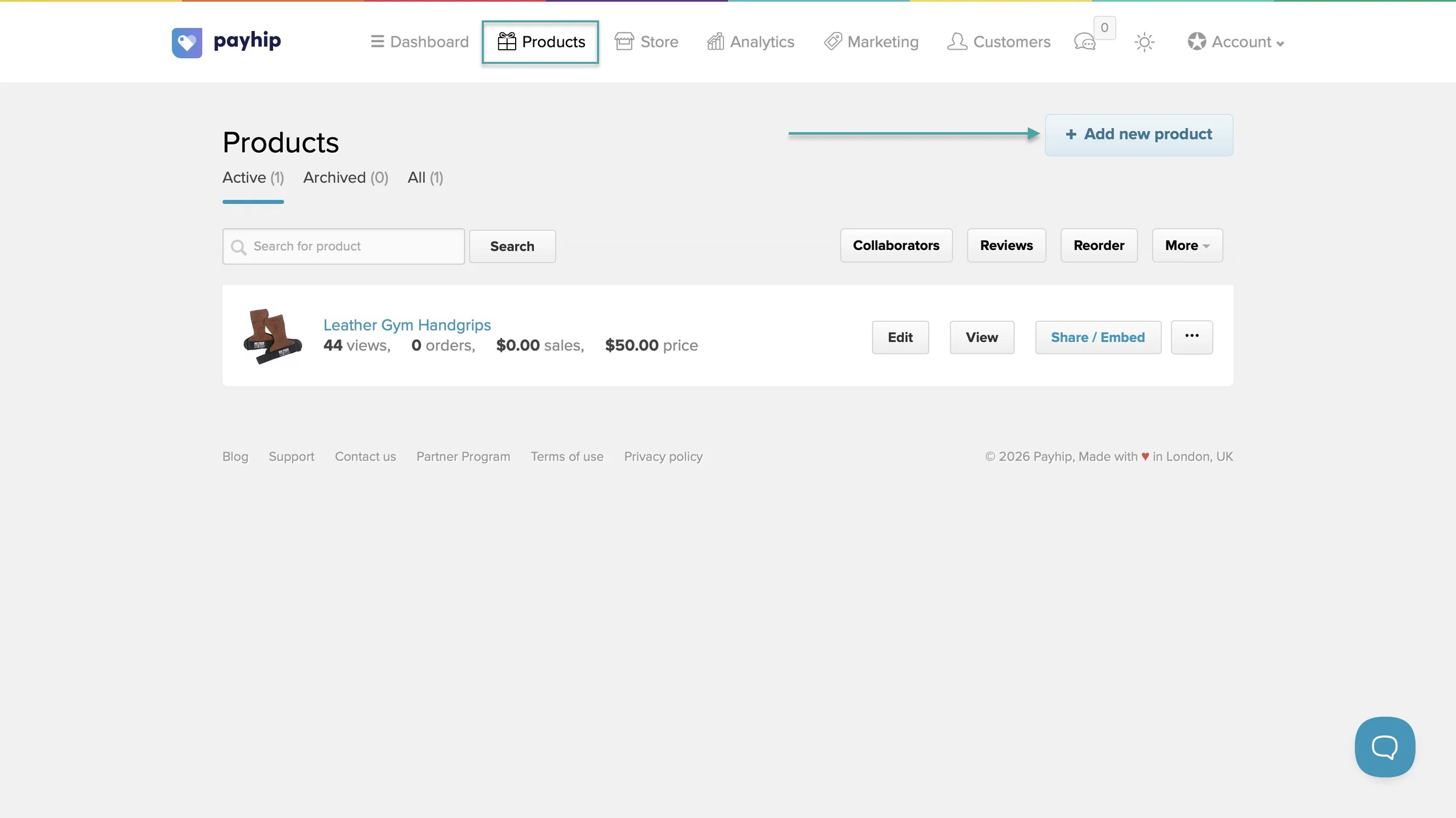
Now choose the product type. Let’s go with “Digital Product.”
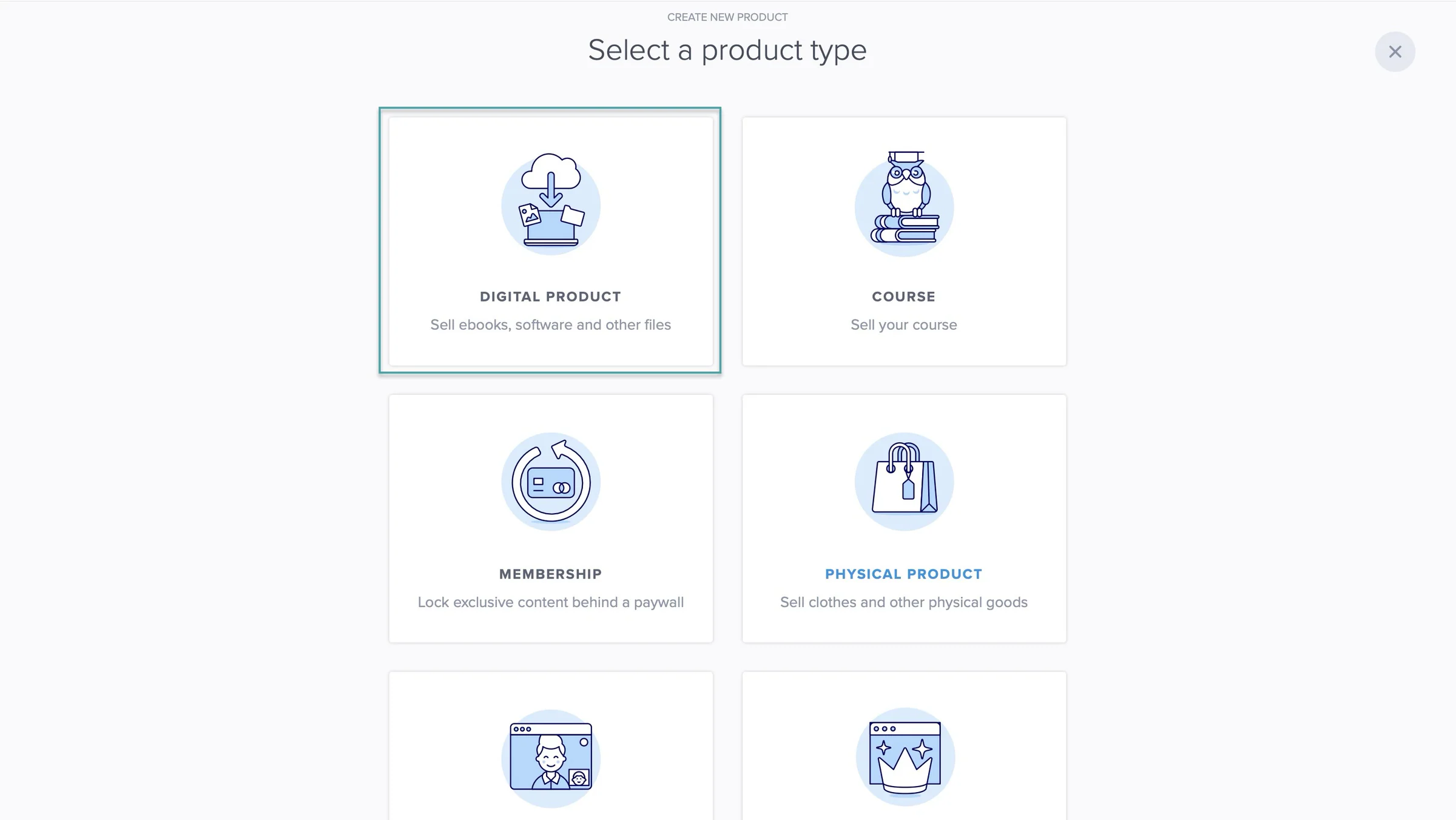
For the product file, you can upload a “Thank You.txt” or “Thank You.png” file because Payhip requires you to attach something to your listing. I’ll use a free PDF file instead.
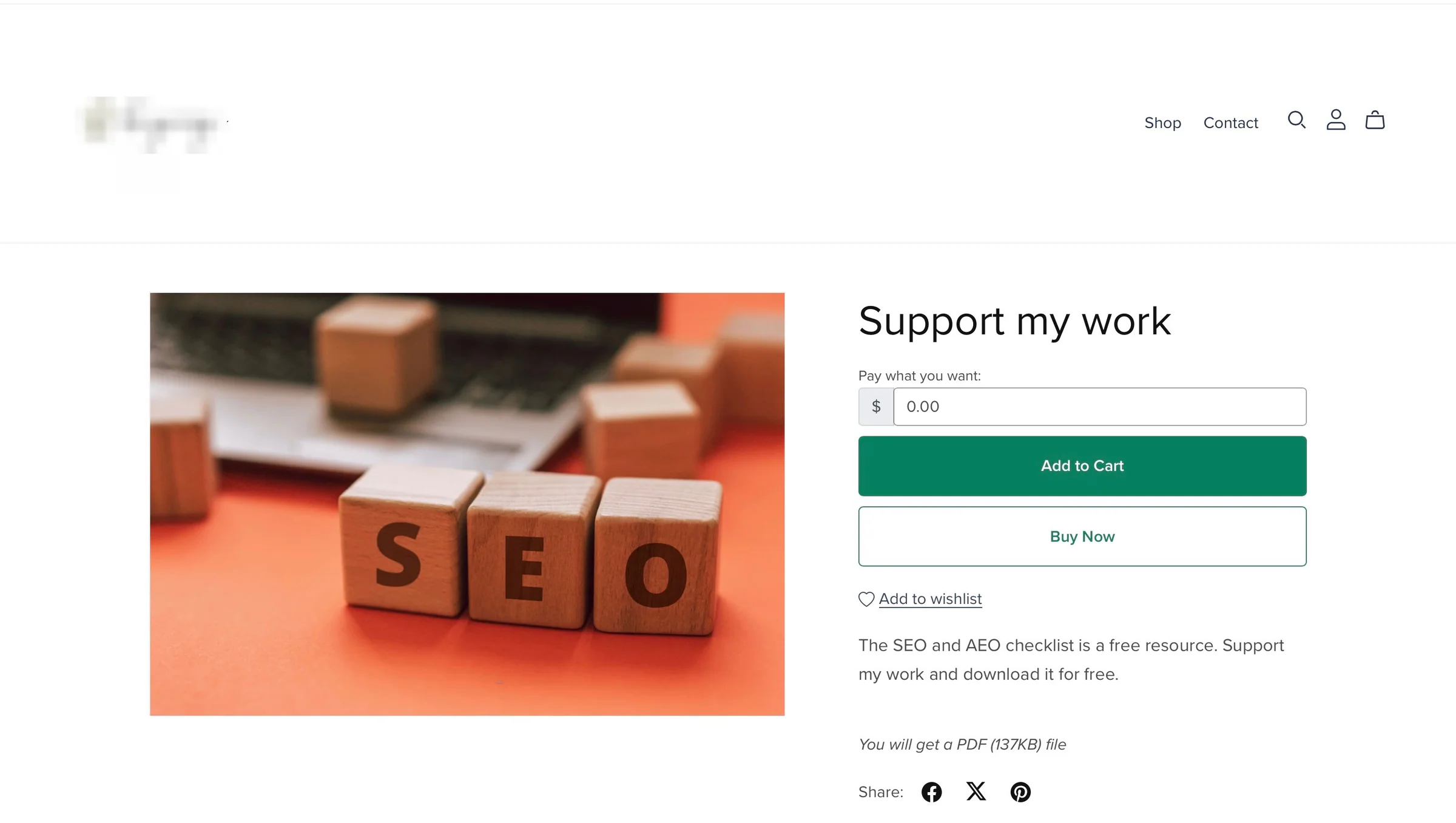
Next, enter the product title. Since you want customers to pay whatever they can, add a “+” sign after the price. In our case, that’s “$0+.”
The “$0+” price means supporters can pay any amount, including nothing.
If you enter “$5+,” you set $5 as the minimum while allowing supporters to pay more.
Now, add your product description, choose to make it visible to the public, fill out any relevant options under “Advanced settings,” and click “Add product.”
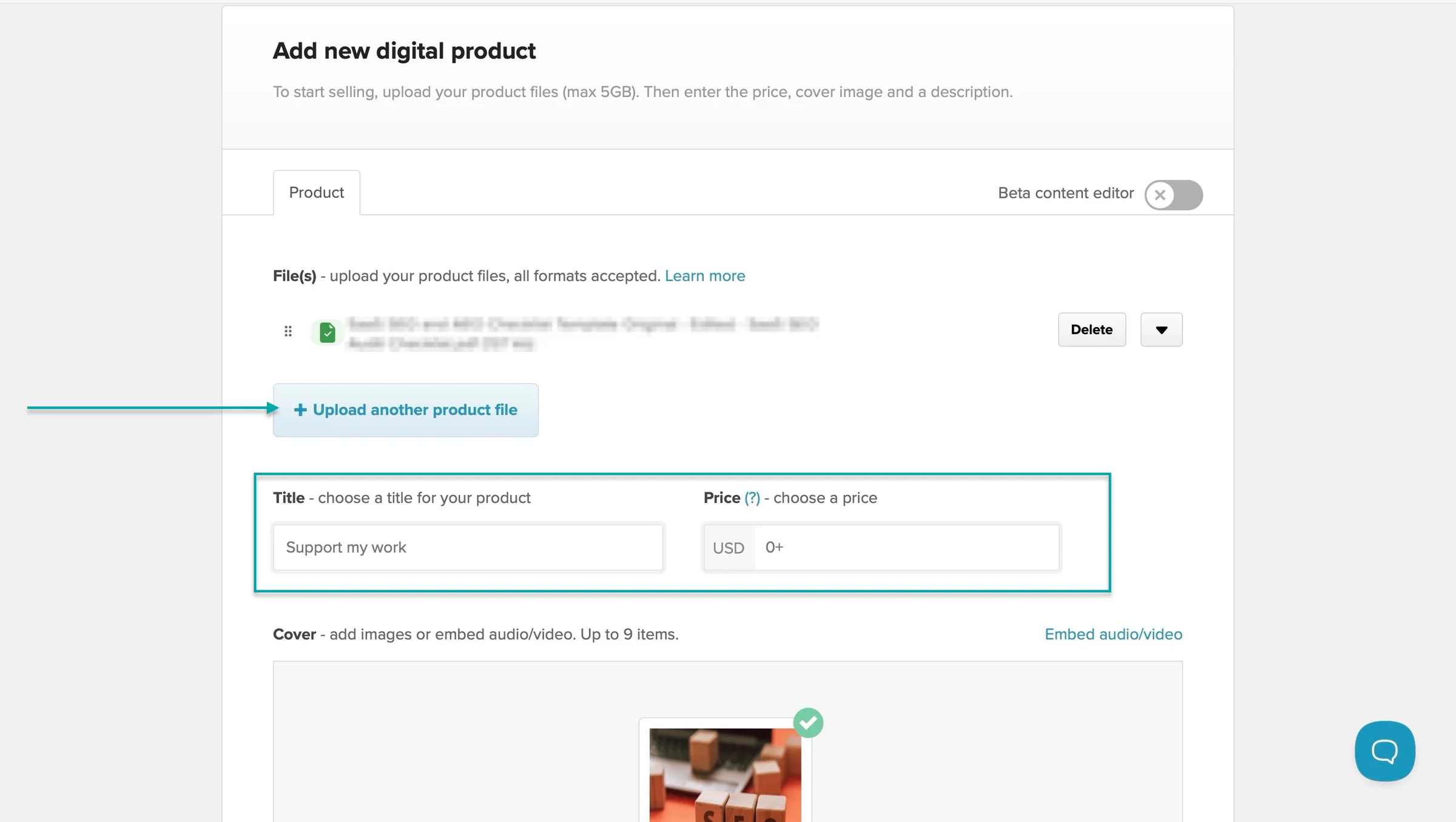
Your product page will now be live. Copy the link and share it on social media platforms like Facebook, X (formerly Twitter), and more to let people support your work.
2. Store
With Payhip’s store feature, you can do more than display your products. You can also add blog posts to share updates, publish useful content, and give visitors more reasons to check out your store.
Here’s how to add a blog to your Payhip store.
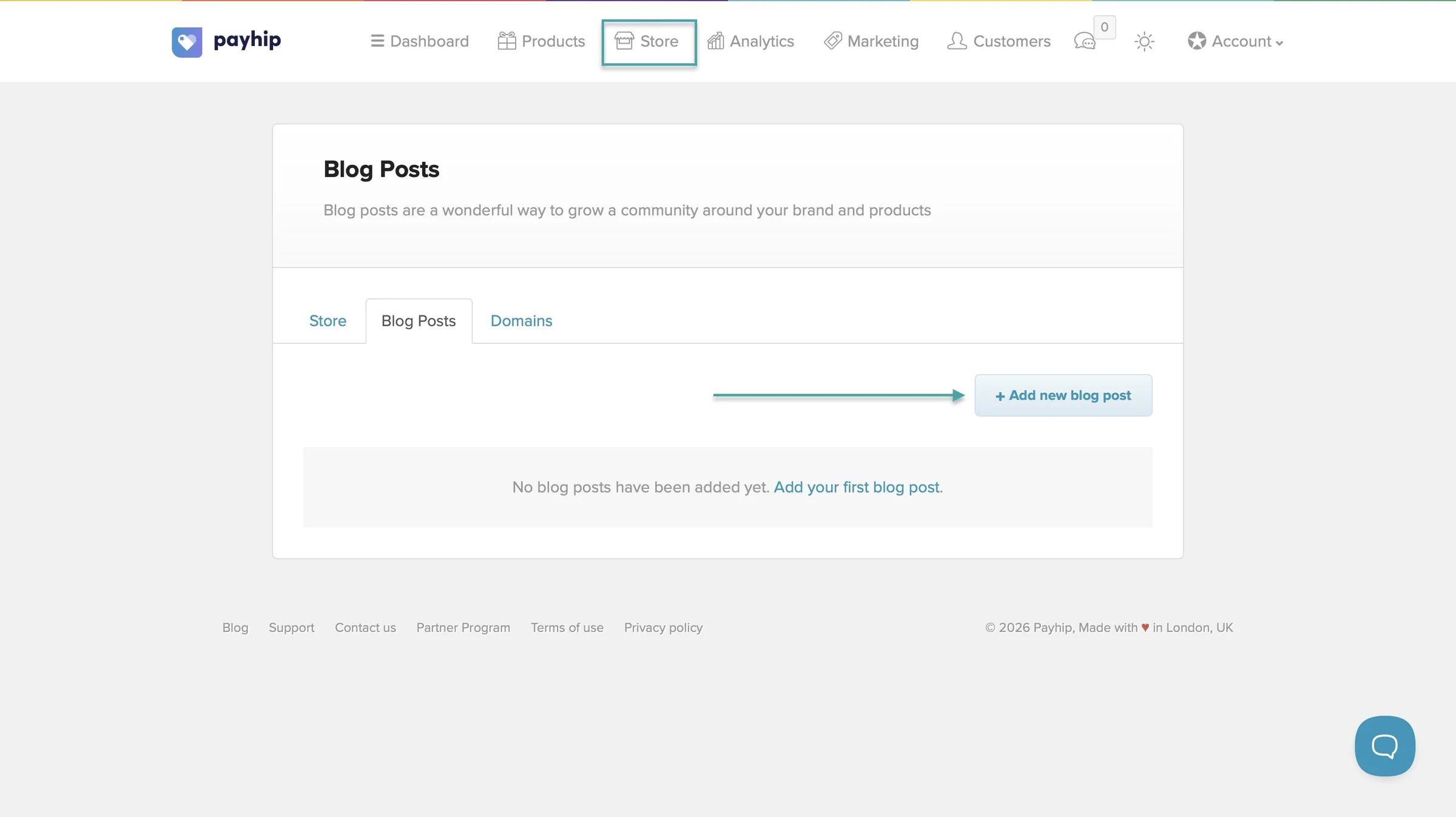
First, select “Store” in the navigation bar and choose the “Blog Posts” tab. Next, click “+ Add new blog post.”
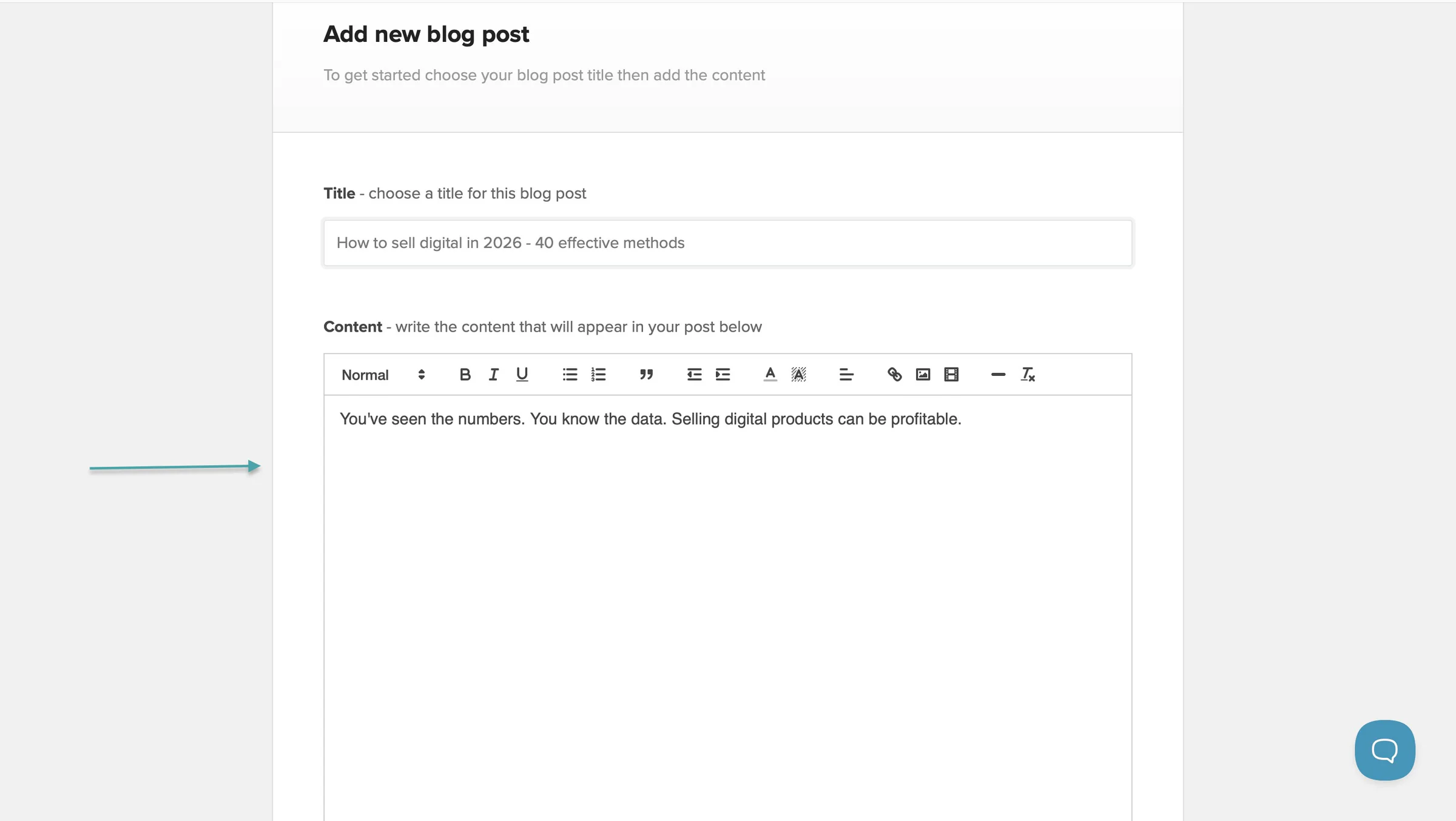
Enter your blog post title and add your content.
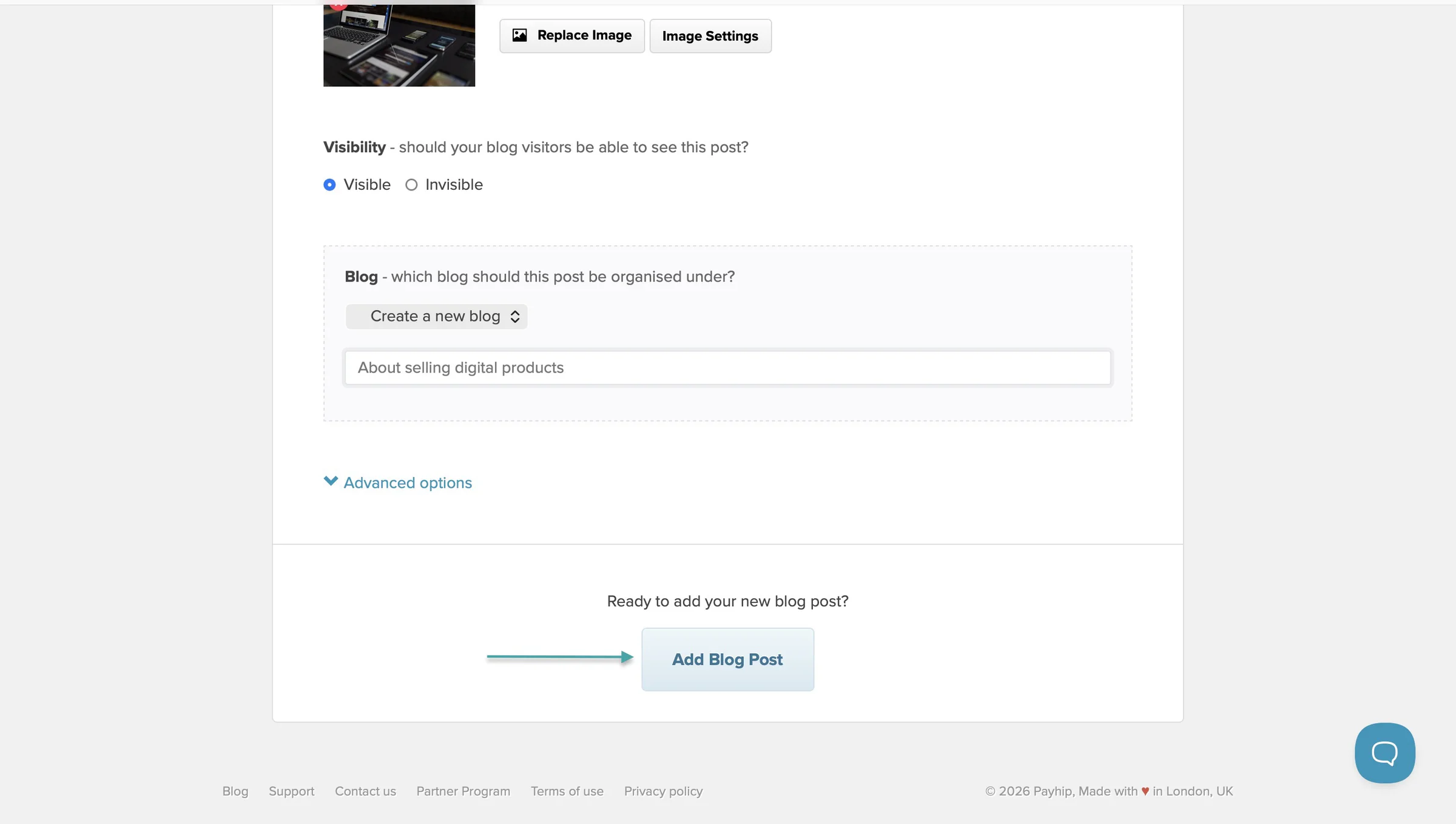
Upload a featured image, choose the visibility status, select where you want the post organized, and add the author’s name (or skip that part). Once you’re done, click “Add Blog Post.”
Payhip will add your blog post to your online store, where visitors can read it.

3. Mailing lists
As the name suggests, Payhip’s mailing lists feature lets you connect your store to email marketing providers like:
- ActiveCampaign
- AWeber
- Campaign Monitor
- Kit (formerly ConvertKit)
- Drip
- Elastic Email
- Email Octopus
- Flodesk
- GetResponse
- MadMini
- MailChimp
- MailerLite
- MailerLite Classic
- SendFox
- Klaviyo
Let’s connect this Ko-fi alternative to MailerLite in a few simple steps.
Click “Marketing” in the navigation bar, select “Mailing Lists,” and click “+ Setup Mailing Lists.”
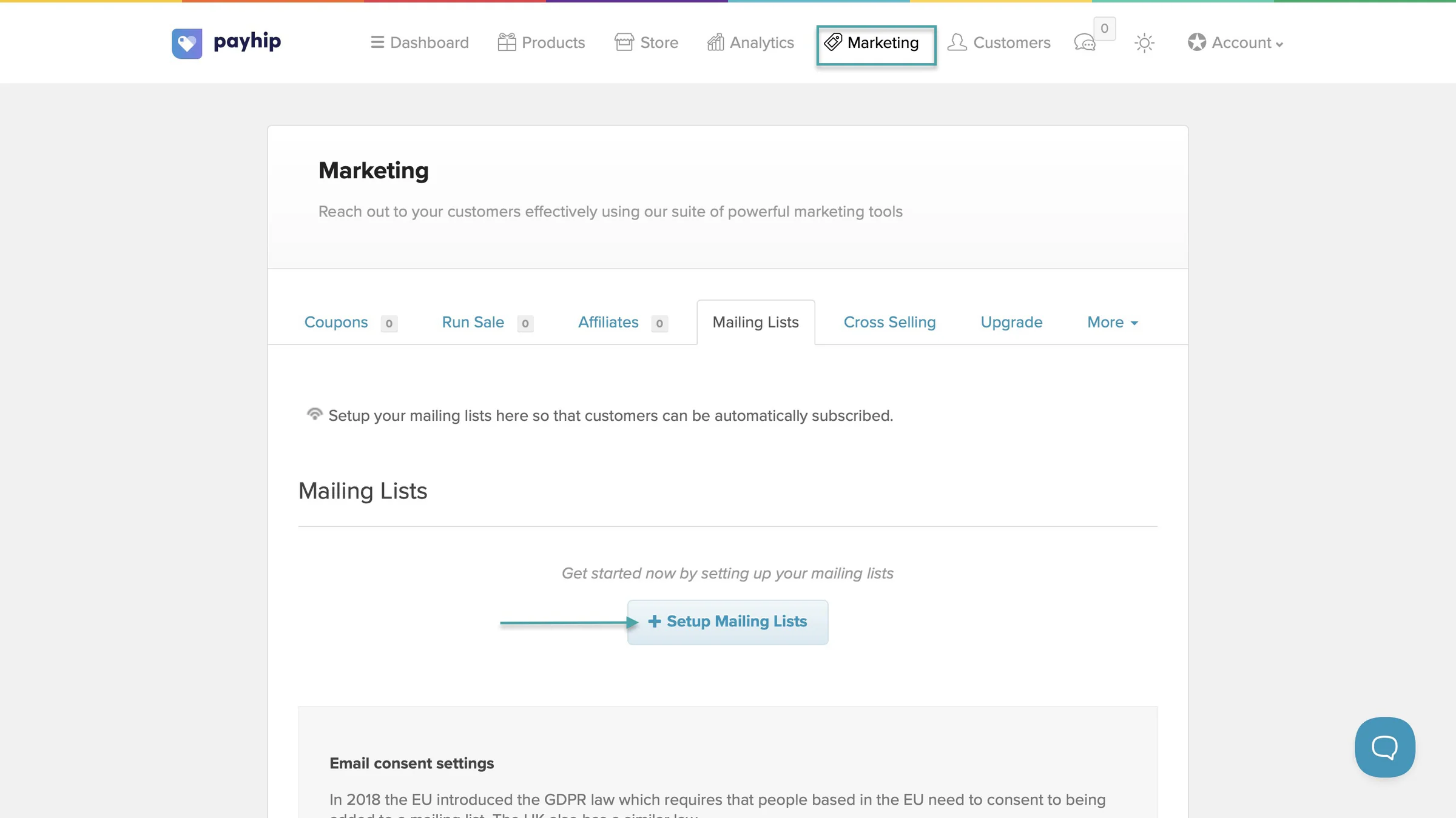
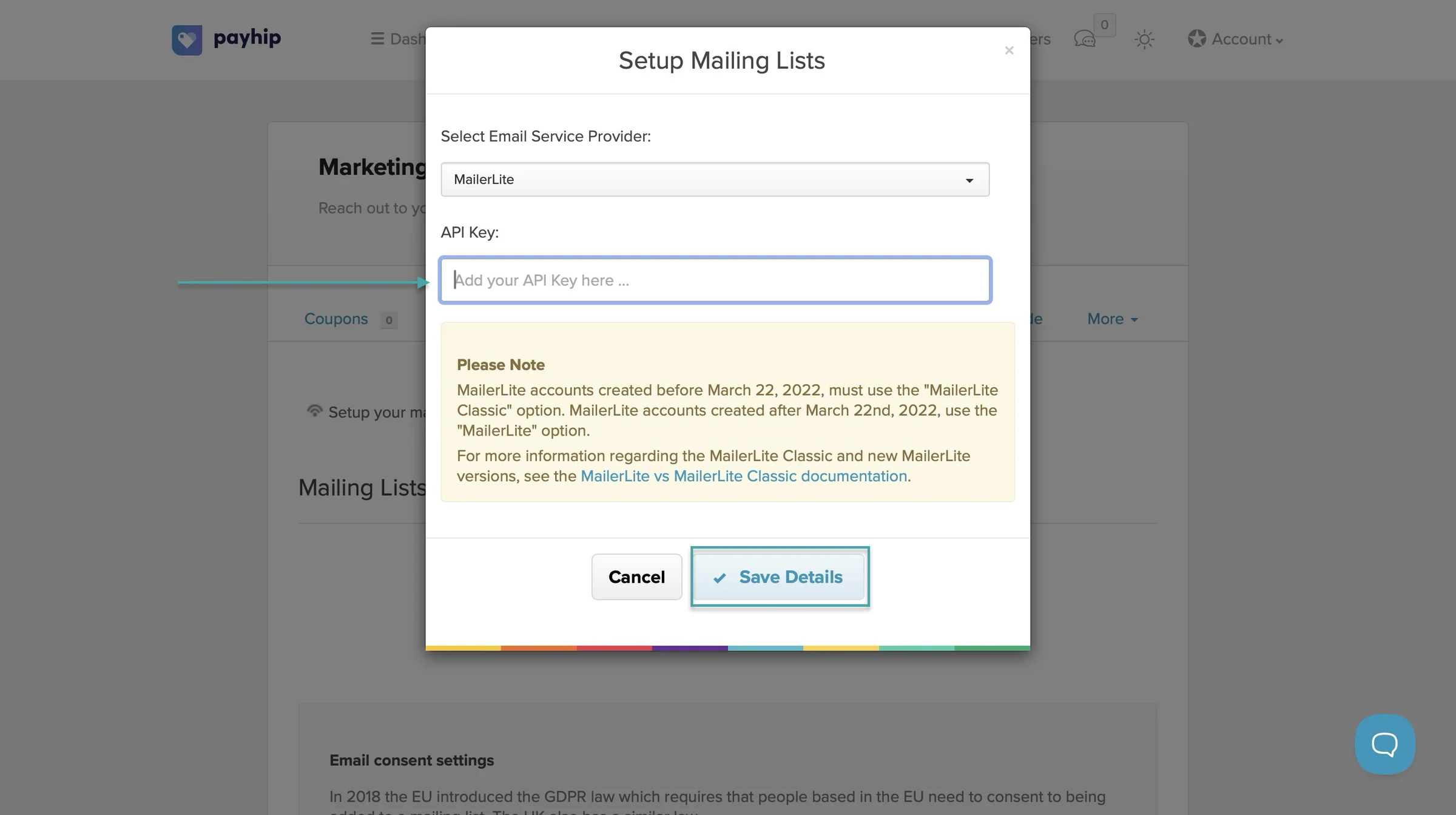
In the pop-up window, select the email service provider. Next, generate an API key in your MailerLite account, copy it, and paste it into the designated text box in Payhip.
Click “Save Details.”
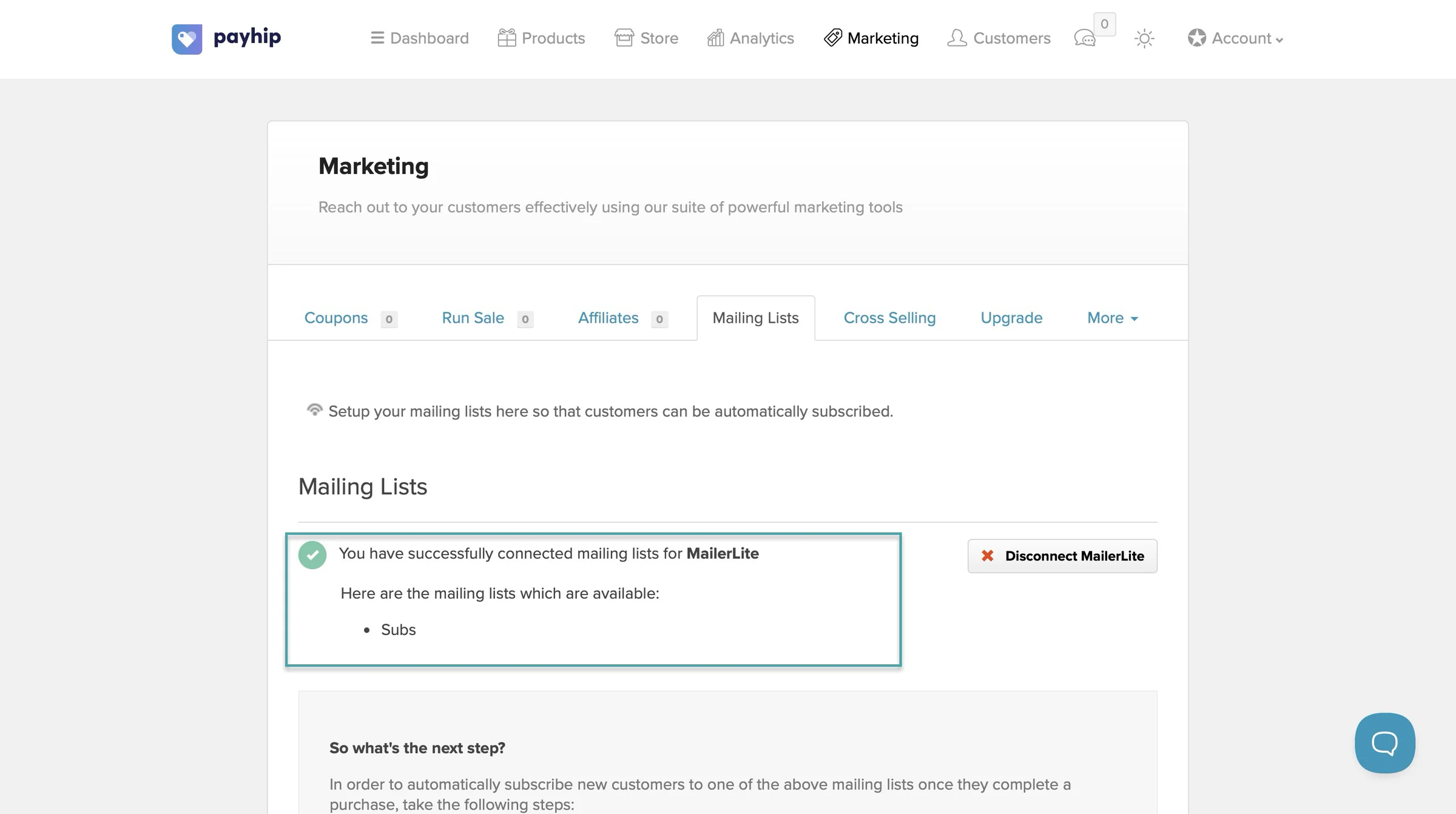
Payhip will then display your MailerLite integration.
What I liked vs what I didn’t like
What I loved 👍
✅ Has a large list of third-party email service providers you can integrate with, so you have more options for building your mailing list and marketing to customers.
✅ Has a blog you can use to bring organic traffic to your store, giving more people a chance to discover your products, buy from you, or donate.
✅ Has a marketplace that can put your products in front of new customers, so you don’t need a large audience of your own to get discovered.
What I didn’t like 👎
❌ Has basic analytics that show your store views, sales, orders, conversion rate, and visitor sources, so you may need another tool if you want more detailed insights into your store’s performance.
Best for
- Creators and small business owners who want to sell products online through their own online store without building a website from scratch.
Pricing
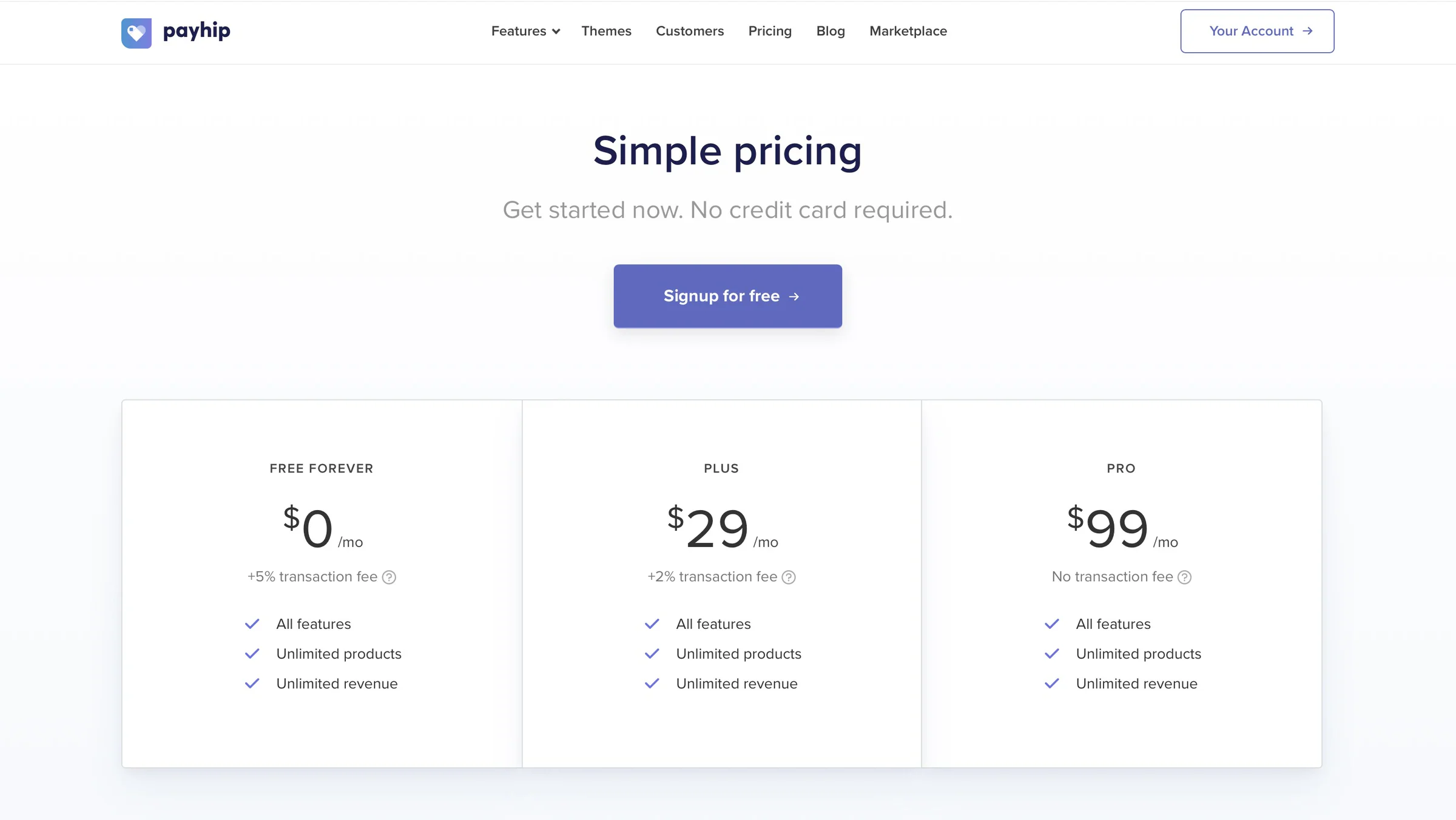
- Free Forever: $0/month + 5% transaction fees
- Plus: $29/month
- Pro: $99/month
6. Fourthwall
- Personal rating: ⭐️⭐️⭐️⭐️ 4/5 - It’s a good all-rounder platform for selling digital products, offering memberships, and accepting donations.
- Ease of use: ⭐️⭐️⭐️⭐️ 4/5 - Setting up donations on your checkout could be more straightforward.
- AI capabilities: Uses an AI assistant called Eli, powered by Anthropic, that helps you manage your store using everyday language. You can ask it to create products, set up promotions, make changes to your storefront, and check sales without digging through your dashboard.
- Monetization options: Donations, physical and digital products, print-on-demand, memberships, and video content.
- Free trial: N/A - Offers a free plan
- Starting plan: Free - $0/month + 5% transaction fees
Fourthwall is also worth discussing on our list of the best Ko-fi alternatives.
It’s an e-commerce platform for designing and selling products through a branded online shop. It also integrates with YouTube, Instagram, TikTok, Spotify, Twitch gifting, and more.
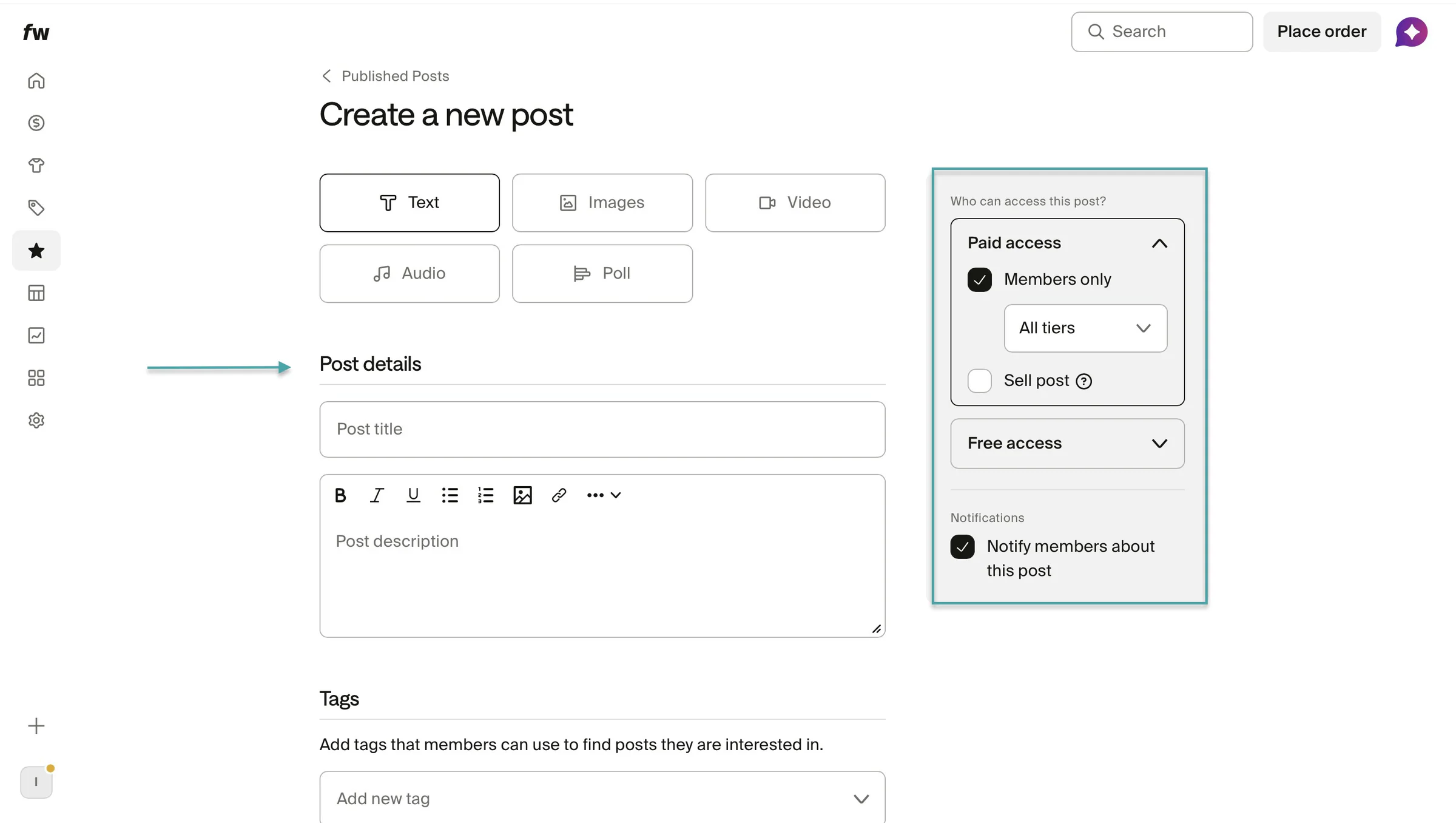
Like Patreon, Payhip, and Easytools, Fourthwall lets you sell memberships. You can view your subscribers, send them messages, and create general posts to keep them updated.
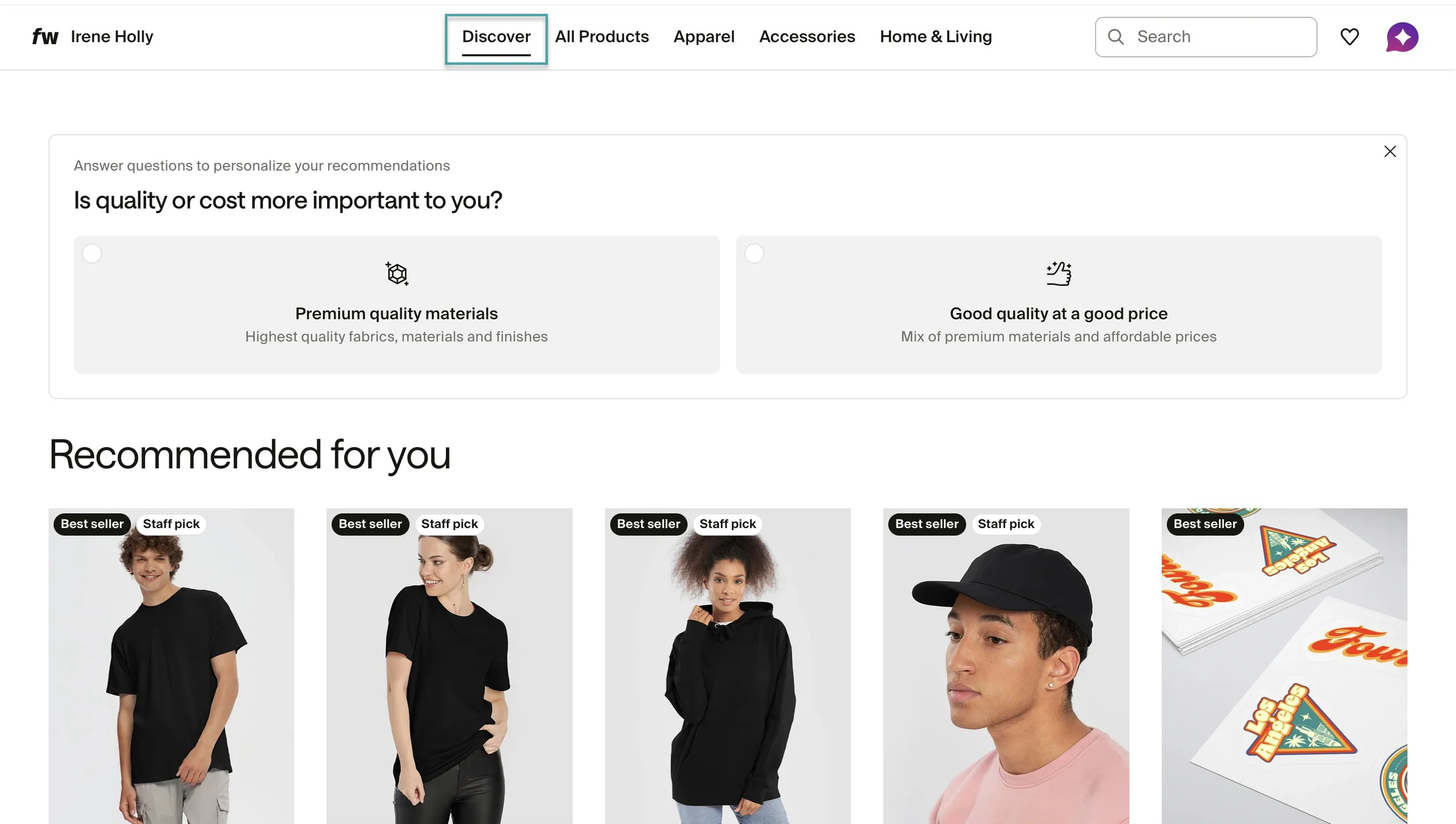
And you can sell digital and physical products on the platform. Just like print-on-demand on Big Cartel, you can design a product that is already on sale and sell it on Fourthwall.
So you don’t need your own products and inventory to start selling and making money.
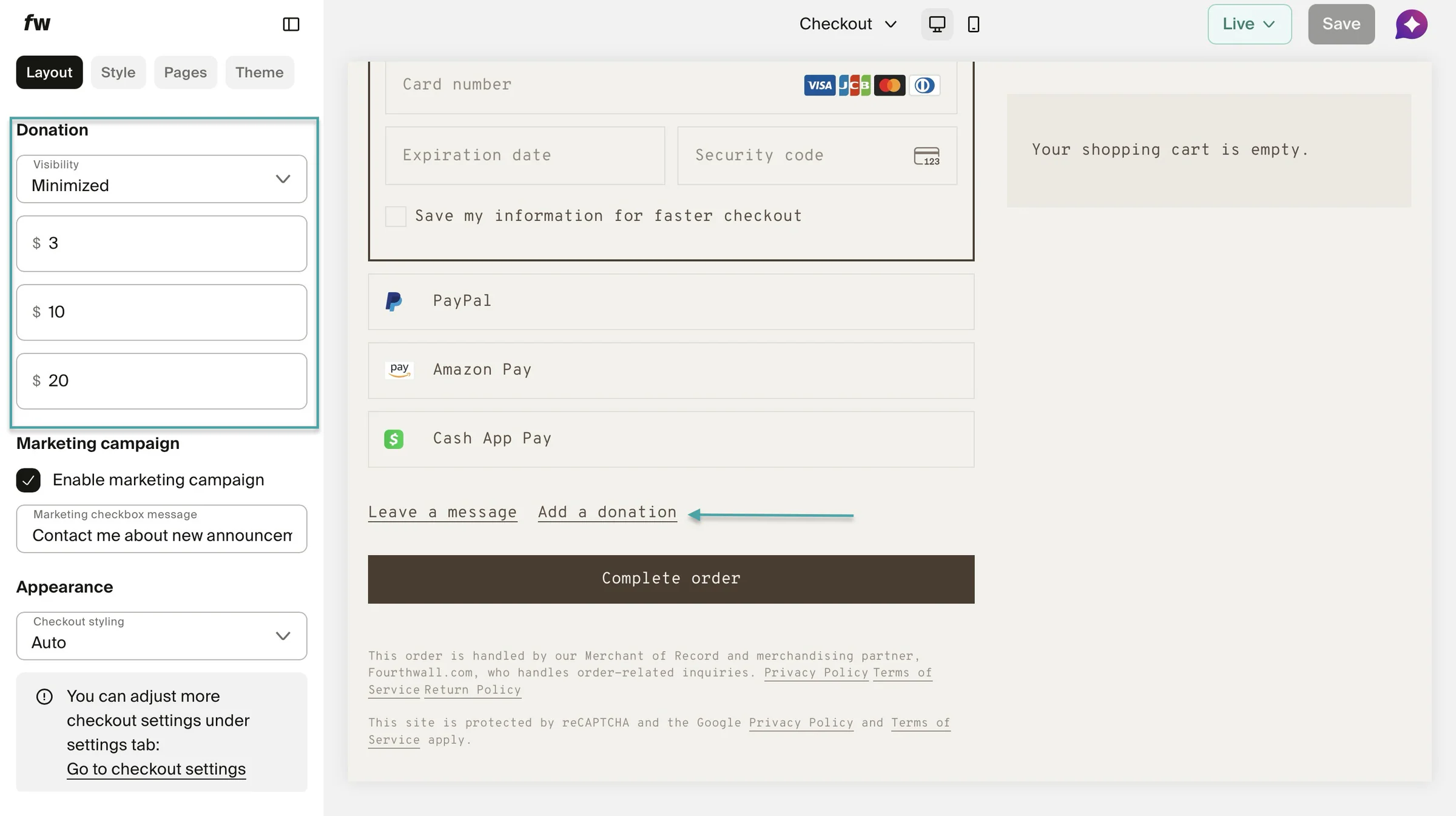
By default, Fourthwall lets you accept donations on your checkout page. You only set the minimum and maximum donation amount and decide on its visibility on checkout.
With donations, you can earn extra money and not rely solely on product sales.
What I loved about Fourthwall
1. Memberships
Fourthwall’s membership feature lets you create paid membership tiers with exclusive perks for your subscribers.
Here’s how to create tiers that members can subscribe to.
Start by clicking “Memberships” in the sidebar, then select “Perks & tiers.”
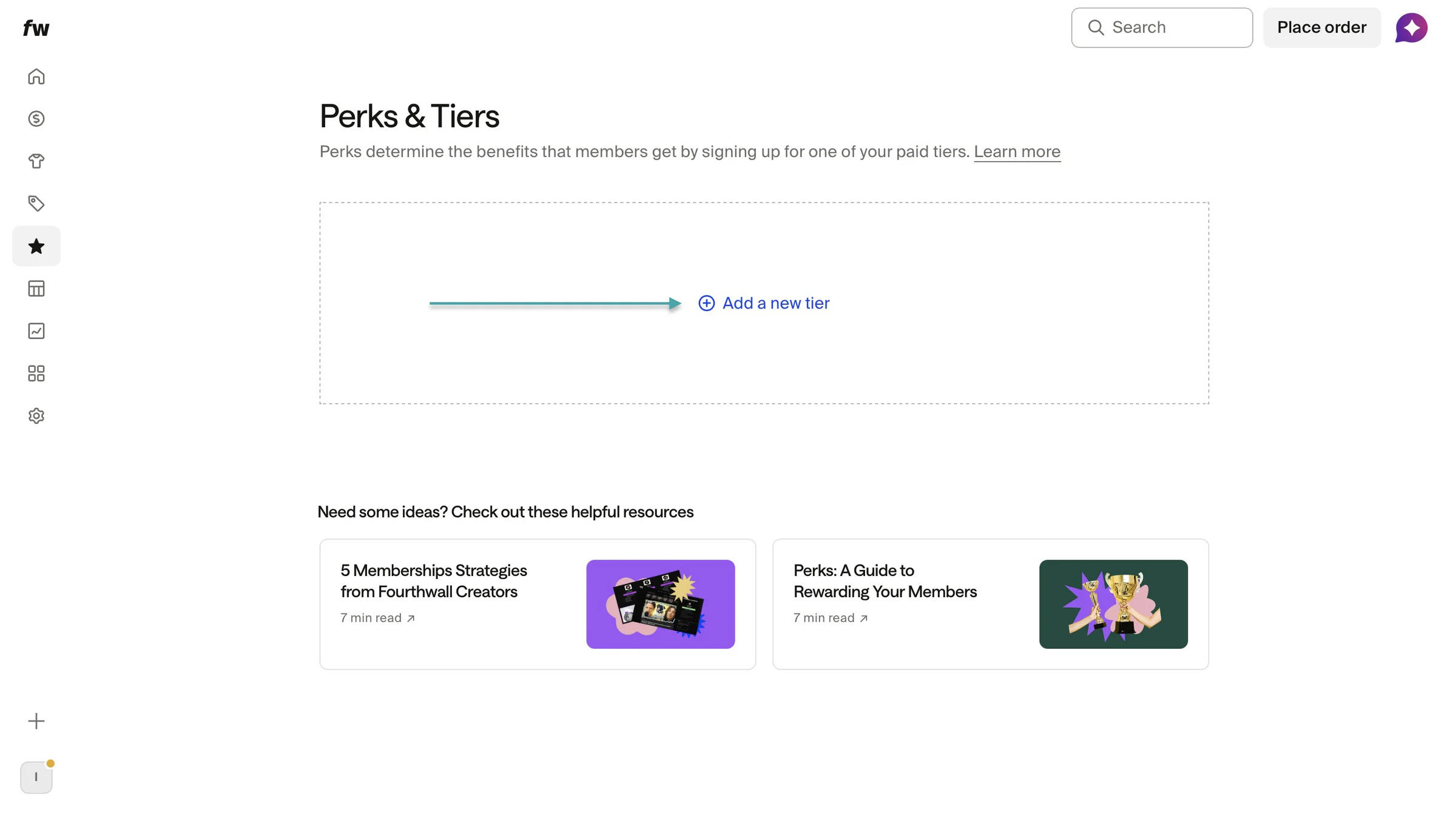
In the new window, click “+ Add a new tier.”
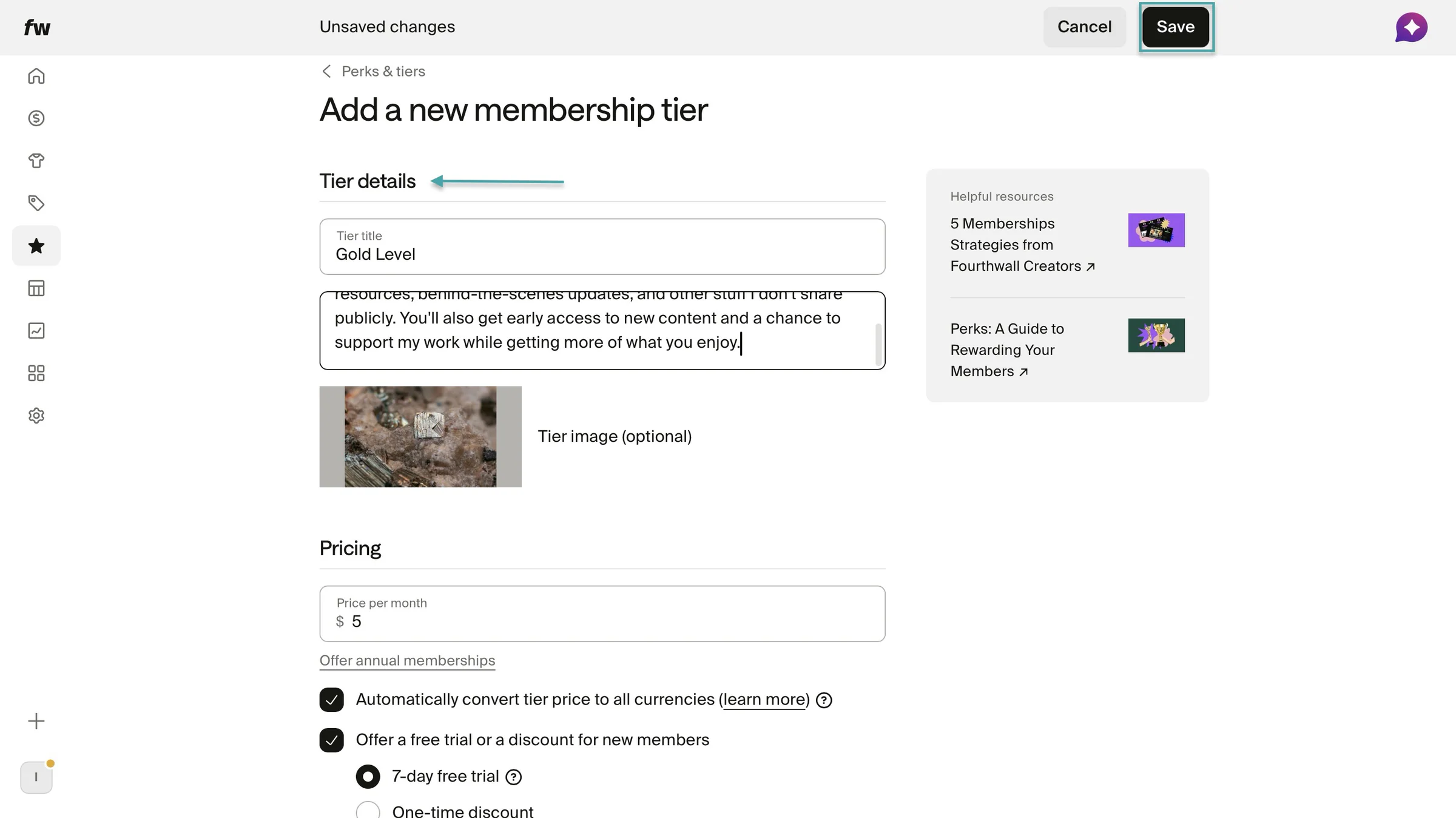
Next, add the tier details, including its title, description, image, and price. Once you’re done, click “Save.”
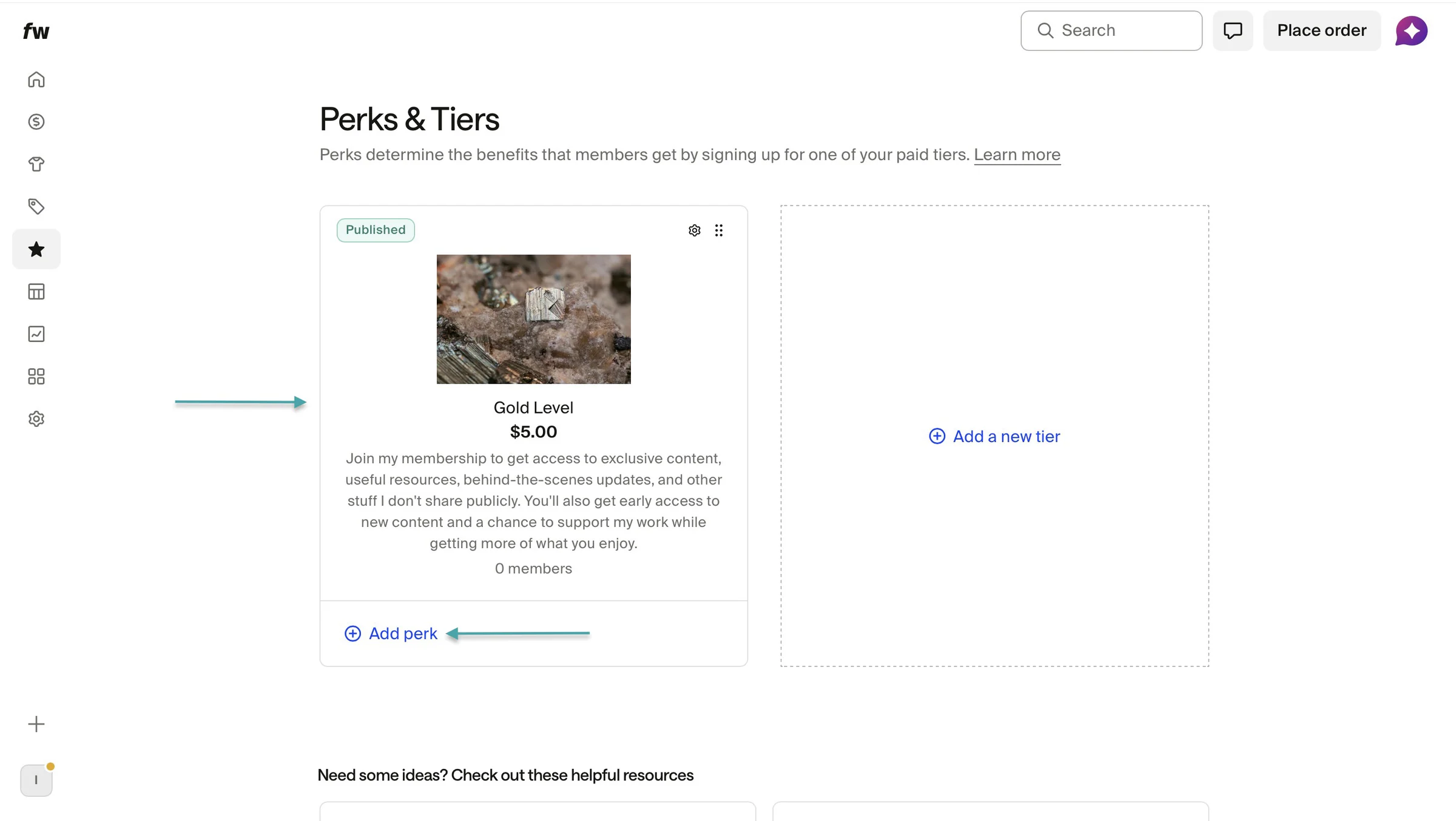
You’ve now created a paid membership tier. You can click “+ Add perk” to offer members more exclusive benefits.
2. Products
Fourthwall’s products feature lets you sell digital and physical products, including print-on-demand merchandise. Here’s how to sell a digital product on Fourthwall.
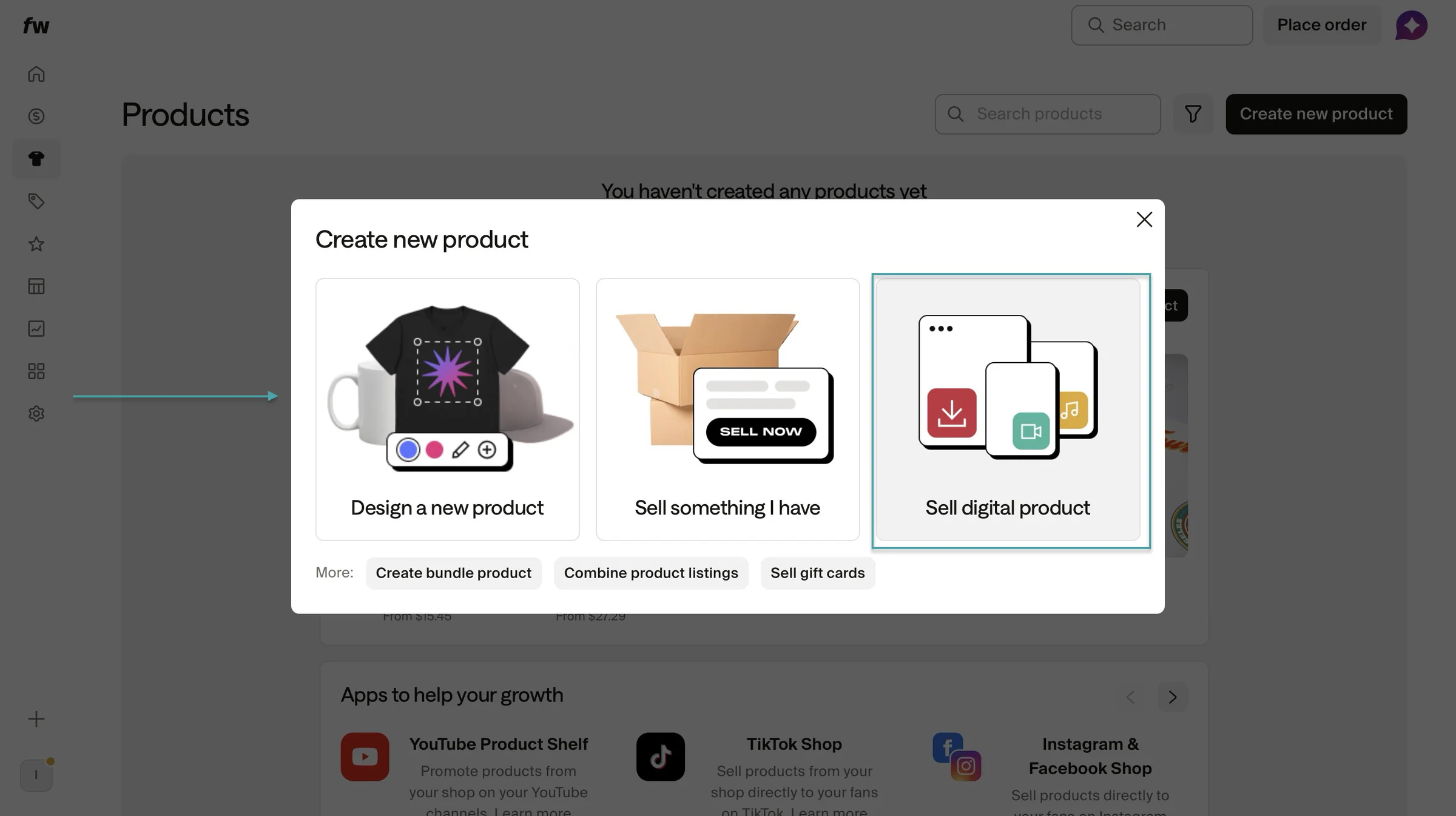
First, select “Products” in the sidebar and click “Create new products.” In the pop-up window, click “Sell digital products.”
Now, enter your product details, including its name, description, and category. Then, change the product visibility from “Hidden” to “Public.”
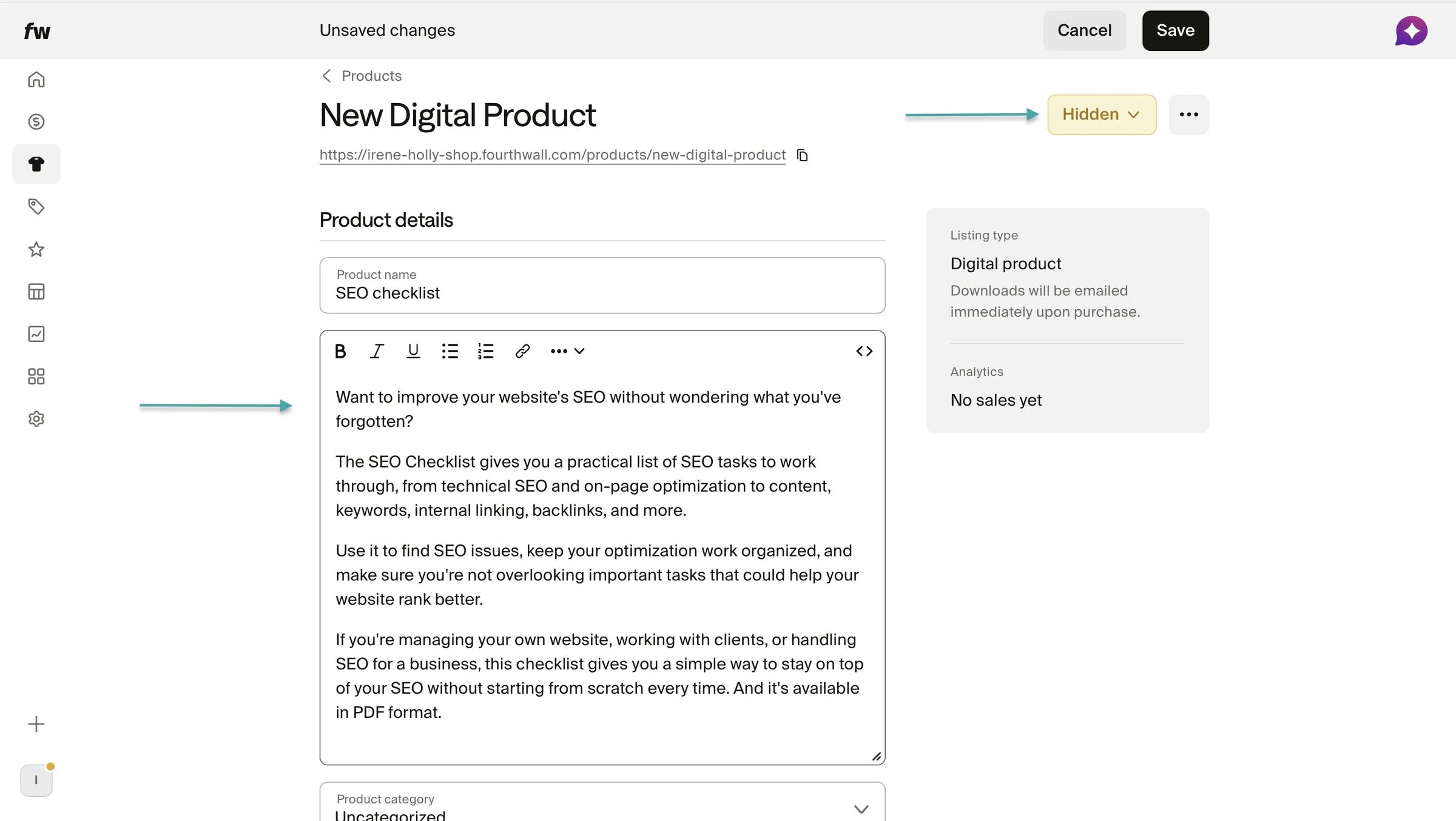
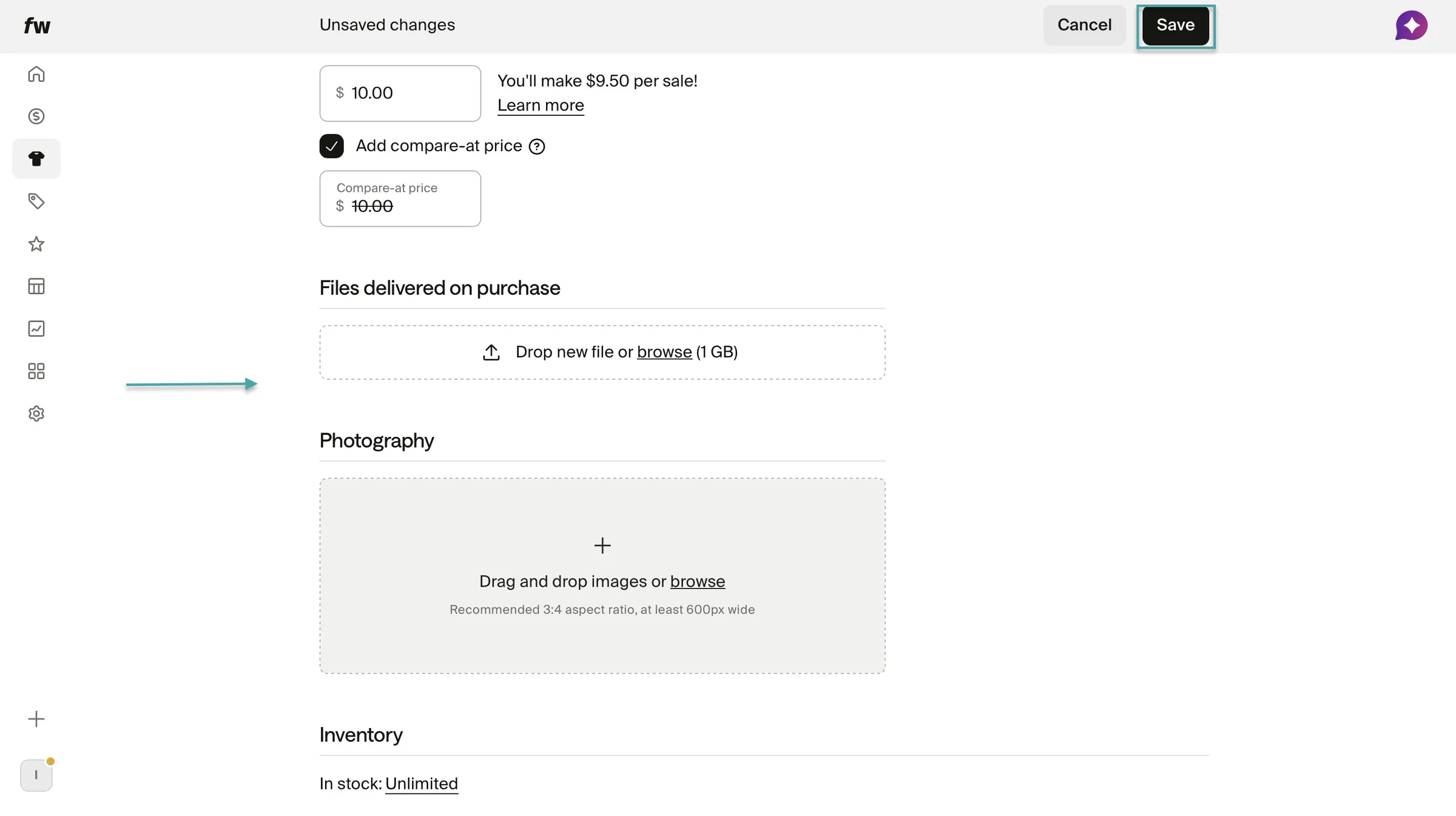
Set your price, upload the digital file and product cover image, and click “Save.”
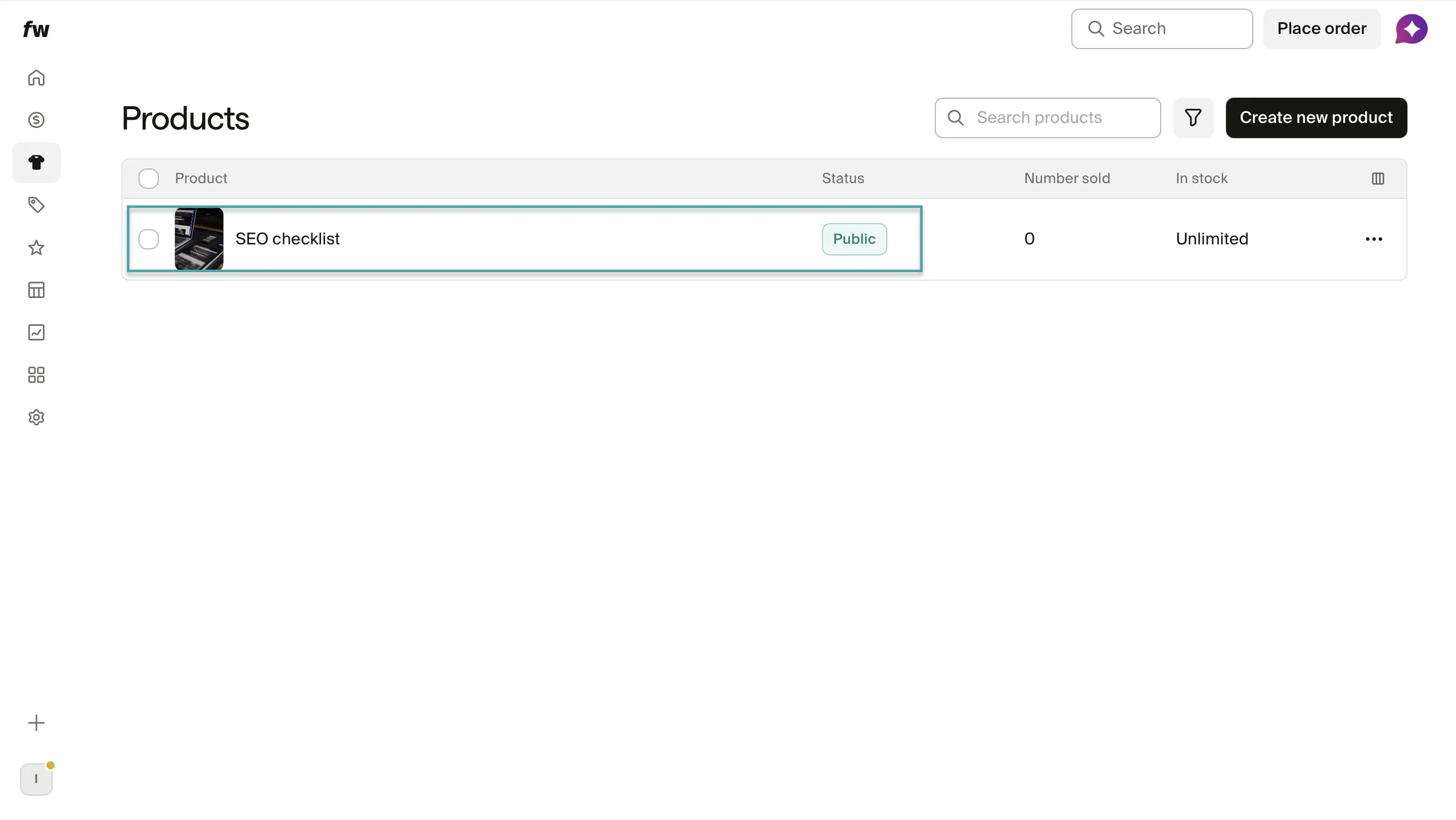
Fourthwall will display your product in your store.
3. Site design
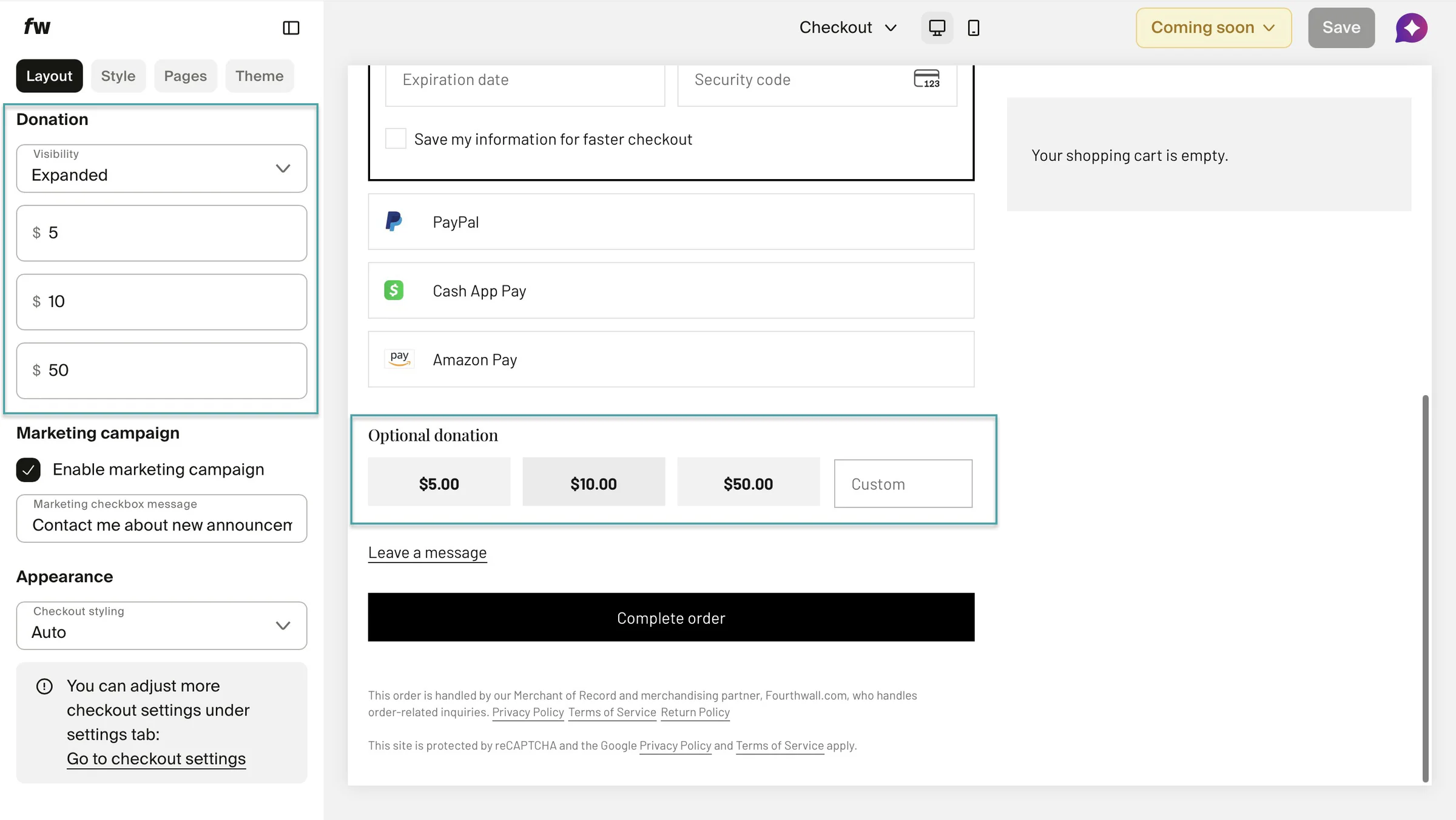
Your Fourthwall website lets you display your memberships and digital products to potential buyers. You can also customize the site to match your brand. Here’s how to set up donations.
Click “Site design” in the sidebar, then select a theme.
Next, click the text box under “Layout” and choose “Checkout.”
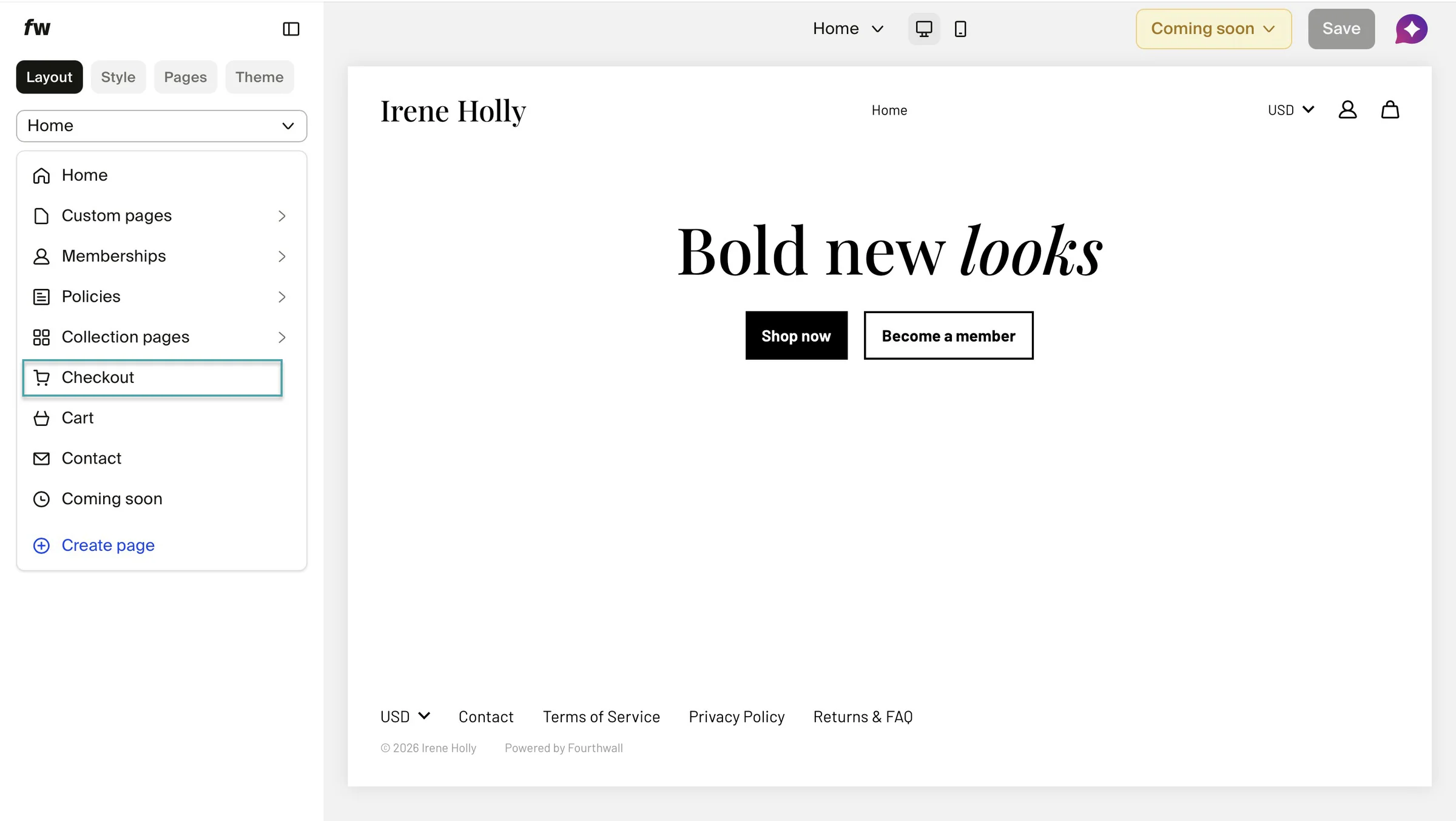
Scroll down to “Donation.” By default, the suggested amounts are $3, $10, and $20, but you can change them to suit your audience.
You can also choose the “Expanded” view so buyers can see the available tipping amounts without clicking a button.
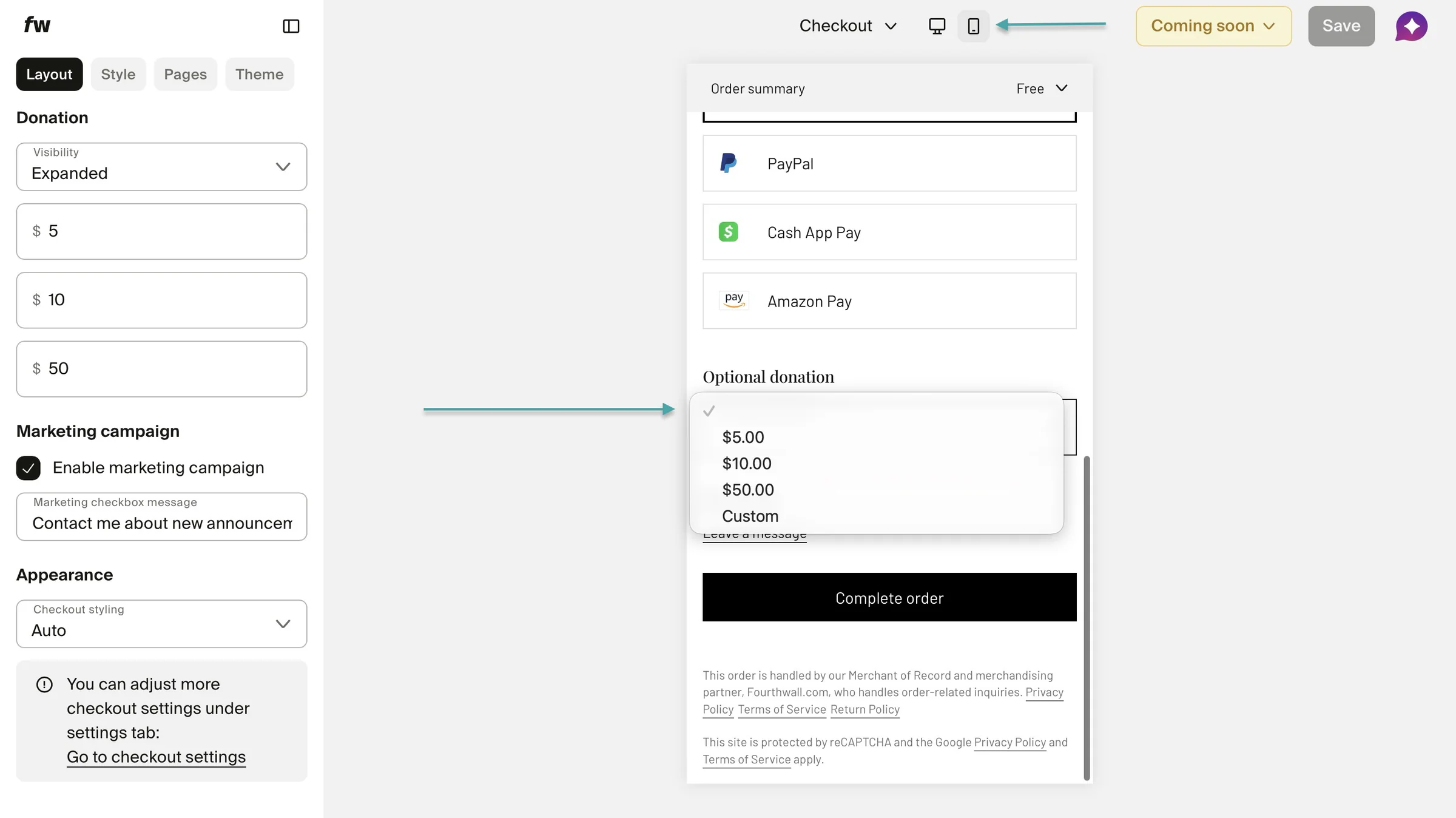
Like Easytools’ creator page and checkout, Fourthwall’s checkout is optimized for mobile devices, making it easier for supporters to donate from their phones.
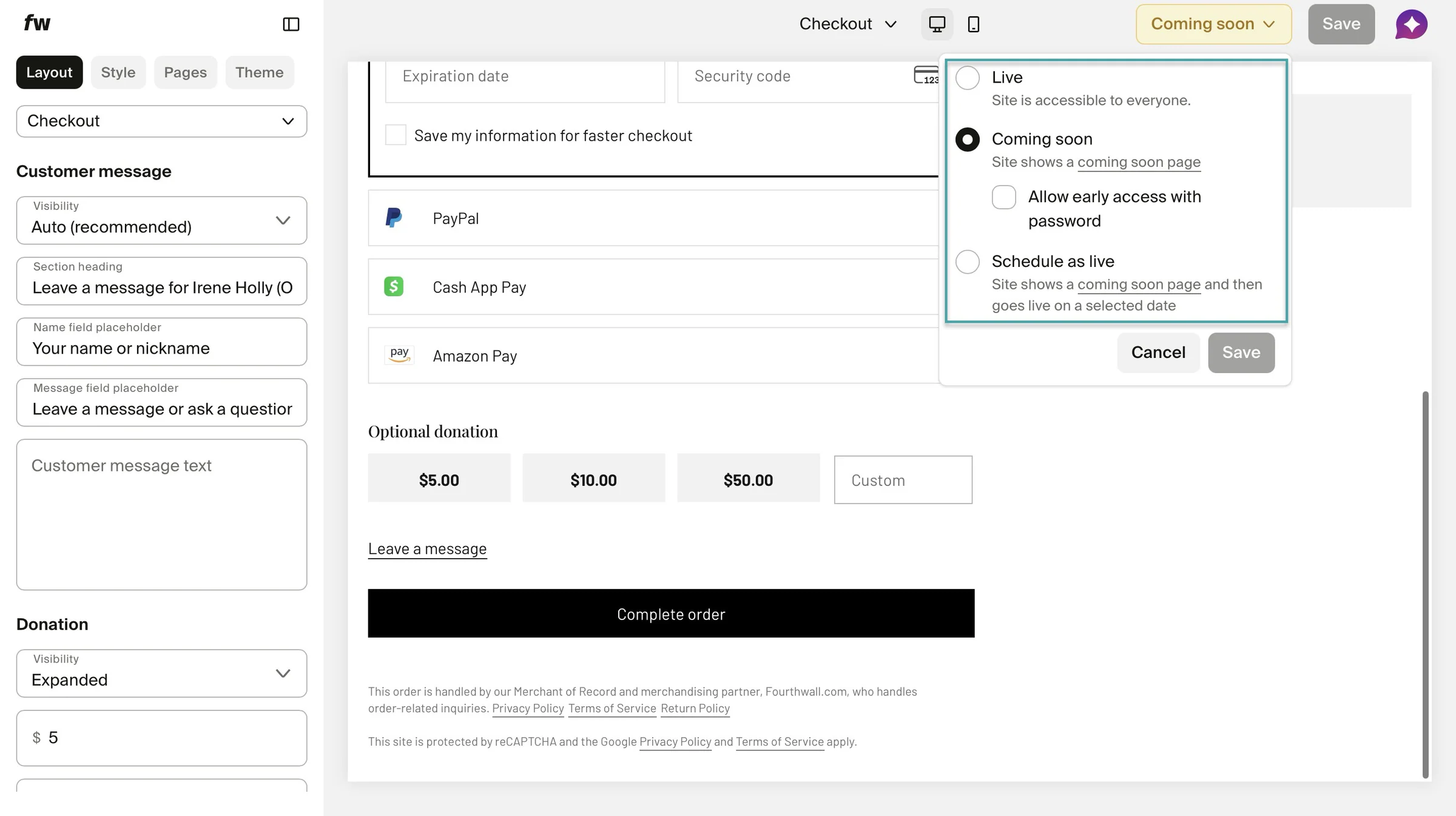
Finally, set your site to live so visitors can access it, then click “Save” to finish.
What I liked vs what I didn’t like
What I loved 👍
✅ Has on-platform resources to guide you through setup, so you can get your store up and running faster.
✅ Like Easytools’ Buy Me a Coffee-style widget, Fourthwall’s donation feature is built into the checkout, so supporters can tip you while making a purchase.
✅ Lets you sell print-on-demand products without keeping inventory, so you can start selling without buying stock upfront or handling shipping yourself.
What I didn’t like 👎
❌ Buy now, pay later orders come with a higher processing fee of 6% + $0.30 per transaction, plus an extra 1% for payments outside the US, so you’ll lose more of each sale to fees.
Best for
- Creators who want to sell merchandise, digital products, and memberships through their own branded online store.
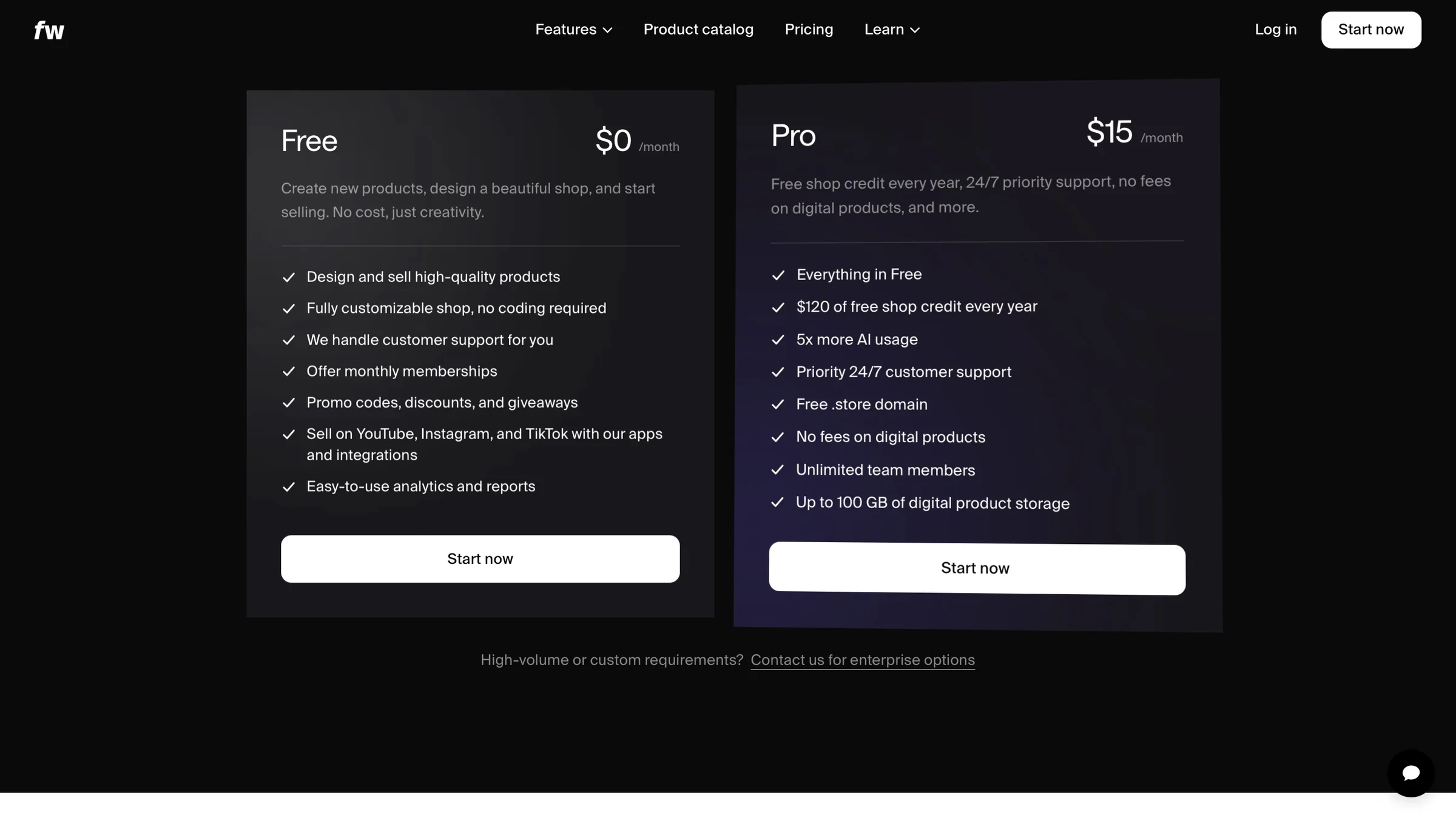
Pricing
- Free: $0/month
- Pro: $15/month
Additional Ko-fi alternatives we tested
Apart from the Ko-fi alternatives I’ve already discussed, here are some additional ones I tested:
7. Gumroad - Best for selling digital products and memberships
8. Sellfy - Best for selling digital and physical products
9. Beacons - Best for selling products through a link-in-bio store
10. Podia - Best for selling courses, digital products, and memberships
11. Stan Store - Best for selling digital products and services from social media
12. The Leap - Best mobile-first link-in-bio and social selling platform
13. Substack - Best for selling paid newsletters and subscriptions
14. Lemon Squeezy - Best for selling software and digital products
15. Memberful - Best for selling memberships and subscriptions
16. Teachable - Best for selling online courses and coaching
17. Kajabi - Best for selling courses, coaching, and memberships
18. Shopify - Best for building an online store and selling products
19. Liberapay - Best for accepting recurring donations from supporters
20. Ghost - Best for building a paid newsletter and membership business
Now let’s get into how to choose the right Ko-fi alternative.
How to choose the right Ko-fi alternative
To choose the right Ko-fi alternative, you should consider:
- How you make money
- The fees
- Where your business is going
- Customer experience
Let’s look at each point in detail.
1. Choose based on how you make money
Consider how you want to make money online to choose the right Ko-fi alternative.
Maybe you want people to tip you for your work, sell digital products, offer paid memberships, or do all three.
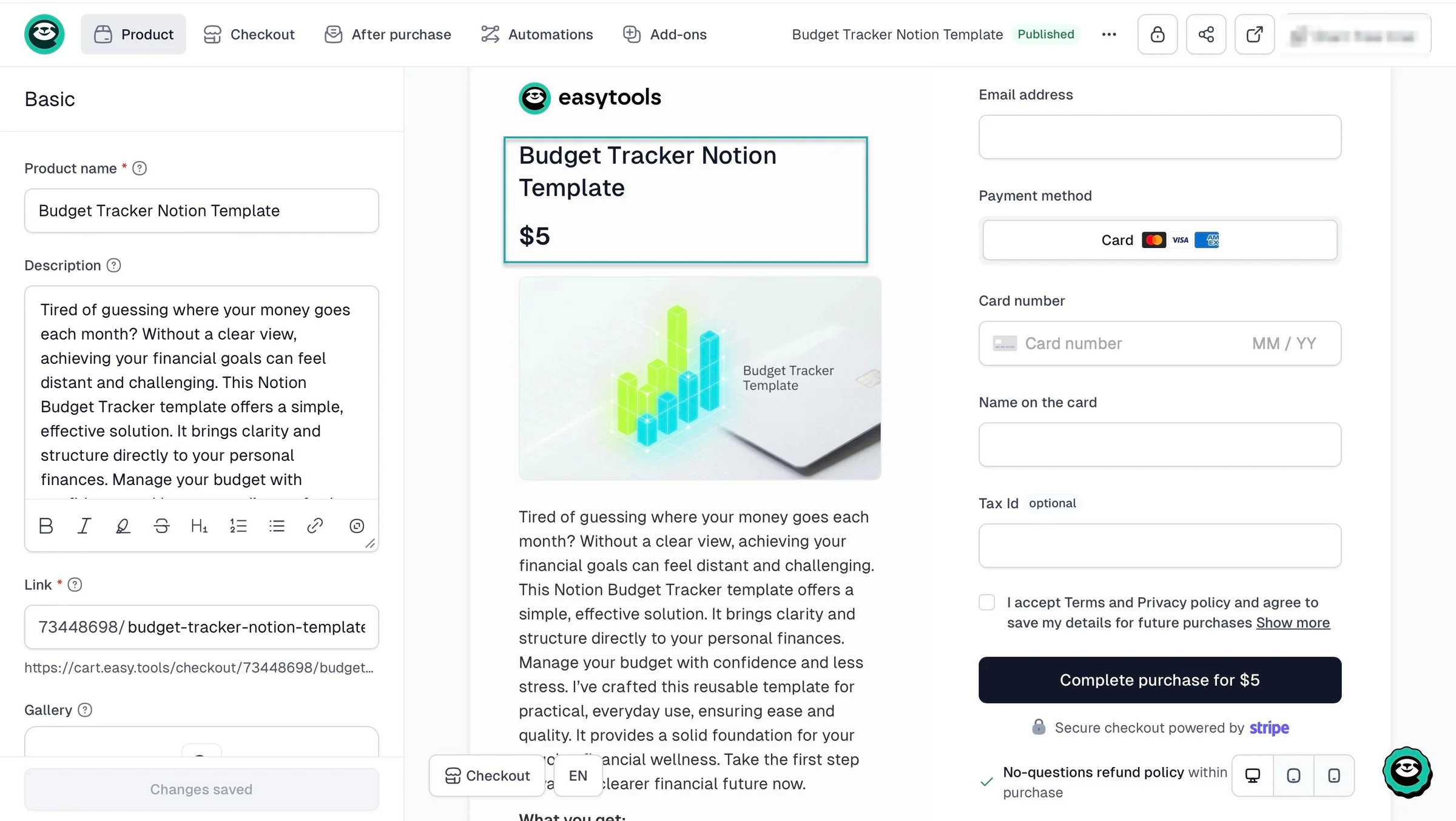
For example, if you’re a graphic designer selling Notion templates, planners, e-books, and online courses, Easytools could be a good fit.
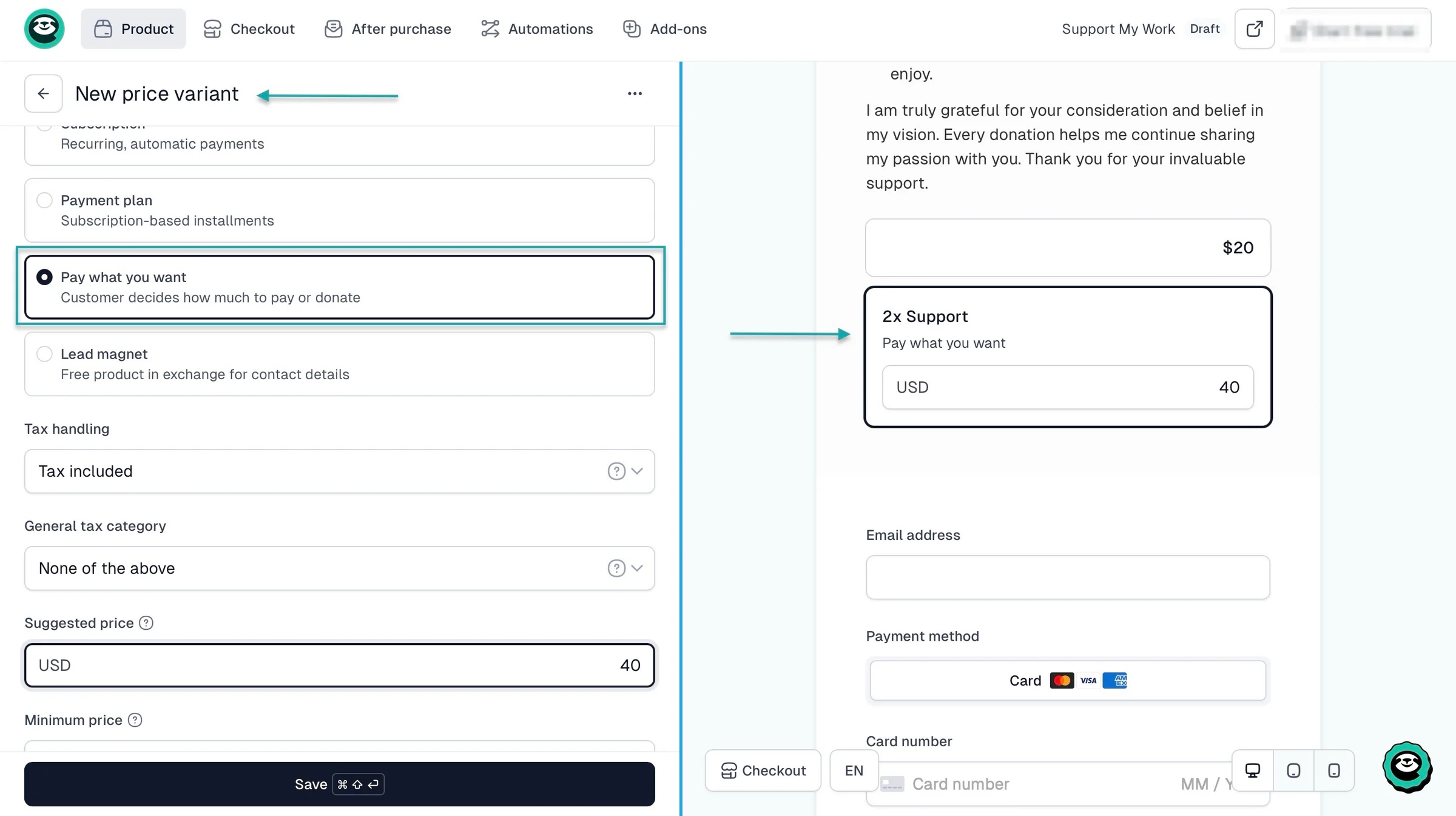
You can also add price variants like “pay as you want” for customers who may want to support your work by offering more than your asking price.
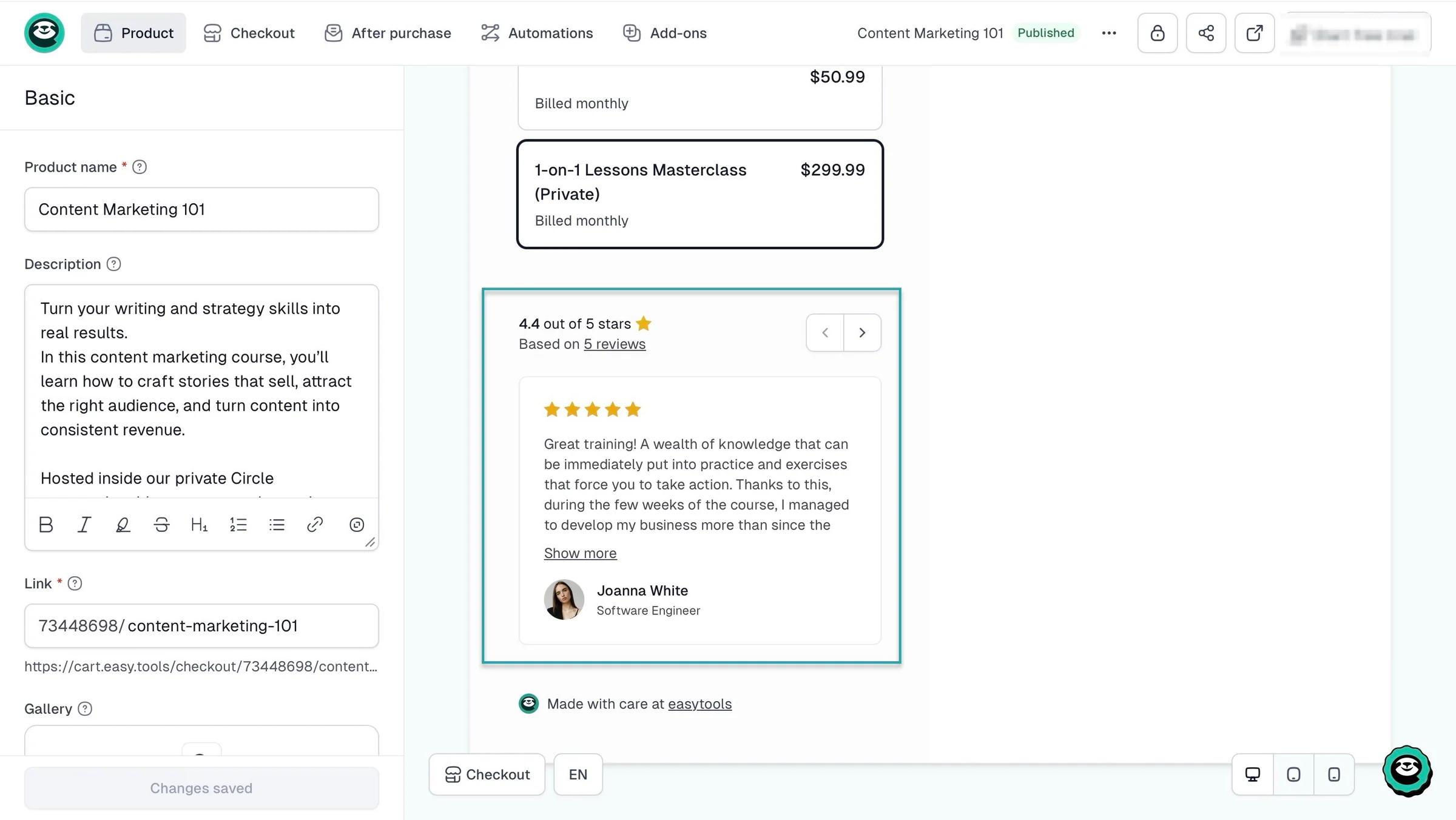
Think about how you want to grow your income, too. If you plan to offer upsells, add cross-sells, countdown timers, order bumps, testimonials, and more, Easytools gives you those options in one place.
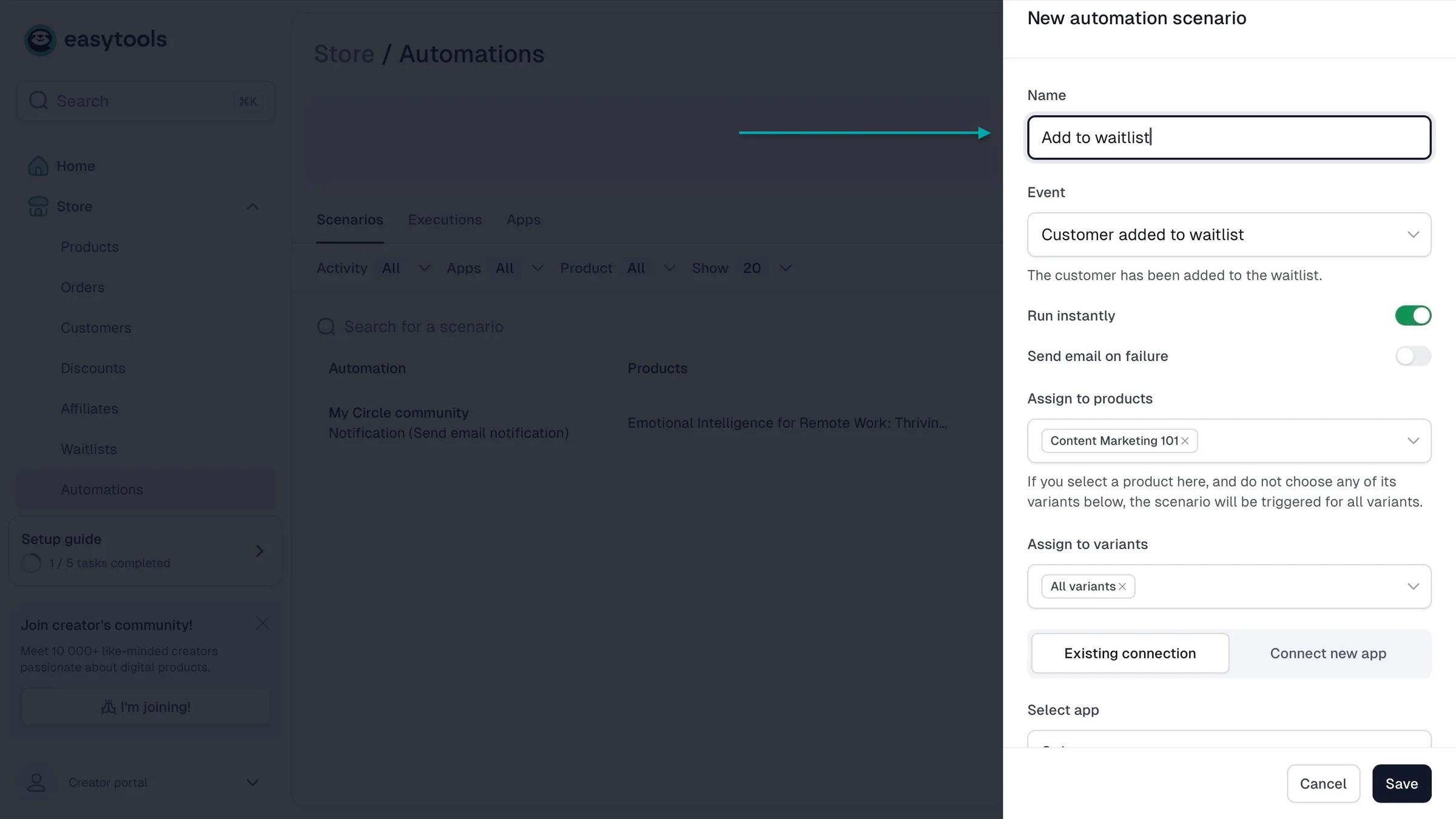
You can also run email campaigns and set up automations to add customers to your newsletter list or waitlist and market your products to them.
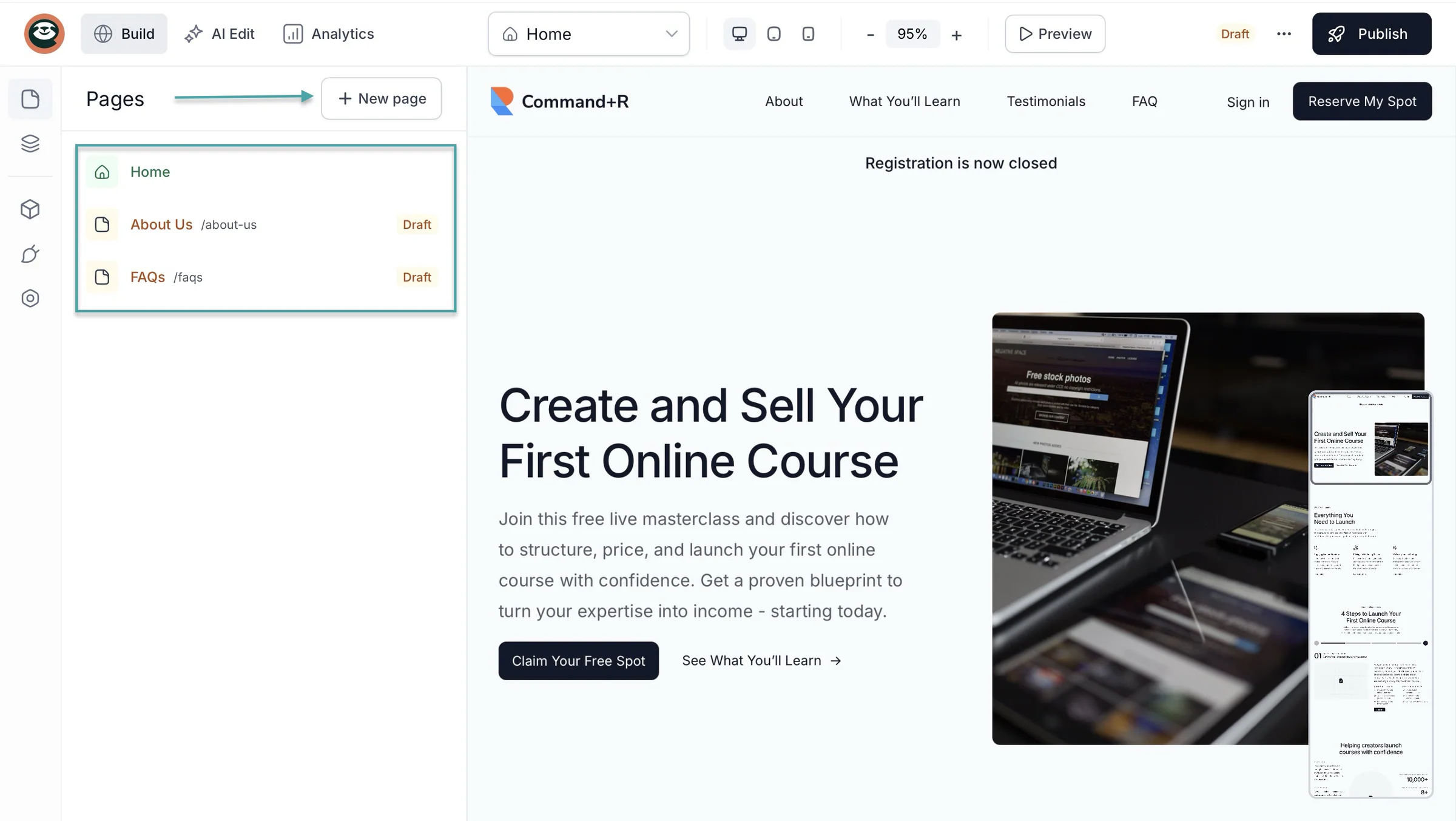
On Easytools, you can add your product to your creator page or create an actual multi-page website for it. All so you can sell more.
So, choose a platform that supports how you want to earn money now. Start with your main income source rather than relying on donations alone.
Then compare platforms based on how well they support that.
2. Consider the fees
To choose the right Ko-fi alternative, you should also consider the fees.
If you want people to support your work with donations, check how much of each contribution you’ll actually receive. A platform might let you accept tips for free, but that doesn’t mean every dollar goes into your pocket.
Buy Me a Coffee also charges a 5% platform fee, so you’d pay the same $1 on a $20 contribution before payment processing. And they hold on to your donations until their next payout window, even after you request payments.

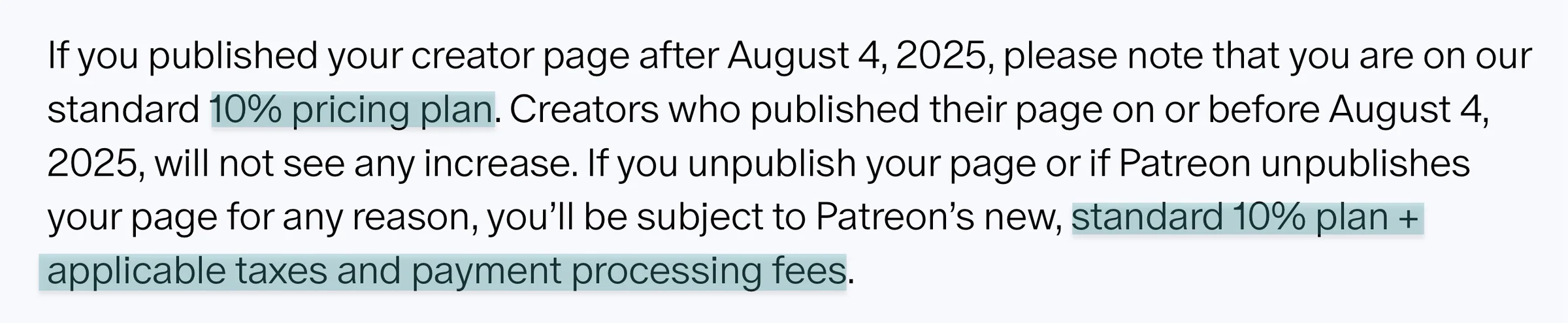
Patreon focuses more on recurring support through memberships and charges new creators a 10% platform fee, so a $20 membership payment would mean $2 in platform fees before processing.
For example, if someone sends you $20, Easytools’ Starter plan charges a 3% transaction fee, which comes to $0.60. You’re left with $19.40 before payment processing fees.
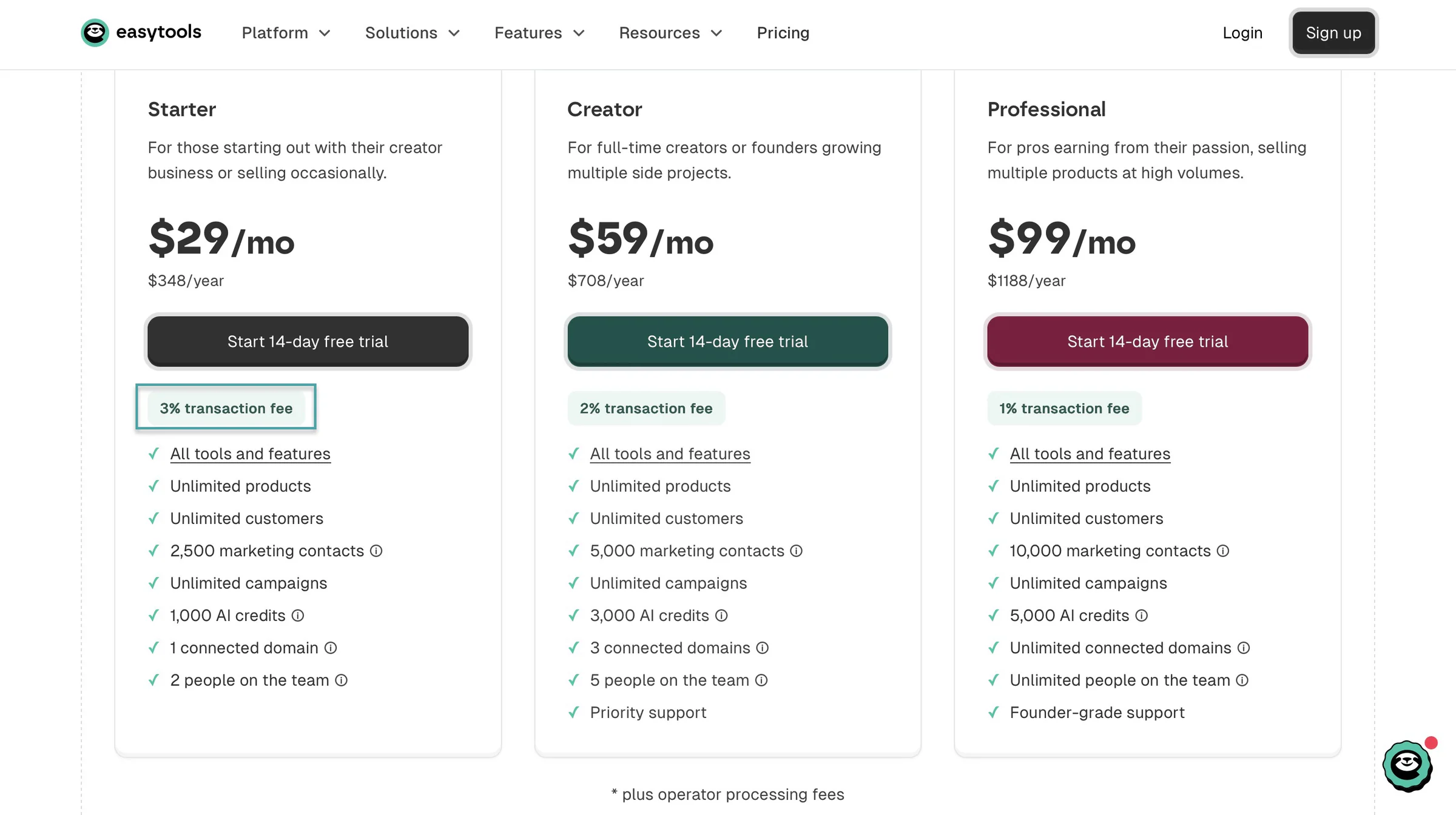
But the thing with Easytools is that you can do more than collect donations - you can use the same platform to sell digital products. And you can create unlimited checkouts and run unlimited campaigns on any of its plans.
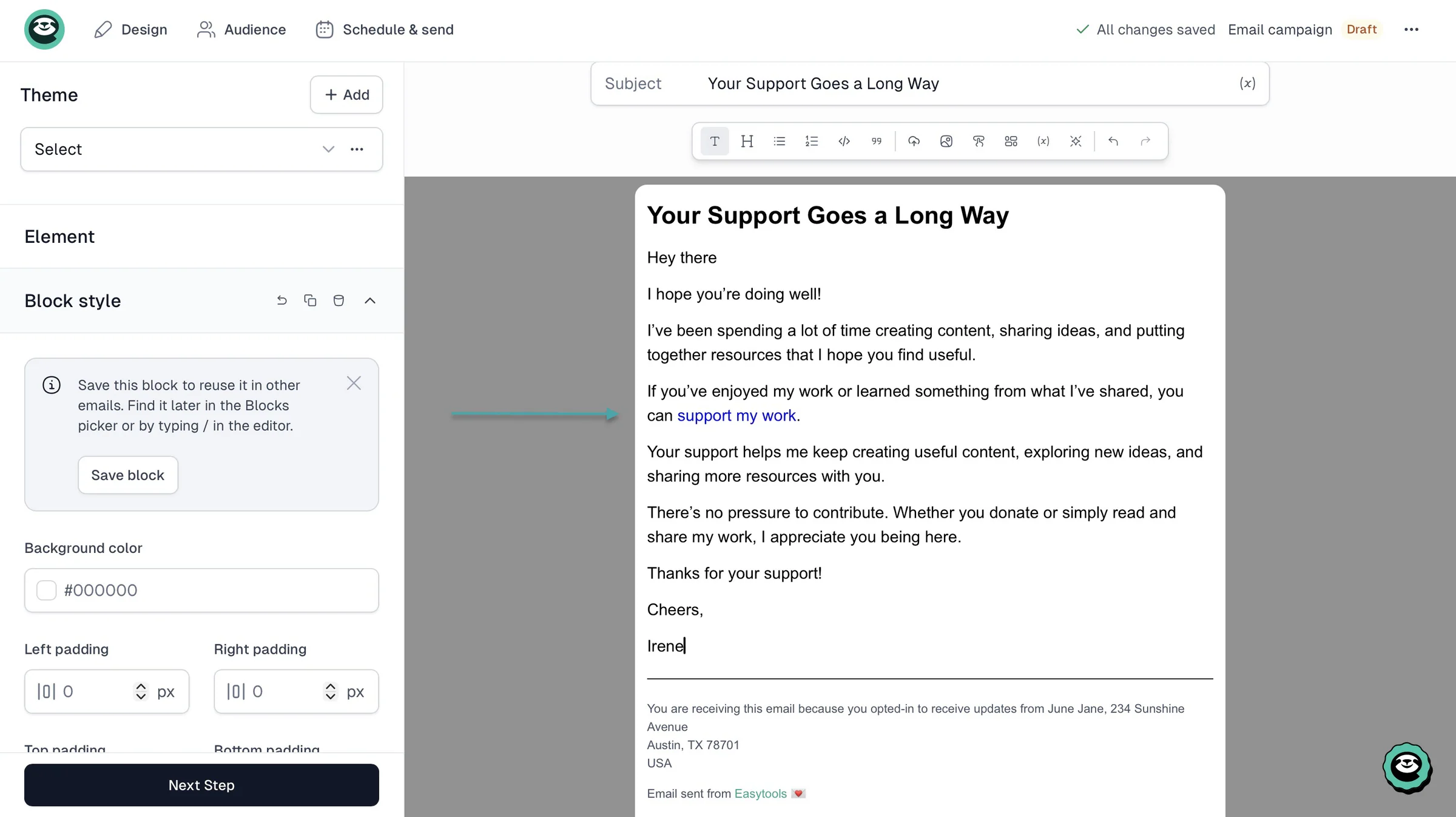
When you run email campaigns you can add the checkout URL as a hyperlink. You can also automate follow-ups with customers.
So, think about what you want to do with the support you receive. If you only need a simple tip jar, a basic donation platform may be enough.
But if you want to turn that support into a business with products and marketing, compare what each platform lets you do for the fees you pay.
3. Think about where your business is going
Your business’ future and goals can help you choose the right Ko-fi alternative.
You might only want a simple way to accept donations today, but eventually you may want to do more with your audience.
For example, maybe you’re a writer on Medium who starts by accepting tips from readers.
A few months later, you decide to sell e-books, offer paid memberships, or create a newsletter with exclusive content. You’ll want a platform that can support those plans without forcing you to move everything to another platform.
You can start by accepting donations, then expand into selling digital products.
You can also use email campaigns and automations to stay in touch with customers and promote new products.
Of course, you might not need all these features. If you only want a tip jar for people who enjoy your work, a simple platform could be enough.
But if you see yourself building a business around your content, products, or community, think about what you’ll need six months or a year from now.
Take Kamila Paradowska, a web writer and writing coach, for example.
After making $13,000+ in a single day with her UX writing course, she expanded her offer with an e-book to attract new participants to her Good Content Academy.

Like Kamila, you might start with one product and expand your offer as your business grows.
Choosing a platform that supports those plans can save you the trouble of switching when your needs change.
4. Look at the customer experience
Finally, the right Ko-fi alternative will make it easy for people to support your work.
If someone has to jump through hoops just to send you a donation, they might give up before completing the payment.
Look for a platform that offers a smooth checkout, supports the payment methods your audience uses, and works well on mobile devices.
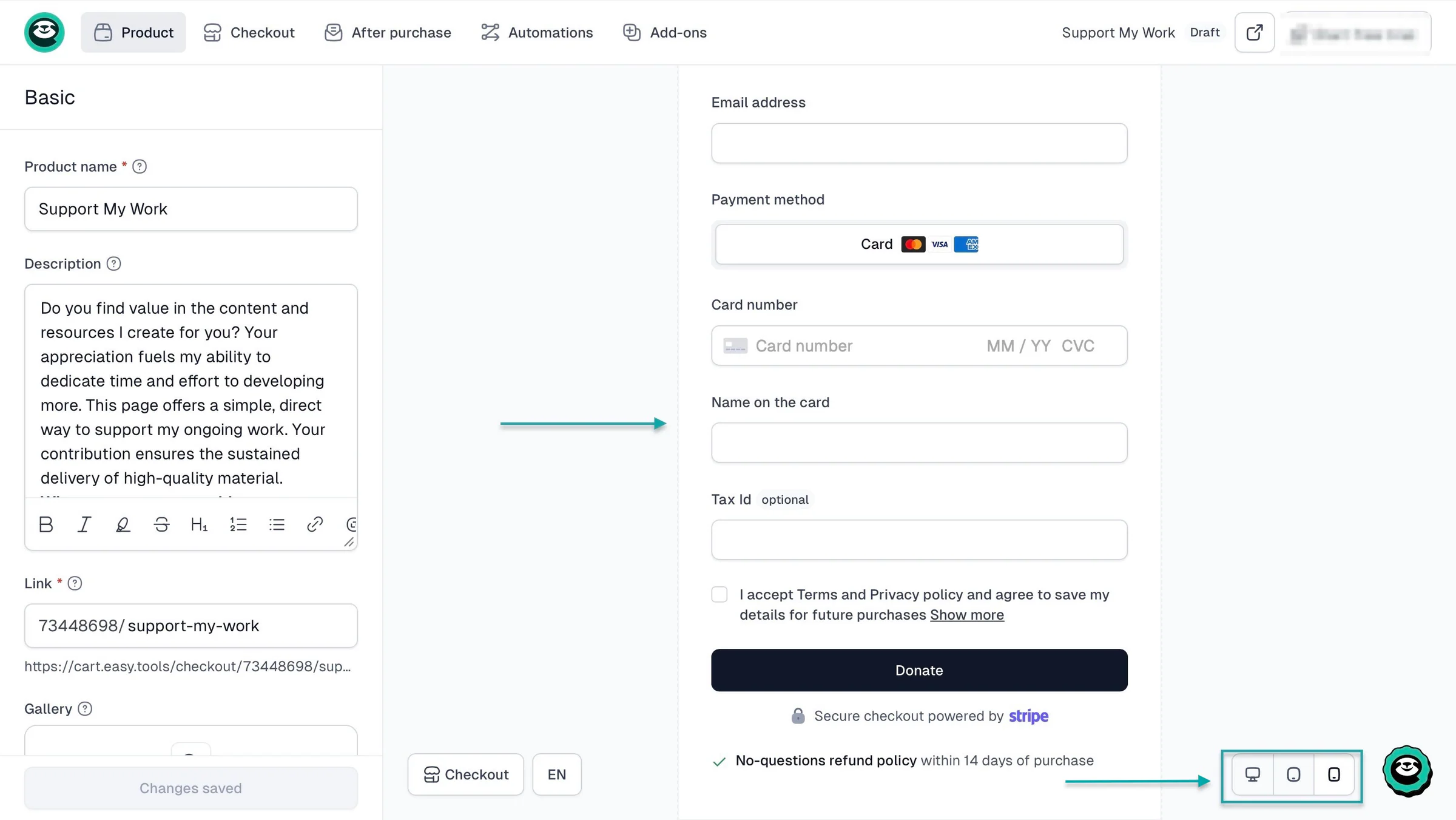
Also, think about what happens after someone donates.
You want to keep in touch with supporters, tell them about your latest work, or let them know when you launch a new product.
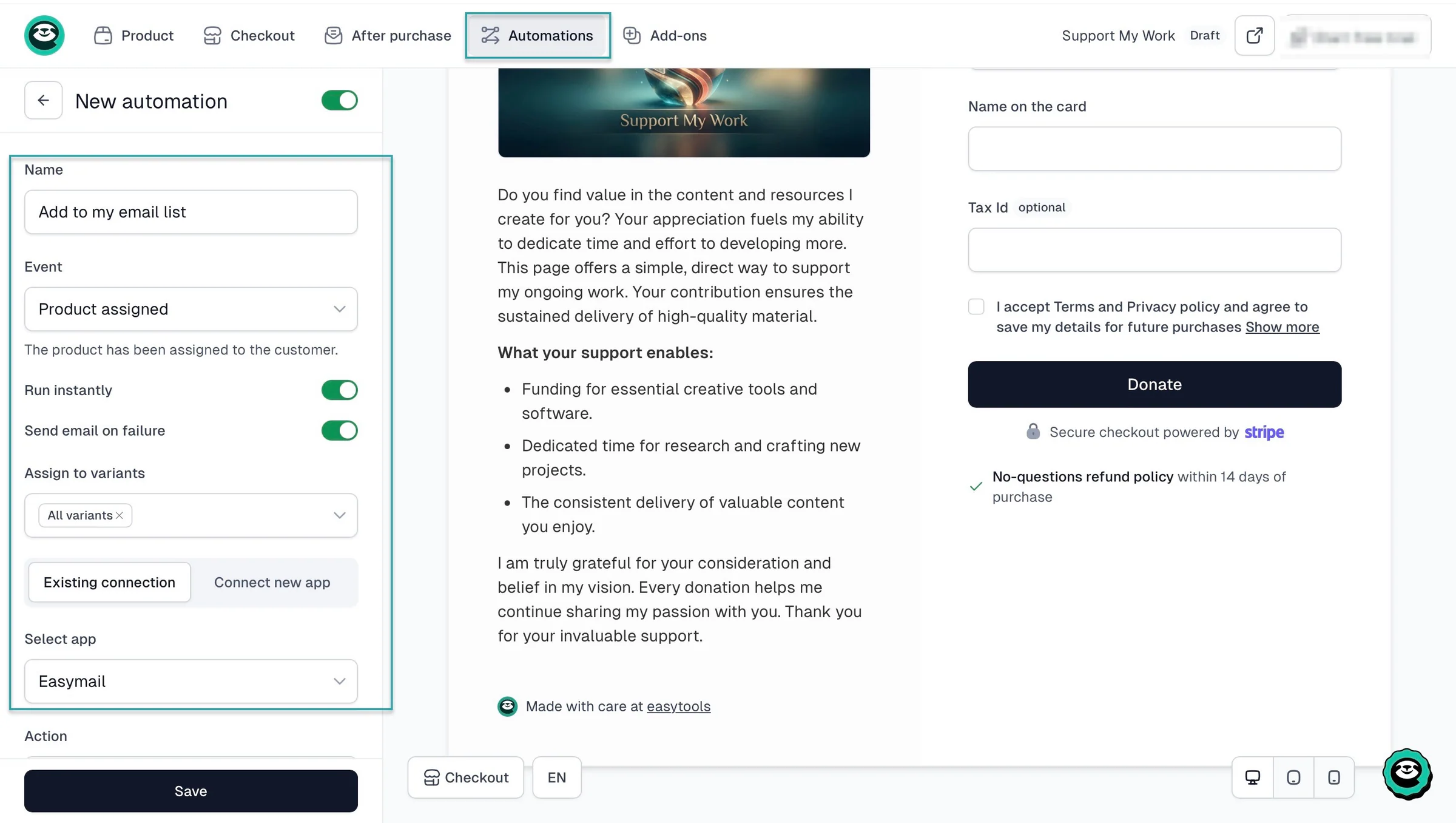
The right Ko-fi alternative will make supporting your work easy and give people a reason to come back.
So choose a platform that makes the experience straightforward for your supporters while helping you build lasting relationships with them.
Choose the best Ko-fi alternatives
The best Ko-fi alternatives do more than just help you accept tips and donations.
Easytools, for example, lets you sell digital products, create memberships, creator pages, websites, offer upsells, and run email marketing campaigns and automations, all from one platform.
So, look beyond donations and choose a platform based on how you want to make money, the fees involved, your business growth plans, and the experience you want to give your customers.
This article has all the pro tips you need to make that decision.
Frequently asked questions about Ko-fi alternatives
What are the best Ko-fi alternatives?
The best Ko-fi alternatives are Easytools, Buy Me a Coffee, Patreon, Big Cartel, Payhip, and Fourthwall. Easytools lets you create a product checkout to accept donations. You can also connect a Buy Me a Coffee-style widget to an actual digital product, which you can then add to your website.
Do Ko-fi alternatives offer free trials?
Yes, Ko-fi alternatives like Easytools and Big Cartel offer free trials. Easytools, for example, offers a 14-day free trial on all its plans, while Big Cartel offers a 7-day free trial.
What are the best Ko-fi alternatives for creators?
The best Ko-fi alternatives for creators are Easytools, Buy Me a Coffee, Patreon, Big Cartel, Payhip, and Fourthwall. Apart from using Easytools to accept donations, you can market and sell digital downloads (e-books, PDFs, SaaS, templates, planners, and checklists), services, events, and webinars.
Can I sell digital products with Ko-fi alternatives?
Yes, you can sell digital products with Ko-fi alternatives. To sell more on Easytools, for example, you can add cross-sells, upsells, order bumps, countdown timers, testimonials and more. Easytools has an MCP server, so you can automate selling with AI agents while focusing on creating more products.
Can I build a membership with Ko-fi alternatives?
Yes, you can build a membership with Ko-fi alternatives. Easytools, for example, integrates with Discord and Circle. So you can sell memberships and subscriptions on Easytools.
Which Ko-fi alternatives have the lowest fees?
The Ko-fi alternatives with the lowest fees are Big Cartel, Easytools, Buy Me a Coffee, Payhip, and Fourthwall. Big Cartel doesn’t charge transaction fees on any of its plans. Easytools charges 2% and 1% on its Creator and Professional plans, but that’s because it offers all the features you need to run a successful online business.
Do Ko-fi alternatives offer email marketing features?
Yes, Ko-fi alternatives like Easytools and Payhip offer email marketing features. Easytools, for example, collects customers’ email automatically at checkout. You can build your email list as you sell. You can also add newsletter sign-up forms on your creator page and website to collect emails for your campaigns.
Can I use Ko-fi alternatives without a website?
Yes, you can use Ko-fi alternatives without a website. On Easytools, for example, you can copy the URL of your checkout and share it on social media to attract buyers. And Easytools offers a creator page that shows customers more about your brand, your social media handles, and the products you have on sale.