Online business
The 20 best email marketing platforms for creators in 2026! We tested them all!
Looking for the best email marketing platforms? We tested 50 tools and picked the 20 best for creators, comparing automations, landing pages, subscriber management, analytics, monetization features, and pricing, plus tips on choosing the right one for your business.

Even after you’ve created your digital products, you need to let people know what you’re offering.
A creator page, a website, social media posts, or a blog post can help with that. But you can’t always count on social media algorithms to show your posts to your followers.
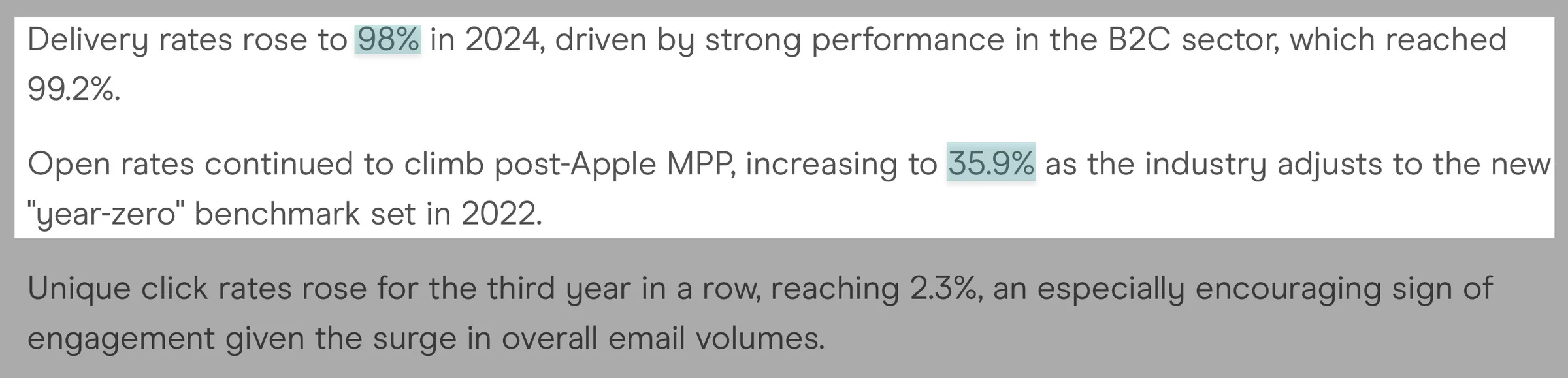
Email marketing lets you reach people who have subscribed to hear from you. In 2024, 98% of marketing emails were successfully delivered, with an average open rate of 35.9%.
The only challenge is finding the best email marketing platforms.
That’s why my team and I tested 50 of them and found 20 worth your time. In this article, I’ll talk about these email marketing platforms.
I’ll also help you choose the right ones for your business. Keep reading.
TL;DR
-
Email marketing platforms are tools that let you collect email addresses, send newsletters, promote products and services, and keep in touch with your customers. You can also use them to automate emails, manage your subscribers, and track how your campaigns perform.
-
The best 20 email marketing platforms are:
- Easytools
- Kit
- MailerLite
- Mailchimp
- Omnisend
- AWeber
- Brevo
- ActiveCampaign
- GetResponse
- beehiiv
- Flodesk
- Drip
- Klaviyo
- Constant Contact
- Sender
- EmailOctopus
- Campaign Monitor
- Moosend
- Substack
- SendPulse
-
To choose the right email marketing tool, you should
- Consider what you want to achieve
- Look for built-in selling and monetization features
- Consider landing pages and signup forms
- Compare email automation features
How we chose the email marketing platforms on our list
Here’s how we selected the email marketing platforms on our list:
- We chose platforms that offered features to create and run email marketing campaigns, build landing pages, set up automations, import and export subscribers, and integrate with other tools.
- We also selected email marketing platforms that offered different monetization options beyond promoting products through emails. We looked for tools that let you sell digital products, services, subscriptions, and more.
- Creators like you and others may start their online businesses on a tight budget, so we chose and tested email marketing platforms that offered free plans or cost-effective starter packages without too many limitations.
- Finally, we considered email marketing platforms that offered free trials so you can test their features before fully committing to a paid plan.
Best email marketing platforms compared
| Email marketing platform | Automation capabilities | Landing pages and signup forms | Subscriber management | Campaign reporting and analytics | Starting plan | Best for |
|---|---|---|---|---|---|---|
| Easytools | Automate emails after purchases or signups. Add delays, branches, and audience filters. Separate checkout scenarios handle events such as subscription cancellations and expired access. | AI-generated product landing pages, multi-page websites, contact forms, creator pages, and newsletter signups. | Unlimited customers and products; organize marketing contacts by purchases, spending, promo codes, and subscription plans. | Track email opens, clicks, unsubscribes, and sales attributed to campaign checkout links. | Starter: $29/month + 3% transaction fee + unlimited products, customers, and email campaigns + 2,500 marketing contacts | Digital-product creators who want to manage sales and email marketing together. |
| Kit | Welcome sequences, visual workflows, purchase triggers, tags, and conditional paths. | Landing pages, opt-in forms, newsletter websites, and lead magnets. | Import/export contacts, tags, segments, custom fields, and subscriber profiles. | Opens, clicks, subscriber growth, conversions, and commerce reporting. | Free: $0/month + up to 10,000 subscribers + unlimited landing pages and forms + unlimited email broadcasts. | Newsletter writers, bloggers, educators, and creators selling digital products. |
| MailerLite | Welcome emails, visual workflows, delays, subscriber actions, and e-commerce triggers. | Landing pages, websites, pop-ups, embedded forms, and lead magnets. | CSV imports, groups, dynamic segments, subscriber profiles, and preferences. | Opens, clicks, click maps, automation reports, and e-commerce tracking. | Free: $0/month, up to 250 subscribers and 2,500 emails/month. | Bloggers, freelancers, and small businesses that need email marketing and website tools on a budget. |
| Mailchimp | Welcome journeys, behavioral triggers, abandoned-cart follow-ups, and conditional workflows on eligible plans. | Landing pages, pop-up and embedded forms, website builder, and signup integrations. | Contact imports, tags, segments, audience profiles, and purchase-based targeting through integrations. | Opens, clicks, campaign comparisons, conversions, and e-commerce revenue attribution. | Free: $0/month, 250 contacts and 500 emails/month. | Small businesses and marketing teams that want email campaigns and broader marketing integrations. |
| Omnisend | Welcome workflows, abandoned carts, browse abandonment, post-purchase emails, and email/SMS automation. | Pop-ups, embedded forms, landing pages, and targeted signup forms. | Contact imports, purchase history, customer segments, browsing behavior, and engagement targeting. | Campaign sales, revenue attribution, email/SMS performance, and automation reports. | Free: $0/month, up to 250 contacts and 500 emails/month. | Online stores that want to recover abandoned carts and run email and SMS campaigns. |
| AWeber | Autoresponders, welcome sequences, tagging, subscriber-triggered campaigns, and follow-ups. | Landing pages, embedded signup forms, pop-ups, and website integrations. | Contact imports, tags, subscriber profiles, list management, and segmentation. | Opens, clicks, subscriber activity, and campaign performance. | Free: $0/month, up to 500 subscribers and 3,000 emails/month. | Solopreneurs, coaches, bloggers, and small businesses that want newsletters and autoresponders. |
| Brevo | Welcome emails, contact-triggered workflows, transactional messages, and behavioral automation. | Sign-up forms, landing pages on eligible plans, and website integrations. | Contact imports, custom attributes, dynamic segments, CRM records, and consent management. | Opens, clicks, campaign performance, conversions, and automation reporting. | Free: $0/month, 300 emails/day. | Businesses that want email, SMS, transactional messaging, and CRM features. |
| ActiveCampaign | Multistep workflows, lead scoring, conditional branching, behavior-based triggers, and CRM automation. | Sign-up forms, landing pages on eligible plans, and website-builder integrations. | Contact imports, tags, lists, custom fields, segments, and CRM-linked records. | Campaign engagement, automation performance, contact activity, and conversion attribution on eligible plans. | Starter: $15/month + 1,000 contacts | Growing businesses that need detailed customer journeys, lead nurturing, and sales automation. |
| GetResponse | Welcome sequences, custom workflows, abandoned-cart recovery, and advanced segmentation on eligible plans. | Landing pages, signup forms, pop-ups, and funnel-building tools. | Contact imports, lists, segments, custom fields, and engagement targeting. | Opens, clicks, campaign engagement, conversions, and revenue reports on eligible plans. | Starter: from $15/month + unlimited monthly email sends. | Businesses that want email marketing, lead-generation funnels, and automated customer follow-ups. |
| beehiiv | Welcome sequences, audience-based workflows, and advanced email automations on paid plans. | Hosted newsletter websites, subscription forms, custom domains, and website-building tools. | Subscriber imports, audience segments, referrals, recommendations, and publication management. | Newsletter opens, clicks, subscriber growth, referrals, and website analytics on eligible plans. | Free: $0/month + unlimited email sends + up to 2,500 subscribers. | Newsletter publishers and media creators focused on growing and monetizing an audience. |
Best email marketing platforms
The first 6 of the best email marketing platforms are:
- Easytools
- Kit
- MailerLite
- Mailchimp
- Omnisend
- AWeber
Let’s look at what each email marketing tool offers, its key features, pros, cons, who it’s best for, and how much it costs.
1. Easytools - Best all-in-one solution for selling and marketing digital products
- Personal rating: ⭐️⭐️⭐️⭐️ 4.8/5 - Offers a lot of monetization options and has built-in feature-specific analytics to help you track performance and see what’s bringing in sales.
- Ease of use: ⭐️⭐️⭐️⭐️ 4.9/5 - Being a no-code platform, it has an intuitive interface that makes its features easy to access without needing technical skills.
- AI capabilities: Uses AI to generate landing pages and website sections and edits and improves email content. With MCP, it lets you manage products, orders, subscriptions, analytics, and campaigns through an AI assistant using simple prompts. Has a built-in AI agent called Chilly that will answer all your questions instantly and creates email campaigns and automations from everyday language requests.
- Monetization options: Digital downloads, e-books, templates, online courses, webinars, live events, services, paid newsletters, memberships, subscriptions, software licenses, physical products, and access to exclusive content, tips, and donations.
- Free trial: Yes - a 14-day free trial on all of its paid plans
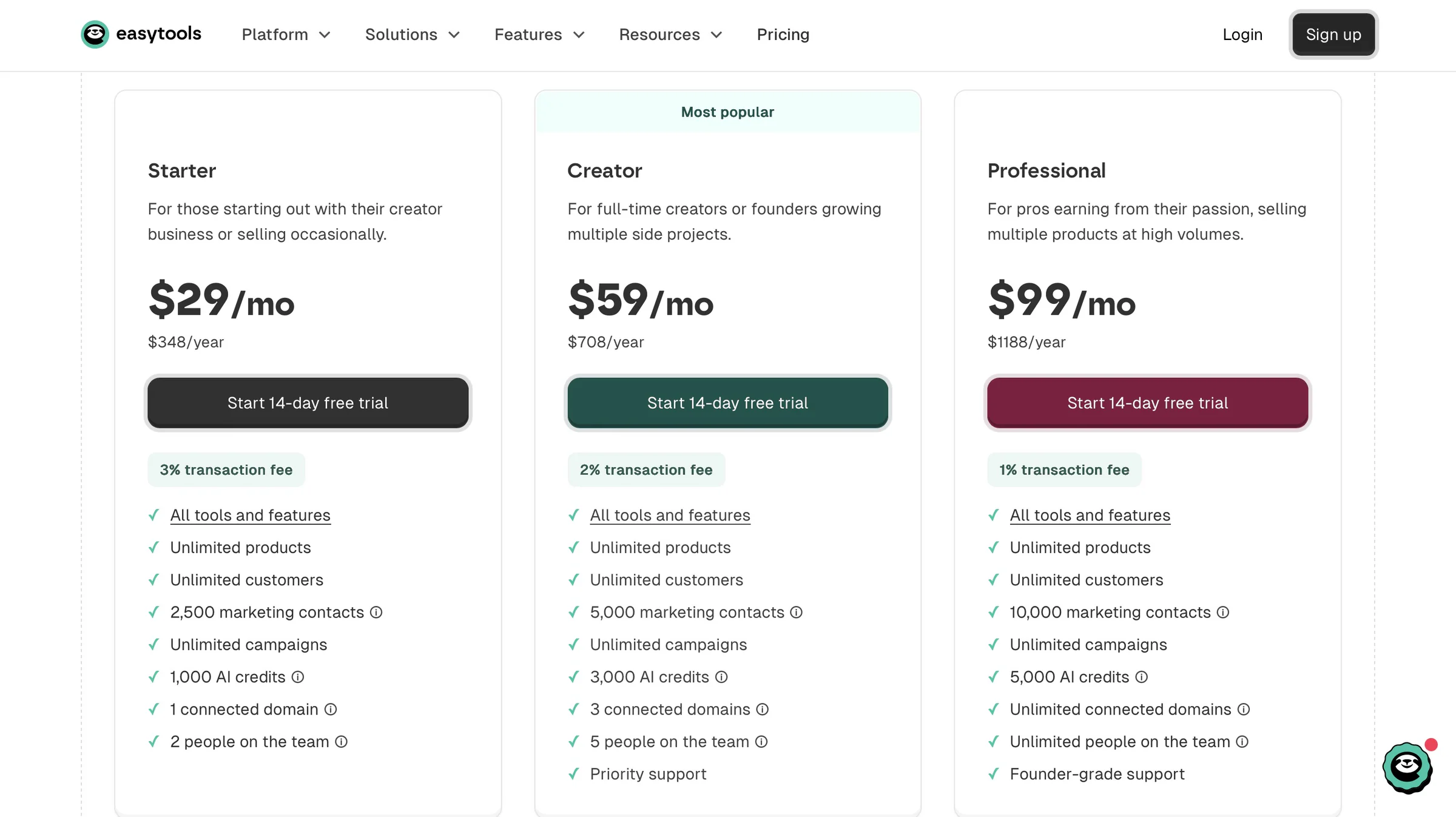
- Starting plan: Starter - $29/month + 3% transaction fee + unlimited products, customers, and campaigns.
Easytools is first on our list of the best email marketing platforms.
It’s an all-in-one platform that lets you sell digital products, courses, memberships, and subscriptions.
Easytools offers a website builder, email marketing tools, automations, and AI features to help you attract customers, promote your products, and grow your business without juggling many tools.
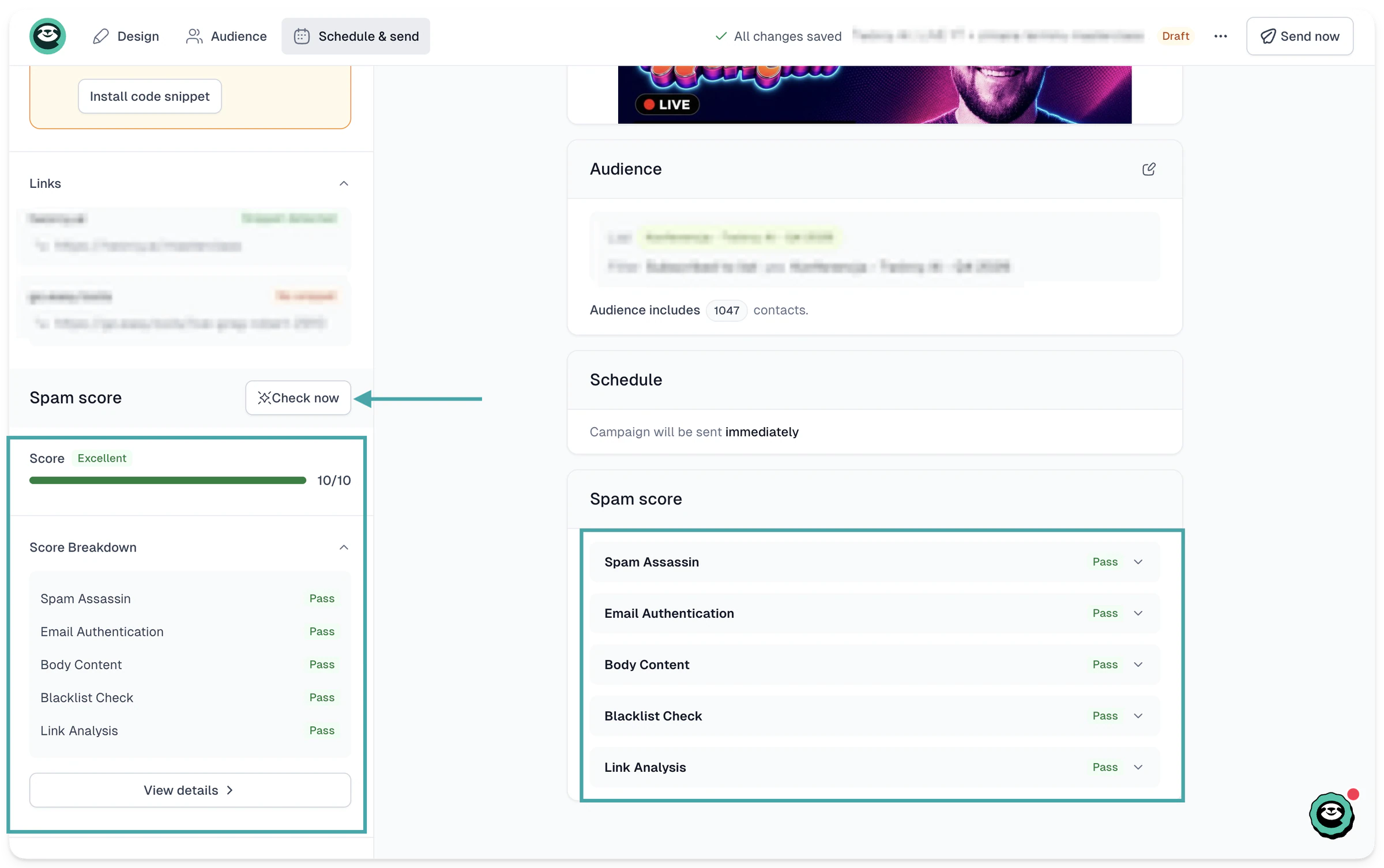
Easytools lets you create email campaigns to keep your subscribers updated about products, courses, and other offers you have for sale. You can also use the built-in spam score checker to make sure your emails and newsletters are delivered and don’t end up in your customer’s junk folder.
Easytools’ spam score checker will analyze your email content, check deliverability, and recommend changes to help improve the score.
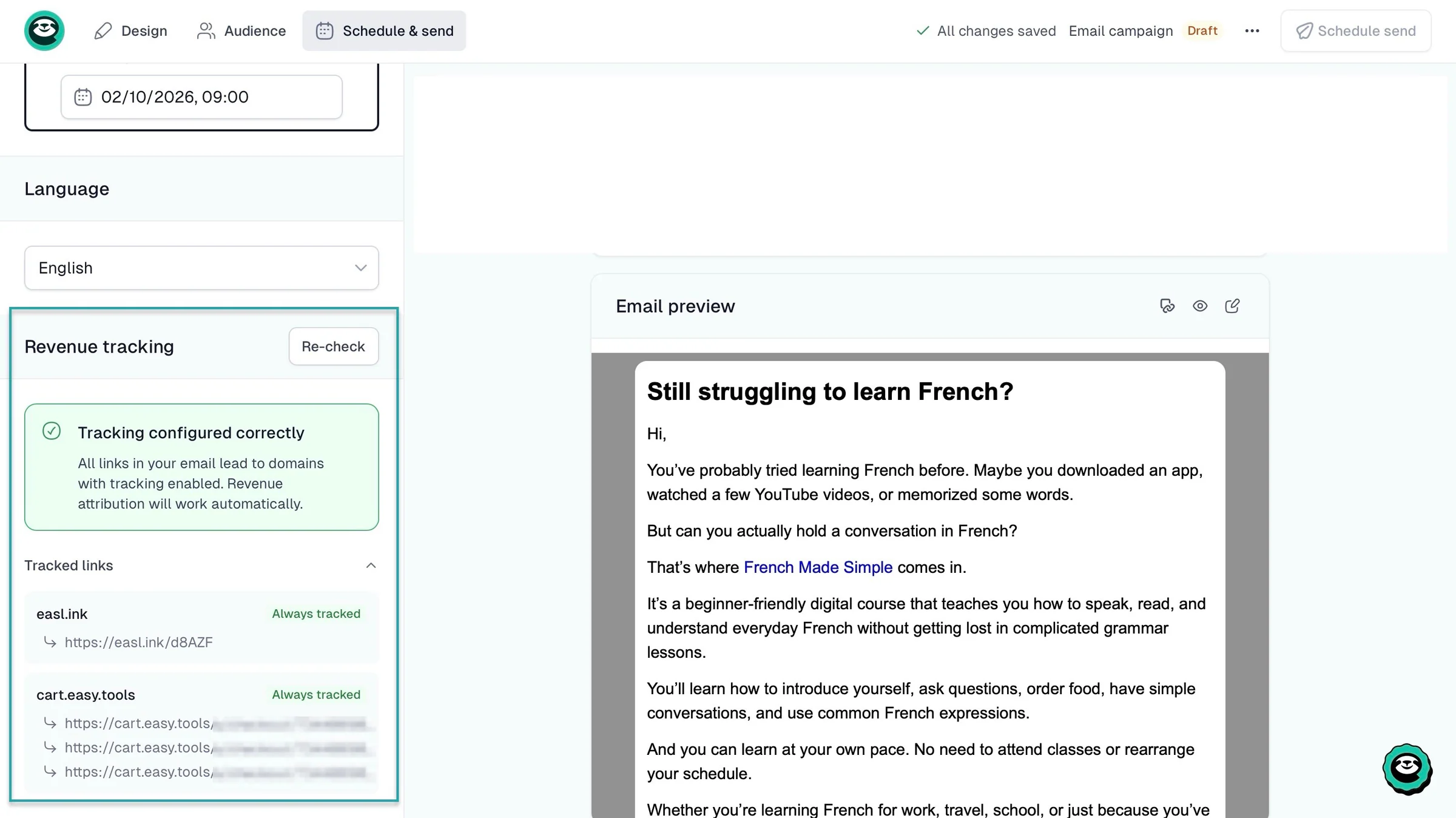
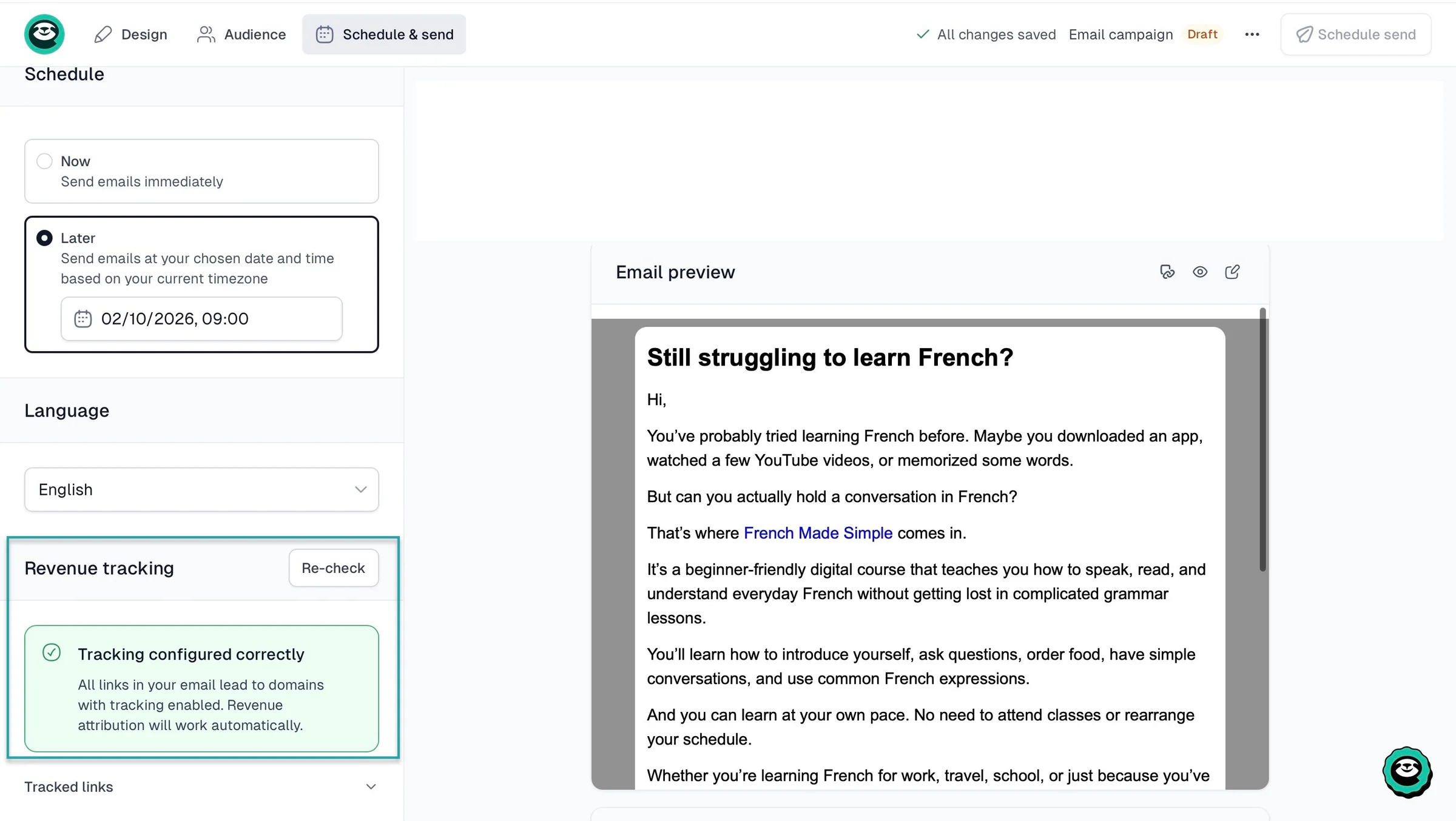
Add your Easytools checkout URL to an email, and the platform will track the revenue that campaign generates. This helps you see which emails are actually bringing in sales instead of guessing.
You can also create conversion-optimized checkouts with upsells, cross-sells, testimonials, price variants, and order bumps to encourage customers to buy more.
When someone new buys from you, Easytools will automatically add them to your email list.
You can target them in future email campaigns based on their buying activity.
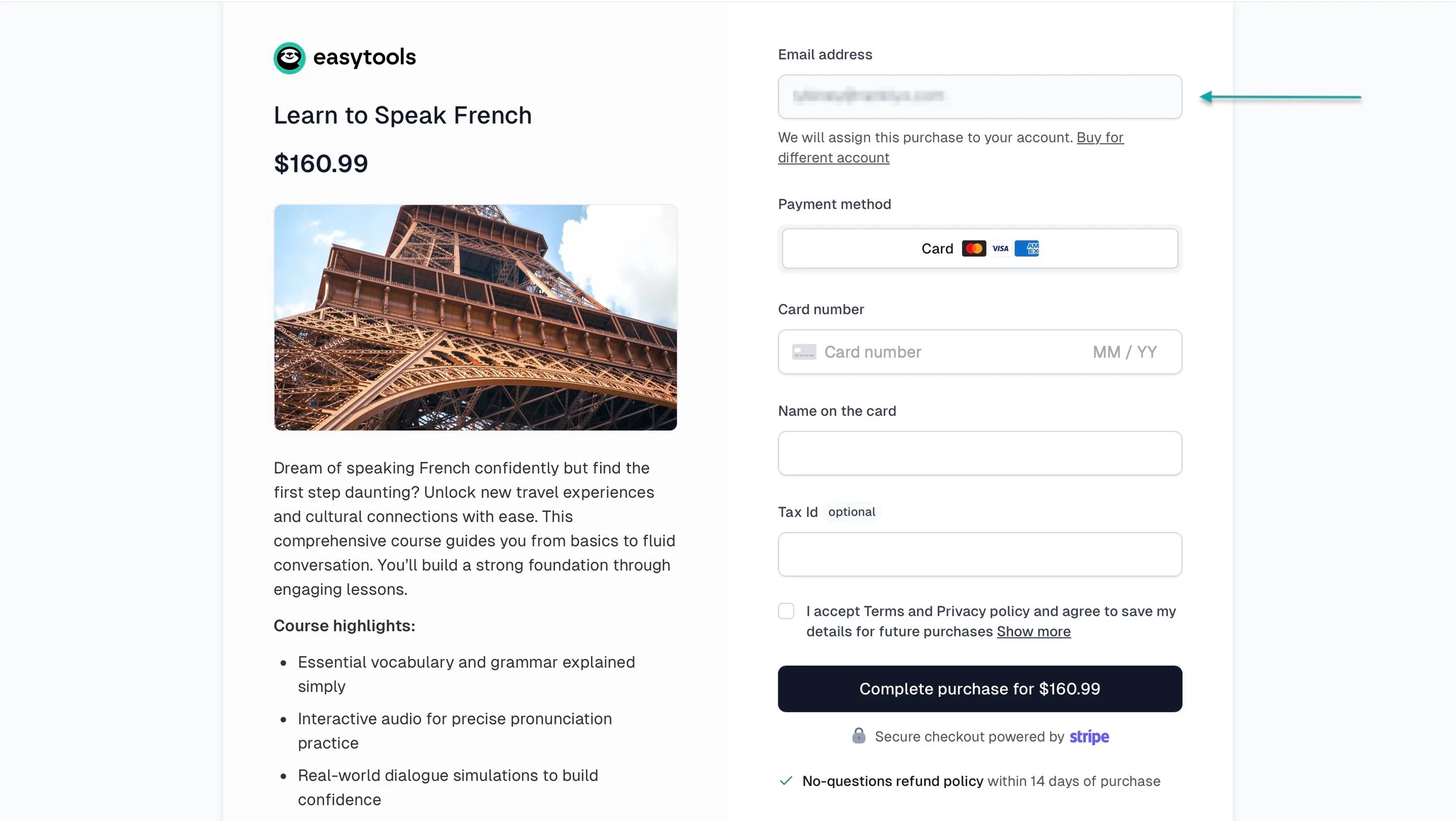
You can add your subscribers manually or import them through a CSV file.
You can also set up automations to send them emails when specific things happen, like when they buy a product or opt to be on your waitlist. You can also use subscription-related events to trigger follow-ups, helping you keep customers informed and encourage them to stay subscribed.
Easytools lets you create creator pages, landing pages, and multi-page websites, too. On your Easytools multi-page website, you can add an About Us page, FAQs, product pages, and a contact page.
You can also add a newsletter signup form to collect leads.
And there’s also a dedicated email automation feature where you can build workflows using triggers and actions.
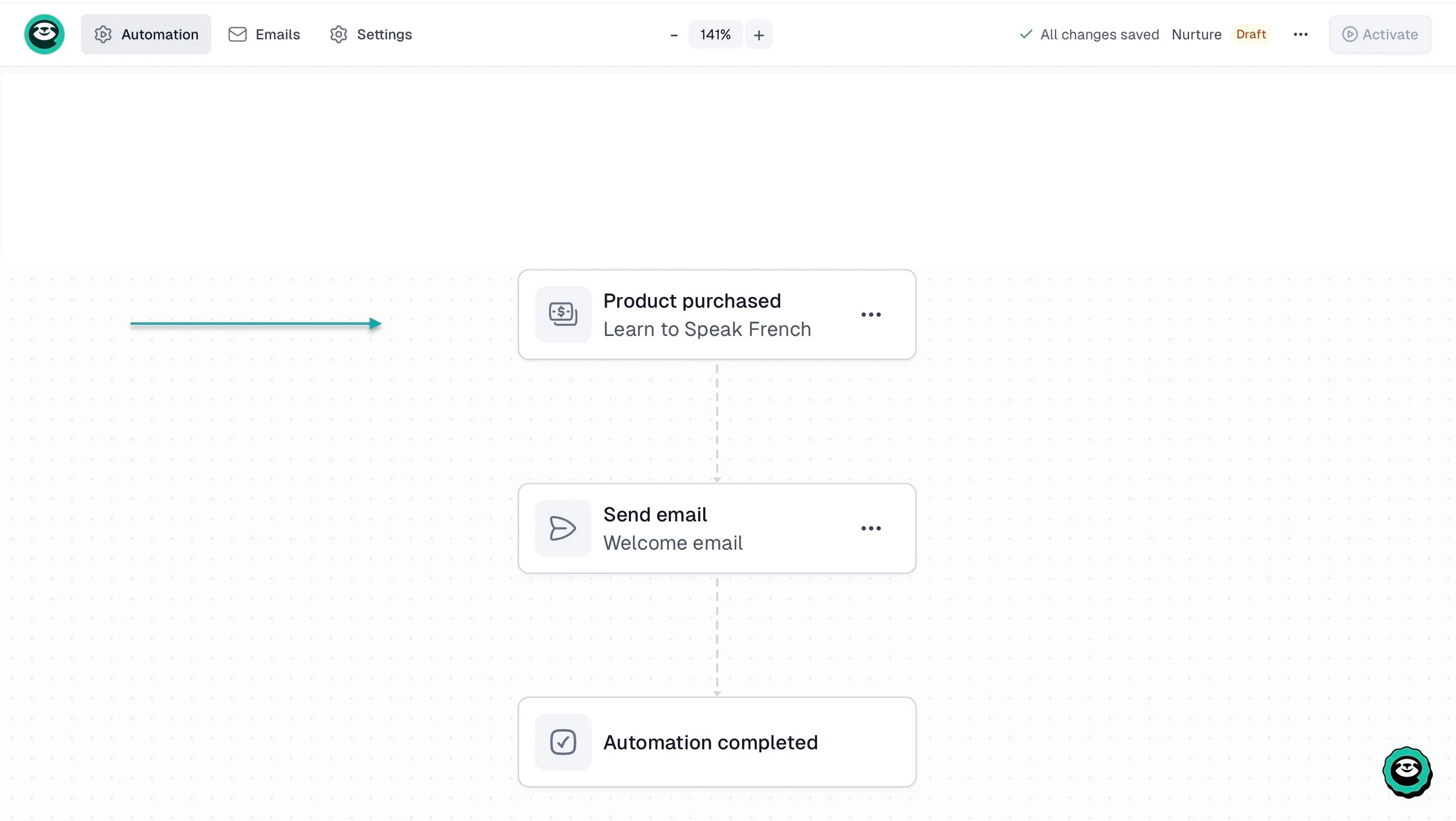
For example, you could set up an automation to send a welcome email after someone buys your product, followed by another email promoting a related offer.
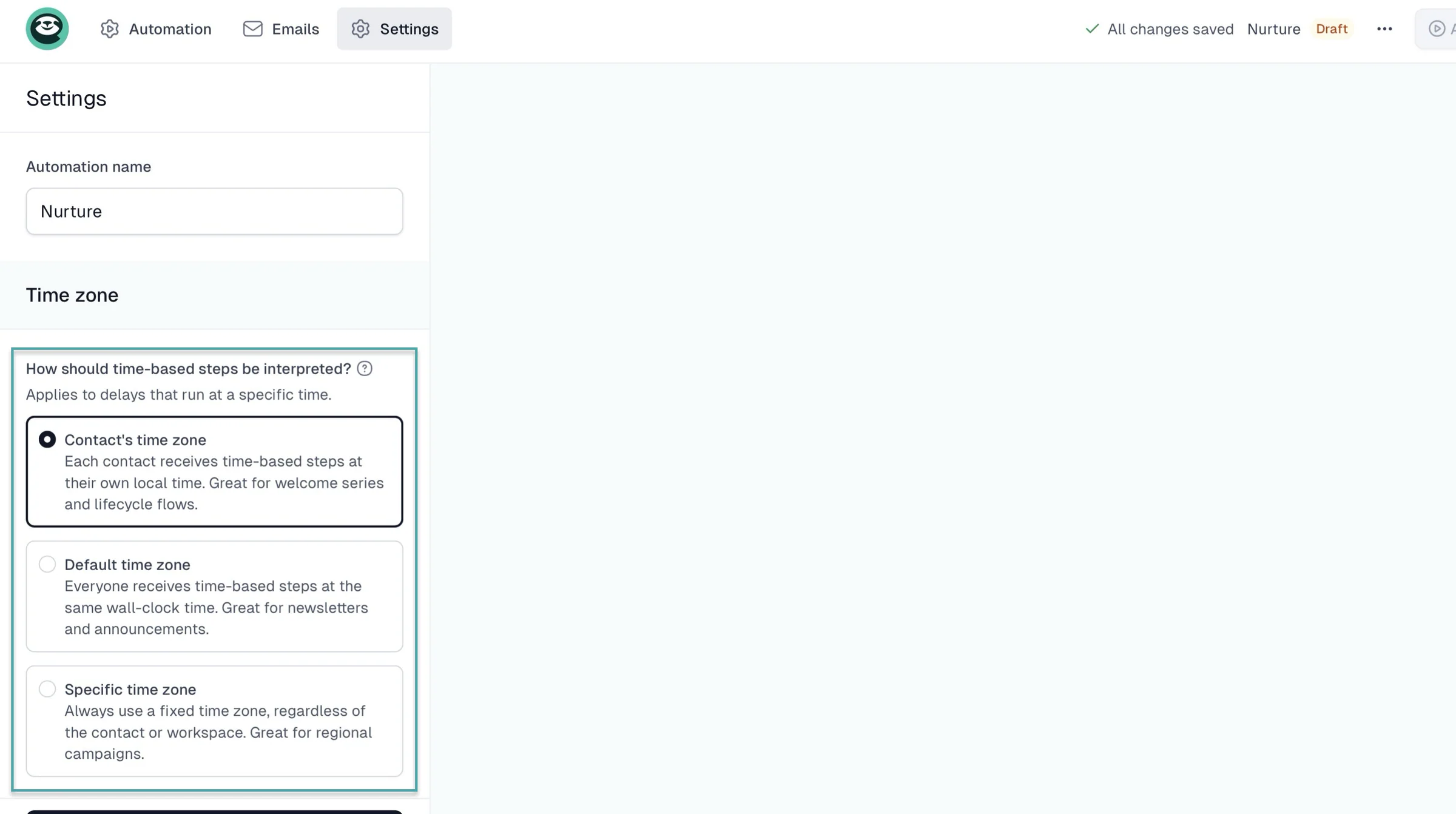
You can also add delays between emails to give customers time to read your messages before receiving the next one. This way, you can automate follow-ups (based on the customer’s timezone or a specific one) instead of manually emailing every customer.
What I loved about Easytools
1. Campaigns
With Easytools’ campaigns feature, you can create and send newsletters, automate emails, track revenue, and segment your audience.
Let me show you how the email automation feature works.
Select “Campaigns” and choose “Automations.” In the pop-up, enter a name for your automation and click “Create.”
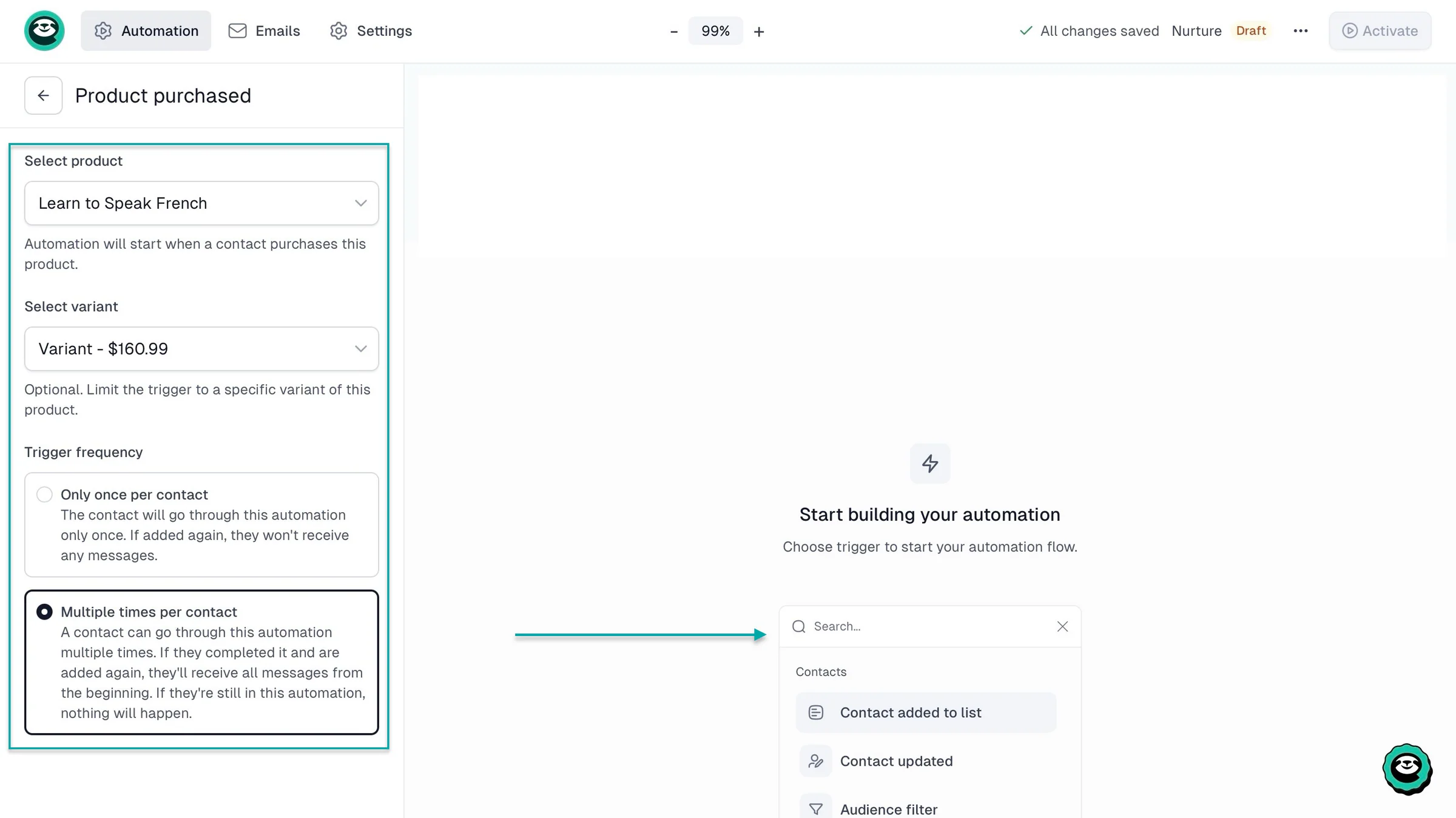
In the new window, choose a trigger to start the workflow. Let’s go with “Product purchased.”
Now, select the checkout product, choose which variant the trigger should apply to, and set how often it can run.
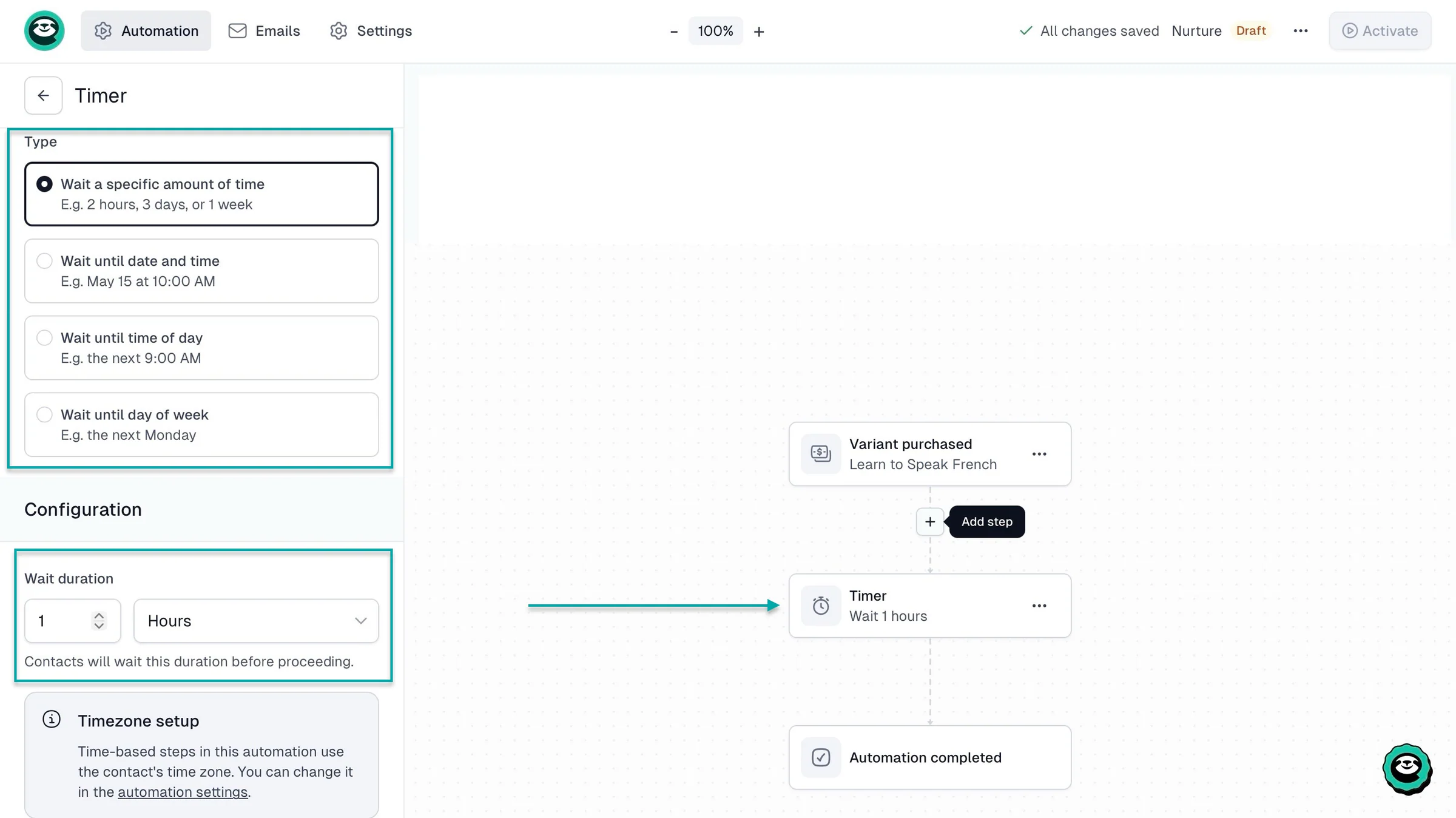
To add another step, hover your cursor between the workflow nodes and click the plus (+) sign. Let’s select “Timer” and set how long the automation should wait before moving to the next step.
This is useful if you want to give customers some time before sending them a follow-up email instead of sending everything at once.
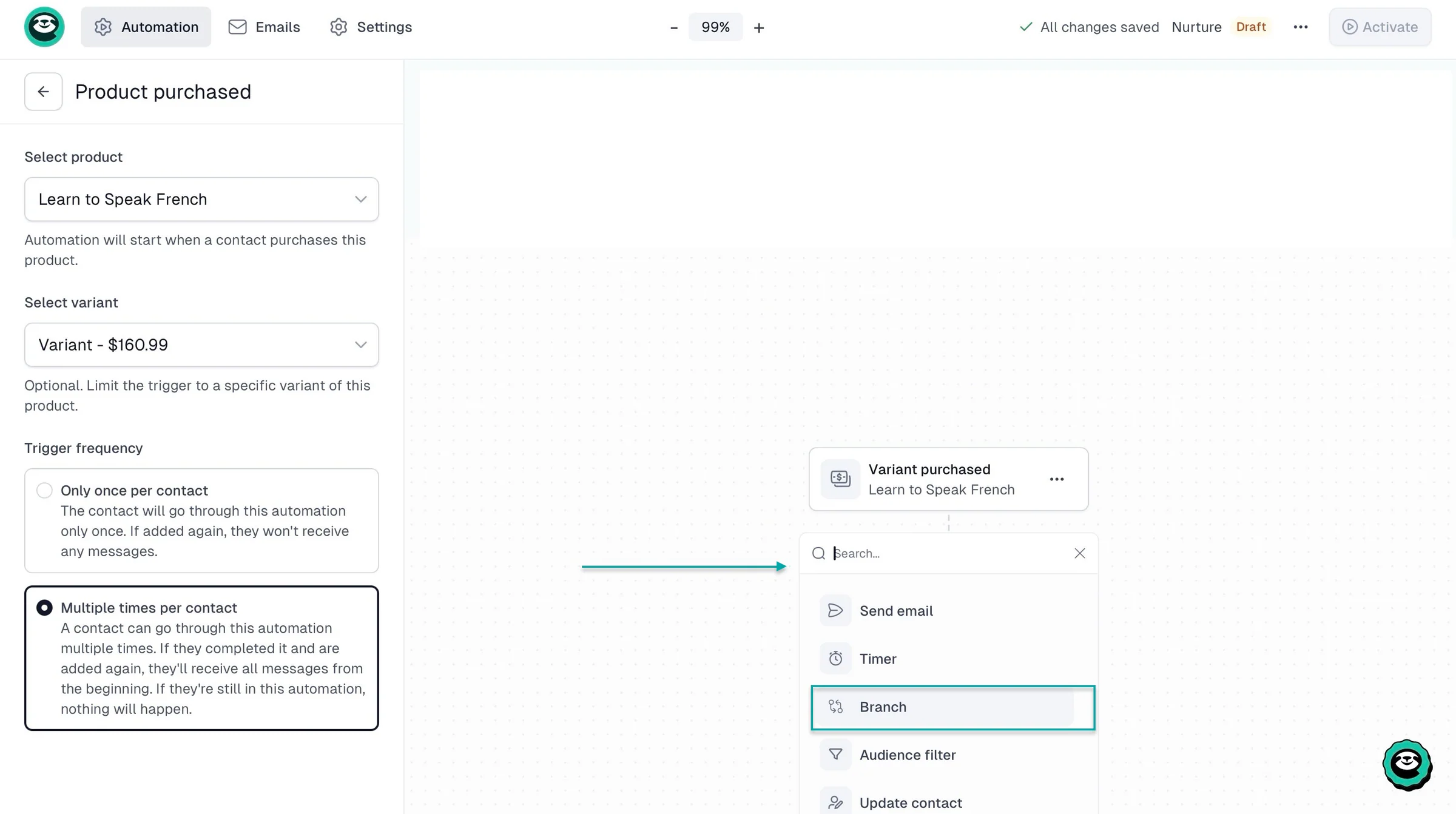
You can also add a “Branch” to create different paths in your workflow.
Click the three-dot menu (•••) and select “Configure” to set the condition and choose the audience segment it should apply to.
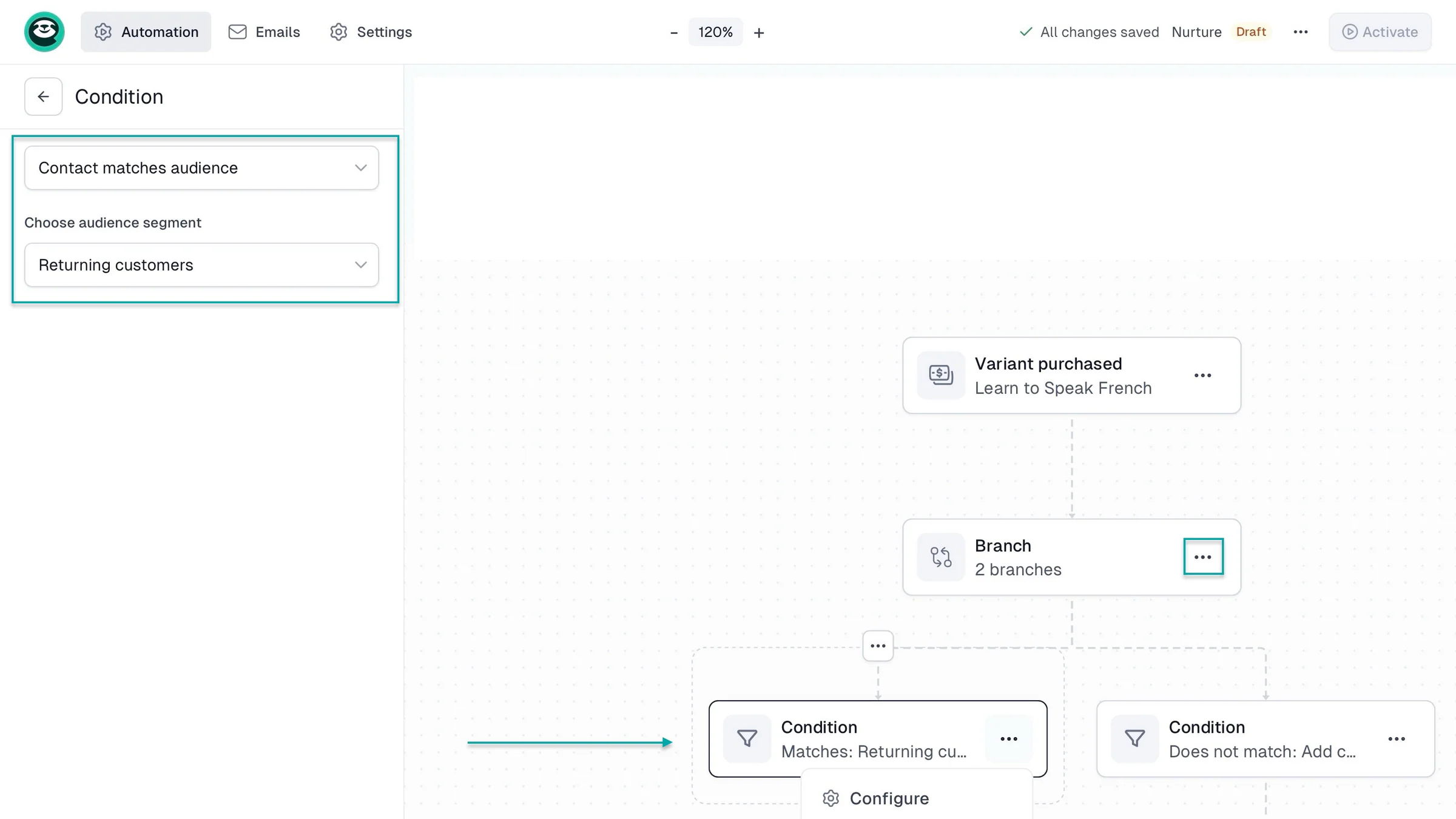
Keep adding steps until you’ve built the workflow you want. Once everything is ready, click “Activate” to turn on the automation so it can start running when customers meet your trigger conditions.
2. Sites
On Easytools, you can use AI to generate a landing page for a product after creating its checkout page. The landing page is designed specifically for that product to help you market it, encourage purchases, and capture leads through a contact form.
Here’s how to add a contact form to your landing page.
After creating your checkout page, select “Sites” in the sidebar and click “Websites.” Then click “+ New website,” enter the project name, and click “Create.”
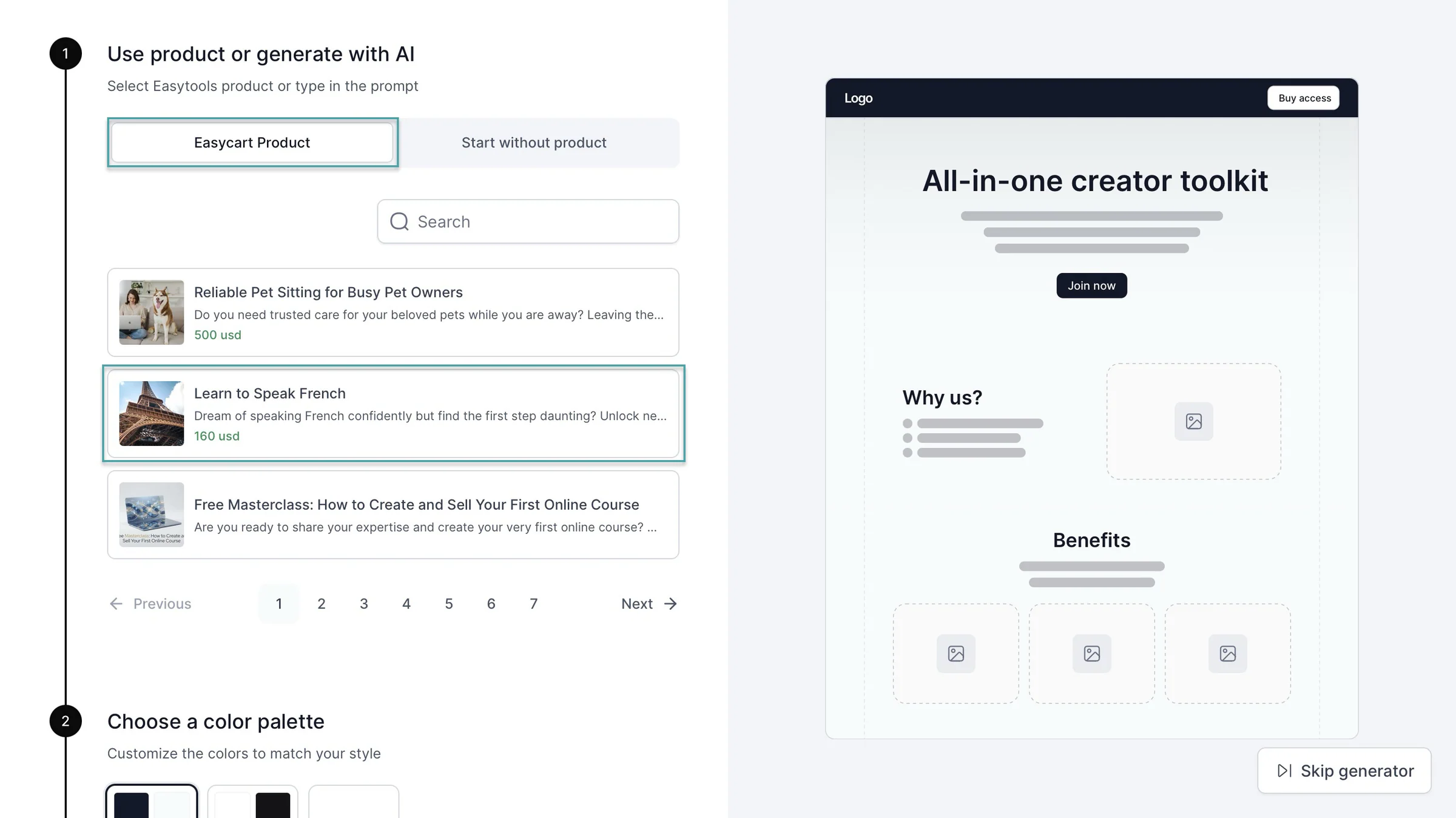
In the new window, leave the selection set to “Easycart Product” and choose a product checkout. Then scroll down, choose a color palette, and click “Generate.”
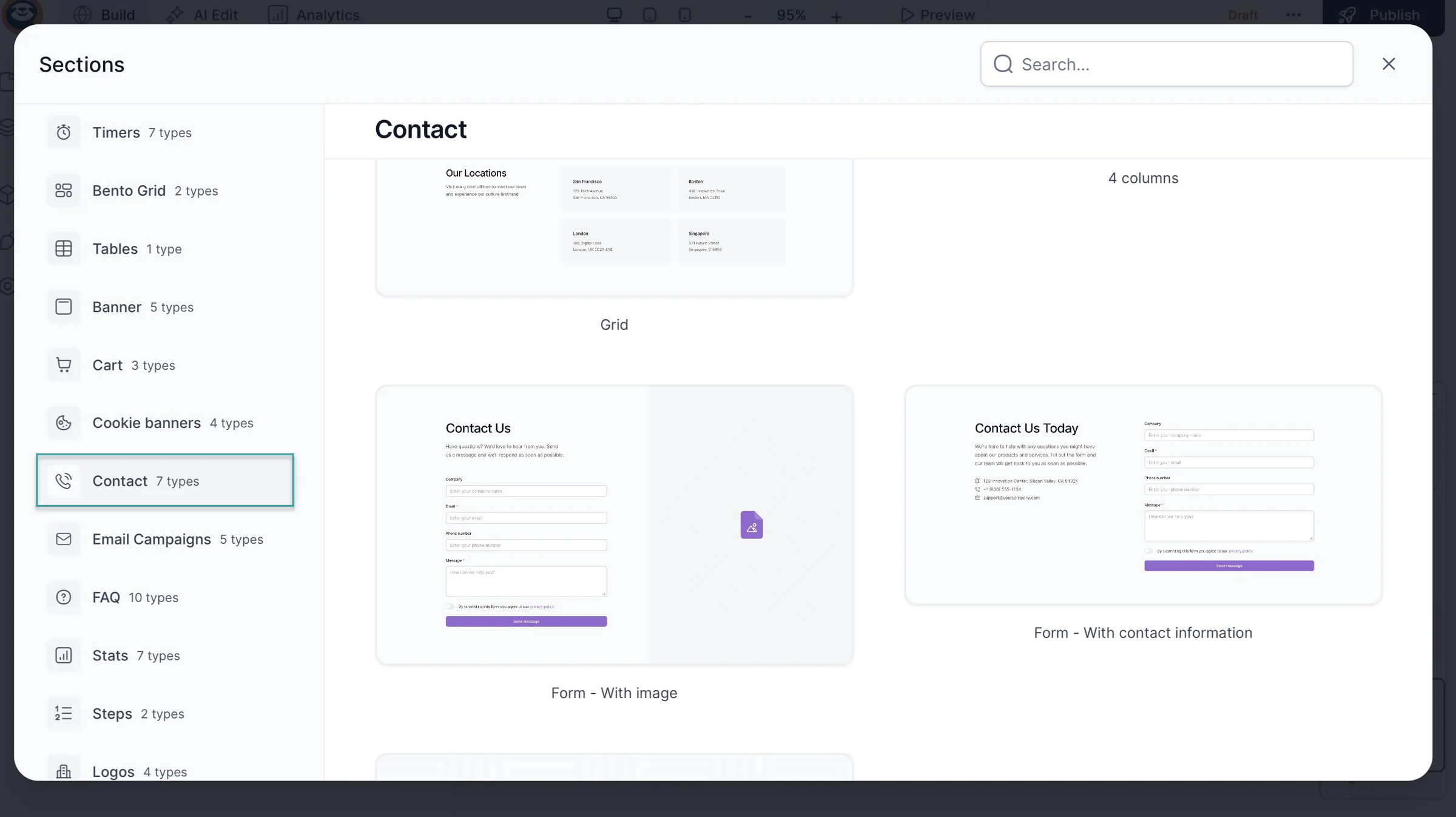
In the website editor, click “+ New section” and select “Contact.”
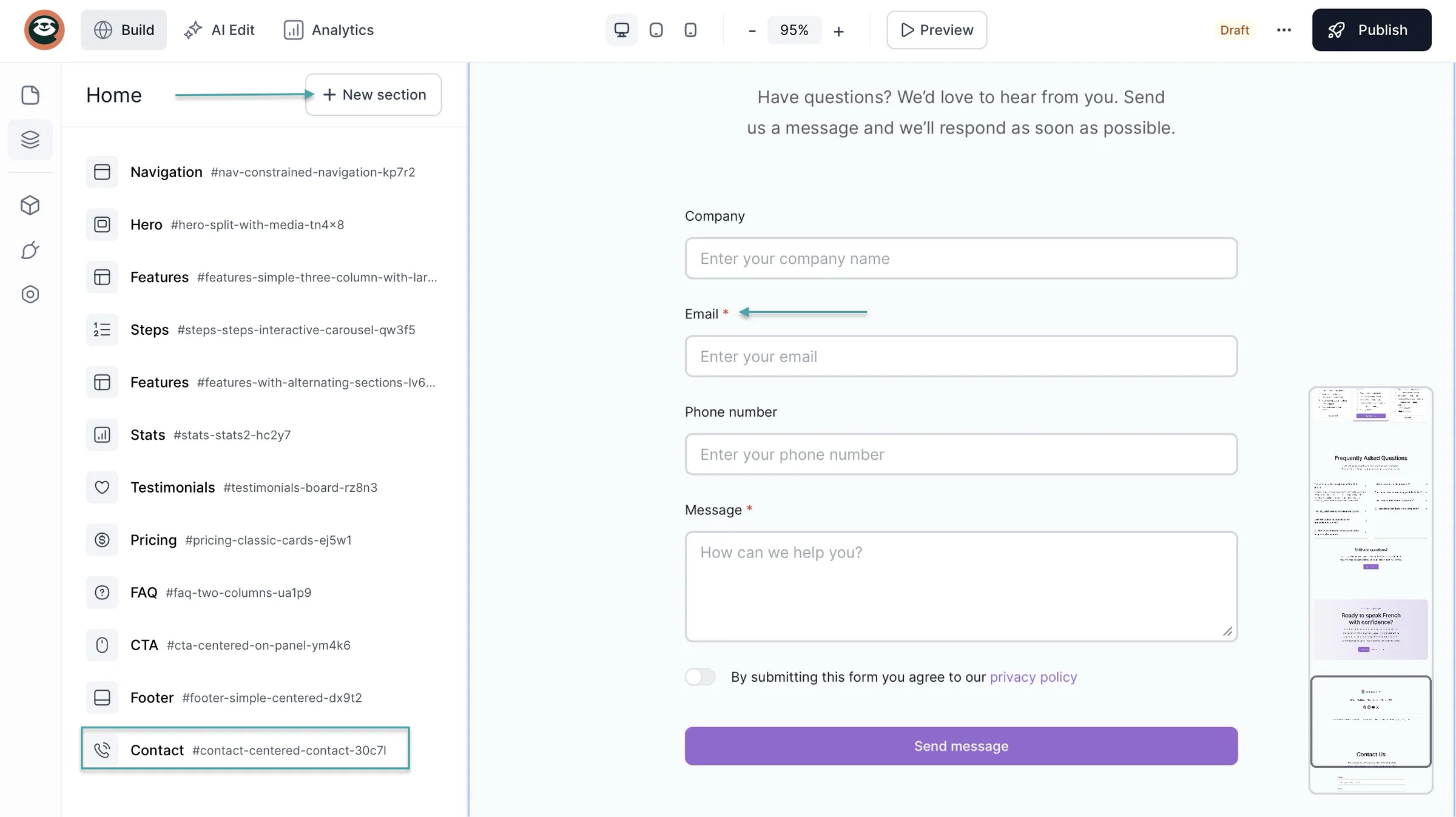
Once you publish your website, visitors can use the contact form to reach you. You can also collect their email addresses and add them to your mailing list, provided they’ve agreed to receive marketing emails.
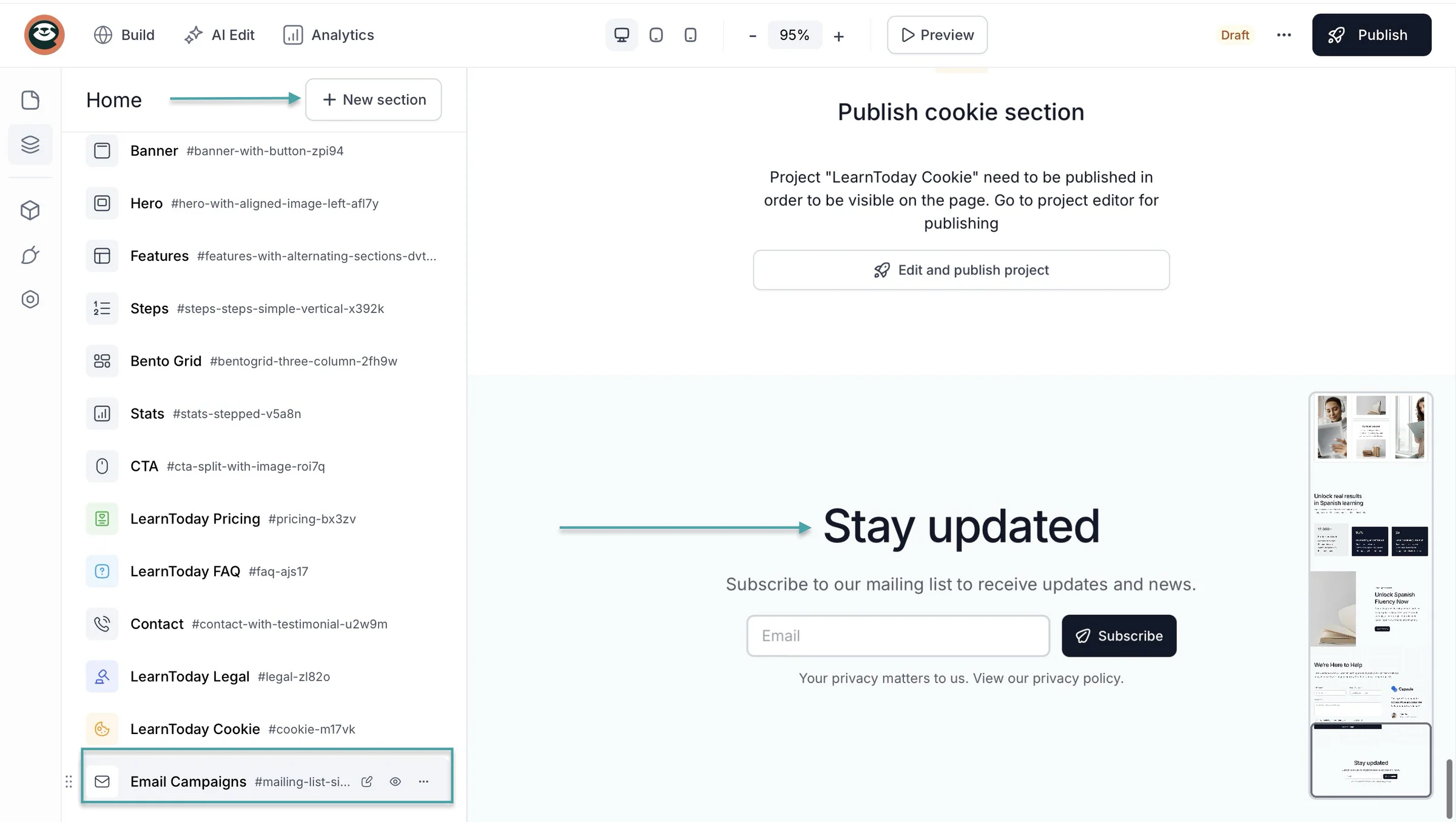
You can also click “Email Campaigns” and select a newsletter sign-up form to collect emails on your landing page/website.
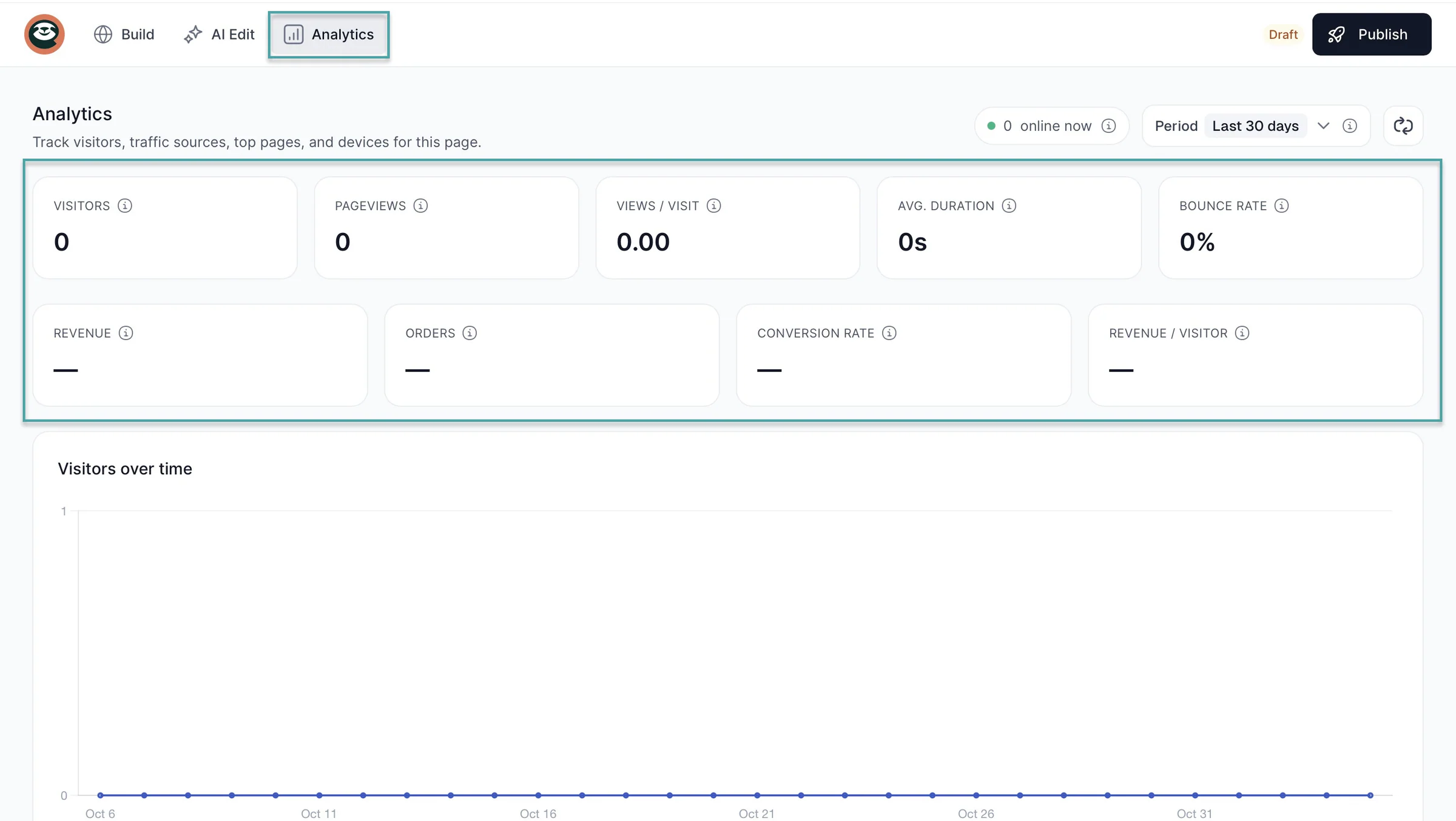
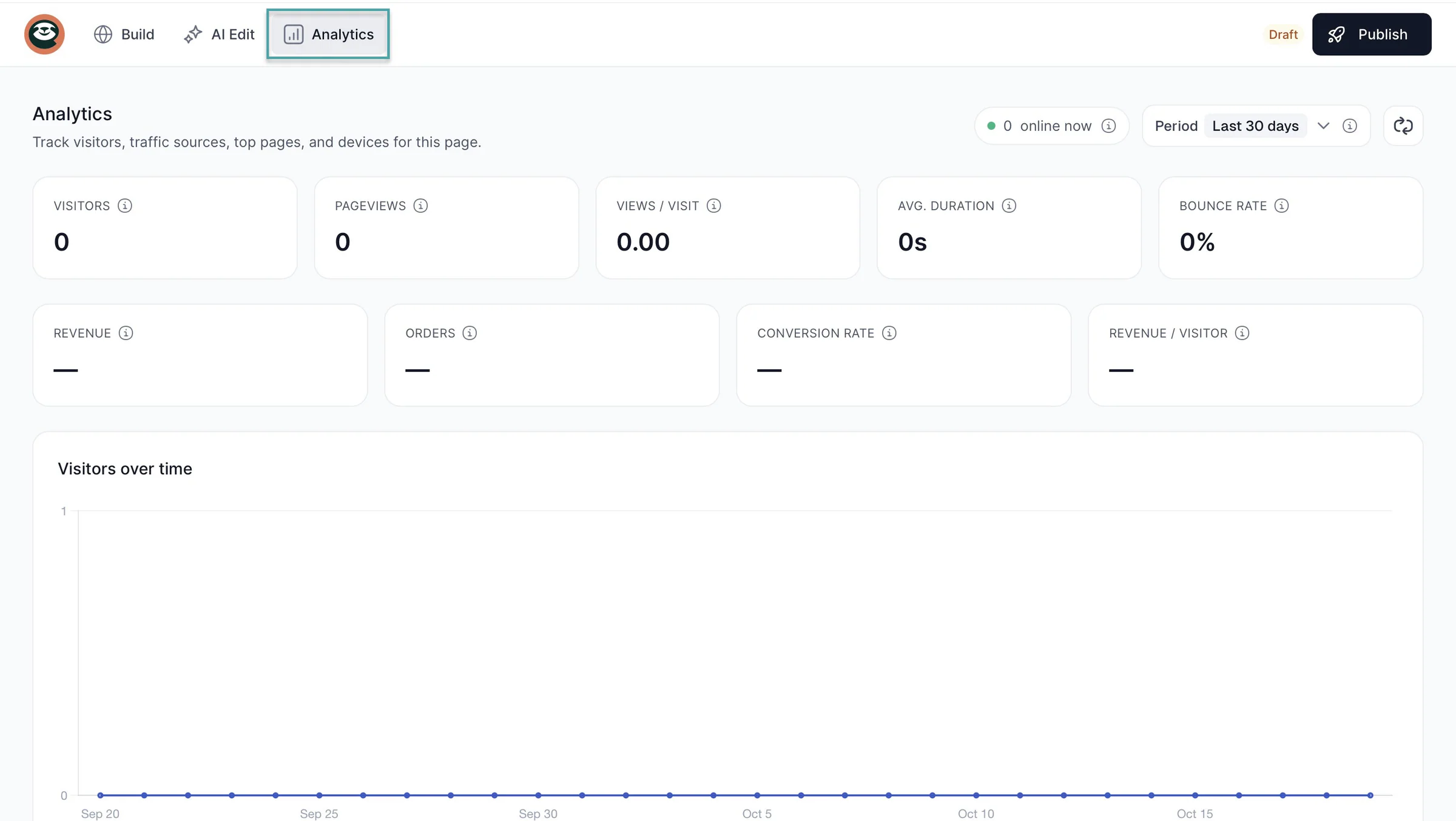
After you’ve added these forms, you can always click “Analytics” in the navigation bar. You can then track sign-ups, visitors, traffic sources, orders, revenue, conversions, bounce rates, and more.
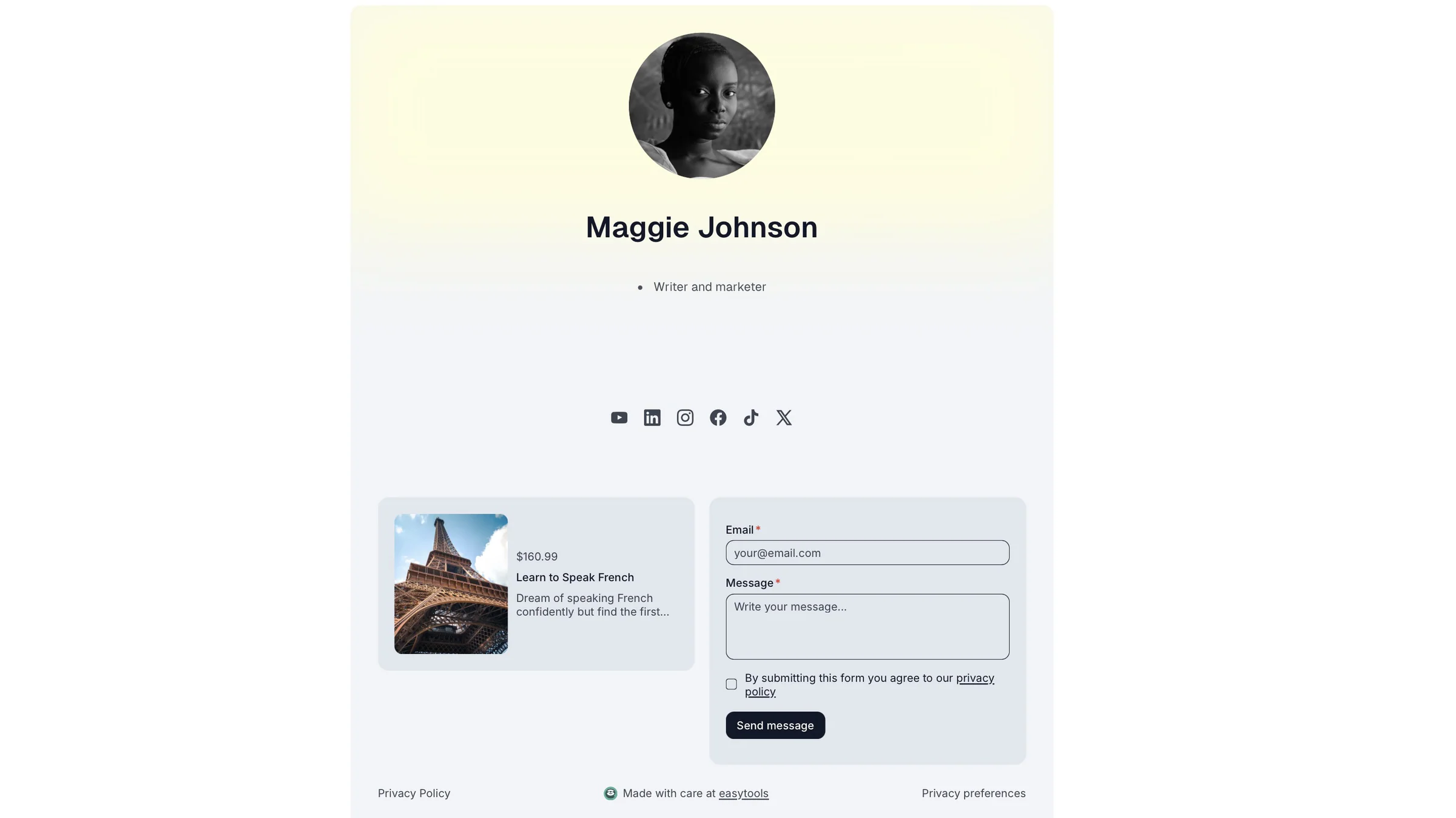
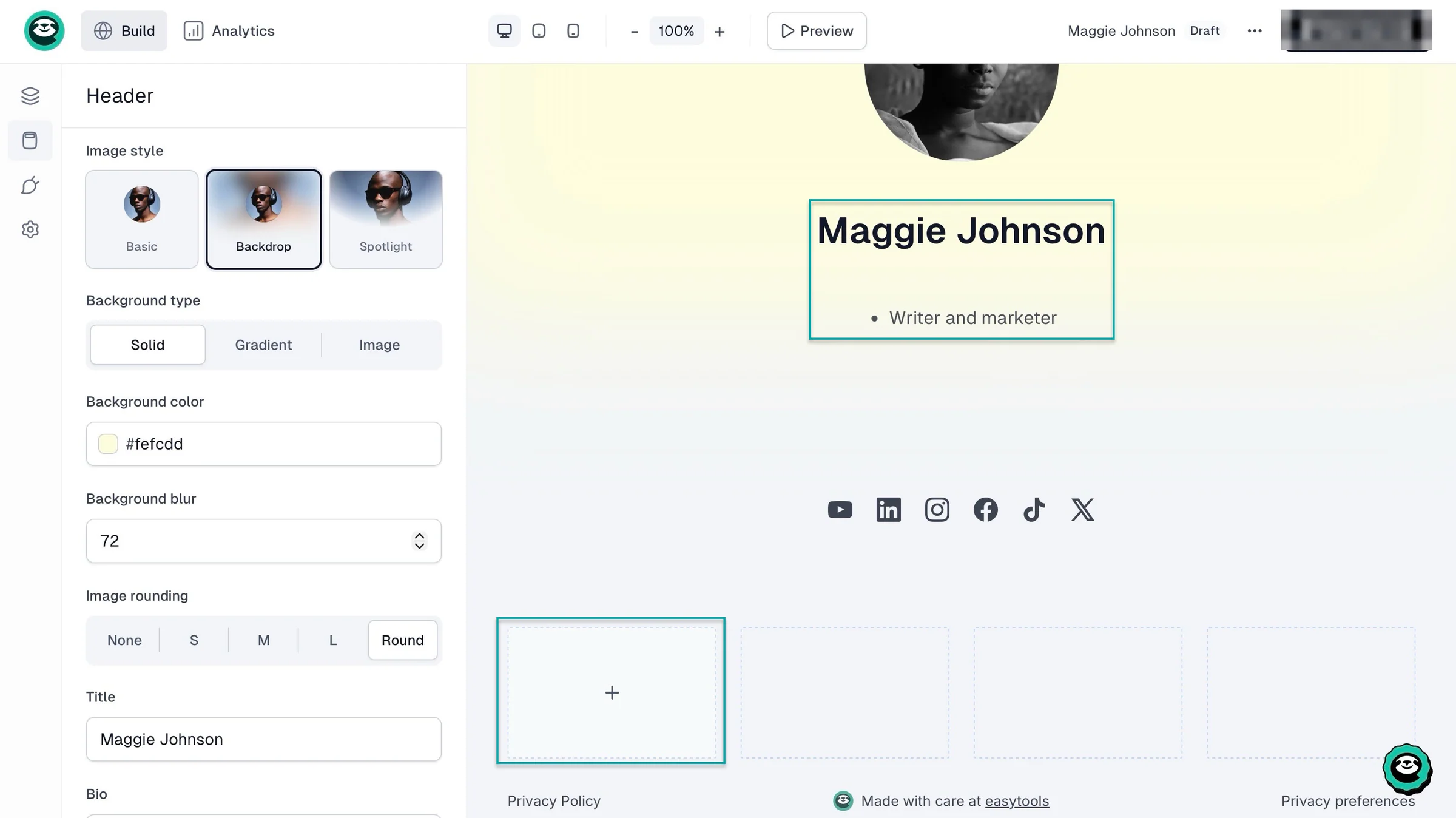
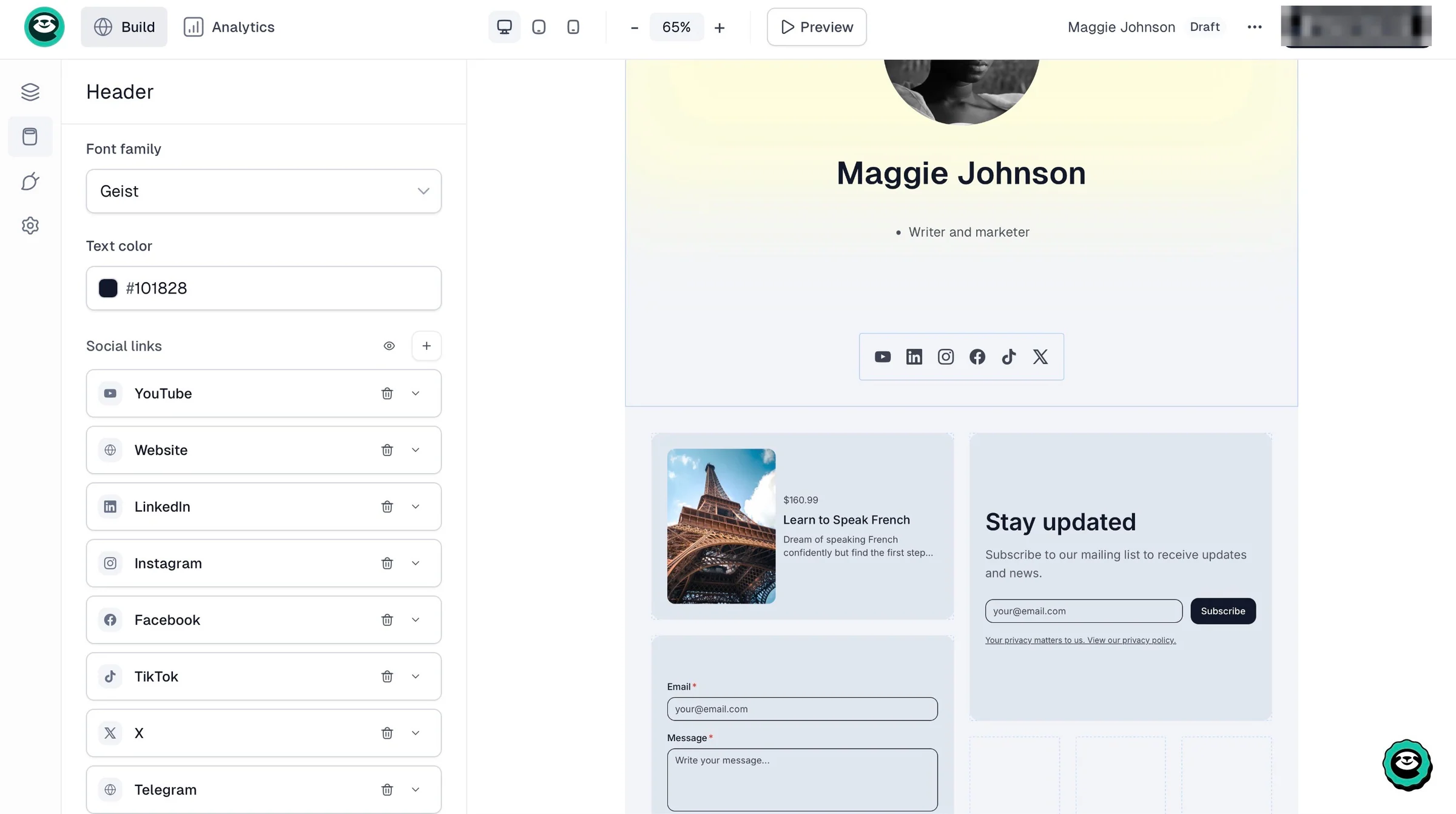
Like your multi-page website, your creator page also lets you capture leads. You can add products, a contact form, and a newsletter signup form right below your bio and social media icons.
To create one, click “Sites,” then “Creator page.” Enter a name in the pop-up window. Once you’ve created the page and added your title and bio, click the boxes under the social media icons.
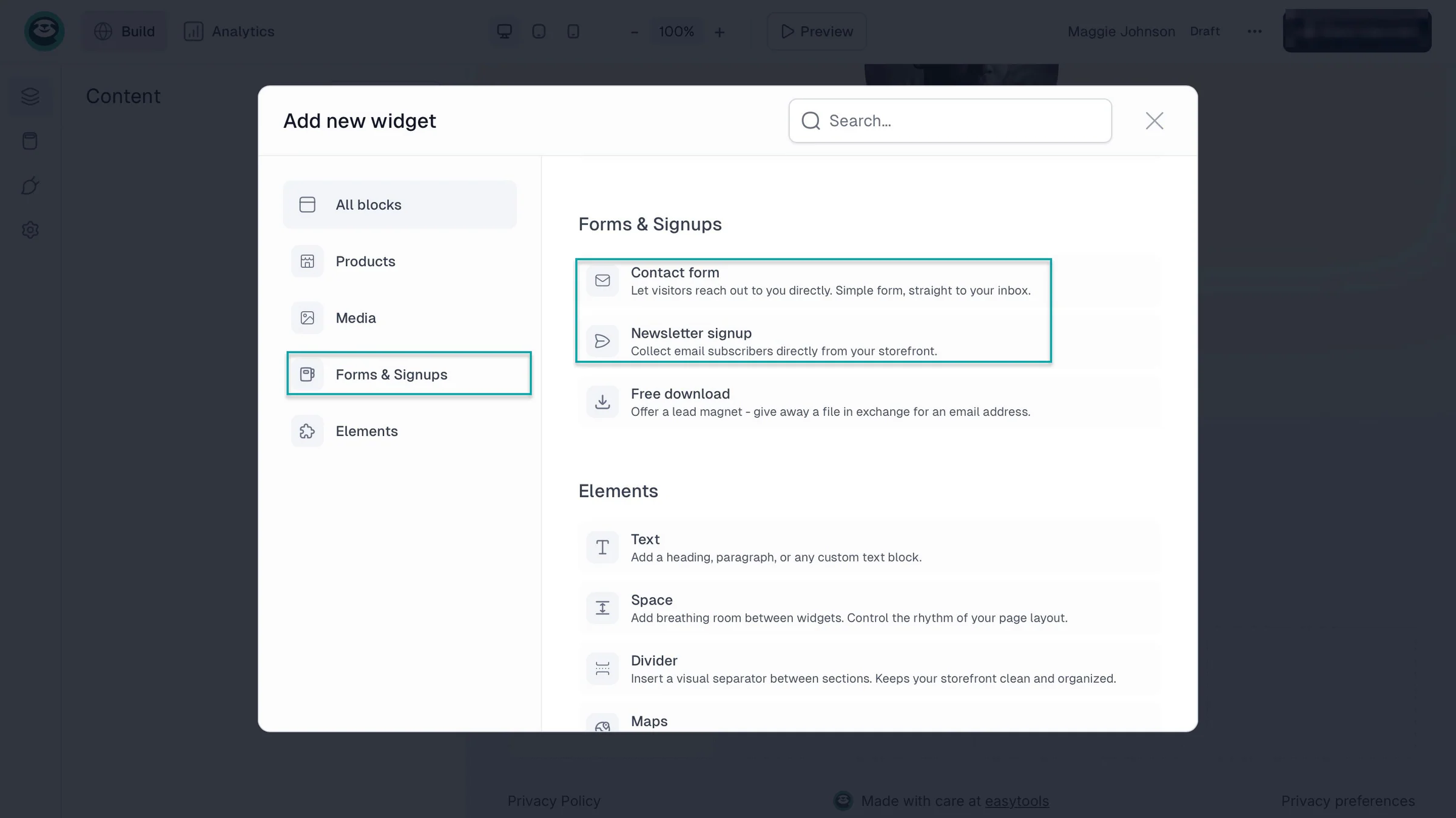
Next, click “Products” to add a checkout item. Select “Forms & Signups” to add a contact form and a newsletter signup form.
This is what your creator page can look like.
1. Store
Easytools’ products feature lets you create, market, and sell digital downloads (checklists, planners, Notion templates, PDFs, and SaaS products), e-books, webinars, live events, donations, services, courses, and more.
Here’s how to set up an automation for your product checkout.
First, let’s create a product checkout in a few steps. Click “Store” in the sidebar, then select “Products.”
Next, click “+ New product.” This will take you to the checkout editor. Enter the product name, description, price type, and other details.
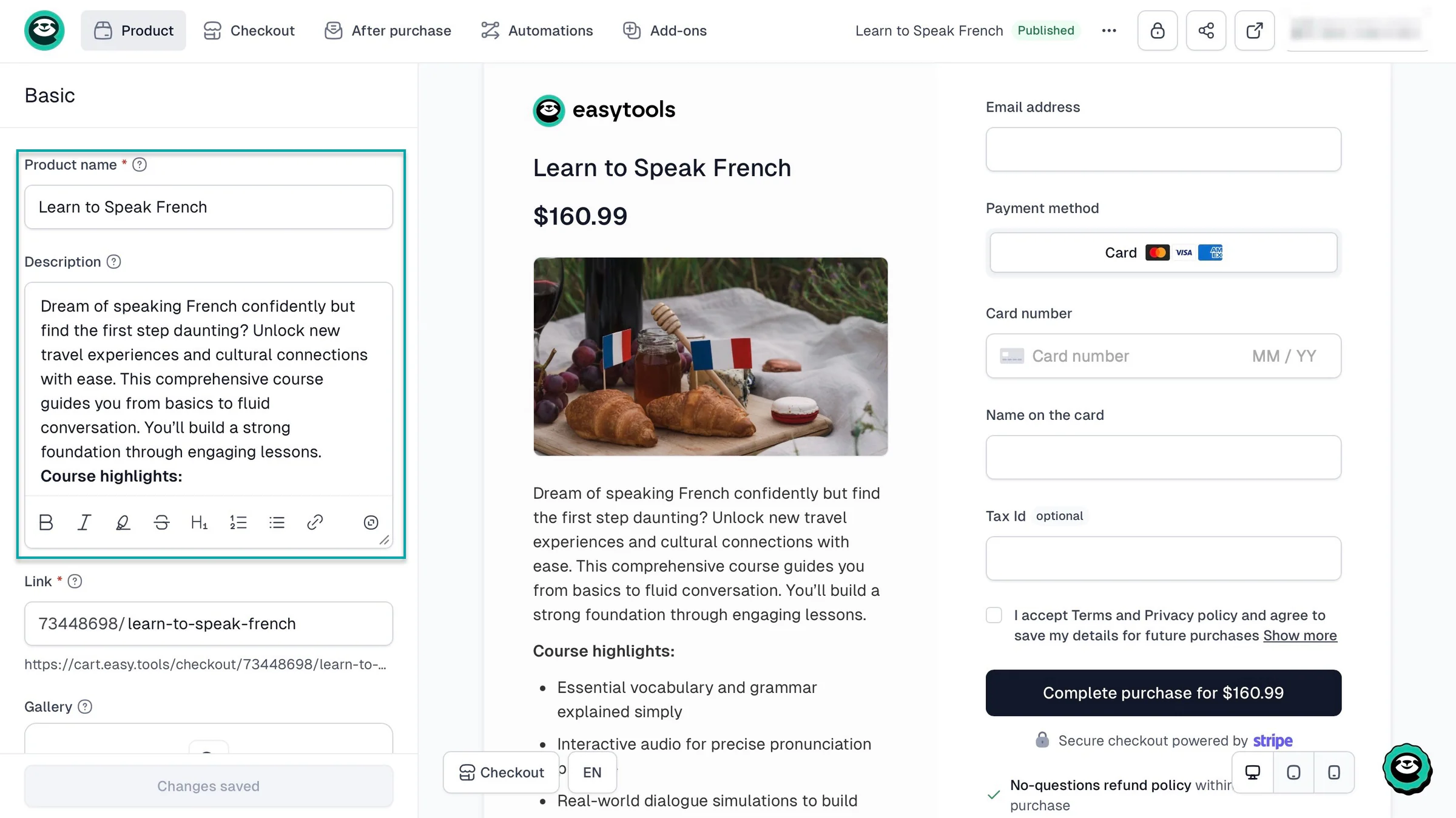
Now that you’ve created a product checkout, let’s add a newsletter opt-in checkbox so customers agree to receive marketing emails when they buy something.
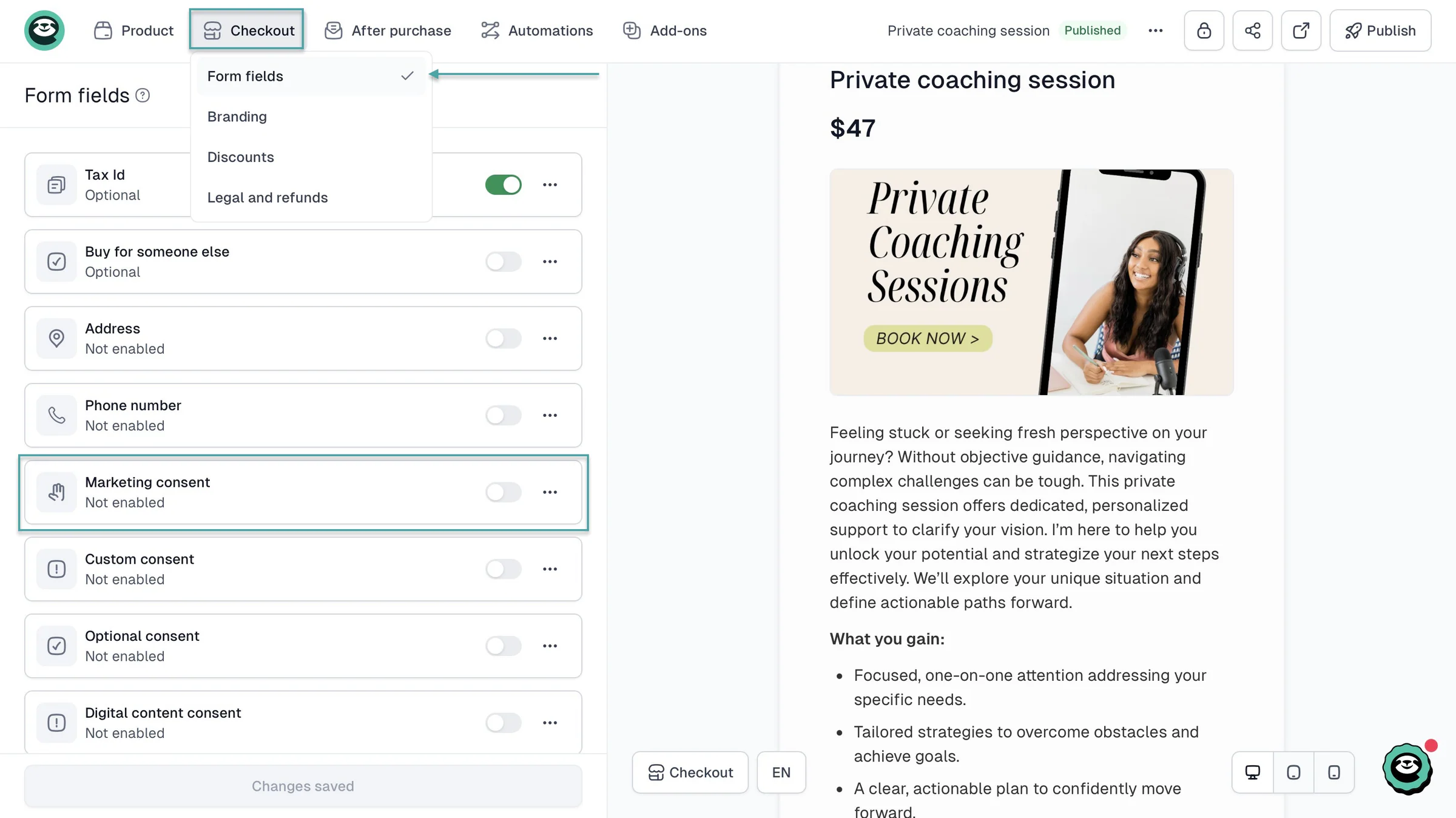
Still in the product editor, click “Checkout” in the navigation bar. Select “Form fields” in the dropdown menu.
Scroll down and toggle the switch on “Marketing consent.”
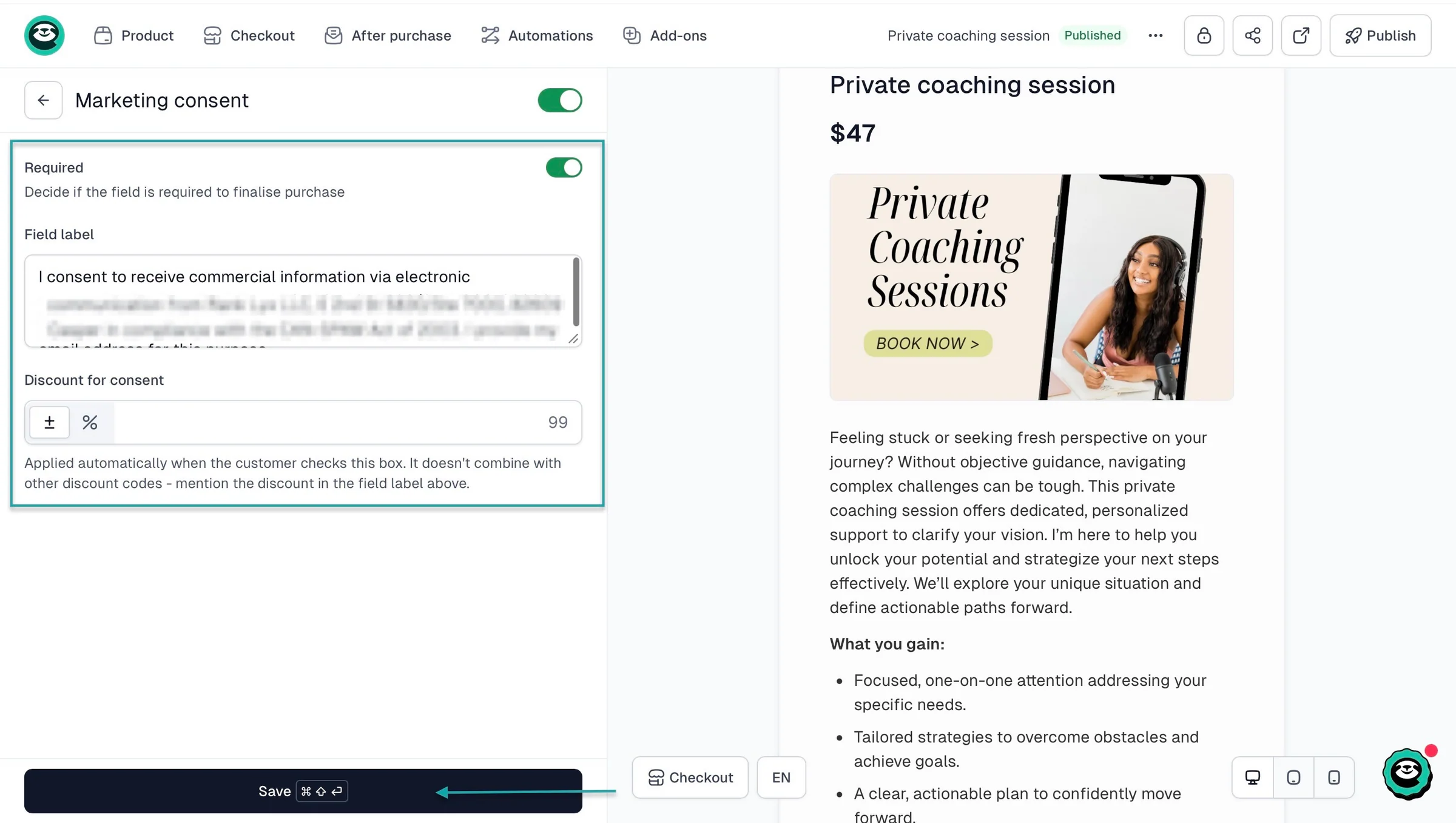
Next, add an optional consent checkbox and give it a clear label that explains what customers are signing up for.
You can even offer a discount to encourage customers to opt in. Just make sure they can complete their purchase without agreeing to receive marketing emails.
Once you’re done, click “Save.”
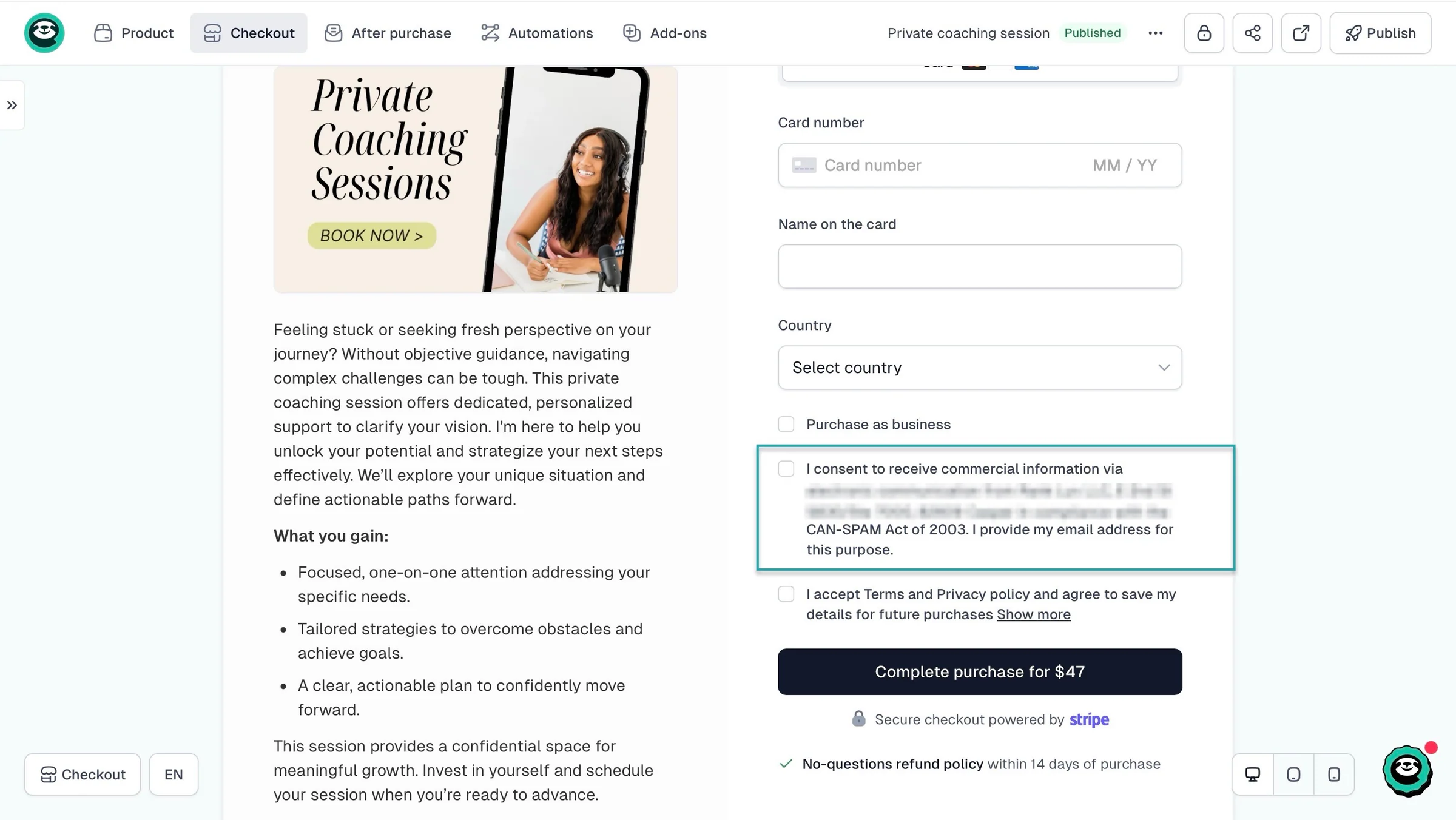
Easytools will now add the marketing consent form to the product checkout.
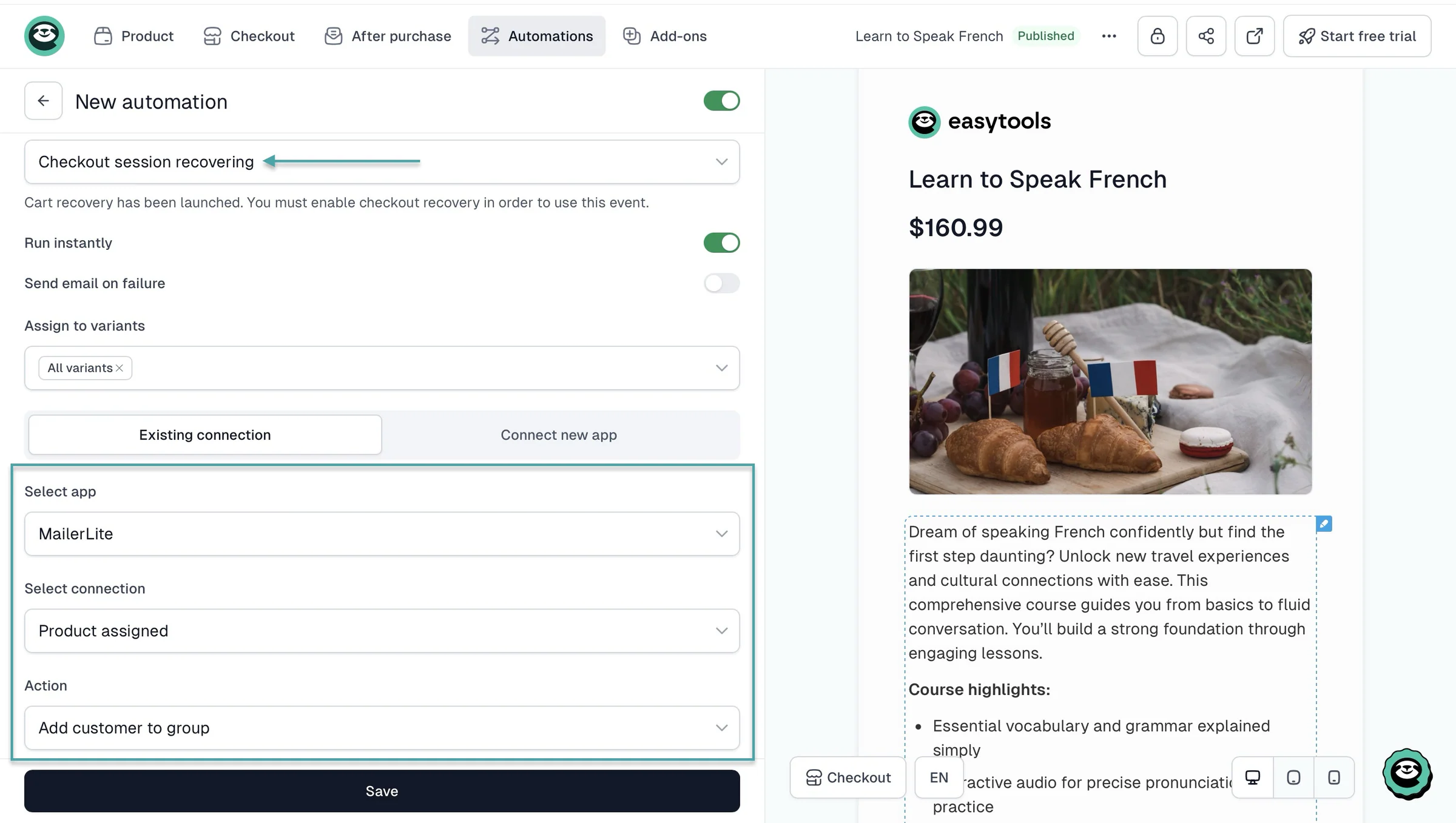
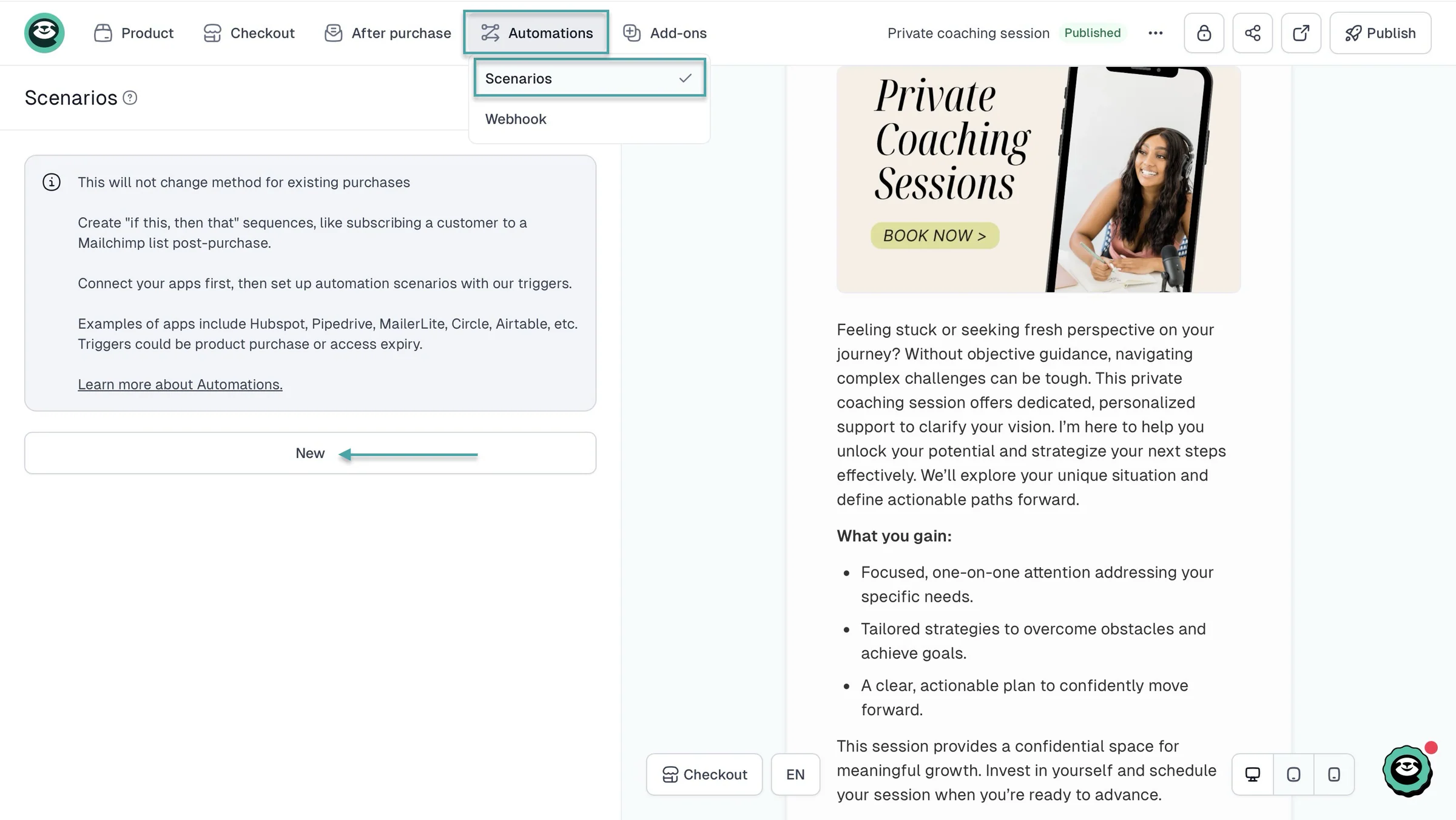
And we want these customers to be automatically added to an email list that’s relevant to the product they bought, right? So click “Automations” and select “Scenarios.”
In the new window, click “New.”
After that, enter a name for your automation and select the event that will trigger it. Let’s go with “Order completed.”
Next, toggle the switches to run the automation instantly and send an email if it fails. If your product has different price variants, you can also select which variant this scenario should apply to.
Then click “Existing connection” to use Easytools’ built-in email marketing feature, Easymail, and select the action you want the automation to perform.
In our case, we’ll choose “Add contact to list.” Select the list and click “Save” to finish setting up the automation.
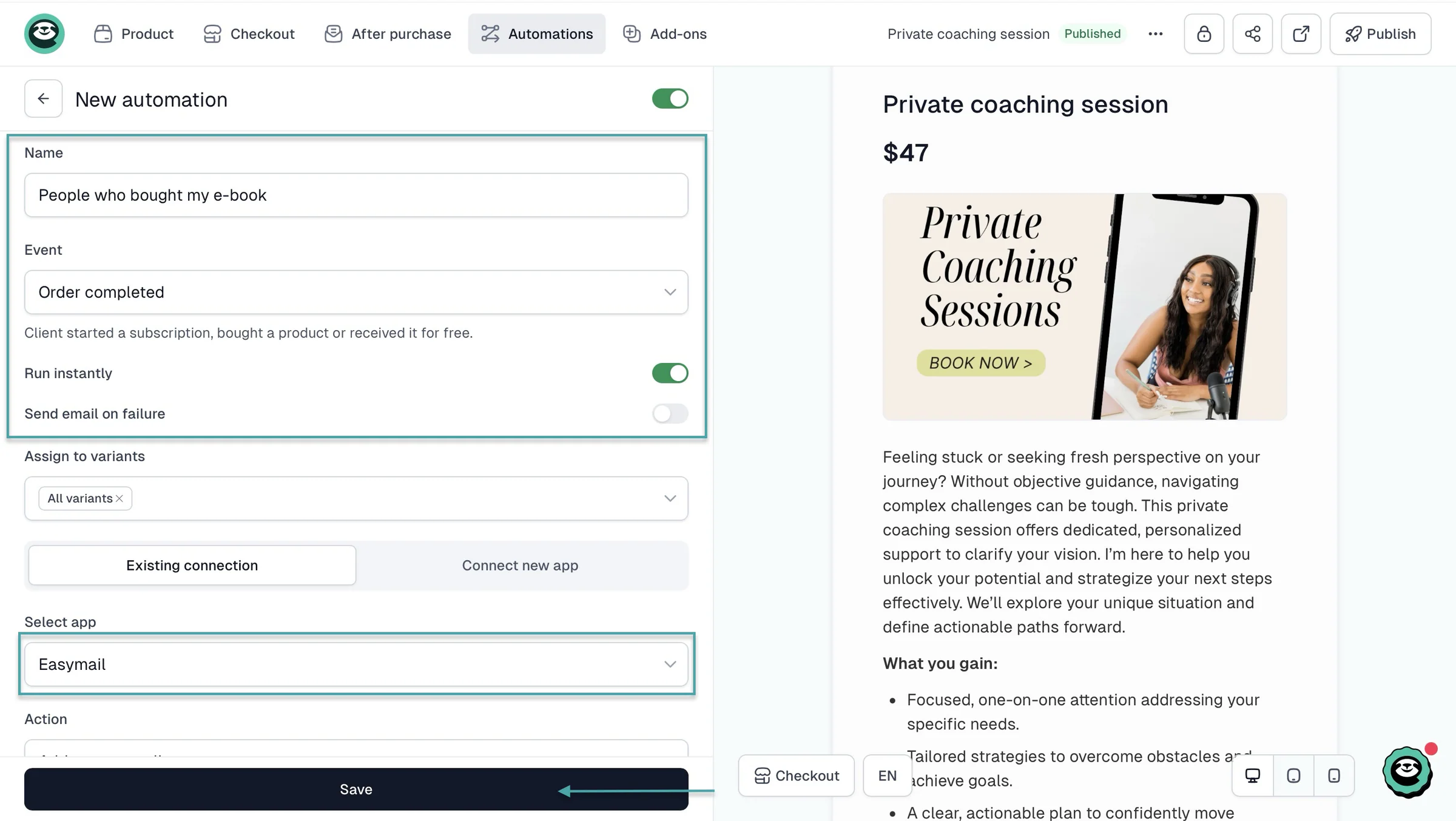
Easytools will automatically add customers who opt in to receive your newsletters to that email list.
What I liked vs what I didn’t like
What I loved 👍
✅ Has an MCP that lets AI agents like Claude manage your products, revenue, and subscriptions, so you can spend more time creating content.
✅ Starts at $29 per month with a 3% transaction fee, making it a cost-effective option for selling digital products and monetizing your audience through email marketing.
✅ Unlike Kit, Easytools gives you access to all of its tools and features on the Starter plan, so you can start selling and marketing your products without upgrading to a more expensive plan.
✅ You can use AI to generate landing pages and websites based on your checkout products, edit existing pages, and write long-form blog content, so you can spend less time building your website from scratch.
What I didn’t like 👎
❌ You can only add more domain names and team members on the Creator and Professional plans, but the Starter plan already gives you one custom domain, two team members, and unlimited products, customers, and email campaigns.
Best for
- Creators and digital entrepreneurs who want to sell products, build websites, and manage email marketing and automations from one platform.
Pricing
- Starter: $29/month
- Creator: $59/month
- Professional: $99/month
2. Kit (formerly ConvertKit) - Best for newsletter creators, bloggers, and audience monetization
- Personal rating: ⭐️⭐️⭐️⭐️ 4.7/5 - It’s a cost-effective solution to sell directly to your audience.
- Ease of use: ⭐️⭐️⭐️⭐️ 4.4/5 - It makes the technical stuff like SEO, custom domain, bot filtering, and advanced tracking feel less intimidating.
- AI capabilities: Has an AI subject line generator that suggests and A/B tests email subject lines. With Kit MCP, you can connect AI tools like ChatGPT and Claude to analyze your subscribers, draft emails, and manage email campaigns.
- Monetization options: Digital products, courses, paid newsletters, recurring memberships, tips and donations, paid recommendations, and sponsored ads in your newsletters.
- Free trial: Yes - 14-day free trial on its paid plans.
- Starting plan: Free - $0/month + 3.5% + $0.30 transaction fee/sale + 10,000 subscribers + unlimited landing pages, forms, and email broadcasts.
Kit (formerly ConvertKit) also makes it to our list of the best email marketing platforms.
It lets you build email lists, send newsletters, automate email campaigns, and sell digital products.
You can also create landing pages and sign-up forms to attract subscribers and grow your audience.
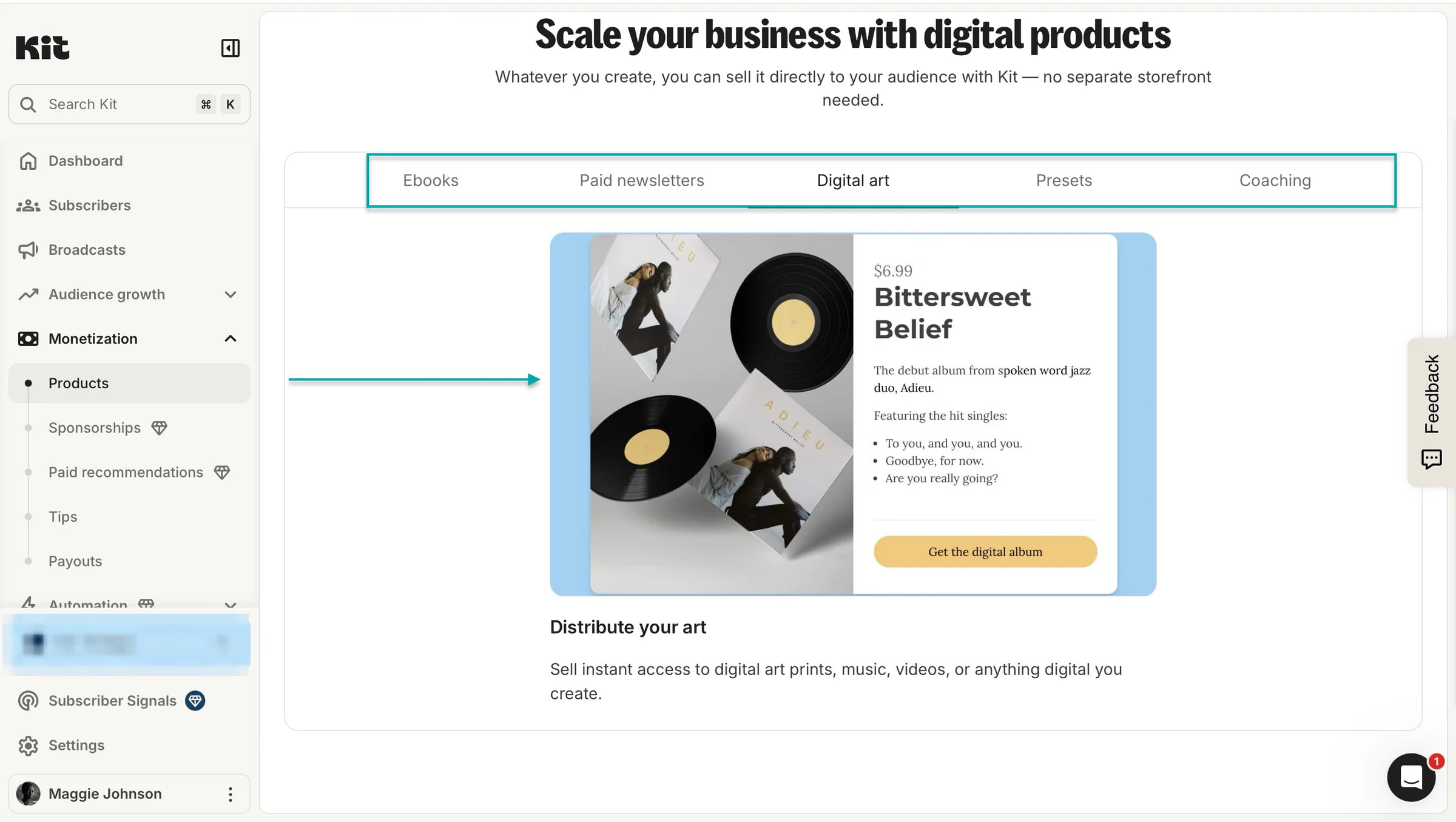
You can sell digital products like e-books, paid newsletters, digital art, presets, and more on Kit. You can create your product, launch it, share the checkout link, and set up automated emails to promote it.
So, you don’t need a separate platform to sell your products. You can also automate your sales emails instead of manually following up with every potential buyer.
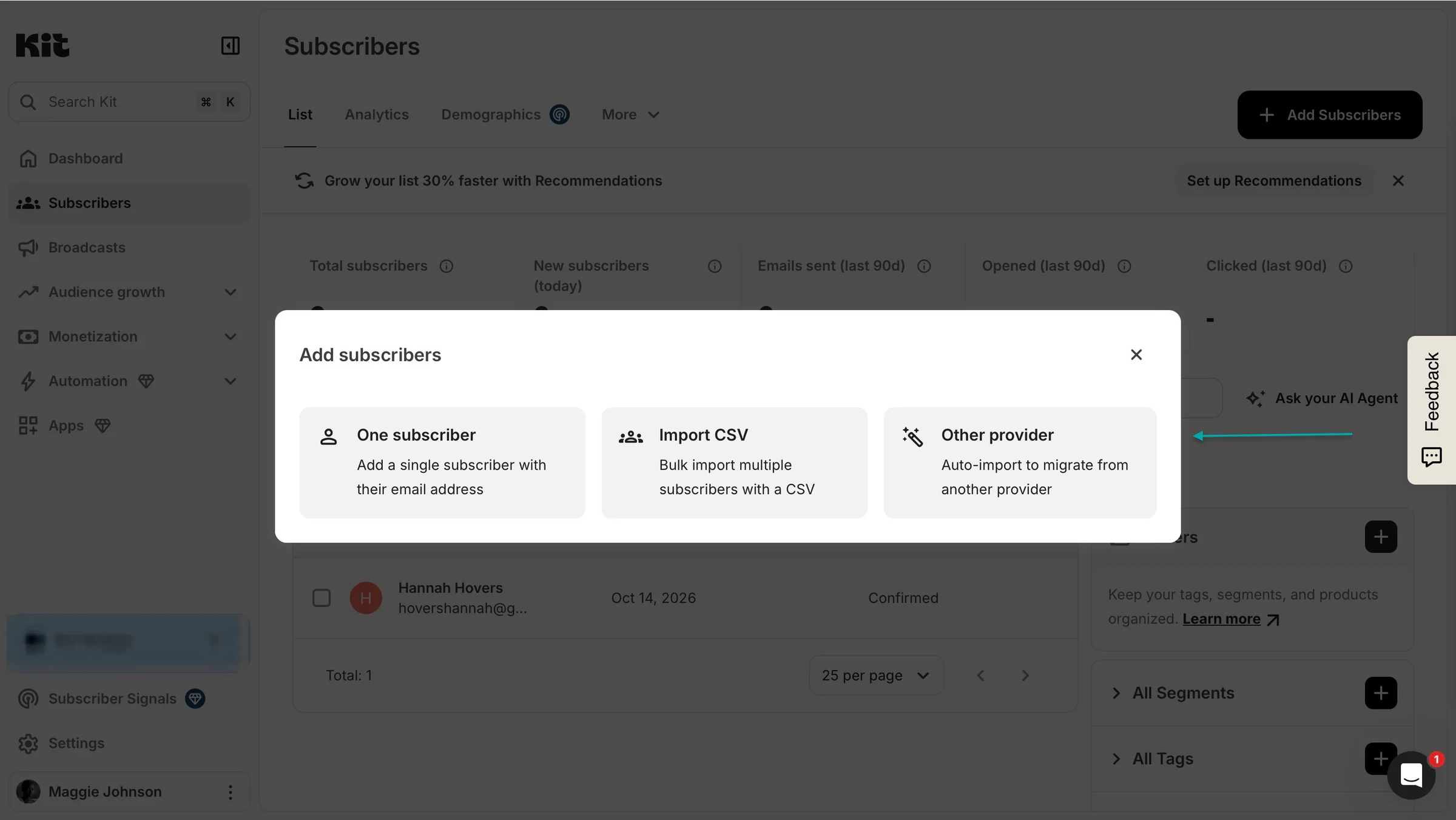
This email marketing tool also lets you add subscribers manually or import them through a CSV file. And if you’re migrating from MailerLite to Kit, you can import your subscribers using your MailerLite API token.
This saves you the trouble of adding your existing subscribers one by one, especially if you’ve already built a large email list.
Kit also lets you send email broadcasts to your subscribers. It has email templates you can choose from and customize with your content, images, fonts, and colors.
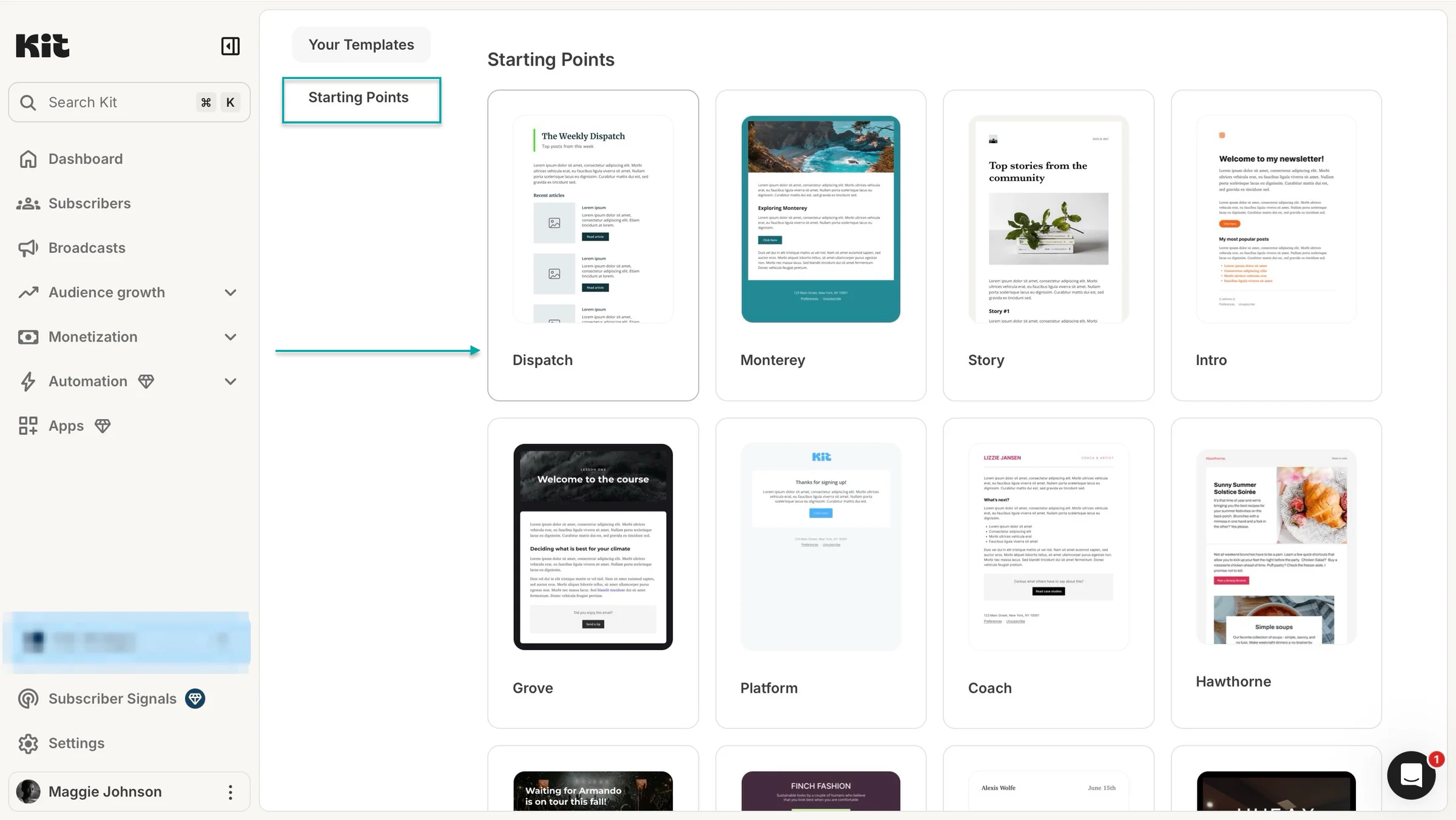
That way, you don’t have to design every newsletter or promotional email from scratch. You can also schedule your broadcasts to go out later instead of sending them immediately.
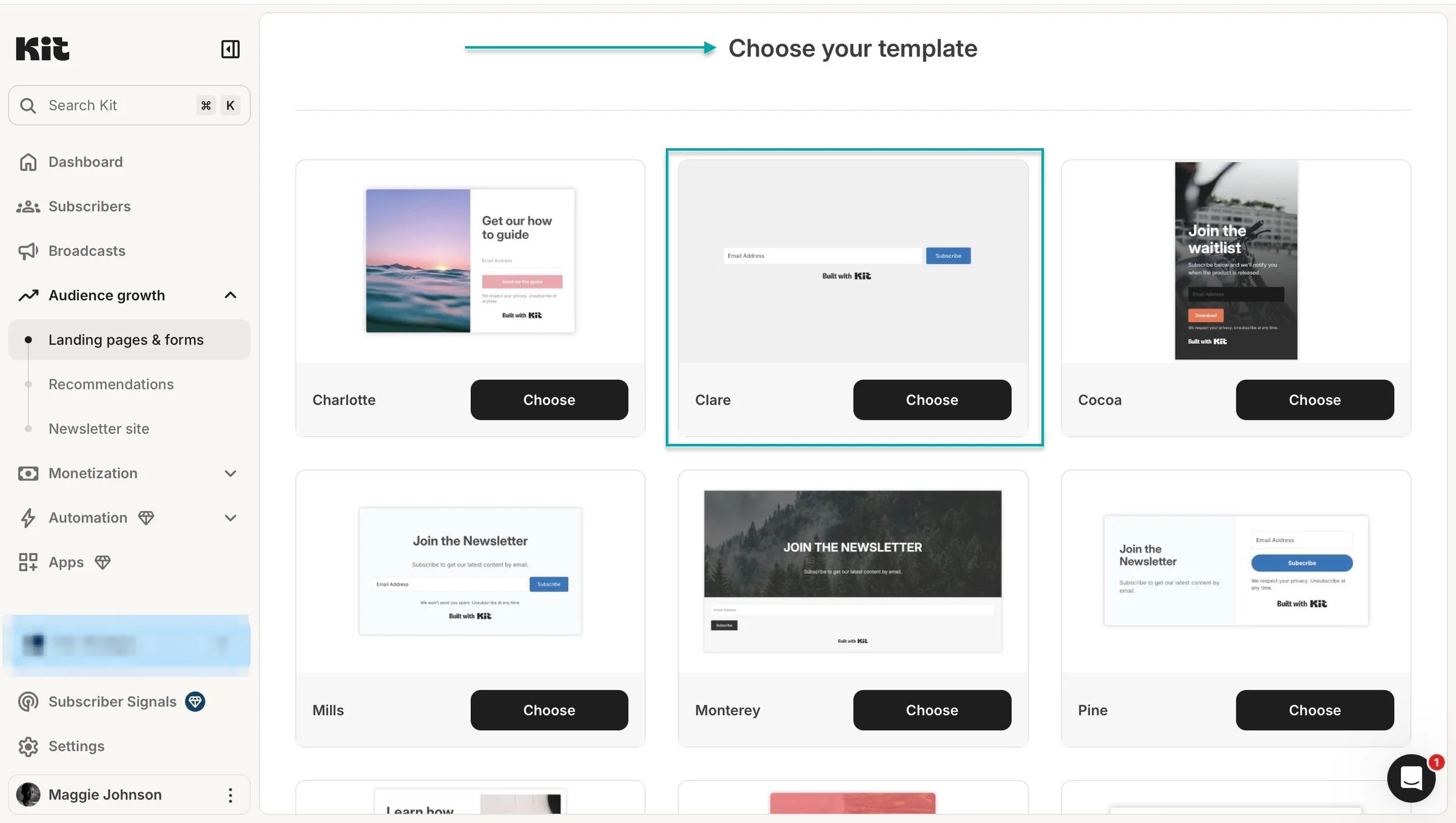
You can also build landing pages and forms to promote your products and services and collect customer information. Kit has landing page templates you can choose from, or you can build your own from scratch.
Before creating a form, Kit lets you choose how you want it to appear on your website, whether as an inline form, pop-up, slide-in, or sticky bar.
Like the landing pages, the forms also come with a library of templates you can customize to match your brand.
What I loved about Kit
1. Products
Kit’s products feature lets you list products for sale and automate their delivery after purchase. Here’s how to add a product using this email marketing tool.
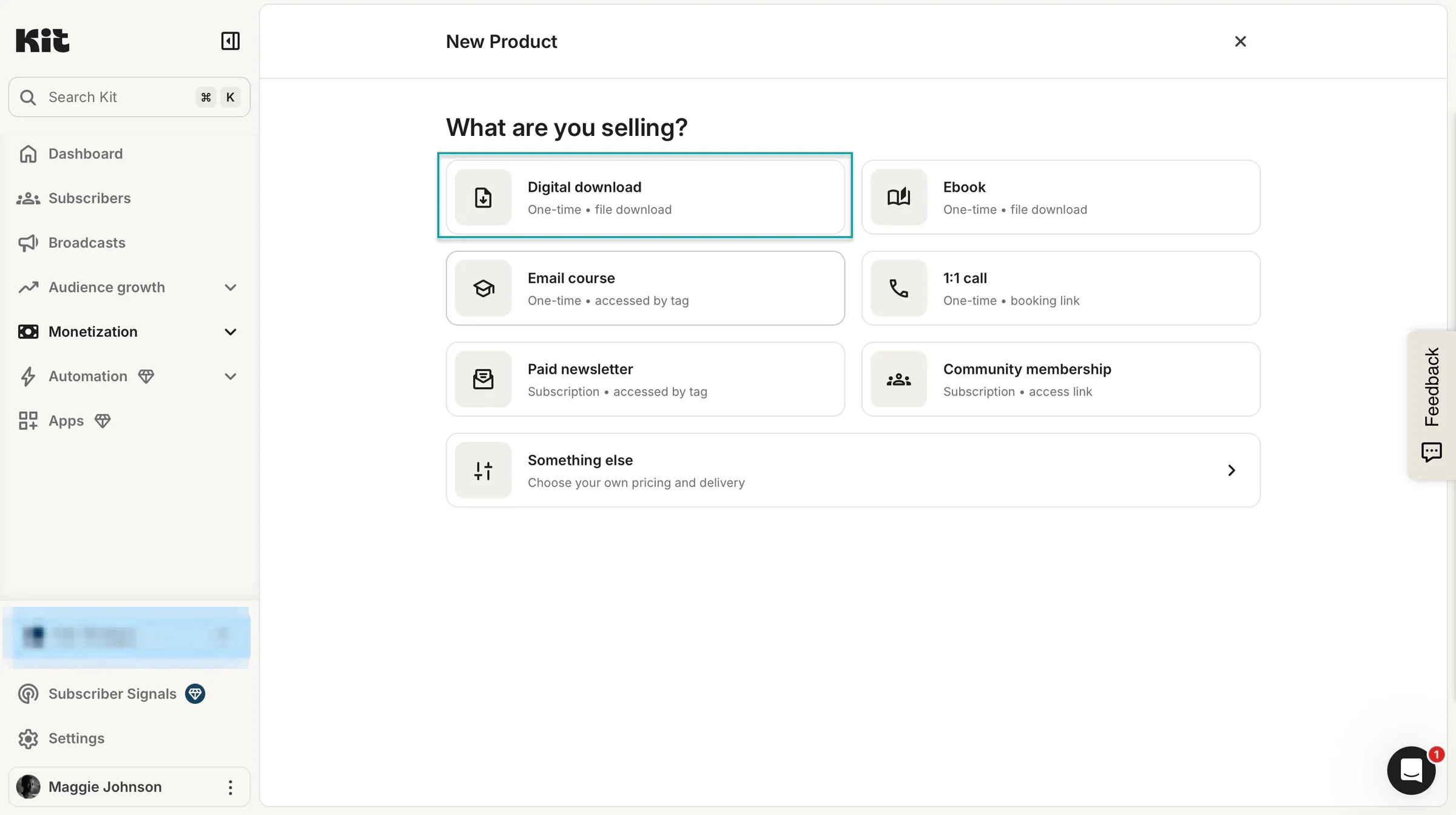
Select “Monetization” in the sidebar, choose “Products,” and click “Create a product.”
Kit lets you sell digital downloads, e-books, paid newsletters, 1:1 calls, paid newsletters, email courses, community memberships, and more. For this walkthrough, let’s go with “Digital download.”
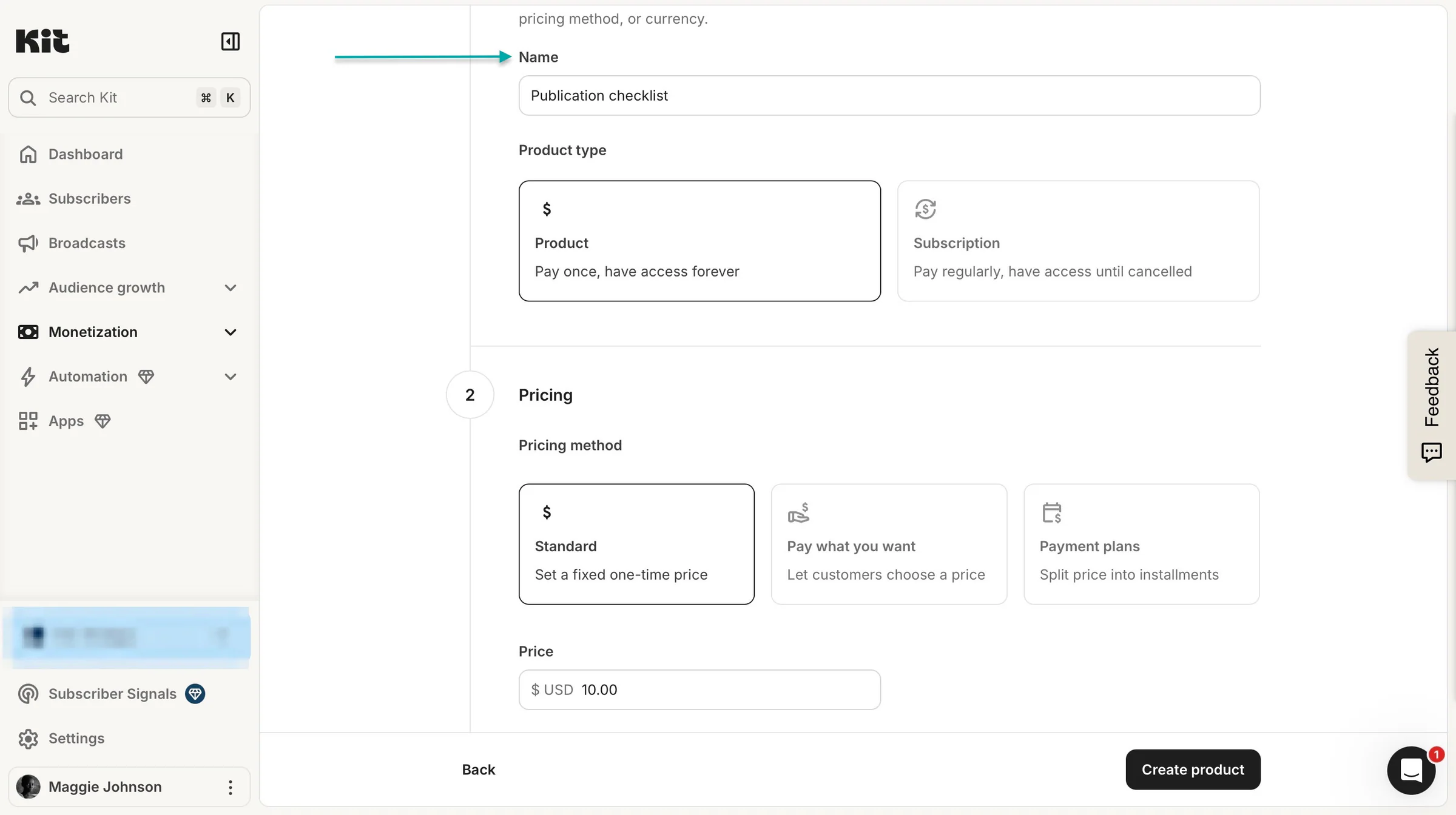
Next, enter product details, choose the product type, and set pricing.
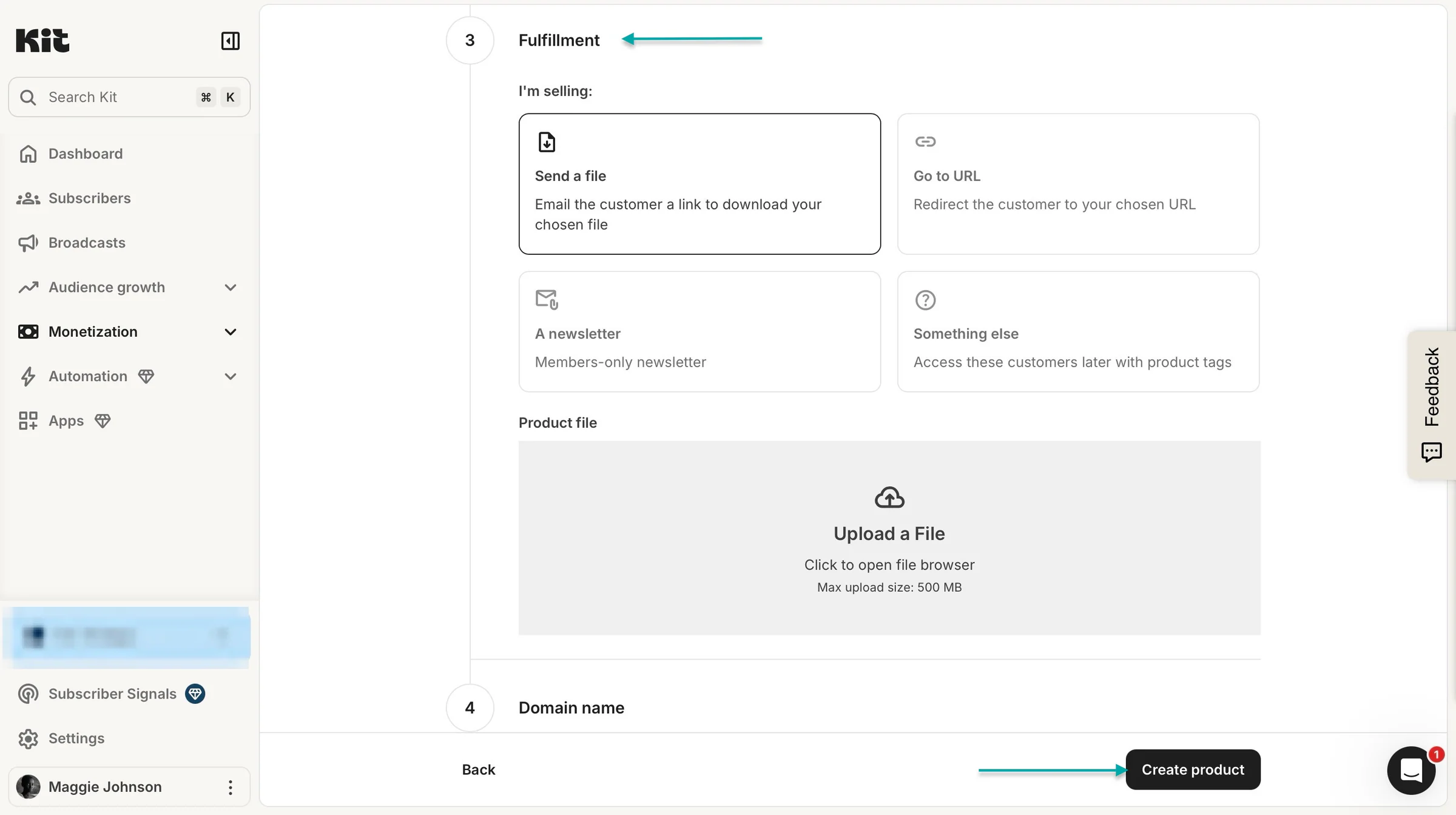
Now choose how you want to deliver the product after purchase. Select “Send a file” and upload your product file.
Kit will automatically deliver it to customers after they pay. You can also redirect buyers to a URL or choose another fulfillment method, depending on what you’re selling.
Click in the upload area to add a product file and hit “Create product.”
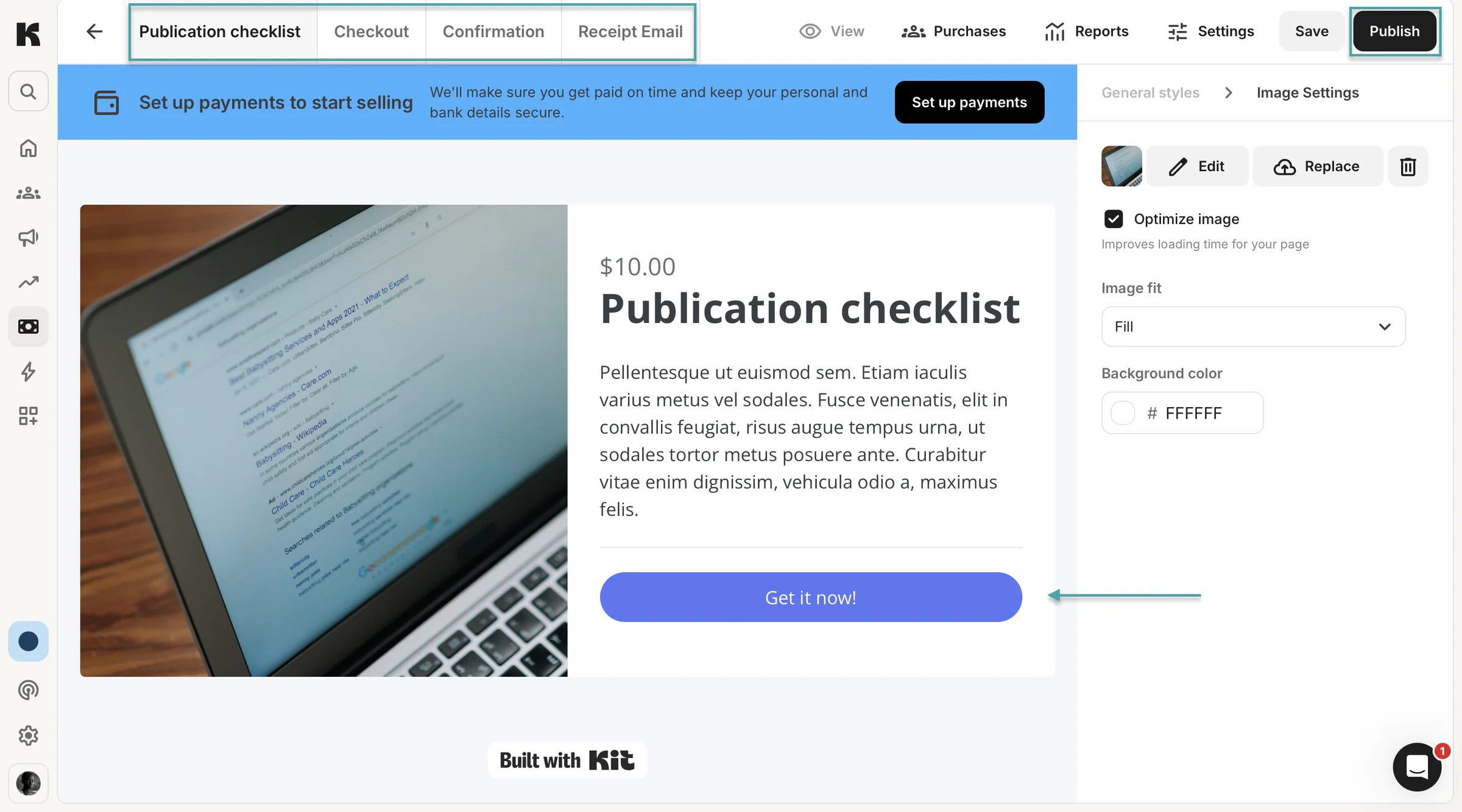
Kit will create your product page. You can customize the page and click the tabs at the top to edit the checkout page, confirmation page, and receipt email your customers receive.
Since you’re selling a digital download, the confirmation page and receipt email will also include a download link.
You can edit the content directly in the product builder and save your changes as you go. Before you can publish your product, you’ll need to set up payments through Stripe if you haven’t already.
Once everything is ready, click “Publish” to make your product available for sale.
2. Subscribers
The subscribers feature lets you add customers and other contacts to your email list so you can send them updates, promote products, and sell directly to them.
Let’s add a subscriber.
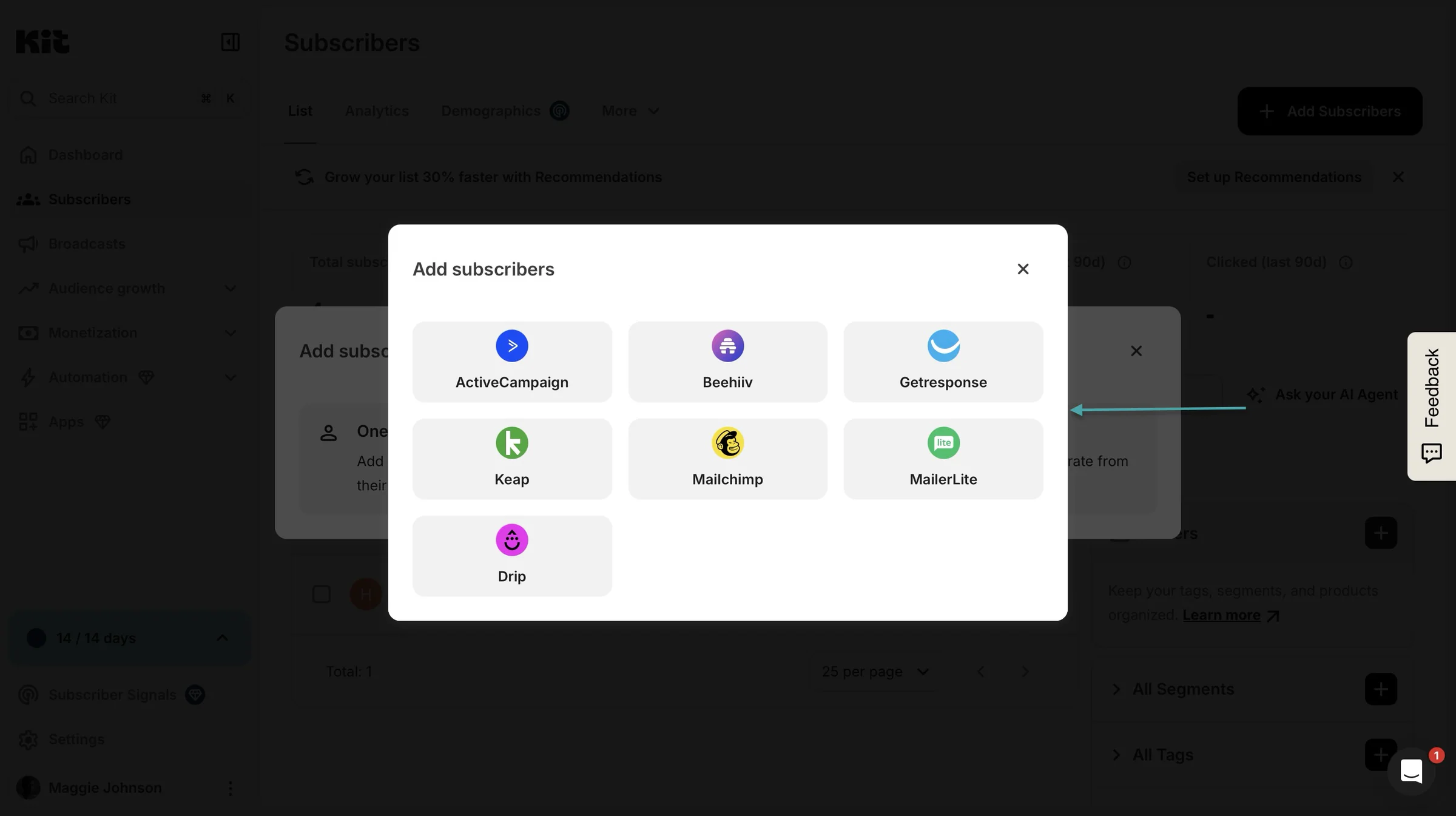
First, select “Subscribers” in the sidebar, then click “One subscriber.”
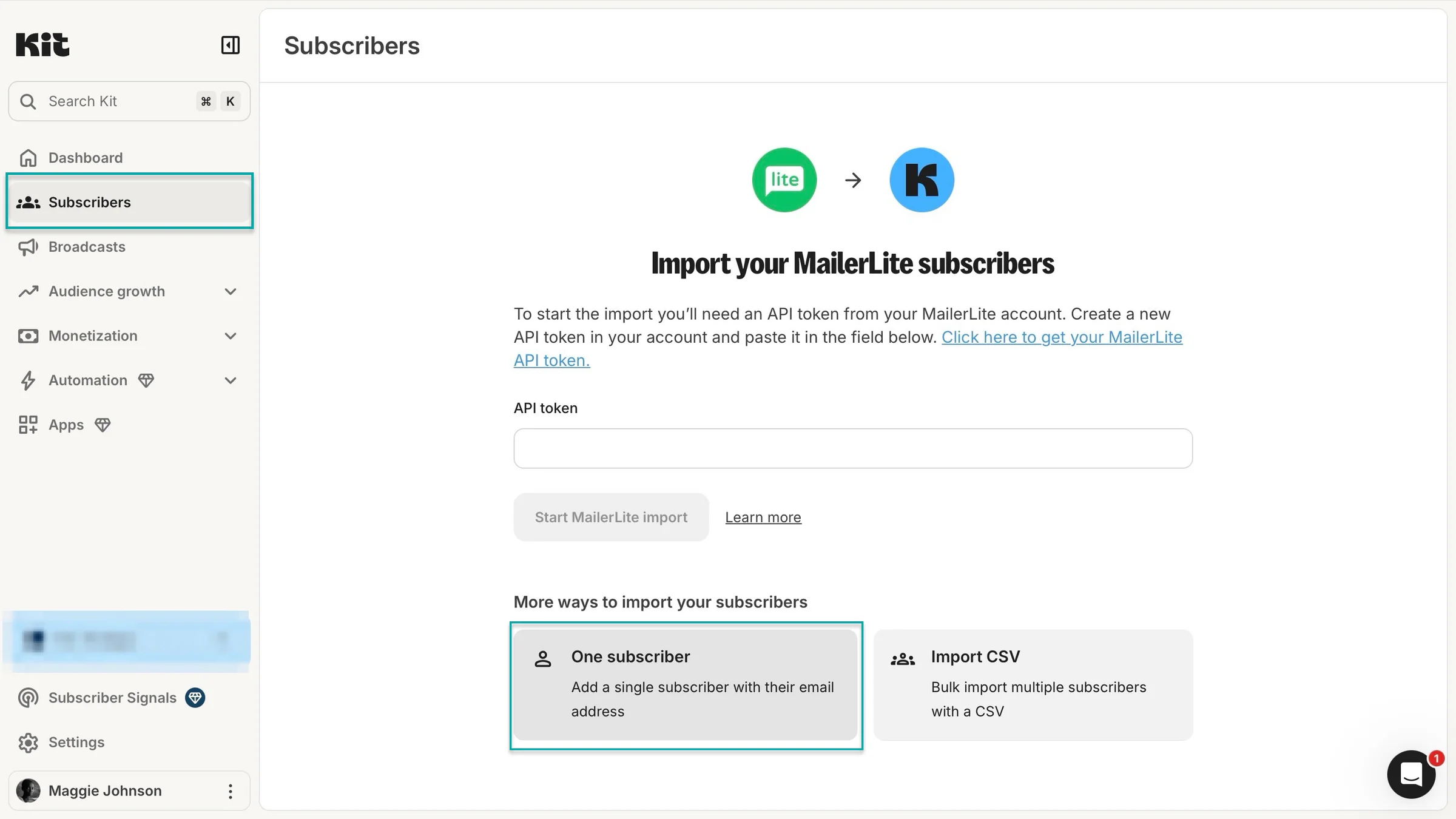
In the pop-up window, enter the subscriber’s name and email address, then click “Next.”
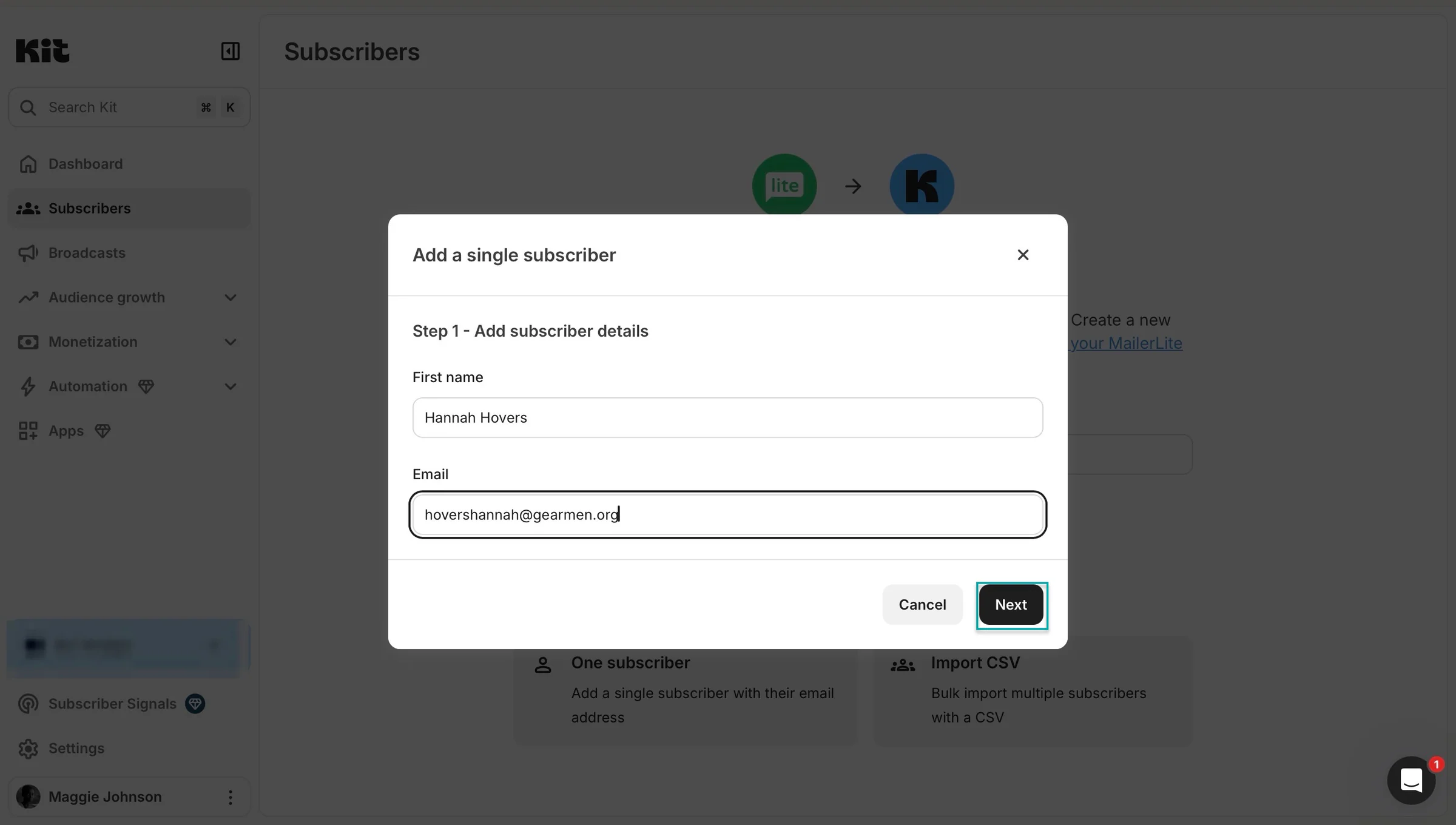
In the next pop-up window, add a tag to help you identify and organize the subscriber, then click “Finish.”
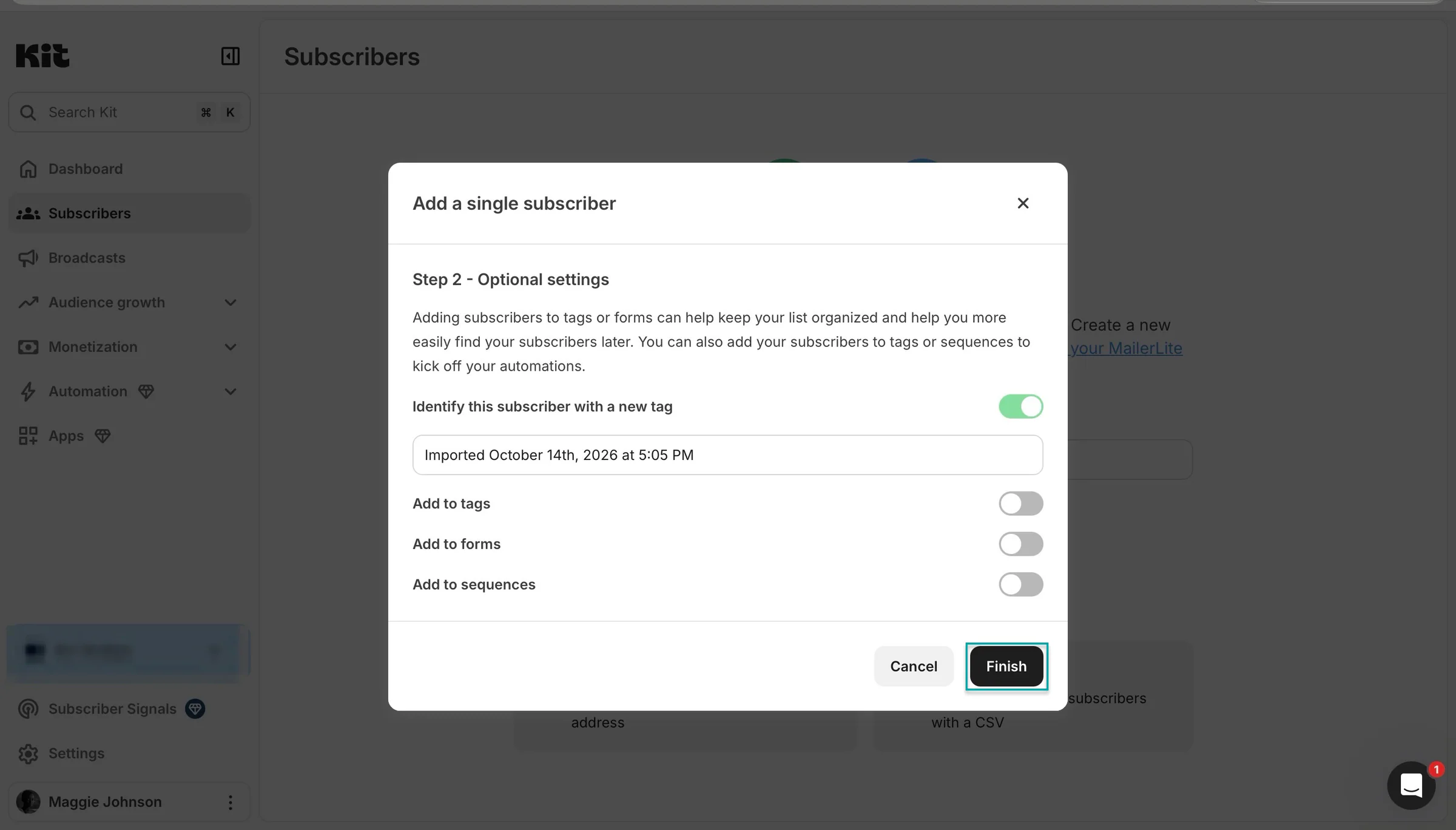
You’ve now added a new subscriber.
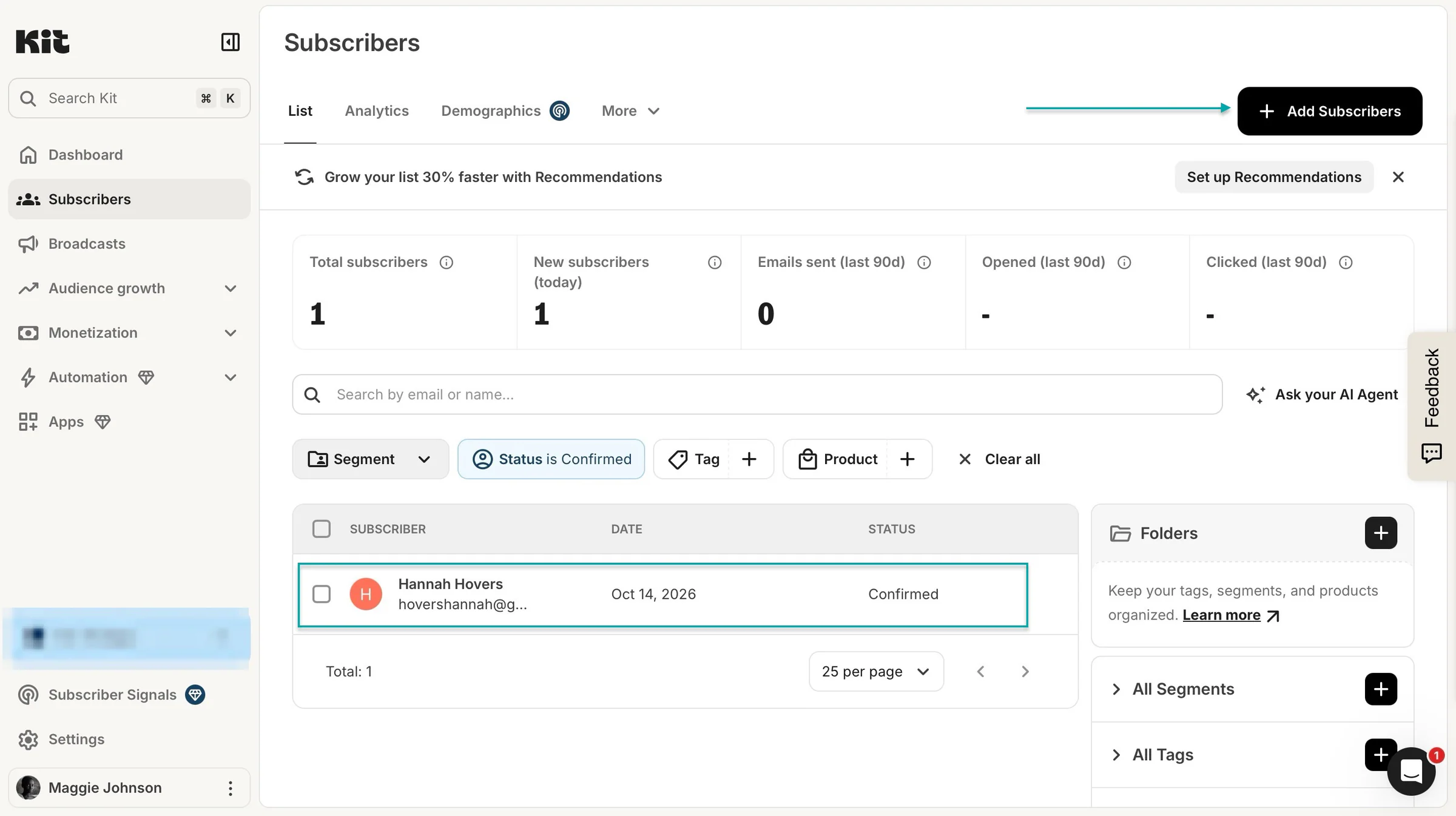
To add more, click “+ Add subscribers” and follow the same steps, or upload an existing email list using a CSV file.
You can also import subscribers automatically from another email marketing platform.
3. Landing pages & forms
Although you can sell digital products directly to your subscribers through emails, Kit also lets you use landing pages to promote your products and brand.
You can use forms to collect contact details and grow your email list, too. Let’s create a landing page on Kit.
Start by selecting “Audience growth,” then click “Landing pages & forms.”
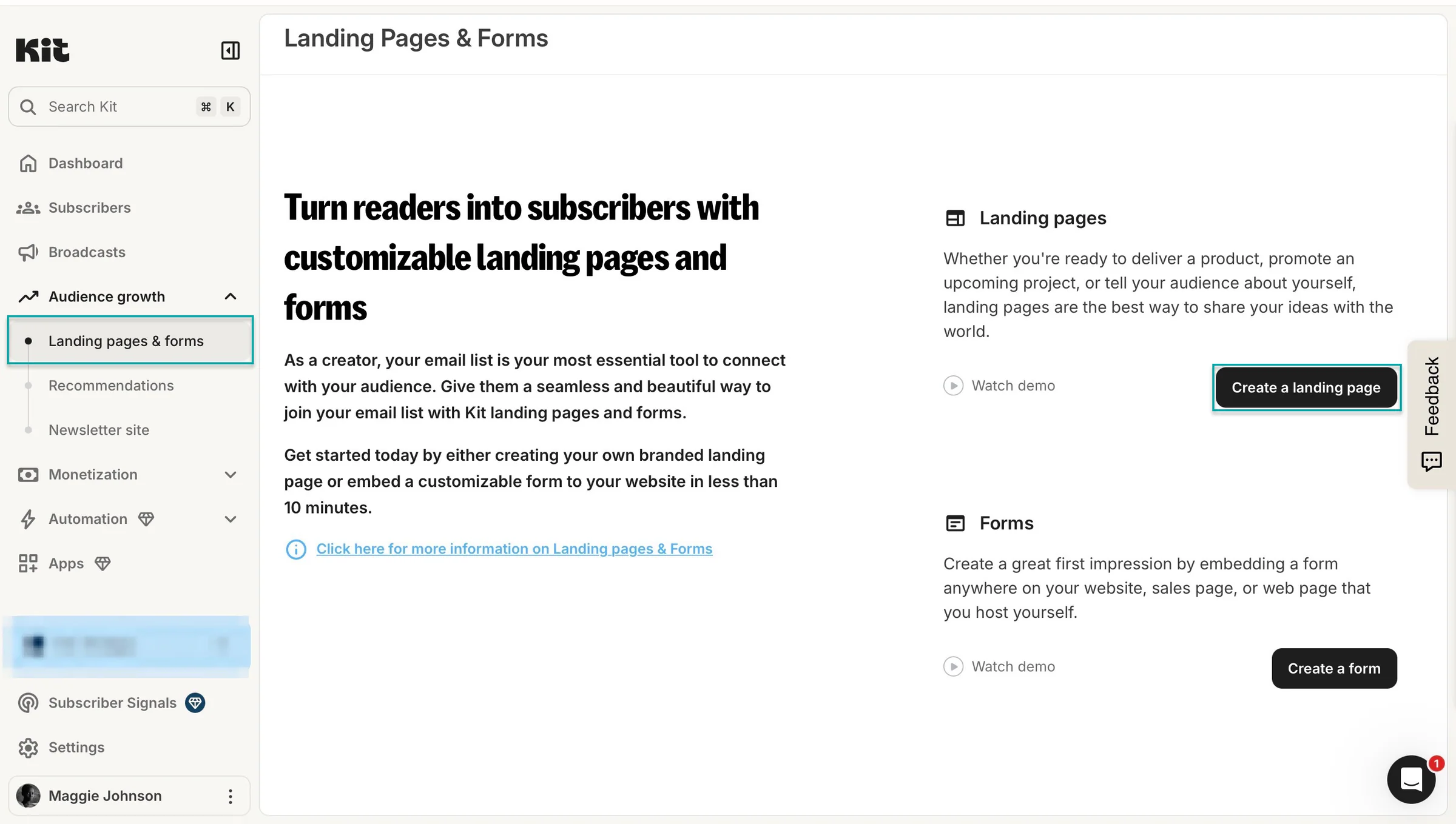
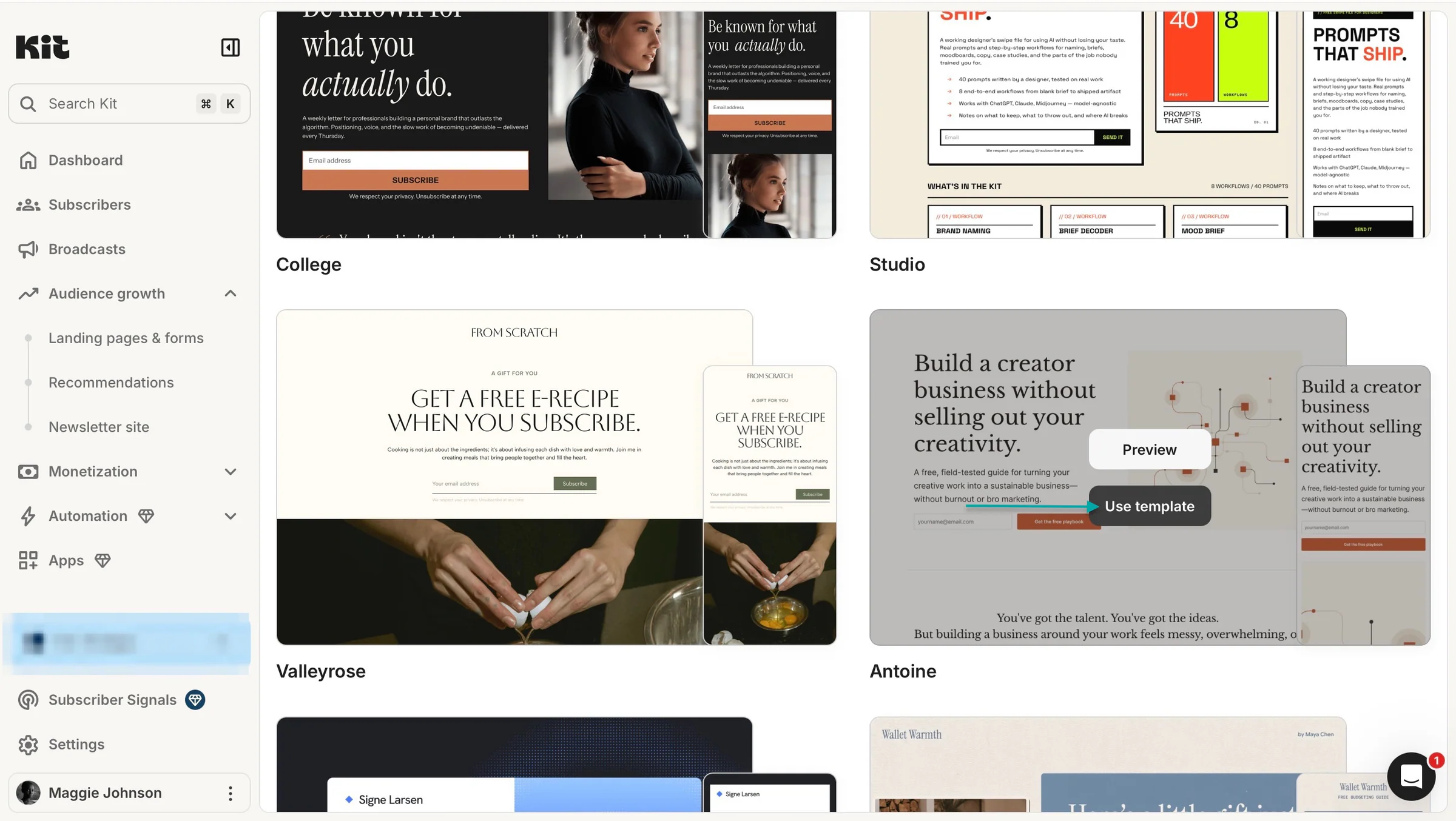
In the new window, hover your cursor over a template and click “Use template.”
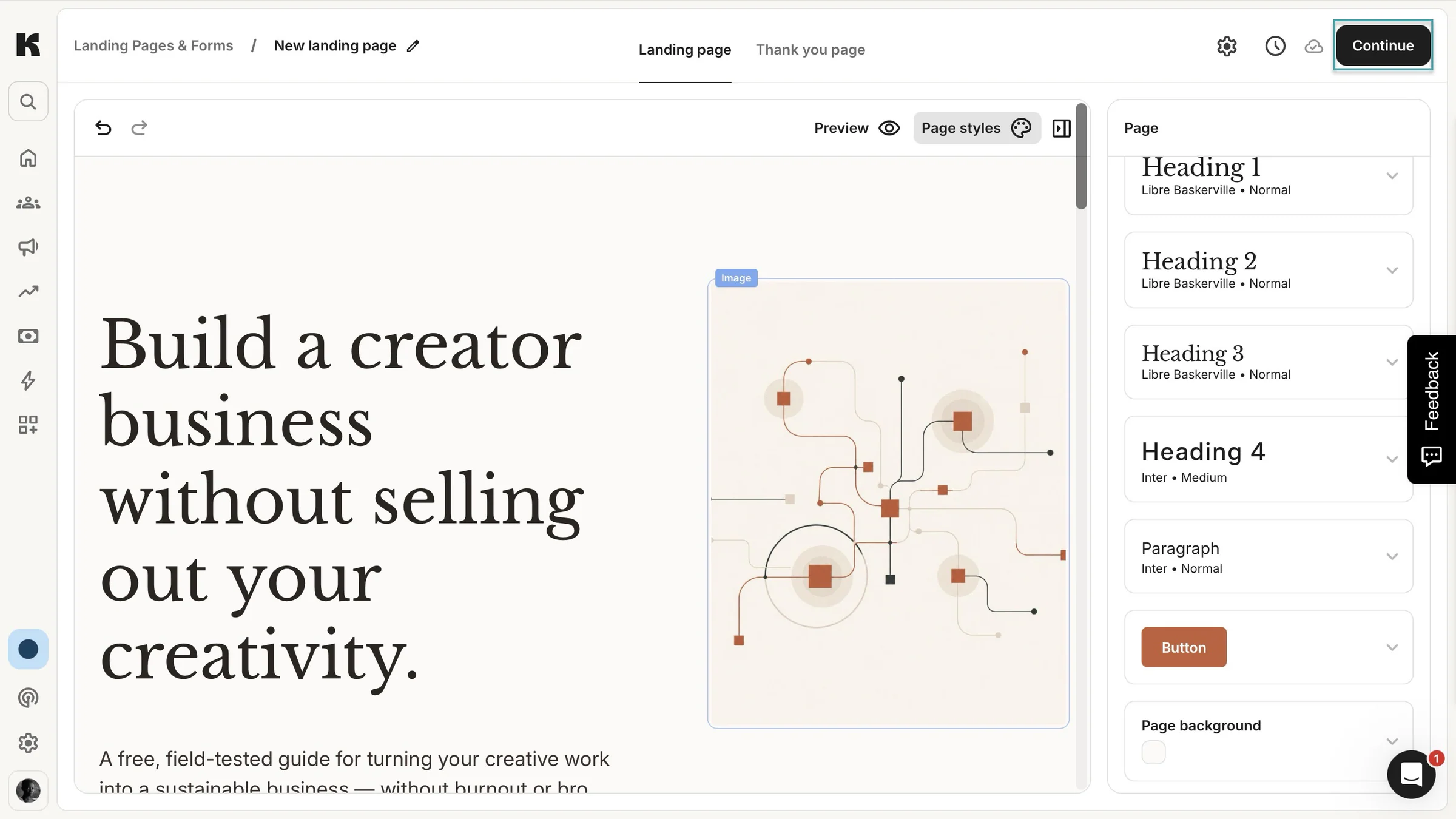
You can edit and customize the landing page to fit your brand. Click the gear icon to access settings like your domain name, confirmation options, Search Engine Optimization (SEO), analytics, and other advanced settings.
Once you’ve made the necessary changes, click “Continue.”
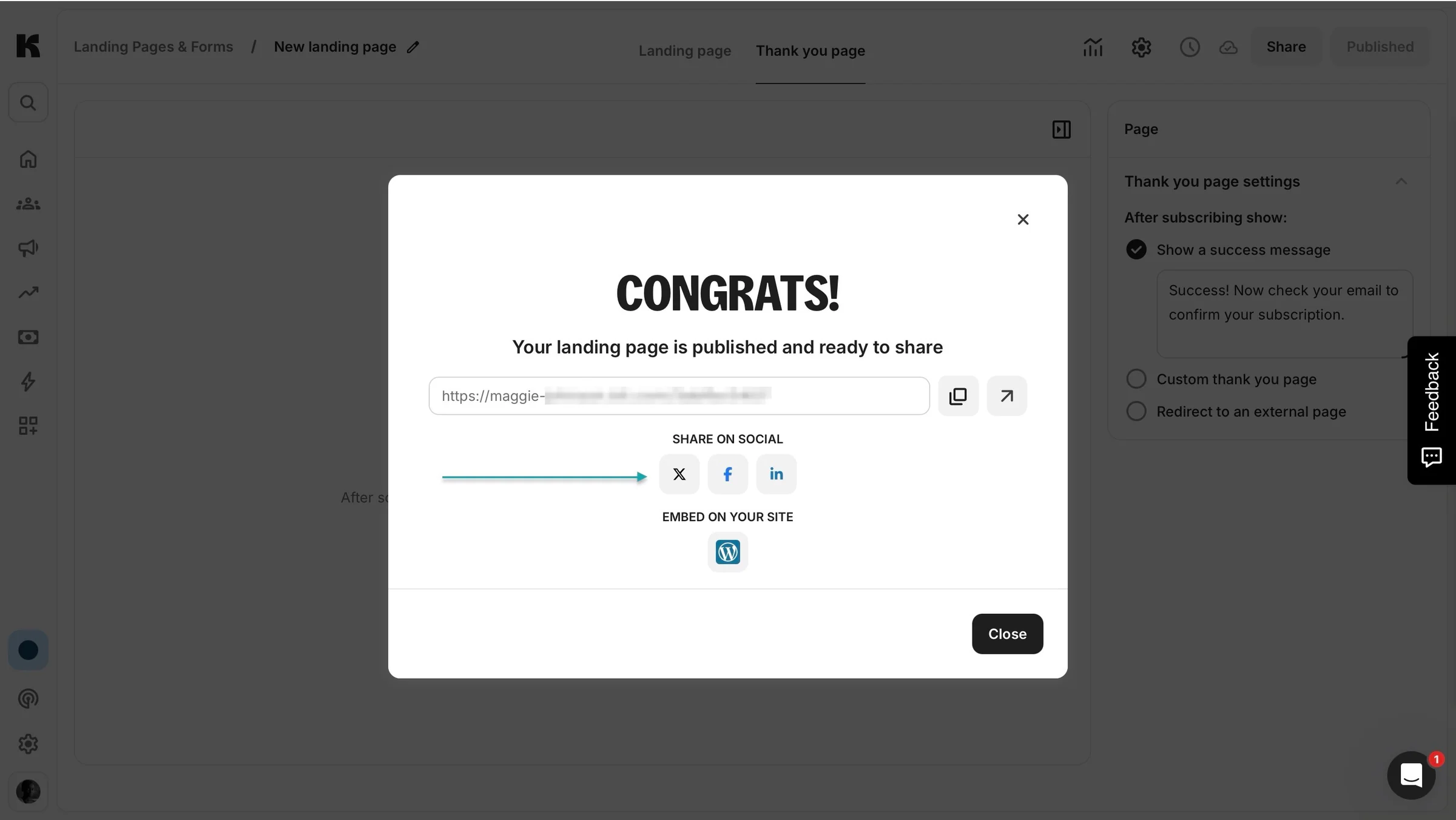
Next, edit your thank-you page and click “Publish” to make your landing page live. You can then copy its URL and share it on X (formerly Twitter), Facebook, LinkedIn, and other platforms.
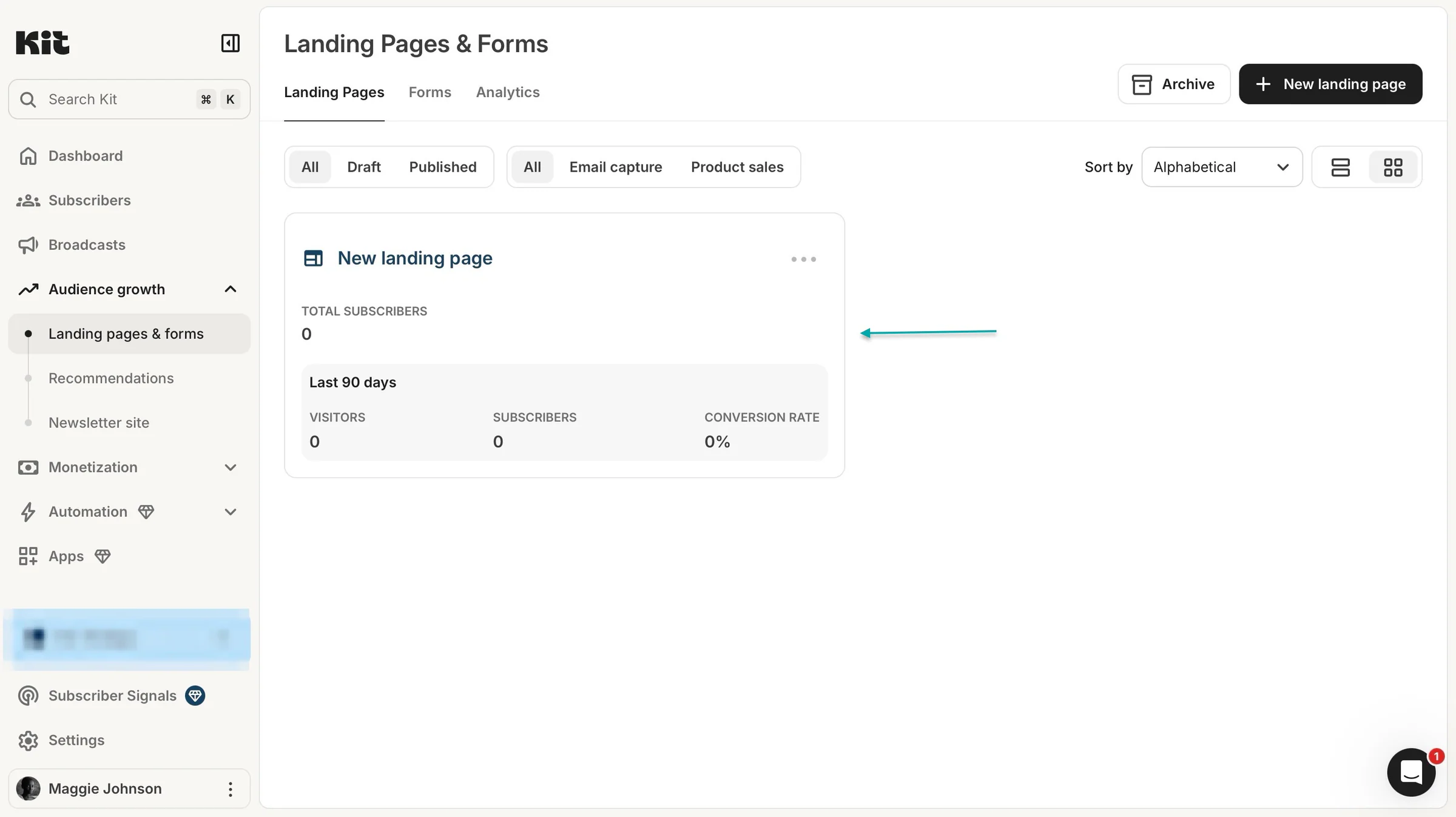
Kit will list your new landing page, where you can check analytics such as visitors, subscribers, and conversion rates.
What I liked vs what I didn’t like
What I loved 👍
✅ Offers a free plan and a 14-day trial so you can test its email marketing features before committing to a paid subscription.
✅ With Kit MCP, you can use AI agents like ChatGPT and Claude to understand your subscribers, draft emails, and manage email campaigns so you can spend more time creating content.
✅ Has a newsletter site like Easytools’ creator page, where people can discover your content and subscribe to your emails, and its recommendations feature also helps you reach new subscribers and connect with like-minded creators in your niche.
What I didn’t like 👎
❌ Doesn’t offer access to the apps, subscriber signals, and automation features on its free plan, and you have to upgrade to paid to use or earn from ad sponsorships and paid recommendations, so you have to spend money before you can use these monetization features.
Best for
- Creators, writers, and newsletter publishers who want to grow their email lists, send newsletters, automate campaigns, and monetize their audience.
Pricing
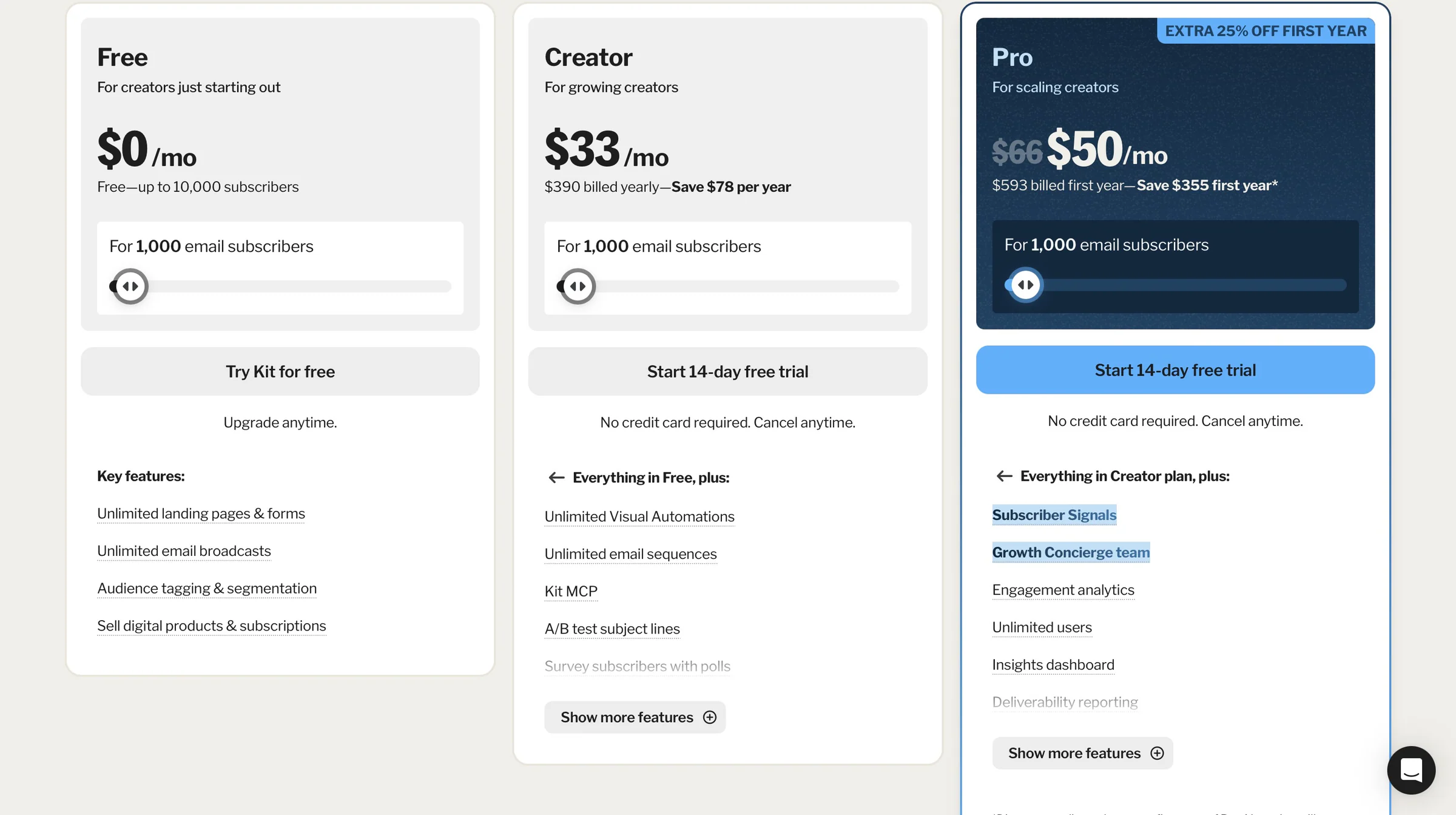
- Free: $0/month
- Creator: $33/month
- Pro: $50/month
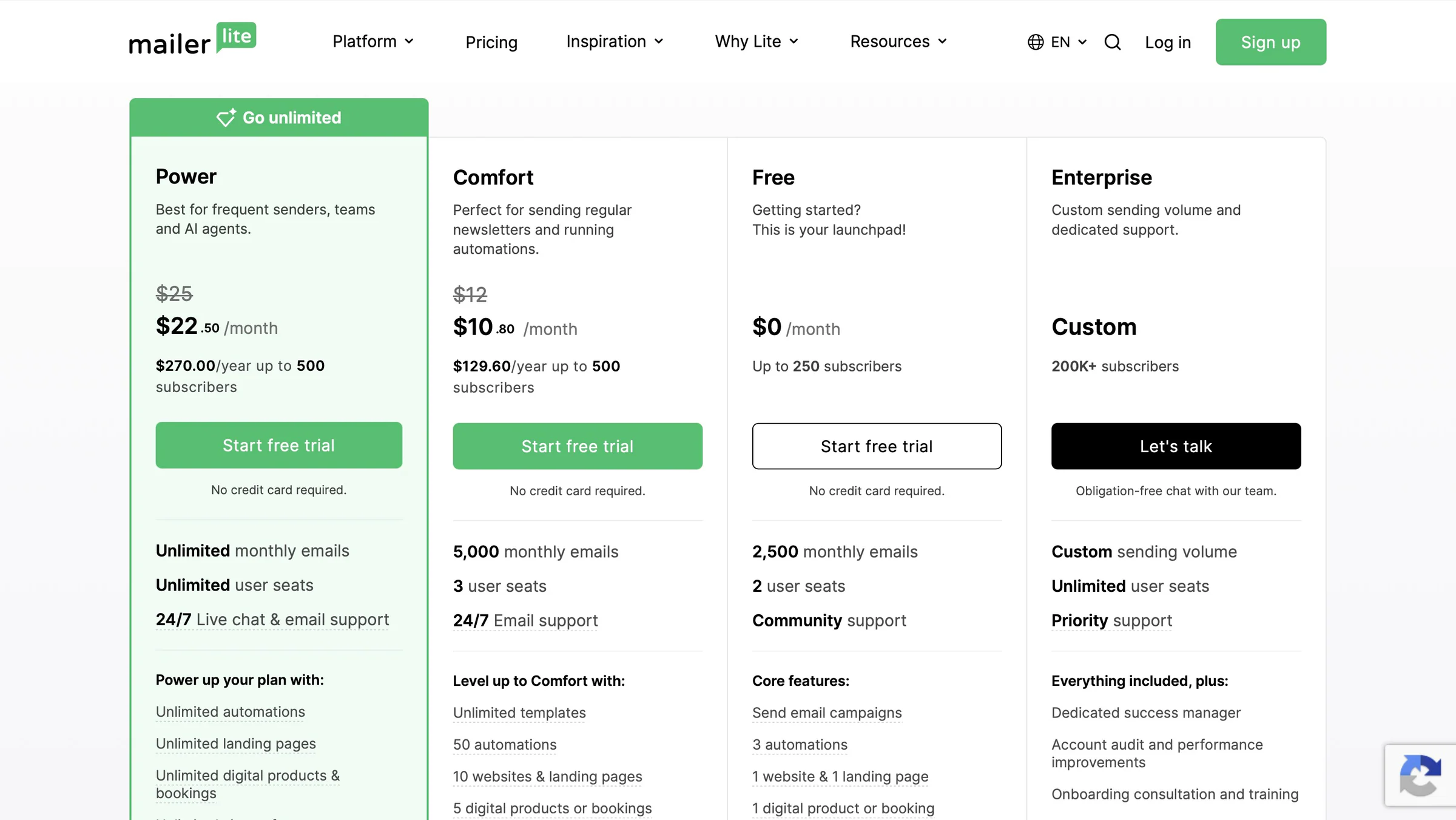
3. MailerLite - Best for affordable email marketing and landing pages
-
Personal rating: ⭐️⭐️⭐️⭐️ 4.4/5 - It’s for anyone looking for an email marketing tool with minimalist designs and tools to create campaigns, automate emails, and grow their subscriber list.
-
Ease of use: ⭐️⭐️⭐️⭐️ 4.5/5 - Every feature is just a click away, although the interface can feel a bit bland.
-
AI capabilities: Uses HeyLite Intelligence (AI) to write email content and subject lines, generate landing pages, and find the best times to send emails. With its MCP, you can connect with tools like ChatGPT and Claude to manage campaigns, automations, and subscriber lists.
-
Monetization options: Digital products (PDFs, EPUBs, JPEGs, and PNGs), paid newsletters, and paid appointments
-
Free trial: Yes - a 14-day free trial on its Free, Power, and Comfort plans.
-
Starting plan: Free - 0/month + 250 subscribers + 2,500 monthly emails + 2 user seats
MailerLite is also on our list of the best email marketing platforms.
It lets you build subscriber lists, create and send newsletters, automate emails, and track how your campaigns perform.
It also comes with a drag-and-drop editor, landing page and website builders, sign-up forms, and tools to sell digital products. You can use it to attract new subscribers, promote your products, and keep in touch with customers.
Like Easytools and Kit, MailerLite lets you create subscriber segments. That way, you can send emails to specific groups of subscribers instead of sending the same email to everyone.
It also offers segment templates so you don’t have to create everything from scratch.
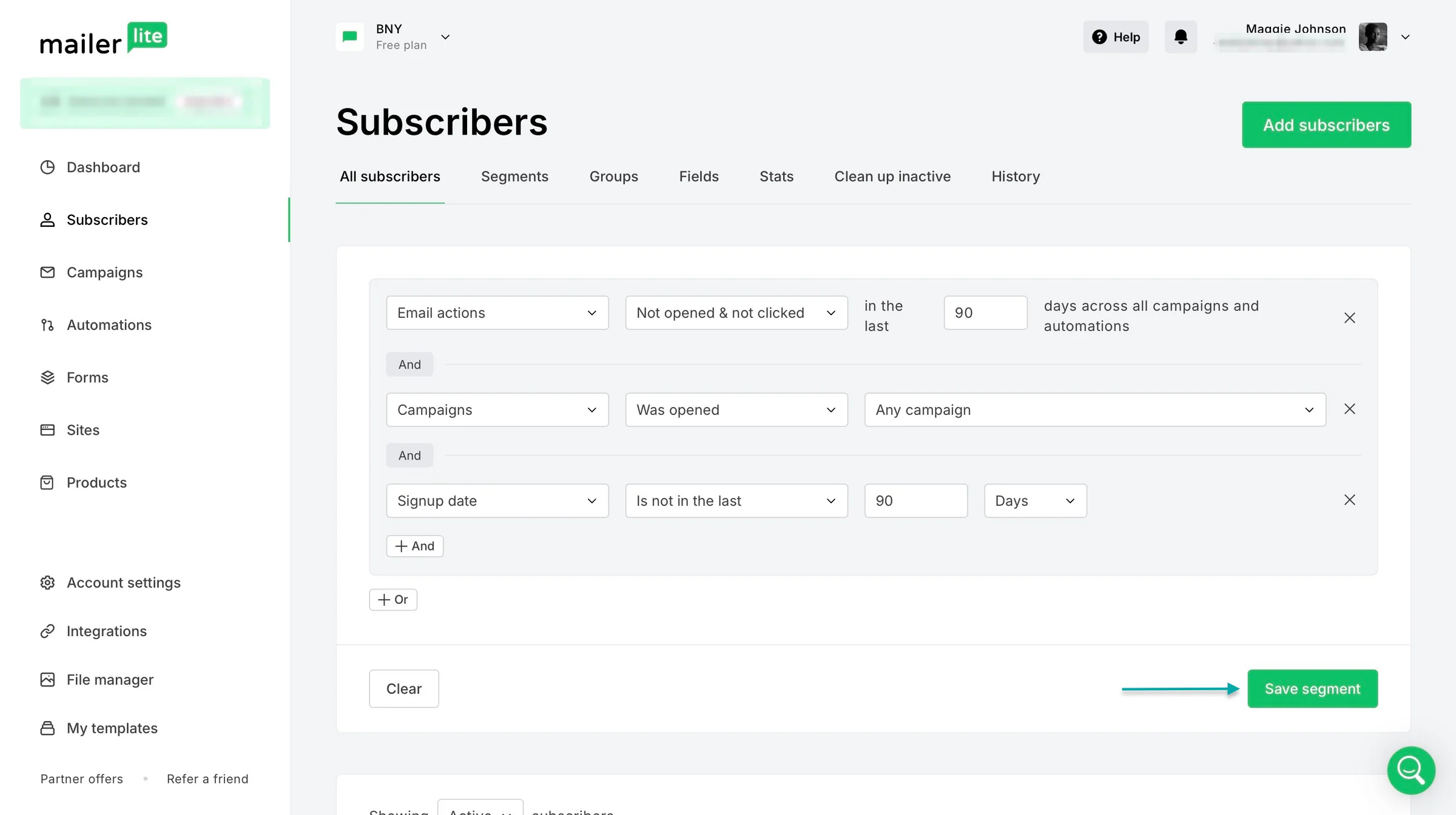
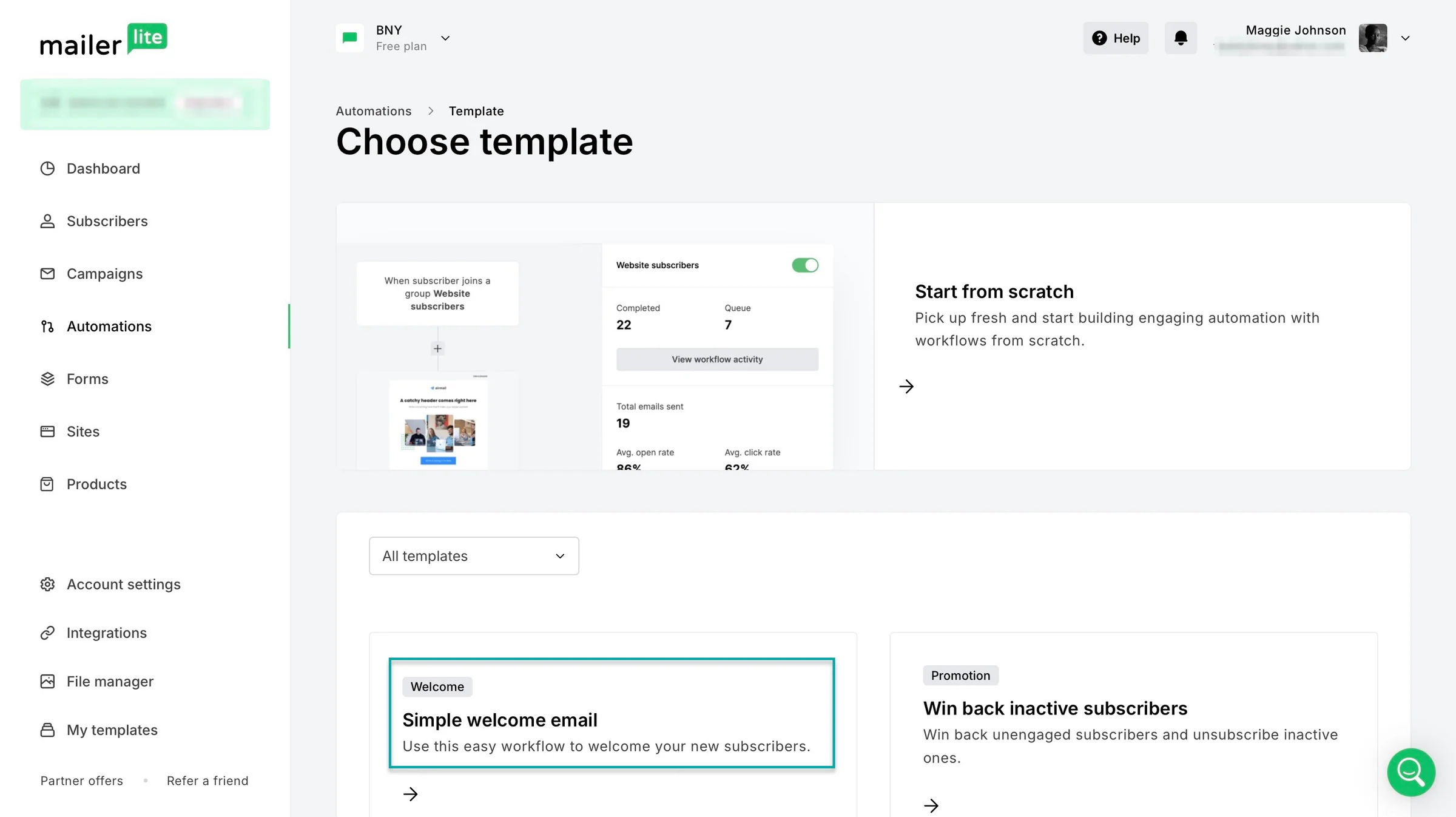
You can automate email messages, create workflows, segment subscribers, automate the buyer journey, and recover abandoned checkouts. This means you can follow up with subscribers and potential customers without doing everything manually.
MailerLite also offers automation templates to help you get started.
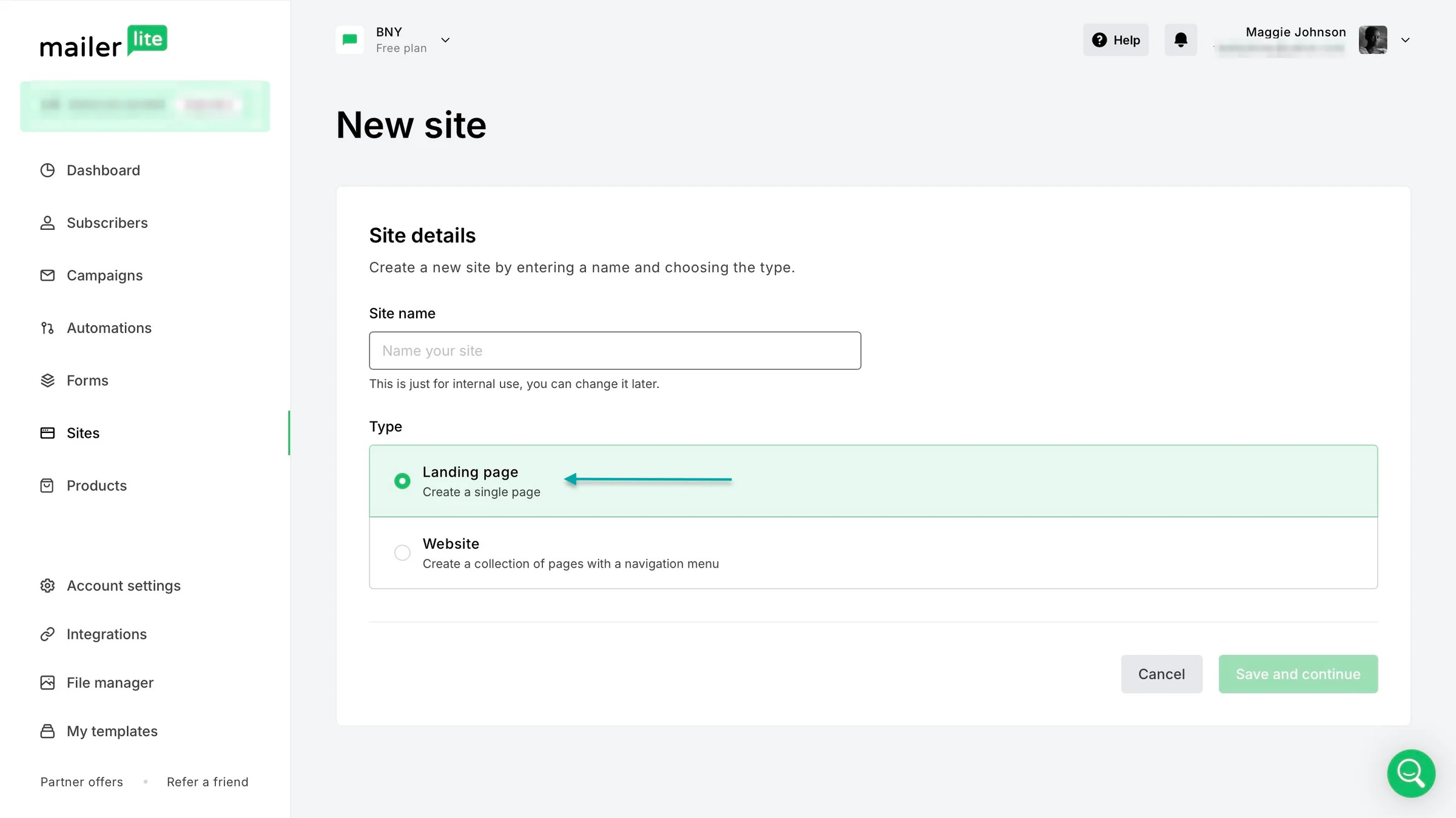
You can create landing pages and websites on MailerLite, too. You can add contact forms to collect information and sign-up forms to gather email addresses.
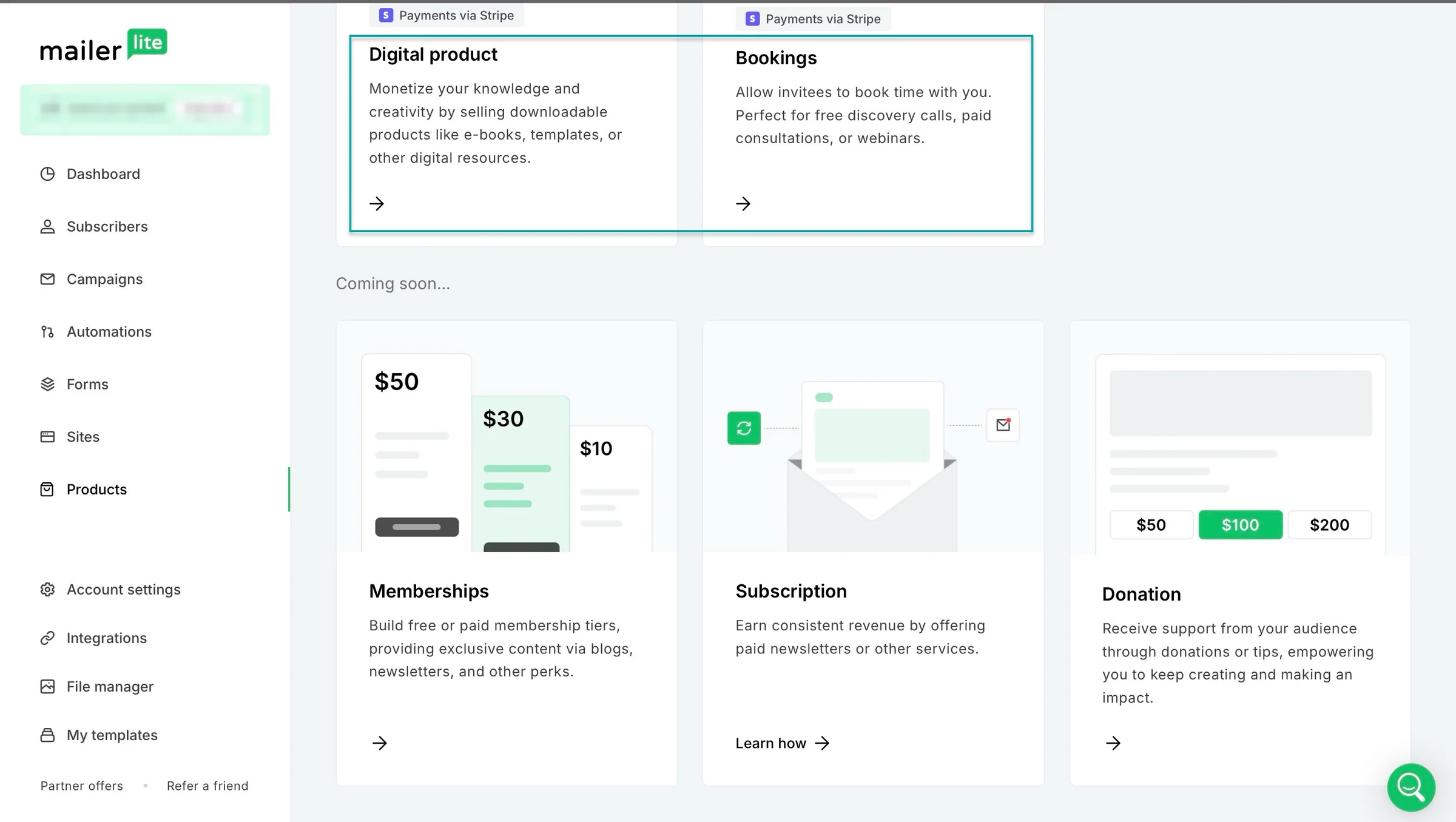
MailerLite also lets you sell digital products. You can promote your digital products through emails and direct subscribers to your checkout page to make a purchase.
And, of course, you can create and send email campaigns to share newsletters, promote your products, and keep your subscribers updated.
What I loved about MailerLite
1. Subscribers
MailerLite’s subscribers feature lets you add customers and leads to the platform. These will be the recipients of your newsletters and campaigns.
On this email marketing tool, you can add them manually or through a CSV or TXT file. You can also import your list from Mailchimp.
Let’s add a subscriber manually.
Select “Subscriber” in the sidebar and click “Add subscribers” at the top-right corner of the window. In the new window, click “Add single subscriber.”
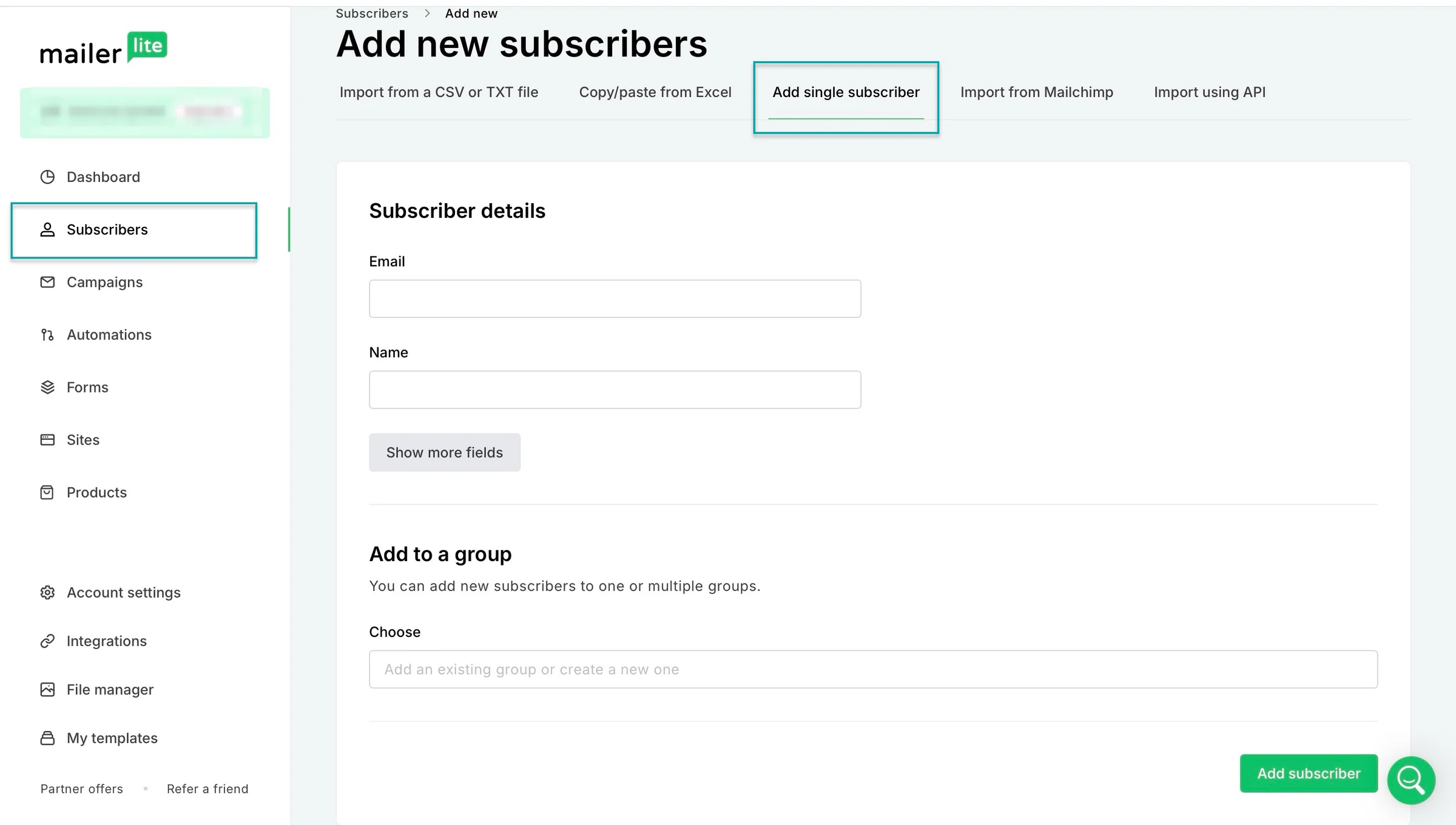
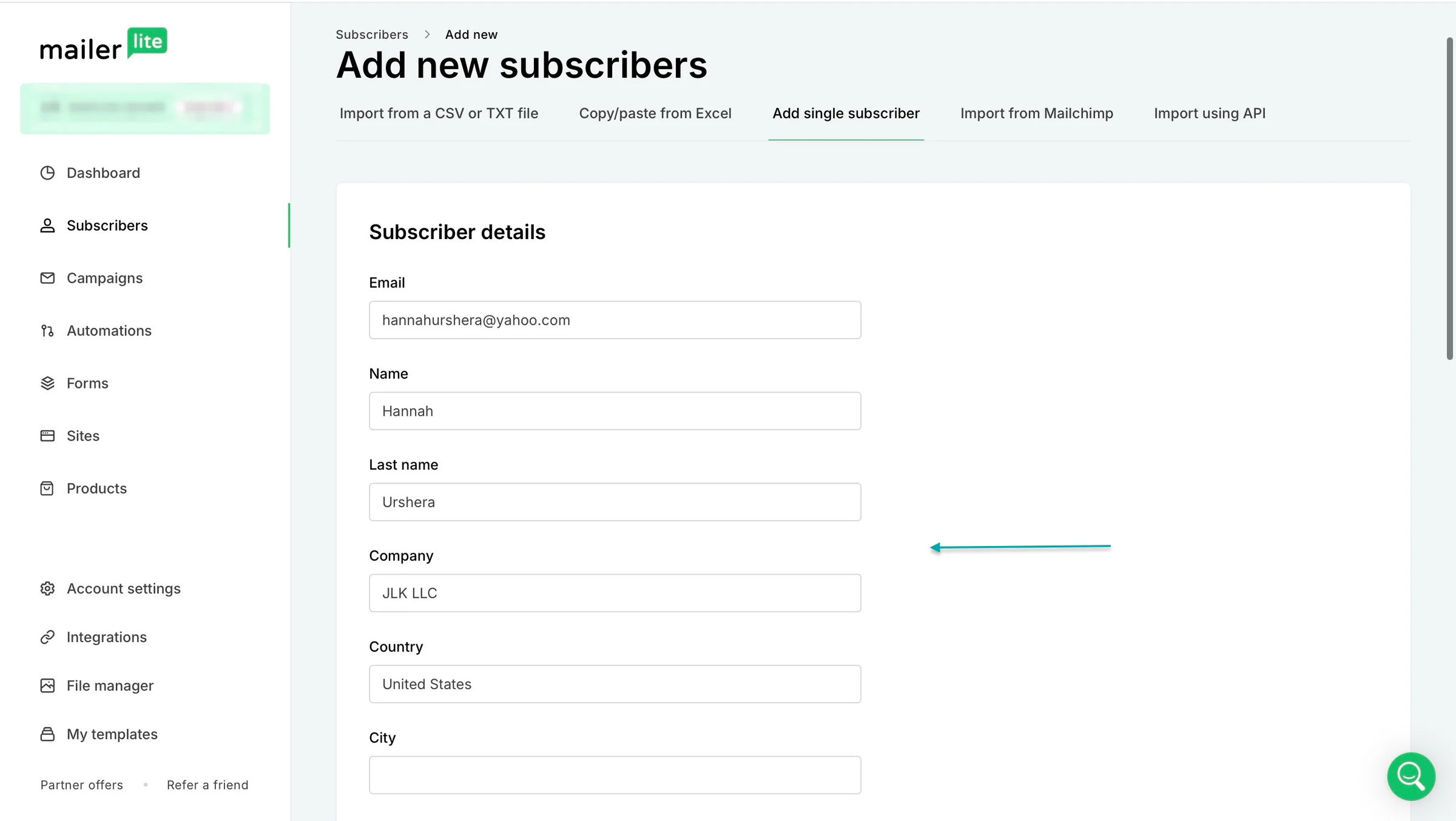
Enter the subscriber’s email address and name. If you’d like to add more contact details, click “Show more fields.”
You can then add the company, country, phone number, state, and other details. Once you’re done filling out the form, add the subscriber to a group and click “Add subscriber” at the bottom.
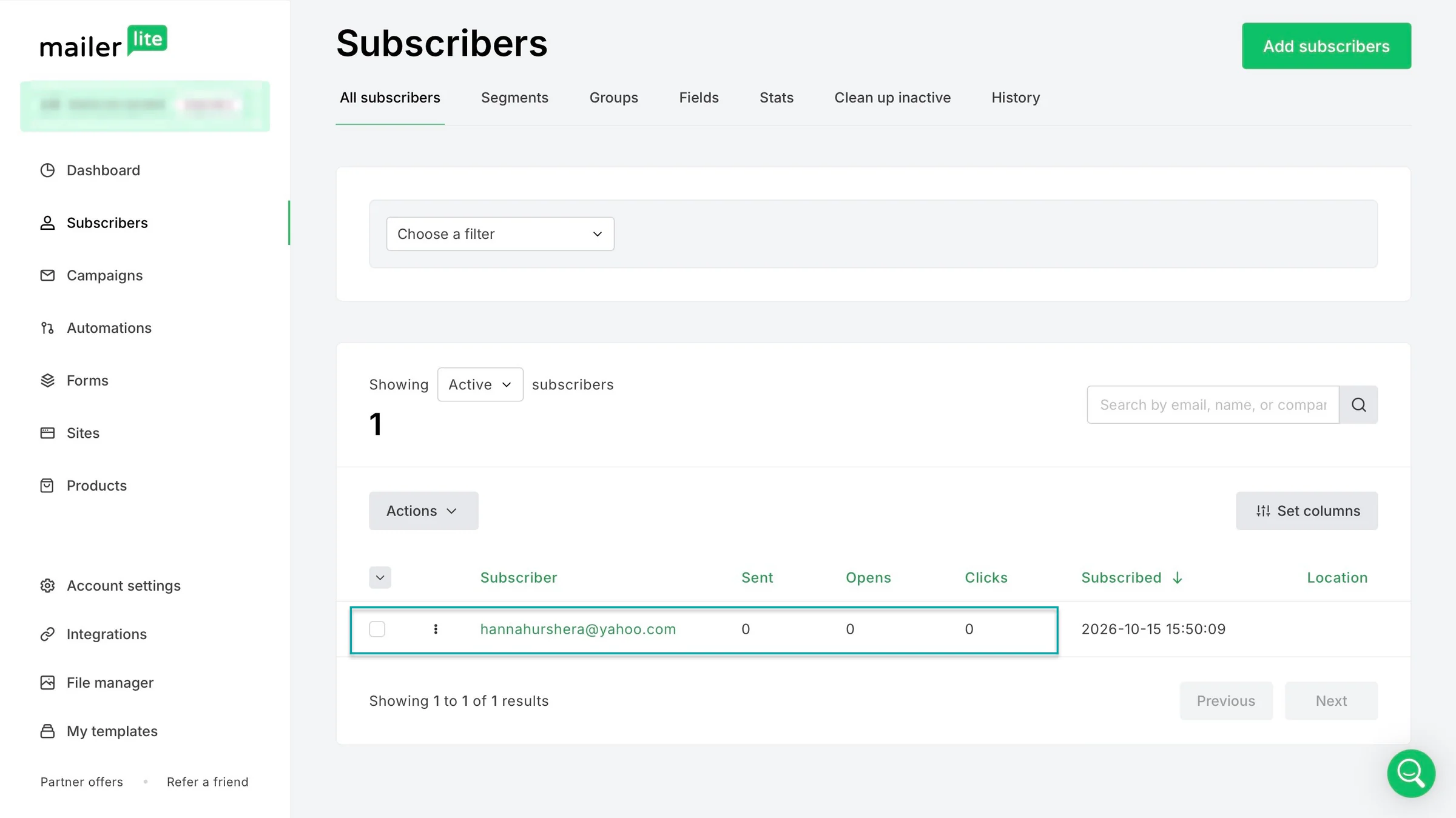
MailerLite will display the new subscriber.
2. Campaigns
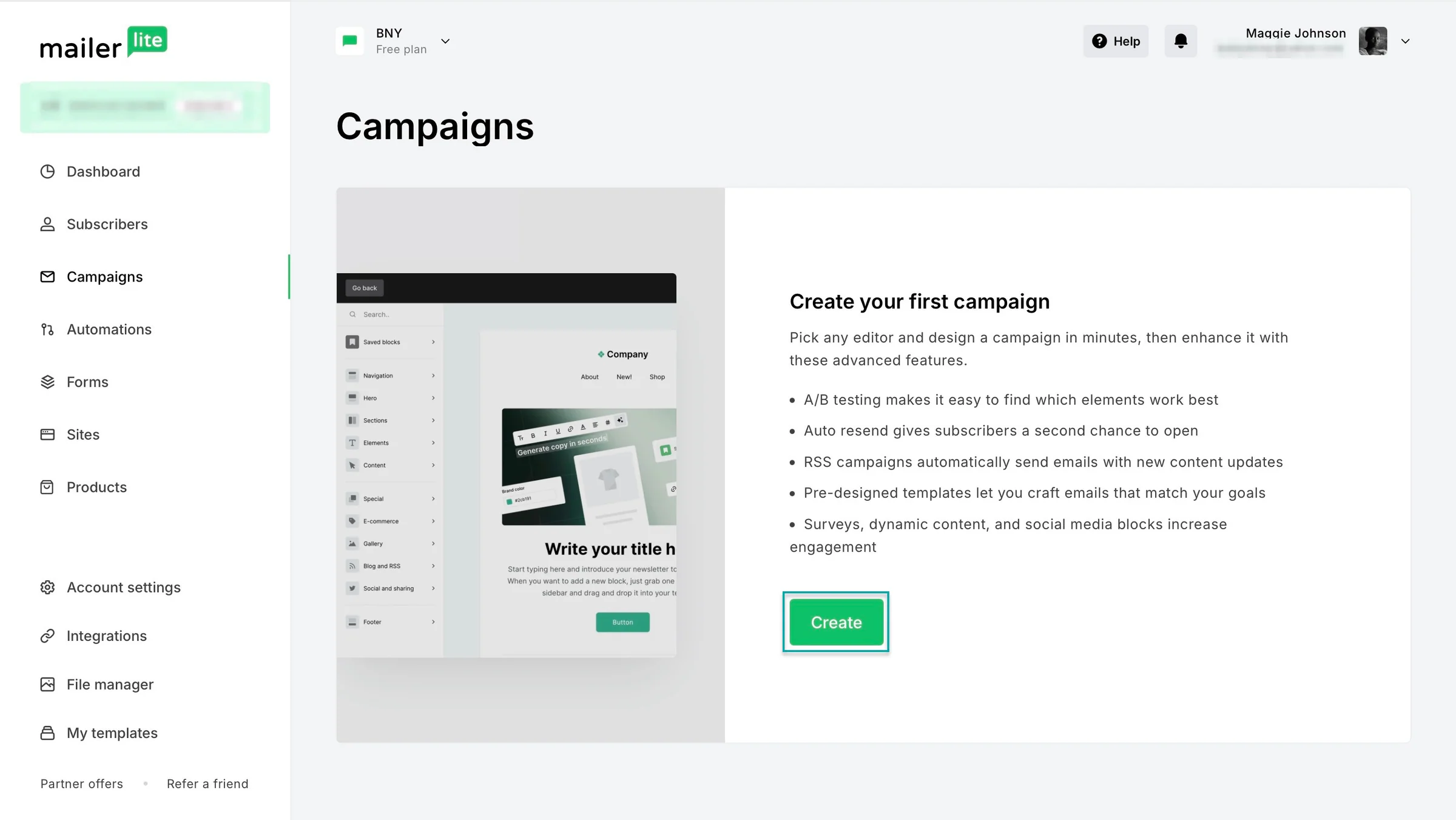
The campaigns feature lets you create and send emails. You can test what works best, automatically resend emails to people who haven’t opened them, and share new content.
You can also add surveys and social media links to keep subscribers engaged.
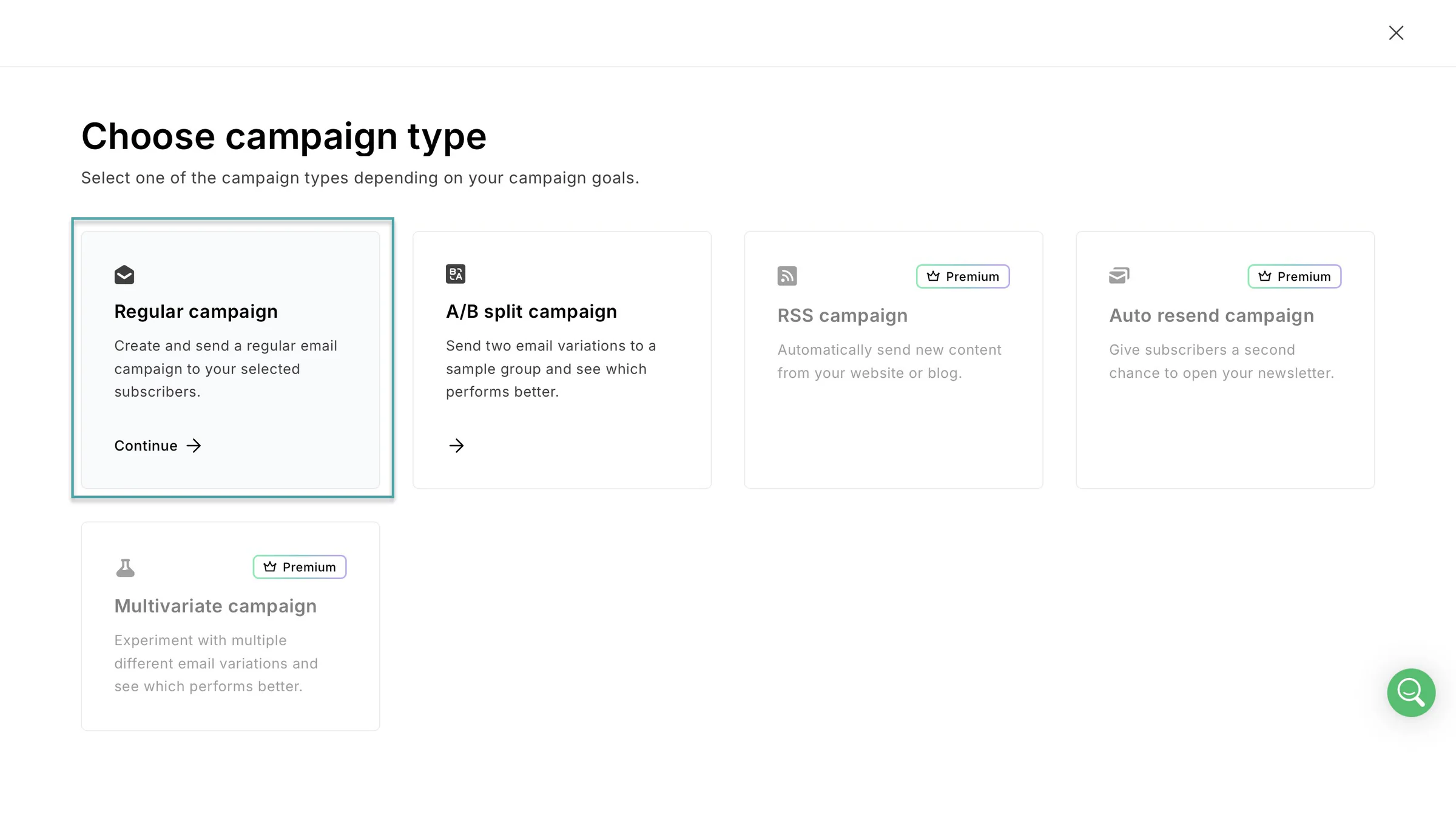
Here’s how to create and send emails. First, select “Campaigns” in the sidebar and click “Create.”
On the new page, hover your cursor over “Regular campaign” and click “Continue.”
Next, click “Drag & drop editor.”
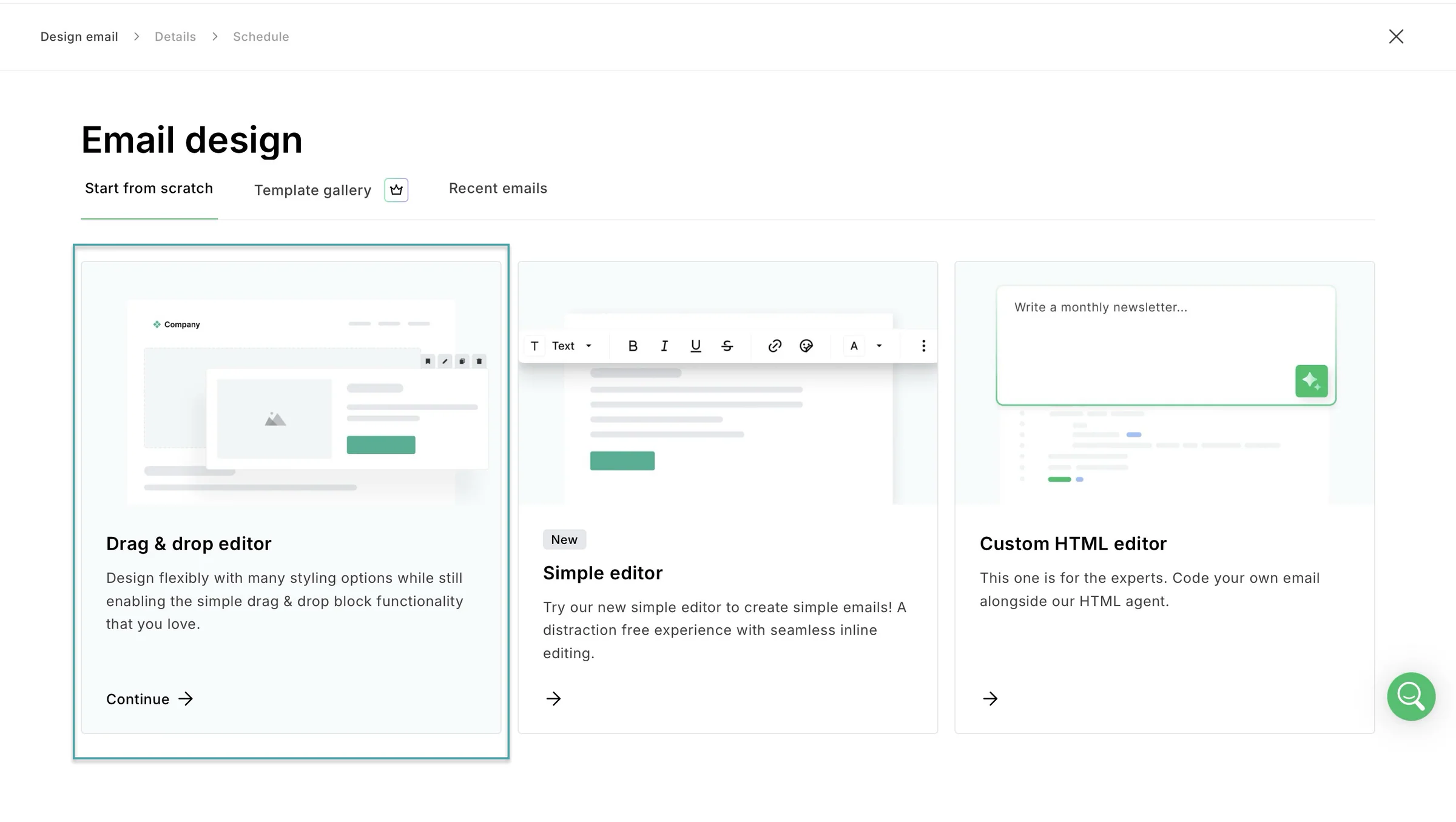
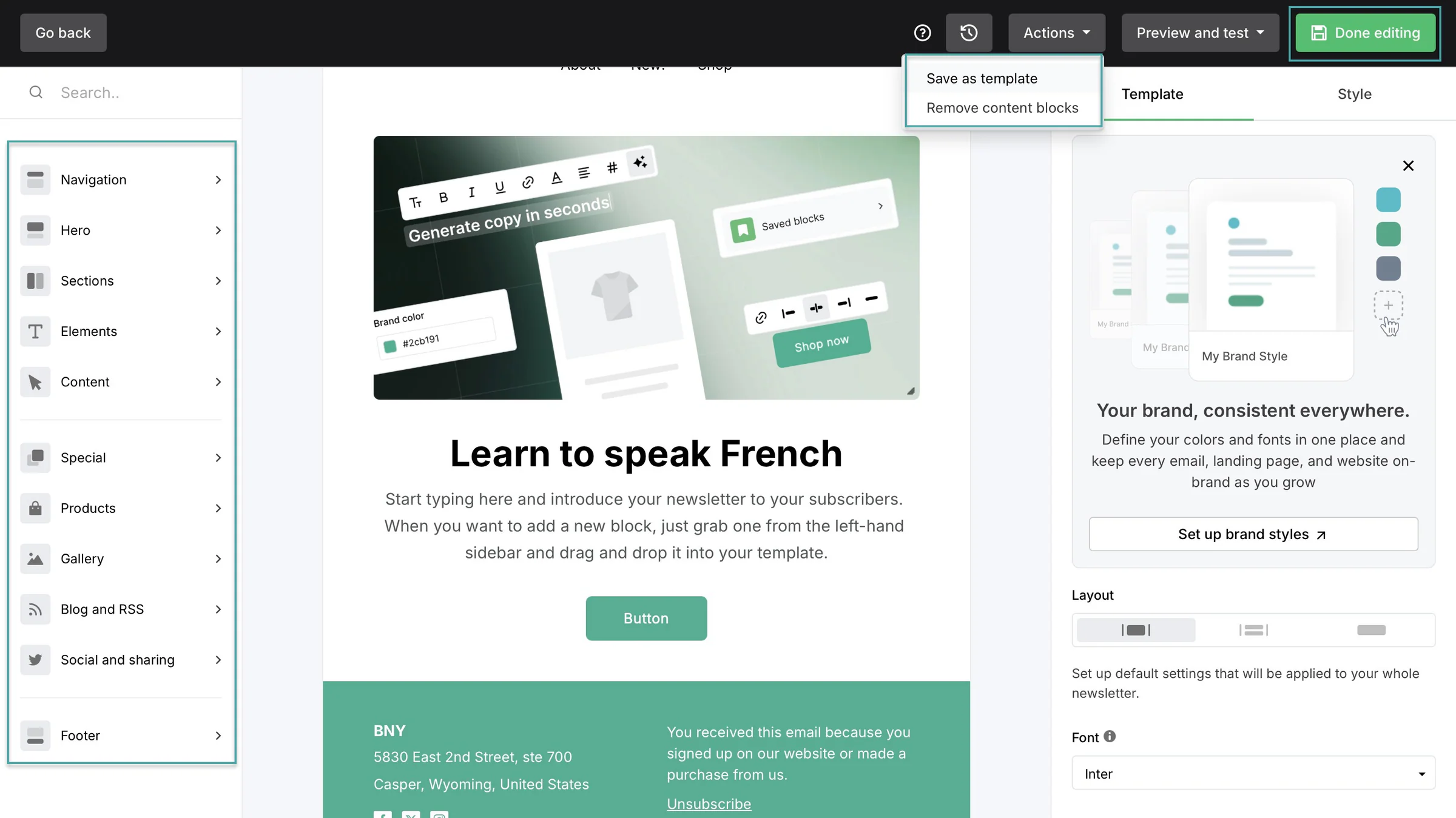
In the editor, you can add text, images, videos, buttons, surveys, social media links, and product blocks.
You can customize your emails to match your brand and save your designs as templates for future campaigns. You can also preview and test your emails before sending them.
Once you’ve made the necessary edits, click “Done editing.”
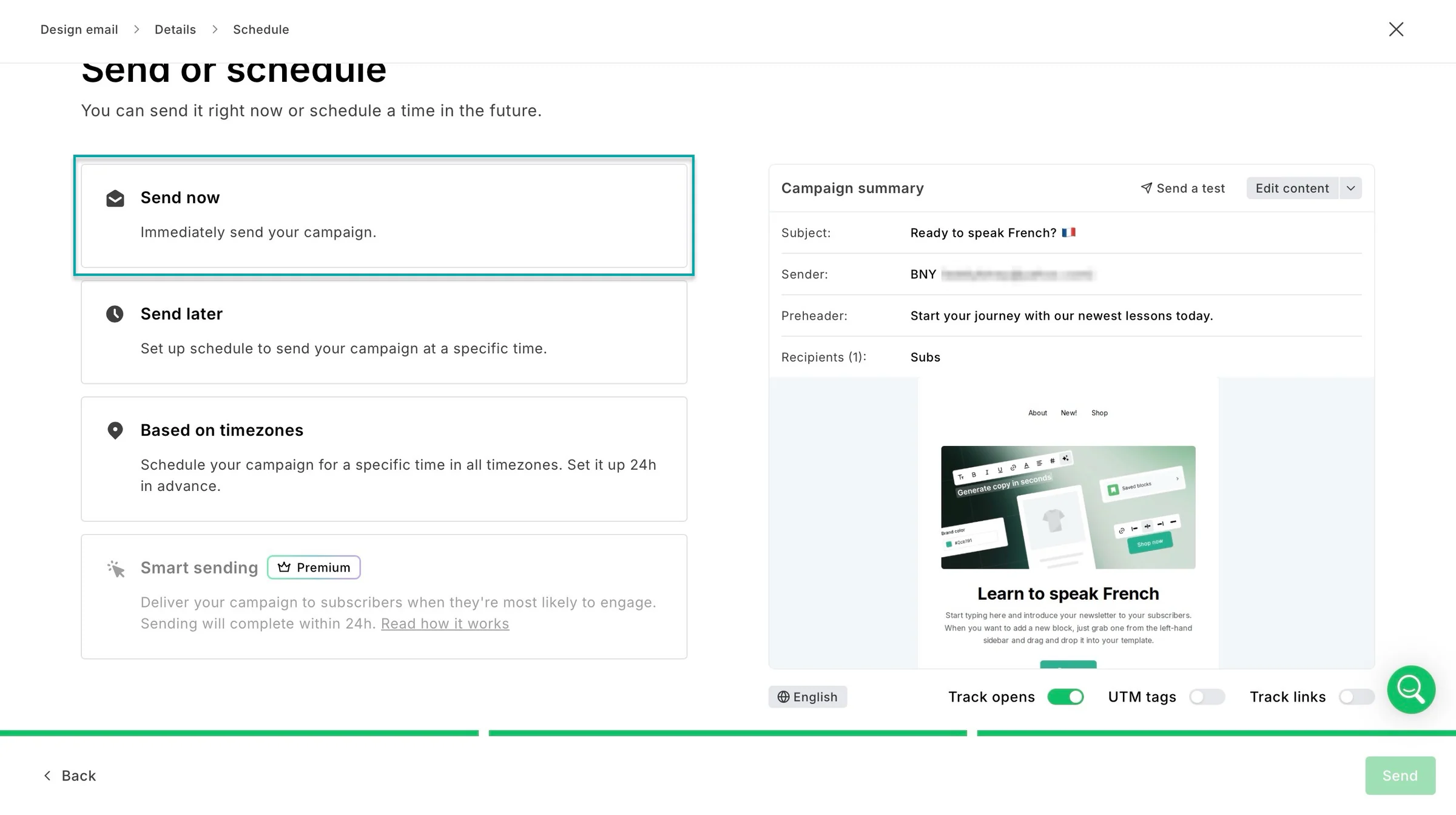
Now, enter the email subject and other sending details, then select your recipients. Click “Continue.”
In the new window, select “Send now” and click “Send.”
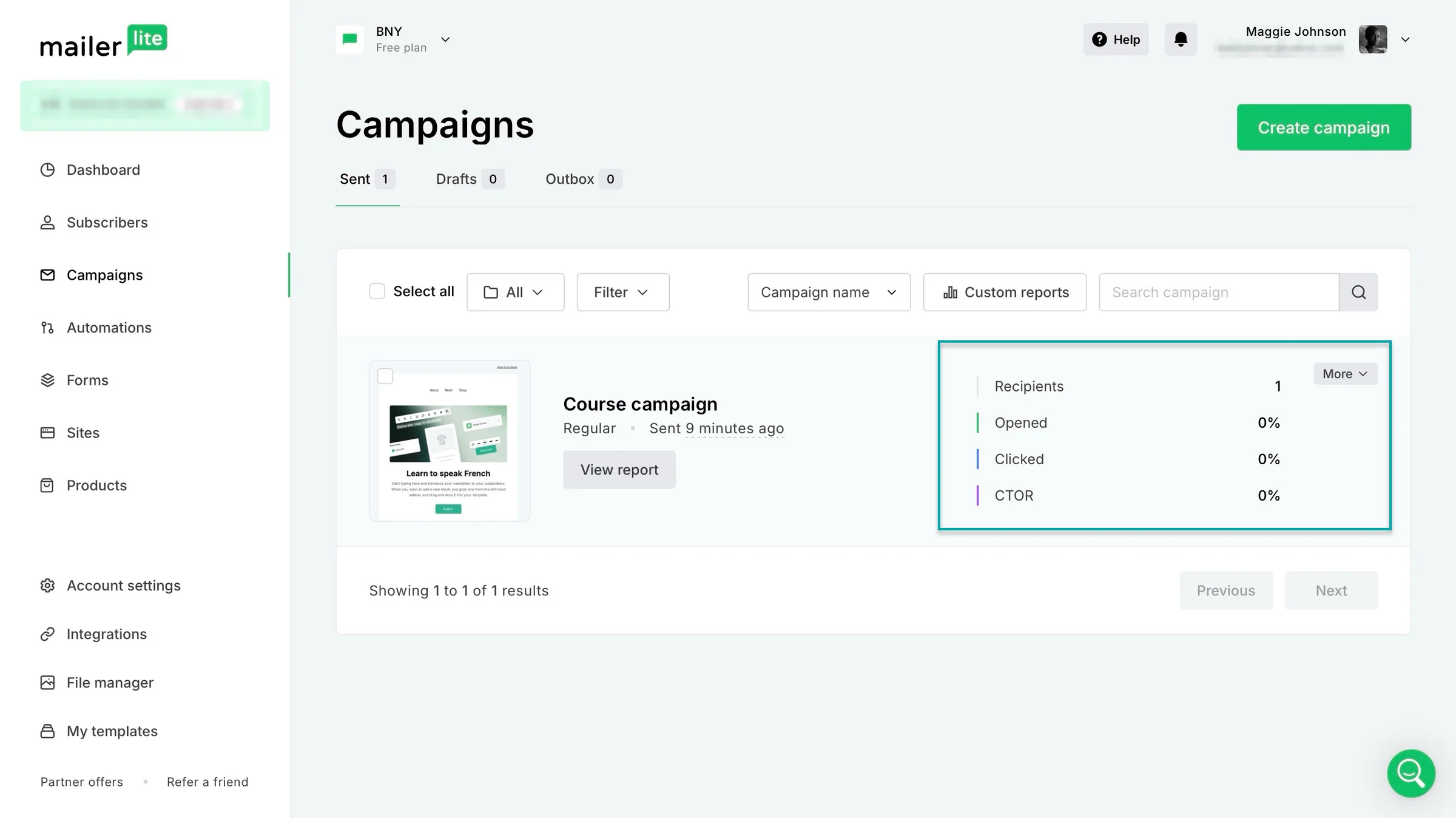
MailerLite will send your campaign and let you review it on the platform. You’ll also see metrics like open and click rates and click-to-open rates (CTOR) to understand how your campaign performed.
3. Automations
Its automations feature lets you create workflows that automatically send emails when subscribers take specific actions. Like joining your email list, clicking a link, or buying from you.
This means you can welcome new subscribers, follow up with potential customers, and promote your products without sending every email manually.
Let me show you how it works.
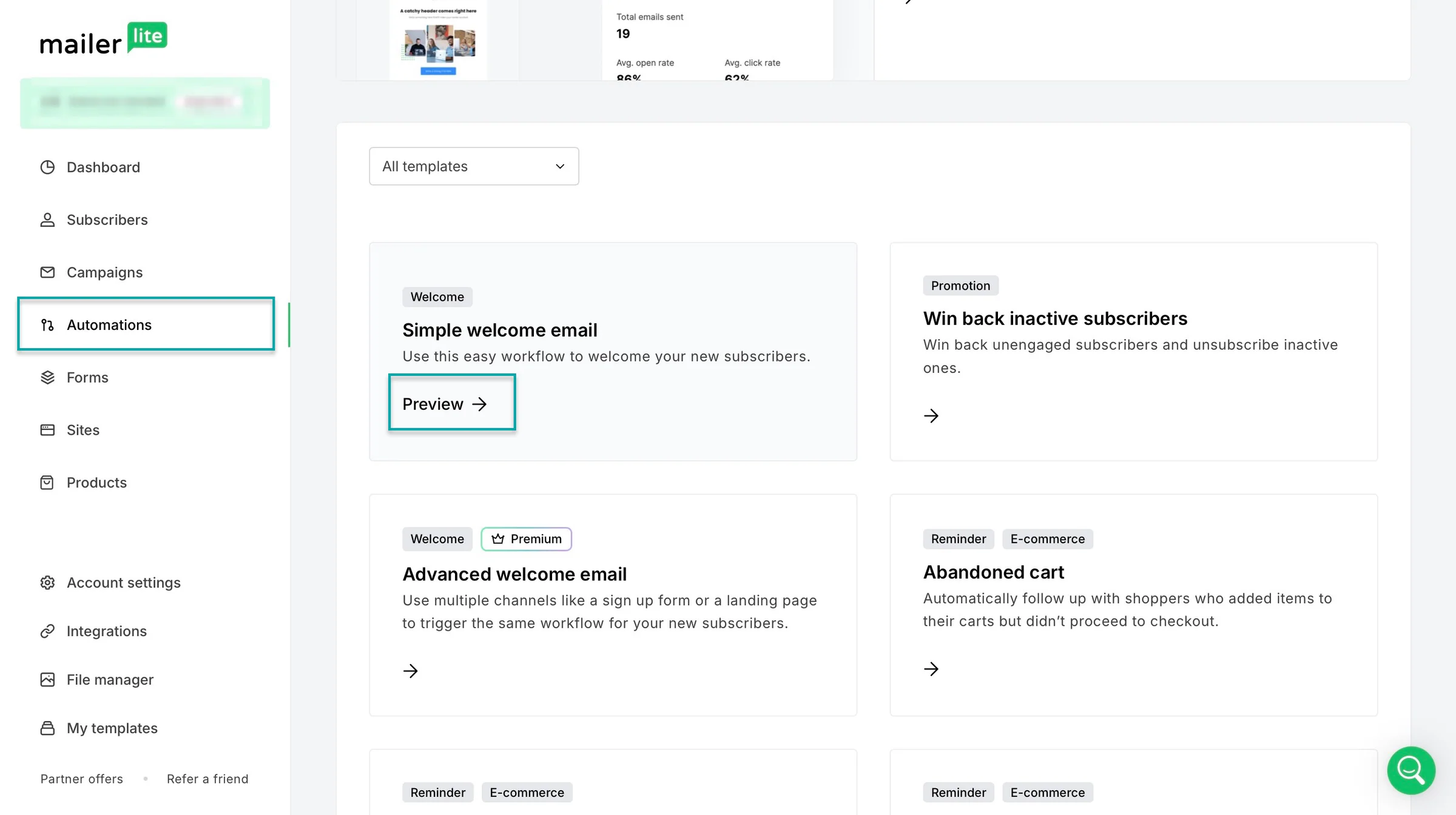
Select “Automations” in the sidebar and click “Create.” Next, choose a template.
In the new window, hover the cursor over the template you’ll choose and click “Preview.”
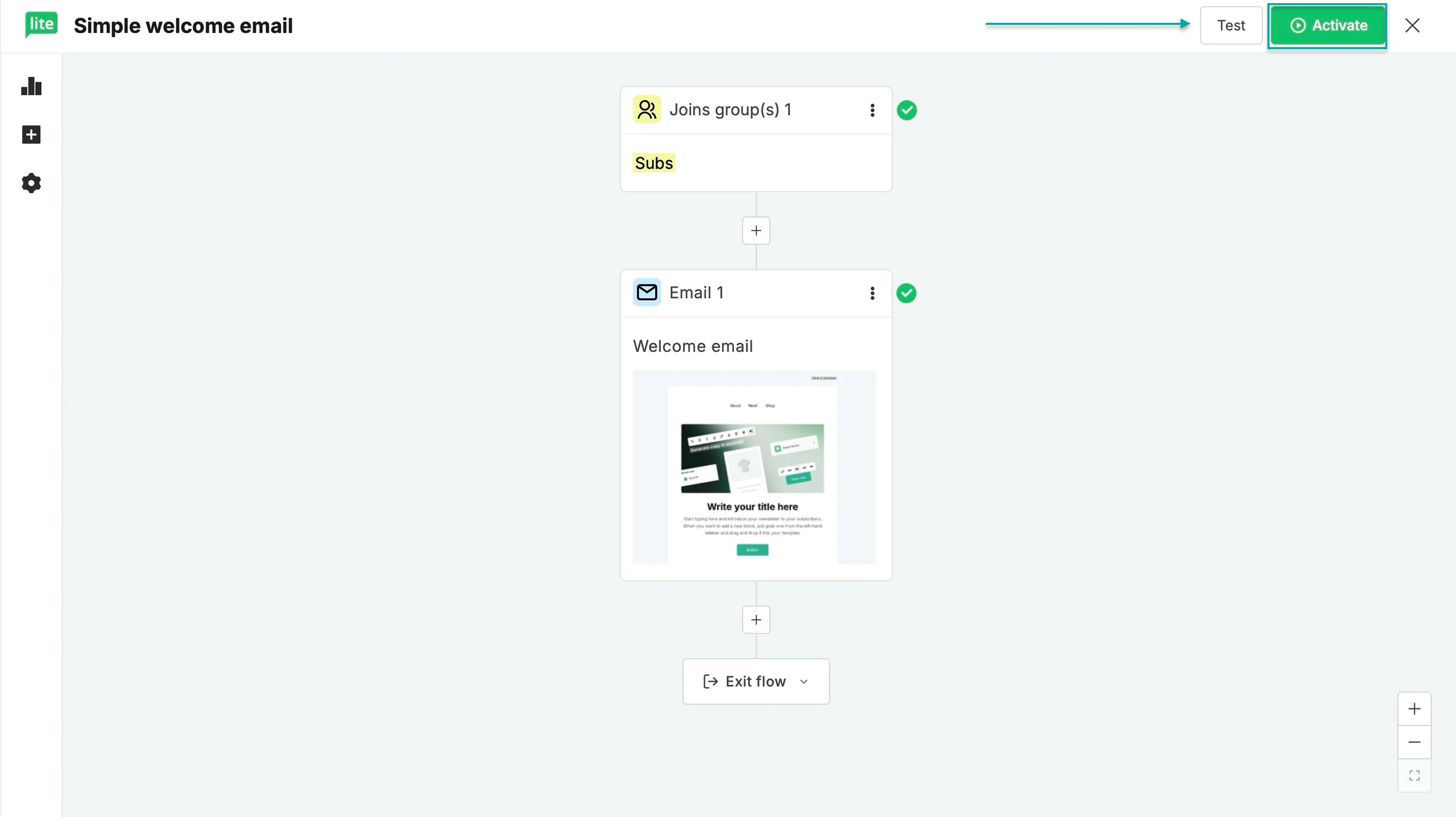
In the automation editor, click each node to make edits. You can also click the plus sign (+) to add more steps to your workflow.
You can click “Test” to run the automation and see if anything needs further editing.
Once you’re done, click “Activate.”
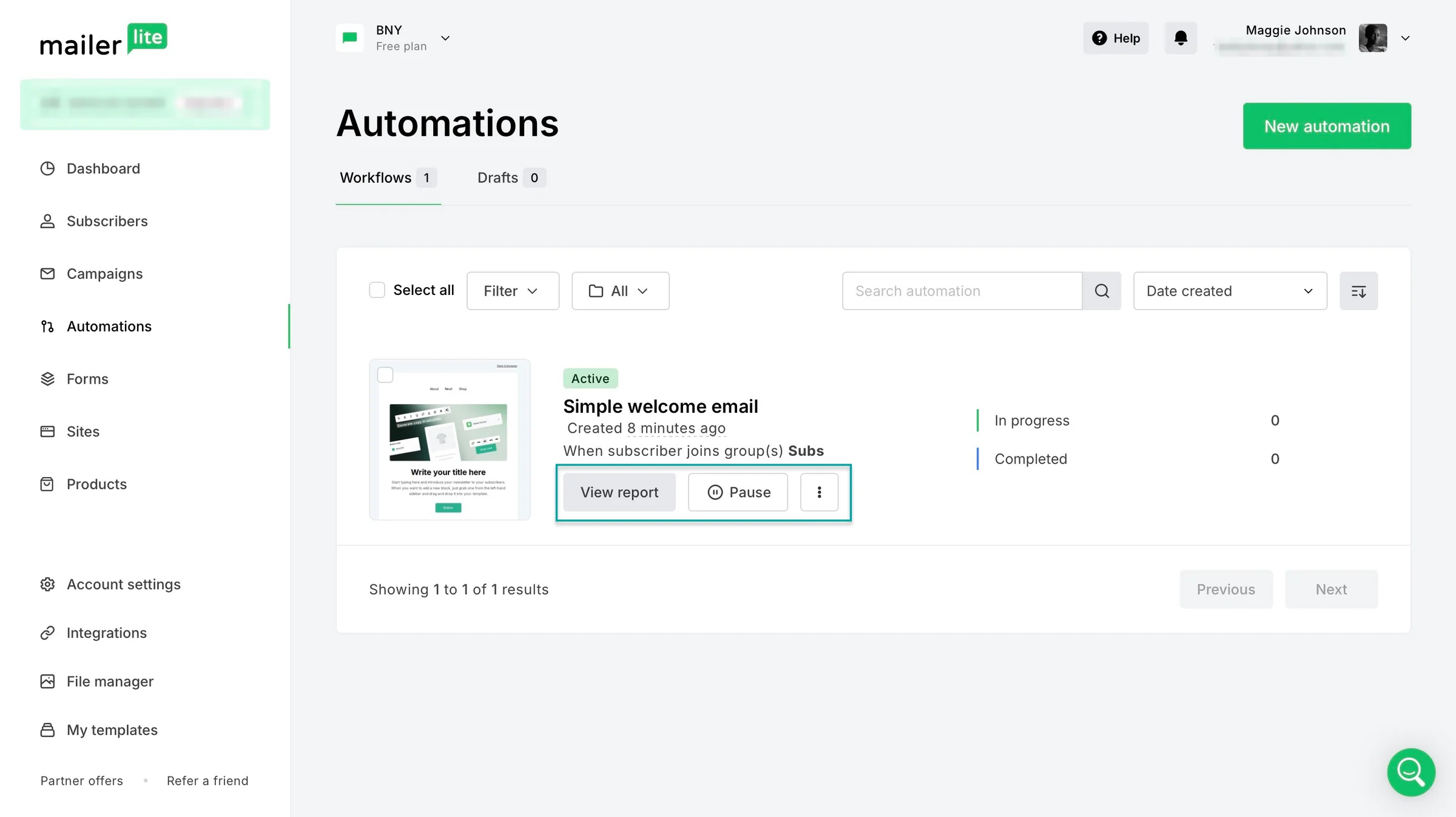
MailerLite will display your automation, and you can click “View report” to check engagement and deliverability analytics.
What I liked vs what I didn’t like
What I loved 👍
✅ Offers a free plan so you can launch your email marketing campaigns without investing money upfront.
✅ Integrates with 140+ tools like Stripe, Shopify, Facebook Audiences, Adobe Express, and more, so you can connect MailerLite to software you already use instead of moving customer information and other data manually between platforms. You can also request an integration if you can’t find the tool you need.
✅ Charges a 0% platform transaction fee when you sell digital products or paid newsletter subscriptions through its direct Stripe integration, so you can keep more of what you earn from each sale.
What I didn’t like 👎
❌ Its Free and Comfort plans limit you to 3 and 50 automations, respectively, which means you’ll need to upgrade to the Power or Enterprise plan to create unlimited automations.
Best for
- Creators, bloggers, and small businesses that want to grow their email lists, send newsletters, automate emails, and sell digital products.
Pricing
- Free: $0/month
- Comfort: $10.80/month
- Power: $22.50/month
- Enterprise: Contact for pricing
4. Mailchimp - Best for email marketing templates and basic automation
-
Personal rating: ⭐️⭐️⭐️⭐️ 4.4/5 - Like Easytools, it’s feature-rich, but it doesn’t offer built-in tools to create and sell digital products.
-
Ease of use: ⭐️⭐️⭐️⭐️ 4.5/5 - All features and tools are clearly labelled and are accessible in just a few clicks.
-
AI capabilities: Uses AI to write email content and subject lines, improve campaign copy, recommend the best times to send emails, personalize campaigns, analyze performance, and suggest products based on customer behavior.
-
Monetization options: Physical and digital products through connected online stores, promoting products with discount codes and personalized recommendations, recovering abandoned carts, and driving sales through email campaigns, automations, and paid ads
-
Free trial: Yes - 14-day free trial on its Essential and Standard monthly plans.
-
Starting plan: Free - $0/month + up to 250 contacts
Mailchimp is next on our list of the best email marketing platforms.
It lets you build subscriber lists, create and send email campaigns, automate emails, and track campaign performance.
It also offers sign-up forms, landing pages, audience management, and AI tools to help you create content, promote products, and grow your business.
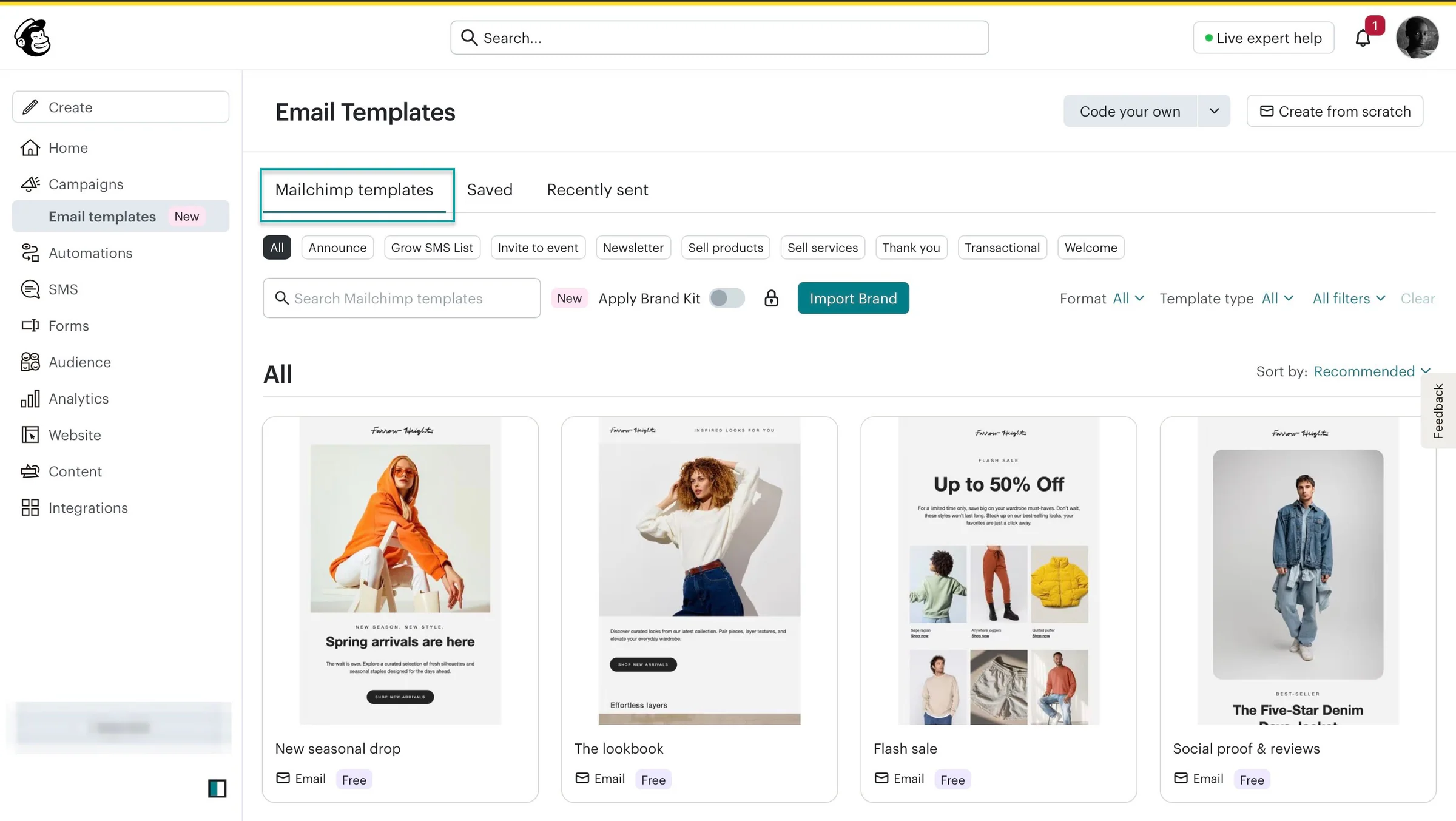
You can run email campaigns on Mailchimp. The platform offers a library of email templates to choose from, so you don’t have to design them from scratch.
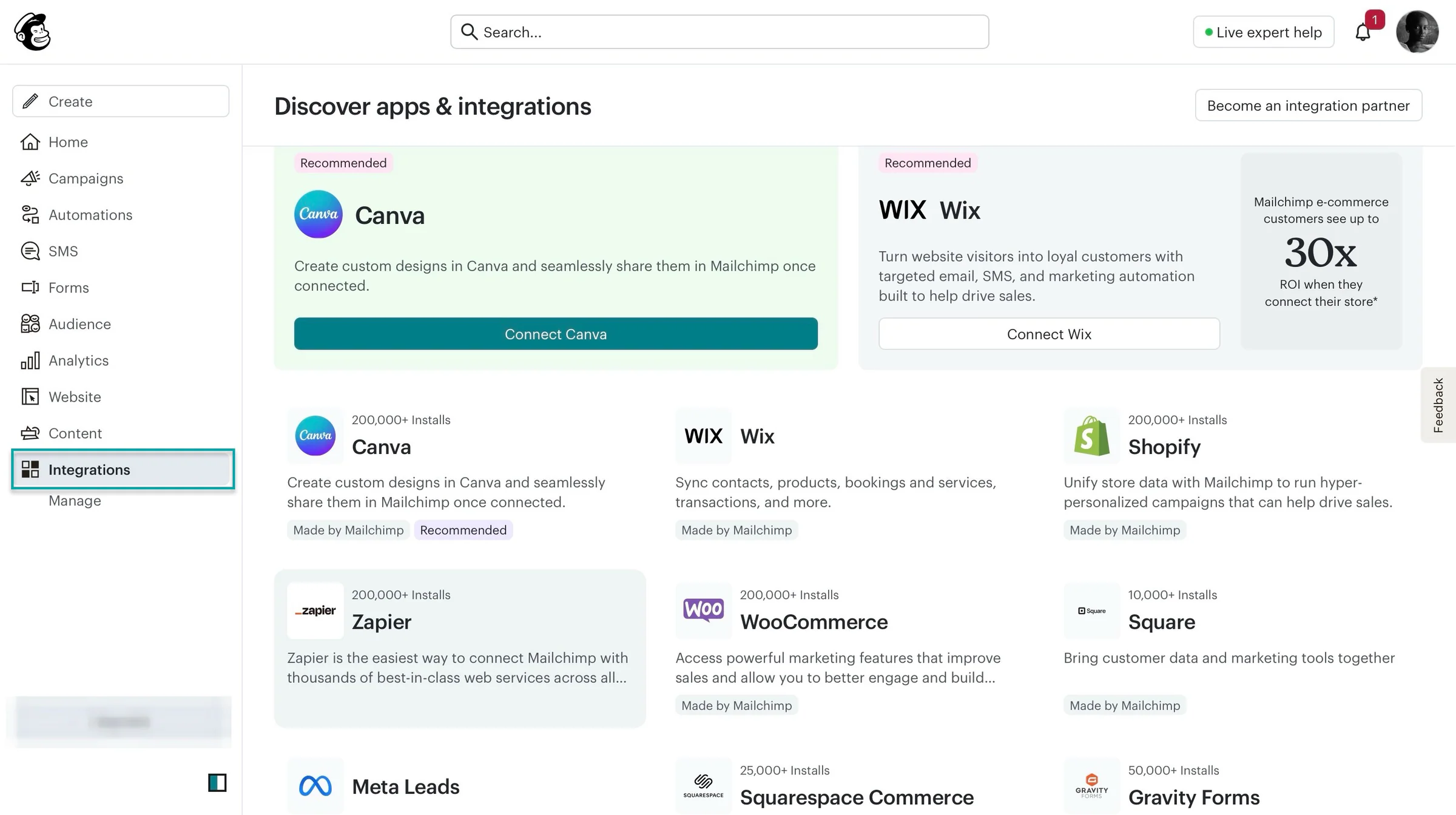
This email marketing tool also lets you integrate with third-party software like Canva, Wix, Shopify, Zapier, WooCommerce, Square, and more.
That gives you the flexibility to connect Mailchimp with tools you already use. You can manage customer information and sell products without switching between platforms.
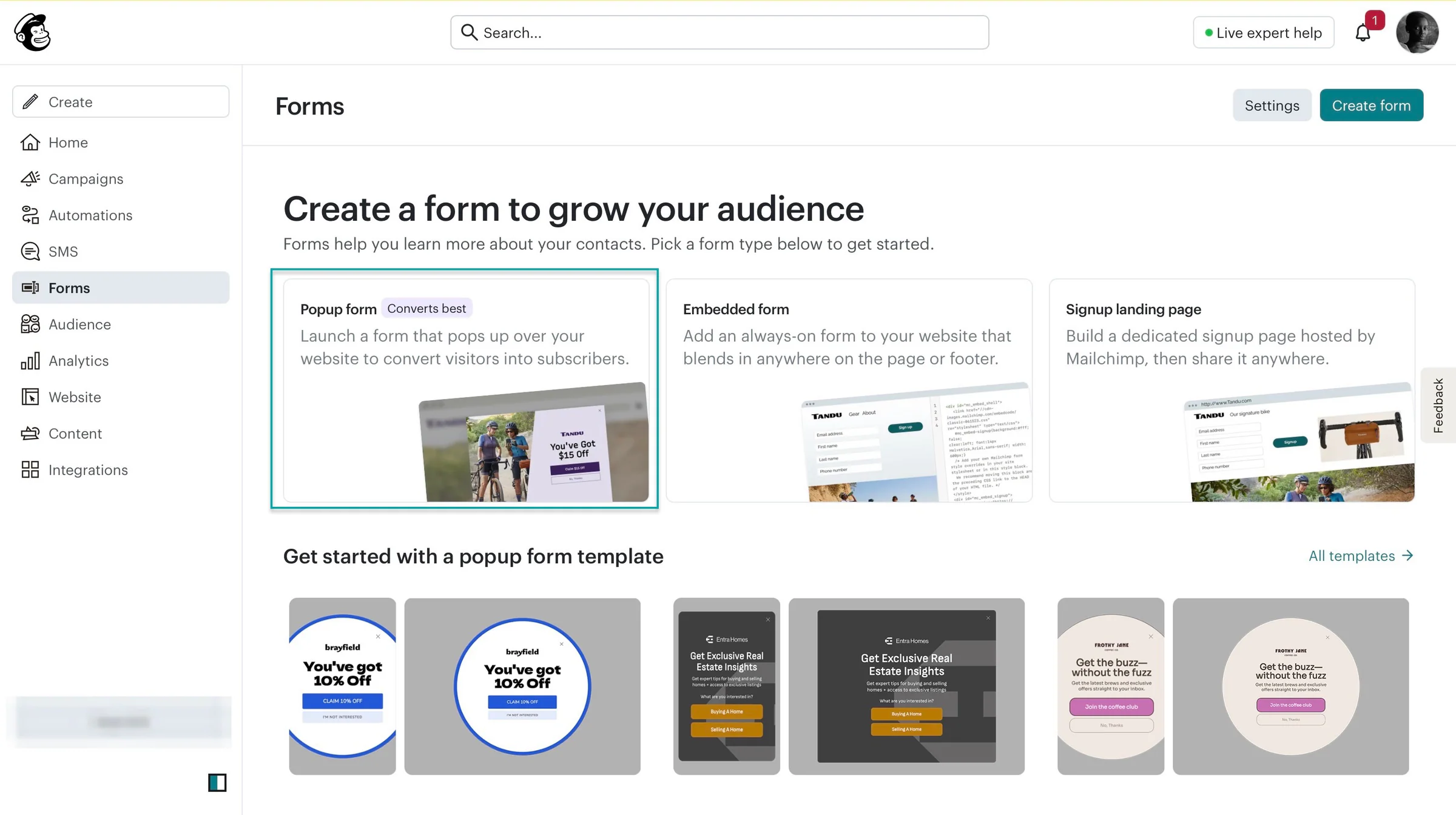
If you want to send email campaigns, then sign-up forms are important. Mailchimp lets you create these.
You can also use its pre-made forms to collect email addresses from people interested in your products or content.
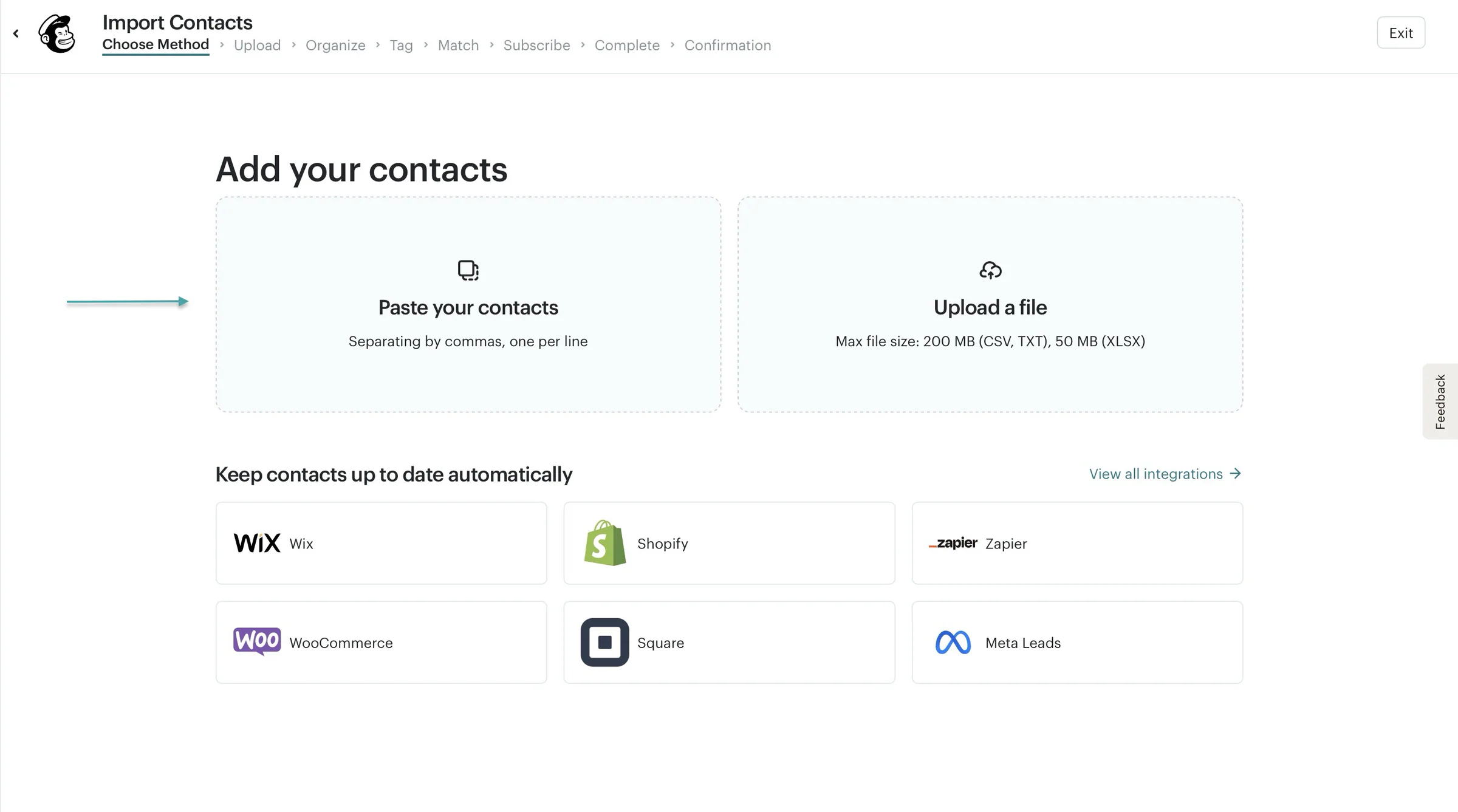
You can add a single contact manually or import many more through a CSV file. That way, you can bring your existing contacts to Mailchimp instead of adding each person individually.
What I loved about Mailchimp
1. Campaigns
Think of Mailchimp’s campaigns feature as a tool that helps you design and send emails to your customers.
Here’s how to design an email on the platform.
Start by selecting “Campaigns” in the sidebar. Then, click “Create” in the top-right corner of the window.
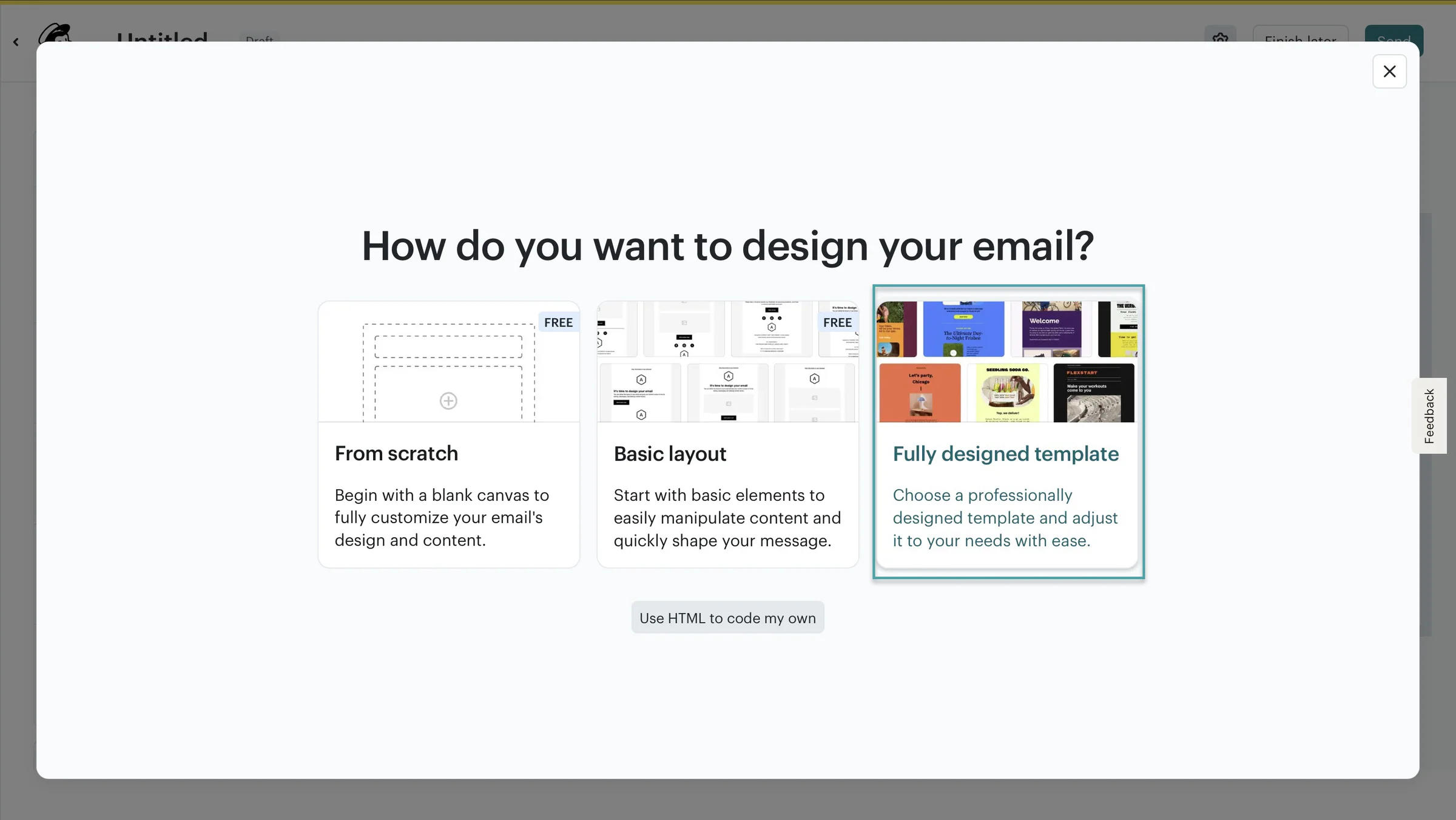
Now, select “Design Email.”
In the pop-up window, choose “Fully designed template.”
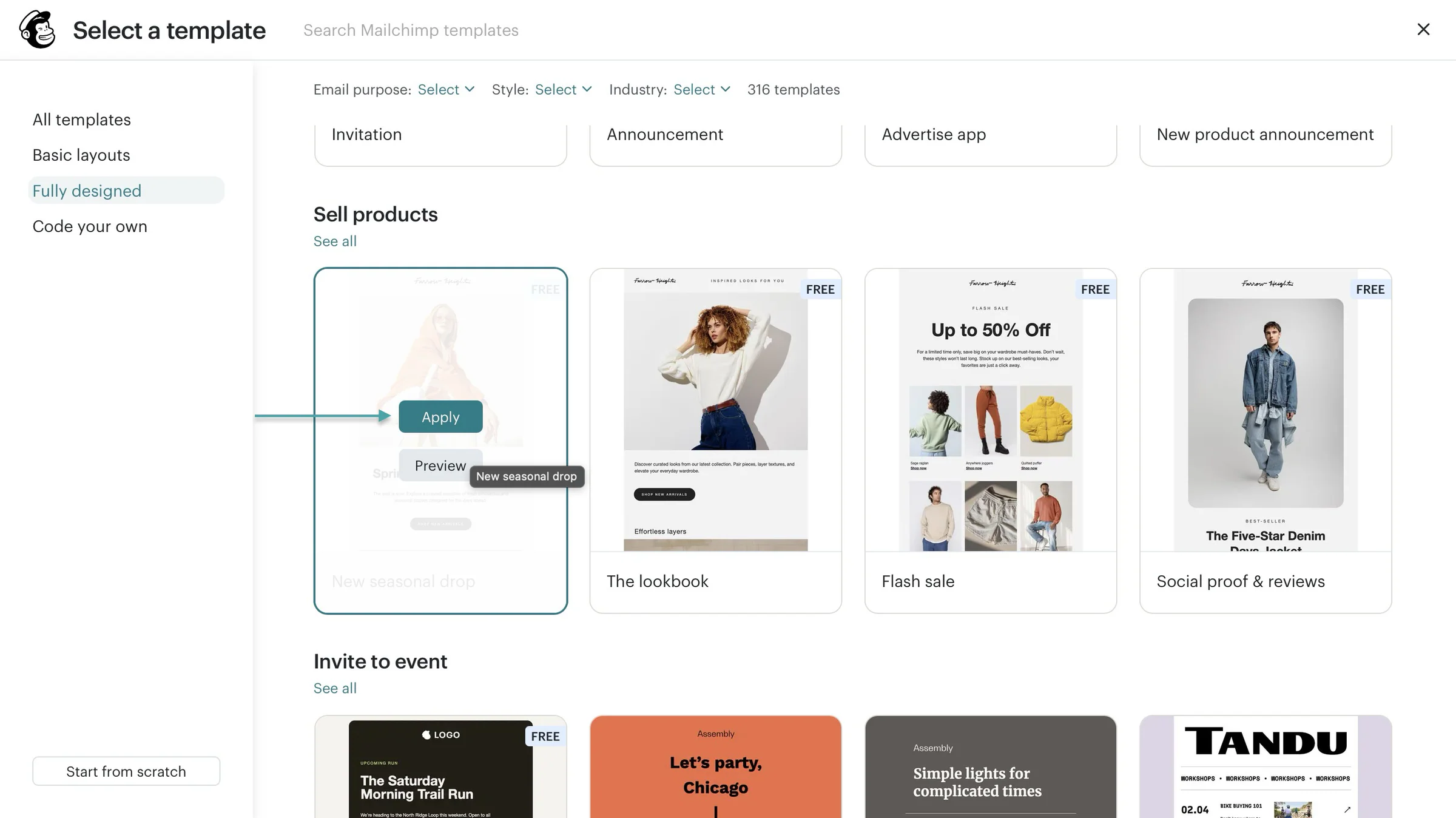
Next, move your cursor over a template and click “Apply.”
In the editor, click directly on the text, logo, or images to replace them with your own. You can also drag and drop content blocks and columns to customize your email.
Once you’re done editing, send a test email to see how everything looks before sending it to your customers. Then, save and exit.
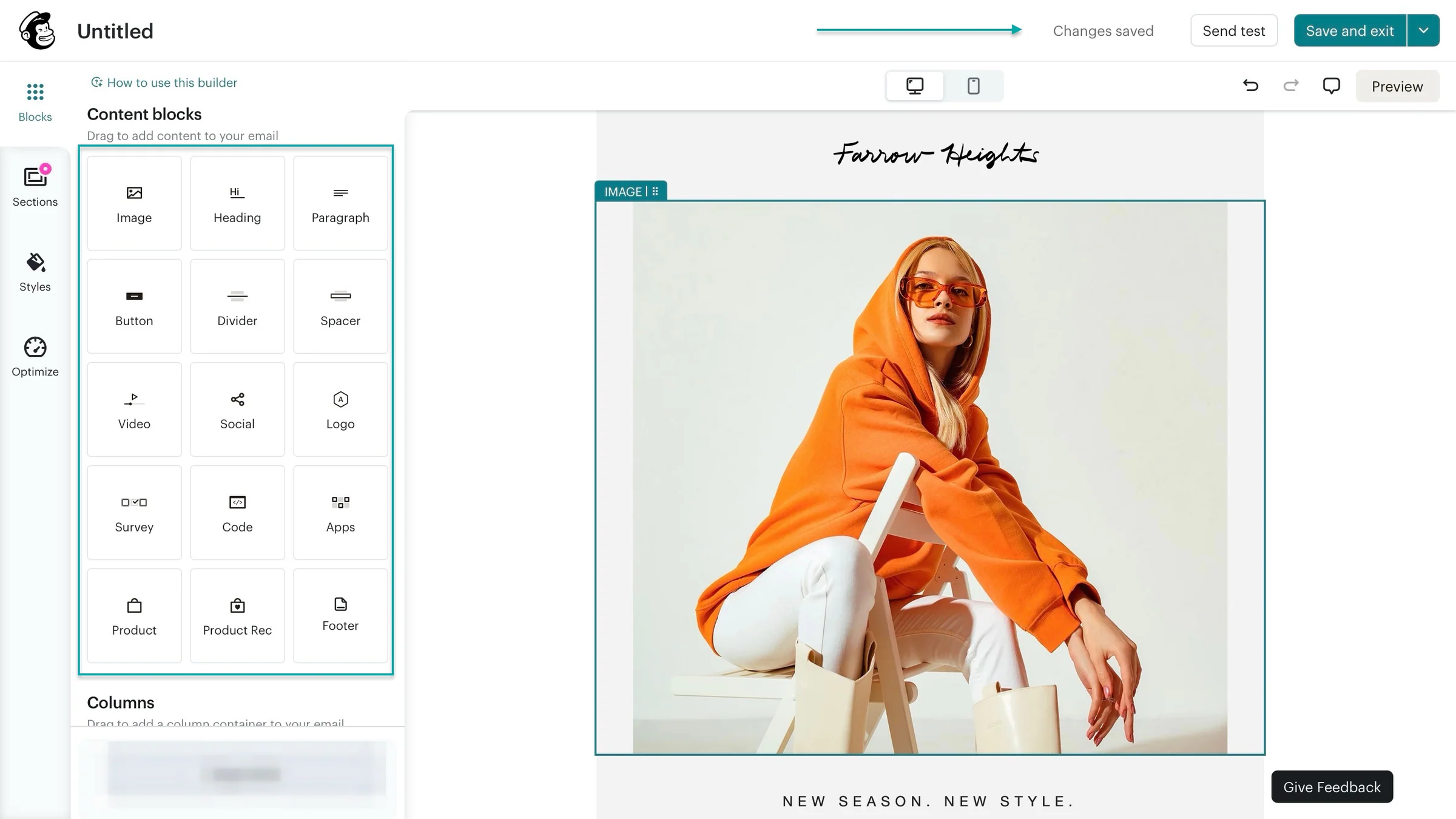
In the new window, enter your recipients, subject line, and other sending details. Make sure everything is in order and hit “Send.”
Mailchimp will send your email campaign to your selected subscribers.
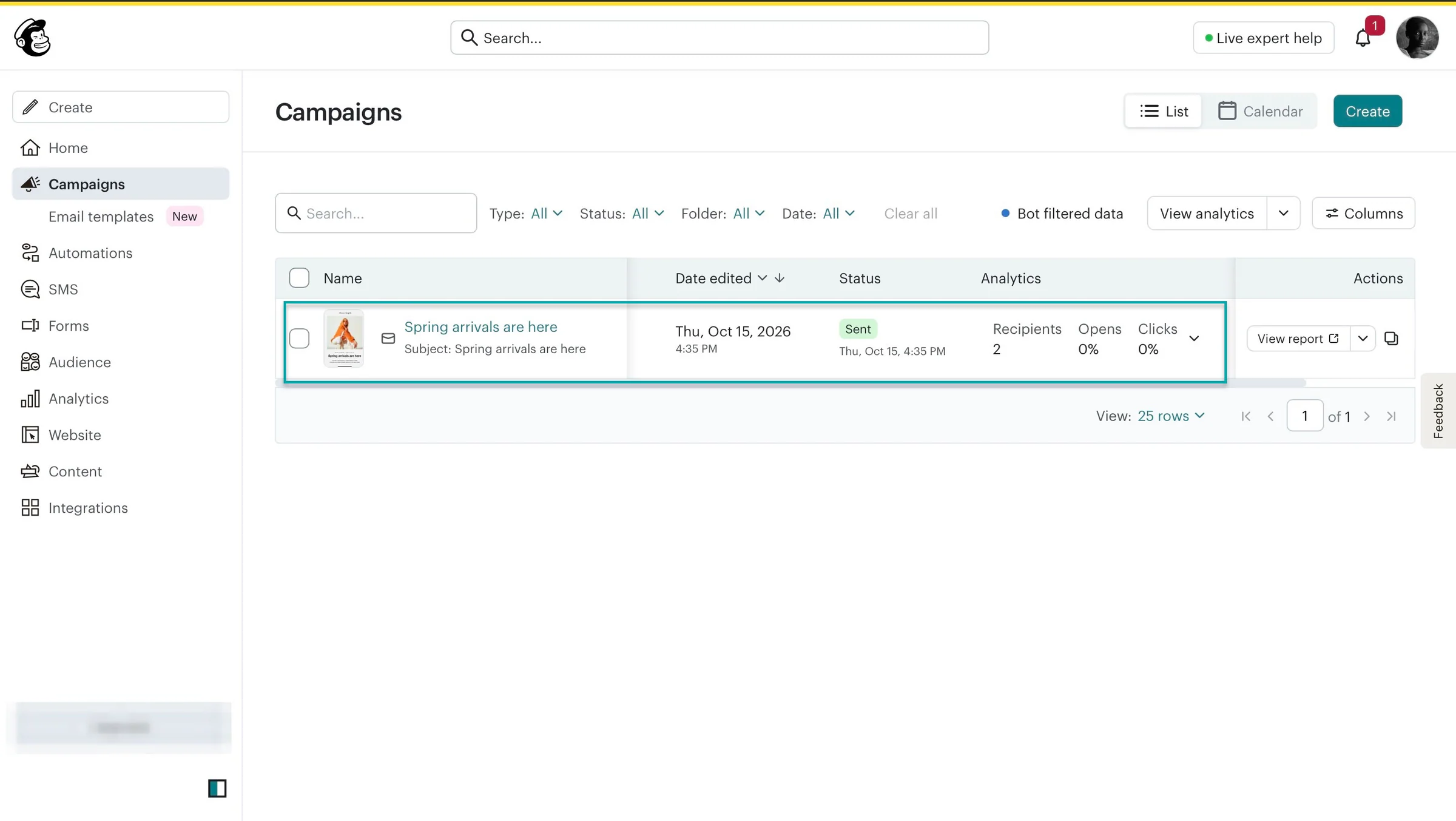
2. Audience
The audience feature lets you add and manage contacts. Those who subscribe to your emails will make up your subscriber list.
Like I’ve already said, you can add them manually or import contacts through a CSV or TXT file. You can also copy and paste contacts from an Excel spreadsheet.
Here’s how to add a single contact manually.
Select “Audience” in the sidebar, click “Add contacts,” and select “Add a single contact” from the drop-down menu.
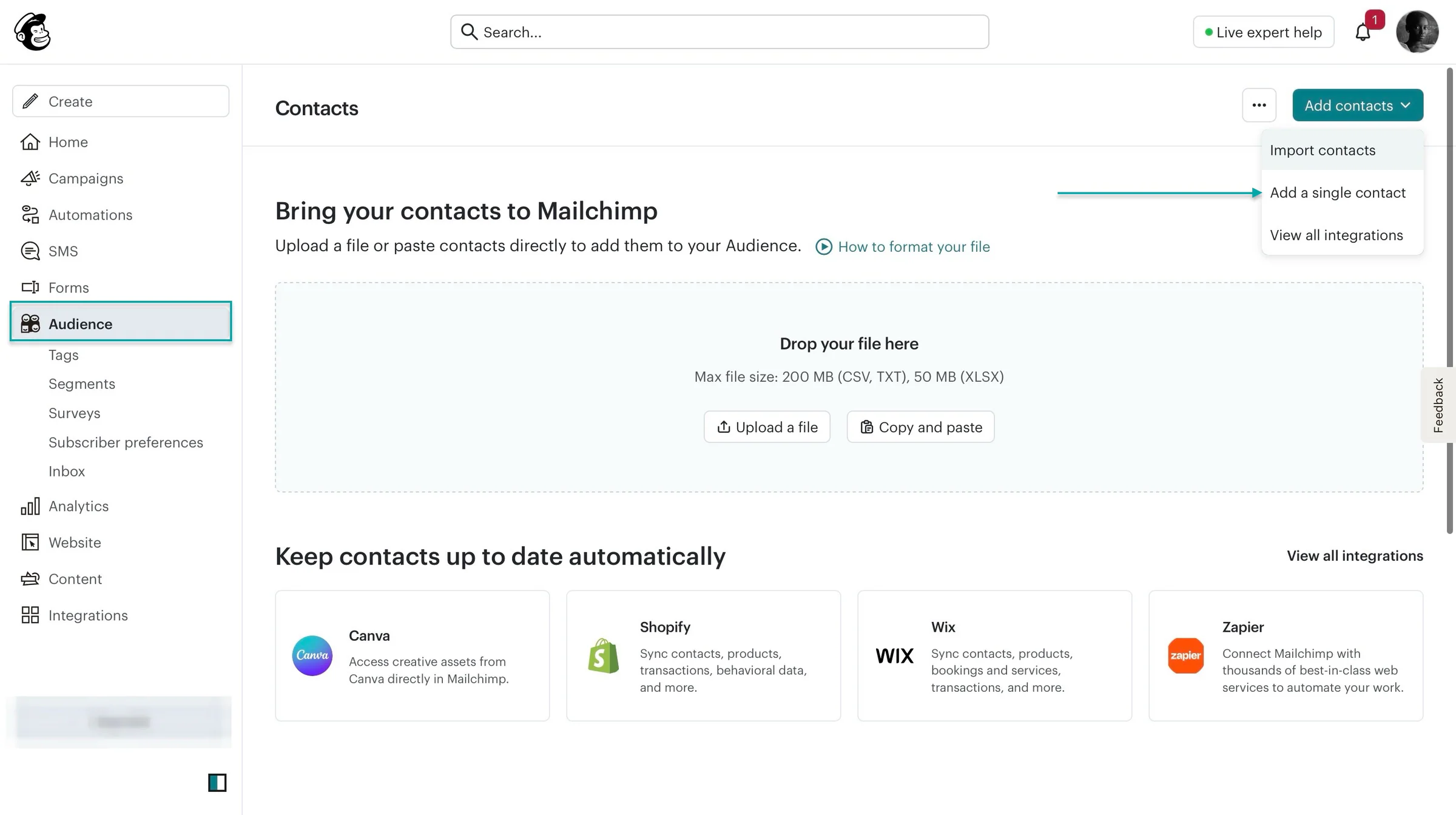
In the pop-up window, enter the contact’s name and email address.
Like we did in MailerLite, select “Additional contact details” to add more information about the subscriber.
You can add details like their address, phone number, date of birth, company, and more. Once you’re done filling out the form, click “Add contact.”
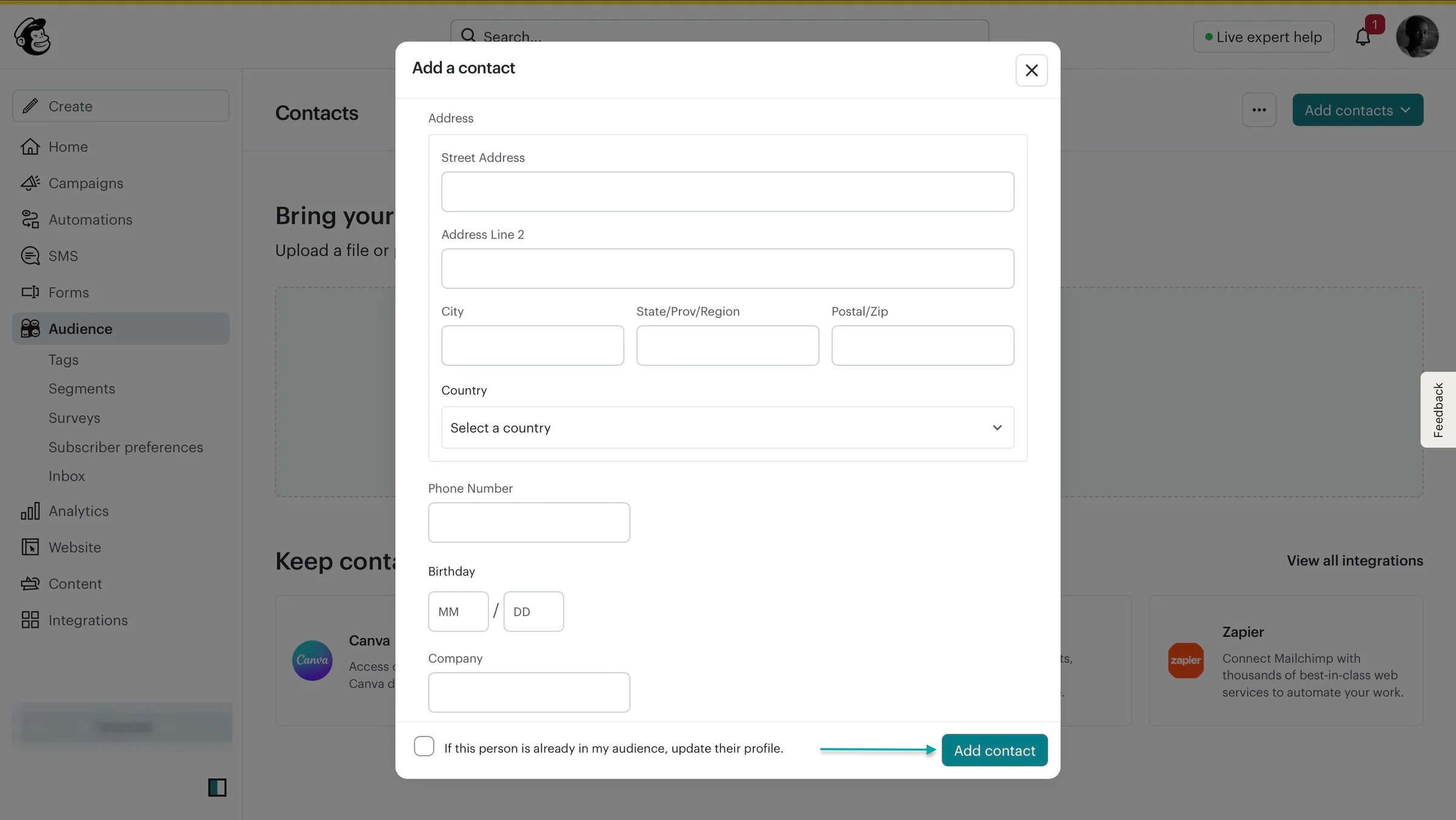
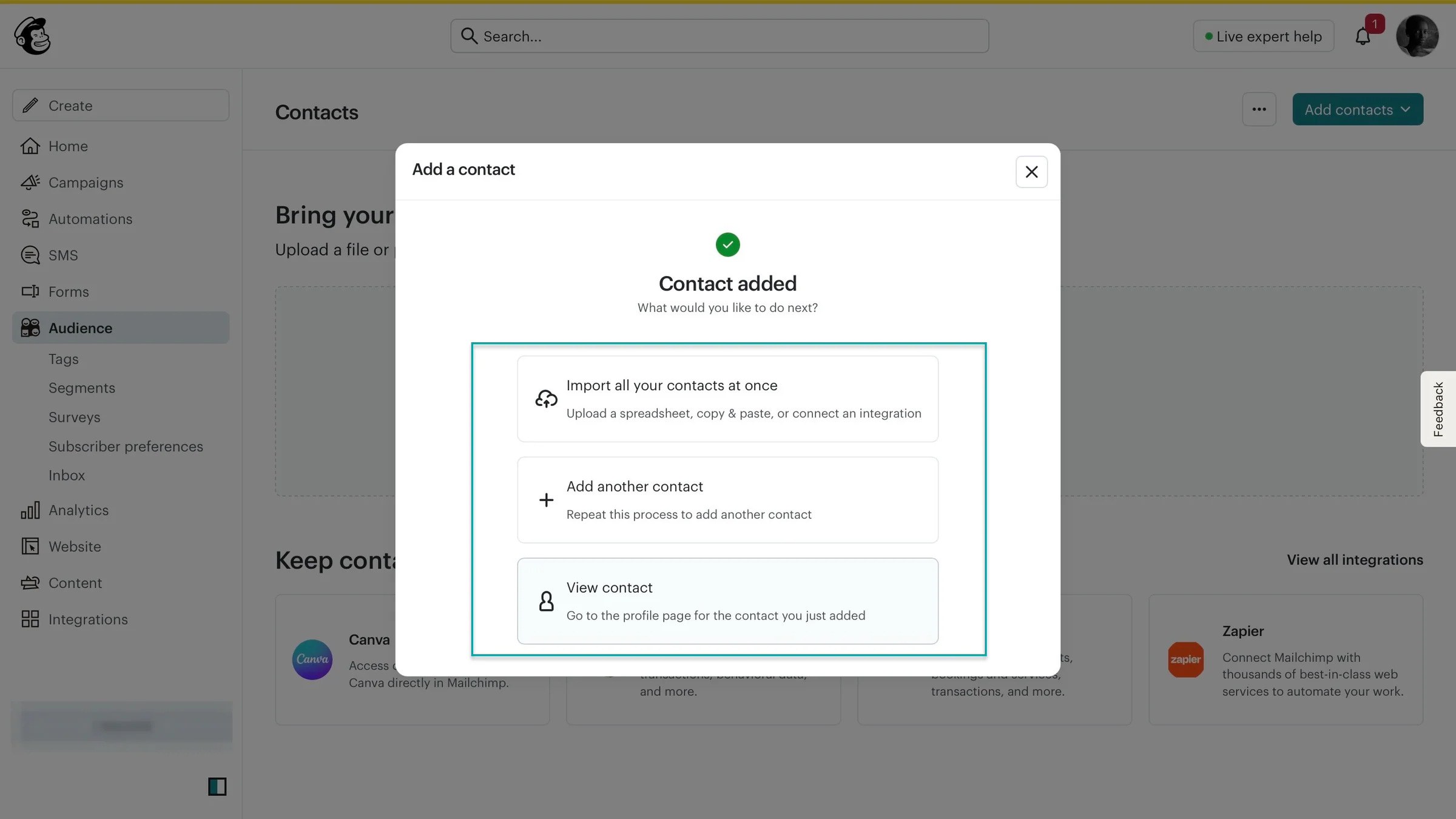
Mailchimp will add the contact to your audience.
It’ll also give you the option to import more contacts through a file, add another contact manually, or view the contact you just created.
3. Integrations
With integrations, you can connect Mailchimp to software and platforms like Facebook, WordPress, Make, Meta Lead Ads, Gravity Forms, Google Lead Ads, and more.
That way, you can use Mailchimp with tools you already use to run your business instead of managing everything separately.
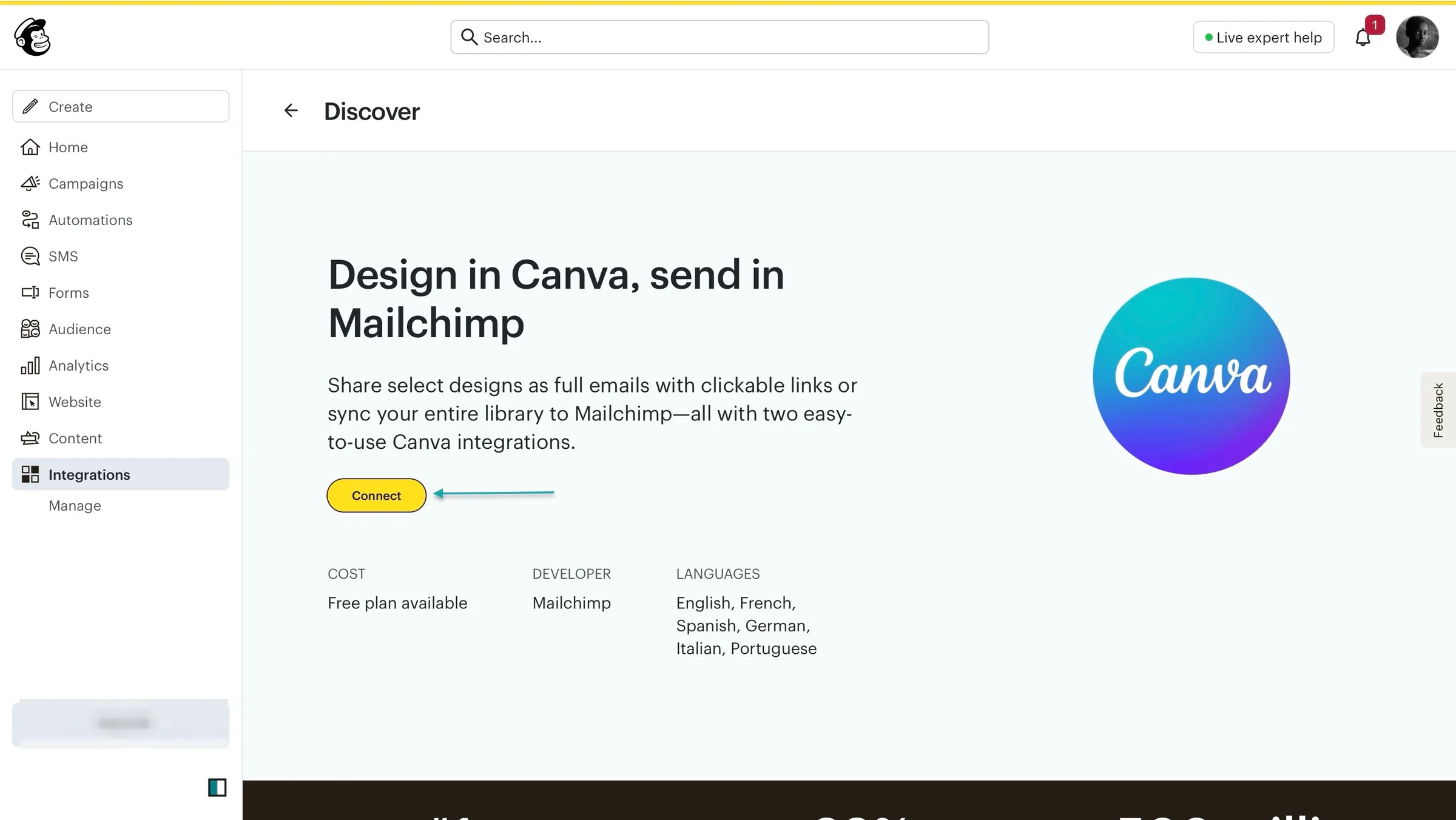
Let’s connect Canva to this email marketing tool.
Select “Integrations” in the sidebar and click “Canva.”
In the new window, click “Connect.”
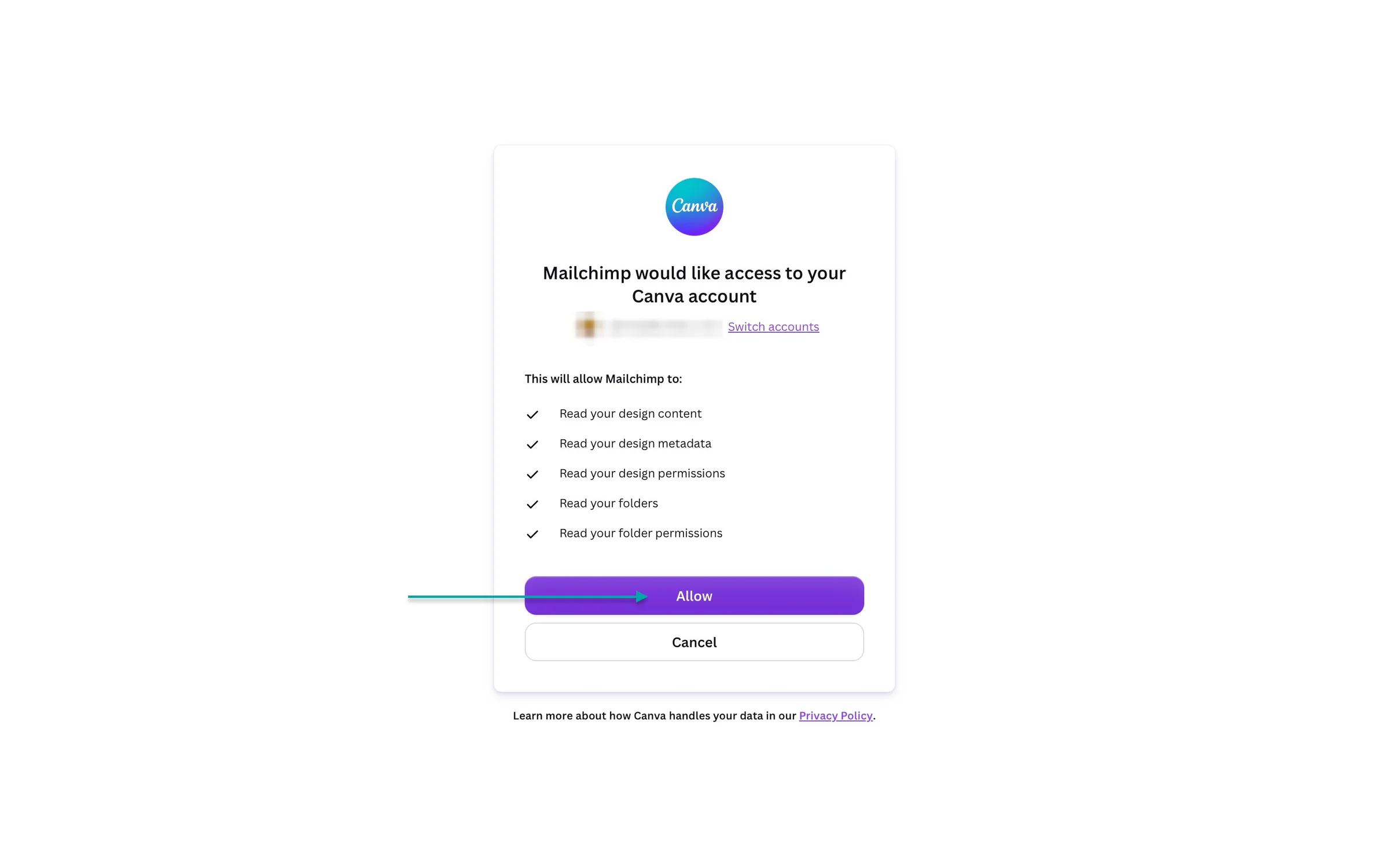
Next, sign in to your Canva account and allow Mailchimp to access it.
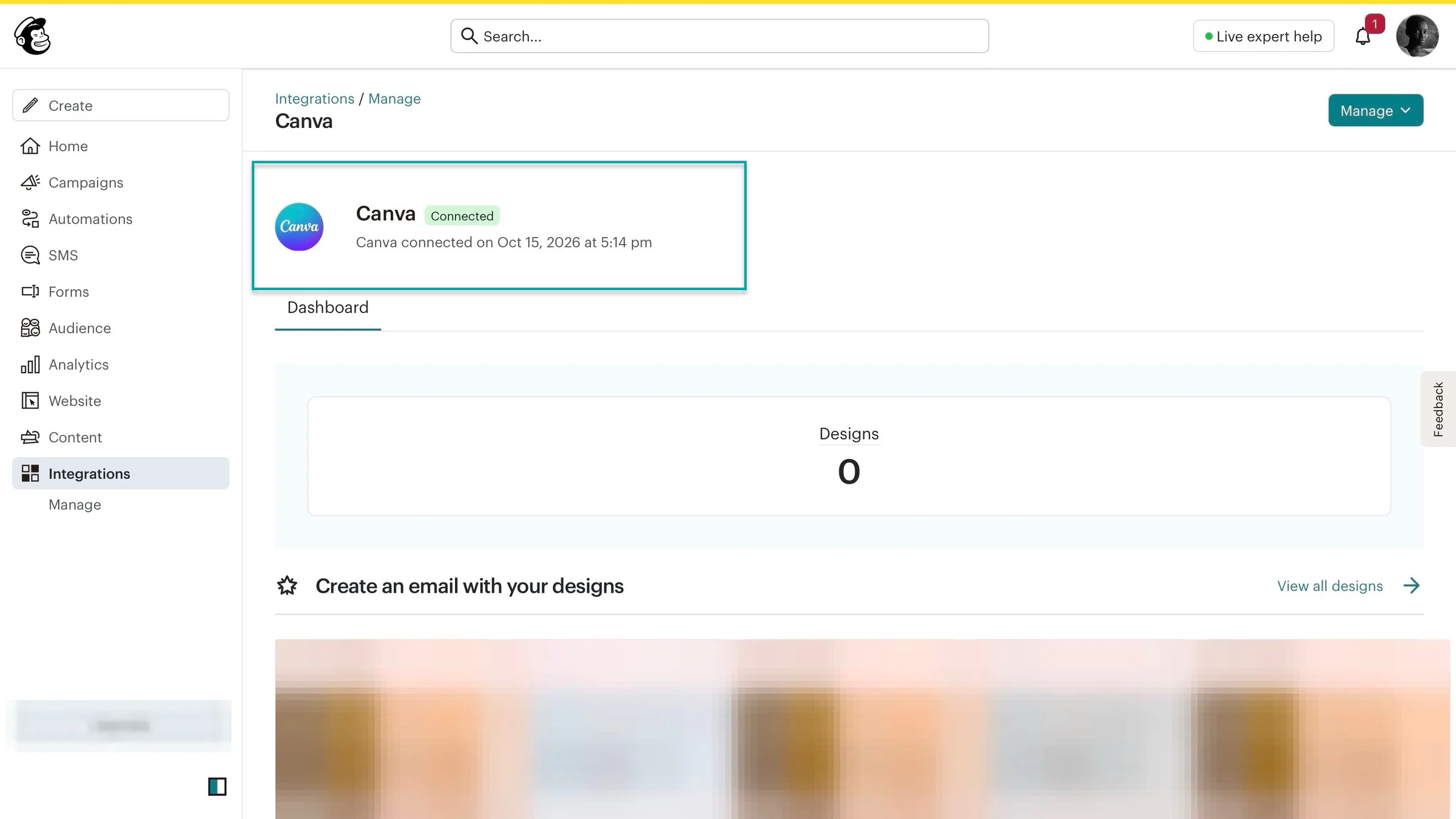
After that, Mailchimp will connect to Canva. You can now access your Canva designs in Mailchimp and use them in your emails.
You can also use them in your landing pages and other marketing content without downloading and uploading each design manually.
What I liked vs what I didn’t like
What I loved 👍
✅ It offers a free plan for up to 250 contacts, so you can start building your email list and sending campaigns without the initial platform costs.
✅ It has automation workflows and campaign templates, so you can automate follow-ups and create emails without starting from scratch.
✅ You can get expert guidance through its support options, so you can get help when you run into problems.
What I didn’t like 👎
❌ You can’t use its analytics features on the free plan, so you’ll have to upgrade if you need more insights into how your campaigns are performing.
Best for
- Small businesses, e-commerce stores, and marketers who want to grow their email lists, automate campaigns, promote products, and track sales in one platform.
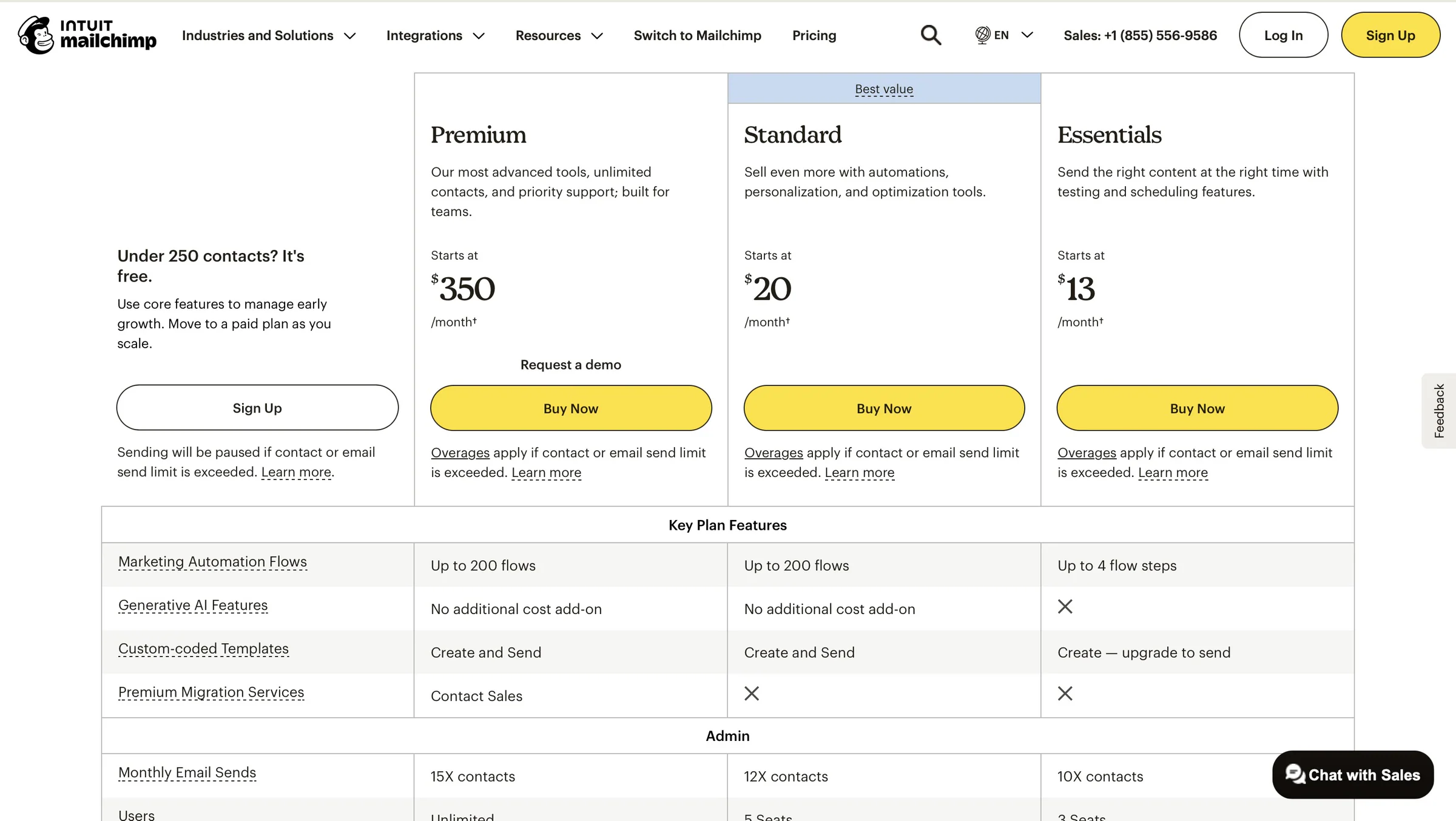
Pricing
- Free: $0/month - Under 250 contacts
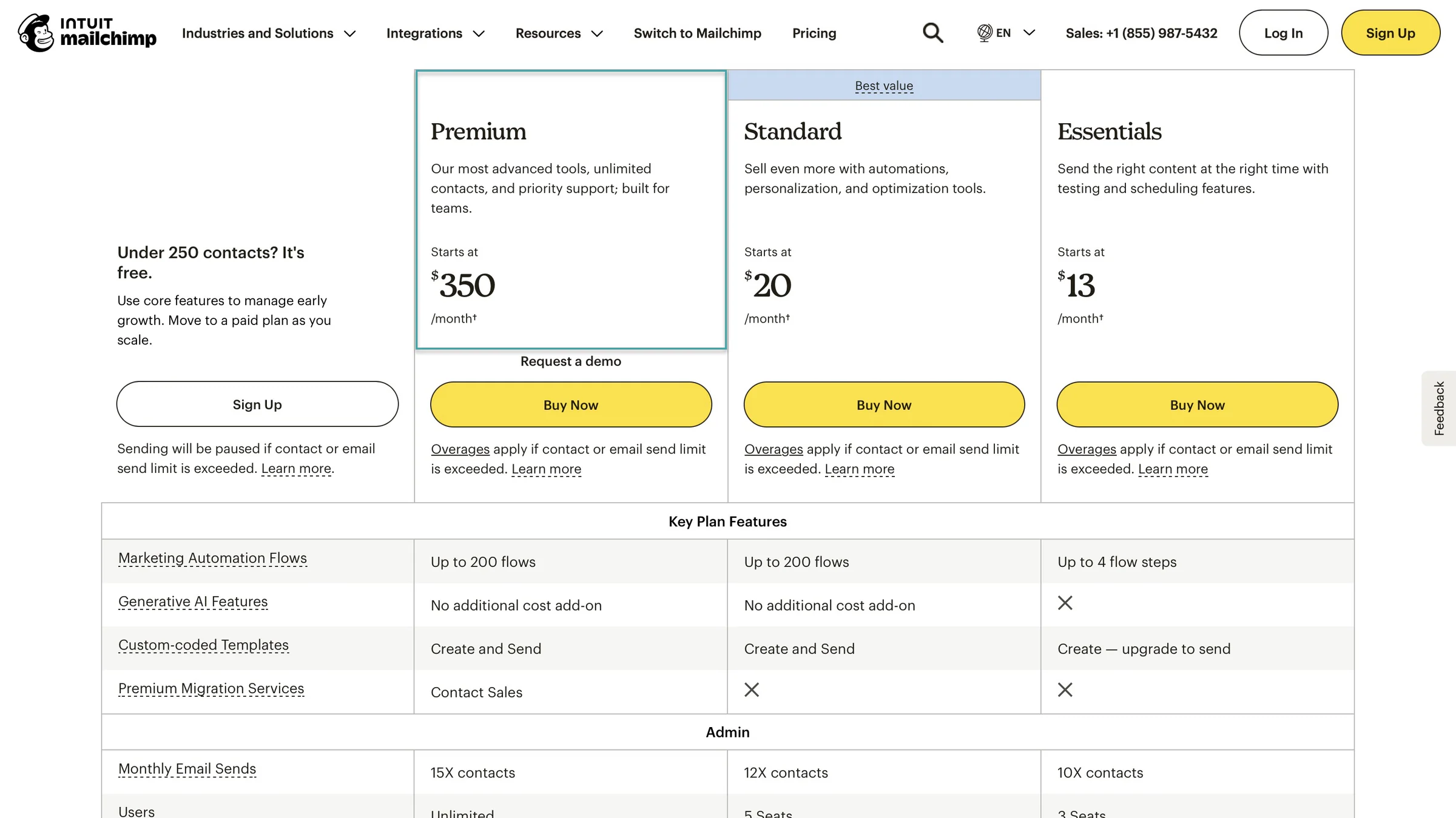
- Essentials: $13/month
- Standard: $20/month
- Premium: $350/month
5. Omnisend - Best for creators selling products through an online store
-
Personal rating: ⭐️⭐️⭐️⭐️ 4.3/5 - You have to connect an online store to get the most out of Omnisend.
-
Ease of use: ⭐️⭐️⭐️⭐️ 4.5/5 - You can search for help or support right on the platform if you face any setup challenges.
-
AI capabilities: Uses AI to write and improve email content, generate subject lines, personalize product recommendations, build audience segments, and analyze campaign performance.
-
Monetization options: Promote physical products through email campaigns, SMS, and web push notifications, recover abandoned carts, recommend products, offer discount codes, send post-purchase offers, and re-engage inactive customers to drive repeat sales.
-
Free trial: N/A - offers a free plan
-
Starting plan: Free - $0/month + 500 monthly emails + 250 contacts
We can’t discuss email marketing platforms without mentioning Omnisend.
It lets you create email and SMS marketing campaigns, automate messages, and track sales.
It also offers signup forms, product recommendations, and push notifications to help you grow your email list, promote products, and turn subscribers into paying customers.
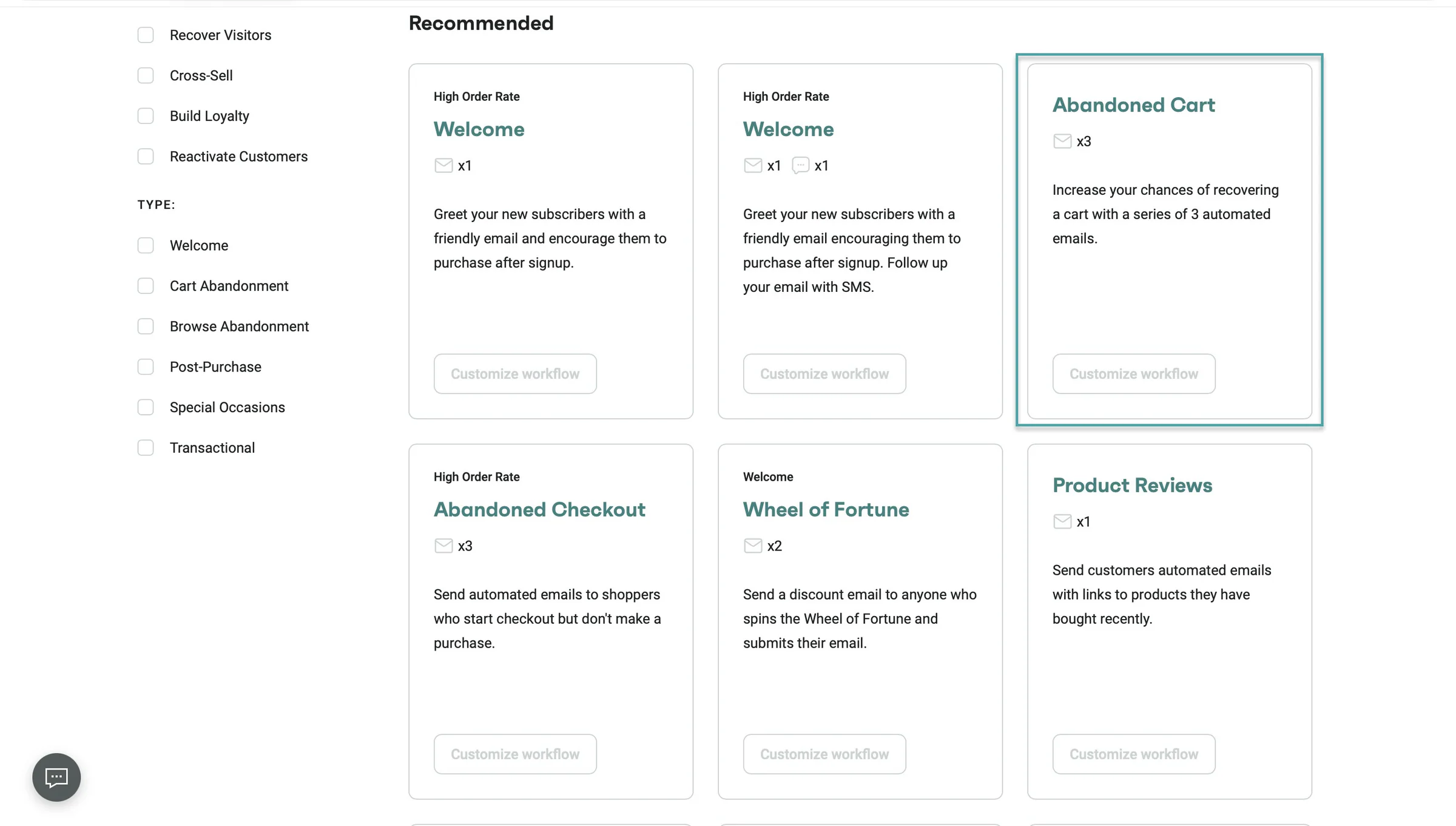
Omnisend has a library of automations you can browse and select from. There are automations like Welcome, Abandoned Checkouts, Order Confirmation, and more.
After you connect your store to Omnisend, you can customize these workflows. That way, you can follow up automatically with customers who leave without completing their purchases and welcome new subscribers.
You can also keep buyers updated about their orders without sending every message manually.
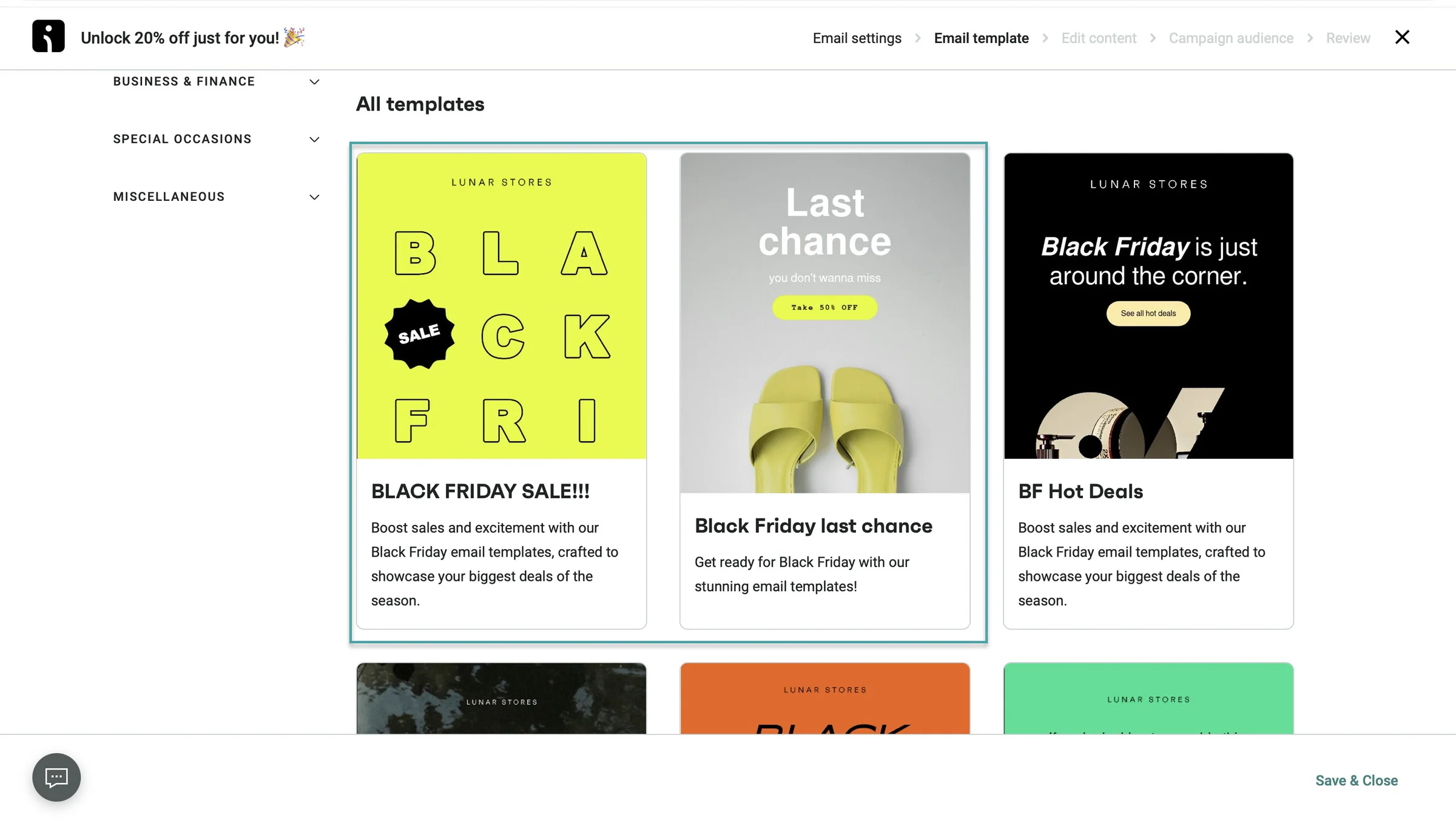
Like most of the email marketing platforms on our list, Omnisend lets you create customized campaigns that look good on different devices. And it offers a library of templates to choose from, so you can start designing emails on the go.
You can also use these templates to keep your emails consistent. This helps your customers recognize your brand even when you’re promoting different products or offers.
Omnisend has a drag-and-drop editor to help you build forms that can capture leads or encourage customers to take action.
For example, you can use a form to offer first-time visitors a discount in exchange for their email addresses. That gives you a way to reach people who showed interest in your store but weren’t ready to buy anything yet.
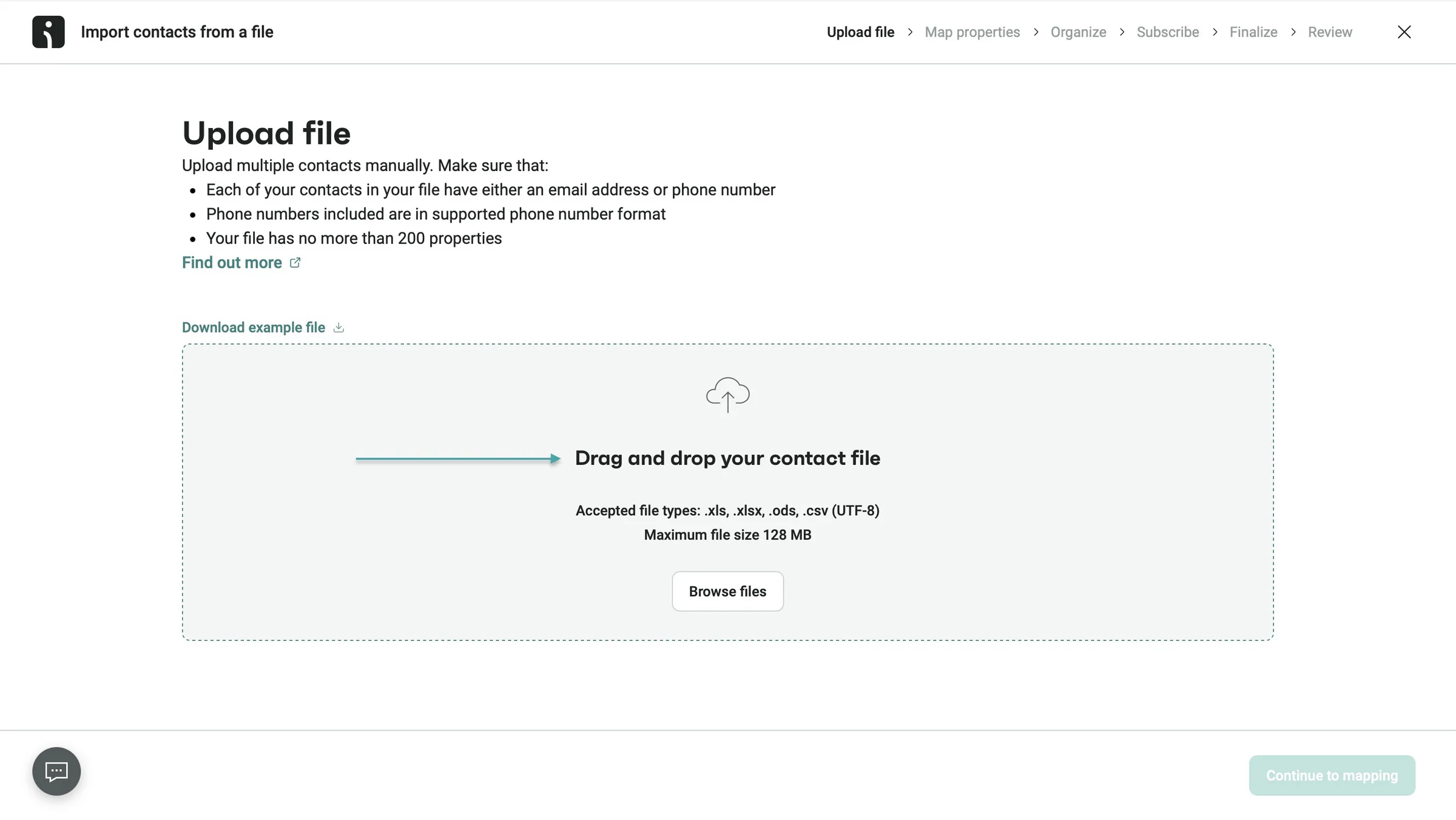
The platform also lets you add contacts manually or import them through .xls, .xlsx, .ods, and .csv files. You can also copy and paste contact details from a spreadsheet or import your existing contacts from Mailchimp or Klaviyo.
If you’re moving from another email marketing platform to Omnisend, you won’t have to ask your existing subscribers to sign up again.
You can bring their contact details with you and continue marketing to those who have agreed to receive your emails.
What I loved about Omnisend
1. Contacts
Before you create email marketing campaigns, you need an email list to send them to. The contacts feature lets you add that list manually and import them through files.
You can also bring them in from email marketing platforms like Mailchimp and Klaviyo.
Like we did for Mailchimp, let’s add a contact manually on Omnisend.
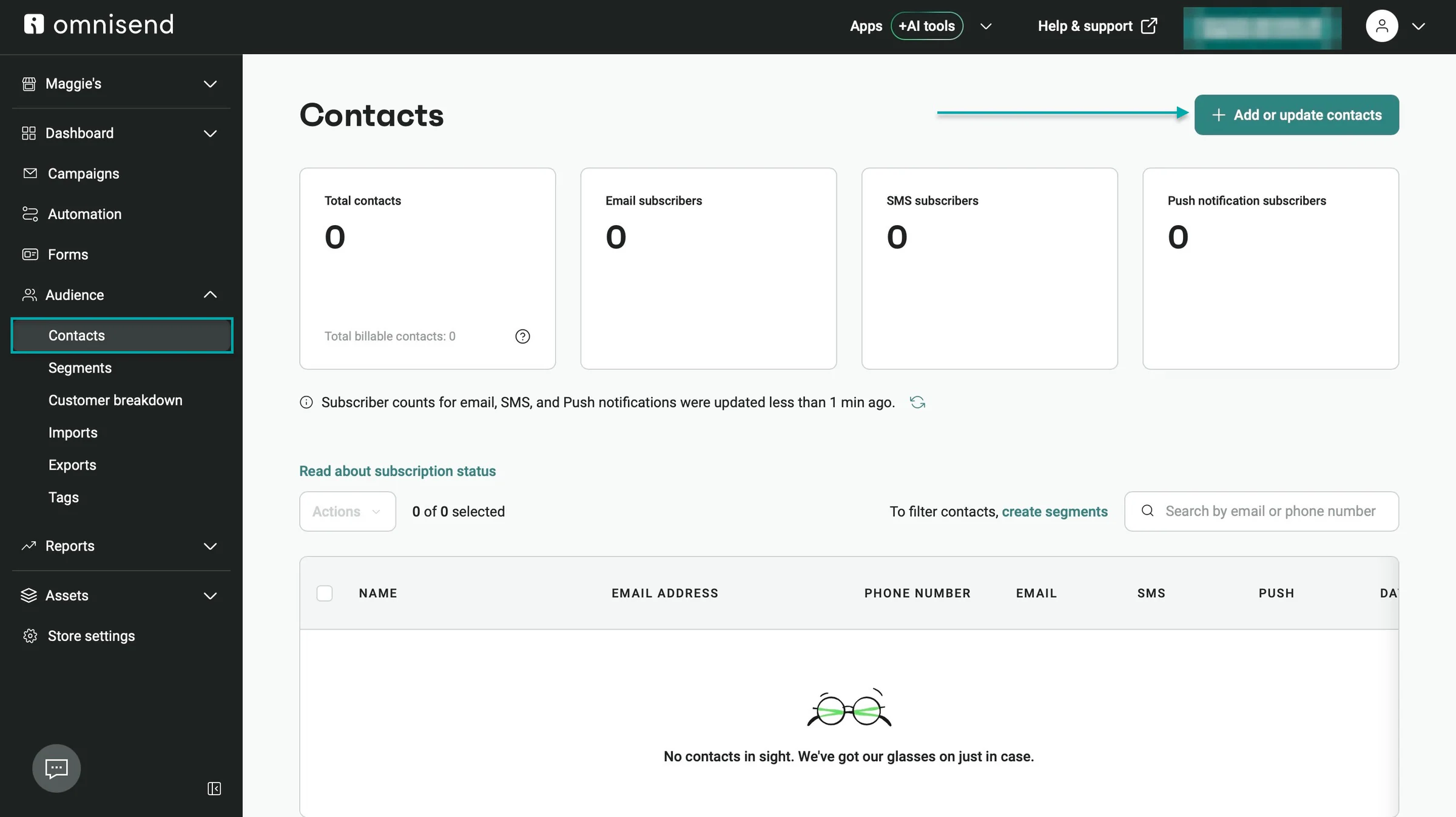
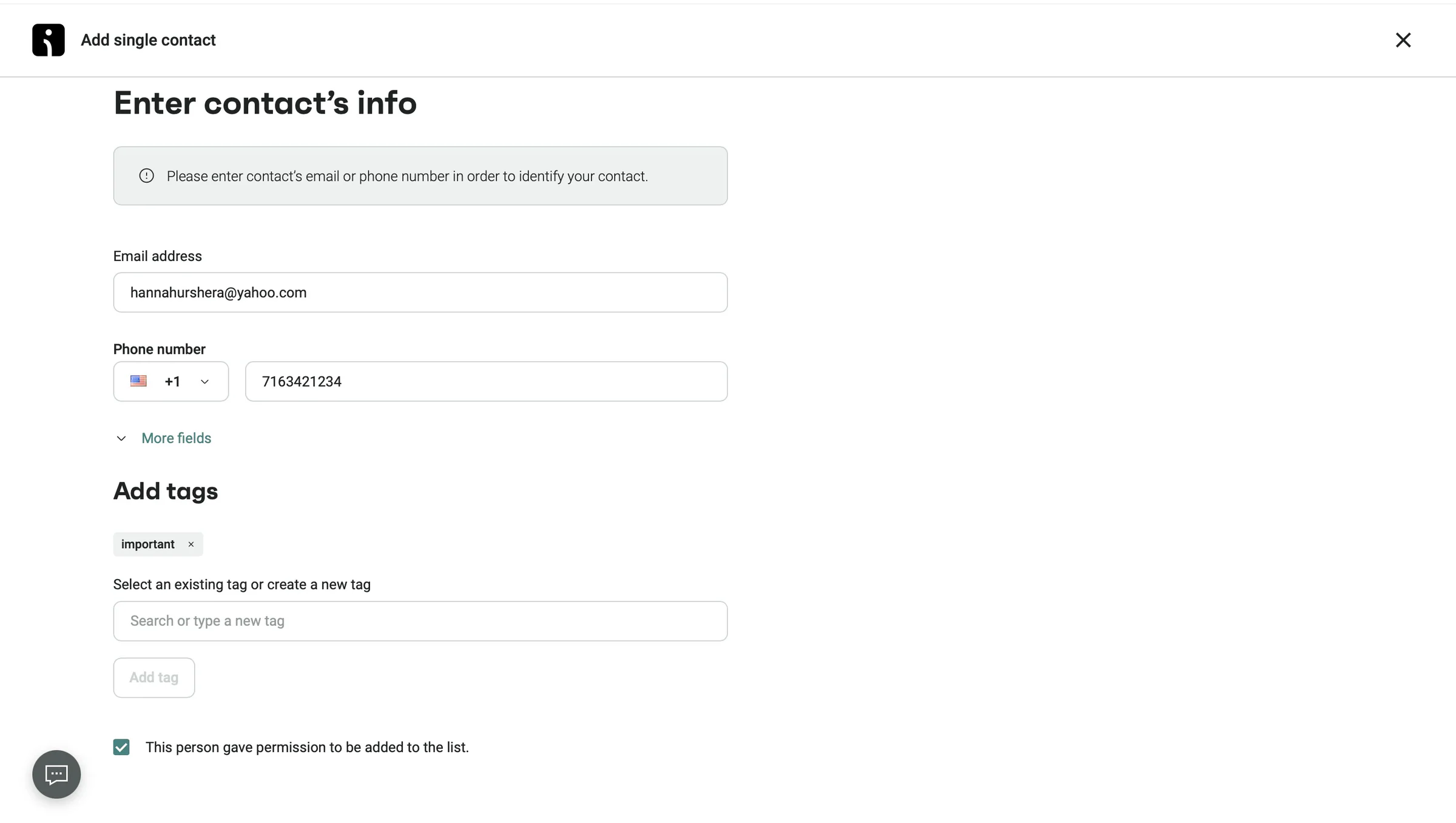
First, select “Contacts” in the sidebar and click “+ Add or update contacts.”
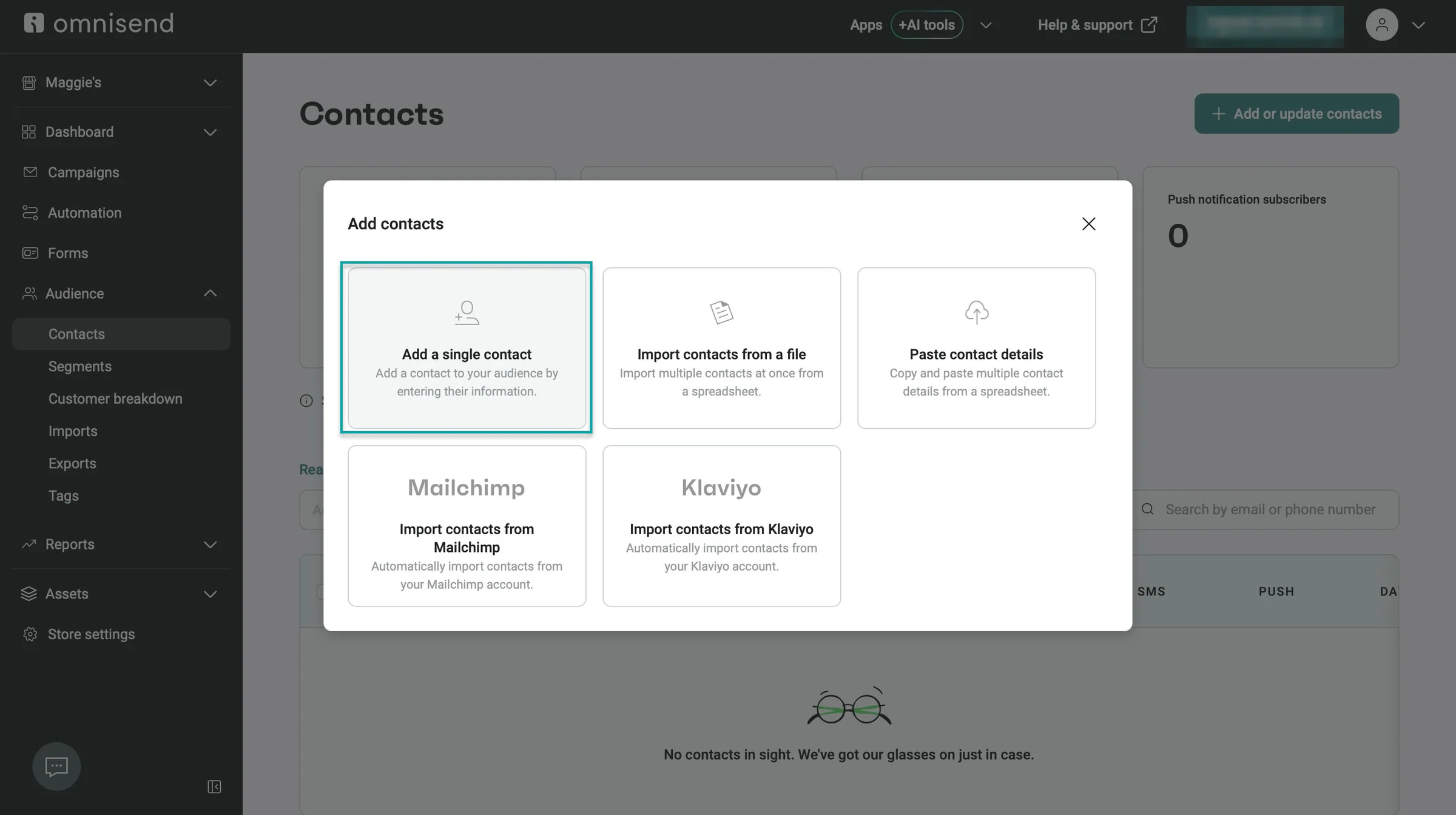
In the pop-up window, click “Add a single contact.”
Next, enter the contact’s email address and phone number. Tick the box to confirm that they’ve given you permission to receive marketing emails from you.
You can also click “More fields” to add their name, address, date of birth, gender, and other details. Once you’ve added the relevant information, click “Add contact.”
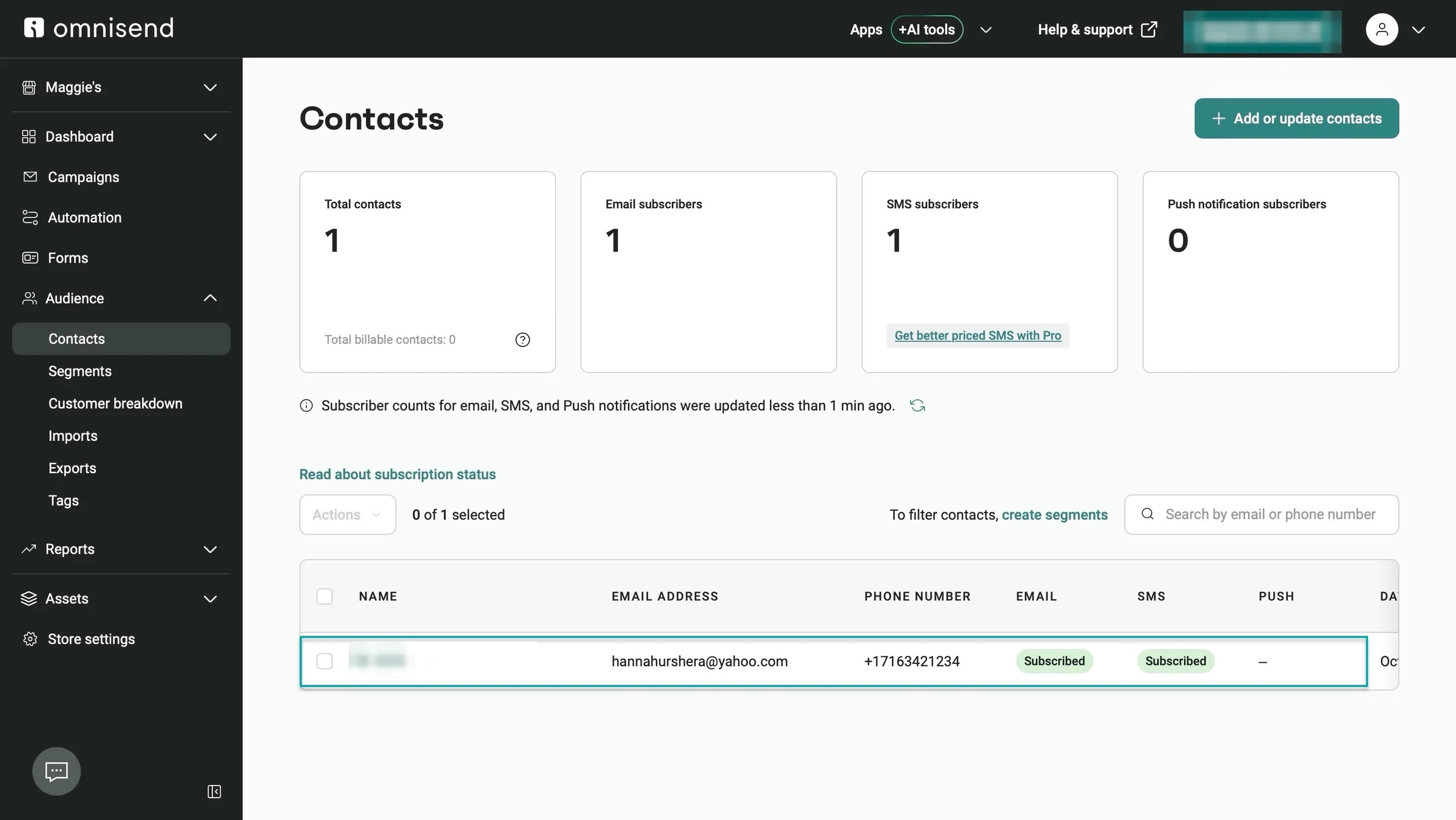
Omnisend will display the contact in your list and show when you added them.
2. Campaigns
Omnisend’s campaigns feature lets you create customized emails and send them to your contacts. You can use it to share product updates, promote discounts, and let customers know about new offers.
Here’s how to create one on the platform.
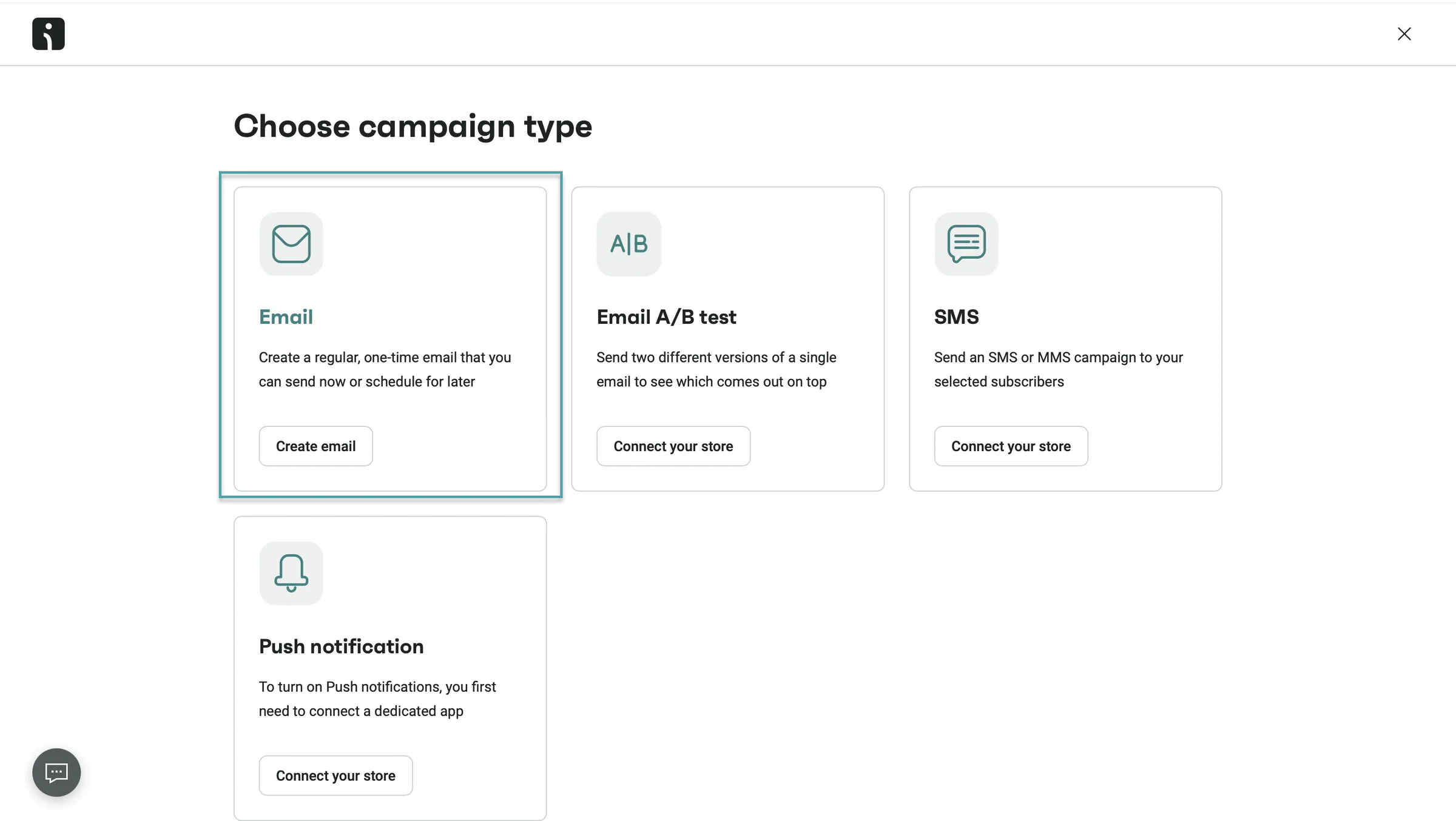
Select “Campaigns” in the sidebar. Then, click “+ Create campaign.”
In the new window, select “Email” and click “Create email” to proceed. With this option, you can create a one-time email to send to your customers.
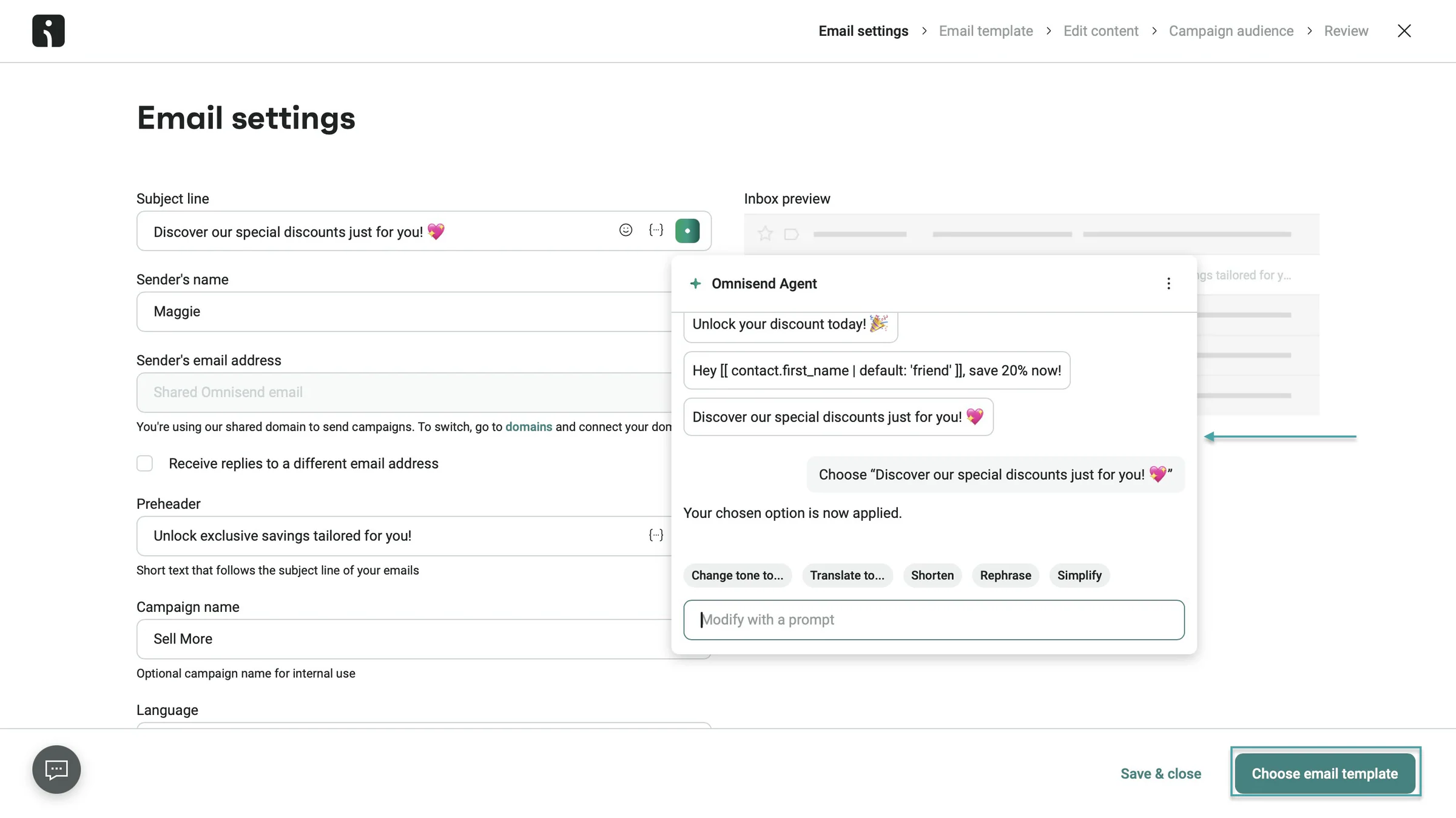
Next, use Omnisend Agent to generate the subject line and preheader. The preheader is the short text people see next to or below your email subject in their inbox.
Add your name or business name in the sender’s name text box, and fill out the other details.
After that, click “Choose email template.”
In the template library, select one and click “Use template.” Now, select themes and customize the buttons to match your brand.
You can also drag and drop images, headers, content blocks, and other elements to customize your email.
Once you’ve made the changes, click “Save & choose recipients.”
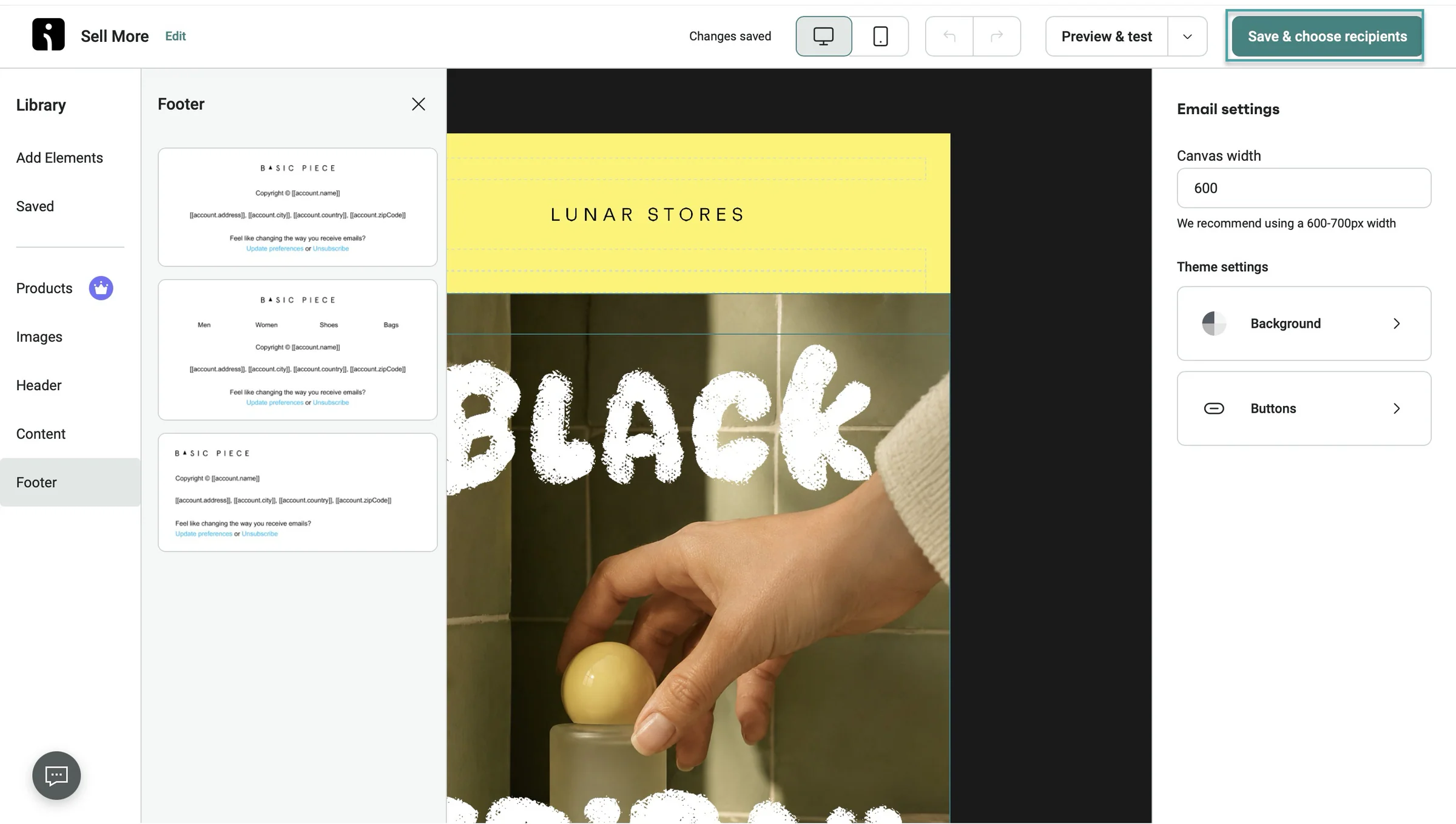
Choose the recipients in the new window and review your campaign. Continue by setting the time you want to send it.
With Omnisend, you can send your campaign immediately or schedule it for later. This is useful if you want to prepare your emails ahead of time and have Omnisend send them while you’re busy doing something else.
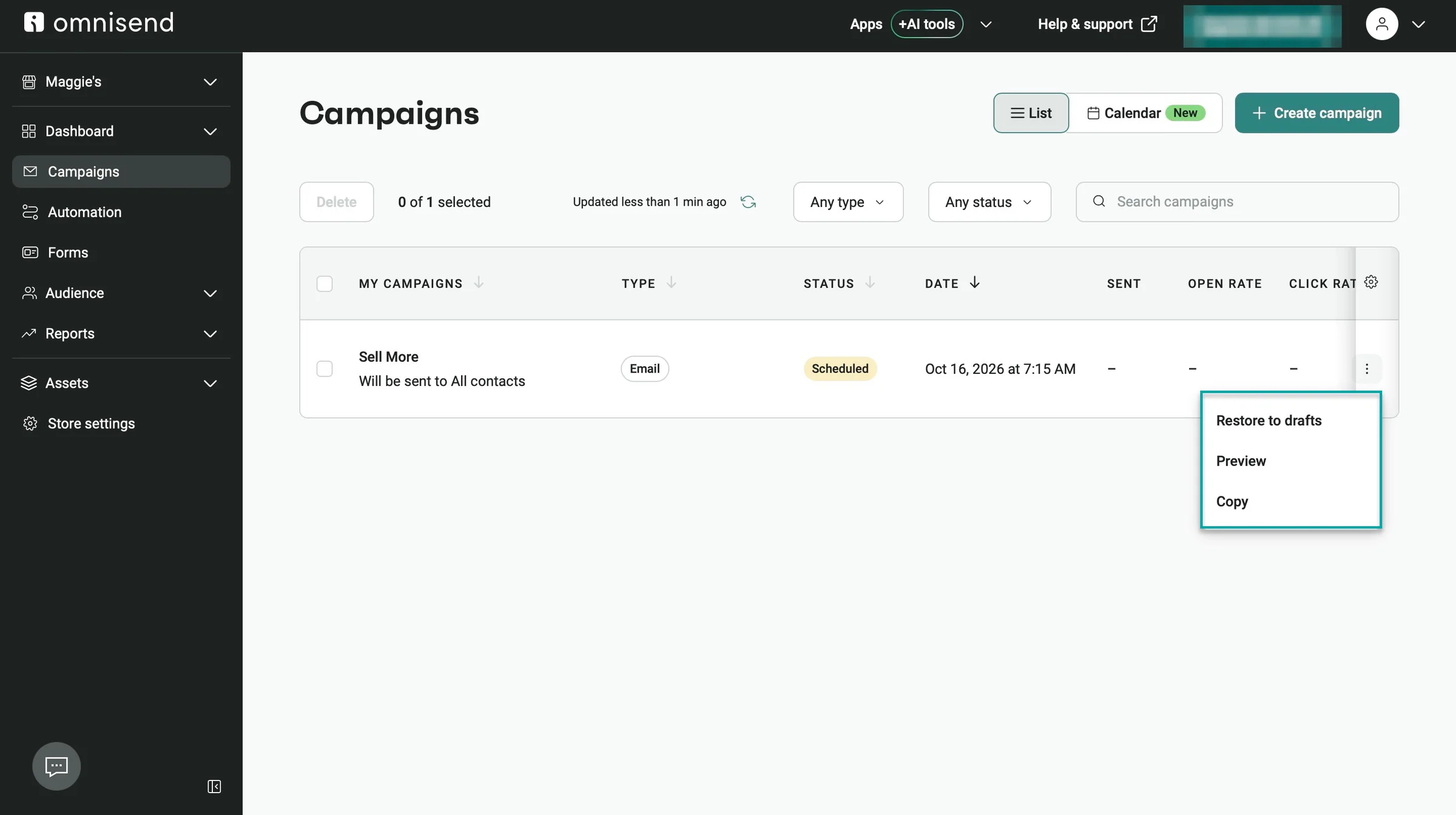
Once you click “Send now” or “Schedule Campaign,” Omnisend will display your campaign in the campaigns section.
You can click the three vertical dots (⋮) for more options.
3. Forms
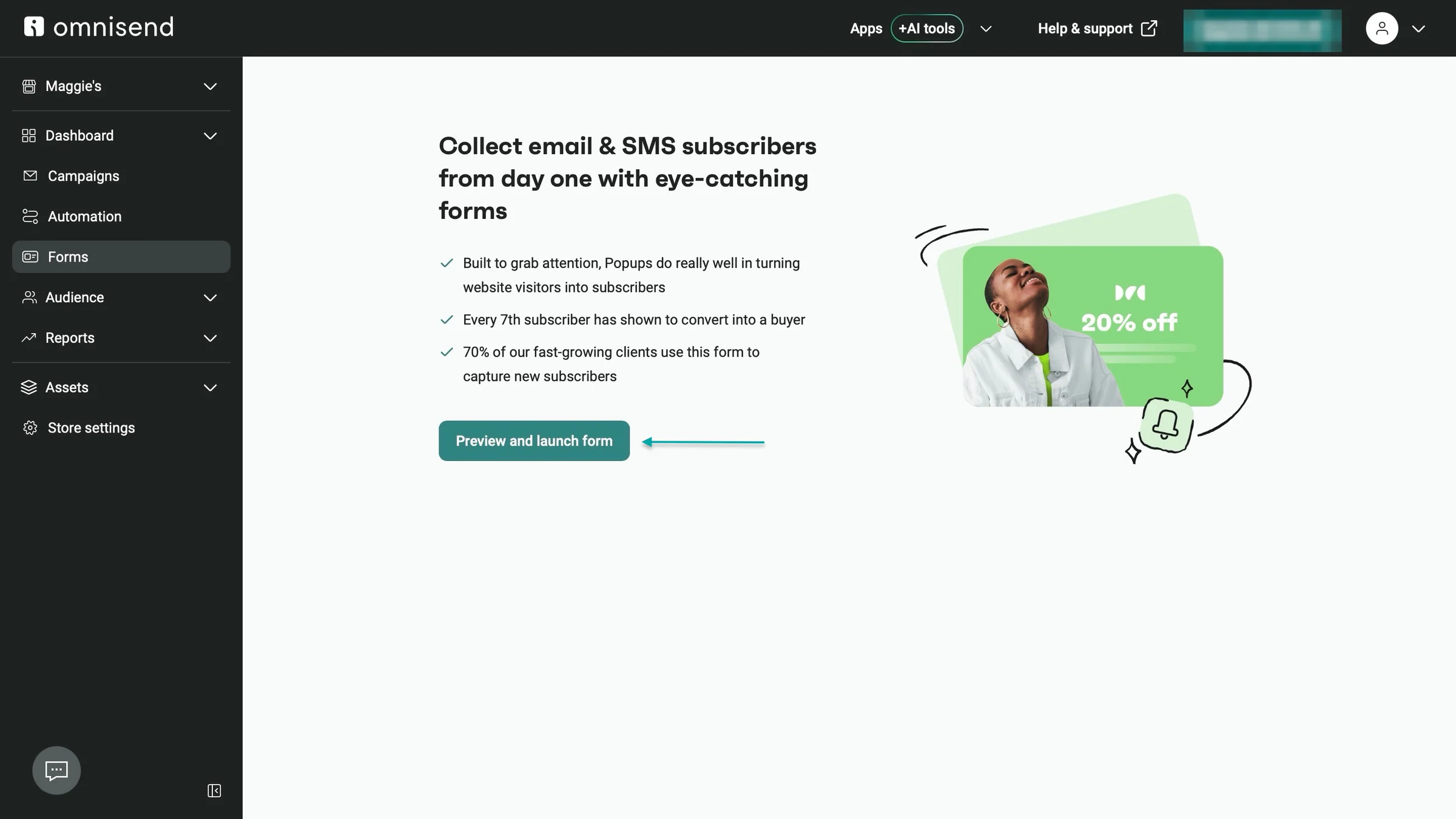
Its forms feature lets you collect customer contact details, capture leads, and offer promotions and discounts to encourage people to sign up.
Let’s build a form to help you understand how it works.
Select “Forms” in the sidebar and click “Preview and launch forms.”
In the form editor, drag and drop items like dropdowns, phone number fields, radio buttons, privacy policy text, and more to customize your form.
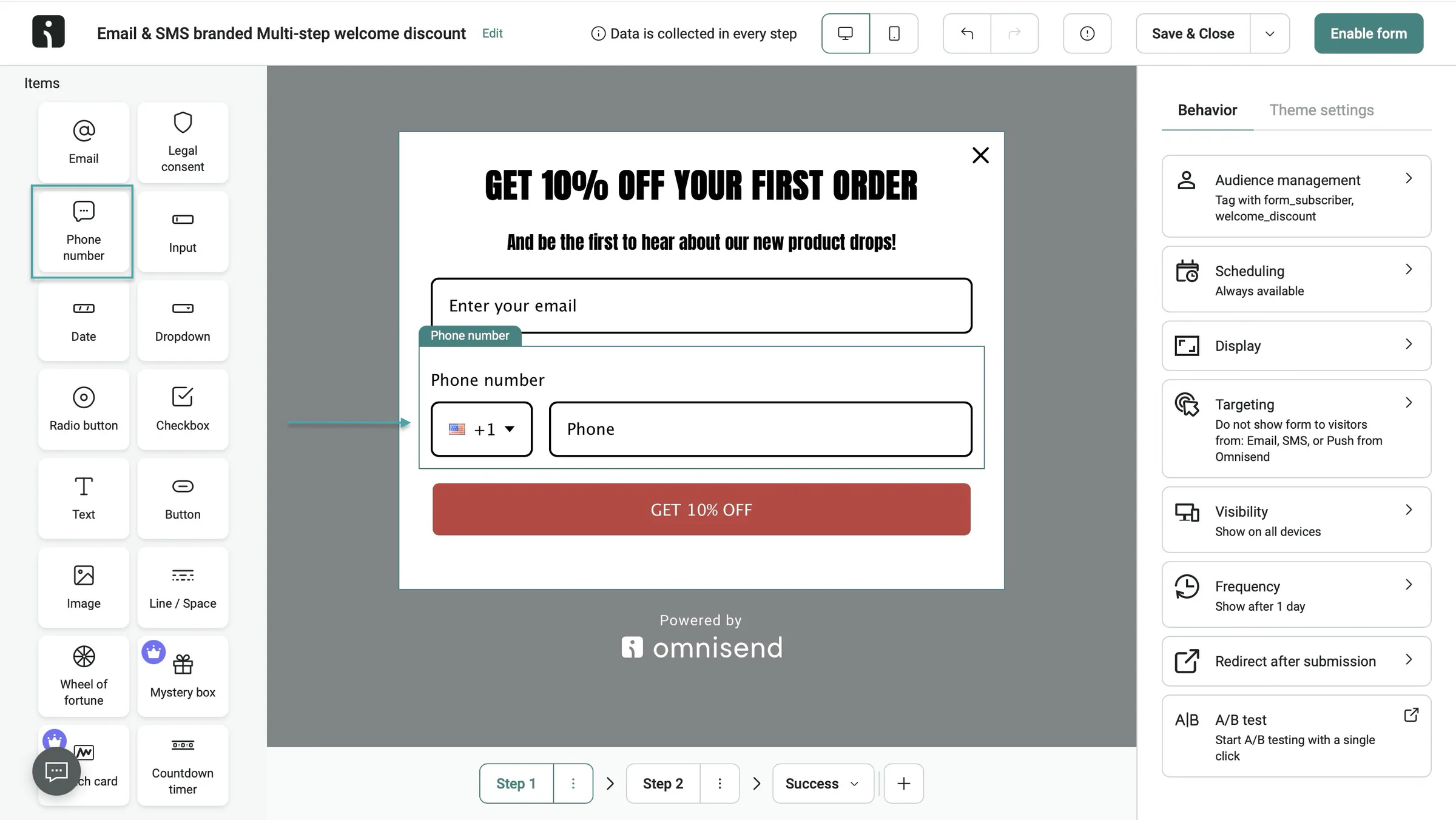
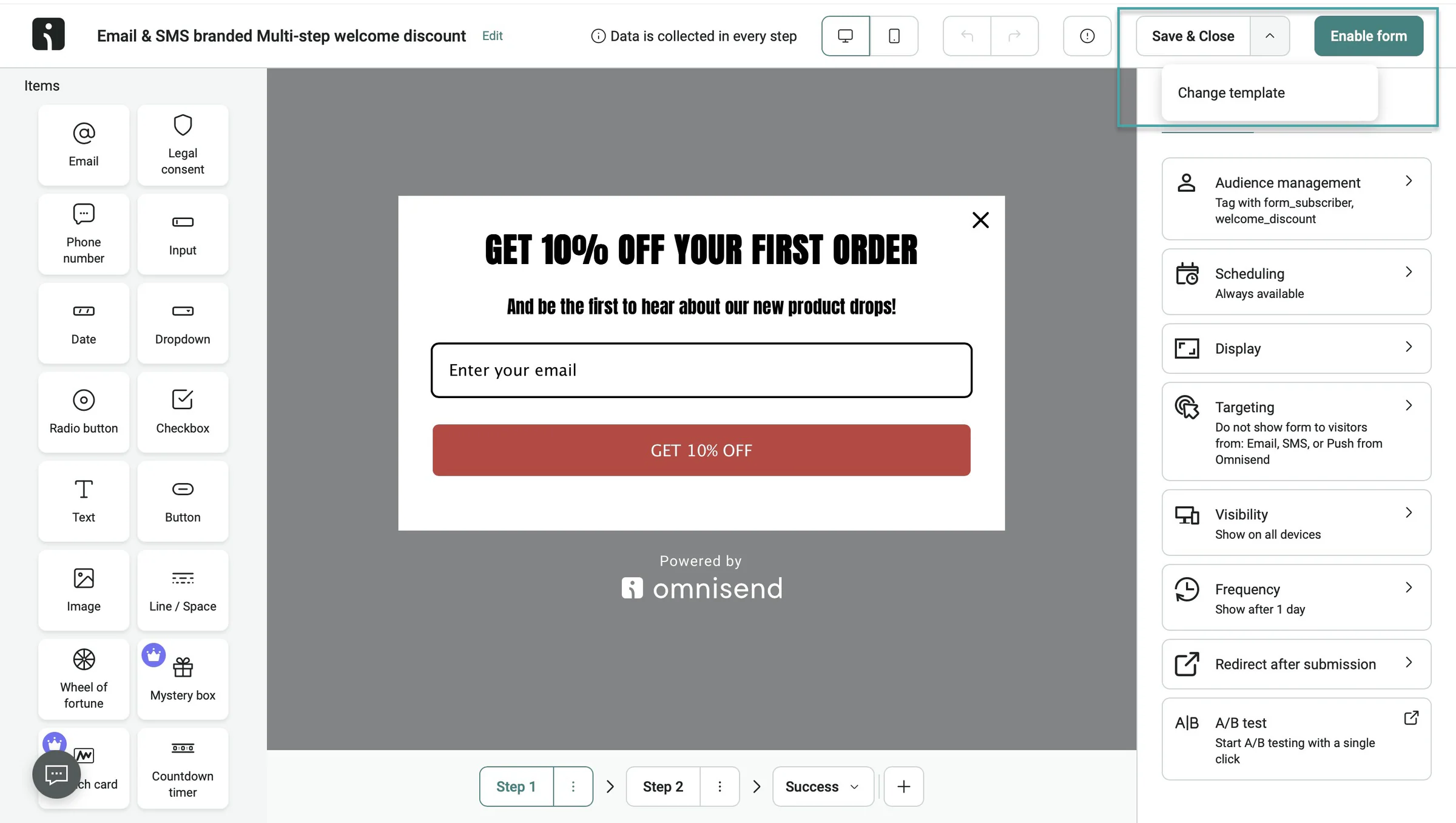
On the right side of the window, you can adjust the form behavior and theme settings. If you’d like to change the template, click the dropdown icon next to “Save & Close” and select “Change template.”
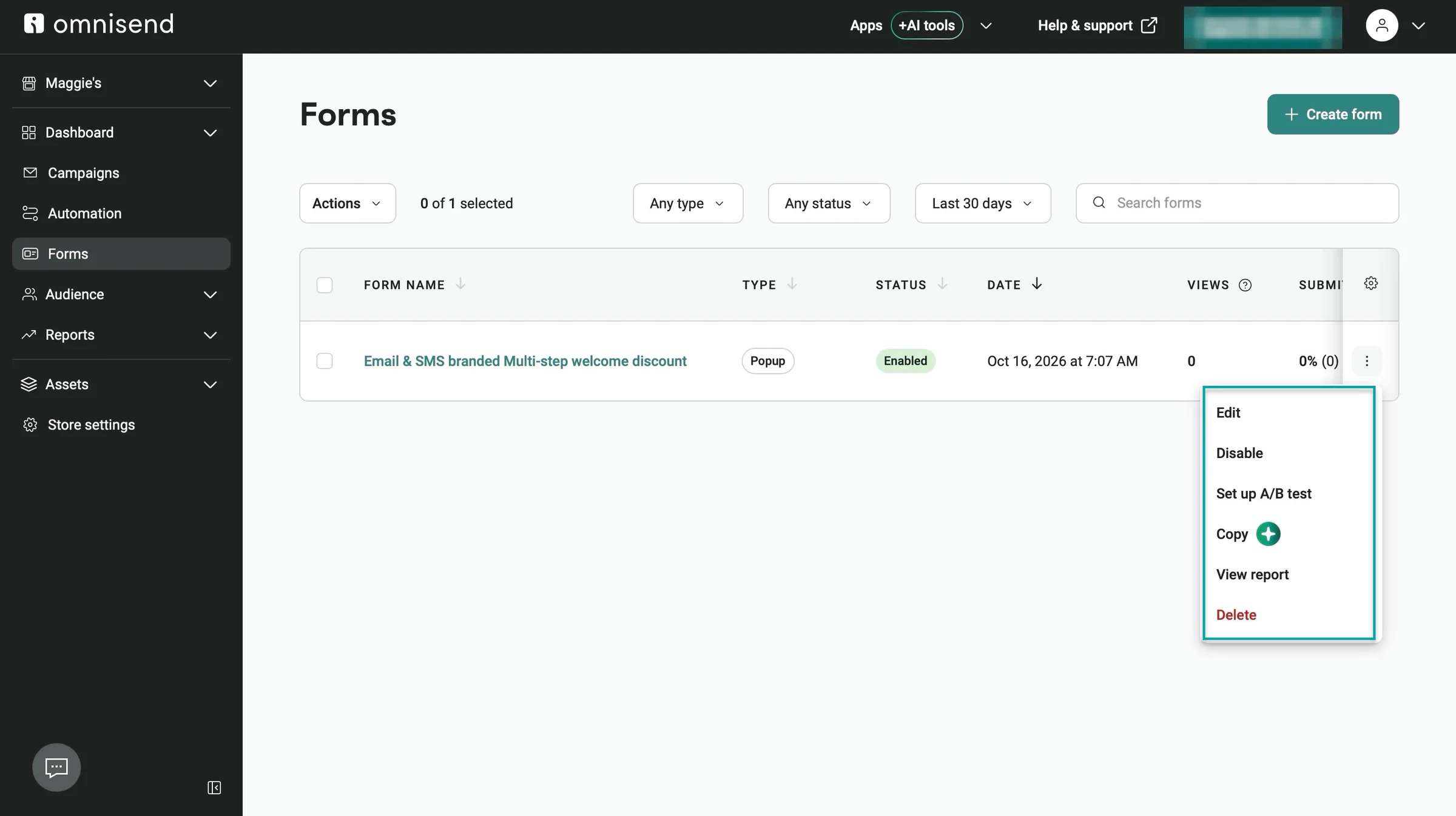
Once you’re done editing, click “Enable form.”
Your form is now live. Click the three vertical dots (⋮) to make further edits, delete it, and access other options.
What I liked vs what I didn’t like
What I loved 👍
✅ Offers MCP, so you can connect Omnisend to AI tools like ChatGPT, Claude, and more to help you manage contacts, create campaigns, and automate marketing tasks without doing everything manually.
✅ Offers live view, so you can see which products your contacts are checking out in real time, which helps you understand what they’re interested in and identify opportunities to turn that interest into more sales.
✅ Has a free plan that offers 500 monthly emails and 250 contacts, so you can start building your email list and sending marketing campaigns without upfront costs.
What I didn’t like 👎
❌ Offers add-ons like Omnisend Agent, countdown timers, and automation webhooks only on paid plans, so you’ll need to upgrade to access these features.
Best for
- E-commerce businesses that want to promote products, automate email and SMS campaigns, recover abandoned carts, and increase sales.
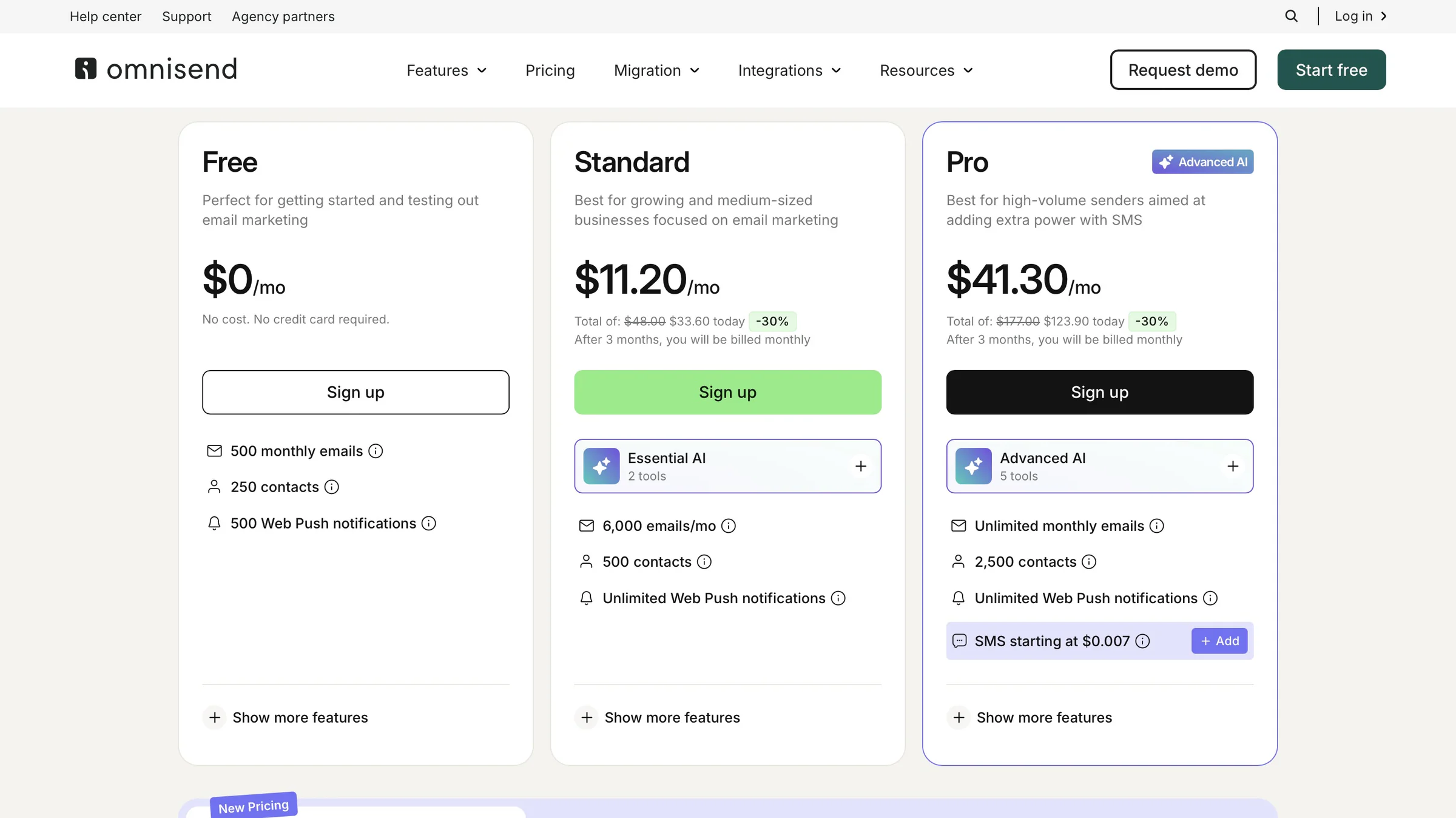
Pricing
- Free: $0/month
- Standard: $11.20/month
- Pro: 41.30/month
6. AWeber - Best for bloggers, podcasters, and small creator businesses
- Personal rating: ⭐️⭐️⭐️⭐️ 4/5 - It’s a decent email marketing platform, but its Lite plan has usage limits.
- Ease of use: ⭐️⭐️⭐️⭐️ 4/5 - It’s intuitive, and if you run into setup challenges, AWeber lets you send screenshots with your message to its support team.
- AI capabilities: Uses AI to write emails and newsletters in your brand voice, generate landing pages and subject lines, analyze campaign performance, and help you manage subscribers through AI tools.
- Monetization options: E-books, PDFs, online courses, webinars, memberships, templates, coaching services, paid newsletters, event access, tips and donations through landing pages connected to Stripe.
- Free trial: Yes - 14-day free trial on its Plus and Lite plans
- Starting plan: Lite - 12.50/month + 5,000 emails/month
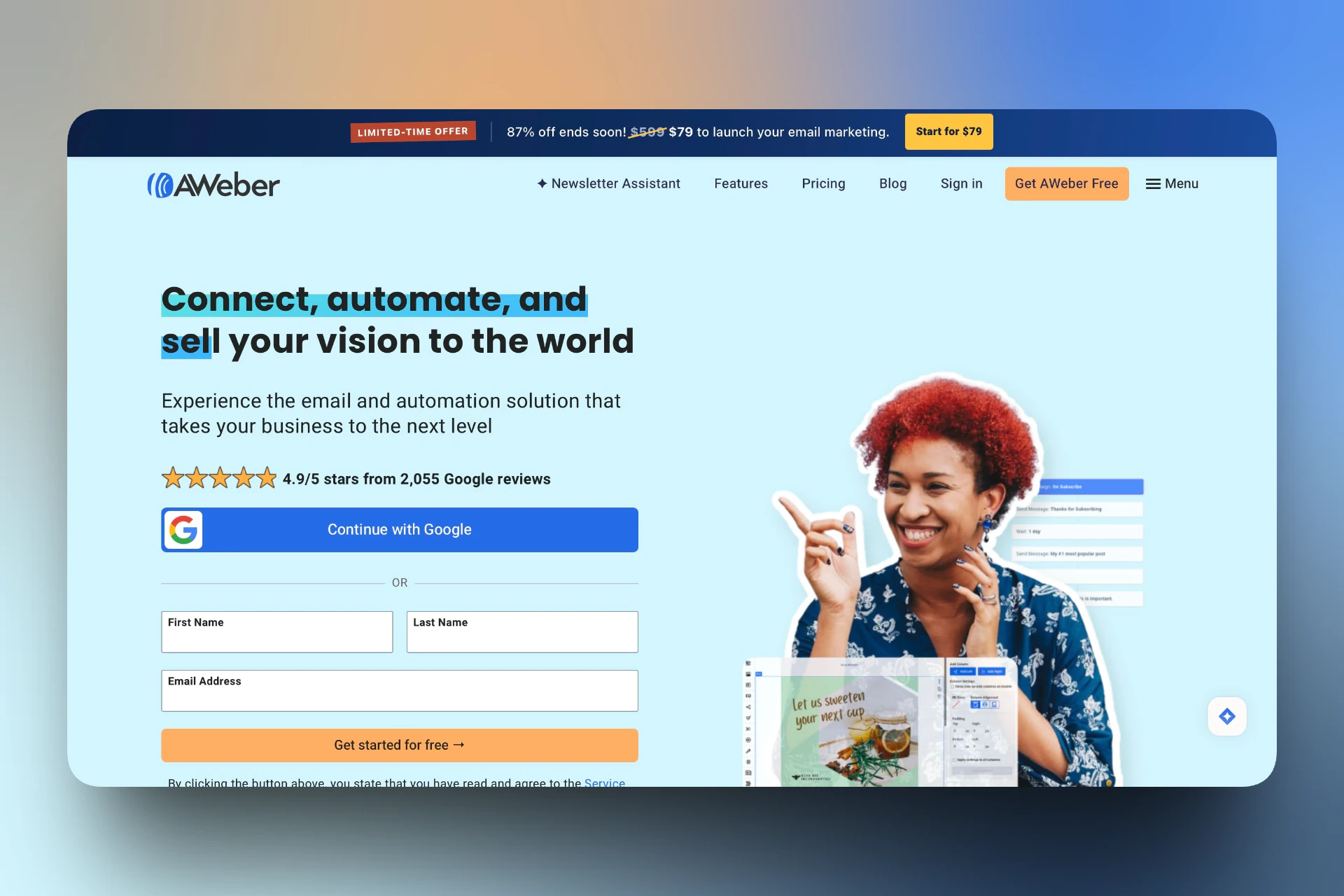
AWeber is sixth on our list of the best email marketing platforms.
AWeber lets you build email lists, create and send newsletters, automate emails, and track campaign performance.
It also offers landing pages, sign-up forms, and tools to sell digital products like e-books, online courses, and memberships. You can use it to grow your audience, promote products, and keep in touch with customers.
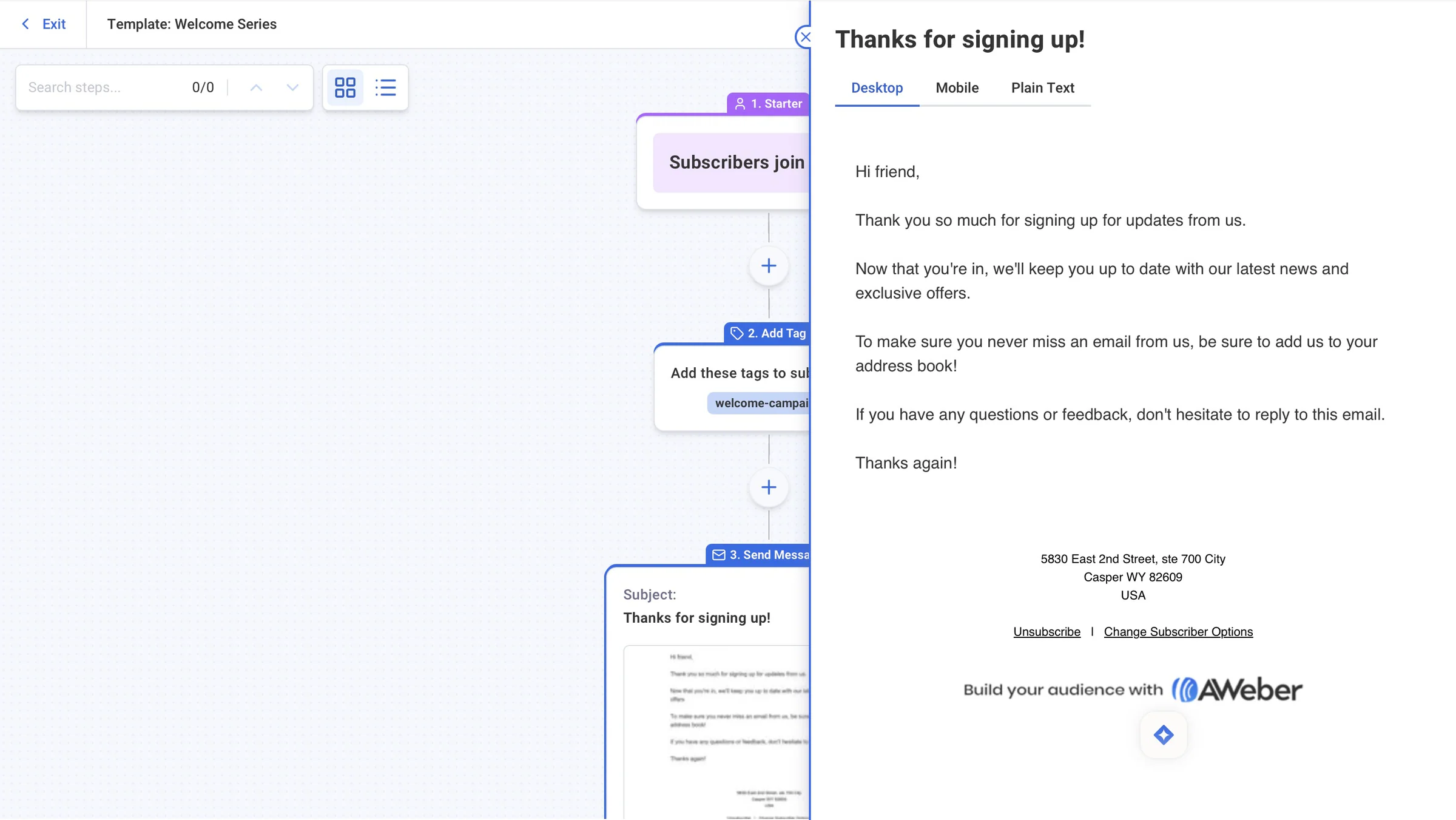
On AWeber, you can create workflow automations from scratch or by selecting a template. You can also import one.
Unlike MailerLite’s templates, where you have to write the emails yourself, AWeber’s templates come with pre-written messages.
That way, you can preview the messages right after selecting a template and make changes to suit your business instead of writing every email yourself.
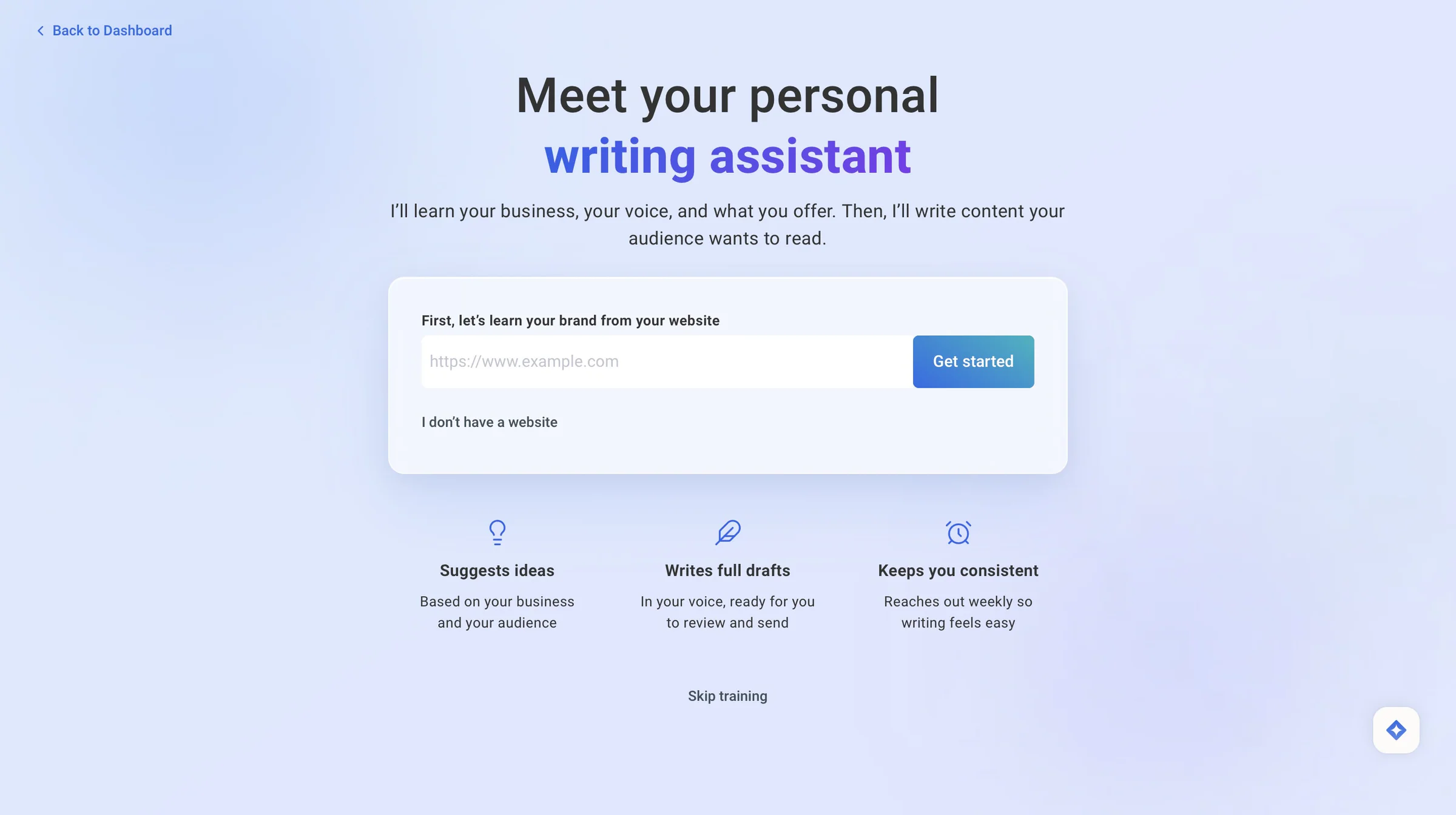
AWeber has an AI assistant that can help you write newsletters. It’ll learn about your business, your voice, and what you offer.
Then, it’ll help you write emails that speak to your audience.
It’s a good way to spend less time figuring out what to say in your newsletters, especially when you have products to promote. Or updates to share with your subscribers.
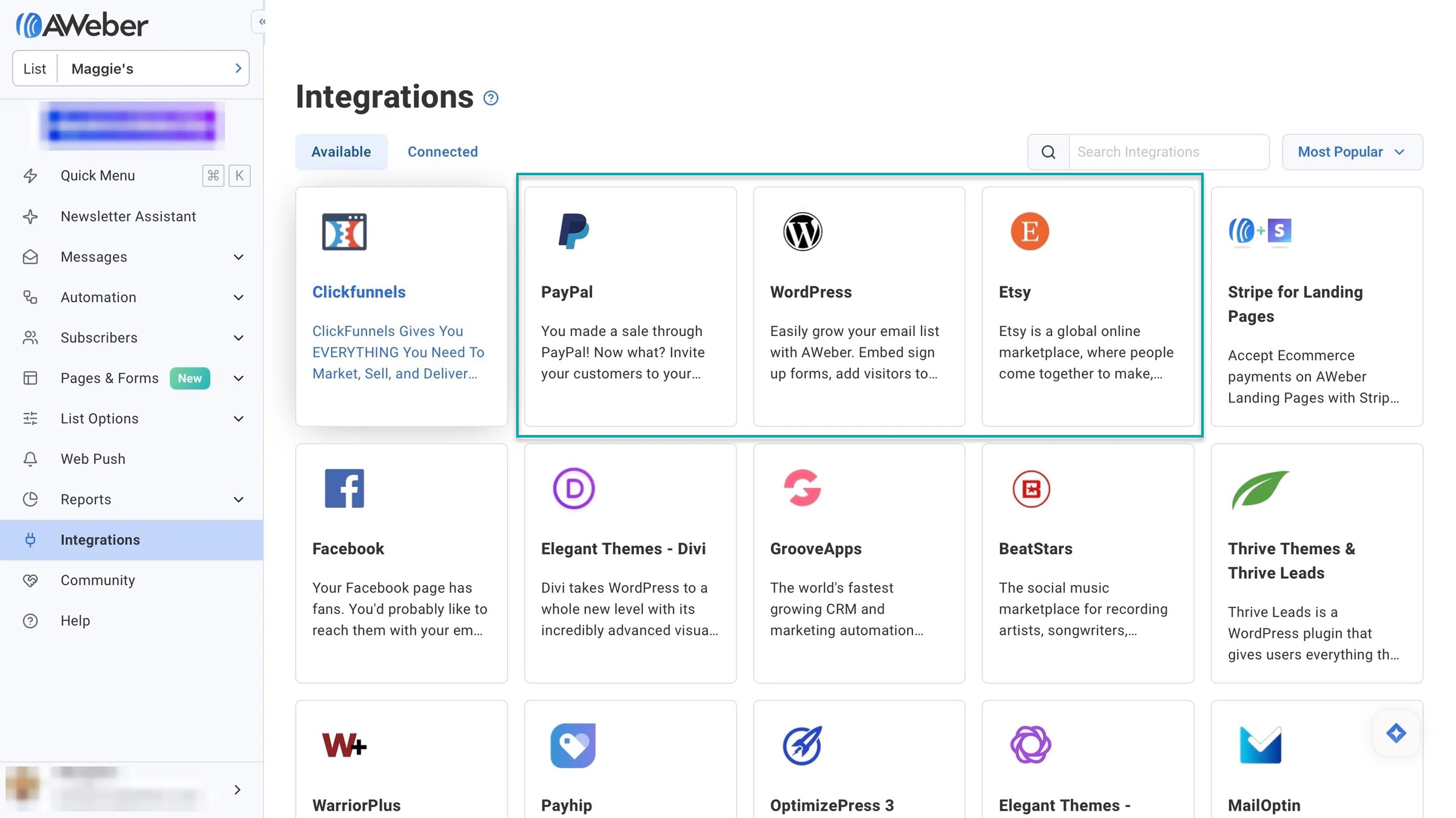
And like Easytools and other email marketing platforms like Mailchimp, AWeber lets you integrate with third-party apps like WordPress, PayPal, Zapier, Make, WooCommerce, and more.
You can connect your online store on Etsy to AWeber, for example. Then follow up with customers after they buy something instead of manually transferring their details between platforms.
What I loved about AWeber
1. Automation
This feature lets you create an automated email workflow to send messages to subscribers without doing it manually every time. Let’s create one in a few simple steps.
Begin by selecting “Automation” in the sidebar. Then, click “Create Workflow.”
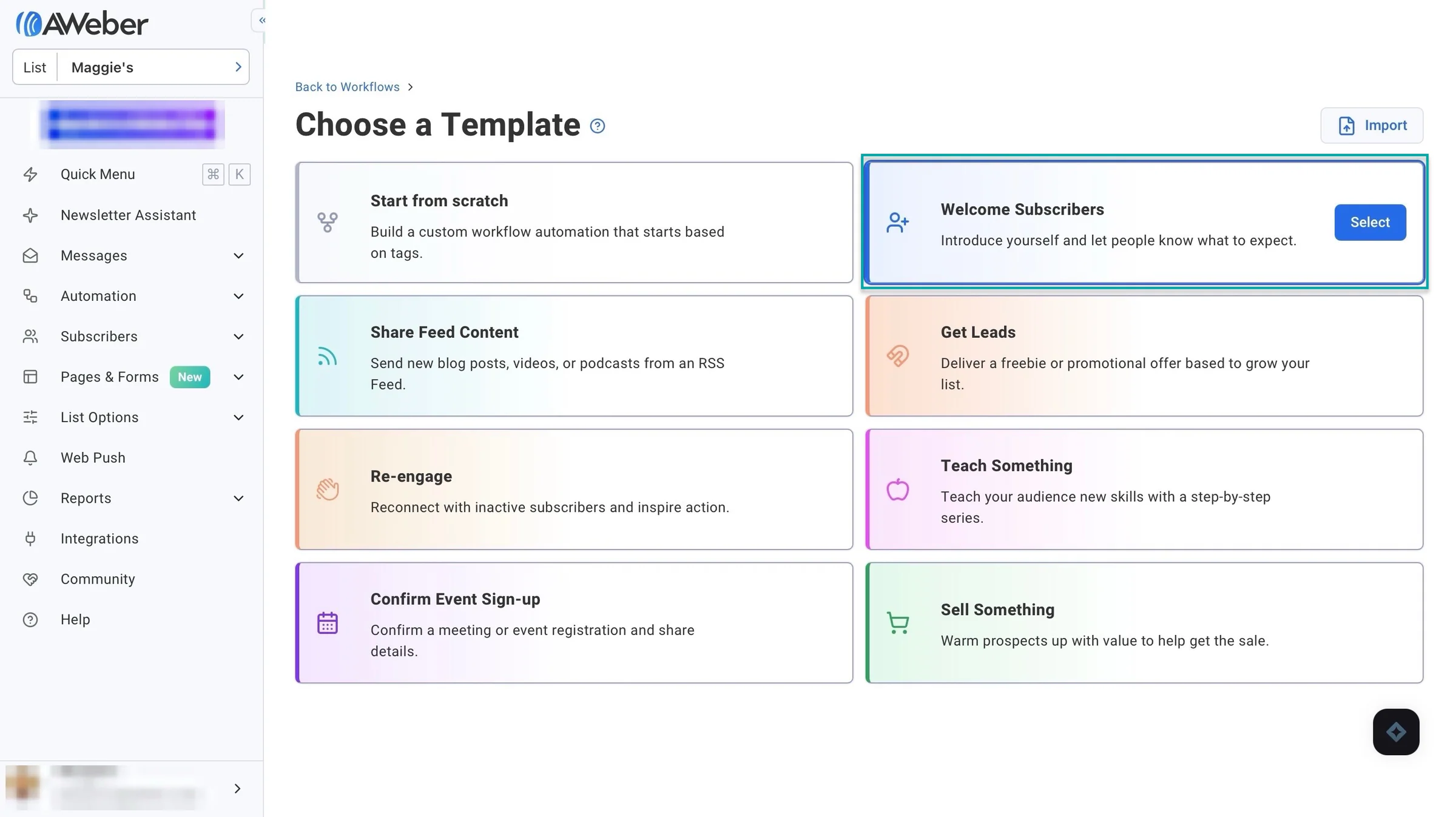
Next, choose a template.
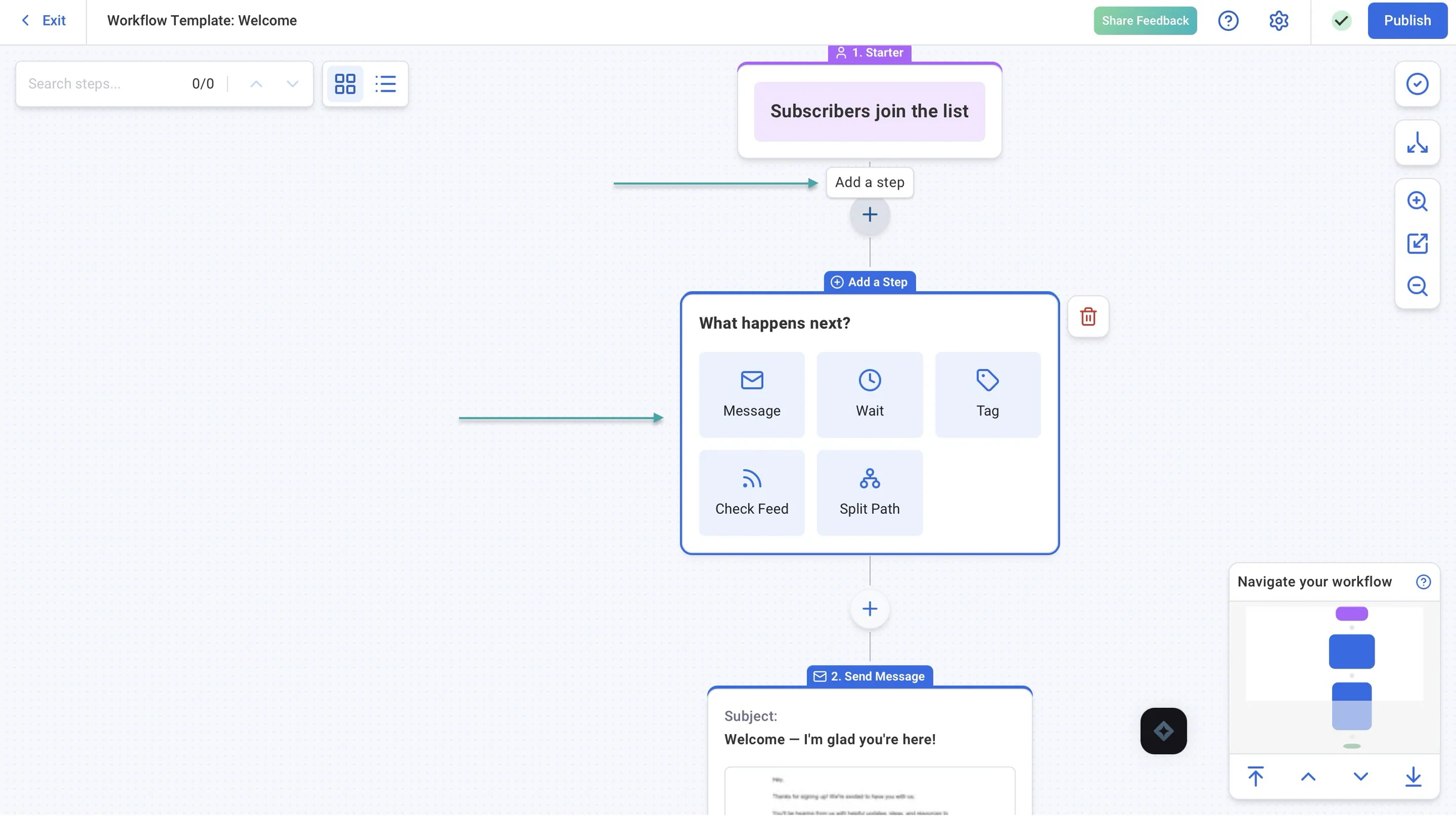
In the workflow editor, you can add more steps by clicking the plus sign (+).
The template already comes with a message, so hover your cursor over it and choose to edit it, replace it, copy it to drafts, set automation rules for it, or delete it.
Once you’re done editing, click “Publish” to activate the workflow.
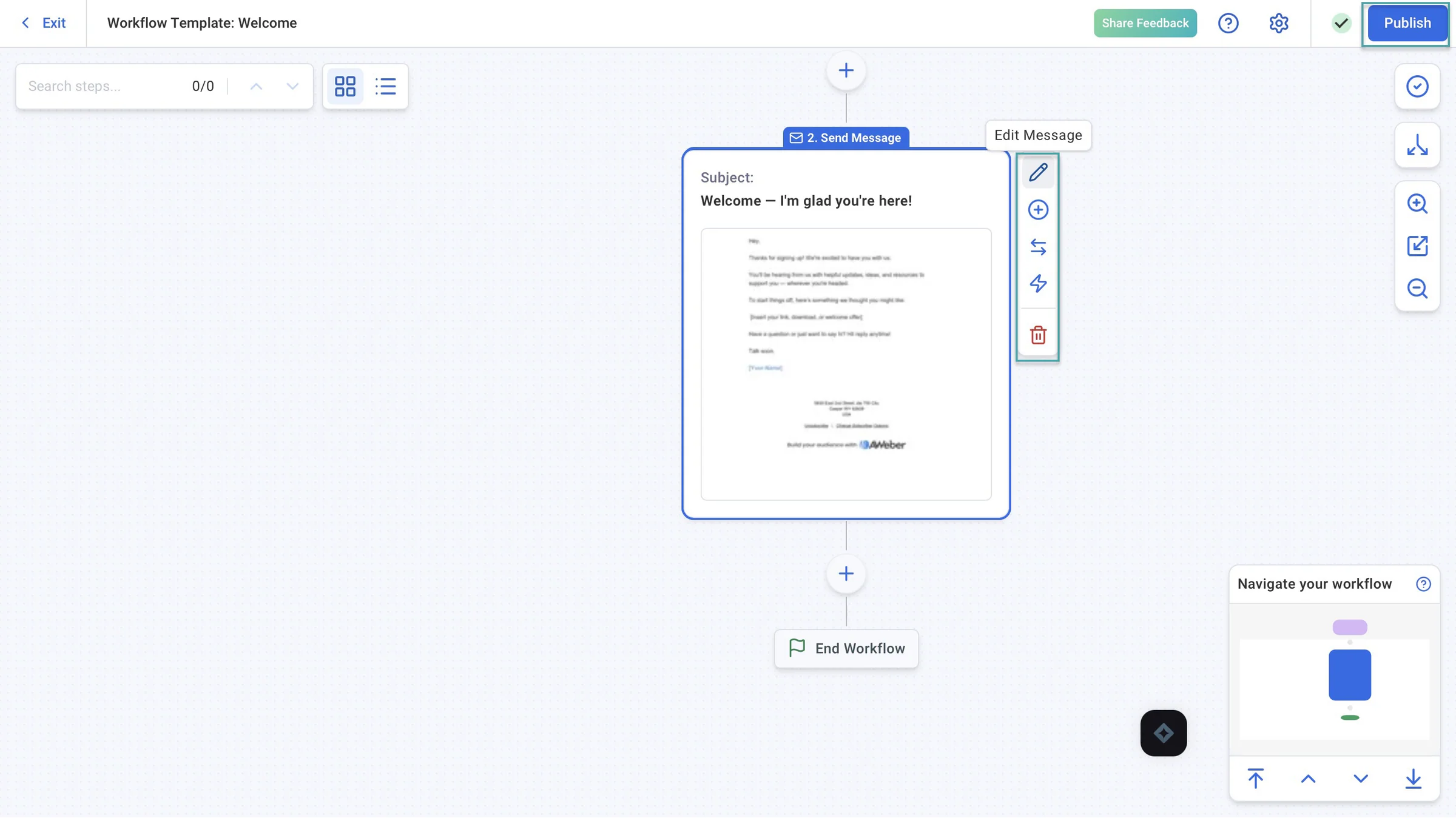
AWeber will now display your automated email workflow. It can start sending messages when subscribers meet the conditions you’ve set.
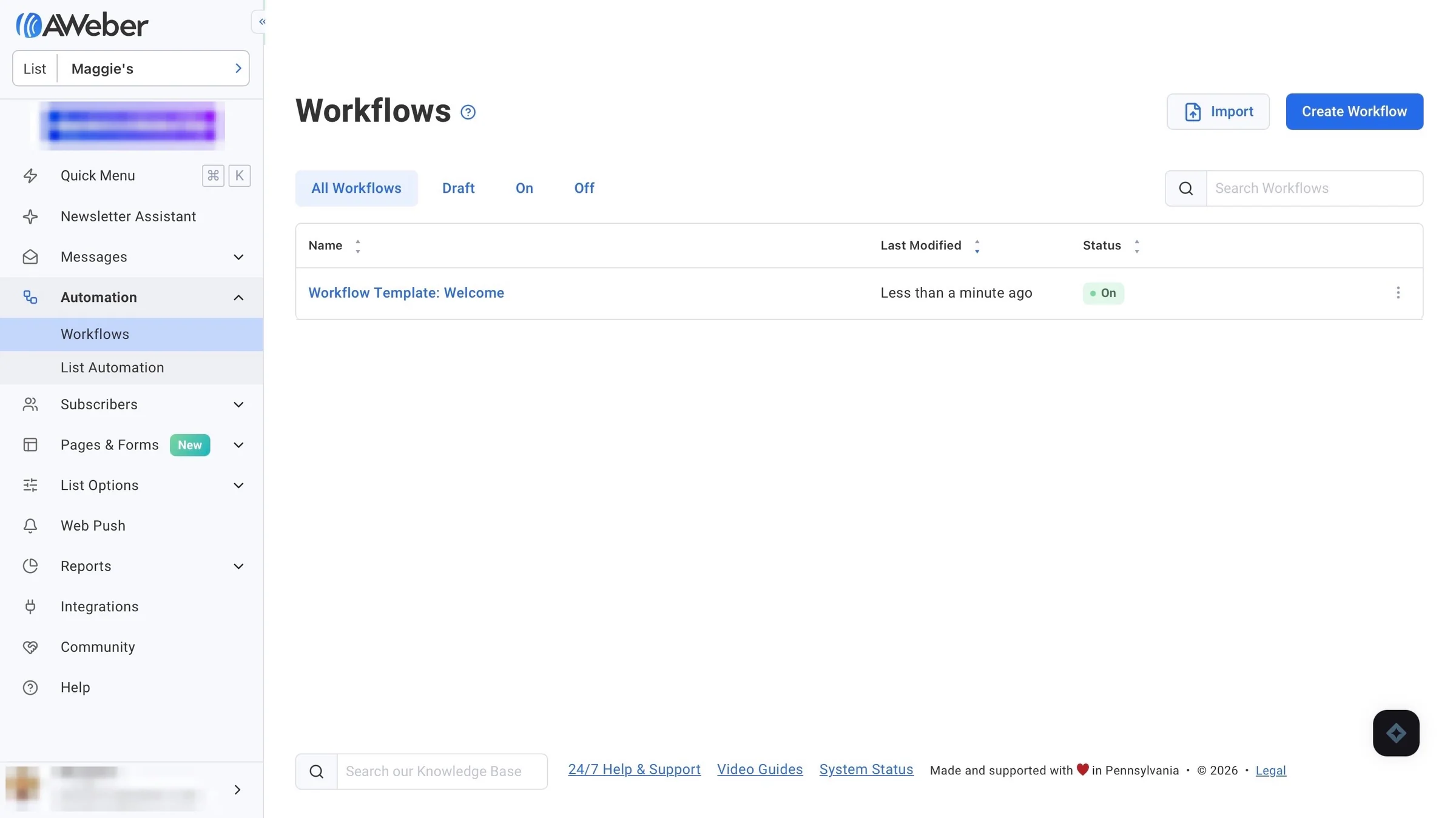
2. Newsletter assistant
The newsletter assistant only needs your website to learn about your brand voice, what makes your business different, and what you sell.
Once it has learned about your business, it can help you write a newsletter, promote a product, or get more people to listen to your podcast.
Let’s tell it to write a newsletter using a brief, natural language prompt. It also offers a couple of suggestions you can choose from if you’re not sure what to write.
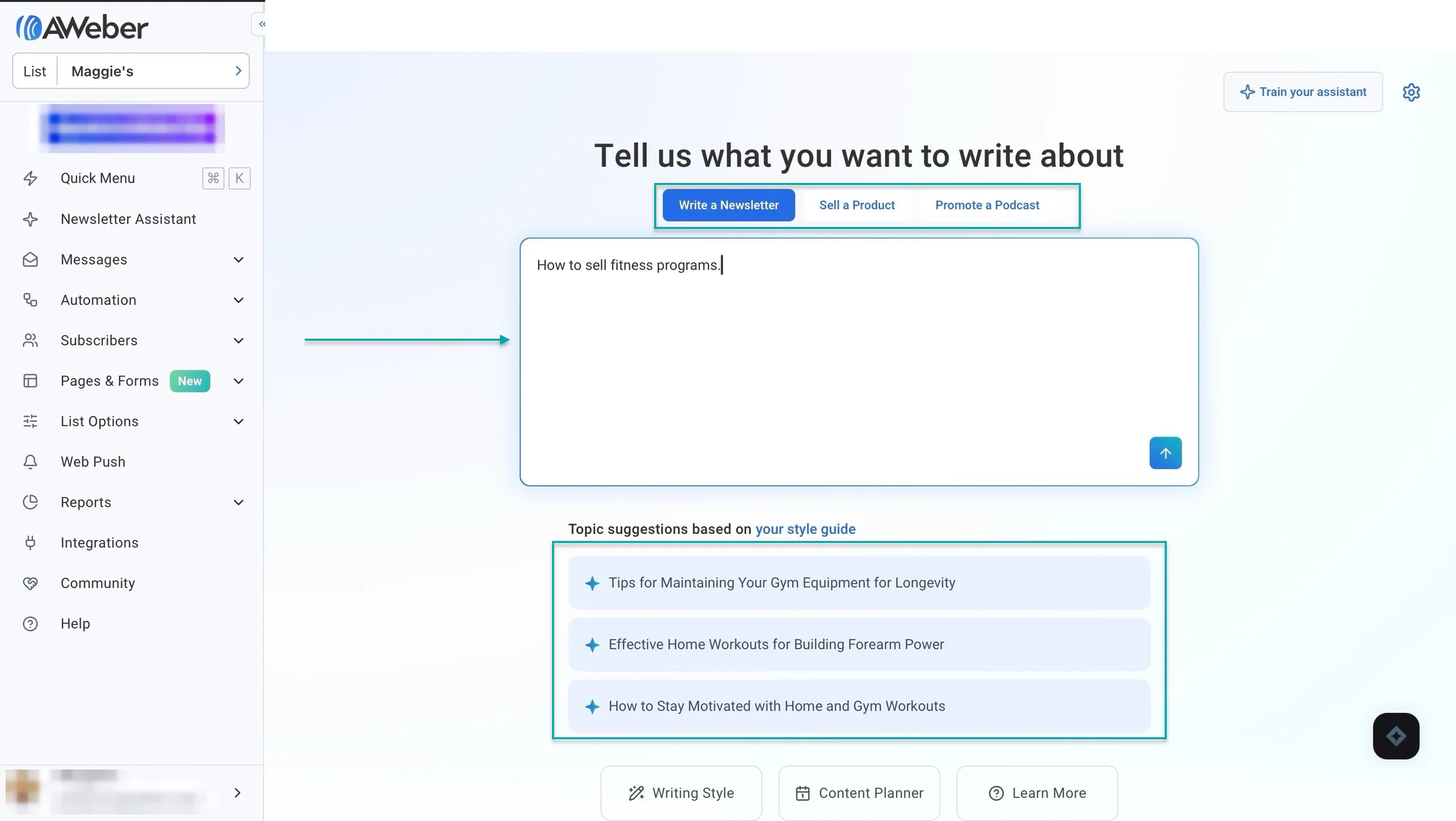
After you hit “Enter,” it analyzes your website, reviews your writing style, and writes a newsletter with your target audience in mind.
When it’s done writing, you can review the message and suggest some edits. You can do this by simply telling the newsletter assistant what you’d like it to change.
After that, you can schedule the newsletter or send a test email to see how it looks before sending it to your subscribers. Let’s go with “Schedule Newsletter.”
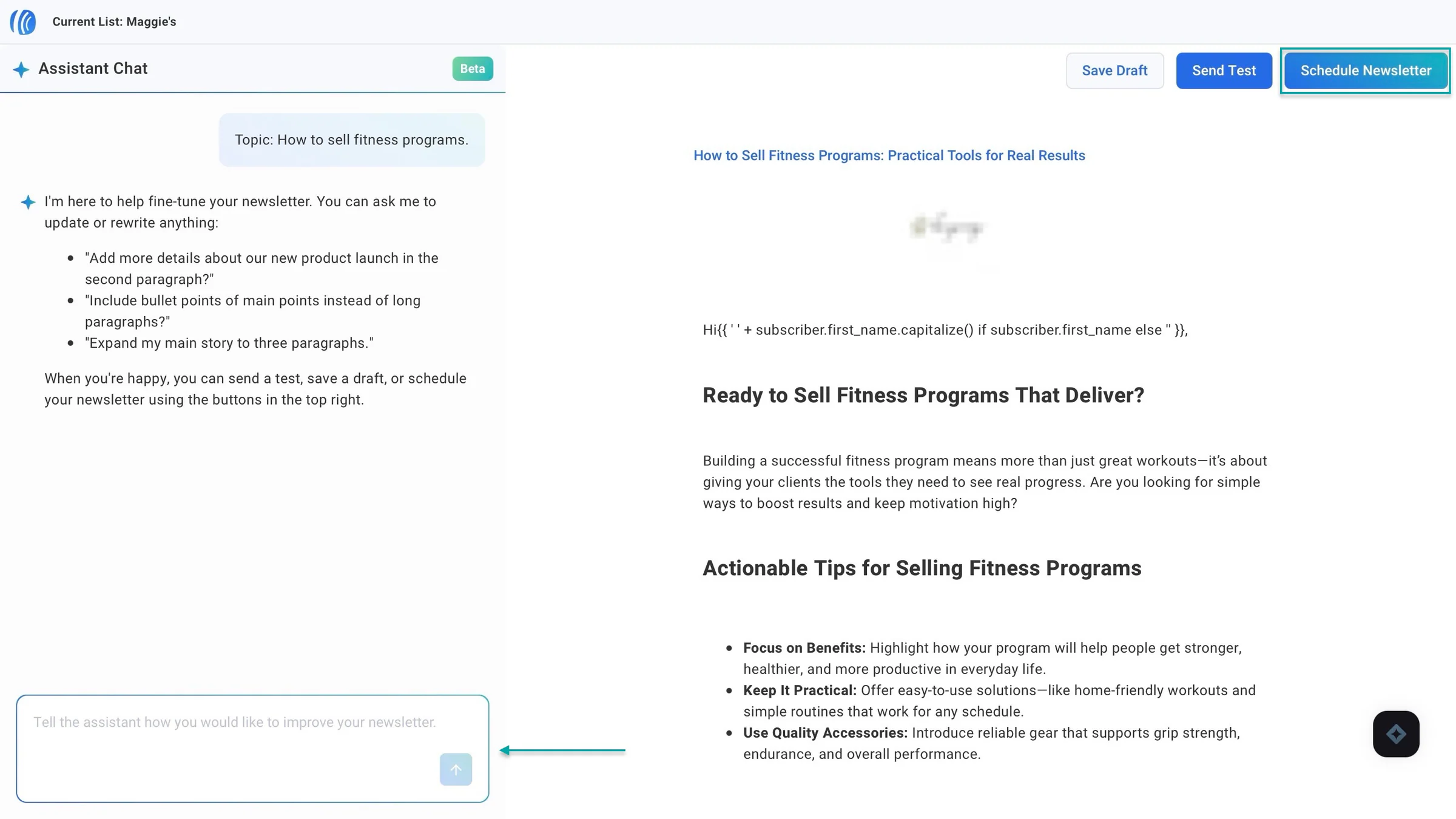
In the new window, click “Edit” above the newsletter message to make further additions and changes. You can choose different fonts, colors, and styles.
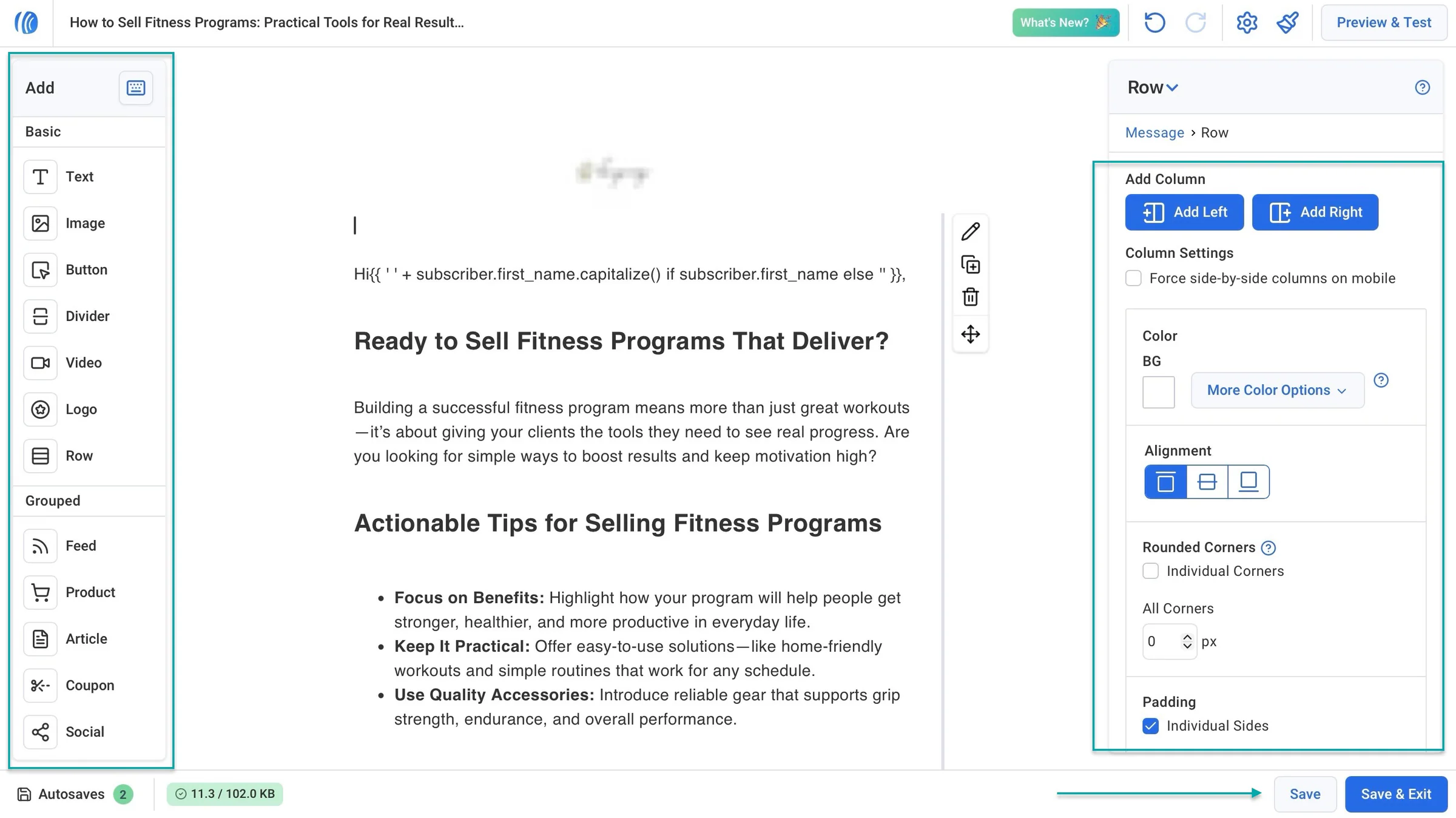
You can even drag and drop images, videos, and other elements from the elements panel. Once you’ve made all the changes, save and exit.
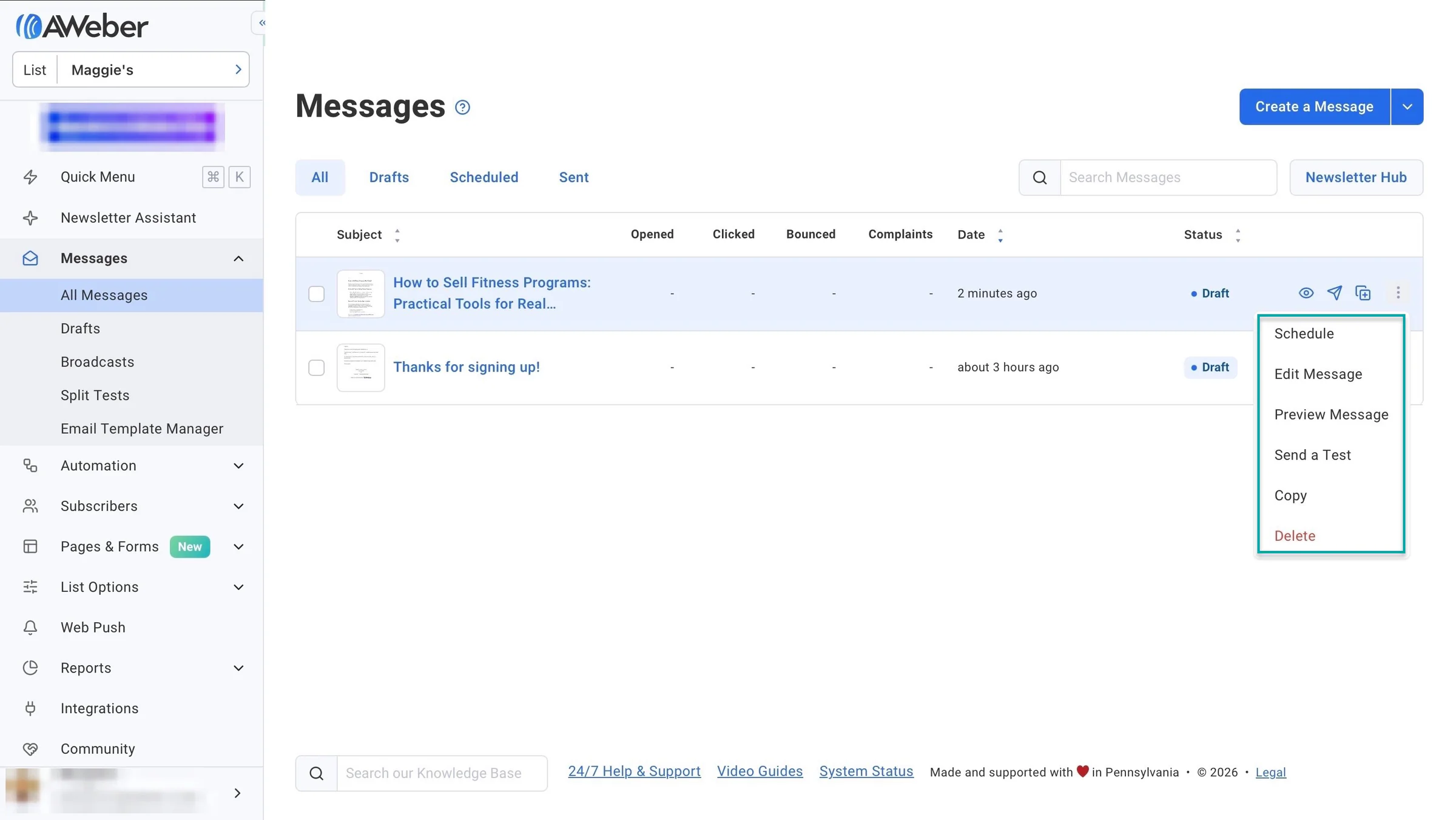
AWeber will list your message. Click the three vertical dots (⋮) for options to schedule, send a test email, edit, copy, delete, or preview it.
3. Integrations
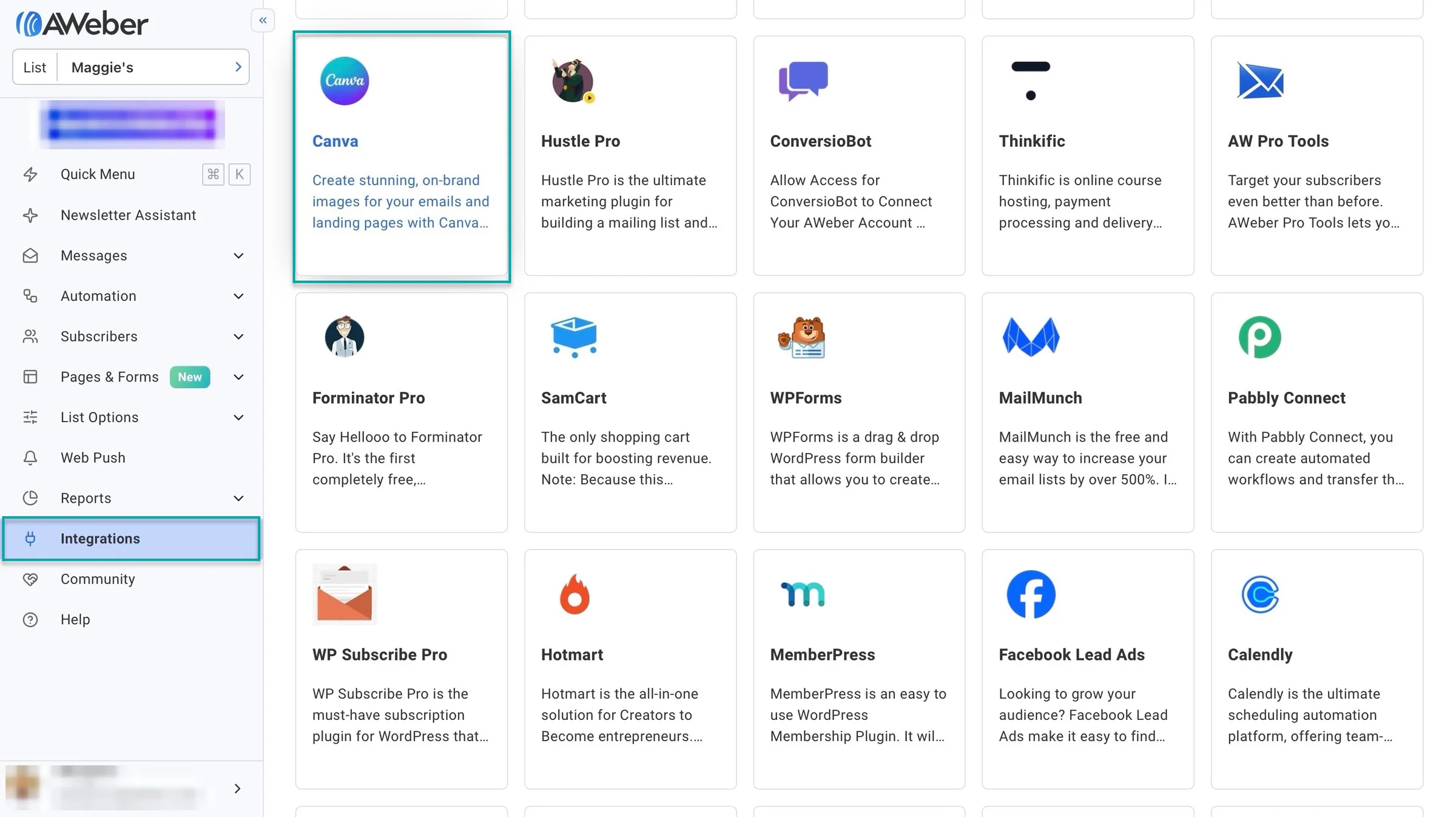
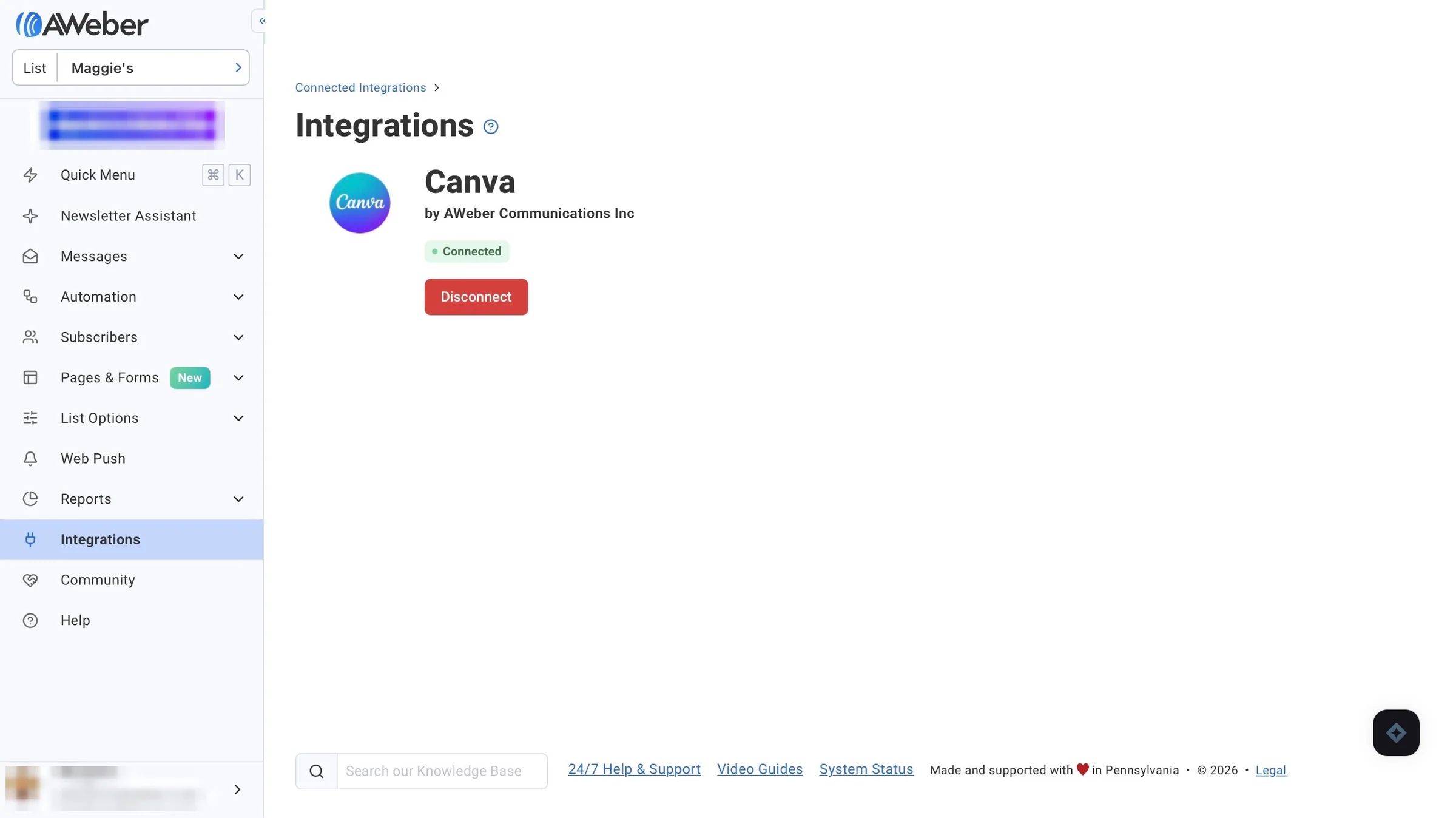
This feature lets you connect AWeber to the tools you already use. You can connect software like Canva, Calendly, Acuity Scheduling, HappyForms, Facebook Lead Ads, and more.
Let’s connect Canva to AWeber. Select “Integrations” in the sidebar, scroll down, locate “Canva,” and click it.
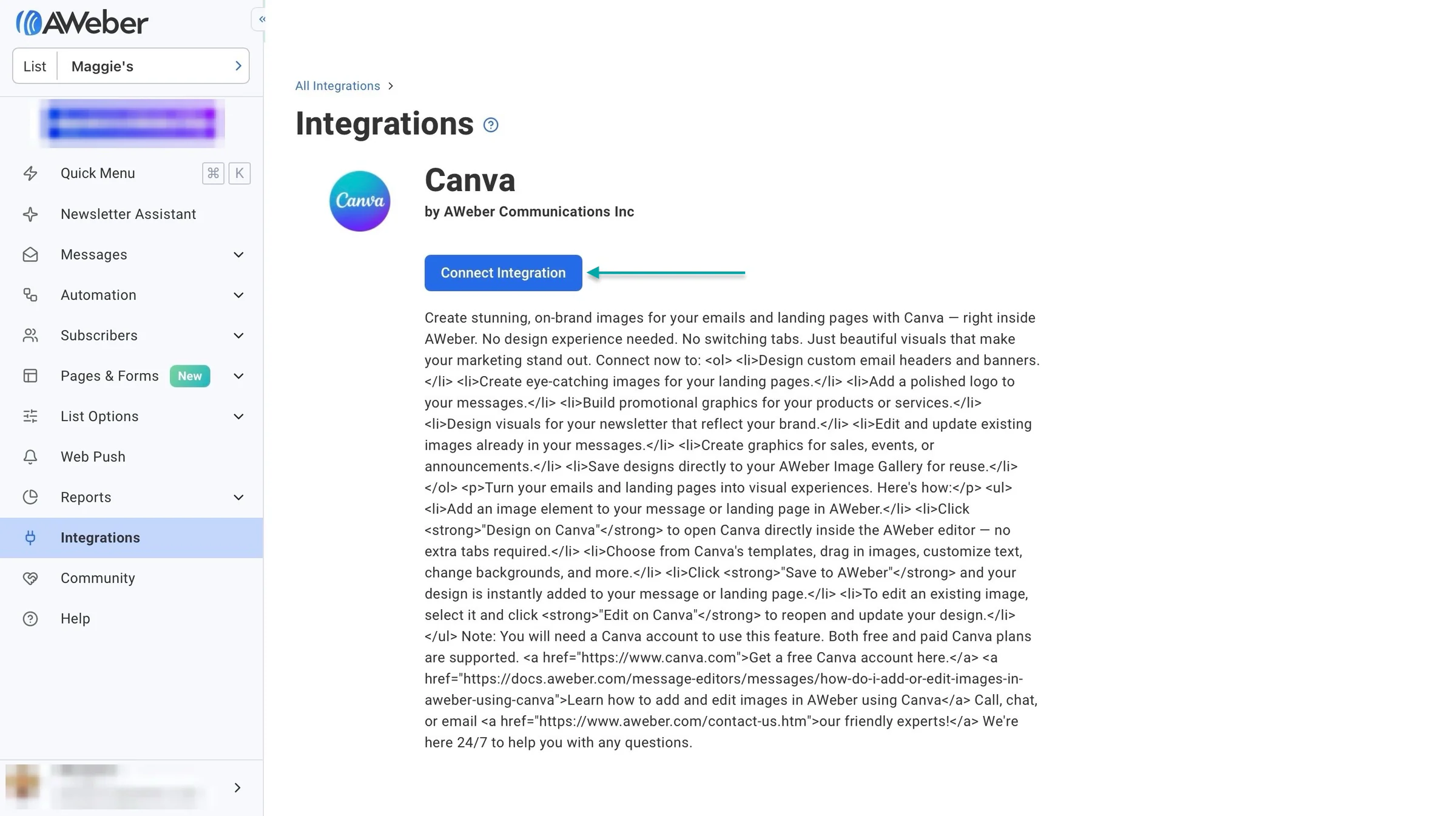
In the new window, click “Connect Integration.”
Now, allow AWeber to access your Canva account.
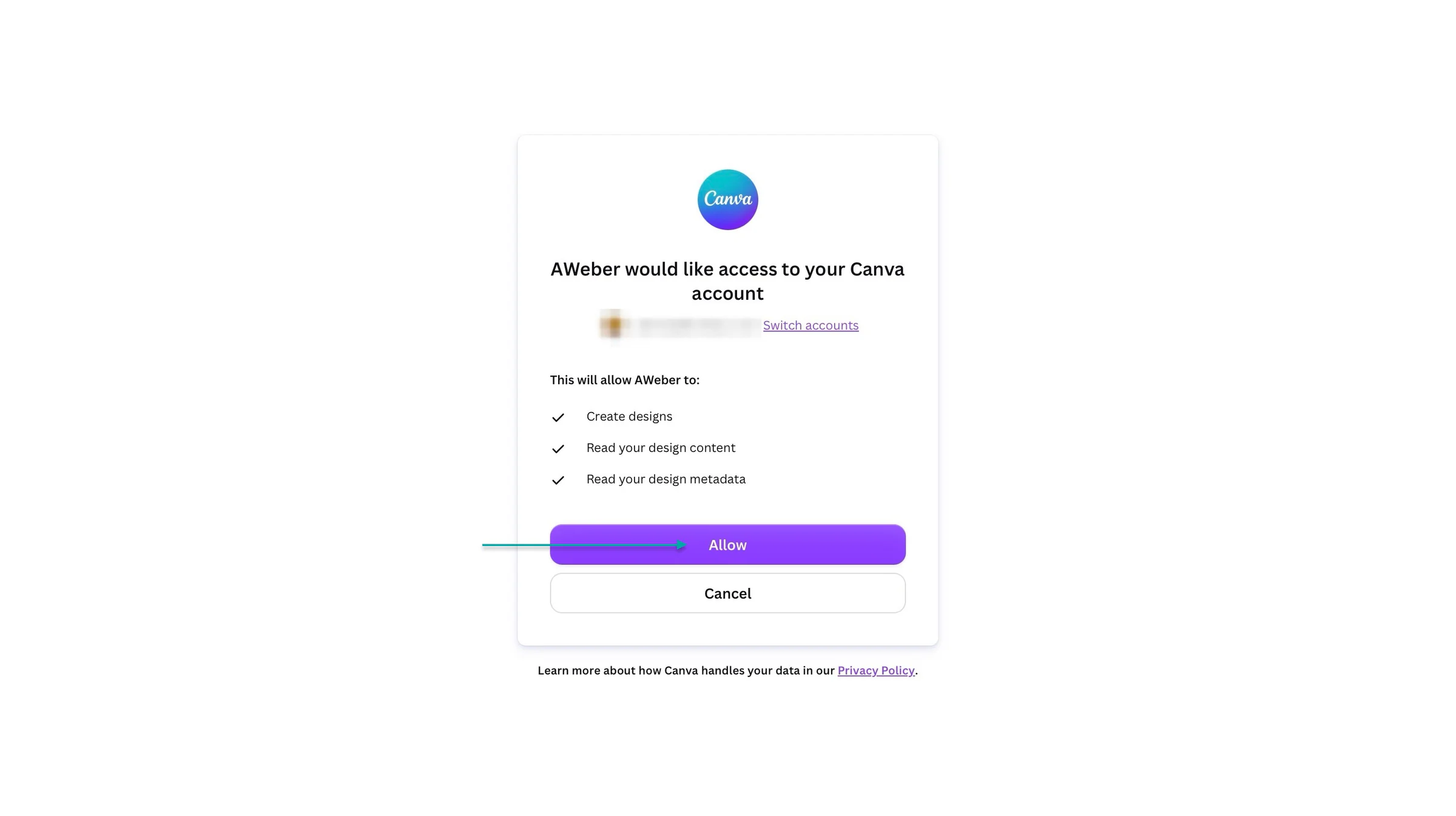
And just like that, you’ve connected the two tools. You can now use your Canva designs in AWeber to create emails without having to download and upload each design manually.
What I liked vs what I didn’t like
What I loved 👍
✅ Has an AI newsletter assistant that learns your brand voice and helps write newsletters, so you can spend less time creating emails from scratch.
✅ Lets you sell digital products, online courses, memberships, and paid newsletters directly through landing pages, so you can monetize your audience without needing a separate checkout platform.
✅ Offers live customer support, including phone, email, and chat, so you can get help when you run into problems.
What I didn’t like 👎
❌ The free plan limits you to one email list and one automation workflow, so you’ll need to upgrade if you want to manage many lists or create more complex automated campaigns.
Best for
- Small businesses, creators, bloggers, and online entrepreneurs who want to grow their email lists, automate campaigns, and sell digital products.
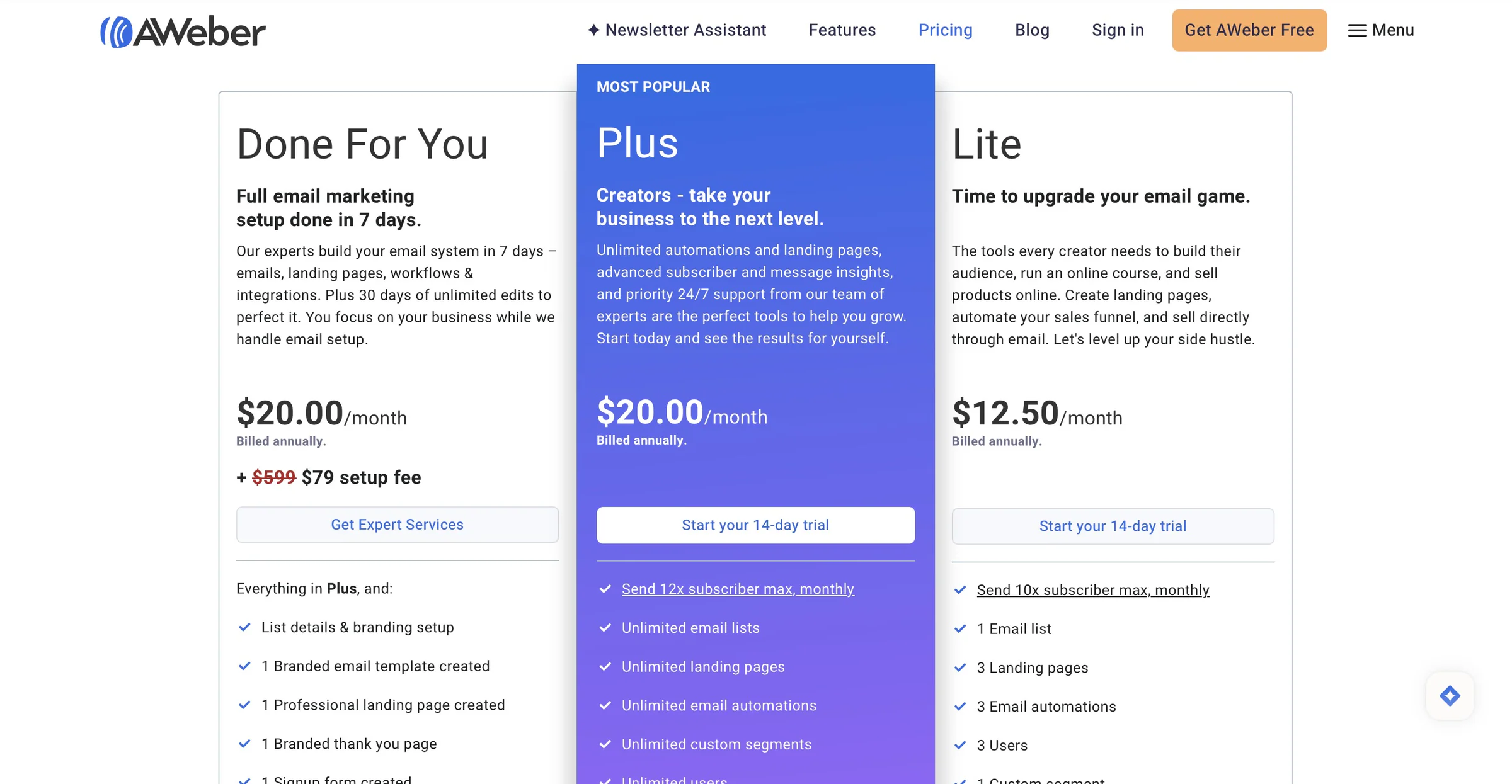
Pricing
- Free: $0/month
- Done For You: $20/month
- Plus: $20/month
- Lite: $12.50/month
Additional email marketing platforms we tested
Apart from the email marketing platforms I’ve discussed, these are the additional tools we tested:
7. Brevo (formerly Sendinblue) - Best for creators who want email marketing, SMS campaigns, and customer management in one platform.
8. ActiveCampaign - Best for creators who need advanced email automation and customer segmentation.
9. GetResponse - Best for creators selling online courses, webinars, and digital products.
10. beehiiv - Best for newsletter creators who want to grow and monetize their subscribers.
11. Flodesk - Best for creators who want visually appealing emails and simple automation.
12. Drip - Best for e-commerce creators who want personalized email campaigns based on customer behavior.
13. Klaviyo - Best for online store owners who want email and SMS marketing driven by customer purchase data.
14. Constant Contact - Best for small businesses that want email campaigns, event marketing, and contact management.
15. Sender - Best for creators who want affordable email marketing with automation.
16. EmailOctopus - Best for creators who want simple, low-cost newsletters and email campaigns.
17. Campaign Monitor - Best for creators and small businesses that want customizable email templates and branded newsletters.
18. Moosend - Best for creators who want affordable email automation and audience segmentation.
19. Substack - Best for writers and newsletter creators who want to publish free and paid newsletters.
20. SendPulse - Best for creators who want to reach their audience through email, SMS, and chatbots.
What are email marketing tools?
Email marketing platforms are tools that let you build email lists, send targeted campaigns, automate messages, and keep in touch with customers. Some also support SMS marketing, newsletters, and web push notifications.
Examples of email marketing platforms include Kit, Easytools, MailerLite, Mailchimp, Omnisend, AWeber, ActiveCampaign, beehiiv, Klaviyo, GetResponse, Drip, and more.
They’re important for selling directly to your customers. They let you promote products, share offers, and follow up with people who have already shown interest in your business.
And most platforms also let you optimize your emails for smartphones and tablets.
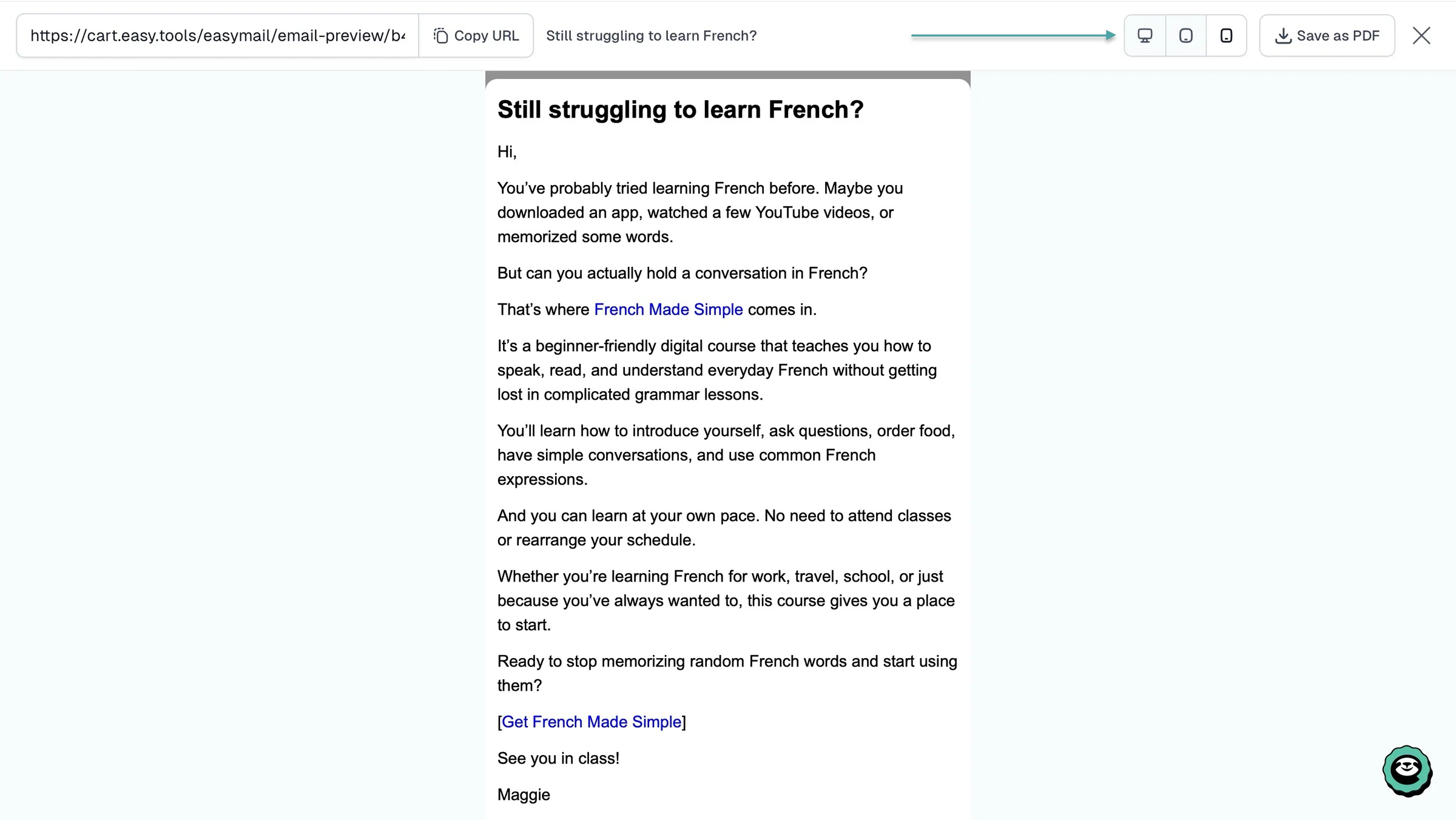
Most email marketing platforms offer features like campaigns, automations, audience segmentation, signup forms, and analytics. These let you send messages to specific customers, automate follow-ups, and see how your campaigns perform.
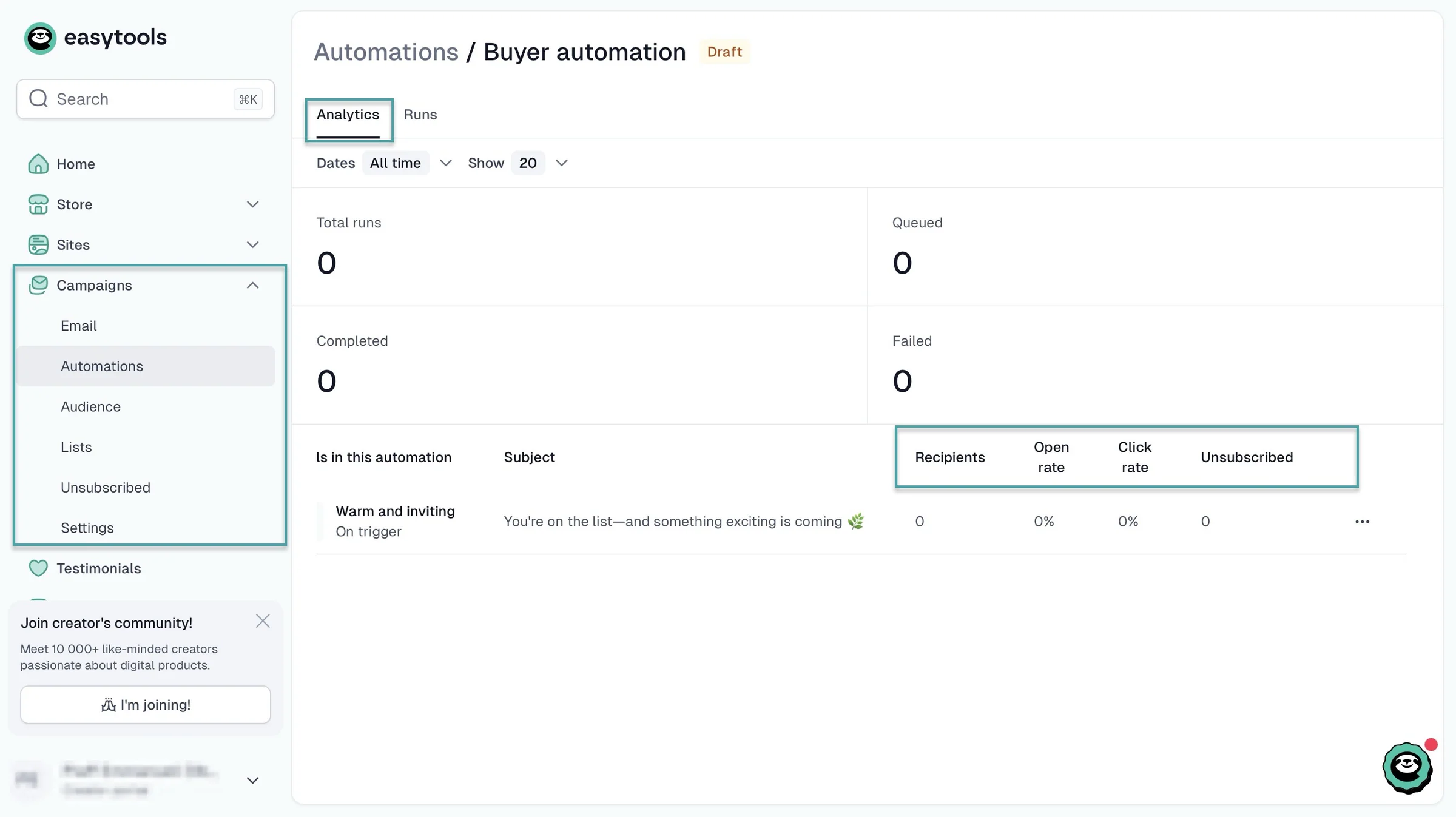
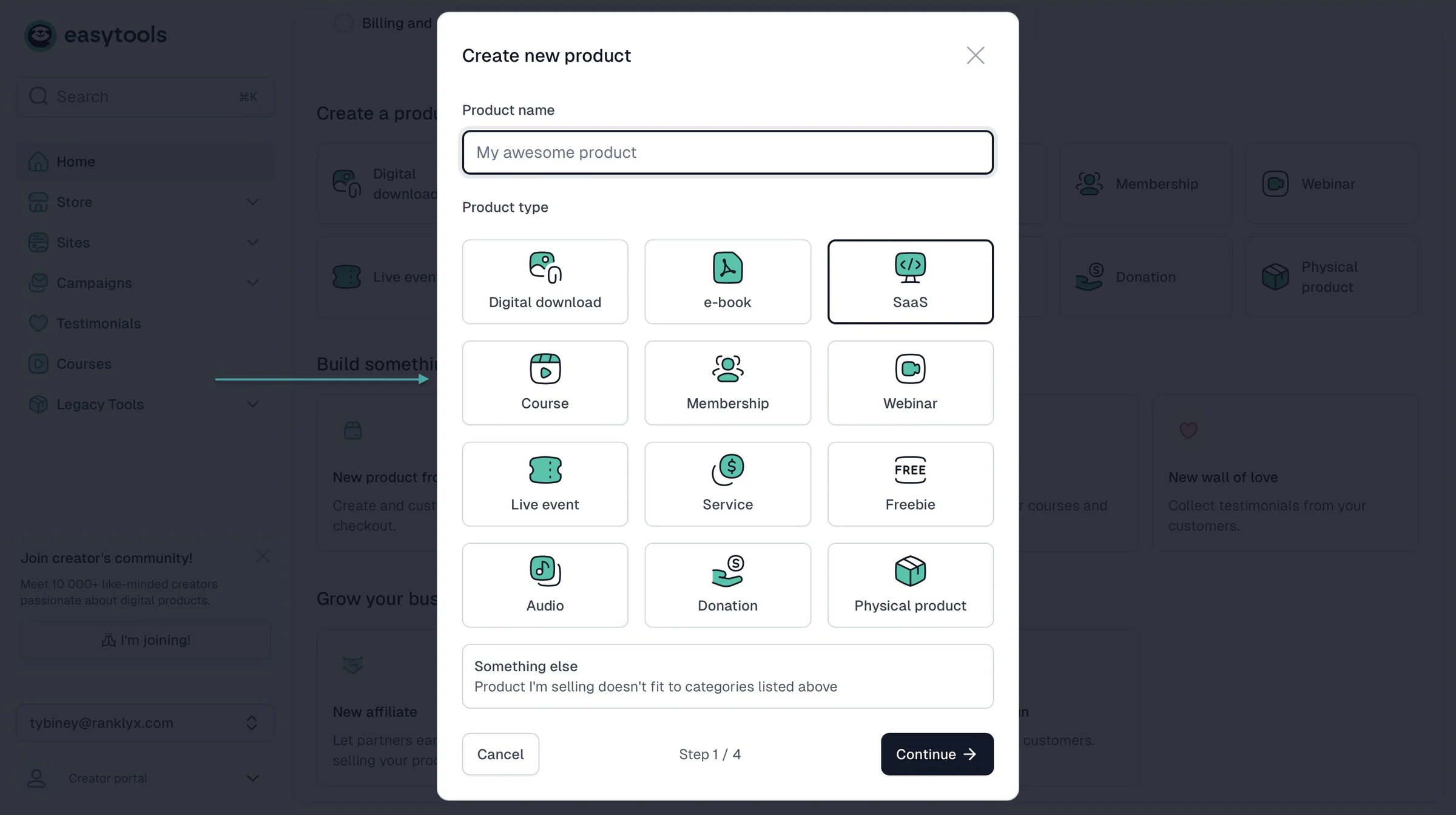
Some email marketing platforms also offer all-in-one solutions that let creators build websites and create and sell digital products like:
- e-books
- online courses
- digital downloads (Notion templates, SaaS, checklists, planners)
- memberships and subscriptions
- paid newsletters
- webinars
- live events
Email marketing platforms typically offer free plans with limited features, while paid plans can start at around $0 to $150+ per month. For example, MailerLite has a free plan, and Mailchimp’s Premium is $350 per month.
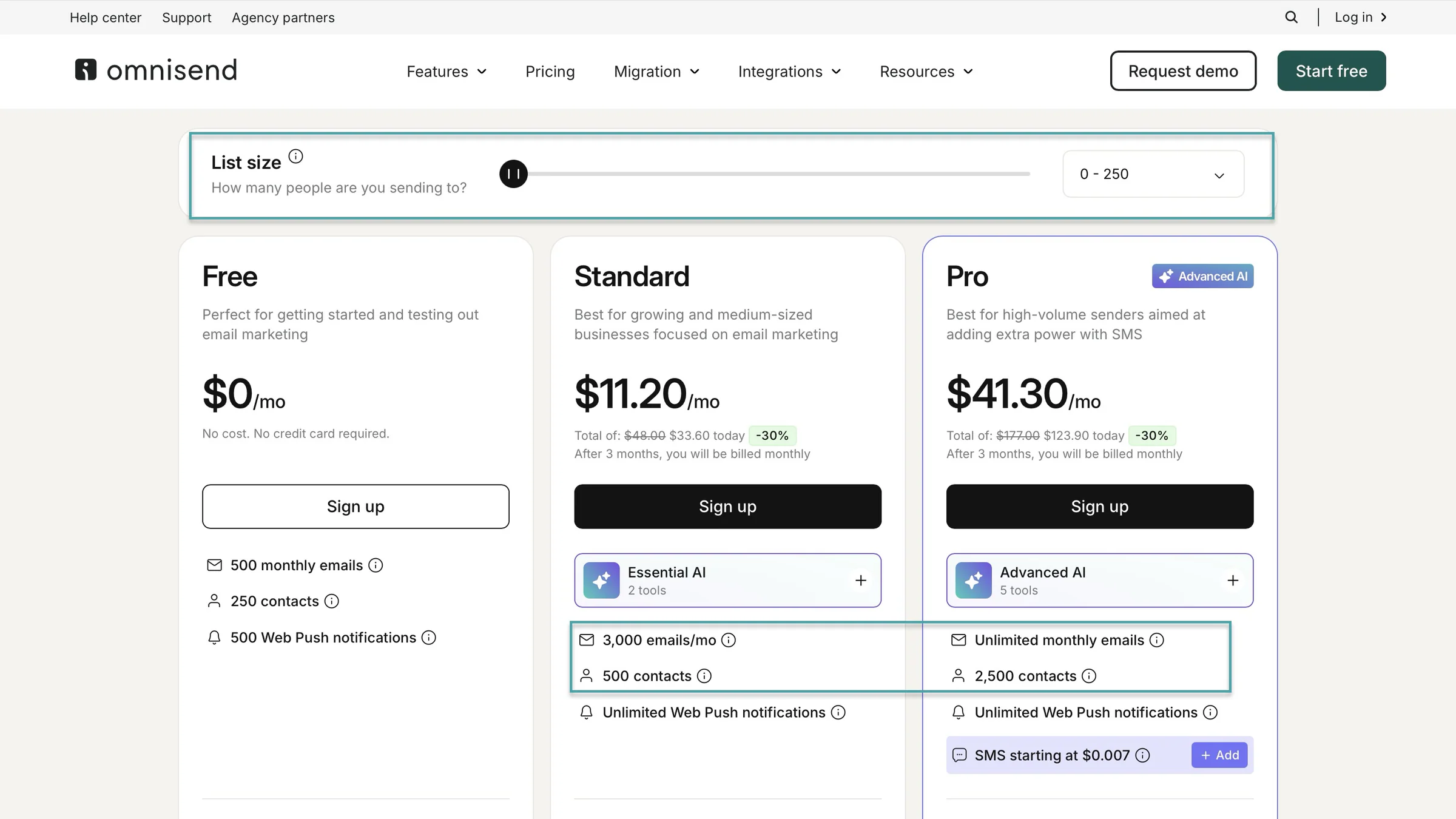
The cost increases depending on your subscriber count, monthly email volume, and the features you need.
Omnisend, for example, has a Pro plan that’s $41.30 per month, offering 2,500 contacts. Its Standard plan, on the other hand, offers 500 contacts for $11.50 per month.
When you sell products through these platforms, you may also have to pay transaction fees. Kit, for example, charges 3.5% + $0.30 in fees per sale when selling in USD.

For $29 per month and a 3% transaction fee, Easytools’ Starter plan offers 2,500 marketing contacts, unlimited campaigns, unlimited customers, and unlimited products.
You also get 2,000 AI credits to automatically build and send email campaigns.
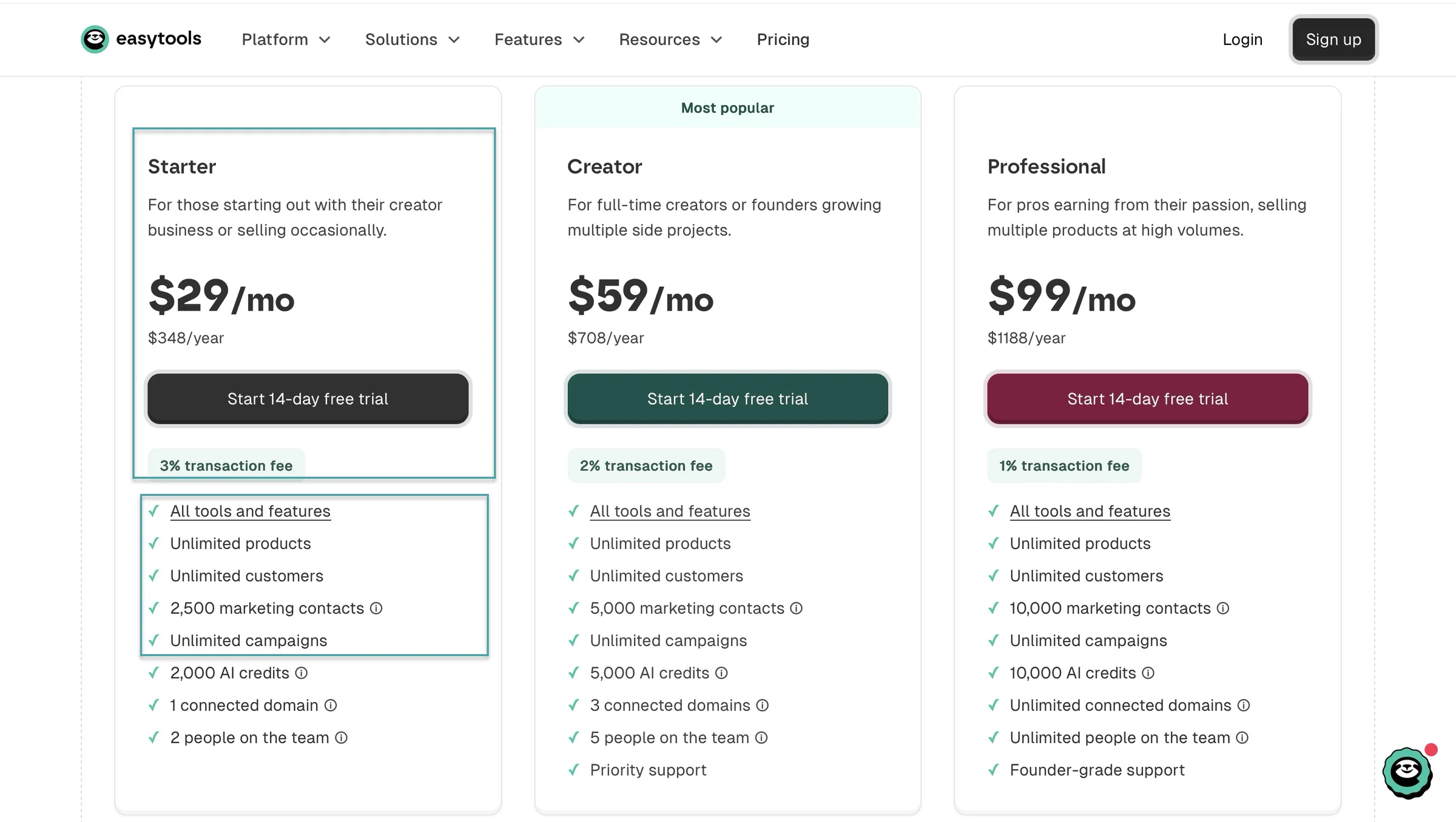
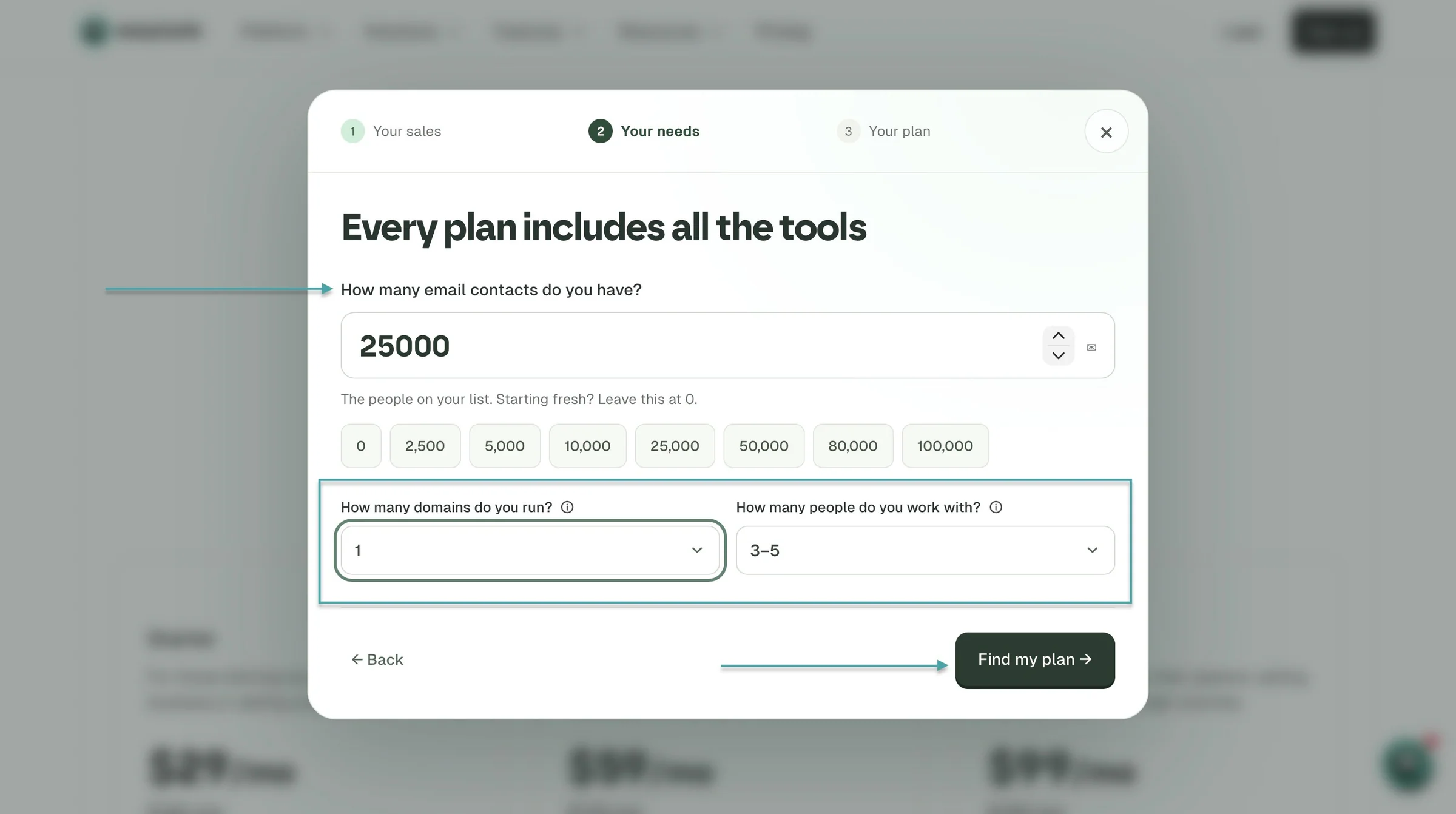
Email marketing platforms also have calculators on their pricing pages to help you decide which plan is the best fit for you. Easytools, for example, lets you select the number of contacts you already have, the domains you run, and the number of people on your team.
With that, you can find a suitable plan for your business needs.
Another useful feature is the ability to import and export your email list. You can move contacts between platforms using CSV files instead of asking your existing subscribers to sign up again.
Depending on the platform, you can import CSV, TXT, XLS, XLSX, and ODS files.
The good thing is that some email marketing tools like Easytools also let you build your list through landing pages, sign-up forms, and pop-ups. That way, visitors interested in your products or content can subscribe to receive updates from you.
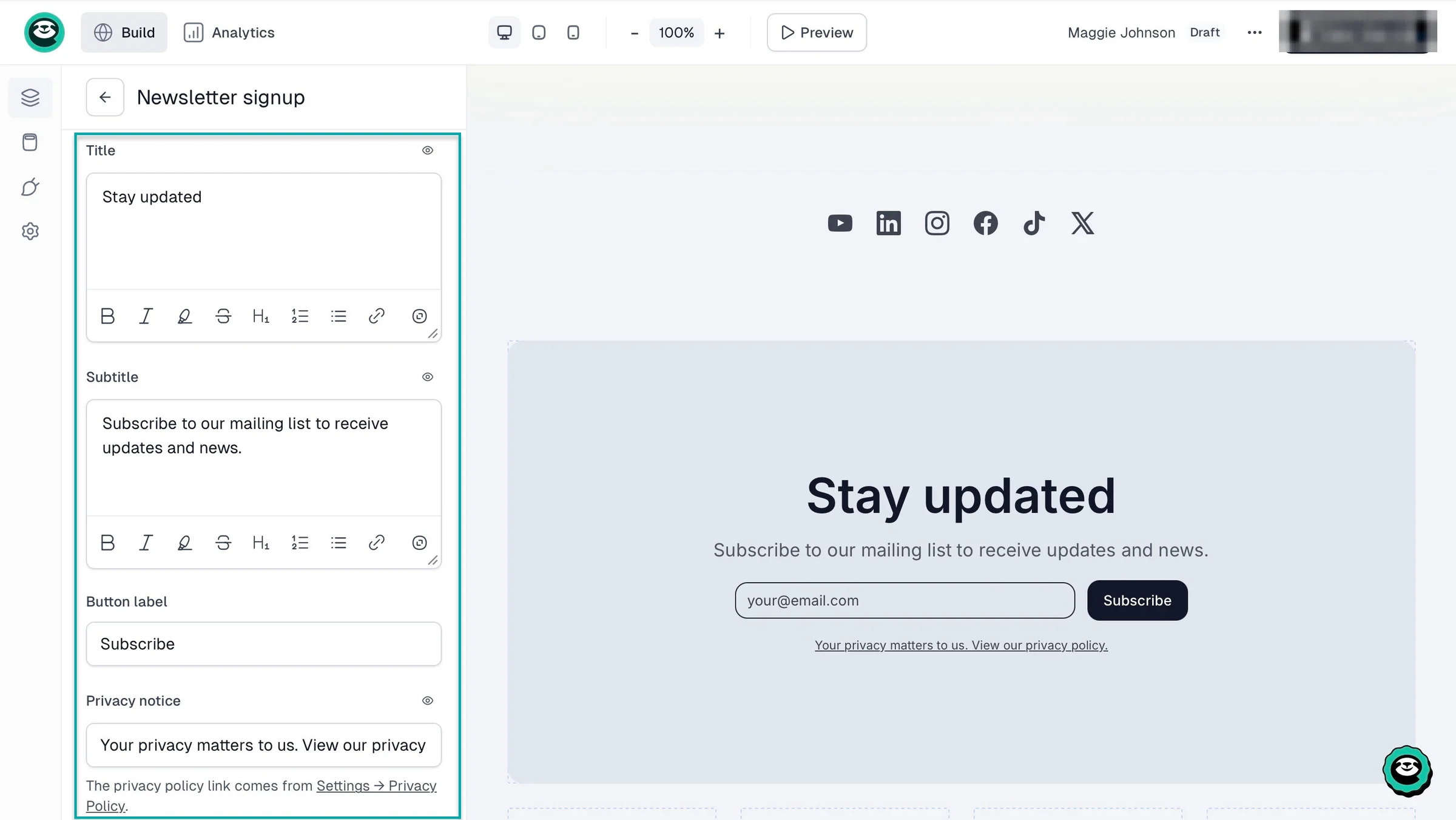
These tools are important for creators and businesses because they help you reach leads and existing customers directly. You can then promote products, send updates, and maintain relationships with people who have agreed to hear from you.
Now that’s out of the way, let’s look at how to select the right email marketing platforms.
How to select the right email marketing platforms
To select the right email marketing platforms, you should:
- Consider what you want to achieve
- Look for built-in selling and monetization features
- Consider landing pages and sign-up forms
- Compare email automation features
Now, let’s look at each factor closely.
1. Consider what you want to achieve
You should consider what you want to achieve when choosing the right email marketing tool.
Maybe you want to grow your email list. Some platforms collect emails and add them to your list right at checkout.
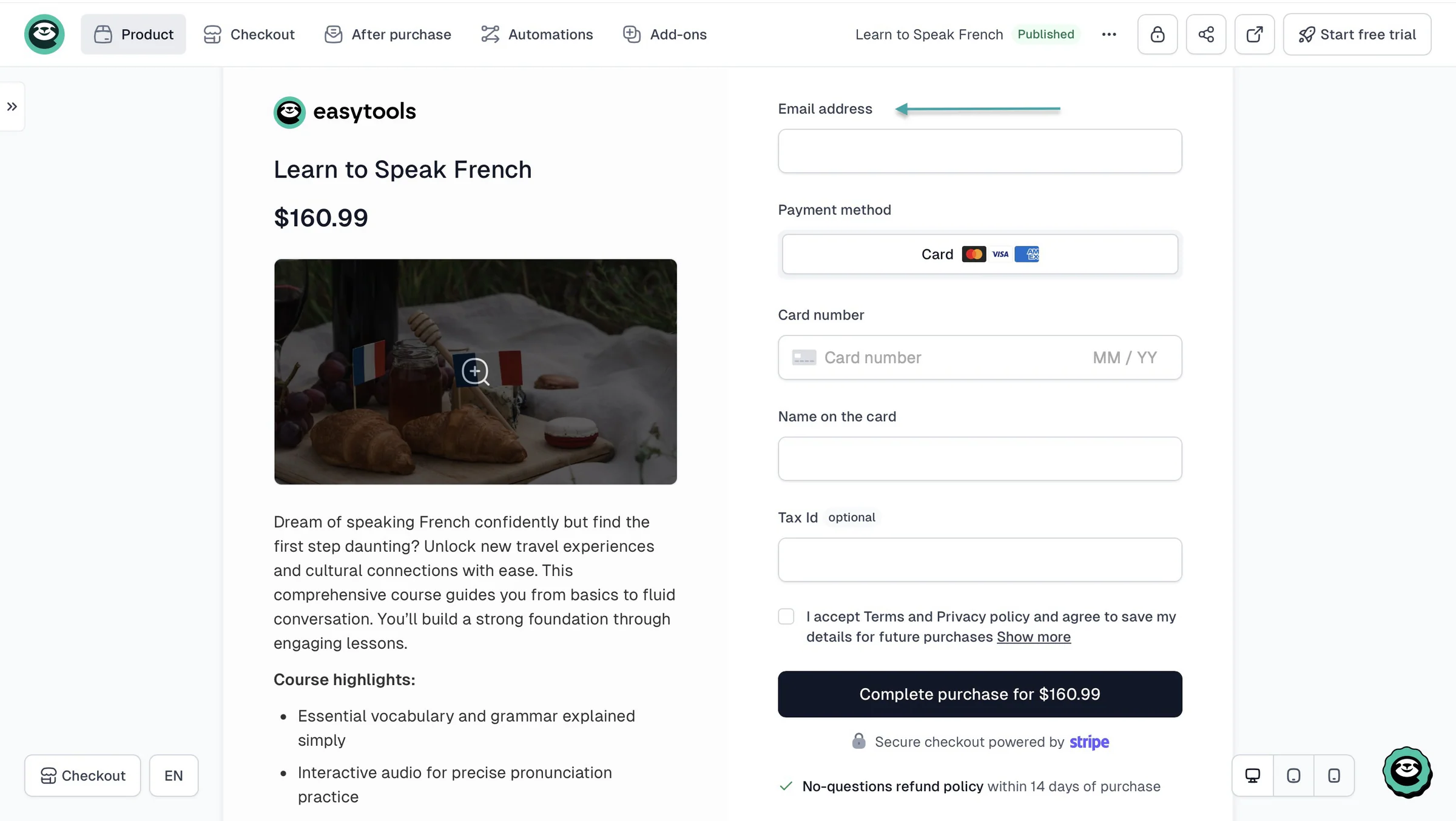
Perhaps you want to send newsletters to keep your audience updated about your business, new products, or services. That’s doable, and you can track the revenue if you add the checkout link.
Or you want to automate emails to welcome new subscribers, follow up with customers after a purchase, and recover abandoned carts.
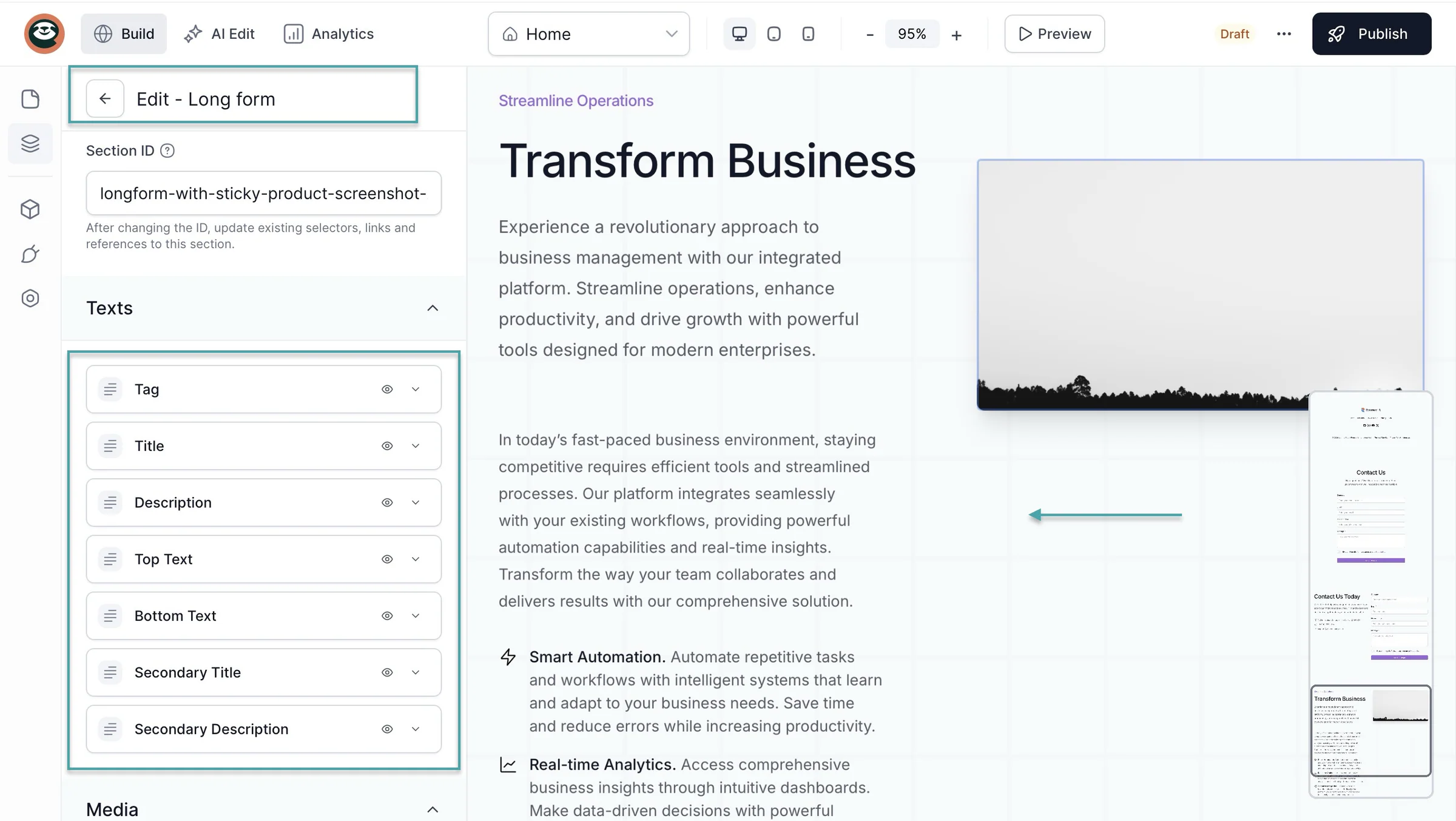
You may want to sell digital products, promote offers, or build landing pages and sign-up forms to attract new customers. On Easytools, you can use AI to generate a multi-page website specifically for your checkout product.
AI can even generate long-form blog posts to drive traffic to your website, offer information to buyers, and help you sell more.
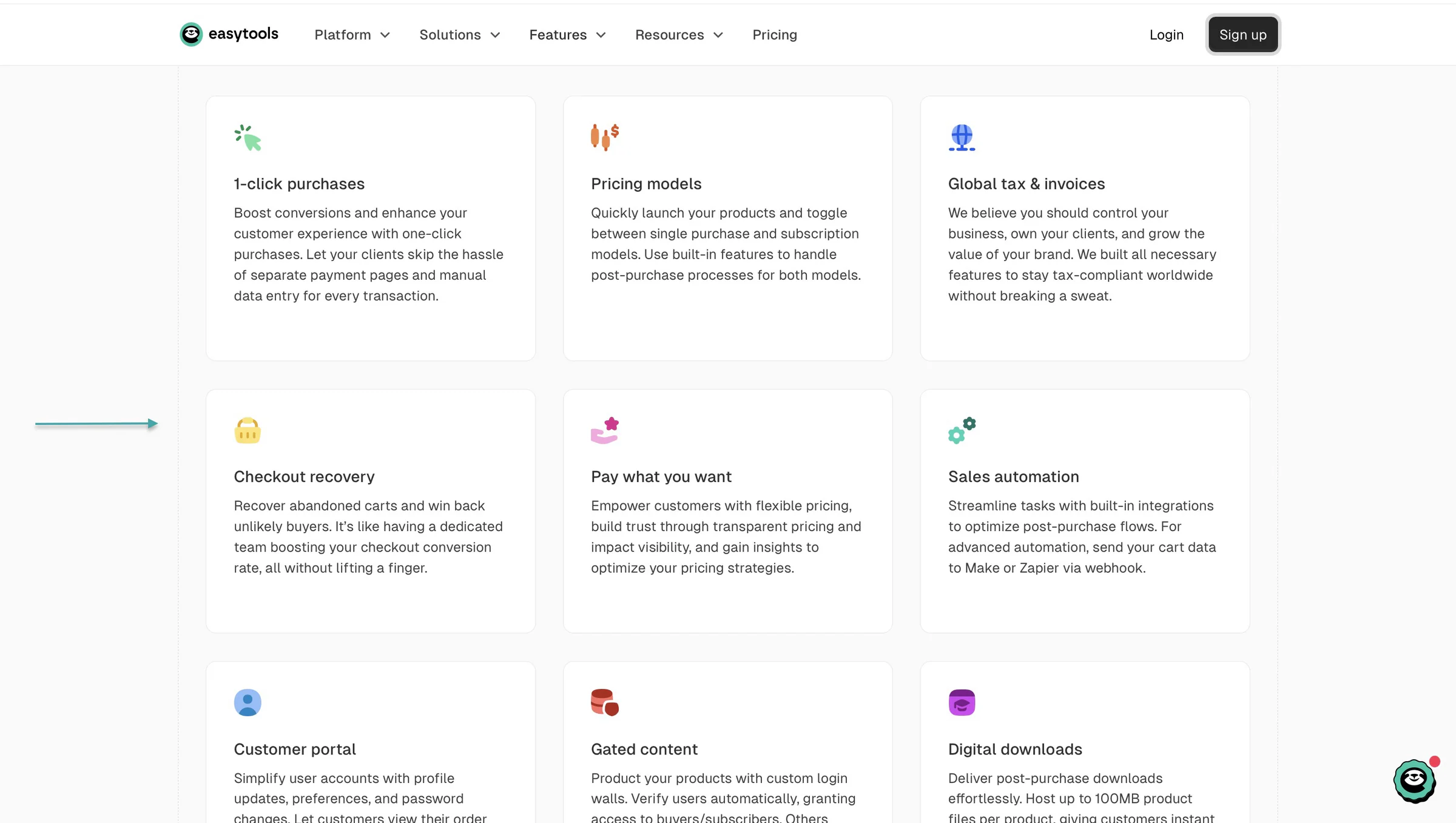
Some email marketing platforms, like Easytools, also let you build a creator page, manage customer information, and sell products without relying on several separate tools.
You should also consider whether you need detailed campaign reports to track open rates, clicks, conversions, and sales. These insights can help you understand what works and where you need to make changes.
Once you know what you want to achieve, compare email marketing platforms based on the features that support those goals.
You don’t need a tool with every feature available. Focus on what you’ll actually use and what will offer your business the best chances of success.
Just like Katarzyna Puławska, who used Easytools to sell e-books to 500,000+ followers with a 50% conversion rate.

Or Paula Balicka-Zańczak, who made PLN 4 million (approximately $1M+) in 3 years selling subscriptions, e-books, and online courses.

Like Katarzyna and Paula, you can achieve your business goals with the right email marketing tool.
2. Look for built-in selling and monetization features
If you want to make money from your audience, look for email marketing platforms with built-in selling and monetization features.
Some email marketing tools like Easytools let you sell e-books, online courses, memberships, paid newsletters, and subscriptions without needing a separate platform to process payments.
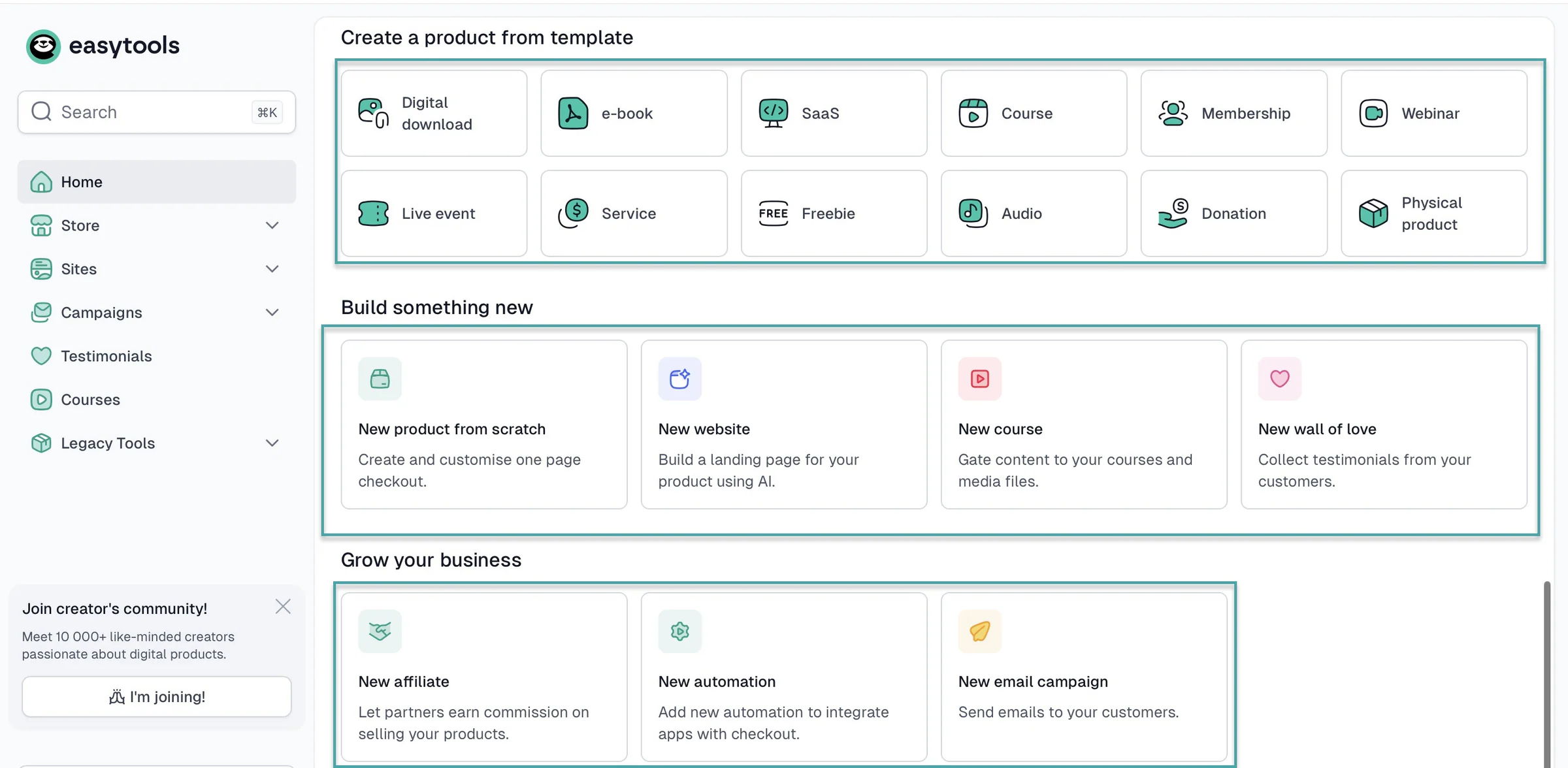
You should also check whether the platform lets you create checkout pages, add order bumps, upsells, and cross-sells to encourage customers to buy more products.
For example, if someone buys your e-book, you could offer them a related template at checkout instead of asking them to make another purchase later.
And don’t forget transaction fees. Some platforms charge a percentage of every sale.
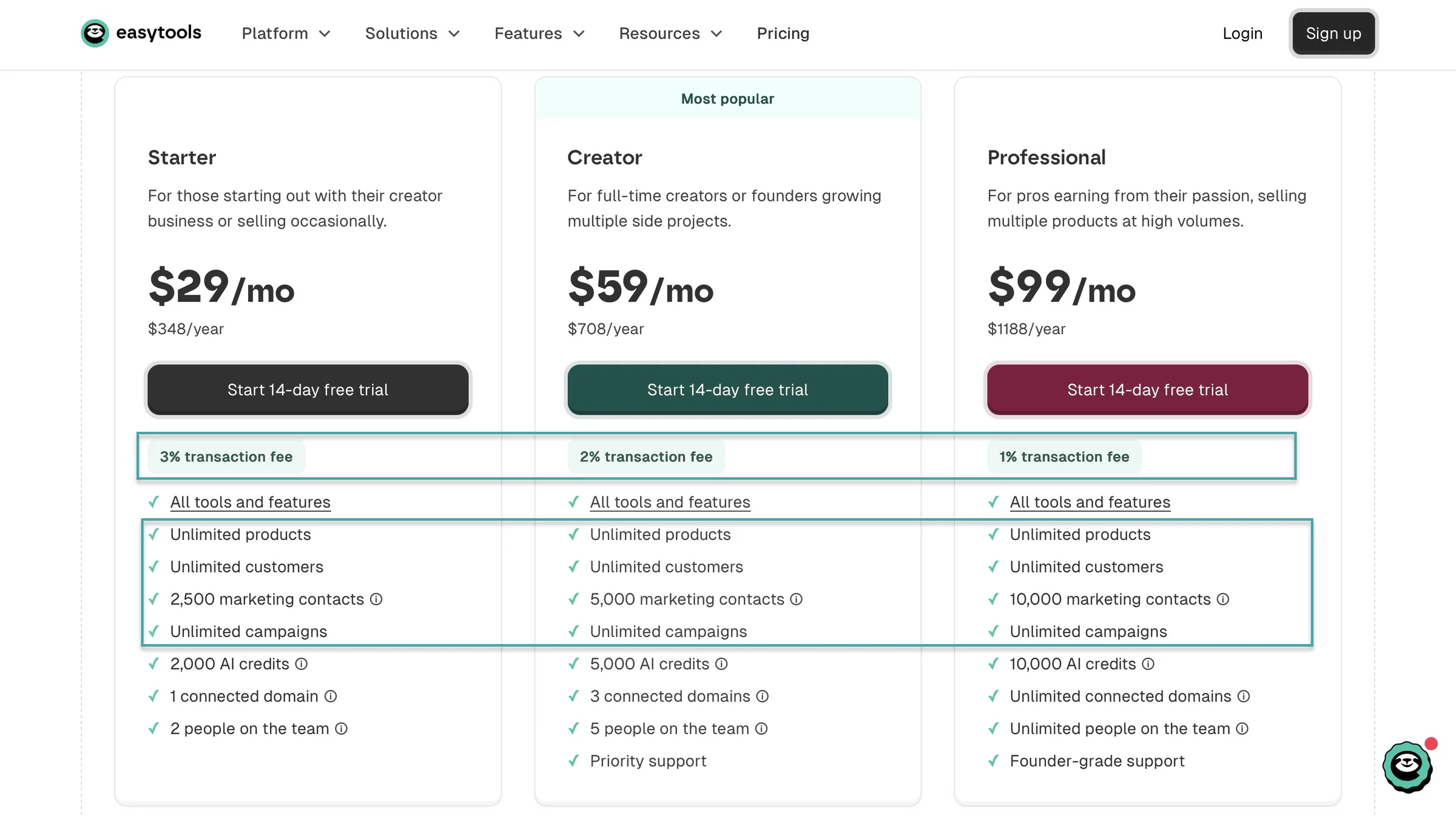
Easytools takes only 3% on its Starter plan, 2% on its Creator plan, and 1% on its Professional plan. All plans come with unlimited products, unlimited customers, and unlimited campaigns.
And you can add 2,500 marketing contacts on Easytools’ Starter plan, 5,000 on its Creator plan, and 10,000 on its Professional plan. If you need more as your email list grows, you can buy extra contacts without switching to another plan.
Looking at built-in selling and monetization features means you choose all-in-one email marketing platforms. The ones that don’t require you to connect third-party tools to sell products.
This will save you the pain of discovering later that you’re paying for several tools just to sell a product and send emails to your customers.
3. Consider landing pages and signup forms
When choosing an email marketing platform, check whether it lets you create landing pages and sign-up forms. That’s how you can attract visitors and turn them into subscribers or paying customers.
For example, Easytools lets you generate a landing page with AI. Simply enter a prompt describing what you want (in natural language), and it’ll create a page with content and a design you can customize.
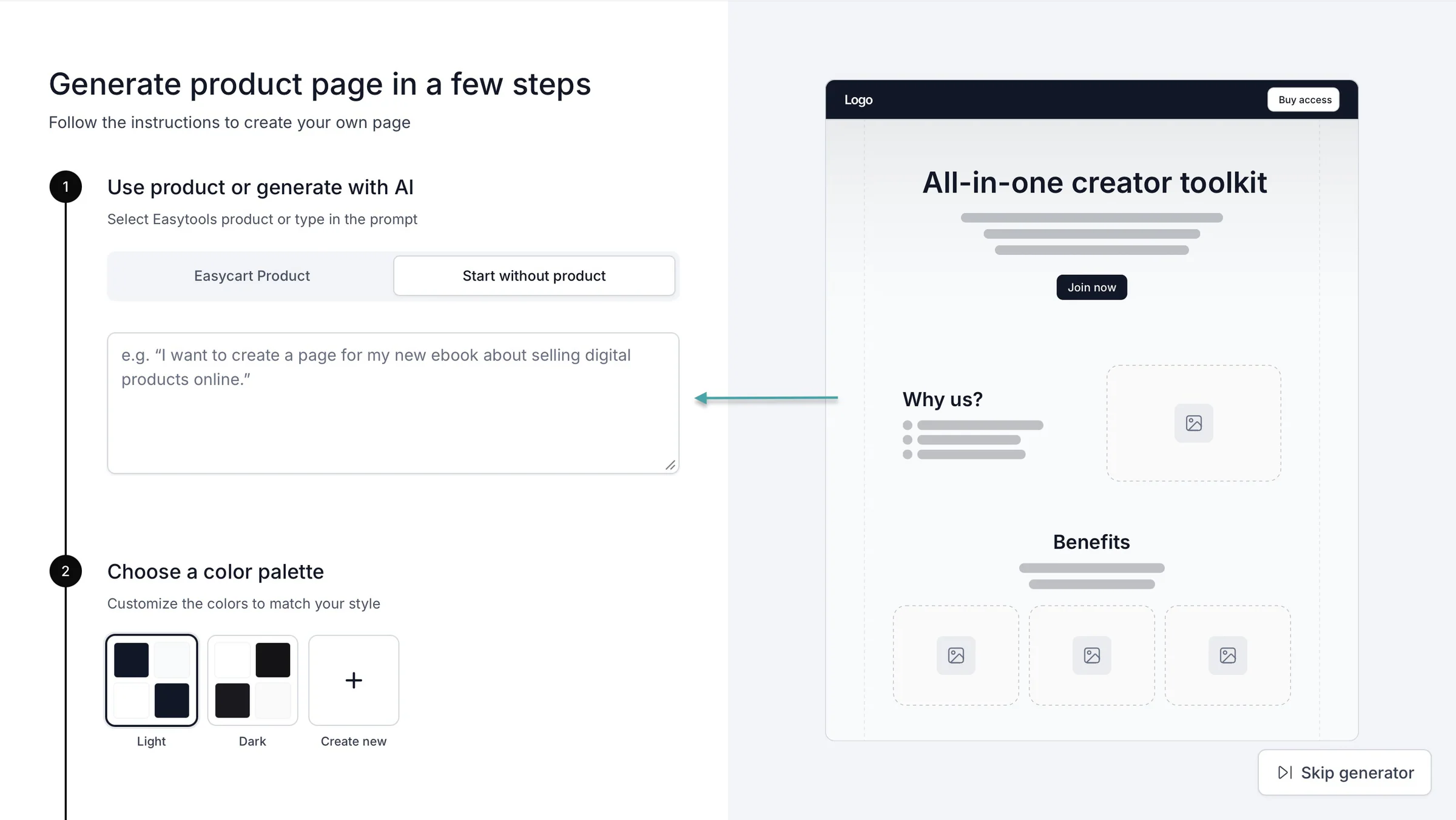
You can add sections like About Us, testimonials, FAQs, pricing, and contact forms. You can also add checkout links and call-to-action (CTA) buttons to direct visitors to your products.
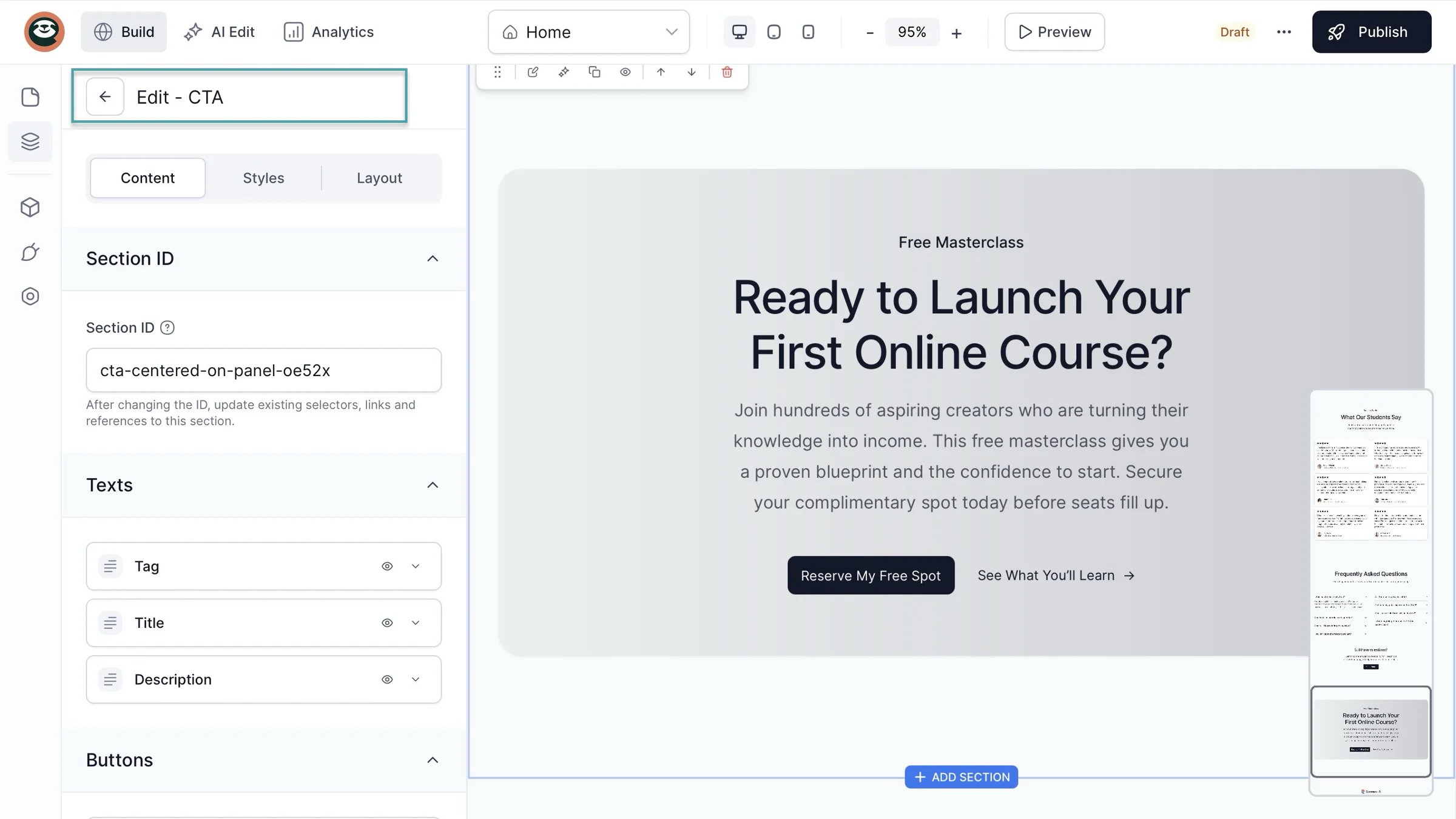
And if you need more than a landing page, you can build a multi-page website. You can also use AI to edit existing pages, change sections, and customize the design to match your brand.
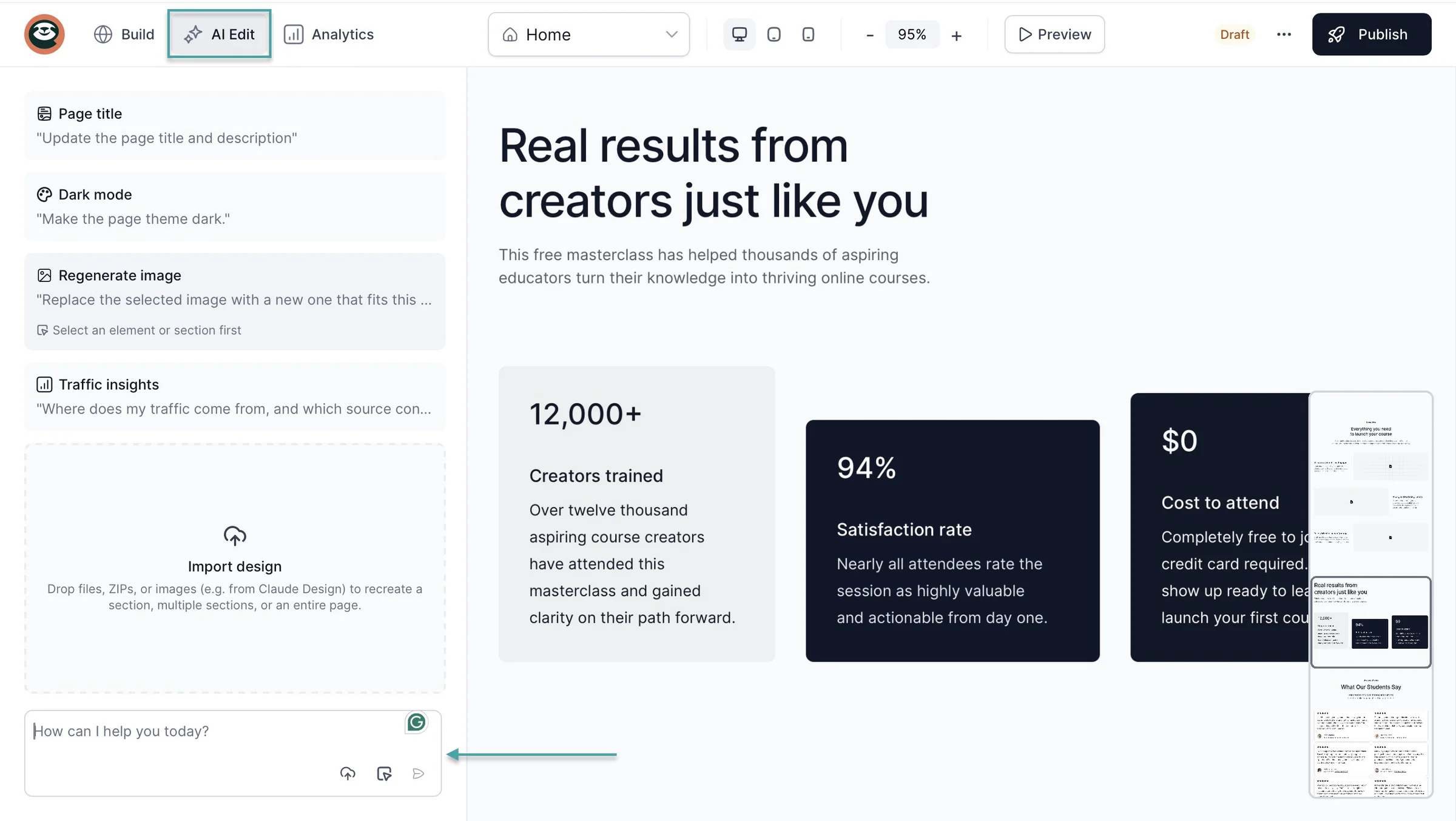
Easytools also lets you add SEO titles and descriptions to your pages. You can also track visits, traffic sources, bounce rates, and real-time activity to understand how your pages perform.
As for signup forms, Easytools lets you create a creator page with your bio, social media links, products, newsletter signup forms, and free downloads.
You can even offer visitors a free PDF in exchange for their email addresses and automatically add them to your email list.
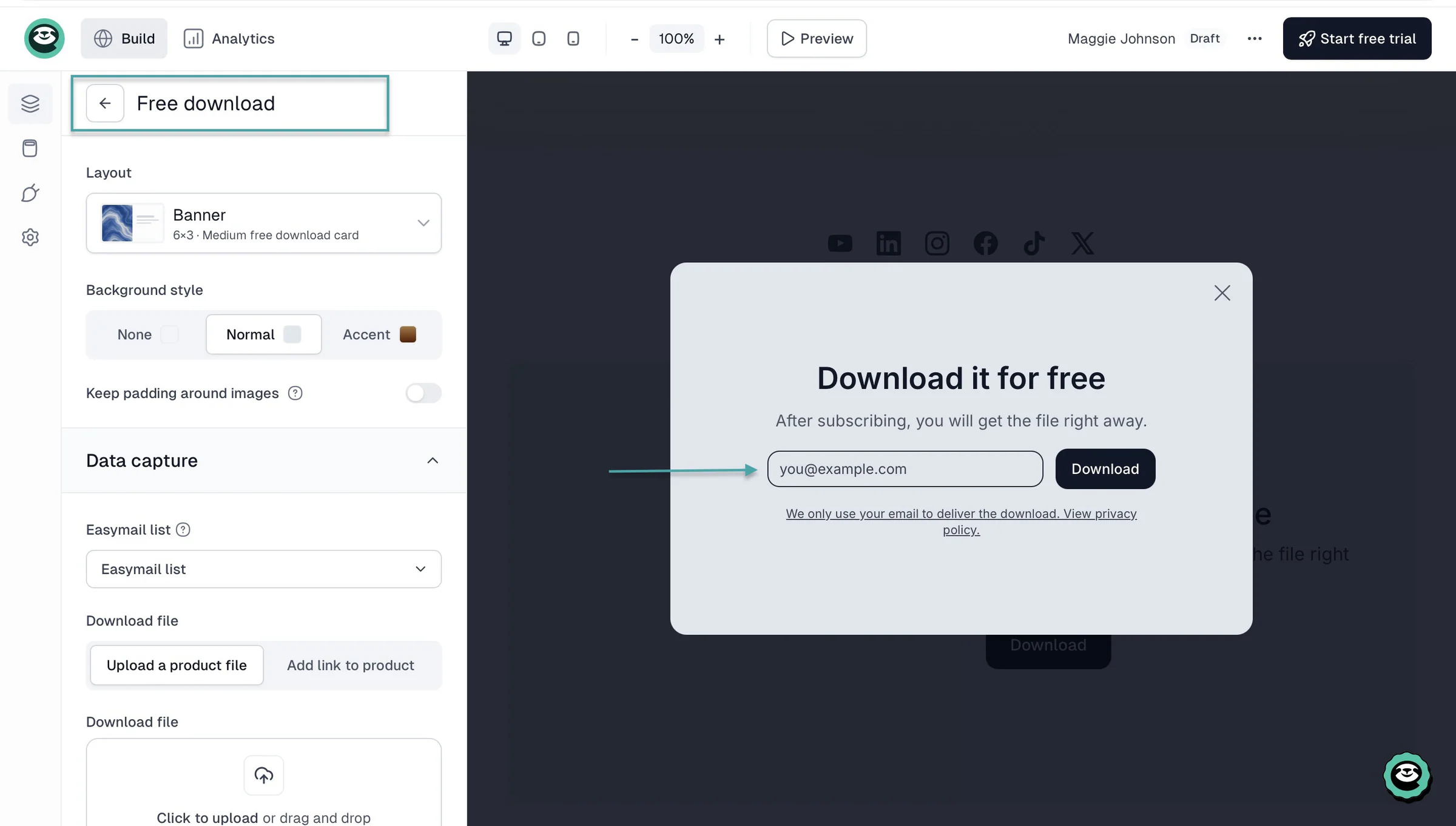
Look for these features when comparing email marketing platforms. It’s one of the most effective ways to build your audience and promote products without relying on many separate tools.
4. Compare email automation features
Lastly, don’t focus only on the number of automation templates an email marketing tool offers. Consider what those automations can actually do for your business to choose the right one.
For example, on Easytools, you can create email automation workflows using triggers like:
- Product purchased
- Contact added to list
- Waitlist signup
- Contact updated
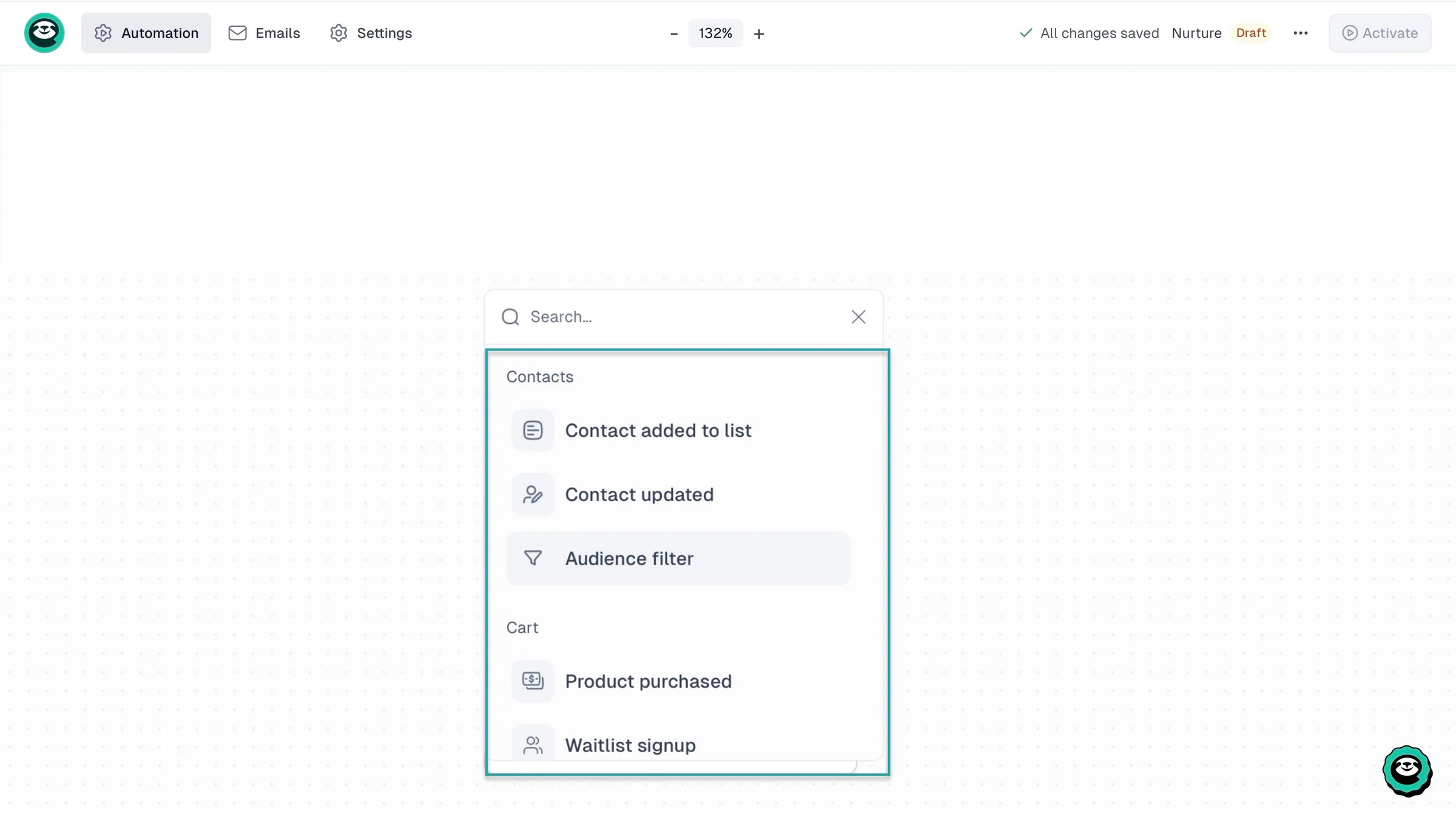
You can then add actions like “Send email,” “Timer,” “Branch,” and “Audience filter.”
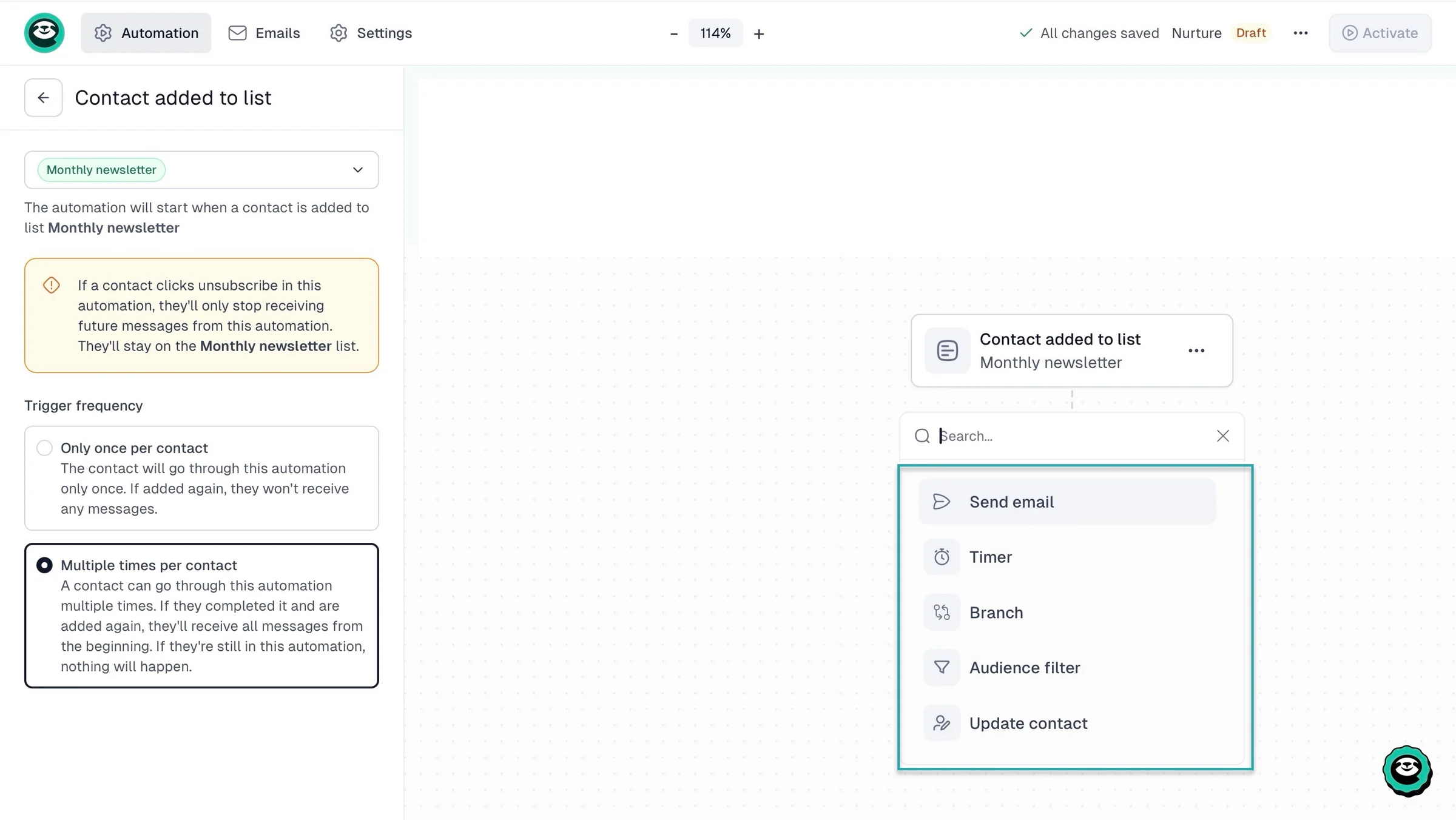
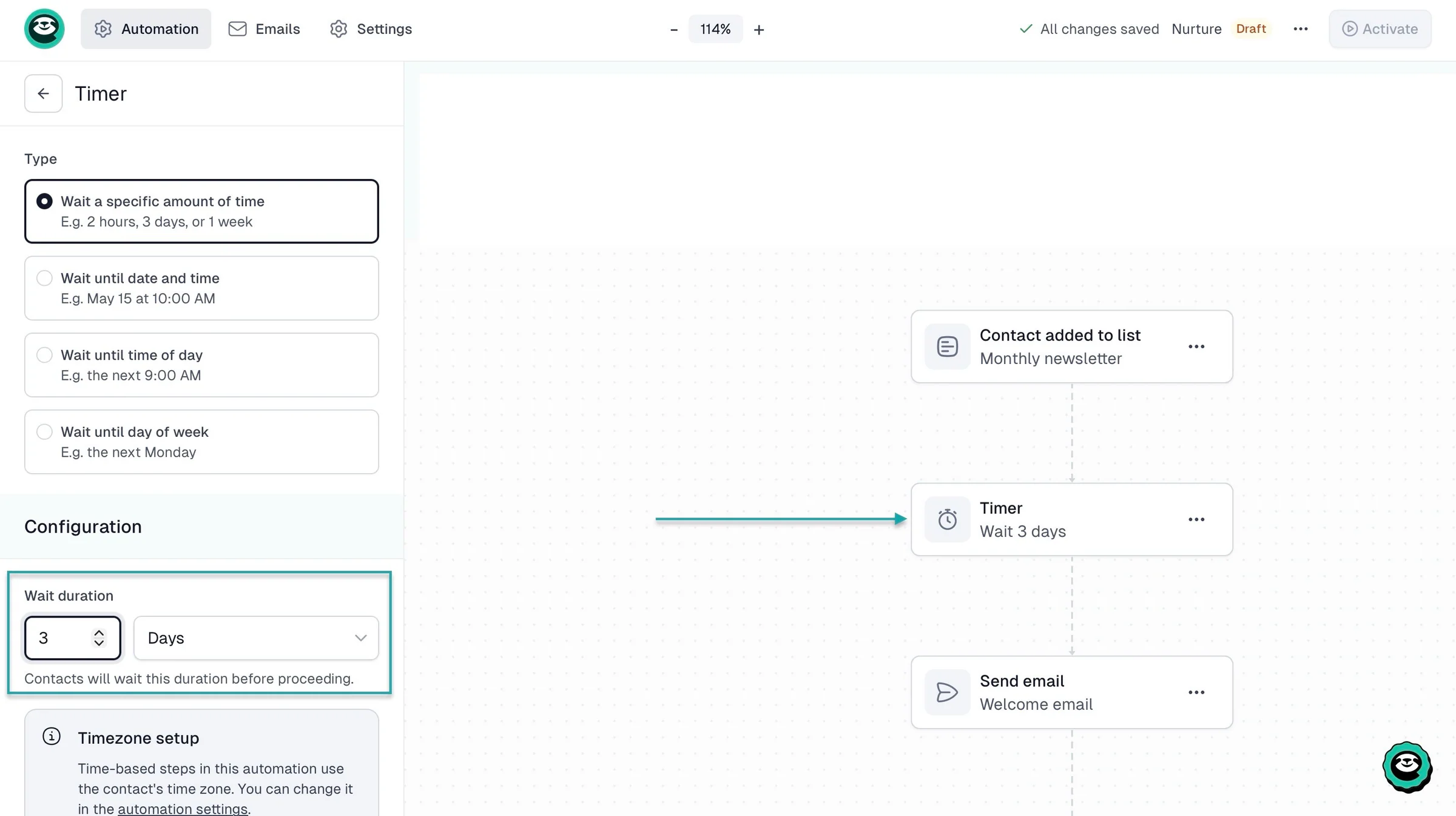
So you could create an automation that sends a welcome email when someone buys your online course. After that, it’ll wait 3 days and then send another email recommending a related product.
You can also use branches to send different messages depending on whether someone opened your email or clicked a link.
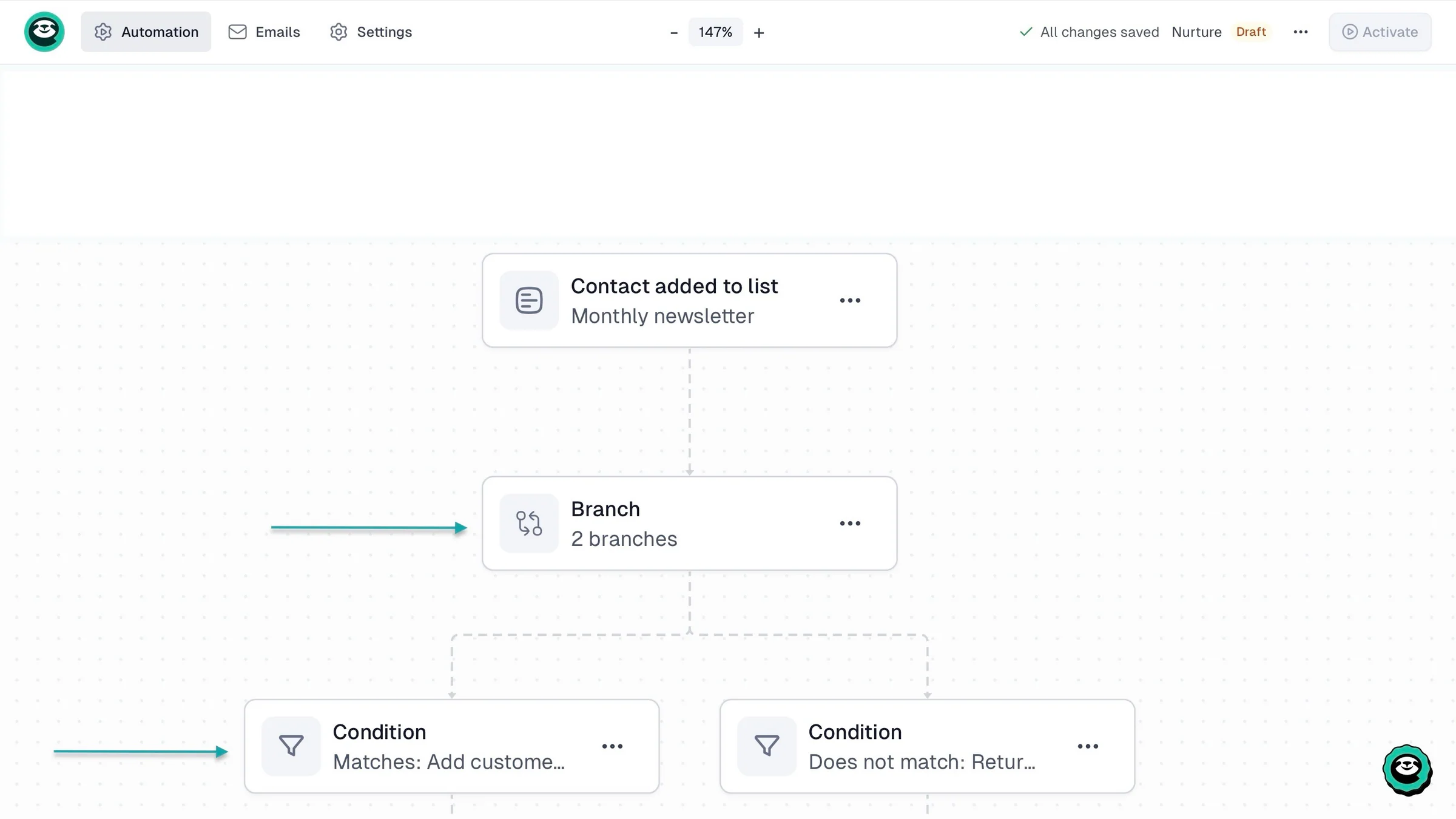
That way, customers who show interest in an offer don’t have to receive the same follow-up as those who ignored it.
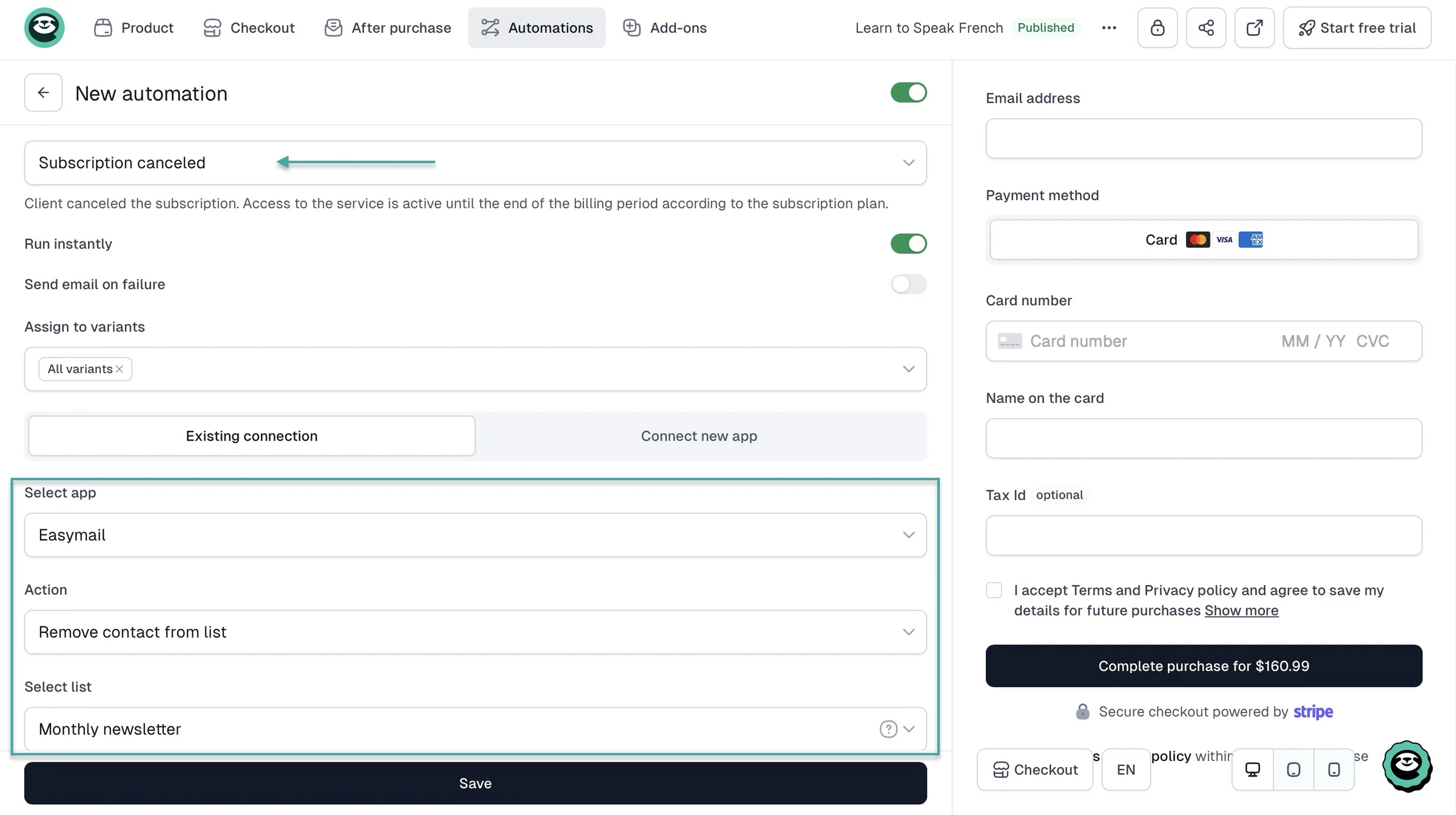
Easytools also has checkout-related automations.
You can trigger actions when someone completes an order, changes a subscription plan, or approaches the end of their product access.
My point is: don’t choose an email marketing tool simply because it has attractive templates or a drag-and-drop editor.
Check what starts an automation, what happens after each step, and whether you can add conditions and delays. Check whether the platform can access the customer and purchase information it needs.
You want automations that solve actual problems like:
- welcoming subscribers
- following up after a purchase
- recovering lost sales
- encouraging customers to buy again
Choose the best email marketing platforms
In this guide, we covered 20 of the best email marketing platforms, including Easytools, Kit, MailerLite, Mailchimp, Omnisend, and AWeber.
I also explained how to choose the right email marketing tool for your business. Consider your goals, built-in monetization features, landing pages, sign-up forms, and email automation tools before making a decision.
Your business needs the right tools to reach your marketing goals and get a good return on investment (ROI).
This guide has done the heavy lifting for you. Now, it’s up to you to choose the right platform.
Frequently asked questions about email marketing platforms
What are the best email marketing platforms for creators?
The best email marketing platforms for creators include Easytools, Kit, MailerLite, Mailchimp, Omnisend, and AWeber. Easytools, for example, makes the list because it combines email marketing with checkout pages, digital-product sales, landing pages, and automations. This improves your chances of making more sales.
Are landing pages, automations, and sign-up forms important features on email marketing platforms?
Yes. Landing pages help you promote your brand and products, while sign-up forms help you collect email addresses from interested visitors. Automations let you send welcome emails, follow up after purchases, and promote related products without doing everything manually. Easytools combines these features with its checkout tools, which can be useful for creators selling digital products.
Can I use email marketing platforms without a website?
Yes, you can use email marketing platforms without a website. Many platforms let you create landing pages and sign-up forms without building a separate website. For example, Easytools lets you create a product landing page or a creator page with your bio, products, and newsletter sign-up form. You can share the page on social media to attract visitors and grow your email list.
How much do email marketing platforms cost?
Email marketing platforms range from $0 to $100+ per month, depending on your subscriber count and required features. Some also charge transaction fees when you sell products. For example, Easytools offers a Starter plan at $29/month with unlimited campaigns, customers, products, 2,500 marketing contacts, a 3% transaction fee, and more.
What are the best email marketing platforms for small businesses?
Easytools, MailerLite, Mailchimp, AWeber, and Kit are options for small businesses, depending on their marketing needs. MailerLite offers campaigns, landing pages, and automations, while Mailchimp provides broader marketing tools. Easytools suits businesses selling digital products or services that want email marketing, checkout pages, and automations in one platform.