In Easytools you can sell more than one-time products - you can build advanced subscription products with several price variants. This guide shows how to create a subscription, add a free trial, add monthly and yearly plans, and finally turn one variant into an upsell.
Create a subscription product
- Go to Store → Products.
- Click + New product.
- Fill in the basics: Product name, Description, and add an image in the Gallery section.
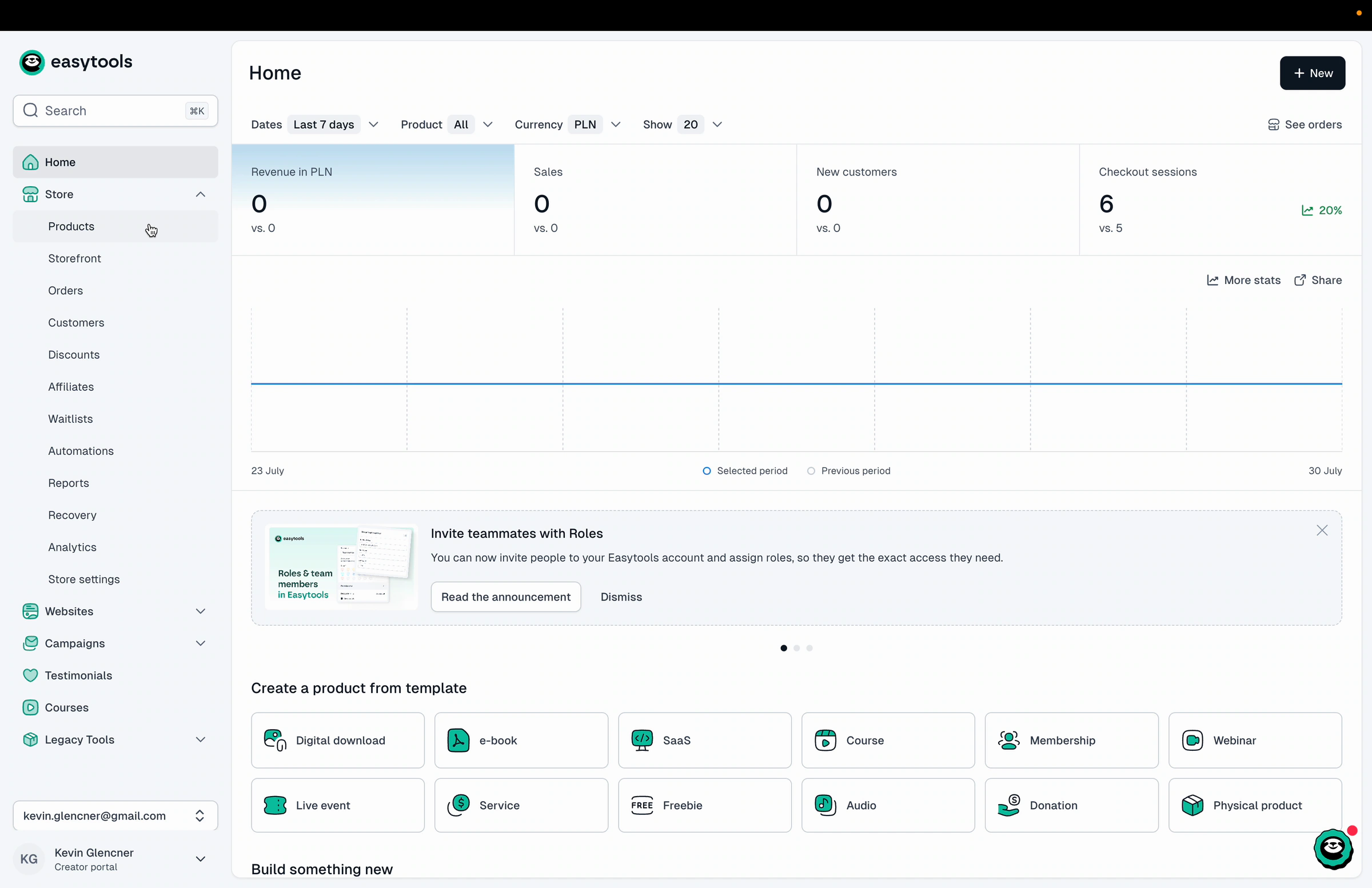
Set the subscription price
- Open the Main price section and pick your Currency.
- Under Price type, choose Subscription.
- Enter the subscription Price.
- By default a subscription renews once a month. You can change this with Billing period (day, week, month or year) and Renewal frequency - for example, set the period to “month” and the frequency to 2 to bill every second month.
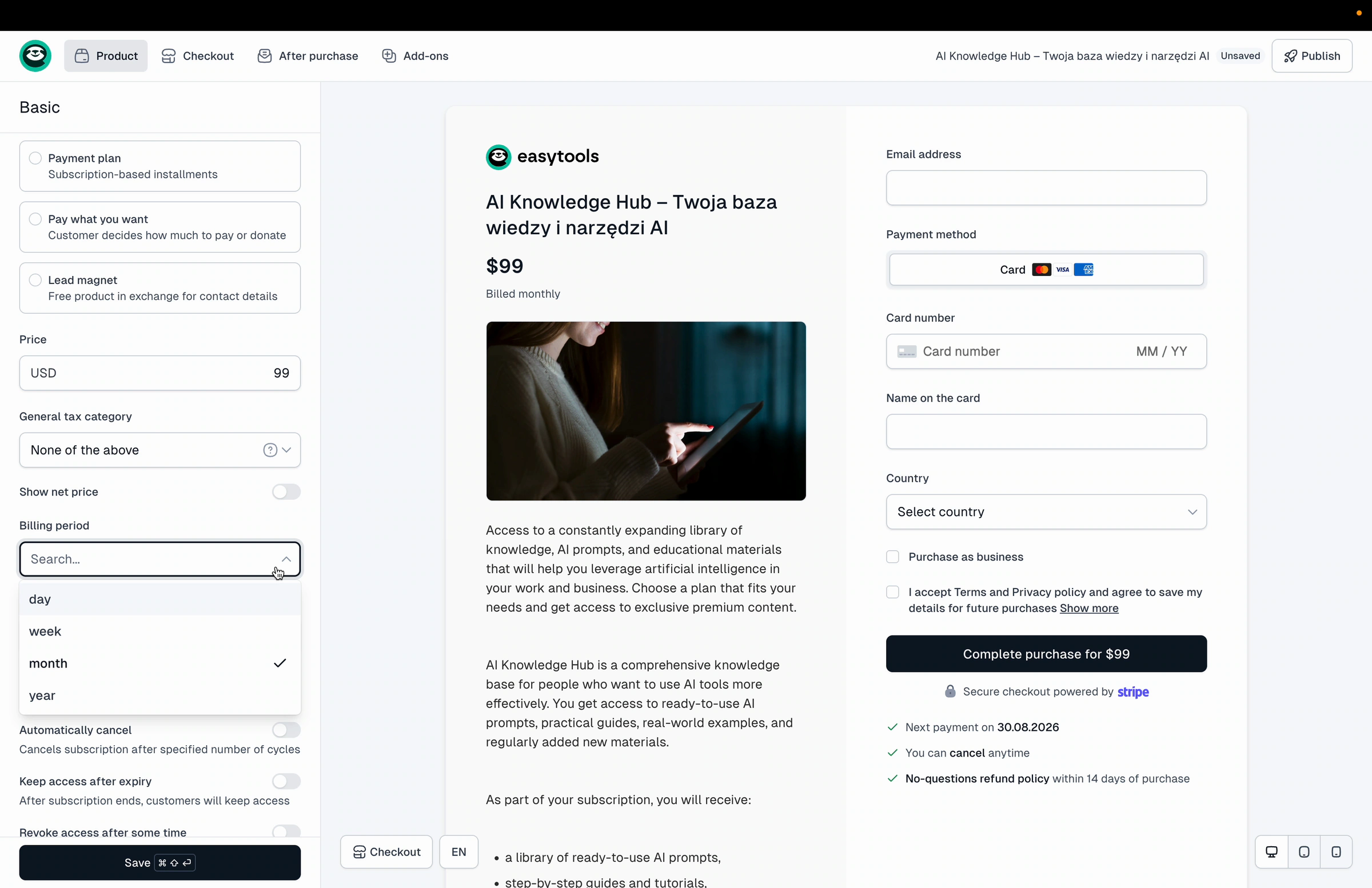
Note: Leave the billing period on “month” and the frequency on 1 for a classic monthly subscription.
Add a free trial
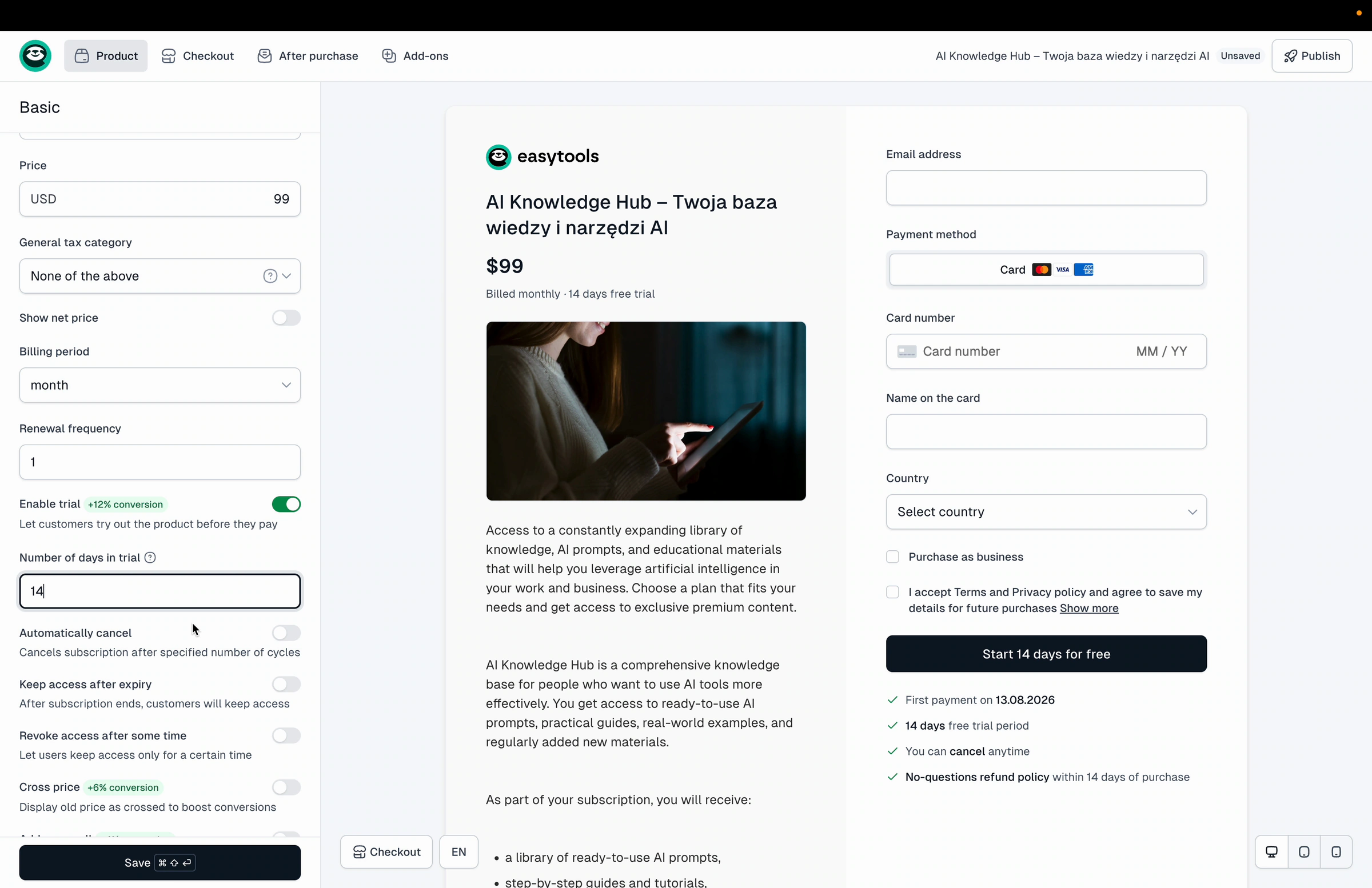
- Turn on the Enable trial toggle.
- In Number of days in trial, enter any number of days, for example 14.
During checkout the customer enters their card details right away, but the first payment is only taken after the trial ends - as long as they don’t cancel the subscription earlier.
- Click Save, then Publish. You have now created your first subscription product with a single variant.
Add more subscription variants
One product can hold several price variants, so you can offer different plans side by side.
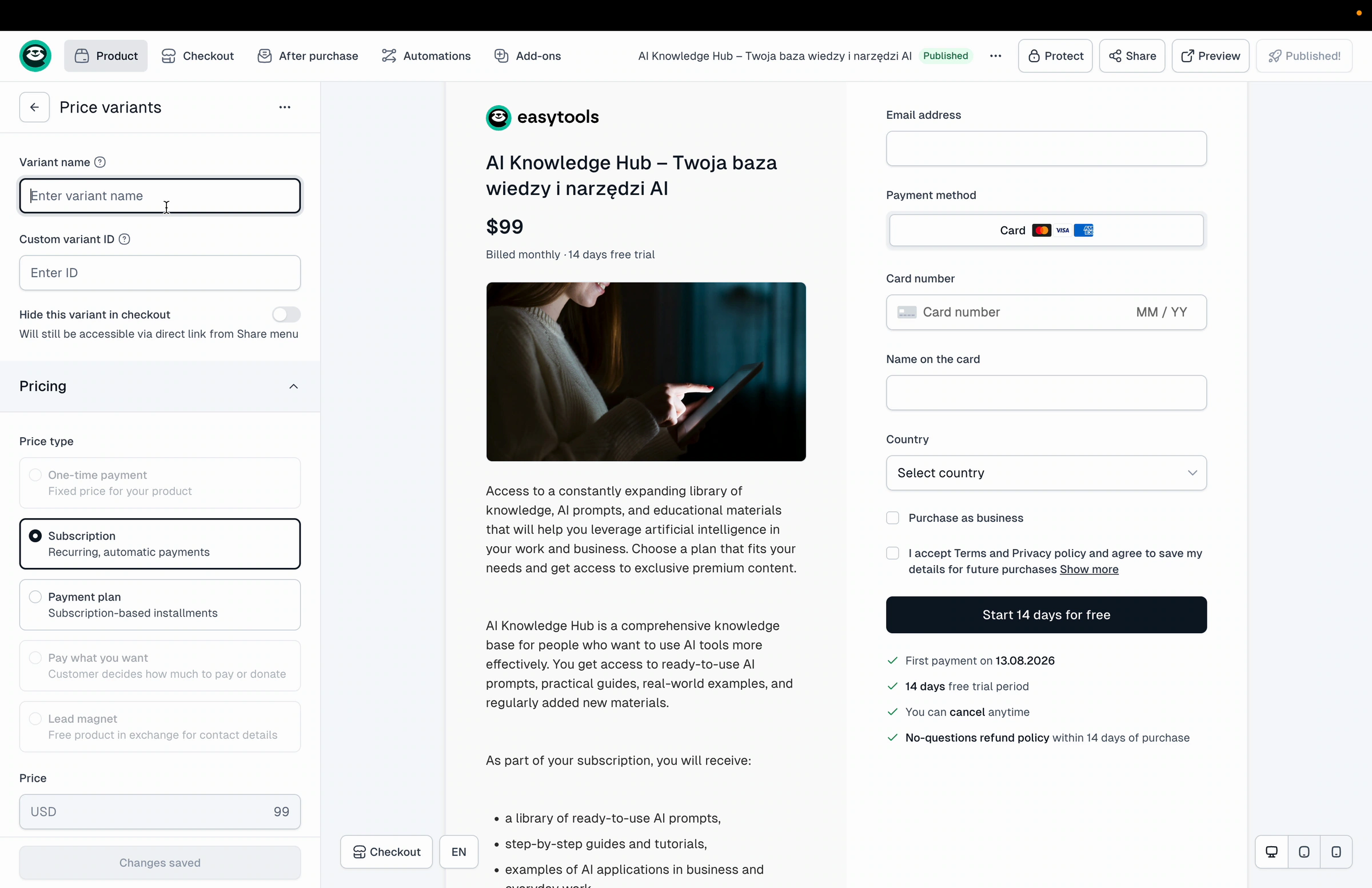
- In the left panel, open the Price variants section.
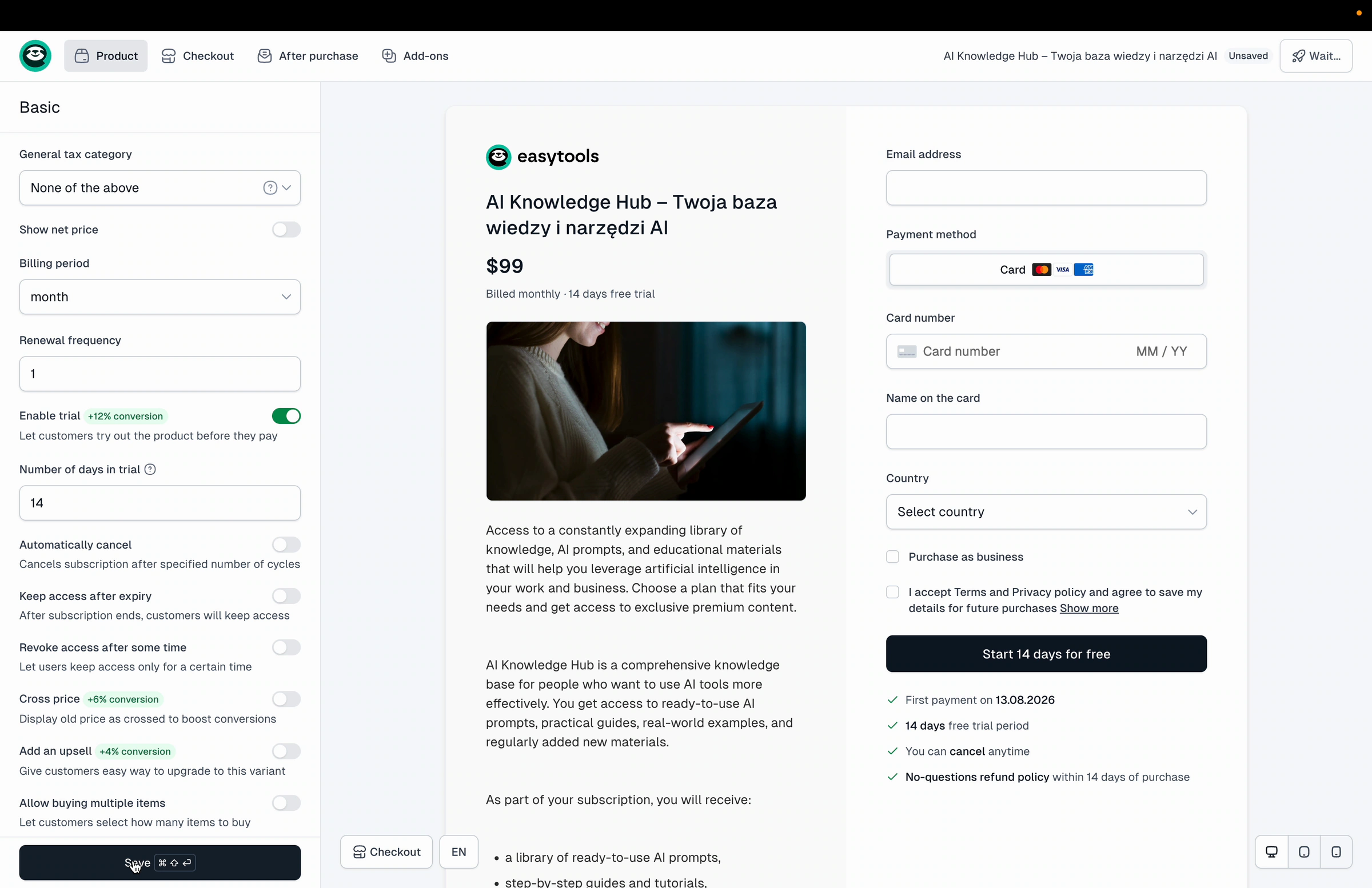
- Open the variant you already created and give it a clear name, for example “Standard”, then click Save.
- Click + New variant to add another one. Enter a name (for example “Premium”), choose Subscription, set the Price, and add a free trial if you want. Click Save, then Publish.
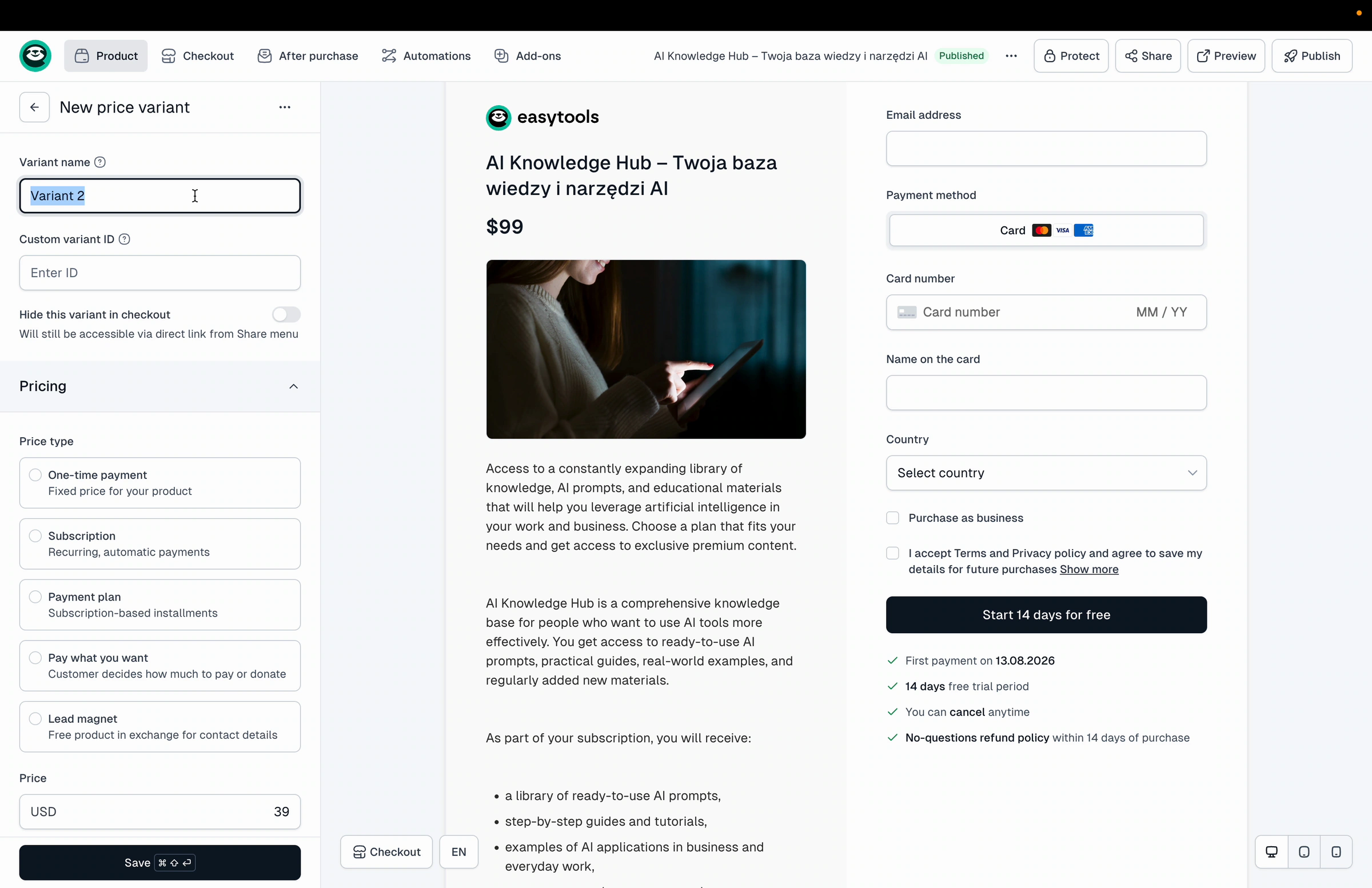
Add a yearly variant
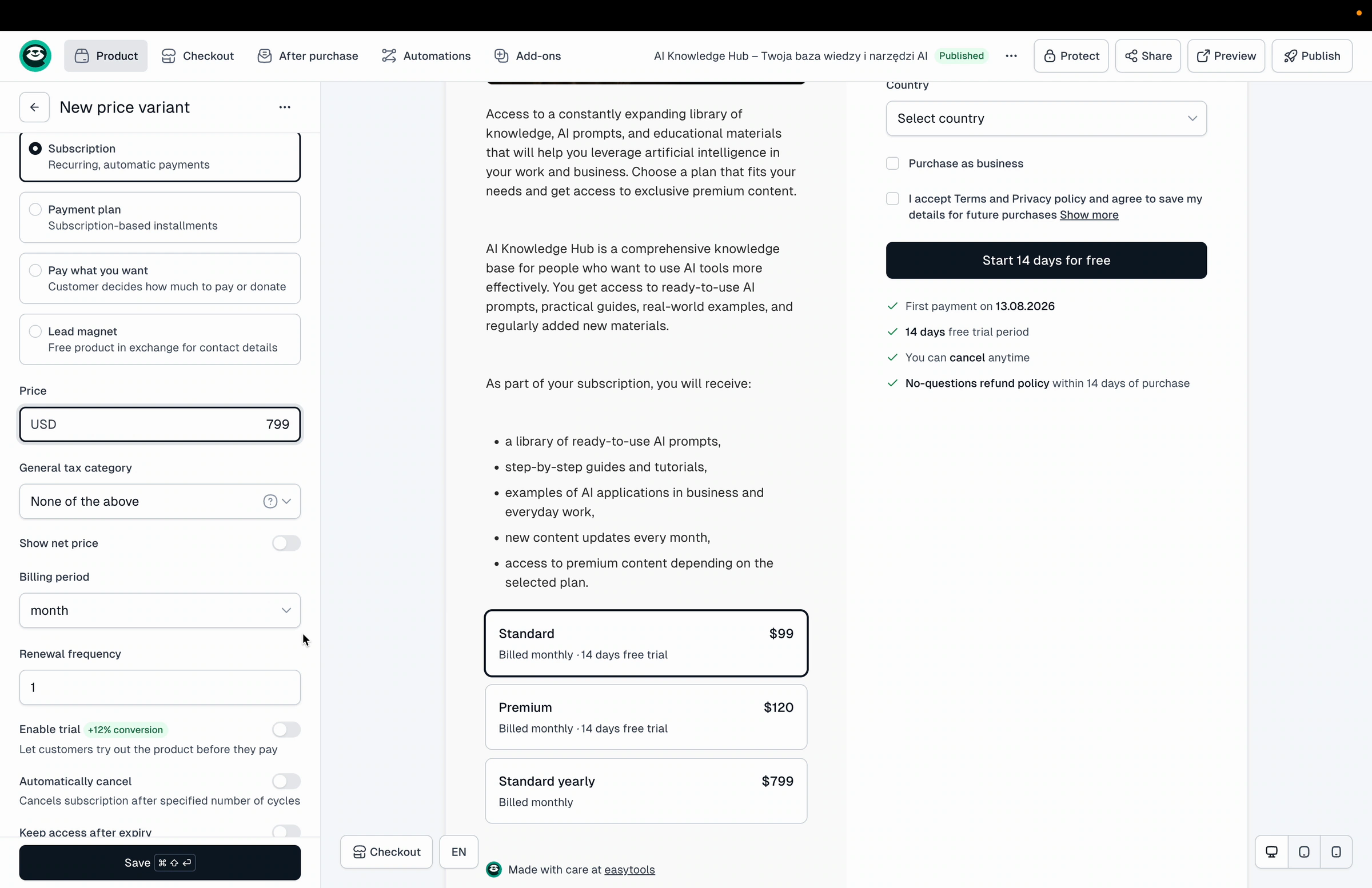
- Click + New variant again and name it, for example “Standard yearly”.
- Choose Subscription and enter the Price.
- Set Billing period to year.
- Leave the free trial as it is, then click Save and Publish.
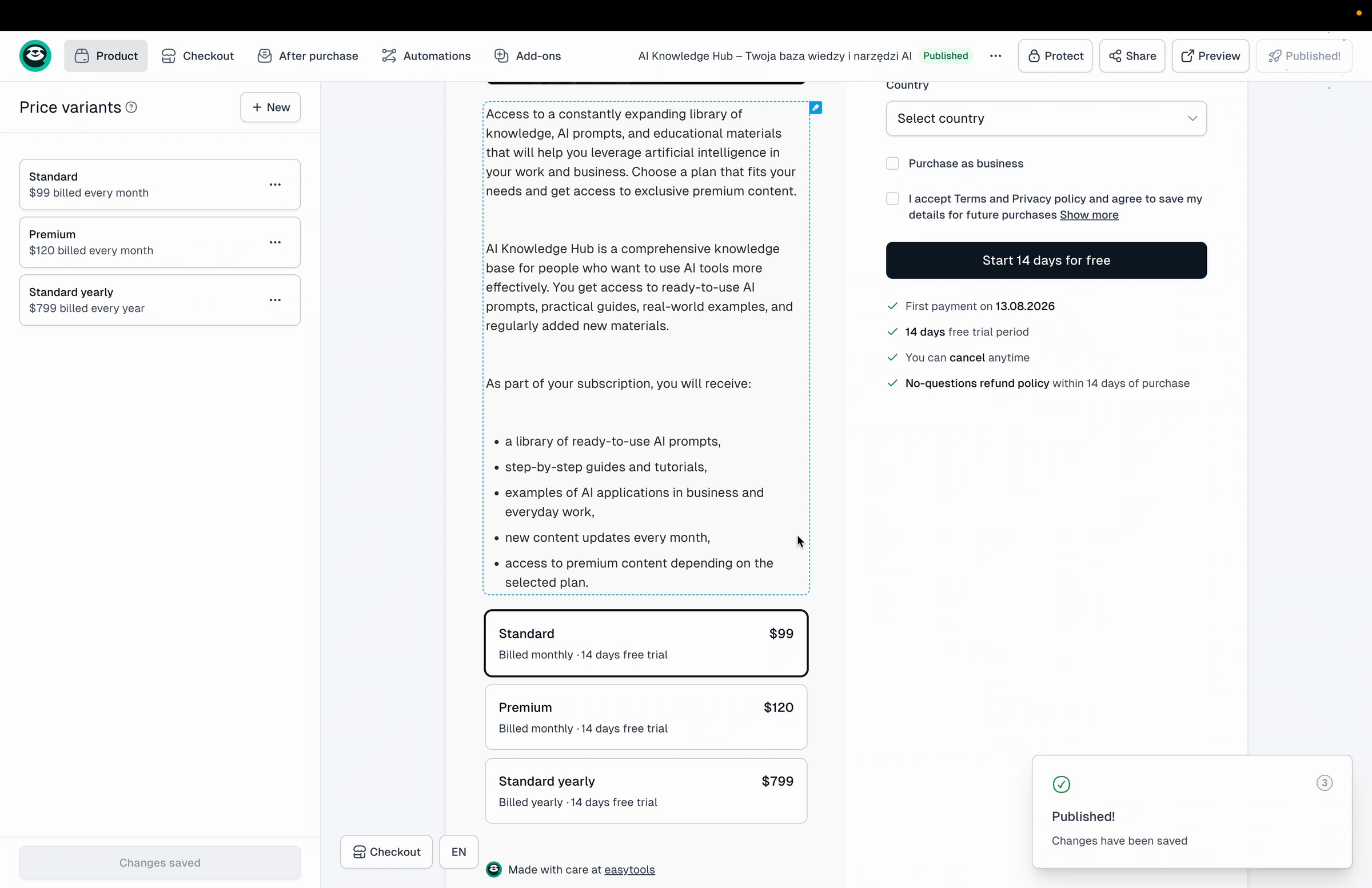
You now have three subscription variants. The same way, you can add a yearly version for the Premium plan too.
Turn a variant into an upsell
Instead of showing the yearly plan as a separate option, you can offer it as an upsell on the monthly variant - the customer picks the monthly plan and can then extend it to yearly.
- Open the “Standard” (monthly) variant for editing.
- Turn on the Add an upsell toggle.
- In the search field, choose the variant you want to offer, for example “Standard yearly”.
- Add an Upsell description.
- Click Save, then Publish.
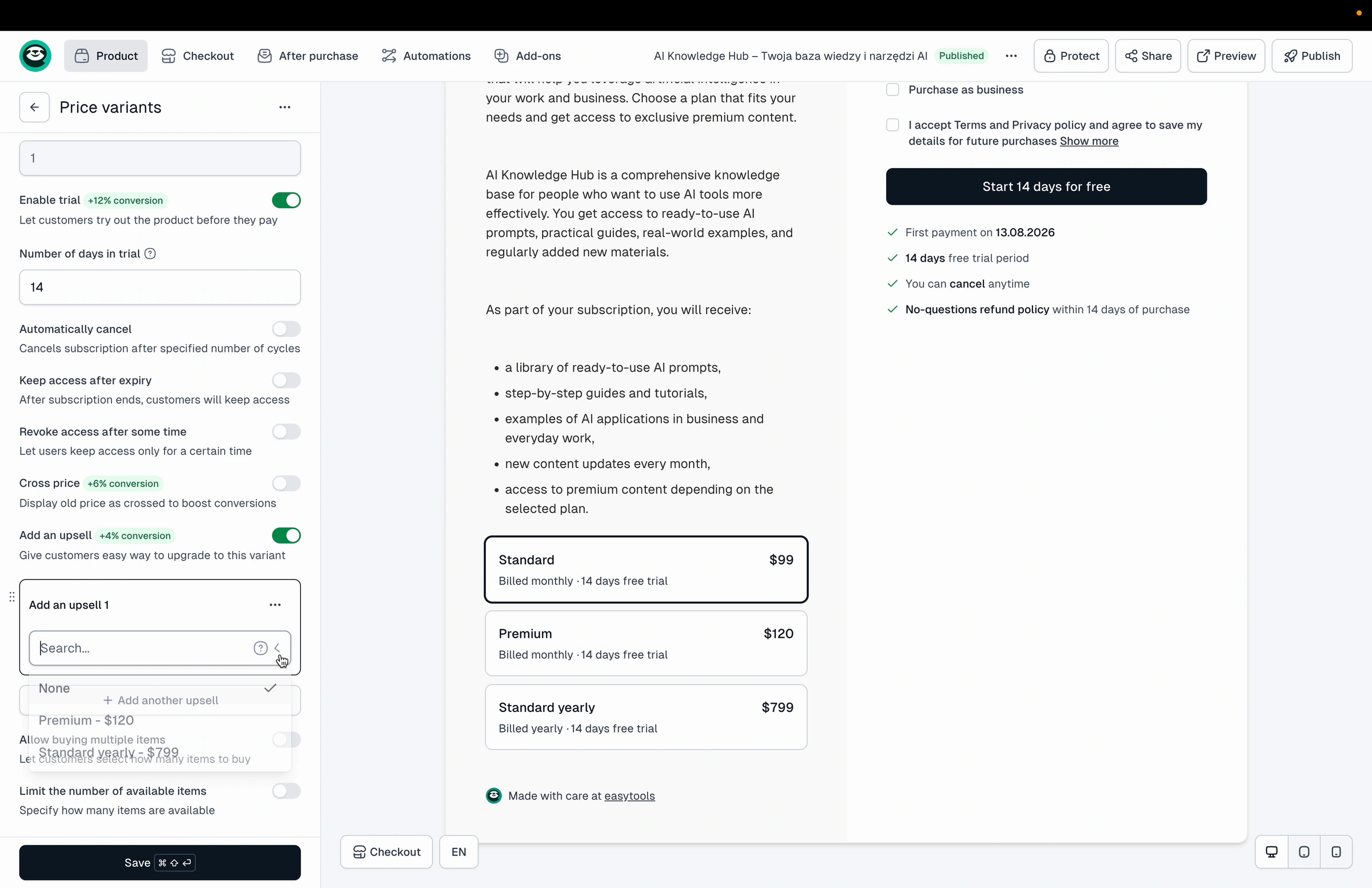
In the checkout the customer now sees the monthly variant with an option to extend it to the yearly plan.
Related: Subscriptions, Free trials, Creating price variants, Upsells.