Easytools runs an MCP server, so you can connect your account to Claude and run your store in plain language - pull orders, check page analytics, list or publish products, even send email campaigns. You connect Claude once, and after that you just ask. The steps below use the Claude desktop app; any other MCP-capable client works the same way.
The server endpoint you will need is https://mcp.easy.tools.
Add the Easytools connector
- In Claude, open Settings (press Cmd+; or go to Claude → Settings).
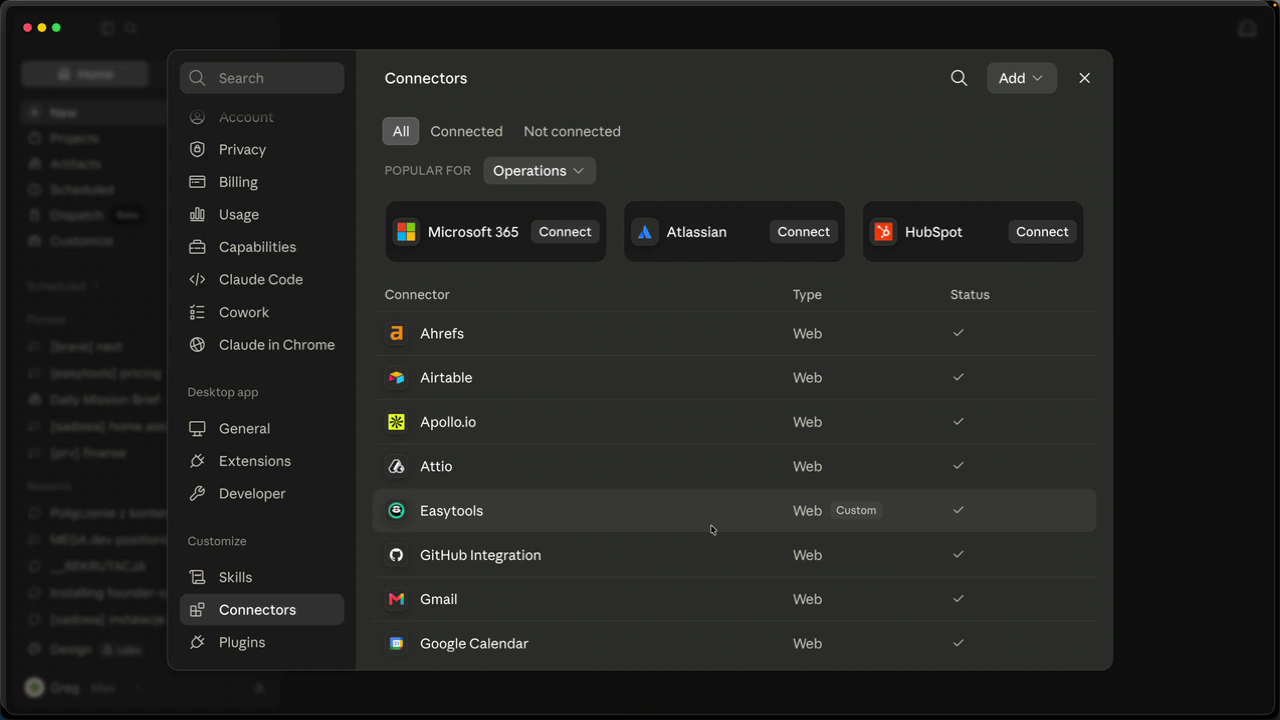
- Go to Connectors.
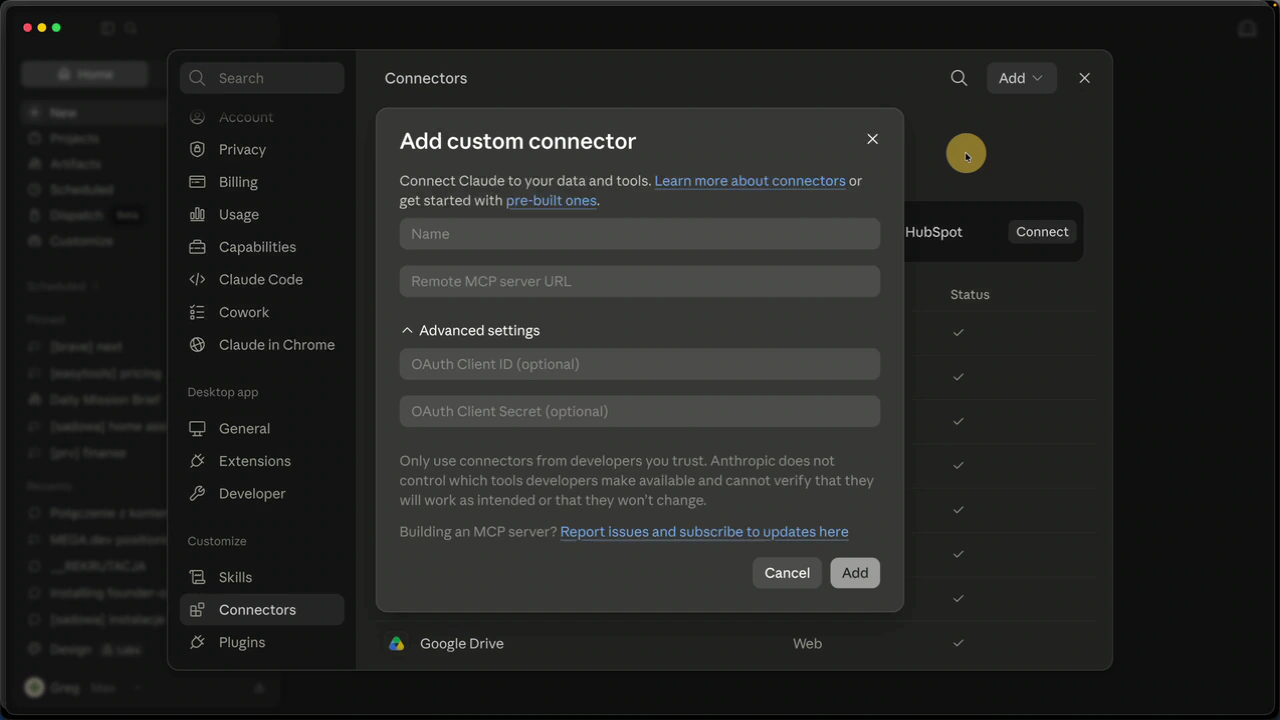
- In the top right, click Add → Add custom connector (a connector is the link between Claude and an outside tool).
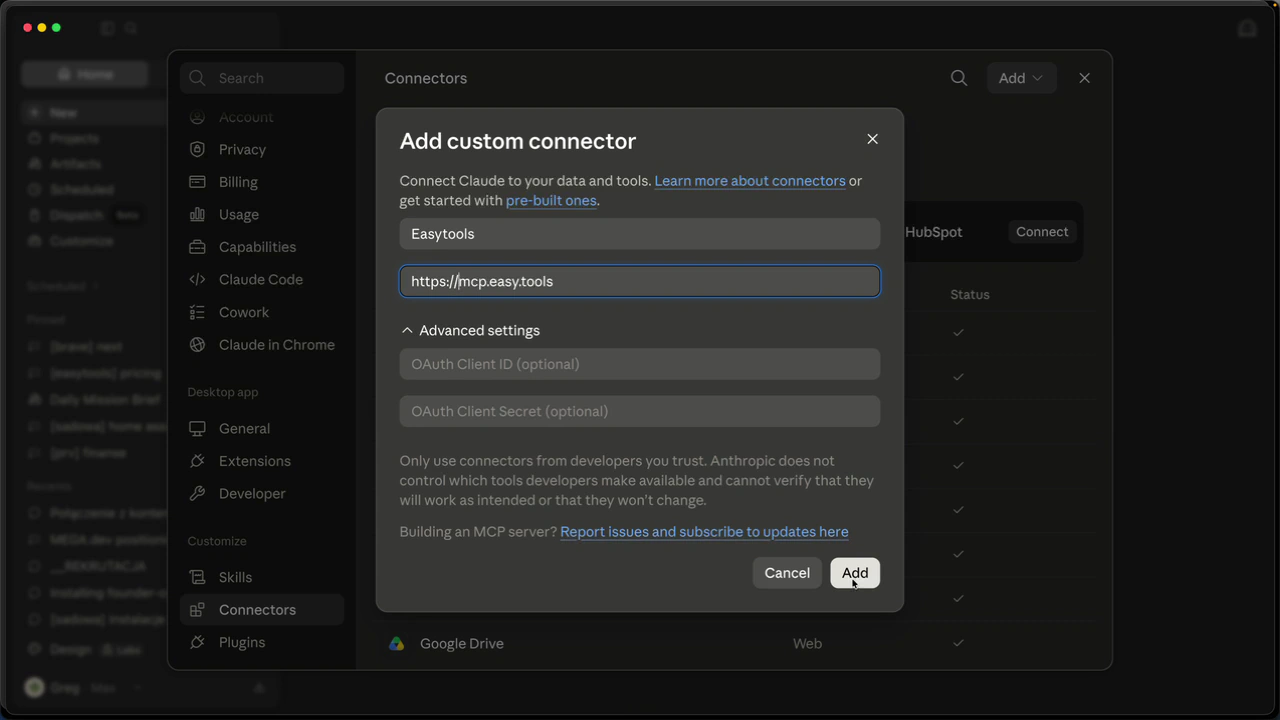
- In Name, type anything you like, for example Easytools.
- In Remote MCP server URL, paste
https://mcp.easy.tools. The address must start withhttps- if you paste it without, Claude shows “URL must start with ‘https’”. - Leave the advanced settings empty and click Add.
Authorize the connection
- Click Connect. Claude opens a browser tab.
- Check that the correct Easytools account is selected, then click Approve.
- You are taken back to Claude, now connected.
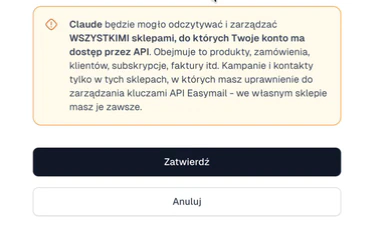
Note: Claude can read and manage every store your account has API access to. You can revoke this access anytime in Easytools under API and Webhooks.
Choose what Claude can do without asking
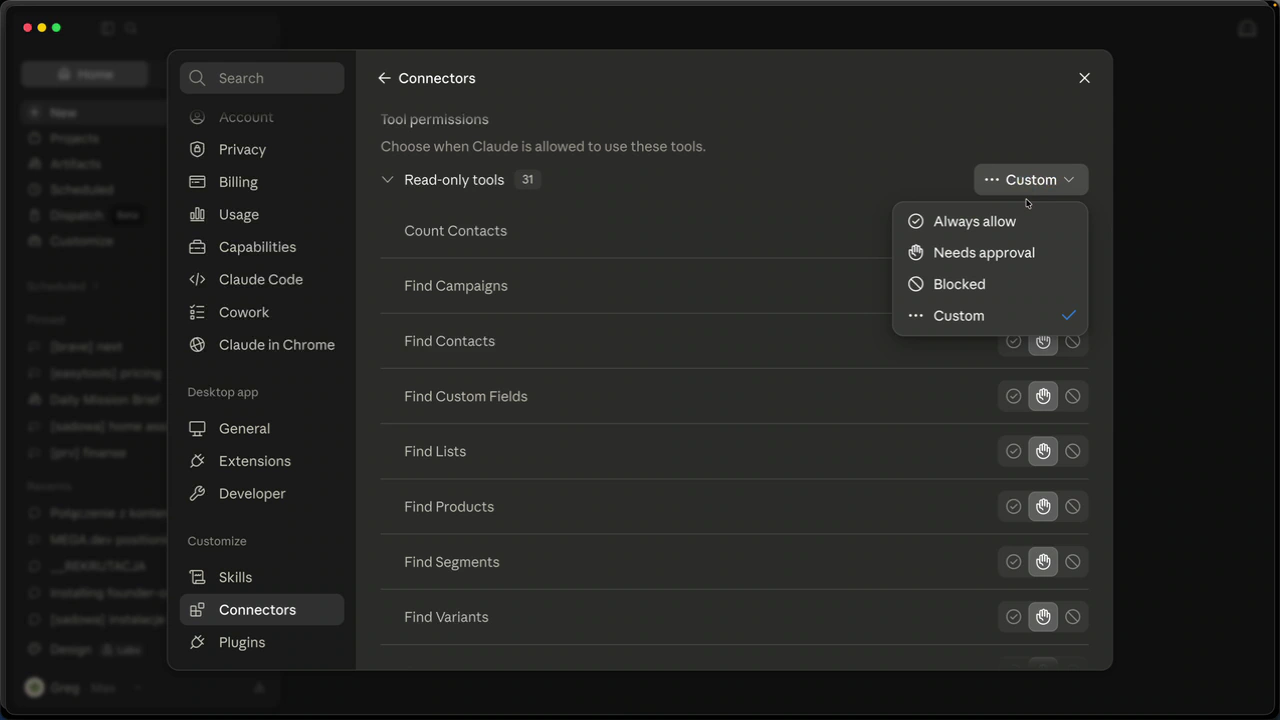
After connecting, Claude lists every tool the server exposes, split into two groups. Decide how much freedom each group gets.
- Read-only tools (31) only read data - orders, invoices, subscriptions, page analytics, product lists. They never change anything, so you can safely set the whole group to Always allow.
- Write/delete tools (37) create, change or remove data. Leave the group on Needs approval so nothing is published or deleted by accident.
- If there is an action you run often, you can still set that single tool to Always allow - for example publishing a product or sending a test email - while the rest keep asking.
Start managing your store
- Close the connectors window. You will see Easytools listed as a connected connector.
- Open a new chat and ask in plain language, for example “Which products can I manage?” or “How do the page stats look?”.
- Because one API key can reach several stores, tell Claude which store you mean when you have more than one.
Any capable model works here - Opus is a great fit, and Sonnet handles most requests well too. From a single chat you can pull orders, check page analytics, add products, and create or send email campaigns.