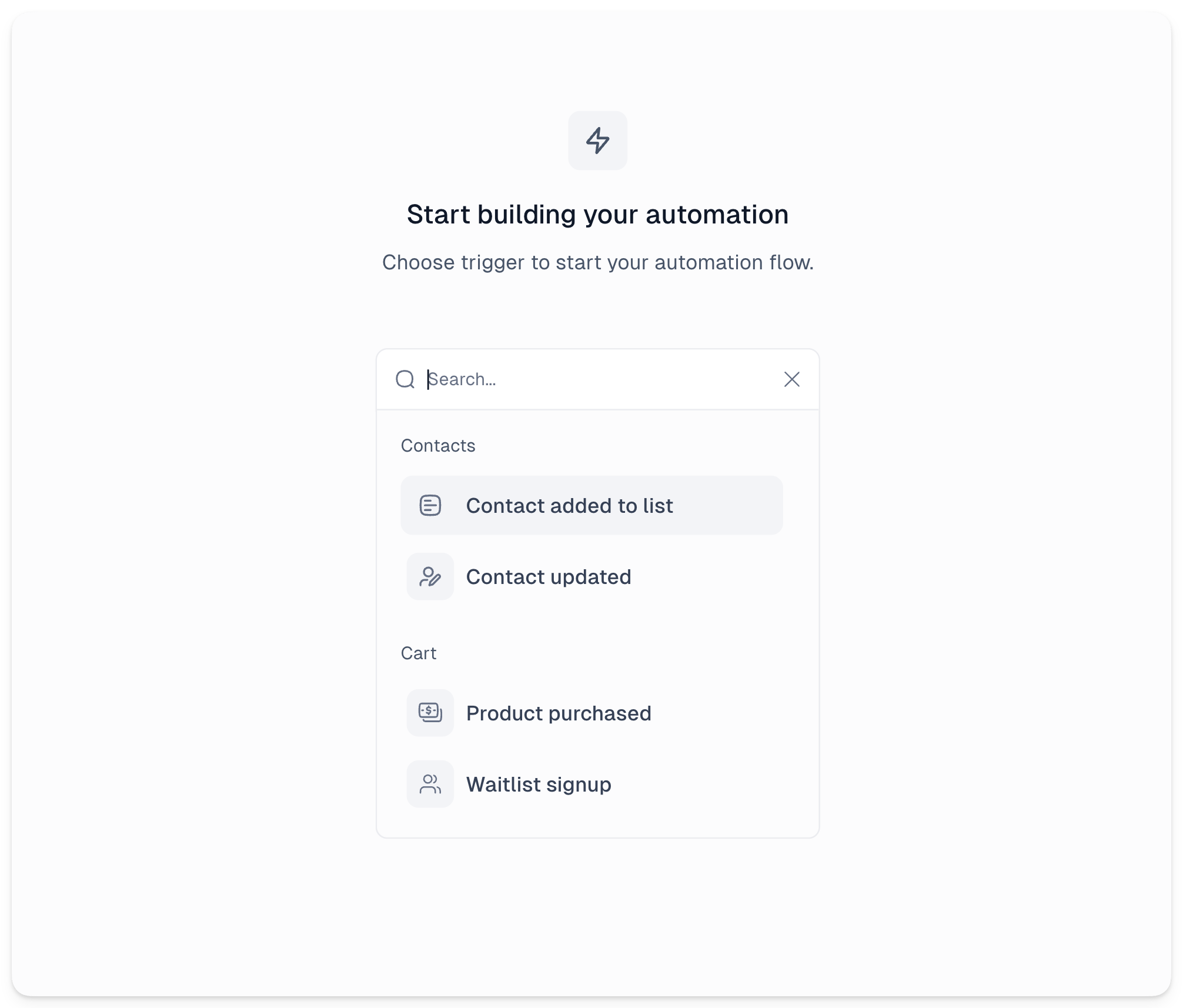
Triggers are events that enroll contacts into your automation flow when specific conditions are met. Currently there are four triggers available:
- Contact added to list - triggers when someone is added to a specific list
- Contact updates - triggers when a contact’s details change
- Product purchased - triggers when someone purchases a specific product
- Waitlist signup - triggers when someone signs up to your waitlist
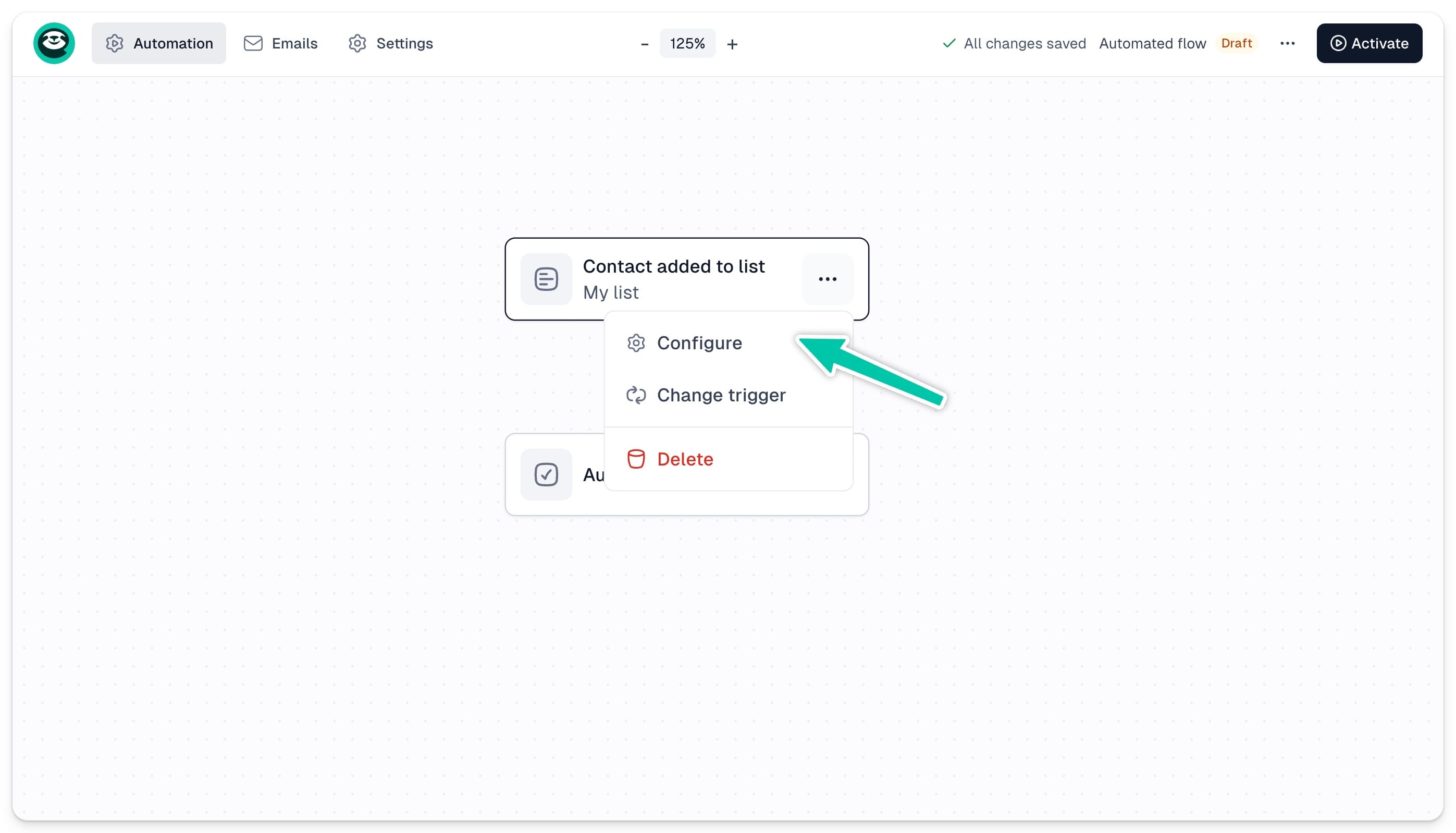
To configure a trigger, click on it in the workflow editor and adjust its settings in the left-hand sidebar. You can also click … on the trigger box and choose Configure.
Trigger settings
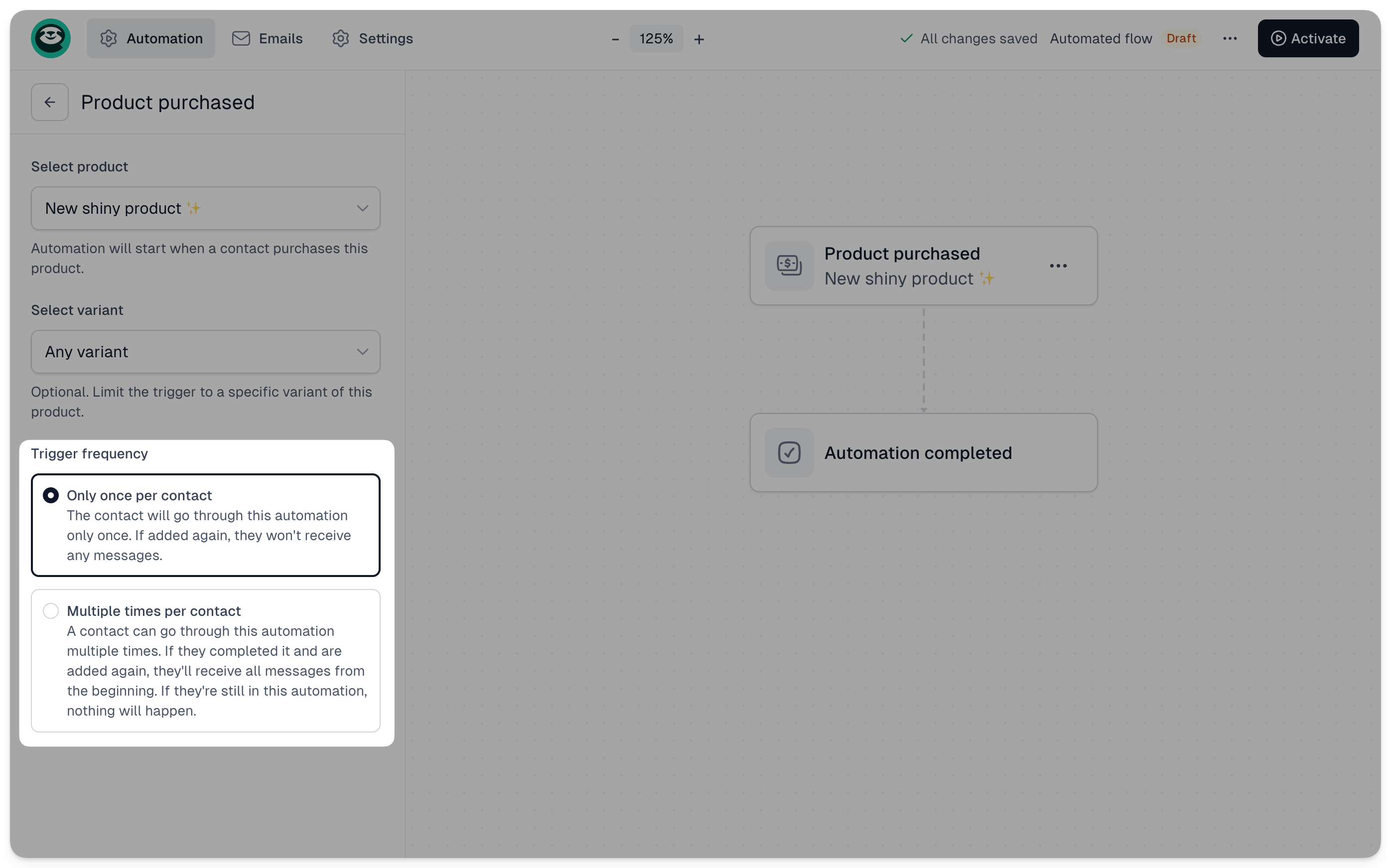
Each trigger has its own specific settings, described below. All triggers also share a trigger frequency setting, which defines whether a contact can go through the automation more than once:
- Once per contact - the contact will only go through the automation once, no matter how many times they meet the trigger conditions in the future
- Multiple times - the contact can go through the automation multiple times, as long as they have already completed the flow. A contact already in the sequence won’t be enrolled again until they reach the final step
Contact added to list
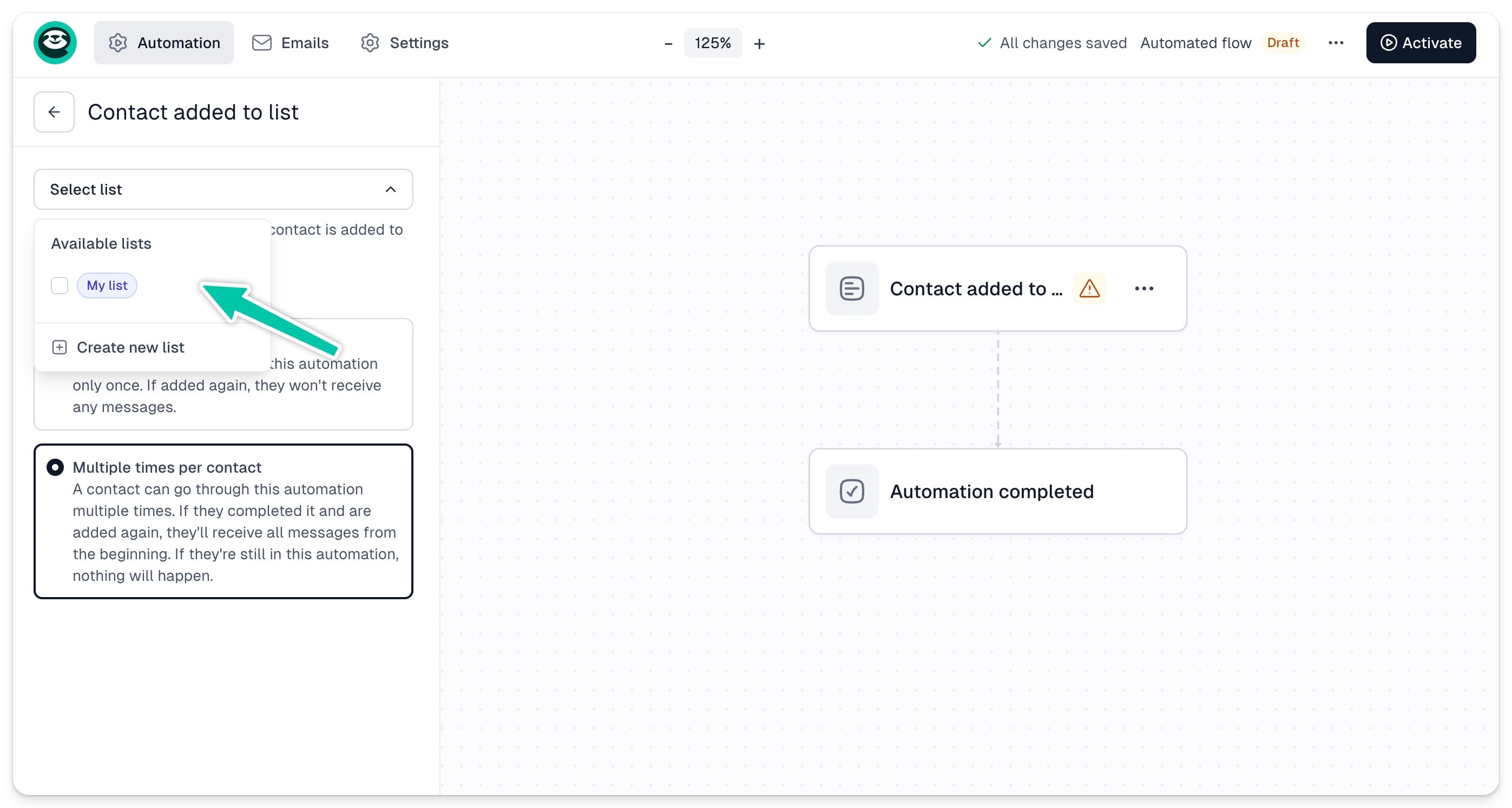
Choose the list that will trigger the sequence. Select from your existing lists or click Create new list to add a new one.
Contact updates
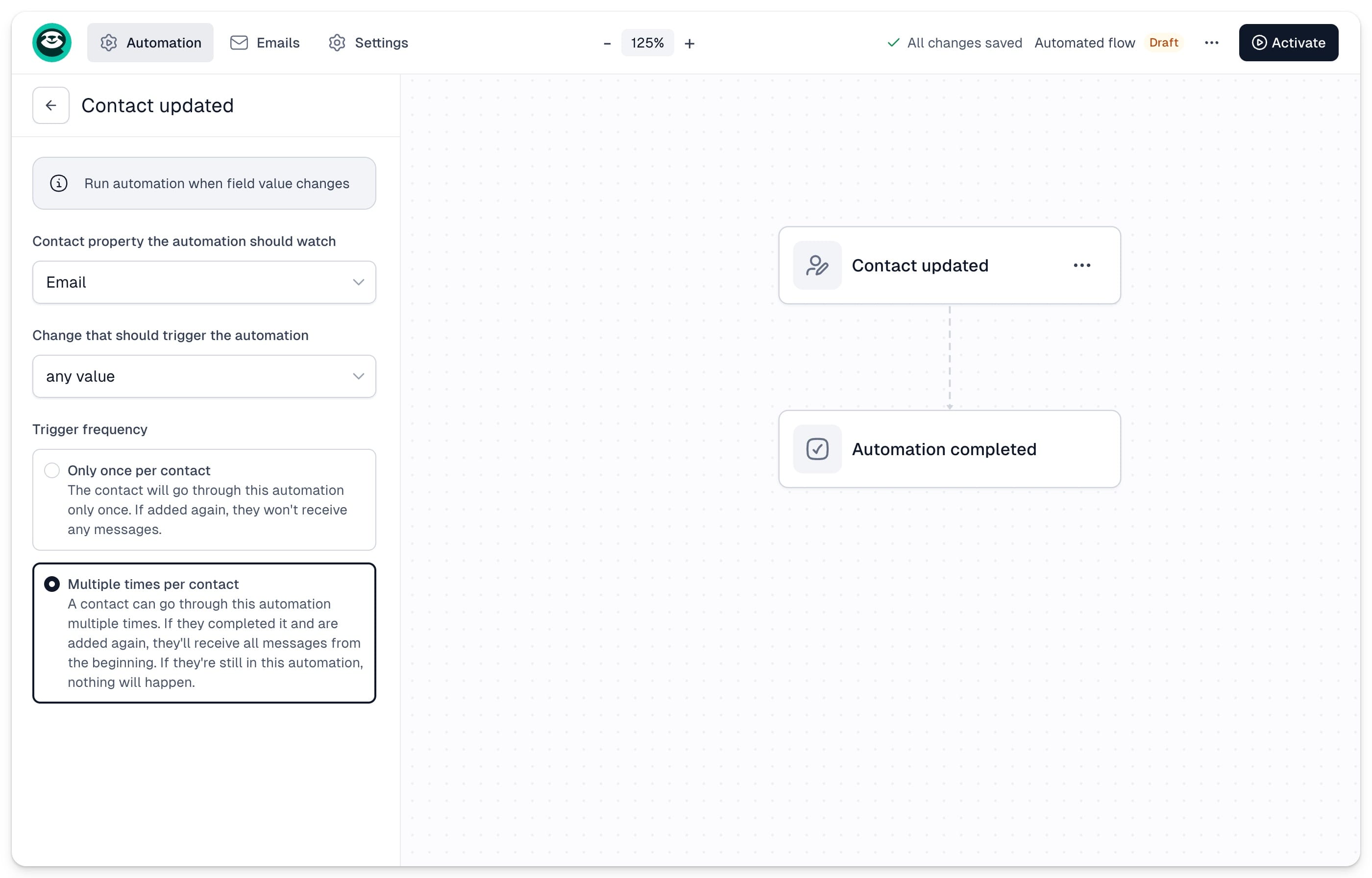
The automation will trigger when a specific contact field changes. You can set it to watch for changes in:
- First name
- Last name
- Custom field
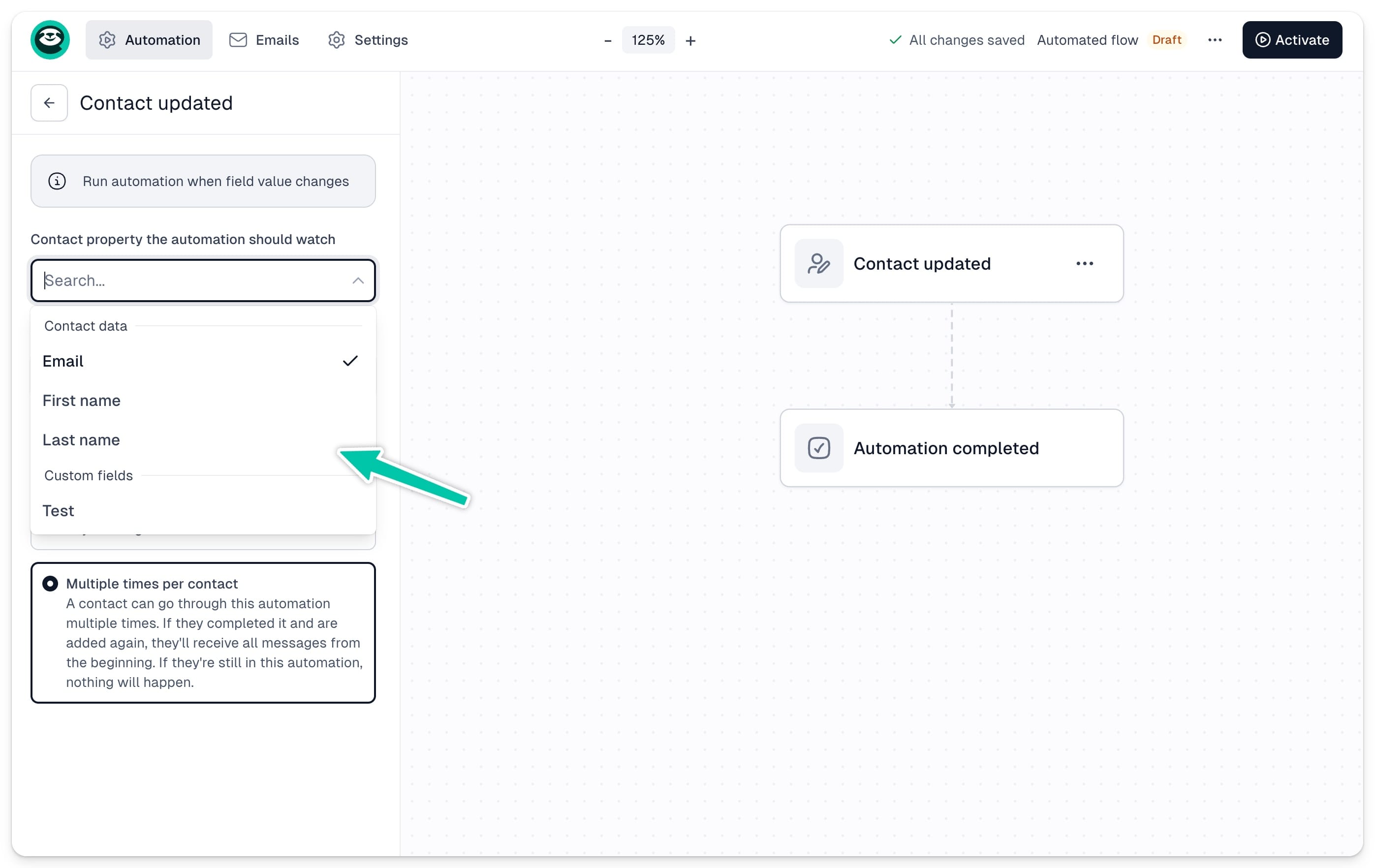
You can also define what kind of change will trigger the automation:
- any value
- equals / not equals
- contains / not contains
- starts with / ends with
- is empty / is not empty
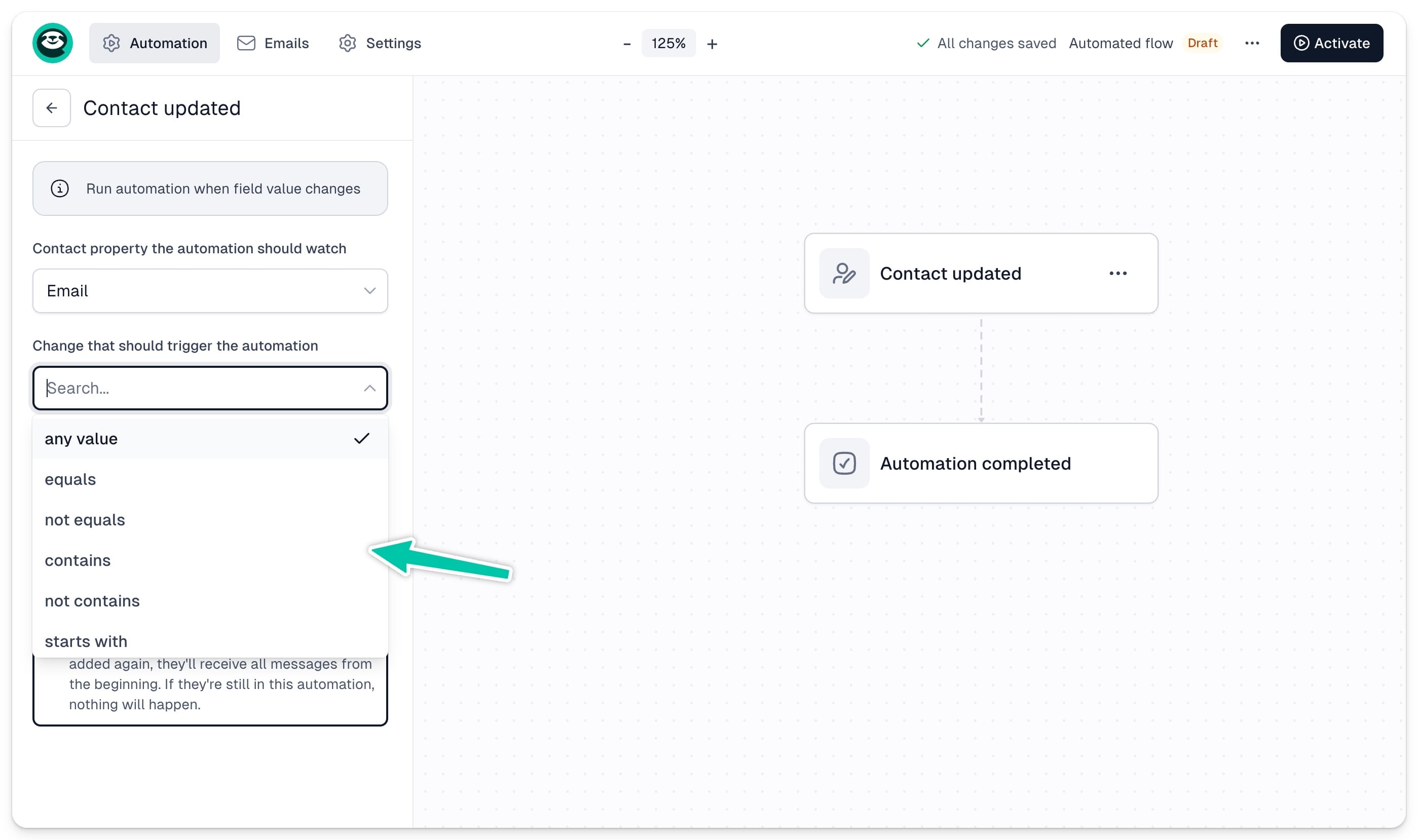
Product purchased
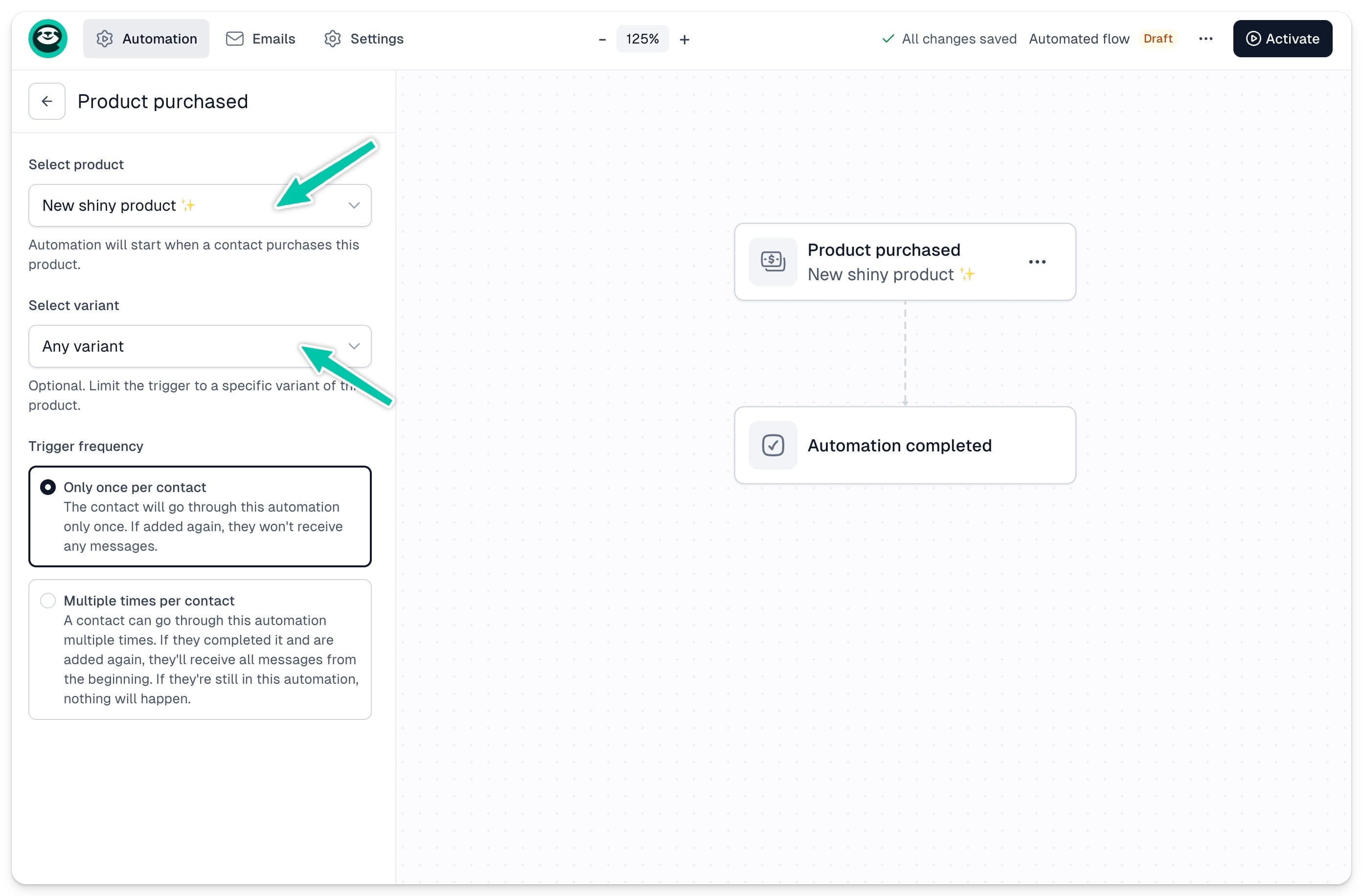
Choose a specific product and its variant from the list. The automation will trigger every time someone purchases it, according to your trigger frequency settings.
Waitlist signup
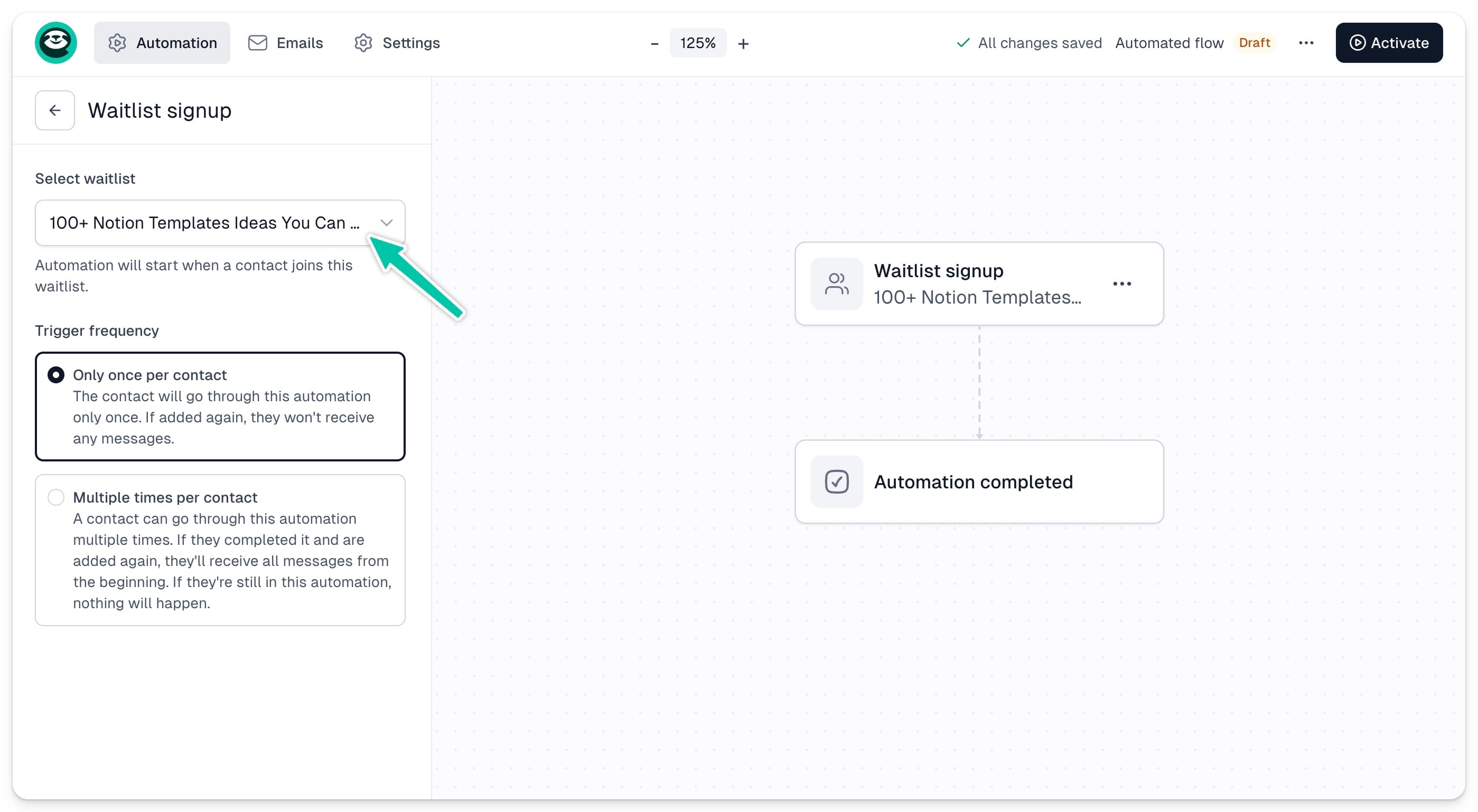
Choose the waitlist that will trigger the sequence. Note that you can only add one waitlist per automation.
Changing your trigger
You can change your trigger at any time by clicking … on the trigger box and choosing Change trigger.
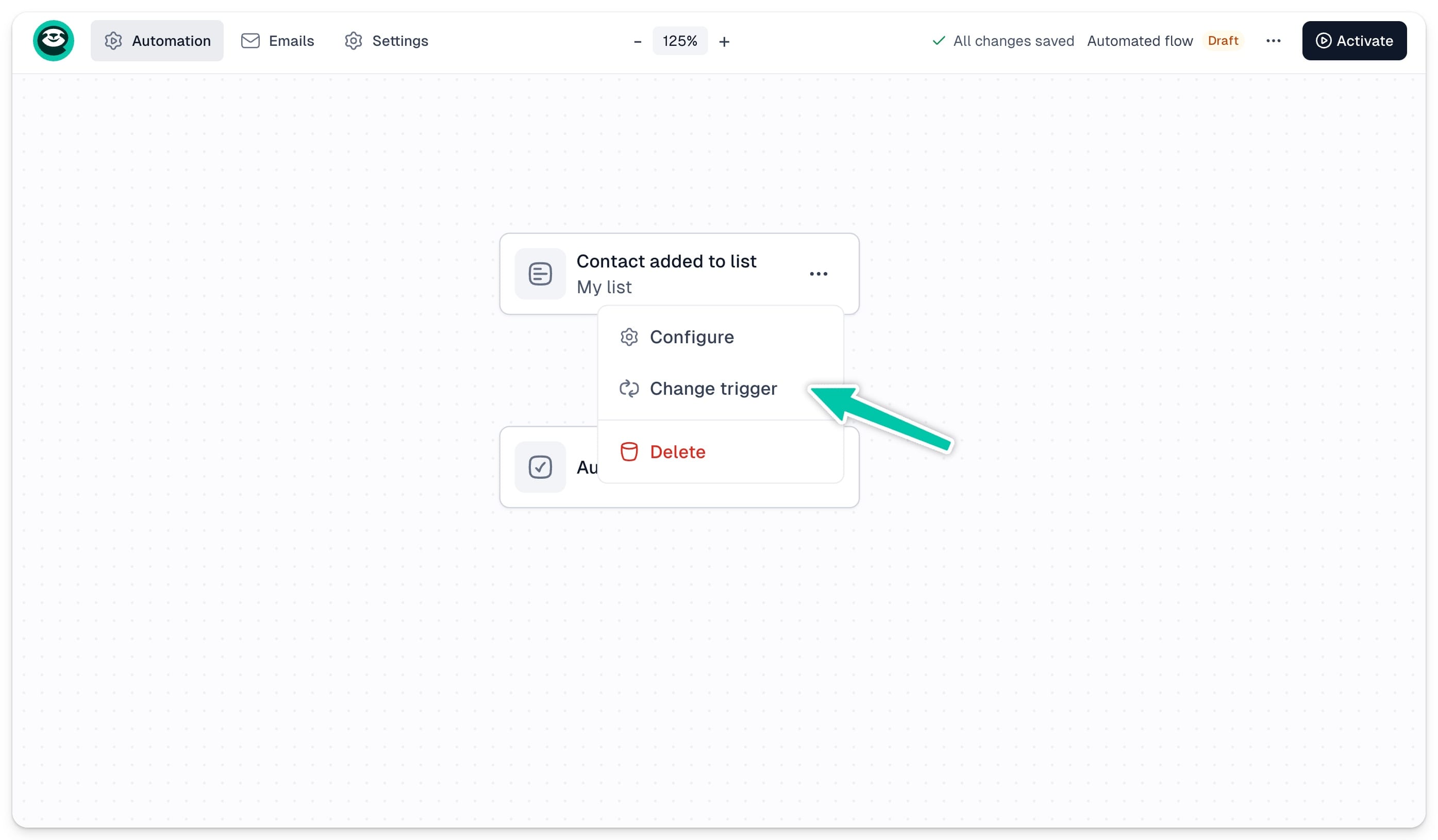
Important: Changing the trigger will not affect contacts who are already in the sequence.
Once your trigger is set, see what automation actions you can add to your flow.