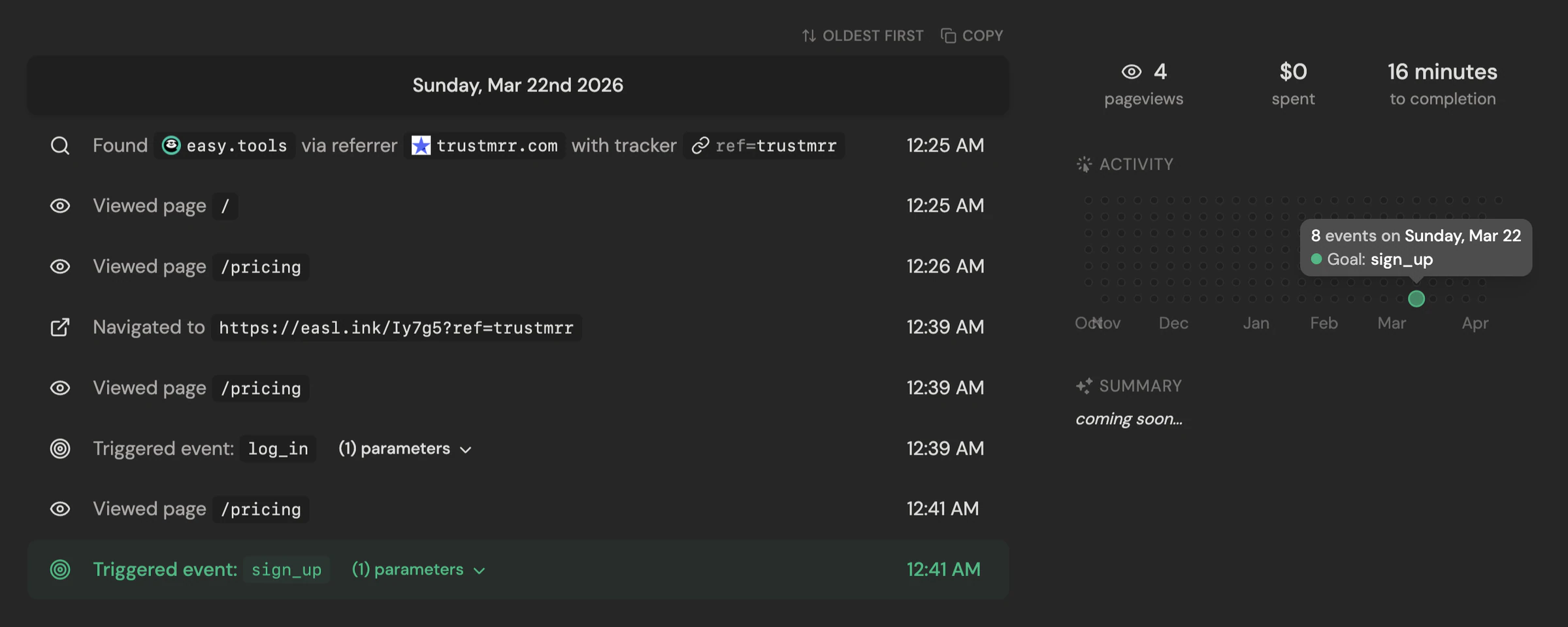
DataFast is a simple, powerful analytics tool by Marc Lou. With DataFast, you can discover which marketing channels bring customers so you can grow your business. You can easily connect DataFast with Easytools using a native integration that allows you to:
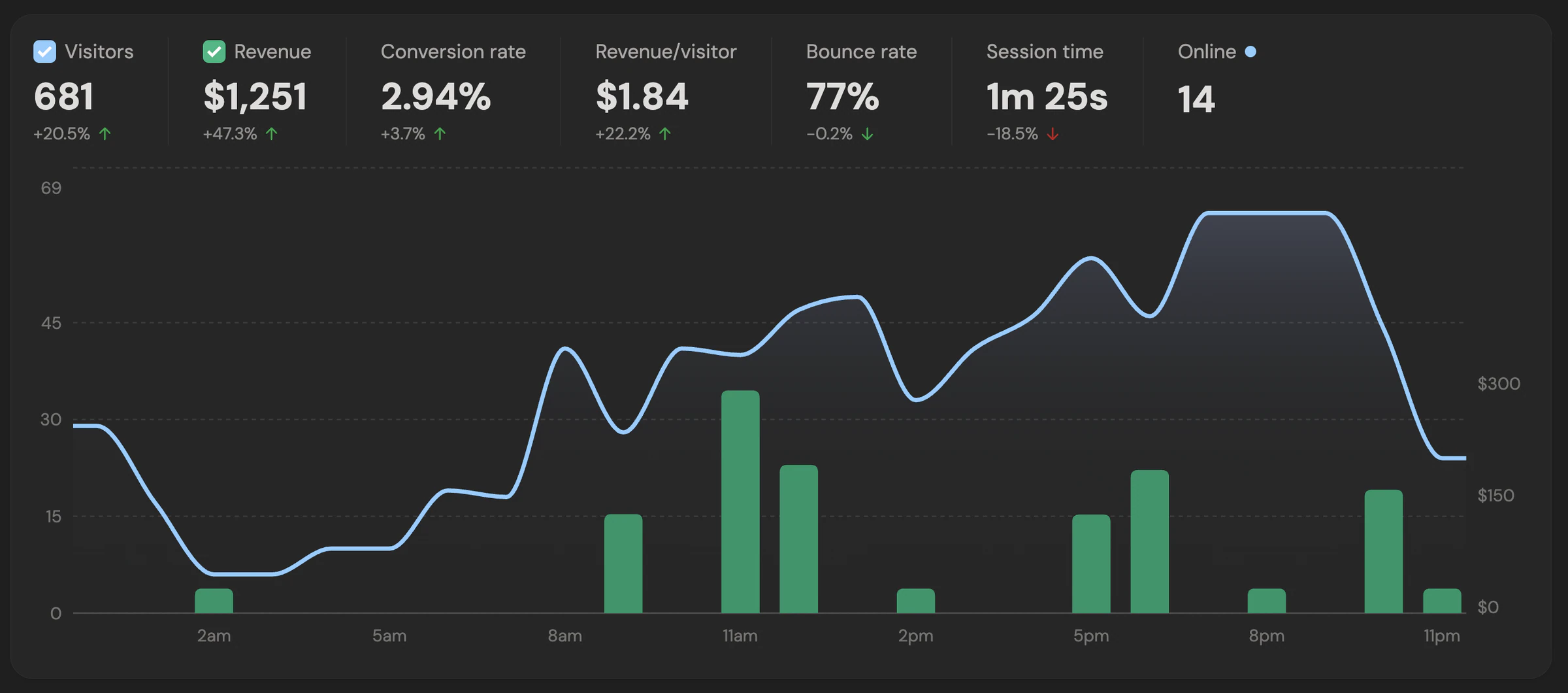
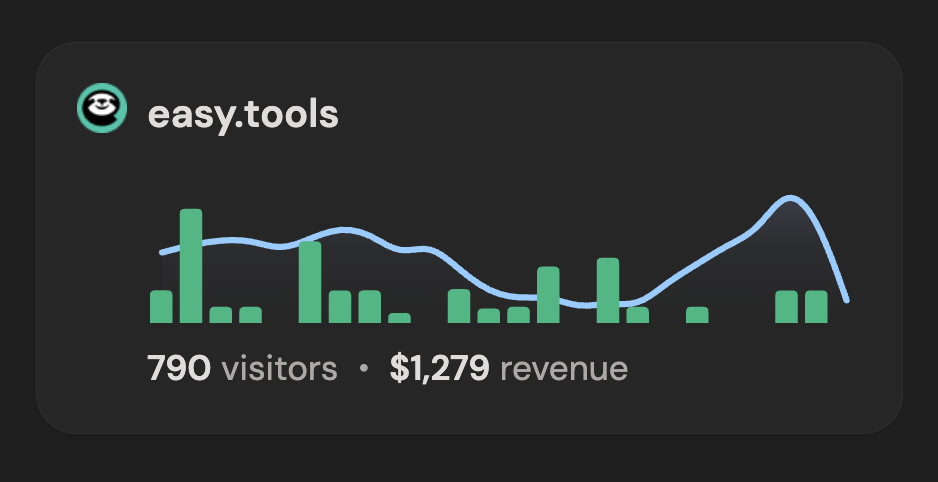
- See your website’s analytics
- Bring in revenue metrics from Easytools
- See how much you’ve earned
- Connect revenue to traffic sources
- See user journeys for popular events
Connecting Easytools to DataFast
- First, you need a DataFast account, which you can create here.
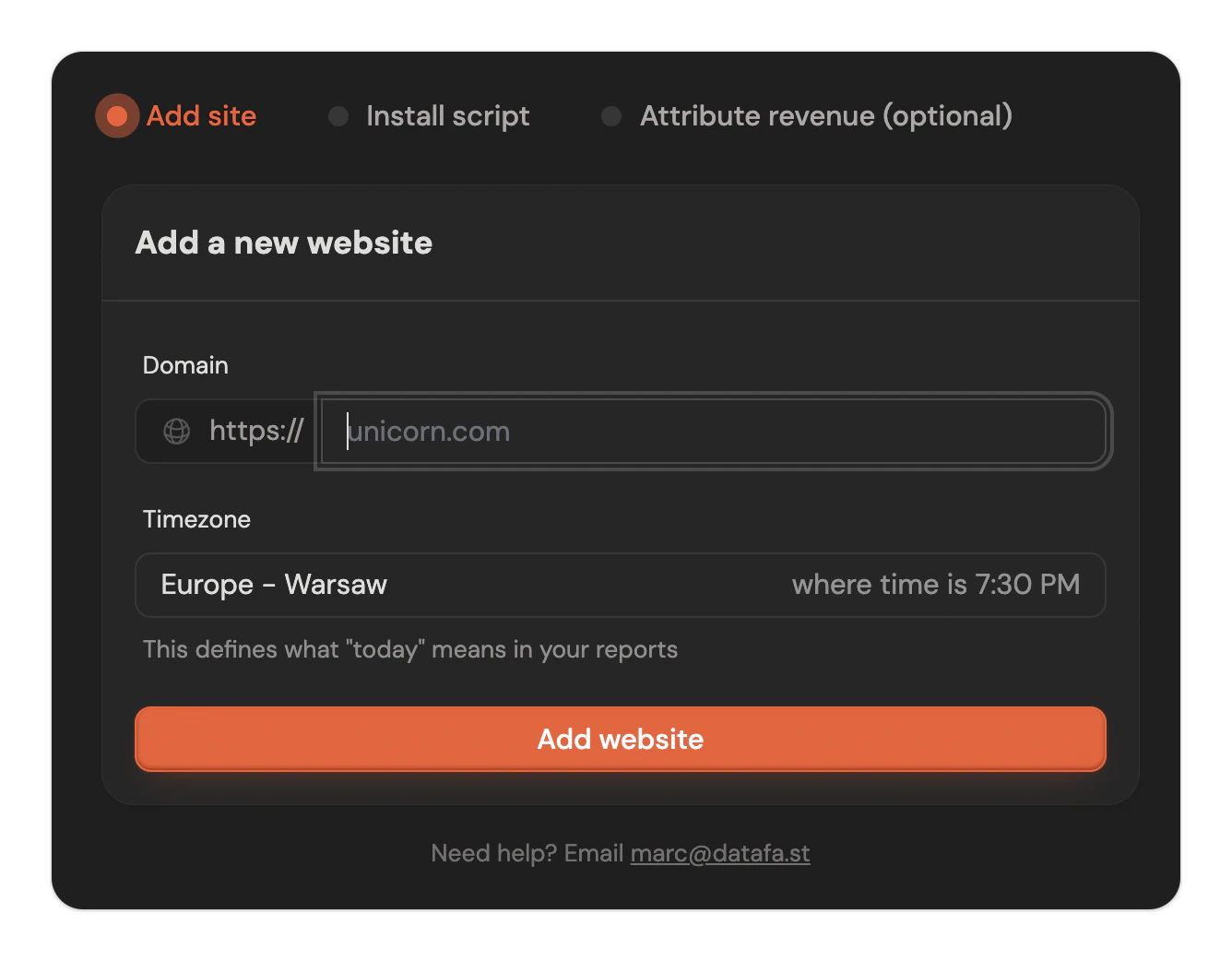
- Add a new website and provide the URL of your landing page.
- Go to the next step and install the DataFast script on your page. There is an installation guide available if you need assistance.
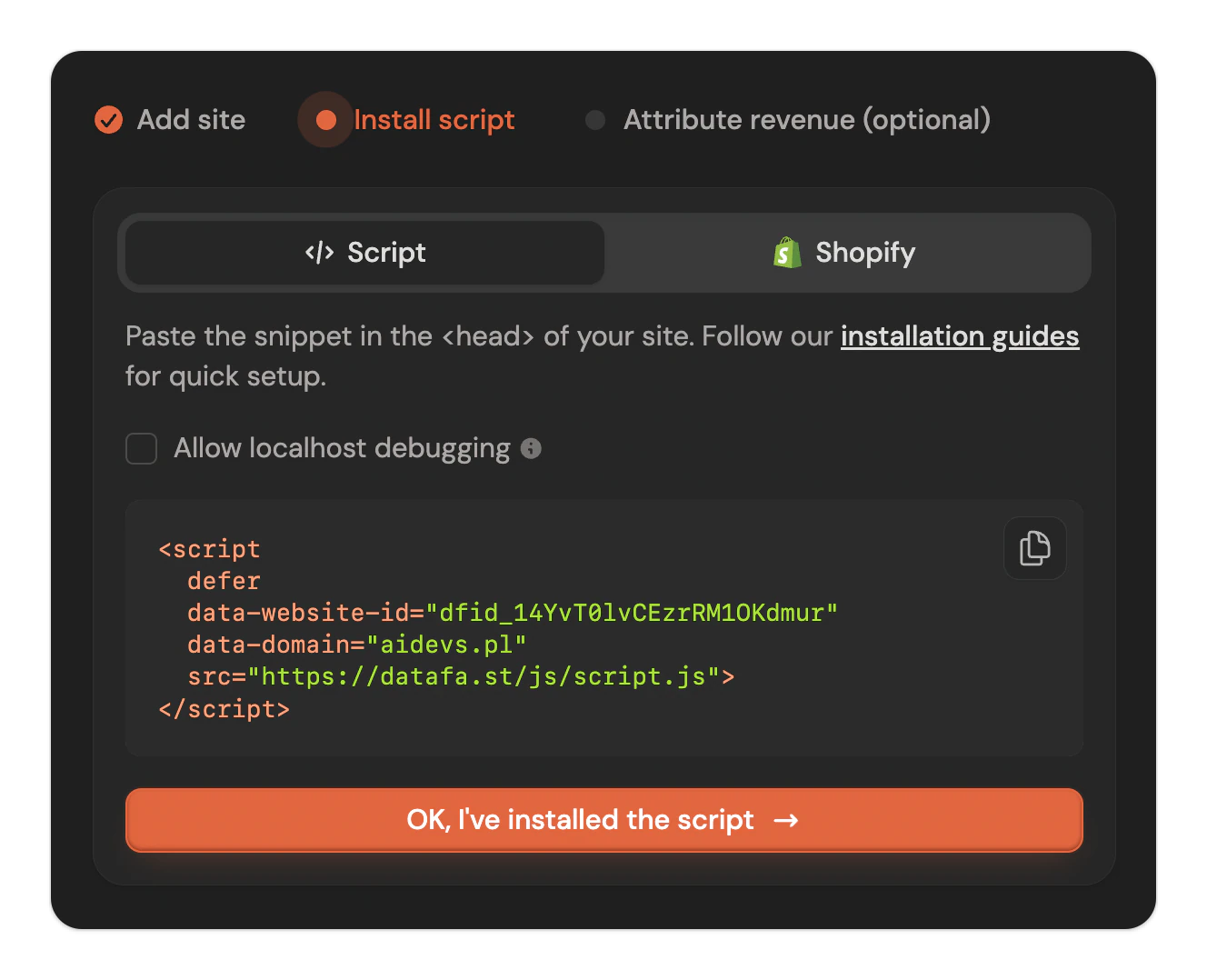
For example, if you’re using Webflow or Framer, use the custom code section for all pages, and add the script at the end of the head tag.
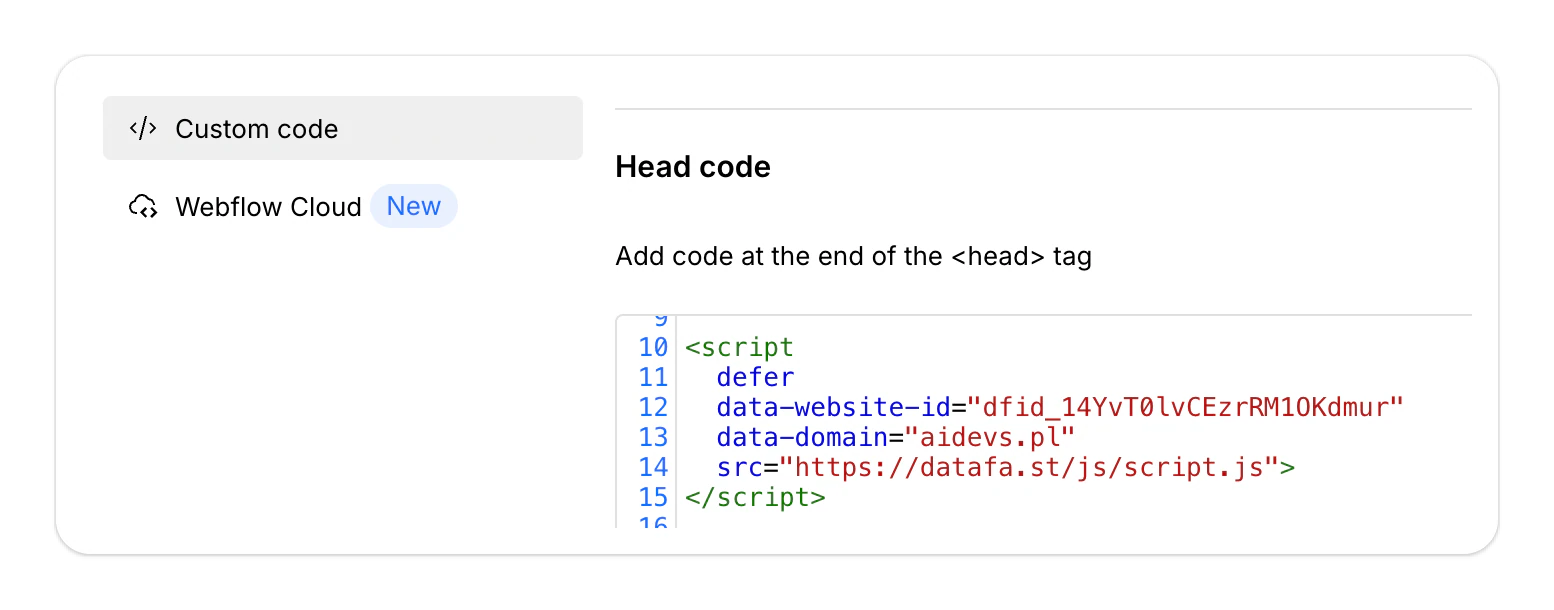
Tip: Although Easypage has its own simple analytics tool, you can also add the DataFast script there by pasting the code into the custom code section.
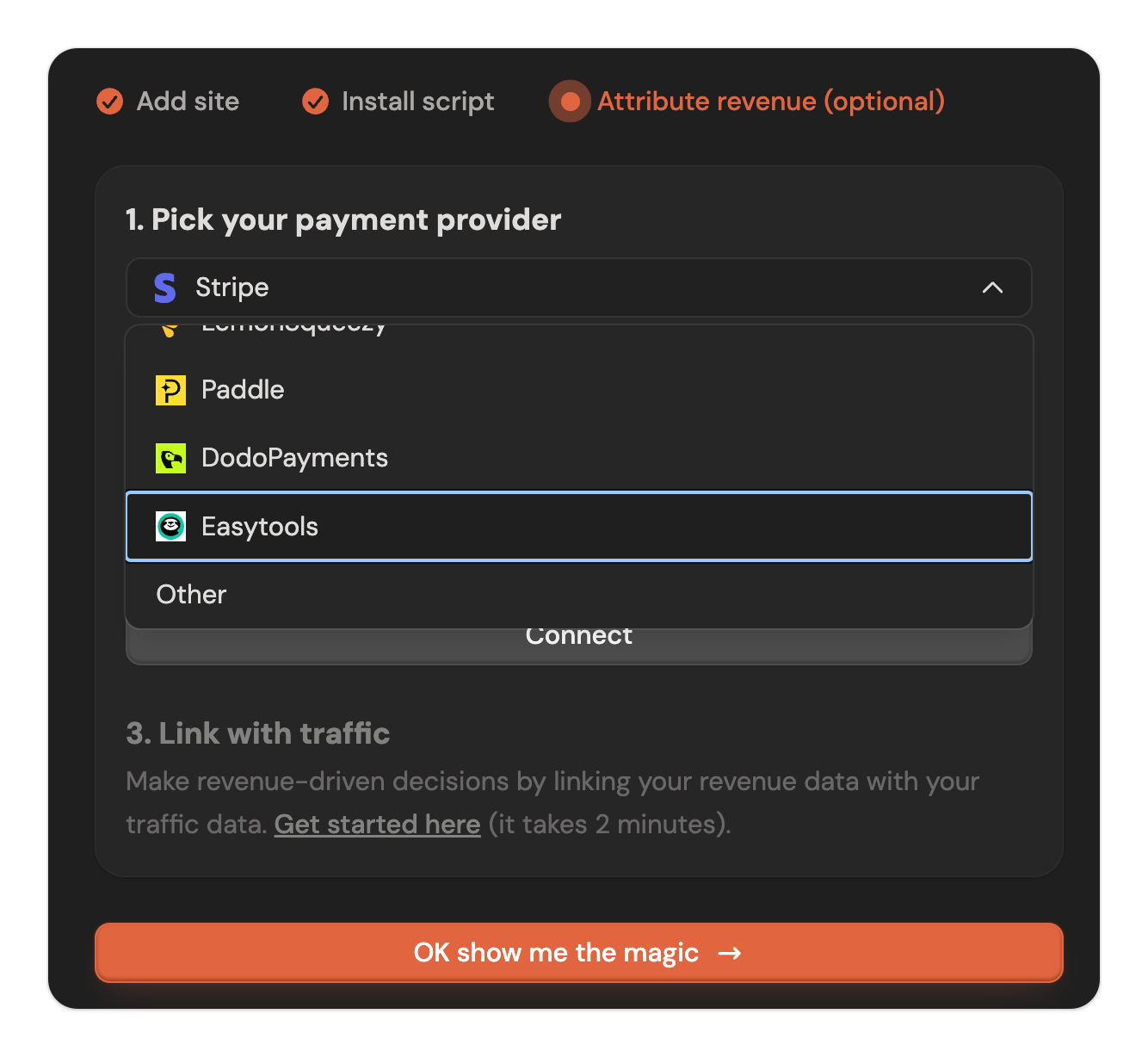
- Next, go to the Attribute revenue tab and select the Easytools integration.
From here, you can copy your DataFast website ID and your domain name. You will need both values in Easytools, and you can use them in two ways:
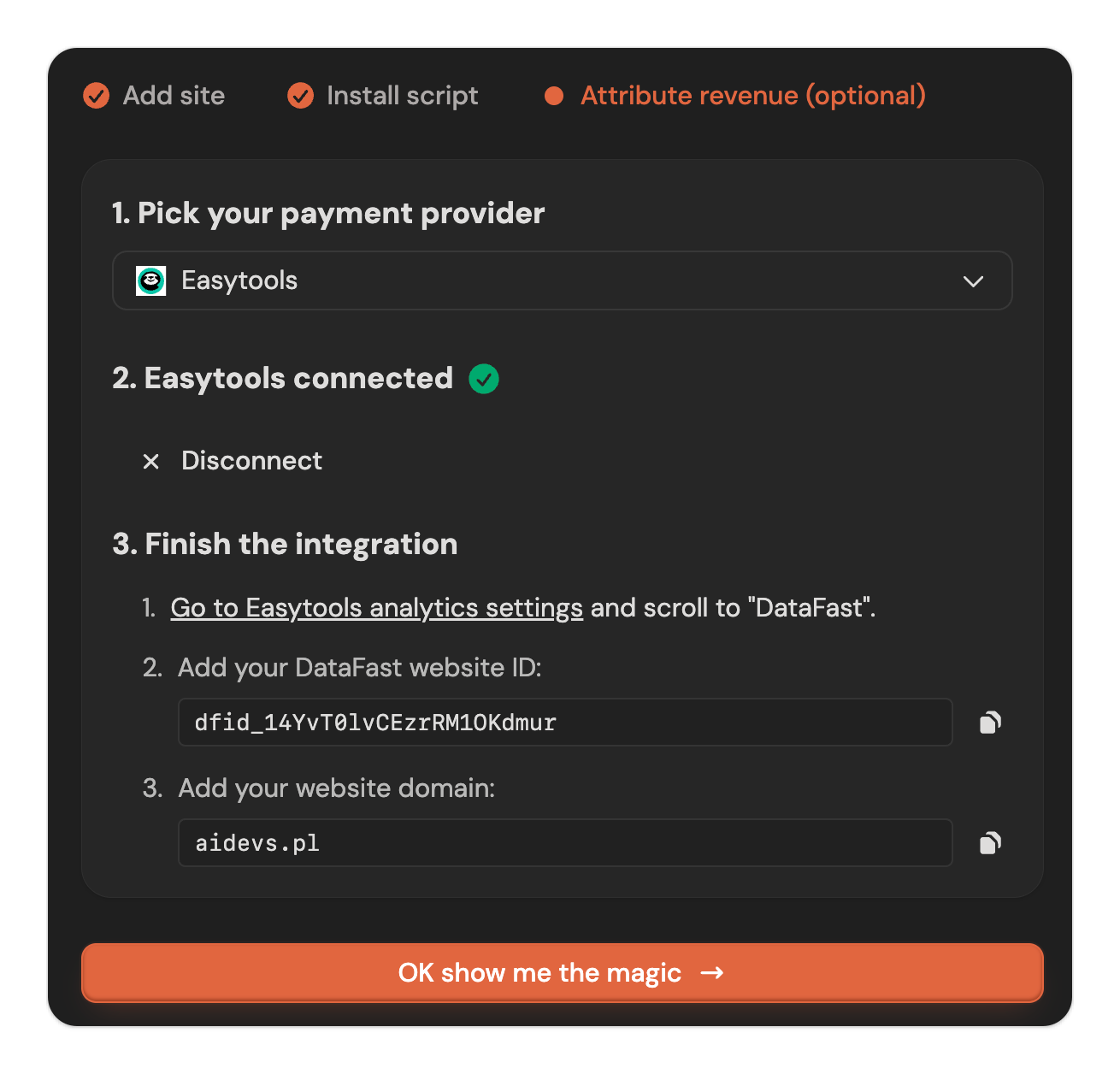
- Enable the integration for all products created from now on - add the details in general settings.
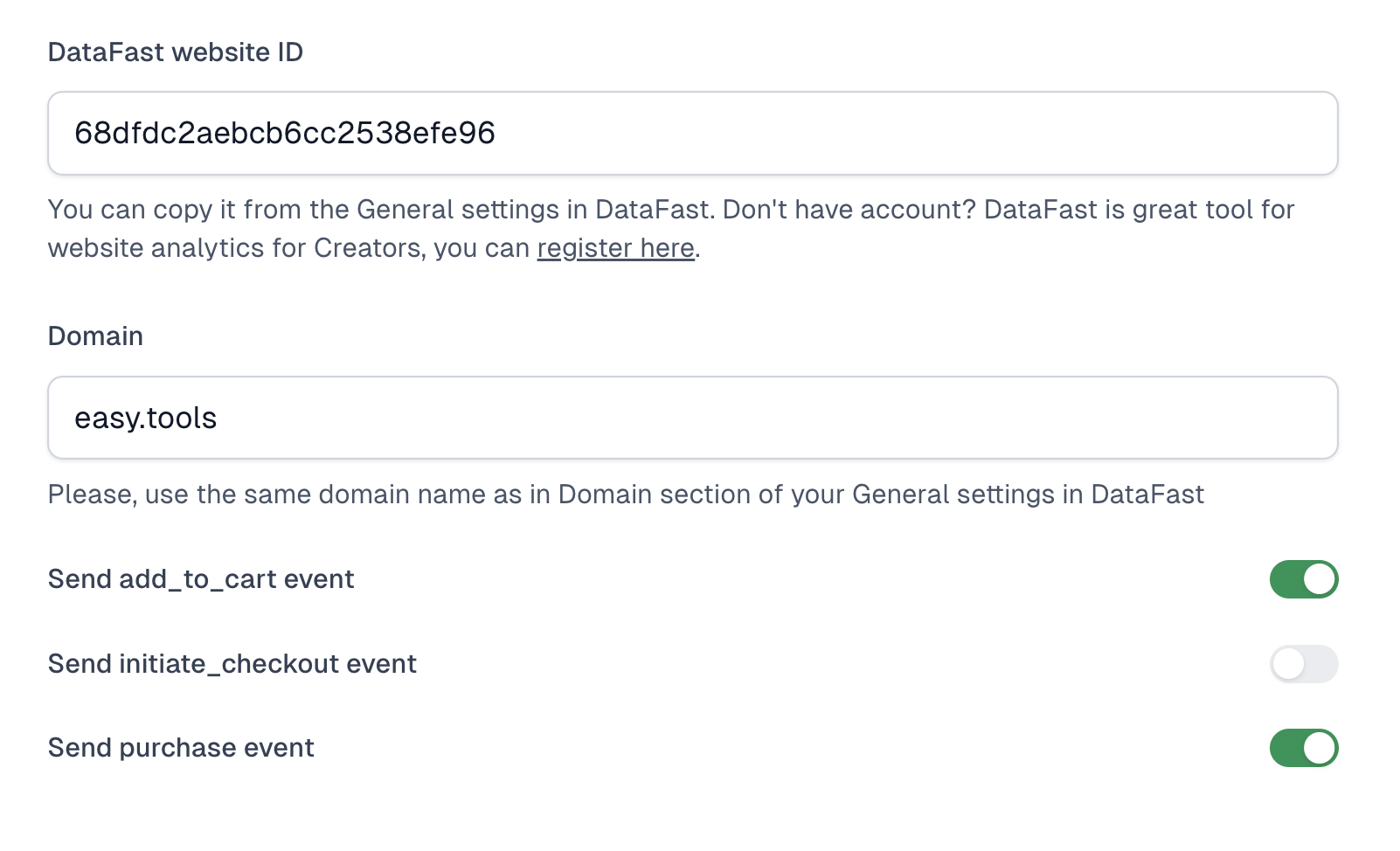
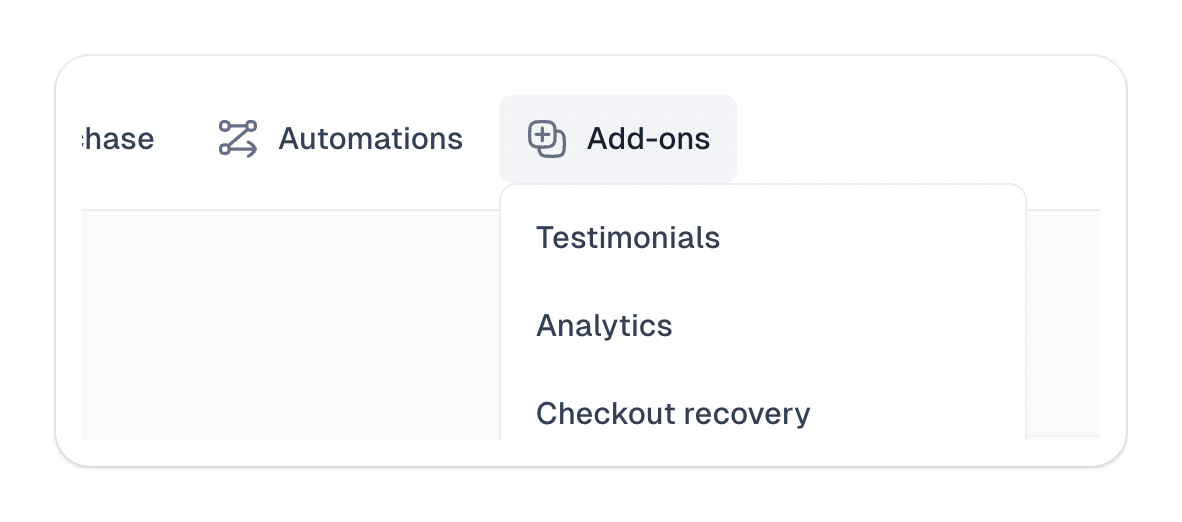
- Enable per individual checkout - go to your product and navigate to Add ons → Analytics. Fill in the ID and scroll down to fill in the domain.
You can also select the events you want to send to DataFast. We suggest either add_to_cart or initiate_checkout (whichever you prefer), plus the purchase event.
Create a funnel
Shortly after setup, you’ll see events being sent by Easytools - registering adds to cart and purchases. If you’d like, you can track additional goals from your page, such as registering for a demo call or filling in a form. To add custom events, check out this guide.
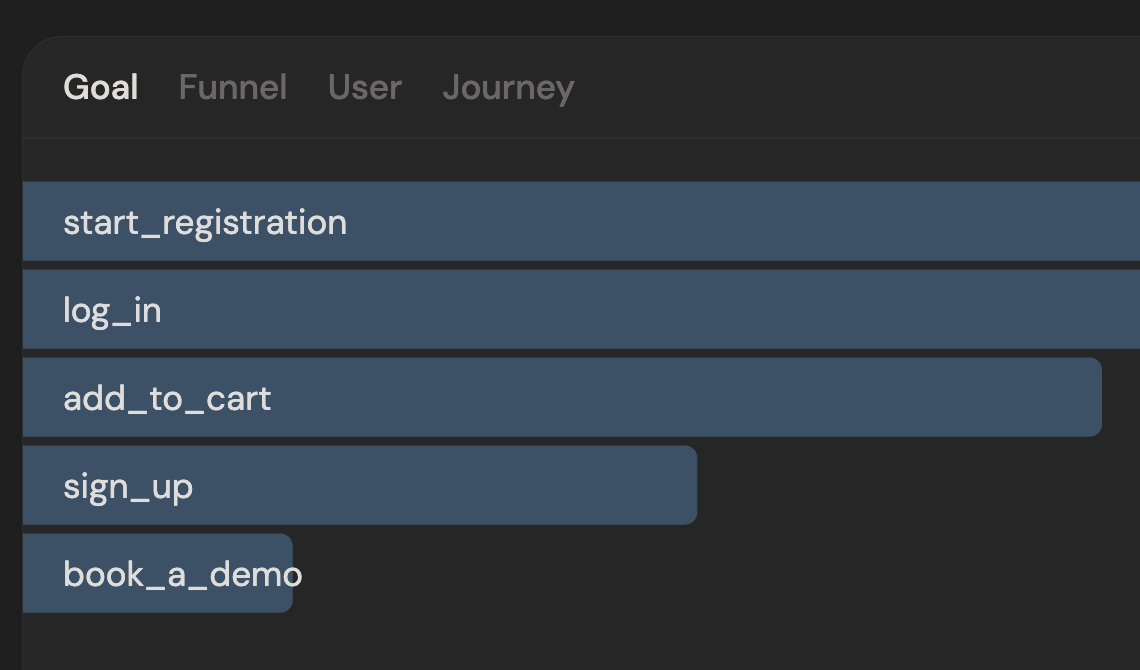
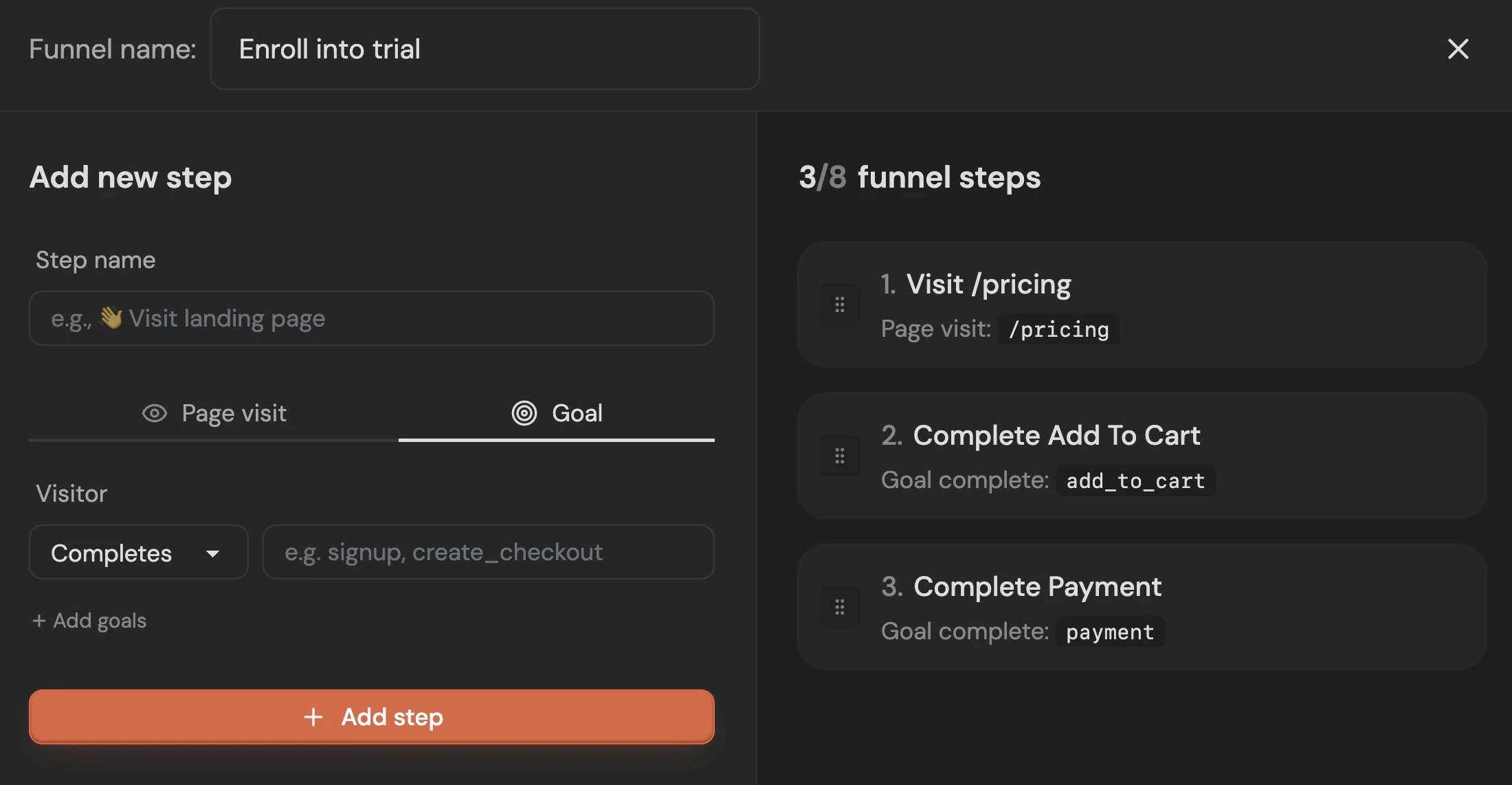
Once you have goals coming from Easytools (or you’ve configured your own), you can start building funnels by combining different goals and page visits:
You can also see individual user journeys across your pages: