Sometimes you want to email everyone except one group. For example, a course promotion shouldn’t reach people who already bought the course. In Easymail you do this with a filter in the Audience step: choose the list you’re sending to, then add a condition that the contact is not subscribed to the list you want to skip.
Exclude a list from a campaign
- Open the campaign and go to the Audience step (the campaign steps are Design, Audience and Schedule & send).
- In List contacts can unsubscribe from:, choose the list you’re sending to, such as “Newsletter”.
- Click + Add filter.
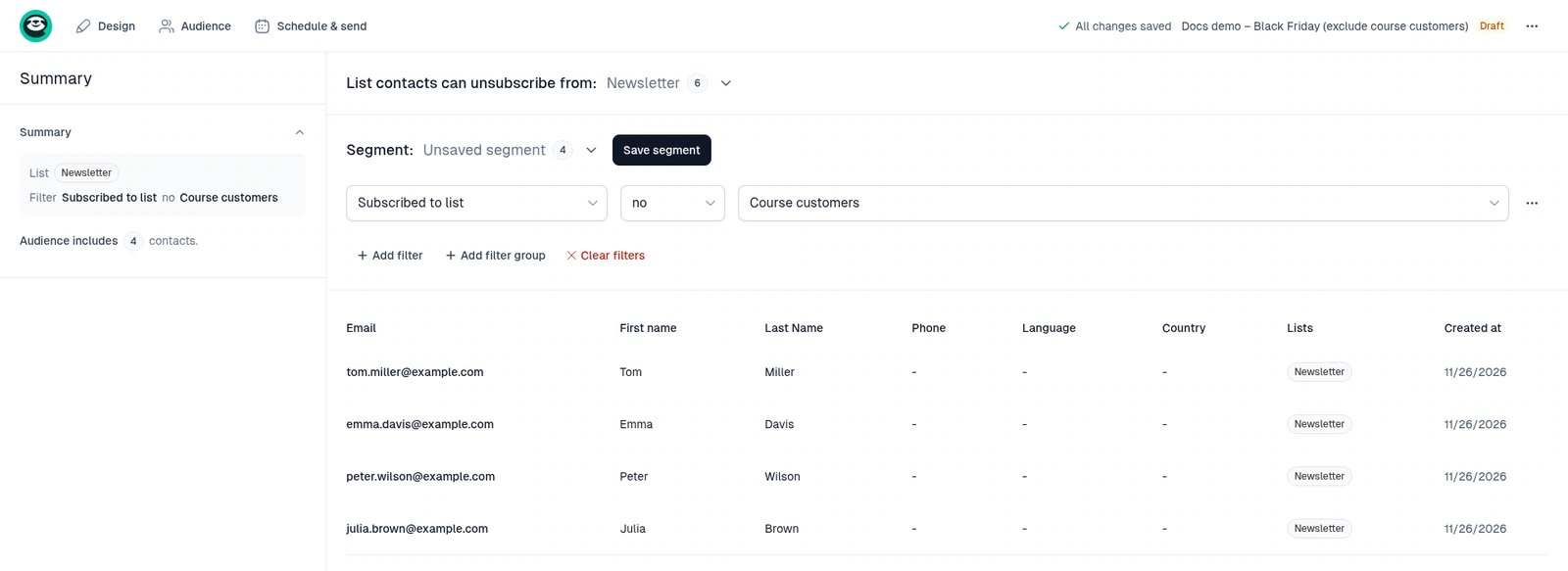
- In the first field choose Subscribed to list (in the Campaigns category), in the second no, and in the third the list you want to skip, such as “Course customers”.
- Below the filters, a table shows the contacts that match. Check the number of recipients in the Summary panel on the left, for example “Audience includes 4 contacts.”
- Click Next Step.
The campaign goes only to people on the chosen list who are not on the excluded list. Anyone on both lists won’t get the email.
Excluding several lists
Each filter excludes one list. To skip several lists, click + Add filter again and set the same condition (Subscribed to list · no) for the next list. Keep And between the filters (it’s the default). That way a contact drops out if they’re on any of those lists. Or does the opposite: a contact would only drop out if they were on all the excluded lists at once.
For more complex conditions, for example “contacts from Poland or Germany, but not course buyers”, use + Add filter group. Clear filters removes all filters at once.
Save the exclusion as a segment
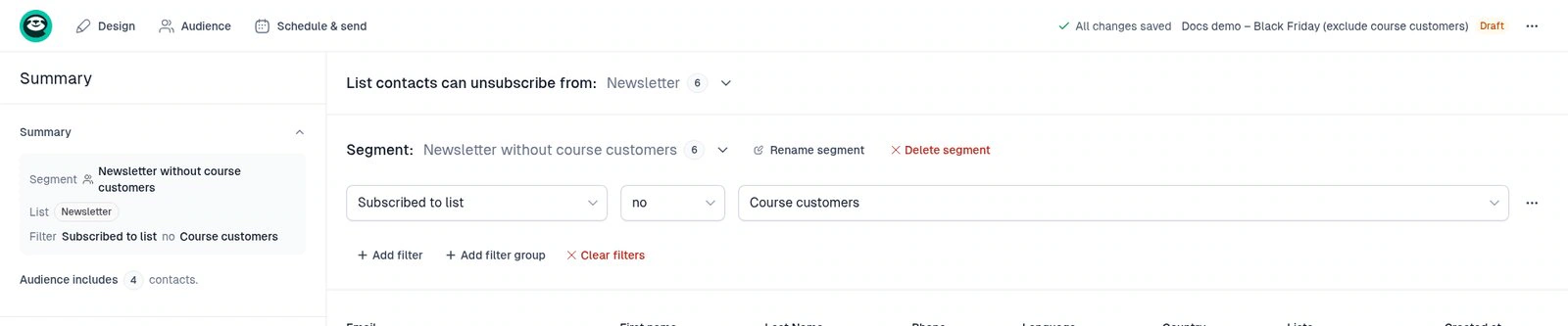
If you often email the same group, such as “Newsletter without course customers”, click Save segment and give it a name. In your next campaign, pick it in Segment: instead of setting up the filters again. While a saved segment is selected, you can use Rename segment or Delete segment next to it. Without a saved segment the field shows Unsaved segment, and All contacts means no extra conditions.
Segments are recalculated at the moment of sending. If someone joins the excluded list after you’ve prepared the campaign, they’re still skipped. If you edit a segment that’s also used in other campaigns, the panel warns you first.
Check the audience before sending
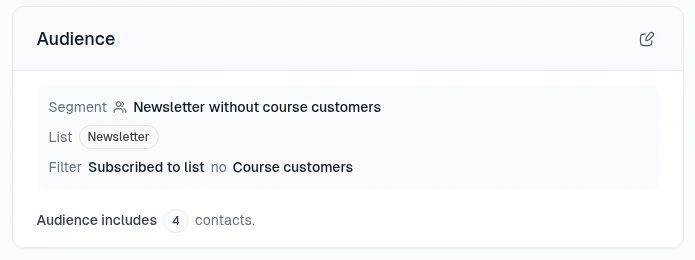
- In the Schedule & send step, check the Audience card. It shows the segment, list, filter and number of contacts.
- Unsubscribed and deleted contacts, and addresses on the suppression list after bounces or complaints, never get campaigns anyway. You don’t need to exclude them with a filter.
- Each person gets a campaign only once, even if they’re on several lists.
Read more in Contacts, lists and unsubscribes.
Excluding lists in automations
In automations it works the same way, through a segment. Create a segment with the condition Subscribed to list · no · list and use it in a filter or branch step. These steps are described in Automation actions.
FAQ
Q: Does excluding a list remove contacts from it or unsubscribe them? No. The filter only applies to this campaign. Contacts stay on their lists and keep getting your other campaigns.
Q: Can I exclude people who bought a product without a separate list? Yes. Instead of the list condition, use Has access to product (in the Product access category) set to no. To skip everyone who has bought anything, use Has any orders (in the Orders category).
Q: Someone on the excluded list got the email. Why? Check that the filter was set to no rather than yes, that the filters were joined with And, and that the contact was on the excluded list at the moment of sending. What counts is the state of your lists when the campaign is sent, not when it was prepared.
See also: Easymail campaign editor, Contacts, lists and unsubscribes, Automation actions.