A free lesson is a sample of your course. You protect the course with a paywall and mark selected lessons as free. Anyone who opens your course can watch them with no purchase and no login. They see the remaining lessons in the list with a padlock, and can buy the full course straight away.
Free lessons make sense in a course connected to an Easycart product. A course without a paywall is fully open to everyone. To protect it, see Secure access to your player.
How to mark a lesson as free
- In the Easytools dashboard, open Courses and pick your course.
- In the vertical icon bar on the left of the editor, click Lessons.
- Click Add lesson, or click a lesson in the list to open Edit lesson.
- Under Name, turn on Free lesson. Below it are the other lesson fields: Lesson type, Lesson text, Duration and Description.
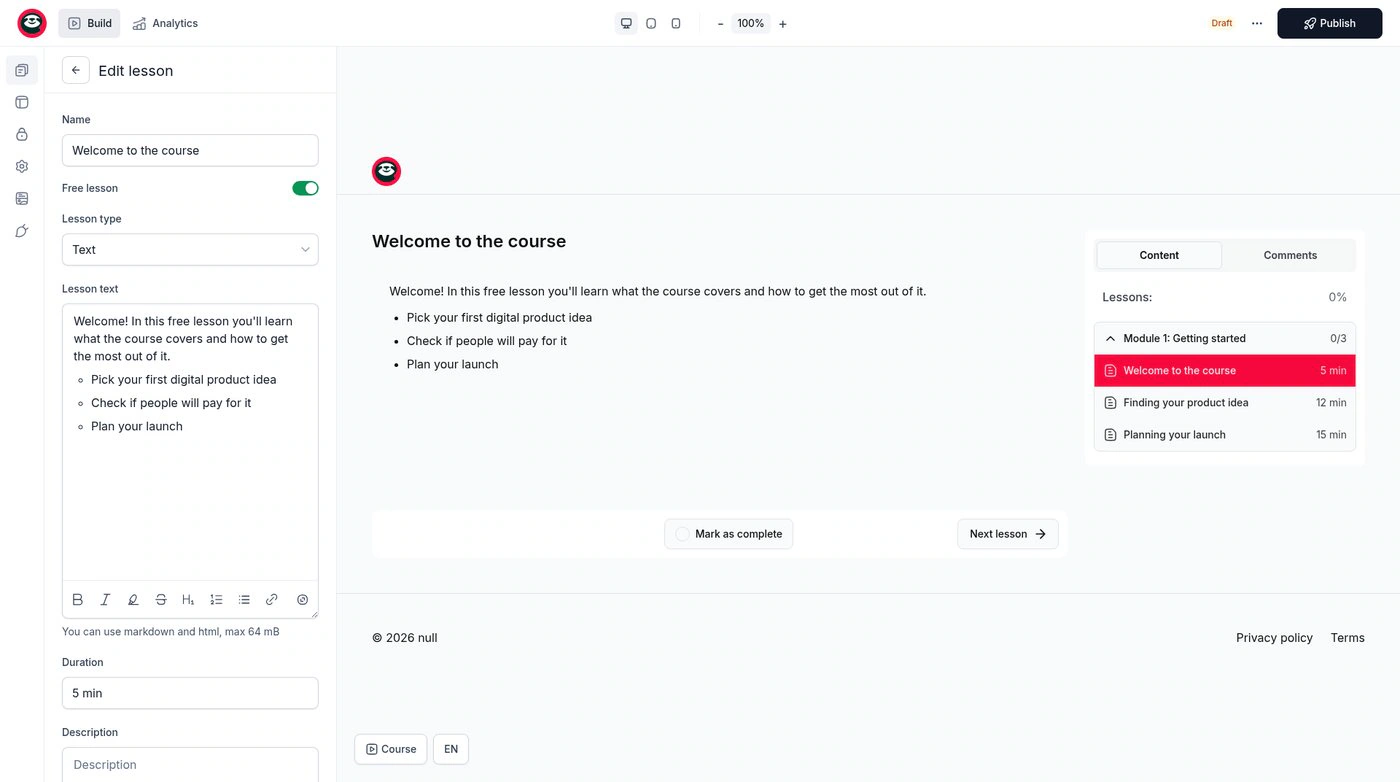
In the lesson list in the editor, a free lesson has a green open-padlock icon. Paid lessons have no badge. You can have more than one free lesson. Turn the toggle on for each of them separately.
Headers (module titles) don’t have the toggle. A free lesson is always a single lesson, not a whole module.
Publish your course
Visitors only see free lessons in a published course. Until the course is published, the top of the editor shows the Draft status and a Publish button. Click it. The button turns into a greyed-out Published, and Share and View site appear next to it, so you can copy or open the course link.
If you change a lesson in a course that’s already published, for example by turning Free lesson on or off, click Publish again. Students only see the change after you do.
What people without access see
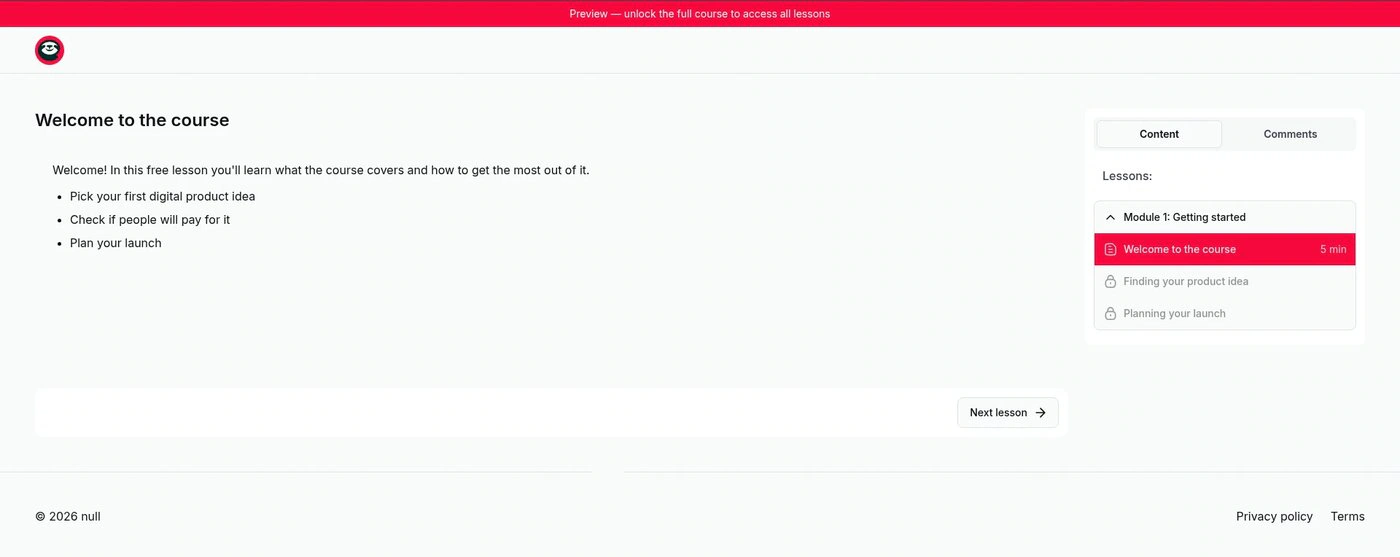
Someone who hasn’t bought the course sees it in preview mode, even if they aren’t logged in:
- A bar at the top of the page saying “Preview - unlock the full course to access all lessons”. Clicking it takes them to buy the course.
- The full lesson list. Free lessons are open, and the rest have a padlock icon, so it’s clear what the course offers after purchase.
- The content of free lessons, exactly as buyers see it, with a Next lesson button.
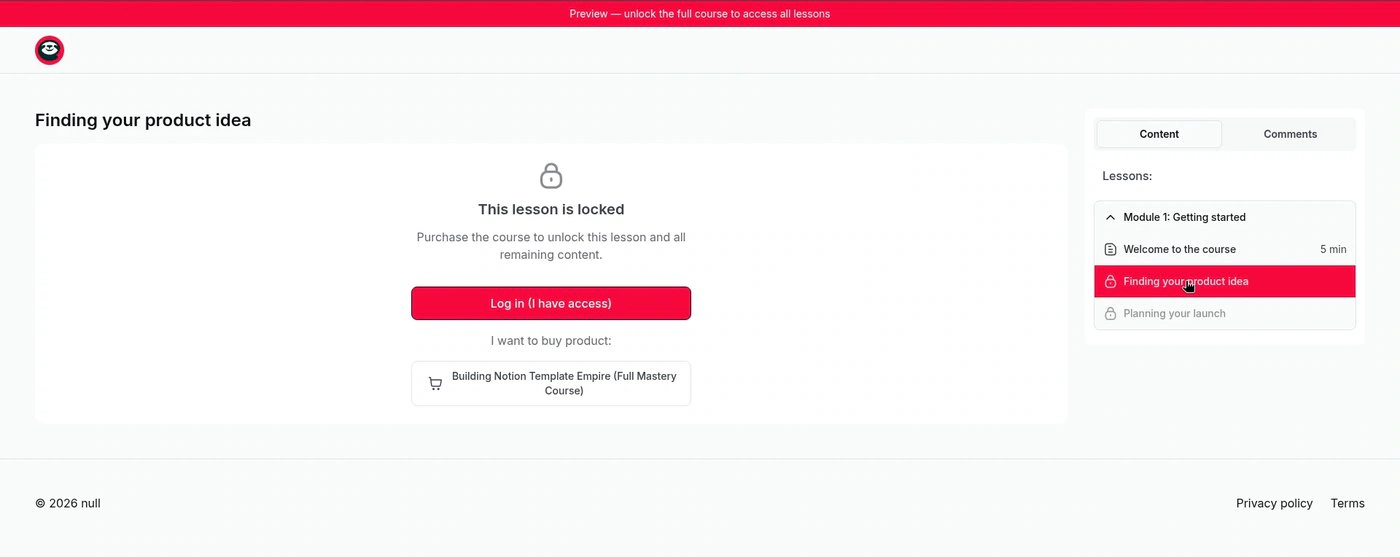
When they click a locked lesson, they see the This lesson is locked card instead of the content, with “Purchase the course to unlock this lesson and all remaining content.” Below it:
- a Log in (I have access) button for someone who bought the course but isn’t logged in yet. A logged-in person without access sees “Logged in as: [email] however, user does not have access to this product” and a Log in to another account button instead,
- I want to buy product: with a button for each product in the Paywall tab. Each one goes straight to checkout.
After purchase, the whole course unlocks, and the preview bar and padlocks disappear.
Good to know
- A visitor who isn’t logged in sees a Track your progress pop-up when they open the course: “Log in or register with easy_ to record your progress in this course.”, with Dismiss and Register / Login. After dismissing it, they can keep watching free lessons.
- If comments are on in the course, people without access can read them in the Comments tab. To post, they need to log in (Log in to comment). Read more in Lesson comments in Easyplayer.
- A free lesson with Delayed start or Available until set behaves like any other scheduled lesson. It follows the schedule: it can’t be opened before release or after expiry.
- You can also turn a free lesson on or off through the Easytools API or the MCP server, with the lesson’s
is_freefield.
For more on setting up a course, see Create and manage your own player, Sell access to video courses and infoproducts and Customize your player.