One Easypage project can hold a home page and as many subpages as you need, such as “Services”, “About”, “Contact” or “Terms”. Each subpage has its own URL and its own sections.
How to add a subpage
- In the left menu, expand Sites and choose Websites. Open your project. To create a new one, click New website, enter a Project name and click Create. A new project starts with the “Generate a product page in a few steps” wizard, which you can skip with Skip generator.
- In the editor, click the first icon in the left rail. The Pages panel opens with the project’s pages. The home page is marked with a house icon.
- Click + New page. In the Add page window, enter a name such as “About”. The URL fills in from the name (for example
about), and a URL preview appears below the fields. You can change the URL. - Click Create page. The button becomes active once you enter a name.
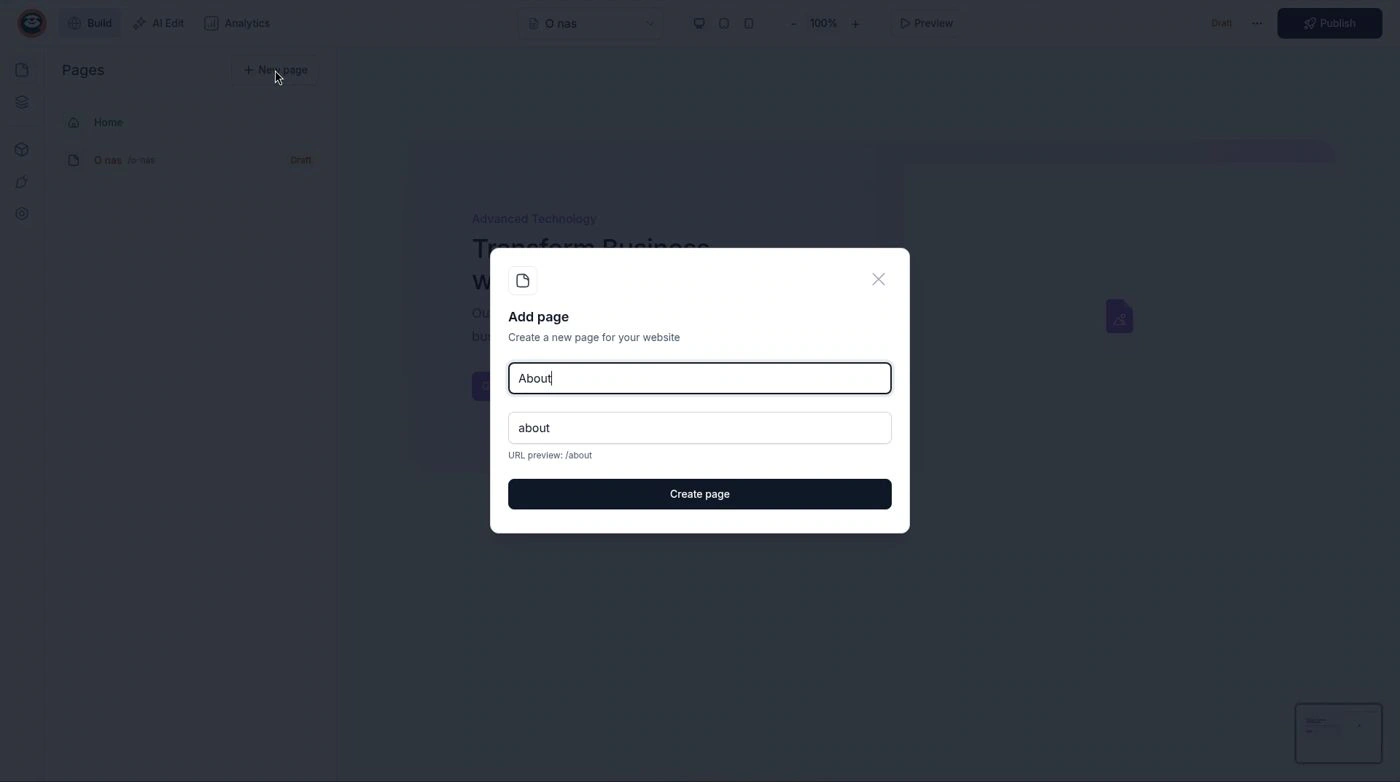
The editor switches to the new subpage right away, and it shows up in the Pages panel with its name and URL, for example “About” /about. Switch between pages in this list or with the page dropdown in the editor’s top bar. The sections of the open page are under the second icon in the left rail.
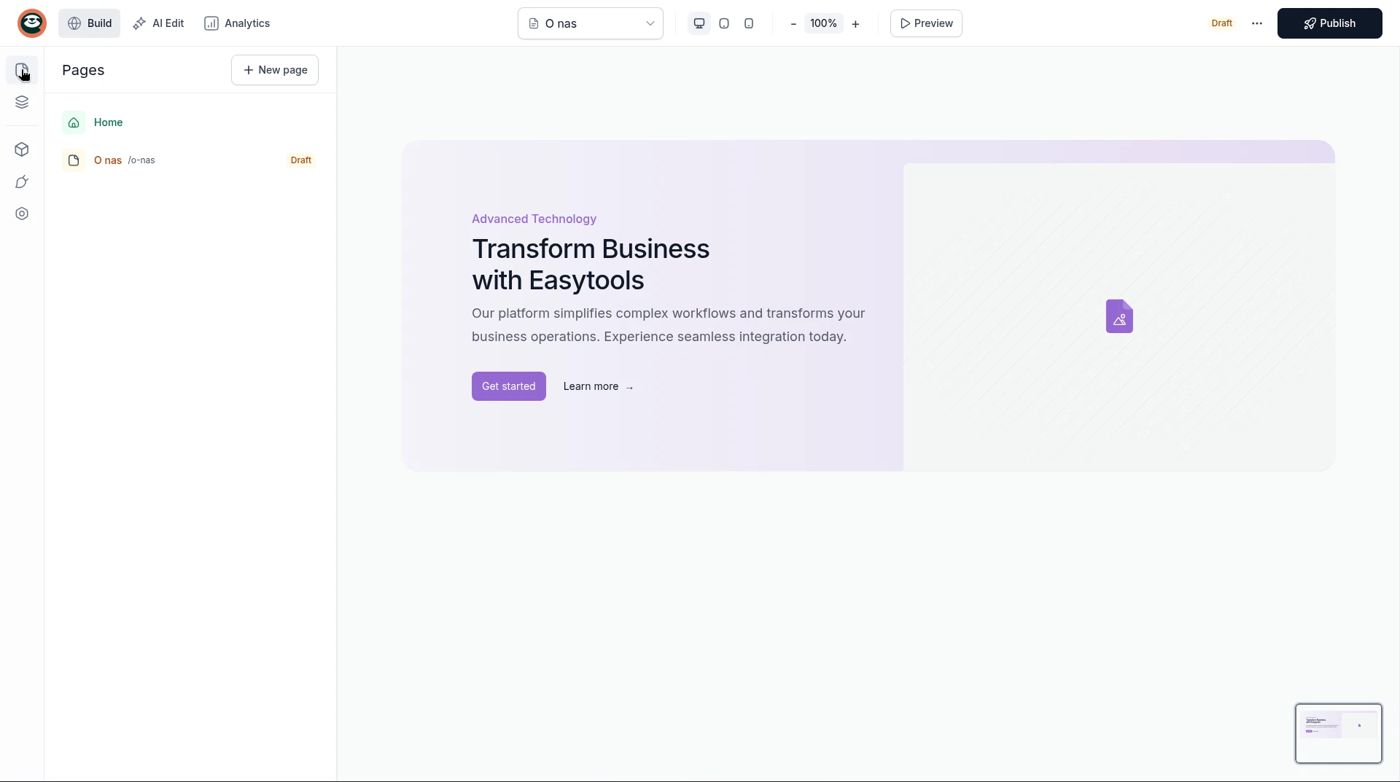
Subpage URL
A subpage lives at your site’s address plus its own URL ending. If your project has a custom domain, subpages work on that domain automatically, for example yourdomain.com/offer or yourdomain.com/contact. You connect a domain in the project settings (Custom domains). See Custom domain for the steps.
A domain can be connected to only one project. To keep several pages on one domain, create them as subpages of one project, not as separate websites.
Renaming a subpage or changing its URL
- In the Pages panel, click … next to the subpage and choose Edit.
- In the Edit page window, change the name or the URL.
- Click Save changes.
- Renaming a subpage doesn’t change its URL. Once you edit the URL by hand, it stops following the name.
- If the URL is taken or invalid, you’ll see an error on the field. For a taken URL, the system may add a suffix such as
-2. - You can’t change the URL while AI is generating the subpage.
Important: after you change a subpage URL, the old URL stops working and there’s no redirect. Update links to that subpage outside Easypage, for example in emails, ads and bios.
Linking to subpages and sections
Buttons can link to another subpage or to a specific section on any subpage.
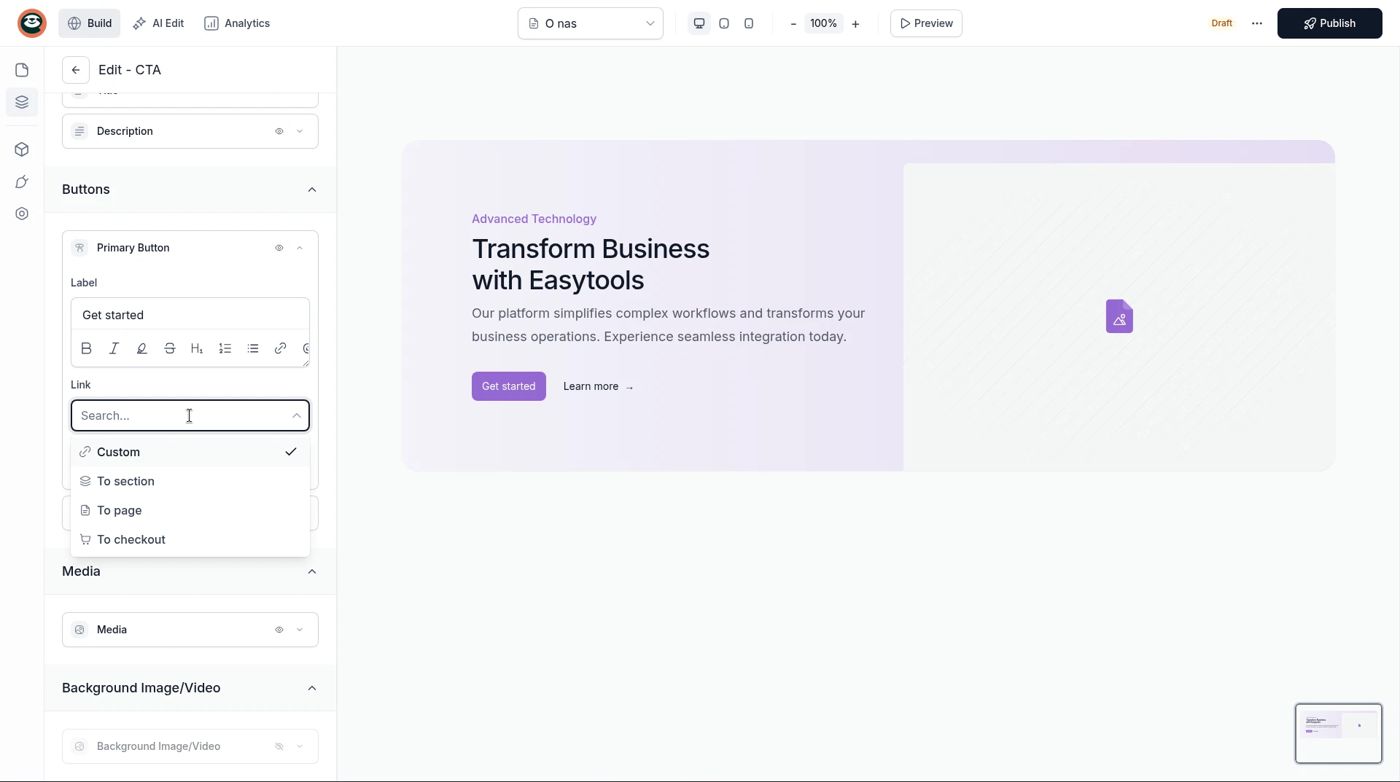
- Click the section with the button. The section editor opens on the left (for example Edit - CTA) with the Content, Style and Layout tabs.
- On the Content tab, under Buttons, expand the button (for example Primary button). It has a Label and a Link field.
- In Link, pick a type. To page lists every page in the project, subpages included. To section lists sections grouped by page. The other types are Custom (any URL) and To cart.
Title, description and share images
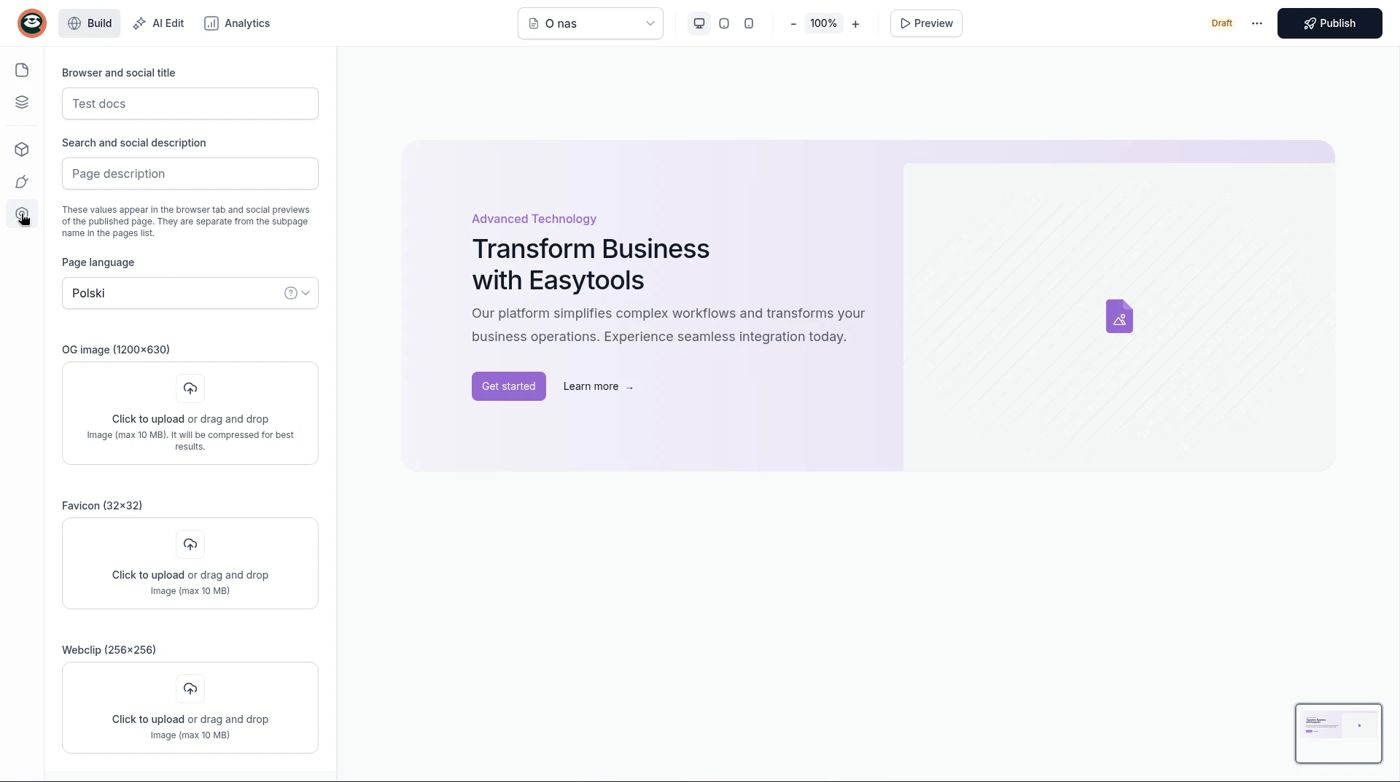
Set the title, description and share images in the project settings, under the fifth icon in the left rail. There you’ll find:
- Browser and social media title and Search and social media description,
- Page language,
- OG image (1200×630), Favicon (32×32) and Webclip (256×256), the phone home-screen icon,
- Custom domains, Custom code and Analytics.
These values appear in the browser tab and in social link previews of the published site.
Shared sections: components
A section that repeats on many subpages, such as the menu, footer or a call-to-action banner, can be saved as a component.
- Open the section list (second icon in the left rail) and click … next to the section.
- Choose Save as component.
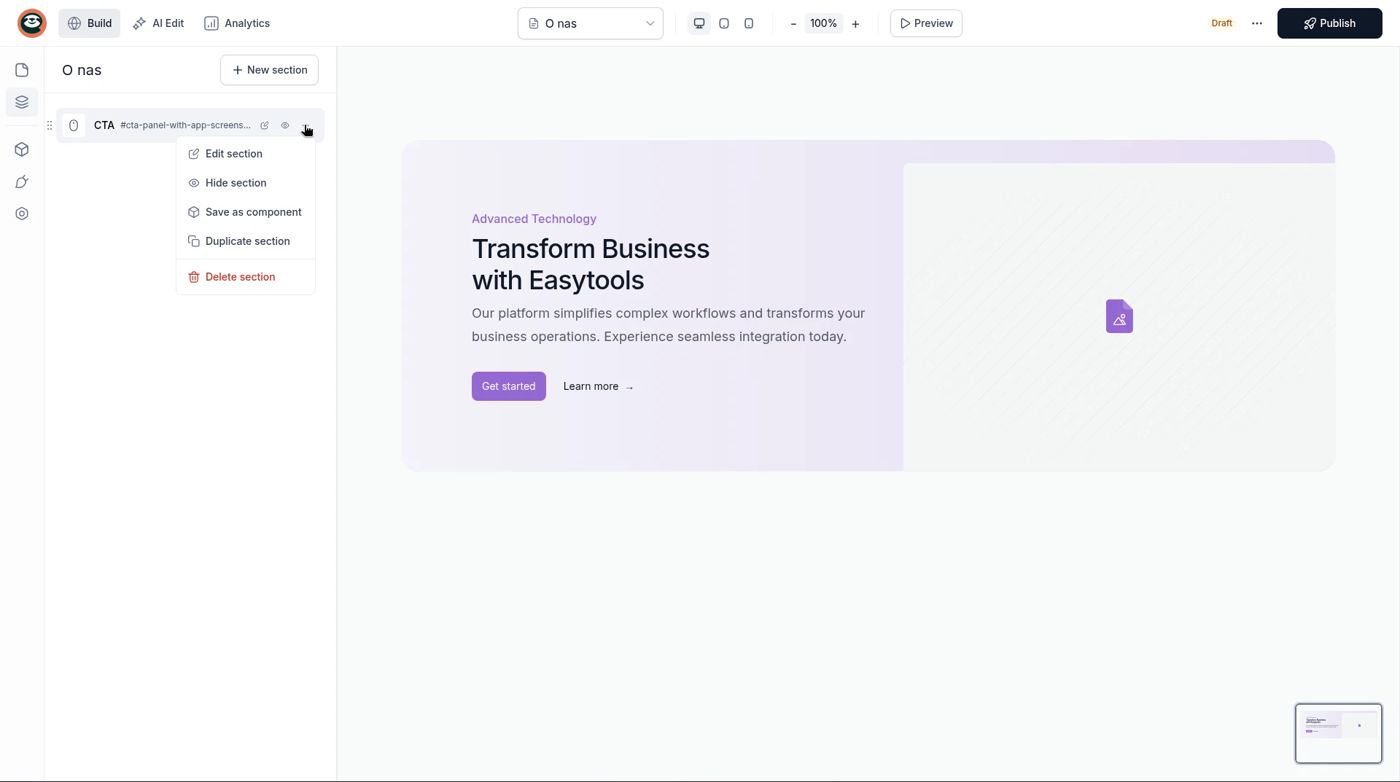
The same menu also has Edit section, Hide section, Duplicate section and Delete section.
Contact and signup forms also work on subpages and inside components.
Publishing
Publish the project with Publish in the editor’s top-right corner. Check the page in Preview in the top bar first.
Duplicating the whole site and copying one subpage
- A duplicated website includes all subpages, their sections and components, and internal links point to the new copy.
- If you change the whole site’s address, we update internal links automatically.
- To copy a single subpage, click … next to it in the Pages panel and choose Clone.
Deleting a subpage
In the Pages panel, click … next to the subpage and choose Delete.
Important: make sure you don’t delete the whole website. Deleting the project from the list in Sites → Websites removes the home page and every subpage.
FAQ
Do subpages count toward the domain limit? No. The limit applies to connected domains, and all subpages of one project run on its domain.
See also: How to use Easypage, Edit with AI in Easypage, Custom domain.