Comments turn your course into a conversation. Students ask questions on a specific lesson, answer each other and tag other members. You see everything in one place and reply as the course author.
How to turn on comments
Comments are off by default. You turn them on separately for each course.
- In the Easytools dashboard, open Courses and pick your course.
- In the vertical icon bar on the left of the editor, click the Settings icon (the gear).
- In the Comments section, turn on Comments on lessons.
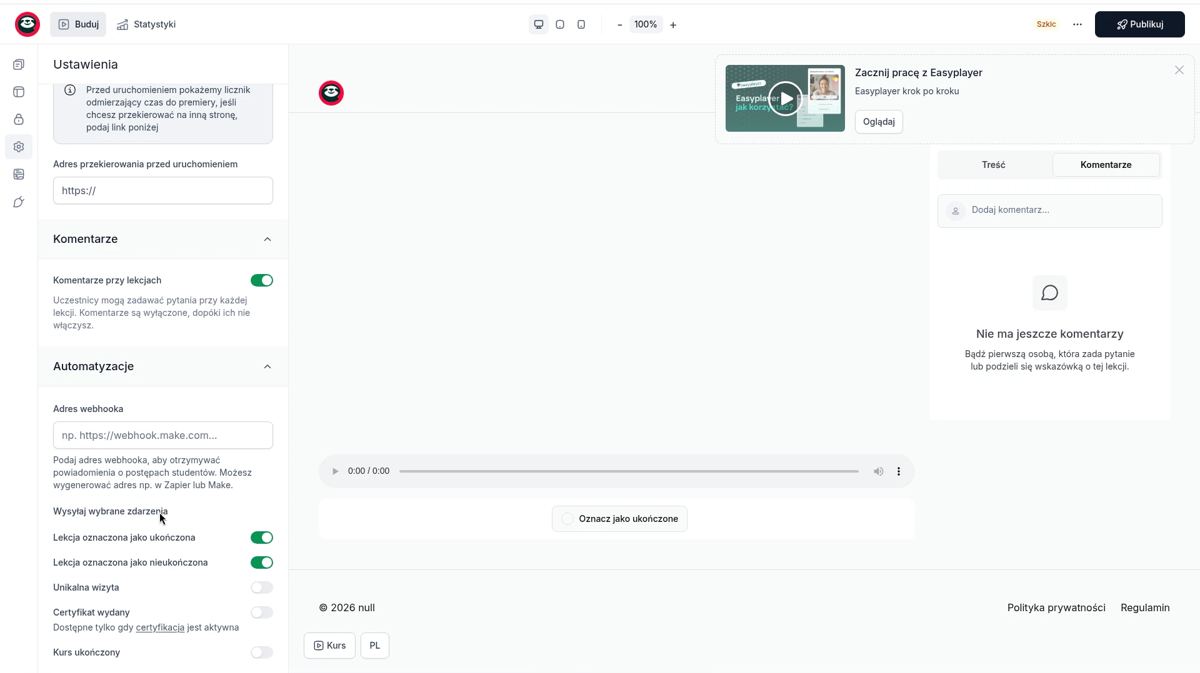
The change saves straight away, and there is no separate save button. The preview on the right instantly shows the sidebar with the Content and Comments tabs.
Under the toggle you will see: “Students can ask questions on every lesson. Comments stay off until you turn them on.” When you turn the toggle off, comments disappear from the course.
Good to know: the top of the course editor has only two tabs, Build and Stats. Everything else opens from the icons in the left bar. In order, they open the Lessons, Layout, Paywall, Settings, Certificates and Styles panels.
What comments look like in your course
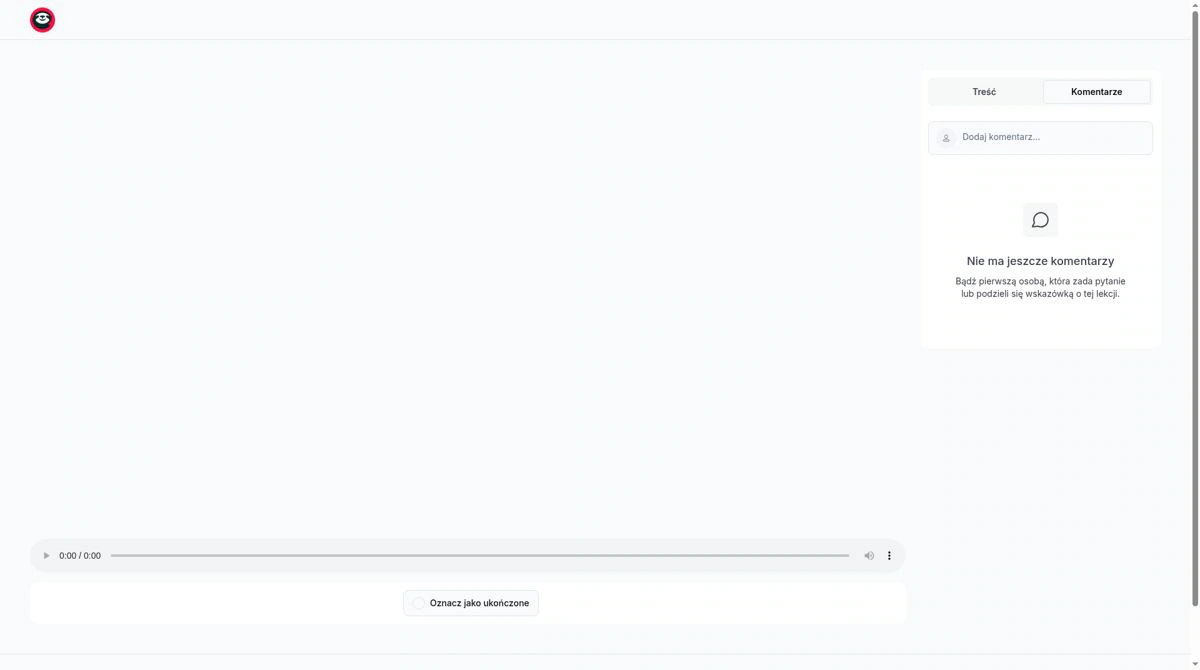
With comments on, the course sidebar gets two tabs:
- Content: the Lesson list with the student’s progress,
- Comments: the conversation on your lessons.
Students type a question in Add a comment… and send it with the icon next to the field. A comment can be up to 4,000 characters. Until someone posts on a lesson, the tab shows No comments yet and the prompt “Be the first to ask a question or share a tip about this lesson.”
Once there are comments, students can use the Comments tab to:
- Reply to a question and expand the thread (View thread / Hide replies),
- like a comment,
- mention someone by typing @ and picking them from the list,
- sort comments by Newest, Oldest, Most liked or Most replies,
- tick This lesson only to see only the current lesson’s comments.
To comment, students need to be logged in and have access to the course. Visitors who are not logged in see Log in to comment. If someone loses access to the course, they can no longer post.
Replying and moderating as the course author
Your comments carry a Course author label, so students can spot your answers right away. From the comment menu (Comment actions) you can:
- Mark as best answer: the question gets a Solved status and the reply a Best answer label. Undo it with Unmark as best answer.
- Delete: this cannot be undone. Deleting a question also removes every reply.
Important: deleting a lesson in the Lessons panel permanently deletes all of its comments. You will see a warning with the comment count first.
Course profile
Every member of the course, you included, has a Course profile. In it you can set:
- a Display name, shown next to posts and replies,
- Show profile photo: when it is off, others see your initials,
- notification preferences.
Notifications
Notifications arrive in app (live, with no page refresh, in the course’s Notifications panel) or by email. You turn each type on or off in Course profile → Notifications. You can also get there from the notifications panel or the Notification settings button in the email.
| Activity | When | Default |
|---|---|---|
| Replies to me | Answers to my questions | in app + email |
| Mentions | When someone tags me | in app + email |
| Solutions | When my question is marked as solved | in app |
| Reactions | When my comment is liked or marked as best answer | in app |
| New questions | Any new question in the course | course author: in app + email; students: off |
So as the course author you get an email about every new question by default, and nothing slips through. The Notifications panel has an Unread only toggle, and the new-question email has View question and Notification settings buttons.
Good to know
- A comment can be at most 4,000 characters.
- You can also pull comments through the Easytools API, for example to build a list of unanswered questions.
- For more on setting up your course, see Create and manage your player, Customize your player and Secure access to your player.